# Mampu AI Docs - Full Documentation
Product and company overview (pricing, industries, comparisons): https://mampuai.com/llms.txt
---
## Welcome to Mampu AI
URL: https://help.mampuai.com/
# Welcome to Mampu AI 🌟
**Mampu AI** is an omnichannel AI customer-conversation platform for Malaysian businesses — one shared inbox for WhatsApp, Facebook, Instagram, Telegram, website chat and more, with AI agents that reply instantly, capture leads and hand over to your team when it matters.
This Help Centre walks you through everything: setting up your account, connecting channels, building AI flow agents, sending blasts and reading your reports.
## Start here
* [Getting started: Home dashboard](/getting-started/getting-started-home-dashboard)
* [Completing the setup checklist](/getting-started/completing-the-setup-checklist)
* [Connecting your first channel](/getting-started/connecting-your-first-channel)
* [Building your first AI agent](/getting-started/building-your-first-ai-agent)
## Popular topics
* [Managing conversations](/conversations/managing-conversations)
* [Creating a flow agent](/flow-agents/creating-a-flow-agent)
* [Connecting a WhatsApp inbox](/settings/connecting-a-whatsapp-inbox)
* [WhatsApp blasting](/campaigns/whatsapp-campaigns)
* [Reports and analytics](/reports/reports-and-analytics)
* [Drive your Mampu AI account with an AI coding agent](/ai-agents/drive-your-account-with-an-ai-coding-agent)
## Need help?
* [Finding answers & getting support](/introduction/finding-answer-get-support)
* Chat with us on [WhatsApp: +60 11-3735 5499](https://wa.me/601137355499)
* Explore plans at [mampuai.com/pricing](https://www.mampuai.com/pricing)
---
## Finding Answer/Get Support
URL: https://help.mampuai.com/introduction/finding-answer-get-support
---
description: >-
If you encounter any issues while using Mampu AI, you can find solutions and
troubleshooting guides on our documentation site. Here’s how you can search
for help:
---
# Finding Answer/Get Support
## 1. AI Search for any question
* Use the search bar at the **top right** of the documentation page.
* Enter keywords related to your issue or error message.
* Hit Enter or click on the search icon.
## 2. Explore Documentation
* Browse through relevant articles and guides that appear in the search results.
* For issues with an AI agent, start with the [Troubleshooting](/ai-agents/troubleshooting) guide.
## 3. Follow Step-by-Step Guides
* If you find a relevant guide, follow the step-by-step instructions provided.
* Pay attention to any specific configurations or settings mentioned.
## 4. Contact Support (if needed)
* If you cannot find a solution or need further assistance, contact our support team directly on WhatsApp at [+60 11-3735 5499](https://wa.me/601137355499).
* Provide details about the issue you are facing and steps you have already taken.
{% hint style="info" %}
## Example Message for requesting assistance
Hi, team. My AI agent at https://chat.sapot.ai is not replying to customer messages as expected.
I already verified that the WhatsApp inbox is connected and the agent is active on that inbox.
Can you help me resolve this issue?
{% endhint %}
---
## Signing in and creating an account
URL: https://help.mampuai.com/getting-started/signing-in-and-creating-an-account
---
description: Create your Mampu AI account, verify your email, sign in with a password or Google, reset a forgotten password, pass the two-factor step, and clear the active-session limit.
---
# Signing in and creating an account
Mampu AI runs in your browser at **chat.sapot.ai**.
## Creating an account
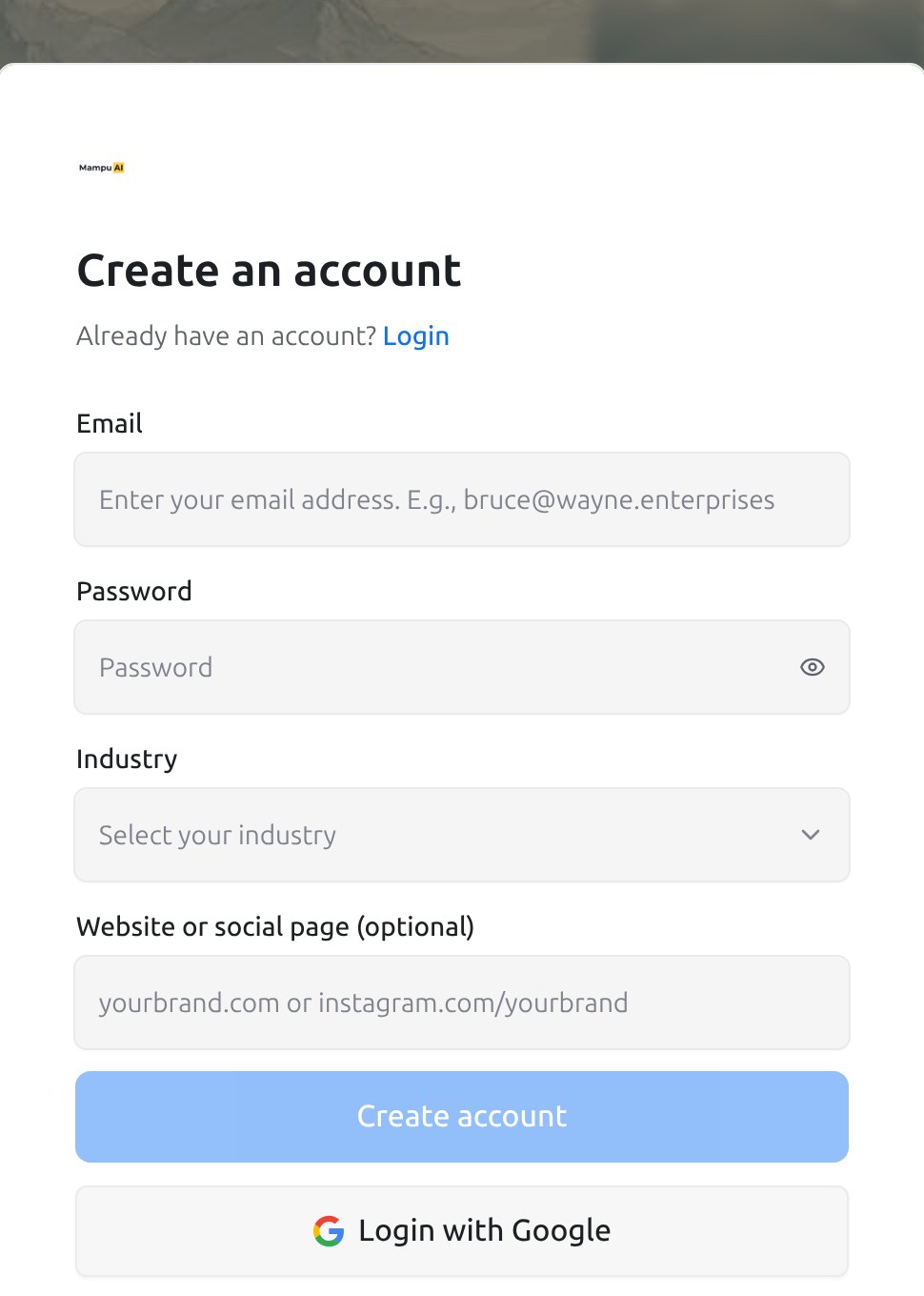
Open **chat.sapot.ai/app/auth/signup** or click **create a new account** on the sign-in page.
{ width="485" }
1. Enter your **Email** and a **Password**. The password needs at least 6 characters with an uppercase letter, a lowercase letter, a number and a special character; the list under the field ticks off each rule as you type.
2. Pick your **Industry** and, if you like, your **Website or social page (optional)**. Mampu AI uses them to prepare a first AI agent for you.
3. Click **Create account**, or **Login with Google** to create the account with your Google login instead.
4. **Check your inbox**: we send a verification link to the address you gave. Click it to open your new workspace. Use **Resend verification email** if it has not arrived after a few minutes; check the spam folder too.
Your name is taken from your email address to start with; change it any time under your profile settings. The first screens after sign-up walk you through a short demo and the setup checklist; see [Completing the setup checklist](/getting-started/completing-the-setup-checklist).
Teammates do not sign up on their own. An administrator adds them under **Settings → Agents**, and they receive an invitation email with a link to set their password. See [Managing agents and teams](/settings/managing-agents-and-teams).
## Signing in
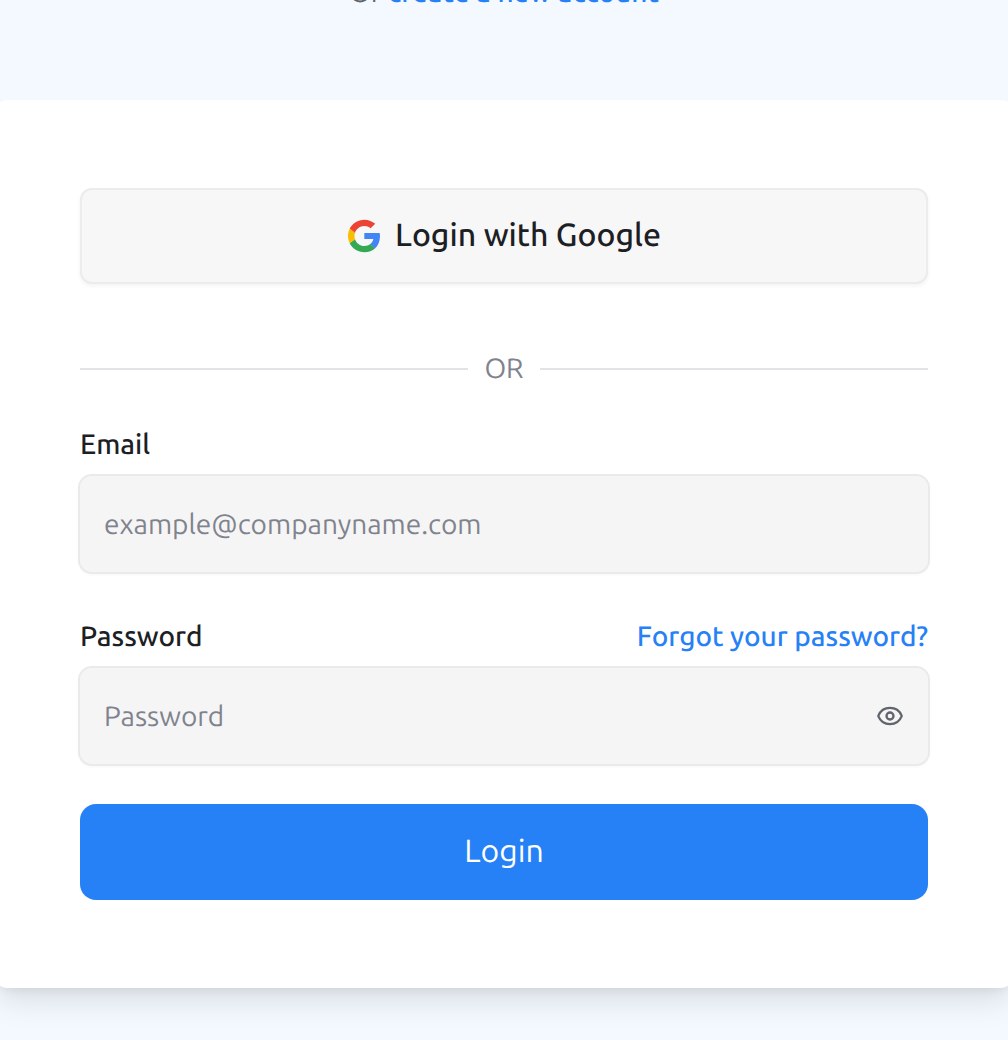
Open **chat.sapot.ai/app/login**.
{ width="504" }
* Enter your **Email** and **Password** and click **Login**, or click **Login with Google** if your account uses a Google login.
* If you belong to more than one workspace, you land in the last one you used; switch with the account switcher at the top of the sidebar.
* Your session stays signed in on that browser until you choose **Log out** from the menu behind your name, change your password, or revoke the session from another device.
## Forgot your password
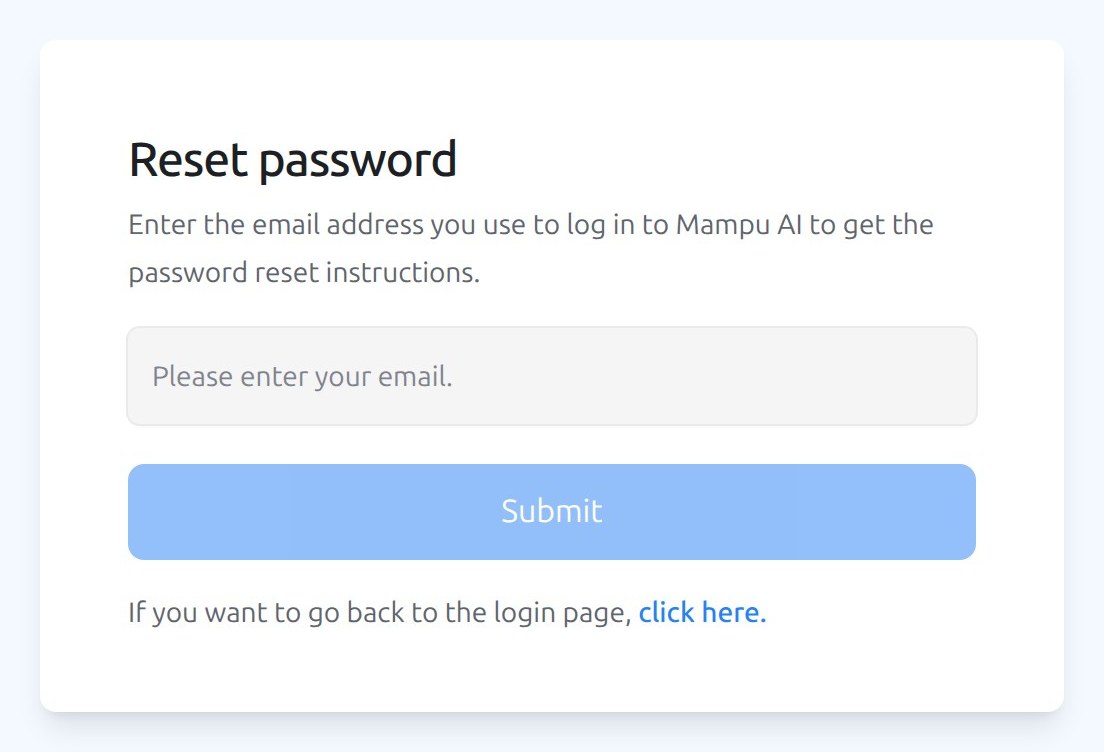
1. On the sign-in page click **Forgot your password?**
2. Enter your **Email** and click **Submit**. If the address has an account, a reset link arrives by email.
{ width="460" }
3. Open the link, enter a **Password** and **Confirm password** under **Set new password**, and click **Submit**. You are signed in straight away, and other devices are signed out.
Changing a password from inside the dashboard works the same way under your profile settings; see [Your profile and notifications](/settings/profile-and-notifications).
## The two-factor step
If you switched on two-factor authentication, the sign-in page asks for a second check after your password: **Two-Factor Authentication**, **Enter your verification code to continue**.
* **Authenticator App**: type the 6-digit code shown in your authenticator app and click **Verify**.
* **Backup Code**: click **Try another verification method** and enter one of the backup codes you saved when you set it up. Each backup code works once.
* **Cancel and return to login** goes back without signing in. **Learn more about 2FA** opens a short help panel.
If you have lost both the authenticator app and the backup codes, ask an administrator of your workspace to contact support; nobody can read or reset your codes for you from inside the dashboard.
## Active session limit reached
Each login has a limit on how many devices can be signed in at the same time. When you hit it, the sign-in page shows **Active session limit reached** with the list of signed-in devices and when each one **Started**. Click **End** on the ones you no longer use, or **End all sessions**, then **Log in**. You can also tidy sessions at any time under **Active Sessions** in your profile settings.
## Signing in on your phone
The mobile app uses the same email and password. See [Using the mobile app](/getting-started/using-the-mobile-app).
## Related
* [Completing the setup checklist](/getting-started/completing-the-setup-checklist)
* [Your profile and notifications](/settings/profile-and-notifications)
* [Managing agents and teams](/settings/managing-agents-and-teams)
* [Using the mobile app](/getting-started/using-the-mobile-app)
---
## Getting Started with the Home Dashboard
URL: https://help.mampuai.com/getting-started/getting-started-home-dashboard
# Getting Started with the Home Dashboard
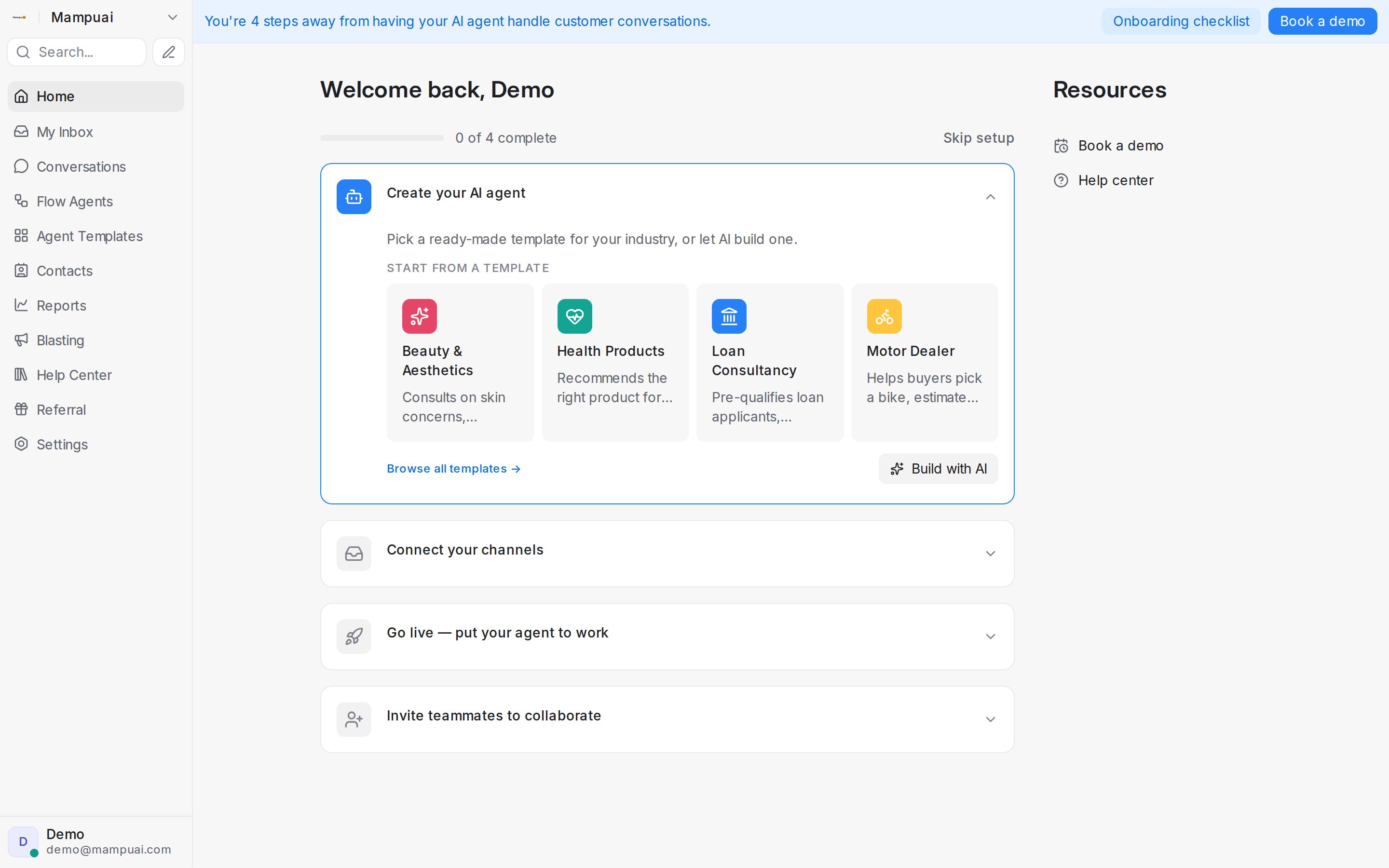
The **Home** screen is your starting point every time you log in. It greets you by name, shows how far along your setup is, and guides you through going live.
## Watch the walkthrough
{% embed url="https://youtu.be/wxbWTQ8IG9M" %}
From here you can:
* **Work through the setup checklist** — expandable steps that take you from creating your AI agent to going live and inviting your team. Each step opens right on the page, so you can act without hunting through menus.
* **Start from a template or build with AI** — pick a ready-made agent template for your industry, or describe your business and let AI draft a conversation flow for you.
* **Use the Resources panel** — book a demo or open the help center if you need a hand setting things up.
* **See what's new** — the What's New cards surface the latest product updates, with the full list on the changelog page.
Once your AI agent is live, Home becomes your daily summary: what needs you today and how the business did. See [Your daily summary on Home](/getting-started/your-daily-summary-on-home).
Use the left sidebar to move between the main areas of the product: Conversations, Flow Agents, Agent Templates, Contacts, Reports, Blasting, Help Center, and Settings.
---
## Completing the setup checklist
URL: https://help.mampuai.com/getting-started/completing-the-setup-checklist
# Completing the setup checklist
Right after you log in, the **Home** screen shows a setup checklist that takes your workspace live. Each step is an expandable card — click it to act right there, and your progress ("0 of 4 complete") updates as you go.
1. **Create your AI agent** — pick a ready-made template for your industry, or let AI build one from a short description of your business.
2. **Connect your channels** — bring WhatsApp, Facebook, Instagram, Telegram, email, and your website chat into one shared inbox, so your agent can answer everywhere your customers are.
3. **Go live — put your agent to work** — choose which inboxes your agent handles. It replies instantly 24/7, collects customer details, and hands off to your team when needed.
4. **Invite teammates to collaborate** — add your team by email as agents or administrators, so no conversation is missed.
Until setup is complete, a reminder banner keeps the checklist one click away wherever you are. Prefer to configure things yourself? Click **Skip setup**.

---
## Your daily summary on Home
URL: https://help.mampuai.com/getting-started/your-daily-summary-on-home
---
description: Once your AI agent is live, Home shows what needs you today and how the business did, so you can start each day in one place.
---
# Your daily summary on Home
Once your AI agent is live, the **Home** screen becomes your daily summary for administrators. It lists what needs a person today under **Needs you**, and shows how the business did under **How the business did**. The first time you open Mampu AI each day, it opens on Home; after that it opens on Conversations as usual. The **Open today's summary** button in the morning lead report email brings you here too.
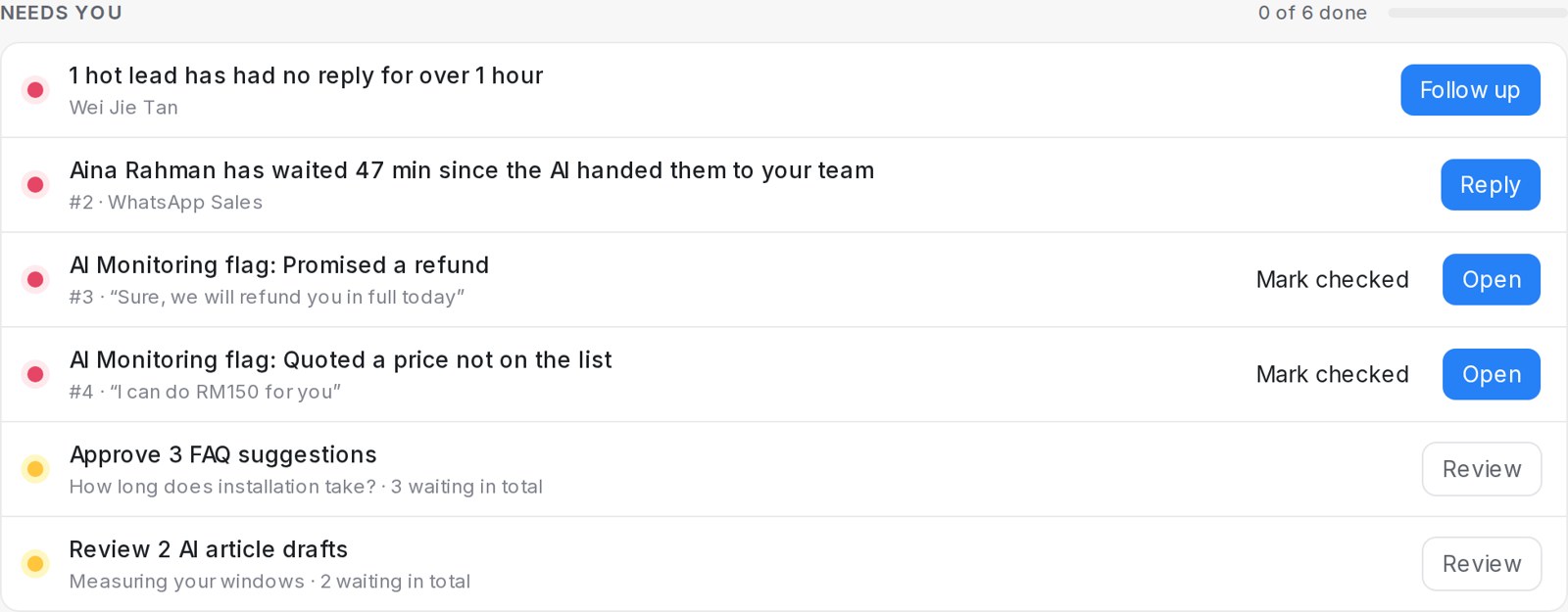
## What shows up in Needs you?
Each row is one thing to act on, the most urgent first, with the button that does the job:
* **A customer has waited since the AI handed them to your team.** Customers wait here once 30 minutes have passed without a reply from a person. Click **Reply** to open the conversation.
* **Hot leads have had no reply for over 1 hour.** Click **Follow up** to open the lead report.
* **AI Monitoring flags.** A reply the AI Monitoring scan flagged, with the quote. Click **Open** to see the finding, or **Mark checked** once you have looked at it.
* **FAQ suggestions to approve.** Up to five a day, so a long list stays doable. Click **Review** to approve them in Knowledge.
* **AI article drafts to review** for your help center. Click **Review** to open the drafts.
Hot leads and flags appear when AI Monitoring is on for your workspace. A long list scrolls inside its box, so the rest of Home stays on screen.
## How does a row get ticked off?
A row ticks itself off once it is handled, and shows **Handled** with the time:
1. A customer who was waiting gets a reply from someone on your team.
2. The FAQ suggestions or article drafts of the day are approved or published.
3. A flag is marked checked here, or marked incorrect on the **AI Monitoring** findings page. A flag you checked stays checked the next day.
The progress bar counts the rows done, for example **2 of 5 done**. When nothing is left, Home says **You're all caught up for today**. Everyone on your team sees the same list, so a row cleared by one teammate is cleared for all.
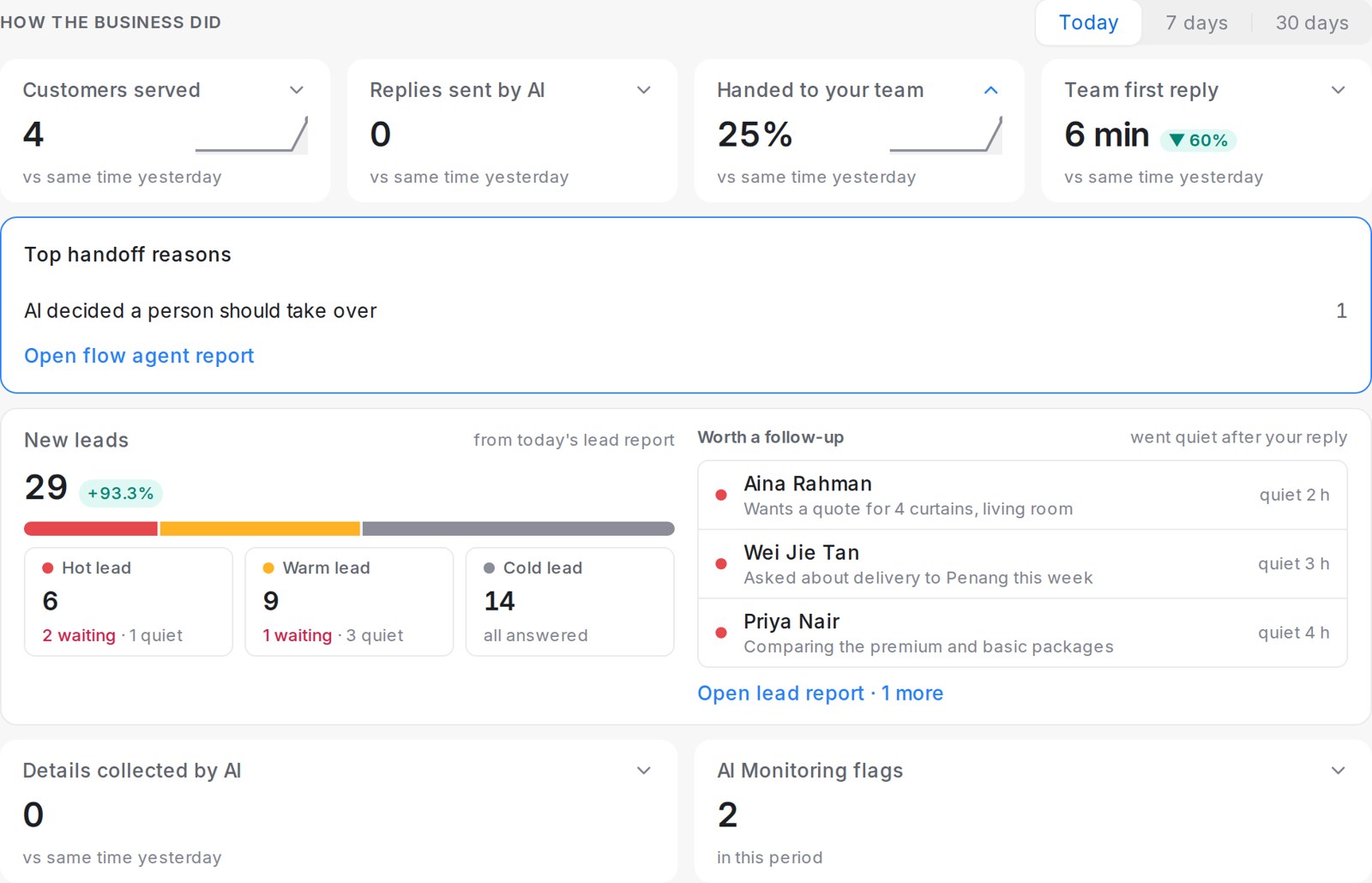
## What does How the business did show?
Pick **Today**, **7 days** or **30 days**. Today compares with the same hours yesterday; 7 and 30 days compare with the period before.
* **Customers served** and **Replies sent by AI** — how much your AI agents handled.
* **AI done** — the share of conversations where your AI agent finished the flow: it reached a handover step you built into the flow, or a closing step where the flow ends. A conversation that fell through to the flow's default hand-off does not count here.
* **AI passed to your team** — the share of conversations your AI agents passed to a person before the flow was done, for example when a customer asked something the flow does not cover, or when a step had nowhere to go and the flow fell through to its default hand-off. A rise of more than 10 points shows **Check**.
* **New leads** — the latest daily lead report in brief: new leads by level, who is still waiting for a reply, who went quiet, and the leads worth a follow-up.
* **Details captured by AI** — how many details customers gave your AI agents in the flow's questions, such as a preferred date, company name or website.
* **Team first reply** — the average time until your team first replies to a customer.
* **AI Monitoring flags** — flags raised in the period.
Details captured by AI, Team first reply and AI Monitoring flags sit beside the lead report. Click the arrow on a tile to see what is behind the number, with a link to the full report. Home fits on one screen on a laptop and spreads across a wide monitor; on a phone the tiles sit two to a row.
## Which plans include the lead report and the flags?
Home is on for every workspace. Once an AI agent is assigned to an inbox, administrators see the daily summary; until then Home shows the setup checklist, with **Go live — put your agent to work** as the open step.
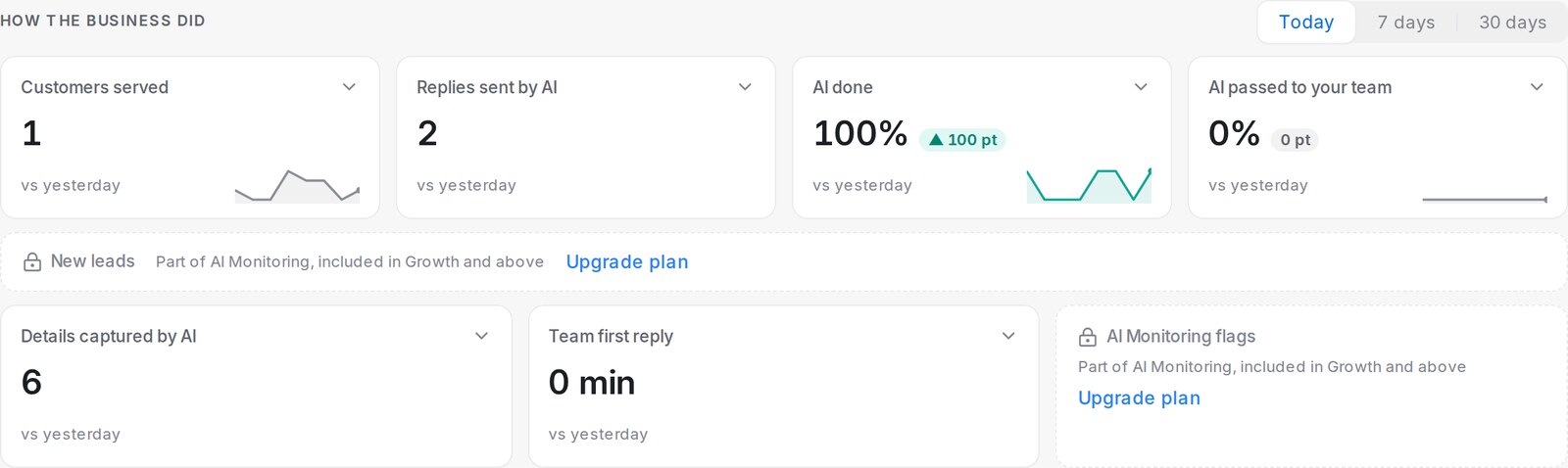
The lead report under **New leads** and the **AI Monitoring flags** tile come with AI Monitoring, which is included in the Growth plan and above. On a plan without it, both stay in their place greyed out, with the line **Part of AI Monitoring, included in Growth and above** and an **Upgrade plan** link that opens **Settings → Billing**. Everything else on Home works the same on every plan.
## Related
* [Getting Started with the Home Dashboard](/getting-started/getting-started-home-dashboard)
* [Lead temperature](/conversations/lead-temperature)
* [Reports and analytics](/reports/reports-and-analytics)
---
## Connecting your first channel
URL: https://help.mampuai.com/getting-started/connecting-your-first-channel
# Connecting your first channel
To start receiving messages, connect a channel by creating an **inbox**. Go to **Settings → Inboxes**, click **Add Inbox**, and choose a channel type:
* Website live chat
* WhatsApp (Business App or API)
* Facebook Messenger & Instagram
* Email
* SMS, Telegram, and more
## Watch the walkthrough
{% embed url="https://youtu.be/teTjpe3aCGg" %}
Follow the on-screen steps for the channel you pick. Once connected, messages from that channel arrive in your **Conversations** inbox.

---
## Building your first AI agent
URL: https://help.mampuai.com/getting-started/building-your-first-ai-agent
# Building your first AI agent
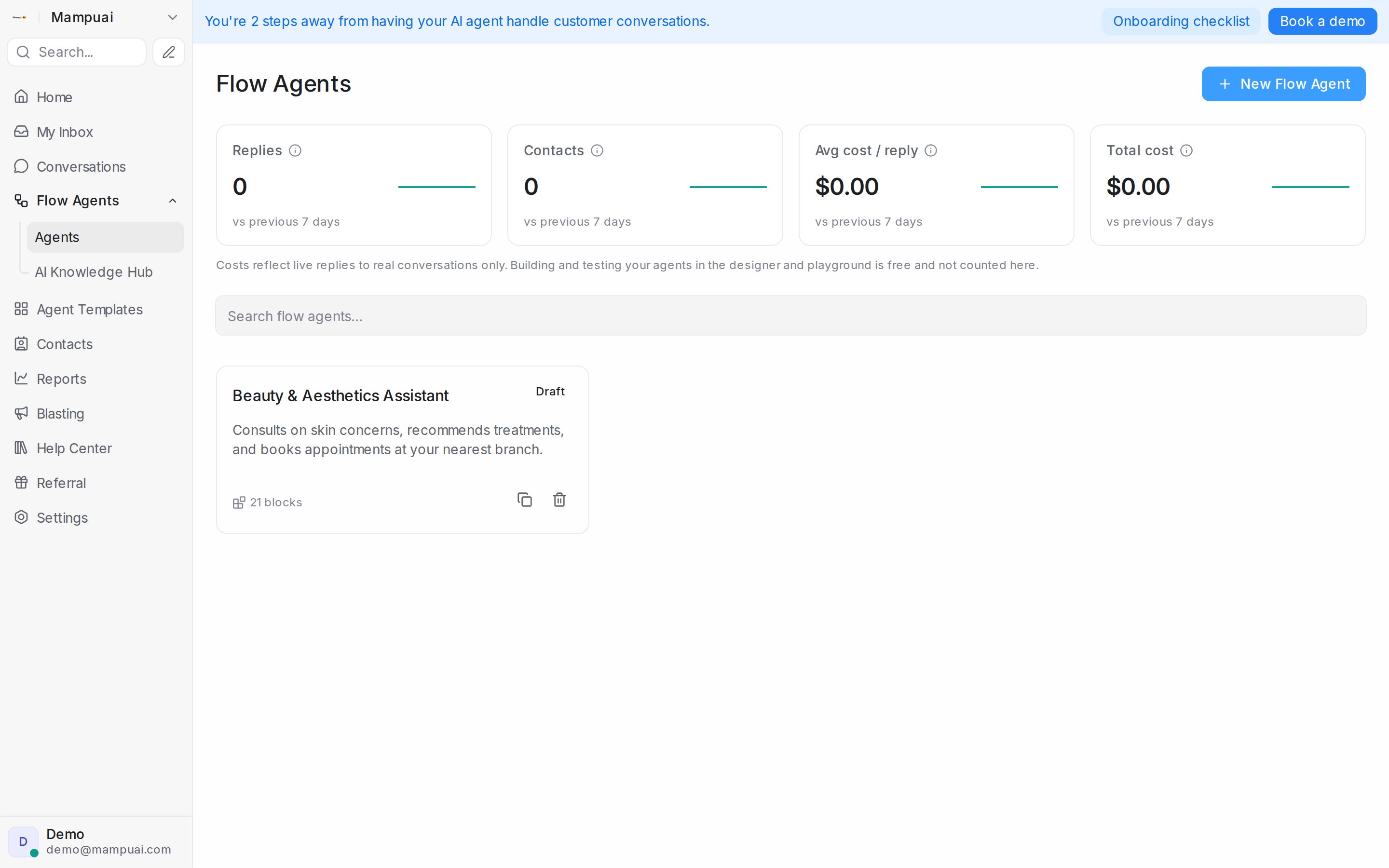
You can create an AI agent in three ways, from the Home screen, **Agent Templates**, or the **Flow Agents** section:
* **Start from a template** — pick a ready-made flow built for your industry and make it yours.
* **Build with AI** — describe what your business does and the assistant drafts a conversation flow for you automatically.
* **Start from scratch** — open a blank canvas and design the flow yourself.
Once created, your agent appears under **Flow Agents → Agents**, where you can edit it, test it, and connect it to an inbox.
---
## Navigating the dashboard
URL: https://help.mampuai.com/getting-started/navigating-the-dashboard
# Navigating the dashboard
The left sidebar is your main navigation — each item opens a core area of the product:
* **Home** — setup checklist, quick actions, and What's New updates
* **My Inbox** — conversations assigned to you
* **Conversations** — all customer messages
* **Flow Agents** — your AI agents, with the **AI Knowledge Hub** alongside (knowledge, FAQs, and the [Calendar](/calendar/setting-up-a-calendar) for appointments)
* **Agent Templates** — ready-made agents you can start from
* **Contacts**, **Reports**, **Blasting**, **Help Center**
* **Referral** — share your link and earn rewards
* **Settings** — account configuration
## Watch the walkthrough
{% embed url="https://youtu.be/wxbWTQ8IG9M" %}
**Reports** and **Settings** open with a navigation column of their own inside the page, grouping related pages under category headers like **Performance** or **Workspace** so you can find the right section at a glance.
Away from your desk? The [mobile app](/getting-started/using-the-mobile-app) puts your conversations in your pocket.

## Searching
Click **Search...** at the top of the sidebar to find conversations, contacts and messages. Type at least 3 characters.
Search also looks through the Mampu AI help guides, so you can type what you're trying to do — such as "connect WhatsApp" or "create a blast" — and open the matching guide:
* **All results** shows the top five guides under **Guides**, with **View more** for the rest.
* The **Guides** tab lists up to 15 guides.
* Each guide shows its title, its help-centre section and a short matching snippet.
* Guides open in a new browser tab, so you keep your place in the dashboard.
---
## Using the mobile app
URL: https://help.mampuai.com/getting-started/using-the-mobile-app
---
description: Reply to customers from your phone — install the mobile app for Android and iPhone and sign in with your existing account.
---
# Using the mobile app
Mampu AI comes with a mobile companion app, so you can stay on top of customer conversations when you're away from your desk. Reply to customers, collaborate with your team, and get a push notification the moment a new message arrives.
## Download the app
* **Android** — install [Sapot Chat on Google Play](https://play.google.com/store/apps/details?id=com.sapotchat.app)
* **iPhone and iPad** — install [Mampu Chat on the App Store](https://apps.apple.com/my/app/mampu-chat/id6778253606)
Both listings are the same app — only the name on the store differs.
## Sign in
1. Open the app.
2. When asked for your workspace URL, enter `https://chat.sapot.ai`.
3. Log in with the same email and password you use on the web.
If you work across more than one account, you can add each one and switch between them inside the app.
## What you can do on mobile
* **Reply anywhere** — handle conversations from live chat, email, WhatsApp, Facebook, Instagram, Telegram, SMS and more, all in one inbox.
* **Never miss a message** — get push notifications for new customer messages and teammate @-mentions.
* **Collaborate** — assign conversations, leave private notes, and mention teammates without the customer seeing.
* **Reply faster** — use your canned responses for common questions.
* **Send rich replies** — images, files, audio messages, and voice notes.
* **See full context** — contact details, past conversations, and notes sit right next to the chat.
* **Stay organized** — filter by label, status, assignee, or inbox, and mark conversations open, pending, snoozed, or resolved.
Everything you do in the app syncs instantly with the web dashboard, so your team always sees the same picture.
## Related
* [My Inbox](/conversations/my-inbox)
* [Managing Conversations](/conversations/managing-conversations)
* [Replying and adding private notes](/conversations/replying-and-private-notes)
---
## Introduction
URL: https://help.mampuai.com/chatbot-for-beginners/introduction
# Introduction
## The Beginner's Guide to Chatbots
You’ve probably heard about chatbots before or maybe even used one. But what are they, really? If you’ve ever wondered how chatbots work, why they’re useful, or how to create one yourself, this guide is here to help!
In this guide, we’ll explore the world of chatbots and explain:
* Why automated conversations can be so helpful.
* The different kinds of chatbots.
* Step-by-step tips on how to build your own chatbot.
We’ll also share examples to help you understand how chatbots are used in real life and the difference between a basic chatbot and a smart conversational assistant. Let’s get started!
---
## What is a chatbot?
URL: https://help.mampuai.com/chatbot-for-beginners/what-is-a-chatbot
# What is a chatbot?
Imagine this: it’s 4 AM, and a customer sends you a question. You’re fast asleep, and there’s no one around to respond. These late-night customers are often serious, high-quality prospects, but they can’t wait until business hours for answers. OR
Phones constantly ringing, emails piling up, and your coworkers rushing to keep up—it’s a familiar scene for many customer service teams. Customers want quick answers, using all kinds of communication channels, while service agents often feel overwhelmed trying to catch up.
Now, picture having a digital assistant—a chatbot—that’s always awake and ready to help. It can automatically respond to these inquiries as soon as they come in, ensuring your customers get the answers they need, no matter the time.
## So, what exactly is a chatbot?
A chatbot is a computer program that can have conversations with people. Thanks to Artificial Intelligence (AI), chatbots are now smarter and more accessible than ever. You don’t need to be a tech giant to create one!
AI chatbots use a technology called **Natural Language Processing (NLP)** to understand what people say. Instead of sticking to pre-set answers, they can recognize different ways people phrase questions, understand spelling mistakes, and even figure out the intent behind a question. For example, if a customer types, “When will my order arrive?” or “What’s the delivery time?” the chatbot knows both mean the same thing and can provide the right answer.
## Hybrid Chatbots: The Best of Both Worlds
A great chatbot combines **AI** with simple, clickable options. For instance:
* Common questions can be answered quickly with buttons customers click (like “Track my order” or “Contact support”).
* More complex or unique questions? Customers can type them out, and the AI takes over to provide the answer.
But what happens if the chatbot doesn’t know the answer yet? That’s where the **human team** comes in. When the chatbot encounters an unfamiliar question, it forwards the query to a service agent. The agent also gets a full history of the conversation, so they can pick up seamlessly where the chatbot left off. Meanwhile, the chatbot “learns” the new question, so it can answer it next time.
---
## Channels
URL: https://help.mampuai.com/chatbot-for-beginners/channels
# Channels
These days, customers communicate through many different channels. From WhatsApp to Instagram, Facebook Messenger, and websites, these platforms are a regular part of people’s lives. For businesses, being available on these channels is no longer optional—it’s essential. If your customers are using these platforms to reach out, your chatbot needs to be there too!
## Website Chat
The chatbot on a website is one of the most familiar and effective ways to assist customers. The little chat window in the corner of a website lets customers ask questions while they’re browsing, which is often when they need help the most.
**Why it’s effective:**
* Customers get immediate answers to their questions, helping them move through their journey faster and with less effort.
* The chatbot can reflect your website’s design, making it feel like a natural part of your brand.
* It’s low-effort and easy to use for customers who are already on your site.
{% content-ref url="/getting-started/connecting-your-first-channel" %}
[connecting-your-first-channel](/getting-started/connecting-your-first-channel)
{% endcontent-ref %}
## WhatsApp
WhatsApp has become one of the most popular messaging apps in the world, with millions of people using it daily. For businesses, being present on WhatsApp provides a familiar and convenient way for customers to reach out.
**Benefits of WhatsApp Chatbots:**
* Customers can communicate with your business on a platform they already use daily.
* Chatbots on WhatsApp allow for 24/7 service, ensuring even late-night customers are supported.
* Implementation is quick and simple—just connect your WhatsApp Business account to your chatbot platform, and you’re live!
**Why it stands out:**\
WhatsApp’s ease of use and massive user base make it the perfect place for automation. Customers can start conversations, ask questions, and receive answers instantly—anytime, anywhere.
{% content-ref url="/settings/connecting-a-whatsapp-inbox" %}
[connecting-a-whatsapp-inbox](/settings/connecting-a-whatsapp-inbox)
{% endcontent-ref %}
## Facebook
Social media platforms like Facebook and Instagram are where businesses and customers naturally connect. People are already familiar with Facebook Messenger and Instagram Direct Messages, making these great channels for chatbots.
**How it works:**
* You can easily link your Facebook and Instagram accounts to your chatbot platform.
* The same chatbot you use on your website can be made available in these channels with just a few clicks.
* Customers get the same consistent experience across platforms.
**Why it’s valuable:**
* Customers don’t have to leave their favorite apps to get help.
* The conversational design of these platforms makes it easy for customers to type their questions and get instant answers from your AI chatbot.
## And beyond
The same chatbot can also meet your customers on **Telegram**, **LINE**, **TikTok**, **SMS**, and **email** — every channel lands in the same shared inbox, so one agent (human or AI) covers them all. See [Inboxes and channels](/settings/inboxes-and-channels) for the full list and how to connect each one.
---
## Benefits & Importance
URL: https://help.mampuai.com/chatbot-for-beginners/benefits-and-importance
---
description: >-
Now that you know what a chatbot is, let’s explore why your business should
use one and why your customers will appreciate it.
---
# Benefits & Importance
## Why Do Customers Want Chatbots?
Today’s customers expect quick answers, often reaching out with the same questions over and over. Unfortunately, many of these answers already exist on your website, but customers may struggle to find them or simply prefer asking directly.
Without a chatbot, your team spends a lot of time repeating the same responses, which:
* Wastes valuable time.
* Creates longer waiting times for other customers.
* Risks losing customers who won’t wait for an answer.
### **How Chatbots Solve These Problems**
Chatbots can provide instant answers to common questions, 24/7. This means:
1. **No waiting:** Customers get what they need immediately, even at odd hours.
2. **Efficient teamwork:** Your chatbot handles simple questions, freeing up your team to focus on more complex, meaningful conversations.
3. **Better service:** Your team gets more time to provide detailed and thoughtful responses to customers who really need it.
***
## **“What About Personal Service?”**
A common concern is losing the personal touch when introducing chatbots. But a well-designed chatbot doesn’t just answer questions—it can deliver a personalized experience.
**How?** By integrating your chatbot with your CRM or back-end systems:
* It can recognize returning customers and greet them by name.
* It can retrieve customer order details in real time to provide tailored updates.
* It can even help schedule appointments or follow up on past interactions.
A chatbot like this feels more like a helpful assistant than a robot, keeping the interaction personal and efficient.
***
## **Why Your Company Needs a Chatbot**
* **Save time:** Automate repetitive tasks so your team can focus on what matters.
* **Improve response times:** Provide instant answers, reducing customer frustration and keeping their attention.
* **Offer 24/7 support:** Be available whenever your customers need help, even at 4 AM.
* **Enhance customer experience:** Combine automation with personalized touches to make every interaction seamless.
By implementing a chatbot, you’re not just improving efficiency—you’re elevating your customer service to meet today’s high expectations. It’s a win for both your team and your customers!
---
## Use Cases
URL: https://help.mampuai.com/chatbot-for-beginners/use-cases
# Use Cases
Now that we’ve discussed why you need an intelligent chatbot, let’s explore how you can use it in practical scenarios. While the applications of chatbots are endless, here are three of the most common and impactful use cases:
## **1. Customer Service**
Customer service is often the first area to benefit from a chatbot. With teams frequently overwhelmed by questions at all hours, chatbots provide a scalable solution to handle large volumes of inquiries.
**Key Features:**
* **Answering FAQs:** Chatbots excel at recognizing common questions and instantly providing the right answers.
* **Understanding Needs:** Beyond answering the first question, a chatbot can ask follow-up questions to better understand the customer’s underlying issues.
* **Guided Assistance:** Chatbots simulate real-life agents by guiding customers step-by-step to a resolution.
**Example:**\
Imagine it’s 4 AM, and a customer has a question about your return policy. Instead of waiting until your team is online, the chatbot responds immediately with a clear explanation. If the question requires escalation, it collects the relevant details and forwards them to a team member when they start their day.
***
## **2. Lead Generation**
Chatbots are no longer limited to support—they can also be a powerful tool for Marketing and Sales. By proactively engaging with customers, chatbots can convert casual visitors into qualified leads.
**How It Works:**
* When customers browse your website, the chatbot can guide them to relevant information.
* After answering their questions, the chatbot can ask, “Would you like more information?” or “Can I help you with a quote?”
* The chatbot collects valuable details like name, contact info, and preferences, which are shared with your sales team for follow-up.
**Social Media Integration:**\
Modern chatbots take lead generation even further by leveraging social media:
* A customer comments on your Facebook or Instagram post. The chatbot automatically sends them a DM, guiding them through a personalized flow.
* The chatbot can also respond directly in the comments, answering questions or offering special discounts for abandoned carts.
**Example:**\
A customer comments on your Facebook ad but doesn’t complete their purchase. The chatbot sends them a follow-up message with a custom discount code, prompting them to complete their order.
***
## **3. HR & Recruitment**
Chatbots aren’t just for customers—they’re also incredibly useful for internal operations, especially in Human Resources.
**Internal HR Support:**
* Colleagues often have questions about holidays, contracts, or payments. An HR chatbot provides instant answers, reducing pressure on the HR team.
* The chatbot can also automate routine tasks like booking leave or checking payroll information.
**Recruitment Assistance:**
* As your company grows, hiring becomes a challenge. Chatbots can pre-screen applicants by asking questions about experience, education, salary expectations, and skills.
* By eliminating unqualified candidates, chatbots ensure your HR team spends time only on the best candidates.
**Example:**\
Your HR chatbot pre-screen candidates applying for a role by automatically asking questions about experience, certifications, and salary expectations. The chatbot then passes only the most qualified applicants to the HR team for final review.
---
## Define Your Objectives
URL: https://help.mampuai.com/getting-started/define-your-objectives
# Define Your Objectives
Great results start with clear goals. Before you begin building your chatbot, take a moment to outline what you want to achieve. Whether it’s improving customer service, automating tasks, or increasing engagement, setting clear objectives will guide you throughout the process. 👇
## Watch the walkthrough
{% embed url="https://youtu.be/Q3JUnkm331g" %}
## **1. Identify Your Purpose**
Ask yourself what role the chatbot will play in your business or project:
* Are you looking to improve customer support?
* Do you want to automate repetitive tasks?
* Are you aiming to drive sales or generate leads?
Clearly defining your purpose will help you design a chatbot tailored to your needs.
## **2. Understand Your Audience**
Think about the people who will interact with your chatbot:
* Who are they? (Customers, team members, or other stakeholders?)
* What problems are they facing?
* How can your chatbot address these issues effectively?
Knowing your audience will allow you to craft a more engaging and helpful chatbot experience.
## **3. Set Measurable Goals**
Define specific, measurable outcomes for your chatbot:
* Reduce customer response time by X%.
* Increase lead generation by Y leads per month.
* Automate Z tasks daily to save time.
These metrics will help you evaluate the success of your chatbot and make improvements over time.
## **4. Outline Key Features**
List the features you need to achieve your goals:
* AI-powered responses
* Multi-channel support (WhatsApp, Facebook, Telegram, etc.)
* Integration with CRM systems
* Custom tagging and reporting
Prioritizing features ensures a focused and effective chatbot setup.
## **5. Prepare Your Content**
Gather the resources your chatbot will need:
* Frequently Asked Questions (FAQs)
* Product/service information
* Media files (images, videos, or documents)
Having content ready will streamline the building process and enhance the chatbot’s performance.
---
## Creating a Flow Agent
URL: https://help.mampuai.com/flow-agents/creating-a-flow-agent
# Creating a Flow Agent
There are three ways to create an agent:
* **Start from a template** — open **Agent Templates** in the sidebar and pick a ready-made flow built for your industry (beauty, health products, loan consultancy, motor dealers, and more). Click **Use template** and the agent opens in the designer, ready to make yours.
* **Build with AI** — describe your business and what the agent should do (greet leads, qualify, share pricing, book appointments…) and AI drafts a conversation flow tailored to you. Available from the Home checklist, the templates page, and **Flow Agents → Agents**. See [Designing your agent by chatting](/flow-agents/designing-your-agent-by-chatting).
* **Start from a blank canvas** — design every step yourself in the designer.
## Watch the walkthrough
{% embed url="https://youtu.be/AY3gBpCeINw" %}
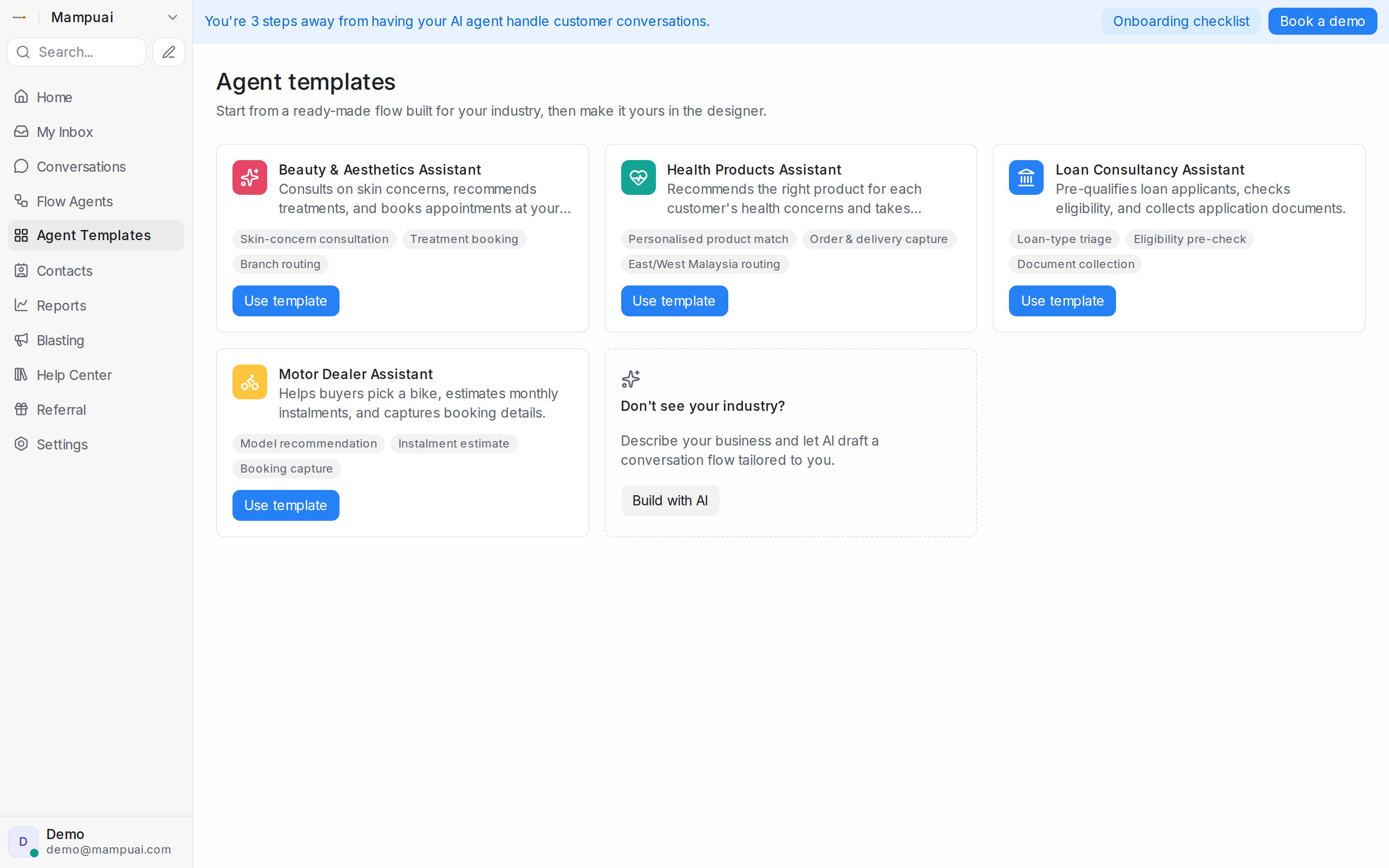
Already have an agent that works well? Open its menu in **Flow Agents → Agents** to **Duplicate** it and iterate on the copy, or use **Export** / **Import** to move a flow between accounts.
Next: [Building the conversation flow](/flow-agents/building-the-conversation-flow)
---
## Chat analysis: build an agent from your own conversations
URL: https://help.mampuai.com/flow-agents/chat-analysis
---
description: Let Mampu AI read your team's recent conversations in one inbox, group them into the reasons customers write in, and turn that map into a draft flow agent and FAQ drafts you review before anything goes live.
---
# Chat analysis: build an agent from your own conversations
**Chat analysis** reads the latest conversations your team already answered in one inbox and groups them into **intents**: the reasons people get in touch. Nothing is built or changed until you ask for a draft.
## Start an analysis
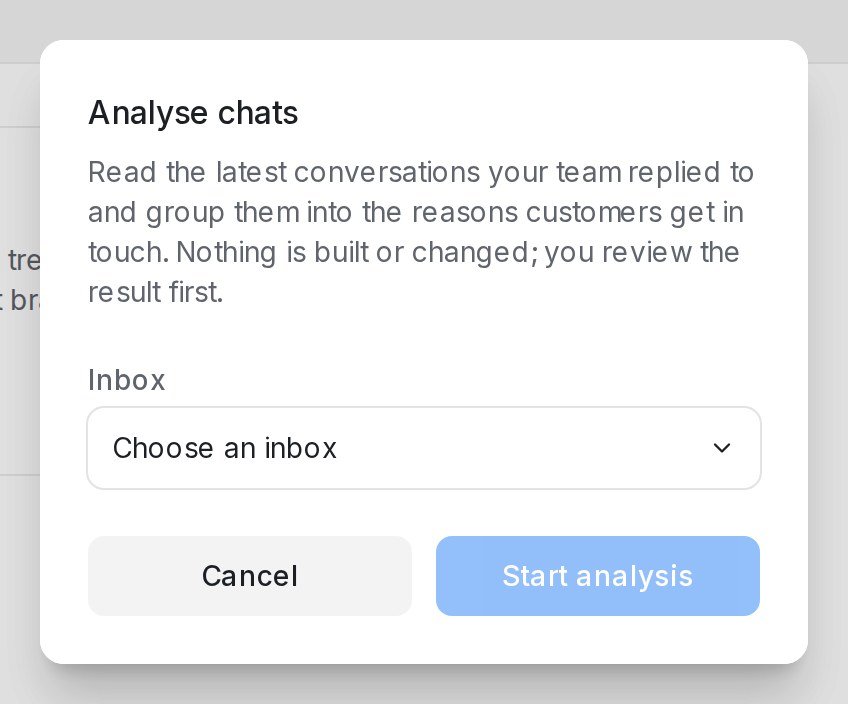{ width="424" }
1. Open **Flow Agents** and click **Analyse chats**.
2. Pick the **Inbox**. The dialog shows how many recent conversations with a team reply qualify.
3. Click **Start analysis**.
Only conversations a person on your team replied to are read. The first run reads the latest 30. You can leave and come back: **Open the latest analysis of this inbox** takes you to the last result.
## Read the map
When the analysis is **Ready**, the top of the page counts **Conversations read**, **Intents found**, **Left out as noise**, any that **could not be read**, and the **Languages** used. Each intent is a card:
| On the card | What it shows |
|---|---|
| Share of the sample | For example *12 of 30 conversations* |
| **How customers put it** | Real phrasings from the chats |
| **Your team usually asks for** | Details your team collects for this request |
| **How your team usually answers** | The typical reply |
| **Open conversation #…** | Each conversation behind the intent |
Below the cards, **Conversations read** lists every chat with its language and outcome: **Answered**, **Handed to the team**, **Booked**, **No reply** or **Unclear**. Chats that were not real requests are marked as noise: **Another business's message**, **Automated reply**, **Spam** or **Too short to tell**.
**Hide from the map** drops an intent you don't want in the agent; **Show again** brings it back.
## Widen or rerun
* **Widen to 40 conversations** (then 50) reads more history and redraws the map.
* **Run again** starts a fresh analysis of the same inbox, for example after a busy month.
## Turn the map into a draft agent
Click **Draft agent**. You get a draft flow agent built around the main reasons customers write in, or a menu when the reasons are spread out. Smaller intents become FAQ drafts in AI Knowledge; hidden intents are left out. **Open draft agent** opens it in the designer.
The draft is connected to no inbox and answers nobody until you publish it. Check it in the Playground, and approve the FAQ drafts under **Review FAQ drafts**; see [Managing AI Knowledge](/flow-agents/managing-ai-knowledge).
## When something goes wrong
| Message | What to do |
|---|---|
| **No intents came out of these conversations** | Widen the sample or pick a busier inbox |
| **The analysis stopped before finishing** / **The draft could not be written** | Run it again a little later |
| **Chat analysis is not available for this account yet** | The feature is not on for your plan |
## Related
* [Creating a Flow Agent](/flow-agents/creating-a-flow-agent)
* [Building the conversation flow](/flow-agents/building-the-conversation-flow)
* [Managing AI Knowledge](/flow-agents/managing-ai-knowledge)
* [Testing and connecting an agent](/flow-agents/testing-and-connecting-an-agent)
---
## Building the conversation flow
URL: https://help.mampuai.com/flow-agents/building-the-conversation-flow
# Building the conversation flow
The designer has two ways to build, side by side: **describe what you want in plain language** on the left — "Ask for name, email, and company. If the email is from gmail, decline politely. Otherwise hand off to sales." — and AI updates the flow for you; or edit the **canvas** directly on the right, block by block.
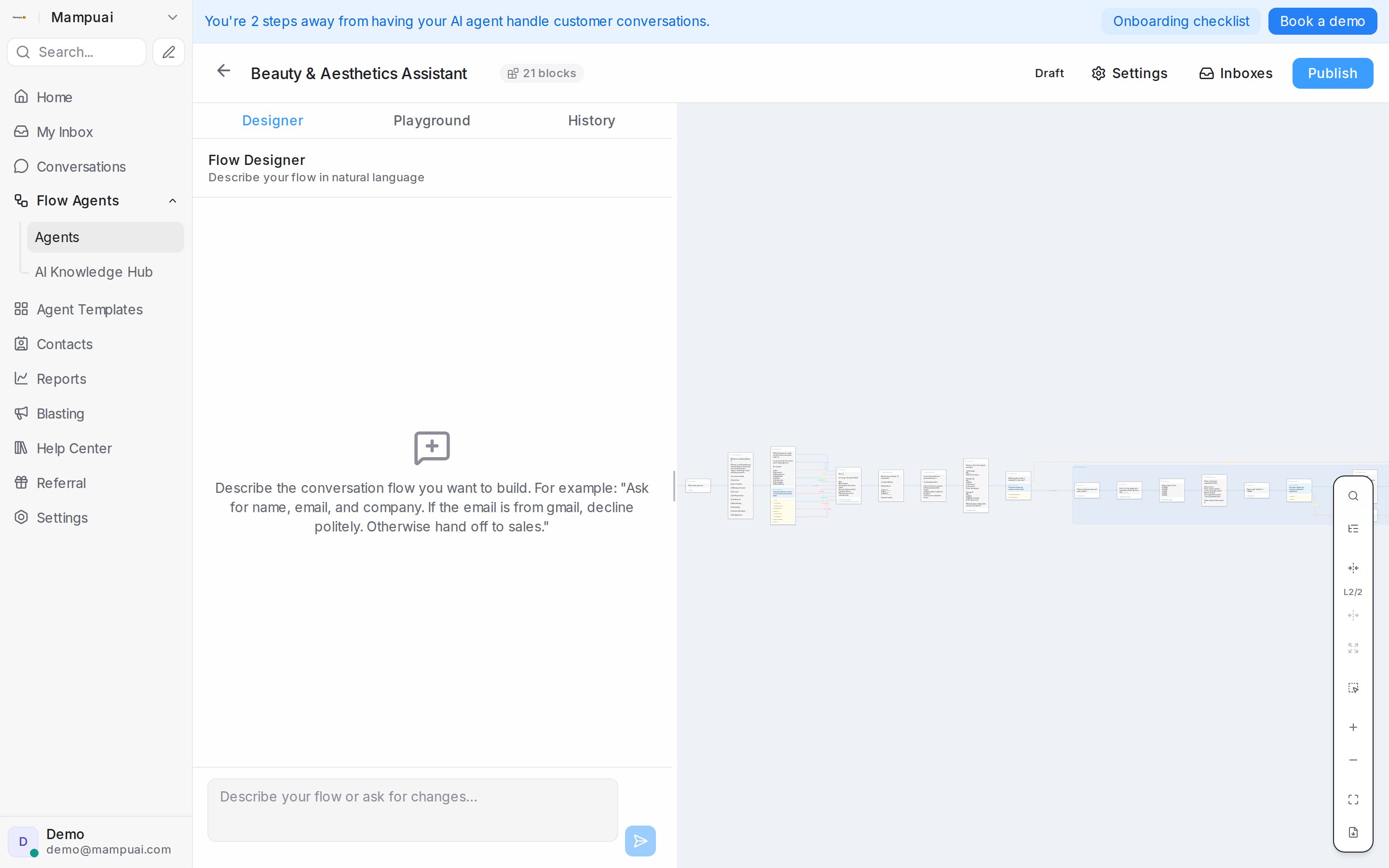
The designer now opens as a chat that asks a few questions and builds the flow for you: see [Designing your agent by chatting](/flow-agents/designing-your-agent-by-chatting). The layout above is the classic view; click **Switch to classic view** in the designer to use it.
## Watch the walkthrough
{% embed url="https://youtu.be/AY3gBpCeINw" %}
## The building blocks
* **Send message** — say something, with attachments if needed (up to 5 MB for an image; see [Picture and file size limits](/settings/file-size-limits)).
* **Collect** — ask a question and capture the answer (name, email, budget…) for later steps.
* **Condition** — branch the conversation based on what the customer says.
* **Knowledge query** — answer from your AI Knowledge.
* **Tool steps** — use live data: offer real open time slots from a **Calendar** and book the chosen one, or recommend real products from your catalogue.
* **AI task** — compute something silently (e.g. an instalment estimate) and save the result for later blocks.
* **End** — finish the conversation, or hand off to a human agent.
Values collected earlier can be reused anywhere with placeholders like `{name}` or `{email}`.
For every button on the canvas and every field in a step's panel, see the [Flow designer reference](/flow-agents/designer-reference). On the canvas, press a line to see where it leads: a **Go to next step** button takes you to the step at its end (see [Follow a line to its next step](/flow-agents/designer-reference#follow-a-line-to-its-next-step)).
## Use what you already know about the customer
Your contact records are available to the flow as well. Anywhere you can type a placeholder, `{contact.name}`, `{contact.phone}` and `{contact.email}` fill in the customer's saved details, and `{contact.}` works for any custom contact attribute you have defined — `{contact.full_address}`, for example. A field with no value on the record is left out of the message.
A **Condition** can check the record too. Describe the check in plain words and name the field: *"If {contact.phone} is present, route to has_phone; otherwise route to no_phone."* The agent sees whether that field is filled in and takes the matching branch, so a customer whose number you already have is never asked for it again, while a customer without one still is. Inside a condition an empty field reads as "(not set)". Conditions that do not mention a contact field behave exactly as before.
To try this in the Playground, set a **Scenario** with the contact details you want to test — placeholders and conditions then use them just as they would in a live conversation (see [Testing and connecting an agent](/flow-agents/testing-and-connecting-an-agent)).
## Show a route only to the right customers
A condition block can decide who is offered each branch, and who goes straight down it. Click the filter icon on a branch, press **Add condition**, and pick what should apply:
* **Meta ads** — the route is only offered to customers who arrived through a Click-to-Message ad. Pick **Is one of these ads** and list the ad IDs, or **Came from any ad** to include every ad without typing IDs.
* **Inbox** — the route is only offered to customers who message one of the inboxes you pick (**Is one of these inboxes**), or any inbox except them (**Is not one of these inboxes**). See [Send each inbox down its own route](#send-each-inbox-down-its-own-route).
* **Customer labels** — the route is only offered when the conversation or the contact carries at least one of the chosen labels. Pick labels, or type a word and press Enter to match every label containing it.
* **Message keywords** — when the customer's latest message contains any of the words or phrases you list, the conversation goes straight down this route and the question is skipped. Matching ignores letter case, and the keyword can sit anywhere in the message — "Is the PROMO still on?" matches the keyword *promo*.
Mix conditions freely. With two or more, the choice between them sets how they combine: **AND** when every condition must match, **OR** when one is enough. Keywords send a customer straight down the route: with **AND** once the other conditions match too, with **OR** on their own. Under an ads or labels condition, tick **Must go here on match** to skip the question entirely and send every matching customer straight down the branch. Under an **Inbox** condition, the same tick makes the route the default for those inboxes instead. Hover the info icon beside each condition for a reminder of how it works.
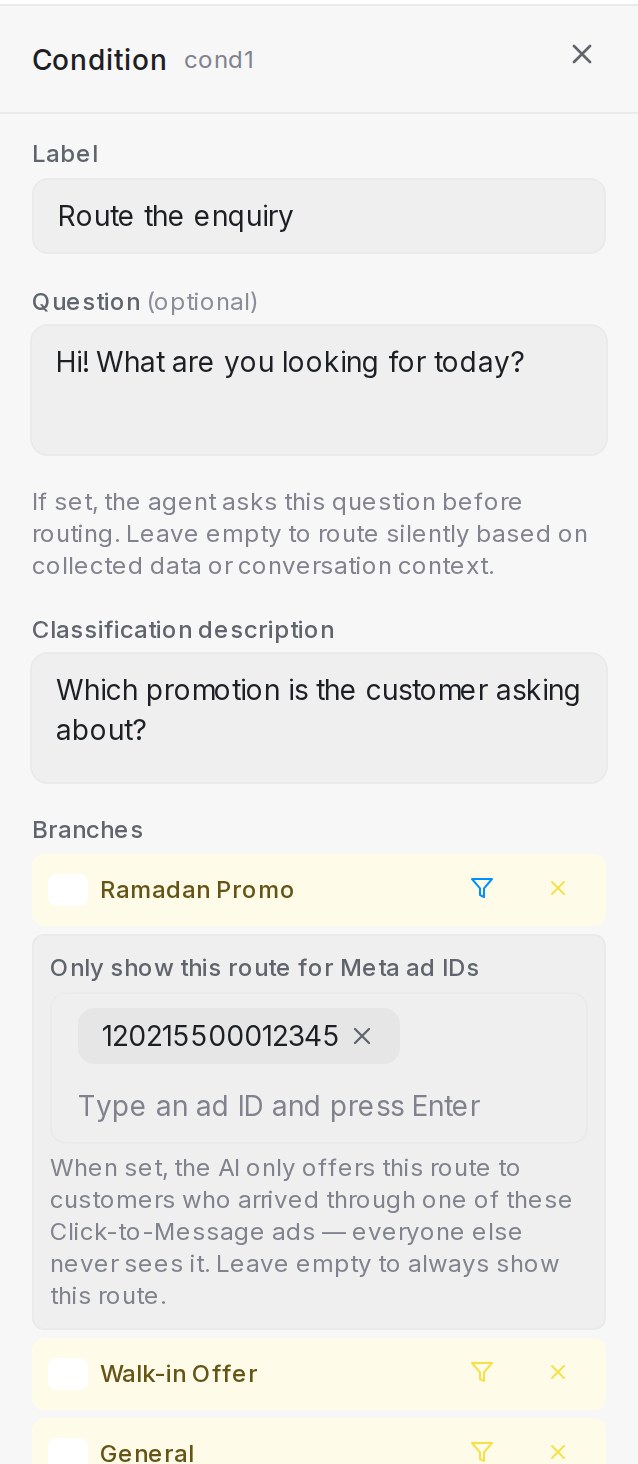{ width="303" }
* Branches without conditions stay visible to every customer — keep at least one open branch as the everyday path.
* Branches with a rule show a small badge on the canvas: a filter for gated routes, a fast-forward arrow when matching customers skip the question.
* Customers already inside a route always get to finish it, even if the rule changes mid-conversation.
* Without a **Scenario**, the Playground plays a customer who came from no ad and has no labels, as an everyday chat would: routes that need an ad or a label stay hidden, and keyword conditions work as usual — type a keyword to see its shortcut fire. To try ad and label conditions as a specific customer, set a **Scenario** in the Playground — see [Testing and connecting an agent](/flow-agents/testing-and-connecting-an-agent).
## Send everything else down a default path
A **Condition** step picks the branch that matches what the customer said. Tick one branch under **Branches** to make it the **default path**: the flow takes it whenever the reply fits none of the other branches, so a customer who says something else is not asked the same question again. If that reply was a question, the agent answers it first, then carries on down the default path. The same goes for the customer's very first message: when it matches none of the branches, the flow takes the default path straight away and the step's question is never asked.
1. Select the **Condition** step and find **Branches** in the step panel.
2. Tick the branch that should catch everything else, such as *Other*. The row reads **default path**, and the step's card on the canvas shows the same badge.
3. Click **Save Changes**, then try a reply that matches no branch in the **Playground**.
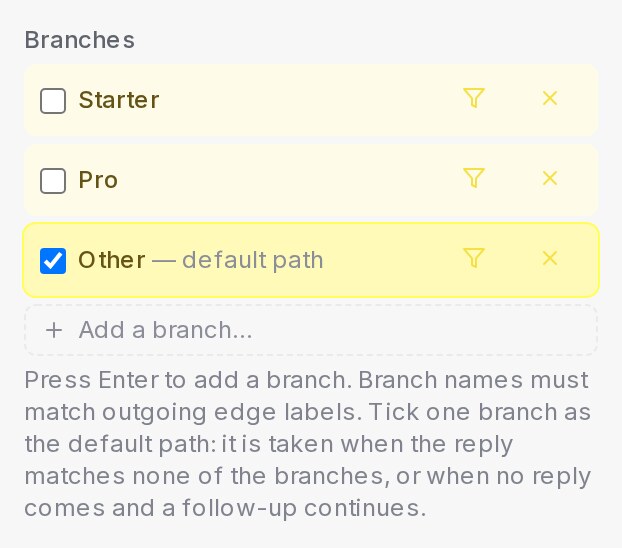{ width="310" }
* The default path is also where the flow continues when the customer never replies and a follow-up is set to **Continue to the next step** — see [Follow up when the customer goes quiet](#follow-up-when-the-customer-goes-quiet).
* The **Playground** says when it happened, in a line such as "No branch matched at Package choice, so the flow took the default path Other" (or "… before its question was asked, so the flow skipped the question and took the default path Other" on a first message). In the conversation, the reply's **What the agent did in this turn** footer keeps the same line under **Default path**, so anyone reading back later sees why the flow went that way.
* With no branch ticked, the agent asks the question again instead.
* In the designer chat, say "anything else goes to Other" and the default path is set for you.
## Send each inbox down its own route
When one agent answers several inboxes, such as a page for each product, an **Inbox** condition sends each inbox's customers to its own route.
1. Select the **Condition** step, click the filter icon on the branch, press **Add condition** and pick **Inbox**.
2. Keep **Is one of these inboxes**, or pick **Is not one of these inboxes**, and choose the inboxes from the list.
3. Tick **Must go here on match** and click **Save Changes**.
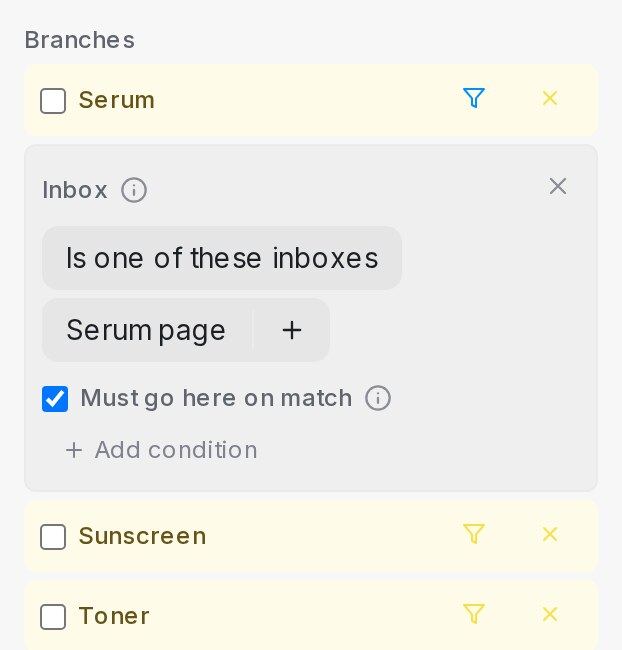{ width="311" }
With the tick, the route becomes the step's default path for customers on those inboxes: a first message like "Hi" skips the question and goes straight there. A customer who asks for another product still gets it, an ad rule that sends its customers elsewhere still wins, and customers on every other inbox can still pick this route. Without the tick, the route is offered only to customers on the chosen inboxes.
To try it, open **Scenario** in the Playground and pick the **Inbox**. A line such as "Default route for this inbox: Which product → Serum" names the route it chose.
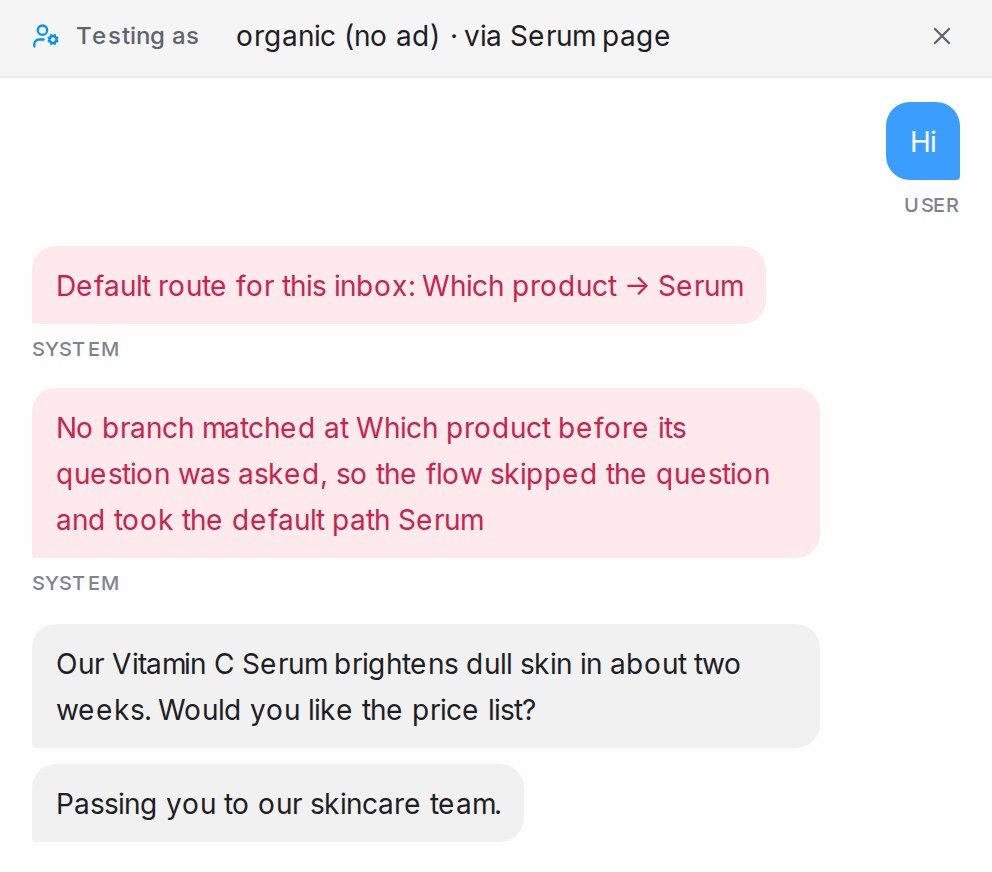{ width="496" }
* Renaming an inbox keeps the rule. An inbox you delete drops out of the rule the next time the step is saved.
* With no inbox set in the **Scenario**, routes offered only on certain inboxes stay hidden, and the Playground says so.
## Switch a step off, or run it only for a period
A **Send message**, **Collect**, **Knowledge query** or **AI task** step with one next step can be switched off without deleting it, or set to run only between two dates. Click the step and look for **Run this step** at the top of its panel.
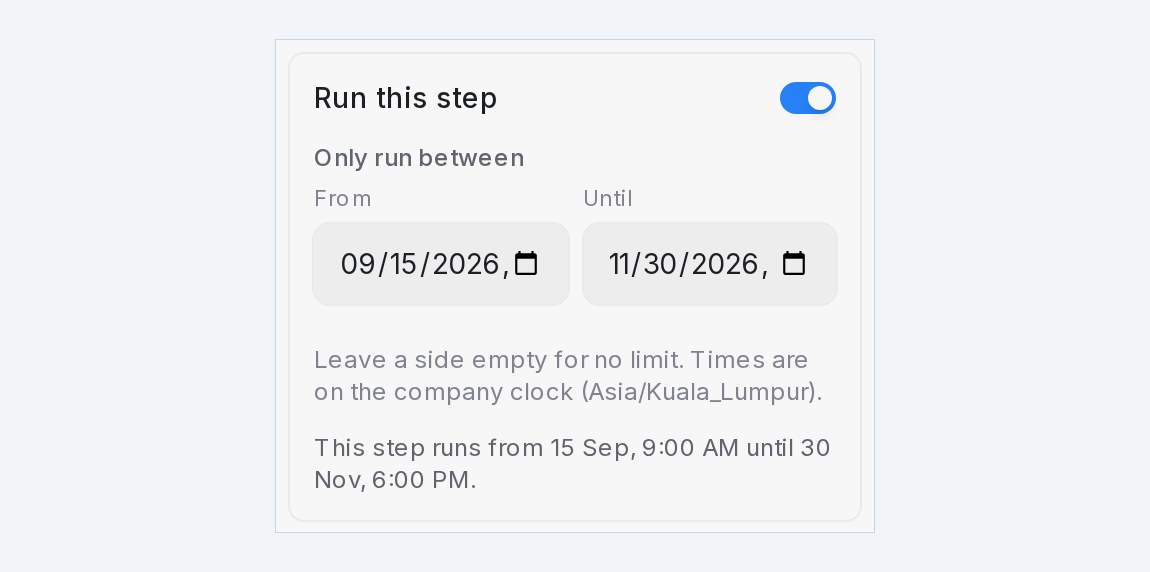
* **Run this step** off skips the step: a customer goes from the step before straight to the step after, as if it were not there. Everything the step holds stays saved, so you can switch it back on later.
* **Only run between** takes a **From** and an **Until** date and time. Leave a side empty for no limit. Before **From** or after **Until** the step is skipped in the same way. Times follow the company clock named under the fields: the inbox's timezone when its business hours are on, otherwise your account's.
* Off always wins. With the switch off, a period does not run until you switch the step on. The sentence under the fields says what the step does right now.
* **Start**, **End**, conditions, AI conversation steps and repeating-list steps cannot be switched off, because they decide where the flow goes next. Neither can a step that is not connected to exactly one next step. To take a whole branch out for a while, switch off the steps inside it.
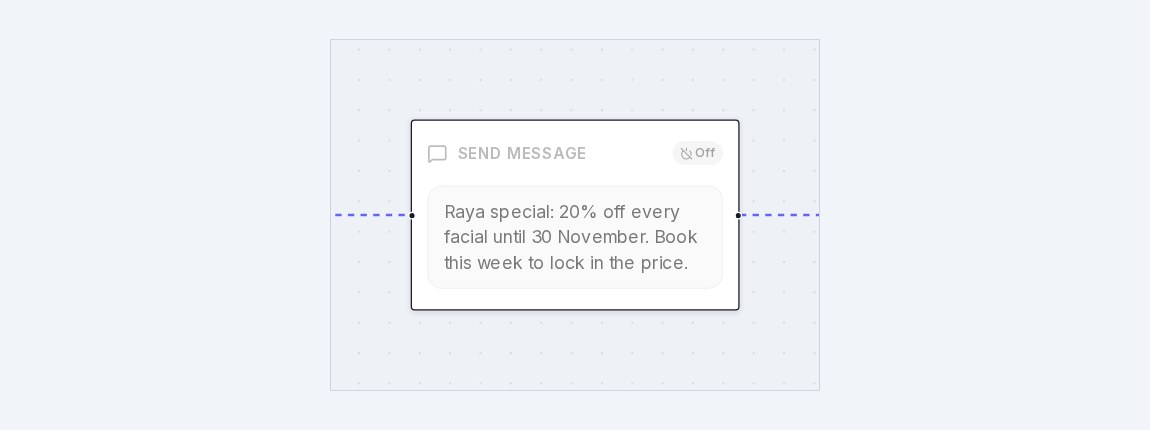
* On the canvas, a step that is not running right now is greyed out with a badge: **Off**, **Starts …** or **Ended …**. A step running inside a period shows **Until …**, so a promotion with an end date is easy to spot.
* A customer who is already on the step when it goes off finishes that step; nobody new enters it. A skipped step never starts its follow-up reminders.
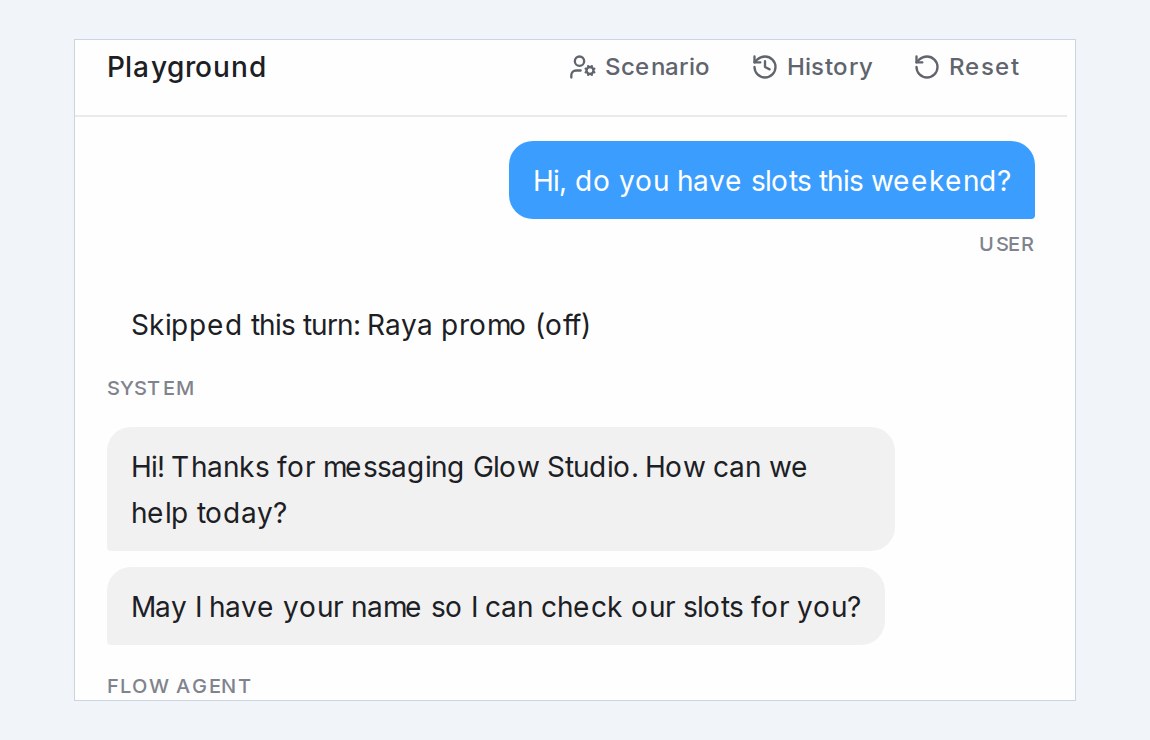
* In the Playground, a system line reads **Skipped this turn: …** with the step's name and the reason, so a missing message is never mistaken for a broken flow. To try a period before it starts, set a **Scenario** with a pretend time (see [Testing and connecting an agent](/flow-agents/testing-and-connecting-an-agent)).
* The AI designer leaves the switch and the period alone when it edits the flow for you. A full rebuild from a new description starts with every step on.
## Let customers tap an answer
When a question has a short list of answers, offer them as buttons so the customer taps instead of typing. Select the **Condition** or **Collect** block and, under **Answer buttons**, add up to 13 answers with a label of up to 20 characters each. On a Condition, each button belongs to one branch and a tap takes the customer straight down it; on a Collect block with a single field, a tap fills that field in.
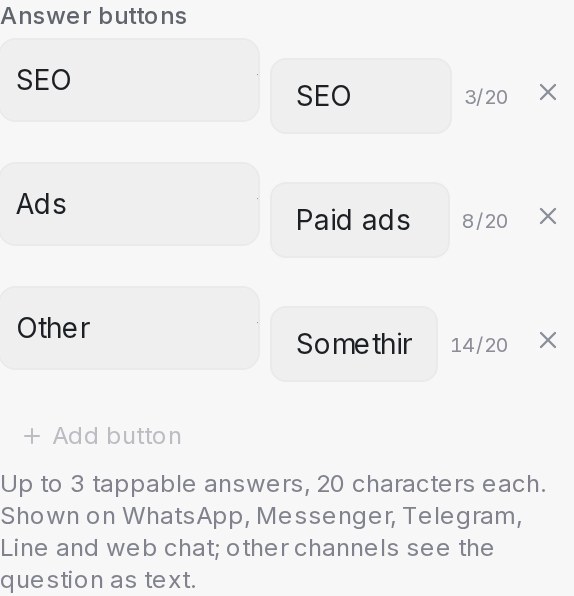
Customers on Messenger, Instagram, Telegram, Line and web chat see every button under the question. WhatsApp can show only three, so once a question has more than three buttons a tick appears beside each one: tick the three WhatsApp should show — the first three are ticked for you — and the line under the list keeps count. WhatsApp customers can still type any of the other answers, so word the question so they know what else they can say. Other channels see the same question with the answers as a numbered list, and typing still works everywhere — a customer who writes their answer instead of tapping is understood as before.

* **Test it in the Playground** — the buttons are tappable there, so you can follow every route without typing. The Playground shows every button, including the ones WhatsApp would leave out.
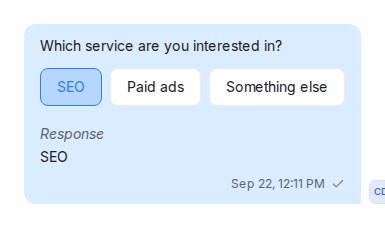
* **Agents see the options too.** In the conversation, the question shows the answers the customer was offered, and the one they picked is highlighted when the channel records the tap on the question itself; on WhatsApp, Messenger and Telegram the tap arrives as the customer's reply underneath.
* **Keep labels short.** Labels are capped at 20 characters, and the block on the canvas shows each button as a small chip so you can see at a glance which questions offer buttons.
## Show images as a carousel
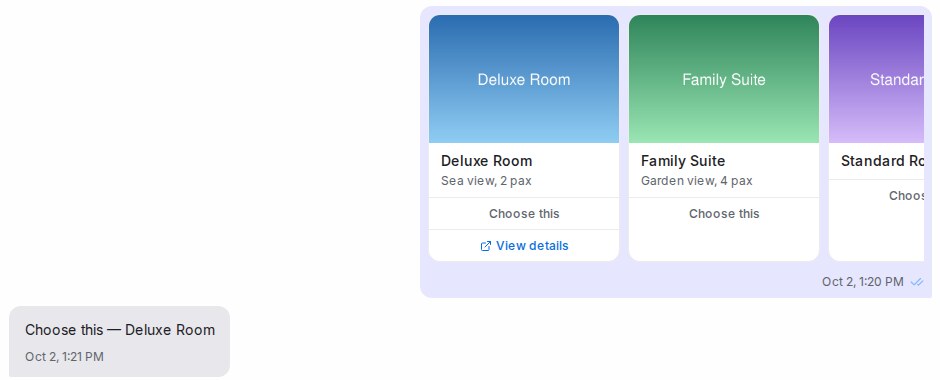
A **Send message** block with several pictures can show them as a carousel: one message the customer swipes sideways, with a title, a short description and buttons on each card. Add 2 to 10 images under **After message**, then set **Show images** to **Carousel**. Each image becomes a card with a **Title** (required, up to 80 characters), a **Description** (optional, up to 80 characters) and up to 3 **Buttons**.
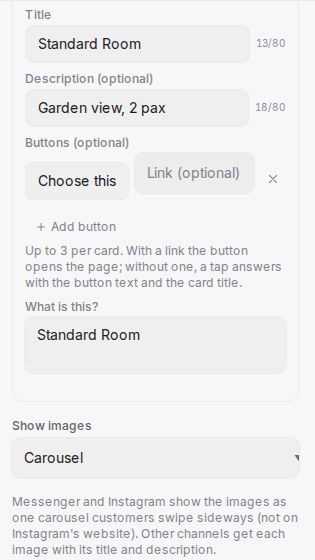
* **A button with a link** opens that page, for example a product page, and the conversation stays where it is.
* **A button without a link** is an answer: the tap sends the button text with the card name, such as "Choose this — Deluxe Room", so the next step knows which card was picked.
* **Messenger and Instagram** show the real carousel. On Instagram it appears in the app, not on Instagram's website.
* **Other channels** (WhatsApp, web chat, Telegram and the rest) get each picture followed by its title and description; links are written out (each card's first link also becomes a button where the channel shows one), and answer buttons appear under the last card where the channel shows buttons.
* **Customers see the card text in their own language**, like the rest of the step.
On the canvas the cards sit side by side, and the Playground shows the same row, so you can tap an answer to test the next step.
## Links become a button
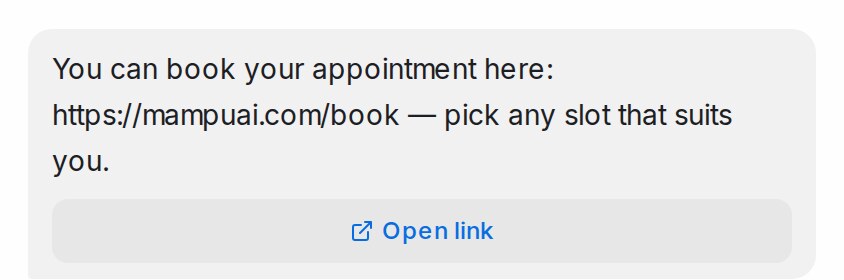
A reply that carries a link also gets a button under it, so the customer taps instead of copying the address. This happens on its own for any link the agent sends — one you wrote into a **Send message** block, one filled in from a variable, or one from your FAQs — and the link stays in the text as well.
{ width="422" }
* **The label** reads **Open link** in the customer's language. To name the button yourself, write the link as `[Book now](https://example.com/book)` and it reads **Book now** (up to 20 characters).
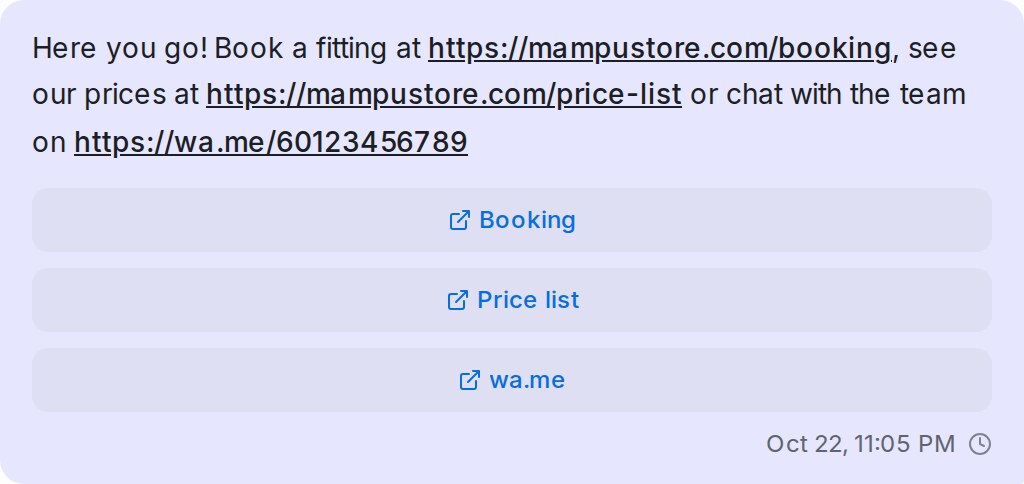
* **Up to three on Messenger and Instagram.** A reply there with several links gets a button for each, up to three, in the order they appear. Each button is named after what tells its link apart: the website when only that link goes there (**wa.me**), otherwise the part of the address that differs (**Booking**, **Price list**). When nothing readable differs, they read **Open link 1**, **Open link 2**. Other channels show one button, for the first link.
* **Where it shows.** Official WhatsApp API, Messenger, Instagram, Telegram, Line and web chat show a real button. A Normal WhatsApp Web Link number, email, SMS and TikTok get the text with the link, as before.
* **When it stays text.** A question that already offers answer buttons, or a reply too long for the channel to add a button, goes out as text with the link.
* **Agents see it too.** The conversation shows the same buttons under the reply, and the Playground shows the first one while you test.
* **Switch it off per inbox.** In the agent's **Inboxes** window, turn off **Turn links into buttons** for an inbox and its replies keep their links as plain text. It is on for every inbox to start with.
{ width="512" }
## Follow up when the customer goes quiet
A customer who stops replying at a question is not lost. Select the **Collect** block and, under **Follow up**, click **+ Add follow-up step**. Each step waits for the time you set under **Follow up after**, then does what you choose under **Then**: send a reminder and keep waiting, continue to the next step, hand off to a human agent, or continue on the **No reply** path. Steps fire one after another, so a flow can remind once, remind again, and only then move on.
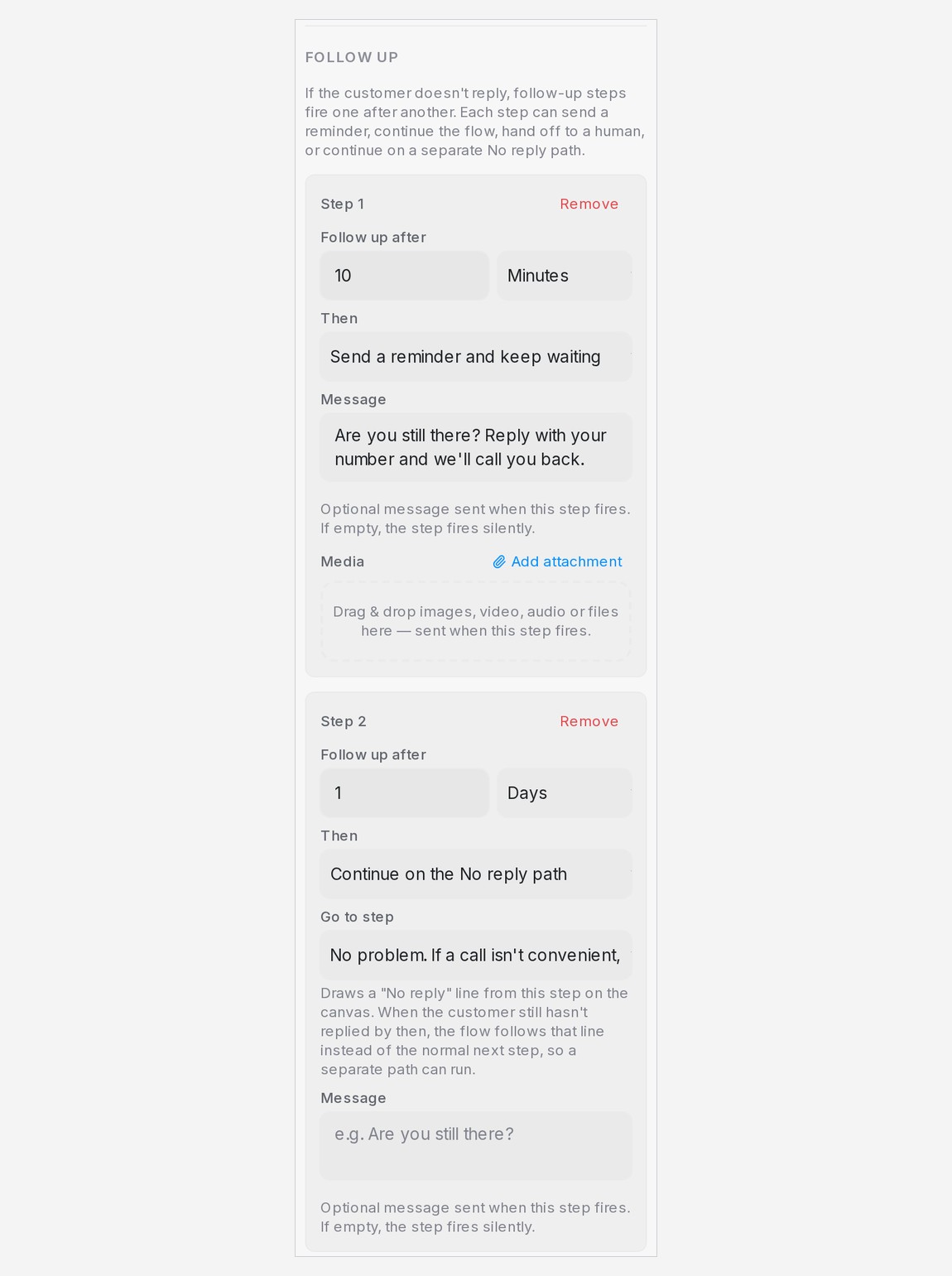
The **No reply** path is a separate route for the customer who never answered: a different offer, a simpler question or a clean ending, instead of the step everyone else gets. On the last follow-up step choose **Continue on the No reply path** and pick where it leads under **Go to step** — an existing step, or **+ New message step**, **+ New question step** or **+ New end** to write a new one on the spot. On the canvas an amber **No reply** line leaves the bottom of the question block and runs to that step, while the blue line still shows where a customer who answers goes.
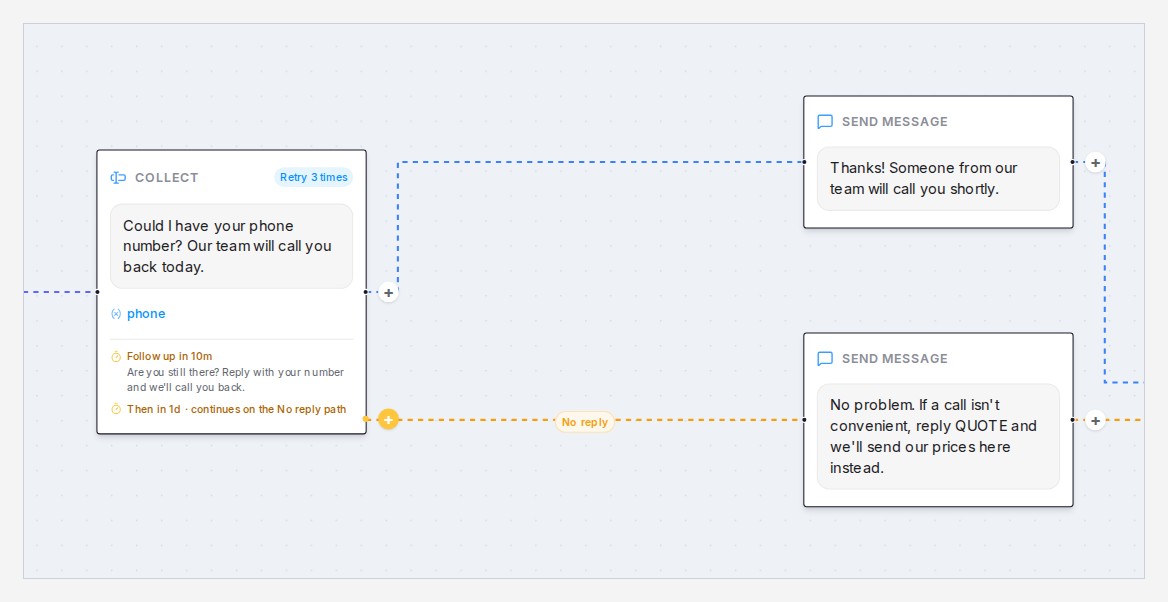
* **Build it from the canvas.** Every question block carries an amber **+** at its lower connector. Click it and choose **New message**, **New question** or **End** to add a step on the No reply path. If the question has no No reply step yet, its last "continue" or "hand off" step becomes one, or a step that fires after 1 hour is added; change the wait in the panel. The grey **+** at the right-hand connector of a message, question, AI task or knowledge query block adds the next step in the same way.
* **Or ask the designer.** Type what should happen in the designer chat — "if they don't reply after a day, offer to send our prices here instead" — and it adds the follow-up steps and the No reply path for you. This works in the chat and in the classic view.
* **Only the quiet customer takes the path.** A customer who answers, even after a reminder, continues down the normal line, and the remaining follow-up steps are dropped.
* **A reminder can carry a message and files.** A step that sends a reminder takes an optional message and files dropped onto **Media**; without a message the step fires silently. The step that moves onto the No reply path can carry a message too, sent as the flow moves on.
* **Every step needs a wait time**, and the panel will not save one without it. Steps after a "continue", "hand off" or "No reply path" step never run, and the panel tells you so.
* Follow-ups never go out during **Quiet hours for follow-ups** in the agent's Settings.
Test it in the Playground with short waits — the follow-ups run there for real, so you can watch the reminder arrive and the flow continue on the path.
## Focus the agent on the right FAQs
Once your [AI Knowledge](/flow-agents/managing-ai-knowledge) entries carry categories, any block can narrow what the agent answers from. Open the block's **Actions → FAQ category scope**, choose **Restrict to selected categories**, and pick the categories that belong to this part of the flow — from that step onward the agent only answers questions from those FAQs. Tick **Include general FAQs** to also allow entries that have no category.
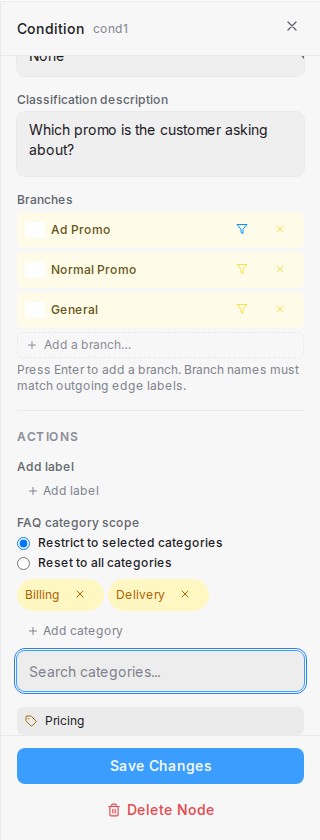
* The scope stays active until another block changes it — add a scope action set to **Reset to all categories** where the conversation opens back up.
* Scoped blocks show an amber **FAQ** badge on the canvas, and every scope change appears as a note in the conversation (and in the playground while testing), so your team can always see what the agent is drawing from.
* Categories are picked from the ones already on your entries — if a category is later removed from every entry, the flow asks you to update the scope before it can be saved or published.
## The handoff message
Every flow has a default **End** step that hands the conversation to your team, sending a short handoff message (e.g. "Let me connect you with a team member.") whenever the agent can't help further.
Actions on the default **End** step, such as **Add label** under **Actions**, also run whenever the agent hands a conversation to your team without reaching an End step. Add the label your team filters on, such as *Handoff*, and those conversations get it too. The handoff message still goes out only once, so customers never get the "let me connect you" line twice. Handoff **End** steps you designed yourself run only their own actions.
Want your team to receive a phone number or an order reference along with the handover? Turn on **Try to help before handing off** in the agent's **Settings** and list the **Details to collect before handing off** — see [Testing and connecting an agent](/flow-agents/testing-and-connecting-an-agent).
Prefer a quiet handover? Tick **Leave handoff message blank (silent handoff)** on the default End step — the message field clears, and customers get no automated line when the agent steps back; the next thing they see is your teammate's reply. Because the chat stays quiet until someone answers, the first time you publish the agent you're shown exactly what customers will experience and asked to confirm. Your name and the date are recorded on the step, so the team always knows who approved it. Typing a handoff message again switches the agent back to announcing the handover.
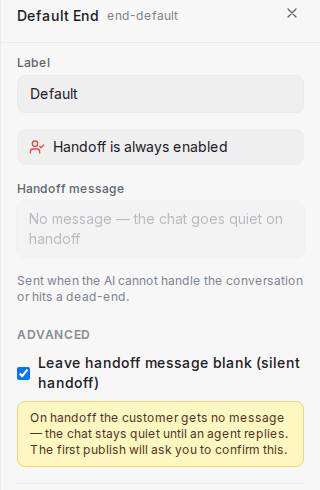
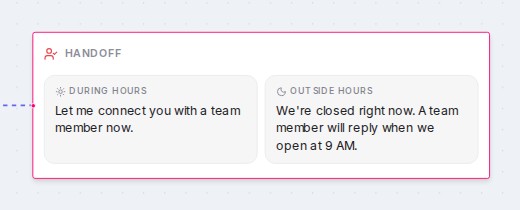
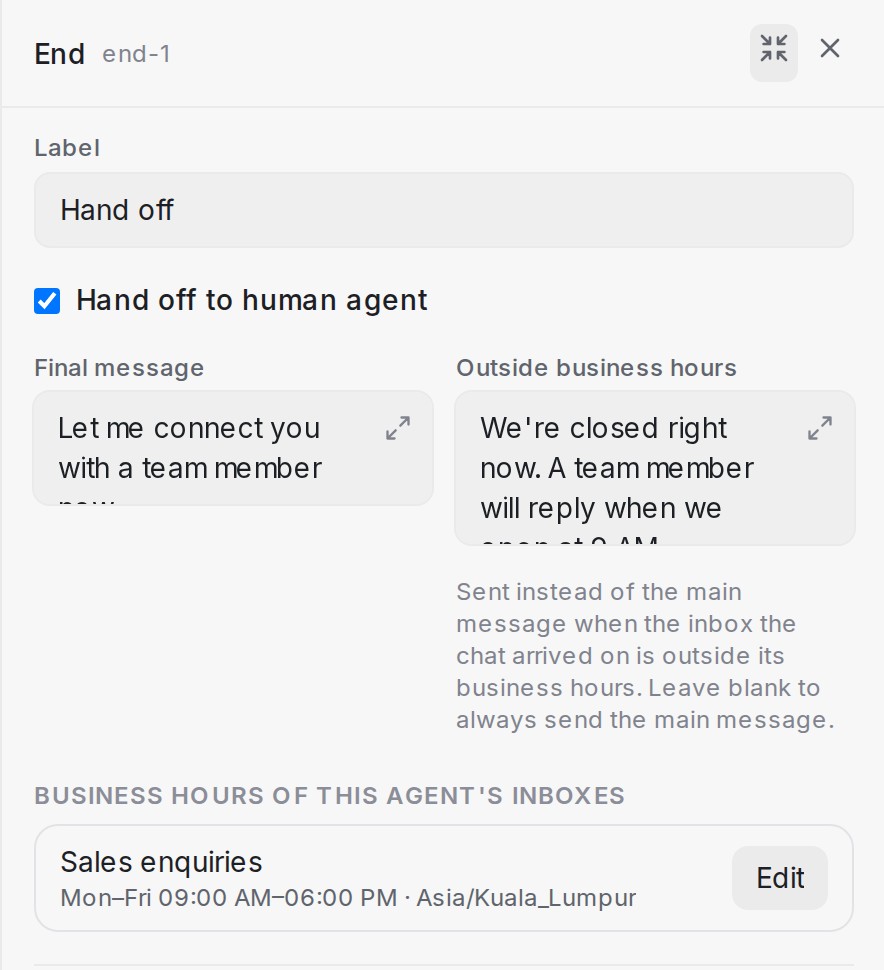
Closed for the night? Any **End** step can carry a second message, **Outside business hours**, beside its **Final message**. When the chat arrived on an inbox that is outside its business hours at that moment, the agent sends this version instead, so an after-hours customer hears when to expect a reply rather than "Let me connect you with a team member". Leave it blank and the step always sends the main message. On the canvas, an End step with both messages shows them side by side, marked **During hours** and **Outside hours**.
The hours are the inbox's own business hours, and you can set them without leaving the designer. The step's panel lists every inbox connected to the agent under **Business hours of this agent's inboxes**, each with its schedule and timezone: click **Set hours** or **Edit**, switch on **Business hours on for this inbox**, pick the timezone and working days, and press **Save hours**. The same list sits in the agent's **Settings** under **Business hours**, and because these are the inbox's real business hours, whatever you change here applies to that inbox everywhere. While a Flow Agent handles an inbox, the inbox's own unavailable message stays quiet, so customers get the agent's after-hours message and not two messages at once. To watch the after-hours message play, open the Playground, click **Scenario**, and choose the inbox and a pretend time outside its hours — see [Testing and connecting an agent](/flow-agents/testing-and-connecting-an-agent).
## Choose who gets the handoff
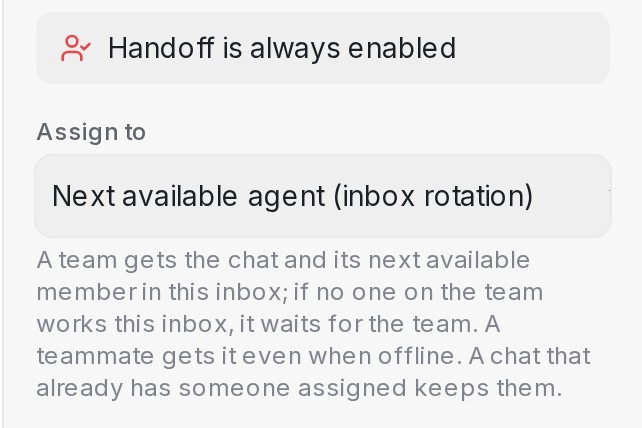
Every **End** step that hands off, the default one included, has an **Assign to** field that decides who receives the conversation:
* **Next available agent (inbox rotation)**: the inbox's usual rotation picks the teammate. This is the default.
* **A team**, listed under **Teams**: the conversation goes to that team and to the team's next available member who works the inbox. If no one on the team works that inbox, the conversation waits on the team, unassigned, until someone on the team picks it up.
* **A teammate**, listed under **Teammates**: the conversation goes straight to that person, even when they're offline. If they no longer work that inbox, the inbox rotation picks instead.
A conversation that already has someone assigned keeps them, and only joins the chosen team when that person is on it. The default **End** step's choice also applies whenever the agent hands over without reaching an End step, including when it can't reply because of a technical problem. When you test with a **Scenario** inbox in the Playground, the handoff shows who would get the chat, without notifying anyone.
{ width="321" }
Every designer change creates a **snapshot** — open the **History** tab to restore any earlier version. You can also download the canvas as a PDF to share the flow with your team.
Save as you go, and use the [playground](/flow-agents/testing-and-connecting-an-agent) to try the flow as if you were the customer.
## See where customers go
Once the agent is live, the designer can show you what real customers did with the flow. Administrators see a flame button in the toolbar on the right of the canvas — click it to switch on the heatmap. Every step is coloured by the share of customer sessions that reached it in the last 30 days, from green for the quiet corners to red for the busiest path, and the colour spreads across the canvas around each step so the routes customers actually take stand out at a glance.
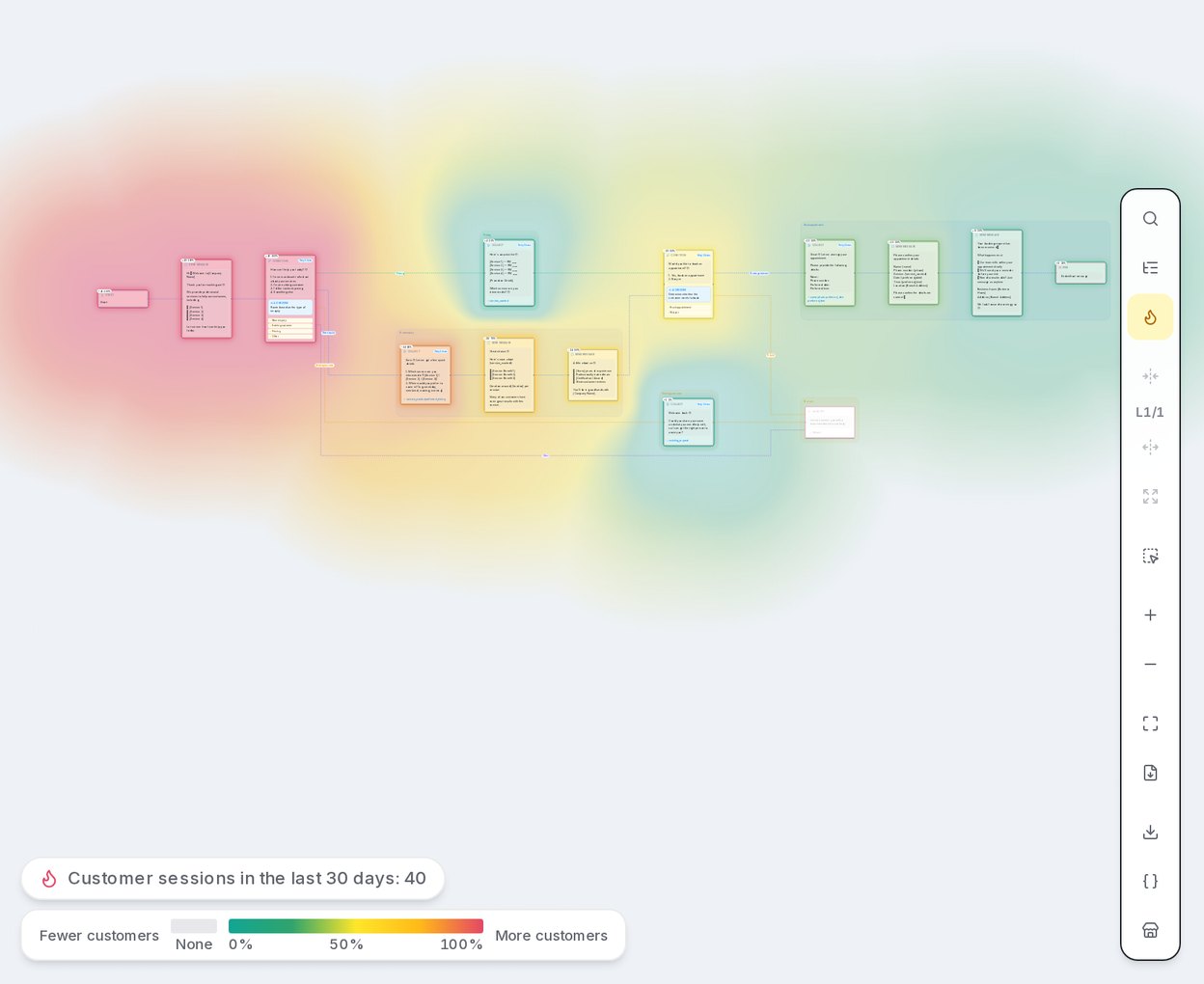
* **Each step carries a count and a share** — `34 · 85%` means 34 sessions reached this step, 85% of everyone who started. Hover the count to read the full figure in plain words.
* **Steps nobody reached fade back**, so unused routes are easy to spot.
* **The summary and legend sit at the bottom left** — the total number of customer sessions in the last 30 days, and a colour bar from **Fewer customers** to **More customers**. Steps with no sessions show the grey **None** shade.
* **Only live conversations count.** Playground tests are never included, and a customer who chatted twice counts as two sessions.
Use it to spot where conversations thin out. When far fewer customers reach a step than the one before it, that is the question or menu to reword first. Click the flame again to return to the plain canvas. For the answers customers gave along the way, see [Bot reports, flow submissions and exporting](/reports/bot-flow-submissions-and-exporting).
## Related
* [Journeys: keep the AI inside one part of the flow](/flow-agents/journeys)
* [Languages: write each step in your customers' languages](/flow-agents/languages)
---
## Flow designer reference: every button and setting
URL: https://help.mampuai.com/flow-agents/designer-reference
---
description: Every button and setting in the flow agent designer in one place - the canvas toolbar, the step panel for each kind of step, route rules, follow-ups, the Playground tools, History and the agent Settings.
---
# Flow designer reference: every button and setting
Look up any button or field in the flow designer here. For a guided walk through building a flow, start with [Building the conversation flow](/flow-agents/building-the-conversation-flow).
## The designer at a glance
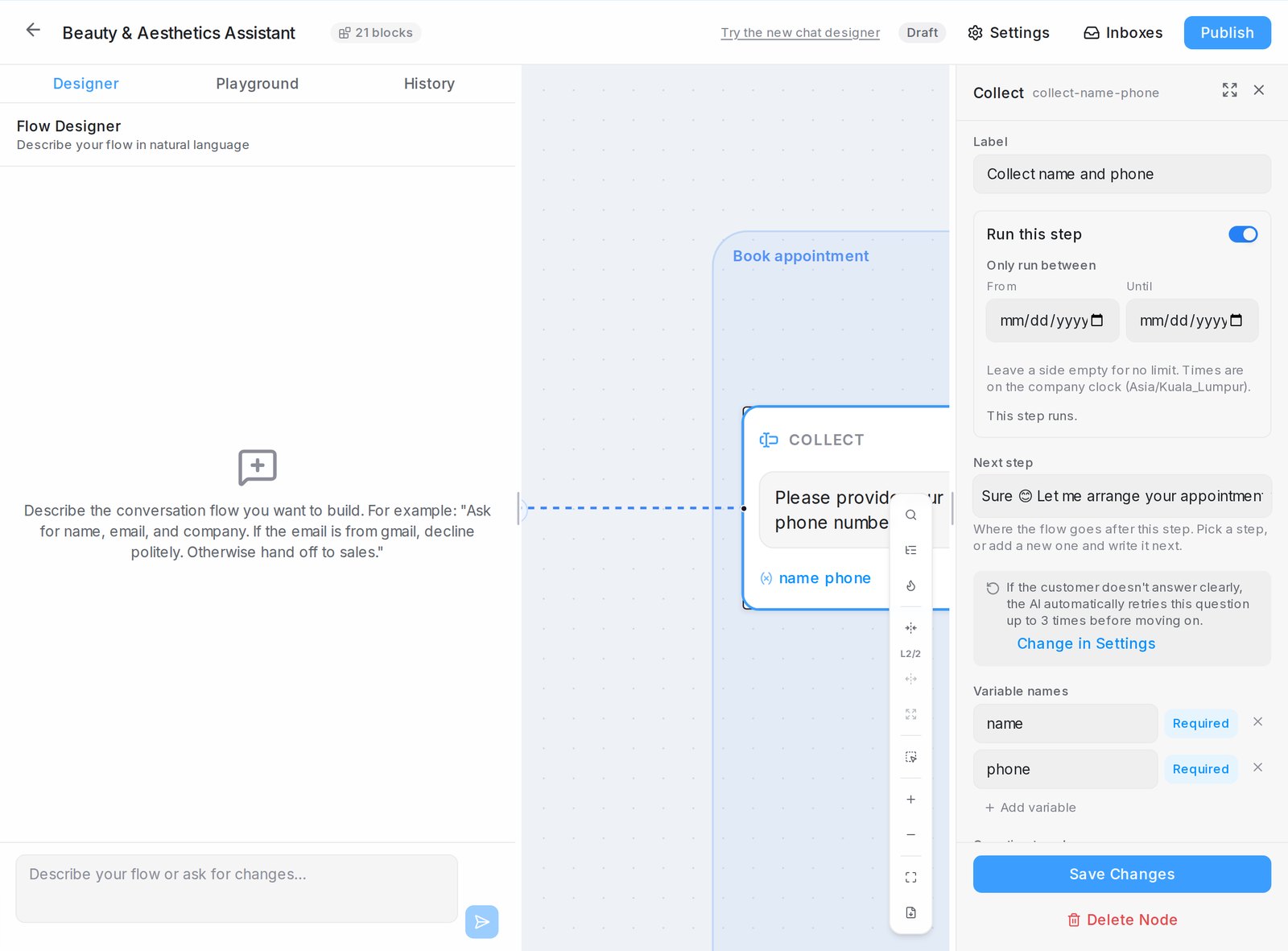
* **Designer**, **Playground** and **History** are the tabs on the left. **Designer** is a chat where you describe changes in your own words; see [Designing your agent by chatting](/flow-agents/designing-your-agent-by-chatting).
* The **canvas** shows the flow as connected steps. Click a step to open its panel on the right.
* **Settings**, **Languages**, **Inboxes** and **Publish** sit in the header. **Languages** holds the languages you write your own step versions in; see [Languages](/flow-agents/languages). The badge shows the agent's state: **Draft**, **Testers only** or **Live**.
If your designer opens as one large chat, click **Switch to classic view** in the header to get this layout.
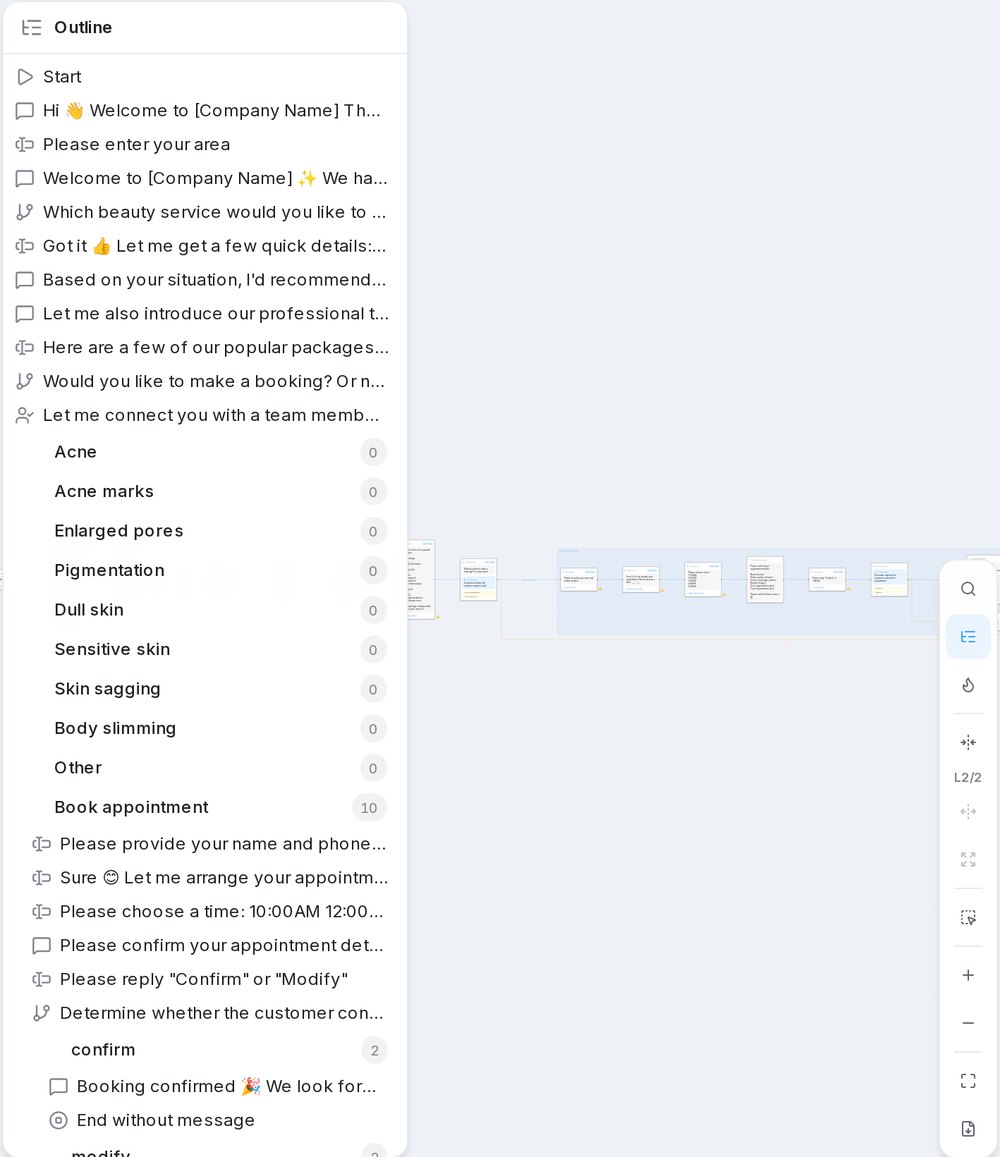
## The canvas toolbar
{ width="500" }
| Button | What it does |
|---|---|
| **Search nodes (Ctrl+F)** | Find a step by its words and jump to it |
| **Flow outline** | Every step as a tree of branches; click one to jump there |
| **Show where customers went in the last 30 days** | Heatmap of how many customers reached each step (administrators); see [See where customers go](/flow-agents/building-the-conversation-flow#see-where-customers-go) |
| **Collapse one branch level** / **Expand one branch level** / **Expand all branches** | Fold a large flow one menu level at a time; double-click a folded pill to open it |
| **Select nodes to comment** | Draw a box round steps and type what should change; the designer chat edits only those steps |
| **Zoom in**, **Zoom out**, **Fit to view** | Change how much you see; **Fit to view** brings every step back |
| **Download as PDF** | Save the whole flow, with its images, as a PDF |
| **Show one image per step** | Appears when steps carry attachments; shrinks them to one thumbnail and a count |
| **Show the path walked in the playground** | Appears after a Playground run; numbers the steps it passed through |
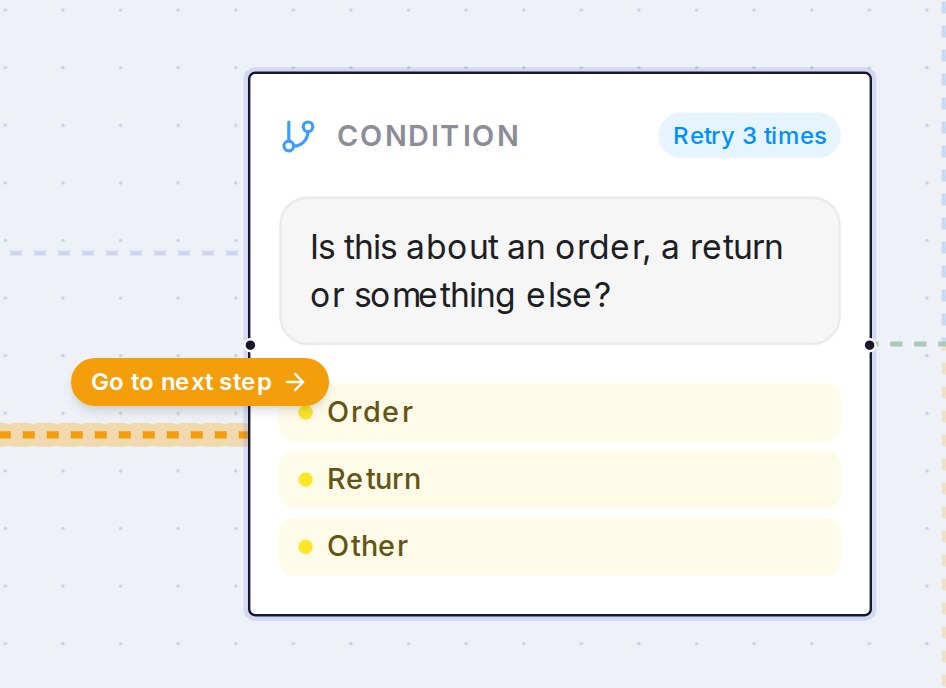
### Follow a line to its next step
{ width="473" }
Lines show where each step leads. Press a line, or the label on it, to highlight it: a **Go to next step** button appears just above the point you pressed. Press the button and the canvas moves to the step that line leads into, which flashes briefly; the line stays highlighted. Press the empty canvas to clear it. A line into a folded branch leads to the branch's pill instead.
## Settings every step shares
Every step panel has these, from top to bottom:
* **Language tabs** at the top of the panel appear once the flow has extra languages: write the step in each one. See [Languages: write each step in your customers' languages](/flow-agents/languages).
* **Label**: the step's name on the canvas.
* **Run this step**: switch the step off, or run it only between two dates with **Only run between**. While it is off, the flow skips to the next step. See [Switch a step off, or run it only for a period](/flow-agents/building-the-conversation-flow#switch-a-step-off-or-run-it-only-for-a-period).
* **Next step**: where the flow goes after this step. Pick a step, or add a new one and write it next. On the canvas, the grey **+** at a block's right-hand connector adds the next step too, and the amber **+** on a question block adds a step on its No reply path.
* **Actions → Add label**: label the conversation and the contact when the flow reaches this step.
* **FAQ category scope**: narrow the FAQs the agent answers from, from this step on. See [Focus the agent on the right FAQs](/flow-agents/building-the-conversation-flow#focus-the-agent-on-the-right-faqs).
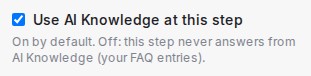
* **Use AI Knowledge at this step**: on by default. Untick it and this step never answers from your AI Knowledge, however the conversation reached it. Keep it on wherever you still want FAQ questions answered. If the step's question is optional and the next step is an AI conversation step, a customer question the step cannot answer here is passed on to that step, which answers it from your AI Knowledge. On an AI conversation step it sits under **Advanced settings**, and **Knowledge this step answers from** is hidden while it is off. AI task and tool steps have no such setting.
* **Advanced settings** at the end of the panel holds **Starts a journey**, which makes this step and the steps after it one journey. See [Journeys: keep the AI inside one part of the flow](/flow-agents/journeys).
* **Save Changes** keeps your edits. **Delete Node** removes the step; reconnect the steps around it afterwards.
{ width="420" }
In any message, `{name}` or `{email}` inserts a value collected earlier, and `{collection:key}` lists items from a repeating section. The expand icon on a long text field opens a larger editor.
## Send message
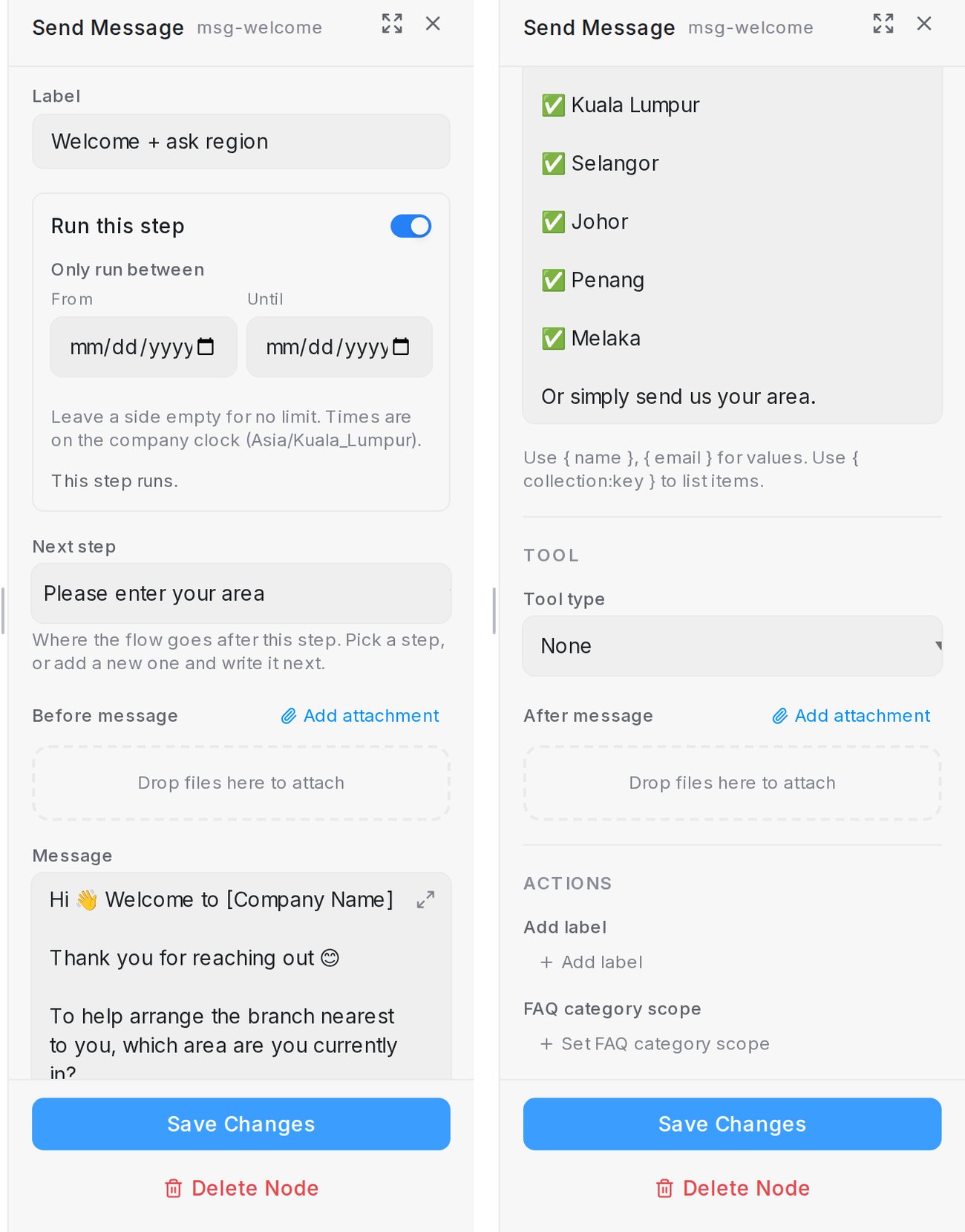{ width="640" }
* **Message**: what the agent says.
* **Add attachment** (above or below the message) adds an image, video, audio file or document, sent **Before message** or **After message**. You can also drop files onto the box. Describe each file under **What is this?** and use **When to send** for timing, for example *only after the customer shows interest*.
* **A link in the message** also reaches the customer as a button where the channel shows one. See [Links become a button](/flow-agents/building-the-conversation-flow#links-become-a-button).
## Collect
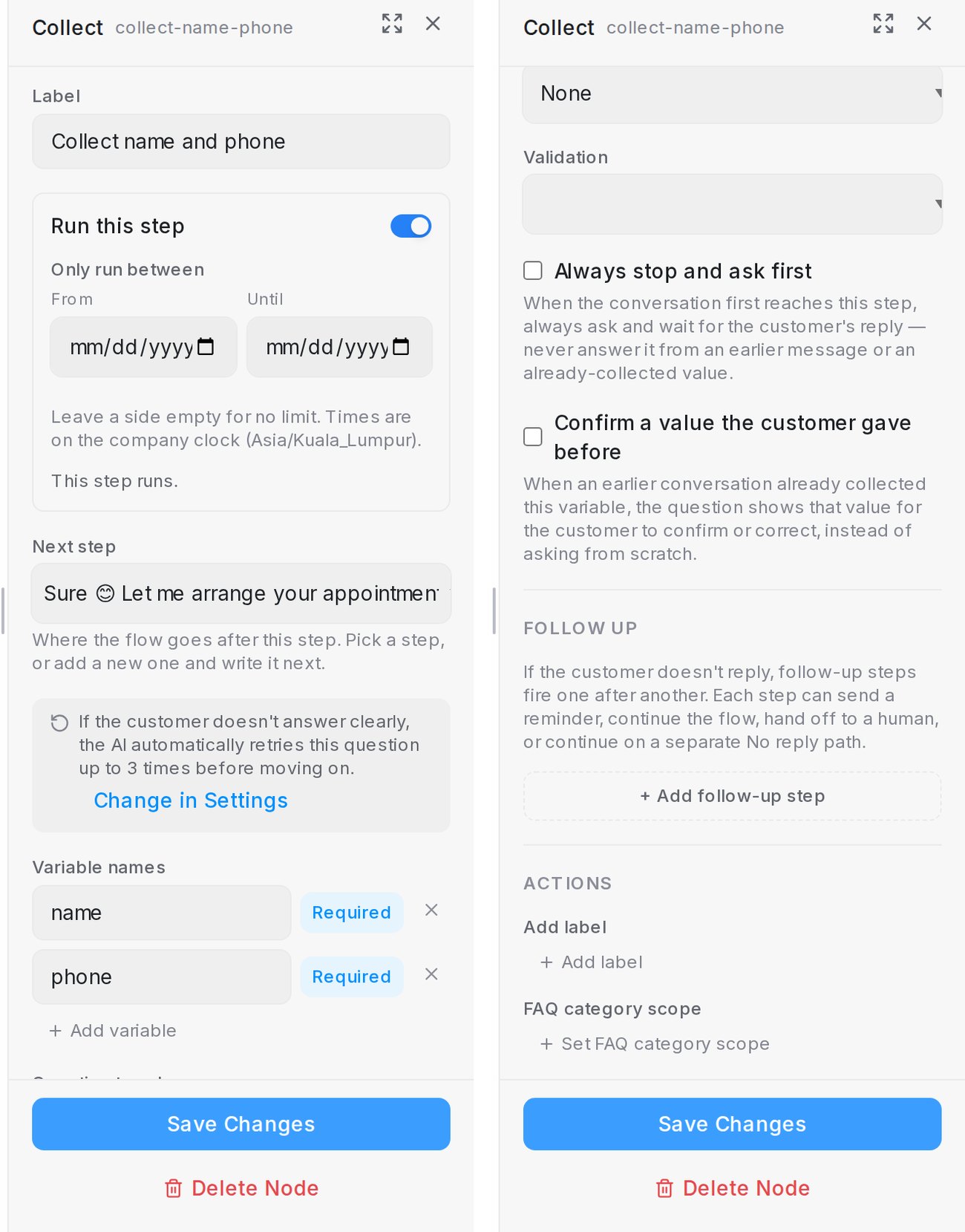{ width="640" }
* **Question to ask**: what the agent asks.
* **Variable names**: the details this question captures. Mark each **Required** (asked again until given) or **Optional** (asked once). **Add variable** for more.
* **Validation**: **None**, **Email**, **Number** or **Date**.
* **Always stop and ask first**: always ask and wait, even if an earlier message seems to answer it.
* **Confirm a value the customer gave before**: show a returning customer last time's answer to confirm or correct.
* **Answer buttons**: up to 13 tappable answers, 20 characters each. See [Let customers tap an answer](/flow-agents/building-the-conversation-flow#let-customers-tap-an-answer).
* **Follow up**: see [Follow-ups](#follow-ups) below.
How many times a required detail is asked again is set by **Re-ask limit for collect nodes** in Settings; the panel links there with **Change in Settings**.
## Condition and route rules
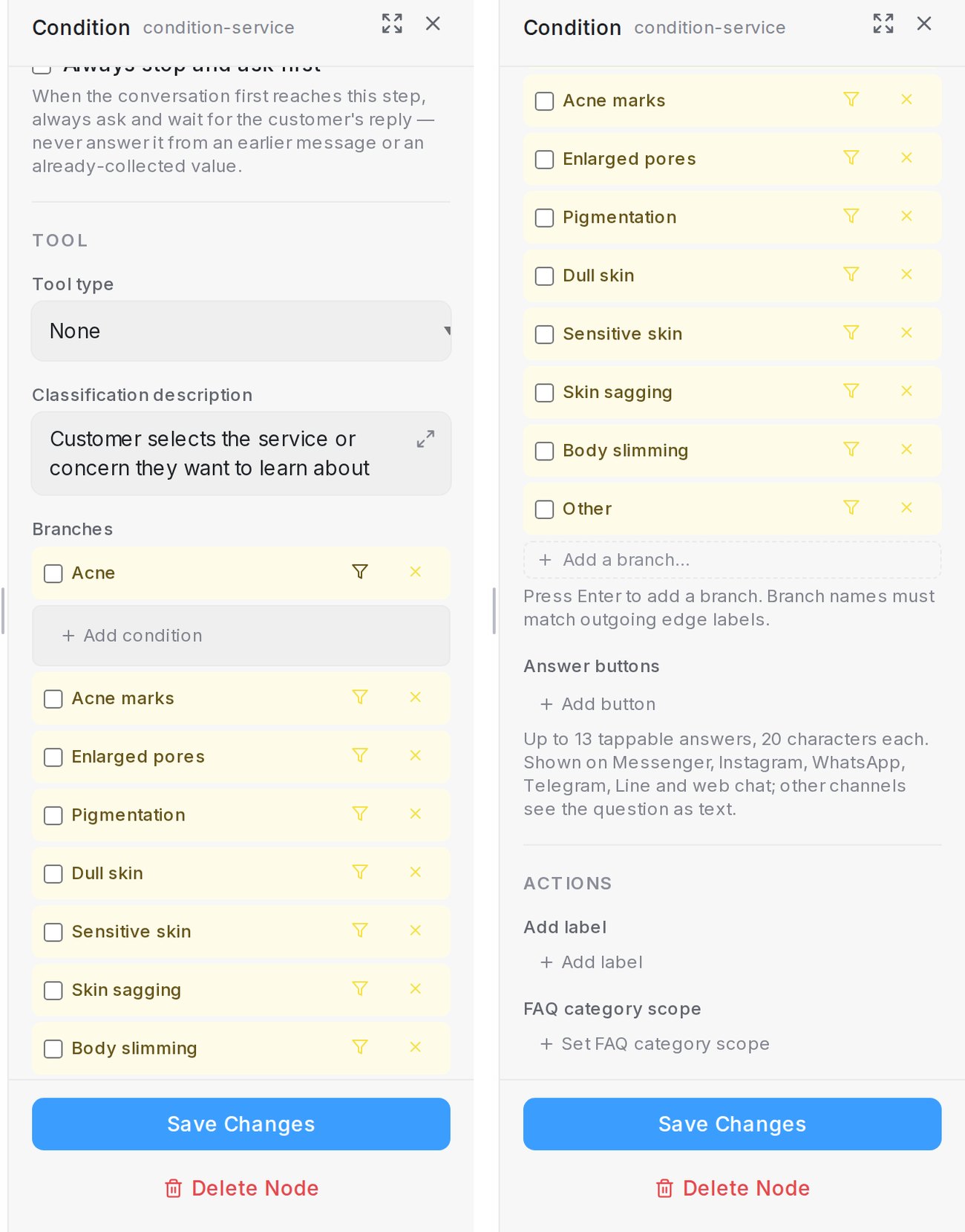{ width="640" }
* **Question** (optional) is asked before the customer picks a branch. **Classification description** says what the branches are for.
* **Branches**: type a name and press Enter. Each name must match the label on a line leaving the step. Tick a branch to make it the **default path**: the flow takes it whenever a message matches none of the branches, even the customer's first message before the question is asked, and when no reply comes and a follow-up continues — see [Send everything else down a default path](/flow-agents/building-the-conversation-flow#send-everything-else-down-a-default-path).
* The filter icon on a branch opens its **route rule**. **Add condition** offers:
| Condition | Shows or picks the branch when |
|---|---|
| **Meta ads** | The customer came from one of the ads you list (**Is one of these ads**), or from any Click-to-Message ad (**Came from any ad**) |
| **Customer labels** | The conversation or contact has one of these labels, or a label containing a word you type |
| **Message keywords** | The latest message contains one of these words |
| **Inbox** | The customer messaged one of the inboxes you pick (**Is one of these inboxes**), or any other inbox (**Is not one of these inboxes**) |
| **Must go here on match** | Skip the question and always route matching customers here (needs an ads, labels or inbox condition). With an inbox condition, the branch becomes the default for those inboxes and stays open to every other inbox — see [Send each inbox down its own route](/flow-agents/building-the-conversation-flow#send-each-inbox-down-its-own-route) |
With two or more conditions, pick **AND** when all must match or **OR** when one is enough. See [Show a route only to the right customers](/flow-agents/building-the-conversation-flow#show-a-route-only-to-the-right-customers).
## AI conversation
The agent chats freely under your instructions until an exit applies.
| Field | What it does |
|---|---|
| **How it should talk** | Your instructions for this step |
| **What this step handles** | Optional one-line summary, up to 200 characters |
| **Knowledge this step answers from** | AI Knowledge topics to use; empty means all |
| **Advanced settings → Use AI Knowledge at this step** | Untick to answer from your instructions only; **Knowledge this step answers from** is hidden while it is off |
| **Exit routes** | Ways out: **Add route**, name it, describe when it applies. **Done**, **Handoff** and **Unresolved** are reserved names |
| **Variable names** | Details to capture while chatting |
| **Advanced settings → Turn limit** | Leave through **Unresolved** after this many customer replies |
## AI task and tool steps
| Field | What it does |
|---|---|
| **AI task → Result variable** | Runs silently and saves its answer for later steps |
| **Tool type** | Live data for the step: calendar slots, catalogue products or one of your API tools |
| **If the request fails** | Say it couldn't check and move on, or say so and hand off. Never makes up a value |
| **Search from variable** | Search products by a collected detail; blank uses the latest message |
| **Which products to use** | Suggest closest matches, or only exact fits and hand off when none match. See [Product catalogue and recommendations](/flow-agents/product-catalogue-and-recommendations) |
| **If the time was just taken** | The apology a booking step sends when the slot went first. See [Setting up a calendar](/calendar/setting-up-a-calendar) |
## Follow-ups
Under **Follow up** on a Collect step, click **+ Add follow-up step** to act when the customer stops replying. Steps fire one after another. Each one waits for the time under **Follow up after**, then does what you choose under **Then**: **Send a reminder and keep waiting**, **Continue to the next step**, **Hand off to a human agent** or **Continue on the No reply path**.
* The message is optional. Without one, the step fires silently. On a reminder step you can drop images, video, audio or files onto **Media** to send with it.
* **Continue on the No reply path** draws an amber **No reply** line from this step on the canvas and asks where it leads under **Go to step**: an existing step, or **+ New message step**, **+ New question step** or **+ New end**. If the customer still hasn't replied by then, the flow follows that line instead of the normal next step. See [Follow up when the customer goes quiet](/flow-agents/building-the-conversation-flow#follow-up-when-the-customer-goes-quiet).
* Every step needs a wait time. Steps after a continue, hand-off or No reply step never run.
* Follow-ups never go out during **Quiet hours for follow-ups** in the agent's Settings.
## End
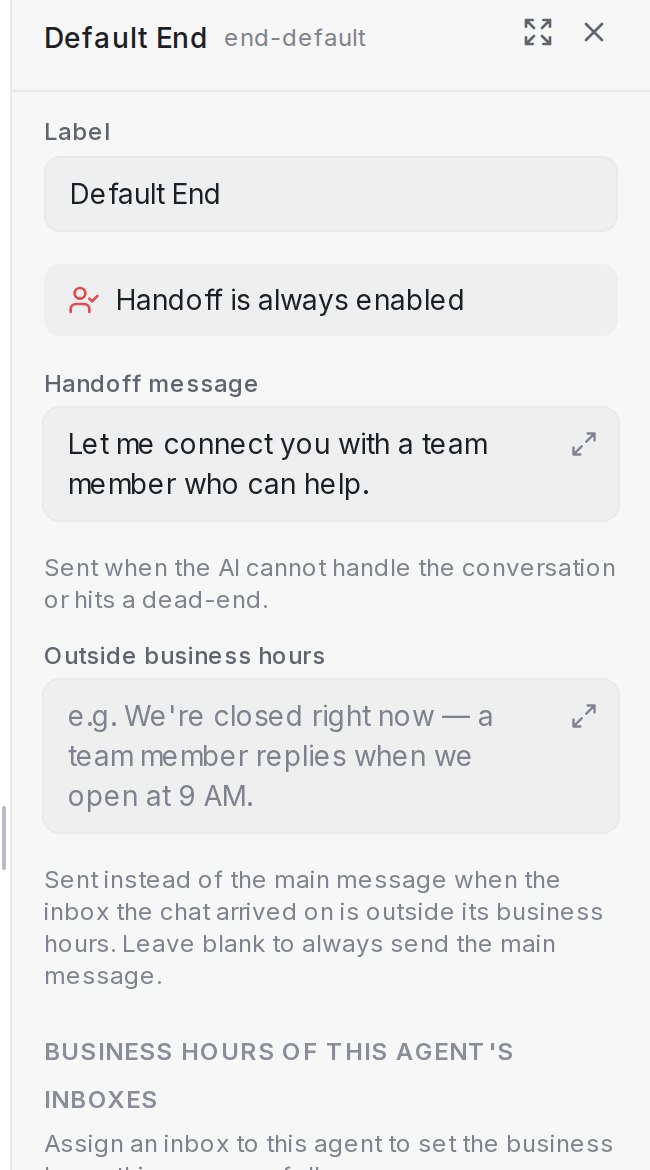{ width="330" }
* **Final message**: said as the conversation ends.
* **Hand off to human agent**: pass the chat to your team instead of closing it. The default End always hands off.
* **Handoff message**: sent on handoff. Tick **Leave handoff message blank (silent handoff)** to send nothing.
* **Outside business hours**: sent instead when the inbox is outside its business hours.
* **Assign to**: who gets the conversation on handoff: the inbox rotation, a team or a teammate. See [Choose who gets the handoff](/flow-agents/building-the-conversation-flow#choose-who-gets-the-handoff).
See [The handoff message](/flow-agents/building-the-conversation-flow#the-handoff-message).
## Playground
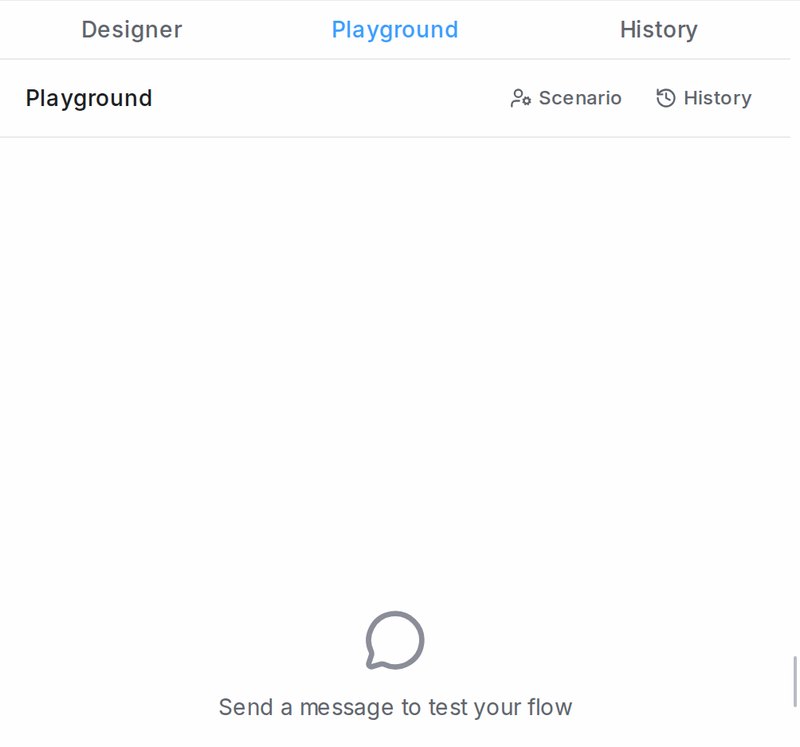{ width="420" }
Type as the customer to run the flow. The paperclip sends a photo, voice note or PDF. The microphone records a voice message and sends it with one press. **History** lists earlier test runs. Under an earlier reply, **Answer differently from here** continues the test from that point with another answer; see [Testing and connecting an agent](/flow-agents/testing-and-connecting-an-agent).
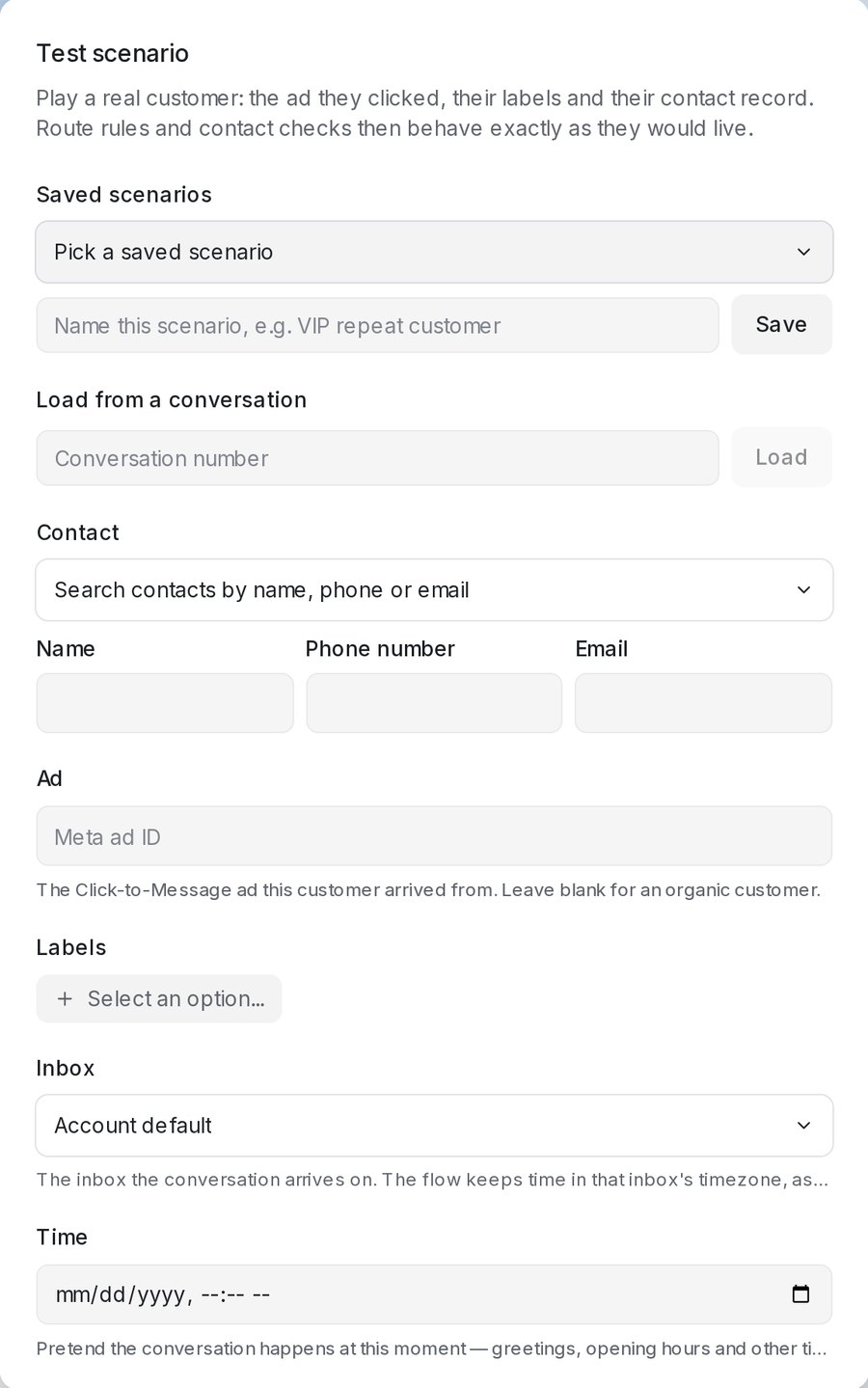{ width="460" }
**Scenario** plays a real customer: their contact, the **Ad** they clicked, their **Labels**, the **Inbox** they write on and the **Time** of the conversation. Route rules and opening hours then behave as they would live. **Load from a conversation** fills it in from a conversation number; save a set under **Saved scenarios** to reuse it.
* Follow-ups fire after their real waiting time, so keep the test open.
* When a test ends and a message sequence is linked to the agent, **Simulate inactivity** starts the sequence and **Deliver** sends its next message. See [Message sequences](/campaigns/message-sequences).
## History
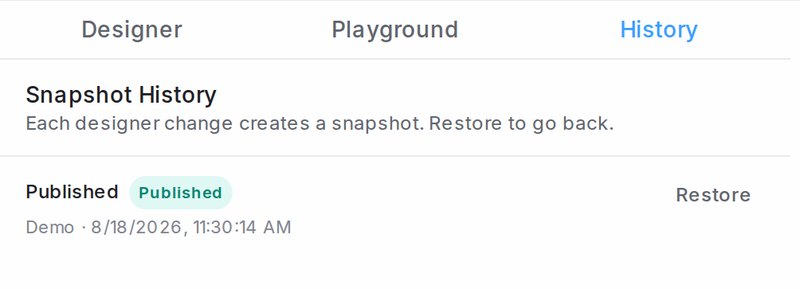{ width="420" }
Each change creates a snapshot. **Restore** goes back to one. The live one carries a **Published** badge.
## Publish and Inboxes
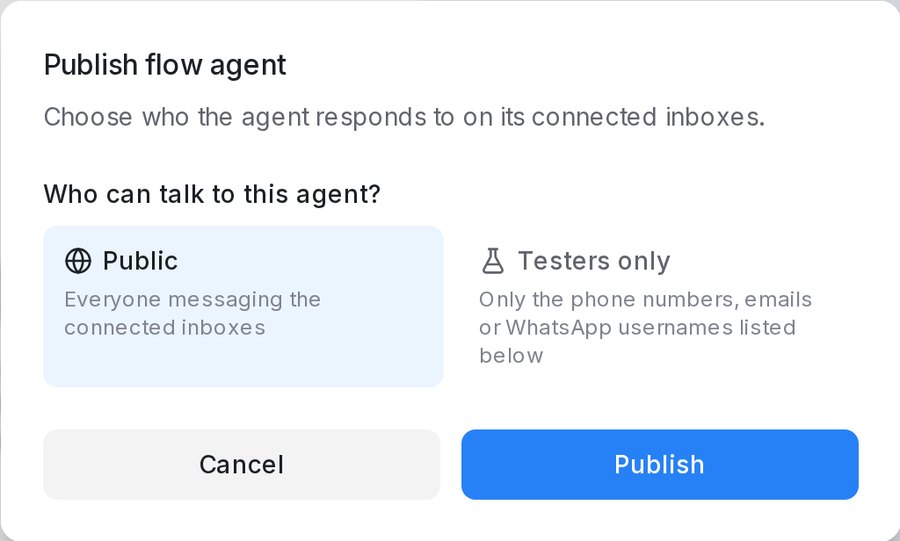{ width="460" }
**Publish** asks **Who can talk to this agent?**: **Public** (everyone on the connected inboxes) or **Testers only** (your workspace testers, the list under **Settings → Account Settings → Testers**).
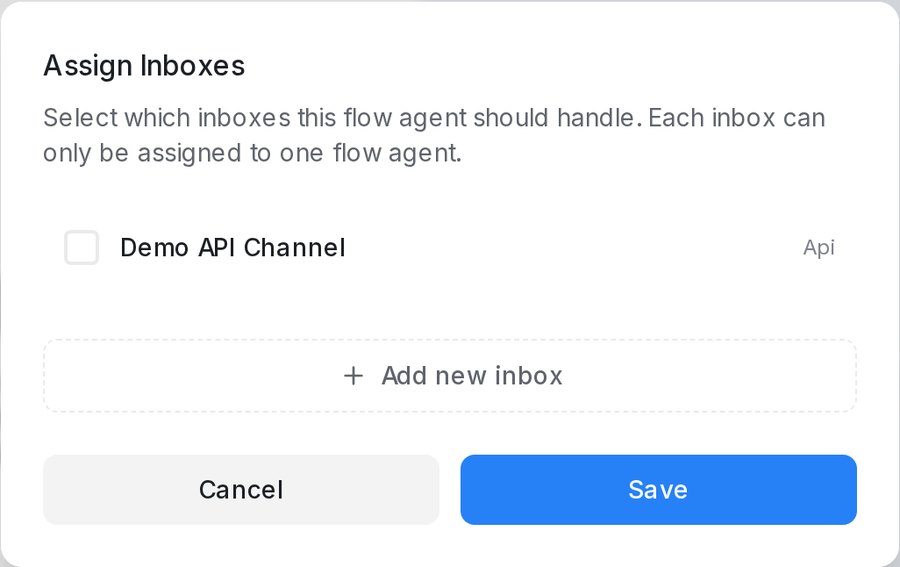{ width="460" }
**Inboxes** picks which inboxes the agent answers; each inbox can have one flow agent. **Add new inbox** connects a channel without leaving the designer. **Save collected phone to contact** makes a number the agent collects become the contact's phone; tick **I understand and accept this risk** to switch it on, because it cannot be undone.
## Agent settings
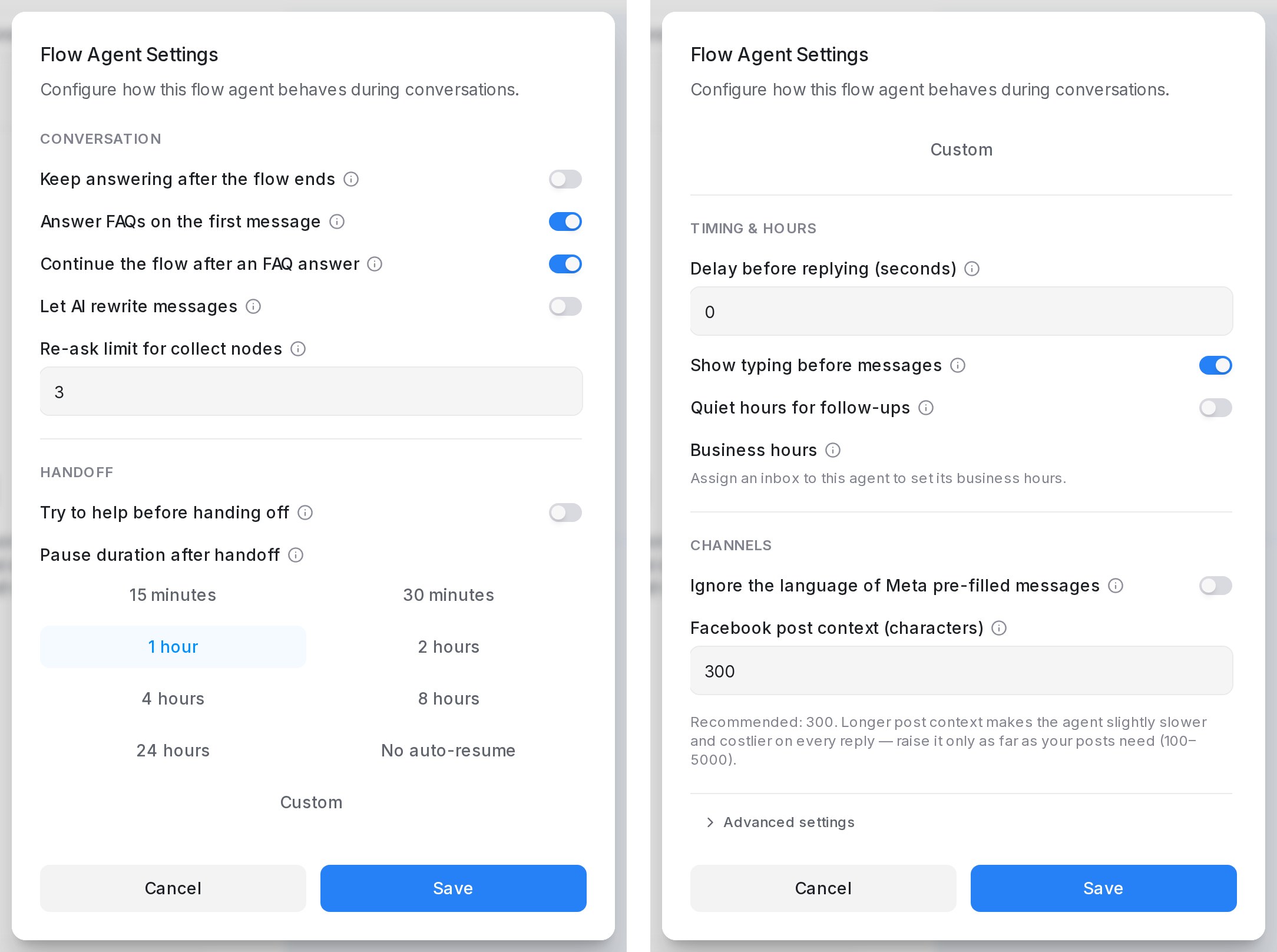{ width="640" }
The dialog groups the settings under **Conversation**, **Handoff**, **Timing & hours** and **Channels**, with **Advanced settings** at the end; the table follows that order. Languages have their own **Languages** button in the header.
| Setting | What it does |
|---|---|
| **Keep answering after the flow ends** | Answer questions after the flow finishes instead of starting over |
| **Answer FAQs on the first message** | A first message that matches AI Knowledge is answered right after the greeting, or before the opening question |
| **Continue the flow after an FAQ answer** | After an FAQ answer, ask the pending question again or start the flow |
| **Let AI rewrite messages** | Reword messages in your tone and word FAQ answers around the customer's question; facts, prices, dates and links never change |
| **Re-ask limit for collect nodes** | Times a required detail is asked again |
| **Try to help before handing off** | One clarifying question or answer first; asking for a person always hands off at once |
| **Details to collect before handing off** | Shown when **Try to help before handing off** is on. Asked once before a routine handoff; answers go in a private note |
| **Pause duration after handoff** | How long the agent stays quiet after a handoff; **Custom** or **No auto-resume** |
| **Delay before replying (seconds)** | 0 to 300; messages sent during the wait get one reply |
| **Show typing before messages** | On by default: a short pause between messages, and "typing…" on numbers linked by QR code. Off sends a reply's messages back to back |
| **Quiet hours for follow-ups** | No follow-ups in this window, in the inbox's timezone |
| **Business hours** | Each connected inbox's hours, used by **Outside business hours** |
| **Ignore the language of Meta pre-filled messages** | A first message that is the pre-filled text of an ad or of a post's WhatsApp button neither sets nor changes the language; the opening goes out as written |
| **Facebook post context (characters)** | How much of a post the agent reads for a comment; 300 recommended |
| **Advanced settings → Flow AI can switch journeys** | On by default. Off keeps the AI inside the journey the customer is in; see [Journeys](/flow-agents/journeys) |
More in [Behaviour settings](/flow-agents/testing-and-connecting-an-agent#behaviour-settings).
## Related
* [Building the conversation flow](/flow-agents/building-the-conversation-flow)
* [Designing your agent by chatting](/flow-agents/designing-your-agent-by-chatting)
* [Testing and connecting an agent](/flow-agents/testing-and-connecting-an-agent)
* [Product catalogue and recommendations](/flow-agents/product-catalogue-and-recommendations)
* [Managing AI Knowledge](/flow-agents/managing-ai-knowledge)
* [Journeys: keep the AI inside one part of the flow](/flow-agents/journeys)
* [Languages: write each step in your customers' languages](/flow-agents/languages)
---
## Journeys: keep the AI inside one part of the flow
URL: https://help.mampuai.com/flow-agents/journeys
---
description: Mark a step as the start of a journey, see each journey as a cloud on the flow designer canvas, and keep the AI inside the journey the customer is in.
---
# Journeys: keep the AI inside one part of the flow
A journey is one large part of your flow: a starting step and every step after it, up to the next journey. Each option of your first menu is a journey on its own, and you can start more journeys on steps further down the flow. Journeys show on the canvas as clouds, and one agent setting decides whether the AI may move a customer from one journey to another.
## Journeys on the canvas
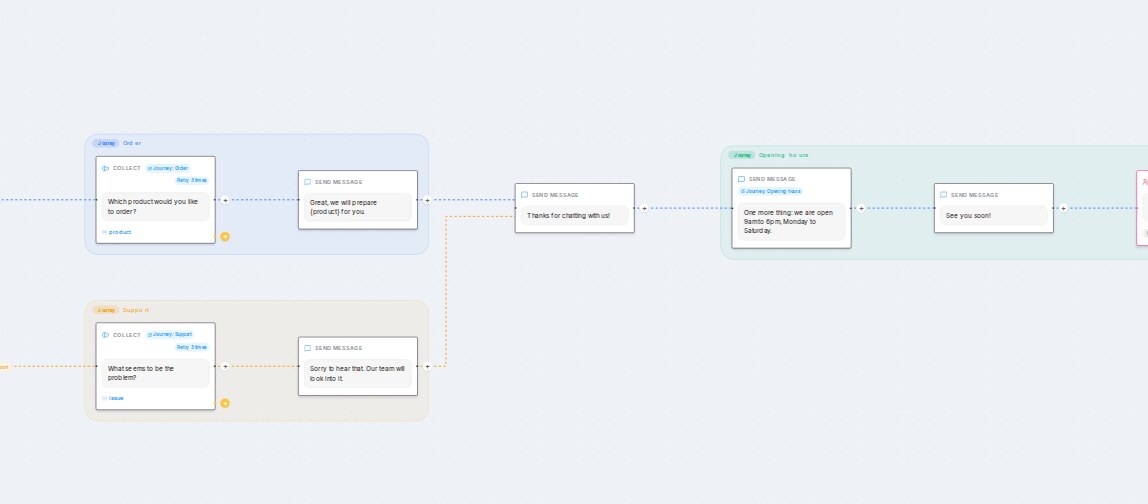{ width="575" }
* Each option of the first menu starts a journey. Its cloud carries a **Journey** pill and the card of its first step shows **Journey:** followed by the option's name.
* A journey you start yourself gets its own cloud, named after the line that leads into it or after the step's label.
* A step that two journeys both reach, such as a closing thank-you, sits between the clouds and belongs to neither.
* A journey never sits inside another one.
## Start a journey on a step
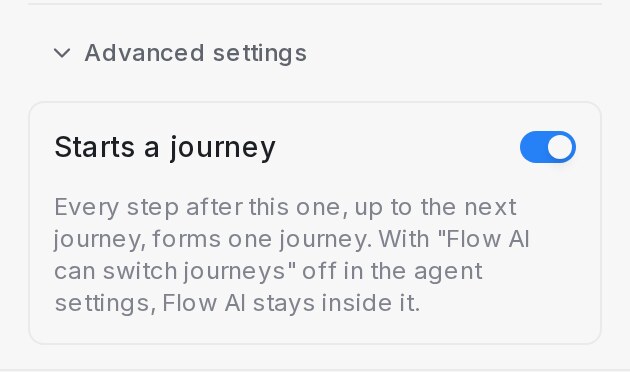{ width="315" }
1. Click the step, scroll to **Advanced settings** at the end of the panel and expand it.
2. Switch on **Starts a journey** and press **Save Changes**. The step and every step after it, up to the next journey, now form one journey with its own cloud.
Good to know:
* The first step of each menu option already reads as on. Switch it off and that option's steps no longer form a journey of their own.
* A step that already sits inside a journey cannot start one; the panel names the journey it is in.
* **Start** and **End** steps never start a journey.
A shortcut: press a line on the canvas and choose **Start a journey from the next step**.
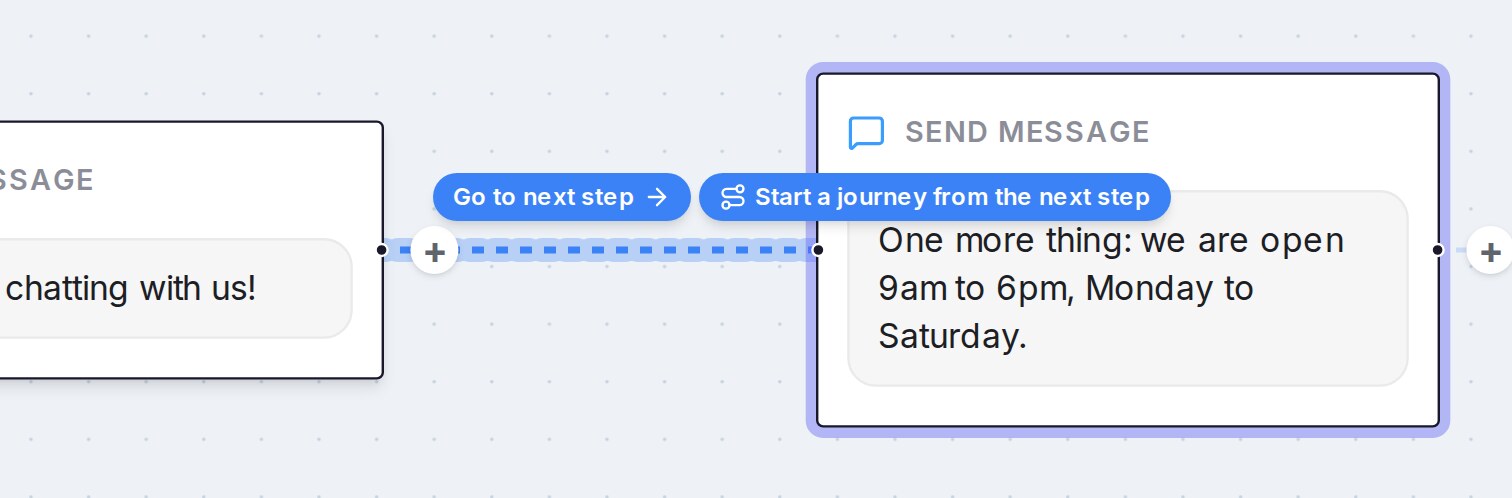{ width="700" }
## Keep the AI inside the journey
{ width="488" }
1. Open **Settings** in the designer header and expand **Advanced settings** at the end of the dialog.
2. **Flow AI can switch journeys** is on by default: when a customer asks about something that belongs to another journey, the AI may take them there, starting at that journey's first step.
3. Switch it off and the AI stays inside the journey the customer is in. It answers in place and returns to the current question instead of moving the customer. The lines you drew between journeys still work as drawn.
Good to know:
* Answers the customer already gave are shared across journeys: a name given in one journey is not asked again in another.
* Nothing changes for an existing flow until you start a journey on a step or switch the setting off.
## Related
* [Building the conversation flow](/flow-agents/building-the-conversation-flow)
* [Flow designer reference: every button and setting](/flow-agents/designer-reference)
---
## Languages: write each step in your customers' languages
URL: https://help.mampuai.com/flow-agents/languages
---
description: Write your own version of each flow agent step in your customers' languages. Steps you leave blank are translated by AI from the main language, and a step whose main text changed is flagged for a check.
---
# Languages: write each step in your customers' languages
A flow agent already answers customers in their own language: AI translates your steps from the main language as it sends them. When you want your own wording instead, such as a greeting your team wrote in Malay or a price line in Chinese, write that language's version of a step yourself. Customers who speak that language get your text; anything you leave blank is still translated by AI, live and in the Playground.
## Add a language
{ width="645" }
1. Open the flow agent in the designer and click **Languages** in the header. The badge shows how many extra languages the flow has.
2. Under **Main language**, pick the language your steps are written in.
3. Under **Your own versions**, choose a language from **Add a language…** and press **Save**.
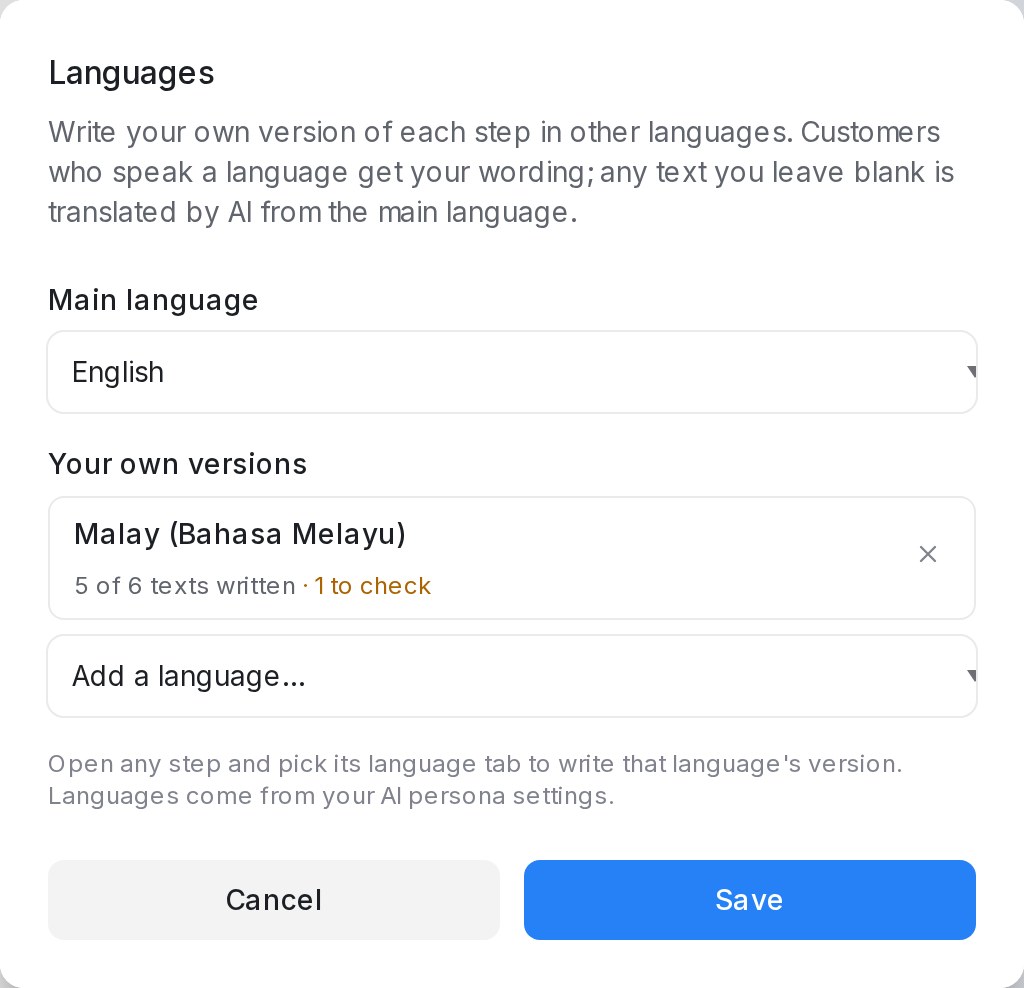{ width="512" }
Good to know:
* Every language the AI supports is on offer, with your AI persona's languages listed first. A language you add here is also one this agent replies in, even when your persona's **Languages** list leaves it out.
* Each language shows how many texts are written, for example **5 of 6 texts written**, and how many need a check.
* Remove a language with the **×** on its row. Saving deletes the versions written for it.
## Write a step in another language
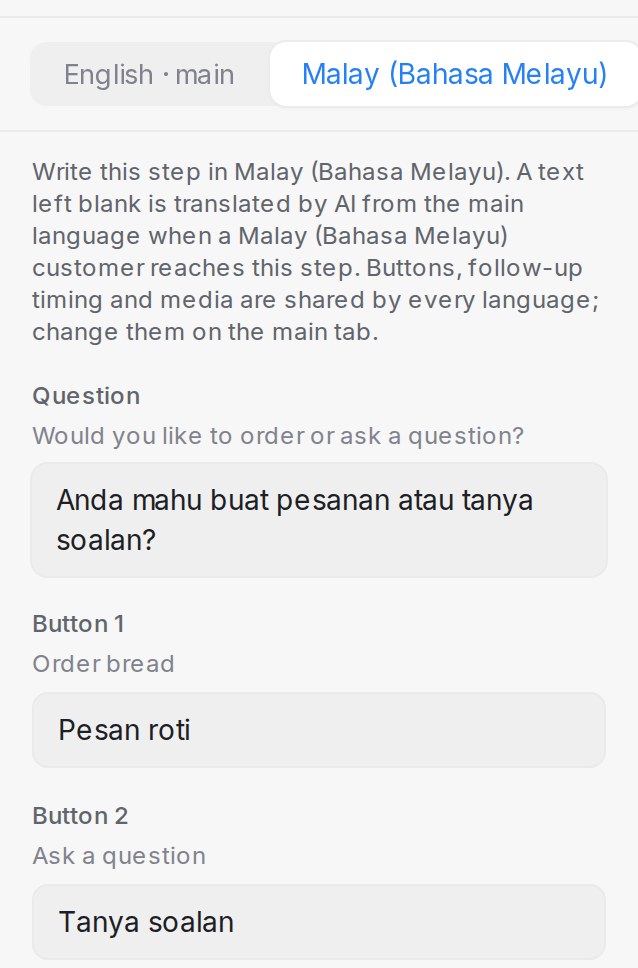{ width="319" }
1. Click a step on the canvas. Its panel now opens with a tab per language: the main one, marked **main**, and one for each extra language.
2. Pick the language's tab. Every text the customer sees is listed with the main text in grey above its box.
3. Write your version in the box and press **Save Changes**.
Good to know:
* You can write the message, the question, the answer buttons, the ask-again lines, follow-up messages, the final and outside-business-hours messages, the booking messages and product card texts.
* A text you leave blank is translated by AI from the main text when a customer who speaks that language reaches the step. A button you leave blank keeps its main-language label.
* Which buttons exist, where they lead, follow-up timing and attachments are shared by every language. Change them on the main tab.
* With **Let AI rewrite messages** on, your version is reworded in your tone, just like the main text.
* To test, open the **Playground** and chat in that language.
## When the main text changes
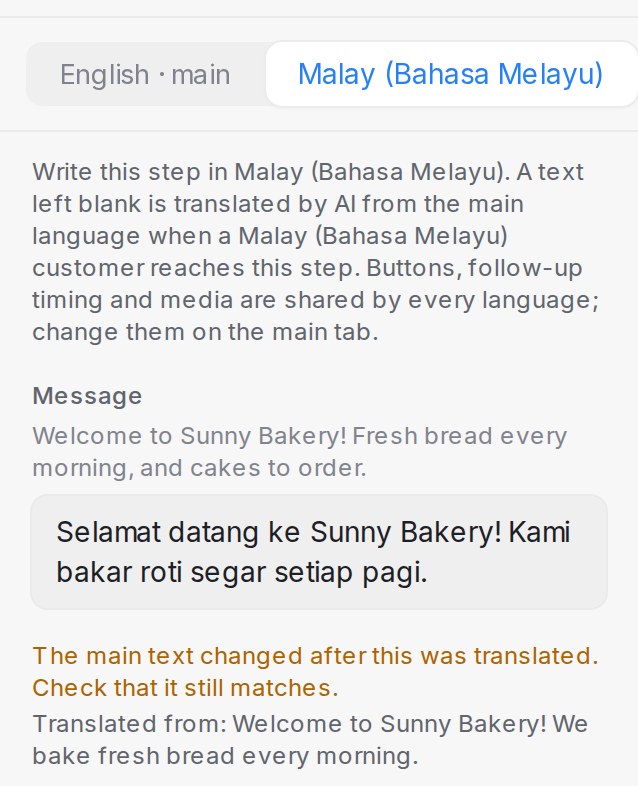{ width="319" }
When someone changes a step's main text after its version in another language was written, that version is kept and still sent, but the step's language tab shows **The main text changed after this was translated. Check that it still matches.** Below it, **Translated from:** shows the main text the version was written from, so you can see what changed.
The flag appears whoever made the change: you, a teammate, or the designer chat. In the **Languages** dialog, the language's row counts the texts **to check**.
To clear it, open the step's language tab, edit your version to match the new main text and press **Save Changes**. A version saved without any edit stays flagged.
## Related
* [Building the conversation flow](/flow-agents/building-the-conversation-flow)
* [Flow designer reference: every button and setting](/flow-agents/designer-reference)
* [Testing and connecting an agent](/flow-agents/testing-and-connecting-an-agent)
---
## Designing your agent by chatting
URL: https://help.mampuai.com/flow-agents/designing-your-agent-by-chatting
---
description: Describe your flow agent in a chat and the designer asks a few questions, shows a plan, builds it and explains what changed in plain words. Includes photo, PDF and voice note tips.
---
# Designing your agent by chatting
The flow designer opens as a chat. You tell it what your customers usually ask for, it asks a few questions, shows you a plan, and builds the conversation for you. Every reply is in plain words: what your agent now does for customers, not a list of steps. The canvas is still there when you want to look closer or edit a step by hand.
## Describe your bot
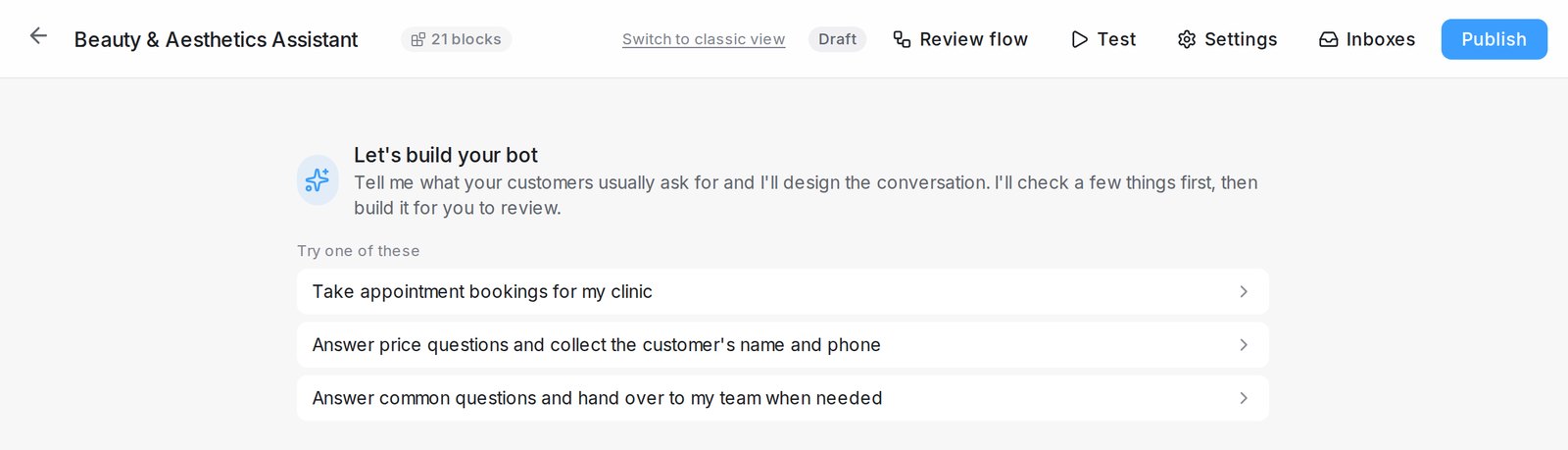{ width="700" }
1. Open **Flow Agents → Agents** and open an agent, or create a new one.
2. Under **Let's build your bot**, type what the agent should do in the box that says **Describe your bot or ask for a change…**, or pick one of the examples under **Try one of these**.
3. Say it the way you would to a new team member: what you sell, what customers usually ask, what details you need from them, and when your team should take over.
The designer also reads your **AI Knowledge** business profile and FAQs, so it doesn't ask for what it already knows.
## Answer a few questions
For a new bot, the designer asks up to three questions before it plans, one at a time. It only asks about what your message didn't already say. It usually doesn't ask which details to collect or how the chat ends: it picks the usual choice for your kind of business, such as name, phone and preferred time with your team confirming, and says so in the plan so you can change it.
* **Choice questions** come with two or three answers, one marked **Recommended**. Click an answer, or **Something else…** to type your own.
* **Open questions**, such as "What should the bot tell customers you sell?", open an answer box with an example already filled in. Edit the example so it is true for your business, then click **Send answer**.
* When the bot needs a detail only you have, such as a booking link, a price or an address, the designer asks for it. It never makes one up or leaves a placeholder in a message.
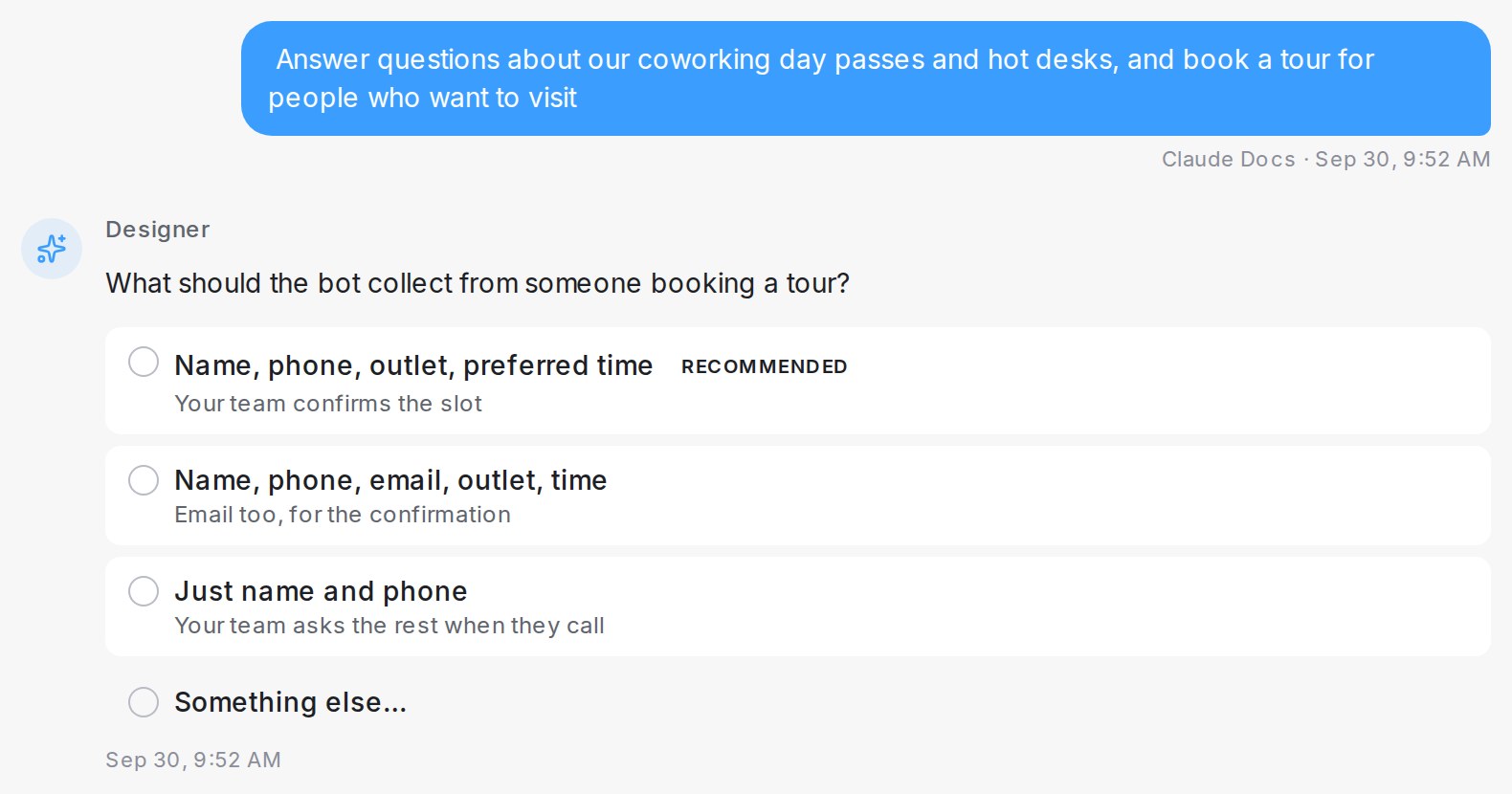{ width="760" }
## Check the plan, then build
When nothing important is missing, the designer shows the plan in a few short lines, including any defaults it picked for you.
1. Click **Build it** to build the agent, or **Change something** to adjust the plan first.
2. While it works, you see each stage, such as **Building your bot** and **Writing the summary**.
3. The reply explains what the agent now does. Under it, **Your bot was updated** offers **See how it works**, which opens the review panel, and **Test it**.
4. Under **Next, you could ask for**, click a suggestion to send it straight away.
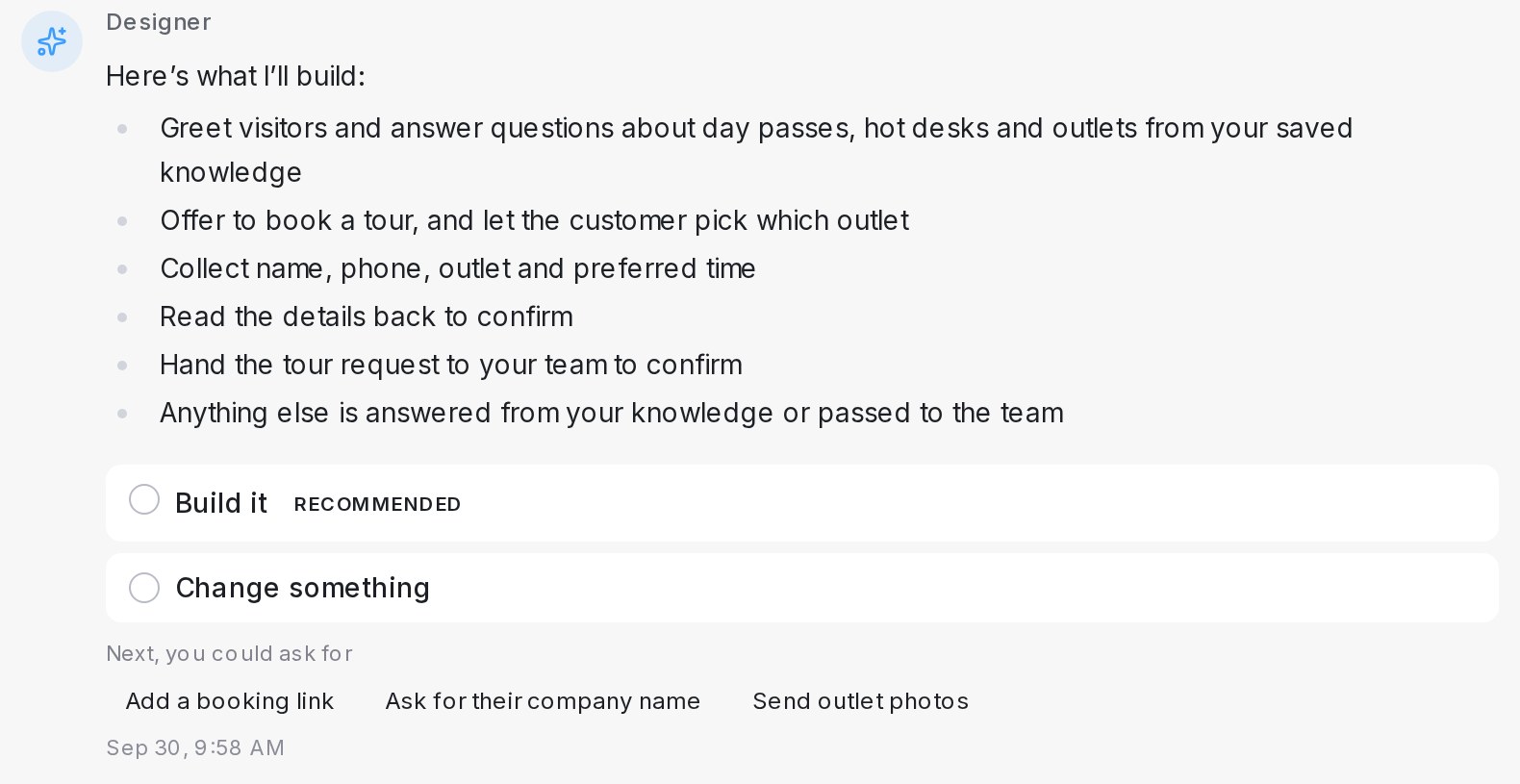{ width="760" }
## Change your agent later
Type the change in the same chat, for example "Ask for their email too" or "Also ask which branch they prefer". The designer makes the change straight away and tells you what changed. If a request could mean two different things, it asks one question first.
## Review the flow and test it
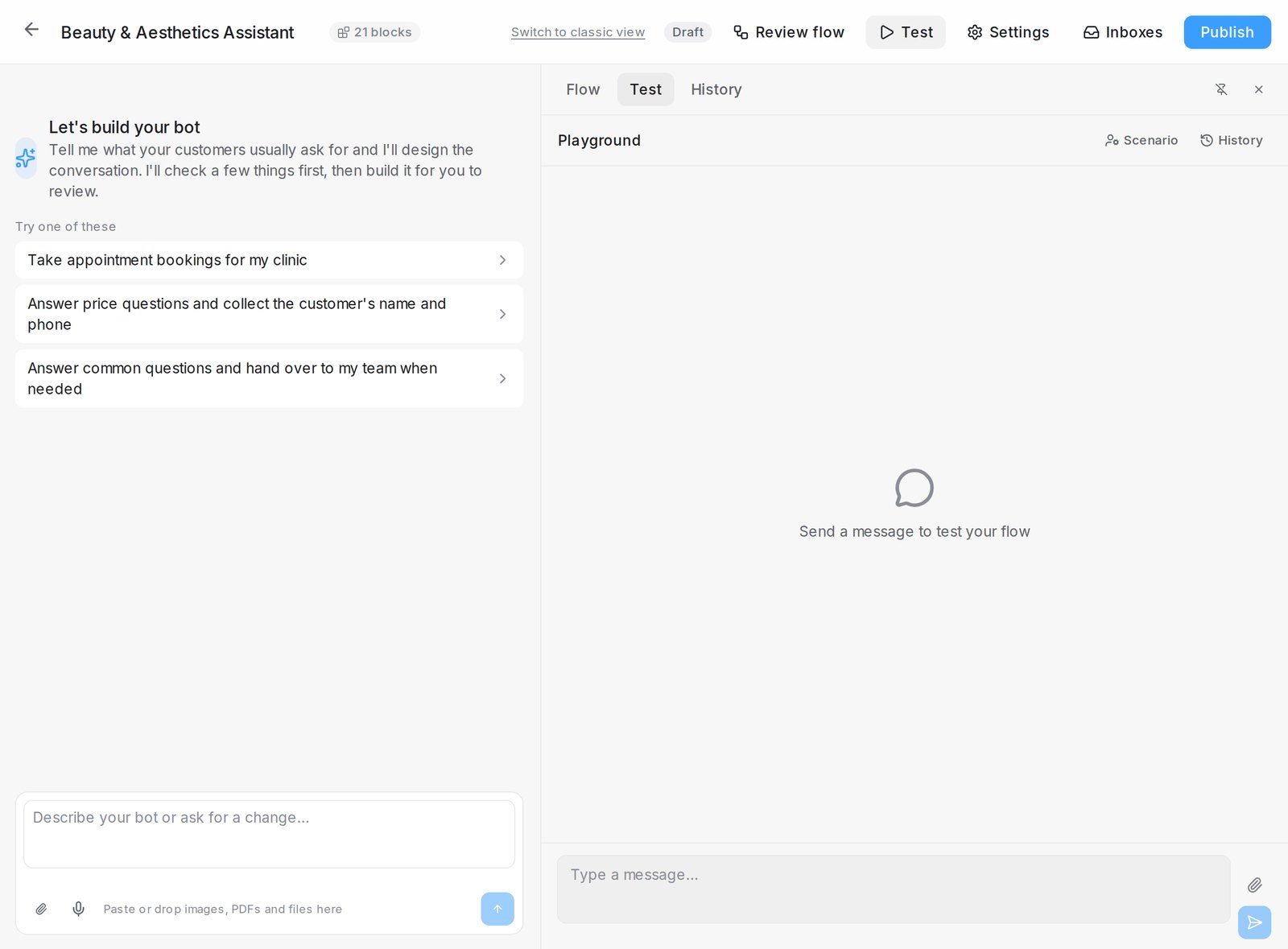{ width="760" }
Click **Review flow** at any time to open the review panel beside the chat. It has three tabs: **Flow** shows the canvas, **Test** lets you chat with the agent as a customer, and **History** lists a snapshot of every change the designer made, so you can **Restore** an earlier version. Click **Keep panel open** to keep it next to the chat while you work. **Test** in the header opens the same panel on its **Test** tab.
## Send photos, PDFs and voice notes
{ width="600" }
* **Photos and PDFs.** Paste or drop them into the chat, or click **Attach an image or file**. The designer reads what is in them, such as a price list or a menu, and uses it to build the agent. The same file can also be sent to customers, for example "Send the price list when someone asks for prices". You can attach up to 8 files per message, each up to 40 MB. The designer reads up to 4 images per message.
* **Voice notes.** Click **Record a voice message**, speak, then click **Stop and send**. You see the sound wave while you speak. Anything you typed or attached goes out with the voice note as one message, and the words the designer heard appear under **Transcript**.
## PDF limits by plan
How much of a PDF the designer reads depends on your plan:
| Plan | PDF size | Pages |
| --- | --- | --- |
| Free plan | Up to 5 MB | Up to 10 pages |
| Paid plans | Up to 30 MB | Up to 100 pages |
A PDF over the limit isn't read, and the chat says why: it says the file is "too big" when it is over the size limit, or "too long" when it has too many pages. On the free plan the message also names the paid limits and shows **See paid plans**, which opens **Billing**. To fit within the limit, split the PDF or send just the pages you need.
## Files the designer can't read
If a file is damaged, password-protected or not really a PDF, the designer tells you which it is, for example "isn't really a PDF" or "password-protected", and asks you to send a proper PDF or type the key details. It never guesses what the file contains. The same check applies when a customer sends such a file to your live agent: the agent is told the file couldn't be read, and no **AI summary** appears under it in the conversation.
## Switch to the classic view
Click **Switch to classic view** at the top of the designer to go back to the layout with the chat on the left and the canvas on the right. Click **Try the new chat designer** to come back. The choice is yours only: each person on your team picks their own view.
## Related
* [Creating a Flow Agent](/flow-agents/creating-a-flow-agent)
* [Building the conversation flow](/flow-agents/building-the-conversation-flow)
* [Testing and connecting an agent](/flow-agents/testing-and-connecting-an-agent)
* [File size limits](/settings/file-size-limits)
---
## Flow Agents and AI Knowledge
URL: https://help.mampuai.com/flow-agents/flow-agents-ai-knowledge
# Flow Agents and AI Knowledge
**Flow Agents** are AI-powered assistants that handle conversations for you using guided flows. Out of the box they can:
* **Follow your flow** — greet, qualify leads, collect details, and hand off to a human when needed.
* **Answer side-questions** — if a customer asks something mid-flow (or several things at once), the agent answers each question from your AI Knowledge and returns to where it left off — or, if you prefer, [stops after the answer](/flow-agents/testing-and-connecting-an-agent) and waits for the customer's next message. You can also switch AI Knowledge off for a single step with **Use AI Knowledge at this step** in the [designer](/flow-agents/designer-reference#settings-every-step-shares).
* **Speak the customer's language** — the agent detects and switches languages mid-conversation, even when your flow is written in one language.
* **Understand voice notes** — customer voice messages are transcribed and answered like text.
* **Read photos and PDF documents** — a photographed order list or screenshot, or a quotation, invoice or receipt sent as a PDF, is read and answered like text.
* **Book appointments** — offer real availability from your [Calendar](/calendar/setting-up-a-calendar) and confirm the slot in chat.
* **Recommend products** — suggest real items and prices from your [product catalogue](/flow-agents/product-catalogue-and-recommendations) when customers ask.
## Watch the walkthrough
{% embed url="https://youtu.be/EY9VnYRs5L0" %}
This section has two parts:
* **Agents** — create and manage your flow agents.
* **AI Knowledge Hub** — the knowledge your agents draw on to answer accurately (FAQs, products, promos, and the Calendar), so responses stay accurate and up to date.
Once an agent is ready, [test it in the playground and connect it to your inboxes](/flow-agents/testing-and-connecting-an-agent).
---
## Managing AI Knowledge
URL: https://help.mampuai.com/flow-agents/managing-ai-knowledge
# Managing AI Knowledge
**AI Knowledge** is everything your agents know beyond the flow itself. Open **Flow Agents → AI Knowledge Hub** — the more your AI knows, the better it replies. The hub is organised into tiles:
* **FAQ** — questions your AI answers instantly.
* **Product** — your catalogue and prices, for product enquiries and recommendations ([guide](/flow-agents/product-catalogue-and-recommendations)).
* **Promo** — current offers your AI can share.
* **Calendar** — appointment scheduling your AI can book ([guide](/calendar/setting-up-a-calendar)).
* **Tone & persona** — how your AI sounds and behaves.
* **Topics to avoid** — things your AI must never discuss.
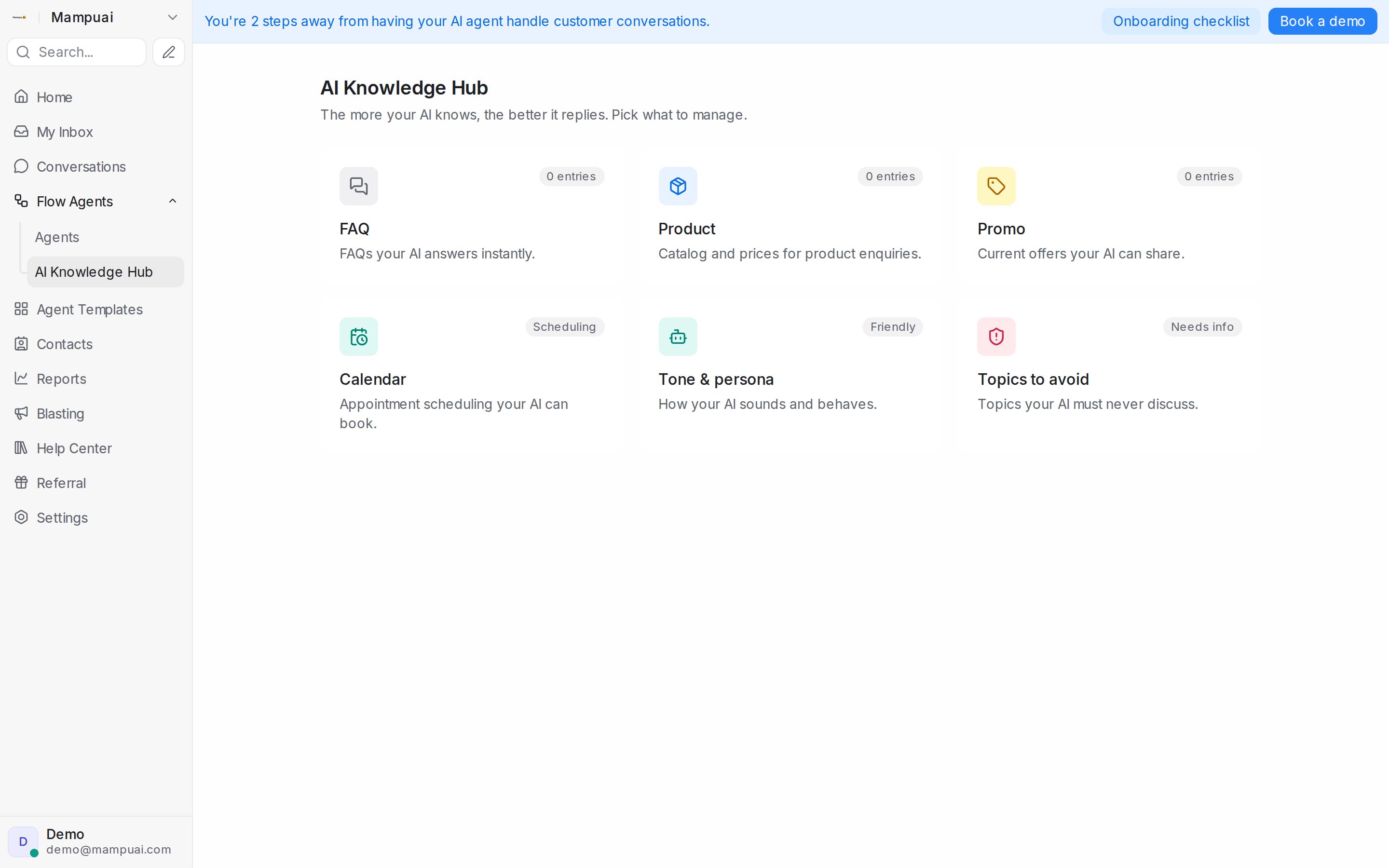
## Watch the walkthrough
{% embed url="https://youtu.be/EY9VnYRs5L0" %}
## Working with FAQ entries
* **Add Entry** — create question-and-answer pairs.
* **Import → From text / From Word** — paste content or upload a Word document, and AI turns it into entries for you. Generated entries wait under the **Pending** tab so you can approve them before the agent uses them.
* **Import → From CSV** — upload a spreadsheet (CSV or Excel) and choose how to handle it: import the rows exactly as written, or let AI write FAQs from the content.
An answer can carry pictures, videos or documents: click **Add media** under the answer. Each file must fit the [picture and file size limits](/settings/file-size-limits) (5 MB for a picture), and a file that is too big shows the reason on its row instead of uploading.
The agent does not repeat an FAQ answer or product photo it has just sent in the previous few replies. It answers in its own words instead, and sends the entry again if the customer asks for it. Keep one entry per answer: two entries that say the same thing in different words can still read as a repeat.
### Reviewing pending drafts
Entries the AI drafts for you — from a document, a spreadsheet, your own conversations or the [WhatsApp chat history you shared when connecting your number](/settings/connecting-a-whatsapp-inbox#what-mampu-ai-learns-from-your-chat-history) — wait under the **Pending** tab until you approve them. Each card shows the draft's question and answer and, for drafts taken from a conversation, the customer message and agent reply it came from.
When a draft asks something your FAQs already cover, the card says so:
* **Already in your FAQs** lists the approved entries that ask the same question. Click **Merge** to open that entry for editing with the draft shown beside it. **Use draft answer** copies the draft's wording into the answer if it reads better; saving keeps one FAQ and removes the draft.
* **Also pending review** lists the other drafts asking the same question. Click **Keep this, discard N** to remove those copies and keep the draft in front of you — you confirm the list first.

**Approve** puts a draft straight into your FAQs; **Delete** drops it. Select several drafts with the checkboxes to approve or delete them together. Questions your FAQs already answer are not drafted again, so the list stays short over time.

### Importing a ready-made FAQ spreadsheet
If your file already has question and answer columns, choose **Import rows as FAQs** — every row is imported exactly as you wrote it, even for files with hundreds of entries.

1. Upload the file. Columns are matched to **Question**, **Answer** and **Category** automatically — adjust the matching if needed. A category column fills each entry's **Categories**.
2. Review the preview: how many entries will be added or updated, plus any rows that can't be imported (for example a duplicated question or a missing answer).
3. **Apply changes** — the import runs in the background and you're notified when it's done. Imported entries are approved and ready for your agent straight away.

Re-uploading a file later updates the entries whose question matches and adds the new ones — it never removes existing FAQs.
### Organise entries with categories
Give FAQ and Promo entries one or more **Categories** (e.g. *Delivery*, *Pricing*) when you create or edit them — type a new category or pick an existing one, and filter the list by category as your library grows. Entries without a category count as **general** knowledge.

Categories become powerful in the flow designer: a flow step can restrict the agent to answering only from the categories you choose — see [Building the conversation flow](/flow-agents/building-the-conversation-flow).
Your knowledge powers two things: **FAQ answering** (the agent can answer a knowledge question at any point in a conversation, then return to the flow) and **knowledge query steps** you place in the flow yourself. When a customer asks several questions in one message, the agent answers each of them — in the order they were asked — before carrying on.
Entries work in any language — the agent answers in the customer's language even if the entry was written in another.
### Show an entry only to some customers
Conditions on an FAQ, Promo or Product entry decide which customers it is offered to. Open the entry, click **Add condition** under **Show this entry only when**, and add one row per fact the customer must match.
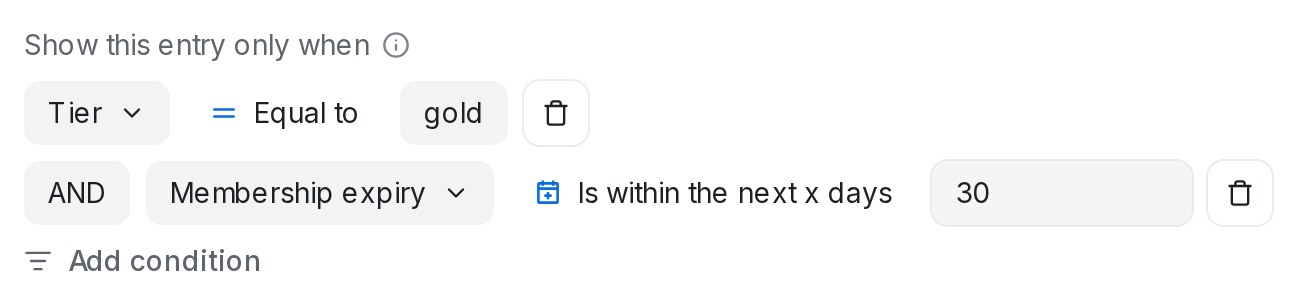{ width="648" }
Each row names a field, an operator and a value. The fields are the ones a message sequence can check: your contact and conversation attributes, **Labels**, **Inbox name**, the contact's name, email, phone and country, and **Current date (when answering)**. Dates offer **Is in the future**, **Is in the past**, **Is within the next x days** and **Was within the last x days**, judged on the day the customer writes. Rows join with **AND** or **OR**; an entry with no rows is offered to everyone.
* A members-only offer: **Tier** · Equal to · gold.
* A renewal reminder: **Membership expiry** · Is within the next x days · 30.
* A price list resellers should not see: **Labels** · Has none of · reseller.
* Opening hours per branch: one entry per branch, each with **Inbox name** · Equal to · that branch's inbox.
The conditions are checked each time the agent looks for an answer, together with the entry's categories. A customer who matches no row never hears the entry, and neither does one with nothing to check yet: a new contact without a Tier does not hear the gold offer.
Entries with conditions show them on their card. The **Any conditions** menu next to the category menu narrows the list to **Has conditions** or **No conditions**.
{ width="700" }
Products take the same rows. Open a product from the **Product** list and add them under **Show this entry only when**; the list shows a product's conditions under its name, and the same **Any conditions** menu narrows it. When the agent recommends products, it offers only the ones the customer matches, and a promotion with conditions stays out of those recommendations for customers who do not match.
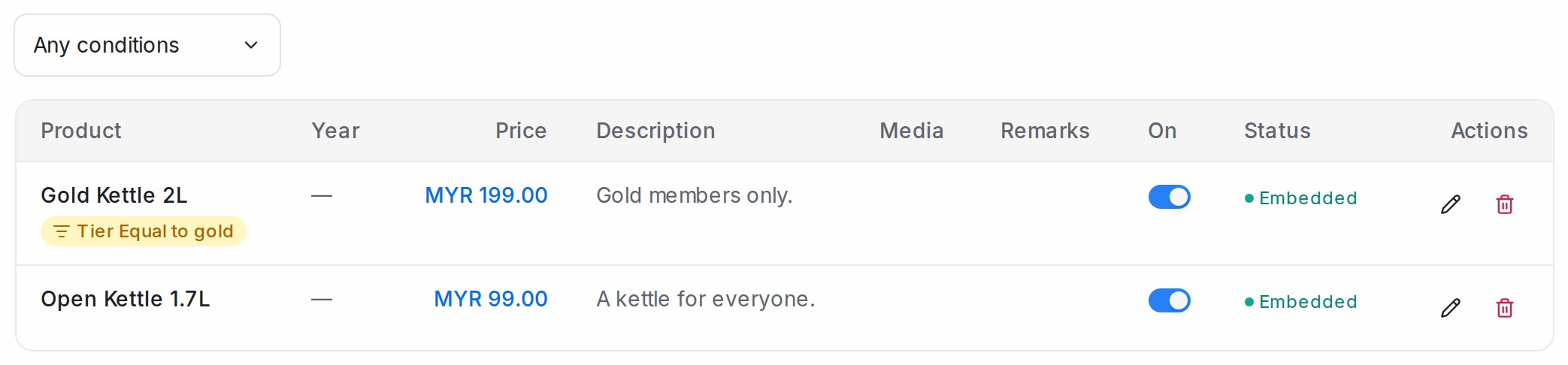{ width="700" }
Renaming a label or a custom attribute updates every row that names it. Deleting one removes the row; when that takes away the entry's last requirement, the entry is switched off (the switch on its card is off and the card fades) so it is not suddenly offered to everyone. Add a new condition, then switch it back on. A row that only excluded customers, such as **Has none of**, is simply dropped.
In the Playground, a note in the chat names the entries — FAQs, promotions and products — the conditions hid for the test customer. To test as a particular customer, click **Scenario** and fill in their **Labels**, **Contact attributes** and **Inbox**; without a scenario the test customer has nothing to check, so every entry with conditions stays hidden.
{ width="600" }
### See which FAQs your agent uses
Every FAQ card shows in how many chats your flow agents used it in the last 30 days, so you can see which answers customers actually need and which ones nobody asks about.
* **Used in 12 chats in the last 30 days** — the agent had this FAQ at hand while answering customers in 12 different chats. Hover over the line to see how many of those replies quoted it, for example **5 of those replies quoted it**, or **No reply quoted it yet**.
* **Not used in the last 30 days** — no customer chat needed this FAQ in that time.
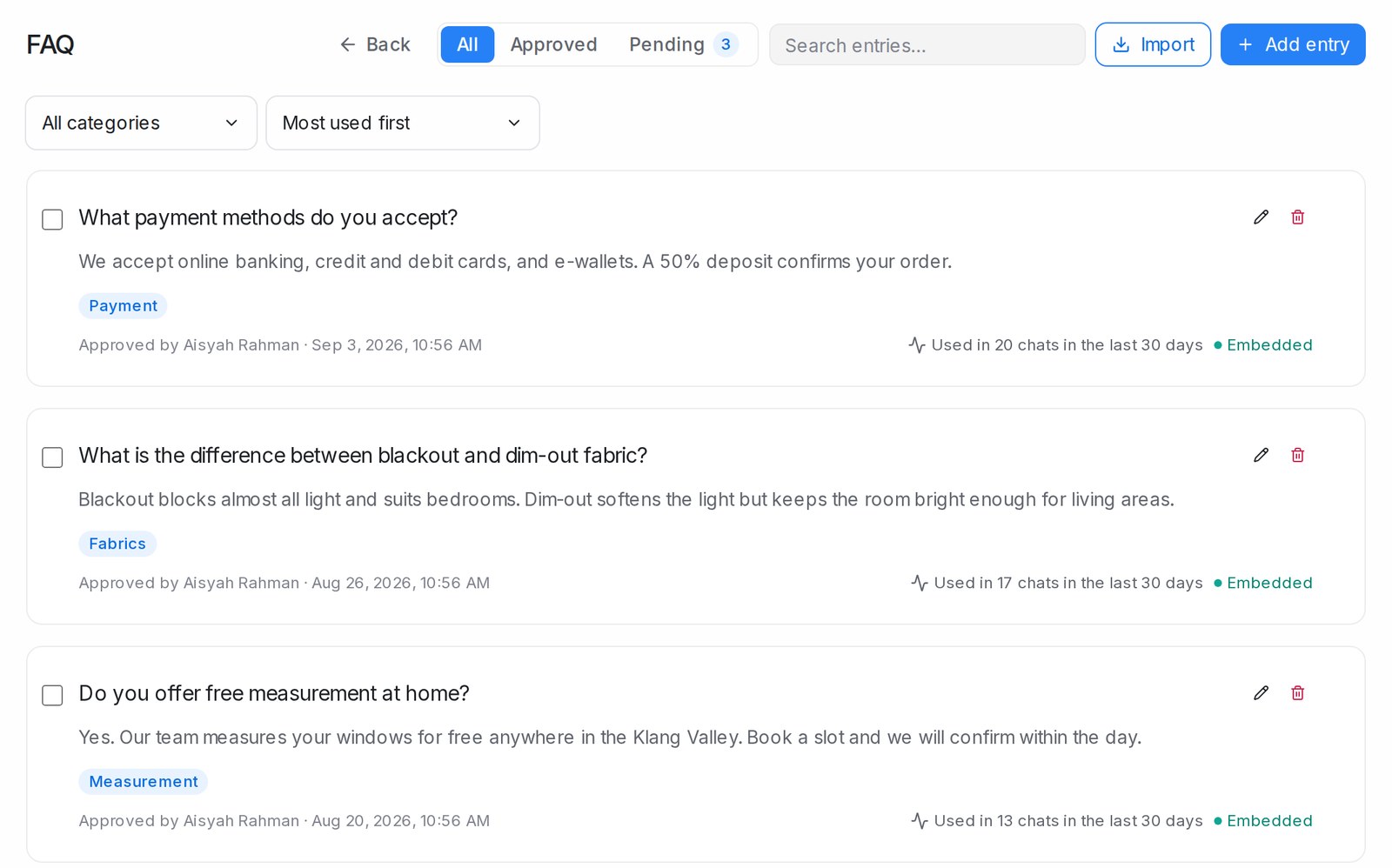
Only real customer chats count: test chats in the playground don't. Each chat counts once, however many times the FAQ came up in it. Pending drafts are never used until you approve them, so a pending card shows no usage line.
To sort or narrow the list, open the usage menu next to the category menu, under the header:
* **Any usage** — the usual list.
* **Most used first** — the FAQs used in the most chats at the top.
* **Not used in 30 days** — only the FAQs no chat used.
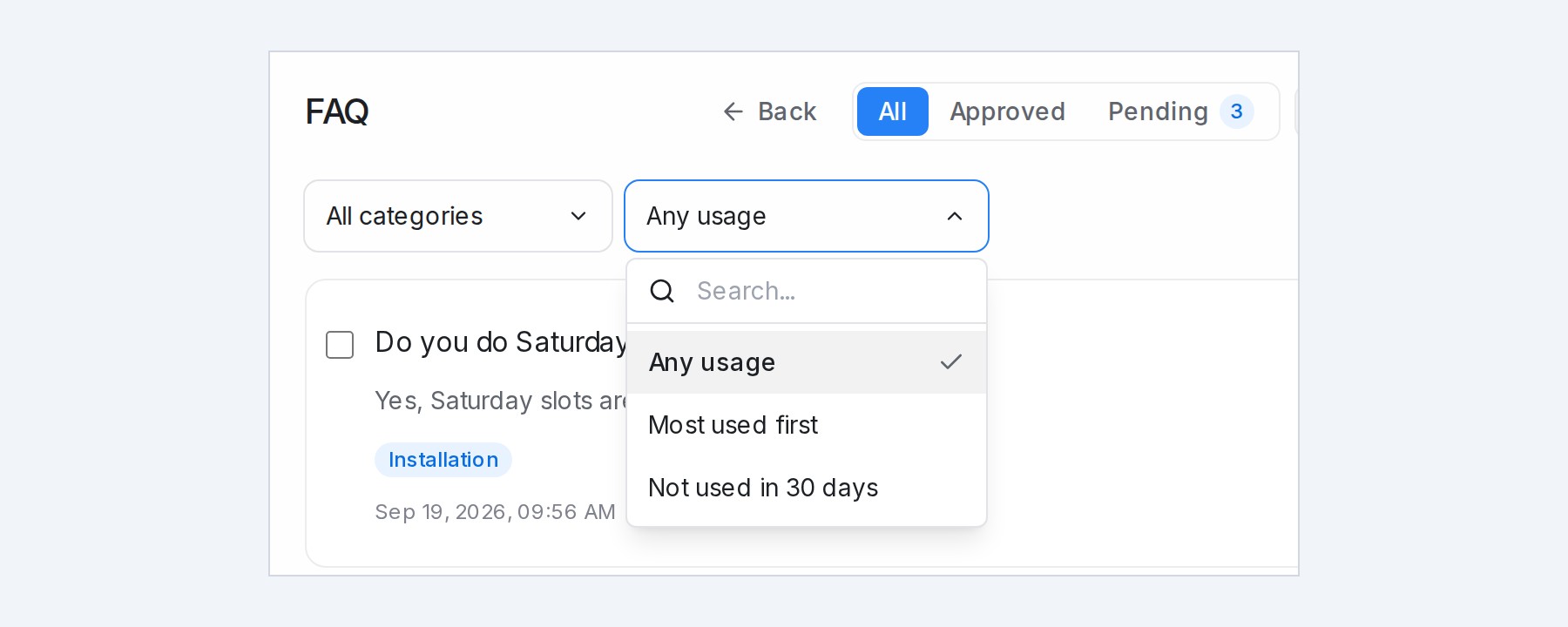
The usage menu works together with **All**, **Approved** and **Pending**, the category menu and the search box. For example, choose **Approved** and **Not used in 30 days** to see the approved answers your agent hasn't needed.
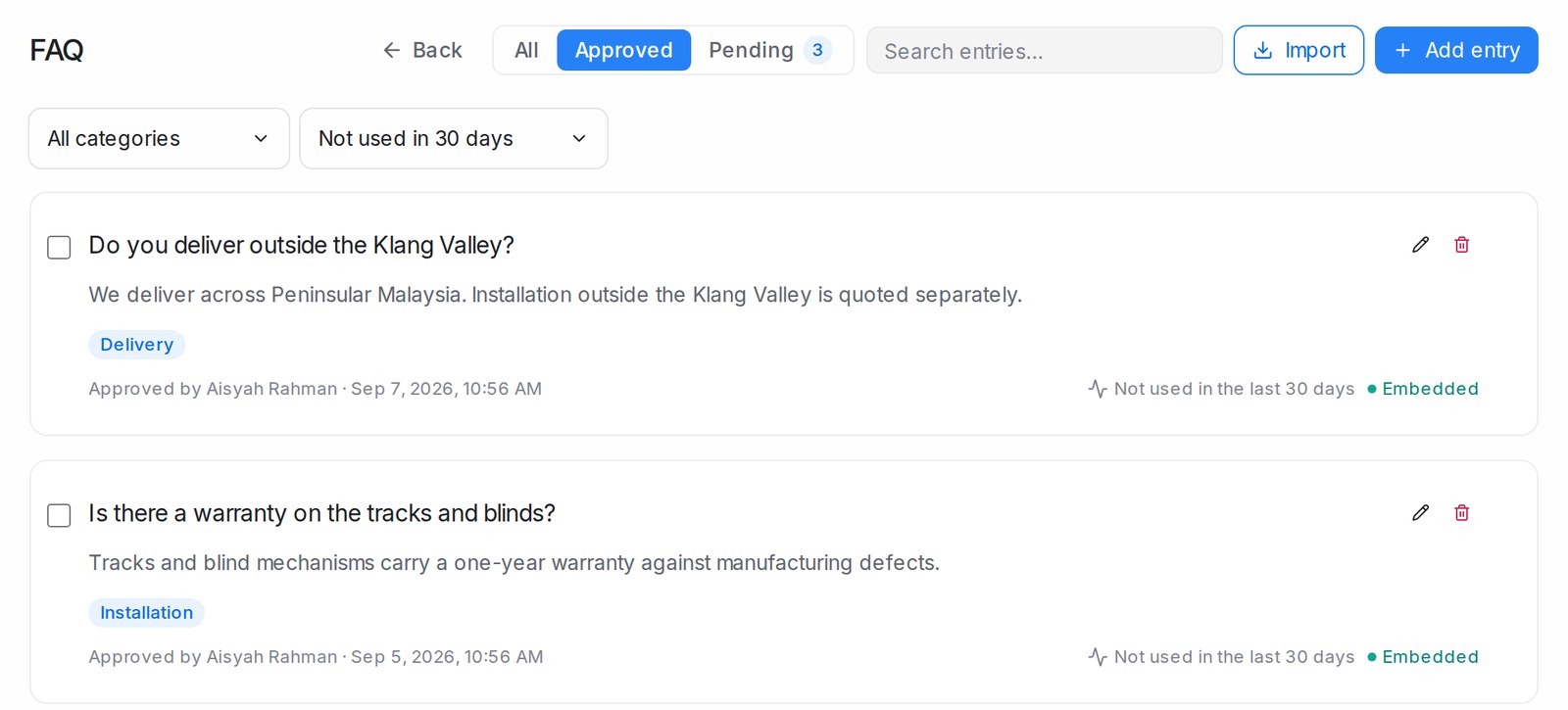
Use the list to keep your FAQs in shape:
* **Improve what customers ask most.** The FAQs at the top of **Most used first** shape the most replies, so keep their answers clear and up to date.
* **Tidy what nobody needs.** An FAQ that isn't used may no longer be relevant, or may be worded differently from how customers ask. Update it, or delete it.
* **Spot one-off chat lines.** A line saved from a single chat, such as "Ok, I will tell my wife first", rarely helps other customers. Delete it.
To remove several unused FAQs at once, choose **Not used in 30 days**, tick the FAQs to remove, then click **Delete**. The box in the selection bar ticks every FAQ on the page, and **Select all** takes in the other pages too. Only the FAQs in the filtered list are deleted.
### See your FAQs on the AI Brain Map
The **AI Brain Map** draws your FAQs by meaning, so you can see what your knowledge covers, where answers repeat each other and which topics customers ask about most. Look for **List** and **AI Brain Map** at the right end of the row under the FAQ header, and click **AI Brain Map**.
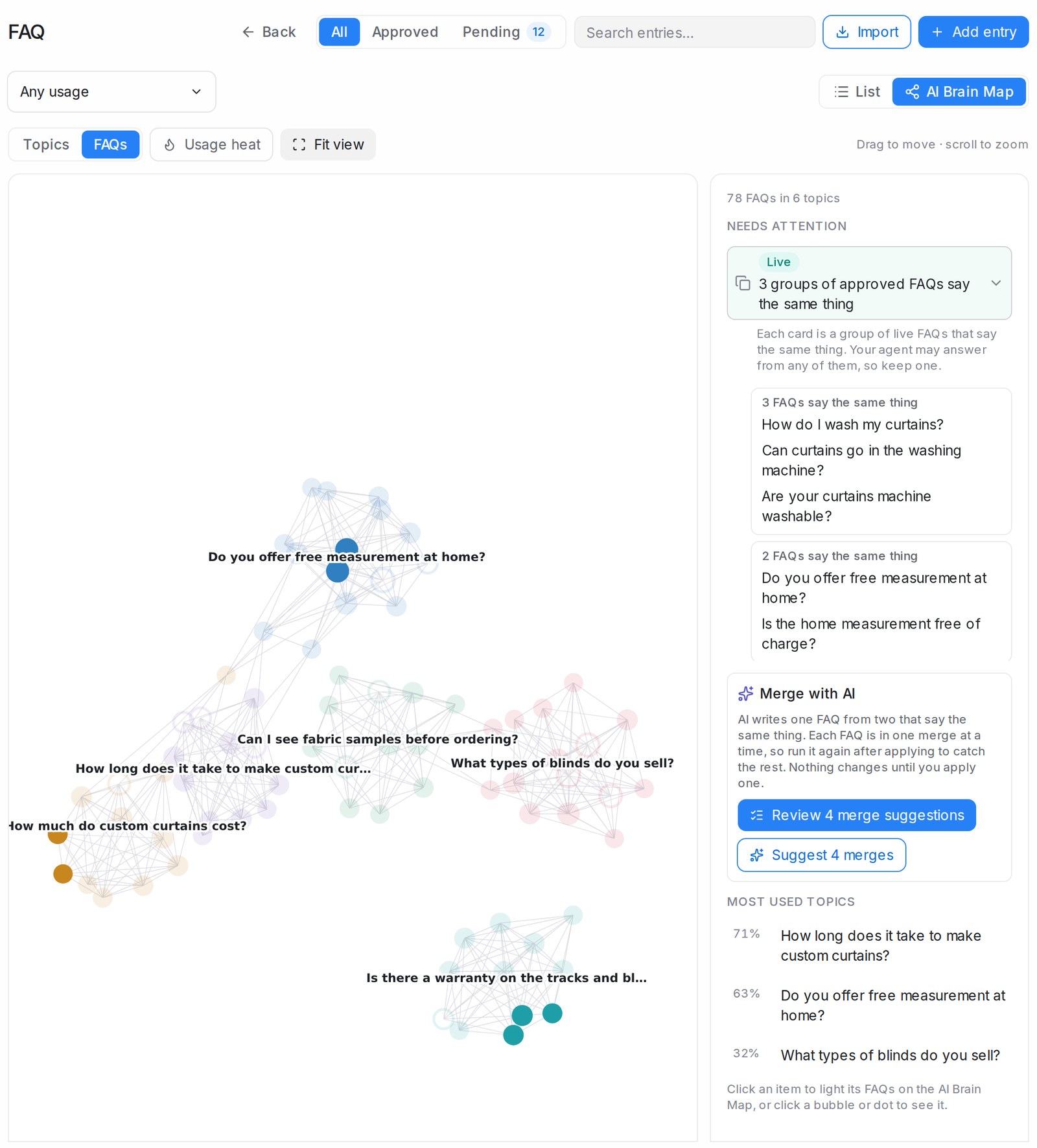
* **Topics** shows one bubble per topic. Topics are formed automatically from FAQs that are close in meaning, so there is nothing to tag. The filled part of a bubble is the share of its FAQs that are approved, and a line between two bubbles means some of their FAQs are close in meaning.
* **FAQs** shows every FAQ as a dot, linked to the FAQs closest to it in meaning. A filled dot is approved; a ring is a pending draft. Dots of the same colour belong to the same topic; grey dots fit no topic.
* **Usage heat** colours the AI Brain Map by the share of the last 30 days' AI chats that used each FAQ or topic. Faded items were not used.
* **Fit view** brings the whole AI Brain Map back on screen. Drag to move and scroll to zoom.
The AI Brain Map follows the same filters as the list: **All**, **Approved** and **Pending**, the category menu, the usage menu and the search box, which lights the FAQs it finds.
The first time the AI Brain Map opens after your FAQs change, it starts on **FAQs** and the lines fill in over a few seconds while **Linking FAQs by meaning…** counts up. **Topics** and **Needs attention** appear once it finishes.
Click a dot to see that FAQ in the side panel: whether it is approved, its topic, how many chats used it, and the FAQs **Closest in meaning**. Click **Open FAQ** to edit it. Click a bubble to see its topic: how many FAQs it has, how many chats used it, and its **Related topics**; **Show its FAQs** zooms in on them.
When nothing is selected, the side panel lists what **Needs attention**. Each item is tagged **Live** when it is about approved FAQs your agent answers from today, or **Pending** when it is about drafts waiting for review:
* **Live** — groups of approved FAQs that say the same thing. Your agent may answer from any of them, so keep one.
* **Pending** — suggestions that repeat another FAQ. Delete the suggestion, or merge it in if it adds something.
* **Live** — approved FAQs not used in the last 30 days.
* **Two topics cover the same ground** — two topics with many FAQs that are close in meaning. Clicking it selects the first topic, so you can check whether the two should be one.
Click an item to light its FAQs on the AI Brain Map and list them underneath as cards. Each card, headed **N FAQs say the same thing**, is one group: every FAQ in it says the same thing as the first one. In a **Pending** item, each question on a card is also tagged **Live** or **Pending**. Click a question on a card to select it on the AI Brain Map. Below the items, **Most used topics** shows the three topics used in the largest share of chats.
### Merge FAQs that say the same thing
Account admins can let AI tidy up FAQs that say the same thing. **Merge with AI** in the **Needs attention** panel writes one FAQ from each pair, and nothing changes until you apply a merge yourself.
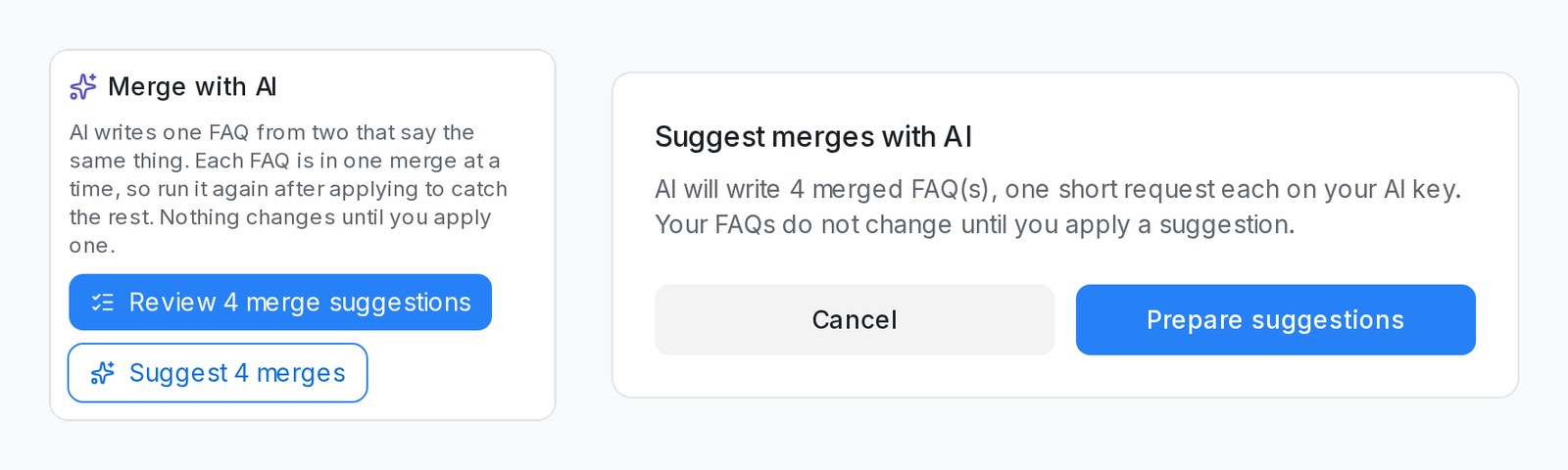
1. On the AI Brain Map, click **Suggest N merges** under **Merge with AI**, then **Prepare suggestions**. While the AI writes them, the panel shows **Preparing merge suggestions… N ready so far**.
2. Click **Review N merge suggestions**. You can start reviewing while the rest are still being prepared.
3. On each card, compare the two FAQs. The one marked **Kept** stays; the one marked **Removed after the merge** goes. Each also shows **Live** or **Pending**.
4. Read the **Merged FAQ** question and answer, and edit them if needed.
5. Click **Apply merge**, or **Dismiss** to keep both FAQs as they are.
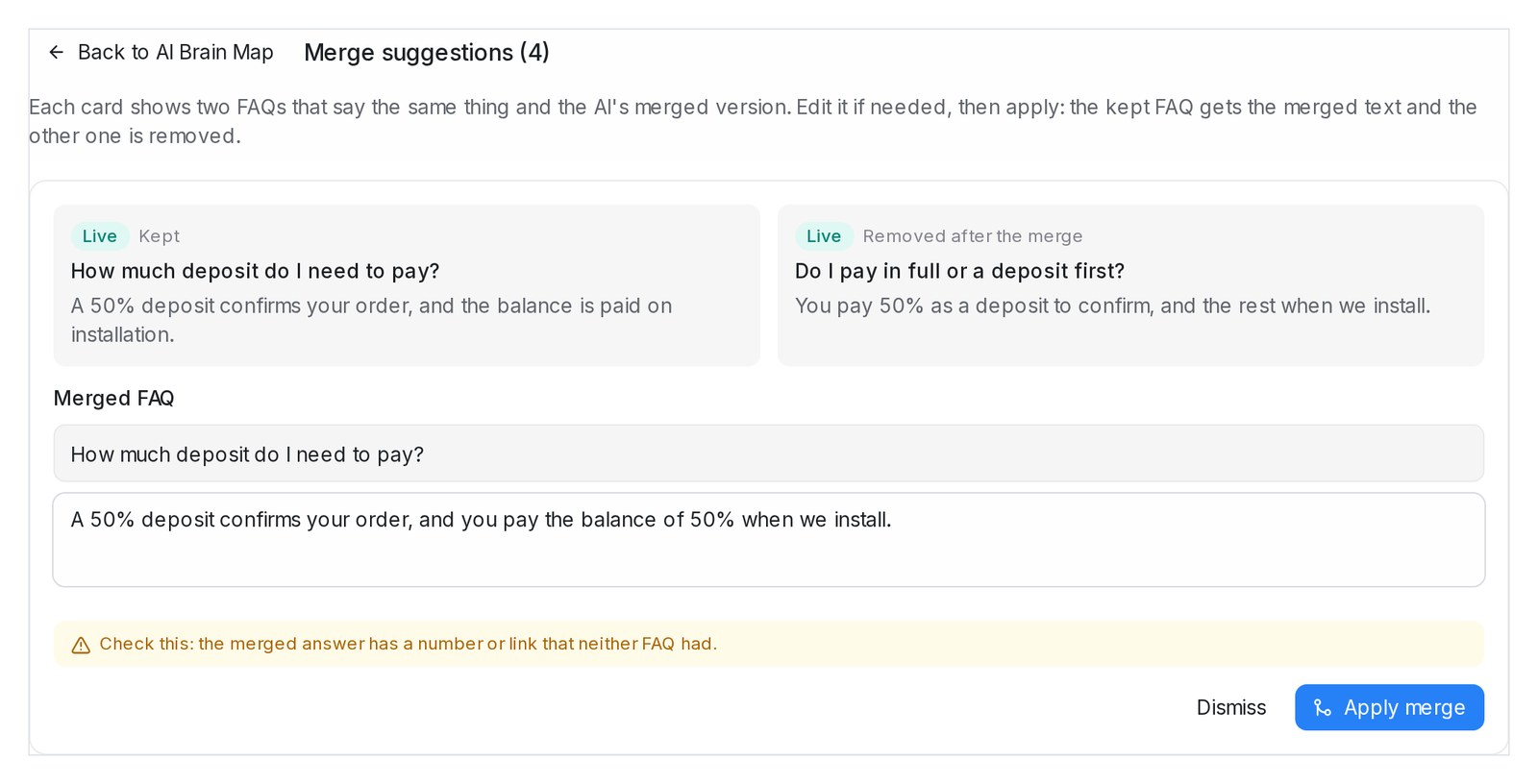
Applying a merge keeps one FAQ with the merged question and answer, approved from then on. The usage history and any photos or files of the removed FAQ move to the kept one, so its usage line counts the chats of both. **Dismiss** keeps both FAQs, and that pair is not suggested again.
* **Which FAQ is kept** — of two approved FAQs, the one used in more chats in the last 30 days; of an approved FAQ and a draft, the approved one; of two drafts, the older one.
* **What the AI writes** — one FAQ that keeps the facts from both answers. Read it before you apply it.
* **Check this** — when the merged answer has a number or link that neither FAQ had, the card warns **Check this: the merged answer has a number or link that neither FAQ had.** Correct the answer before you apply it.
* **One merge per FAQ at a time** — each FAQ is in only one suggestion per run, so there can be fewer merges than pairs. After applying them, run **Suggest N merges** again to catch the rest.
* **Changed in the meantime** — if either FAQ was edited after the suggestion was written, applying it is refused and the suggestion is removed. Run the suggestions again for a fresh one.
Merging with AI uses your own OpenAI API key under **Settings → Integrations → AI Providers**. The free AI credit does not cover it.
### Using AI Knowledge without an OpenAI key
You can add, approve and edit FAQ entries without your own OpenAI API key while your free AI reply credits last — the FAQ page shows **Using your free AI credit**. When the credits are used up or expire, it shows **OpenAI key not set**, and adding or approving entries needs your own key under **Settings → Integrations → AI Providers**.
Letting AI write FAQs for you — **Import → From text / From Word**, or asking AI to write FAQs from a spreadsheet — always needs your own key.
## Tone & persona
The **Tone & persona** tile sets how your AI sounds in every reply. Open it, make your changes and click **Save**.
* **Tone** — pick a style such as **Friendly**, **Professional** or **Concise**. An **Example reply** shows how that tone reads.
* **Formality** — **Formal** or **Casual**.
* **Allow emoji** and **Use short-form** — let the AI use emoji, and casual shortenings such as "thx".
### Languages
**Languages** decides which languages your AI replies in.
1. Click **Select languages**.
2. Pick the languages you serve customers in, for example **Chinese 中文** and **English**. Type in **Search languages** to find one quickly — there are 31 to choose from, so there is nothing to misspell.
3. Click **Save**.
The AI only replies in the languages on your list, plus any a flow agent adds under its own **Languages** button (see [Languages: write each step in your customers' languages](/flow-agents/languages)). If a customer's message is detected as a language outside the list, that language is ignored, so a chat never drifts into a language you don't serve. Leave the list empty to use the default: English, Malay and Mandarin.
The same list decides which language versions you can add to a message sequence — see [Message Sequences](/campaigns/message-sequences).
### Special instructions
**Special instructions** guide the AI in particular situations. Write them the way you would brief a new teammate, in short notes — for example "If a customer asks for the price, walk them through the package details first" or "Always greet by name". A note like "our product is corrective insoles" makes the AI always use that name.
Instructions steer what the AI says and which way the conversation goes, but they never override the steps of your flow. You can write up to 2,000 characters; a counter under the box shows how many you have used.
When you save, your instructions are turned into clear rules. Open the tile again to see them listed, one per line, under **How the AI reads this** — these are the rules the AI follows in every reply. If a rule isn't what you meant, reword the instruction and save again. While you edit the text, the rules are hidden until you save.
---
## Product catalogue and recommendations
URL: https://help.mampuai.com/flow-agents/product-catalogue-and-recommendations
---
description: Build a product catalogue your AI can recommend from — add items by hand or upload your price list, attach photos, and keep it in sync with one upload.
---
# Product catalogue and recommendations
The **Product** tile in **Flow Agents → AI Knowledge Hub** holds your catalogue — the names, prices and details of everything you sell. Once it's filled, your flow agents recommend real products with real prices whenever a customer asks — "do you have…", "how much is…", "which one is cheapest?" — in whatever language the customer writes, even when they misspell the product name.
## Adding products one by one
Open the **Product** tile and click **Add entry**. Each product has:
* **Product name** — what the item is called, e.g. *Widget Pro 2024*.
* **Description** — a short description of what it is.
* **Price type**, **Price** and **Currency** — **Exact price** for a single price, or **Price range** when the price depends on size, material or specification (see below).
* **Year** — the model year, e.g. *2025*. Optional; when a customer names only a brand, the newest year is recommended first (see below).
* **Remarks** — specs and attributes, e.g. *Color: Red, Aluminium*.
* **Photos & files** — pictures of the item, or a spec sheet. Drop them in or click to upload, and drag them to set the order.
Put the details that tell similar items apart — colour, size, storage — in the name or remarks, and the model year in **Year**. That's what lets the AI pick the exact variant when a customer is specific, and ask which one they mean when they aren't.
## Pricing a product as a range
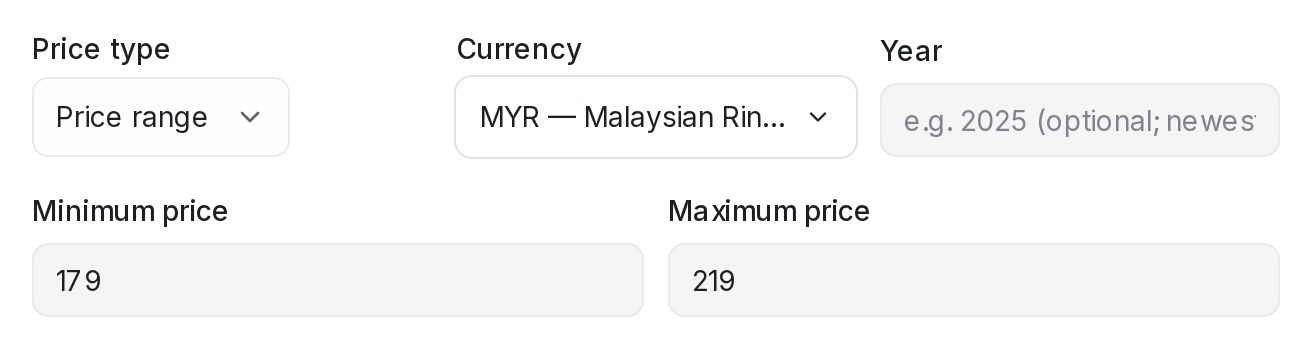{ width="656" }
Some products don't have one price — a tailored dress costs more in the larger sizes, a cabinet depends on the material. Set **Price type** to **Price range** and enter the **Minimum price** and the **Maximum price** in the selected currency. The maximum must be above the minimum; until it is, the form shows *Must be above the minimum price.* and **Save** stays off. Put what the price depends on in **Remarks**, e.g. *Sizes S–XL; larger sizes cost more*.
A range shows in the **Product** table with both ends, e.g. *MYR 179.00 – MYR 219.00*. When a customer asks, the agent quotes the range rather than one number — "priced from MYR 179.00 to MYR 219.00; larger sizes cost more" — and a customer who names a budget is offered the products whose price, or price range, fits it.
To go back to a single price, set **Price type** to **Exact price** and save: the maximum is cleared and the price you entered stays.
## Recommending the newest model first
When a customer names only a brand or a family — "do you have iPhone?", "any Samsung?" — the agent leads with the matching products whose **Year** is the most recent, then the rest in their usual order. Fill the year in on your current models and they come up first; you don't need to fill it in on every product.
Two things stay exactly as they are: a customer who names an exact model gets that model, and a customer who asks for the cheapest option gets the cheapest.
## Importing your price list
For a bigger catalogue, click **Data integration → Upload CSV/Excel** and upload the file you already have — a CSV or Excel (.xlsx) price list exported from your POS or maintained in a spreadsheet. You don't need to reformat it first:
1. **Choose file** — or click **Download example CSV** if you're starting from scratch.
2. **Match the columns.** Each column from your file is matched to a product field — **Product name**, **SKU / item code**, **Price**, **Maximum price (price range)**, **Currency**, **Year**, **Description**, **Remarks**. The matching is guessed for you; anything unmatched is set to **Add to remarks** so no data is lost, and columns you don't want can be set to **Skip this column**.
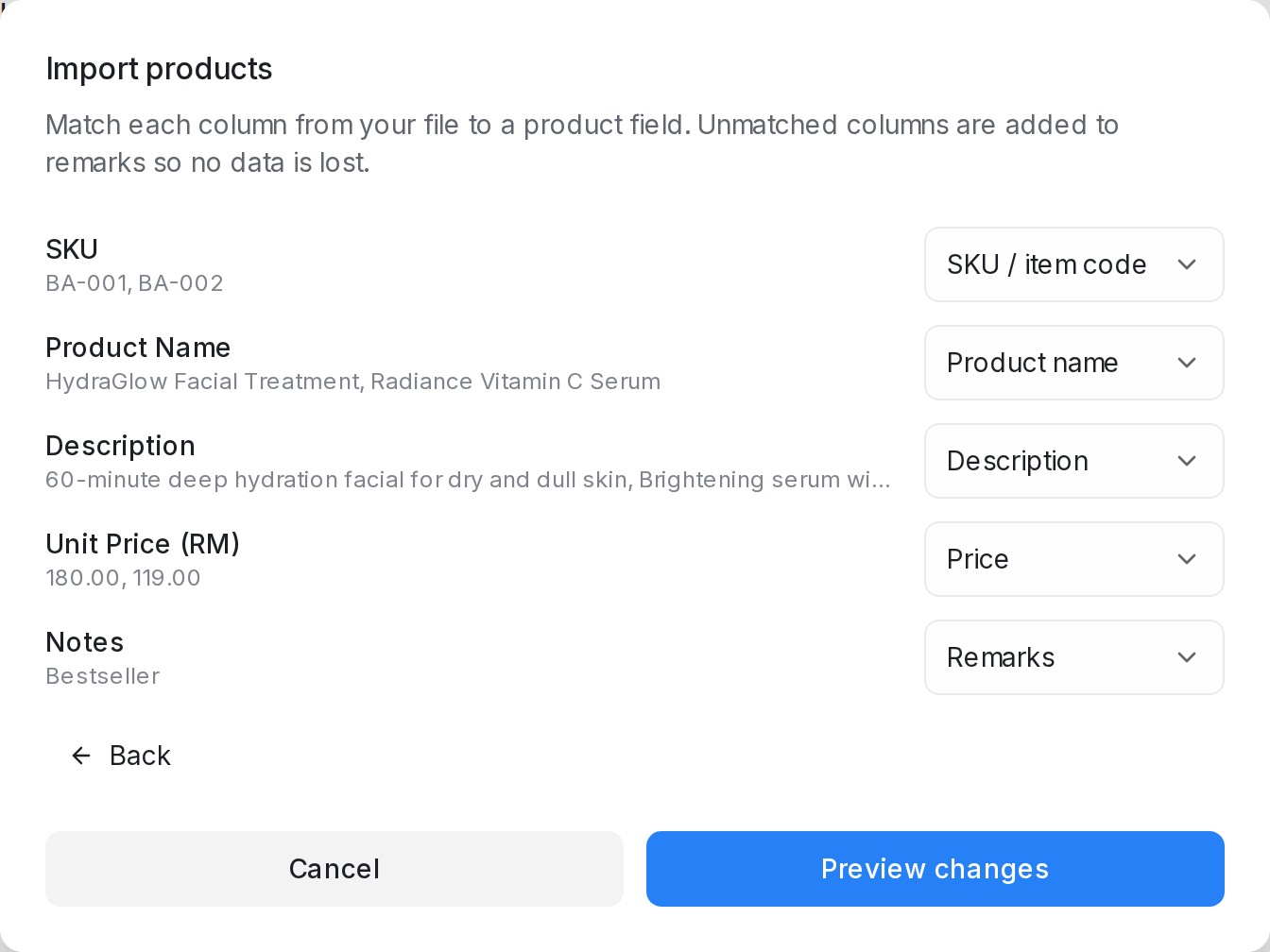
3. **Preview changes.** Before anything happens, you see exactly what the upload will do.
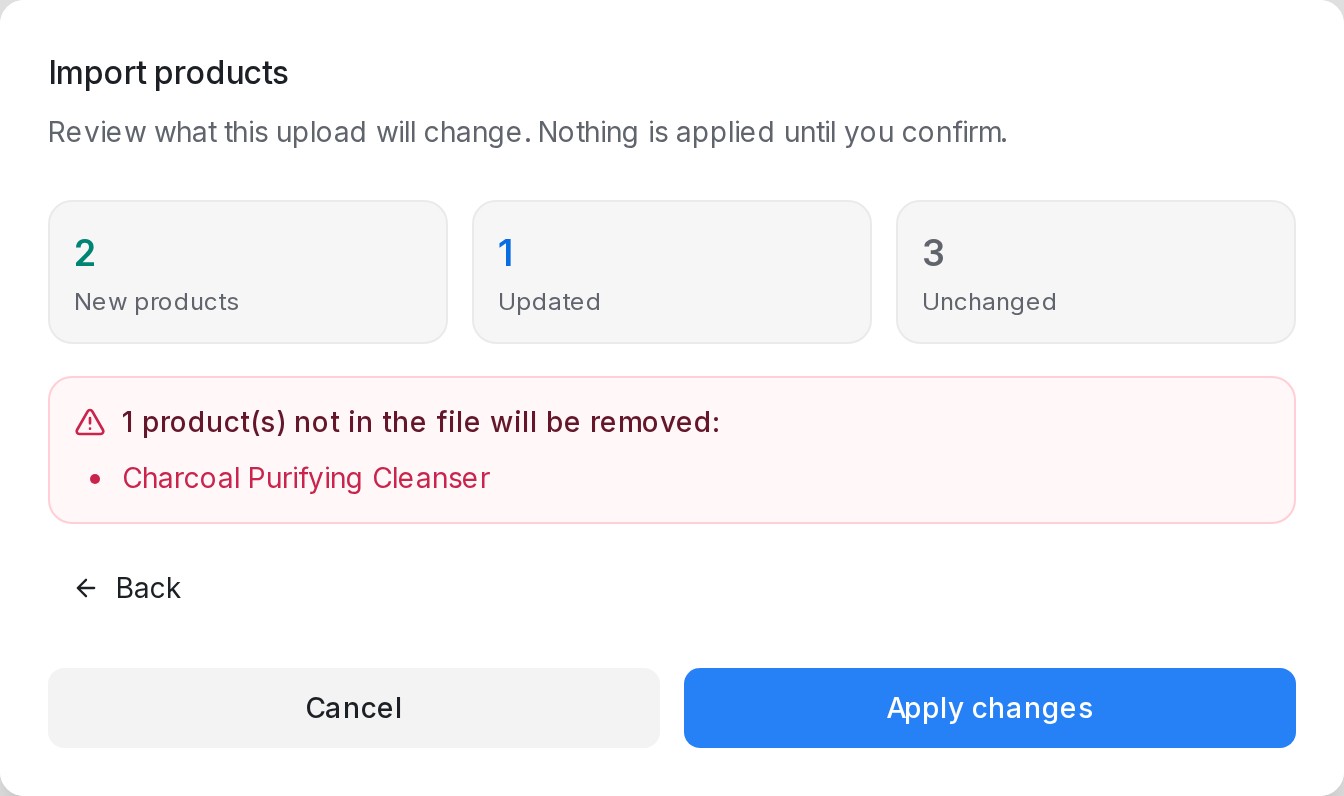
4. **Apply changes.** The import runs in the background — a notification tells you when it's done, e.g. *Product import finished: 24 added, 3 updated.*
Prices can stay in your file's own format (e.g. *RM 3,299.00*) — they're tidied up on import.
## Keeping the catalogue in sync
When prices change or new items arrive, just upload the latest version of the same file:
* Products already in the catalogue are **updated in place**.
* Products **not in the file are left untouched** — an upload only adds and updates.
* Nothing changes until you click **Apply changes**.
* A file without a **Year** or **Maximum price (price range)** column leaves the years and price ranges you've set untouched.
Two tips for reliable syncing:
* **Include a SKU / item code column.** The SKU is how a re-upload recognises a product you've renamed. Without SKUs, products are matched by their exact name.
* **Keep names unique** (or use SKUs). If two rows share a name and have no SKU, only the first row is imported — the preview flags the rest under *row(s) can't be imported*, with the row number, so you can fix the file.
## Products from Shopify
When your Shopify store is connected (see [Connecting Shopify](/settings/connecting-shopify)), its products appear in the **Product** table next to the ones you add yourself. Only products that are active in your store come across.
In the table, each product from your store:
* carries a **Shopify** badge — hover over it to see what the sync keeps up to date;
* shows its store photo, like any product photo;
* shows its price as a range, e.g. *MYR 35.00 – MYR 80.00*, when its variants have different prices, with the first few variants listed underneath — each with its price and stock (*… in stock*, **Out of stock** or **Stock not tracked**) — then *+… more*;
* has a link icon that opens the product page in your online store. A product that is not published to your online store shows a crossed-out link instead, since there is no link to send.
Open a product to see every variant under **Variants (from your store)**, or click **Open in your online store** to go to its page.
What a sync changes and what it keeps:
* The name, description, price, variants and store photo are overwritten at every sync — change them in Shopify.
* Photos you add yourself stay.
* Descriptions come across in full, with their headings and lists kept as separate lines.
* A Shopify product can't be deleted here — delete it, or set it to draft, in Shopify, and it leaves the catalogue at the next sync.
When your AI agent recommends a Shopify product, it sends the photo, quotes the price and stock of the variant the customer asks about, and can share the link to the product in your online store.
## Switching a product off
Every row in the **Product** table has an **On** switch. Switch a product off when it is out of stock, discontinued for a season, or needs a price check before the AI agent should mention it again.
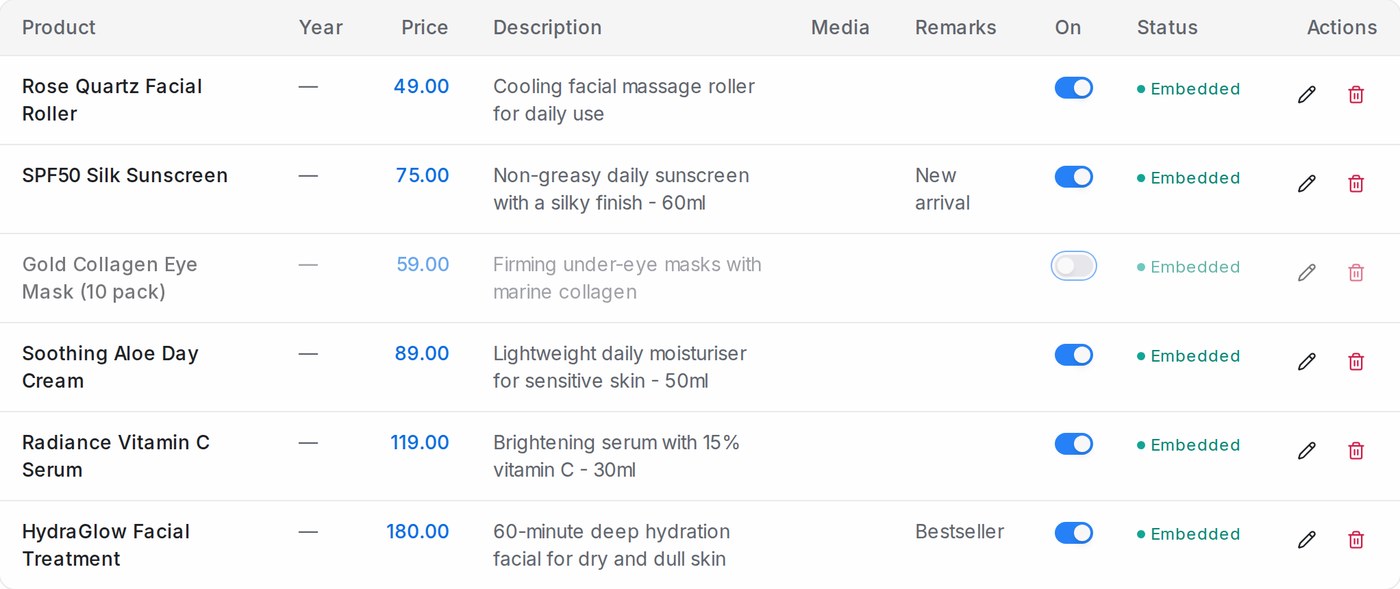
While a product is off:
* The AI agent leaves it out of recommendations, catalogue answers and order taking.
* The row stays in your table, greyed out, with its description, price and photos intact.
* A price-list upload or store sync never switches it back on. New products, typed in or imported, start switched on.
Switch it back on and the product is available again straight away.
## Recommending products in a flow
You don't have to change your flow at all — once the catalogue exists, agents answer product questions whenever customers ask them, then carry on with the flow.
When an agent answers this way, the photos attached to the products it recommends are sent right after its reply — only for the products it actually named, so a customer asking about one item doesn't receive your whole catalogue.
To recommend at a specific moment — say, right after asking what the customer is looking for — open the flow designer, select the step, and set **Tool type** to **Product** in the step's **Tool** section. That step then recommends live from your product catalogue: real names and prices, based on what the customer needs. Optionally, set **Search from variable** to a variable that holds what the customer wants (e.g. *product\_need*); leave it blank to search from the customer's latest message. If the variable holds a yes/no answer rather than a product, the step searches the customer's latest message instead. A step set up this way sends the product details as text.
Note: an OpenAI API key (added under **Settings → Integrations → AI Providers**) is required for the AI to search and use your catalogue.
## Showing only the products that match
A product search always returns the closest products in your catalogue, even when none of them is what the customer asked for. To leave those out, open the step's **Tool** section and set **Which products to use**:
* **Closest products from the search** (the default): the step uses the closest matches, even when some aren't what the customer asked for.
* **Only matching — hand off if none**: the step keeps only the products that are what the customer asked for, including the right fit or model. A side mirror made for another car model, for example, is left out. Each product is checked against what the customer said and the answers they already gave, such as their car model.
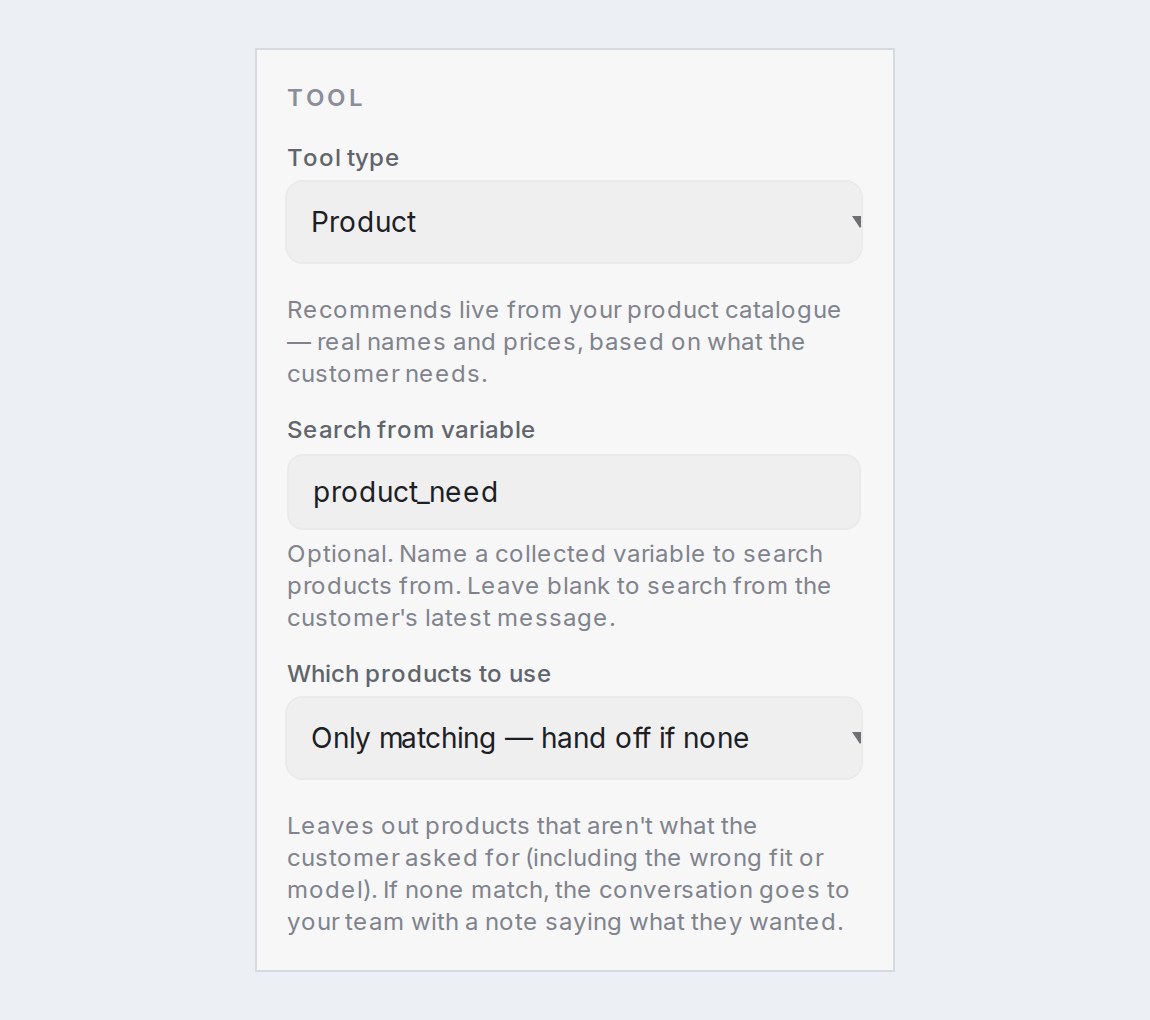
When no product matches, the customer is told the item couldn't be found in your catalogue and that a teammate will check it. The conversation goes to your team, with a private note saying what the customer asked for. The same happens if your catalogue can't be searched at that moment.
**AI Task** steps that use the product tool have the same option, as **Only matching products**. The task then works only with the matching products, and a later step that shows the same search does too. If none match, the task gets "No matching products found." so the next branch in your flow can decide what happens, for example hand the customer to your team.
You can also ask the flow designer. "Only show products that actually fit what the customer asked for" turns it on for the steps that pick and show products; "Show the closest products again" turns it off. Flows the designer builds use the closest products unless you ask. If your flow opens in the chat designer, choose **Switch to classic view** to open a step's settings.
## Related
* [Managing AI Knowledge](/flow-agents/managing-ai-knowledge)
* [Building the conversation flow](/flow-agents/building-the-conversation-flow)
* [Flow Agents and AI Knowledge](/flow-agents/flow-agents-ai-knowledge)
* [Connecting Shopify](/settings/connecting-shopify)
* [Store orders in a flow](/flow-agents/store-orders-in-a-flow)
---
## Store orders in a flow
URL: https://help.mampuai.com/flow-agents/store-orders-in-a-flow
---
description: Let your flow agent look up, create and cancel Shopify orders for the customer in the chat, and see what it did under each reply.
---
# Store orders in a flow
Once your Shopify store is connected, a flow step of type **Store orders** works with the customer's own orders. It can look up an order's status or parcel tracking, list their recent orders, create an order from what the flow collected, or cancel an order the customer names. This page shows how to add the step, what each choice needs, and what your team sees afterwards.
## Adding a store step
1. In the flow designer, open a message step. A question step can look orders up, but only a message step can create or cancel one.
2. Under **Tool**, set **Tool type** to **Store orders**. The step binds to your connected store.
3. Under **What this step does**, pick the action, then map the variables the step reads. A blank field falls back to the contact's own phone number and email.
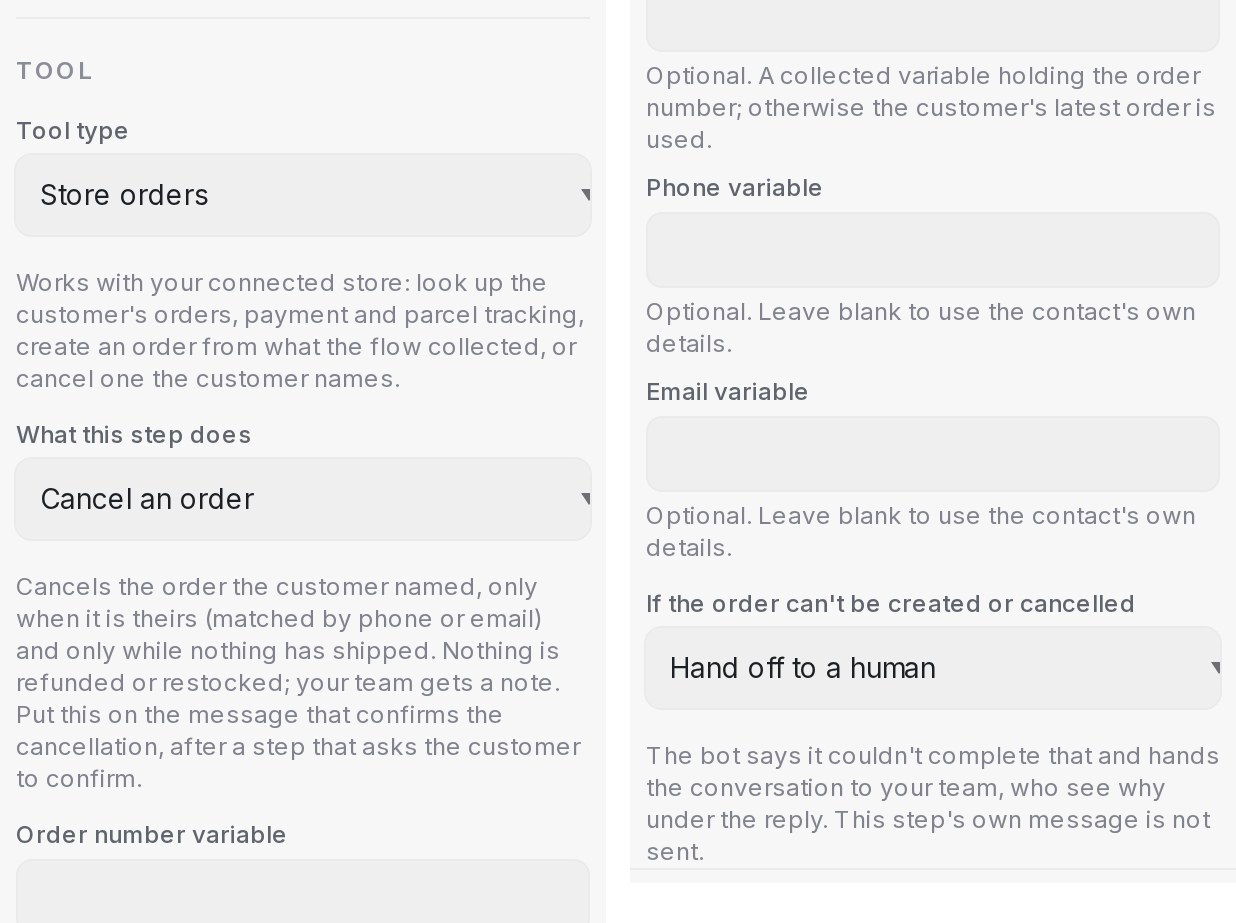{ width="618" }
| Choice | What the step does |
| --- | --- |
| **Look up an order's status** | Payment and fulfilment of the order the customer names, else their latest order |
| **Look up parcel tracking** | The carrier, tracking number and link of that order |
| **Find the customer's recent orders** | Their last five orders |
| **Create an order in the store** | A pending order from the items the flow collected |
| **Cancel an order** | Cancels the order the customer names, while nothing has shipped |
A numbered lookup answers only the customer's own orders: those under the phone number they chat from, or a phone or email the flow collected earlier. Someone else's order number is answered as not found. On a channel without a phone number, such as web chat, collect the customer's phone or email before the step.
## Looking up an order
1. Add a question step that saves the customer's answer to the variable `order_number`, or map **Order number variable** to the variable you use. Without a number, the step uses the customer's latest order.
2. Add a message step with **Look up an order's status** or **Look up parcel tracking**. Write the message the way you want the details presented; the step fills in the real values.
3. Later steps can use `{order_number}`, `{order_status}`, `{payment_status}`, `{fulfillment_status}`, `{order_total}`, `{order_items}`, `{tracking_number}`, `{tracking_url}`, `{tracking_company}` and `{delivery_status}`.
`{order_status}` is one word a condition can branch on: `pending`, `paid`, `shipped`, `in_transit`, `out_for_delivery`, `delivered` or `cancelled`, and `not_found` when no order matched.
## Creating an order from the chat
1. Collect what the customer wants into a variable, one line per product, for example `1x Corn Flour 500g`. End a line with `@ 12.50` to give that line its own price; the other lines keep the store price.
2. Collect the customer's phone number, and anything else the order needs: their name, the delivery address and a payment reference. A screenshot the customer sends with the payment reference is attached to the order as the receipt when your store app can write files; its link always goes into the order note.
3. Put **Create an order in the store** on the message that confirms the order, and map **Items variable** and the other fields.
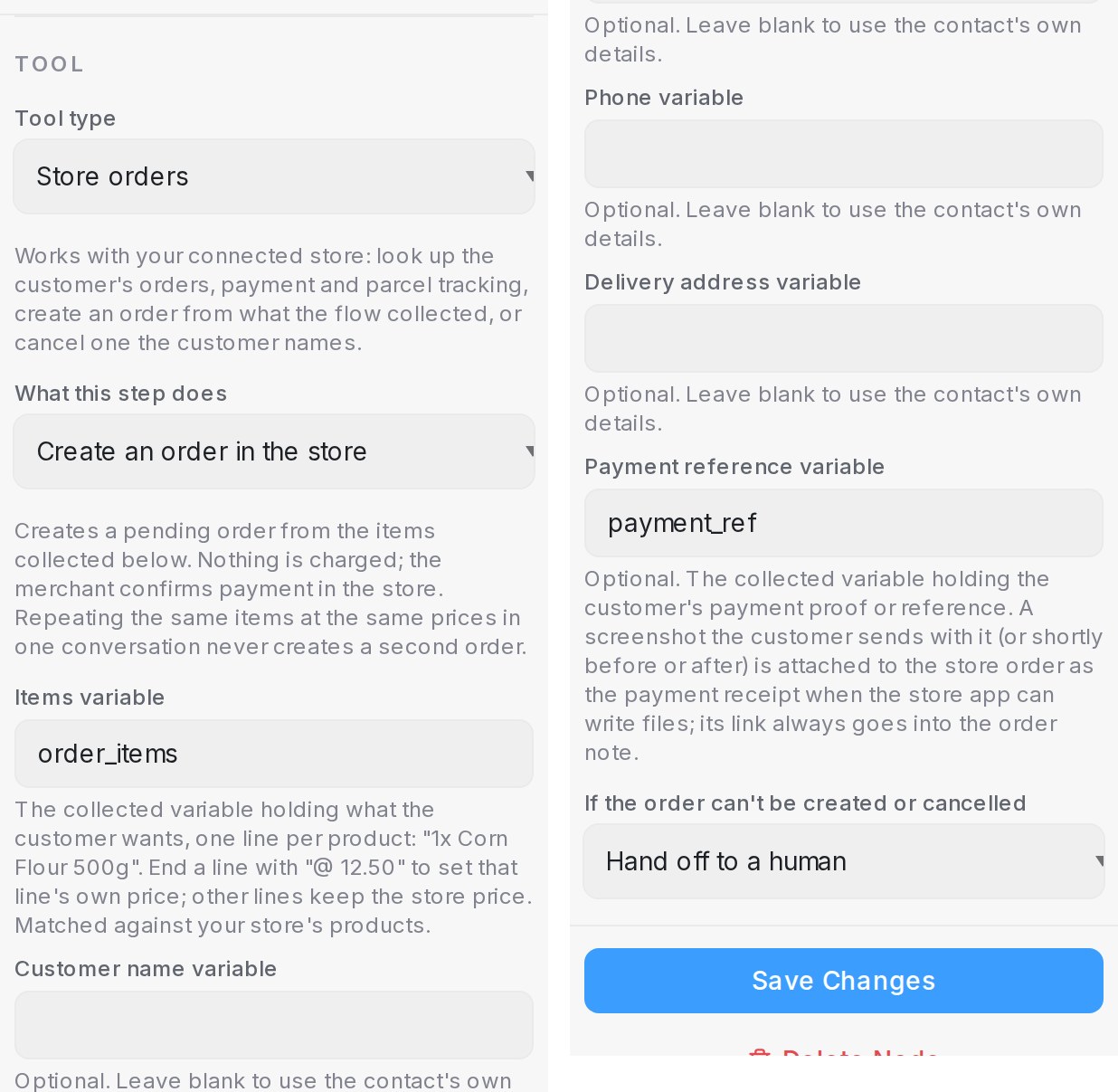{ width="618" }
The order is created as pending and nothing is charged: you confirm the payment in the store. Repeating the same items at the same prices in one conversation never creates a second order. An item that does not match a product in your store stops the order, and your team is told which line.
## Cancelling an order
Build the cancellation as four steps:
1. A question step that saves the order number to `order_number`.
2. A message step with **Look up an order's status**, so the customer sees the order they are about to cancel.
3. A condition step that asks "Shall I cancel this order?", with a yes branch and a no branch.
4. On the yes branch, a message step with **Cancel an order**. Its message is what the customer reads once it is done, for example "Done, order {order_number} is cancelled."
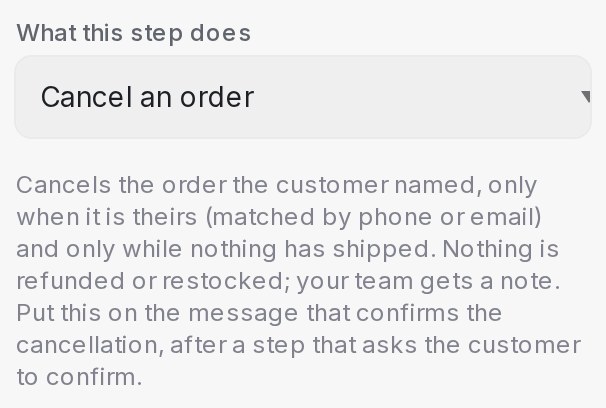{ width="303" }
The step cancels the order only when it is the customer's own, nothing has shipped yet and it is not already cancelled. The cancellation goes to Shopify with no refund, no restocking and no email from Shopify; your team handles money and stock. An order the store had already cancelled is reported as cancelled, without a second cancellation.
## If the order can't be created or cancelled
Every store step that creates or cancels an order has the choice **If the order can't be created or cancelled**.
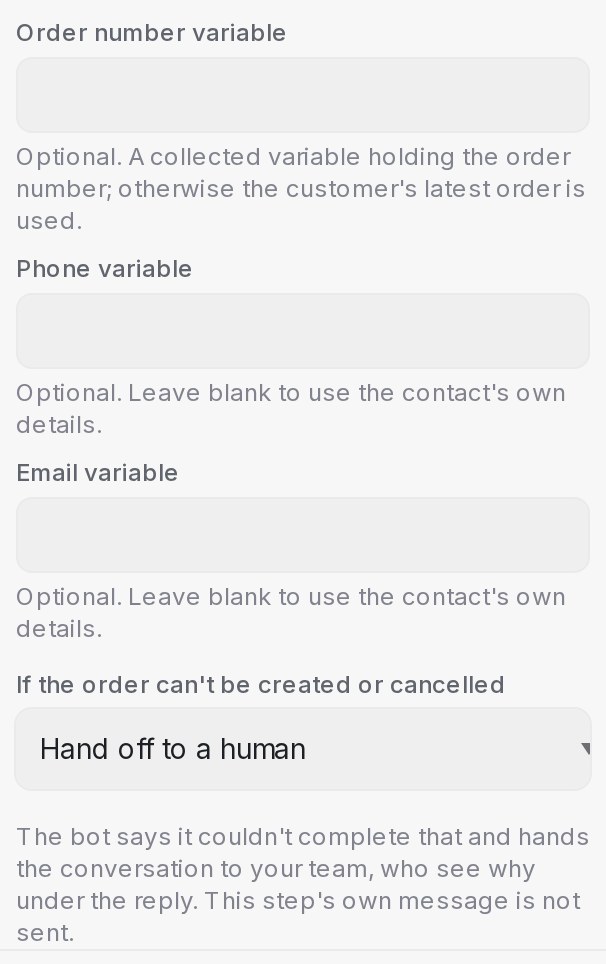{ width="303" }
* **Hand off to a human**, the default: the bot says it couldn't complete that and hands the conversation to your team, who see why under the reply. The step's own message is not sent. This covers items that did not match, an order that was not found or belongs to someone else, an order that has already shipped, and a store that refused or could not be reached.
* **Reply honestly and continue**: the step's message is sent as written and the flow carries on, so branch on `{order_status}` afterwards. After a create it is `created`, `exists`, `unresolved_items`, `invalid_phone` or `error`; after a cancel it is `cancelled`, `not_found`, `not_cancellable` or `error`.
One case never hands off: a phone number the store would reject on a create step makes the bot ask the customer for the number again.
## What your team sees
* A private note on the conversation for every order the flow creates or cancels, and for every attempt that failed, with the reason. A cancellation note names the order, its payment status and reminds the team to check whether a refund is owed.
* Under the reply, the footer chip reads **order created**, **order not created**, **order cancelled** or **order not cancelled**. Open it for the full line.
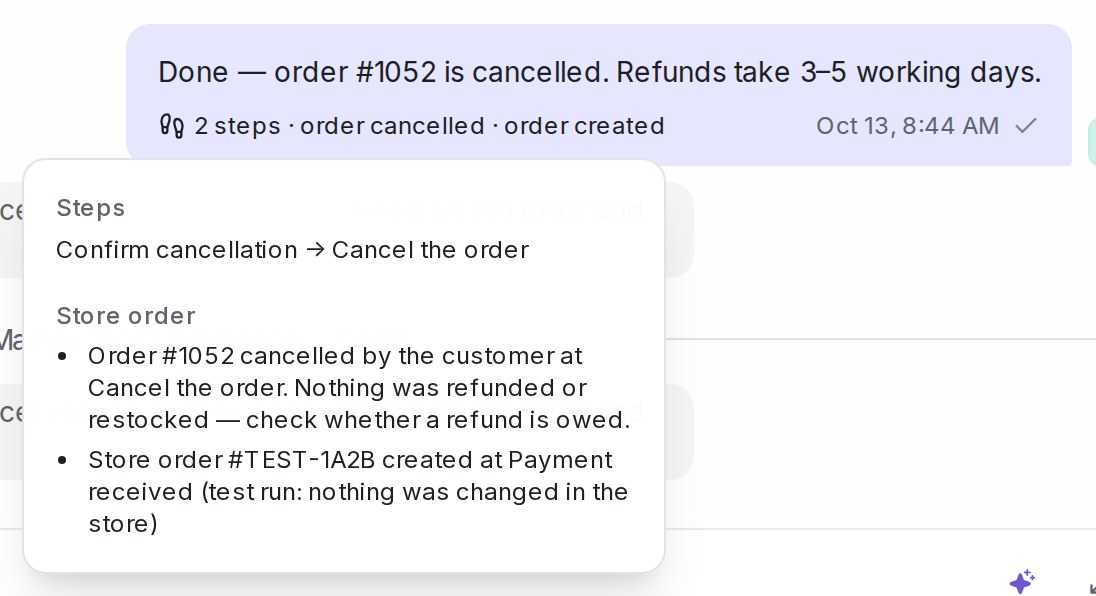{ width="548" }
## Testing in the Playground
Test runs in the Playground and scripted tests never create or cancel a real order. The step answers as if it had, with "(test run: nothing was changed in the store)" under the reply, and no note is posted. With no phone or email collected, the Playground treats any order from your store as the tester's; an order that has already shipped is refused the way the store would, so the hand-off path can be tested too.
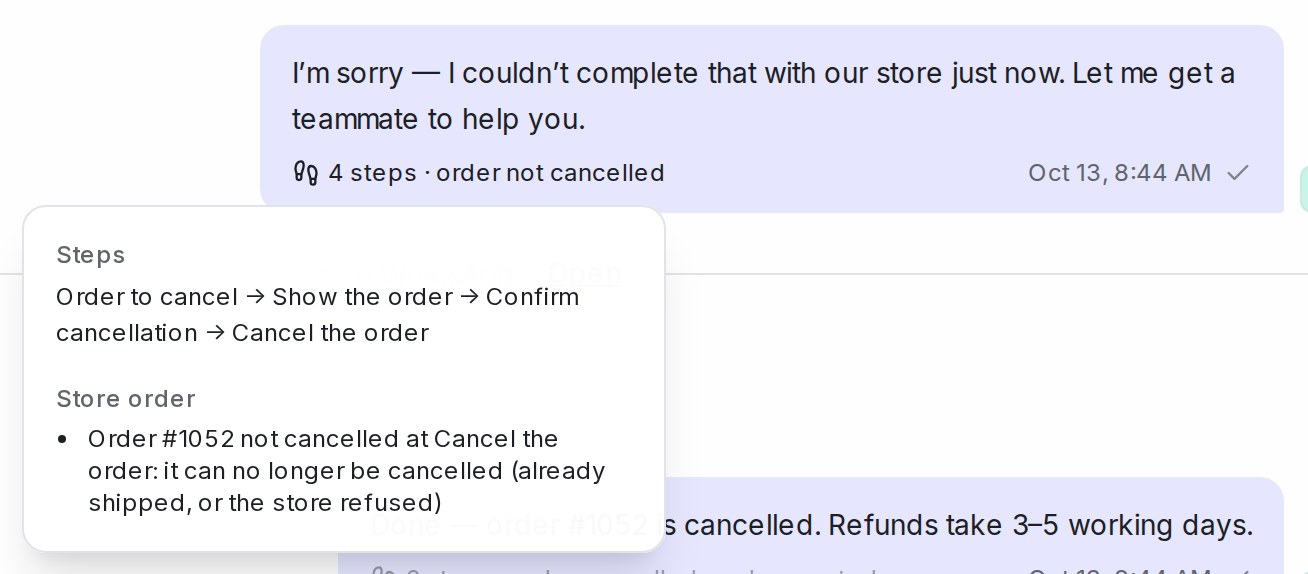{ width="654" }
## Related
* [Connecting Shopify](/settings/connecting-shopify)
* [Building the conversation flow](/flow-agents/building-the-conversation-flow)
* [Product catalogue and recommendations](/flow-agents/product-catalogue-and-recommendations)
---
## Testing and connecting an agent
URL: https://help.mampuai.com/flow-agents/testing-and-connecting-an-agent
# Testing and connecting an agent
## Watch the walkthrough
{% embed url="https://youtu.be/On9uz4-b-9A" %}
## Test in the playground
Open the **Playground** tab in the designer and chat with your agent as if you were the customer. Every conversation you run is saved automatically — click **History** to revisit the last 20 test sessions for the agent, so you can compare behaviour before and after a change.
Under each reply, **Nodes visited** lists the steps the agent walked through, and **FAQs used** lists the questions from your AI Knowledge the reply drew on — only the ones it actually used, so you can check that a question was answered from the FAQ you expect. The same two things appear under the agent's replies in live conversations — see [Replying and adding private notes](/conversations/replying-and-private-notes). If the agent notices a problem in your flow along the way — for example a product step searching the catalogue with a variable that holds a yes/no answer instead of a product — a **Flow warning** line appears there too, naming the step and the variable so you can fix it before publishing.
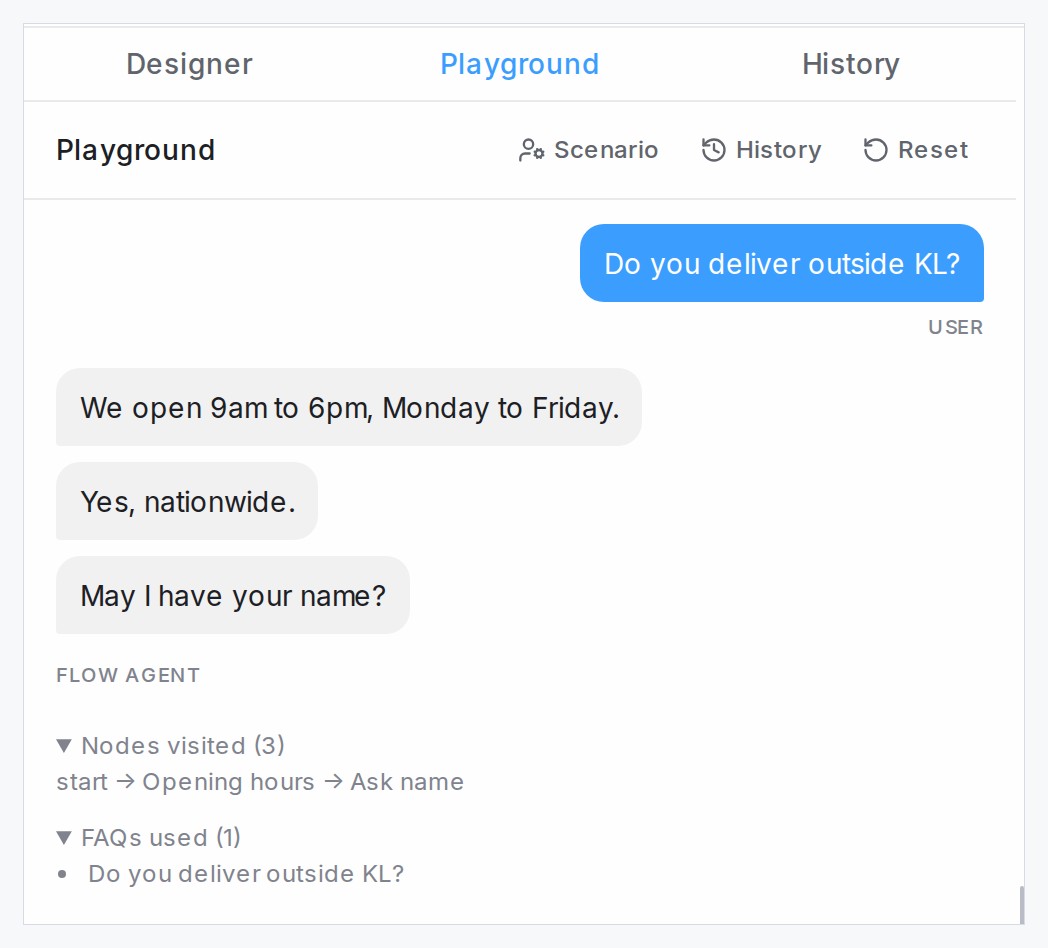
## Test with photos, voice notes and PDF documents
Attach a photo, a voice note or a PDF in the Playground, the same way a customer would send one. Under the file, the chat shows what the agent read: an **AI description** of what is in the picture, the transcript of what was said, or an **AI summary** of the document. It is the same text your team sees on a live conversation, so you can check that the agent understood an order list, a screenshot, a spoken request or a quotation before it replies. The rest of the test conversation uses that reading too, so follow-up messages behave as they would with a real customer.
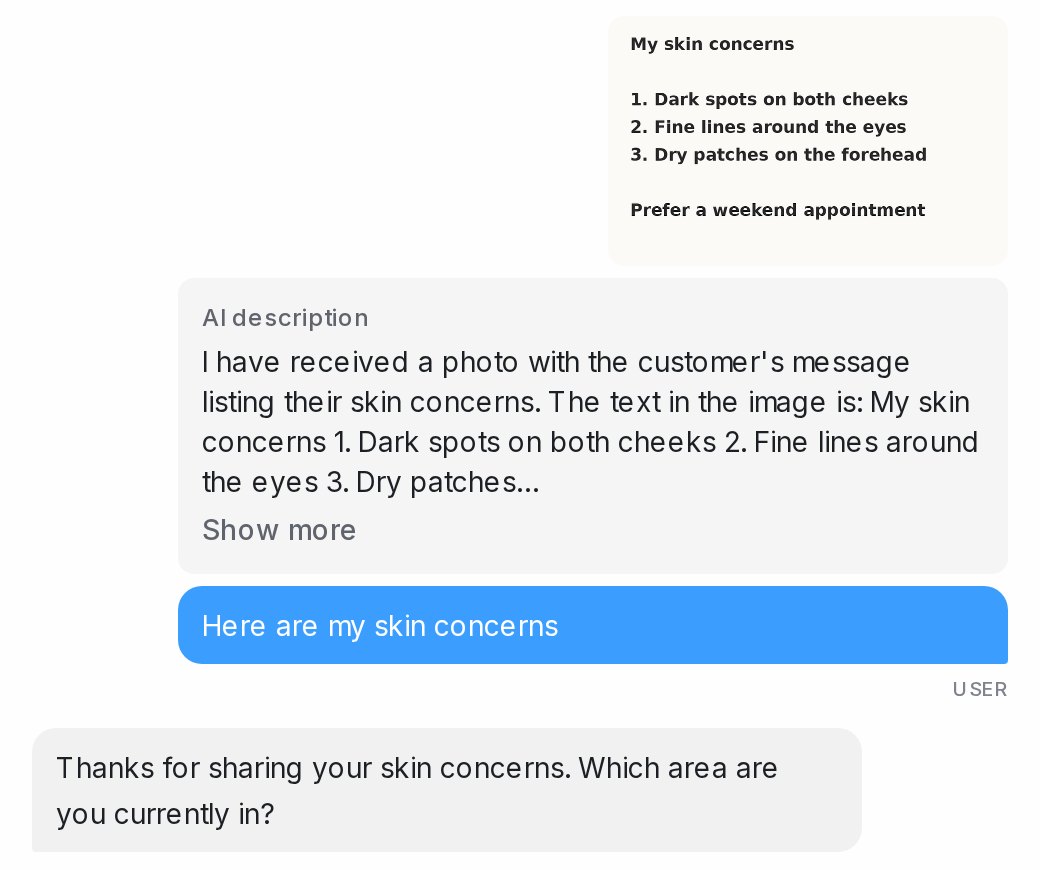
PDF documents work well for quotations, order forms, invoices, receipts, bank slips and booking confirmations: the agent picks out the items, amounts, dates and reference numbers, and a collect step can take its answer straight from the document. Scanned PDFs are read too. Other file types, such as Word, Excel or ZIP files, reach your team as files but are not read by the agent, and a very large PDF is passed on without a summary. A file that is damaged, password-protected or not really a PDF isn't guessed at: the agent is told it couldn't read the file, and no summary appears under it.
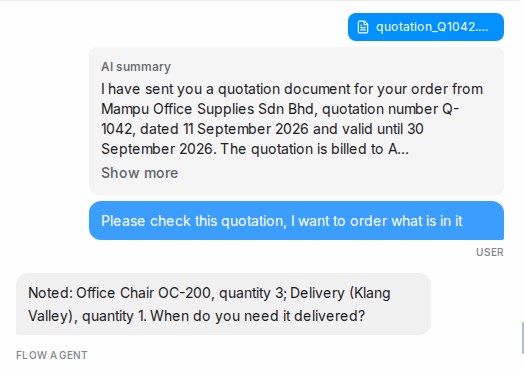
## Record a voice message
Press the microphone beside the paperclip to speak to your agent instead of typing, the way a customer sends a voice note. The text box turns into a recording strip while you talk.
1. Click the microphone and allow the browser to use it if asked.
2. Say what the customer would say. The strip shows the sound and the time recorded.
3. Click the blue **Send voice message** button (the arrow) to stop and send it in one go, or **Discard recording** (✕) to throw it away.
{ width="496" }
The clip appears in the chat as a playable voice message, and once the agent replies, what it heard appears under the clip. Anything already typed in the box goes out with the clip as the same message. If the browser has blocked the microphone, the Playground asks you to allow it; the paperclip still takes a recorded file.
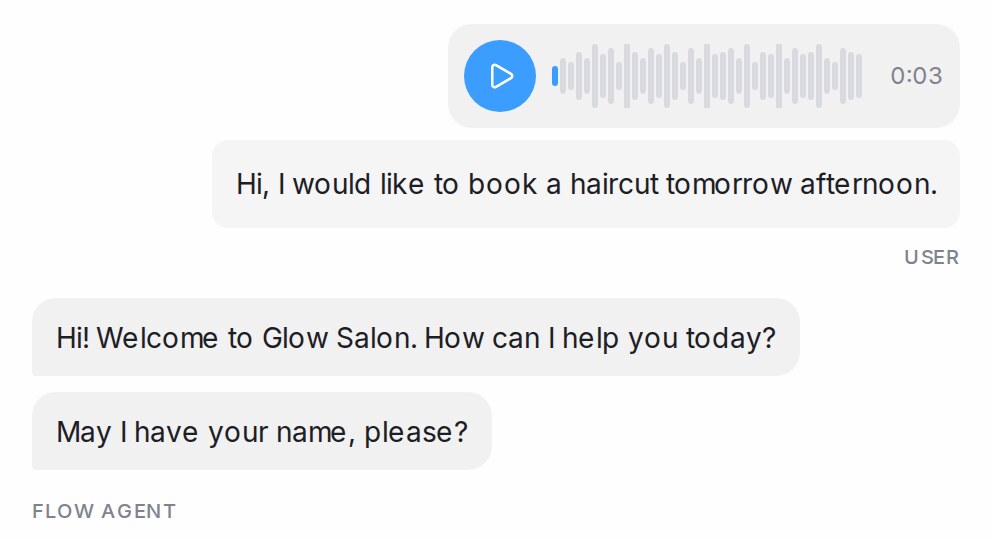{ width="496" }
## Test as a real customer
By default the Playground plays an anonymous customer with no record, no ad and no labels, as an everyday chat would: routes that need an ad or a label stay hidden, and the agent knows nothing about who is asking. To test the flow exactly as a particular customer would experience it, click **Scenario** above the chat and describe who you are playing:
* **Load from a conversation** — type a conversation number and the customer's contact details, labels and the ad they arrived from fill in for you.
* **Contact** — search for an existing contact, or type a name, phone number, email and any contact attributes by hand.
* **Ad** — the Meta ad the customer clicked, so routes reserved for an ad behave as they would live.
* **Labels** — the labels on the customer's conversation or contact.
* **Inbox** — the inbox the conversation arrives on. The flow keeps time in that inbox's timezone, and an End step's **Outside business hours** message follows that inbox's hours.
* **Time** — a pretend moment for the conversation, so greetings, opening hours and other time-aware replies behave as they would then. The **Testing as** strip shows the inbox and time you picked.
Press **Apply** and the conversation restarts as that customer. A **Testing as** strip above the chat shows who you are playing, and whenever your route conditions hide a branch or send the customer straight down one, a note in the chat says which routes were affected. Conditions that read contact details — such as skipping the phone question when a number is already on file — use the record you entered.
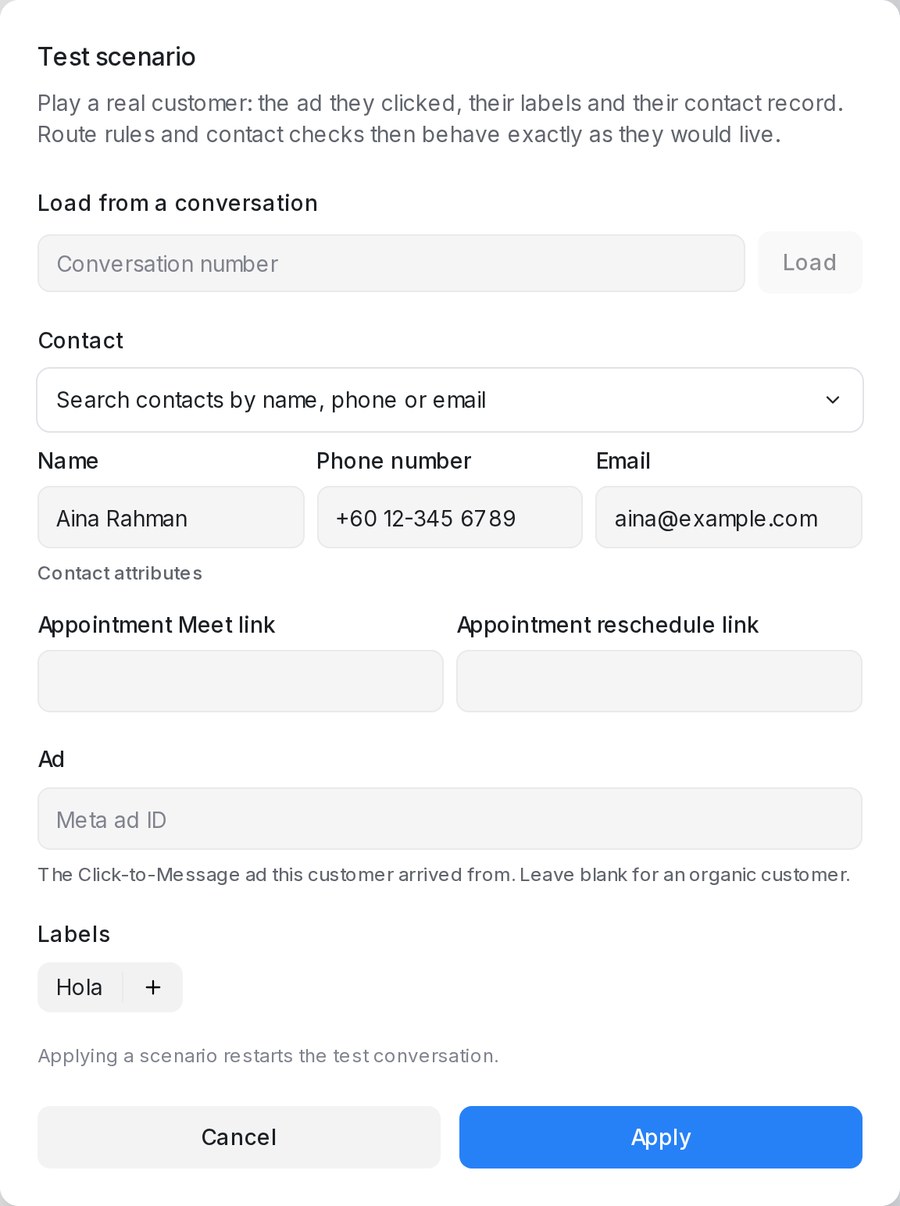
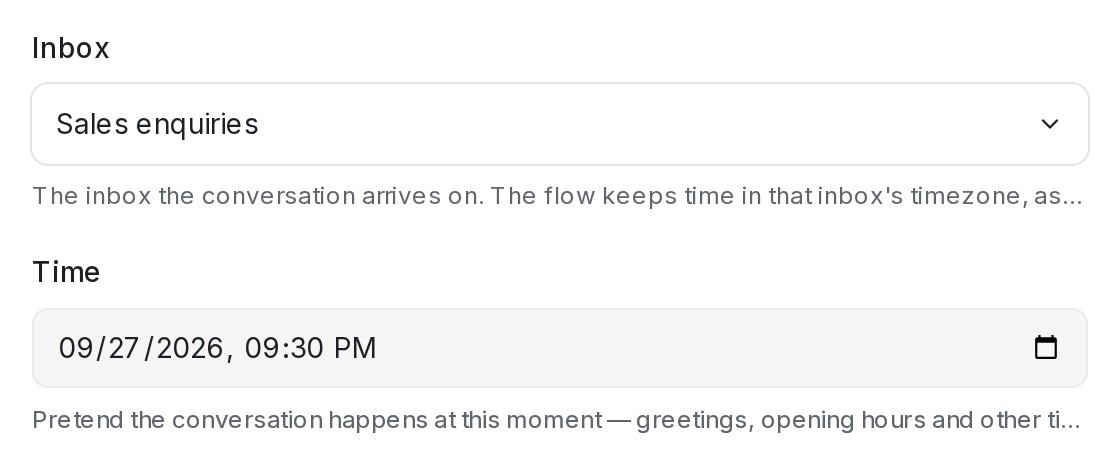
* **Reset** keeps the scenario, so you can rerun the same customer in one click; **Clear scenario** in the dialog returns to the anonymous tester.
* Changing the scenario restarts the test conversation — a real customer's details are fixed from their first message.
* **History** shows which customer each saved test session played as.
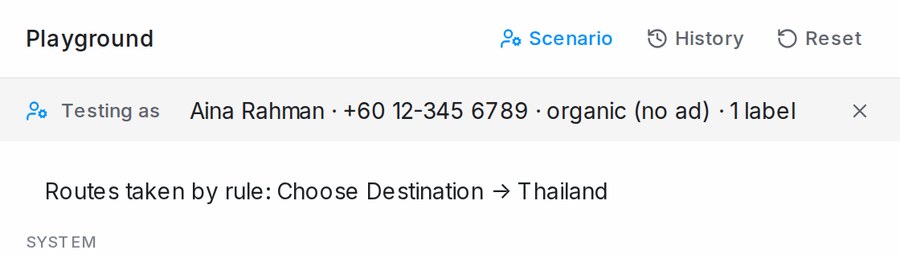
## Try a different answer from an earlier reply
Under every reply of the agent except the latest one, click **Answer differently from here** to go back to that point of the test. The messages after it are set aside, a note in the chat marks where the test continues, and the details the agent had collected up to that reply are kept. Type a different answer and the conversation carries on from that step, so you reach a later branch of your flow without typing the opening again.
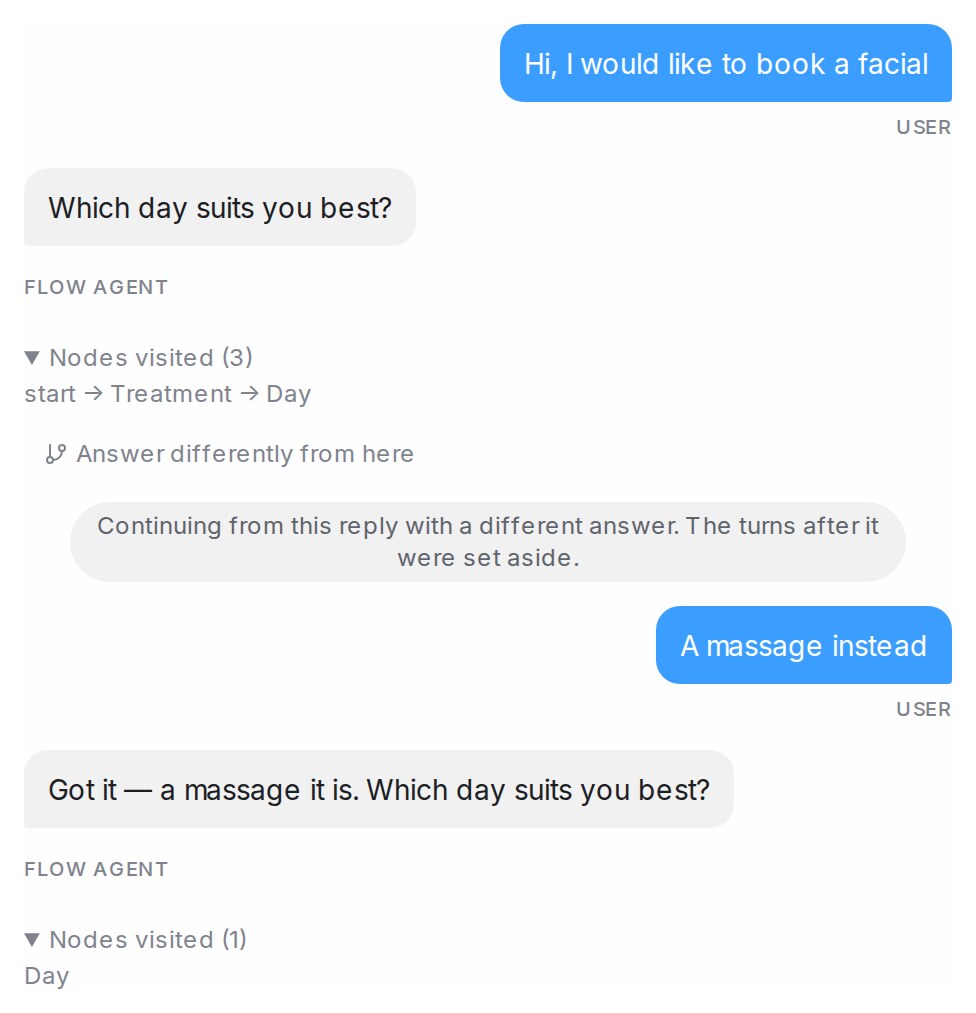{ width="488" }
* The branch is saved as its own test session in **History**, starting with the messages you kept, and the **Conversation** panel shows the labels and details as they were at that reply.
* If you saved the flow after that reply, a second note warns that the step you are continuing from may have moved.
* The latest reply and a reply that ended the flow offer no such button. Type your next message, or press **Reset** to start over.
For developers: a scripted test run through the API or the MCP tools can continue an earlier run from one of its turns in the same way. See [Branch a test run](https://developers.mampuai.com/ai-agents/flow-agents#branch-a-test-run).
## Connect inboxes
Click **Inboxes** in the designer header and select which inboxes the agent should handle — each inbox can only be assigned to one flow agent. Per inbox you can also set:
* **Pause when a human replies** — when a teammate answers (from the dashboard or the connected app), the agent steps back automatically instead of talking over them. It stays quiet for the agent's **Pause duration after handoff**, and with **No auto-resume** it stays quiet until someone resumes it. Messages the app sends on its own, such as WhatsApp Business greeting and away messages, count as replies too.
* **Active hours** — the agent works this inbox only between the start and end times you set, every day, in the inbox's timezone. A window that runs past midnight, such as 6:00 PM to 8:00 AM, is fine.
* **Don't reply to these labels** — the agent skips any conversation or contact tagged with the labels you pick, or with any label containing a word you type, so VIPs or complaint cases stay human-handled.
* **Only reply to chats from ads** — the agent only replies to chats that started from a Meta ad. Pick **From one of these ads** and list the ad IDs, or **From any ad** to cover every ad. Chats opened by a comment reply still get the agent.
* **Ignore WhatsApp group chats** — the agent stays out of group conversations.
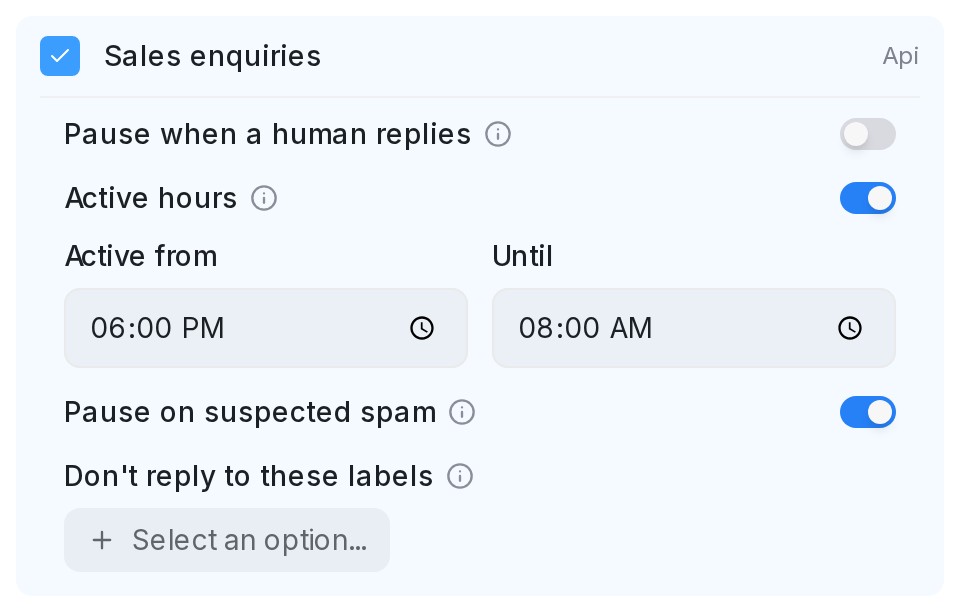
Outside an inbox's active hours the agent stays quiet for everyone on that inbox: new customers are not taken into the flow, customers already partway through get no further replies from the agent, and no follow-ups go out. If the inbox has an out-of-office message, that plays instead. The agent badge at the top of each conversation reads **Outside active hours** with the window, so your team knows the silence is intended, and the bot button in the reply box still makes the agent answer when you want it to — see [Replying and adding private notes](/conversations/replying-and-private-notes).

## Publish
Click **Publish** and choose who can talk to the agent:
* **Public** — everyone messaging the connected inboxes.
* **Testers only** — only your workspace testers: the people listed under **Settings → Account Settings → Testers**, shown in the dialog as **Workspace testers** so you can add someone before you publish. Use it to trial the agent on a live channel before opening it up. The same list covers message sequences and automation rules switched to **Testers only** — see [Account (general) settings](/settings/account-general-settings).
If the agent is set to [hand off silently](/flow-agents/building-the-conversation-flow) (a blank handoff message), the first publish shows what customers will experience and asks you to confirm before going live.
Once customers start talking to the agent, the flame button in the designer toolbar shows which steps they reach and where they drop off — see [See where customers go](/flow-agents/building-the-conversation-flow).
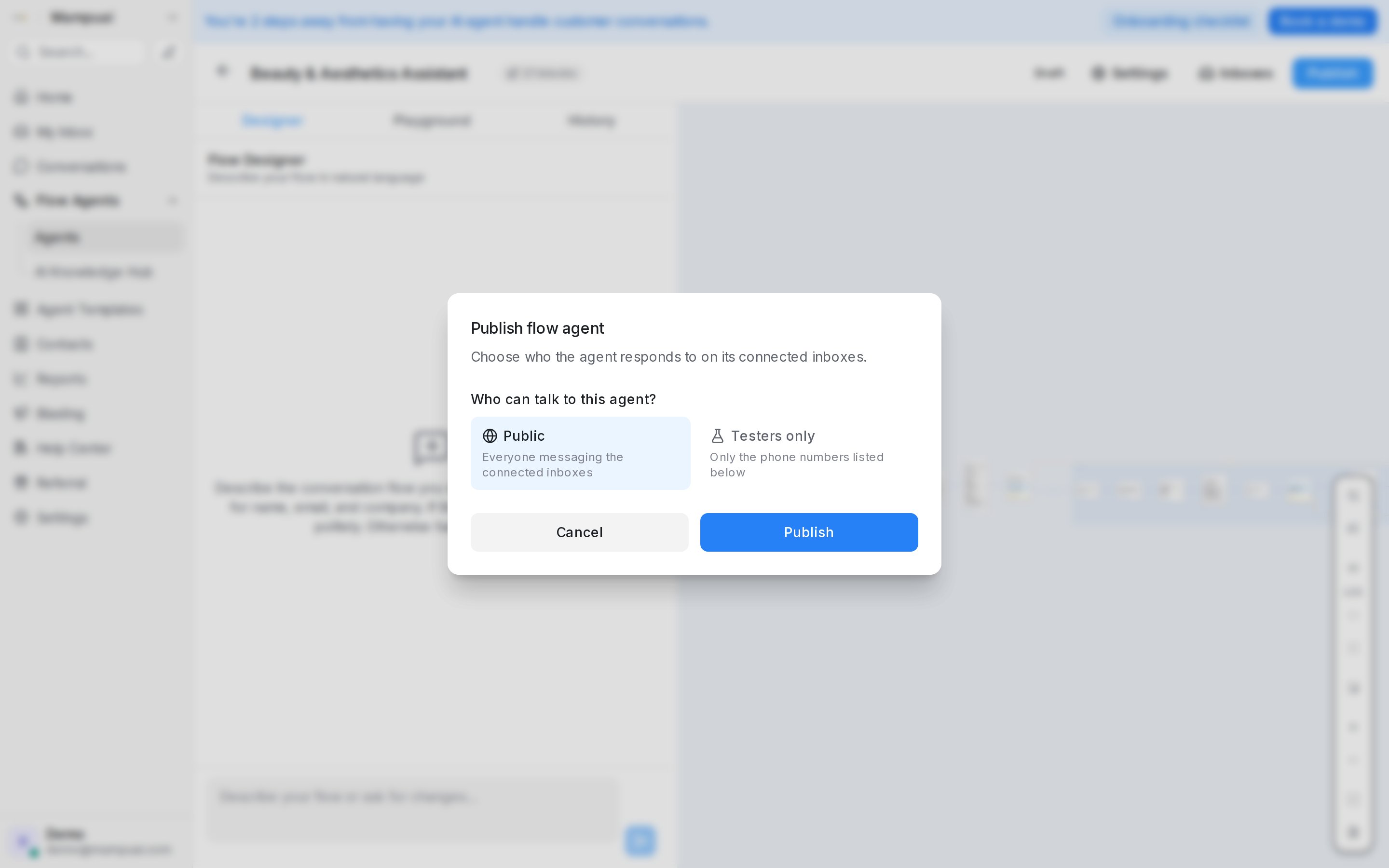{ width="512" }
### Start a test over with ##reset
Anyone on the workspace tester list can restart a test from their own phone. Send **##reset** as a message on its own in the chat with the agent (capitals don't matter). The agent confirms with "Flow reset — your next message starts the flow from the beginning.", and your next message is treated as a brand-new customer's first message, in the same chat. You don't need a new number or a new chat to see the opening again.
A reset clears the labels the flow's steps added, the AI columns filled in from that test run, and the submission it recorded. Other labels and the contact's details stay as they are.
**##reset** works whether the agent is published to **Testers only** or **Public**, as long as you are on the tester list. From anyone who is not on the list, it is an ordinary message.
## Behaviour settings
The **Settings** button in the designer header controls how the agent behaves in conversation:
* **Keep answering after the flow ends** — the agent stays available for questions once the flow finishes, instead of going quiet.
* **Answer FAQs on the first message** — if a customer's very first message matches your AI Knowledge, the agent answers it with the flow's opening: your greeting goes first, then the answer, then the rest of the flow. When the flow opens with a question, or an AI conversation step runs before the greeting, the answer comes first.
* **Continue the flow after an FAQ answer** — on by default: after answering a question from your AI Knowledge or product catalogue, the agent carries on — it asks its pending question again, or plays the greeting and opening question when the question was the customer's first message. Turn it off to have the agent stop after the answer and wait for the customer's next message; the flow then starts (or resumes) on the next message that isn't a question.
* **Ignore the language of Meta pre-filled messages** — off by default. When a customer arrives from a Meta ad, or taps the WhatsApp button on one of your Facebook posts, their first message is usually the pre-filled text, in the ad or post's language rather than their own. Turn this on and that message neither sets nor changes the conversation language: the opening is sent as you wrote it, and the agent follows the language the customer types from their next message. A customer who asks for a language in that message, such as "please reply in Chinese", still gets it. Messages customers type themselves count as usual.
* **Let AI rewrite messages** — the agent rewords flow and FAQ messages to match the tone you configured in AI Knowledge → Behaviour, and words each FAQ answer around what the customer asked, using the details they gave, such as how long they have lived in a house or the service they named. When an answer only covers a case that isn't theirs, such as paying now when they will pay tomorrow, the agent adds that your team will confirm their time once they have done it. Facts, prices, dates, and links are never changed.
* **Try to help before handing off** — before passing a conversation to your team, the agent checks whether it can still help: it may ask one clarifying question, or answer using only what your flow and AI Knowledge actually say. It never invents information, and customers who ask for a human are always handed off immediately. Off by default — turn it on per agent when you're ready. You can also list details for the agent to collect first — see below.
* **Pause duration after handoff** — how long the agent stays quiet after a handoff before resuming (15 minutes to 24 hours, or never).
* **Re-ask limit for collect steps** — how many times the agent asks again for a required detail before moving on.
* **Delay before replying** — an optional pause so responses feel less instant.
* **Show typing before messages** — on by default: the agent pauses briefly between its messages, and on WhatsApp numbers linked by QR code (**Normal WhatsApp Web Link**) the customer sees "typing…" first. This human-like pace helps keep those numbers from being flagged by WhatsApp. Turn it off where instant messages matter, such as payment details followed by a QR code: the agent then sends all the messages of a reply one right after another. On numbers linked by QR code, a short pause still follows a picture and separates the messages of a follow-up. **Delay before replying** still applies before the reply starts.
* **Quiet hours for follow-ups** — no follow-up messages between the start and end times you set, in the inbox's timezone. A follow-up due in that window goes out when it ends.
* **Facebook post context** — how much of a post's text the agent sees when replying to comments on it.
The dialog also lists **Business hours** for every inbox connected to the agent, with its schedule and timezone, so you can set the hours an End step's **Outside business hours** message follows without leaving the designer — see [The handoff message](/flow-agents/building-the-conversation-flow).
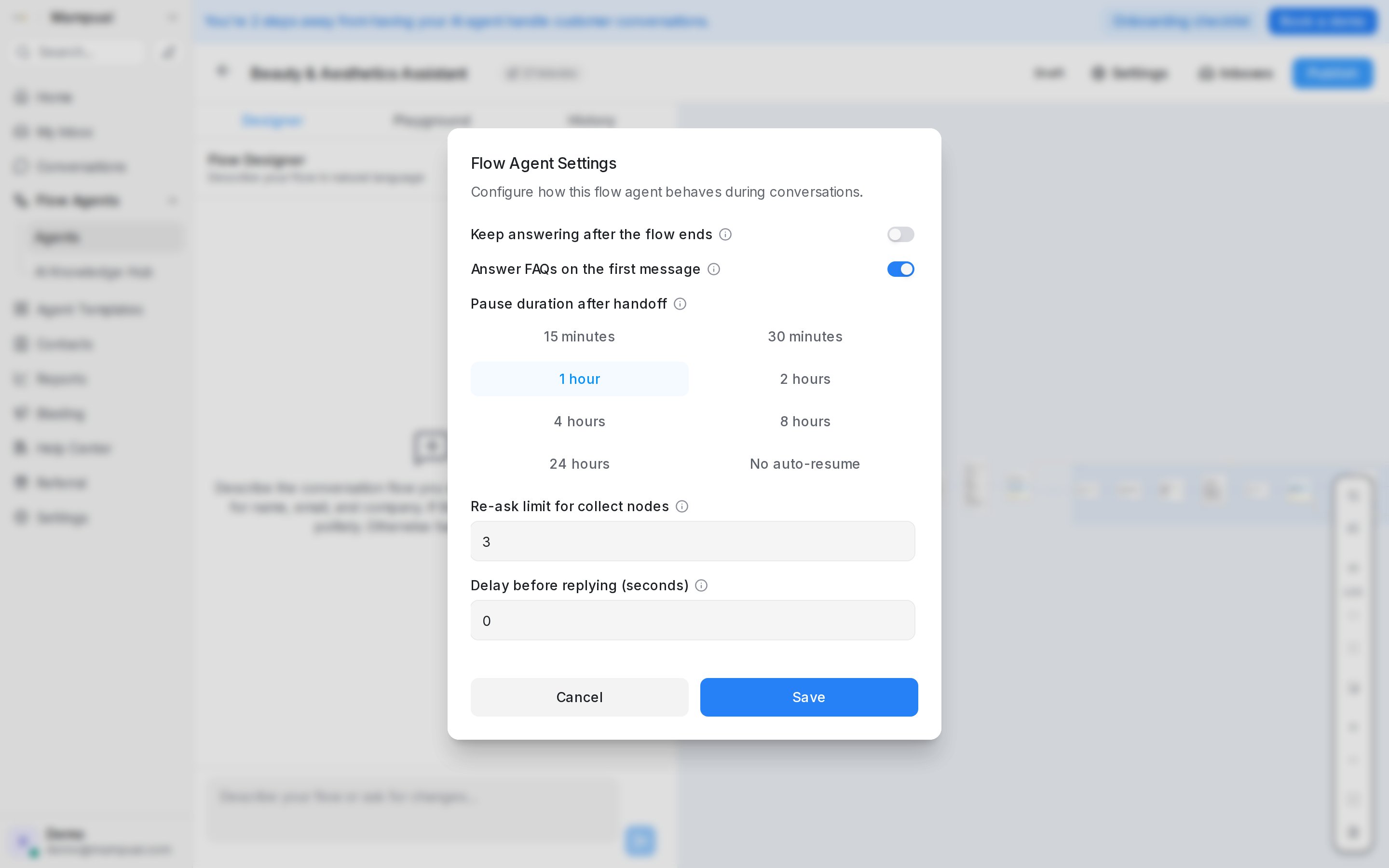{ width="512" }
### Details to collect before handing off
When **Try to help before handing off** is on, a list called **Details to collect before handing off** appears under it. Add the details your team needs to act on a handover — a phone number, a preferred callback time, an order reference — each with a short note on what to ask for, and press **Save**.
When the agent has to hand over a routine question it cannot answer, it asks for these details once, all in one message, in the customer's language, and makes clear they are optional. Whatever the customer replies, the conversation goes to your team next, with a private note **Collected before handoff** that shows their question and each detail; anything skipped is marked *not provided*. The details also appear in the flow's submissions like any other collected detail.
The agent never puts this ask in front of an urgent customer: someone who asks for a person, or is clearly upset, is handed off straight away. Details the flow already collected are not asked for again, and if the customer goes quiet for 15 minutes the handover happens anyway with whatever was shared.
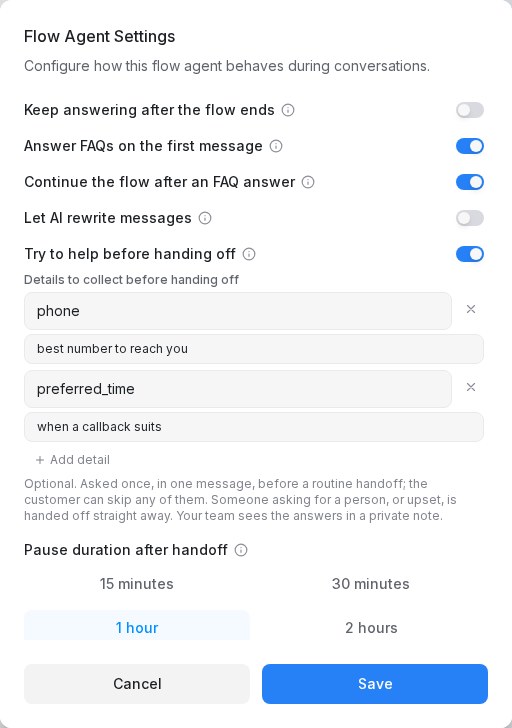
If the agent ever stops replying with an error about limits, check your plan's AI credit usage — the agent pauses when the account's credit limit is reached and resumes once it renews or is raised.
If a reply fails because of a temporary service hiccup, the agent hands the conversation to your team with a note in the conversation, then quietly tries once more a few minutes later — unless someone has already replied or paused it. You can also make the agent reply on demand with the bot button in the conversation reply box — see [Replying and adding private notes](/conversations/replying-and-private-notes).
## Related
* [Account (general) settings](/settings/account-general-settings) — the workspace tester list.
* [Building the conversation flow](/flow-agents/building-the-conversation-flow)
---
## How to Get the Best Results from Your AI Chatbot
URL: https://help.mampuai.com/artificial-intelligence/openai-or-chatgpt/faq-ai-embedding/how-to-get-the-best-results-from-your-ai-chatbot
# How to Get the Best Results from Your AI Chatbot
To ensure your AI chatbot provides the most accurate and helpful responses, follow these guidelines when writing the knowledge your agent draws from.
{% hint style="info" %}
Your agent's knowledge is managed from your Flow Agent's AI Knowledge section. See [Managing AI Knowledge](/flow-agents/managing-ai-knowledge) for how to add, edit, and organise entries.
{% endhint %}
## **1. Include the Question in the Answer**
Repeating the question within the answer helps the AI understand the context better and provide more relevant responses.
{% hint style="info" %}
**Example:**
* **Question:** What is your price?
* **Answer:** What is your price?, SME AI Pro Package USD 99 / Month. SME AI Premium Package USD 249 / Month.
{% endhint %}
By repeating the question within the answer, the AI can better match user queries with the correct information.
## **2. Use Clear and Concise Language**
Keep your language simple and direct. Avoid jargon or overly complex sentences.
{% hint style="info" %}
* **Less Effective:** "We provide a plethora of options for your perusal."
* **More Effective:** "We offer many options for you to choose from."
{% endhint %}
## **3. Structure Your Information**
Organize your content with headings, bullet points, and numbered lists to make it easier for the AI to parse.
{% hint style="info" %}
* **Unstructured:** "Our services include web development, mobile app development, and digital marketing."
* **Structured:**
* **Services:**
* Web development
* Mobile app development
* Digital marketing
{% endhint %}
## **4. Provide Comprehensive Answers**
Ensure your answers are thorough and cover all aspects of the question.
{% hint style="info" %}
* **Incomplete:** "Our office hours are 9 AM to 5 PM."
* **Complete:** "Our office hours are 9 AM to 5 PM, Monday to Friday. We are closed on weekends and public holidays."
{% endhint %}
## **5. Use Relevant Keywords**
Incorporate relevant keywords naturally within the text to help the AI match questions to answers more effectively.
{% hint style="info" %}
* **Without Keywords:** "Our support team is available 24/7."
* **With Keywords:** "Our customer support team is available 24/7 to assist with any queries or issues you may have."
{% endhint %}
---
## Setting up a calendar
URL: https://help.mampuai.com/calendar/setting-up-a-calendar
# Setting up a calendar
Calendars let your AI agents check real availability and book appointments for your customers — and give your team one place to see every booking.
Open **Flow Agents → AI Knowledge Hub** and choose the **Calendar** tile. The Calendar page has two tabs: **Schedule** (your weekly bookings view, shown first) and **Tools** (where calendars are created and configured).
## Watch the walkthrough
{% embed url="https://youtu.be/kFvdJDwK4jw" %}
## Add a calendar
In the **Tools** tab, click **Add calendar** and fill in:
* **Name** — e.g. *Clinic appointments*.
* **Description** — describe when the AI should book with this calendar (e.g. *Book dental appointments and consultations*). Your AI agent reads this to decide which calendar to use during a conversation, so make it specific.
* **Members** — optional. With no members, bookings land on the calendar itself. With members, bookings are distributed across them, and time blocked on the calendar applies to everyone.
* **Assignment** — shown when a calendar has two or more members. **Round robin** (the default) spreads bookings evenly across everyone who's free; tick **Assign by priority order** to keep offering everyone's times while each booking goes to the highest member in your list who's free at that time. **Priority fill** books the first member in your priority order until they have no free times within the **Check window (days)** you set — only then are the next member's times offered. Reorder members with the arrows to decide who fills first; when a time frees up on an earlier member's schedule, new bookings return to them automatically.
* **Timezone** and **Business hours** — set the hours for each day, add multiple time ranges, or mark days closed. You can copy one day's hours to other days.
## Member hours
By default every member takes bookings during the calendar's business hours. When someone works different hours, for example only mornings, click **Set custom availability** next to their name and set their own days and times. Times are offered when at least one member is free within the calendar's hours, so a member's hours that never overlap the calendar's mean they get no bookings; the editor warns you. **Use calendar hours** puts them back on the calendar's hours.
## Booking messages
Under **Booking messages**, attach the message sequences that go out when this calendar gets a booking: a confirmation, reminders before the appointment, a follow-up after it. **Set up booking messages** creates a new sequence for this calendar, **Attach existing** reuses one you already have, and **Detach from this calendar** stops a sequence for this calendar without deleting it. With none attached, bookings only get the confirmation in the chat. See [Message Sequences](/campaigns/message-sequences).
## Google Meet links
Under **Advanced settings**, tick **Add Google Meet link** so every booking on this calendar gets a video meeting link. It works for members who have connected Google Calendar in the **Schedule** tab; the link appears in the booking, in the conversation and in the customer's confirmation.
## Booking rules
Fine-tune how slots are offered:
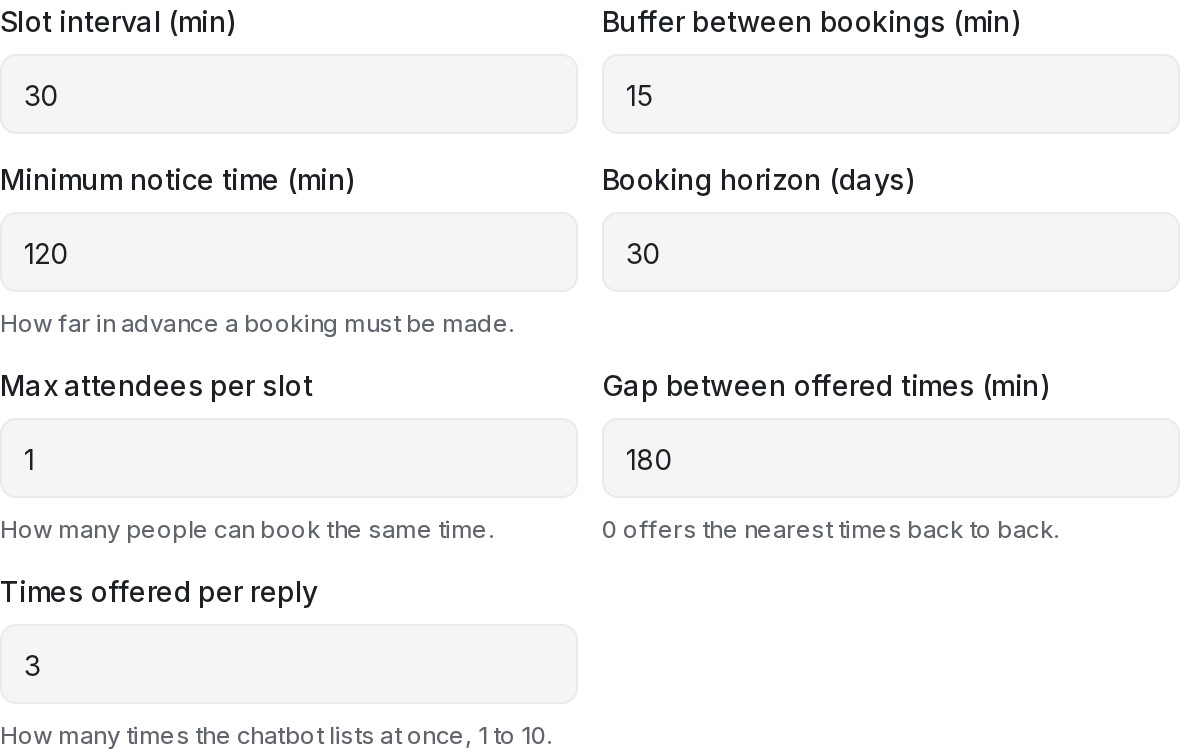{ width="590" }
* **Appointment duration** and **slot interval** — how long each appointment lasts and how the start times are spaced.
* **Buffer between bookings** — breathing room after each appointment.
* **Minimum notice time** — how far in advance a booking must be made.
* **Booking horizon** — how many days ahead customers can book.
* **Slot preference** — how open slots are ranked when the AI offers times (earliest first, prefer mornings, and so on).
* **Gap between offered times** — how far apart the times your AI agent offers in chat are. Offers are at least this many minutes apart, so the customer gets a real choice (for example *11 AM, 2 PM, or 5 PM today*); once a day has no time that far apart left, the next day's times follow. Set it to 0 to offer the nearest times back to back.
* **Times offered per reply** — how many times your AI agent lists in one reply, from 1 to 10. Every calendar starts at 3. The gap still applies, so five times on a calendar open until the evening read *11 AM, 2 PM, 5 PM, 8 PM today, and 9 AM tomorrow*; a calendar that closes earlier moves to the next day sooner. The public booking page is not affected.
* **Max attendees per slot** — how many people can book the same time. Leave it at 1 for one-on-one appointments, or raise it to run group sessions like classes, tours, or webinars: the same time stays bookable until every seat is taken, and each attendee books, reschedules, and cancels independently — a cancelled seat opens the time up again.
Once saved, the calendar is ready: your AI agent can offer available times in chat and book directly, and every booking appears in the **Schedule** tab.
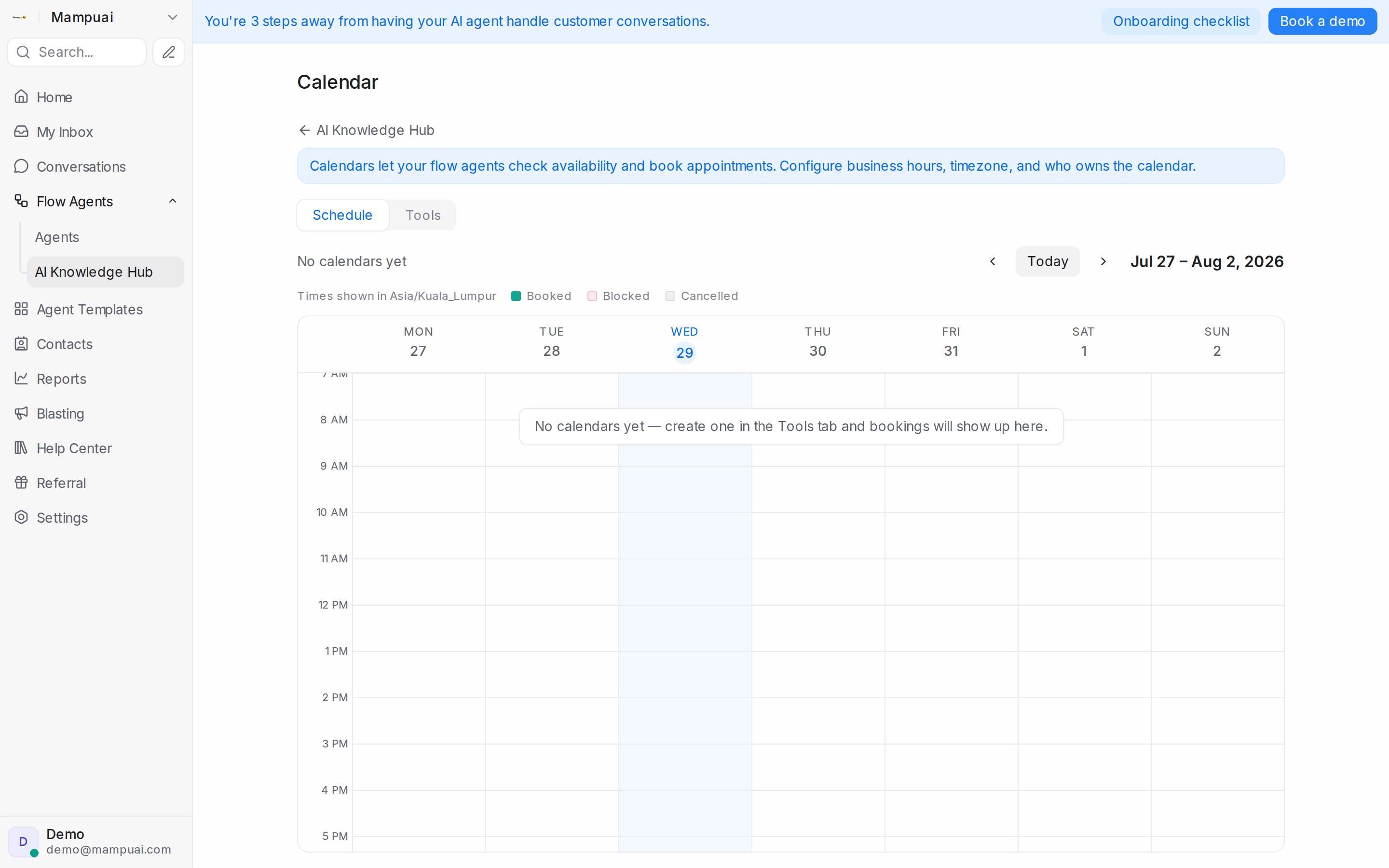
Next: [Booking pages and the Schedule view](/calendar/booking-pages-and-the-schedule-view)
---
## Booking pages and the Schedule view
URL: https://help.mampuai.com/calendar/booking-pages-and-the-schedule-view
# Booking pages and the Schedule view
Once a [calendar is set up](/calendar/setting-up-a-calendar), there are three ways appointments get booked — and one place to see them all.
## Watch the walkthrough
{% embed url="https://youtu.be/kFvdJDwK4jw" %}
## Three ways to get booked
* **Your AI agent books in chat** — during a conversation, the agent offers real available slots from your calendar and books the one the customer picks.
* **Customers book themselves** — every saved calendar has a public **booking page**. Click **Copy booking link** in the calendar's settings and share it anywhere; customers pick a time that works for them, in their own time zone. Choose an **inbox for public bookings** so each booking also opens a conversation with that customer — booking messages and reminders then work automatically.
* **Your team books manually** — from the Schedule view.
## Reschedules and cancellations handle themselves
Every confirmation includes a personal **manage link** — a short URL that fits on one line in a chat — where the customer can reschedule or cancel on their own. Your calendar stays accurate without any back-and-forth.
When one of your agents agrees a new time or a cancellation in the chat itself, an automation rule can move or release the booking for them — see [Updating a booking when an agent reschedules](/calendar/agent-rescheduled-appointments).
If the booked team member has connected Google Calendar, bookings can include a **Google Meet link** so video appointments are ready to join.
## The Schedule view
**Flow Agents → AI Knowledge Hub → Calendar** opens the **Schedule** tab: a weekly view of every appointment across your calendars, colour-coded as **Booked**, **Blocked**, or **Cancelled**, in your calendar's timezone. Expand a booking to see its details — who it's with, when, the customer's phone number, and anything your flows collected.
Appointment details also appear in the conversation with the customer, so whoever picks up the chat has the full context.

Tip: pair calendars with [Message Sequences](/campaigns/message-sequences) to send automatic reminders before an appointment and follow-ups after it.
### Choosing what a booking shows
Each calendar decides which extra details appear when you open one of its bookings in the **Schedule** tab:
1. In **Flow Agents → AI Knowledge Hub → Calendar**, go to the **Tools** tab.
2. Open the calendar's menu, choose **Edit**, and expand **Booking details**.
3. Tick the fields you want, then click **Save**. They are grouped as:
* **Contact fields** — **Email**, **City**, **Company** and **Country**.
* **Contact attributes** — any of your custom contact attributes.
* **Flow answers** — the variables your flows' collect steps gather. This list stays empty until your flows have collected something.
Fields appear in the booking in the order you ticked them, each with a copy button. Values are read from the contact when you open the booking, so a correction made on the contact also shows on past bookings. A field with no value for that booking is left out.
### Working in the Schedule
* **Select an agent** at the top to see one member's week, including **Team calendar · …** entries for calendars they belong to. **Today** jumps back to the current week; times are shown in the timezone named above the grid.
* **Block time** marks time as unavailable for that person: pick the **Day**, **Start**, **End** and an optional **Label**. Blocked time is never offered for booking. Click a block and **Remove block** to free it again.
* Click a booking to see its **Host**, **Phone**, **Meeting** link with **Join Meet**, when it was **Created**, and **Open conversation**. **Customer link** is the private link the customer uses to change or cancel; **Copy** it to resend.
* **Cancel booking** cancels an appointment after you confirm. It stays on the grid crossed out with **Cancelled by** and your name, and the time becomes bookable again.
### Connecting Google Calendar
Each member can connect their own Google Calendar from the **Schedule** tab with **Connect Google**. Once connected, their Google events show as **Busy (Google)** and block those times for booking, and new bookings appear in their Google Calendar. If access expires, the tab shows **Google sync stopped** with **Reconnect**; the member reconnects from their own login. **Disconnect Google Calendar** stops the sync.
---
## Updating a booking when an agent reschedules
URL: https://help.mampuai.com/calendar/agent-rescheduled-appointments
---
description: Move or cancel a customer's calendar booking automatically when one of your agents confirms the change in the conversation.
---
# Updating a booking when an agent reschedules
Customers often ask a human agent to move or cancel an appointment mid-conversation. Two automation actions keep the calendar in step with what your agent agreed, so nobody has to fix the Schedule by hand:
* **Reschedule appointment to attribute** moves the customer's current booking to the date and time held in a date-type custom attribute.
* **Cancel appointment** releases the customer's current booking.
Both act on the appointment already linked to the contact — the one your AI agent booked in chat or the customer made through your booking page.
## Before you start
* A [calendar](/calendar/setting-up-a-calendar) with bookings on it.
* An AI provider connected under **Settings → Integrations → AI Providers**, so the AI can read the new time out of the conversation.
* The reschedule flow works in conversations your AI agent has handled — that is where the appointment was booked and where the AI reads the confirmation from.
## Step 1: Add a date attribute for the new time
The reschedule action reads the new time from a custom attribute, and the AI fills that attribute from the conversation.
1. Go to **Settings → Custom Attributes** and click **Add Custom Attribute**.
2. Set **Applies to** to **Conversation** and **Type** to **Date**.
3. Give it a **Display Name** such as *Reschedule to*.
4. In **Description**, tell the AI what to look for — this is the instruction it follows. For example: *The most recently confirmed appointment date and time in this conversation, as a full date and time including the +08:00 time zone offset, e.g. 2026-09-04T17:00:00+08:00. Later messages override earlier ones. Leave empty if none.* Use your own time zone offset.
5. Tick **Enable AI extraction** and click **Create**.
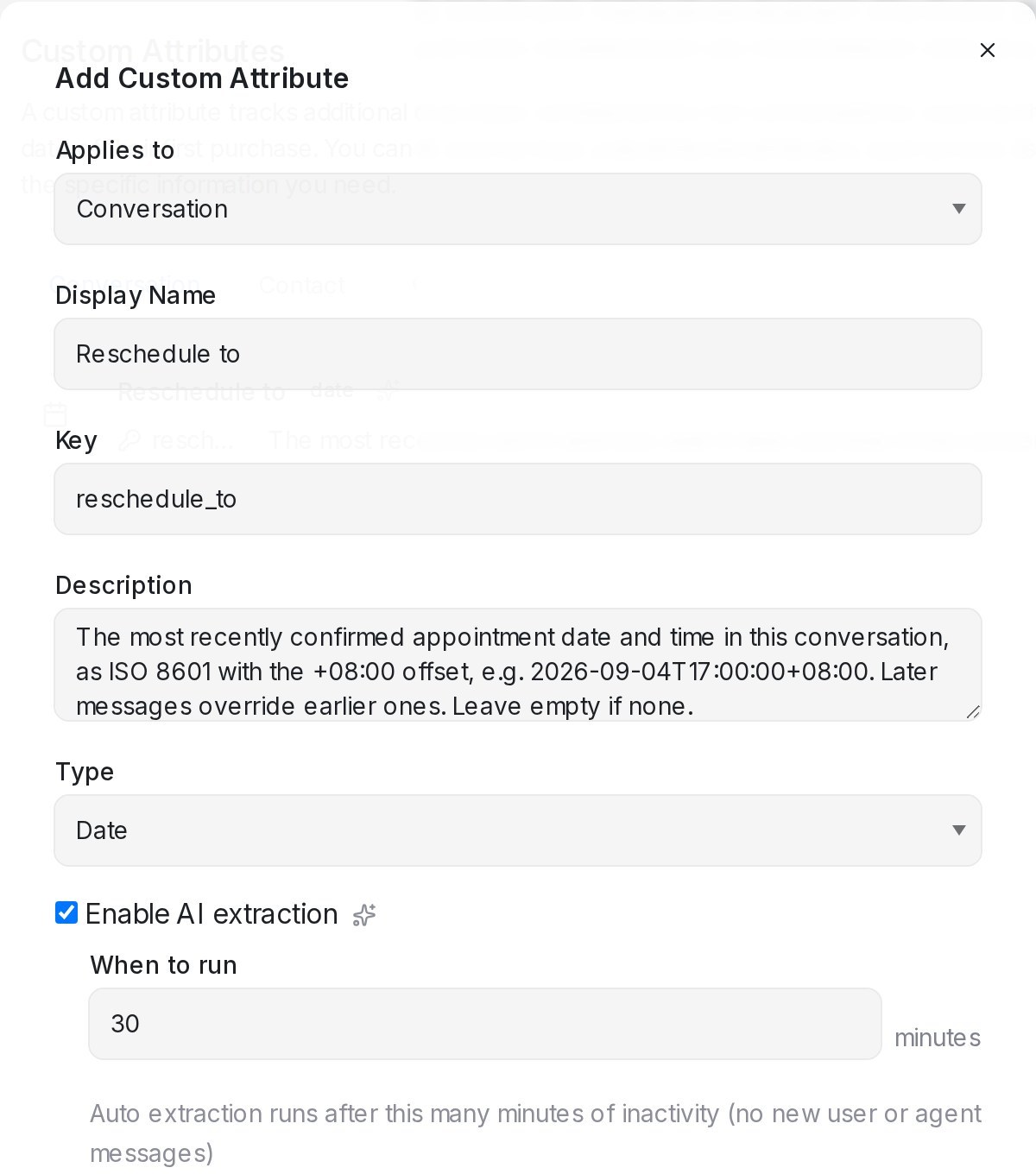
If you have picked specific **AI Columns** under **Configure Columns** for the agent, add the new attribute there too so it is refreshed along with the others.
## Step 2: Create the automation rule
1. Go to **Settings → Automation** and click **Create Automation**.
2. Choose the **Message Created** event.
3. Add conditions that match your agents' confirmation — for example **Message Type** equal to **Outgoing Message**, and **Message Contains** *Reschedule Appointment on*. Ask your team to use that phrase whenever they confirm a new time, such as *Reschedule Appointment on Friday 4/9, 5pm*.
4. Set the first action to **Regenerate AI Attributes**. This reads the new time out of the conversation into your date attribute.
5. Click **Add Action**, choose **Reschedule appointment to attribute**, and pick your date attribute. Keep it below **Regenerate AI Attributes** — actions run from top to bottom.
6. Click **Create**.
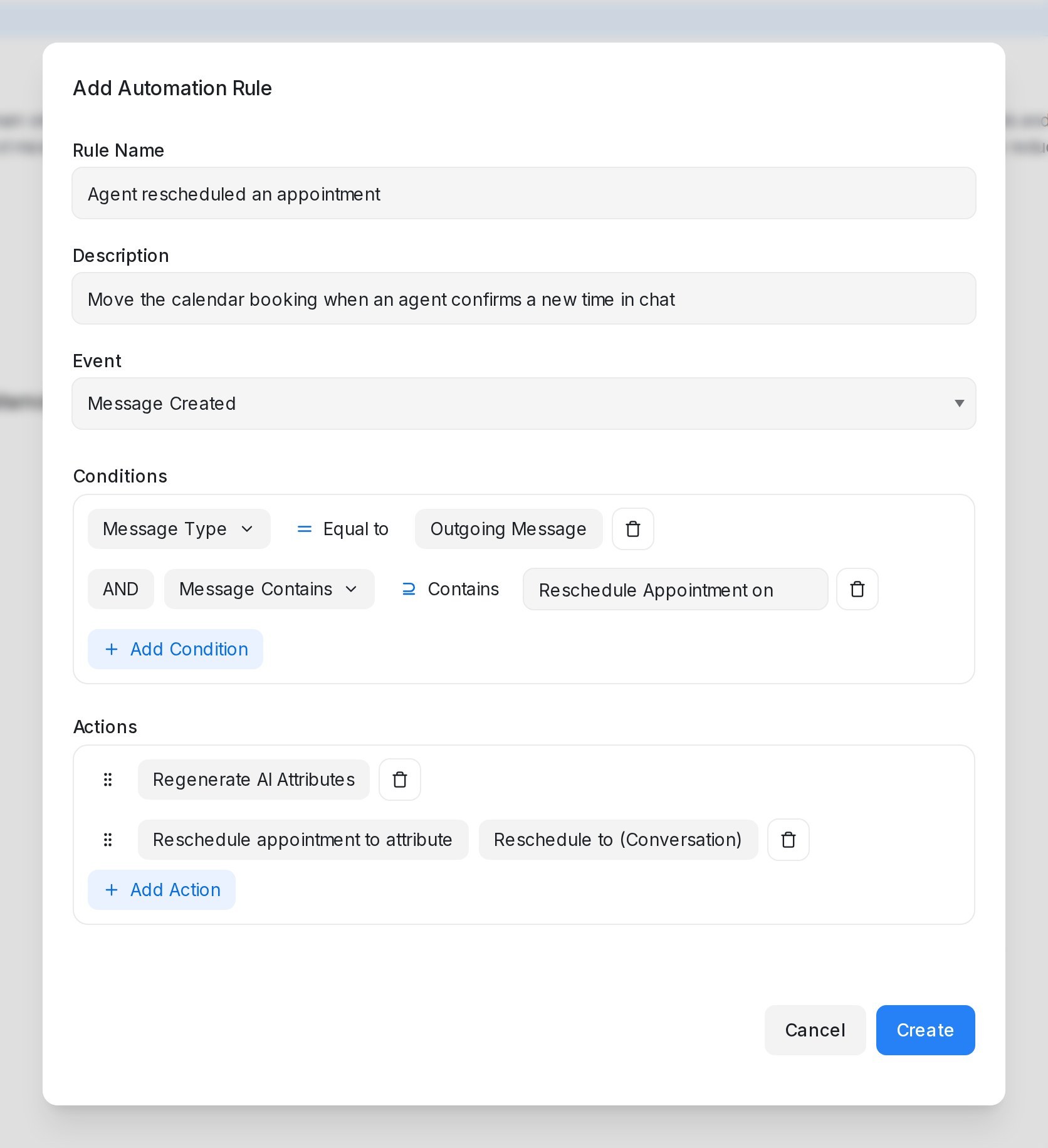
## What happens when the rule runs
* The booking moves to the new time. The old time is freed, appointment reminders from your [message sequences](/campaigns/message-sequences) follow the new time, and the customer's manage link keeps working.
* The change is recorded against the agent who last replied in the conversation, so the Schedule shows who moved it.
* The conversation gets an activity line, such as *Appointment moved to Friday, 4 September 2026, 5:00 PM (was Thursday, 3 September 2026, 3:00 PM) by Rebecca*. Activity lines are for your team only — the customer never receives them.
## When the booking stays put
The rule never double-books or guesses. In each of these cases the current booking stays where it is, and the activity line tells your team why:
* The new time is already taken or falls outside the calendar's business hours.
* The attribute is empty, or the AI could not make out a date and time from the conversation.
* The new time is in the past.
* The contact has no active appointment — nothing was booked, or it was already cancelled.
If the new time is the same as the current booking, nothing changes and no line is added.
## Cancelling an appointment
Add **Cancel appointment** to a rule in the same way — for example on **Message Created** when an outgoing message contains *Cancel Appointment confirmed*. It releases the customer's current booking, frees the time, and records who cancelled it: *Appointment on Thursday, 3 September 2026, 3:00 PM cancelled by Rebecca*.
## Related
* [Setting up a calendar](/calendar/setting-up-a-calendar)
* [Booking pages and the Schedule view](/calendar/booking-pages-and-the-schedule-view)
* [Labels, attributes and automation](/settings/labels-attributes-and-automation)
* [Message Sequences](/campaigns/message-sequences)
---
## Blasting
URL: https://help.mampuai.com/campaigns/campaigns
# Blasting
**Blasting** (formerly called Campaigns) lets you reach out to customers proactively instead of waiting for them to message you first — announcements, promos, product launches, and seasonal offers, delivered to everyone in one send.
## Watch the walkthrough
{% embed url="https://youtu.be/yEBXzMRej2E" %}
Open **Blasting** in the left sidebar and pick a channel tab:
* **Live Chat** — trigger proactive messages on your website based on the page or visitor behaviour.
* **SMS** — send a one-off text message to a selected audience.
* **API** — drive sends programmatically through your API channel.
* **WhatsApp Business App and WhatsApp API (WABA)** — broadcast to customers on WhatsApp.
Click **Create blasting** to set up a new one: choose the inbox, write the message, pick the audience, and (where supported) attach media such as product photos, a brochure, or a price list.
Blast recipients don't count toward your plan's **Monthly Active Contacts** — only the recipients who reply do. See [Monthly Active Contacts](/settings/monthly-active-contacts).
Looking for automated follow-ups that go out step by step over days? That's [Message Sequences](/campaigns/message-sequences), a separate feature — blasting is one broadcast to many people at once.
---
## Creating and scheduling a blasting
URL: https://help.mampuai.com/campaigns/creating-and-scheduling-a-campaign
# Creating and scheduling a blasting
To launch a blasting, open **Blasting**, pick the channel tab, and click **Create blasting**. In the form you'll typically:
1. **Name it** — the title is for your own reference; customers don't see it.
2. **Select the inbox** the messages will be sent from.
3. **Write the message** — or, for WhatsApp API (WABA), select an approved **WhatsApp Template** and its language.
4. **Attach media** (where available) — drag and drop images or files such as product photos, brochures, or price lists. The maximum size per file is 40MB.
5. **Select the audience** — either **Filter contacts** (combine conditions such as labels; the form shows a live count of how many contacts will receive the blasting) or **Upload a list** to blast a spreadsheet of people directly — see below.
6. **Pick the scheduled time** — the blasting goes out at the time you choose, so you can prepare it now and send it later.
7. **Enable drip sending** (optional, where available) — deliver the messages gradually instead of all at once.
## Watch the walkthrough
{% embed url="https://youtu.be/yEBXzMRej2E" %}
Click **Create** and the blasting is saved and ready to go out at the scheduled time.
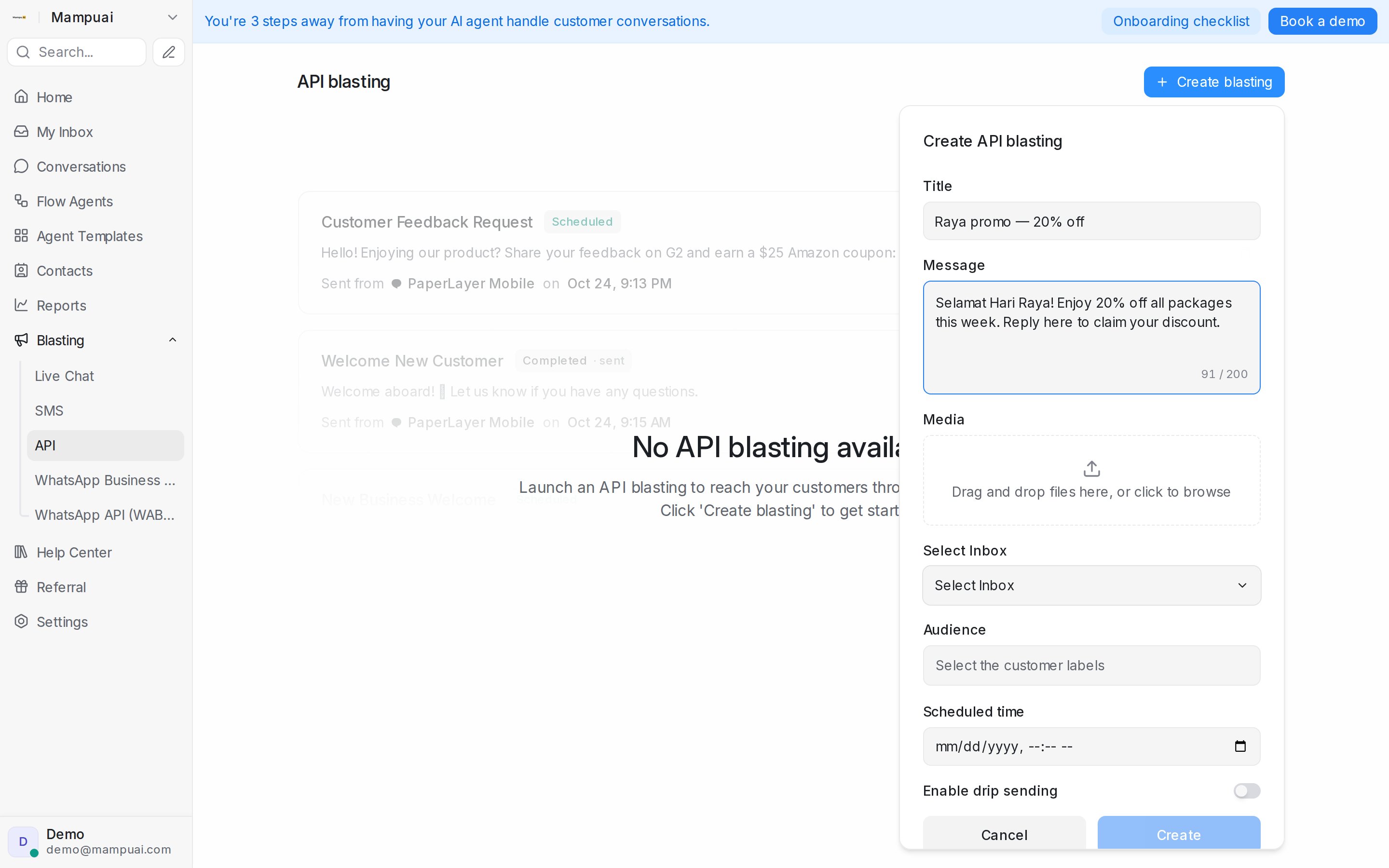
## Filling template variables
When a WhatsApp or Messenger blasting uses a template with variables, each variable gets its own field under **Variables**. Instead of typing a field's code by hand, choose what fills it:
1. Click the braces button next to a variable, or type `{{` in the field and keep typing to search.
2. Pick a field from one of the sections:
* **Contact** — the contact's name, first name, last name, email or phone.
* **Contact attributes** — your own contact attributes.
* **From your file** — the extra columns of your uploaded list, so a "Date" or "Branch" column goes straight into the message. This section appears only on a WhatsApp blasting whose audience is **Upload a list**.
* **Sender and inbox** — the sender's name or email, or the inbox name.
3. The field is inserted where your cursor is. You can mix it with your own text — for example, type "Hi " and then pick the contact's first name.
Each recipient gets their own values when the blasting goes out. A contact with no value for a chosen field is skipped rather than getting a message with a gap in it.
## Blasting an uploaded list
Pick **Upload a list** in the audience block to send to the people in a CSV or Excel (.xlsx) file without importing it first:
1. **Choose the file.** The form lists its columns with a sample of each — match the phone number column (or a WhatsApp username column), and optionally a name and any other column you want to use in the message (extra columns become custom attributes you can insert as variables).
2. **Add labels** if you like — pick existing ones or type new ones. Everyone in the list gets them, so you can find these people again later.
3. **Skip people who already received a blasting** — switch it on and pick the earlier blastings whose recipients should be left out. On WhatsApp API (WABA) you can also skip anyone who was already sent the template you are sending.
Phone numbers must be in international format (e.g. +60123456789); the form warns you about rows that aren't, and those rows are skipped. The people in the file are added to **Contacts** while the blasting is being prepared, so their conversation history stays in one place — someone who is already a contact is updated rather than duplicated.
On a WhatsApp API (WABA) blasting, the list can also carry a WhatsApp Username column for people who chat with you by username. A username row reaches that person only if they have already messaged one of your WhatsApp numbers on the same WhatsApp Business account. Other username rows are skipped as **Not reachable yet**. A value that can't be a username, such as a phone number, is skipped too, and the form warns you about it.
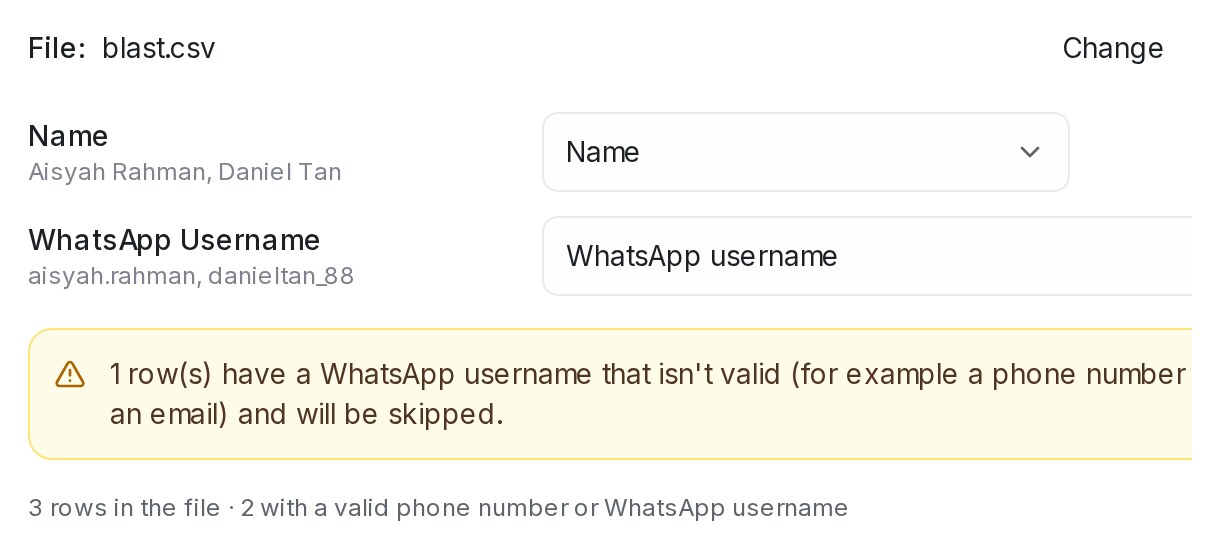{ width="610" }
The blasting card shows **Preparing list…** until the file is processed, then how many contacts will receive it and how many rows were skipped, with a **Download skipped rows** link so you can fix them and try again.
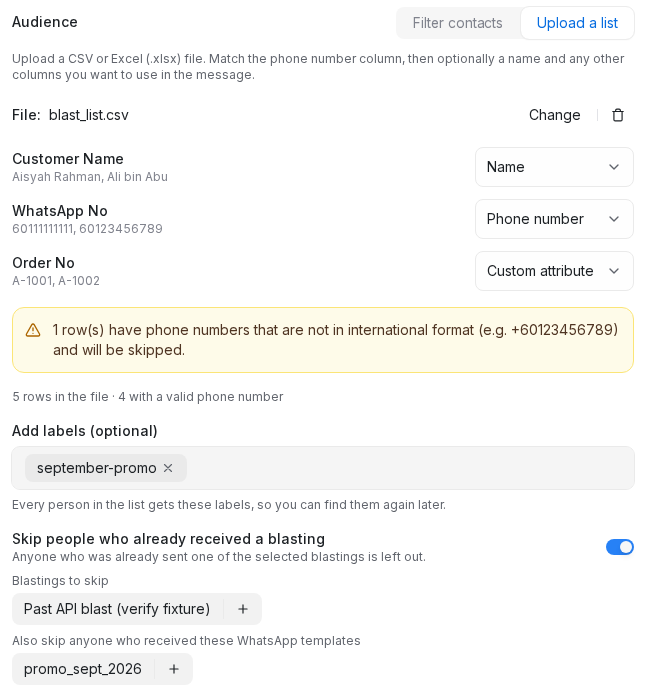
For live chat blasting the flow is slightly different: instead of an audience you set trigger conditions (such as the page URL and time on page), then enable it.
## Related
* [WhatsApp blasting](/campaigns/whatsapp-campaigns)
---
## WhatsApp blasting
URL: https://help.mampuai.com/campaigns/whatsapp-campaigns
---
description: Send WhatsApp blasts from a WhatsApp Business App or WhatsApp API number, and read how each WhatsApp API blast delivered.
---
# WhatsApp blasting
Reach customers on WhatsApp with two options under **Blasting**:
* **WhatsApp Business App** — for the standard WhatsApp Business setup. Write a free-form message, attach media if you like, and messages go out gradually (drip sending) to keep your number healthy.
* **WhatsApp API (WABA)** — for the official WhatsApp Business Platform. Select an approved **WhatsApp Template** and its language. A template with an image, video or document at the top comes with that file already attached, with a preview of what goes out; remove it to send a different file with this blast only. If that file is over WhatsApp's size limit, it shows in red and **Create** stays off until you replace it. See [The WhatsApp Templates library](/settings/whatsapp-template-library) and [Picture and file size limits](/settings/file-size-limits).
## Watch the walkthrough
{% embed url="https://youtu.be/f_ybgFfFf7Q" %}
For both, pick the audience — filter your contacts (for example by label) or upload a list of people — and set the **scheduled time** for the send. You can also skip anyone who already received an earlier blasting or, on WhatsApp API (WABA), the template you are sending. See [Creating and scheduling a blasting](/campaigns/creating-and-scheduling-a-campaign).
WhatsApp requires pre-approved templates for proactive (outbound) messages on the official API, so prepare your templates first.
Tip: your AI agent can prepare a WhatsApp blasting draft for you to review and send — see [Prepare a WhatsApp blasting with AI](/ai-agents/prepare-a-whatsapp-campaign).
## How your WhatsApp API blasts delivered

The **Overview** at the top of **Blasting → WhatsApp API (WABA)** sums up the period you pick — **Last 7 days**, **Last 30 days**, **Last 90 days**, **This month** or **Last month** — and compares it with the equal period before it. The green or red figure beside a percentage is that change, in points.
| Tile | What it counts |
| --- | --- |
| **Blasts** | Blasts that ran in the period. |
| **Sent** | Messages WhatsApp accepted. Messages stopped by a payment, media or template problem are left out. |
| **Delivered** | Messages that reached the customer's phone, opened or not, as a share of sent. |
| **Read** | Messages the customer opened, as a share of delivered. Customers can switch read receipts off, so this is a lower bound. |
| **Replies** | Customers who replied, as a share of delivered. |
## What each blast's figures mean
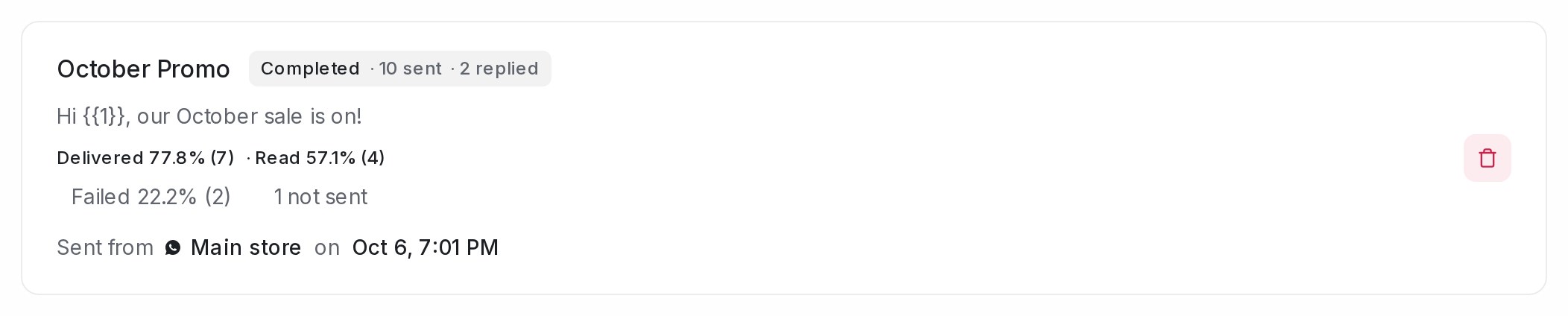
Each blast sent from a WhatsApp API (WABA) number shows the same figures on its card once WhatsApp has accepted its messages. Hover a figure to see what it means; click **Failed** or **not sent** to see the reasons in plain words.
| Figure | What it means | Charged by Meta? |
| --- | --- | --- |
| **Delivered** | Reached the customer's phone, opened or not. | Yes |
| **Read** | Opened by the customer, as a share of delivered. With read receipts off, the message counts as Delivered only. | Yes |
| **Failed** | WhatsApp tried and could not deliver: the message was held by Meta's marketing limit, the customer opted out of marketing, or the number is not on WhatsApp. | No |
| **Pending** | Accepted, but no receipt yet — the phone was off or WhatsApp not opened. WhatsApp keeps trying for 30 days. | Only once it delivers |
| **Expired** | Pending for more than 30 days; WhatsApp stopped trying. | No |
| **Not sent** | Stopped before WhatsApp tried: a payment, media or template problem. Left out of the shares. | No |
A message delivered inside a customer's free ad window is not charged — see [The free ad window](/channels/whatsapp-free-ad-window). Blasts from a WhatsApp Business App number do not show these figures.
## Optimised delivery for marketing templates
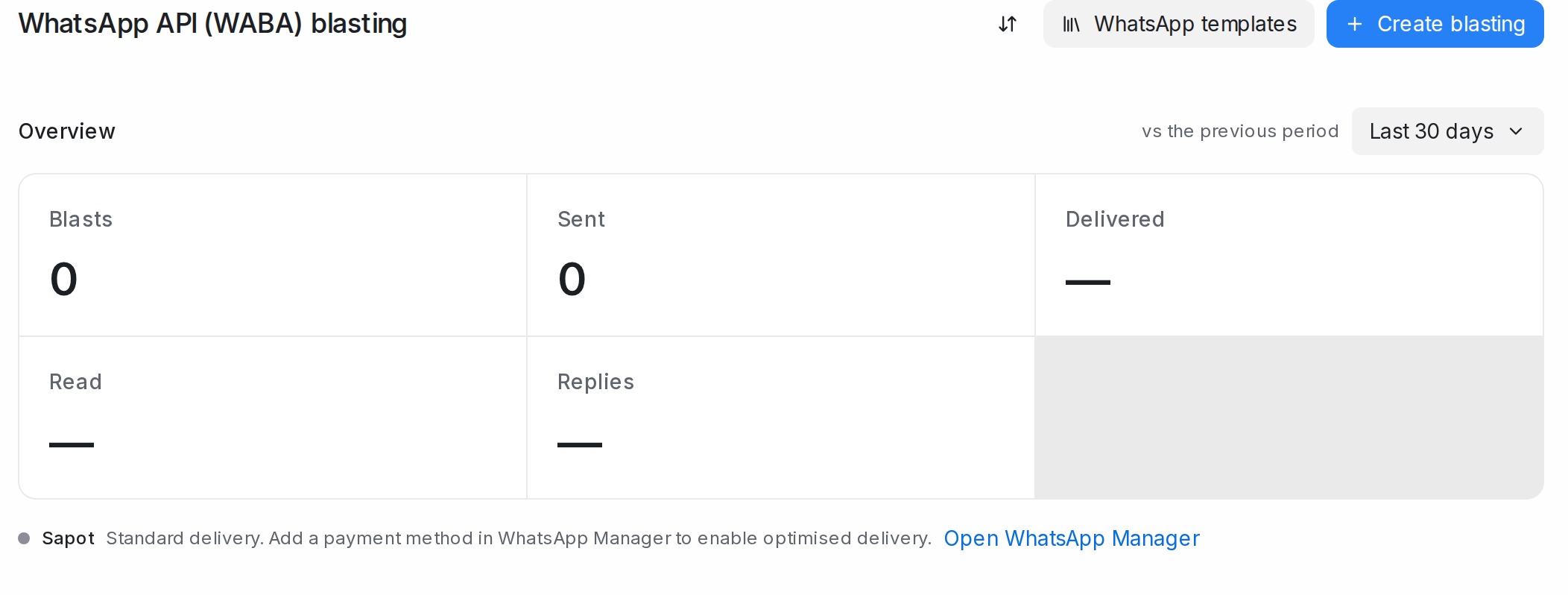
Meta offers a second way to send **marketing** templates, the Marketing Messages API: Meta times each message for the customer most likely to engage and paces the send to keep your number healthy. Mampu AI uses it for every marketing template a WhatsApp API (WABA) number sends — blasts, template messages from the inbox, sequences and automations — as soon as Meta has switched it on for that number. Utility and authentication templates are not affected, and you create a blast exactly as before.

A line under each WhatsApp API number on **Blasting → WhatsApp API (WABA)**, under the number picker in the **Create blasting** dialog and in the number's **Configuration** tab (Settings → Inboxes) tells you where the number stands:
| Line | What it means | What to do |
| --- | --- | --- |
| **Optimised delivery: on** | Marketing templates from this number already take the optimised route. | Nothing. |
| **Standard delivery. Add a payment method in WhatsApp Manager to enable optimised delivery.** | Meta needs a payment method on your WhatsApp Business Account before it switches the route on. | Click **Open WhatsApp Manager** beside the line, open your WhatsApp Business Account's payment settings and add a payment method; if WhatsApp Manager asks you to accept Meta's marketing messages terms, accept them. Mampu AI re-checks every night, and the line reads **on** within a day. |
| **Standard delivery. Meta is still setting up optimised delivery for this number.** | Your part is done; Meta is finishing the setup. | Wait a day or two. |
| **Standard delivery. Optimised delivery is not available for this number.** | Meta does not offer the route for this number, for example one that also runs the WhatsApp Business app. | Nothing; marketing templates keep going out the standard way. |
Until Meta switches a number on, its marketing templates go out the standard way, with the same delivery figures. Billing does not change: Meta charges a marketing template per delivered message as before; on a message delivered through the optimised route, the pricing chip on the bubble reads **Marketing lite**.
## Related
* [Creating and scheduling a blasting](/campaigns/creating-and-scheduling-a-campaign)
* [The WhatsApp Templates library](/settings/whatsapp-template-library)
* [The free ad window](/channels/whatsapp-free-ad-window)
* [Why a WhatsApp message failed](/settings/whatsapp-message-errors)
---
## Live chat blasting
URL: https://help.mampuai.com/campaigns/live-chat-campaigns
# Live chat blasting
**Live chat blasting** sends proactive messages to visitors on your website. Open **Blasting → Live Chat** and click **Create blasting**, then set:
* The **message** visitors will see.
* The **inbox** (website) and **sender**.
* The **URL** and trigger conditions, such as time on page.
## Watch the walkthrough
{% embed url="https://youtu.be/f_ybgFfFf7Q" %}
You can enable or disable each one at any time.

---
## SMS and API blasting
URL: https://help.mampuai.com/campaigns/sms-and-api-campaigns
# SMS and API blasting
Beyond live chat and WhatsApp, you can run:
* **SMS blasting** — send a one-off text message to a selected audience of contacts.
* **API blasting** — reach customers through your API channel for fully custom use cases: write the message, attach media, pick the audience (filter your contacts or upload a list), and set the scheduled time.
Both are available from the **Blasting** section; choose the channel tab, then click **Create blasting**.
---
## Message Sequences
URL: https://help.mampuai.com/campaigns/message-sequences
# Message Sequences
A **message sequence** is a reusable set of follow-up messages that go out step by step — reminders, check-ins, nudges — each with its own timing and conditions. Where a blasting is one broadcast to many people at once, a sequence follows up with one customer over time, automatically.
Open **Settings → Message Sequences** and click **Add message sequence**.
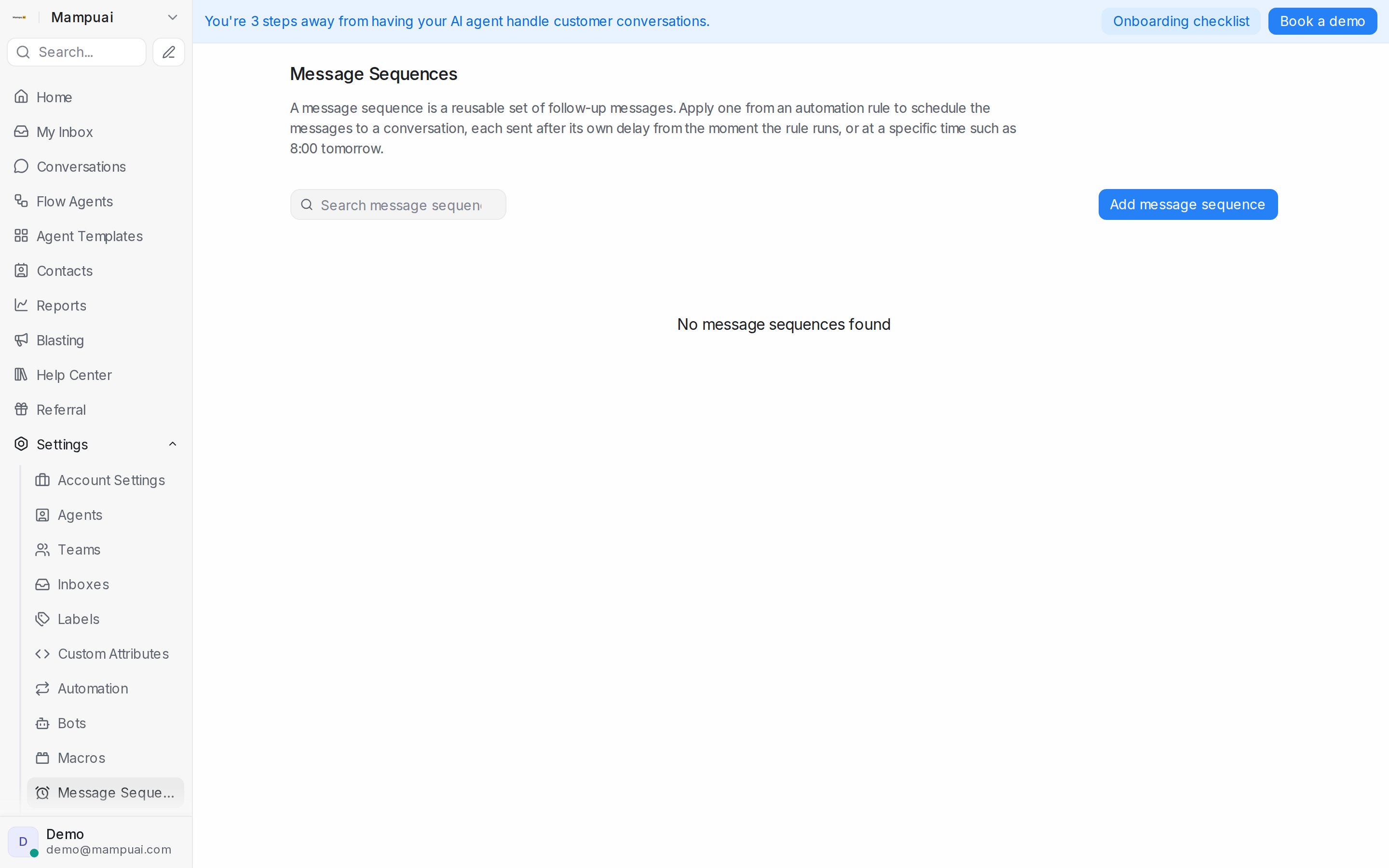
## Watch the walkthrough
{% embed url="https://youtu.be/yEBXzMRej2E" %}
## Triggers — when a sequence starts
* **Manual** — applied by your automation rules (e.g. when a conversation gets a certain label) or by inbound webhooks. The **Started by** column shows which ones, and whether each is on.
* **Inactivity** — starts when a conversation handled by the selected flow agents goes quiet.
* **Appointment booked** — starts when a booking lands on one of your calendars, so you can send confirmations, reminders before the appointment, and follow-ups after it.
## Steps — what goes out, and when
Each step holds one or more messages (with media attachments if you like, within the [picture and file size limits](/settings/file-size-limits)) and its own timing, set under **When to send**:
* **After a delay** — e.g. 2 days after the previous step (or after the sequence starts, for the first step). A delay of 0 sends the step straight away — on the first step, the moment the sequence starts.
* **At a specific time** — pick the time, then the day: **Today**, **Tomorrow**, **X days later**, **On a date**, or a day counted from the sequence's event date (see below).
* **Before a date attribute** — before or after a contact date attribute, or the appointment time for booking-triggered sequences (at booking, before the appointment, after the appointment).
### Sending on an exact date
Choose **At a specific time**, enter the time, choose **On a date** and pick the date. Everyone in the sequence gets that message on the same day, no matter when they joined — useful for launch days, holidays and other date-tied announcements.
Anyone who joins the sequence after that date and time has passed skips the step, so nobody gets a stale announcement. The rest of the sequence still runs.
### Timing steps around an event date
For a webinar, a launch or a class, give the sequence an event date and time its steps around it. Reuse the same sequence for the next session by changing one date.
1. In **Setup**, set the **Event date**.
2. In a step's **When to send**, choose **At a specific time** and pick the hour.
3. Choose **X days before the event**, **On the event day** or **X days after the event**, and enter the number of days. The date the step will send on shows beside it.
A step counted from the event can't be saved until the sequence has an event date. When you change the event date, everyone who enters the sequence from then on gets each message on its new day. Someone who enters after a step's send time has passed skips that step.
These event options are not offered on sequences triggered by **Appointment booked** or **Store order event** — those steps count from the appointment or the order instead.
## Use what the customer already told your flow agent
A step can use the answers your flow agent collected in the conversation — the customer's car model, city, budget or any other field your flow asks for.
1. In a step's message, type `{{`.
2. Under **Flow agent answers**, pick the field (for example `car_model`). It shows as `{{conversation.flow.car_model}}` and is replaced with the customer's answer when the message sends.
3. Under the message, **If the customer hasn't answered, send instead** lists every answer the message uses. Type what to send when the customer never gave that answer — for example "your car". Leave a box empty to send nothing in that spot.
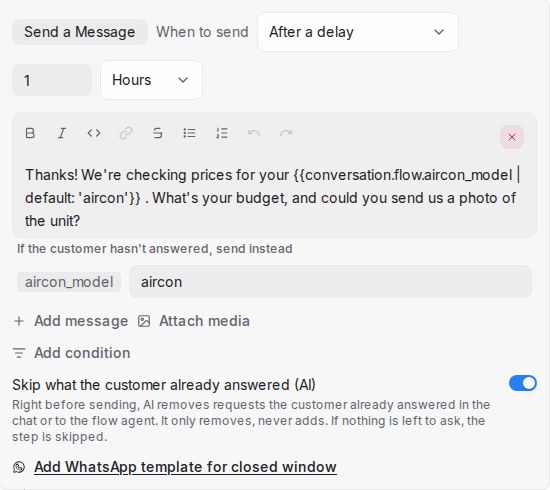
The same answers are offered under **Fill variables** for the WhatsApp template, with the same boxes underneath.
## Skip what the customer already answered
Customers often answer part of a follow-up before it goes out — they send the car year, or the photo you were about to ask for. Turn on **Skip what the customer already answered (AI)** on a step, and right before the step sends, AI reads the conversation and the flow agent's answers and removes the requests the customer has already answered.
* If the message asks for the car year and a photo and the customer already gave the year, only the photo request goes out.
* If the customer already gave everything the step asks for, the step isn't sent. A note in the conversation tells your team it was skipped.
* It only removes words — it never adds or changes anything. When it isn't sure a request was answered, the request stays.
The switch is off for every new step. It applies to regular messages; a WhatsApp template sent outside the 24-hour window always goes out exactly as approved.
## Only send if…
Every step can carry conditions, checked right before that message goes out — conversation language, current date, and more. If the conversation doesn't match, that message is skipped and the rest of the sequence continues.
## WhatsApp's 24-hour window
If a step may deliver outside WhatsApp's 24-hour reply window, attach an approved **WhatsApp template** to the step with **Add WhatsApp template for closed window** — the sequence automatically uses the template when the window is closed, so the message still arrives. The template's text shows in the conversation and in the conversation list, like any other message.
Under **Fill variables**, fill each of the template's variables: type the text to send (for example the session date and time, exactly as it should read), or type `{{` to insert a contact or conversation attribute, or a flow agent answer. You can mix both in one variable.
You can also control repeats with **Allow again after** — how many days must pass before the same message can be sent to the same conversation again.
## Send in each customer's language
A sequence can carry a version of every message in each language your AI persona speaks. Customers receive the version that matches the language they chat in; everyone else receives the default language.
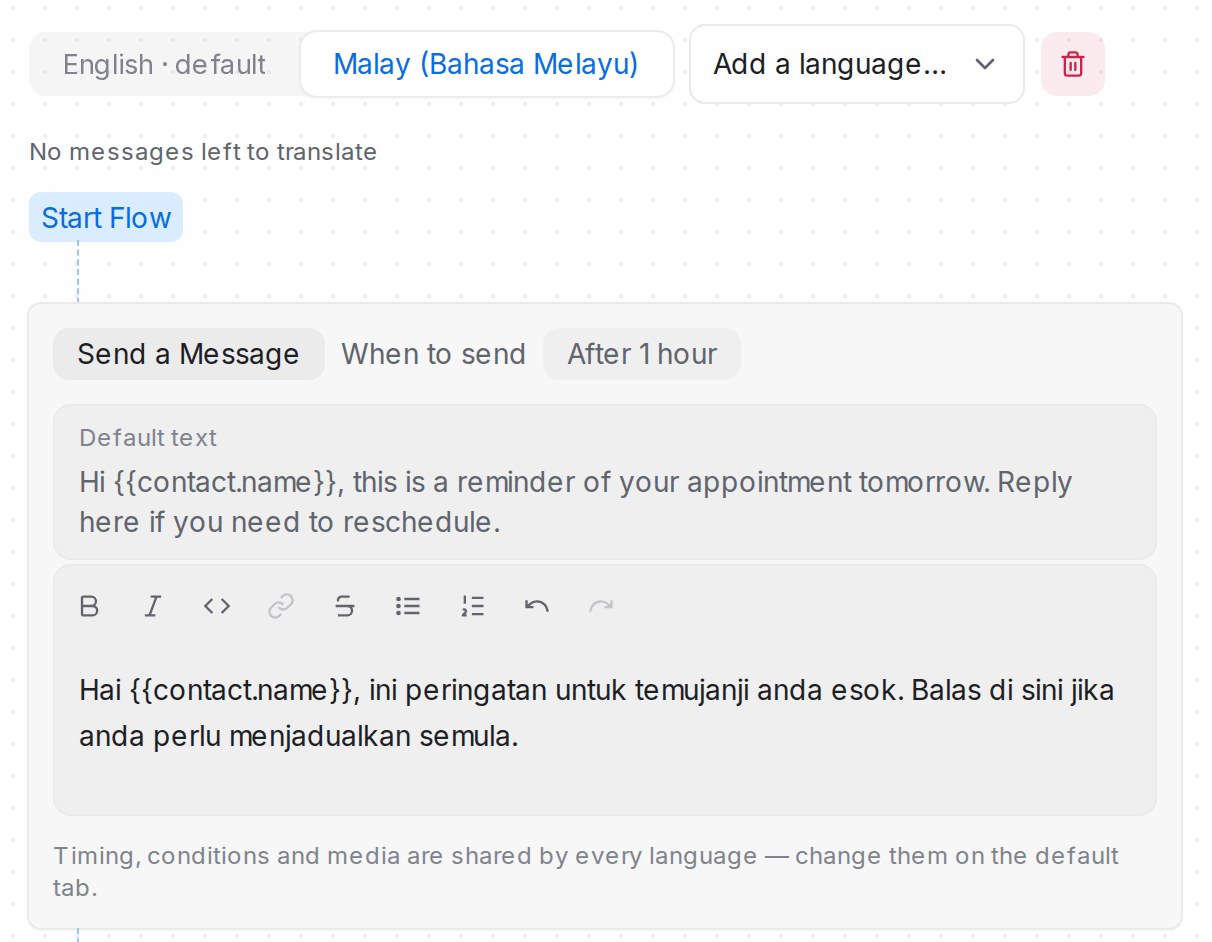
1. Write the sequence in your default language as usual.
2. Above the steps, pick a language from **Add a language…**. The list mirrors the languages in your AI persona settings (**Flow Agents → AI Knowledge → Tone & persona**).
3. On the new language tab, each message shows the default text as a reference with an editor beneath it — write that language's version there. Timing, conditions, media and the message list are shared, so you change them on the default tab.
4. If a step has a WhatsApp template, pick that language's template too with **Pick a … template**; until you do, the default template is used.
A message you leave blank in a version simply sends the default text, and the tab shows how many messages are still untranslated. In **Setup → Language**, choose the **Default language** — the one everyone else receives. Once a version is fully translated you can make it the default, which swaps it with the current default message by message. Remove a version with the trash icon next to its tab.
If a language is later removed from your AI persona settings, its tab shows **inactive**: the text is kept, but customers won't receive it until the language is added back.
## Turn a sequence off or on
Every row on **Settings → Message Sequences** shows the sequence's state in the **Active** column: **Off**, **Testers only** or **Live**. Click it and pick another state. A new sequence starts **Off**, so nothing goes out until you switch it on.

While a sequence is **Off**:
* Nothing starts it: not its trigger, and not an automation rule or inbound webhook that applies it.
* Messages it has already scheduled are skipped and never sent.
You're asked to confirm before it switches off.
{ width="512" }
Switch it to **Live** and the sequence starts on new conversations again. Messages skipped while it was off are not sent later.
## Try a sequence on your testers first
Switch a sequence to **Testers only** and it runs for your workspace testers and nobody else, so you can see every follow-up arrive on a real channel before customers do. The dialog shows the **Workspace testers** list; add a tester there if you need to, then click **Switch**. It is the one list under **Settings → Account Settings → Testers**, shared with your flow agents and automation rules — see [Account (general) settings](/settings/account-general-settings).
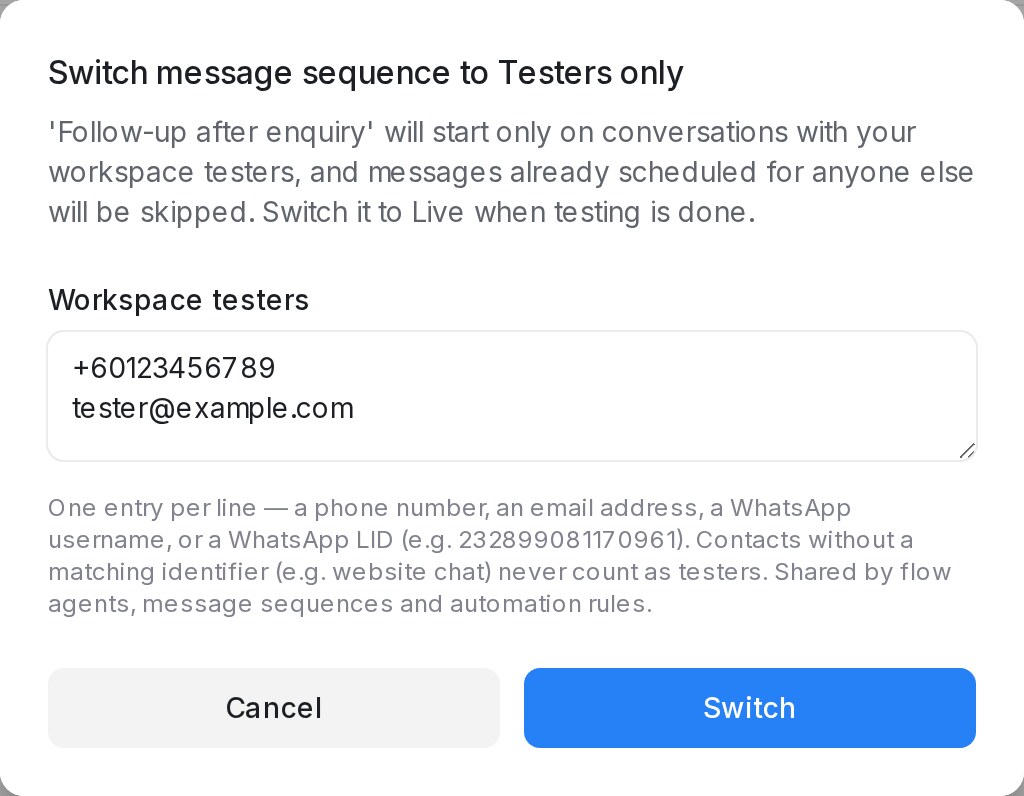{ width="512" }
While a sequence is **Testers only**:
* It starts only on conversations with a tester, whatever applies it — a rule, an inbound webhook, a booking or its own trigger.
* Messages already scheduled for anyone else are skipped, so switching a live sequence to **Testers only** stops its follow-ups to customers.
* The **Started by** column marks a rule that is itself **Testers only** (see below).
You need at least one tester on the list before you can switch. When testing is done, switch the sequence to **Live**.
## See what starts a sequence
A **Manual** sequence only starts when an automation rule or an inbound webhook applies it. The **Started by** column on **Settings → Message Sequences** shows which ones do, and whether each is switched on.
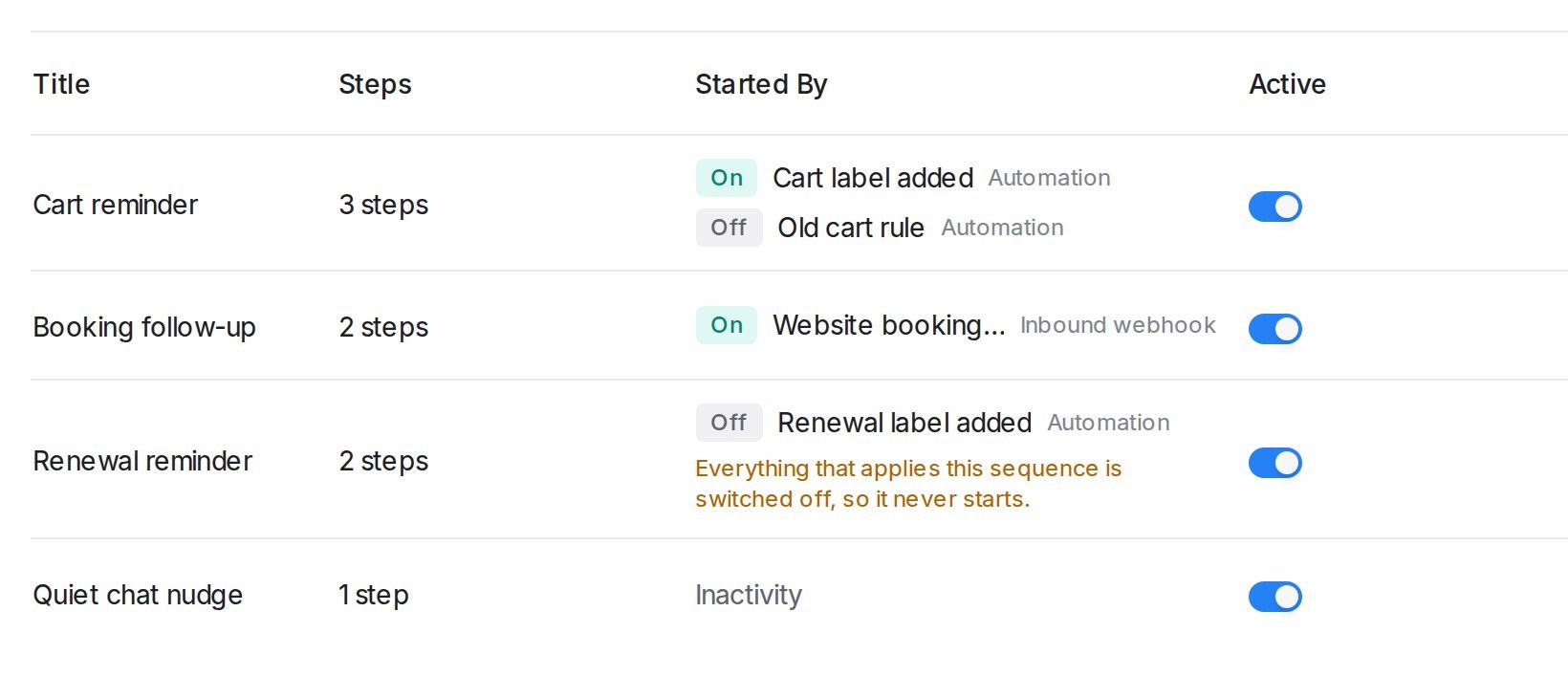
* **On** — the automation rule or inbound webhook is switched on, so it can start the sequence.
* **Off** — it is switched off and starts nothing until you turn it back on.
* **Testers only** — the automation rule runs for your workspace testers only, so it starts the sequence just for them.
* If everything that applies a sequence is switched off, or nothing applies it, an orange line under the list says the sequence never starts.
* Sequences with their own trigger, such as **Inactivity**, show the trigger's name instead.
The same list appears under the **Manual** trigger when you edit the sequence.
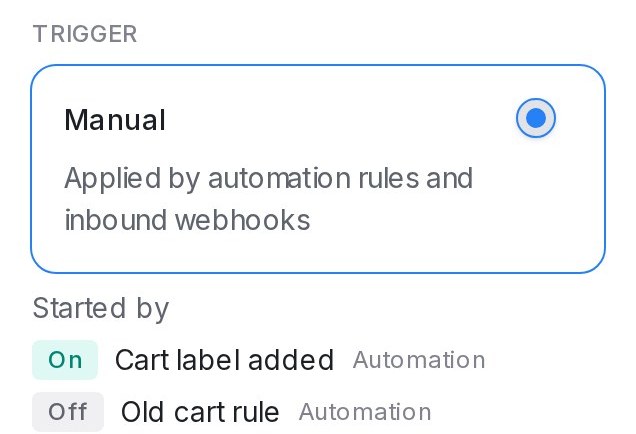{ width="318" }
If a follow-up isn't going out, check this first. Administrators can click a name to go to **Settings → Automation** (or straight to that inbound webhook) and switch it on. A rule only starts the sequence for changes made after it is on, so after switching it on, apply the label (or the change the rule waits for) again.
## See in the chat when a sequence starts
Each time a sequence starts on a conversation — from an automation rule, an inbound webhook, or its own trigger such as **Inactivity** — a line in the conversation says what happened:
* **started — next follow-up …** — the sequence started. The time is when its next message goes out, in your workspace's time zone.
* **not started again — this chat is already in it** — the conversation already has this sequence's messages sent or waiting, so nothing new is scheduled. The line still shows when the next one goes out.
* **not started again — this chat has already received every step** — every message was already sent to this conversation, and **Allow again after** does not allow a repeat yet.
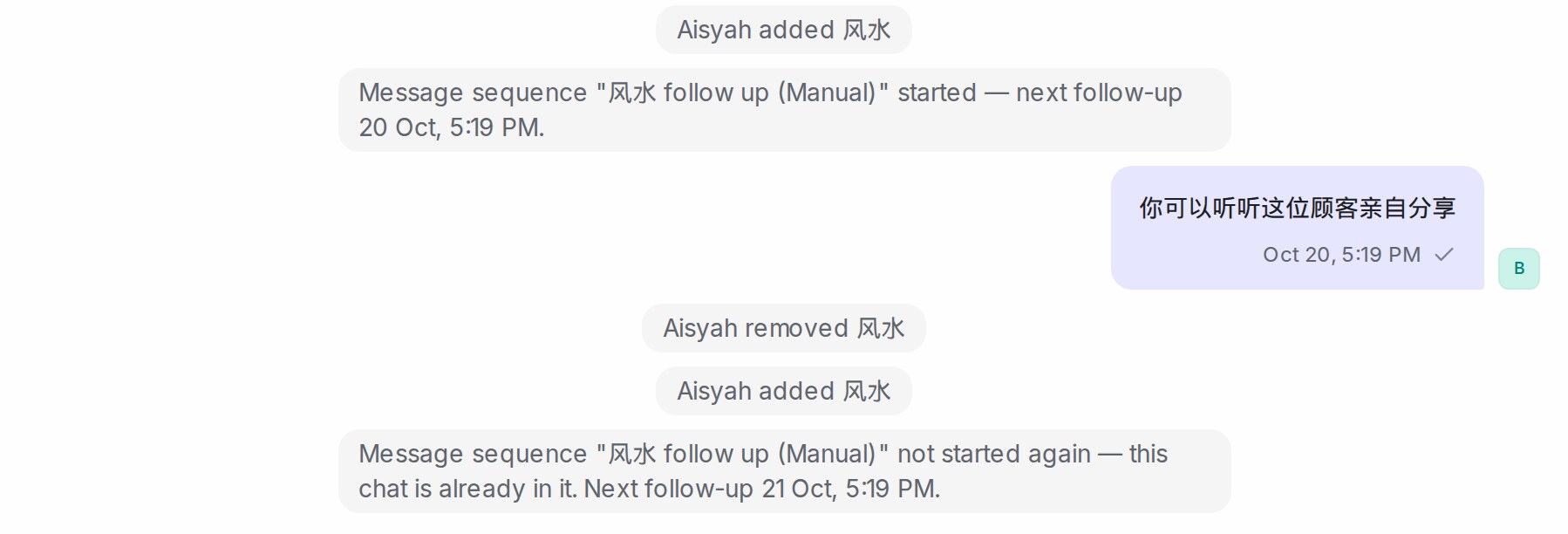{ width="620" }
Removing a label and adding it again does not restart a sequence the conversation is already in. To test a sequence from its first step, use a new conversation.
## Duplicate a sequence
Need a variation of a sequence you already have — new wording, a second audience, a seasonal version? On **Settings → Message Sequences**, click the duplicate icon on the sequence's row. You get a new sequence named "… (Copy)" with every step, timing, condition, and setting carried over. A copy of a sequence that is switched off starts off too.
The copy never sends anything on its own: it keeps the trigger type, but you choose the flow agents or calendars again before it goes live — so duplicating a live sequence never causes double sends. Edit what you need, pick the targets, and save.
## Related
* [Managing AI Knowledge](/flow-agents/managing-ai-knowledge) — the Tone & persona languages a sequence can be translated into.
* [Filter conditions and operators](/settings/filter-conditions-and-operators)
* [Account (general) settings](/settings/account-general-settings) — the workspace tester list.
---
## Managing Conversations
URL: https://help.mampuai.com/conversations/managing-conversations
---
description: How the Conversations screen is laid out, how to find the chat you need with tabs, status, filters and sorting, and how to act on one conversation or many at once.
---
# Managing Conversations
The **Conversations** inbox is where your team handles every customer message, no matter which channel it arrived on. The list sits on the left, the open conversation in the middle, and the details panel on the right.
## Watch the walkthrough
{% embed url="https://youtu.be/k8pbc-KMVy0" %}
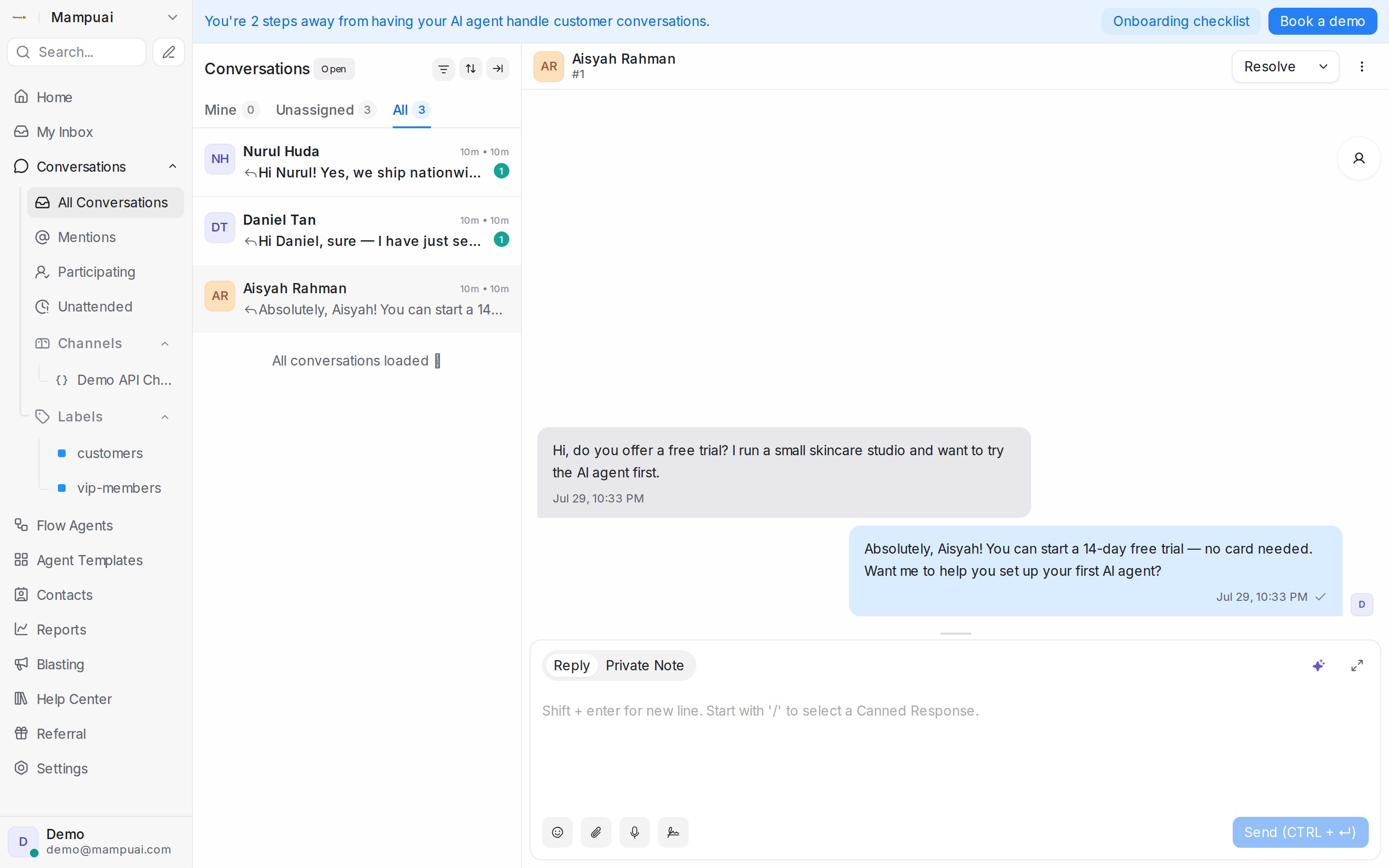
## The list on the left
The sidebar groups your conversations so nothing slips through: **All Conversations**, **Mentions**, **Participating**, **Unattended**, your saved **Folders**, and one entry per **Team**, **Channel** and **Label**. See [Conversation folders explained](/conversations/conversation-folders-explained).
At the top of the list, switch between **Mine**, **Unassigned** and **All** to focus on the right queue. The row below narrows it further: keep **All**, or pick **Unread** to see only conversations with customer messages you have not read yet. A reply you send from the connected app can mark a chat read too; see [Marking chats read when you reply from the app](/settings/inbox-settings-tabs#marking-chats-read-when-you-reply-from-the-app). On a WhatsApp inbox connected by QR code, the same row also offers **Personal** and **Groups**; see [WhatsApp group chats](/channels/whatsapp-group-chats#showing-only-personal-chats-or-only-group-chats).
The chip next to the title shows which status you are looking at (**All** by default). The list remembers your last-used tabs the next time you come back, and the conversation you have open stays in the list until you move on.
## Who sent the last message
Each conversation in the list shows the start of its last message, with who sent it in front.
{ width="340" }
| Label | Who sent it |
| --- | --- |
| **You:** | You |
| **WhatsApp sync:**, **Instagram sync:**, **Facebook sync:** or **TikTok sync:** | Someone on your team, typing in the connected phone app or Facebook Page inbox; the app does not say who |
| A teammate's name, such as **Aisyah:** | That teammate |
| Your AI agent's name, such as **Maxkoh Bot:** | Your flow agent |
| **Sequence:** | A follow-up message sequence or a booking reminder |
| **Broadcast:** | A blast |
| **Automation:** | An automation rule, an automatic reply to a comment, or another automatic message |
| **Note:** with a notepad icon | A private note, seen only by your team |
Customer messages have no label. Private notes carry the same notepad icon inside the conversation and in search results.
## Finding a conversation: filter, sort and layout
The three icons beside the status picker are:
* **Filter conversations**: build a condition such as Labels **Has any of** VIP, then **Apply filters**. A **Save** icon appears so you can keep the filter as a folder. See [Filter conditions and operators](/settings/filter-conditions-and-operators).
* **Sort conversations**: opens a small panel with **Status** (**Open**, **Pending**, **Snoozed**, **Resolved**, **Spam** or **All**) and **Order by**: **Last activity** newest or oldest first, **Created at** newest or oldest, **Priority** highest or lowest, **Pending Response** longest or shortest waiting, **Priority** highest then oldest, or **Unread Count** highest first.
* **Switch the layout**: gives the open conversation the full width and hides the list; click again to bring the list back.
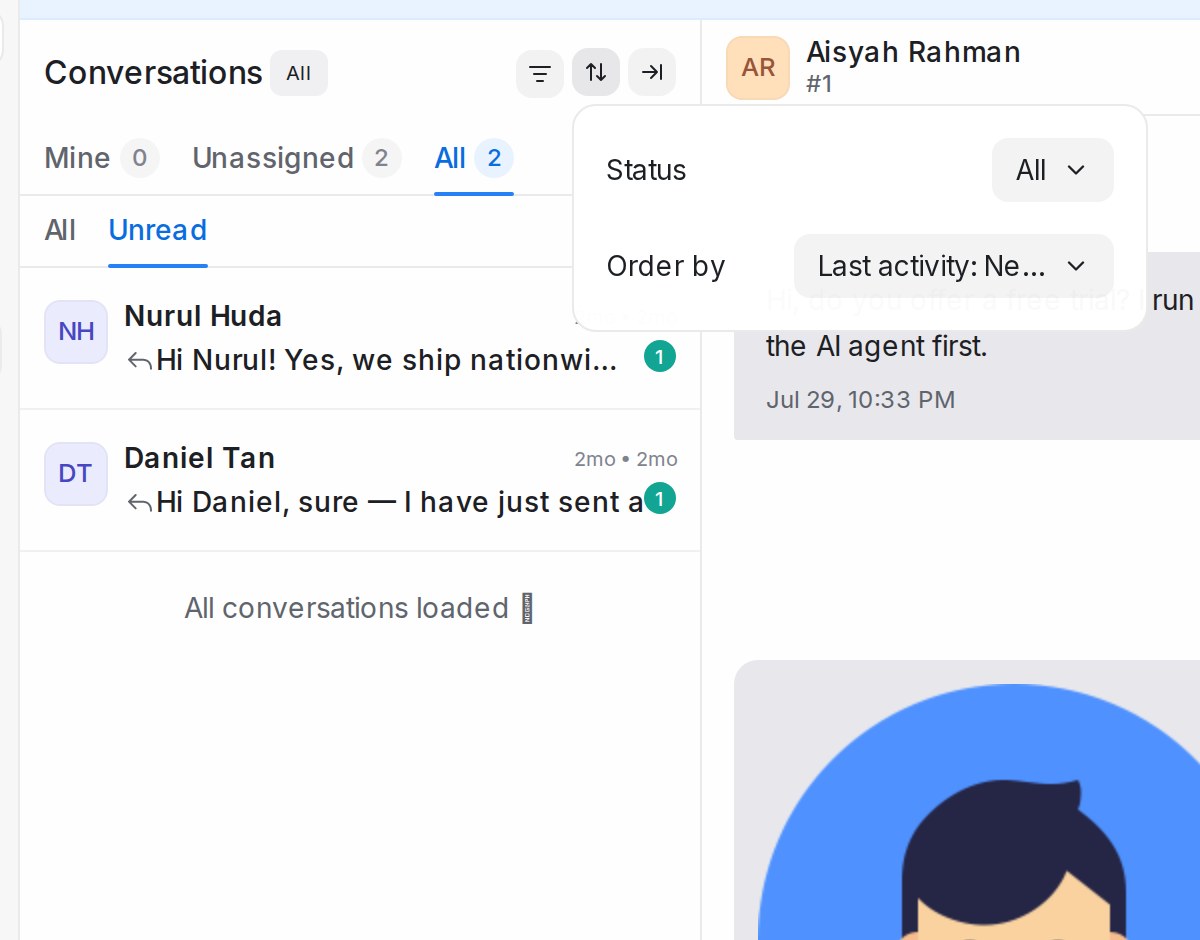
## Right-click a conversation
Most things you do in the header you can also do from the list without opening the chat. Right-click a conversation for **Mark as read** or **Mark as unread**, **Pin conversation**, **Mark as resolved**, **Mark as pending**, **Mark as spam**, **Snooze**, **Priority**, **Assign label**, **Assign agent**, **Assign team**, **Open in new tab** and **Copy conversation link**. Administrators also see **Delete conversation**.
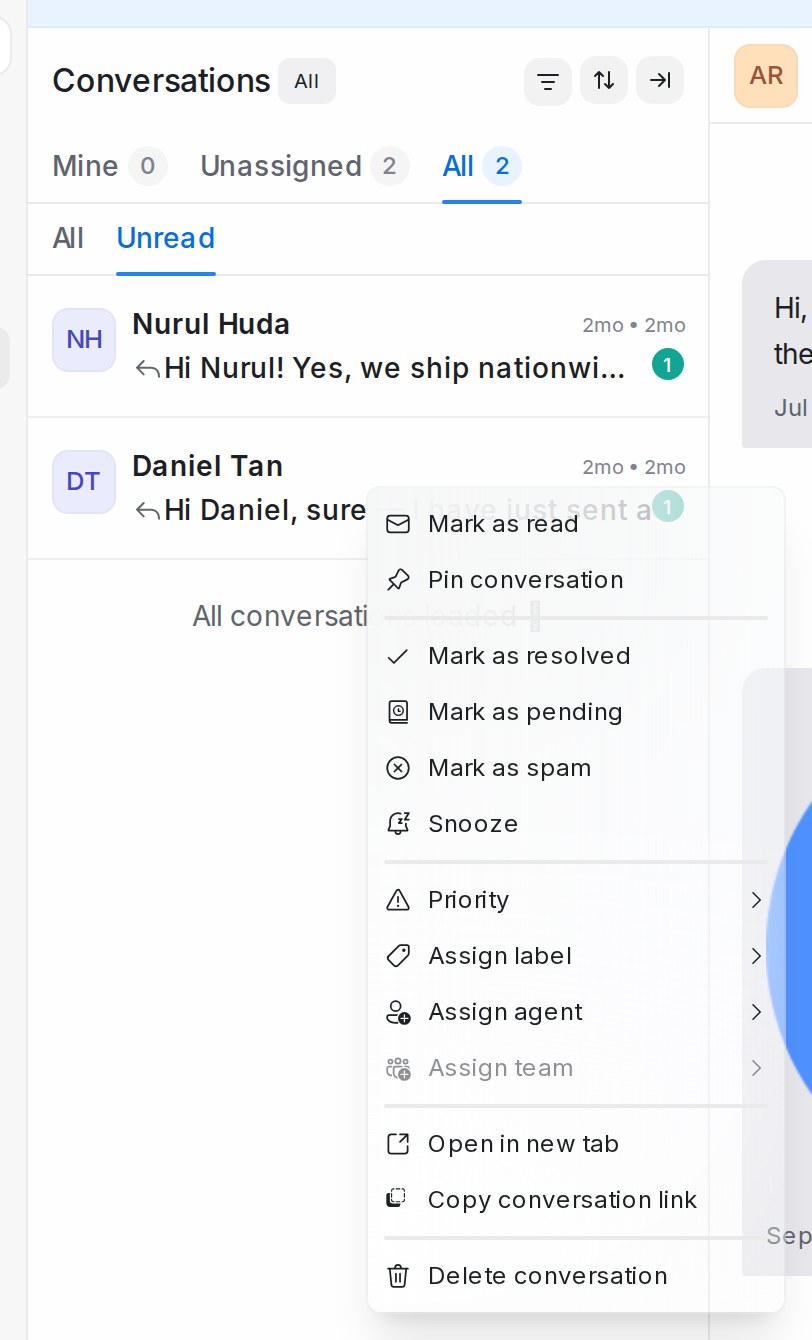
## Working on several conversations at once
Hover over a conversation and tick the box that appears on its avatar. Do the same on the others, and a bar appears at the bottom of the list showing **{n} selected**. Its icons let you **Assign labels** or **Remove labels**, **Change status** to resolve, mark pending or **Snooze**, and **Assign agent** or **Assign team** for all of them in one go. **Clear** drops the selection. Only the conversations visible on the current page are selected, and the open conversation stays hidden until you clear the selection.
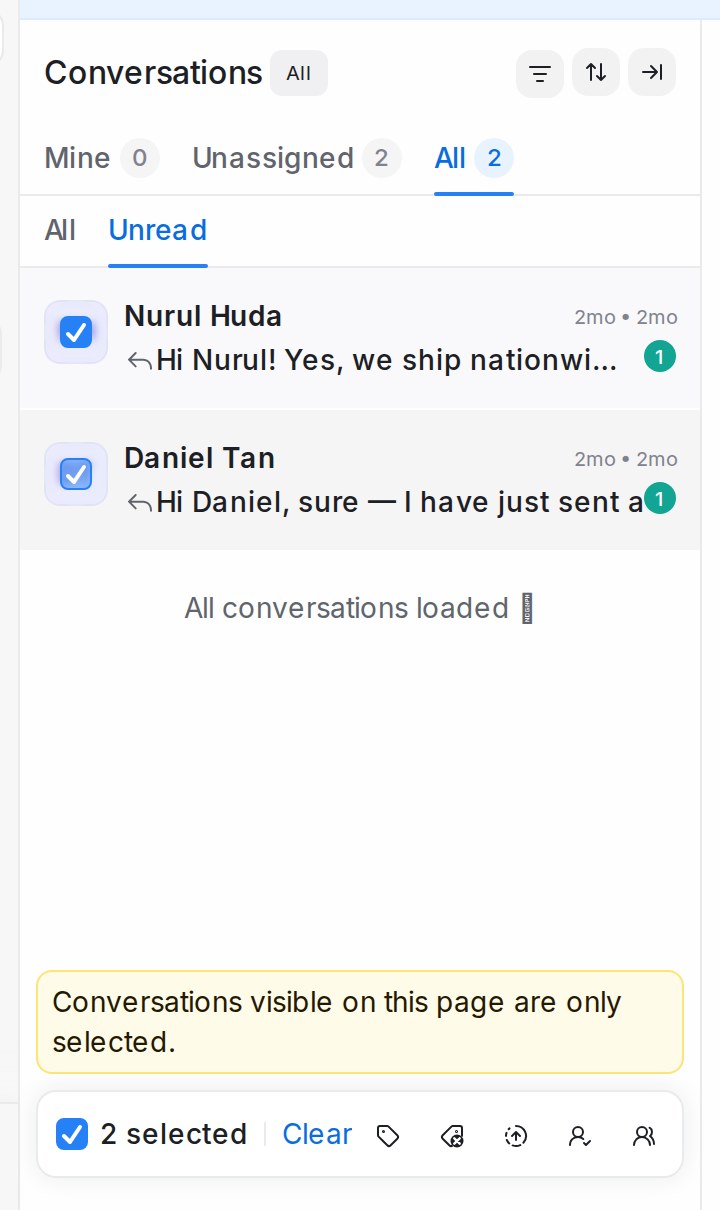
## Pinning a conversation
To keep a conversation in view, right-click it and choose **Pin conversation**. Pinned conversations sit at the top of the list for everyone in your account, up to three at a time. See [Pinning conversations](/conversations/pinning-conversations).
## The conversation header
Above the thread you see the customer's name, which inbox the chat belongs to, and, when it applies, **Snoozed until** with the time, a reply-time pill, the lead temperature badge, and a flow agent badge with **Resume flow agent** when an AI agent is paused on the chat. On the right are **Resolve** (with **Mark as pending** and **Snooze** under its arrow), the call button on inboxes with calling, and the **More actions** menu with **Block Contact**, **Pin conversation**, history sharing and **Send Transcript**. The full list is in [Everything you can do in a conversation](/conversations/conversation-actions).
On an **Official WhatsApp API** or **Normal WhatsApp Web Link** inbox the same line also shows the number the inbox sends from, after the inbox name, so you can tell at a glance which number a chat is on when you run several. A **Normal WhatsApp Web Link** inbox shows it once the phone has connected.
{ width="460" }
## The details panel
Click the person icon at the right edge of the thread to open the **Contact** panel. It shows everything about the customer: contact details, assignment and priority, labels, attributes, past conversations, macros, notes, attachments, and any **upcoming appointment** (who it is with, when, their phone number and the video meeting link), so whoever picks up the chat has the full picture. See [The details panel beside a conversation](/conversations/contact-panel).
If a customer edits a WhatsApp message they sent, the conversation updates to match, so you are always reading what they actually said.
## Related
* [Everything you can do in a conversation](/conversations/conversation-actions)
* [Labels, priority and status](/conversations/labels-priority-and-status)
* [Assigning conversations to agents and teams](/conversations/assigning-conversations)
* [Replying and adding private notes](/conversations/replying-and-private-notes)
* [My Inbox](/conversations/my-inbox)
* [Inbox settings, tab by tab](/settings/inbox-settings-tabs#marking-chats-read-when-you-reply-from-the-app)
---
## Everything you can do in a conversation
URL: https://help.mampuai.com/conversations/conversation-actions
---
description: A one-page map of every button and menu item in the Conversations screen, where to find it and what it does.
---
# Everything you can do in a conversation
Every button and menu item on the Conversations screen, in one place. Each section links to the article that explains it in depth.
## In the conversation header
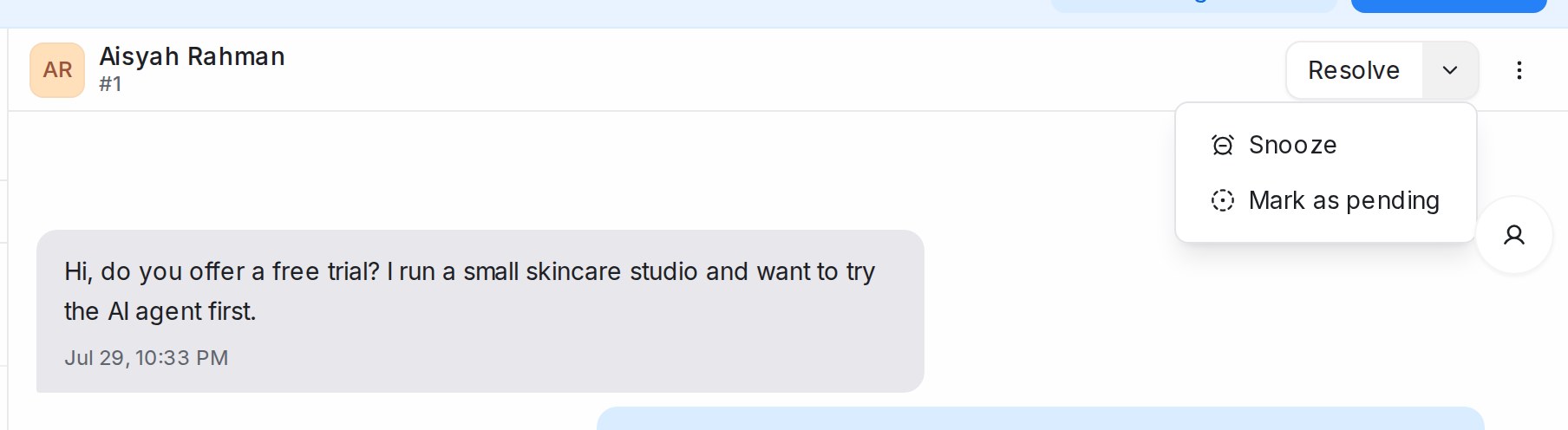
| Action | What it does |
| --- | --- |
| **Resolve** | Closes the conversation. It leaves the Open list and moves to Resolved. |
| **Reopen** | Brings a resolved or pending conversation back to Open. |
| **Mark as pending** (under the arrow next to Resolve) | Parks the conversation as waiting on your side, for example while you check with a colleague. |
| **Snooze** (under the same arrow) | Hides the conversation until **Next reply**, **Tomorrow**, **Next week**, or a time you type such as *in 1 hour*. It comes back to Open by itself. |
| Flow agent badge → **Resume flow agent** | Shows when an AI agent is paused on this chat and lets it carry on. |
| **Start WhatsApp call** / **Start call** | Appears on inboxes with calling switched on. |
| Lead badge, SLA pill, **Snoozed until** | Read-only signals: lead temperature, reply-time targets, and when a snooze ends. |
| Person icon at the right edge | Opens or closes the **Contact** details panel. |
See [Labels, priority and status](/conversations/labels-priority-and-status).
## In the More menu (⋯ in the header)
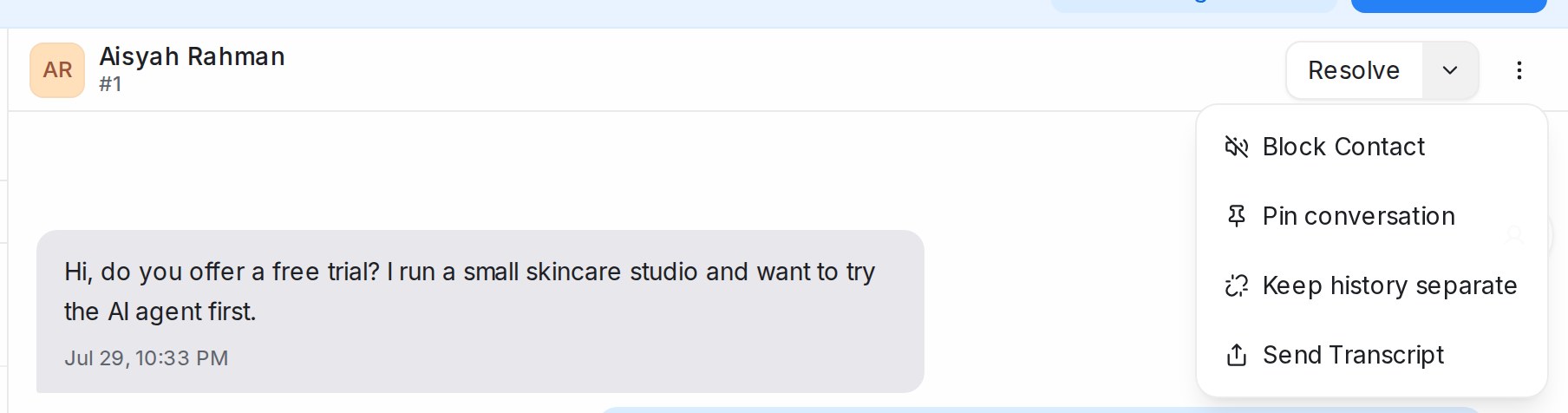
| Action | What it does |
| --- | --- |
| **Block Contact** / **Unblock Contact** | Blocks the person behind the conversation. Their open conversations resolve on their own and new messages from them stay out of your queue. Unblock to let them through again. |
| **Pin conversation** / **Unpin conversation** | Keeps the chat at the top of the list for everyone, up to three at a time. |
| **Keep history separate** / **Share history again** | Decides whether this conversation shows the customer's messages from your other inboxes. |
| **Send Transcript** | Emails a copy of the conversation to the customer, to the assigned agent, or to any address you type. |
See [Seeing a customer's history across channels](/conversations/customer-history-across-channels) and [Pinning conversations](/conversations/pinning-conversations).
## Right-click a conversation in the list
{ width="406" }
| Action | What it does |
| --- | --- |
| **Mark as read** / **Mark as unread** | Changes the unread marker without opening the chat. |
| **Pin conversation** / **Unpin conversation** | Same as the header. |
| **Mark as resolved**, **Reopen conversation**, **Mark as pending**, **Mark as spam** | Changes the status in place. Spam conversations move to the **Spam** list. |
| **Snooze** → **Until next reply** / **Until tomorrow** / **Until next week** | Snoozes without opening the chat. |
| **Priority** → **None**, **Urgent**, **High**, **Medium**, **Low** | Sets the priority flag. |
| **Assign label** | Ticks or unticks labels. |
| **Assign agent**, **Assign team** | Routes the conversation. |
| **Delete conversation** | Removes the conversation for good. Administrators only, with a confirmation. |
| **Open in new tab**, **Copy conversation link** | For sharing a chat with a teammate. |
## Several conversations at once
{ width="360" }
Hover over a conversation and tick the box on its avatar. A bar appears at the bottom of the list.
| Action | What it does |
| --- | --- |
| **{n} selected**, **Clear** | Shows the count and drops the selection. |
| **Assign agent**, **Assign team** | Routes all selected chats. Choose **None** to unassign; you confirm first. |
| **Assign labels**, **Remove labels** | Adds or removes labels on all of them. |
| **Change status** → Resolve, Pending, **Snooze** | Changes status for all of them. |
Only conversations visible on the page are selected, so scroll or filter first.
## In the reply box
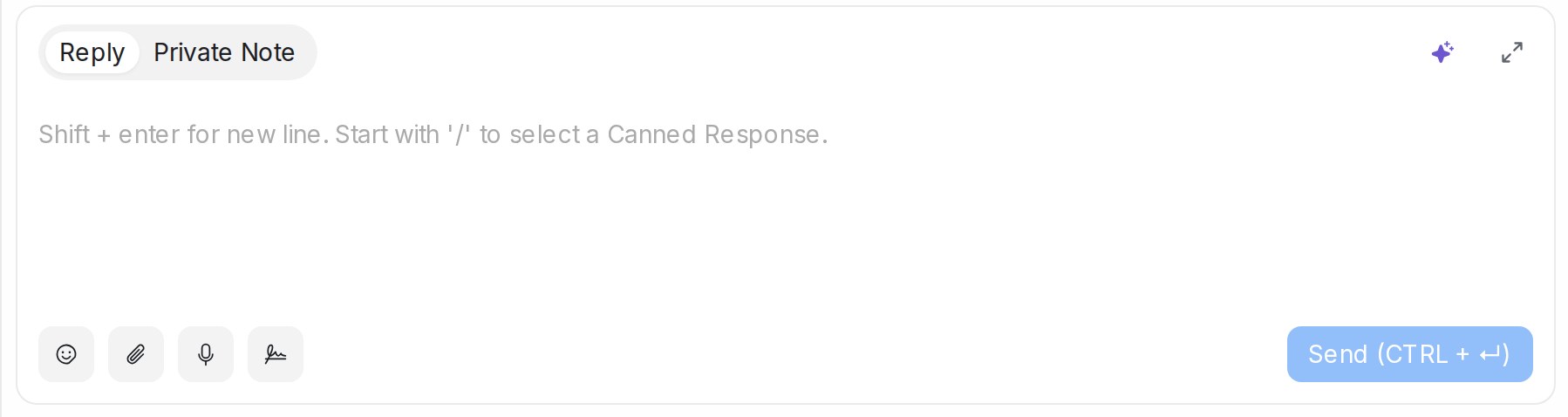
| Control | What it does |
| --- | --- |
| **Reply** / **Private Note** tabs | Message the customer, or leave a note only your team sees. |
| **Show emoji selector**, **Attach files** | Add an emoji or a file. You can also drag a file onto the box. |
| **Record audio** | Records a voice note and sends it as audio. |
| **Enable signature** / **Disable signature** | Adds your personal signature to the reply. Set the text under your profile settings. |
| **Whatsapp Templates** | Picks an approved template, the only way to reply once the 24-hour window has closed. |
| **From** | Sends from another of your WhatsApp numbers. |
| Bot button | Asks the connected flow agent to reply to the latest customer message. |
| Keyboard | **Shift + Enter** for a new line, **/** for a canned response, **@** to mention a teammate in a note. |
See [Replying and adding private notes](/conversations/replying-and-private-notes).
## In the details panel
{ width="320" }
Click the person icon at the right edge of the thread to open the **Contact** panel: the contact card (**New message**, **Edit**, **Merge contact**, **Delete** for administrators), then **Conversation Actions**, **Macros**, **Conversation Information**, **Contact Attributes**, **Contact Notes**, **Attachments**, **Previous Conversations** and **Conversation participants**. See [The details panel beside a conversation](/conversations/contact-panel).
## Sorting and status filter
{ width="600" }
The arrows button above the list sets which **Status** you see and the **Order by**. See [Managing Conversations](/conversations/managing-conversations).
## Related
* [Managing Conversations](/conversations/managing-conversations)
* [Labels, priority and status](/conversations/labels-priority-and-status)
* [Assigning conversations to agents and teams](/conversations/assigning-conversations)
* [Replying and adding private notes](/conversations/replying-and-private-notes)
* [The details panel beside a conversation](/conversations/contact-panel)
---
## My Inbox
URL: https://help.mampuai.com/conversations/my-inbox
---
description: Your personal queue of conversations assigned to you, mentioning you or that you take part in, with the actions for marking, snoozing and clearing its notifications.
---
# My Inbox
**My Inbox** is your personal queue, separate from the shared team view. Each entry says why it is there:
| Entry | When it appears |
|---|---|
| **Assigned to you** | A conversation is assigned to you |
| **Mentioned** | A teammate mentions you in a private note |
| **New message** | A customer writes in a conversation you own or take part in |
Click an entry to open the conversation beside the list and reply.
## Working through the list
* Unread entries are highlighted; opening one marks it read. Hover an entry for **Mark as read** or **Mark as unread**.
* **Snooze notification** hides an entry until later; it then reads **Snoozed until** and the time.
* **Delete notification** removes the entry. The conversation is untouched.
## The menus at the top
* **⋯**: **Mark all as read**, **Delete all**, **Delete all read**.
* **Display**: sort by **Newest**, **Oldest** or **Priority**, and show or hide **Snoozed** and **Read** entries and conversation **Labels**.
Use **My Inbox** so nothing with your name on it is missed, and **Conversations** for the whole team's queue. Email and push alerts for the same events are set in your profile settings.
## Related
* [Managing Conversations](/conversations/managing-conversations)
* [Assigning conversations to agents and teams](/conversations/assigning-conversations)
* [Conversation folders explained](/conversations/conversation-folders-explained)
---
## Starting a conversation with someone new
URL: https://help.mampuai.com/conversations/starting-a-conversation-from-search
---
description: When a search finds nobody, create the contact and open a conversation with them from the search page, without leaving what you were doing.
---
# Starting a conversation with someone new
Sometimes you need to message a person who has never written to you: a lead who called, a customer who left an email address on a form. Search for them first. If nobody matches, the search page offers to create the contact and open a conversation with them in one go. The same shortcut lives in the Ctrl+K search bar.
## From the search page
1. Click the **Search** box at the top of the sidebar and type the person's phone number, email address or name.
2. When no contact matches, click **Create contact & start conversation** under the **No results found** message. On the **All results** tab the button also appears inside the **Contacts** box whenever only conversations or messages matched what you typed.
3. The contact form opens already filled in from your search:
* a phone number goes into the phone field with its country code — a local number such as 012-345 6789 becomes +60 12 345 6789;
* an email address goes into the email field;
* anything else becomes the name.
Check the details and add whatever is missing. **Save contact** stays greyed out until the contact has a phone number or an email address, so there is always a way to reach them.
4. Click **Save contact**. If only one of your inboxes can reach this person, the conversation opens straight away. If several can, pick one from the **Start the conversation via** list.
5. You land in the new conversation, assigned to you and ready for your first message.
## From anywhere with Ctrl+K
You do not have to open the search page. Press **Ctrl+K** (**⌘K** on a Mac) wherever you are in the dashboard and type the person's phone number, email address or name. When no contact matches, the **Search** section lists **Create contact & start conversation for "…"** right under **See all results**. Pick it and the contact form opens exactly as in step 3 above. Pressing Enter still takes you to the full results page.
## Which inboxes are offered
An inbox is offered when it can reach the contact: WhatsApp inboxes for a contact with a phone number, email inboxes for a contact with an email address. You only see the inboxes you have access to.
## Your first message
The conversation starts empty, so the usual rules for writing first apply. On WhatsApp the customer has not messaged you yet, so your first message is an approved template — pick one from the reply box. See [WhatsApp template library](/settings/whatsapp-template-library). Email conversations open with the normal reply box.
## If the number or email already belongs to a contact
Search finds contacts even when a number is typed differently, so you will rarely reach this point. If you do save a phone number or email address that already belongs to someone, no duplicate is created: a short notice tells you whose it is, and the conversation starts with that existing contact.
## Related
* [Managing Conversations](/conversations/managing-conversations)
* [Creating and importing contacts](/contacts/creating-and-importing-contacts)
* [Replying and adding private notes](/conversations/replying-and-private-notes)
* [Searching, filtering and segments](/contacts/searching-filtering-and-segments)
---
## Assigning conversations to agents and teams
URL: https://help.mampuai.com/conversations/assigning-conversations
---
description: Route a conversation to a teammate or a team from the details panel, the right-click menu or the bulk bar, add participants, and let automatic assignment do it for you.
---
# Assigning conversations to agents and teams
Assignment decides whose queue a conversation lands in. An assigned conversation shows up under that person's **Mine** tab and in their **My Inbox**; an unassigned one waits under **Unassigned** for anyone to pick up.
## Watch the walkthrough
{% embed url="https://youtu.be/030WikTaiFI" %}
## From the details panel
Open the conversation and look under **Conversation Actions** on the right:
* **Assigned Agent**: pick a teammate from the list, or click **Assign to me** to take it yourself.
* **Assigned Team**: route to a group such as Sales or Support. Pick **None** to clear it.
You can reassign at any time as the conversation evolves, and the conversation gets an activity line saying who changed it.
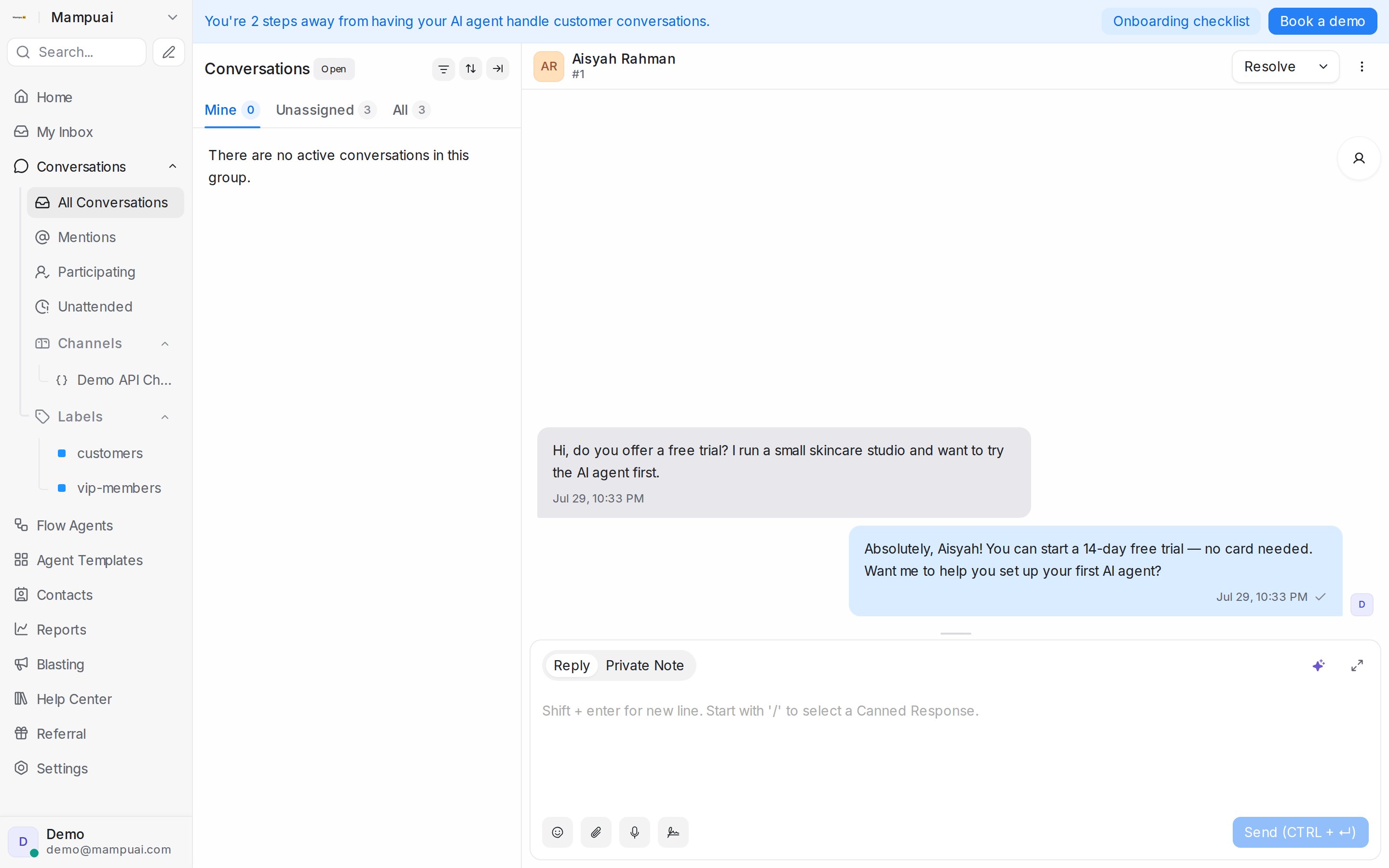
## From the list
Right-click a conversation and choose **Assign agent** or **Assign team** to route it without opening it. To route many at once, tick the conversations and use **Assign agent** or **Assign team** in the bar at the bottom of the list. Choosing **None** there unassigns them all; you confirm first.
## Participants
A conversation can involve more than one teammate. In the details panel, expand **Conversation participants** and click **Select participants**. Everyone added sees the chat under their **Participating** folder, and a teammate you mention with **@** in a private note is notified and added too.
## Automatic assignment
New conversations are handed to an agent automatically when the inbox has agents, online or offline, and automation rules can assign on conditions you set. See [Automatic conversation assignment](/settings/automatic-conversation-assignment) to switch this per inbox or change who is eligible, and [Labels, attributes and automation](/settings/labels-attributes-and-automation) for rules.
When a Flow Agent hands a conversation to your team, its **End** step can send it to a chosen team or teammate instead of the inbox rotation. See [Choose who gets the handoff](/flow-agents/building-the-conversation-flow#choose-who-gets-the-handoff).
## Related
* [Everything you can do in a conversation](/conversations/conversation-actions)
* [Managing Conversations](/conversations/managing-conversations)
* [My Inbox](/conversations/my-inbox)
* [Managing agents and teams](/settings/managing-agents-and-teams)
---
## Labels, priority and status
URL: https://help.mampuai.com/conversations/labels-priority-and-status
---
description: What Open, Pending, Snoozed, Resolved and Spam mean, how to change status including snoozing until a time you choose, how priority and labels work, and what blocking a contact does.
---
# Labels, priority and status
Three controls keep the queue in order: a conversation's **status** says whether it still needs work, its **priority** says how urgent it is, and **labels** say what it is about. All three are set from the conversation header, the details panel, or by right-clicking the conversation in the list.
## Watch the walkthrough
{% embed url="https://youtu.be/030WikTaiFI" %}
## Status
Every conversation is in one of five states, and the list shows one state at a time (pick it under **Status** behind the sort icon above the list):
* **Open**: needs attention from your team.
* **Pending**: parked on your side, for example while you check something with a colleague.
* **Snoozed**: hidden until a time you chose, or until the customer writes again.
* **Resolved**: done. A resolved conversation reopens by itself if the customer sends a new message.
* **Spam**: out of the way. Use it for messages you never want to see in Open.
To change status, use the button at the top right of the conversation:
1. **Resolve** closes it. The button turns into **Reopen** on a resolved or pending chat.
2. The arrow next to the button opens **Mark as pending** and **Snooze**.
3. Under **Snooze until**, pick **Next reply**, **Tomorrow** or **Next week**, or type when you want it back, for example *in 1 hour*, and click **Snooze**.

While a conversation is snoozed the header reads **Snoozed until** with the time, or **Snoozed until next reply**. You can do the same from the list: right-click a conversation for **Mark as resolved**, **Reopen conversation**, **Mark as pending**, **Mark as spam** and **Snooze**, or tick several conversations and use **Change status** in the bar at the bottom of the list.
Conversations resolve on their own after a period of inactivity when that is switched on under **Settings → General**, and automation rules can resolve or reopen them for you. See [Labels, attributes and automation](/settings/labels-attributes-and-automation).
## Blocking a contact
When someone should not reach your team at all, open the **More actions** menu in the conversation header and choose **Block Contact**. Their open conversations resolve on their own and new messages from them stay out of your queue. Choose **Unblock Contact** from the same menu to let them through again.
## Priority
Priority is a flag your team sees on the conversation card: **Urgent**, **High**, **Medium**, **Low** or **None**. Set it under **Conversation Actions** in the details panel or by right-clicking the conversation and choosing **Priority**. Sort the list by **Priority: Highest first** to work the urgent ones first, and filter or automate on it like any other field.
## Labels
Labels tag a conversation by topic, such as billing or complaint, so you can find all of them later.
* In the details panel, under **Conversation Actions**, find **Conversation Labels** and click **Add Labels**. Tick the labels you want, or type a new name and choose **Create new label**.
* In the list, right-click a conversation and choose **Assign label**.
* For many at once, tick the conversations and use **Assign labels** or **Remove labels** in the bar at the bottom of the list.
Every label you create under **Settings → Labels** can also appear in the sidebar's **Labels** group, which is a ready-made view of the conversations carrying it. Labels on the conversation are separate from labels on the contact; the contact's own labels live on the contact page. On a Facebook inbox, a contact's labels also stay in step with Meta Business Suite; see [Connecting a Facebook inbox](/settings/connecting-a-facebook-inbox#labels-stay-in-step-with-meta-business-suite).

## Grouping labels into categories
When a workspace has many labels, give each one a category so related labels sit together. A category is just a name you type on the label, such as *Lead Progress*, *Role* or *Agent Action*.
1. Open **Settings → Labels** and click **Add label**, or the pencil on a label you already have.
2. In **Category**, pick one of the names already in use or type a new one.
3. Save. A label with no category stays under **Other labels**, and a name typed in a different letter case joins the existing category.
{ width="600" }
## Finding labels by category
In the sidebar, each category becomes its own group under **Conversations**, and under **Tagged with** on the Contacts side, with the labels that have no category last under **Other labels**. Click a group's chevron to collapse it; this browser remembers which groups you closed. The sort menu on a group applies to every label group. While an administrator's custom order is on, the groups follow that order instead (see *Putting labels in your own order* below).
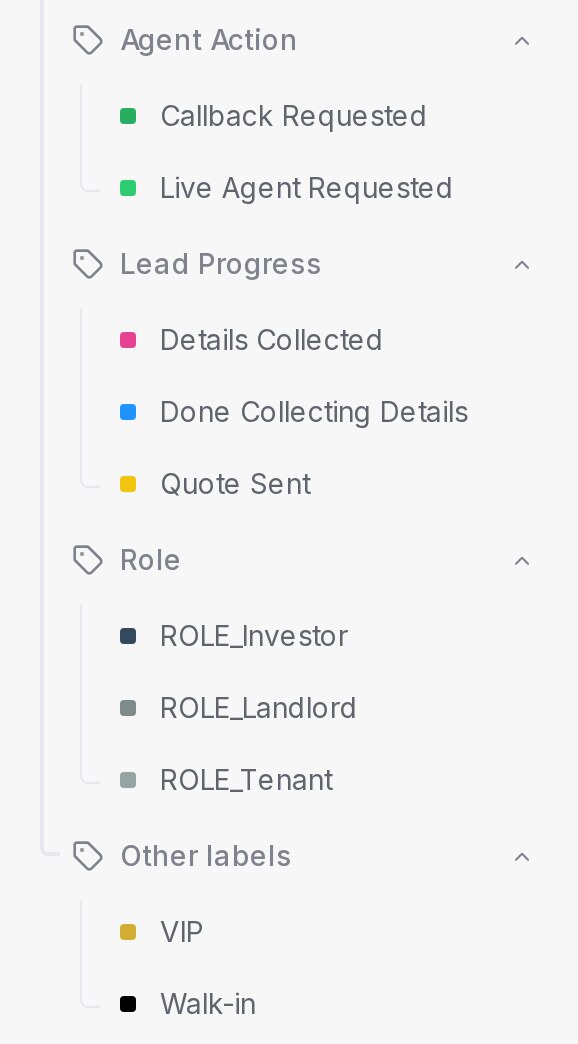{ width="289" }
Wherever you pick labels, the list shows a heading per category: **Add Labels** on a conversation, **+ tag** on a contact, the bar below the conversation list, the **Labels** filter and automation conditions and actions, and the flow designer's **Add label** step. Type to search and only the groups with a match stay. A workspace with no categories sees one flat list, as before.
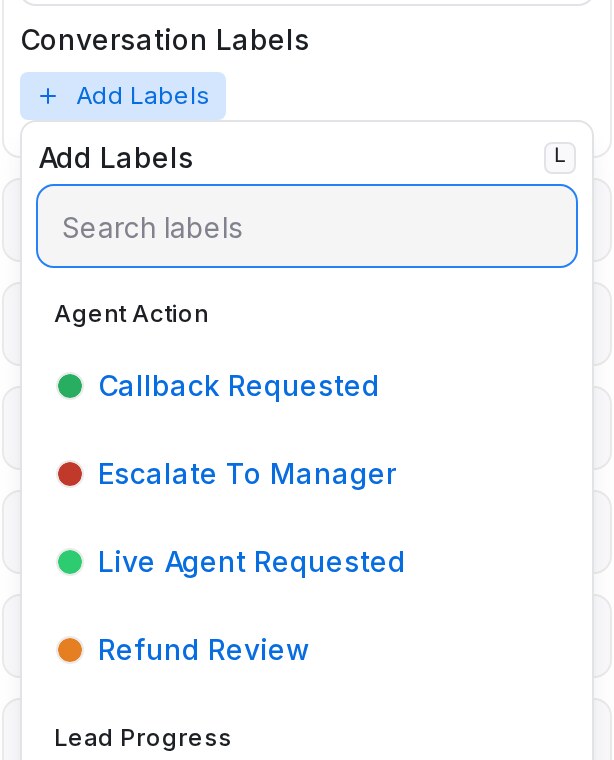{ width="307" }
## Putting labels in your own order
Lead-status labels read best in the order of your sales process, not A to Z. An administrator can set one order for the whole team.
1. Open **Settings → Labels** and click **Arrange labels**.
2. Turn on **Use custom order**.
3. Drag the categories, and the labels inside each one, into place.
4. Click **Save order**.
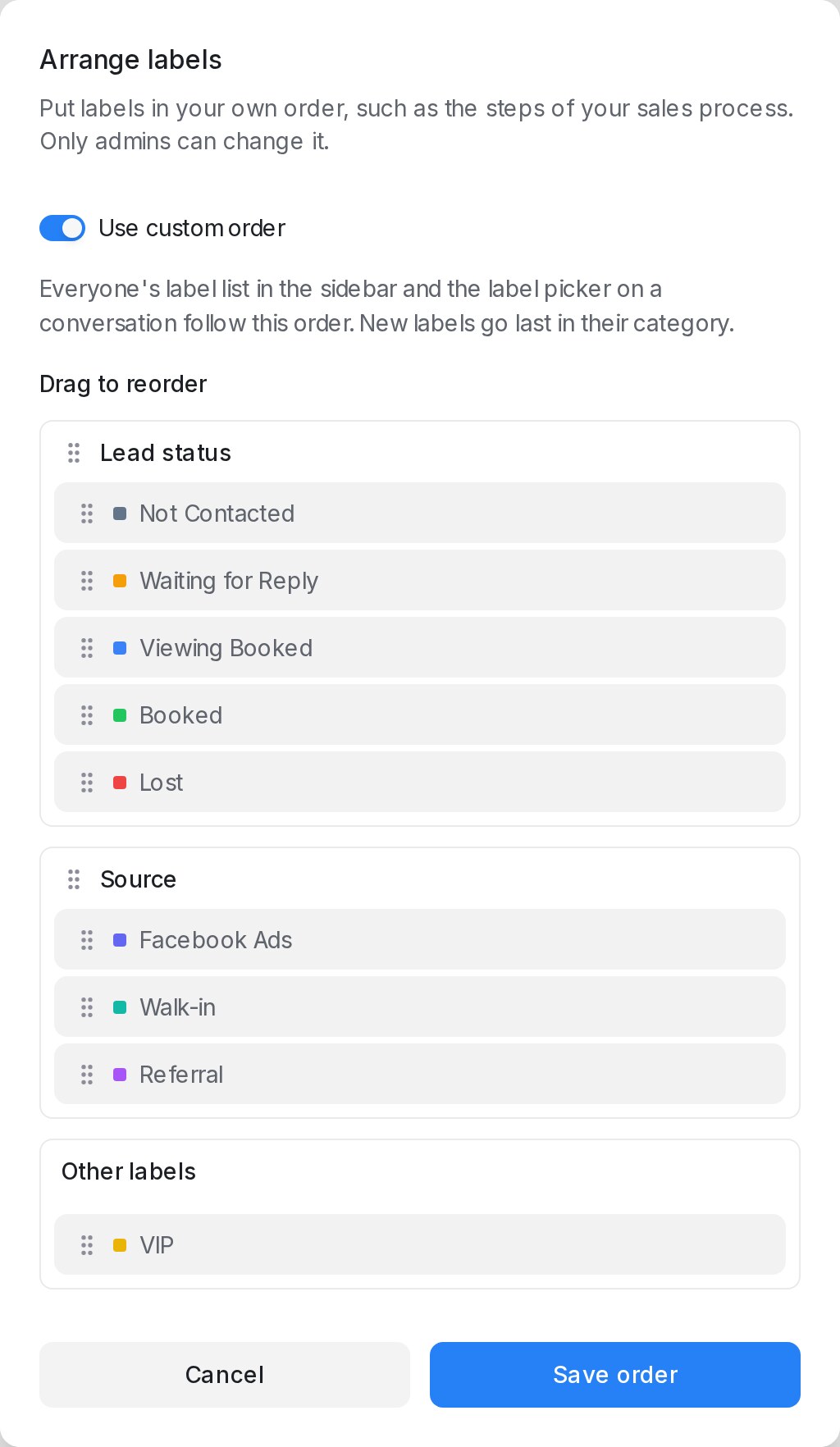{ width="420" }
While it is on, everyone's labels in the sidebar, the **Add Labels** picker on a conversation and the **Assign label** list when you right-click a conversation follow this order, and the sidebar's label sort menu is hidden. A new label goes last in its category. Filters, reports, contacts and **Settings → Labels** itself stay A to Z.
Turn **Use custom order** off to go back to each person's own sort. The saved order is kept for the next time you turn it on.
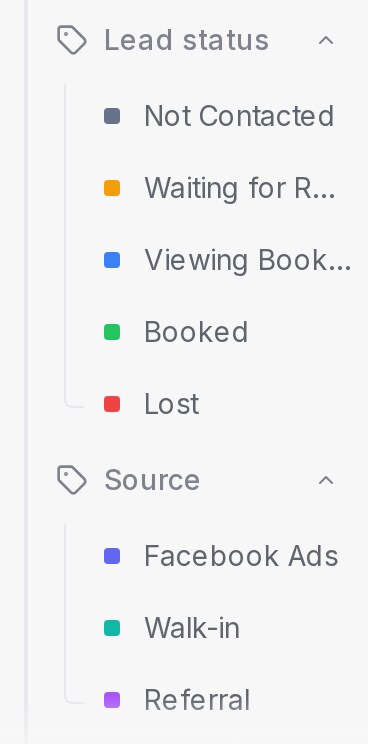{ width="184" }
## Related
* [Everything you can do in a conversation](/conversations/conversation-actions)
* [Managing Conversations](/conversations/managing-conversations)
* [Filter conditions and operators](/settings/filter-conditions-and-operators)
* [Labels, attributes and automation](/settings/labels-attributes-and-automation)
* [Connecting a Facebook inbox](/settings/connecting-a-facebook-inbox)
---
## Lead temperature
URL: https://help.mampuai.com/conversations/lead-temperature
---
description: See at a glance which conversations are hot, warm or cold leads, rated from what the customer writes, with a badge you can name and colour yourself.
---
# Lead temperature
Lead temperature reads each sales conversation and rates the lead **hot**, **warm** or **cold** from what the customer has written so far. The result shows as a small badge on the conversation, so your team can see who is ready to buy without opening every chat. You decide, in plain words, what counts as hot, warm or cold for your business.
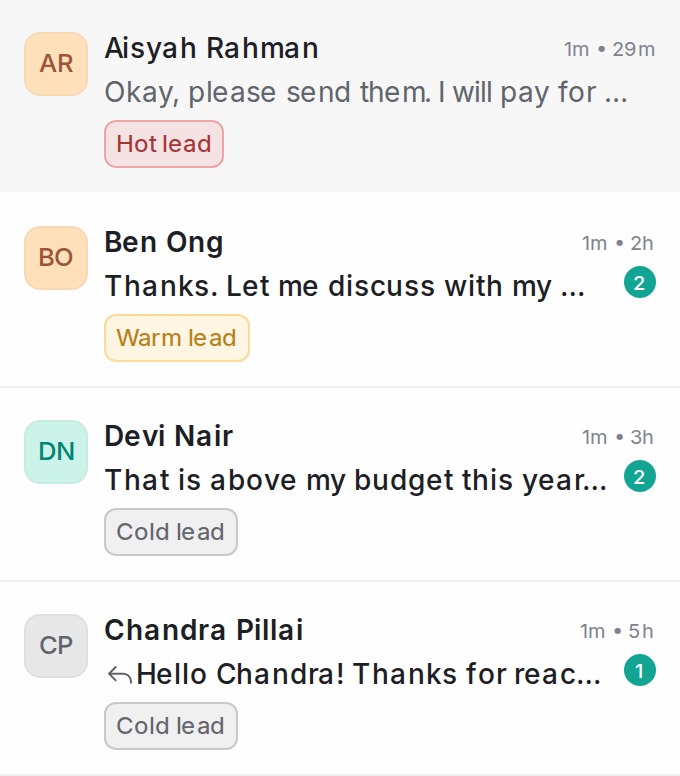
## Where the badge appears
* On each card in the conversation list, next to the labels
* In the header of an open conversation, next to the Reply SLA badge
Hover the badge to see why the lead was rated that way: whether the customer is proceeding, still deciding, has declined or has gone quiet, the highest temperature the lead has reached (for example **Was hot**), and, once a lead has gone cold, [why it went cold](#why-a-lead-went-cold).

By default a hot lead is red, a warm lead amber and a cold lead grey.
## Turning it on
1. Open **Settings → AI Monitoring** (also reachable from **Flow Agents → AI Monitoring**) and scroll to **Lead analysis**.
2. Switch on **Rate leads in this account**.
3. Click **Save changes**.
A conversation is rated about 30 minutes after its last message, and rated again whenever the customer or your team writes more. Every sales enquiry gets one of your categories. Conversations that are not sales enquiries, such as an existing customer asking about a delivery, a supplier or spam, get a **Not a lead** badge instead (see [Chats that are not a lead](#chats-that-are-not-a-lead)).
Lead temperature looks at every conversation in the inboxes AI Monitoring watches — all inboxes, or only the ones you pick under **Inboxes** at the top of the AI Monitoring page — whether it was handled by a flow agent, by your team, or has not been answered yet. It is not limited to conversations a flow agent handled.
## Describing what each category means
Each temperature has its own card. Expand a card to edit it:
* **Badge text** — what the badge says, for example "Hot lead" or "Ready to book".
* **Badge colour** — pick any colour; the badge uses it for its text and a lighter tint of it for the background.
* **What does "Hot lead" mean?** — the question follows your badge text. Describe, in your own words and in any language, what a customer says or asks when they are at that stage.
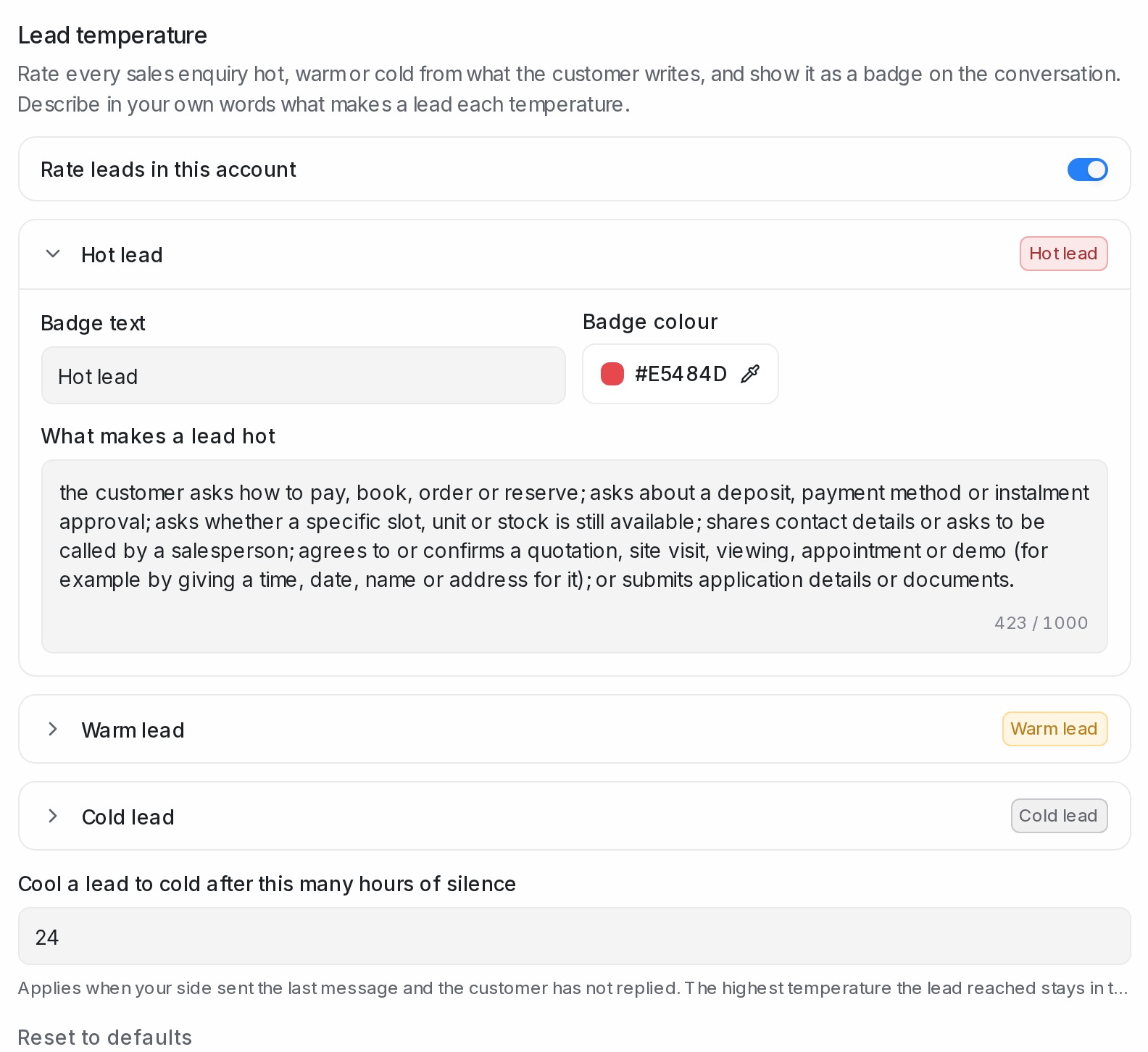
The built-in descriptions cover common sales signals: asking how to pay or about a deposit is hot; asking about price or dates, or discussing with family, is warm; a greeting with no real question is cold. Replace them with what matters in your business. A travel agency might write:
* **Hot** — asks about the deposit, asks how many seats are left, or confirms a departure date.
* **Warm** — asks for the price or the itinerary, or says they are discussing it with family.
* **Cold** — only says hello, or received the itinerary link and did not reply.
Click **Save changes** when you are done, or **Reset to defaults** to go back to the built-in text and colours. Recent conversations are rated again with your new descriptions.
### Adding your own categories
Hot, warm and cold are only the starting ladder. Click **Add category** to add a rung of your own — say "Ready to sign" for customers who ask for the payment link — then give it a badge text, a colour and a description like any other card. **Move up** and **Move down** place it on the ladder; the rungs run hottest first, and **Cold** always stays the lowest step, where quiet leads land. You can add up to five categories of your own. Delete one you no longer need and the conversations rated on it are re-rated on the remaining categories.
## Chats that are not a lead
Some chats are not sales enquiries at all. These get a grey **Not a lead** badge instead of a category, and they stay out of the lead counts and the follow-up list:
* **Existing customer** — after-sales for something already paid for, such as a delivery, a pickup, support or a change to their account.
* **Staff or personal chat** — colleagues, friends, agent group chats, or your team testing the chat.
* **Vendor, job seeker or spam** — someone selling or offering something to your business (a supplier, an agency, a partnership or event offer), a job or internship applicant, an invoice or statement sent to you, a request for something you clearly do not sell, or a marketing blast.
Hover the badge to see which kind it is and why. A customer who only says hello, or sends one short message that could be about what you sell, is still a lead and gets your lowest category (**Cold** by default), not **Not a lead**.
The **Not a lead** card sits below your categories under **Lead analysis**. Expand it to change the **Badge text** and **Badge colour**, and to fill in **Who is not a lead for your business? (optional)**: describe, in your own words, the chats that are never sales for you, for example "suppliers, job applicants and partnership offers". Click **Save changes**. Your description is used together with the built-in kinds above, and a single message that could be about what you sell still counts as a cold lead.
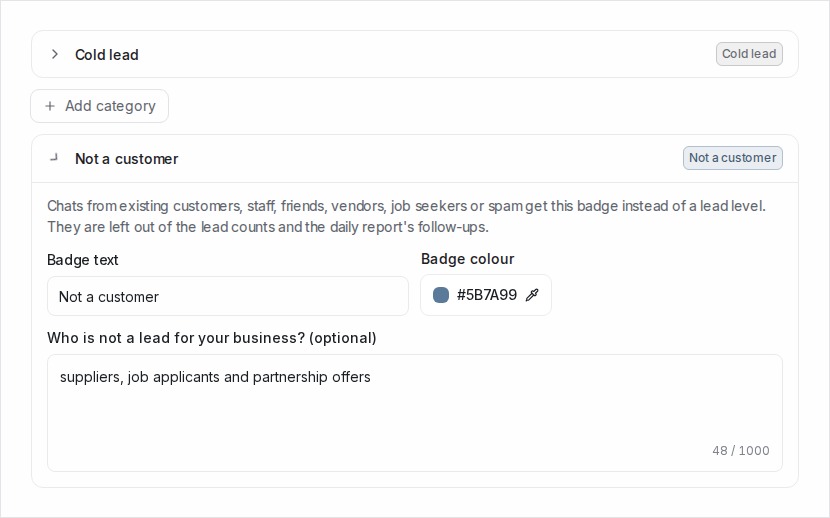
## How a lead is rated
* Only the customer's own words count. What your team or your AI agent writes is context, not a signal.
* The pre-written message a customer sends by tapping an ad does not count as a signal, because they did not write it. The conversation is still rated, though: a customer who has only sent the ad's message shows in your lowest category (**Cold** by default) with the note *Opened the chat from an advert*, until they write something of their own.
* A lead takes the highest temperature that any of the customer's messages matches, so a customer who asks about the deposit is hot even if they also asked about the price.
* A customer who says no, "too expensive" or "maybe later" is rated cold. The badge remembers the highest temperature the lead reached, so you can still see that it was a warm or hot lead before.
## Cooling down after silence
A lead that stops replying should not stay hot forever. **Move a quiet lead to "Cold lead" after this many hours of silence** sets how long to wait, from 1 hour to 720 hours (30 days); the default is 24 hours. The name in quotes is the badge text of your **Cold** card, so it follows you if you rename that category. It applies when your side sent the last message and the customer has not replied since. The lead drops to **Cold**, your lowest category, and the badge tooltip keeps the highest category the lead reached.
## Why a lead went cold
When a lead goes quiet past your silence window, or the customer says no, AI Monitoring reads the chat once more and picks the most likely reason it went cold from your list of reasons. It quotes the line from the chat that shows it, so you can check the reason at a glance. The reason appears in the badge tooltip, for example *Why it went cold: Couldn't meet their need ("Sorry, no pickup at Kulai")*, and in the [daily lead report](#daily-lead-report).
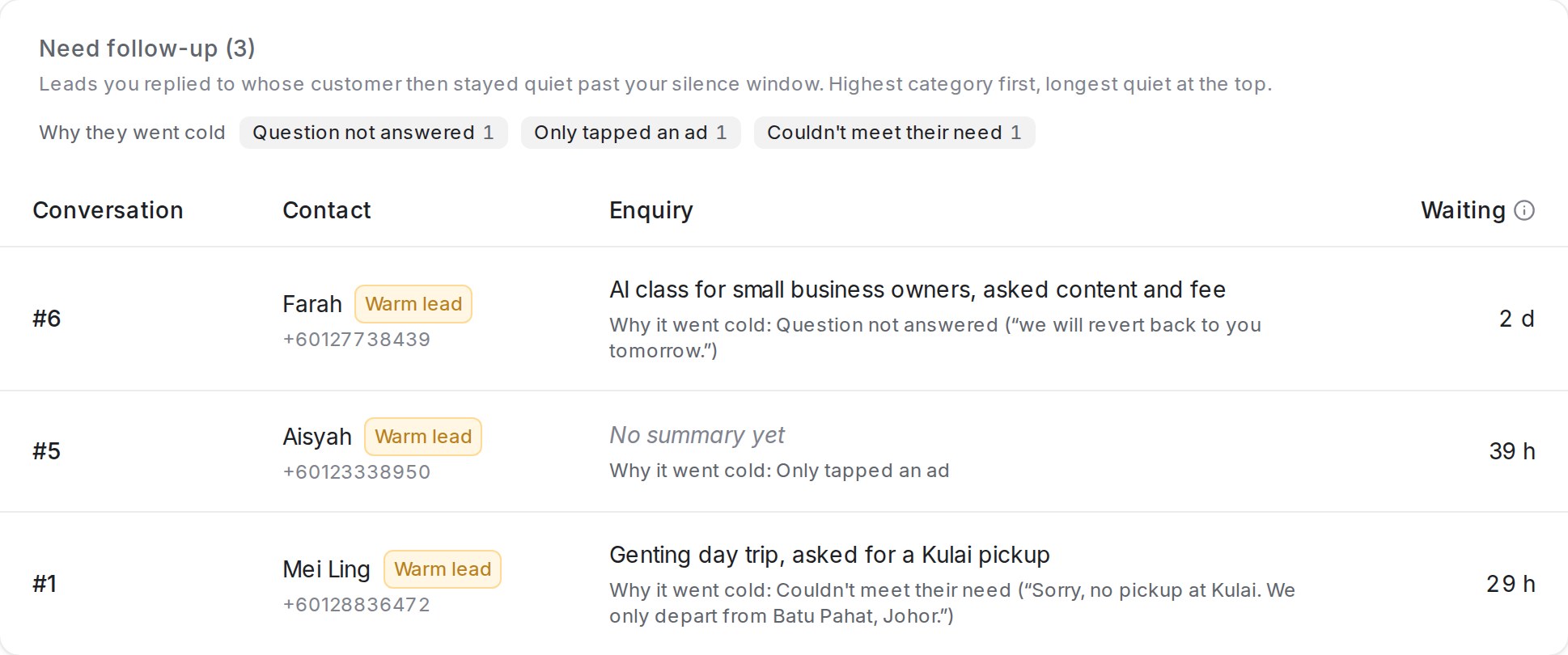
The built-in reasons are:
* **Couldn't meet their need** — your side said no or cannot to something the customer needs: their area or pickup point, a date that is full, their group size, or a condition they questioned.
* **Price** — the customer got a price and went quiet, said they will think about it, or said it costs too much.
* **Details never sent** — your side asked for details (a date, the number of people, a name) and the customer never sent them.
* **Booking not completed** — the customer was choosing a time slot or had booked one, then did not confirm, could not get their time, or did not show up.
* **No decision after demo** — the customer attended a demo or meeting and has not decided since.
* **Not now** — the customer said not now, will decide later, or is only looking.
* **Went elsewhere** — the customer said they already booked or planned with someone else.
* **Moved to a call or another number** — your side took the conversation elsewhere, such as a phone call or another WhatsApp number.
* **Question not answered** — the customer asked something, or your side promised to get back to them, and nothing from your side answered it or followed up.
* **Only tapped an ad** — set automatically when the customer only tapped an ad or a menu option and never wrote anything of their own.
* **No clear reason** — your side answered and nothing in the chat explains why the customer stopped.
A reason is only given when a line in the chat supports it. When nothing does, the lead gets **No clear reason** instead of a guess. If the customer writes again, the lead is rated afresh and the reason clears; if it goes cold again later, it gets a new reason.
### Changing the reasons
1. Open **Settings → AI Monitoring**, scroll to **Lead analysis** and find **Why leads went cold**, below the silence window.
2. Expand a reason to change its **Reason name**, or the description under **When is it "…"?**: in your own words and in any language, when does this reason apply?
3. Click **Add reason** to add a reason of your own, for example "Casino chips required" for a tour agency whose Genting trips need them. Delete a reason that never applies to your business.
4. Click **Save changes**.
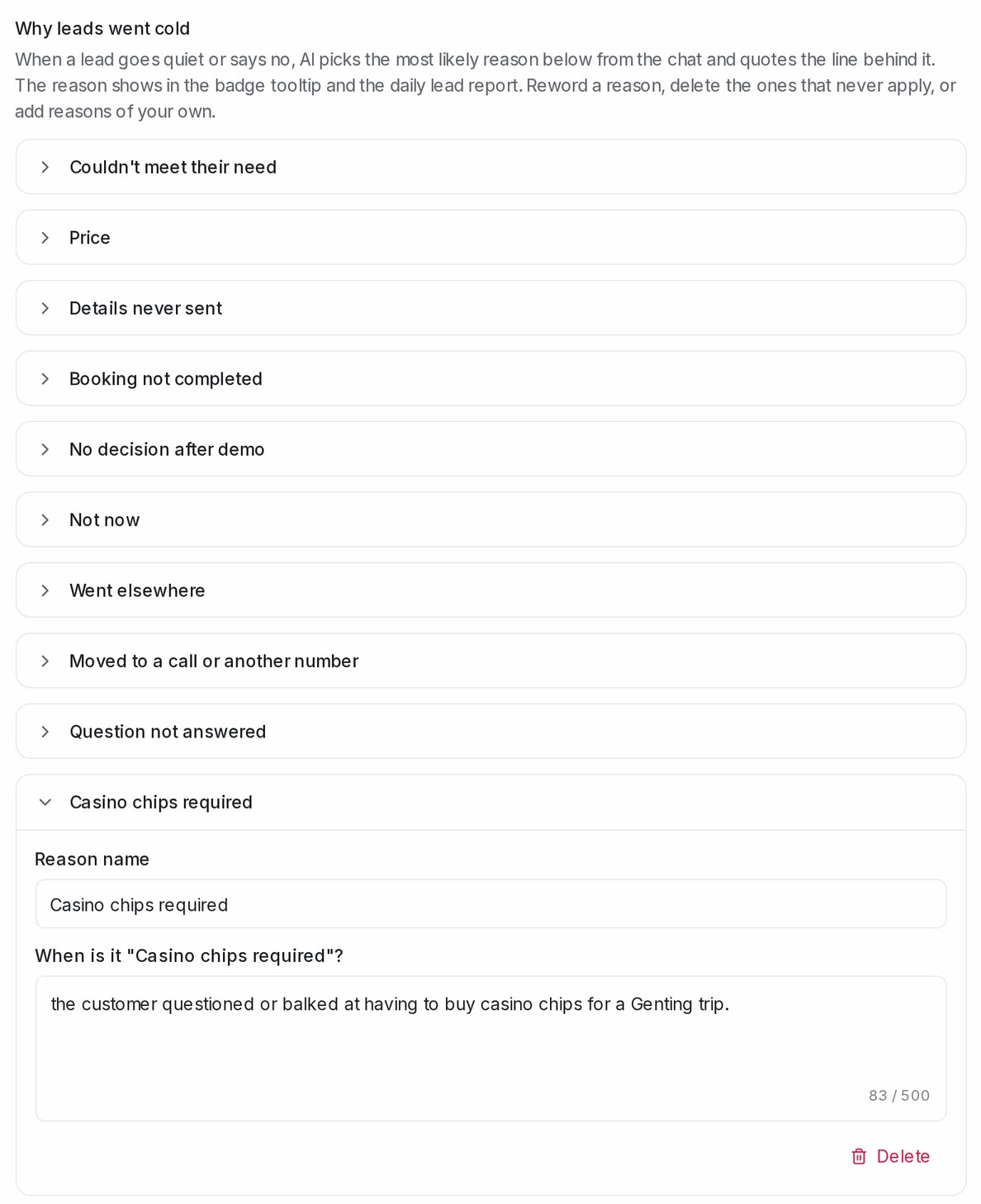
You can have up to 14 reasons. **Only tapped an ad** and **No clear reason** are always kept. When you delete a reason, the leads from the last 30 days that carried it are explained again with your updated list. **Reset to defaults** restores the built-in reasons along with the built-in categories.
## Daily lead report
Every morning at 8:30 (Malaysia time), the administrators of your account receive an email that turns the badges into a work list, and the same report is kept under **Reports → Leads** so you can look back at any day. Everything in it is about the last 24 hours. It covers the same conversations as the badges: every conversation in the inboxes AI Monitoring watches, whoever replied, including customers who only tapped an ad, who count in the lowest category.
The email greets you with the number that matters most in the morning: how many leads **need a follow-up** — the leads you replied to whose customer then stayed quiet past your silence window. Next to it, how many conversations were active in the last 24 hours. Below it:
* **Last 24 hours by rating** — one row per category, in ladder order and marked with its badge colour, and three numbers: **Last 24 h**, the conversations that had a message from you or the customer in the last 24 hours; **Unanswered**, of those, the customers whose last message has not been replied to yet; and **Went quiet**, the open leads above Cold you replied to whose customer then stayed quiet past your silence window. A short legend under the table explains each number in plain words, using your own silence window. The subject line carries the follow-up count and the day's activity of every category above Cold. A last row, **Not a lead**, counts the chats that were not sales enquiries and were active in the last 24 hours; it has no unanswered or quiet count, because nobody follows those up.
* **Need follow-up** — the leads that went quiet, highest category first and the longest quiet at the top. Each row shows the category the lead fell from, the customer's name with their phone number or email (or the contact ID when neither is known), a one-line summary of what they asked for in the words of your own descriptions (for a travel agency, the itinerary and the number of travellers), how long they have been quiet, [why the lead went cold](#why-a-lead-went-cold) with the line from the chat behind it, and a **Follow up** button that opens the conversation. Above the list, **Why they went cold** counts the day's quiet leads by reason. The email shows up to 25 leads; **Open the report** takes you to the full list.
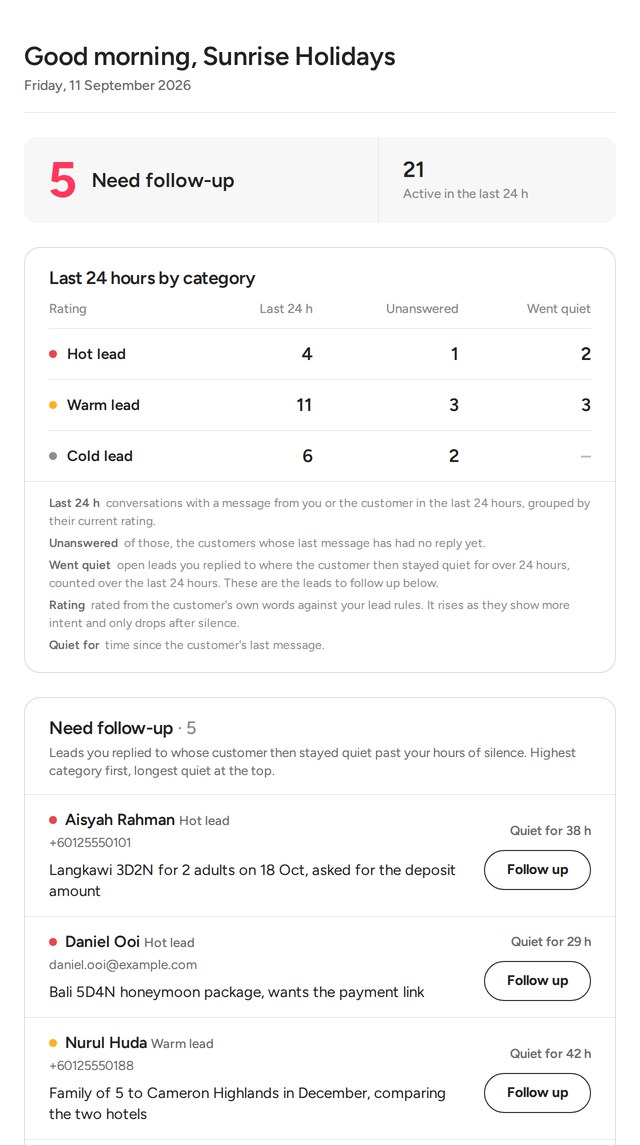
### Looking back at past reports
**Reports → Leads** keeps every morning's report. Use the arrows or the day list to step through the days; each one shows the same follow-up count, the scoreboard (hover the ⓘ next to a column to read what it counts) and the complete follow-up list, every lead linked to its conversation. The button in the email opens that morning's report directly. Reports built before this change keep their original **To chase today** list.
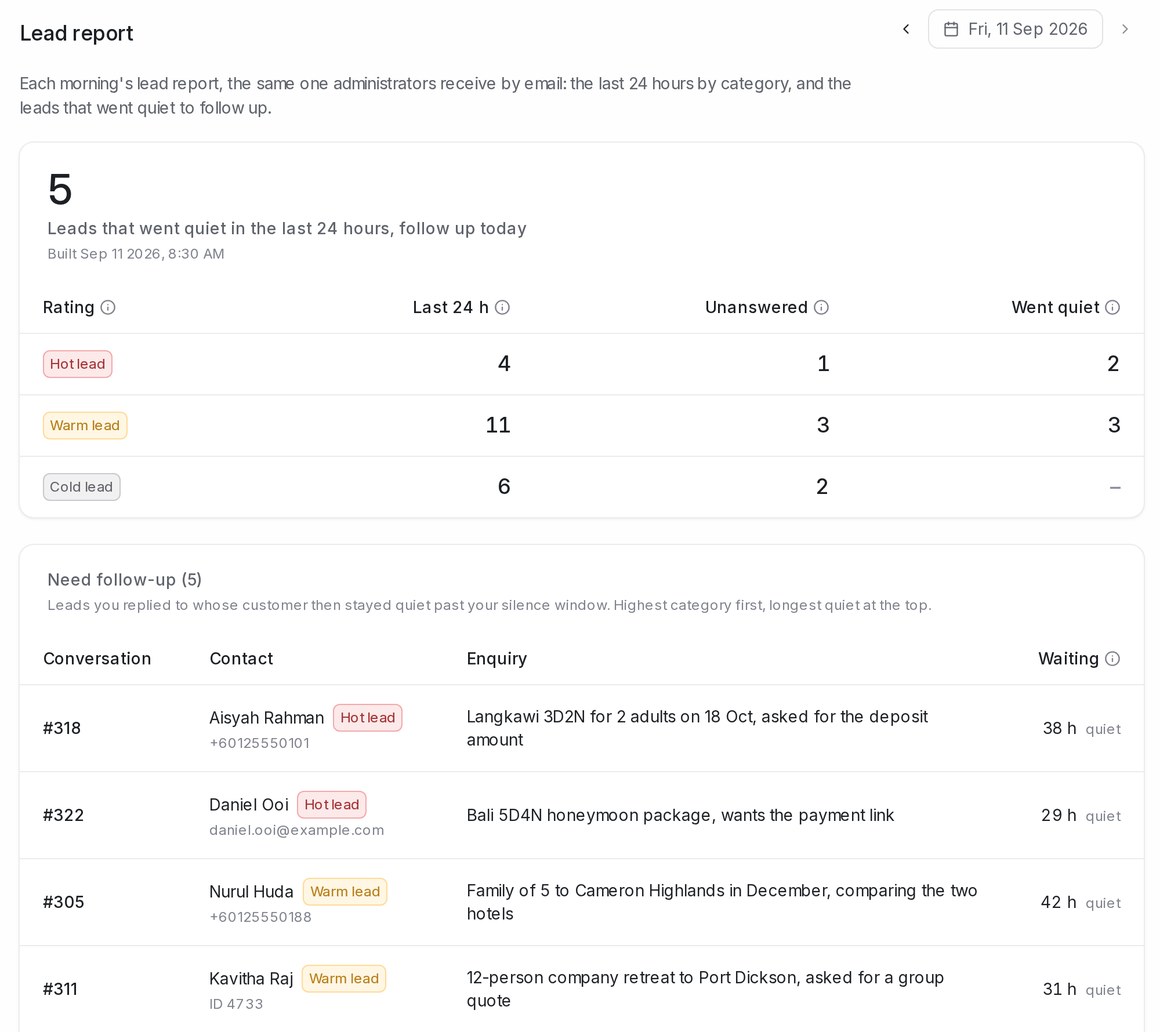
Reports are kept from the first morning after lead temperature is switched on, even for accounts that turned the email off. Earlier days cannot be rebuilt, because the numbers describe the moment each report was built.
The report uses the badge text and colours you chose for each temperature. It is on whenever lead temperature is on; to stop the email while keeping the badges and the report page, switch off **Email administrators a daily lead report** under **Settings → AI Monitoring → Lead analysis** and click **Save changes**.
A customer who says no also gets a reason on their badge, but the follow-up list only shows leads that went quiet. A lead only goes cold when you replied and the customer went quiet. A customer you have not replied to stays at their temperature; the report counts them as unanswered on the morning after they wrote, and your inbox keeps showing them until someone replies or resolves the conversation.
Lead temperature is part of AI Monitoring and is included on higher plans.
## Related
* [Agent Reply Quality report](/reports/agent-reply-quality)
* [Labels, priority and status](/conversations/labels-priority-and-status)
* [Managing Conversations](/conversations/managing-conversations)
---
## Replying and adding private notes
URL: https://help.mampuai.com/conversations/replying-and-private-notes
---
description: Reply to the customer or leave a private note for your team, use the toolbar for emoji, files, voice notes, signatures and WhatsApp templates, quote a message, and ask the AI agent to reply.
---
# Replying and adding private notes
Open any conversation to see the full message thread. At the bottom you'll find two tabs:
* **Reply** — your message is sent to the customer.
* **Private Note** — visible only to agents; use it to leave context for teammates. Mention a colleague with @ to notify them.
## The reply toolbar
The icons under the message box are:
* **Show emoji selector** and **Attach files**. You can also drag a file straight onto the box.
* **Record audio**: records a voice note and sends it as audio.
* **Enable signature** / **Disable signature**: adds your personal signature to the reply. Write it once under your profile settings.
* **Whatsapp Templates**: picks an approved template. On WhatsApp this is the only way to reply once the customer's 24-hour window has closed; the box tells you when that is the case. See [The 24-hour reply window](/channels/whatsapp-reply-window).
* **From**: sends from another of your WhatsApp numbers (see below).
A few shortcuts save time: **Shift + Enter** starts a new line, typing **/** opens your canned responses, and **@** in a private note mentions a teammate. Whether **Enter** sends the message or you press **Cmd/Ctrl + Enter** is your choice under your profile settings.

If an AI flow agent is handling the conversation, replying yourself can automatically pause it (a per-inbox setting — see [Testing and connecting an agent](/flow-agents/testing-and-connecting-an-agent)), so you and the agent never talk over each other. Customer voice notes, photos and PDF documents are read for the AI agent, which replies to them like any text message. What it read appears under the file in the thread, as a transcript, an **AI description** of a photo or an **AI summary** of a document, with **Show more** for the full text, so you can see exactly what the agent understood.
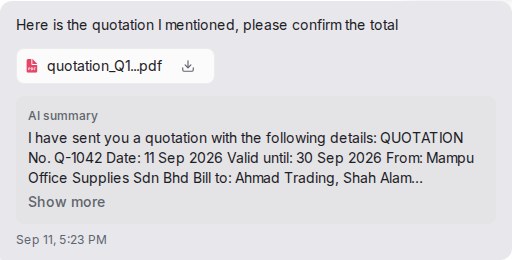

## See what the AI agent did in a conversation
When a flow agent replies to a customer, the last message of each reply carries a small line under it, such as **3 steps · 1 FAQ**. Click it to see what the agent did for that reply:
* **Steps** — the steps of the flow the agent walked through, by the names you gave them in the designer, for example *Start → Opening hours → Ask name*. A step you have since removed from the flow reads **Removed step**.
* **FAQs used** — the questions from your AI Knowledge the answer drew on. Only the FAQs the reply actually used are listed, so when a customer asks why the agent said something, you can see which FAQ it came from.
A reply that used no FAQ shows the step count alone. Teammates who have the conversation open see the line arrive with the reply, and it stays with the message. The agent badge at the top of the conversation counts the steps for the whole chat; hover over it to read the full path.
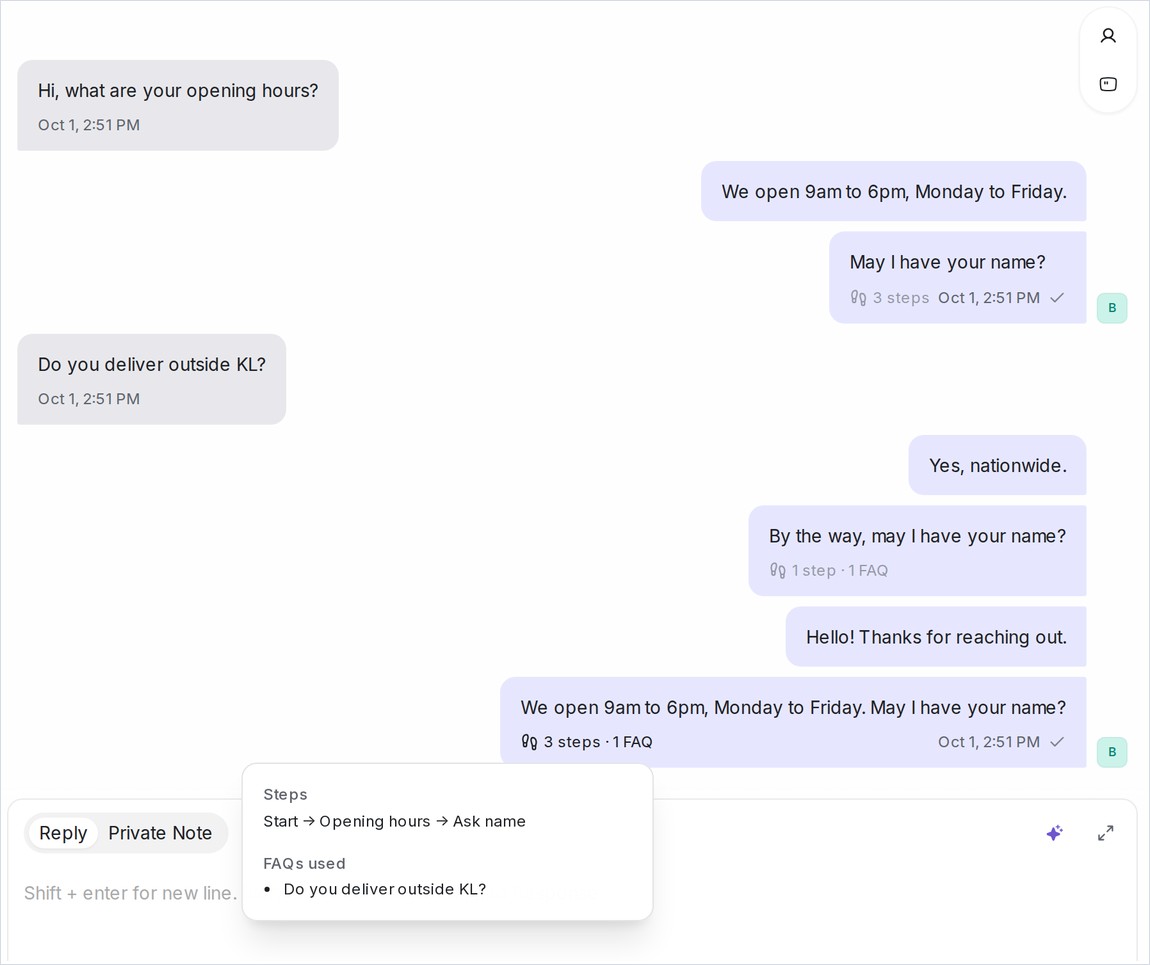
In the designer's Playground the same information appears under every test reply as **Nodes visited** and **FAQs used** — see [Testing and connecting an agent](/flow-agents/testing-and-connecting-an-agent).
## Quoting a message in your reply
Quote the message you are answering so the customer sees exactly what you mean. It works for any message, including photos, videos, voice notes and files:
1. Right-click the message and choose **Reply to this message** — or simply double-click the message.
2. The reply box shows *Replying to* with the quoted message. For a picture, a thumbnail appears next to it. Click **×** to drop the quote.
3. Type your reply and send. The quote travels with it, so the customer sees the same reference in WhatsApp.
A single click on a photo still opens it full size; double-clicking quotes it instead. Double-clicking a **Private Note** does nothing, since notes are never sent to the customer.
## Replying from another WhatsApp number
Have more than one WhatsApp number? **From** at the top of the reply box lets you send the reply from another of your numbers while the conversation stays in one place — see [Replying from another WhatsApp number](/conversations/replying-from-another-whatsapp-number).
## Watch the walkthrough
{% embed url="https://youtu.be/k8pbc-KMVy0" %}
## Ask the AI agent to reply
When the conversation's inbox has a flow agent connected, the reply toolbar shows a bot button. Click it and the agent reads the customer's latest message and sends its reply — handy when a reply never went out, or when your team has finished stepping in and wants the agent to carry on.
Triggering the agent also resumes it if it was paused, and the conversation gets an activity note showing who triggered it. The button appears on the **Reply** tab only.
## Related
* [Everything you can do in a conversation](/conversations/conversation-actions)
* [Managing Conversations](/conversations/managing-conversations)
* [Forwarding messages](/conversations/forwarding-messages)
* [Canned responses, macros and bots](/settings/canned-responses-macros-and-bots)
---
## Seeing a customer's history across channels
URL: https://help.mampuai.com/conversations/customer-history-across-channels
---
description: Read what a customer said in their other conversations, on any channel, inside the one you have open, and choose which inboxes or conversations keep their history to themselves.
---
# Seeing a customer's history across channels
The same person often reaches you on more than one channel or number: a question on Facebook one day, a follow-up on WhatsApp the next. You don't have to jump between their conversations to keep up. The conversation you have open shows their messages from their other conversations as well, in the order they were sent, and your flow agent can use what the customer already told you there.
## What you see in a conversation
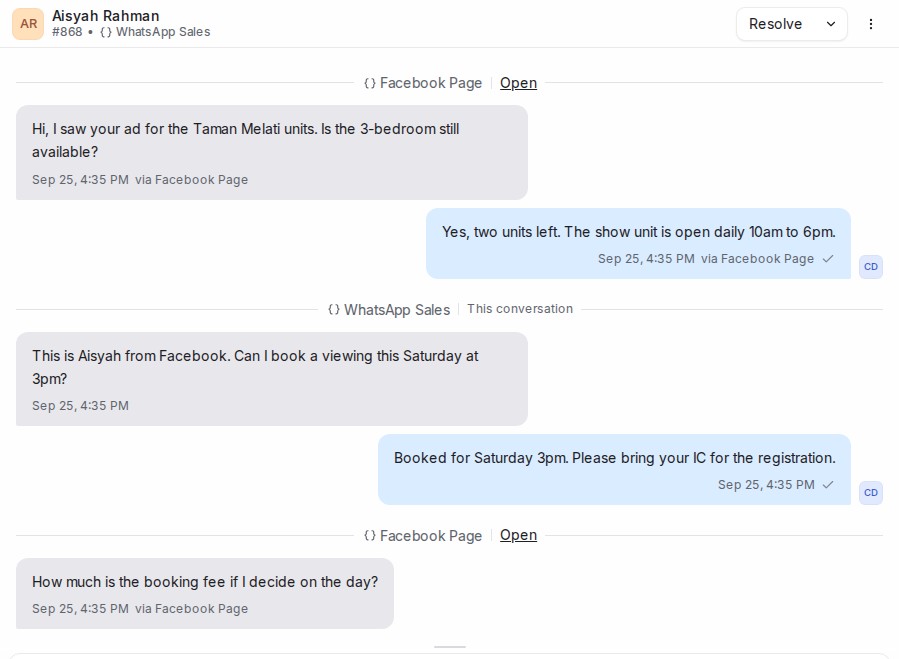
* Messages from the customer's other conversations appear between dividers. Each divider names the inbox those messages came through and has an **Open** link to that conversation. The parts that belong to the conversation you have open are marked **This conversation**.
* Everything is shown in time order across all of the conversations, so a Facebook message sent at 9:02 sits above a WhatsApp message sent at 9:05.
* Scroll up to load older messages. They keep arriving from every conversation, oldest last.
* Messages from another conversation are there to read. To reply in that conversation, use **Open** on its divider. The reply box always sends to the conversation you have open.
* You see only the conversations in inboxes you belong to. Administrators see them all.
The **Previous Conversations** list in the contact panel on the right still gives you the same conversations as a list.
## What your flow agent does with it
Your flow agent knows the customer is returning and can see the details they gave in earlier conversations, on any channel. On a question step with **Confirm a value the customer gave before** turned on, it shows that earlier answer for the customer to confirm or correct instead of asking from scratch. When it hands the conversation to your team, its note also lists the other channels the customer has used, for example **Also on: WhatsApp ×2, Facebook ×1**.
## Keep an inbox's history to itself
Sometimes two of your numbers belong to different projects or brands, and a customer who talks to both should not see one project's questions mixed into the other. You can keep an inbox apart from the rest.
1. Open **Settings → Inboxes** and choose the inbox.
2. On the **Settings** tab, scroll down to **Share history across inboxes** and turn it off.
3. Click **Update**.

With the switch off, the inbox is kept apart in both directions:
* Its conversations show only their own messages, and its messages stay out of the customer's conversations in your other inboxes.
* The flow agent in that inbox doesn't reuse answers the customer gave in other inboxes, and answers collected there don't carry over anywhere else.
* The handoff note's **Also on** line leaves that inbox out.
The switch is on for every inbox unless you turn it off.
## Share history only within a group of inboxes
When some of your inboxes belong to one brand and others to another, put each brand's inboxes in a history group. A conversation then shows the customer's messages only from inboxes in its own group.
1. Open **Settings → Inboxes** and choose the inbox.
2. On the **Settings** tab, check that **Share history across inboxes** is on.
3. Under **History group**, pick a group, or type a new name and choose **Create "…"**.
4. Click **Update**, then do the same for the brand's other inboxes.
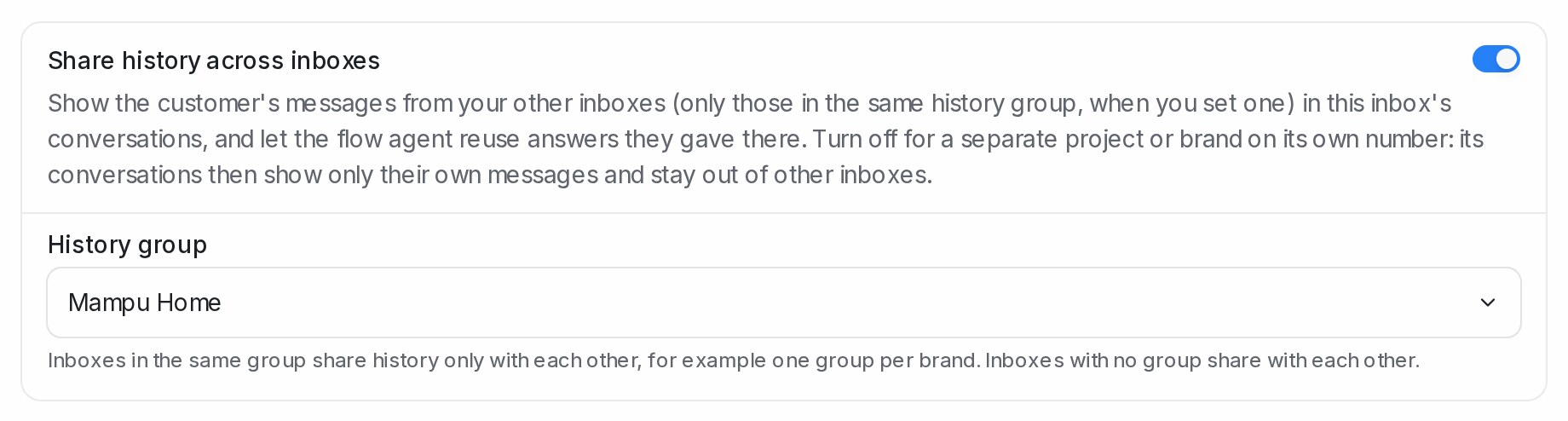{ width="840" }
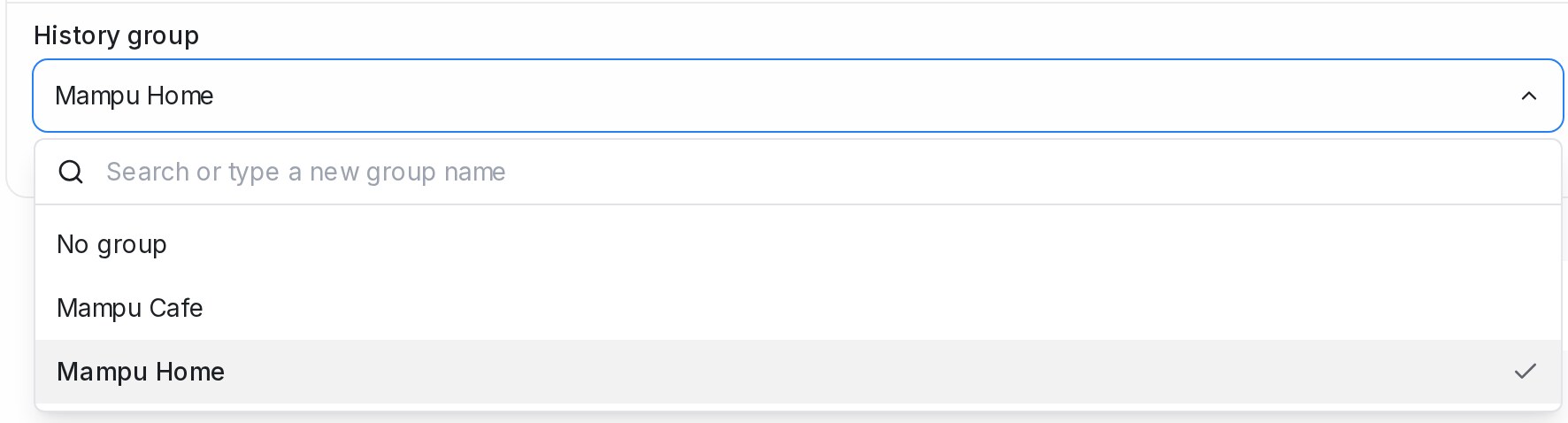{ width="800" }
* The conversation, the **Previous Conversations** list and the flow agent's reuse of earlier answers, including the handoff note's **Also on** line, all keep to the group.
* Inboxes that share history but have no group share with each other only.
* A name typed with different capitals joins the existing group.
* The contact's details, attributes, labels and notes are one record, so they are the same in every group. The **History** tab on the contact's page still lists all of their conversations.
## Keep one conversation's history to itself
You can do the same for a single conversation, whatever its inbox shares.
1. Open the conversation.
2. Open the **⋮** menu at the top right, next to **Resolve**, and choose **Keep history separate**.
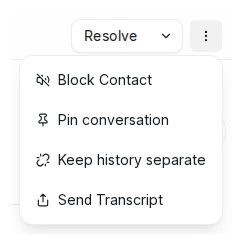
The conversation now shows only its own messages, stays out of the customer's other conversations, and its answers are no longer reused by the flow agent. Your teammates see the change straight away, even if they already have one of the customer's conversations open.
To undo it, open the same menu and choose **Share history again**.
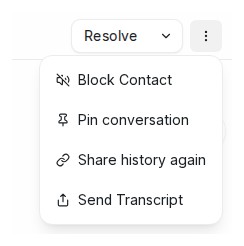
Any agent who can open the conversation can switch it either way. In an inbox whose own **Share history across inboxes** switch is off, the option isn't offered, because that inbox already keeps everything to itself.
## When the same person shows up as two contacts
History is shown per contact. A Facebook profile and a WhatsApp number are two separate contacts until you merge them, so their conversations don't appear together before that. Open the contact, go to the **Merge** tab, pick the other contact, and confirm. From then on, both sets of conversations belong to one contact and show together.
## Related
* [Managing Conversations](/conversations/managing-conversations)
* [Viewing and editing a contact](/contacts/viewing-and-editing-a-contact)
* [Inboxes and channels](/settings/inboxes-and-channels)
* [Replying and adding private notes](/conversations/replying-and-private-notes)
---
## The details panel beside a conversation
URL: https://help.mampuai.com/conversations/contact-panel
---
description: What each section of the details panel beside a conversation shows, and the actions it holds, from editing the contact to running a macro.
---
# The details panel beside a conversation
Click the person icon at the right edge of a conversation to open the **Contact** panel; **×** closes it. Expand a section with **+**, and drag sections up or down to put your favourites first.
{ width="320" }
## The contact card
{ width="320" }
Name, **Email Address**, **Phone number** (each with a copy icon) and **Company**. The info icon shows more details; the arrow opens the full profile. The four icons are:
* **New message** starts a fresh conversation with this person on one of your inboxes.
* **Edit** opens the contact form.
* **Merge contact** folds this contact into another one, for example the same customer who wrote from two numbers. See [Viewing and editing a contact](/contacts/viewing-and-editing-a-contact).
* **Delete** removes the contact. Administrators only.
Accounts with a voice inbox also get **Call**.
## Conversation Actions
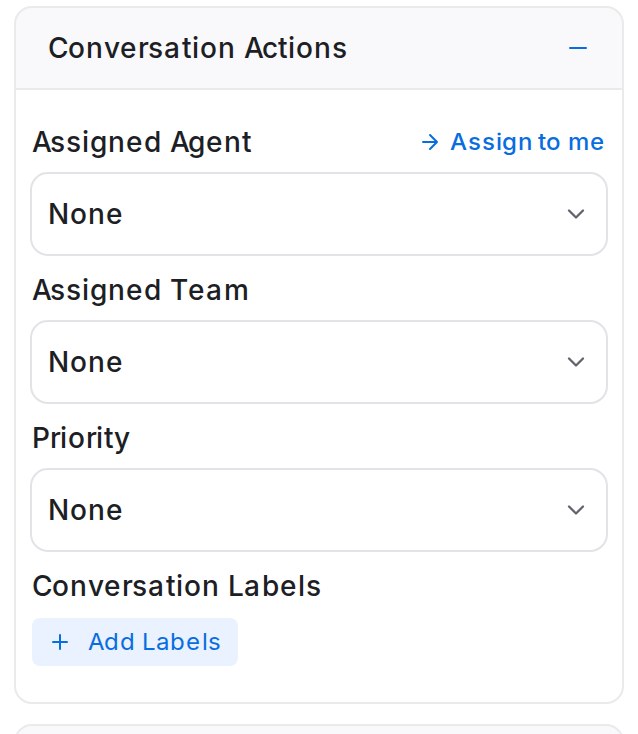{ width="320" }
* **Assigned Agent**: pick a teammate, or click **Assign to me**.
* **Assigned Team**: route to a team such as Sales. Pick **None** to clear it.
* **Priority**: **None**, **Urgent**, **High**, **Medium** or **Low**.
* **Conversation Labels**: **Add Labels** to tick labels, or type a new name and choose **Create new label**. These label the conversation; the contact's own labels live on the contact page.
See [Assigning conversations to agents and teams](/conversations/assigning-conversations) and [Labels, priority and status](/conversations/labels-priority-and-status).
## Conversation participants
{ width="320" }
Teammates following this chat besides the assignee. The gear icon (**Select participants**) adds someone; **Join conversation** adds you. They see the chat in their **Participating** folder.
## Macros
Your saved macros: **Execute** runs one on this chat, **Preview Macro** shows its steps first. Set them up under **Settings → Macros**. See [Canned responses, macros and bots](/settings/canned-responses-macros-and-bots).
## Conversation Information
Where and when the chat started (**Initiated from**, **Initiated at**); for website chats the **Browser**, **Operating System** and **IP Address**; for customers who arrived from a Meta ad or post on WhatsApp, Facebook or Instagram, **Came from**, **Ad / Post ID**, **Ad headline** and **Ad link**.
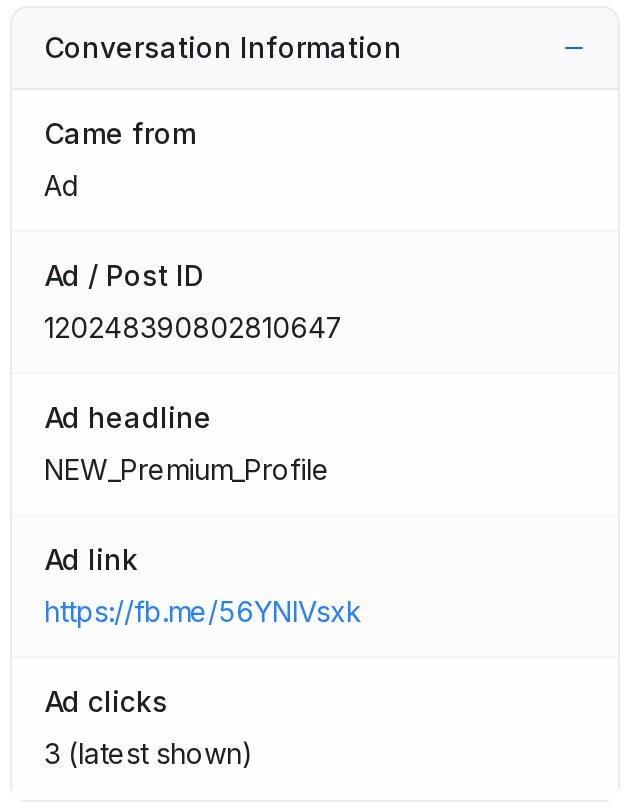{ width="320" }
The ad rows show the customer's latest tap. When they have tapped more than once — another ad while the chat was open, or the same ad again — **Ad clicks** shows how many taps the conversation has had, and each earlier tap stays on the message it arrived with as a card.
## Contact Attributes
Your contact custom attributes and this person's values. Click a value to change it. See [Custom attributes and notes](/contacts/custom-attributes-and-notes).
## Contact Notes
{ width="320" }
Notes about the person, shown on every conversation with them. Click **Add contact note**, type, and click **Save note**.
## Attachments
Files from this chat, split into **Media** and **Files**: **View all**, **Jump to message** or **Download file**.
## Previous Conversations
Every other conversation with this contact, newest first. See [Seeing a customer's history across channels](/conversations/customer-history-across-channels).
## Sections that appear when a feature is on
* **AI Reply Score**: when AI Monitoring scores your team's replies, the latest score out of 5 with its reason. See [Agent Reply Quality report](/reports/agent-reply-quality).
* **Shopify Orders**: the customer's recent orders when your store is connected. See [Connecting Shopify](/settings/connecting-shopify).
* **Upcoming appointment**: who the booking is with, when, and the meeting link. See [Booking pages and the Schedule view](/calendar/booking-pages-and-the-schedule-view).
## Related
* [Everything you can do in a conversation](/conversations/conversation-actions)
* [Managing Conversations](/conversations/managing-conversations)
* [Viewing and editing a contact](/contacts/viewing-and-editing-a-contact)
---
## Replying from another WhatsApp number
URL: https://help.mampuai.com/conversations/replying-from-another-whatsapp-number
---
description: >-
Reply to a customer from a different WhatsApp number of your account without leaving
the conversation, and keep their answer in the same thread.
---
# Replying from another WhatsApp number
Sometimes the right number to reach a customer is not the one they first wrote to — a dedicated support line, or a second number for a busy account. In a WhatsApp conversation you can pick which of your WhatsApp numbers a reply goes out from, and the conversation stays in one place.
## Picking the number
At the top of the reply box, **From** shows the number the reply will leave from. It starts on the conversation's own number. Click it to see the other WhatsApp numbers you belong to and pick one.
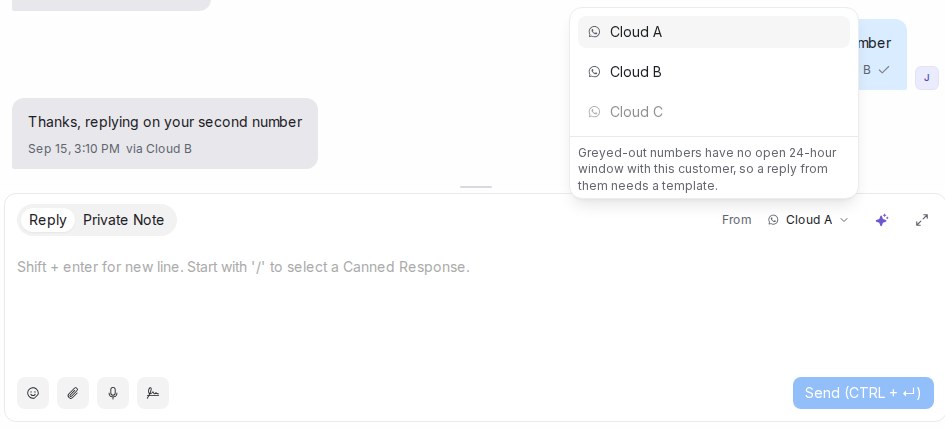
**From** only appears when you have more than one WhatsApp number to choose from.
Numbers shown greyed out cannot be used right now: a WhatsApp API number can only send a normal reply while the customer has messaged that number in the last 24 hours. The note under the list says so. Numbers connected as Normal WhatsApp have no such limit.
## What the customer sees
Your reply arrives from the number you picked. On the customer's phone it appears as a chat with that number, so they see it as a message from your second line rather than a continuation of the first.
## What your team sees
Every message that went out from, or came in on, another number carries a **via** tag with that number's name, so anyone reading the conversation knows which line spoke.
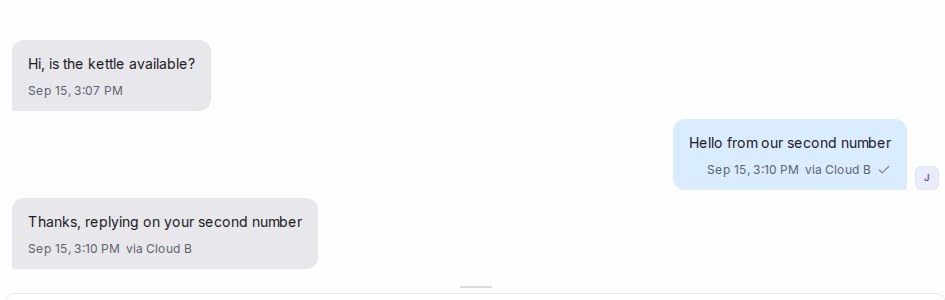
When the customer answers that number, their message lands in the same conversation, also tagged — no second conversation opens. Assignment, labels, reports and access stay with the conversation's original inbox.
## Good to know
* **Private Note** never uses the picker; notes stay internal.
* Only numbers you are a member of are offered. Administrators see every WhatsApp number of the account.
* Your pick stays for as long as you are in the conversation. When you come back to it later, **From** is on the conversation's own number again.
## Related
* [Replying and adding private notes](/conversations/replying-and-private-notes)
* [The 24-hour reply window](/channels/whatsapp-reply-window)
* [Normal WhatsApp Web Link vs Official WhatsApp API](/platform/connect-to-social-media-channels/normal-whatsapp-vs-whatsapp-cloud)
---
## Forwarding messages
URL: https://help.mampuai.com/conversations/forwarding-messages
---
description: Send a copy of one message, or several at once, from a conversation to other chats or contacts, attachments included, in a couple of clicks.
---
# Forwarding messages
Forwarding sends a copy of a message from one conversation into another, the way you would on your phone. Use it when a customer's photo, document or question belongs in a different chat: a colleague's customer asking the same thing, a supplier who needs the picture, or a contact you have not spoken to yet. When several messages belong together, select them and forward, copy or delete them in one go.
## Forward a message
1. Open the conversation and right-click the message you want to forward. For a photo or video, right-click the time shown just below it.
2. Choose **Forward**.
3. In the **Forward message** dialog, tick the chats it should go to. **Recent chats** are listed first. Type a name, email address or phone number in the search box to find any other chat, or a contact who has no chat yet; results are grouped into **Chats** and **Contacts**. You can pick up to five at a time.
4. Press **Send**. The button shows how many chats you picked, for example **Send (3)**.
A short confirmation tells you how many chats received the message, and you stay in the conversation you were reading. Remove a chat from your selection by clicking the **x** on its chip or unticking its row.
## Select several messages
When a customer has sent a few photos and a paragraph that belong together, you do not have to forward them one by one.
1. Right-click any of the messages and choose **Select messages**. A checkbox appears beside every message and a bar replaces the reply box, showing how many are selected.
2. Click the other messages you want. Clicking a ticked message unticks it. Up to 30 messages can be selected at a time.
3. Pick an action from the bar:
* **Forward** opens the same dialog as above, titled with the number of messages. Every selected message is sent to each chat you pick, in the order they were originally sent.
* **Copy** puts a transcript on your clipboard: one line per message with the time, who wrote it and the text, ready to paste into a note or an email. Photos and documents appear as a short label such as "Picture message".
* **Delete** removes the selected messages after a single confirmation that states how many will go. This cannot be undone.
4. Press **Escape** or the **x** on the bar to leave selection mode. Opening another conversation leaves it too.
While you are selecting, right-clicking a message does nothing and the reply box is hidden until you leave the mode. Activity lines, deleted messages and messages that are still sending cannot be ticked. Private notes can be selected for **Copy** and **Delete**, but they never leave the conversation: while one is ticked, **Forward** is greyed out.
## What gets forwarded
* The message text, exactly as written
* Photos, videos, documents and voice notes attached to it
* Both customer messages and messages your team sent
The copy arrives in each chat as a new message from you. Your teammates see a small **Forwarded** marker above it; the customer receives an ordinary message.
Private notes, deleted messages and messages that failed to send cannot be forwarded, so **Forward** does not appear in their menu.
## Forwarding to a contact who has no chat yet
When you pick someone from **Contacts**, the message opens a new conversation with them and assigns it to you. If the contact can be reached through more than one inbox, an inbox picker appears on their row so you can choose where the message should go. Contacts who cannot be reached through any of your inboxes are greyed out.
If the contact already has an older conversation with you on that inbox, even a resolved one, the message is added there instead of starting a duplicate.
## Related
* [Replying and adding private notes](/conversations/replying-and-private-notes)
* [Managing Conversations](/conversations/managing-conversations)
* [Managing contacts](/contacts/managing-contacts)
---
## Pinning conversations
URL: https://help.mampuai.com/conversations/pinning-conversations
---
description: Keep up to three conversations pinned at the top of the list for your whole team, so the chats that matter most never sink out of view.
---
# Pinning conversations
Pinning keeps a conversation at the top of the list, the way pinned chats work on your phone. Use it for the chats your team needs to keep an eye on: a deal about to close, a complaint everyone is watching, a customer you promised to call back. Pins are shared by your whole account, so when you pin a conversation your teammates see it at the top too.
## Pin a conversation
1. In the conversation list, right-click the conversation and choose **Pin conversation**.
2. The conversation moves to the top of the list and shows a small pin icon.
You can also pin from inside a conversation: open the **⋮** menu at the top right, next to **Resolve**, and choose **Pin conversation**.
## How pinned conversations are shown
Pinned conversations always sit above the rest of the list, whichever sort order you have chosen. When more than one is pinned, the most recently pinned comes first, so the block stays in the same order until you change it.
A pin follows the conversation wherever it appears. A pinned conversation stays pinned when you resolve it, so it sits at the top of the **Resolved** list instead of the **Open** list. It shows at the top of **Mine**, **Unassigned** or **All** only when it belongs in that tab, and the same goes for inbox, team, label and folder views.
## Unpin a conversation
Right-click the pinned conversation and choose **Unpin conversation**, or open it and pick **Unpin conversation** from the **⋮** menu. It drops back to its usual place in the list.
## Up to three at a time
An account can have up to three pinned conversations. If all three slots are in use, pinning another shows a short message asking you to unpin one first. Nobody's pin is ever removed for you.

Any agent who can see a conversation can pin or unpin it, so agree with your team on what the three slots are for.
## Related
* [Managing Conversations](/conversations/managing-conversations)
* [Labels, priority and status](/conversations/labels-priority-and-status)
* [Conversation folders explained](/conversations/conversation-folders-explained)
---
## Conversation folders explained
URL: https://help.mampuai.com/conversations/conversation-folders-explained
---
description: What each group in the Conversations sidebar shows, how to save a filter as a folder, and how to sort the sidebar groups.
---
# Conversation folders explained
The sidebar on the Conversations screen groups chats so your team can stay focused. Each entry is a ready-made view; click one and the list on the right shows only those conversations.

## The built-in groups
* **All Conversations**: everything across your connected inboxes.
* **Mentions**: chats where a teammate mentioned you with **@** in a private note.
* **Participating**: chats you have joined or replied to.
* **Unattended**: chats still waiting for a first response from your team.
## Groups that come from your setup
* **Folders**: the filters you saved. See below.
* **Teams**: one entry per team, showing the conversations assigned to it.
* **Channels**: one entry per inbox, so you can work one WhatsApp number or page at a time.
* **Labels**: one entry per label that is set to show on the sidebar.
Hover over a group's heading and click the sort icon to order its entries by **Newest first**, **Oldest first**, **Ascending (A - Z)** or **Descending (Z - A)**. Collapse a group you do not use by clicking its heading.
## Saving a filter as a folder
1. Click **Filter conversations** above the list and build your conditions, for example Status **Equal to** Open **AND** Labels **Has any of** VIP.
2. Click **Apply filters**. The list updates and a **Save** icon appears next to the filter icon.
3. Click it, name the folder, and **Save filter**. The folder appears under **Folders** for everyone in your account.
With a folder open, the icons above the list change to **Edit folder** and **Delete filter**. See [Filter conditions and operators](/settings/filter-conditions-and-operators) for what each condition means.
## Inside a group
Within any group, the **Mine / Unassigned / All** tabs filter by ownership, **Status** behind the sort icon narrows to **Open**, **Pending**, **Snoozed**, **Resolved**, **Spam** or **All**, and **Unread** keeps only conversations with customer messages you have not read.
## Related
* [Managing Conversations](/conversations/managing-conversations)
* [Searching, filtering and segments](/contacts/searching-filtering-and-segments)
* [Filter conditions and operators](/settings/filter-conditions-and-operators)
---
## Managing Contacts
URL: https://help.mampuai.com/contacts/managing-contacts
# Managing Contacts
The **Contacts** section is the central directory of everyone who has interacted with your business.
## Watch the walkthrough
{% embed url="https://youtu.be/HQtWc33iFig" %}
For each contact you can store their name, email, phone number, and custom attributes, and see their full conversation history in one place.
From the contacts list you can:
* **Search** for a contact by name, email, or phone.
* **Filter and sort** to build segments.
* **View details** to open a contact's profile and past conversations.
* **Message** a contact directly, or create and import new contacts.
* **Select several contacts** (or select all across pages) to act in bulk — for example, pausing the AI agent for everyone selected at once.
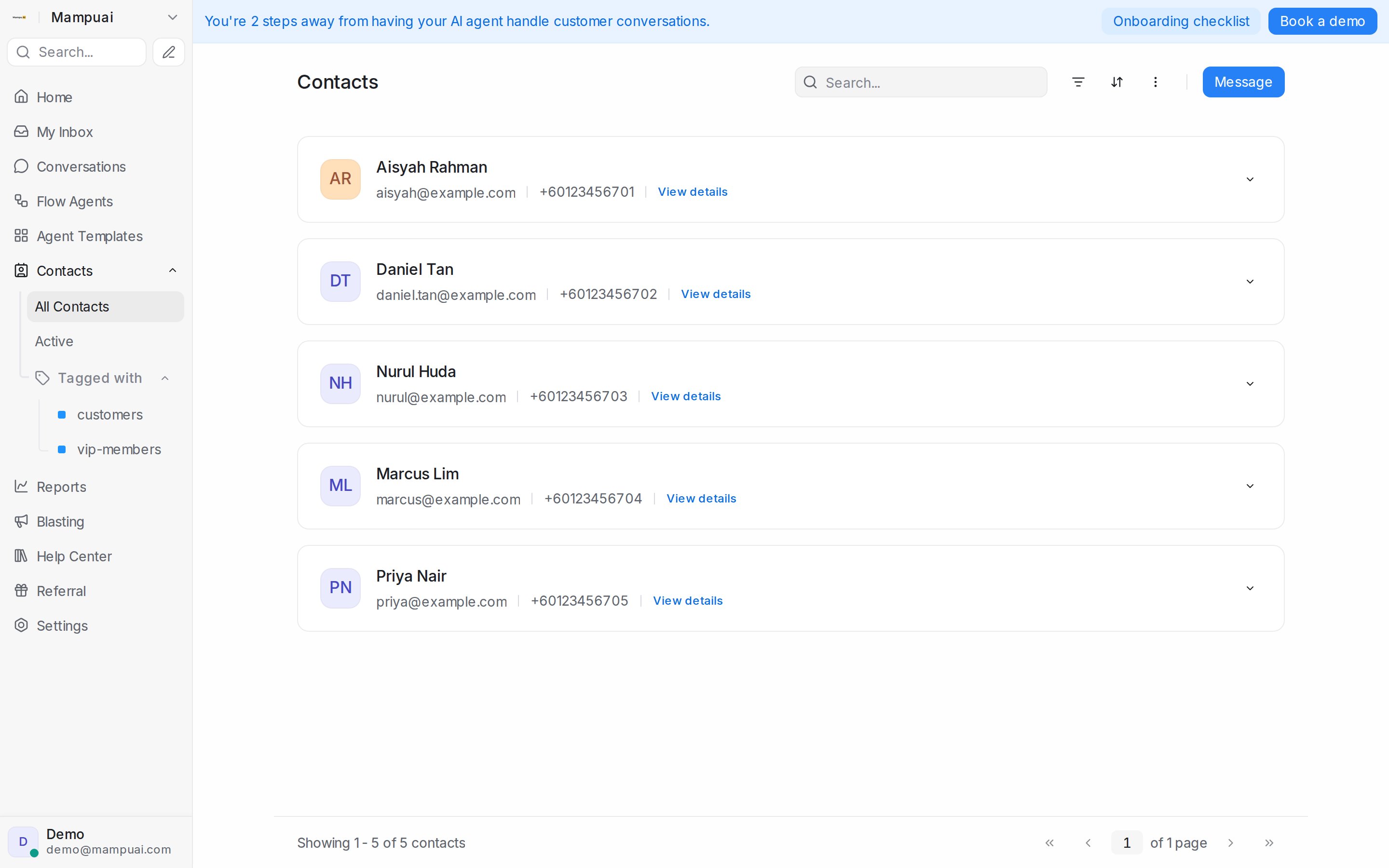
## Finding contacts by label
The left panel lists your labels under **Tagged with**. Click a label to see everyone carrying it — contacts you labelled directly, and contacts whose conversations carry the label. Labelling a conversation is enough; you don't have to label the contact separately.
**Export contacts** and **Select all … contacts in this view** follow the same list, so exporting or selecting everyone in a label view picks up exactly the people you see.
## Monthly active contacts
Click **Active** in the left panel to open **Monthly active contacts**: everyone who counts towards this billing period's monthly active contacts total, so you can see who they are. **Select all … contacts in this view** isn't offered here, because the list changes as contacts become active. To learn what makes a contact count, see [Monthly Active Contacts](/settings/monthly-active-contacts).
## Related
* [Searching, filtering and segments](/contacts/searching-filtering-and-segments)
* [Monthly Active Contacts](/settings/monthly-active-contacts)
---
## Creating and importing contacts
URL: https://help.mampuai.com/contacts/creating-and-importing-contacts
---
description: Add contacts one at a time, import a CSV and map its columns to contact fields and custom attributes, or let connected channels create them.
---
# Creating and importing contacts
There are several ways to add people to **Contacts**:
* **New contact** — add someone manually with their details.
* **Import** — upload a CSV to add many contacts at once.
* **Automatically** — a contact is created whenever someone messages you on a connected channel.
* **From search** — when a search finds nobody, create the contact and open a conversation with them in one go ([guide](/conversations/starting-a-conversation-from-search)).
## Watch the walkthrough
{% embed url="https://youtu.be/HQtWc33iFig" %}
## 1. Prepare your contact list
Before you import, put your contacts in a spreadsheet, such as Google Sheets or Excel. Make the first row your column names, for example Name, Phone and Location. Each row below it is one contact. Write every phone number with its country code, in international format, for example +60123456789. When your list is ready, save or download it as a CSV or Excel (.xlsx) file. That's the file you upload in the next step.
Working in Excel? Two things keep your list clean:
* **Upload the Excel (.xlsx) file itself.** When Excel saves a CSV, it can shorten long phone numbers to something like 6.01E+10 and drop the last digits. The .xlsx file keeps the full numbers. If you need a CSV, set the phone column to **Text** before you type or paste the numbers.
* **End the list at your last contact.** Delete any rows below it, such as a label copied down to the bottom of the sheet.
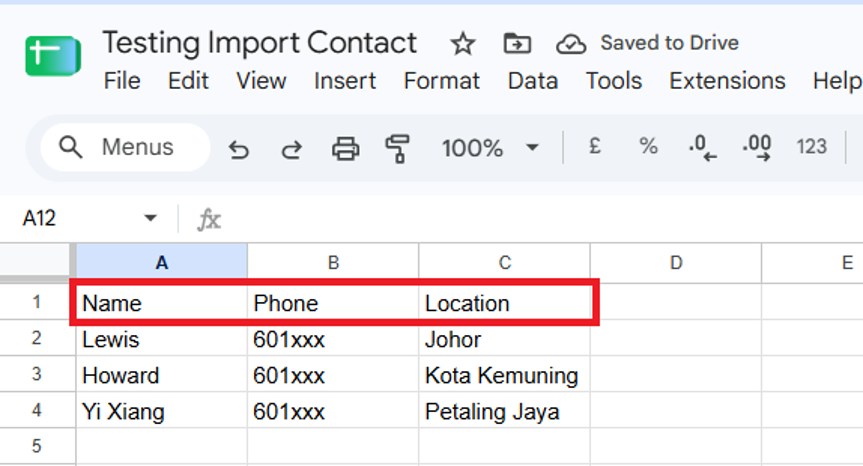{ width="760" }
## 2. Open Import contacts
In Mampu AI, click **Contacts** in the left menu, then **All Contacts** just below it. At the top right of the contacts list, click the three-dot icon next to the **Message** button. From the menu, choose **Import contacts**, then pick the file you saved.
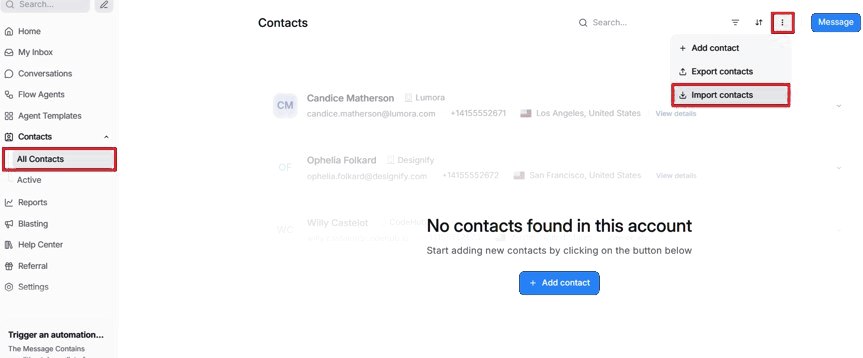{ width="760" }
## 3. Match each column
The **Import contacts** window lists every column from your file, with a few sample values under each so you can tell them apart. For each column, open the dropdown on the right and choose where its values should go:
* A contact field: **Name**, **Email**, **Phone number**, **WhatsApp username**, **Identifier**, **Company name**, **City** or **Labels**.
* One of your custom attributes, listed by name under **Custom attributes**. A column whose name matches an attribute is picked for you, like Location here.
* **New custom attribute**, named after the column, when no attribute matches. It is created when you import.
* **Skip column** to leave the column out.
### Labelling contacts as you import
To label contacts as you import them, add a column called Labels (Label or Tags works too). It is matched to **Labels** for you. Write each contact's labels in that column, with a comma between them when there are several. They are matched to the labels your account already has, whether you use capitals or not. A row with a label your account doesn't have yet is skipped, so create the label first under **Settings** > **Labels**.
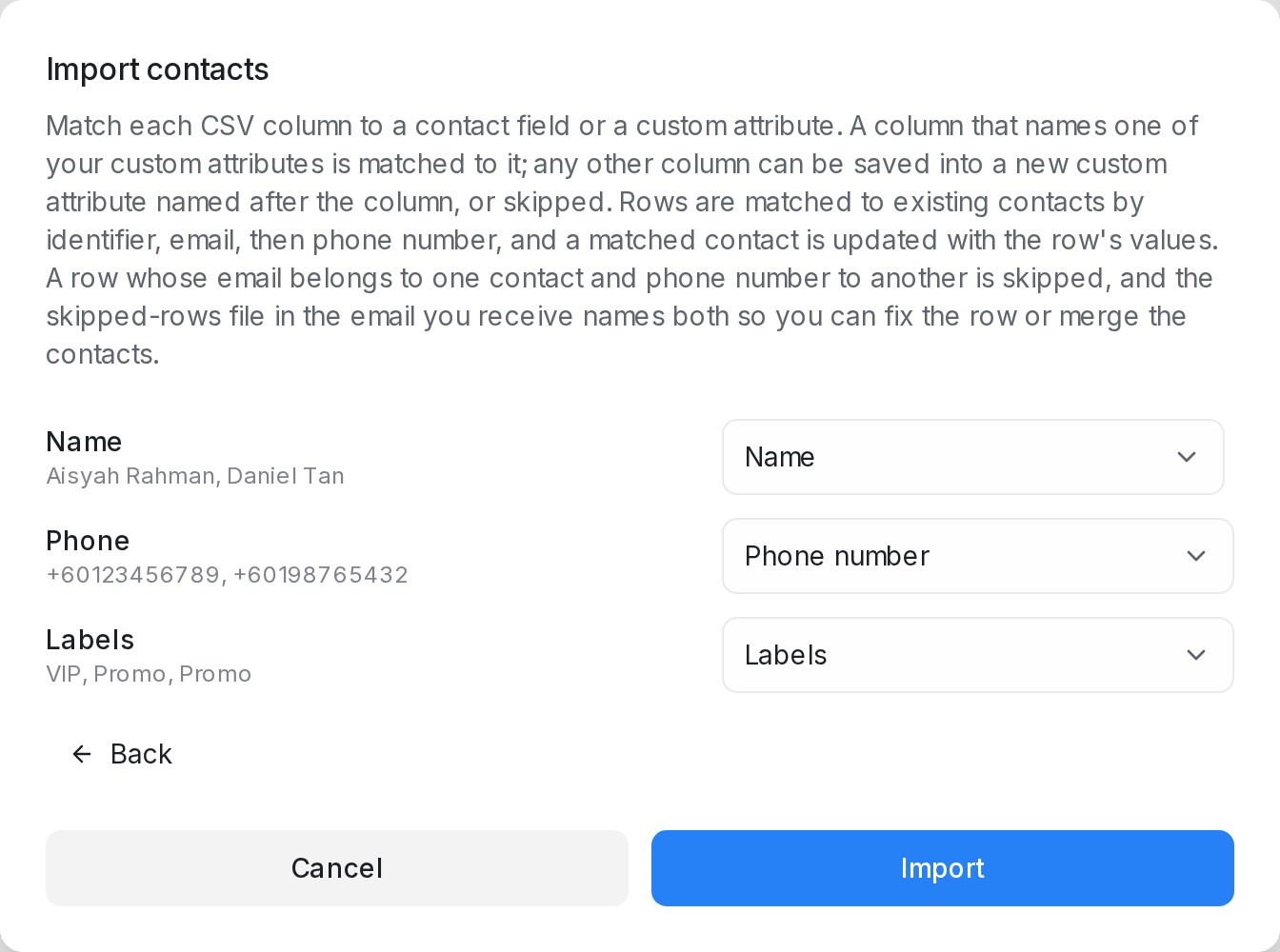{ width="672" }
Labels from the file go on the contacts. To also start automations that react to a label being added, such as one that fills AI attributes, tick **Also add the labels to each contact's latest conversation**. The box appears once a column is matched to **Labels**. Each contact's most recent conversation then gets the same labels, and your label automations run for it. The conversation shows who added the label. A contact with no conversation gets the contact label only, and no conversation is created.
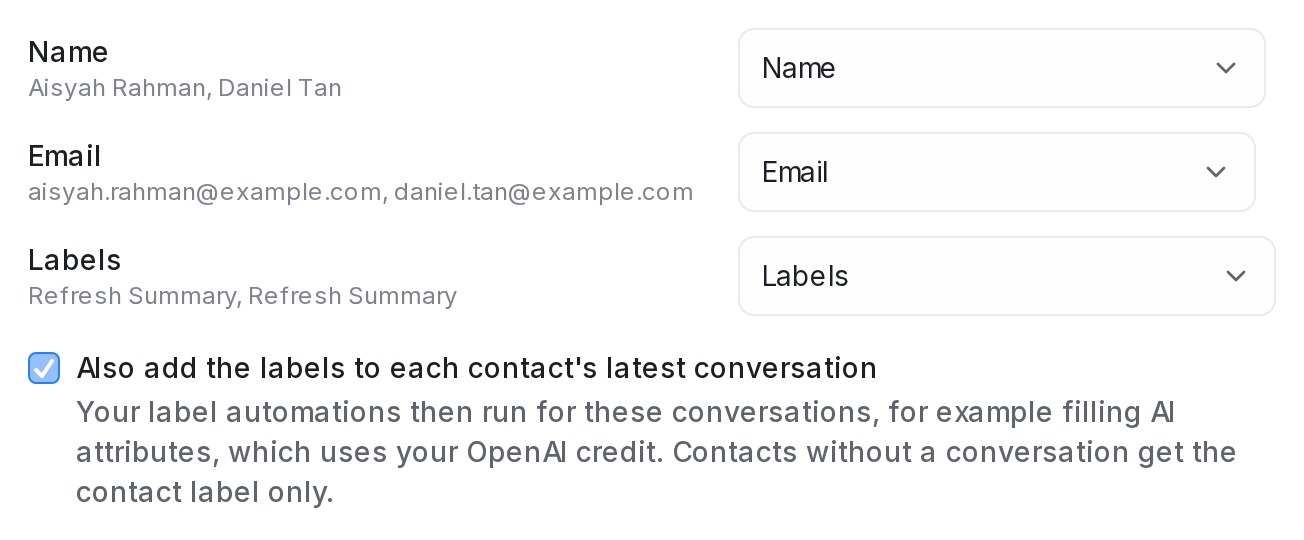{ width="652" }
If an automation fills AI attributes, each conversation uses your OpenAI credit, and a large import fills them over a while rather than all at once.
Some column names belong to built-in fields, such as Status or Created at. A column with one of these names starts on **Skip column**, because it can't become a custom attribute.
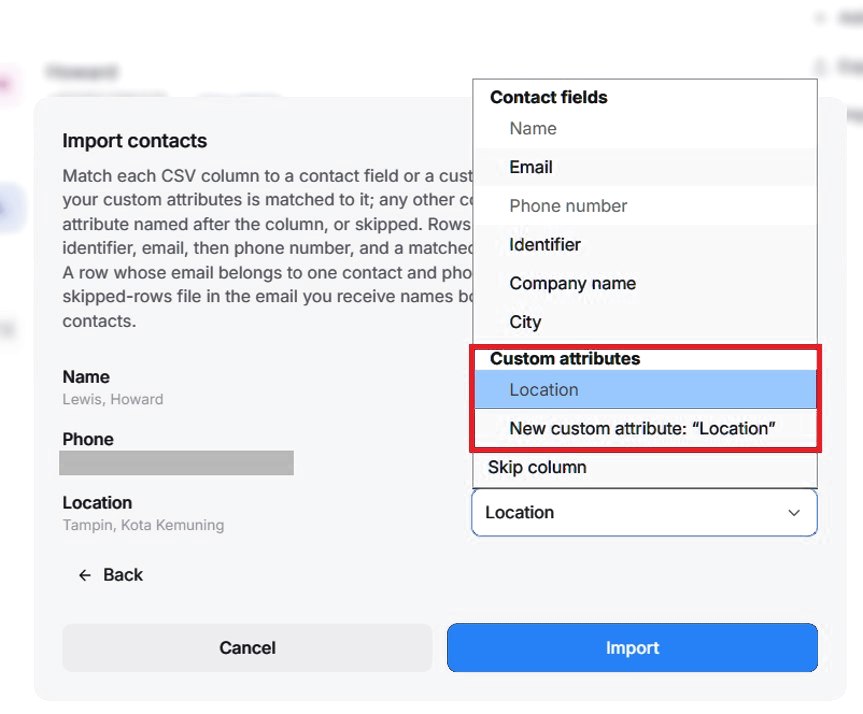{ width="760" }
### Importing WhatsApp usernames
Some customers chat with you on WhatsApp by username and don't share their phone number. To add them, put their usernames in a column called WhatsApp Username. It is matched to **WhatsApp username** for you. A leading @ is fine, and capitals don't matter.
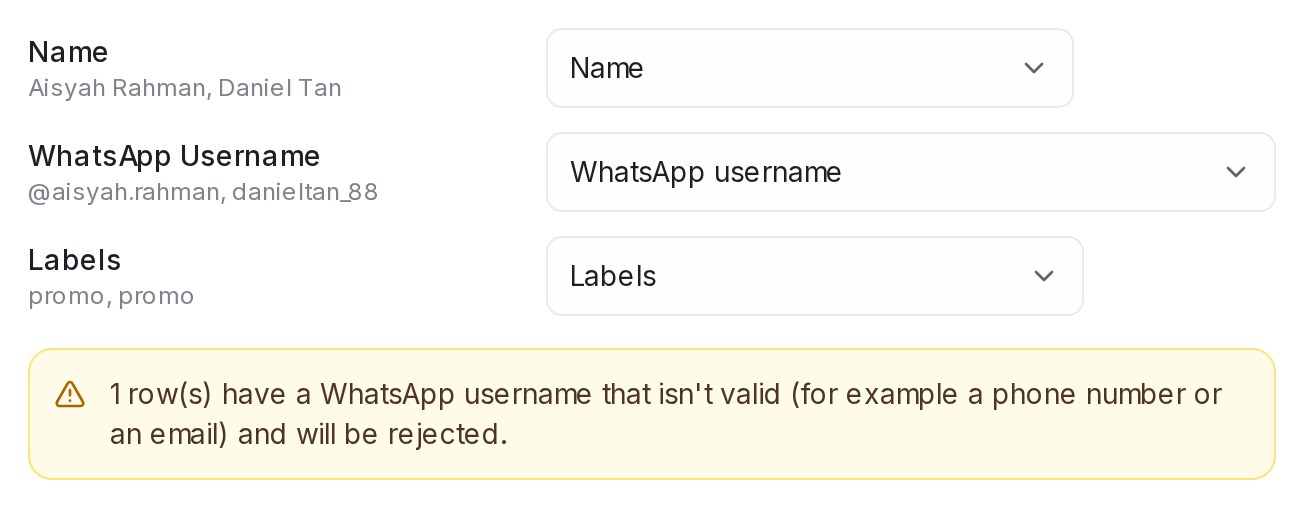{ width="652" }
* A row needs only the username. Phone and email can stay empty.
* A contact who already has that username is updated, not added twice.
* A value that can't be a WhatsApp username, such as a phone number or an email, gets the whole row skipped. The window warns you before you import.
* A contact with only a username can't be messaged yet. When that person messages one of your WhatsApp numbers, their chat and the imported contact become one contact, keeping its labels and details. From then on, a WhatsApp API (WABA) blasting can reach them too.
## 4. Check and import
Look over the list once more before you click **Import**:
* Every column is matched to the right field.
* At least one of **Email**, **Phone number**, **WhatsApp username** or **Identifier** is matched. A row with none of these is skipped, because there would be no way to reach that person.
* Phone numbers are in international format. The window warns you about rows that aren't.
Then click **Import**. Already have some of these people in your contacts? They won't be added twice. Mampu AI finds them by identifier first, then email, then phone number, then WhatsApp username, and updates them with the new details. If a row's email belongs to one contact and its phone number to another, that row is skipped. The email you receive lists it, so you can fix the row or merge the two contacts.
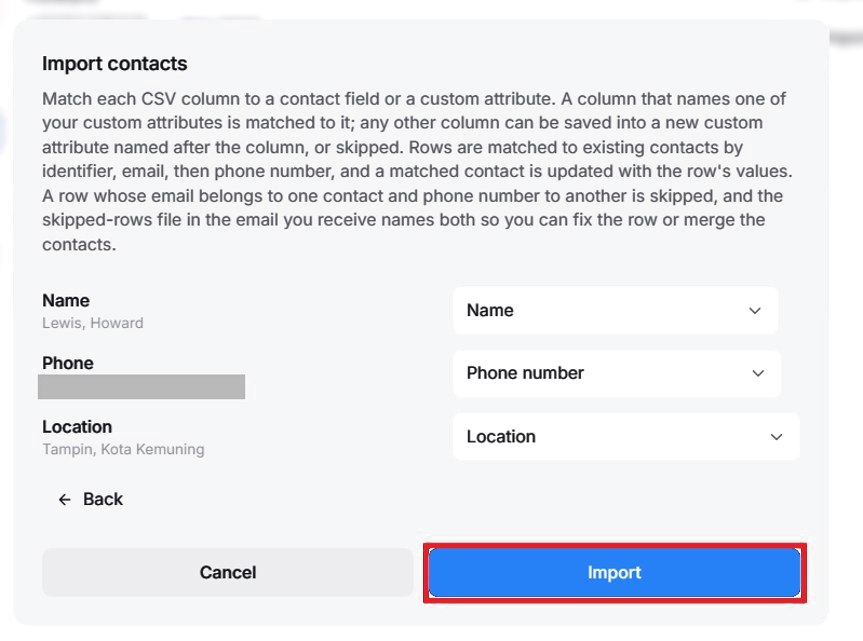{ width="760" }
## 5. Check the imported contacts
The import runs in the background, and you'll get an email when it's finished. It says how many contacts were imported and how many rows were skipped.
Go back to **Contacts** and click **View details** on any contact to check it. Values you imported into custom attributes, like Location, show on the **Attributes** tab on the right.
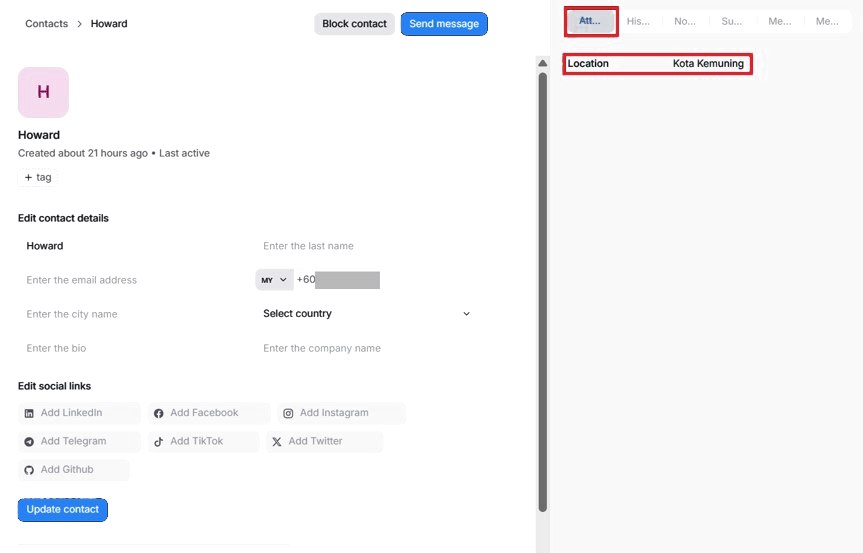{ width="760" }
Want to message someone right away? Use **Message** to start a new conversation.
To find people by one of those attributes later, use **Filter contacts**; see [Searching, filtering and segments](/contacts/searching-filtering-and-segments).
## 6. Fix any skipped rows
If any rows were skipped, the email links to a file of those rows, with the reason next to each one:
* **No contact details** — the row has no email, phone number, identifier or WhatsApp username. Add one and import the row again.
* **Not a valid WhatsApp username** — the username column holds something else, such as a phone number or an email. Move it to its own column, or fix the username.
* **Phone number was shortened by Excel** — the phone looks like 6.01E+10, so the real number is lost. Upload the Excel (.xlsx) file instead, or set the phone column to **Text** and save the CSV again.
* **Email and phone belong to two different contacts** — fix the row, or merge the two contacts.
* **Unknown labels** — the row has a label your account doesn't have yet. Create it under **Settings** > **Labels**, or fix the spelling.
You can often catch these before importing: the **Import contacts** window warns you about phone numbers that aren't in international format, including ones Excel shortened.
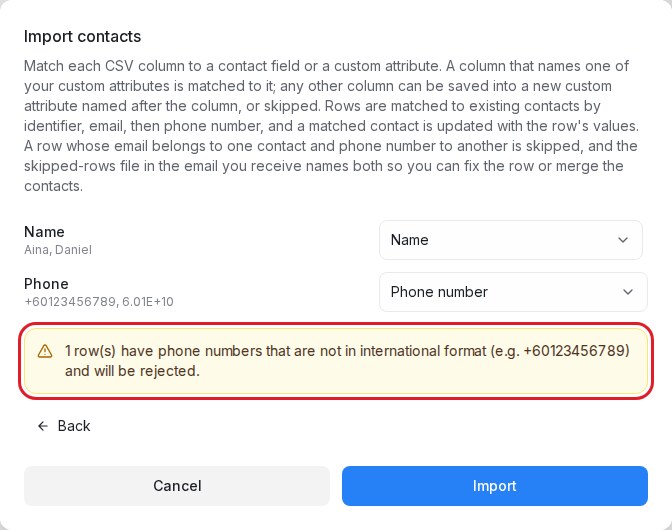{ width="672" }
When the skipped rows are fixed, import just those rows again. Contacts already imported are updated, not added twice.
Tip: to message everyone in a spreadsheet right away, upload it directly in a blasting instead — see [Creating and scheduling a blasting](/campaigns/creating-and-scheduling-a-campaign).
---
## Viewing and editing a contact
URL: https://help.mampuai.com/contacts/viewing-and-editing-a-contact
# Viewing and editing a contact
Click **View details** on any contact (or open them from a conversation) to see their profile. Here you can:
* Edit their name, email, phone, city, company, and bio.
* Add social links (LinkedIn, Facebook, Instagram, and more). For customers who message you on social channels, their IDs are captured automatically and shown on the profile — so you can see at a glance which Facebook or Instagram account a chat belongs to.
* Switch between the **Attributes**, **History**, **Notes**, and **Merge** tabs.
* **Pause Flow Agent** for this contact — the AI stops replying to them until you resume it.
Click **Update contact** to save your changes.
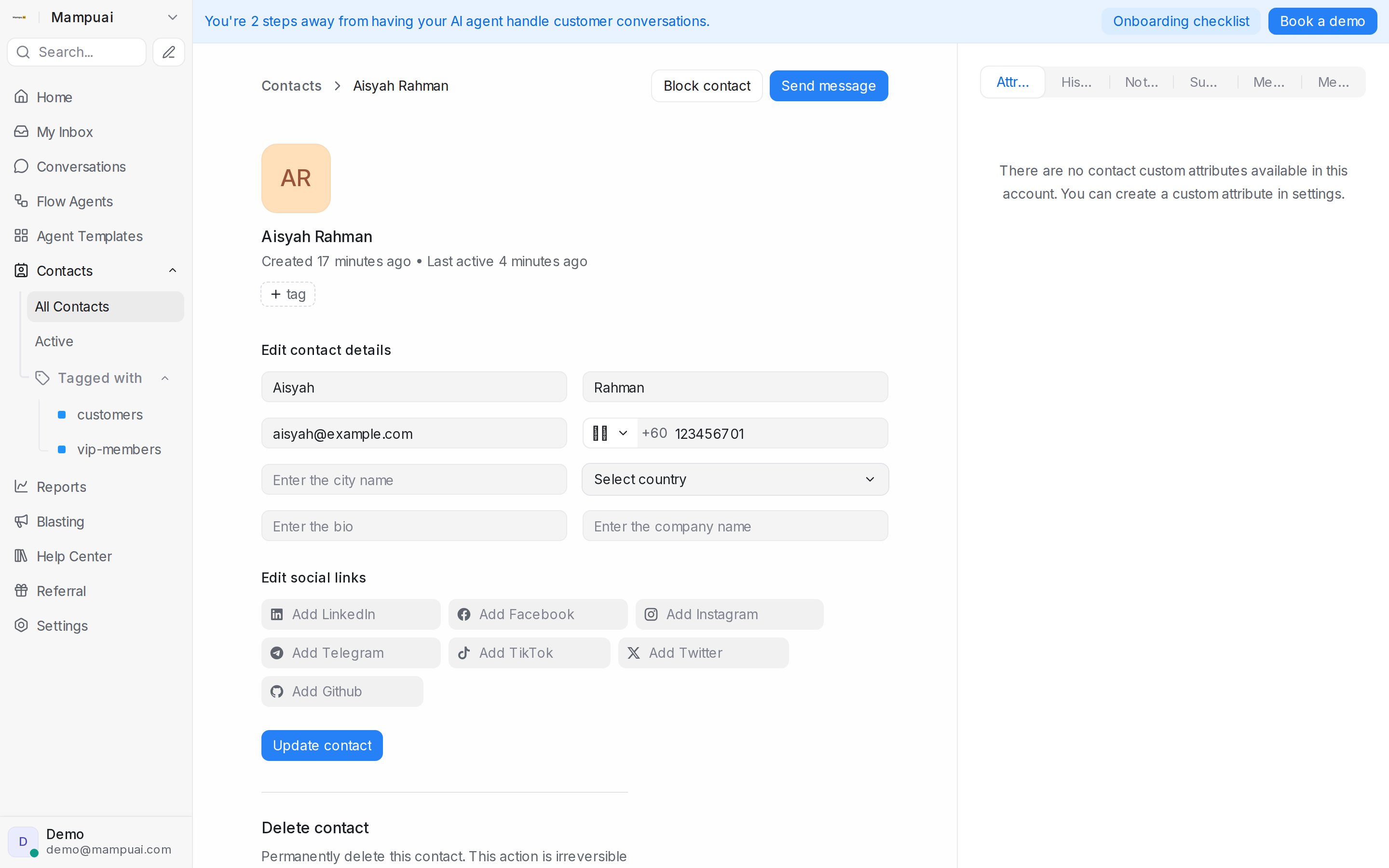
---
## Custom attributes and notes
URL: https://help.mampuai.com/contacts/custom-attributes-and-notes
# Custom attributes and notes
Capture extra context on each contact:
* **Custom attributes** — store business-specific fields (e.g. plan type, account ID). Define them first under **Settings → Custom Attributes**.
* **Notes** — leave internal notes about the contact for your team.
These appear on the contact's profile and help personalise future conversations.

## Approving an email or phone the AI found
When AI is on for **Email** or **Phone number** (see [Labels, attributes and automation](/settings/labels-attributes-and-automation)), a new value the customer gave in the chat waits on the contact panel of the conversation instead of being saved.
{ width="320" }
* **Approve** saves it to the contact.
* **Dismiss** drops it; the same value is not suggested again.
* Editing the email or phone yourself clears the card.
A private note in the conversation lists what was found and mentions the assigned agent, so they get a notification. When the conversation is assigned later, the new assignee is mentioned once too.
## Spotting a waiting suggestion
In the conversation list, a sparkle next to the assignee marks a conversation whose contact has an email or phone waiting, so you can see it without opening the chat.
{ width="340" }
The same card shows on the contact's page under **Contacts**, so you can approve or dismiss it there too.
{ width="340" }
## When another contact already has it
Each email and phone number belongs to one contact. When the value already sits on another contact, the card says **Already used by** that contact and offers **Review merge** instead of **Approve**. It opens the merge screen with that contact already picked as the one to keep (the **Primary contact**); nothing is merged until you confirm. If that contact is later deleted, merged away or changes its email or phone, the card offers **Approve** again.
{ width="320" }
If the other contact is in an inbox you're not a member of, the card says you can't open it and asks you to have an administrator merge the two contacts.
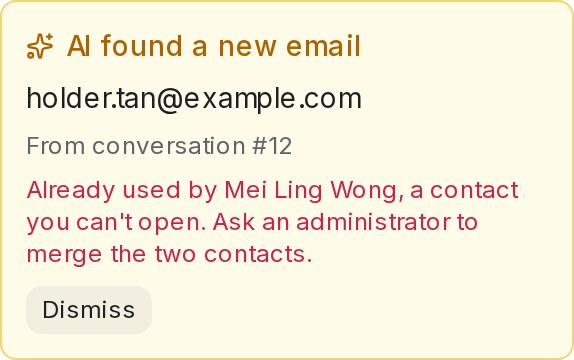{ width="290" }
## Related
* [Labels, attributes and automation](/settings/labels-attributes-and-automation)
* [Bot reports, flow submissions and exporting](/reports/bot-flow-submissions-and-exporting)
---
## Searching, filtering and segments
URL: https://help.mampuai.com/contacts/searching-filtering-and-segments
# Searching, filtering and segments
As your contact list grows, find people quickly:
* **Search** by name, email, or phone.
* **Filter** by attributes such as **inbox** (everyone who has messaged a particular channel), country, labels, or custom fields.
* Save a filter as a **segment** to reuse it later.
## Watch the walkthrough
{% embed url="https://youtu.be/HQtWc33iFig" %}
You can also sort columns and page through results from the contacts list, and combine filtering with bulk selection — for example, filter to one inbox, select all, and act on everyone at once.
## Filtering by label
A **Labels** condition matches the labels on the contact **or** on any of their conversations. Your team usually labels conversations rather than contacts, so everyone whose conversation carries the label is included, together with the contacts you labelled directly. The same rule applies everywhere you pick people by label: the contact filter, saved segments, and blasting audiences.
Filtering for people without a label works the same way: **Is not present** means no label on the contact and none on any of their conversations, and **Has none of** leaves out anyone carrying the label on either.
## Saving a filter as a segment
1. In **Contacts**, open **Filter contacts**, add your conditions — for example a **Labels** condition with the label your team uses in conversations — and click **Apply filters**.
2. Click the save button in the header.
3. Give the filter a name and click **Save filter**.
The segment appears under **Segments** in the left panel. It is re-run each time you open it, so it picks up newly labelled conversations on its own.
## Reaching the same people with a blast
When you create a blasting, choose **Filter contacts** as the audience and add the same label condition. The count under the audience — "… contacts will receive this blasting" — includes contacts labelled directly and contacts whose conversations carry the label, so it matches the number of people who will hear from you. See [Creating and scheduling a blasting](/campaigns/creating-and-scheduling-a-campaign).
## Related
* [Managing Contacts](/contacts/managing-contacts)
* [Creating and scheduling a blasting](/campaigns/creating-and-scheduling-a-campaign)
* [Filter conditions and operators](/settings/filter-conditions-and-operators)
---
## Reports and Analytics
URL: https://help.mampuai.com/reports/reports-and-analytics
# Reports and Analytics
**Reports** help you measure how your support team and AI agents are performing, with both live and historical data.
## Watch the walkthrough
{% embed url="https://youtu.be/HUHvNn_sDMQ" %}
The reports are grouped in the navigation column on the left of the page:
* **Overview** — live counts of open, unattended, unassigned and pending conversations, plus agent availability and conversation traffic.
* **Conversations** — volume, incoming and outgoing messages, and response times over a date range.
* **Performance** — reply speed and results broken down by agent, inbox, team, or label.
* **Quality** — CSAT customer satisfaction scores and SLA adherence.
* **AI & Flows** — [Flow agents](/reports/flow-agents-report), what your Flow Agents handled, who they handed to a person and why, and what it cost; bot effectiveness, [Agent Reply Quality](/reports/agent-reply-quality) — an AI-scored review of your team's replies — [Leads](/conversations/lead-temperature#daily-lead-report), every morning's lead report with the customers still waiting for a reply, and the submissions collected by your flows.
Most reports can be filtered by date range and exported using the download button.
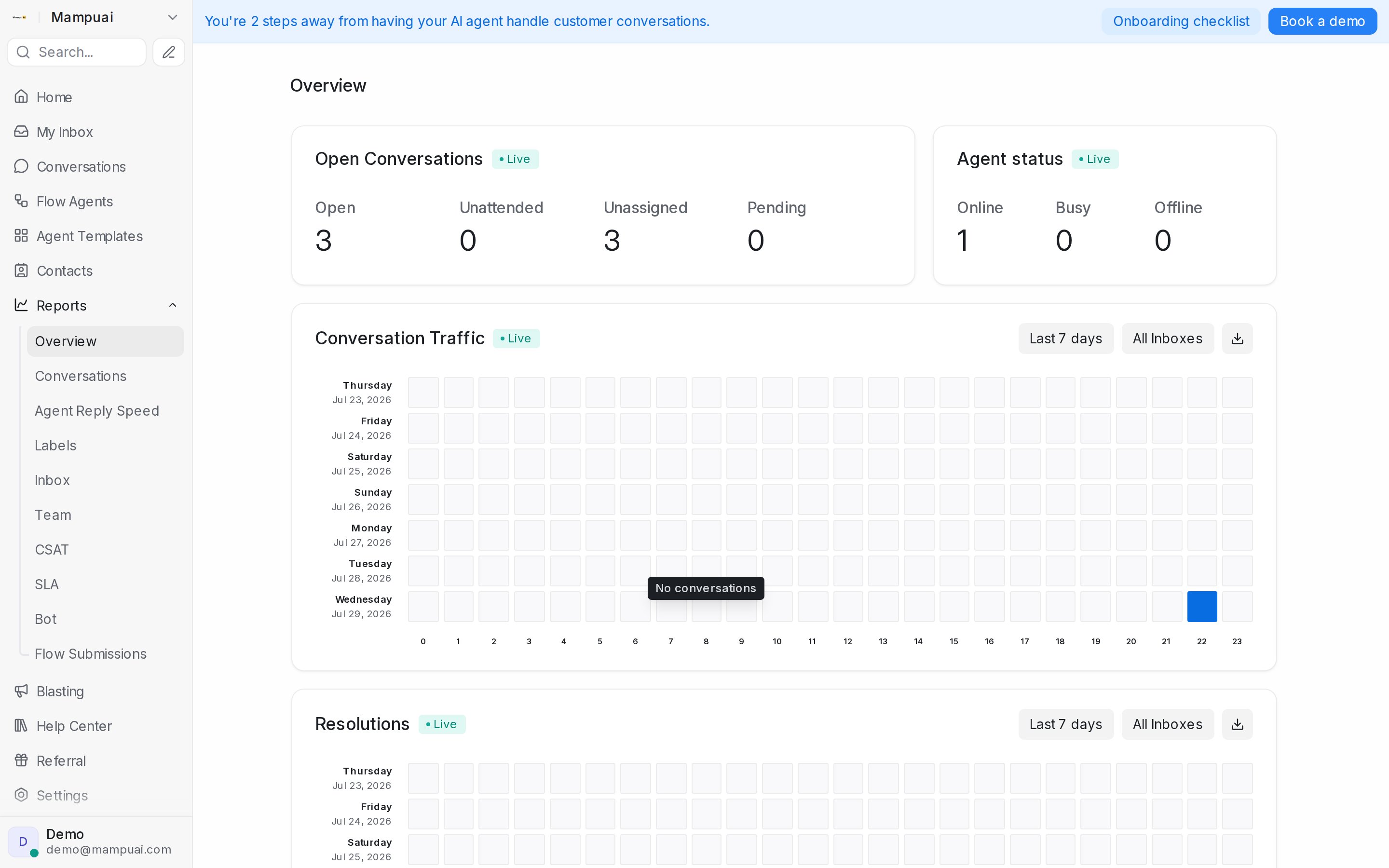
---
## Overview and live metrics
URL: https://help.mampuai.com/reports/overview-and-live-metrics
---
description: The live Overview report: open, unattended, unassigned and pending counts, who is online, when conversations arrive and get resolved, and each agent's and team's current load.
---
# Overview and live metrics
**Reports → Overview** is the live dashboard for the day. Everything marked **Live** updates as conversations come and go, so a team lead can keep it open on a second screen.
## Watch the walkthrough
{% embed url="https://youtu.be/HUHvNn_sDMQ" %}
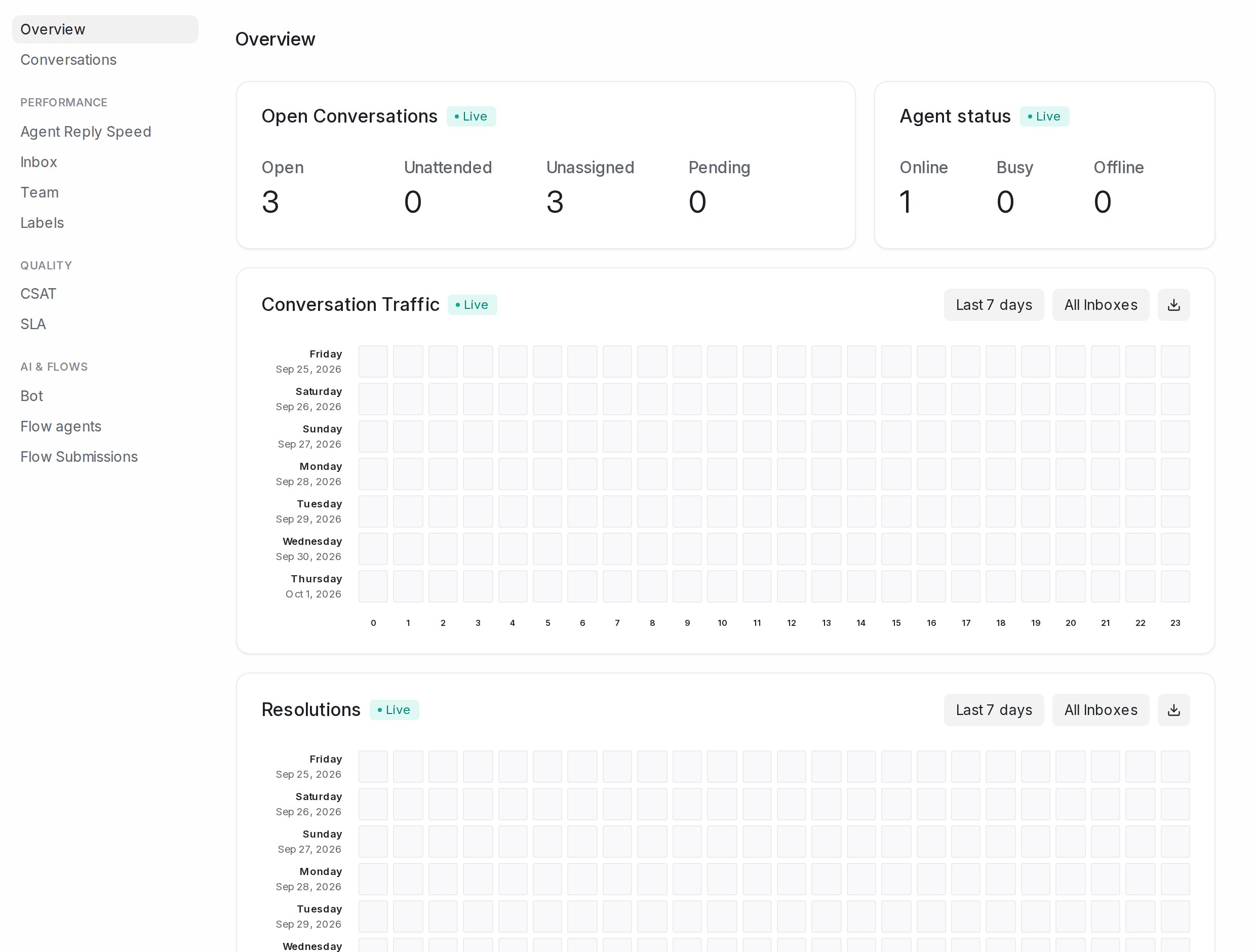
## Open Conversations
Four counts across the whole account: **Open**, **Unattended** (still waiting for a first reply from your team), **Unassigned** (nobody owns them yet) and **Pending**. When Unattended or Unassigned starts to climb, someone needs to pick up.
## Agent status
How many agents are **Online**, **Busy** and **Offline** right now. Automatic assignment only hands new conversations to online agents.
## Conversation Traffic and Resolutions
Two heatmaps, one row per day and one column per hour. **Conversation Traffic** shows when new conversations arrive; **Resolutions** shows when they get resolved. Darker squares mean more. Use them to plan shifts: if traffic peaks at 9 pm and resolutions do not, you are short-staffed in the evening.
Each heatmap has its own date picker (**Last 7 days**, **Last 14 days** and more), an inbox picker (**All Inboxes** or one inbox), and a download button that saves the numbers behind it as a file.
## Conversations by agents and by teams
A table per agent with **Open**, **Unattended**, **Longest waiting**, **Rounds (7d)**, **Avg reply (7d)**, **Missed (7d)** and **Status**, so you can see who is overloaded and who has room. Conversations without an owner are counted under **Unassigned**. The team table shows **Open**, **Unattended** and **Status** per team; pick **All Teams** or one team.
## Related
* [Reports and Analytics](/reports/reports-and-analytics)
* [Conversation, agent and team reports](/reports/conversation-agent-and-team-reports)
* [Automatic conversation assignment](/settings/automatic-conversation-assignment)
---
## Conversation, agent and team reports
URL: https://help.mampuai.com/reports/conversation-agent-and-team-reports
---
description: Historical reports for a date range: conversation volume, messages, first response and resolution time, and the same figures per agent, inbox, team and label, with drill-down and downloads.
---
# Conversation, agent and team reports
Where the Overview shows what is happening now, these reports show how a period went. Pick a date range, read the totals and charts, click a bar to see the conversations behind it, and download the figures.
## Watch the walkthrough
{% embed url="https://youtu.be/HUHvNn_sDMQ" %}
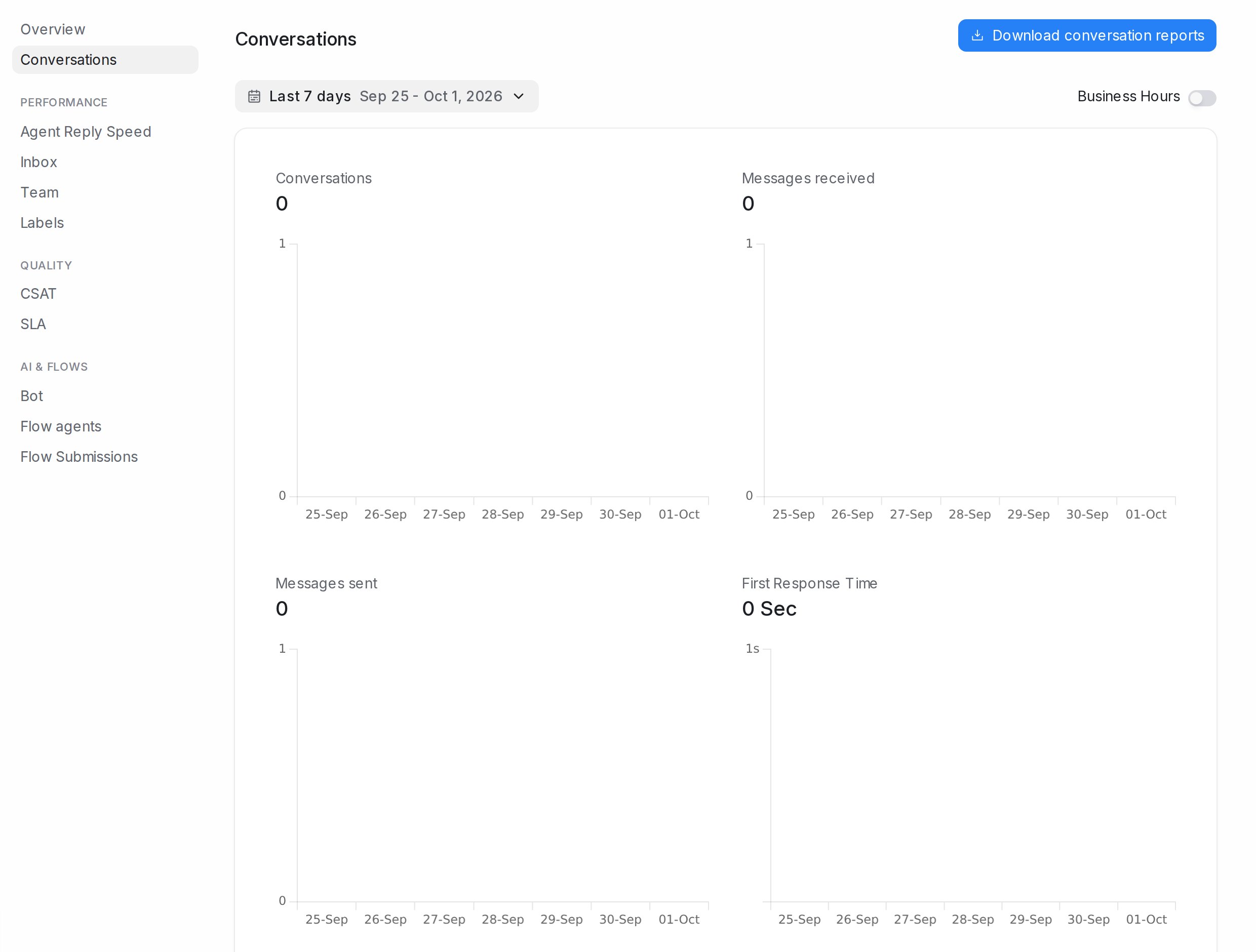
## Choosing the period
Every report here has the same controls at the top:
* A date picker: **Last 7 days**, **Last 14 days**, **Last 30 days**, **This month**, **Last month**, **Last 3 months**, **Last 6 months**, **Last year** or **Custom date range**.
* **Group By**: show the charts by day, week, month or year.
* **Business Hours**: when switched on, response and resolution times only count the hours your inbox is open (set under the inbox's **Business Hours** tab), so a message that arrived at midnight is not held against your team.
## Conversations
**Reports → Conversations** shows, for the whole account:
| Metric | Meaning |
| --- | --- |
| **Conversations** | New conversations in the period |
| **Messages received** / **Messages sent** | Customer messages in, team and bot messages out |
| **First Response Time** | Average time until the first reply |
| **Resolution Time** | Average time from opening to resolving |
| **Resolution Count** | Conversations resolved |
| **Customer waiting time** | Average time customers waited for each reply |
Click a metric to chart it. Administrators can click a bar to open its details: the conversations or messages that bar counts, with **Previous bar**, **Next bar** and **Load more**. **Download conversation reports** saves the figures as a file.
## Agent Reply Speed, Inbox, Team and Labels
Under **Performance** in the reports menu:
* **Agent Reply Speed**: one row per agent with their conversations, first response time, resolution time and resolution count. Click an agent for their own charts. **Download agent reports**.
* **Inbox**: the same figures per inbox, to compare channels. **Download inbox reports**.
* **Team**: per team. **Download team reports**.
* **Labels**: per label, to see which topics take the most time. **Download label reports**.
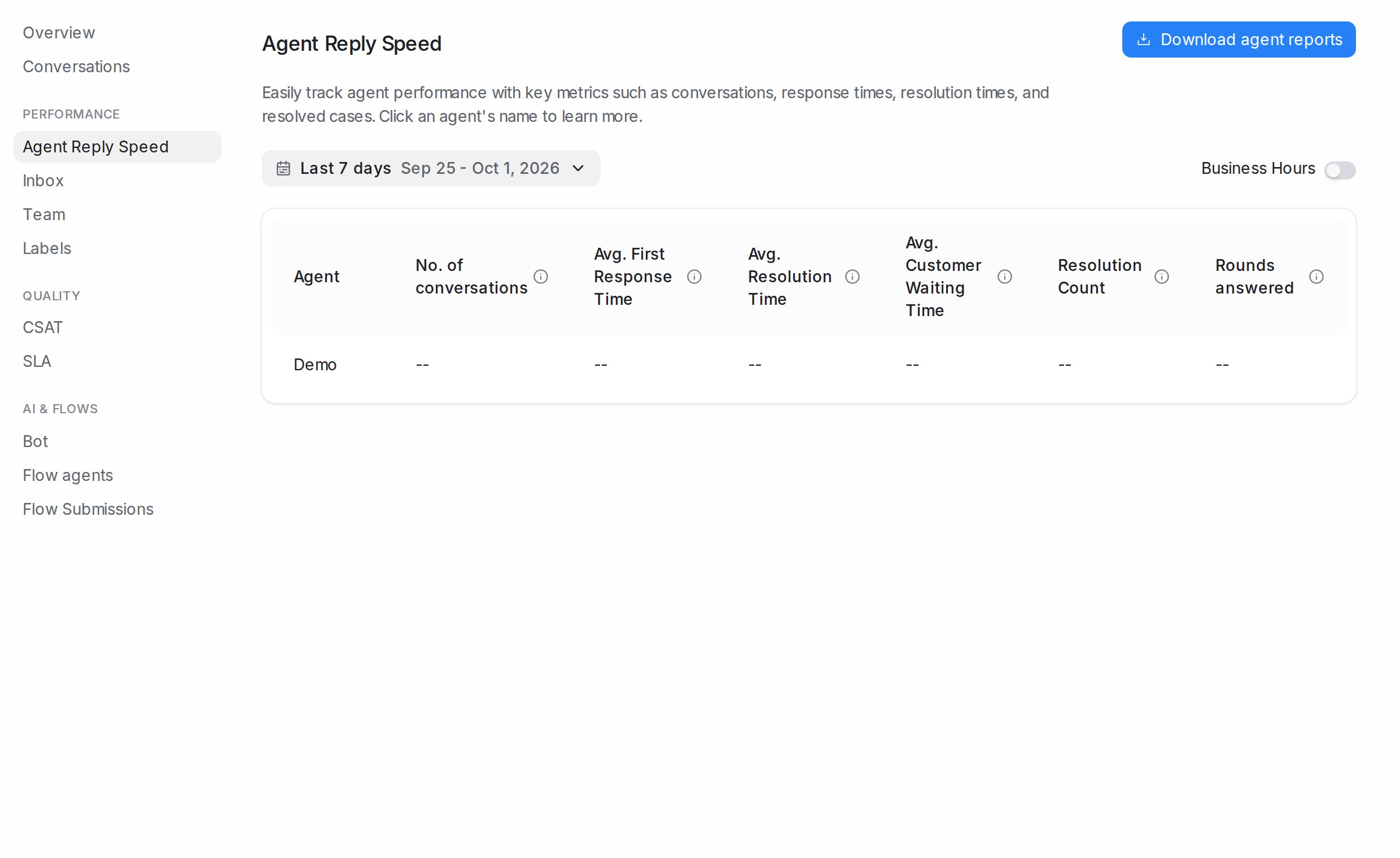
## Related
* [Reports and Analytics](/reports/reports-and-analytics)
* [Overview and live metrics](/reports/overview-and-live-metrics)
* [CSAT and SLA reports](/reports/csat-and-sla-reports)
* [Inbox settings, tab by tab](/settings/inbox-settings-tabs)
---
## CSAT and SLA reports
URL: https://help.mampuai.com/reports/csat-and-sla-reports
---
description: Read customer satisfaction survey results and SLA hit rates, filter them by agent, inbox, team, rating, policy or label, and download them.
---
# CSAT and SLA reports
The two **Quality** reports answer two questions: are customers happy with how they were helped, and is your team replying within the times you promised.
## Watch the walkthrough
{% embed url="https://youtu.be/HUHvNn_sDMQ" %}
## CSAT
**Reports → CSAT** collects the answers to the satisfaction survey sent when a conversation is resolved. Switch the survey on per inbox under the inbox's **CSAT** tab; see [Inbox settings, tab by tab](/settings/inbox-settings-tabs).
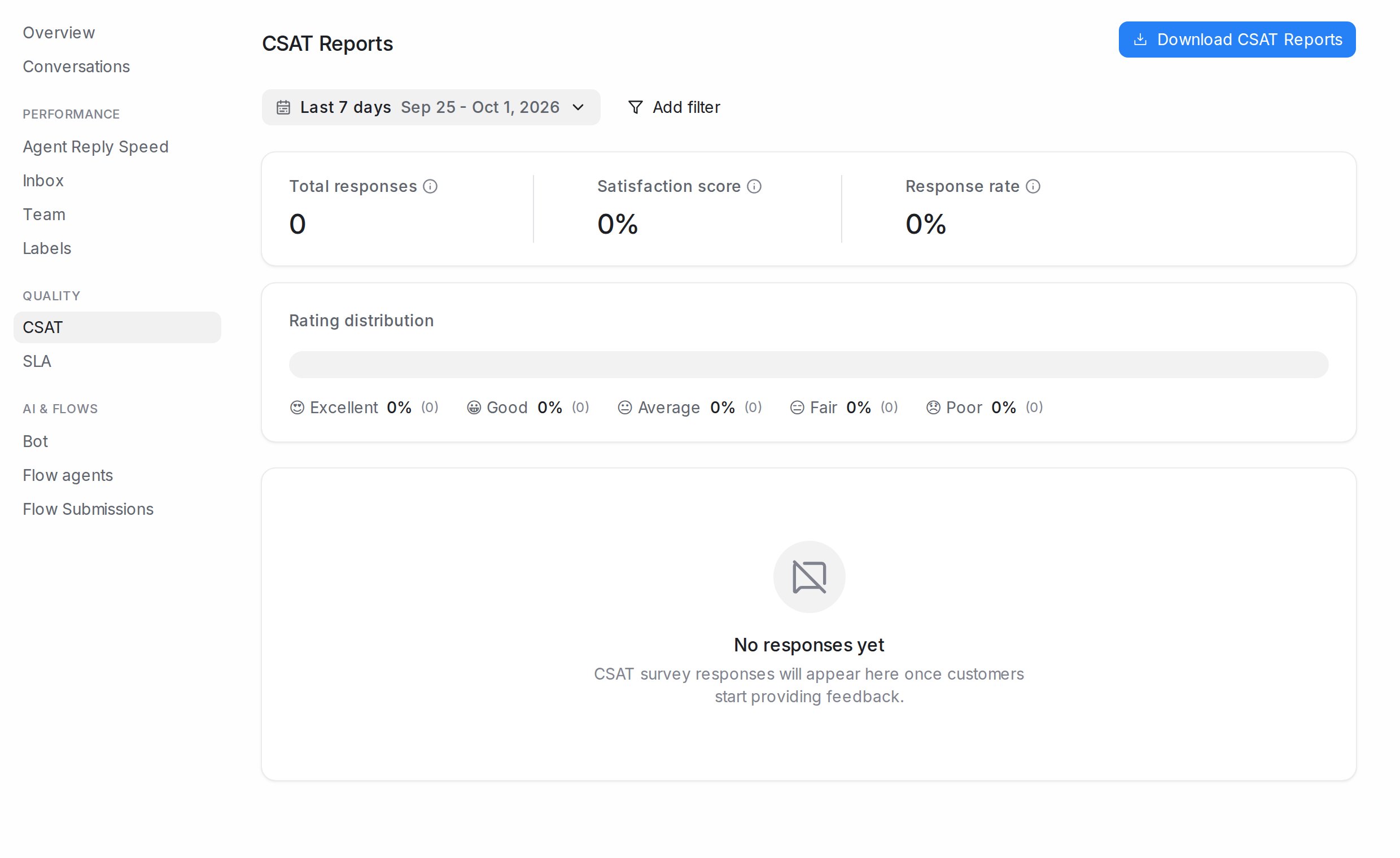
* **Total responses**: how many customers answered.
* **Satisfaction score**: the share of positive ratings.
* **Response rate**: answers as a share of surveys sent.
* **Rating distribution**: how the ratings spread from lowest to highest.
Below the totals, each response shows the **Customer**, the **Rating**, any **Feedback comment**, who **Handled by**, and a link to the **Conversation**. Use **Add filter** to narrow by **Agent**, **Inbox**, **Team** or **Rating**, and **Clear all** to reset. **Download CSAT Reports** saves the list. Until customers answer, the page shows **No responses yet**.
## SLA
**Reports → SLA** shows how often conversations met the reply-time targets of your SLA policies.
* **Hit Rate**: the share of conversations that met every target.
* **Number of Misses**: conversations that broke at least one target.
* **Number of Conversations**: conversations an SLA applied to.
The table lists each conversation with its **Policy** and **Agent**; **View Details** shows which target was missed. Filter with **Add filter** by **SLA Policy**, **Inbox**, **Agent**, **Label** or **Team**, and **Download SLA reports** to save it.
Reply-time targets for your team are set under **Settings → Reply SLA**; see [Reply SLA](/settings/reply-sla).
## Related
* [Reports and Analytics](/reports/reports-and-analytics)
* [Reply SLA](/settings/reply-sla)
* [Inbox settings, tab by tab](/settings/inbox-settings-tabs)
---
## Bot reports, flow submissions and exporting
URL: https://help.mampuai.com/reports/bot-flow-submissions-and-exporting
---
description: How well your bots handle conversations, every answer your flow agents collected in one table with your own columns, and how to download it.
---
# Bot reports, flow submissions and exporting
Two reports under **AI & Flows** cover your automated replies: **Bot** shows how often bots resolve or hand over conversations, and **Flow Submissions** lists everything your flow agents collected from customers.
## Watch the walkthrough
{% embed url="https://youtu.be/rzyNZ9s67Kk" %}
## Bot
**Reports → Bot** shows, for the chosen period, **No. of Conversations** a bot took part in, **Total Responses** it sent, **Resolution Rate** (conversations it finished without a person) and **Handoff Rate** (conversations it passed to your team). For flow agents in particular, the [Flow agents report](/reports/flow-agents-report) goes further: what each agent handled, why it handed over, and what it cost.
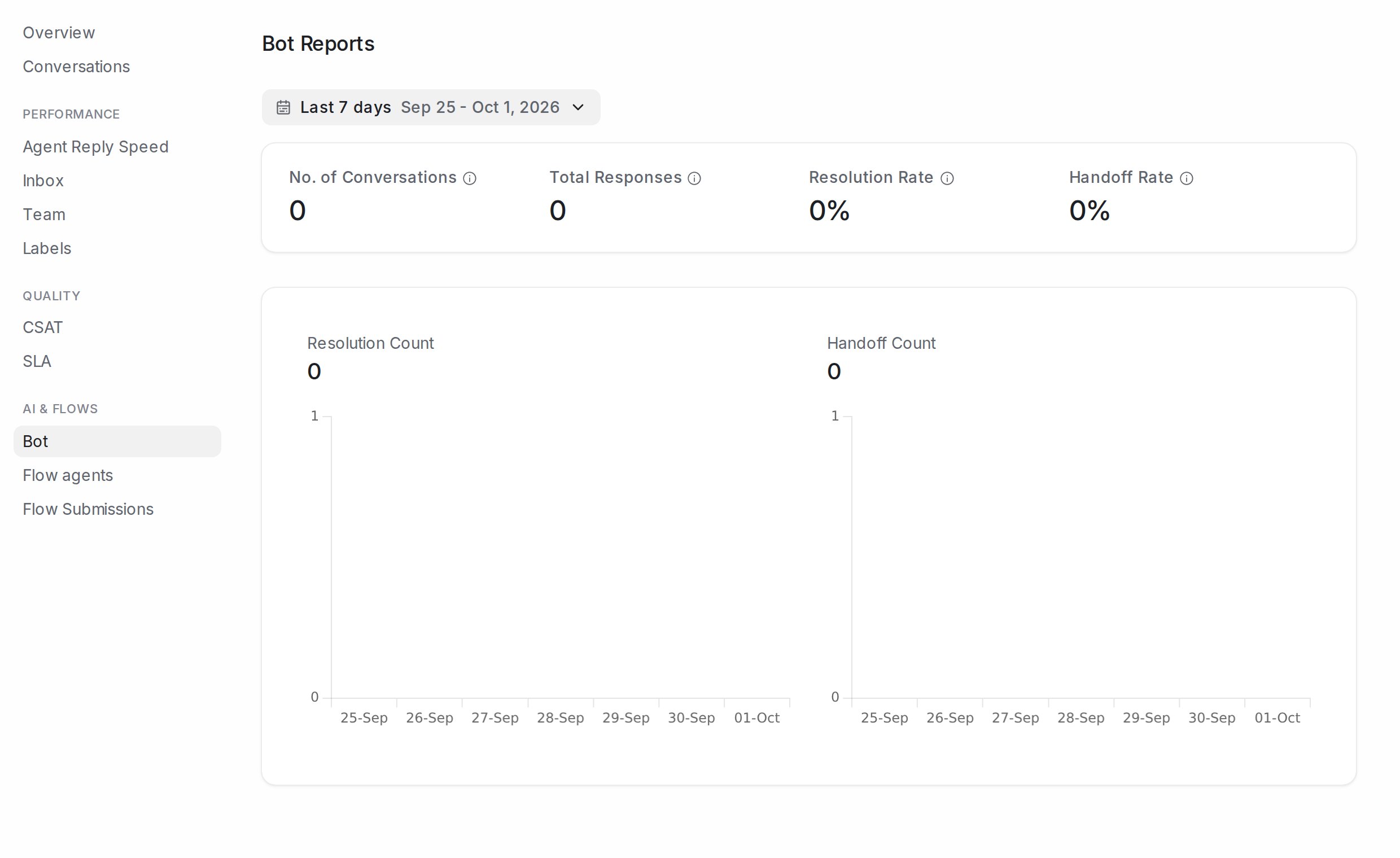
## Flow Submissions
Every time a customer goes through a flow agent's questions, their answers are saved as a submission. **Reports → Flow Submissions** shows them as a table.
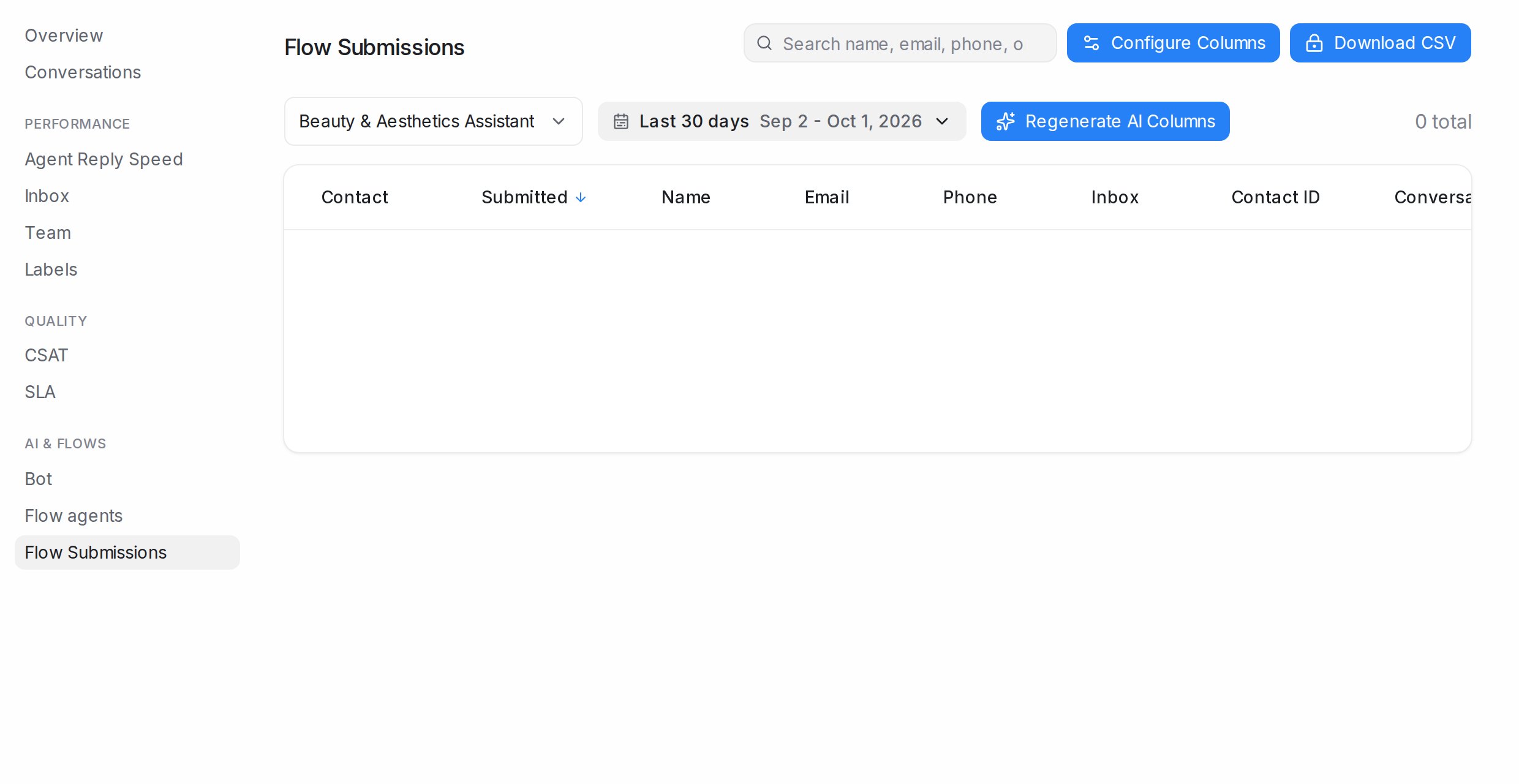
1. Pick the flow agent at the top left, and a date range (**Last 30 days** by default).
2. Search by name, email, phone or any answer in the search box.
3. Each row shows the **Contact**, when it was **Submitted**, and one column per piece of information.
### Choosing columns
Click **Configure Columns** to decide what the table shows, grouped as **Contact Fields** (name, email, phone, inbox), **Conversation Labels**, **Contact Attributes**, **Flow Fields** (each question the agent asks), **Ad / Post Source** (which ad or post the customer came from) and **AI Columns**. Drag a column to reorder it or use **Move to top**, then **Save**. The choice is kept for that agent.
**AI Columns** are conversation attributes that the AI fills in from the chat, such as a summary or a category. Click **Regenerate AI Columns** to refill them for the submissions in view after you change the attribute's instructions. They need an AI provider connected under **Settings → Integrations → AI Providers**.
### Downloading
**Download CSV** saves every submission in the current view, with your columns, as a file for Excel or Google Sheets. Downloads are available on paid plans. To send submissions to a sheet automatically instead, connect Google Sheets or Lark; see [Connecting Google Sheets](/settings/connecting-google-sheets).
A contact's own submissions also appear on their contact page.
## Downloading other reports
Most reports have their own download button: **Download conversation reports**, **Download agent reports**, **Download CSAT Reports**, **Download SLA reports** and the download icon on each Overview heatmap.
## Related
* [Flow agents report](/reports/flow-agents-report)
* [Building the conversation flow](/flow-agents/building-the-conversation-flow)
* [Connecting Google Sheets](/settings/connecting-google-sheets)
* [Reports and Analytics](/reports/reports-and-analytics)
---
## Flow agents report
URL: https://help.mampuai.com/reports/flow-agents-report
---
description: >-
See what your Flow Agents did over any period: conversations handled, replies sent,
handoffs to your team and why they happened, completed flows, leads waiting and cost.
---
# Flow agents report
The **Flow agents** report shows what your Flow Agents did over a period: the conversations they worked on, the replies they sent, the chats they handed to a person and why, the flows customers completed, the leads still waiting for a reply, and what the replies cost. Every figure is compared with the period before, so you can see at a glance whether things are getting better.
Open **Reports**, then **Flow agents** under **AI & Flows**. You can also get there from the **Usage** strip on the Flow Agents page by clicking **View the full report**. The report is available to administrators.
## Choose what to look at
* **Date range** — the period the report covers.
* **Group By** — for a range of about a month or longer, show the chart by **Day** or **Week**, and by **Month** once the range is 90 days.
* **Flow agent** — pick one agent to look at it on its own, or keep **All flow agents**.
## The cards
* **Conversations handled** — conversations a Flow Agent worked on during the period, whether they started before it or not.
* **Replies sent** — messages your Flow Agents sent to customers in live conversations, counted per day.
* **Customer messages** — messages customers sent in the conversations a Flow Agent handled.
* **Handed to a person** — conversations a Flow Agent passed to your team, counted once per conversation, with the share of handled conversations underneath.
* **Completed the flow** — conversations that reached the end of the flow without being handed to a person, with the share of handled conversations underneath.
* **Leads to follow up** — handled conversations rated above your lowest lead category, still open, where the customer spoke last. This card shows what is open right now, so it has no comparison.
* **LLM cost** and **Cost per conversation** — the cost of the live replies in the period, and that cost divided by the conversations handled.
Each card shows the change against the previous period of the same length, for example **vs previous 7 days**. Below the cards, the **Handled and handed to a person** chart shows both figures for each day, week or month.
## Needs a person now
**Needs a person now** is the list to start with. It shows the conversations waiting on your team: hot leads first, then warm leads, then handoffs nobody has answered, with the longest waiting at the top of each group. A handoff counts as unanswered while the conversation is still open and no teammate has replied since the handoff.
Each row shows the conversation, the contact, why it was handed off (for handoffs), the Flow Agent, who it is **Assigned to** (**Nobody yet** when no one is) and how long the customer has been **Waiting**. The list shows the first 50 conversations; click a conversation to open it in a new tab.
## By flow agent
**By flow agent** puts every Flow Agent in the account side by side, busiest first, with its **Published** or **Draft** status and its **Handled**, **Replies**, **Handed off**, **Completed** and **Cost** figures for the period.
## Handed to a person
**Handed to a person** lists every conversation handed off in the period, newest first, 25 to a page. For each one you see the contact, the Flow Agent, **Why** it was handed off, when it was **Handed off**, who it is **Assigned to**, and the time of the **First human reply**. A conversation that is still open with no reply from your team shows **Waiting** instead, so you can see how quickly your team picks up each handoff.
## Why they were handed off
The **Why they were handed off** panel groups every handoff in the period by what triggered it, with the number of handoffs and each trigger's share of the total:
* **AI decided a person should take over** — during the chat, the agent judged that a person should step in, including after it collected the [details you asked for before a handoff](/flow-agents/testing-and-connecting-an-agent#details-to-collect-before-handing-off).
* **Knowledge answer says a person must handle it** — the AI Knowledge answer that matched the customer's question says the matter is for your team to handle.
* **Reached a hand-off step in the flow** — the flow itself led to a handoff: an **End** step that hands off, a branch that leads to the default End step, or a follow-up step that hands off.
* **Flow could not continue** — the flow had nowhere to go next, or the agent was left with no reply to send, so it handed over rather than leave the customer waiting. Worth checking the flow for a step without a way forward.
* **Technical problem** — the agent could not reply because of a technical issue, such as a problem with your AI key.
The panel counts every handoff, so a conversation handed off twice counts twice here, while the **Handed to a person** card counts it once. Below the table, the panel also says how many conversations were handed off more than once, so repeat escalations stand out.
The **Handed to a person** list and the **Needs a person now** list show the trigger on each row. In **Handed to a person**, hover over a trigger to see more detail where there is some, such as the reason the AI gave.
Triggers are recorded from the date shown in the panel. Handoffs from before that date still count in the report, marked **Not recorded**.
## Good to know
* The report covers at most 90 days at a time. Pick a longer range and it shows the last 90 days, with a note saying so.
* Building and testing in the designer and the Playground is not counted in replies or cost.
* Leads need **Lead analysis** switched on in **Flow Agents → AI Monitoring**. While it is off, the **Leads to follow up** card is hidden, a note under the cards links to **Open AI Monitoring**, and **Needs a person now** only lists handoffs waiting for a reply. See [Lead temperature](/conversations/lead-temperature).
## Related
* [Reports and Analytics](/reports/reports-and-analytics)
* [Building the conversation flow](/flow-agents/building-the-conversation-flow)
* [Testing and connecting an agent](/flow-agents/testing-and-connecting-an-agent)
* [Lead temperature](/conversations/lead-temperature)
---
## Agent Reply Quality report
URL: https://help.mampuai.com/reports/agent-reply-quality
# Agent Reply Quality report
The **Agent Reply Quality** report is AI review for your team's own replies: every outgoing reply is scored, and anything risky is flagged — so you can coach with real examples instead of spot-checking chats by hand.
Open **Reports → Agent Reply Quality**. Scores appear around 30 minutes after your team replies to a conversation.
## What you see
* **Average reply score** — overall quality from 1 (Poor) to 5 (Excellent), with a per-agent breakdown.
* **Conversations scored** and **coverage** — how much of your traffic has been reviewed.
* **Flagged conversations** — replies the monitor marked **Critical** or **High**, worth a look first.
* **Score distribution** — how your conversations spread across the five scores.
* **Scored conversations** — the full list, filterable by agent, inbox, team, and score, with a summary for each. Click through to read the conversation itself.
Use **Download report** to export the data.
## Tuning what gets flagged
The **Chat monitoring** categories and the **Agent reply scoring** guidance are editable under **Flow Agents → AI Monitoring**: reword or switch off built-in categories, add your own business-specific rules, and mark findings as incorrect so the monitor learns to skip replies like them.
## Switching a section on or off
Each section of **Flow Agents → AI Monitoring** has its own switch on its title line: **Chat monitoring**, **Agent reply scoring** and **Lead analysis**. Flip the switch, then click **Save changes** at the bottom of the page. Nothing changes until you save.
* **Chat monitoring** off — no new findings are flagged for the account. Past findings stay on the **Flagged findings** page.
* **Agent reply scoring** off — no new reply scores are added. This report keeps its history, and FAQ suggestions from your conversations keep arriving in the **AI Knowledge Hub**.
* **Lead analysis** off — conversations are no longer rated as leads, and the daily lead report is not sent. See [Lead temperature](/conversations/lead-temperature).
Switch a section back on at any time and new conversations are picked up again.
This report is included on higher plans.
## Related
* [Lead temperature](/conversations/lead-temperature)
---
## Inboxes and channels
URL: https://help.mampuai.com/settings/inboxes-and-channels
# Inboxes and channels
An **inbox** connects a communication channel to your account. Go to **Settings → Inboxes** and click **Add Inbox**, then pick a channel:
* **Website** — a live-chat widget for your site ([guide](/settings/connecting-a-website-live-chat-inbox)).
* **WhatsApp** — via **Official WhatsApp API** or **Normal WhatsApp Web Link** (QR scan) ([guide](/settings/connecting-a-whatsapp-inbox)).
* **Facebook** and **Instagram** — connect your page and account ([Facebook](/settings/connecting-a-facebook-inbox), [Instagram](/settings/connecting-an-instagram-inbox)).
* **Telegram**, **Line**, **TikTok** — bring your messaging apps into the same inbox ([Telegram](/platform/connect-to-social-media-channels/telegram), [LINE](/settings/connecting-a-line-inbox), [TikTok](/settings/connecting-a-tiktok-inbox)).
* **SMS** — through Twilio or Bandwidth ([guide](/settings/connecting-an-sms-inbox)).
* **Email** — connect any mailbox with **Other Providers**: forward incoming mail to the address generated for the inbox, and add your IMAP and SMTP credentials in the inbox settings for full two-way email ([guide](/settings/connecting-an-email-inbox)).
* **API** — a custom channel driven by your own systems ([guide](/settings/connecting-an-api-inbox)).
## Watch the walkthrough
{% embed url="https://youtu.be/teTjpe3aCGg" %}
**Settings → Inboxes** lists every inbox with a search box. Each row has a settings icon that opens the inbox's own page, with tabs for **Settings**, **Collaborators**, **Business Hours**, **CSAT** and the channel's extras, and administrators also get **Delete**. See [Inbox settings, tab by tab](/settings/inbox-settings-tabs) for every switch on those tabs.
For an inbox you only send from, such as a Blasting number, see [Send-only inboxes](/settings/send-only-inboxes).
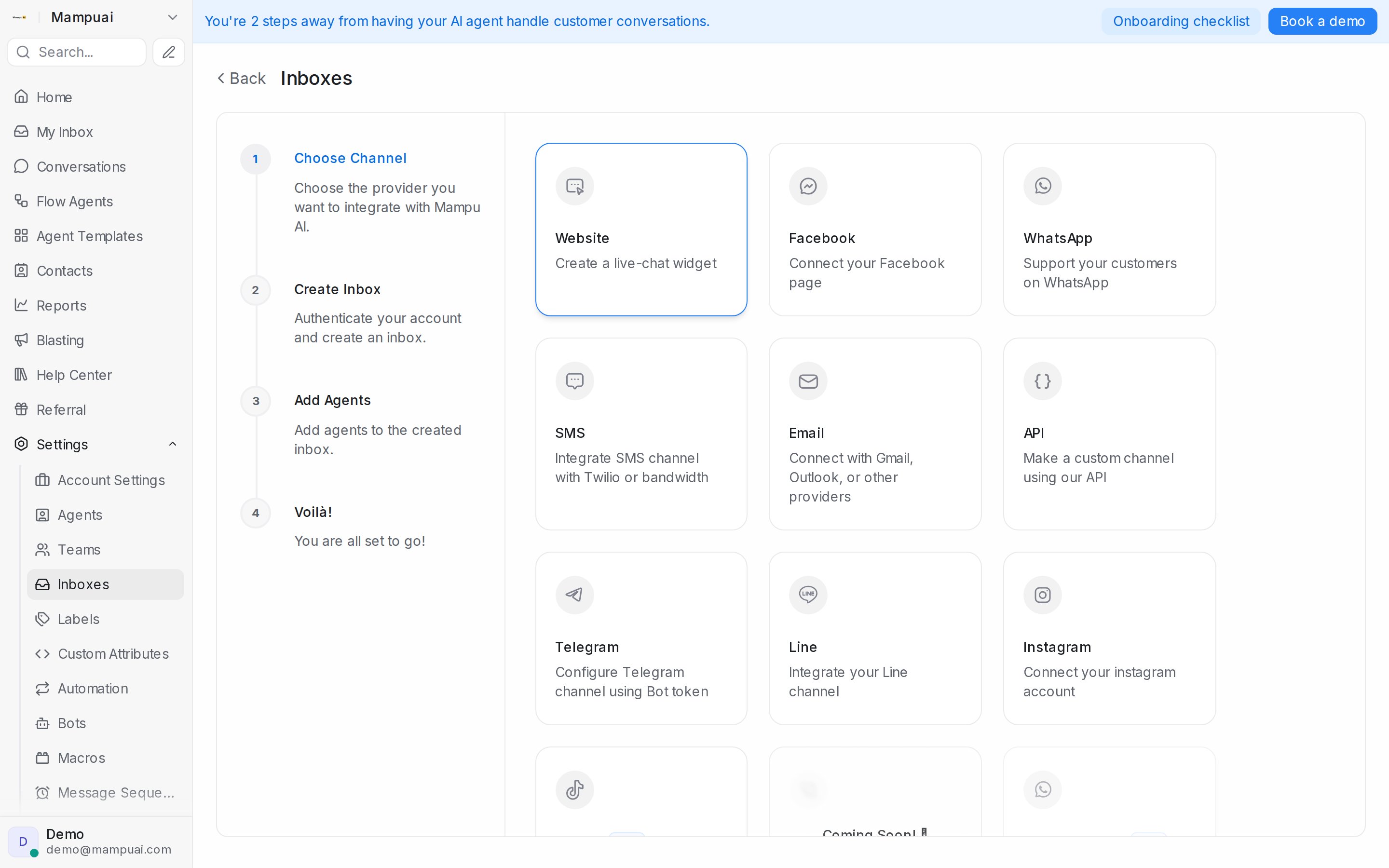
---
## Inbox settings, tab by tab
URL: https://help.mampuai.com/settings/inbox-settings-tabs
---
description: Every tab on an inbox's settings page, which channels show it, and what each switch, field and button does, from Collaborators and Business Hours to CSAT, Configuration, Templates, Account Health and Calls.
---
# Inbox settings, tab by tab
Open **Settings → Inboxes** and click an inbox's settings icon. The tabs you see depend on the channel.
| Tab | Shown for |
| --- | --- |
| **Settings**, **Collaborators**, **Business Hours**, **CSAT** | Every inbox |
| **Pre Chat Form** | Website live chat |
| **Configuration** | Website, Email, API, SMS, LINE and WhatsApp API |
| **Bot Configuration** | Every inbox, when agent bots are enabled |
| **Templates**, **Account Health** | WhatsApp API (official number) |
| **Connection Status** | WhatsApp Business app connected by QR code |
| **Comment Replies** | Facebook, TikTok and Instagram |
| **Utility Templates** | Facebook Messenger, with Messenger blasting |
| **Calls**, **Voice** | WhatsApp API numbers with calling, and voice inboxes |
If the channel loses its connection, a banner with **Reconnect** appears at the top. Fix that first. Facebook and Instagram inboxes also have a **Connection** section at the bottom of the **Settings** tab, with a reconnect button you can use at any time. Facebook and WhatsApp API inboxes also show a red or yellow banner when Meta has flagged the Page or number, and a **Notices from Meta** list at the bottom of the **Settings** tab; see [Notices from Meta about your inbox](/settings/notices-from-meta).
## Settings
The top of the tab holds **Channel Avatar**, **Inbox Name**, **Help Center** (attach a portal so the widget offers its articles) and **Conversation Routing**:
* **Create new conversations**: a returning contact gets a fresh conversation once the last one is resolved.
* **Reopen same conversation**: the previous conversation is reopened.
API inboxes also show **Webhook URL** and **Webhook Secret** (**Copy**, **Reset**).
**Channel Preferences** (which switches appear depends on the channel):
| Switch | What it does |
| --- | --- |
| **Enable channel greeting** | Send a greeting when a customer sends their first message |
| **Hide from All Conversations** | Keep the inbox out of All Conversations, team, label and folder views and search; open it from the sidebar |
| **Outbound only** | Send only; incoming messages are discarded. See [Send-only inboxes](/settings/send-only-inboxes) |
| **Share history across inboxes** | Show the customer's messages from your other inboxes, or only from inboxes in the same **History group**. See [Seeing a customer's history across channels](/conversations/customer-history-across-channels) |
| **Sync labels with Meta Business Suite** | Facebook inboxes only. Keep contact labels in step with the Meta Business Suite inbox, or turn it off to keep them apart. See [Connecting a Facebook inbox](/settings/connecting-a-facebook-inbox#switching-the-sync-off-for-a-page) |
| **Mark as read when you reply from the app** | WhatsApp, Facebook, Instagram and TikTok inboxes. A reply you send from the connected app marks the chat read here. See [Marking chats read when you reply from the app](#marking-chats-read-when-you-reply-from-the-app) |
| **Allow messages after conversation resolved** | Let customers keep writing into a resolved conversation |
| **Sender name** (website, email) | **Friendly** adds the agent's name to your business name; **Professional** uses the business name |
| **Enable email collect box** (website) | Ask visitors for their email at the start |
| **Enable conversation continuity via email** (website) | Continue by email when the visitor leaves; paid plans |
Website inboxes also have **Website Domain**, **Widget Color**, **Set Reply time** and **Widget features** (file picker, emoji picker, end conversation, bot name and avatar).
Click **Update** to save. Administrators can **Delete** the inbox at the bottom; you type its name to confirm, and its conversations go with it.
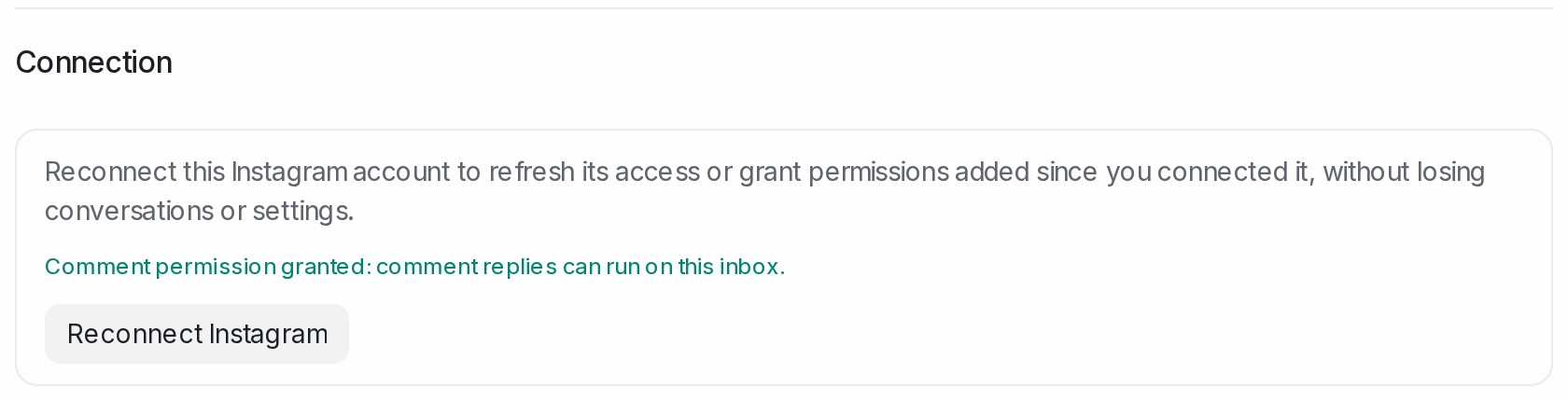{ width="840" }
**Connection** (Facebook and Instagram inboxes): below **Update**, **Reconnect Facebook Page** or **Reconnect Instagram** signs you in to the channel again and refreshes the same inbox. Use it to grant a permission your inbox does not have yet, or to renew the connection before it expires; conversations, rules and settings stay as they are. On Instagram the section also says whether the comment permission is granted: **Comment permission not granted yet** means comment replies cannot run on this inbox until you reconnect and approve the comment permission when Instagram asks.
### Marking chats read when you reply from the app
If your team also answers customers in the connected app (the WhatsApp Business app on your phone, WhatsApp Web, your Facebook Page inbox, Instagram or TikTok), turn this on so those chats stop showing as unread in Mampu AI.
{ width="840" }
1. Open the inbox's **Settings** tab.
2. Turn on **Mark as read when you reply from the app** and click **Update**.
When a reply you sent from the app reaches Mampu AI, the conversation is marked as read up to that reply: the unread badge clears for everyone and the assigned agent's notifications for it are cleared. Messages the customer sends after your reply stay unread. Replies typed in Mampu AI are not affected, because opening the chat already marks it read.
Automatic replies the app sends on its own, such as WhatsApp Business app greeting and away messages or Facebook Page instant replies, count as replies too, so a new customer's first message can show as read before anyone has seen it. The switch is off until you turn it on.
## Collaborators
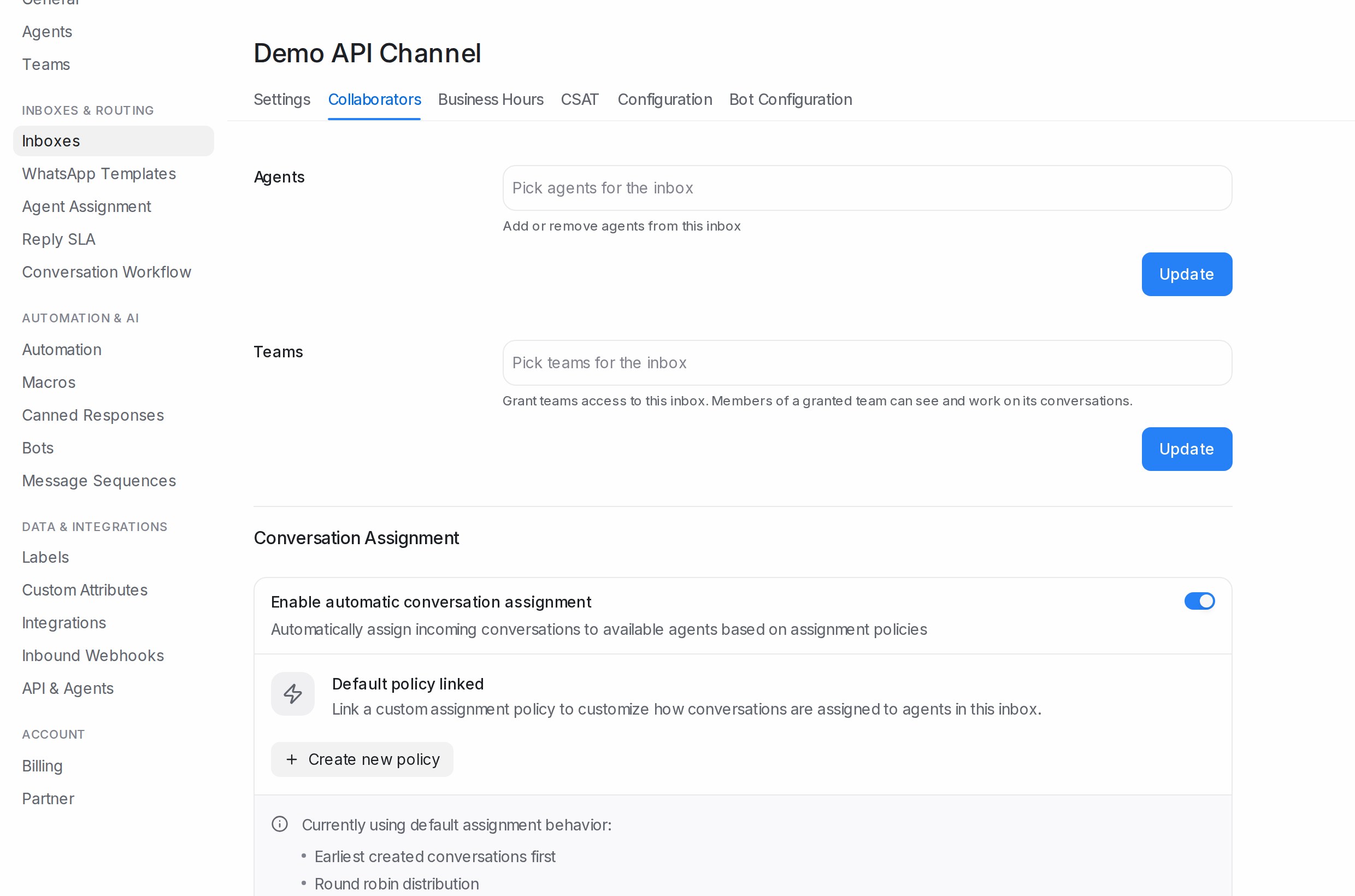
* **Agents** and **Teams**: who can see and reply in this inbox.
* **Enable automatic conversation assignment**: hand each new conversation to an agent. **Auto assignment limit** caps how many one agent holds.
* **Customize with assignment policy**: use a policy with its own **Assignment Order** and **Assignment Method** (Business plan).
See [Automatic conversation assignment](/settings/automatic-conversation-assignment).
## Business Hours
1. Tick **Enable business availability for this inbox** and **Select timezone**.
2. Per day, tick **Enable availability for this day** and choose **All-Day** or the hours.
3. Write the **Unavailable message for visitors**, then **Update business hours settings**.
Features that run "during business hours", such as **Trigger only during business hours** on a live chat blasting, read these hours.
## CSAT
1. Switch on **Enable CSAT**.
2. Set the **Display type**, **Message**, **Button text** and **Language**; check the **Message preview**.
3. Under **Survey rule**, optionally send only when the conversation **contains** or **does not contain** chosen labels.
The survey goes out once per conversation, on resolve. On WhatsApp API it is a template that Meta must approve: **Check utility fit** predicts **Likely Utility** or **Likely Marketing**, and **Use this rewrite** takes the suggested wording. Results are in [CSAT and SLA reports](/reports/csat-and-sla-reports).
## Pre Chat Form
Live chat only. **Enable pre chat form**, write the **Pre chat message**, and build the fields table (**Label**, **Placeholder**, **Key**, **Type**, **Required**). Contact attributes can be fields. **Update Pre Chat Form Settings** saves.
## Configuration
| Channel | What the tab holds |
| --- | --- |
| **Website** | **Messenger Script** to paste into your site, **Allowed Domains**, **Enable widget in mobile apps**, **Identity Validation** with its **Secret Key** |
| **API** | **Inbox Identifier**, **Inbound Webhook URL**, **Payload Format**, **Enforce User Identity Validation** |
| **Email** | **Forward to Email** address, then **IMAP** and **SMTP** settings (SMTP needs IMAP first) |
| **SMS**, **LINE** | The callback URL for your provider's console |
| **WhatsApp API** | **API Key** and **Update API Key**, **Reconfigure** for Embedded Signup, **Switch to Manual Setup**, **Webhook Verification Token**, **Sync Templates** |
Developer details are on [developers.sapot.ai](https://developers.sapot.ai). For WhatsApp see [Connecting a WhatsApp inbox](/settings/connecting-a-whatsapp-inbox).
## Bot Configuration
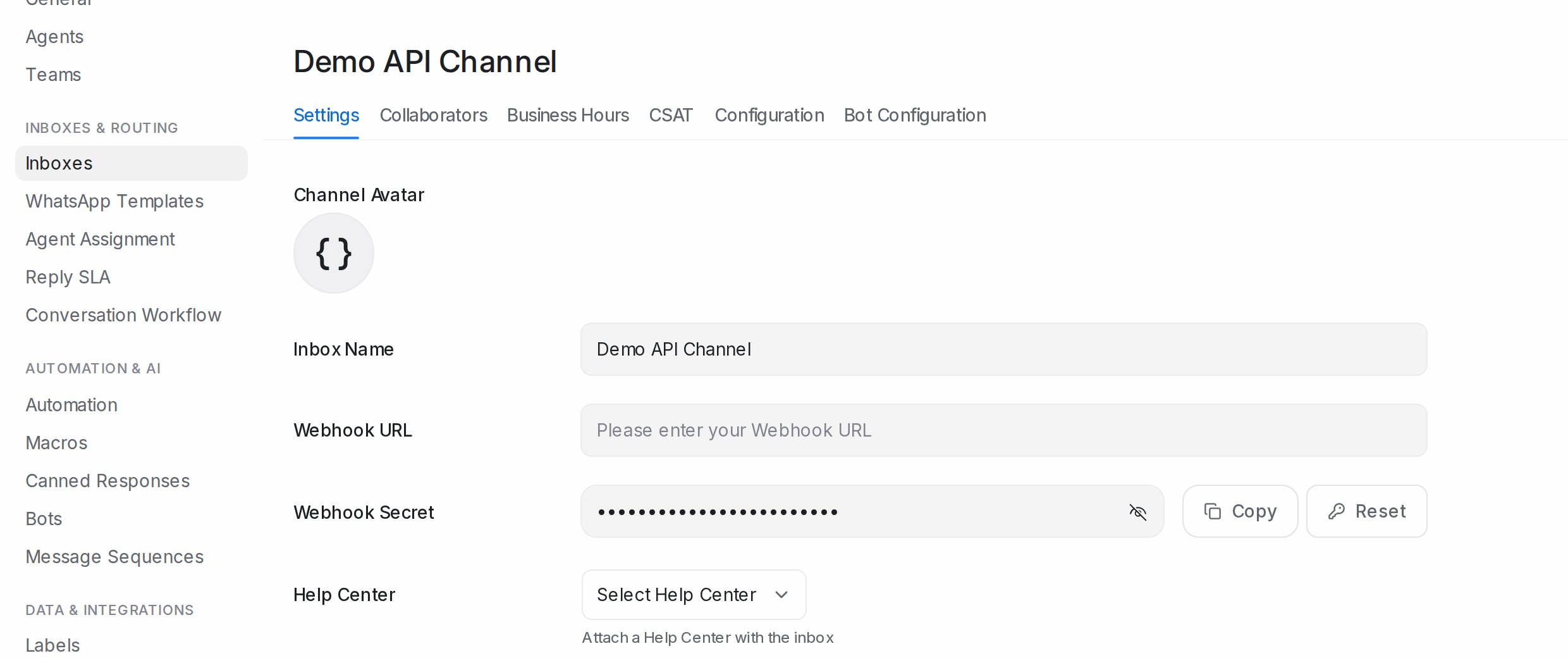
**Select an agent bot** built with the developer API, then **Update**; **Disconnect bot** removes it. Flow Agents connect from the agent's own **Inboxes** list instead; see [Testing and connecting an agent](/flow-agents/testing-and-connecting-an-agent).
## WhatsApp tabs
| Tab | What it holds |
| --- | --- |
| **Templates** | This number's templates with status (**Approved**, **Pending**, **Rejected** with Meta's reason); **Create template**, **Edit template**, **Delete template**, **Sync**, **Manage in library**. See [Creating WhatsApp message templates](/settings/creating-whatsapp-message-templates) |
| **Account Health** | **Display name status**, **Quality rating**, **Messaging limit tier**, **Account mode**; **Register Webhook** fixes **Webhook not configured** or **Webhook URL mismatch** |
| **Connection Status** (QR code) | **Connected** or **Disconnected** with **Refresh**; **Reconnect** shows a new QR code; **Re-link WhatsApp** signs out on purpose, to move to another phone |
| **Calls** | **Enable WhatsApp Calling**, **Allow incoming calls**, **Call permission request message** |
## Other tabs
* **Comment Replies**: rules that answer comments on your posts. See [Facebook Comment Replies](/settings/facebook-comment-replies), [Instagram Comment Replies](/settings/instagram-comment-replies) and [TikTok Comment Replies](/settings/tiktok-comment-replies).
* **Utility Templates**: a Facebook page's approved Messenger templates for blasting.
* **Voice**: **Enable Voice Calling** with the provider credentials and **Allow incoming calls**. When incoming calls are off, they are declined and agents can still call out.
## Related
* [Inboxes and channels](/settings/inboxes-and-channels)
* [Automatic conversation assignment](/settings/automatic-conversation-assignment)
* [Send-only inboxes](/settings/send-only-inboxes)
* [Connecting a WhatsApp inbox](/settings/connecting-a-whatsapp-inbox)
* [Notices from Meta about your inbox](/settings/notices-from-meta)
* [CSAT and SLA reports](/reports/csat-and-sla-reports)
* [Migrating an existing WhatsApp number to Mampu AI](/settings/migrating-an-existing-whatsapp-number)
* [The WhatsApp Templates library](/settings/whatsapp-template-library)
* [Normal WhatsApp Web Link vs Official WhatsApp API](/platform/connect-to-social-media-channels/normal-whatsapp-vs-whatsapp-cloud)
---
## Notices from Meta about your inbox
URL: https://help.mampuai.com/settings/notices-from-meta
---
description: What the red, yellow and grey notices on a Facebook or WhatsApp API inbox mean, where they appear, which ones email your administrators, what to do about each, how to finish connecting a WhatsApp number, and how they clear.
---
# Notices from Meta about your inbox
Meta watches every Facebook Page and WhatsApp API number it connects: a Page can be restricted, a number's quality rating can drop, a template can be rejected. Mampu AI turns each of those into a notice on the inbox, so you hear about it where you work instead of from a customer weeks later.
## Where a notice shows
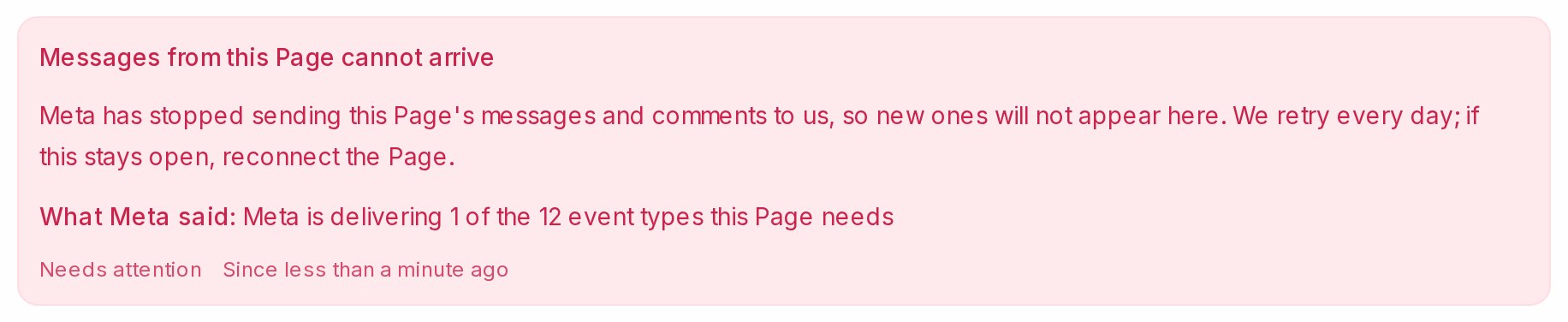{ width="900" }
* A small alert icon next to the inbox in the sidebar, red or yellow.
* A banner at the top of the inbox's **Settings** tab (**Settings → Inboxes**, then the inbox), with Meta's own words under **What Meta said**.
* An email to every administrator of your workspace, for red and yellow notices only, at most once a day for the same notice.
* The **Notices from Meta** list at the bottom of the same tab, which keeps the history, grey entries included.
Red means messaging is affected now. Yellow means Meta has warned you and it gets worse if nothing changes. Grey entries are for your information only. Instagram inboxes show only the reconnect banner described below.
## What each notice means
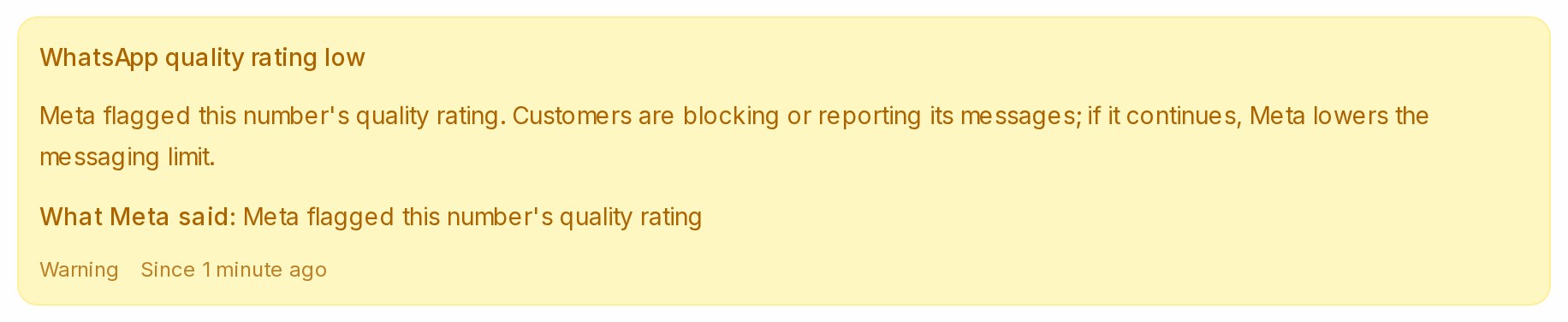{ width="900" }
| Notice | Colour | What to do |
| --- | --- | --- |
| **Facebook Page restricted by Meta** | Red | Open the Page in Meta Business Suite and resolve the violation Meta names. Messages may not be delivered until then. |
| **Facebook Page warned by Meta** | Yellow | Read the warning in Meta Business Suite before it becomes a restriction. |
| **Messaging blocked by Meta**, **Messaging policy warning from Meta** | Red, yellow | Fix the behaviour Meta names; a block lifts only when Meta lifts it. |
| **Facebook Page not found at Meta** | Red | The Page was deleted, unpublished or merged. Reconnect it, or connect the Page that replaced it. |
| **Messages from this Page cannot arrive** | Red | Meta stopped sending the Page's messages and comments to Mampu AI. Mampu AI retries every day; if the notice stays, reconnect the Page. |
| **Label sync needs Meta's Page Contact Terms** | Yellow | A Page admin creates the first label in the Meta Business Suite inbox and accepts the terms shown, or you switch the sync off for the Page on its **Settings** tab. See [Connecting a Facebook inbox](/settings/connecting-a-facebook-inbox). |
| **WhatsApp account restricted**, **disabled**, **rejected**, **deleted**, **WhatsApp access removed** | Red | Resolve it in WhatsApp Manager; for a removed access, reconnect the number. |
| **Messages to this number cannot arrive** | Red | Meta has stopped sending the number's messages to Mampu AI. They still reach the phone, but not the inbox. Reconnect the number, as described under [When a WhatsApp number is not fully connected](#when-a-whatsapp-number-is-not-fully-connected). |
| **WhatsApp number disconnected** | Red | Meta shows the number as disconnected, so messages do not arrive and replies are not sent. Reconnect the number, as described under [When a WhatsApp number is not fully connected](#when-a-whatsapp-number-is-not-fully-connected). |
| **WhatsApp account under review** | Yellow | Wait for Meta's decision; sending may be limited meanwhile. |
| **WhatsApp messaging limit lowered** | Red | Blasts and first messages beyond the new limit are not sent. Improve quality to earn the limit back. |
| **WhatsApp quality rating low** | Yellow | Customers are blocking or reporting the number's messages. See [WhatsApp account tips](/miscellaneous/whatsapp-ultimate-guide). |
| **Template rejected**, **paused**, **disabled by Meta** | Red | Edit and resubmit the template, or create a new one. |
| **Template flagged by Meta**, **Template quality rating low** | Yellow | Customers are reporting the template; it may be paused next. |
| **Template approved**, **category changed**, **messaging limit raised**, **account approved** | Grey | Nothing to do. A category change can change what the template costs to send. |
## When the connection itself has expired
{ width="916" }
When Meta no longer accepts the login behind an inbox, because the Page admin changed their password, removed Mampu AI or left the Page, the inbox's **Settings** tab shows **Your inbox is disconnected. You won't receive new messages until you reauthorize it.** with **Click here to reconnect.** Administrators get an email with the same link, titled **Your Facebook page connection has expired** or **Your Instagram connection has expired**.
1. Click **Click here to reconnect.** and sign in to Facebook or Instagram again.
2. Choose the same Page or account.
The banner goes and Mampu AI reads the inbox's state at Meta again straight away.
## When a WhatsApp number is not fully connected
{ width="896" }
When Meta will not let Mampu AI read a WhatsApp API number, the inbox's **Settings** tab and its other tabs, **Account Health** included, show a red banner: **This WhatsApp number isn't fully connected yet, so messages can't be sent or received.** This happens when a connection was never finished, when access to the number was removed, or when the number moved to another WhatsApp account.
1. Click **Reconfigure** on the banner.
2. In Meta's window, follow the steps and choose the same number the banner names.
The inbox keeps its conversations and settings, its name changes to the business name Meta shows for the number, and the banner goes once Meta reads the number again. If you choose a different number, the inbox refuses it and asks you to try again with the same one.
{ width="896" }
A number you also use in the WhatsApp Business app shows a yellow notice instead when Meta pauses its link to the app, usually after the app was reinstalled or moved to another phone. Open the WhatsApp Business app on that phone and accept the prompt to reconnect. If the notice is still there after a few minutes, click **Reconfigure**. Such a number is never offered **Register number**, because registering it here can sign the phone out of the WhatsApp Business app.
### When messages stop reaching a connected number
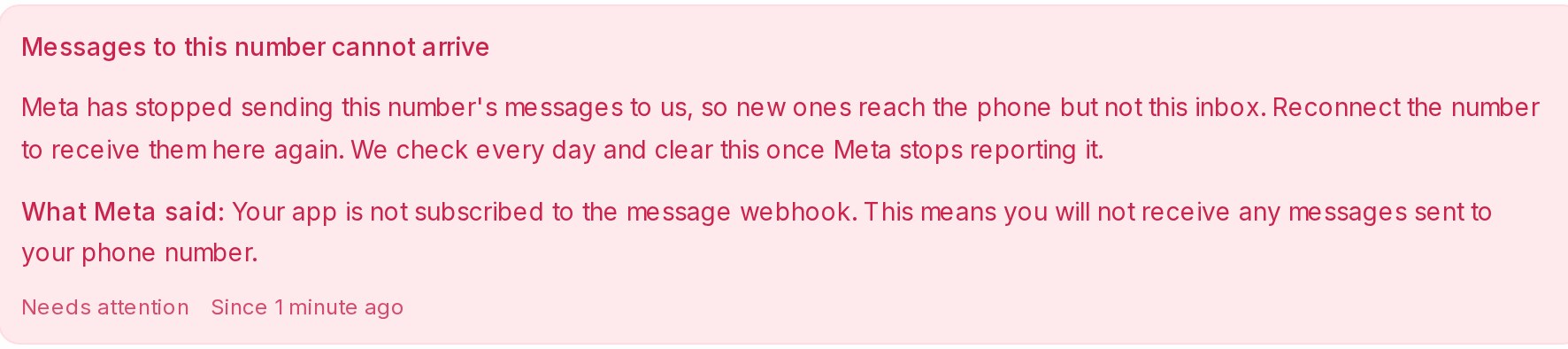{ width="886" }
Mampu AI reads every WhatsApp API number once a day. When Meta has stopped sending a number's messages to Mampu AI, or shows the number as disconnected, the inbox's sidebar alert turns red, the notice **Messages to this number cannot arrive** or **WhatsApp number disconnected** is listed on its **Settings** tab, and administrators get one email. Customers' messages keep reaching the phone meanwhile, but not the inbox.
1. If you also use the number in the WhatsApp Business app, first disconnect Mampu AI inside the app on that phone. Do not remove Mampu AI in Meta Business settings, and do not delete the WhatsApp account.
2. Click **Reconfigure**, on the notice on the **Settings** tab or on the **Configuration** tab, and choose the same number.
3. When the phone asks, agree to share the chat history, so the messages the inbox missed can come in.
## How a notice clears
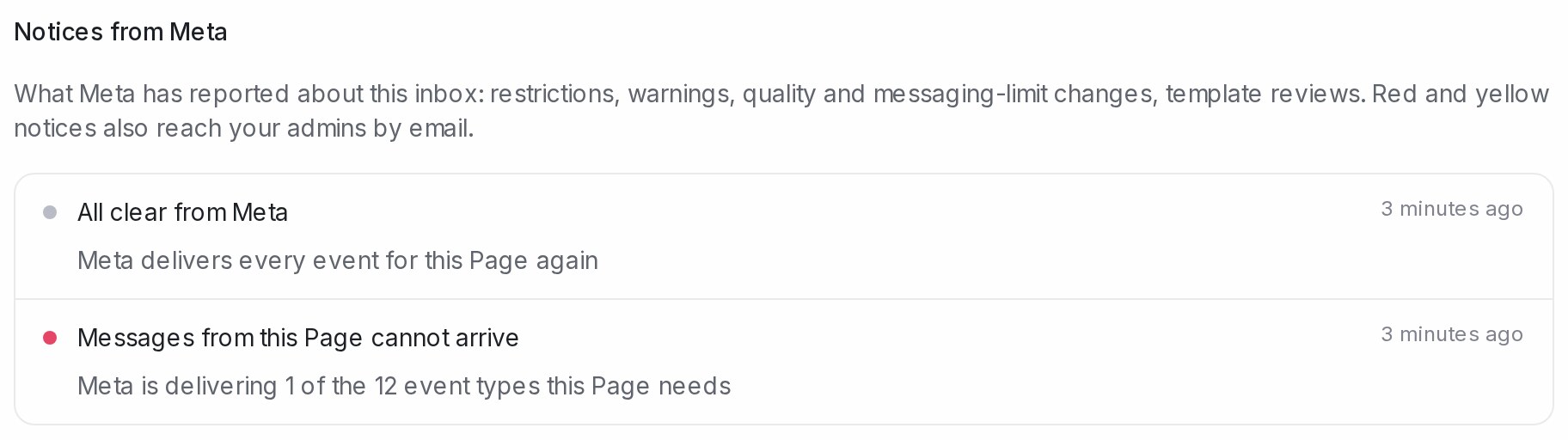{ width="912" }
A notice closes on its own when Meta reports the matter as resolved, and an **All clear from Meta** entry says what cleared. Once a day Mampu AI also re-reads every inbox that still carries a red or yellow notice, and every WhatsApp API number, so a number whose rating recovered or a Page that is back online clears without you doing anything. Nobody is emailed for an all-clear.
## Related
* [Connecting a Facebook inbox](/settings/connecting-a-facebook-inbox)
* [Connecting an Instagram inbox](/settings/connecting-an-instagram-inbox)
* [Connecting a WhatsApp inbox](/settings/connecting-a-whatsapp-inbox)
* [Why a WhatsApp message failed](/settings/whatsapp-message-errors)
* [WhatsApp messaging limits and quality rating](/settings/whatsapp-messaging-limits-and-quality)
* [When your WhatsApp account is restricted](/settings/whatsapp-account-restricted)
* [Inbox settings, tab by tab](/settings/inbox-settings-tabs)
* [WhatsApp account tips](/miscellaneous/whatsapp-ultimate-guide)
---
## Why a WhatsApp message failed
URL: https://help.mampuai.com/settings/whatsapp-message-errors
---
description: Why a WhatsApp message you sent shows a red error, what each common error means and how to fix it, how to check your number in WhatsApp Manager, and what to send support when you are stuck.
---
# Why a WhatsApp message failed
When a message you send from an Official WhatsApp API inbox does not reach the customer, the reason shows in red under the message. Most failures come from WhatsApp's own rules, not from Mampu AI: the customer's number, their privacy choices, Meta's limits on marketing messages, or the state of your WhatsApp account. This page shows you where to read the error, what each common error means, how to check your number in Meta's tools, and what to send us if you are still stuck.
## Read the error on the message
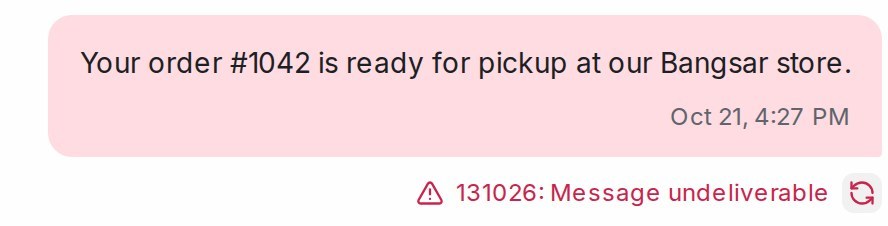{ width="444" }
1. Open the conversation and find the message with the red warning icon under it.
2. Read the text beside the icon. It starts with Meta's error code, for example **131026: Message undeliverable**. Hover over it, or tap it on a phone, to see the whole text.
3. Find the code in the sections below.
4. To send the same message again, click the round arrow beside the error. It shows for one day after the message was sent.
**Note**: For a blast, click **Failed** or **not sent** on the blast card to see these reasons grouped for every customer. See [WhatsApp blasting](/campaigns/whatsapp-campaigns).
**Note**: A message that stays on a single grey tick has not failed: WhatsApp accepted it, but the customer's phone has not received it yet, usually because it is off or offline. Meta does not say why a phone is not receiving.
## Errors about the customer
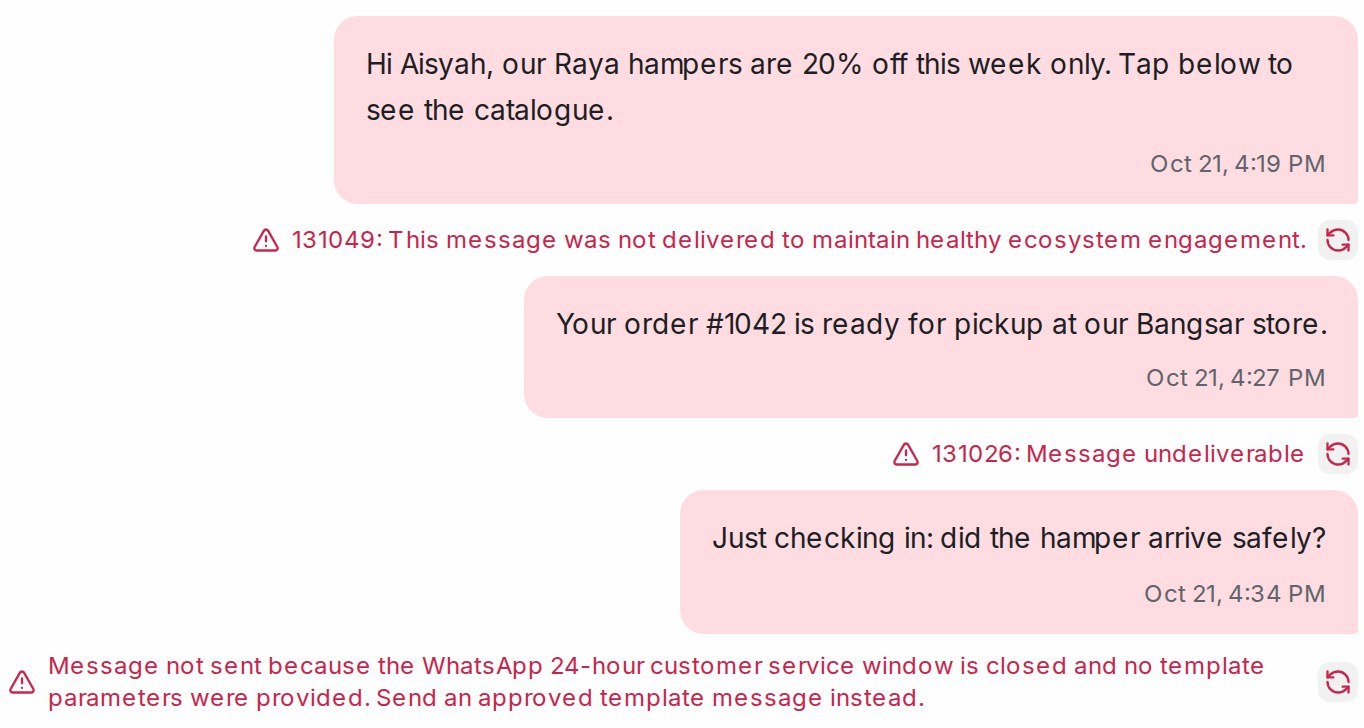{ width="682" }
### 131026: Message undeliverable
**What it means:** The number is not on WhatsApp, the customer blocked you, or their WhatsApp app is too old.
**How to fix:** Check the number has the right country code. Ask the customer through another channel to update WhatsApp or unblock you.
### 131050: User has stopped receipt of marketing messages
**What it means:** The customer turned off marketing messages from your business.
**How to fix:** Do not resend; it will not be delivered. Wait for the customer to message you.
### 130472: User's number is part of an experiment
**What it means:** Meta is running a test on this customer and does not show them marketing templates.
**How to fix:** Ask the customer to message you first, then reply within 24 hours.
## Errors about the 24-hour window and Meta's limits
### 24-hour customer service window is closed
**What it means:** The customer last wrote to you more than 24 hours ago, so WhatsApp only accepts an approved template.
**How to fix:** Send an approved template. When the customer replies, you can chat freely again. See [The 24-hour reply window](/channels/whatsapp-reply-window).
### 131047: Re-engagement message
**What it means:** Meta's code for the same closed 24-hour window.
**How to fix:** Send an approved template.
### 131049: This message was not delivered to maintain healthy ecosystem engagement
**What it means:** Meta held back a marketing message so the customer does not receive too many. It says nothing bad about your account.
**How to fix:** Do not resend right away; Meta advises waiting at least 24 hours ([Meta: per-user marketing limits](https://developers.facebook.com/documentation/business-messaging/whatsapp/templates/marketing-templates/per-user-limits)). Or reach the customer when they next write in, or with a utility template (an order or appointment update).
### 131048: Spam rate limit hit
**What it means:** Too many of your messages were blocked or reported, so Meta limited how many you can send.
**How to fix:** Slow down, send only to customers who agreed to hear from you, and check your quality rating below.
### 131056: (Business Account, Consumer Account) pair rate limit hit
**What it means:** You sent too many messages to the same customer in a short time.
**How to fix:** Wait a few minutes before sending to that customer again.
## Errors about templates and files
### 132001: Template does not exist
**What it means:** The template is not approved in that language, or it was deleted.
**How to fix:** Check its status on the inbox's **Templates** tab (**Settings → Inboxes**, then the inbox).
### 132015: Template is Paused
**What it means:** Customers reacted badly to the template, so Meta paused it for a few hours.
**How to fix:** Wait for Meta to unpause it on its own, or edit the wording and submit it again. See [Meta: template pausing](https://developers.facebook.com/documentation/business-messaging/whatsapp/templates/template-pausing).
### 132016: Template is Disabled
**What it means:** Meta paused the template too many times and has now disabled it for good.
**How to fix:** Create a new template with different wording.
### 131053: Media upload error
**What it means:** WhatsApp could not accept the picture, video or file.
**How to fix:** Check the file type and size, then send it again. See [Picture and file size limits](/settings/file-size-limits).
## Errors about your WhatsApp account
{ width="900" }
### 131031: Account has been locked
**What it means:** Meta restricted or disabled your WhatsApp account for a policy issue.
**How to fix:** Check your account status (see below) and follow Meta's steps to request a review. See [Meta: policy and spam enforcement](https://developers.facebook.com/documentation/business-messaging/whatsapp/policy-enforcement).
### 131042: Business eligibility payment issue
**What it means:** Meta could not charge the payment method on your WhatsApp account.
**How to fix:** Fix the payment method in WhatsApp Manager (see below).
### 133010: Phone number Not Registered
**What it means:** The number is no longer registered with WhatsApp's official connection.
**How to fix:** Reconnect the number. See [Connecting a WhatsApp inbox](/settings/connecting-a-whatsapp-inbox).
## Check your number in WhatsApp Manager
1. Go to [business.facebook.com](https://business.facebook.com) and sign in with the Facebook account that connected the number.
2. Open **WhatsApp Manager**, then **Account tools → Phone numbers**.
3. Find your number and read its status, quality rating and messaging limit.
**Status** should read **Connected**. If it shows anything else, open the number to read Meta's reason; a number that is no longer connected needs to be reconnected.
**Quality rating** turns yellow or red when customers block or report your messages. A lower rating stops your limit from rising and can get templates paused. Send only to customers who agreed to hear from you, make messages personal, send less often, and give an easy way to opt out.
**Messaging limit** is how many customers you can start chats with in 24 hours, shared by every number in your Meta business. If your sends stop partway through a blast, check it under **Account tools → Messaging limits**. See [WhatsApp messaging limits and quality rating](/settings/whatsapp-messaging-limits-and-quality).
**Note**: The inbox's **Account Health** tab in Mampu AI (**Settings → Inboxes**, then the inbox) shows the same quality rating and messaging limit without opening Meta.
**Note**: You need access to this WhatsApp account in your Meta business to open WhatsApp Manager.
## Check your account status and payment
1. Open [business.facebook.com/business-support-home](https://business.facebook.com/business-support-home).
2. Find your WhatsApp Business Account. If its status shows an issue, click it to see what Meta found and to request a review.
3. For payment errors, open **WhatsApp Manager**, go to your WhatsApp Business Account's payment settings, and add or fix the payment method.
**Note**: Mampu AI also turns Meta's account warnings into a notice on the inbox, so you often see the problem in **Settings → Inboxes** first. See [Notices from Meta about your inbox](/settings/notices-from-meta).
## What to send support
If you cannot tell what went wrong, send our support team:
1. A screenshot of the failed message with the red error under it.
2. The customer's phone number and the time you sent the message.
3. A screenshot of your number's row in **WhatsApp Manager → Account tools → Phone numbers**.
With those three, we can tell you whether the fix is on your side, the customer's, or Meta's.
## Frequently asked questions
### Am I charged for a message that failed?
No. Meta charges only for messages it delivers. See [Meta: pricing](https://developers.facebook.com/documentation/business-messaging/whatsapp/pricing).
### Can Mampu AI see more than the error under the message?
No. The code and text under the message are everything Meta tells us. Meta does not list single failed messages in WhatsApp Manager either, so the screenshot from your inbox is the best record.
### When does sending again help?
Only when the cause was temporary, such as **131056** or a file that failed to upload. For **131050**, **131026** or a closed 24-hour window, sending the same message again fails the same way.
### Can I reach a customer again after 131050?
Yes, once they message you, or after they turn marketing messages from your business back on.
### Why is my WhatsApp quality rating yellow or red?
Customers blocked or reported your messages in the last few days. Send only to customers who agreed to hear from you, send less often, and give an easy way to opt out.
## Related
* [Notices from Meta about your inbox](/settings/notices-from-meta)
* [WhatsApp blasting](/campaigns/whatsapp-campaigns)
* [The 24-hour reply window](/channels/whatsapp-reply-window)
* [Creating WhatsApp message templates](/settings/creating-whatsapp-message-templates)
* [Connecting a WhatsApp inbox](/settings/connecting-a-whatsapp-inbox)
* [WhatsApp messaging limits and quality rating](/settings/whatsapp-messaging-limits-and-quality)
* [When your WhatsApp account is restricted](/settings/whatsapp-account-restricted)
From Meta:
* [WhatsApp error codes](https://developers.facebook.com/documentation/business-messaging/whatsapp/support/error-codes)
* [Messaging limits](https://developers.facebook.com/documentation/business-messaging/whatsapp/messaging-limits)
* [Per-user marketing limits](https://developers.facebook.com/documentation/business-messaging/whatsapp/templates/marketing-templates/per-user-limits)
* [Template pausing](https://developers.facebook.com/documentation/business-messaging/whatsapp/templates/template-pausing)
* [Policy and spam enforcement](https://developers.facebook.com/documentation/business-messaging/whatsapp/policy-enforcement)
* [Pricing](https://developers.facebook.com/documentation/business-messaging/whatsapp/pricing)
---
## WhatsApp messaging limits and quality rating
URL: https://help.mampuai.com/settings/whatsapp-messaging-limits-and-quality
---
description: How many customers your WhatsApp number can message first each day, how Meta raises that limit, what the quality rating means, where to see both, and how business verification and your display name fit in.
---
# WhatsApp messaging limits and quality rating
Meta limits how many customers an Official WhatsApp API number can start a chat with in 24 hours, and rates the quality of what you send. The limit decides how big a blast can be; the rating decides whether the limit grows. Both are set by Meta, not by Mampu AI. This page shows where to see them, what moves them, and what to do when a blast stops partway.
## See your limit and quality rating
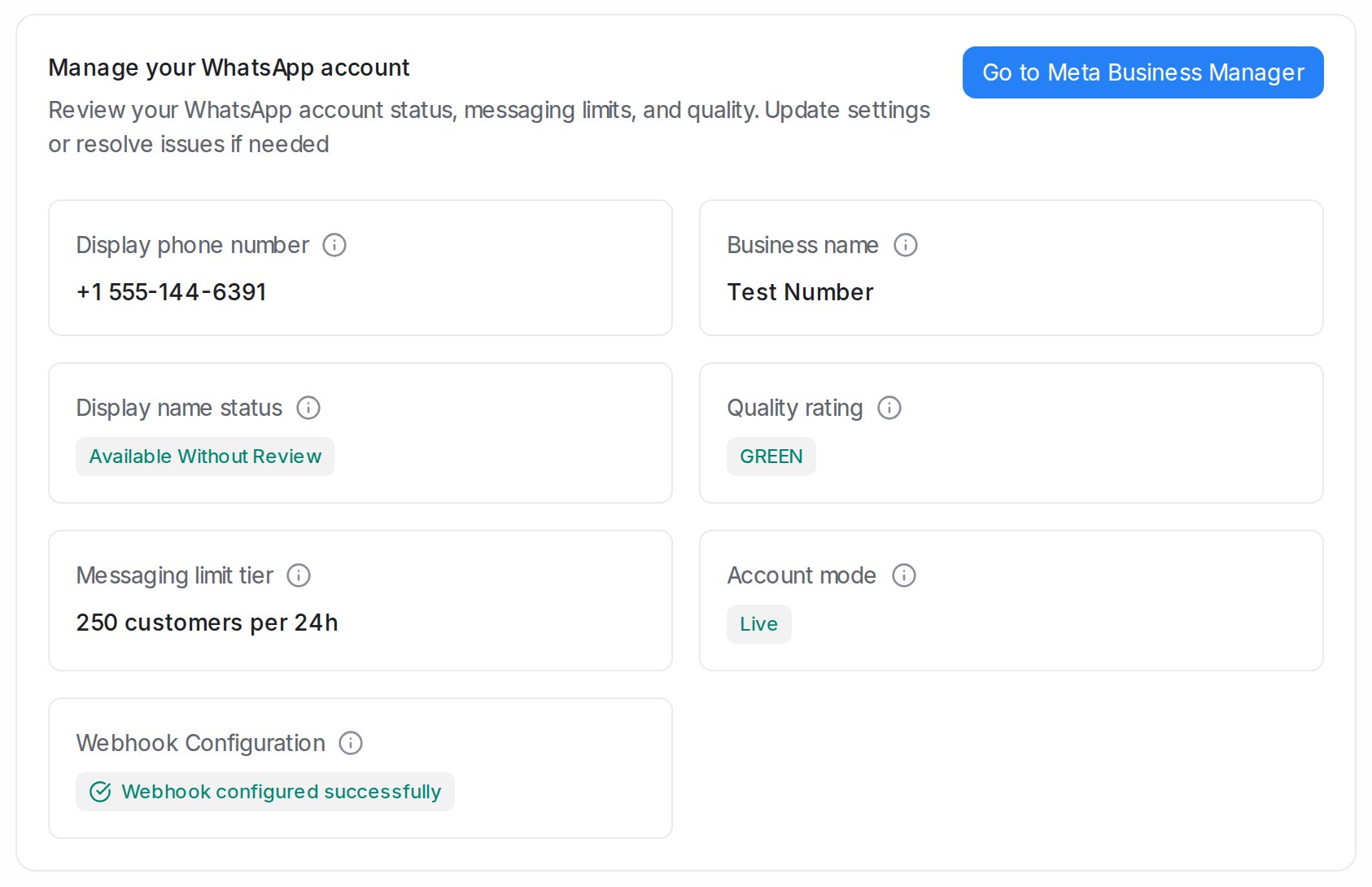
1. In Mampu AI, go to **Settings → Inboxes** and open your WhatsApp inbox.
2. Open the **Account Health** tab. It shows **Display name status**, **Quality rating**, **Messaging limit tier** and **Account mode**.
3. Click **Go to Meta Business Manager** to open the same account in Meta.
In Meta, the limit is in **WhatsApp Manager → Account tools → Messaging limits**, and each number's name and quality rating are in **WhatsApp Manager → Account tools → Phone numbers**.
**Note**: If the tab says **Health data is not available**, the number is not fully connected yet. See [Connecting a WhatsApp inbox](/settings/connecting-a-whatsapp-inbox).
## What the messaging limit counts
### Only chats you start
The limit counts the customers you message first: templates sent outside a customer's 24-hour reply window, such as a blast. Replies to customers who wrote to you in the last 24 hours do not count. See [The 24-hour reply window](/channels/whatsapp-reply-window).
### Unique customers in 24 hours
Each customer counts once in a rolling 24 hours, however many templates you send them.
### Shared by every number in your Meta business
The limit belongs to your Meta business portfolio, so all of its WhatsApp numbers share one limit. Adding a number does not add a second limit.
**Note**: Once you reach the limit, Meta refuses templates to further new customers until the 24 hours roll over. Split a big list across days, or wait for Meta to raise your limit.
## How the limit goes up
### First raise: verify your business or prove steady sending
Meta raises a new account's limit once you verify your business, or once you have sent enough good-quality templates to different customers over 30 days. Meta lists the exact numbers on its [messaging limits](https://developers.facebook.com/documentation/business-messaging/whatsapp/messaging-limits) page.
### Every raise after that
Meta raises the limit one level at a time, on its own, when all of these hold:
1. Your number is connected.
2. Its quality rating is medium or high.
3. In the last 7 days, you used at least half of your current limit.
The raise usually comes within hours. There is no form to fill in.
## What the quality rating means
### High, medium and low
The rating shows how customers received your recent messages: green for high, yellow for medium, red for low. It drops when customers block your number or report your messages.
### What a low rating does
A lower rating no longer cuts your limit, but it stops the limit from rising, and templates customers react badly to get paused. See [Meta: template pausing](https://developers.facebook.com/documentation/business-messaging/whatsapp/templates/template-pausing).
### How to raise it
1. Send only to customers who agreed to hear from you.
2. Make messages personal and useful, not generic promotions.
3. Send less often to the same customer.
4. Give an easy way to stop, such as an unsubscribe button or a "Reply STOP" line.
## Business verification and your display name
### Verify your business
Business verification confirms to Meta that your company is real. It unlocks the first limit raise. A business admin starts it from your business settings in Meta Business Suite; Meta asks for your registered business details and a document that shows them. See [Meta: business verification](https://developers.facebook.com/documentation/development/release/business-verification).
### Display name
Your display name is the business name customers see on your WhatsApp profile. When your number reaches a higher limit, Meta checks the name against its display name guidelines. **Display name status** on the **Account Health** tab shows the result. If Meta declines the name, edit it in WhatsApp Manager to follow the guidelines. See [Meta: display names](https://developers.facebook.com/documentation/business-messaging/whatsapp/display-names).
## Frequently asked questions
### Do replies to customers count towards my limit?
No. Only customers you message first, outside their 24-hour reply window, count.
### Why did my blast stop partway?
You most likely reached your messaging limit for the day. Check **Messaging limit tier** on the **Account Health** tab and send the rest after 24 hours.
### Will a red quality rating get my account banned?
Not by itself, but the reports behind it can lead Meta to restrict the account for spam. See [When your WhatsApp account is restricted](/settings/whatsapp-account-restricted).
### Can Mampu AI raise my limit?
No. Only Meta sets the limit. Verifying your business and sending messages customers welcome is what raises it.
## Related
* [Why a WhatsApp message failed](/settings/whatsapp-message-errors)
* [When your WhatsApp account is restricted](/settings/whatsapp-account-restricted)
* [WhatsApp blasting](/campaigns/whatsapp-campaigns)
* [The 24-hour reply window](/channels/whatsapp-reply-window)
* [Notices from Meta about your inbox](/settings/notices-from-meta)
From Meta:
* [Messaging limits](https://developers.facebook.com/documentation/business-messaging/whatsapp/messaging-limits)
* [Template pausing](https://developers.facebook.com/documentation/business-messaging/whatsapp/templates/template-pausing)
* [Business verification](https://developers.facebook.com/documentation/development/release/business-verification)
* [Display names](https://developers.facebook.com/documentation/business-messaging/whatsapp/display-names)
---
## When your WhatsApp account is restricted
URL: https://help.mampuai.com/settings/whatsapp-account-restricted
---
description: What happens when Meta restricts, locks or disables your WhatsApp Business account, how you find out, how to request a review in Business Support Home, and how to avoid it next time.
---
# When your WhatsApp account is restricted
Meta enforces its WhatsApp Business rules on every Official WhatsApp API account. It usually warns first, then blocks some or all sending for a few days, and only disables an account after repeated problems. This page explains each step, how to request a review, and what to change so it does not happen again.
**Note**: This page is about the Official WhatsApp API. If your number is linked with **Normal WhatsApp Web Link** and WhatsApp banned the phone number itself, see [How to request for review to unban their account](/miscellaneous/whatsapp-ultimate-guide/how-to-request-for-review-to-unban-their-account).
## How you find out
{ width="900" }
1. In Mampu AI, a red **WhatsApp account restricted** or **disabled** notice appears on the inbox's **Settings** tab, and your administrators get an email. See [Notices from Meta about your inbox](/settings/notices-from-meta).
2. Meta also emails the admins of your Meta business, and shows a banner in WhatsApp Manager and a notification in Meta Business Suite.
3. Messages you send start failing with **131031: Account has been locked** or similar. See [Why a WhatsApp message failed](/settings/whatsapp-message-errors).
## What each step means
### Warning
**What it means:** Meta found a policy issue and tells you which policy. Nothing is blocked yet.
**What to do:** Read the warning in Business Support Home and fix what it names before it happens again.
### Template block for 1 or 3 days
**What it means:** You cannot send marketing, utility or authentication templates, or add numbers to the account. Replies inside a customer's 24-hour reply window still go out.
**What to do:** Pause blasts and follow-ups until the block ends. Request a review if you believe it is wrong.
### Full block for 5, 7 or 30 days
**What it means:** You cannot send any messages, including replies, or add numbers.
**What to do:** Tell your team that customers will not get replies on this number for now, and request a review if you believe it is wrong.
### Account locked
**What it means:** Sending is blocked with no end date. Only a successful review lifts it.
**What to do:** Request a review in Business Support Home.
### Account disabled
**What it means:** Meta removed the account from the WhatsApp Business Platform after repeated warnings, or at once for severe harm such as scams.
**What to do:** Request a review if the option is offered. Meta decides; Mampu AI cannot reverse it.
## Request a review
1. Open [Meta Business Suite](https://business.facebook.com), click **All tools**, then **Business Support Home**.
2. Select the WhatsApp Business Account with the issue.
3. Open the violation, read what Meta found, and choose to request a review. For some issues you can acknowledge it instead.
4. Explain briefly why your messages follow the rules, for example that customers opted in.
Meta sends its decision through Meta Business Suite, typically within 24 to 48 hours. The violation is then either **Reversed**, and the account goes back to how it was, or **Unchanged**.
**Note**: Not every spam violation can be appealed. If the option is missing, wait for the block to end and change how you send.
## What usually causes it
1. Spam: messages to people who did not ask for them, or too many messages to the same people.
2. Templates in the wrong category, such as a promotion submitted as a utility template.
3. Selling in categories Meta restricts, such as adult content, alcohol, tobacco, drugs, gambling or unsafe supplements.
4. Many customers blocking or reporting your number.
## Avoid it next time
1. Message only customers who agreed to hear from you, and keep a note of how they agreed.
2. Choose the honest template category. See [Creating WhatsApp message templates](/settings/creating-whatsapp-message-templates).
3. Space out promotions and give an easy way to stop.
4. Watch your quality rating. See [WhatsApp messaging limits and quality rating](/settings/whatsapp-messaging-limits-and-quality).
## Frequently asked questions
### How long does a review take?
Meta typically decides within 24 to 48 hours and tells you in Meta Business Suite.
### Can Mampu AI lift the restriction?
No. Only Meta can. We can help you read the notice and prepare your review request.
### What happens if Meta keeps the violation?
The block stays until it ends on its own. Further violations lead to longer blocks, so change how you send before the next blast.
### Do customers still reach me during a template block?
Yes. Customers can still write to you, and you can reply inside their 24-hour reply window. Only a full block stops replies.
## Related
* [Notices from Meta about your inbox](/settings/notices-from-meta)
* [Why a WhatsApp message failed](/settings/whatsapp-message-errors)
* [WhatsApp messaging limits and quality rating](/settings/whatsapp-messaging-limits-and-quality)
* [Creating WhatsApp message templates](/settings/creating-whatsapp-message-templates)
From Meta:
* [Policy and spam enforcement](https://developers.facebook.com/documentation/business-messaging/whatsapp/policy-enforcement)
* [Policy violations](https://developers.facebook.com/documentation/business-messaging/whatsapp/policy-enforcement-violations/)
---
## Comment Moderation
URL: https://help.mampuai.com/settings/comment-moderation
---
description: Delete or hide rude comments on your Facebook and Instagram posts automatically, and review every removed comment in one report.
---
# Comment Moderation
Comment Moderation checks every new comment on your Facebook Page and Instagram posts, including replies under other comments. When a comment contains a word on your list, Mampu AI deletes it or hides it straight away, so rude comments don't sit under your posts. Every removed comment is listed in **Reports → Removed Comments**, where you can review it, unhide it or delete it.
A removed comment never gets an automatic reply or private message from your [comment reply rules](/settings/facebook-comment-replies).
## Before you start
* Only administrators can change these settings.
* Connect your Facebook Page or Instagram account first. See [Connecting a Facebook inbox](/settings/connecting-a-facebook-inbox) and [Connecting an Instagram inbox](/settings/connecting-an-instagram-inbox).
## 1. Turn moderation on for a page
Go to **Settings → Comment Moderation**. Under **Pages**, switch on each Facebook page or Instagram account you want checked. Every page starts switched off.
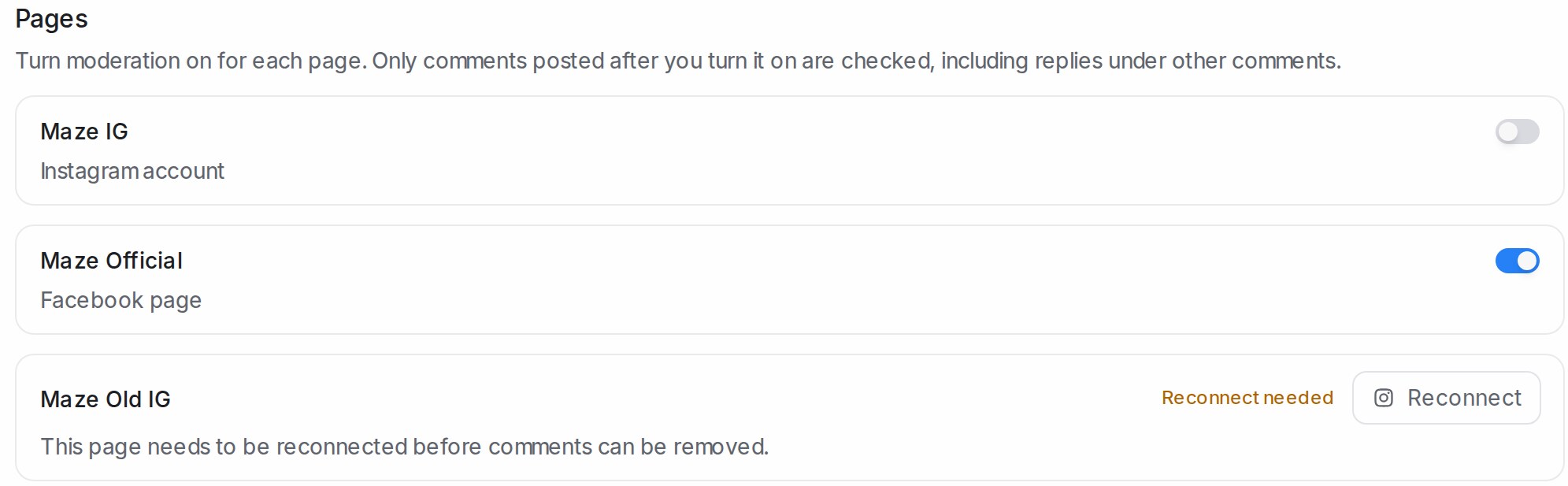{ width="996" }
* Only comments posted after you switch a page on are checked.
* **Reconnect needed** means the page has not given the permission to manage comments. Click **Reconnect** and approve every permission when Facebook or Instagram asks.
* TikTok accounts show **Coming soon**.
## 2. Choose Delete or Hide
Under **When a comment matches**, pick what happens to a matching comment. The choice applies to every page you switched on.
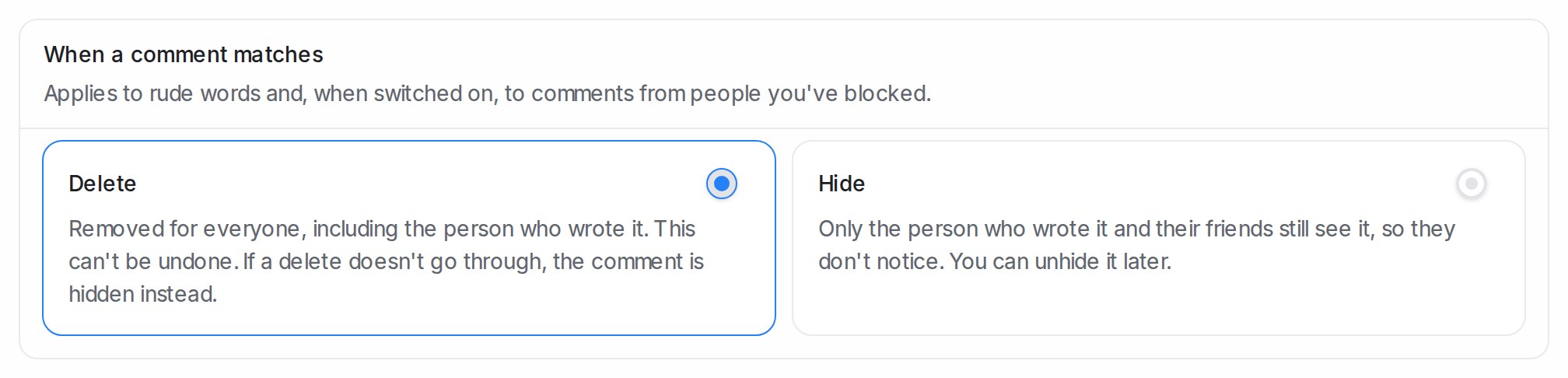{ width="1008" }
| Option | What people see |
| --- | --- |
| **Delete** (the default) | The comment is removed for everyone, including the person who wrote it. This can't be undone. |
| **Hide** | Only the person who wrote it and their friends still see it, so they usually don't notice. You can unhide it later. |
If a delete doesn't go through after a few tries, the comment is hidden instead, so the public stops seeing it.
## 3. Edit the rude words
The **Rude words** list starts with common rude words in English, Malay and Chinese. Type a word or phrase and press Enter to add it; click the **×** on a word to remove it.
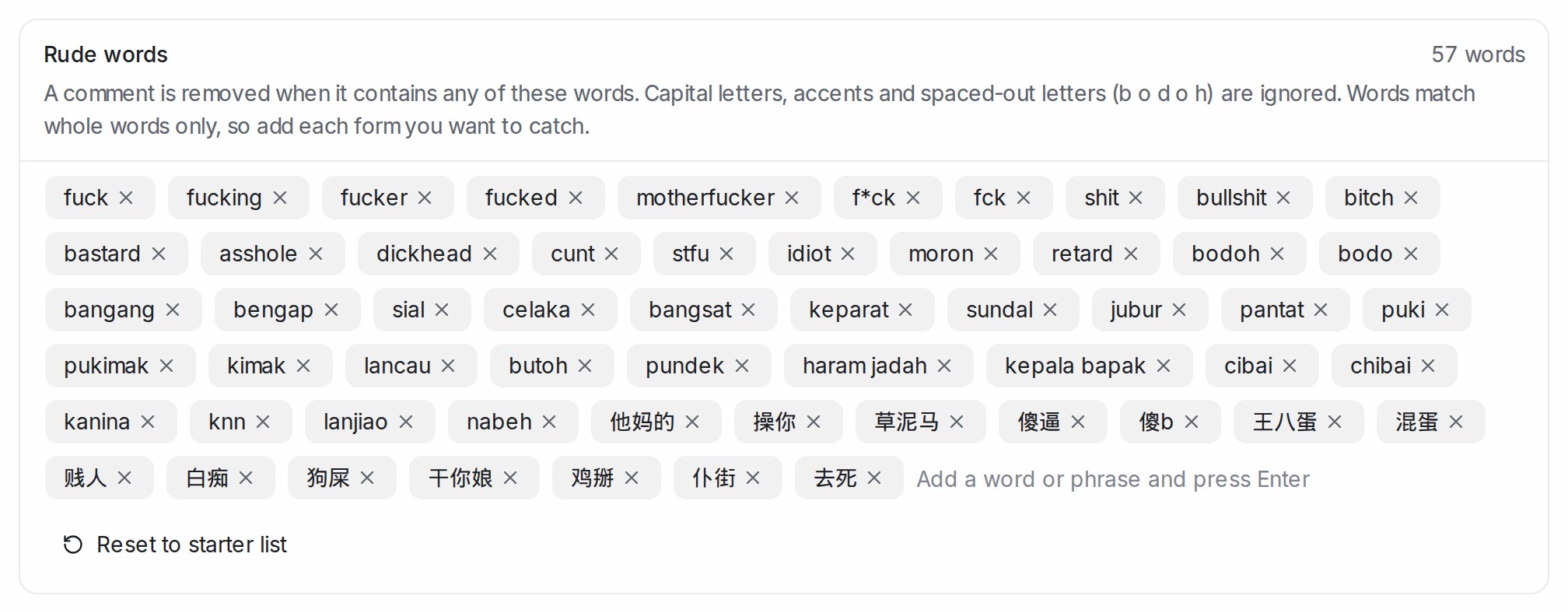{ width="1008" }
* Capital letters and accents are ignored, and so are letters spaced out one by one (`b o d o h`).
* English and Malay words match whole words only, so add each form you want to catch (`bodoh` and `bodo`). Chinese words match anywhere in a comment.
* **Reset to starter list** brings back the original list.
* Switch on **Also remove comments from people you've blocked** to remove every new comment from a contact you've blocked, whatever words it uses.
## See what was removed
Click **View removed comments** on the settings page, or go to **Reports → Removed Comments**. The tiles count the comments removed in the period you pick: all of them, the deleted ones and the hidden ones.
{ width="1047" }
Administrators and anyone with access to reports can open this page. Removed comments stay on the list for 90 days.
## Unhide or delete a comment
Each row shows the comment, who wrote it, the page and post, the word that matched and its **Status**.
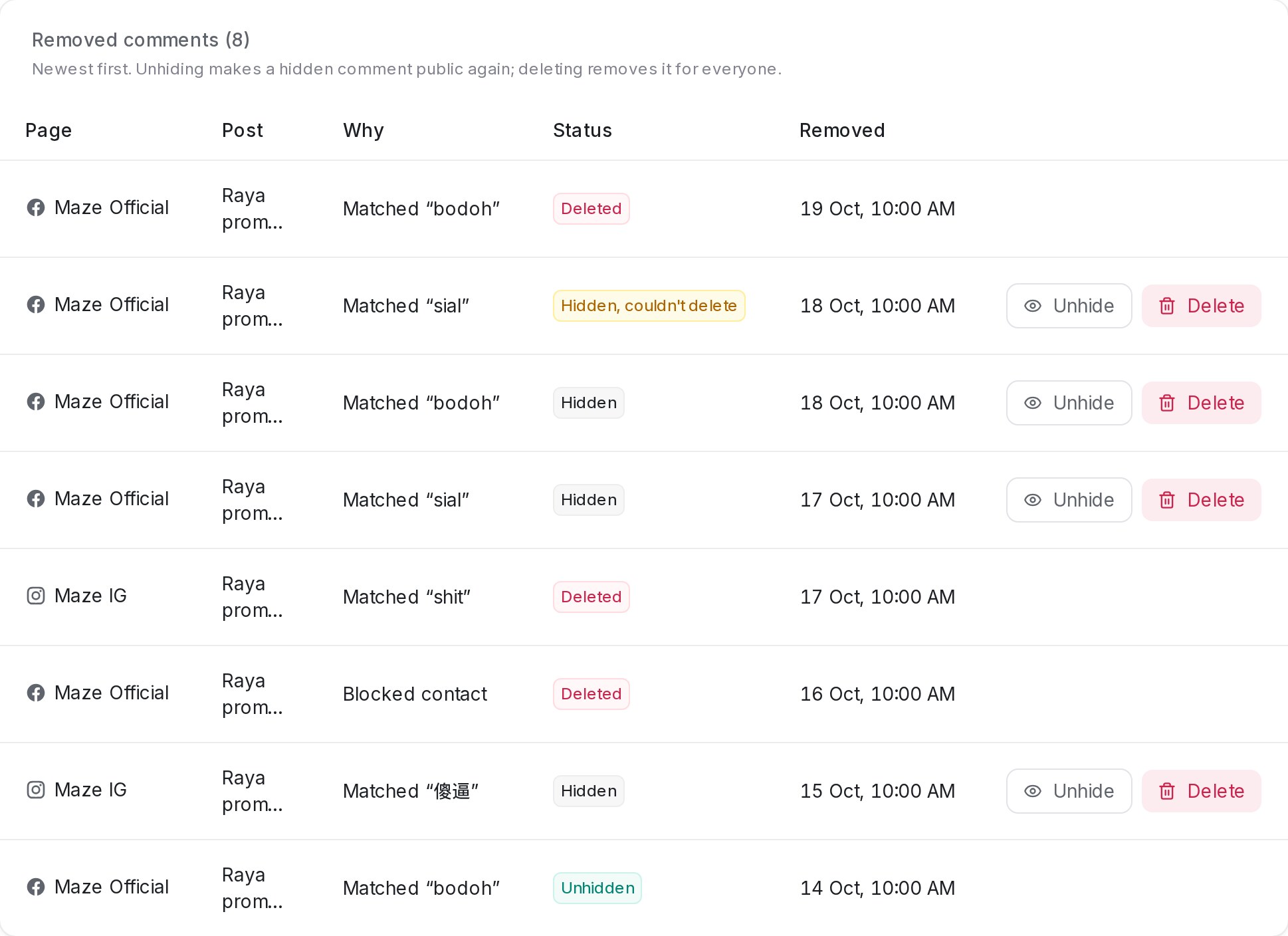{ width="969" }
| Status | Meaning |
| --- | --- |
| **Deleted** | Removed for everyone. |
| **Hidden** | Still hidden on the platform. |
| **Hidden, couldn't delete** | A delete didn't go through, so the comment was hidden instead. |
| **Unhidden** | Someone made it public again. |
* **Unhide** makes a hidden comment public again.
* **Delete** removes a hidden comment for everyone. Only administrators see this button, and it asks you to confirm first.
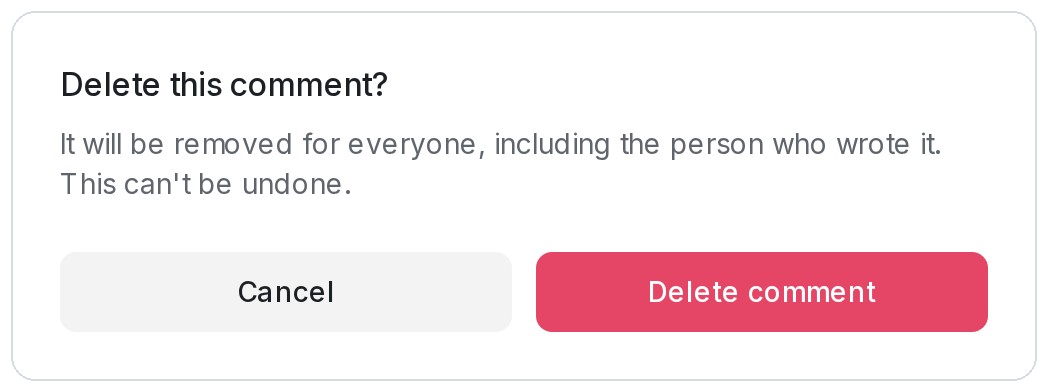{ width="520" }
## Related
* [Facebook Comment Replies](/settings/facebook-comment-replies)
* [Instagram Comment Replies](/settings/instagram-comment-replies)
* [Connecting a Facebook inbox](/settings/connecting-a-facebook-inbox)
* [Connecting an Instagram inbox](/settings/connecting-an-instagram-inbox)
* [Reports and Analytics](/reports/reports-and-analytics)
---
## Send-only inboxes
URL: https://help.mampuai.com/settings/send-only-inboxes
---
description: Keep an inbox you only send from out of your team's shared conversation views, and stop it taking in customer replies altogether.
---
# Send-only inboxes
Some inboxes exist to send, not to chat: a WhatsApp number that carries your Blasts and reminders, or an API inbox that one of your systems posts through. Two switches on the inbox's settings keep such an inbox out of the way. **Hide from All Conversations** keeps its conversations out of the shared views. **Outbound only** stops it taking in messages from customers at all.
Both switches live in **Settings → Inboxes**, on the inbox's **Settings** tab under **Channel Preferences**. They are off for every inbox until you turn them on, and each works on its own.
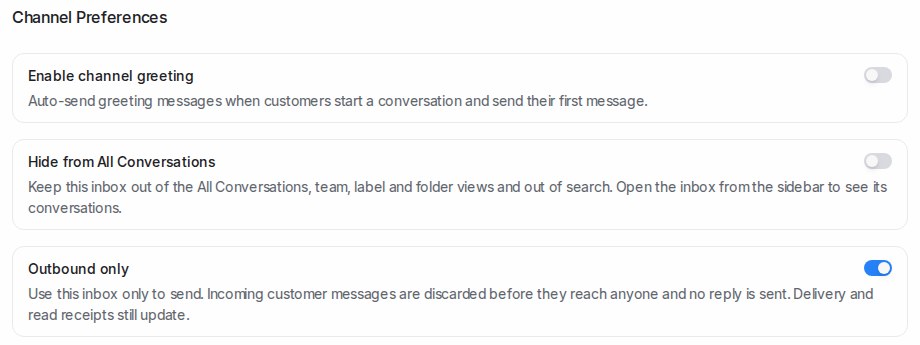
## Hide from All Conversations
Turn this on and the inbox's conversations leave every view that mixes inboxes together:
* the **Mine**, **Unassigned** and **All** tabs of **All Conversations**, and their counts
* **Mentions**, **Participating** and **Unattended**
* team and label views
* folders, unless the folder filters on that inbox
* search results for conversations and messages
The inbox itself stays in the sidebar under **Channels**. Open it there and you see everything in it, exactly as before. Contacts still show their conversations on the contact page, notifications still arrive, and reports do not change.
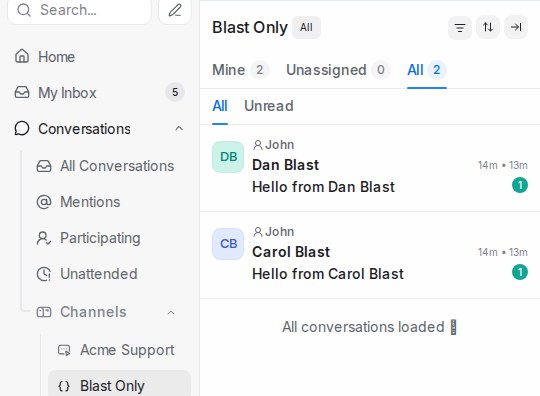
Use this for a channel nobody needs to watch day to day. If a customer does reply to a hidden inbox, the reply lands in that inbox: open it from **Channels** to see it, or use the next switch to stop replies coming in at all.
## Outbound only
Turn this on and the inbox becomes a one-way channel. Messages customers send to it are discarded before they reach anyone: no conversation opens, nothing is assigned, and no reply goes back to the customer. Everything you send still works. Templates, Blasts, reminders and replies go out as before, and delivery and read ticks still update.
Use this for a number or channel that only ever sends. Turn it off again and replies start landing in the inbox as normal; messages customers sent while it was on are not kept.
Leave this switch off on a Website live-chat inbox. Visitors can only ever write to you through the widget, so an outbound-only widget simply rejects their messages.
## Turning the switches on
1. Go to **Settings → Inboxes** and click the inbox.
2. On the **Settings** tab, scroll down to **Channel Preferences**.
3. Turn on **Hide from All Conversations**, **Outbound only**, or both.
4. Click **Update**.
## Related
* [Inboxes and channels](/settings/inboxes-and-channels)
* [Blasting](/campaigns/campaigns)
* [The WhatsApp Templates library](/settings/whatsapp-template-library)
* [Managing Conversations](/conversations/managing-conversations)
---
## Picture and file size limits
URL: https://help.mampuai.com/settings/file-size-limits
---
description: How big a picture, video, audio clip or document can be on each channel when you add it to a template, an AI Knowledge answer, a Flow Agent or a message sequence, and what to do when a file is too big.
---
# Picture and file size limits
WhatsApp and the other channels refuse a file that is too big, and every send of that file fails. Mampu AI checks the size the moment you add a file, so a file that is too big never reaches your customers' messages. You see a message such as *This image is 5.52 MB. The limit is 5 MB, so please upload a smaller file.* and the file is not saved.
## The limits
Files your AI agent or a Flow Agent sends go out on your account's own channels, so they must fit every channel you have connected:
| File | WhatsApp (normal number) | WhatsApp API (Cloud) | Facebook and Instagram | TikTok |
|---|---|---|---|---|
| Image (JPEG, PNG and other pictures) | 16 MB | 5 MB | 8 MB | 3 MB |
| Video | 16 MB | 16 MB | 25 MB | — |
| Audio | 16 MB | 16 MB | 25 MB | — |
| Document (PDF and other files) | 100 MB | 100 MB | 25 MB | — |
Your limit for each kind of file is the smallest among the channels you use. For example, an account on normal WhatsApp numbers only can add pictures up to 16 MB; once it also connects a WhatsApp API number, pictures must be 5 MB or smaller. Until you connect one of these channels, the smallest of all of them applies: 5 MB for an image, 16 MB for a video or audio and 25 MB for a document.
If you connect a channel with smaller limits later, files you added before stay as they are, but ones over the new limit will not reach customers on that channel. Replace them with smaller copies.
These limits apply to:
* media in **AI Knowledge** answers, FAQs, promos and product photos
* attachments on a Flow Agent's **Send message** step
* media in **Settings → Message Sequences** steps
The picture, video or document at the top of a **WhatsApp template** is only ever sent on WhatsApp, so it follows WhatsApp's own limits: 5 MB for an image, 16 MB for a video and 100 MB for a document. This applies in **Settings → WhatsApp Templates**, when you create a template on an inbox, and when you pick a file for a template in a reply or a blast.
## A template whose file is already too big
A template may still hold a file that was uploaded before sizes were checked. When you pick that template in a conversation reply, a new conversation or a WhatsApp blast, its file shows in red with the reason, and **Send message** or **Create** stays off until you replace it:

1. Click the **×** on the file.
2. Upload a smaller file, or paste a link to one.
3. Send or create the blast as usual.
To fix the template for every future send, edit it in **Settings → WhatsApp Templates** and upload a smaller example under **Header**. WhatsApp reviews the change like any other edit. A message sequence step that uses the template shows the same reason under its media link, and the sequence cannot be saved until the file fits.
## Making a file smaller
* **Pictures**: save as JPEG instead of PNG, or reduce the width to around 1600 pixels. A photo that size is usually well under 1 MB and still looks sharp on a phone.
* **Videos**: export at 720p, or trim the clip.
* **Documents**: use your PDF app's *Reduce file size* or *Optimise* option, or split a long document.
A file you upload in the **Playground** to play the customer's side of a test chat is not limited in the same way, because it stands in for what a customer sends you.
## Related
* [The WhatsApp Templates library](/settings/whatsapp-template-library)
* [WhatsApp blasting](/campaigns/whatsapp-campaigns)
* [Managing AI Knowledge](/flow-agents/managing-ai-knowledge)
* [Building the conversation flow](/flow-agents/building-the-conversation-flow)
* [Message Sequences](/campaigns/message-sequences)
---
## WhatsApp
URL: https://help.mampuai.com/channels/whatsapp
# WhatsApp
Connect WhatsApp to Mampu AI and handle customer chats, blasting and AI replies from one inbox. Start here and pick the guide that matches your situation.
## Watch the walkthrough
{% embed url="https://youtu.be/pzYs7mSabpE" %}
* [Connecting a WhatsApp inbox](/settings/connecting-a-whatsapp-inbox) — the standard setup for a number on the WhatsApp Business app.
* [Registering a WhatsApp official (WhatsApp API) number](/settings/registering-a-whatsapp-official-number) — set up a number on the WhatsApp API.
* [Migrating an existing WhatsApp number to Mampu AI](/settings/migrating-an-existing-whatsapp-number) — your number is on the WhatsApp API with another provider.
* [Normal WhatsApp Web Link vs Official WhatsApp API](/platform/connect-to-social-media-channels/normal-whatsapp-vs-whatsapp-cloud) — which type fits your business.
* [The 24-hour reply window](/channels/whatsapp-reply-window) — what the Reply window countdown means and what to do when only templates can be sent.
* [The free ad window](/channels/whatsapp-free-ad-window) — up to 7 days of free messaging after you reply to a customer who came from a WhatsApp ad.
* [Finding the receipt for conversational cost for WhatsApp API](/platform/connect-to-social-media-channels/normal-whatsapp-vs-whatsapp-cloud/finding-the-receipt-for-conversational-cost-for-whatsapp-api) — locate your Meta billing receipts.
* [When your WhatsApp number may be hacked](/channels/whatsapp-hacked-number-alert) — the red alert, the first steps, and warning the customers who got a file.
* [WhatsApp account tips](/miscellaneous/whatsapp-ultimate-guide) — keep your account healthy: warm-up, unban reviews, deleting an account.
---
## Connecting a WhatsApp inbox
URL: https://help.mampuai.com/settings/connecting-a-whatsapp-inbox
# Connecting a WhatsApp inbox
Connect your WhatsApp Business number to Mampu AI using **Official WhatsApp API** and Meta's embedded signup. Once connected, incoming WhatsApp messages arrive in your inbox and your AI agent can reply. You can also import your existing contacts and chat history by scanning a QR code — no separate WhatsApp API keys required.
{% embed url="https://youtu.be/KHHxemr7ft0" %}
> **Not what you're looking for?** To register a brand-new number as a WhatsApp official (WhatsApp API) account, see [Registering a WhatsApp official number](/settings/registering-a-whatsapp-official-number). To move a number that's already on the WhatsApp API with another provider, see [Migrating an existing WhatsApp number to Mampu AI](/settings/migrating-an-existing-whatsapp-number).
## Two ways to connect
When you pick **WhatsApp** as the channel, the provider screen offers:
* **Official WhatsApp API** — the official route through Meta, marked **Recommended** and documented step by step below. Best for WhatsApp API features such as approved templates and template blasting, and the option to pick for coexistence: the number keeps working in your WhatsApp Business app alongside Mampu AI.
* **Normal WhatsApp Web Link** — link a regular WhatsApp number by scanning a QR code with your phone, like WhatsApp Web, no Meta setup required. Enter the inbox name and phone number, then scan the code shown — messages start arriving in your inbox right away. The card says the connection can be less stable, and the note under it points you to **Official WhatsApp API** when coexistence is what you need.
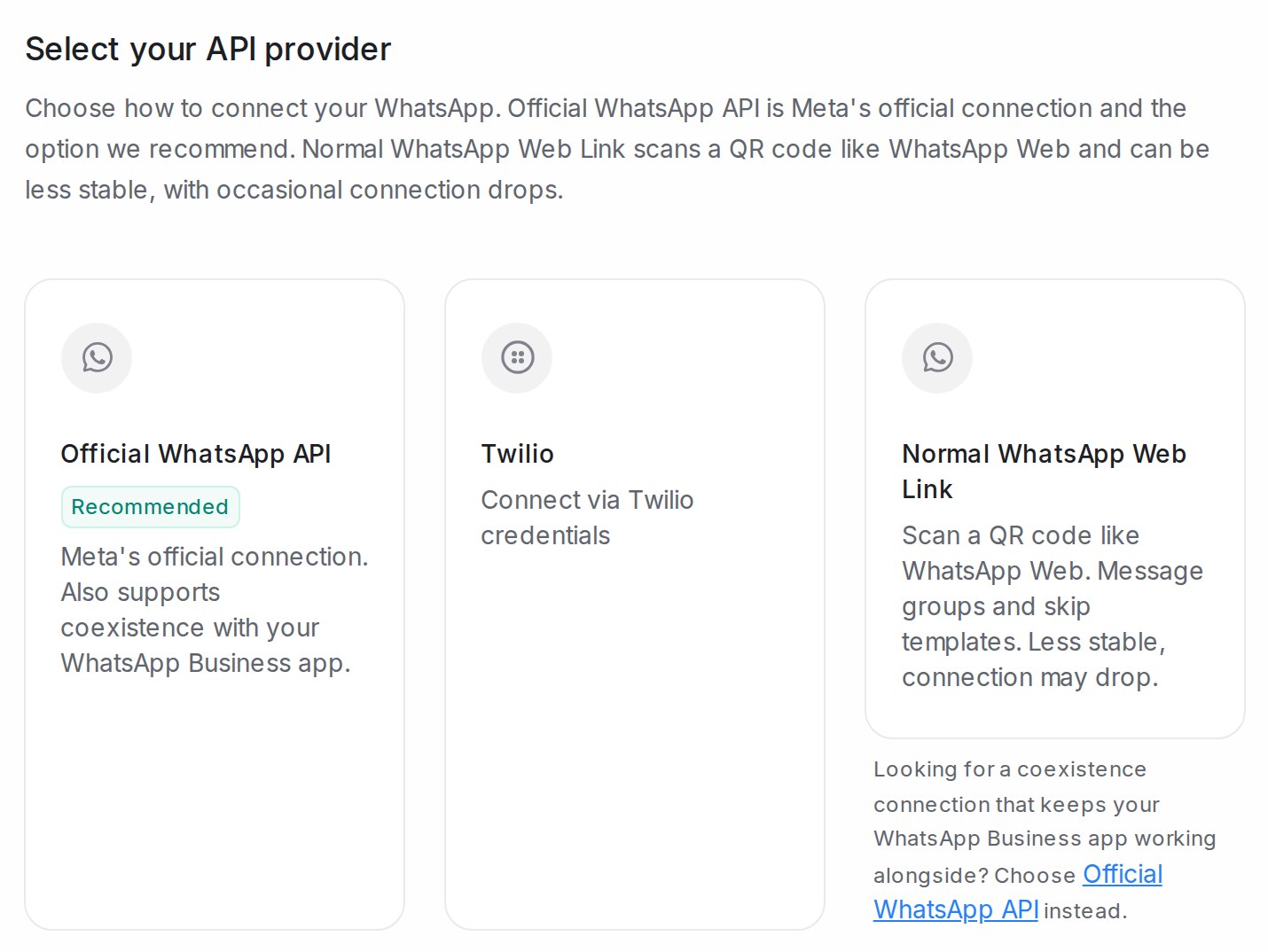{ width="716" }
The rest of this guide walks through the **Official WhatsApp API** route.
## Before you start
* The **WhatsApp Business app** installed on your phone, with the number you want to connect.
* A Meta **Business account** (business portfolio) you can log in to.
* Be aware: connecting shares your WhatsApp Business account information — phone number, contacts, chats and chat history — with Mampu AI.
## 1. Open Settings → Inboxes
Log in to Mampu AI and click **Settings** at the bottom of the left menu, below **Referral**. The settings menu opens beside it. Under **Inboxes & Routing**, click **Inboxes**.
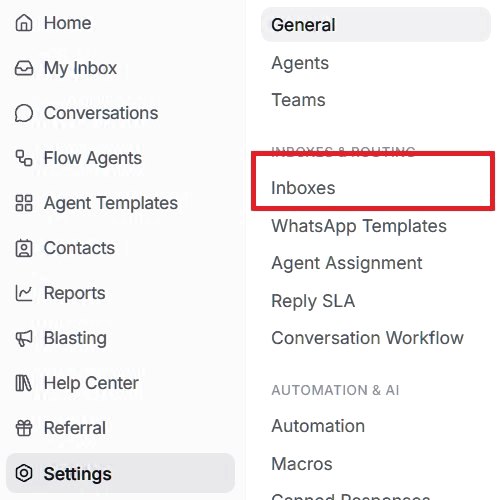{ width="500" }
## 2. Add a new inbox
The **Inboxes** page lists every channel you have connected. If this is your first one, the list is empty. Click **Add Inbox** at the top right.
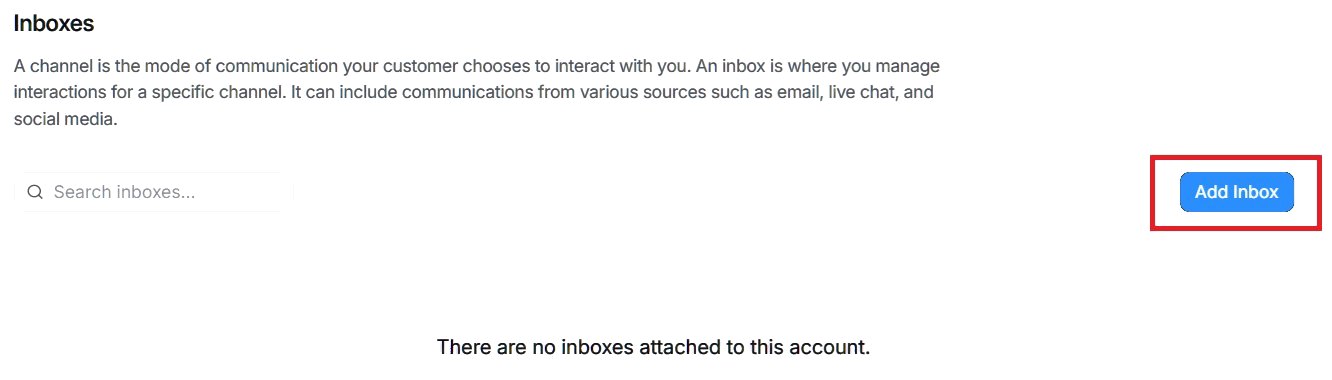{ width="760" }
## 3. Choose WhatsApp
A four-step setup opens: **Choose Channel**, **Create Inbox**, **Add Agents** and **Voilà!** You start at **Choose Channel**, which shows every channel you can connect. Click the **WhatsApp** card.
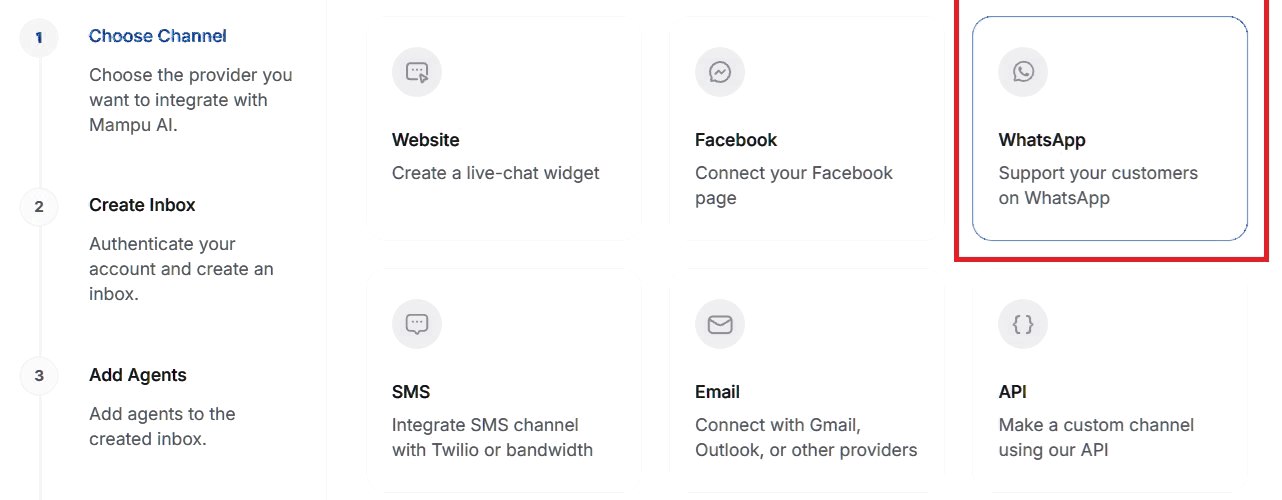{ width="760" }
## 4. Select Official WhatsApp API
Under **Select your API provider**, click **Official WhatsApp API**, marked **Recommended**. This is Meta's official connection and the one we recommend.
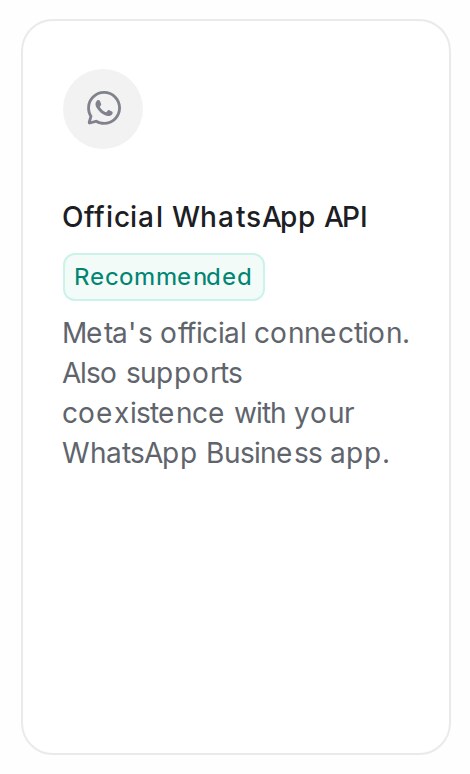{ width="235" }
## 5. Connect with Official WhatsApp API
The **Quick setup with Meta** page explains that Meta does the setup for you, with no manual configuration. Click **Connect with Official WhatsApp API**. A Meta window opens and asks you to log in with the Facebook account that manages your WhatsApp Business account. Having admin access to that account makes the setup smoother.
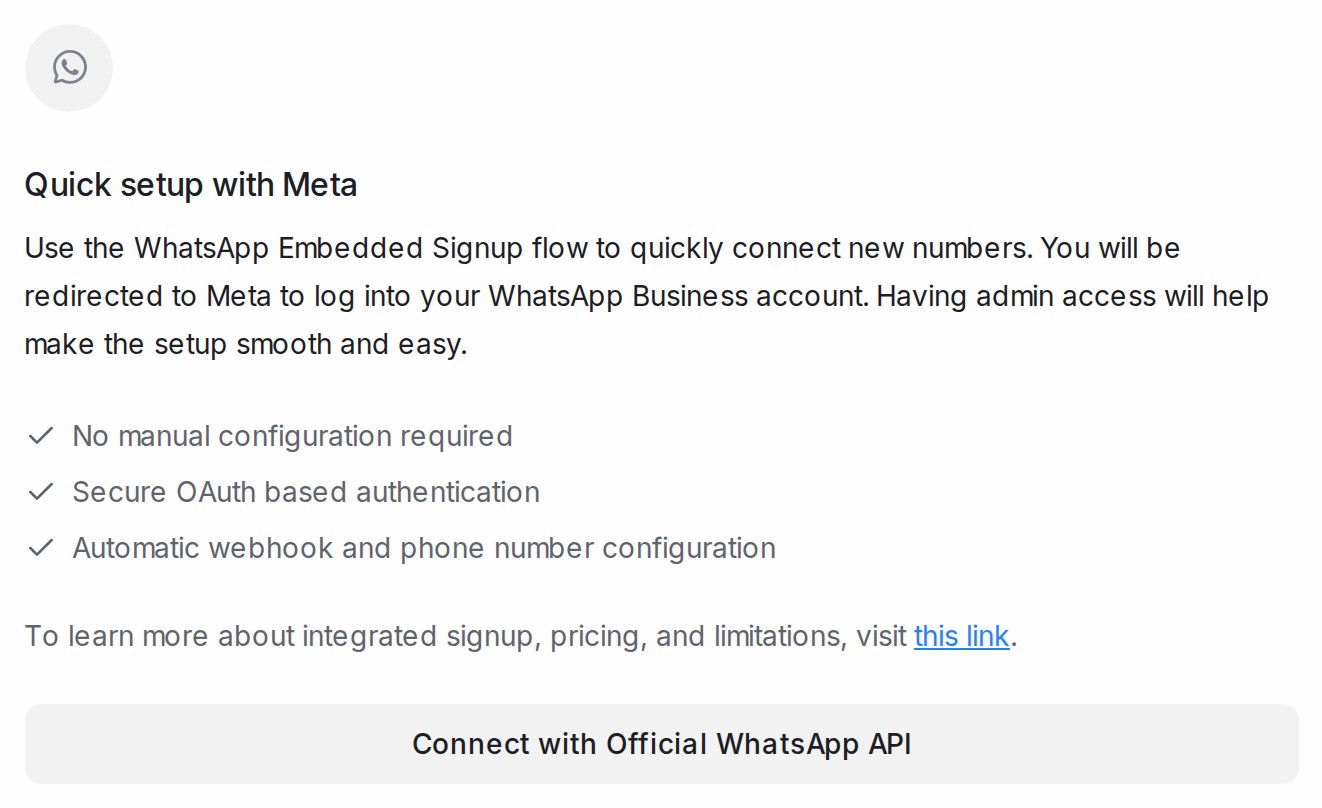{ width="662" }
If your number is already on the WhatsApp API with another provider, don't use this button; see [Migrating an existing WhatsApp number to Mampu AI](/settings/migrating-an-existing-whatsapp-number).
## 6. Continue in the Meta window
The Meta window shows the partner you are connecting to and what you will be able to do. Click **Continue** to start.
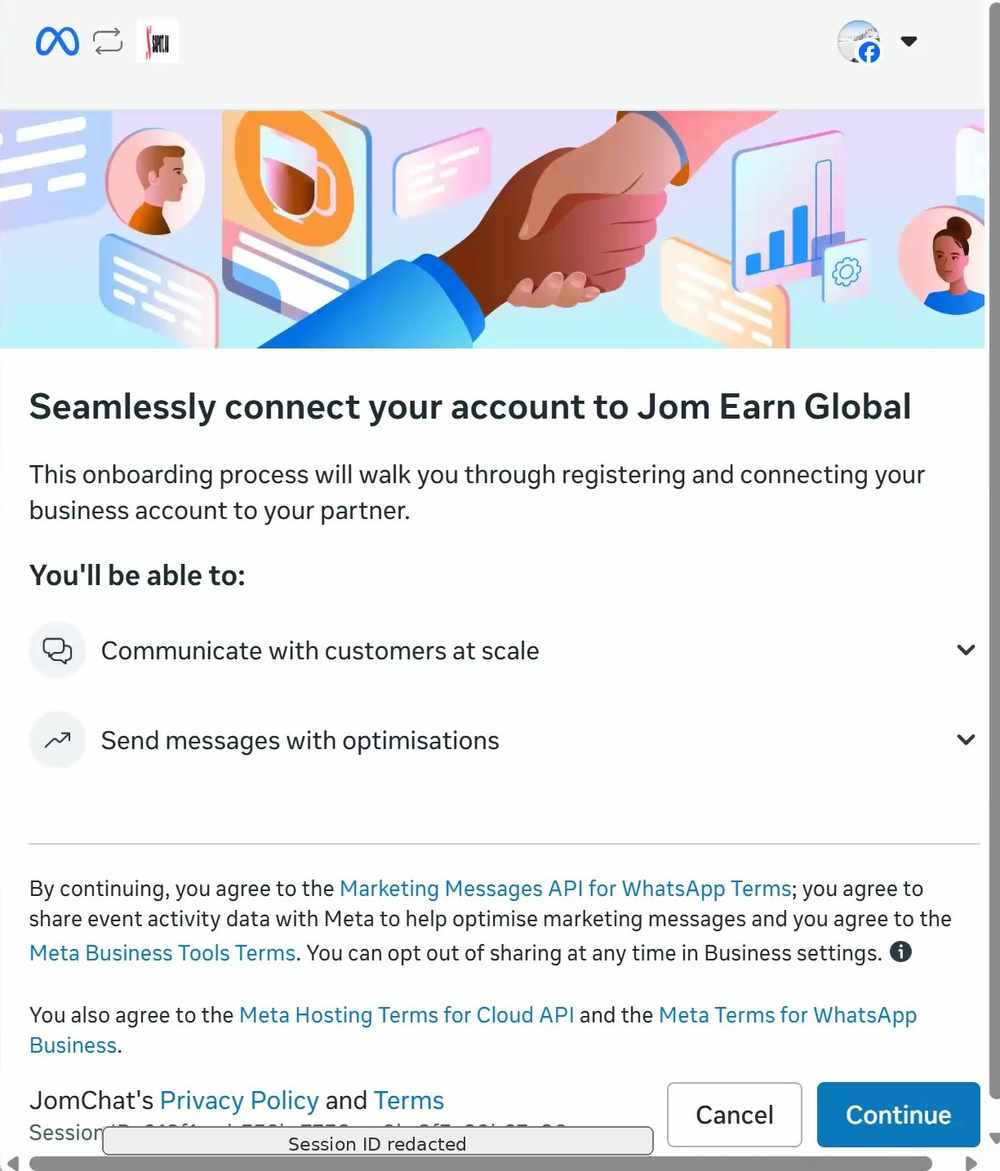{ width="500" }
If Meta asks which business portfolio to use and how to connect the number, pick your business, choose **Connect a WhatsApp Business app**, the option for a number you already use in the WhatsApp Business app, and click **Next**.
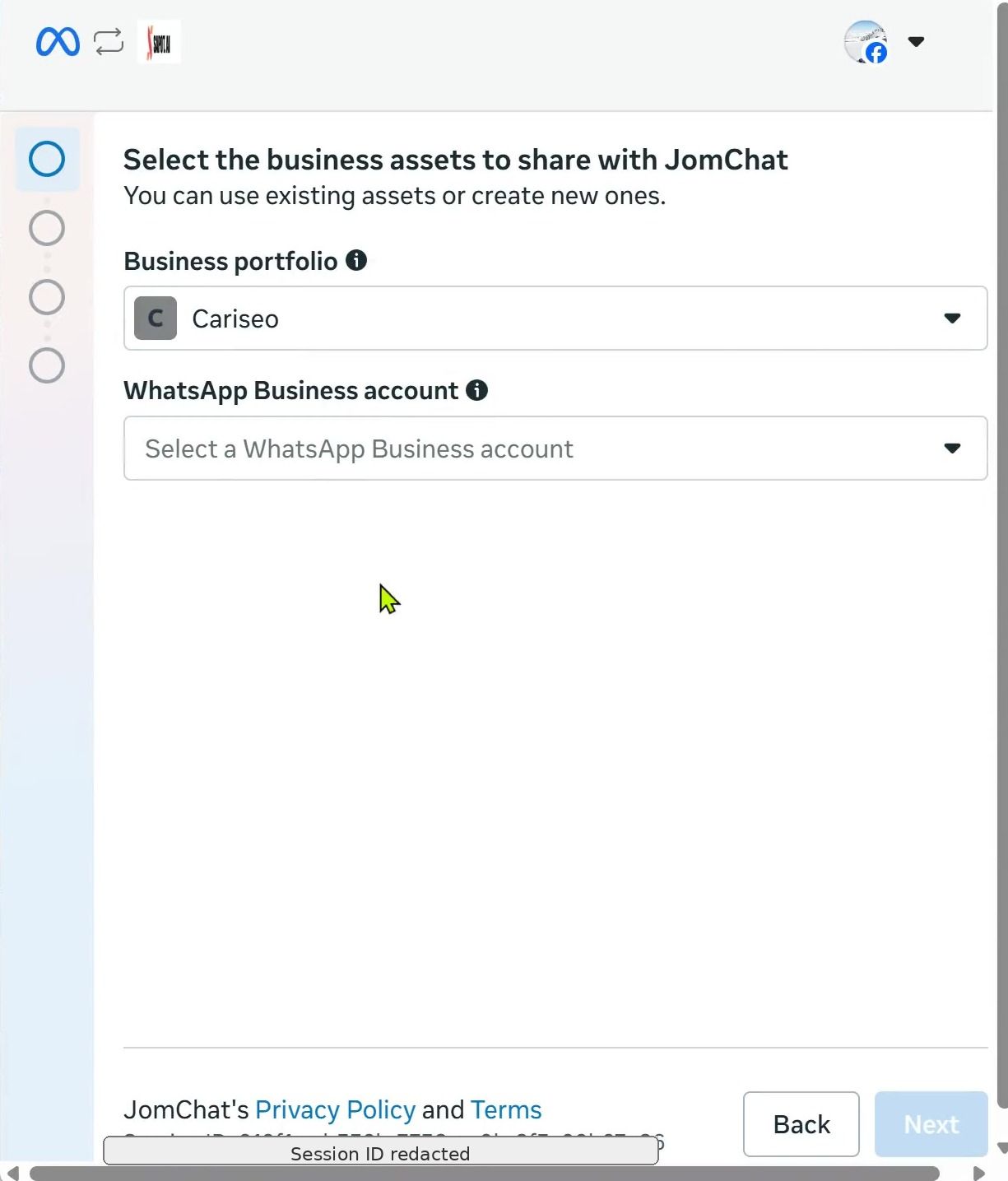{ width="612" }
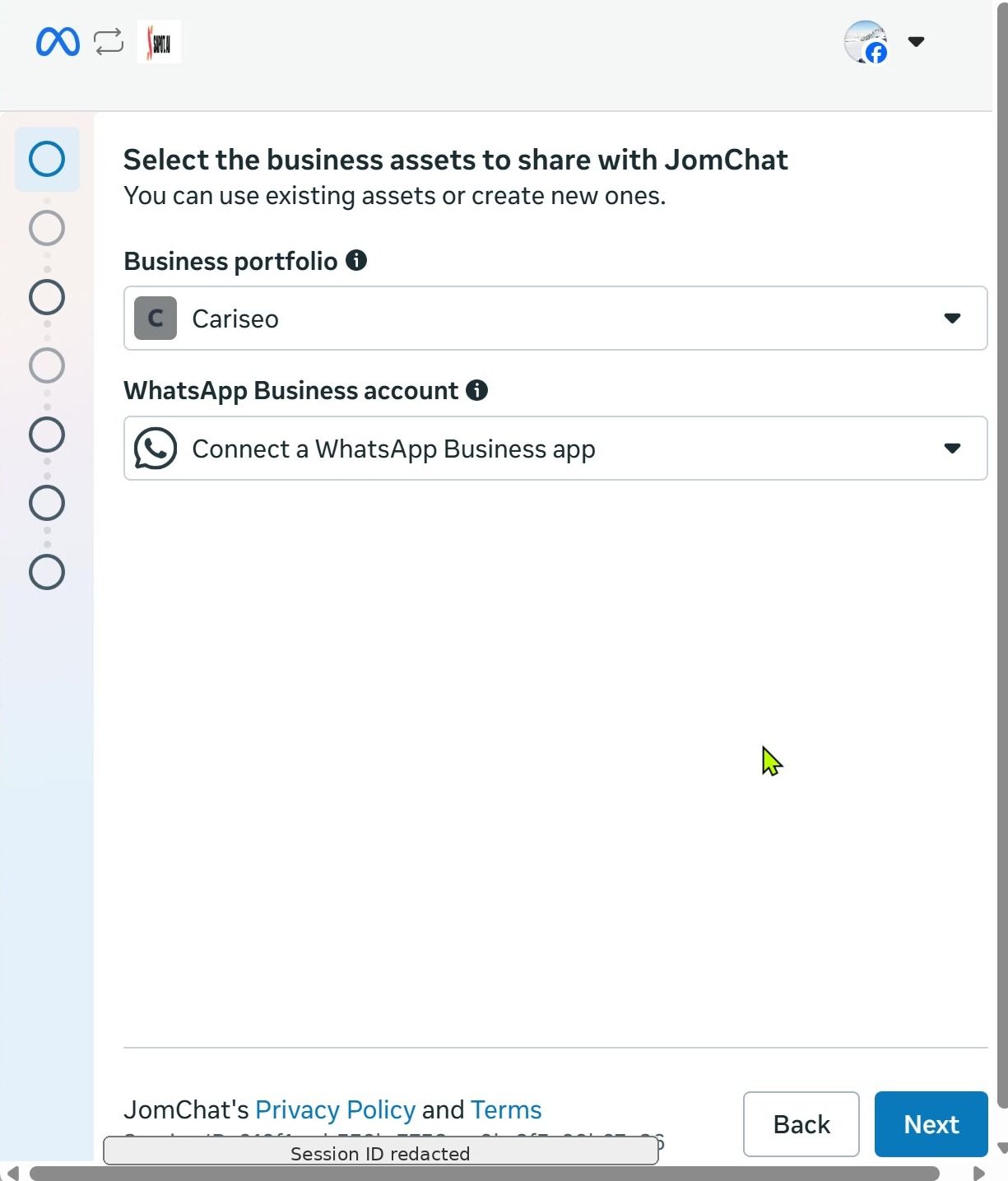{ width="612" }
## 7. Enter your WhatsApp Business phone number
Select the correct **country code**, type your phone number, and wait until it is validated. Then click **Next**.
## 8. Review the access-sharing notice
Meta explains that your WhatsApp Business account — including phone number, contacts, chats and chat history — will be shared with the partner. Click **Next** to continue.
## 9. Import contacts and chat history
Open the **WhatsApp Business app** on your phone and scan the QR code shown by Meta. Follow the on-screen instructions to finish connecting the app.
## You're done
Once the scan completes, your WhatsApp inbox is connected. Incoming WhatsApp messages now appear in Mampu AI, and your AI agent can start replying. You can fine-tune the inbox anytime under **Settings → Inboxes**.
## What Mampu AI learns from your chat history
When you share your chat history in step 9, your past WhatsApp chats arrive in the inbox as earlier conversations, with their original dates. About an hour after the last chats arrive, Mampu AI reads your most recent chats (up to 500) once and prepares two things for you, on every plan:
* **FAQ suggestions** — questions your team has already answered become drafts under **Flow Agents → AI Knowledge Hub → FAQ → Pending**. Each draft shows the customer message and the reply it came from, and nothing is used until you approve it. See [Reviewing pending drafts](/flow-agents/managing-ai-knowledge#reviewing-pending-drafts).
* **A draft flow agent** — a new agent under **Flow Agents**, named after your inbox and built from how your team usually handles these chats. It is only a draft: it does not reply to anyone until you review it, connect it to an inbox and publish it.
Your account's administrators get one email when it is ready, with links to the draft agent and the FAQ suggestions. If your chats don't give enough to build an agent, the email points to the FAQ suggestions only — you can build one later from newer chats with **Analyse chats** on the **Flow Agents** page.
This happens once per number: reconnecting the same number does not run it again.
## Connection status of a WhatsApp Business number
A number connected with the **Normal WhatsApp Web Link** option by QR code shows a small dot on its inbox's channel icon — in the **Channels** list of the left sidebar and on each inbox in **Settings → Inboxes**. The dot is green while the number is connected and red when it is not. Hover over it to read **Connected** or **Disconnected**. Only inboxes connected by QR code show the dot.
While a number is disconnected, new messages aren't delivered until you reconnect the inbox, and its conversations show a *WhatsApp is disconnected* banner.
### Reconnecting
1. Open the inbox's settings from **Settings → Inboxes**.
2. Go to the **Connection Status** tab.
3. Click **Reconnect**.
4. Scan the new QR code with WhatsApp on your phone.
You can also click **Reconnect WhatsApp** on the banner in a conversation.
## Notices from Meta about the number
{ width="900" }
When Meta restricts the account, lowers the messaging limit, flags the number's quality or rejects a template, a red or yellow banner appears on the inbox's **Settings** tab and the administrators are emailed; the **Notices from Meta** list at the bottom keeps the history. See [Notices from Meta about your inbox](/settings/notices-from-meta).
## Related
* [WhatsApp group chats](/channels/whatsapp-group-chats) — how group messages, reactions and leaving a group work on a QR-connected number.
* [Notices from Meta about your inbox](/settings/notices-from-meta)
---
## Registering a WhatsApp official (WhatsApp API) number
URL: https://help.mampuai.com/settings/registering-a-whatsapp-official-number
# Registering a WhatsApp official (WhatsApp API) number
Register a brand-new number as a **WhatsApp official (WhatsApp API)** account and connect it to Mampu AI using **Official WhatsApp API** and Meta's embedded signup. Use this when the number is new and not tied to any existing WhatsApp app — the number runs entirely on WhatsApp's official API.
> **Different situation?** To connect a number you already use in the WhatsApp Business app, see [Connecting a WhatsApp inbox](/settings/connecting-a-whatsapp-inbox). To move a number that's already on the WhatsApp API with another provider, see [Migrating an existing WhatsApp number to Mampu AI](/settings/migrating-an-existing-whatsapp-number).
## Before you start
* A Meta **Business account** (business portfolio) you can log in to.
* A phone number that can receive an **SMS or phone call** and is **not** already registered on WhatsApp or WhatsApp Business.
## 1. Start from the Go live checklist
On your Mampu AI home page, the **Go live** setup checklist shows the step to publish your agent and connect a messaging channel.

## 2. Add a new inbox
Go to **Settings → Inboxes**. If you have no inboxes yet, the page is empty. Click **Add Inbox**.
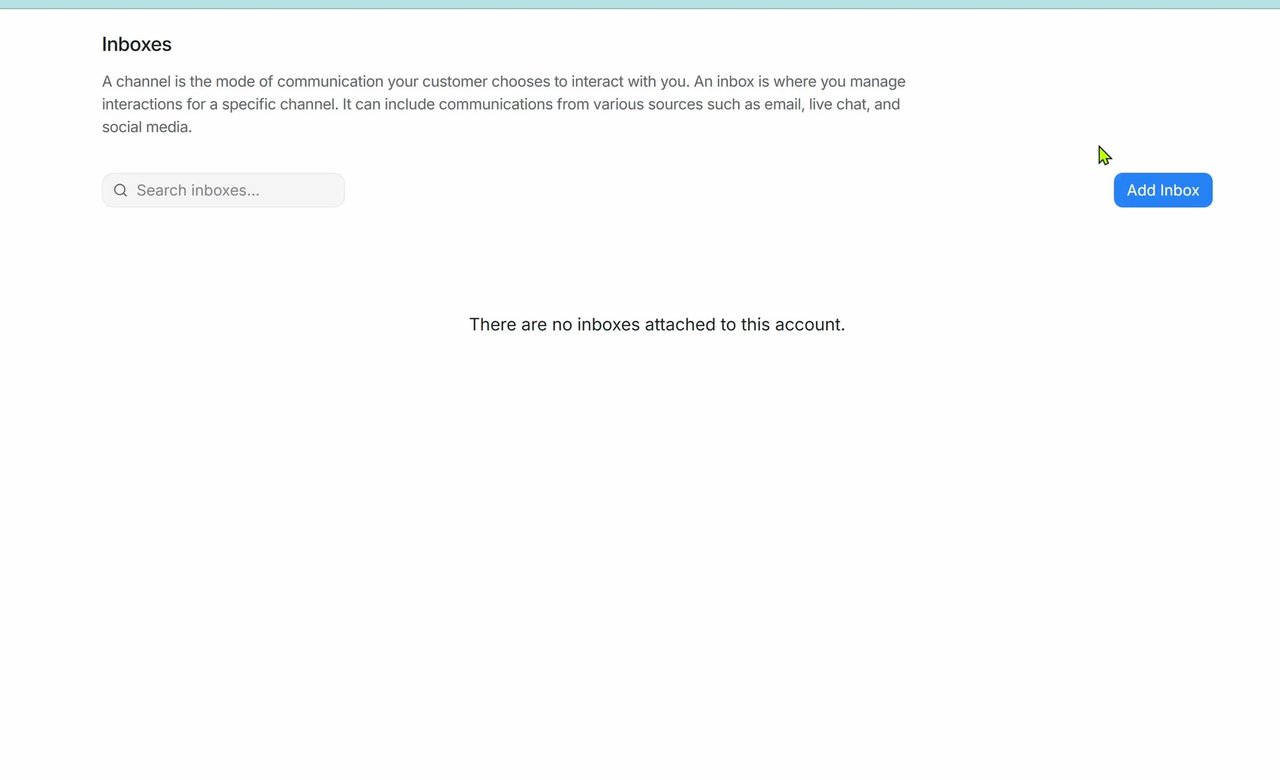
## 3. Choose WhatsApp and Official WhatsApp API
Select **WhatsApp** as the channel to connect. Then, for the API provider, choose **Official WhatsApp API** — Meta's official connection, marked **Recommended**.
{ width="235" }
## 4. Connect with Official WhatsApp API
On the **Quick setup with Meta** page, click **Connect with Official WhatsApp API**. This redirects you to Facebook Login for Business.
{ width="662" }
## 5. Continue in Facebook Login for Business
Review the partner connection, then click **Continue** to begin the onboarding flow.

## 6. Create a WhatsApp Business account
Choose the relevant **business portfolio**. Then, under **WhatsApp Business account**, select **Create a WhatsApp Business account** — this registers your number on WhatsApp's official API. Click **Next**.

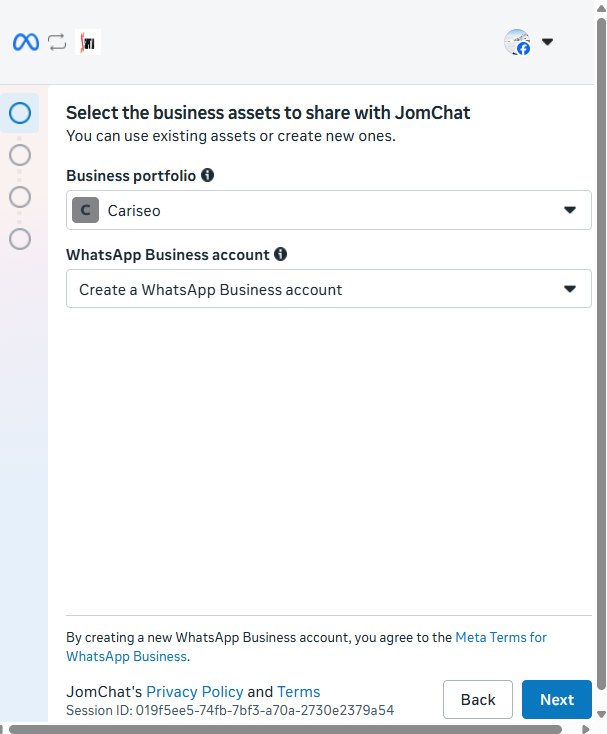
## 7. Set up your WhatsApp Business profile
Enter your **WhatsApp Business display name** and the business details Meta asks for (such as business category and timezone). This name is what customers see, so use your brand name.
## 8. Enter and verify the new phone number
Select the **country code** and enter the new phone number. Choose to receive the verification code by **SMS or phone call**, then enter the code Meta sends to finish registering the number.
## You're done
Once verification completes, your WhatsApp official number is connected. Incoming WhatsApp messages now appear in Mampu AI, and your AI agent can start replying. You can fine-tune the inbox anytime under **Settings → Inboxes**.
---
## Migrating an existing WhatsApp number to Mampu AI
URL: https://help.mampuai.com/settings/migrating-an-existing-whatsapp-number
# Migrating an existing WhatsApp number to Mampu AI
Already using your number on the WhatsApp API — for example with another provider or platform — and want to move it to Mampu AI? Migrating is two steps: first **turn off two-factor authentication** on the number, then **register it** using the setup guide. A number can only be active on one platform at a time, so it moves over to Mampu AI once you finish.
> **Not migrating?** If your number is on the WhatsApp Business app, see [Connecting a WhatsApp inbox](/settings/connecting-a-whatsapp-inbox). For a brand-new number, see [Registering a WhatsApp official number](/settings/registering-a-whatsapp-official-number).
## Before you start
* Access to the **Facebook account** that has access to the **Business Portfolio** which owns the number.
* The number is currently registered on the **WhatsApp API** (WhatsApp official) with another provider or platform.
## 1. Turn off two-factor authentication (2FA)
1. Log in to the Facebook account that has access to the Business Portfolio.
2. Open the **WhatsApp Manager** settings: [business.facebook.com/latest/settings/whatsapp\_account](https://business.facebook.com/latest/settings/whatsapp_account)
3. Turn **off** two-factor authentication (2FA) for the WhatsApp number.
{% embed url="https://youtu.be/09xUmu1GNKE" %}
## 2. Register the number in Mampu AI
With 2FA disabled, follow [Registering a WhatsApp official number](/settings/registering-a-whatsapp-official-number) to register the number in Mampu AI. **Use the same details** (business portfolio and phone number) as your existing WhatsApp account so everything carries over correctly.
## You're done
Once the connection completes, your existing WhatsApp number runs on Mampu AI. Incoming messages appear in your inbox and your AI agent can reply. Manage the inbox anytime under **Settings → Inboxes**.
---
## Creating WhatsApp message templates
URL: https://help.mampuai.com/settings/creating-whatsapp-message-templates
---
description: >-
Write, submit and manage the pre-approved WhatsApp templates you need to start
a conversation or send a blast.
---
# Creating WhatsApp message templates
On the WhatsApp API, you can only message someone first using a **template** that WhatsApp has already approved. Templates are also what you pick when you send a blast. You write them, submit them for approval and track their status directly in Mampu AI, on the inbox itself.
> **Which WhatsApp do you have?** Templates apply to **Official WhatsApp API** inboxes only. If you connected your number with **Normal WhatsApp Web Link** instead, you don't use templates. See [Normal WhatsApp Web Link vs Official WhatsApp API](/platform/connect-to-social-media-channels/normal-whatsapp-vs-whatsapp-cloud) if you're not sure which one you have.
## Before you start
* An **Official WhatsApp API** inbox. To set one up, see [Registering a WhatsApp official (WhatsApp API) number](/settings/registering-a-whatsapp-official-number) or [Migrating an existing WhatsApp number to Mampu AI](/settings/migrating-an-existing-whatsapp-number).
* Administrator access, so you can open the inbox settings.
## Where your templates live
Go to **Settings → Inboxes**, click your WhatsApp inbox, then open the **Templates** tab.
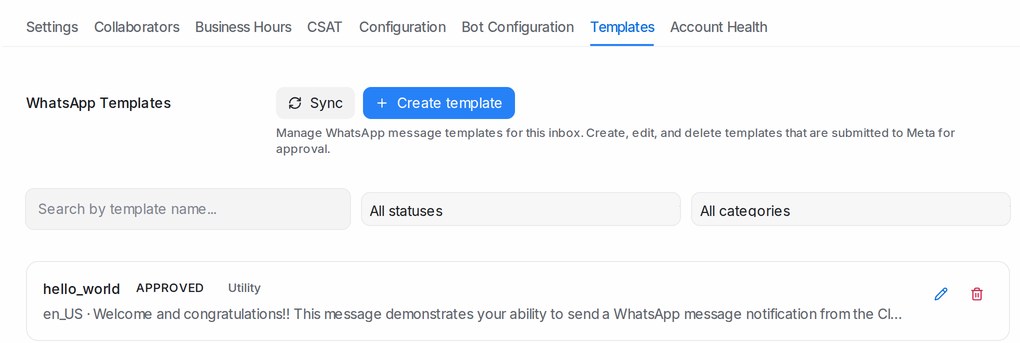
The tab lists every template on the number, with its category, language and status. You can:
* **Search by template name** to find one quickly.
* Filter by status — **All statuses**, **Approved**, **Pending** or **Rejected**.
* Filter by category — **All categories**, **Marketing** or **Utility**.
* Click **Sync** to pull the latest statuses from Meta. Your list also refreshes on its own through the day, so **Sync** is only for when you want an answer right now.
If nothing appears yet, you'll see *No templates found. Create a new template or sync from Meta.*
Have more than one WhatsApp API number? **Settings → WhatsApp Templates** shows the templates of all your numbers together, lets you copy a template to another number and edit a live template for every number in one save — see [The WhatsApp Templates library](/settings/whatsapp-template-library).
### What the statuses mean
| Status | What it means |
| --- | --- |
| **Pending** | Submitted and waiting for review. Decisions usually arrive within 24 hours. |
| **Approved** | Ready to use. Allow a few minutes after approval before your first send. |
| **Rejected** | Turned down. Edit it and resubmit, or write a new one. |
| **Paused** | Temporarily blocked because recipients reacted badly to it — too many blocks or reports, or very low read rates. Improve the message before using it again. |
## Choose the right category
Pick the category that matches what the message actually does. Getting this right is the single biggest reason a template sails through review.
* **Utility** — messages about something the customer already did or asked for: order confirmations, delivery updates, appointment reminders, receipts, account notices.
* **Marketing** — anything promotional or designed to bring people back: offers, launches, newsletters, re-engagement, invitations.
If your content clearly belongs elsewhere, Meta may move it to the correct category, usually to **Marketing**. Write the content for the category you want, rather than labelling a promotion as Utility.
> Authentication templates, used for one-time passcodes, aren't created here. If your number already has them, they still appear in the list.
## 1. Create the template
Click **Create template** and fill in the form. A live **Preview** on the side shows the message exactly as your customer will see it.
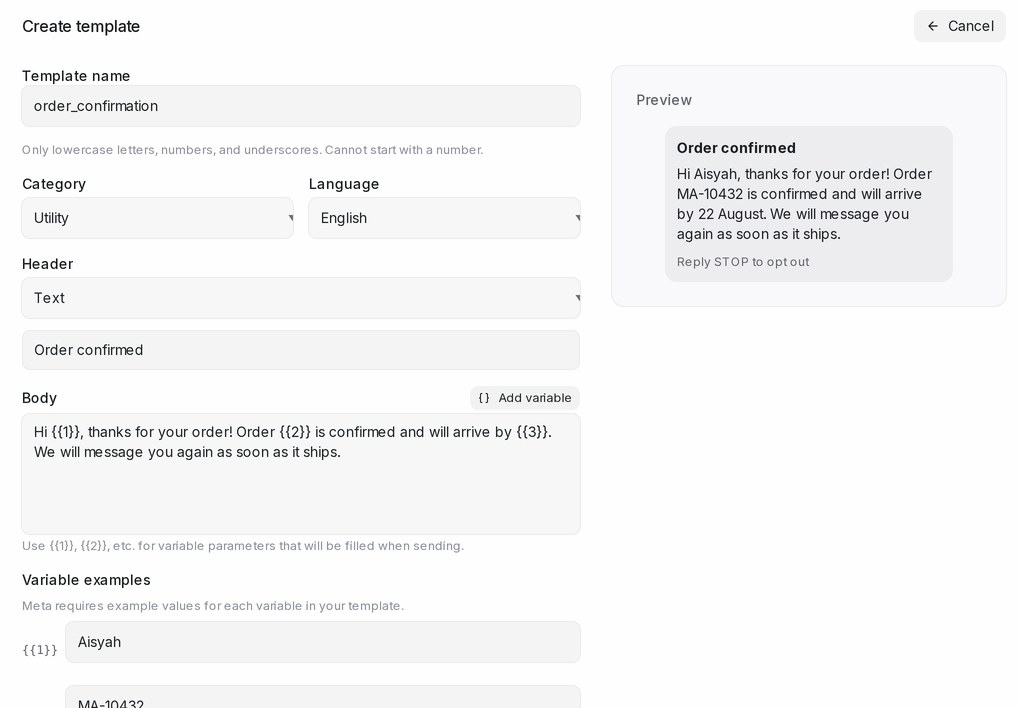
### Template name
Use only lowercase letters, numbers and underscores, and don't start with a number — for example `order_confirmation`. Spaces turn into underscores as you type, and unsupported characters are dropped.
Choose carefully: **the name and language can't be changed later.**
### Category and language
Pick **Marketing** or **Utility**, then the **Language** your message is written in. Submit a separate template for each language you plan to send in.
### Header
Optional, and limited to one line. Choose **None**, **Text**, **Image**, **Video** or **Document**.
For an image, video or document header, click **Upload example** and attach a sample file — Meta needs an example to review the template. Accepted files are JPG, PNG or WebP images, MP4 or 3GPP video, and PDF documents. This file is also what your customers receive: whenever someone on your team picks the template, it comes attached, and they can swap it for another file for a single send. See [The WhatsApp Templates library](/settings/whatsapp-template-library).
### Body
This is your message, and it's required.
To personalise it, click **Add variable** to drop `{{1}}`, `{{2}}` and so on into the text, then fill in the **Variable examples** underneath. Meta requires a realistic example for every variable, and **Create template** stays greyed out until each one is filled.
Write around your variables so the sentence still reads well no matter what fills them.
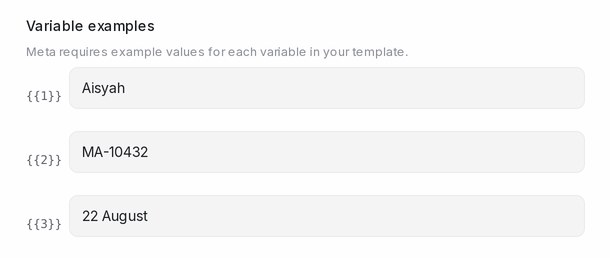
### Footer
Optional single line of small print, such as an opt-out note.
### Buttons
Optional, up to three. Choose from:
* **Quick Reply** — a tappable canned answer.
* **URL** — opens a link. You can add a variable to the end of the link for things like an order number.
* **Phone Number** — starts a call.
* **Copy Code** — copies a code, such as a voucher, to the clipboard.
### Check the preview
For **Marketing** templates, switch the preview between **Collapsed** and **Full**. WhatsApp shows only about five lines of a marketing message at first, and the recipient has to tap **Read more** for the rest — so put the offer and the reason to care in the opening lines.
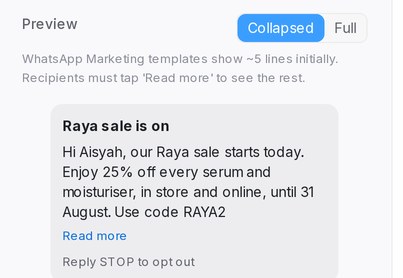
## 2. Submit for review
Click **Create template**. You'll see *Template created successfully. It will be reviewed by Meta*, and the template appears in the list as **Pending**.
Meta reviews it with a mix of automated and manual checks, usually within 24 hours. Meta also emails your business admins and posts an alert when the decision is made. Come back to the **Templates** tab, click **Sync**, and the status updates to **Approved** or **Rejected**.
## 3. Send it
Once a template is **Approved**, wait a few minutes, then use it to open a conversation or run a campaign. A template with an image, video or document header arrives with that file already attached when you pick it. See [WhatsApp campaigns](/campaigns/whatsapp-campaigns) for sending to a list.
## Editing and deleting
To change a template, click it in the list and edit its content or category. The **name** and **language** stay locked. Saving your changes sends the template back to Meta for another review, so it returns to **Pending** for a while.
Deleting a template removes it from your WhatsApp number for good. Anything scheduled to use it will no longer be able to send, so check your campaigns first.
## If a template is rejected
Rejections are almost always about the content. The usual causes:
* **Wrong category** — promotional wording submitted as **Utility**.
* **Duplicate wording** — the body and footer match a template you already have. Change the wording or reuse the existing template.
* **Asking for sensitive details** — never ask for full card numbers, bank account numbers or identity card numbers. Asking for the last few digits is fine.
* **Spam or scam-like content** — pushy urgency, unrealistic claims, or links that don't match your business.
* **Threatening or aggressive tone**, including threats of legal action.
* **Placeholder or unclear content** — variables with no meaningful example, or text that makes no sense on its own.
Fix the wording and save to resubmit, or create a fresh template with a new name. If you believe the category decision was wrong, you can request a category review from WhatsApp Manager in your Meta Business account.
## Tips for faster approval
* Write the full message as a customer would read it, with no shorthand or internal jargon.
* Give every variable a realistic example — `Aisyah`, `RM120.00`, `18 August` — not `xxx` or `test`.
* Keep the message specific to one purpose.
* Add an opt-out line in the footer on marketing templates.
* Get one template approved first, then reuse its structure for the rest.
## Related
* [The WhatsApp Templates library](/settings/whatsapp-template-library)
* [Registering a WhatsApp official (WhatsApp API) number](/settings/registering-a-whatsapp-official-number)
* [Connecting a WhatsApp inbox](/settings/connecting-a-whatsapp-inbox)
* [WhatsApp campaigns](/campaigns/whatsapp-campaigns)
* [Normal WhatsApp Web Link vs Official WhatsApp API](/platform/connect-to-social-media-channels/normal-whatsapp-vs-whatsapp-cloud)
---
## The WhatsApp Templates library
URL: https://help.mampuai.com/settings/whatsapp-template-library
---
description: >-
Manage the WhatsApp templates of all your WhatsApp API numbers in one place — friendly
names, one template on many numbers, and edits that reach every number in one save.
---
# The WhatsApp Templates library
**Settings → WhatsApp Templates** gathers the message templates of every WhatsApp API number in your account. Templates created on any number appear here with a friendly name for your team; a draft can be applied to any of your numbers, and a template that is already approved on one number can be copied to the others.
> Templates apply to **Official WhatsApp API** numbers only. Writing a template from scratch, categories, variables and approval are covered in [Creating WhatsApp message templates](/settings/creating-whatsapp-message-templates).
## What you see
One row per template, with its language, category and a chip for each number that carries it: **Approved**, **In review**, **Rejected**, **Queued** while a change is on its way, or **Failed** with the reason underneath. **Sync from Meta** refreshes every number at once.
Friendly names are for your team only. They show on the inbox **Templates** tab, in the blasting form and in the template picker, in place of the technical name Meta uses.
## The template's picture or file
A template with an image, video or document at the top keeps that file in the library. Whenever someone on your team picks the template, in a conversation reply, a new conversation, a blast or a message-sequence step, the file is already attached, with a small preview, the file name and the note *From the template library*, so you can see what the customer will receive.
* Want to send a different file this once? Click the **×** on the file, then upload another or paste a link. The template itself does not change.
* To change the file for every future send, edit the template and upload a new example under **Header**. WhatsApp reviews the change like any other edit.
* A template that has no file in the library yet picks up the example it was approved with at the next sync.
* A file over WhatsApp's size limit (5 MB for an image) shows in red with the reason, and the message cannot be sent until you replace it. See [Picture and file size limits](/settings/file-size-limits).
## Applying a template to more numbers
Click the send icon on a row and tick the numbers that should have it. A number that already has an approved copy of the same template hands it over so the copy arrives approved at once; otherwise the template is submitted to Meta for review on that number. Each number's chip shows the outcome.
## Editing a template that is already live
Click the pen icon on any row. On a template that is live on a number, the Meta name, language and category are locked — WhatsApp does not allow those to change — while the friendly name and the content stay editable.
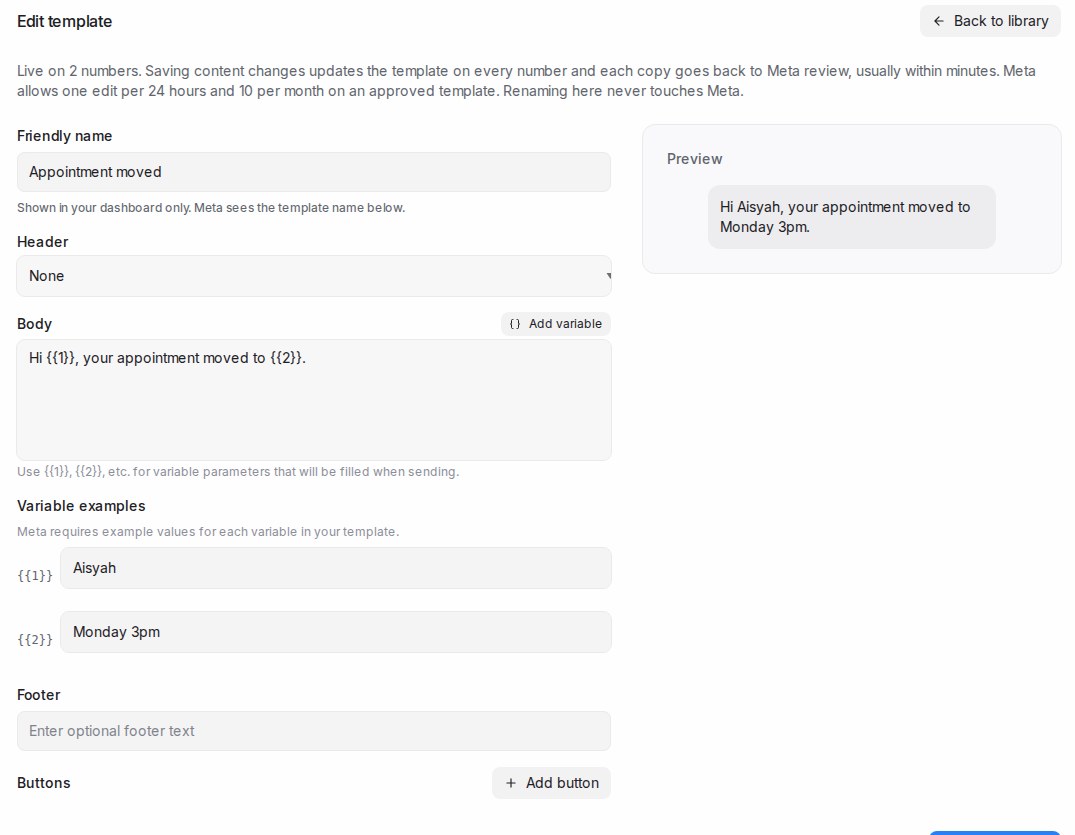
Change the header, body, footer or buttons and click **Save changes**:
* The new content is sent to every number that carries the template. Each number shows **Queued**, then **In review** until WhatsApp approves the edit, usually within minutes.
* Renaming only the friendly name changes nothing on WhatsApp.
WhatsApp's own rules apply: only approved, rejected or paused templates can be edited, and an approved template at most once every 24 hours and 10 times in 30 days.
### When a number refuses the update
If WhatsApp refuses the edit on a number, that number's chip turns **Failed** and the reason appears under it.
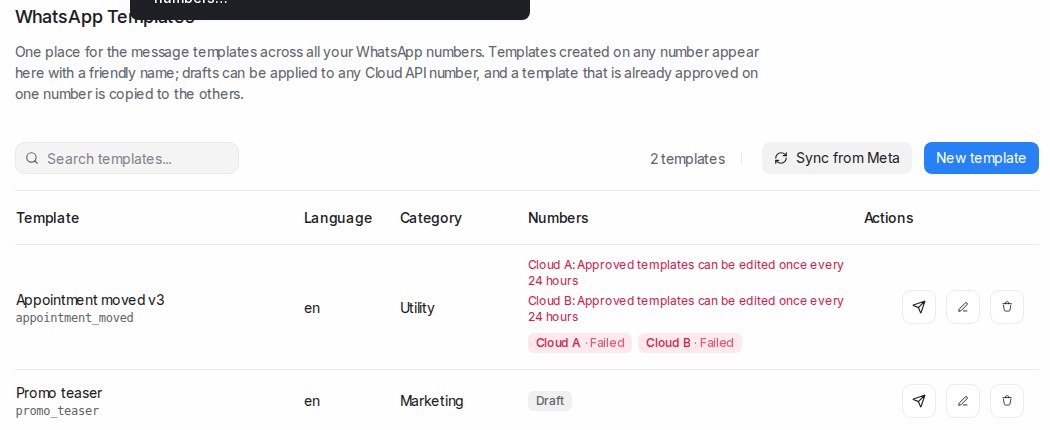
To try again, click the send icon: the refused numbers are listed with *Update refused — send again*. Tick the ones to resend and confirm.
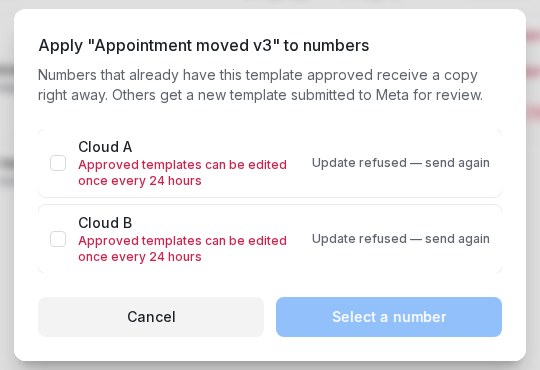
## Replying automatically when a button is pressed
A template's **Quick Reply** buttons can answer the customer on their own. Set the reply once in the library, and it goes out the moment a customer presses that button on a message sent with the template — from a blasting or anywhere else.
1. Click the pen icon on a template with **Quick Reply** buttons.
2. Under **When pressed** for each button, choose **Do nothing** or **Reply with a message**, and write the reply. Type `{{` to insert a contact field, such as the customer's name.
3. Click **Save changes**.
Changing only a button's reply does not send the template back to WhatsApp for review.
When you create a WhatsApp blasting with the template, its replies appear under **Button replies**, filled in from the library. Change a reply for this blasting only, or leave it empty to send nothing for that button. A blasting keeps its own copy of the replies, so later edits in the library never change a blasting that is already scheduled or sent.
When a customer presses the button, the reply goes out straight away, and the Flow Agent, agent bots and automation rules stay quiet for that press, so the customer never gets two answers.
If a press can't be matched to the template message it came from, nothing is sent automatically. Instead, a private note in the conversation tells your team which button was pressed, and administrators get an email — at most one per number per day.
## Removing a template from the library
**Remove** deletes the row from the library only. Copies stay on your WhatsApp numbers and reappear in the library after the next sync.
## Related
* [Creating WhatsApp message templates](/settings/creating-whatsapp-message-templates)
* [WhatsApp blasting](/campaigns/whatsapp-campaigns)
* [Message Sequences](/campaigns/message-sequences)
* [The 24-hour reply window](/channels/whatsapp-reply-window)
* [Registering a WhatsApp official (WhatsApp API) number](/settings/registering-a-whatsapp-official-number)
---
## The 24-hour reply window
URL: https://help.mampuai.com/channels/whatsapp-reply-window
---
description: How the 24-hour WhatsApp reply window works, what the Reply window countdown above a conversation shows, and what to do once only templates can be sent.
---
# The 24-hour reply window
Every message a customer sends to an Official WhatsApp API inbox opens a 24-hour window in which your team can reply freely: text, images, documents, quick replies, anything. When the customer stays quiet for 24 hours the window closes, and until they write again you can only reach them with an approved message template.
## The Reply window countdown
Above the messages in an Official WhatsApp API conversation, **Reply window** shows how long is left. It counts down every minute and resets to 24 hours each time the customer sends a message.
* Teal, for example **Reply window · 21h 12m**: you can reply freely.
* Red **Reply window closed · templates only**: the 24 hours have passed. It stays red until the customer writes again.
Hover the countdown to see what it means, the exact time it ends or closed, and a link back to this article.
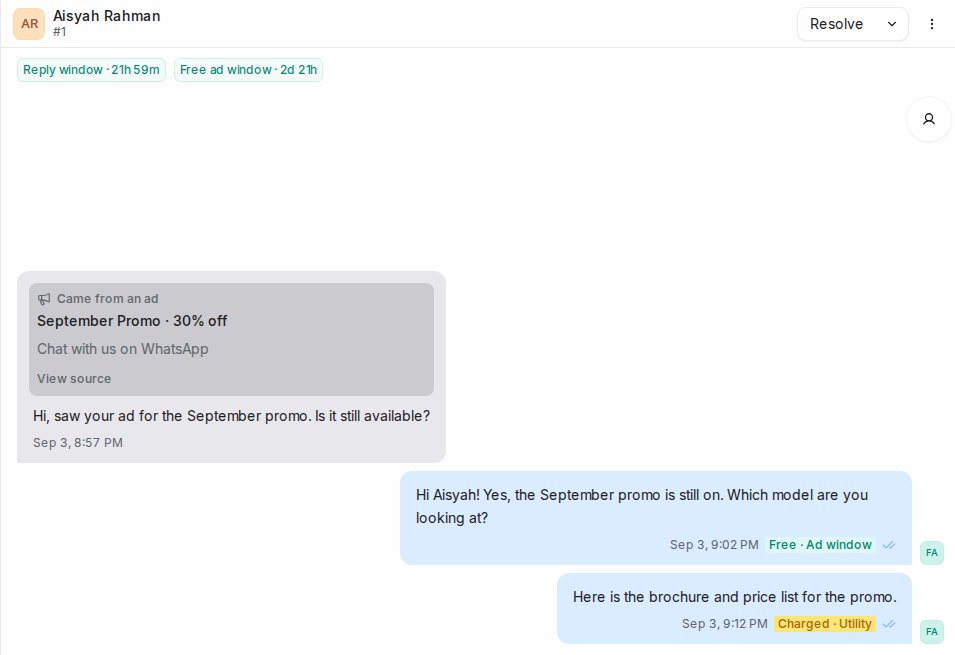
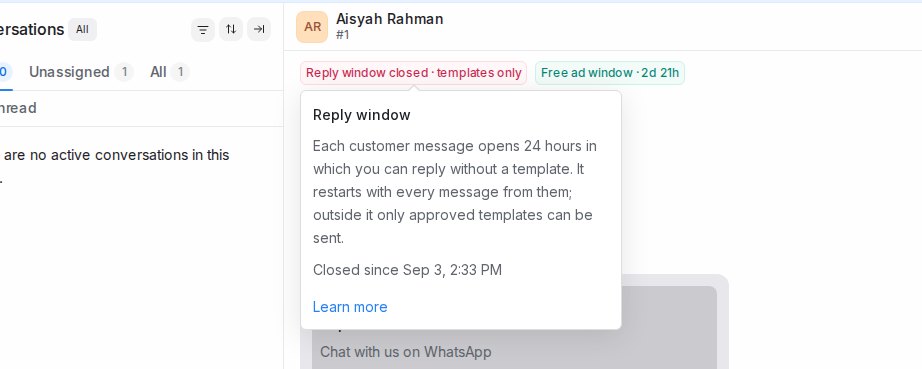
## When the window is closed
The reply box switches to templates only. Pick an approved template to reach the customer; a template with a picture or file at the top comes with that file already attached. See [Creating WhatsApp message templates](/settings/creating-whatsapp-message-templates). As soon as the customer replies, the window reopens and the countdown starts again.
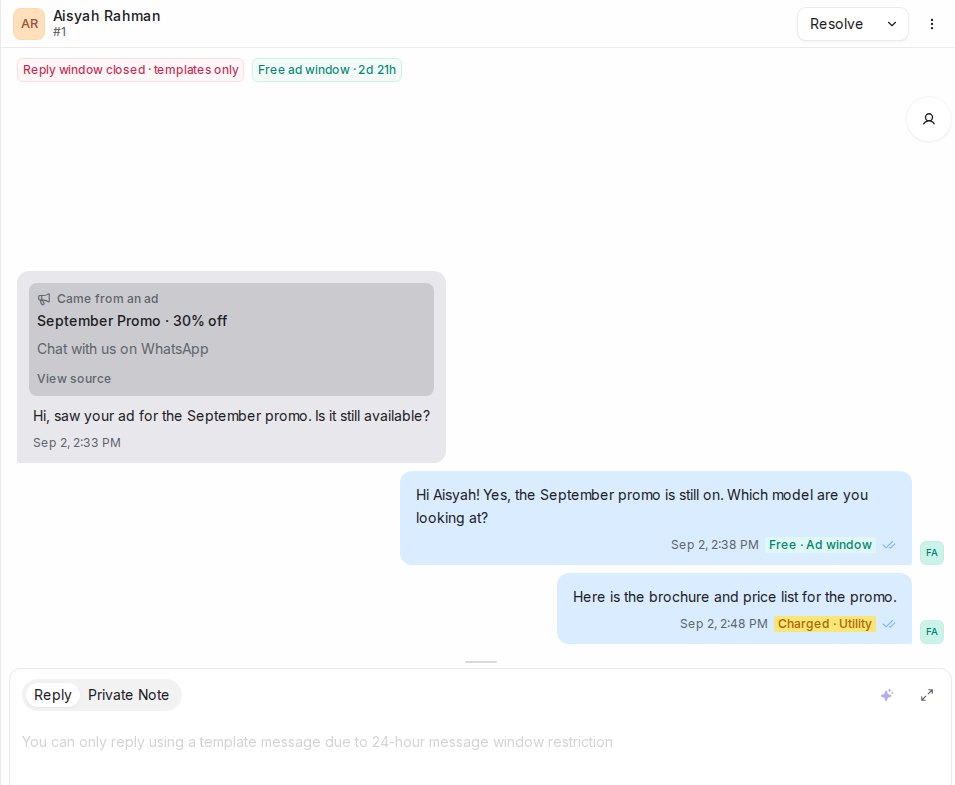
## What the window means for your bill
Meta bills each message you send by its type. Replies inside the reply window are service messages; templates are billed by their category, such as utility or marketing. From 1 October 2026 Meta charges for service messages too, but it is switching numbers over gradually, so on many numbers replies are still free for now. Inside a [free ad window](/channels/whatsapp-free-ad-window) nothing is charged, whatever the type. Each message in the conversation carries a tag next to its time, such as **Free**, **Free · Ad window**, **Charged · Service** or **Charged · Utility**, so you can see how it was billed.
## Where these rules come from
The 24-hour window and the billing rules are set by Meta, not by Mampu AI, and Meta changes them from time to time. This article reflects Meta's [WhatsApp Business Platform pricing](https://developers.facebook.com/documentation/business-messaging/whatsapp/pricing) and [upcoming pricing updates](https://developers.facebook.com/documentation/business-messaging/whatsapp/pricing/non-template-messages) pages as read on 3 September 2026, and on how Meta billed messages sent through Mampu AI up to 14 October 2026. Check those pages for the current rules before making decisions based on cost.
## Tips
* Answer while the countdown is teal. A quick reply keeps the conversation moving and avoids templates altogether.
* If the window has closed, send a short utility template that invites the customer to continue. Their reply reopens the window.
* Customers cannot see the countdown; it is only shown to your team.
## Related
* [The free ad window](/channels/whatsapp-free-ad-window)
* [Creating WhatsApp message templates](/settings/creating-whatsapp-message-templates)
* [Finding the receipt for conversational cost for WhatsApp API](/platform/connect-to-social-media-channels/normal-whatsapp-vs-whatsapp-cloud/finding-the-receipt-for-conversational-cost-for-whatsapp-api)
* [WhatsApp](/channels/whatsapp)
---
## The free ad window
URL: https://help.mampuai.com/channels/whatsapp-free-ad-window
---
description: Replying within 24 hours to a customer who came from a WhatsApp ad opens up to 7 days of free messaging. Here is how the Free ad window countdown and the message tags show it.
---
# The free ad window
When a customer starts a chat by tapping a WhatsApp ad, or the WhatsApp button on your Facebook Page, and you reply within 24 hours, Meta opens a free window during which every message you send that customer is free: replies and templates alike. For chats that start from an ad, the window can stay open for up to 7 days. For chats from the WhatsApp button on your Facebook Page, it lasts 72 hours. Meta sets the exact end time for each conversation, so go by the countdown rather than a fixed number. The window only opens when the customer tapped from the WhatsApp app on their phone; taps from WhatsApp on a computer do not qualify.
Chats that start from an ordinary Facebook post, one that is not an ad, do not open a free window. Messages to those customers are billed as usual.
## The Free ad window countdown
Above the messages in an Official WhatsApp API conversation, **Free ad window** counts down how long the free period has left, for example **Free ad window · 2d 4h**. It appears once your first reply has been delivered and disappears when the window closes. The end time comes from Meta for each conversation, so one customer's window may run 3 days and another's 7. Hover it to see what it means, the exact end time, and a link back to this article.

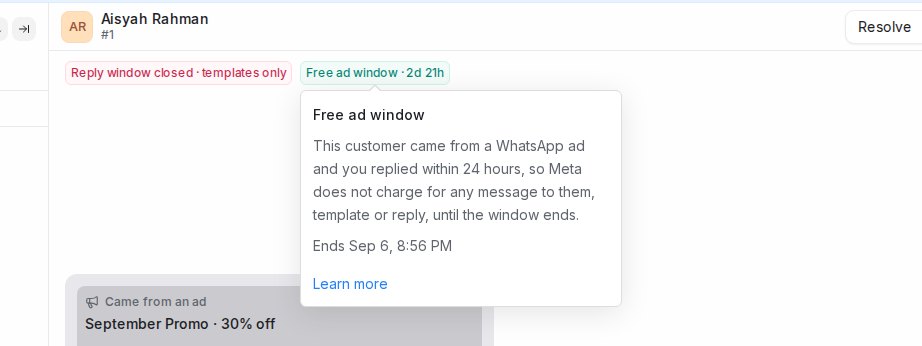
The conversation also shows which ad the customer came from: a **Came from an ad** card on their first message, and the ad details in the conversation information panel.
## Message tags
Messages you send from Mampu AI in an Official WhatsApp API conversation carry a small tag next to their time, based on how Meta billed them:
* **Free · Ad window**: sent inside the free ad window, not charged.
* **Free**: a reply inside the 24-hour reply window, not charged.
* **Charged · Utility**, **Charged · Marketing** and similar: a message billed at that category's rate.
The tag is Meta's own verdict for that message and appears shortly after it is delivered. A message with no tag means Meta has not reported how it was billed. That is normal for messages typed in the WhatsApp app on your phone, for private notes, and for older messages. Only a tag confirms that a message was free.
## Where these rules come from
The free ad window and its conditions are set by Meta, not by Mampu AI, and Meta changes them from time to time. This article reflects Meta's [WhatsApp Business Platform pricing](https://developers.facebook.com/documentation/business-messaging/whatsapp/pricing) and [upcoming pricing updates](https://developers.facebook.com/documentation/business-messaging/whatsapp/pricing/non-template-messages) pages, and the up-to-7-day window for ad chats announced in Meta's [WhatsApp Business Platform changelog](https://developers-fallback.facebook.com/documentation/business-messaging/whatsapp/changelog/#:~:text=Routing%20readiness%20checklist.-,September%2028%2C%202026,-Pricing) on 28 September 2026, as read on 14 October 2026. Check those pages for the current rules before making decisions based on cost.
## Making the most of the window
1. **Reply within 24 hours.** Any message counts, a plain reply or a template. If you miss the 24 hours, no free window opens and your next message is billed as usual.
2. **Keep the customer talking.** Each message from them resets the [24-hour reply window](/channels/whatsapp-reply-window), so you can keep replying freely for as long as the countdown runs.
3. **Use templates once they go quiet.** After 24 hours of silence only templates can be sent, but inside the free ad window they are still not charged.
4. **Settle the enquiry inside the window.** Quotes, brochures, booking confirmations and follow-ups all cost nothing while the countdown is running.
## Related
* [The 24-hour reply window](/channels/whatsapp-reply-window)
* [Creating WhatsApp message templates](/settings/creating-whatsapp-message-templates)
* [WhatsApp](/channels/whatsapp)
* [WhatsApp blasting](/campaigns/whatsapp-campaigns)
---
## WhatsApp group chats
URL: https://help.mampuai.com/channels/whatsapp-group-chats
---
description: How WhatsApp group chats show up when your number is connected by QR code — who sent each message, who reacted, and what happens when your number leaves a group.
---
# WhatsApp group chats
When your number is connected with the **Normal WhatsApp Web Link** option by scanning a QR code, the WhatsApp groups your number is in come into Mampu AI as conversations, next to your one-to-one chats. This page explains how they look and how they behave. It applies only to QR-connected numbers, not to **Official WhatsApp API**. To connect a number this way, see [Connecting a WhatsApp inbox](/settings/connecting-a-whatsapp-inbox#two-ways-to-connect).
## How group messages appear
Each group is one conversation. Because many people write in the same chat, every message from a group member starts with a sender line naming their number and WhatsApp name, for example:
**+60 12 345 6789 - Name:**
## Telling a group chat apart in the list
In the conversation list, every group chat carries a small people icon before its name, in every view. Hover over the icon to see **WhatsApp group**. One-to-one chats have no icon.
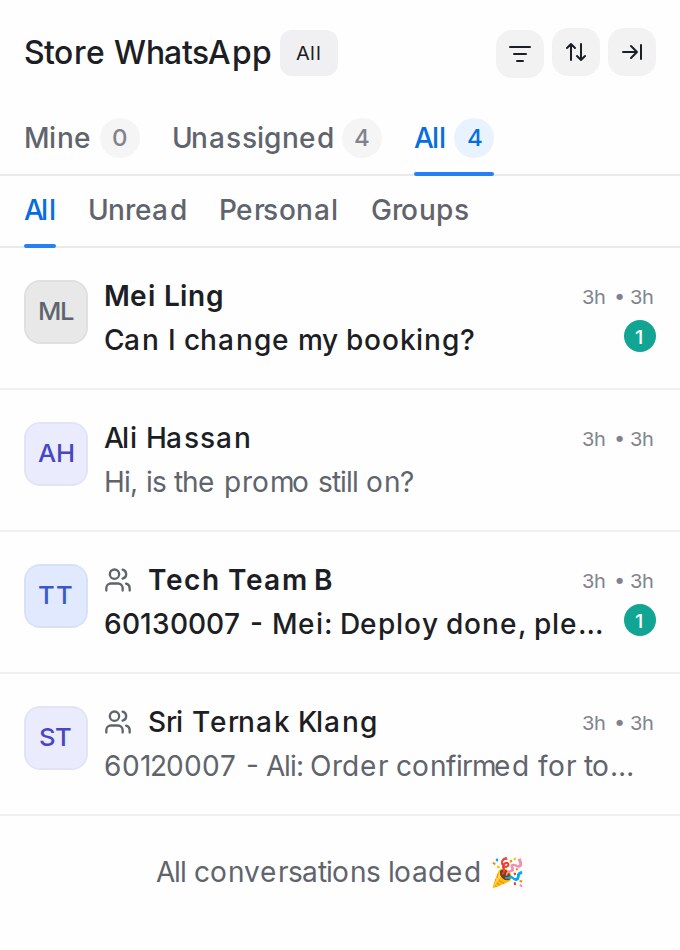{ width="340" }
## Showing only personal chats or only group chats
1. In the sidebar under **Channels**, open the WhatsApp inbox connected by QR code.
2. Under **Mine**, **Unassigned** and **All**, the row reads **All**, **Unread**, **Personal** and **Groups**. Pick **Personal** to keep one-to-one chats, or **Groups** to keep group chats.
3. Pick **All** to see everything again.
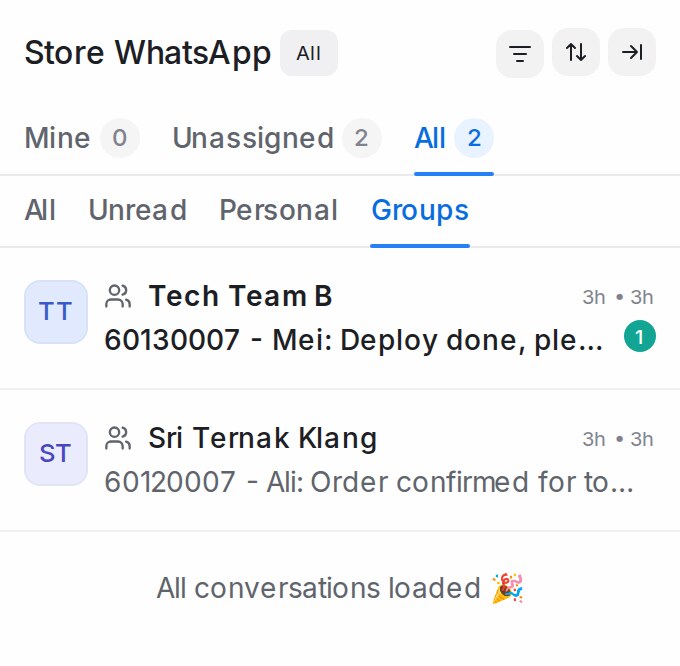{ width="340" }
* The **Mine**, **Unassigned** and **All** counts follow your pick, and the status chip still applies.
* Your pick is remembered the next time you open a QR-connected inbox.
* **Unread** is on the same row, so picking it shows unread chats of both kinds.
* **Personal** and **Groups** appear only while a QR-connected inbox is open. **All Conversations** and other inboxes show **All** and **Unread** as usual.
## Reactions
When someone in a group reacts to a message with an emoji, the reaction appears in the conversation with the same sender line, so you can see who reacted.
A reaction is marked as a reaction, not a new message:
* Your Flow Agent doesn't treat a reaction as a new customer message.
* To stop reactions from starting a reply countdown, open **Settings → Reply SLA**, edit the SLA and turn on **Ignore emoji reactions**. See [Reply SLA](/settings/reply-sla).
## When your number leaves a group
When your number leaves a group, or is removed from it, the group's conversation is resolved automatically and this note appears in it:
*This WhatsApp number is no longer a member of the group, so the conversation was resolved*
Resolving the conversation stops its Reply SLA countdown, so no alert is raised for a group you can no longer reply to.
Other members joining or leaving the group changes nothing — the conversation stays as it is.
## Related
* [Managing Conversations](/conversations/managing-conversations)
* [Connecting a WhatsApp inbox](/settings/connecting-a-whatsapp-inbox)
* [Reply SLA](/settings/reply-sla)
* [WhatsApp](/channels/whatsapp)
---
## When your WhatsApp number may be hacked
URL: https://help.mampuai.com/channels/whatsapp-hacked-number-alert
---
description: What the "Your WhatsApp may be hacked" alert means, what to do in the first minutes, and how to warn the customers who got a file.
---
# When your WhatsApp number may be hacked
A hacked WhatsApp number often sends zip files or app files to many of your customers within minutes. Mampu AI watches the files your own WhatsApp sends. When your number sends zip or program files to 3 or more chats within 10 minutes, your inbox shows a red alert and your workspace admins get an email straight away. This works for numbers connected with **Official WhatsApp API** that also stay in your WhatsApp Business app, and for numbers connected with **Normal WhatsApp Web Link**.
The files that count are zip, rar, 7z, apk, exe, scr, bat, js, vbs, msi, jar and iso. Photos, voice notes, videos and PDFs never count.
## The red alert on your inbox
Open **Settings → Inboxes** and the inbox. The alert sits at the top of its **Settings** tab, and the inbox carries a red badge in the sidebar.
{ width="720" }
While the alert is open:
* Your AI agent on this inbox stays quiet, so a person answers customers who ask about the file.
* Your admins get the email again every 5 minutes while files keep going out.
* The alert closes by itself after an hour with no new file.
## When your number is safe again
Once you have done the steps below and the files have stopped, click **I've secured it** on the alert. The alert closes at once: the emails stop and your AI agent answers again. The inbox's notices list shows who closed it. If files start going out again later, a new alert opens.
## The email to your admins
The email says how many files went out to how many chats, and lists the steps below. Its link opens the customers who got a file.
{ width="560" }
## Do this now
1. Turn off the internet on every device where this WhatsApp is logged in or linked: phone, computer and tablet.
2. Wait 10 minutes. Then turn the phone's internet back on.
3. Turn on two-step verification in WhatsApp.
4. Warn your customers (next section).
Cutting the internet on every device is what stopped the sending in a real case.
## Warn the customers who got a file
Every customer who got a file is labelled **suspicious-file-received**, on the contact and on the conversation. The link in the email opens them all, and the label is listed in the sidebar under **Conversations → Labels**. You can also open **Contacts**, click **Filter contacts** and add a **Labels** condition with this label. See [Searching, filtering and segments](/contacts/searching-filtering-and-segments).
{ width="720" }
To message them all at once, create a WhatsApp blasting with this label as the audience. See [WhatsApp blasting](/campaigns/whatsapp-campaigns).
* **Official WhatsApp API**: customers outside the 24-hour window can only get a template. Mampu AI submits a ready warning template called **security_warning_customers** to Meta when the alert opens. The email says whether it is approved. If Meta did not approve it, create one yourself. See [Creating WhatsApp message templates](/settings/creating-whatsapp-message-templates).
* **Normal WhatsApp Web Link**: no template is needed. Send the warning as a normal message.
Send the warning only after the steps above, so the hacker does not see it.
## When there is no alert
If someone takes over your number completely, for example by asking for your 6-digit code, your number is disconnected from Mampu AI and no file reaches us, so no alert opens. Keep two-step verification on and never share your 6-digit code.
## Related
* [WhatsApp](/channels/whatsapp)
* [WhatsApp account tips](/miscellaneous/whatsapp-ultimate-guide)
* [WhatsApp blasting](/campaigns/whatsapp-campaigns)
* [Labels, attributes and automation](/settings/labels-attributes-and-automation)
---
## Normal WhatsApp Web Link vs Official WhatsApp API
URL: https://help.mampuai.com/platform/connect-to-social-media-channels/normal-whatsapp-vs-whatsapp-cloud
---
description: The difference between Normal WhatsApp Web Link and Official WhatsApp API, how Meta charges the Official WhatsApp API per message, and which one to choose.
---
# Normal WhatsApp Web Link vs Official WhatsApp API
Mampu AI connects WhatsApp in two ways. **Normal WhatsApp Web Link** links the WhatsApp app on your phone by scanning a QR code. **Official WhatsApp API** is Meta's official connection for businesses. This page compares the two and explains how Meta charges the official one.
## Which one to choose
{ width="235" }
| | Normal WhatsApp Web Link | Official WhatsApp API |
| --- | --- | --- |
| **How you connect** | Scan a QR code with the WhatsApp app | Log in with Meta and connect your business number |
| **Who can use it** | Anyone with a WhatsApp number | A business with a Meta business account |
| **Messaging first** | Any message | Approved templates only, outside the 24-hour reply window |
| **Meta charges** | None | Per delivered template, by category and country |
| **Sending limits** | None set by Meta, but WhatsApp may ban numbers that send in bulk | A daily limit that grows with good-quality sending |
| **When rules are broken** | WhatsApp can ban the phone number | Meta warns first, then restricts the account |
**Note**: For blasts, a flow agent on a busy number, or anything you cannot afford to lose to a ban, choose the Official WhatsApp API. See [Connecting a WhatsApp inbox](/settings/connecting-a-whatsapp-inbox) for both.
## How Meta charges the Official WhatsApp API
1. **Templates are charged when delivered.** The price depends on the template's category (marketing, utility or authentication) and the customer's country code. A failed message is not charged.
2. **Replies inside the 24-hour reply window** are service messages. Meta has started charging for them, switching numbers over gradually. See [The 24-hour reply window](/channels/whatsapp-reply-window).
3. **Customers who come from a click-to-WhatsApp ad** open a free window in which nothing is charged. See [The free ad window](/channels/whatsapp-free-ad-window).
4. **Normal WhatsApp Web Link** carries no Meta charges.
Each message in a conversation shows how it was billed, for example **Free** or **Charged · Utility**, next to its time.
**Note**: Prices are set by Meta and change from time to time. See [Meta: pricing](https://developers.facebook.com/documentation/business-messaging/whatsapp/pricing) for current rates, and [Finding the receipt for conversational cost for WhatsApp API](/platform/connect-to-social-media-channels/normal-whatsapp-vs-whatsapp-cloud/finding-the-receipt-for-conversational-cost-for-whatsapp-api) for your invoices.
## Frequently asked questions
### Does the Official WhatsApp API give me a green tick?
Not by itself. The tick is a separate approval Meta grants to well-known, verified businesses.
### Can I move from Normal WhatsApp Web Link to the Official WhatsApp API later?
Yes. Add a new WhatsApp inbox and choose **Official WhatsApp API**. See [Connecting a WhatsApp inbox](/settings/connecting-a-whatsapp-inbox).
### Why does Meta charge per message now?
Meta moved from charging per 24-hour conversation to charging per delivered template, so you pay for what reaches the customer.
## Related
* [Connecting a WhatsApp inbox](/settings/connecting-a-whatsapp-inbox)
* [The 24-hour reply window](/channels/whatsapp-reply-window)
* [The free ad window](/channels/whatsapp-free-ad-window)
* [WhatsApp messaging limits and quality rating](/settings/whatsapp-messaging-limits-and-quality)
* [When your WhatsApp account is restricted](/settings/whatsapp-account-restricted)
From Meta:
* [Pricing](https://developers.facebook.com/documentation/business-messaging/whatsapp/pricing)
* [Messaging limits](https://developers.facebook.com/documentation/business-messaging/whatsapp/messaging-limits)
---
## Finding the receipt for conversational cost for WhatsApp API
URL: https://help.mampuai.com/platform/connect-to-social-media-channels/normal-whatsapp-vs-whatsapp-cloud/finding-the-receipt-for-conversational-cost-for-whatsapp-api
---
description: >-
This video will guide you on how to check and download receipt of
conversational cost of WhatsApp API account.
---
# Finding the receipt for conversational cost for WhatsApp API
{% embed url="https://youtu.be/GyO5nE5ZIXc" %}
### Steps:
1. Kindly click this link: [https://business.facebook.com/billing\_hub/payment\_activity](https://business.facebook.com/billing_hub/payment_activity)
2. From upright, you can select the **account** you want to check.
3. If empty, select **timeframe**.
4. You can click on **Transaction ID** or **download button** to view your receipt.
{% hint style="info" %}
**Extra:**
You can also change your payment method on this page, click on **Payment methods** and you'll be able to change the card you want.
{% endhint %}
---
## WhatsApp account tips
URL: https://help.mampuai.com/miscellaneous/whatsapp-ultimate-guide
# WhatsApp account tips
Guides for keeping your WhatsApp account healthy and in good standing:
{% content-ref url="/miscellaneous/whatsapp-ultimate-guide/how-to-request-for-review-to-unban-their-account" %}
[how-to-request-for-review-to-unban-their-account](/miscellaneous/whatsapp-ultimate-guide/how-to-request-for-review-to-unban-their-account)
{% endcontent-ref %}
{% content-ref url="/miscellaneous/whatsapp-ultimate-guide/how-to-warm-up-whatsapp-account" %}
[how-to-warm-up-whatsapp-account](/miscellaneous/whatsapp-ultimate-guide/how-to-warm-up-whatsapp-account)
{% endcontent-ref %}
{% content-ref url="/miscellaneous/whatsapp-ultimate-guide/how-to-delete-whatsapp-account" %}
[how-to-delete-whatsapp-account](/miscellaneous/whatsapp-ultimate-guide/how-to-delete-whatsapp-account)
{% endcontent-ref %}
---
## How to request for review to unban their account
URL: https://help.mampuai.com/miscellaneous/whatsapp-ultimate-guide/how-to-request-for-review-to-unban-their-account
---
description: If your WhatsApp Account is banned. Here is what you can do.
---
# How to request for review to unban their account
**Note**: This page is about a number linked with **Normal WhatsApp Web Link** that WhatsApp banned. If your **Official WhatsApp API** account is restricted, see [When your WhatsApp account is restricted](/settings/whatsapp-account-restricted).
Steps:
1. Click on "Request a review"
2. Copy and paste the Review Template into the description.
3. Send the request and wait. Waiting time usually within 1 or 2 days.
Here is the **Review Template**:\
\
Dear WhatsApp Support Team,
I am writing to request a review of my WhatsApp account, which has been recently banned. I rely heavily on WhatsApp for both personal and professional communication, making this situation quite disruptive.
My registered phone number is \[Your WhatsApp Number], and my official email address is \[Your Email].
I understand that certain usage patterns may not be permitted on WhatsApp. If my account has been banned due to a violation of these policies, I would appreciate your guidance on how to comply with the rules to prevent any future issues.
Thank you for your time and consideration. I look forward to your prompt response and hope for a swift resolution.
{% hint style="info" %}
_Remember to replace_ **\[Your WhatsApp Number]** _and_ **\[Your Email]** with your number and email.
{% endhint %}
{% hint style="info" %}
This method is just a trick, not 100% success. Everything depends on WhatsApp Official.
{% endhint %}
---
## How to warm up WhatsApp account
URL: https://help.mampuai.com/miscellaneous/whatsapp-ultimate-guide/how-to-warm-up-whatsapp-account
---
description: >-
If your WhatsApp uses a new number, you must first perform a warm-up process
for the new number before starting to send bulk WhatsApp messages.
---
# How to warm up WhatsApp account
Usually, during the first 7 days, WhatsApp will monitor the activities of each new number over a continuous 7-day period. It is recommended that you send test messages to different contacts and gradually increase the number of contacts each day. For example:
Day 1
Day 2
Day 3
Day 4
Day 5
Day 6
Day 7
20 contacts
35 contacts
50 contacts
65 contacts
80 contacts
95 contacts
110 contacts
**Tips:**
1. Use the number naturally in its first week — chat with people you know, join groups you're genuinely part of, and receive messages as well as send them. Two-way activity is what builds trust with WhatsApp.
2. If you proactively send WhatsApp messages, it is very important that the first message prompts them to reply with something simple, like "YES." This way, WhatsApp is less likely to consider it as spam.
3. Then, divide your customers into small groups and gradually send messages to your contacts each day, slowly increasing the quantity. For example, send to 30 contacts on the first day, 60 on the second day, then 100, 200, 500, and so on, gradually increasing the numbers.
4. Maintain several WhatsApp numbers and rotate between them when sending blasts.
Once your number is warmed up, you can start sending bulk messages — see [WhatsApp blasting](/campaigns/whatsapp-campaigns) to learn how to create and schedule one.
{% hint style="info" %}
These decisions are made by WhatsApp, not our system. Please note that we cannot guarantee 100% that you won't be banned, as the final decision is always up to WhatsApp. However, if you follow the steps outlined above, it will be much safer.
{% endhint %}
---
## How to delete WhatsApp Account
URL: https://help.mampuai.com/miscellaneous/whatsapp-ultimate-guide/how-to-delete-whatsapp-account
# How to delete WhatsApp Account
{% embed url="https://youtube.com/shorts/E1PjIutiHa8?feature=share" %}
Step to delete WhatsApp account:
1. Open WhatsApp
2. Click the **three dot** at top right corner
3. Click **Setting**
4. Find **Account** option
5. Select **Delete Account** at the bottom
6. Enter the Phone Number that want to delete
7. Delete Account
{% hint style="info" %}
Deleting an account means that all data in that number will be deleted, never to be recovered. Therefore, please be careful.
{% endhint %}
---
## TikTok
URL: https://help.mampuai.com/channels/tiktok
# TikTok
Bring your TikTok account into Mampu AI: direct messages and video comments arrive as conversations in one inbox, where you or your AI agent reply.
## Watch the walkthrough
{% embed url="https://youtu.be/DQbCrAUhpQU" %}
* [Connecting a TikTok inbox](/settings/connecting-a-tiktok-inbox) — add your TikTok account as a channel.
* [Migrating your TikTok account to Mampu AI](/settings/migrating-tiktok-from-another-platform) — moving over from another platform? Disconnect it first, then connect.
* [TikTok Comment Replies](/settings/tiktok-comment-replies) — reply to video comments by hand or automatically.
---
## Connecting a TikTok inbox
URL: https://help.mampuai.com/settings/connecting-a-tiktok-inbox
# Connecting a TikTok inbox
Connect your TikTok account to Mampu AI and direct messages and video comments arrive as conversations in one inbox — where you or your AI agent can reply.
> **Moving from another platform?** A TikTok account only sends direct messages to one platform at a time, so disconnect the old one first — see [Migrating your TikTok account to Mampu AI](/settings/migrating-tiktok-from-another-platform).
## Watch the walkthrough
{% embed url="https://youtu.be/DQbCrAUhpQU" %}
## Before you start
* Your TikTok account must be a **Business Account**. You can switch in the TikTok app under **Settings → Account → Switch to Business Account** — it's free.
## 1. Add a TikTok inbox
In Mampu AI, go to **Settings → Inboxes → Add Inbox** and choose **TikTok**.
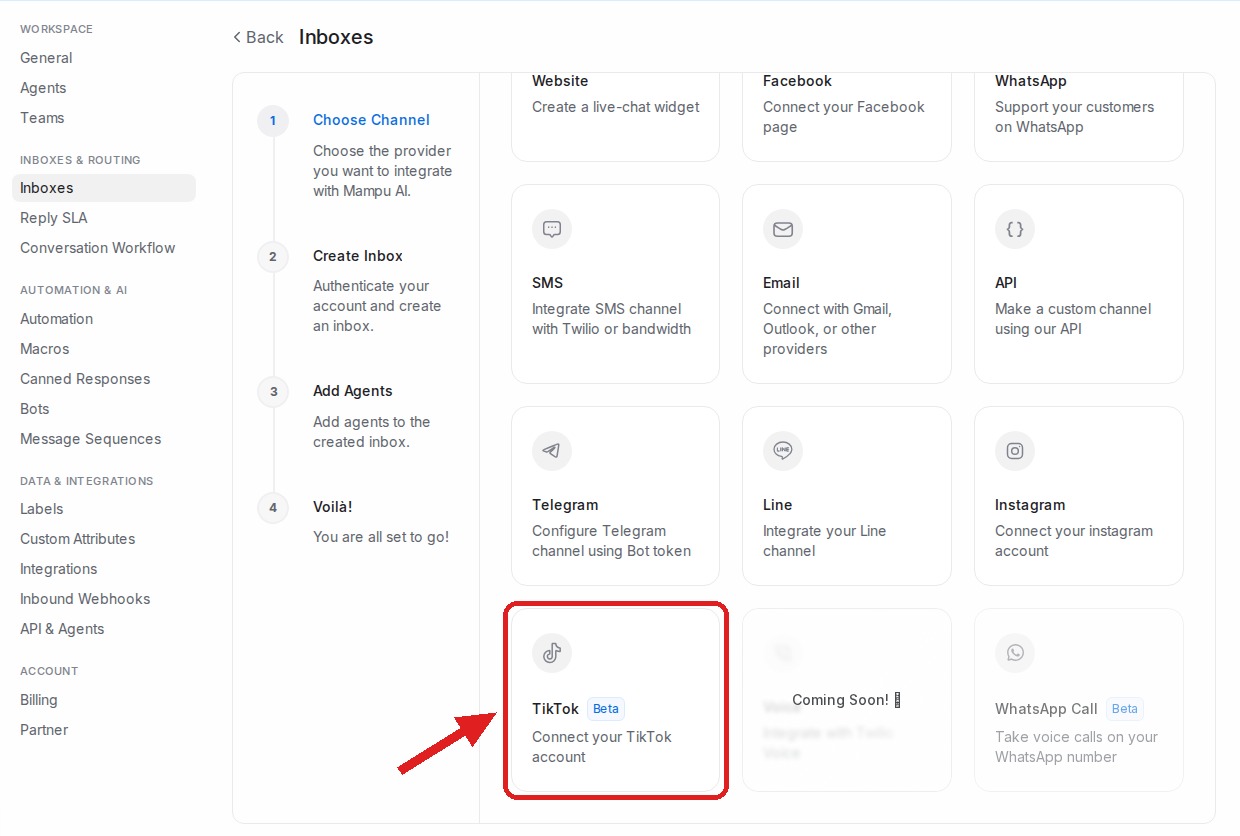
## 2. Continue with TikTok
Click **Continue with TikTok** and sign in with your TikTok account. Approve **all** the requested permissions — they let direct messages and comments arrive in your inbox.
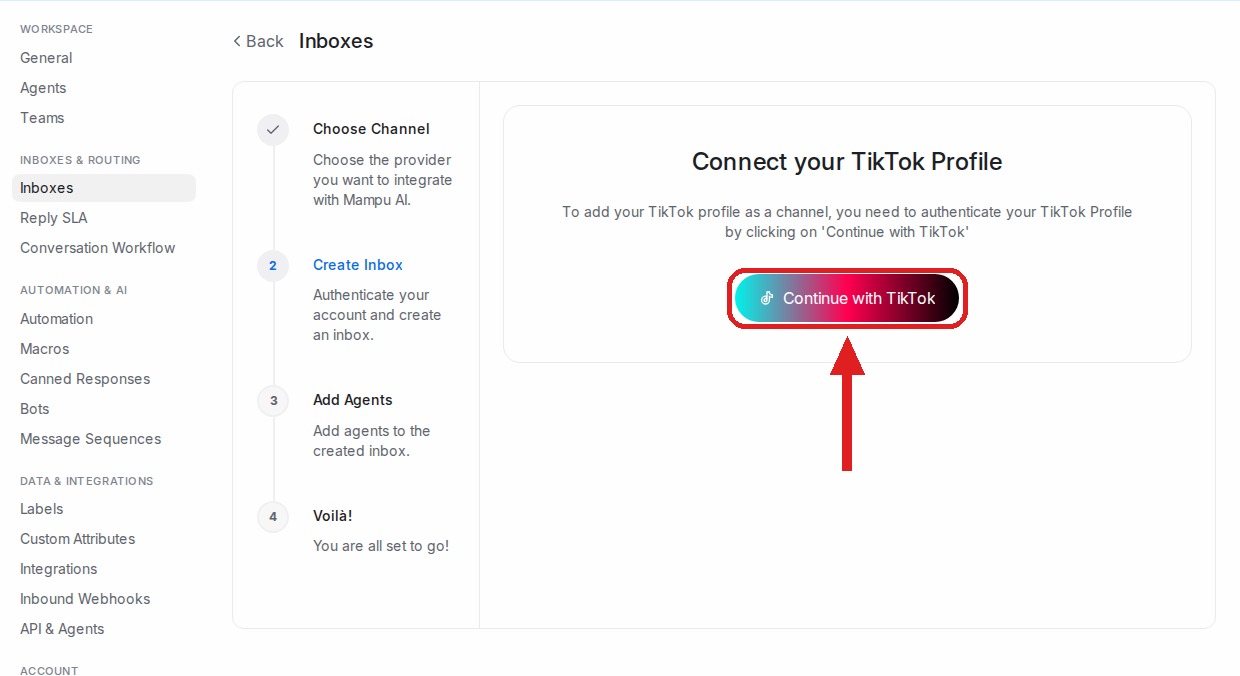
## 3. Add agents
Pick the agents who should handle the inbox and finish.
## You're done
Direct messages and video comments now arrive as conversations in your TikTok inbox, and your AI agent can reply. Manage the inbox anytime under **Settings → Inboxes**.
## Related
* [Migrating your TikTok account to Mampu AI](/settings/migrating-tiktok-from-another-platform)
* [TikTok Comment Replies](/settings/tiktok-comment-replies)
* [Inboxes and channels](/settings/inboxes-and-channels)
---
## Migrating your TikTok account to Mampu AI
URL: https://help.mampuai.com/settings/migrating-tiktok-from-another-platform
# Migrating your TikTok account to Mampu AI
Already using your TikTok account with another platform and want to move it to Mampu AI? Migrating is two parts: first **disconnect the previous platform** inside the TikTok app, then **connect the account** to Mampu AI. Direct messages only flow to one platform at a time, so your account moves over once you finish.
> **Not migrating?** If your account was never connected to another platform, see [Connecting a TikTok inbox](/settings/connecting-a-tiktok-inbox).
## Before you start
* Your TikTok account must be a **Business Account**. You can switch in the TikTok app under **Settings → Account → Switch to Business Account** — it's free.
* Have the TikTok app on your phone, logged in to the account you want to move.
## 1. Open Settings and privacy in the TikTok app
Open TikTok and go to your **Profile**, then tap the **menu** in the top corner and choose **Settings and privacy**.
## 2. Open Security & permissions
Under **Account**, tap **Security & permissions**.
## 3. Open Apps and services permissions
Under **Permissions**, tap **Apps and services permissions**.
## 4. Remove the previous platform
Every app connected to your TikTok account is listed here. Tap the platform you are moving away from, then tap **Remove access**.
> If **Mampu AI** already appears in the list, leave it connected — only remove the platform you are leaving.
## 5. Connect TikTok to Mampu AI
With the previous platform disconnected, follow [Connecting a TikTok inbox](/settings/connecting-a-tiktok-inbox) to connect the account. **Sign in with the same TikTok account** you just disconnected, and approve **all** the requested permissions.
## You're done
Your TikTok account now runs on Mampu AI. Direct messages and video comments arrive as conversations in your TikTok inbox, and your AI agent can reply. Manage the inbox anytime under **Settings → Inboxes**.
## Related
* [Connecting a TikTok inbox](/settings/connecting-a-tiktok-inbox)
* [TikTok Comment Replies](/settings/tiktok-comment-replies)
* [Inboxes and channels](/settings/inboxes-and-channels)
---
## TikTok Comment Replies
URL: https://help.mampuai.com/settings/tiktok-comment-replies
# TikTok Comment Replies
When someone comments on one of your TikTok videos, the comment arrives in your TikTok inbox as a conversation — and you can reply to it, by hand or automatically, without leaving Mampu AI. Replies are posted on TikTok publicly, nested under the original comment.
## Watch the walkthrough
{% embed url="https://youtu.be/DQbCrAUhpQU" %}
## Before you start
* Your TikTok account must be a **Business Account**. You can switch in the TikTok app under **Settings → Account → Switch to Business Account** — it's free.
* Connect the account in **Settings → Inboxes → Add Inbox → TikTok** and approve **all** the requested permissions — see [Connecting a TikTok inbox](/settings/connecting-a-tiktok-inbox). If you connected TikTok before comment support was available, disconnect and connect the inbox once more to grant the extra permissions.
## How comments appear
Each commenter gets their own conversation in the TikTok inbox, collecting their comments across your videos. Reply in the conversation and your message is posted on TikTok under their latest comment. Comment conversations have no reply deadline — direct messages, by contrast, close 48 hours after the customer's last message.
## Automatic replies
Go to **Settings → Inboxes → your TikTok inbox → Comment Replies** and add a rule:
* **Trigger keywords** — the rule fires when a comment contains any of these words. Use `*` to match every comment.
* **Video keywords** (optional) — limit the rule to videos whose caption contains these words, for example only your promo videos.
* **Public comment reply** — the reply text. Personalize it with `{{first name}}`, `{{last name}}` or `{{full name}}`.
* **Like the comment** — give matching comments a like from your account.
Rules are checked top to bottom and the first match wins — drag the cards to reorder them.
A few tips:
* Keep replies short and friendly, and vary the wording between rules — identical replies posted many times can be shown less prominently by TikTok.
* Comment replies are always public. To continue in private, invite the commenter to send you a DM — their message lands in the same TikTok inbox.
## Related
* [Migrating your TikTok account to Mampu AI](/settings/migrating-tiktok-from-another-platform)
* [Inboxes and channels](/settings/inboxes-and-channels)
* [Facebook Automation](/channel-specific-automation-guide/facebook)
---
## Telegram
URL: https://help.mampuai.com/platform/connect-to-social-media-channels/telegram
# Telegram
{% embed url="https://www.youtube.com/watch?v=iXXBl2Autas" %}
Create Telegram Bot
{% endembed %}
#### Step for Creating Telegram Bot
1. Find @BotFather in Telegram
2. Click Start
3. Click command /newbot to create a new bot
4. Enter name for your bot (Everyone will see) -> Enter username for the bot (must end with "bot")
5. Done Create
#### Preparation for the bot:
1. Copy the token for the bot
2. If loss, can go for @BotFather, Type /token to get
3. Navigate to the group that you want notify
4. Add a new member call @RawDataBot to get the group id
5. Copy the group id
6. Can remove the @RawDataBot if you want
7. Add the bot created just now into group
#### Step for connecting the Telegram bot to your inbox
1. Log in to your dashboard at [https://chat.sapot.ai](https://chat.sapot.ai)
2. Go to **Settings -> Inboxes -> Add Inbox -> Telegram**
3. Paste the Telegram Bot Token and complete the steps to add the inbox
For the full walkthrough of adding and managing channel inboxes, see [Inboxes and channels](/settings/inboxes-and-channels).
---
## Website live chat
URL: https://help.mampuai.com/settings/connecting-a-website-live-chat-inbox
---
description: Add a live chat widget to your website in four steps, paste the script, and tune the widget's look, pre-chat form, business hours and allowed domains afterwards.
---
# Connecting a website live chat inbox
A **Website** inbox puts a chat bubble on your site. Visitors write in the widget, their messages arrive as conversations in Mampu AI, and your team or your AI agent replies from there.
## 1. Add a Website inbox
Go to **Settings → Inboxes → Add Inbox** and choose **Website**. The setup runs in four steps: **Choose Channel**, **Create Inbox**, **Add Agents**, **Voilà!**
## 2. Fill in the channel
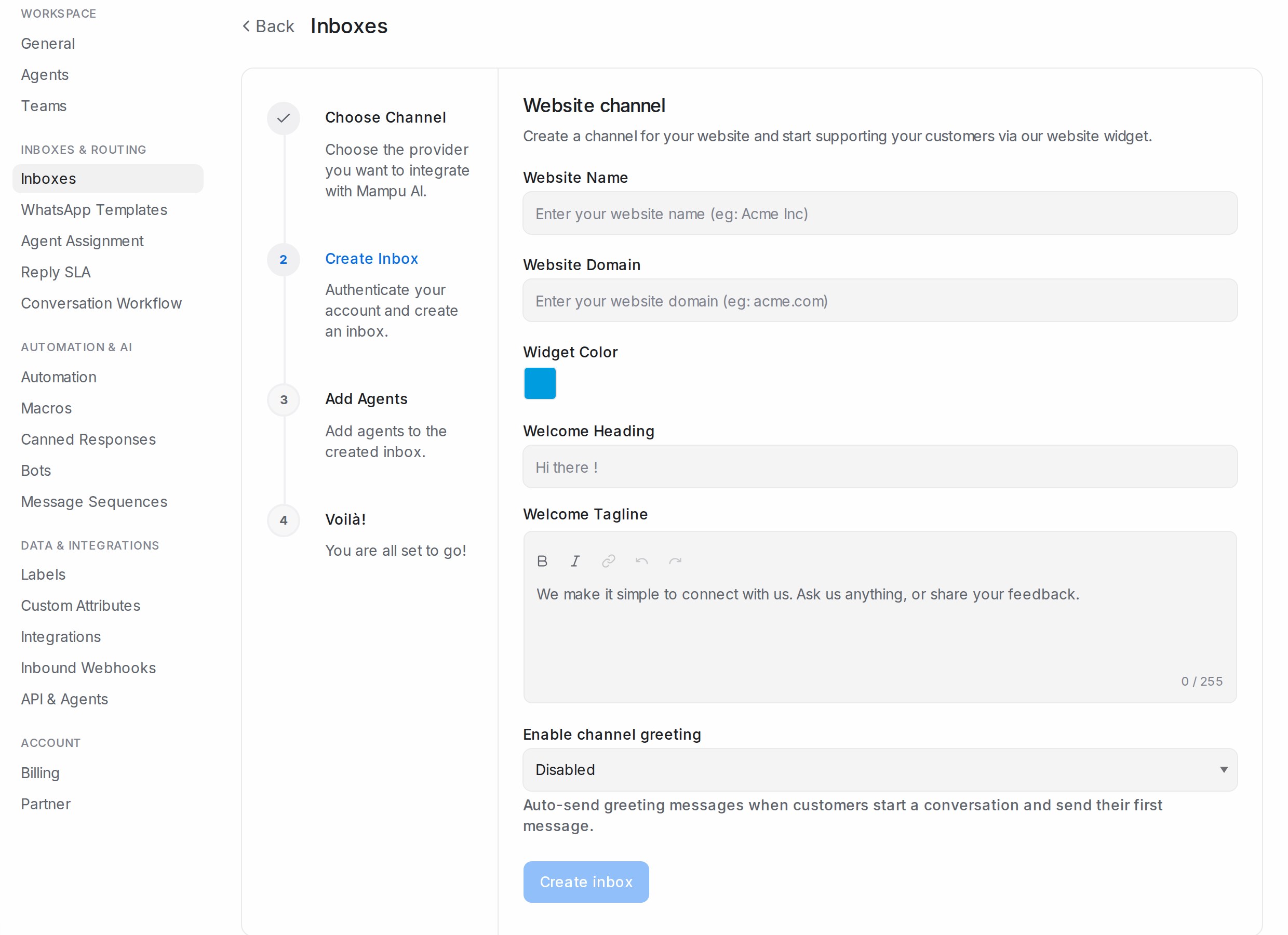
* **Website Name**: the name shown at the top of the widget.
* **Website Domain**: the site the widget lives on, for example *acme.com*.
* **Widget Color**: the colour of the bubble and header.
* **Welcome Heading** and **Welcome Tagline**: the greeting a visitor sees before they type.
* **Enable channel greeting**: set to **Enabled** to send a **Channel greeting message** automatically when a visitor sends their first message.
Click **Create inbox**.
## 3. Add agents
Under **Pick agents for the inbox**, choose the teammates who will answer website chats, then **Add agents**. You can change this later on the inbox's **Collaborators** tab.
## 4. Install the widget
The **Voilà!** step shows a short script. Copy it and paste it just before the closing `
` tag on every page where you want the bubble. The bubble appears as soon as the page reloads. **Take me there** opens the inbox; **More settings** opens its settings page.
## After the inbox is live
Open the inbox's settings (**Settings → Inboxes**, settings icon):
| Tab | What to set for live chat |
| --- | --- |
| **Settings** | **Set Reply time**, **Widget features**, **Help Center**, **Enable email collect box**, **Enable conversation continuity via email** |
| **Pre Chat Form** | Ask for a name, email or your own fields first |
| **Business Hours** | Your hours and the **Unavailable message for visitors** |
| **Configuration** | **Allowed Domains**, **Enable widget in mobile apps**, **Identity Validation** |
Every switch is explained in [Inbox settings, tab by tab](/settings/inbox-settings-tabs).
## Related
* [Inboxes and channels](/settings/inboxes-and-channels)
* [Inbox settings, tab by tab](/settings/inbox-settings-tabs)
* [Live chat blasting](/campaigns/live-chat-campaigns)
* [Testing and connecting an agent](/flow-agents/testing-and-connecting-an-agent)
---
## Email
URL: https://help.mampuai.com/settings/connecting-an-email-inbox
---
description: Bring a support mailbox into Mampu AI by forwarding mail to the inbox's address, then add IMAP and SMTP details so replies go out from your own address.
---
# Connecting an email inbox
An **Email** inbox turns the emails customers send to an address such as *support@yourcompany.com* into conversations, and lets your team answer them from Mampu AI.
## 1. Add an Email inbox
Go to **Settings → Inboxes → Add Inbox** and choose **Email**. On **Select your email provider**, pick **Other Providers**; it works with any mailbox, including Gmail and Outlook, through forwarding plus IMAP and SMTP.
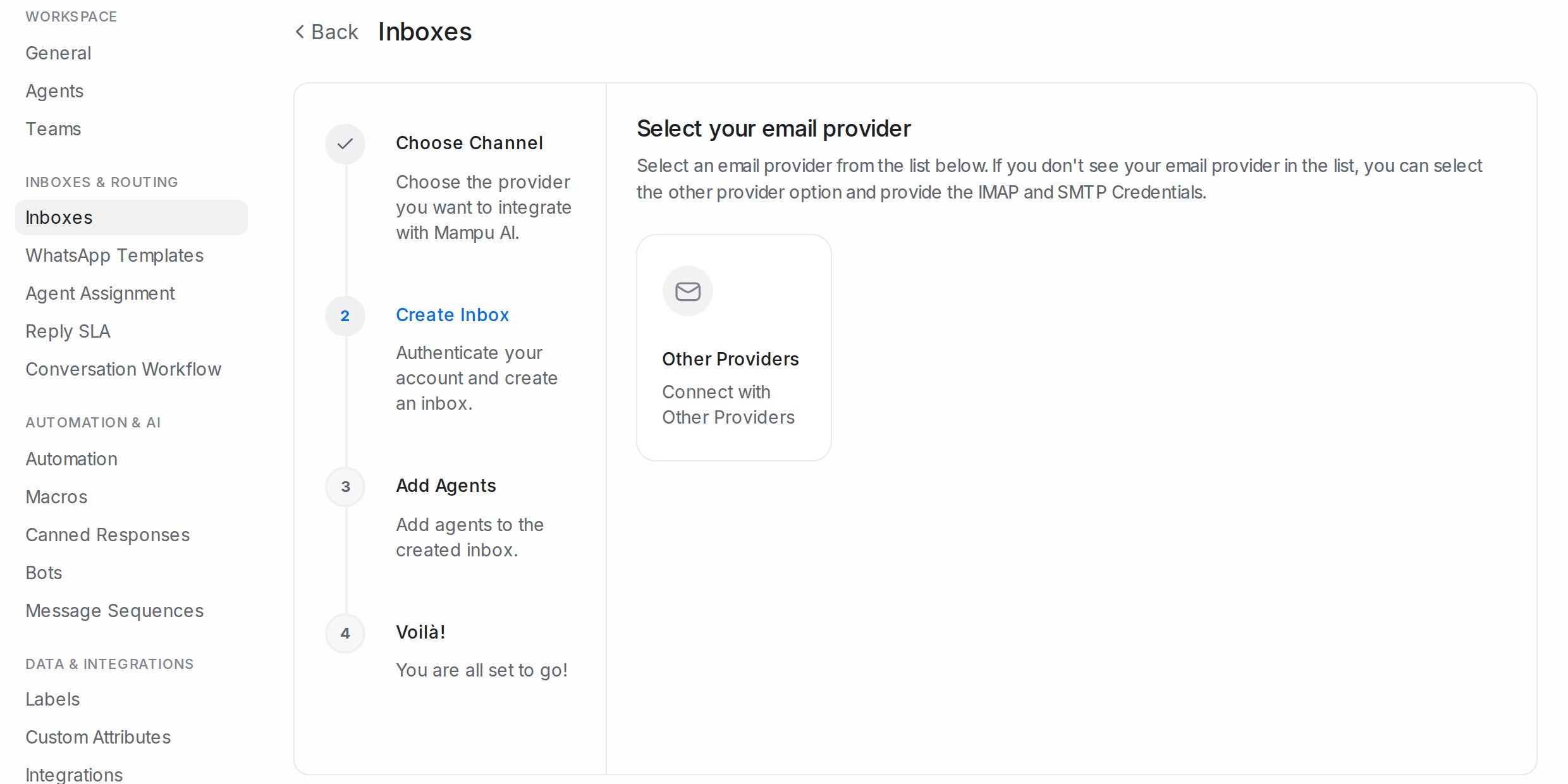
## 2. Name the channel
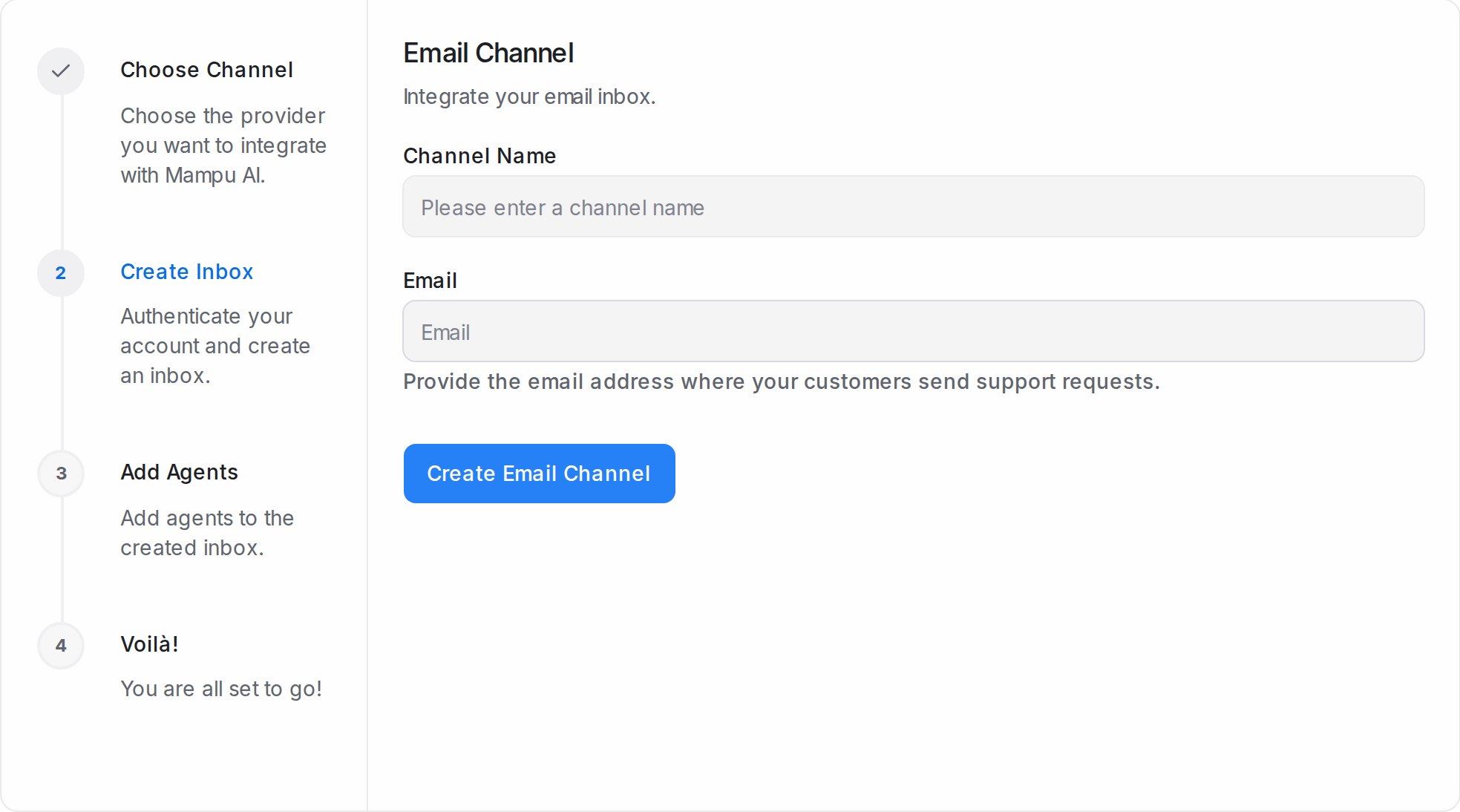
* **Channel Name**: how the inbox appears in your sidebar.
* **Email**: the address your customers write to.
Click **Create Email Channel**, then pick the agents who will answer and **Add agents**.
## 3. Forward your mail
The last step shows **Forward emails to this address** with an address that belongs to your new inbox. In your mail provider, set up automatic forwarding from your support address to it. From then on every email arrives as a conversation.
## 4. Send replies from your own address
Forwarding alone lets you receive. To reply from your own address, click **Click here to configure IMAP and SMTP settings**, or open the inbox later and go to **Configuration**:
* **IMAP**: tick **Enable IMAP configuration for this inbox** and enter your provider's **Address**, **Port**, **Login** and **Password**, with **Enable SSL** as your provider requires. Click **Update IMAP settings**.
* **SMTP**: tick **Enable SMTP configuration for this inbox** and enter the **Address**, **Port**, **Login**, **Password**, **Domain** and **Encryption** (**SSL/TLS** or **STARTTLS**). Click **Update SMTP settings**. SMTP needs IMAP set up first.
Your mail provider's help pages list its IMAP and SMTP addresses and ports.
## After the inbox is live
On the **Settings** tab, **Sender name** decides what the customer sees in the From line: **Friendly** adds the replying agent's name to your business name, **Professional** uses the business name alone. **Conversation Routing** decides whether a customer's next email reopens their last conversation or starts a new one. See [Inbox settings, tab by tab](/settings/inbox-settings-tabs).
## Related
* [Inboxes and channels](/settings/inboxes-and-channels)
* [Inbox settings, tab by tab](/settings/inbox-settings-tabs)
* [Replying and adding private notes](/conversations/replying-and-private-notes)
---
## SMS
URL: https://help.mampuai.com/settings/connecting-an-sms-inbox
---
description: Receive and send SMS through a Twilio or Bandwidth number: what to copy from your provider, what to enter in Mampu AI, and the callback URL to paste back.
---
# Connecting an SMS inbox
An **SMS** inbox connects a phone number you rent from Twilio or Bandwidth. Text messages to that number arrive as conversations, and your replies go out as SMS.
## Before you start
You need an account with one of the two providers, a phone number bought there, and the credentials from its console: for Twilio the **Account SID** and **Auth Token** (or an API key), for Bandwidth the **Account ID**, **API Key**, **API Secret** and **Application ID**.
## 1. Add an SMS inbox
Go to **Settings → Inboxes → Add Inbox** and choose **SMS**. Under **API Provider**, pick **Twilio** or **Bandwidth**.
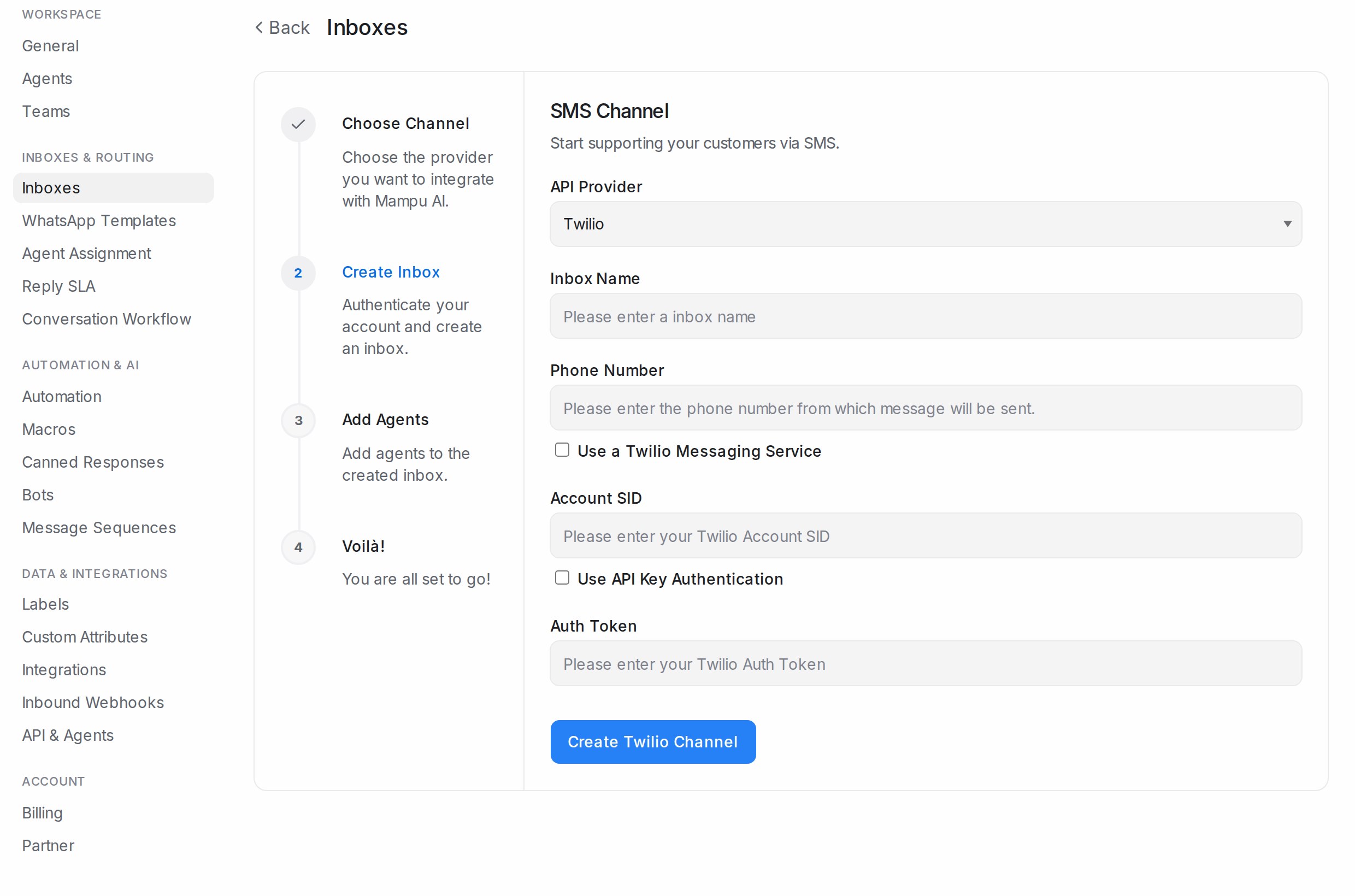
## 2. Enter the provider details
| | Twilio | Bandwidth |
| --- | --- | --- |
| Name and number | **Inbox Name**, **Phone Number** (with country code) | **Inbox Name**, **Phone number** |
| Credentials | **Account SID** and **Auth Token** | **Account ID**, **API Key**, **API Secret**, **Application ID** |
| Options | **Use a Twilio Messaging Service** (enter the **Messaging Service SID**); **Use API Key Authentication** (**API Key SID** and **API Key Secret**) | — |
| Button | **Create Twilio Channel** | **Create Bandwidth Channel** |
## 3. Add agents and paste the callback URL
Pick the agents who will answer and **Add agents**. The last step shows a **Callback URL**: copy it into the messaging webhook of your number in the provider's console, so incoming texts reach the inbox. Until that is done, you can send but nothing arrives.
## After the inbox is live
The inbox's **Configuration** tab shows the callback URL again if you need it. Everything else, from **Collaborators** to **Business Hours**, is explained in [Inbox settings, tab by tab](/settings/inbox-settings-tabs). SMS blasting uses this inbox; see [SMS and API blasting](/campaigns/sms-and-api-campaigns).
## Related
* [Inboxes and channels](/settings/inboxes-and-channels)
* [SMS and API blasting](/campaigns/sms-and-api-campaigns)
* [Inbox settings, tab by tab](/settings/inbox-settings-tabs)
---
## API
URL: https://help.mampuai.com/settings/connecting-an-api-inbox
---
description: Create an API inbox for messages that come from your own app or system, get its identifier and inbound webhook address, and point your developers at the request format.
---
# Connecting an API inbox
An **API** inbox has no messaging app behind it. Your own system creates the conversations and messages, for example from an in-app chat you built, a kiosk, or a channel Mampu AI does not connect natively, and your team replies from the dashboard like any other inbox.
## 1. Add an API inbox
Go to **Settings → Inboxes → Add Inbox** and choose **API**.
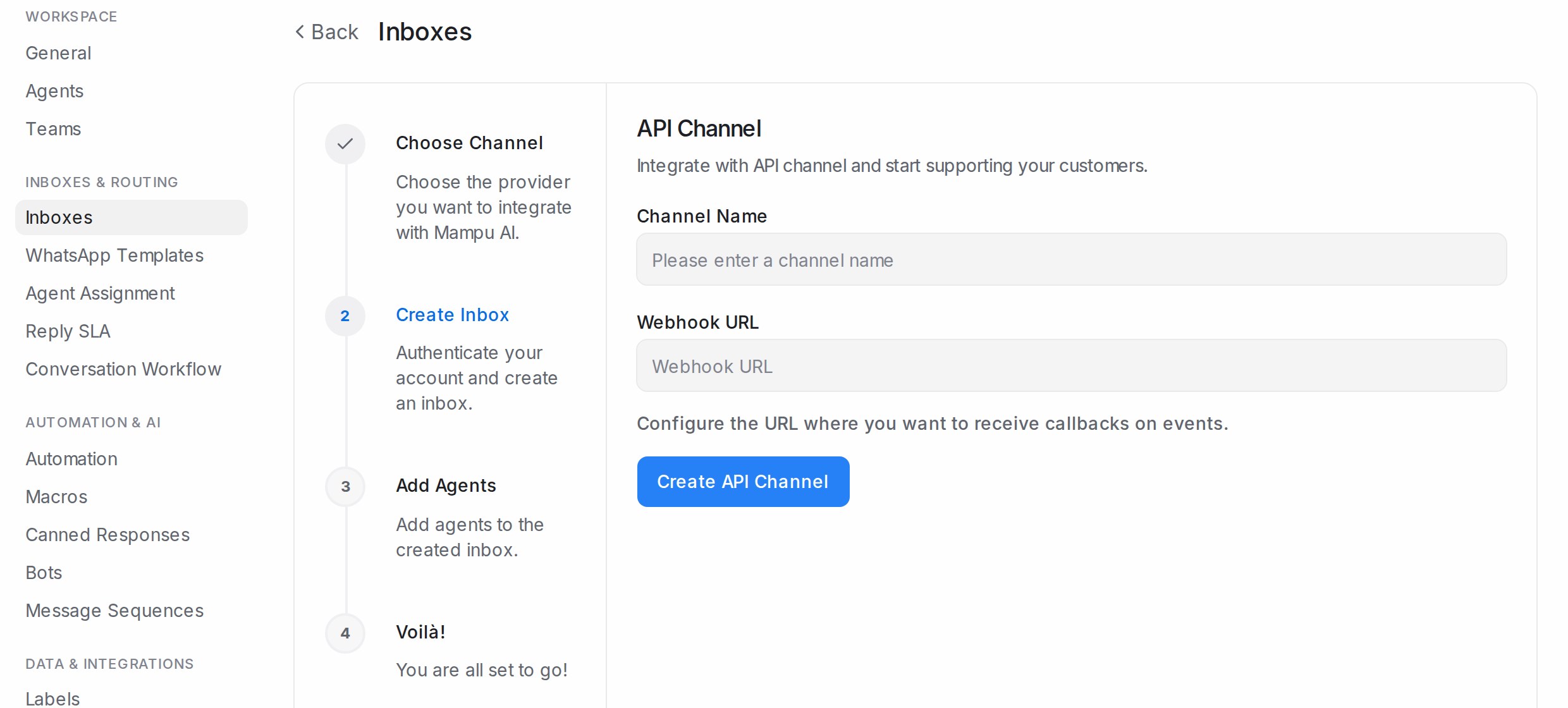
* **Channel Name**: how the inbox appears in your sidebar.
* **Webhook URL**: optional. The address where your system receives events such as a new reply from your team. Leave it blank if your system only sends.
Click **Create API Channel**, pick the agents who will answer and **Add agents**.
## 2. Collect what your developers need
Open the inbox's settings page:
* **Settings** shows the **Webhook URL** and the **Webhook Secret** used to sign events sent to you, with **Copy** and **Reset**.
* **Configuration** shows the **Inbox Identifier**, the **Inbound Webhook URL** your system posts contact and message data to, the **Payload Format**, and **Enforce User Identity Validation** for signed requests.
The request and response formats are documented for developers at [developers.sapot.ai](https://developers.sapot.ai).
## Simpler alternative for lead forms
If all you need is to turn a form submission or another system's event into a conversation, an **Inbound Webhook** on a WhatsApp or other inbox may be enough and needs no coding. See [Inbound Webhooks](/settings/inbound-webhooks).
## Related
* [Inboxes and channels](/settings/inboxes-and-channels)
* [Inbox settings, tab by tab](/settings/inbox-settings-tabs)
* [Inbound Webhooks](/settings/inbound-webhooks)
* [SMS and API blasting](/campaigns/sms-and-api-campaigns)
---
## LINE
URL: https://help.mampuai.com/settings/connecting-a-line-inbox
---
description: Connect a LINE Official Account: create a Messaging API channel in the LINE Developers console, copy its ID, secret and token into Mampu AI, and paste the callback URL back.
---
# Connecting a LINE inbox
A **LINE** inbox brings messages from your LINE Official Account into Mampu AI, so your team and your AI agent answer LINE users from the same screen as every other channel.
## Before you start
In the LINE Developers console, create a provider and a **Messaging API** channel for your Official Account. From that channel you need three values: the **Channel ID**, the **Channel secret**, and a **Channel access token** (issue a long-lived one).
## 1. Add a LINE inbox
Go to **Settings → Inboxes → Add Inbox** and choose **Line**.
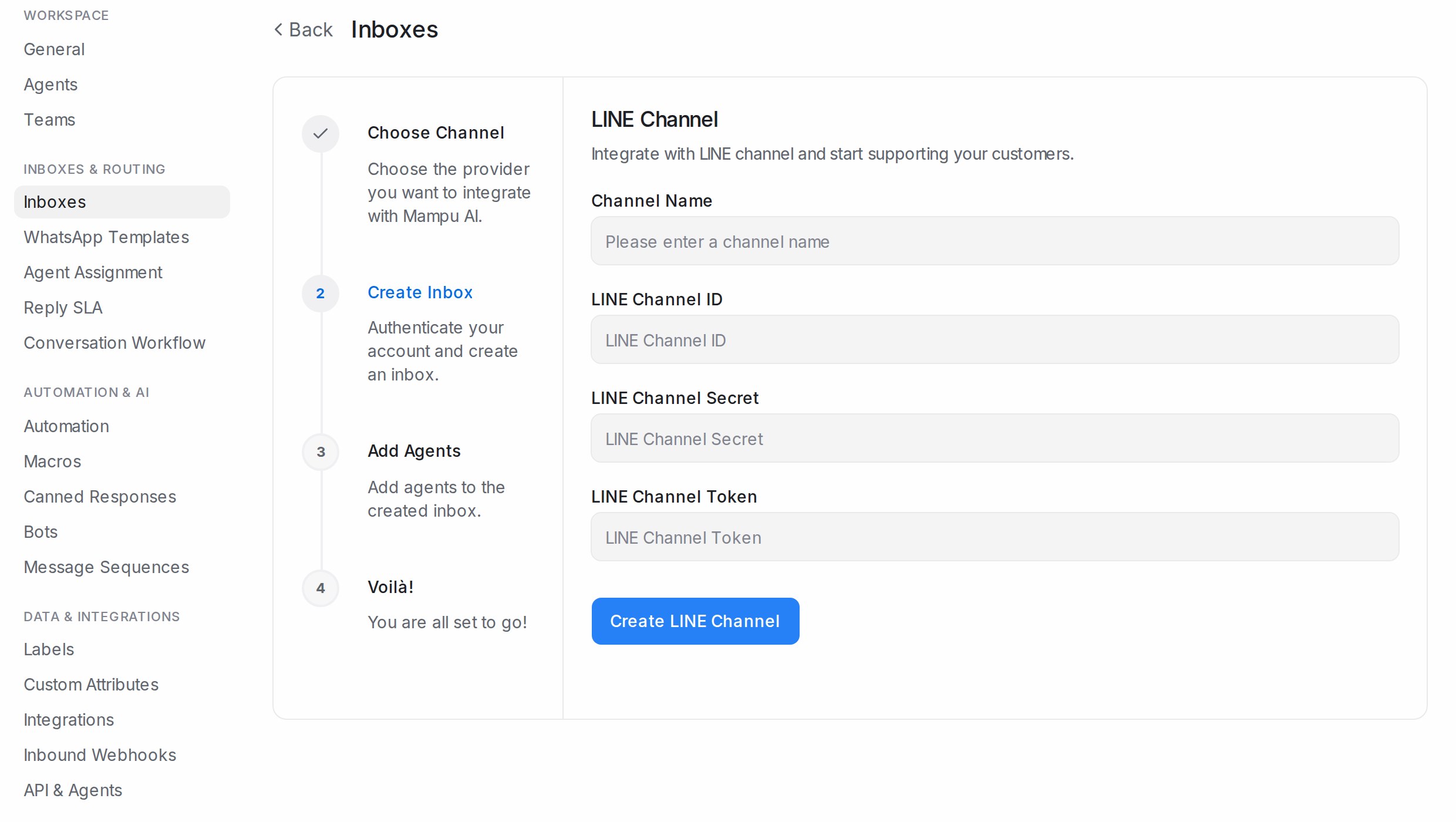
* **Channel Name**: how the inbox appears in your sidebar.
* **LINE Channel ID**, **LINE Channel Secret**, **LINE Channel Token**: paste the three values from the console.
Click **Create LINE Channel**, pick the agents who will answer and **Add agents**.
## 2. Paste the callback URL into LINE
The last step shows a **Callback URL**. In the LINE Developers console, open your channel's **Messaging API** settings, paste it as the **Webhook URL**, and turn **Use webhook** on. In LINE Official Account Manager, switch the account's response mode so that auto-replies do not answer before your team does.
## After the inbox is live
The inbox's **Configuration** tab shows the callback URL again if you need it. The other tabs are explained in [Inbox settings, tab by tab](/settings/inbox-settings-tabs).
## Related
* [Inboxes and channels](/settings/inboxes-and-channels)
* [Inbox settings, tab by tab](/settings/inbox-settings-tabs)
* [Testing and connecting an agent](/flow-agents/testing-and-connecting-an-agent)
---
## Instagram
URL: https://help.mampuai.com/settings/connecting-an-instagram-inbox
---
description: Connect an Instagram professional account so direct messages arrive as conversations, by logging in with Continue with Instagram and approving the permissions.
---
# Connecting an Instagram inbox
An **Instagram** inbox brings the direct messages sent to your Instagram account into Mampu AI, where your team or your AI agent replies.
## Before you start
Your Instagram account must be a professional account (**Business** or **Creator**). You can switch in the Instagram app under **Settings → Account type and tools**. Have the login for that account ready; you will sign in to Instagram during the setup.
## 1. Add an Instagram inbox
Go to **Settings → Inboxes → Add Inbox** and choose **Instagram**.
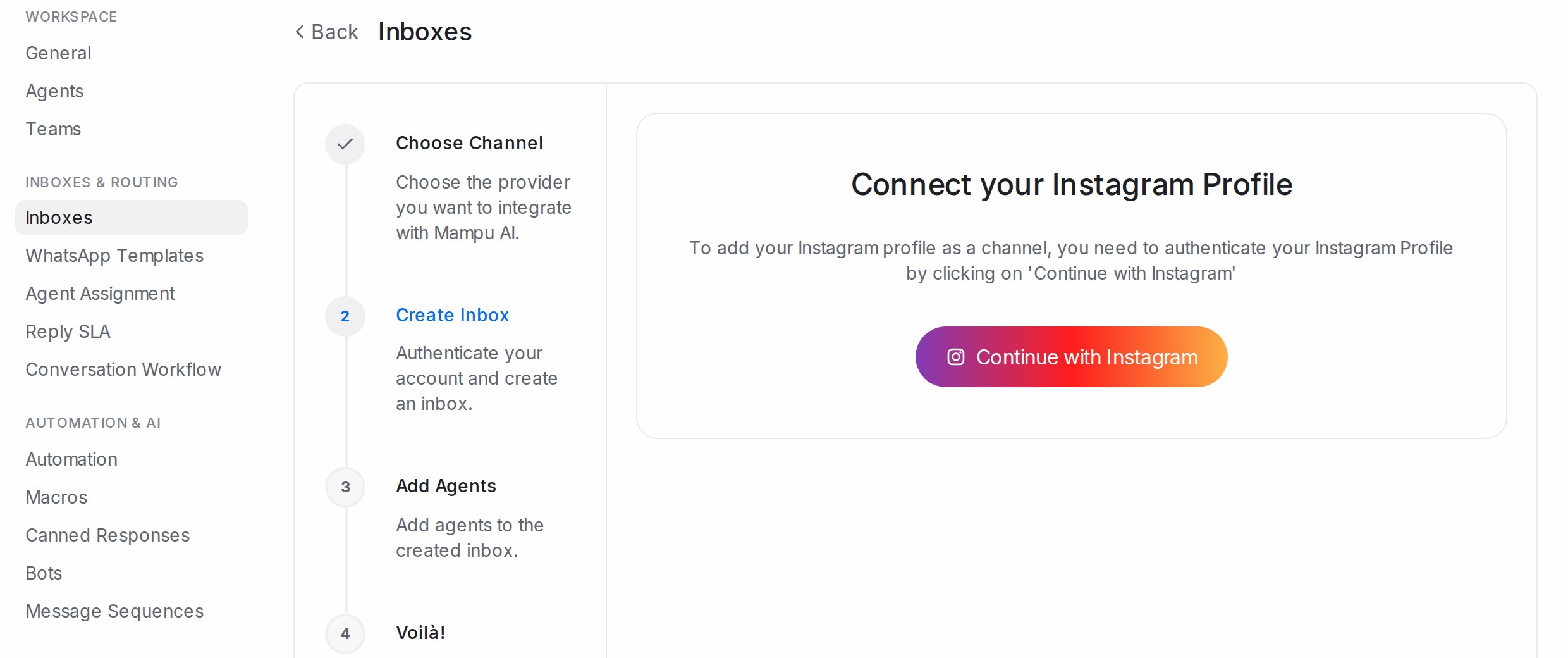
## 2. Continue with Instagram
Click **Continue with Instagram**, sign in with the Instagram account, and allow all the requested permissions. They let direct messages reach your inbox and let your replies go back out. When Instagram sends you back, the inbox is created.
## 3. Add agents
Pick the agents who will answer Instagram messages and **Add agents**. **Take me there** opens the inbox.
## Your recent Instagram conversations come along
{ width="560" }
The first time an account is connected, Mampu AI brings in its recent direct-message conversations: the threads active in the last three months, with the last 20 messages of each. The finish screen says **We're bringing your recent Instagram conversations into this inbox. They appear as resolved chats within a few minutes.** They arrive as **Resolved** conversations under each customer's contact, at their original times, and nothing goes out for them: no notifications, automation rules or AI agent replies. If Meta refuses, the screen says **We couldn't bring in this account's past conversations. New messages still arrive here as usual.** Reconnecting later does not import again.
## If you connected Instagram through Facebook before
An Instagram account that was linked the older way, through a Facebook page, shows a banner saying the account was migrated to the new Instagram inbox. Messages now arrive in the inbox created with **Continue with Instagram**; the old one no longer sends or receives.
## After the inbox is live
The inbox gets the usual **Settings**, **Collaborators**, **Business Hours** and **CSAT** tabs, explained in [Inbox settings, tab by tab](/settings/inbox-settings-tabs). If the connection expires, a **Your inbox is disconnected** banner with **Click here to reconnect.** appears at the top of the inbox's settings and the administrators are emailed; click the link and sign in again. See [Notices from Meta about your inbox](/settings/notices-from-meta). You can also reconnect at any time from the **Connection** section at the bottom of the **Settings** tab: **Reconnect Instagram** signs you in again and refreshes the same inbox, keeping its conversations and settings. A **Comment Replies** tab holds the rules for answering comments on your posts — see [Instagram Comment Replies](/settings/instagram-comment-replies). It needs the comment permission, and the **Connection** section says whether it is granted. If it reads **Comment permission not granted yet**, click **Reconnect Instagram** and approve the comment permission when Instagram asks.
## Related
* [Inboxes and channels](/settings/inboxes-and-channels)
* [Connecting a Facebook inbox](/settings/connecting-a-facebook-inbox)
* [Inbox settings, tab by tab](/settings/inbox-settings-tabs)
* [Notices from Meta about your inbox](/settings/notices-from-meta)
* [Instagram Comment Replies](/settings/instagram-comment-replies)
---
## Instagram Comment Replies
URL: https://help.mampuai.com/settings/instagram-comment-replies
---
description: Reply to comments on your Instagram posts and reels automatically, and move each commenter into a private conversation.
---
# Instagram Comment Replies
When someone comments on one of your Instagram posts or reels, Mampu AI can reply to the comment publicly and send that person a private message — automatically, based on the words they used.
This is how a comment on a promo post becomes a real conversation: the public reply keeps the post lively, and the private message moves the customer into your Instagram inbox, where your team or your Flow Agent carries on.
## Before you start
* Connect your Instagram account in **Settings → Inboxes → Add Inbox → Instagram** and allow all the permissions Instagram lists — see [Connecting an Instagram inbox](/settings/connecting-an-instagram-inbox).
* Comment replies need Instagram's comment permission. Open the inbox, pick the **Settings** tab and read the **Connection** section at the bottom. **Comment permission granted** means you are ready. **Comment permission not granted yet** means the inbox was connected before the permission was asked for: click **Reconnect Instagram**, sign in and approve the comment permission when Instagram asks. The inbox keeps its conversations, rules and settings. The **Comment Replies** tab shows the same reminder until the permission is granted.
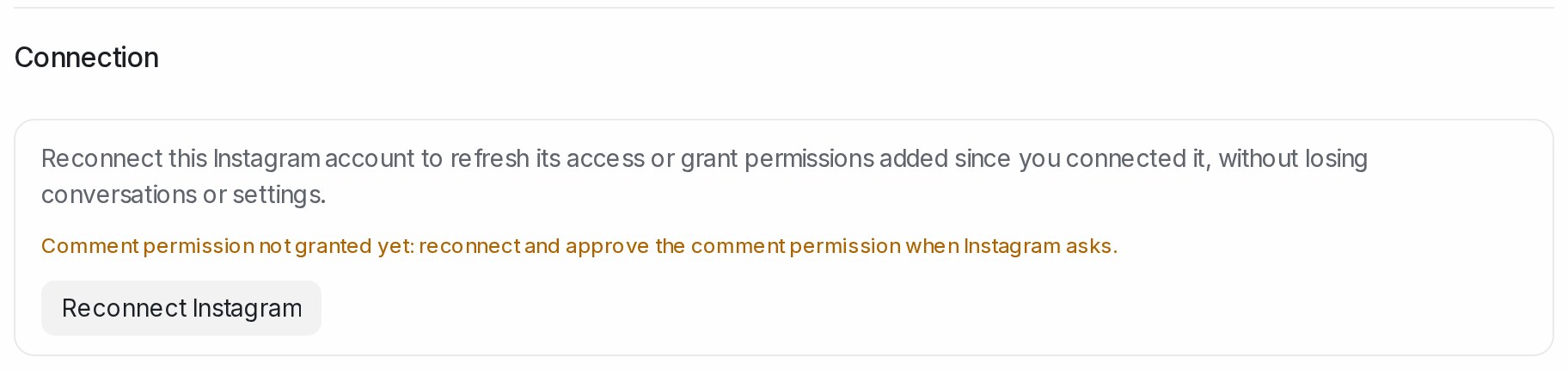{ width="840" }
## 1. Open Comment Replies
Go to **Settings → Inboxes**, open your Instagram inbox and pick the **Comment Replies** tab. The rules you have saved are listed here, each with the keywords that trigger it; if there are none yet, the page says so. Click **Add rule**.
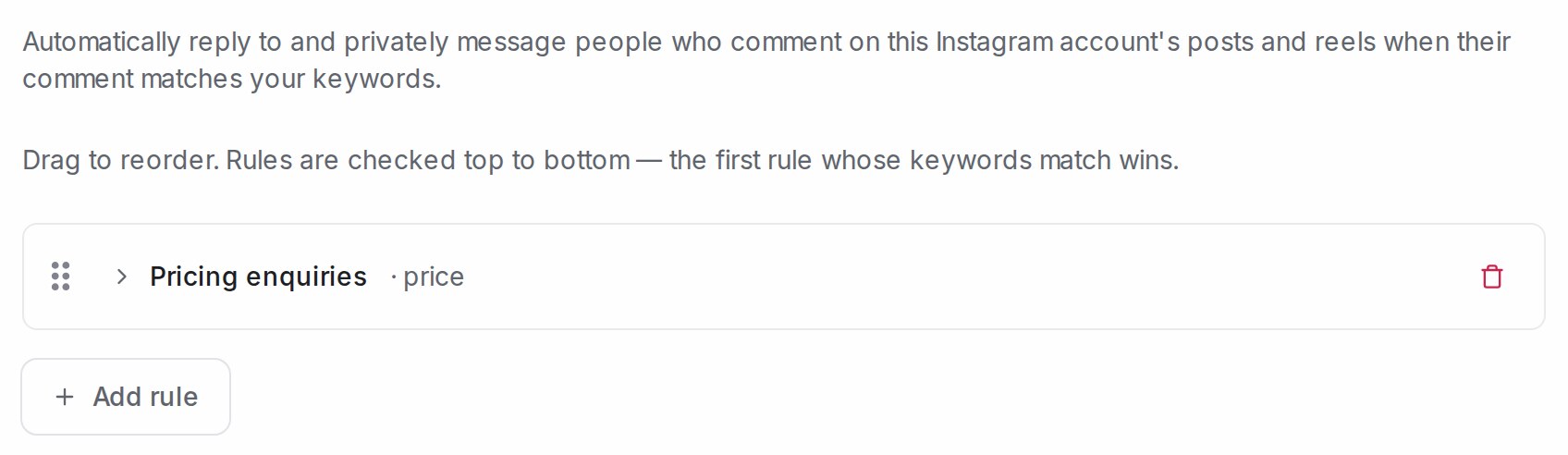{ width="840" }
## 2. Name the rule and choose which comments it answers
A rule decides which comments to answer and what to send. Fill in the fields from top to bottom.
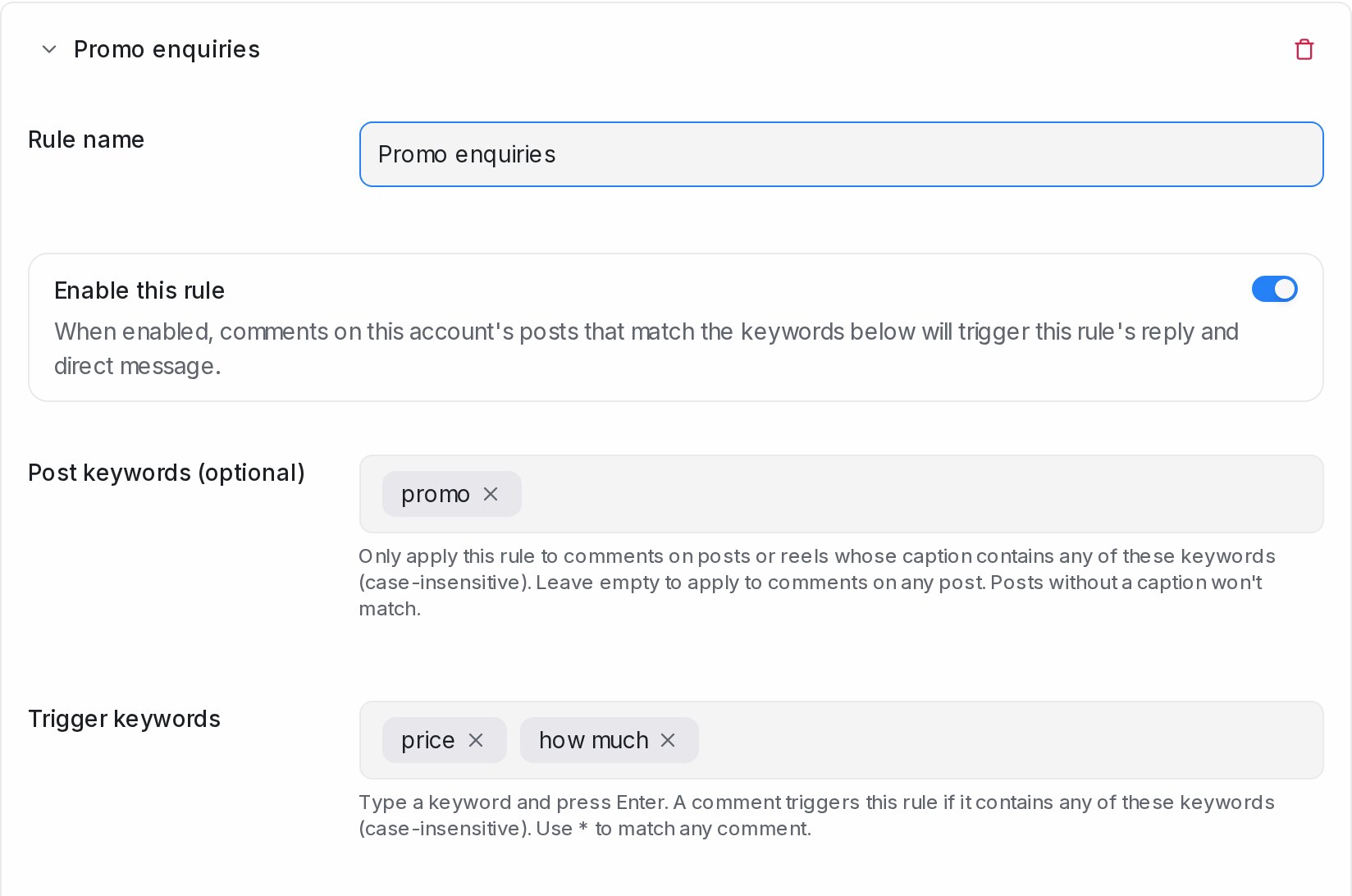{ width="824" }
* **Rule name** — a name for your own reference, such as `Promo enquiries`.
* **Enable this rule** — leave it on for the rule to run. Turn it off to pause the rule without deleting it.
* **Post keywords (optional)** — only answer comments on posts or reels whose caption contains one of these words, for example only your promo posts. Leave it empty to answer comments on any post. Posts without a caption never match.
* **Trigger keywords** — type a word and press Enter. A comment triggers the rule when it contains any of these words, in any letter case. Use `*` to match every comment.
## 3. Write the public reply and the private message
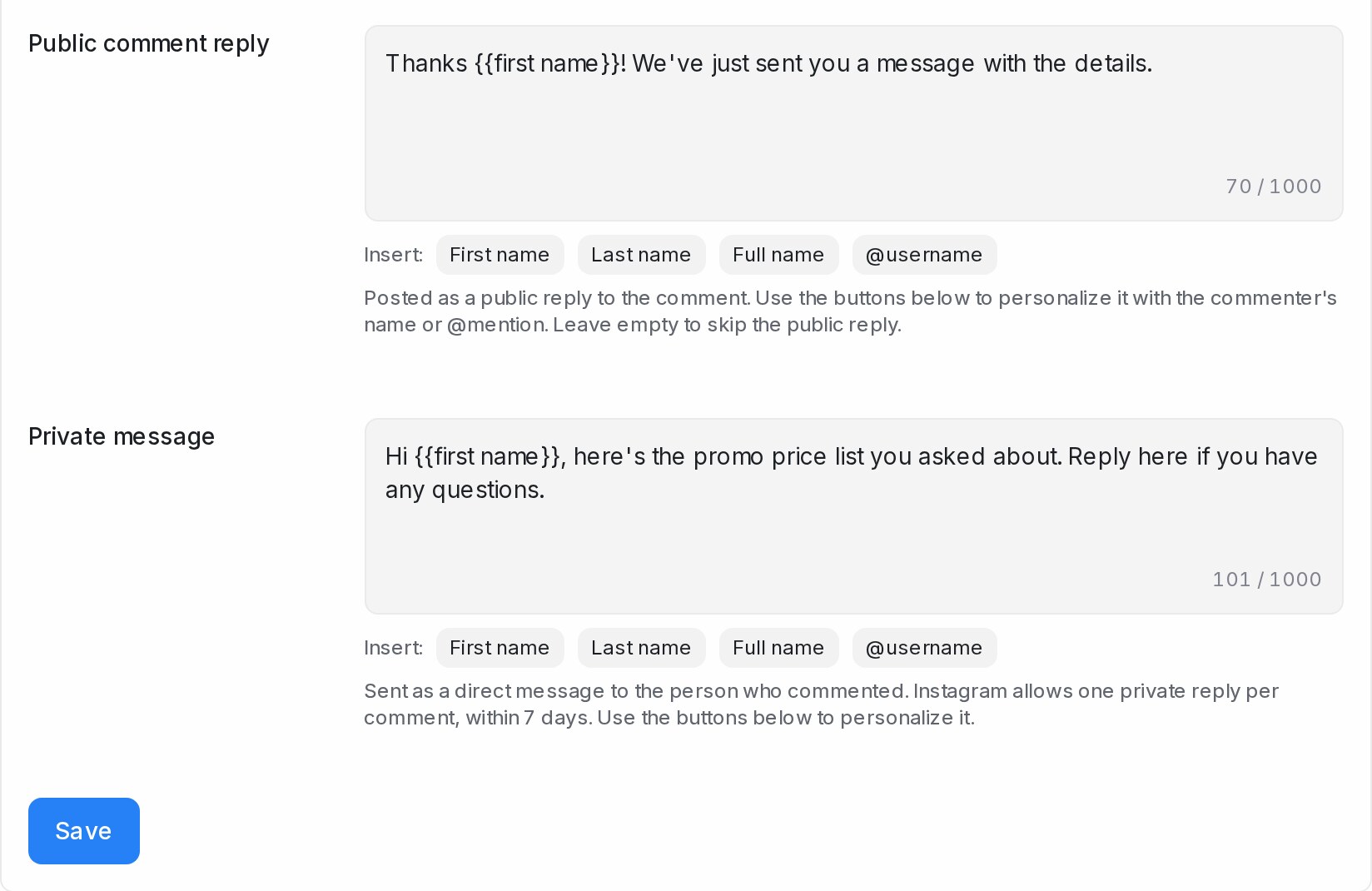{ width="824" }
* **Public comment reply** — posted publicly under the comment, from your Instagram account. Use the **First name**, **Last name**, **Full name** and **@username** buttons to address the commenter. Leave it empty to skip the public reply and only send the private message.
* **Private message** — sent as a direct message to the person who commented. Every rule needs one. Instagram allows one private message per comment, within 7 days of the comment. The same buttons apply.
Click **Save** when you are done.
## 4. Check your rules list
Saved rules appear on the **Comment Replies** tab with the keywords that trigger them. Rules are checked top to bottom and the first match wins — drag them to reorder. Put your most specific rules above the general ones, so a rule using `*` does not answer everything before the others get a turn. Click **Add rule** to create more.
## What happens when someone comments
* Your public reply appears under their comment, from your Instagram account.
* The customer receives your private message in their Instagram direct messages.
* The conversation lands in your Instagram inbox: the post and their comment are quoted at the top, and your private message appears as the first reply. From here your team replies as usual, or your Flow Agent takes over when the customer writes back.
* Replies under a comment, and comments from your own account, are left alone. A blocked contact's comments get no reply and no conversation.
## A few tips
* Keep public replies short and friendly, and vary the wording between rules — the same reply posted many times looks automated.
* Public replies are visible to everyone. Keep prices, order details and anything personal for the private message.
* Test a rule on your own post before using it on a live campaign — comment from another account with one of your trigger keywords and watch the conversation arrive.
## Related
* [Connecting an Instagram inbox](/settings/connecting-an-instagram-inbox)
* [Inbox settings, tab by tab](/settings/inbox-settings-tabs)
* [Facebook Comment Replies](/settings/facebook-comment-replies)
* [Managing conversations](/conversations/managing-conversations)
* [Comment Moderation](/settings/comment-moderation)
---
## Facebook Automation
URL: https://help.mampuai.com/channel-specific-automation-guide/facebook
# Facebook
## **What is Facebook?**
Facebook is one of the largest social media platforms, allowing businesses to create **Facebook Pages** to connect with their audience, share updates, promote products, and provide customer support.
## **Using Chatbots for Facebook Pages**
Chatbots can be integrated with Facebook Pages via **Facebook Messenger**. This allows businesses to automate customer interactions, handle FAQs, take orders, schedule appointments, collect leads, and even send promotional messages. By using automation, businesses can offer **24/7 customer service** and improve response times significantly.
To connect your Facebook Page as a Messenger inbox, see [Connecting a Facebook inbox](/settings/connecting-a-facebook-inbox). Once connected, you can automate replies with an agent — see [Creating a Flow Agent](/flow-agents/creating-a-flow-agent) — and answer comments on your posts automatically with [Facebook Comment Replies](/settings/facebook-comment-replies).
**Other Benefits**
* Automate responses to common questions.
* Create interactive [conversation flows](/flow-agents/building-the-conversation-flow) for product recommendations or surveys.
* Send proactive messages such as reminders or promotions.
* Combine chatbot automation with live agent handover for complex queries.
* Integrate with CRM, e-commerce platforms, or other tools to enhance workflows.
---
## Connecting a Facebook inbox
URL: https://help.mampuai.com/settings/connecting-a-facebook-inbox
---
description: Connect your Facebook Page so Messenger conversations and post comments arrive in Mampu AI.
---
# Connecting a Facebook inbox
Connect your Facebook Page to Mampu AI and Messenger conversations arrive in one inbox, where you or your AI agent can reply. Once connected, comments on your Page's posts can also trigger automatic replies — see [Facebook Comment Replies](/settings/facebook-comment-replies).
## Watch the walkthrough
{% embed url="https://youtu.be/jacQeP2Y2tA" %}
## Before you start
* You must be an admin of the Facebook Page you want to connect.
* Be signed in to Facebook in your browser with the account that manages the Page.
## 1. Click Settings
Log in to Mampu AI. In the left menu, click **Settings**. You'll find it at the bottom, below **Referral**.
{ width="168" }
## 2. Open Inboxes
A second menu opens next to the left menu, with your settings in groups. Under **Inboxes & Routing**, click **Inboxes**. This is where you connect and manage all your channels.
{ width="340" }
## 3. Click Add Inbox
The **Inboxes** page shows the channels you have already connected. If this is your first one, the list is empty. Click the blue **Add Inbox** button at the top right.
{ width="760" }
## 4. Choose Facebook
A four-step setup opens: **Choose Channel**, **Create Inbox**, **Add Agents** and **Voilà!** On **Choose Channel**, click the **Facebook** card.
{ width="760" }
Connecting Instagram or TikTok instead? Choose that card and follow [Connecting an Instagram inbox](/settings/connecting-an-instagram-inbox) or [Connecting a TikTok inbox](/settings/connecting-a-tiktok-inbox).
## 5. Continue with Facebook
Click the blue **Continue with Facebook** button. A Facebook window pops up and asks you to log in. Use the Facebook account that manages your Page; it must be an admin of the Page. Mampu AI only gets access to your Page's messages. Your personal messages are never accessed.
{ width="760" }
## 6. Confirm your account
Facebook shows the account you're logged in with. Check that it's the account that manages your Page, then click **Continue**. If it's the wrong account, click **Log in to another account** in the same window. If you've connected before, Facebook may instead ask whether to keep your previous settings; click **Continue** there too.
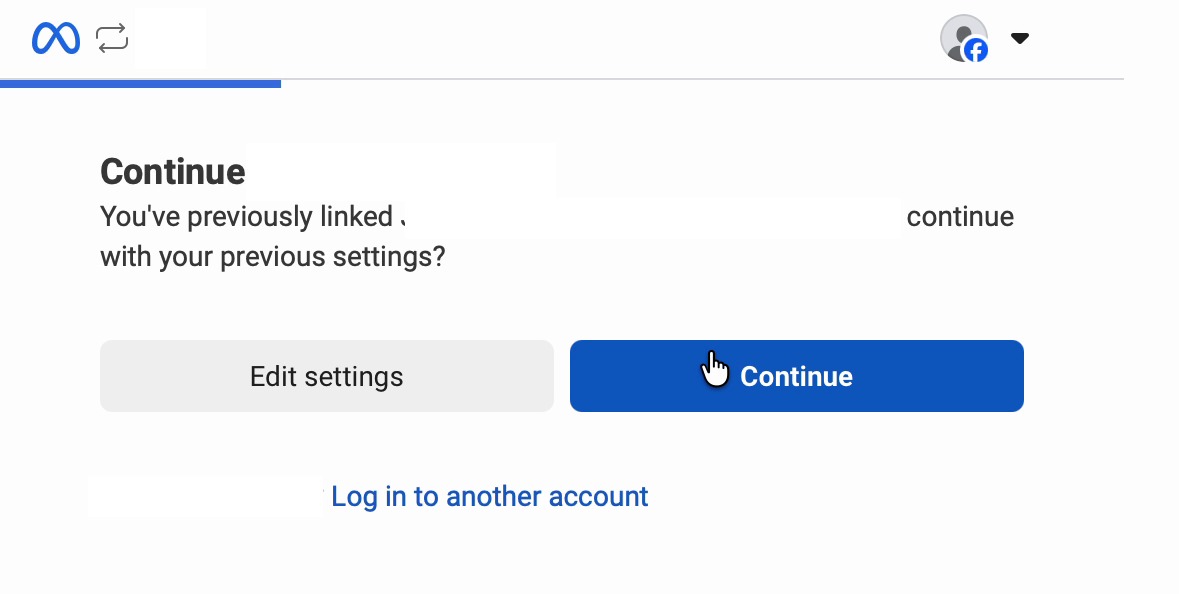{ width="590" }
## 7. Share all your Pages
Facebook asks which Pages Mampu AI may use. Keep the first option, all current and future Pages, selected. This also covers any Page you create later. Click **Continue**. If Facebook also asks which businesses to share, keep the first option there too, all current and future businesses, and click **Continue**.
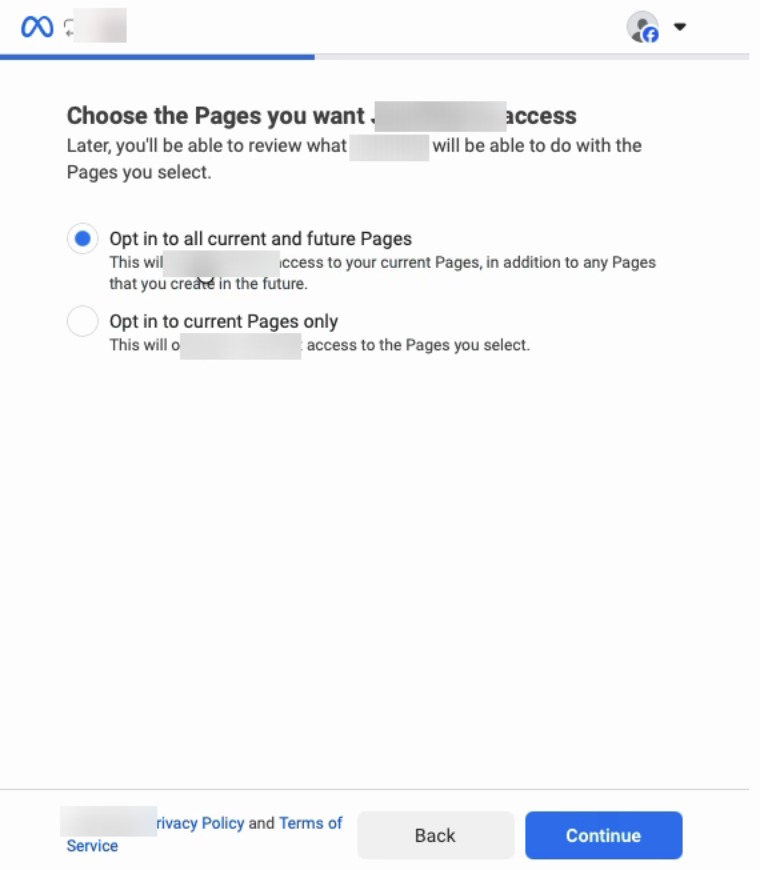{ width="380" }
## 8. Review and save
Facebook shows a summary of what Mampu AI will be able to do, such as managing your Page's Messenger conversations and comments. Scroll down to read the full list if you like, then click **Save**. Facebook confirms that your account is now linked. Click **Got it** to close the window; you're back in Mampu AI, ready to choose your Page.
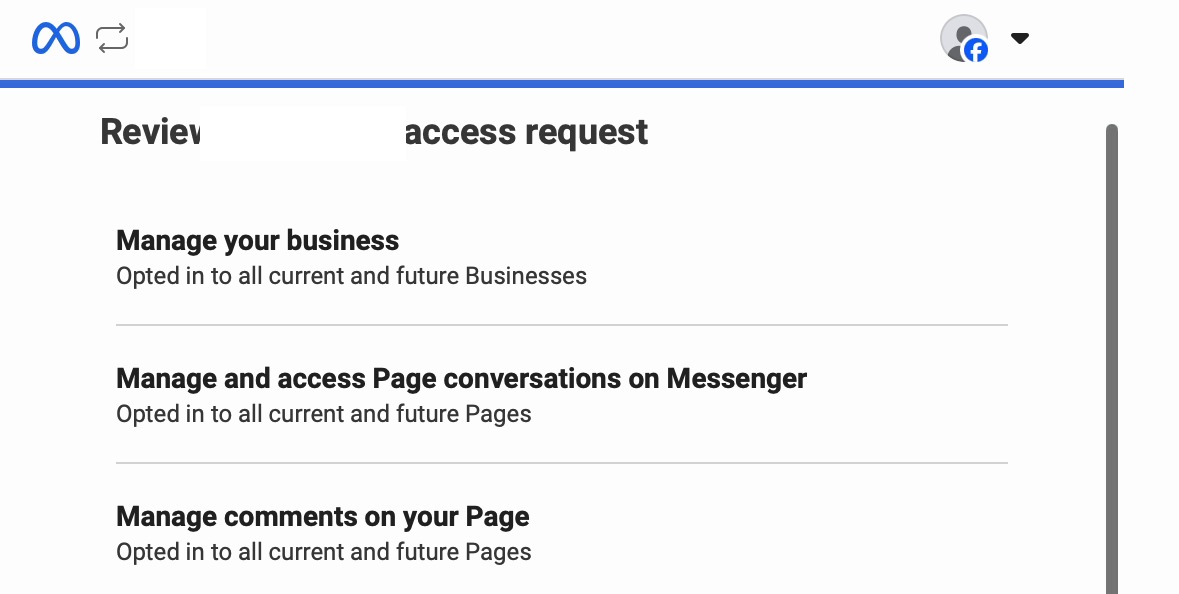{ width="590" }
## 9. Choose the Page to connect
Back in Mampu AI, pick the Facebook Page you want to connect from the **Choose Page** dropdown. You can also give the inbox a custom name. Click **Create Inbox**.
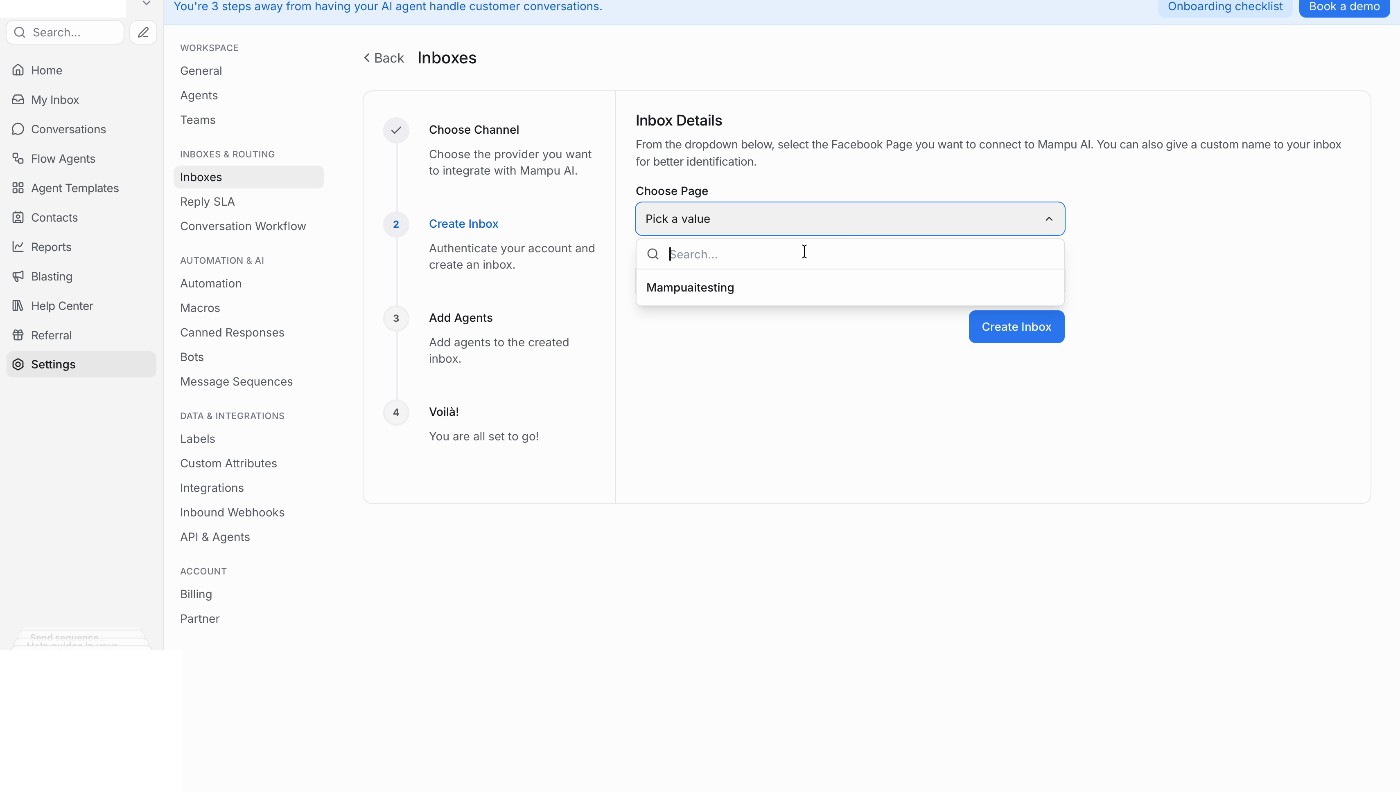
## 10. Add agents
Pick the team members who should handle this inbox, then click **Add agents**. Only the agents you add here can see and reply to its conversations — as an administrator, add yourself too if you want access.
## You're done
Your Facebook inbox is ready — scan the QR code shown to quickly test your Messenger inbox from your phone, or click **Take me there** to go straight to the inbox. Messenger conversations now arrive in Mampu AI, and your AI agent can reply.
## Your past Messenger conversations come along
{ width="560" }
The first time a Page is connected, Mampu AI brings in its recent Messenger conversations: the threads active in the last three months, with the last 20 messages of each. The finish screen says **We're bringing your Page's recent Messenger conversations into this inbox. They appear as resolved chats within a few minutes.**
* They arrive as **Resolved** conversations under each customer's contact, at their original times, and each starts with an **Imported from Facebook** line.
* Nothing goes out: no notifications, automation rules or AI agent replies run on an imported conversation.
* When one of those customers writes again, the new message lands in the same contact's history.
* If Meta refuses the import, the screen says **We couldn't bring in this Page's past conversations. New messages still arrive here as usual.**
Reconnecting an inbox later does not import again.
## Labels stay in step with Meta Business Suite
{ width="616" }
A label you put on a Messenger contact here also appears on that person in the Meta Business Suite inbox, and a label your team sets there appears on the contact here, and on their open conversations in this inbox, as soon as Meta reports the change.
* Only labels on the contact sync. A label added to a conversation alone stays in Mampu AI.
* Labels Meta's ad tools add on their own, such as the ad ID label, **Intake** or **Lead Complete**, stay in Meta Business Suite. They are not copied here, and a label you name the same here is not sent there.
* The label is created on the Page the first time a contact there receives it.
* Deleting a synced label asks you to confirm: **This label also exists in Meta Business Suite for** the Page. **Deleting it here removes it there too.**
* Renaming one shows the same note, and the button reads **Rename here and in Meta Business Suite**.
* Instagram inboxes do not sync labels; Meta offers this for Messenger only.
{ width="616" }
### Accepting Meta's Page Contact Terms
{ width="900" }
Meta lets labels sync only after a Page admin has accepted its Page Contact Terms once. Until then the inbox shows the yellow notice **Label sync needs Meta's Page Contact Terms**, labels set here stay here and labels set in Meta Business Suite stay there.
1. Open Meta Business Suite and go to **Inbox**.
2. Choose **Labels** and create your first label there. Meta shows the terms at that moment; accept them.
3. Syncing picks up with the next label change. The notice clears as soon as Meta accepts a label call from Mampu AI again, at the latest on the next daily check.
### Switching the sync off for a Page
{ width="900" }
If you would rather keep the two sets of labels apart, switch the sync off for that Page:
1. Open **Settings → Inboxes**, choose the Facebook inbox and stay on the **Settings** tab.
2. Turn off **Sync labels with Meta Business Suite** and click **Update**.
Labels set here stay here and labels set in Meta Business Suite stay there. The **Label sync needs Meta's Page Contact Terms** notice leaves the inbox, and the **Notices from Meta** list records **All clear from Meta** with the reason **Label sync switched off in the inbox settings**. The delete and rename notes on a label stop naming that Page. The switch is on for every Facebook inbox unless you turn it off; turning it back on reads the Page's labels again.
## If the connection expires
If Meta stops accepting the login behind the inbox, a **Your inbox is disconnected** banner with **Click here to reconnect.** appears on the inbox's **Settings** tab and the administrators are emailed. Red and yellow notices about the Page show on the same tab. See [Notices from Meta about your inbox](/settings/notices-from-meta).
## Next steps
* Set up [Facebook Comment Replies](/settings/facebook-comment-replies) so comments on your posts get answered automatically.
* Connect a [Flow Agent](/settings/connecting-a-flow-agent-to-facebook) to this inbox so it replies for you.
## Related
* [Inboxes and channels](/settings/inboxes-and-channels)
* [Managing conversations](/conversations/managing-conversations)
* [Notices from Meta about your inbox](/settings/notices-from-meta)
* [Labels, priority and status](/conversations/labels-priority-and-status)
---
## Facebook Comment Replies
URL: https://help.mampuai.com/settings/facebook-comment-replies
---
description: Reply to comments on your Facebook Page automatically, and turn each commenter into a private conversation.
---
# Facebook Comment Replies
When someone comments on one of your Facebook Page's posts, Mampu AI can reply to the comment publicly, send that person a private message, and like the comment — all automatically, based on the words they used.
This is how a comment on a promo post becomes a real conversation: your public reply keeps the post lively, and the private message moves the customer into your inbox where your team or your Flow Agent can take over.
## Watch the walkthrough
{% embed url="https://youtu.be/jacQeP2Y2tA" %}
## Before you start
* Connect your Facebook Page in **Settings → Inboxes → Add Inbox → Facebook** and approve all the requested permissions — see [Connecting a Facebook inbox](/settings/connecting-a-facebook-inbox).
## 1. Open Comment Replies
Go to **Settings → Inboxes**, open your Facebook inbox, and pick the **Comment Replies** tab. If you have not set anything up yet, the page says there are no rules. Click **Add rule**.
## 2. Name the rule and choose which comments it answers
A rule decides which comments to answer and what to send. Fill in the fields from top to bottom.
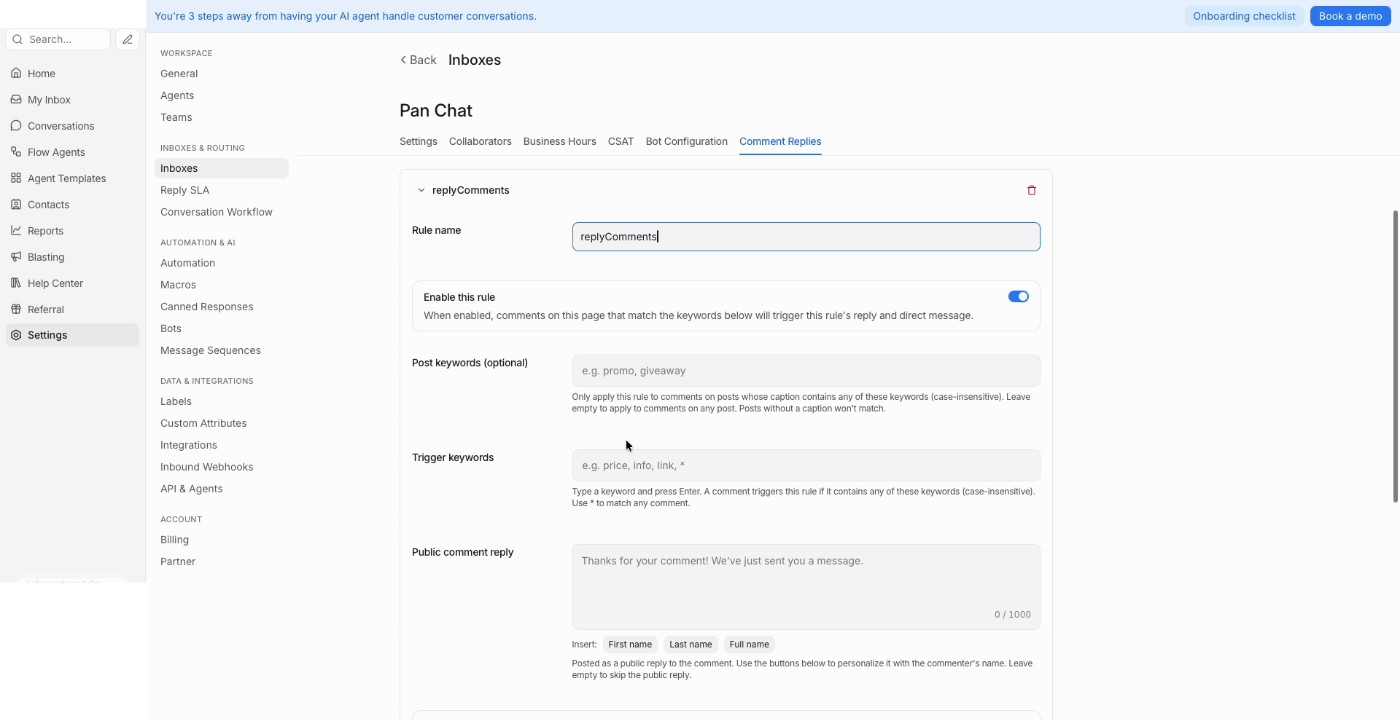
* **Rule name** — a name for your own reference, such as `Pricing enquiries`.
* **Enable this rule** — leave it on for the rule to run. Turn it off to pause the rule without deleting it.
* **Post keywords (optional)** — only answer comments on posts whose caption contains one of these words, for example only your promo posts. Leave it empty to answer comments on any post. Posts without a caption never match.
* **Trigger keywords** — type a word and press Enter. A comment triggers the rule when it contains any of these words. Use `*` to match every comment.
* **Public comment reply** — what you post publicly under the comment. Use the **First name**, **Last name** and **Full name** buttons to greet the commenter by name. Leave it empty to skip the public reply and only send a private message.
## 3. Choose what the customer receives privately
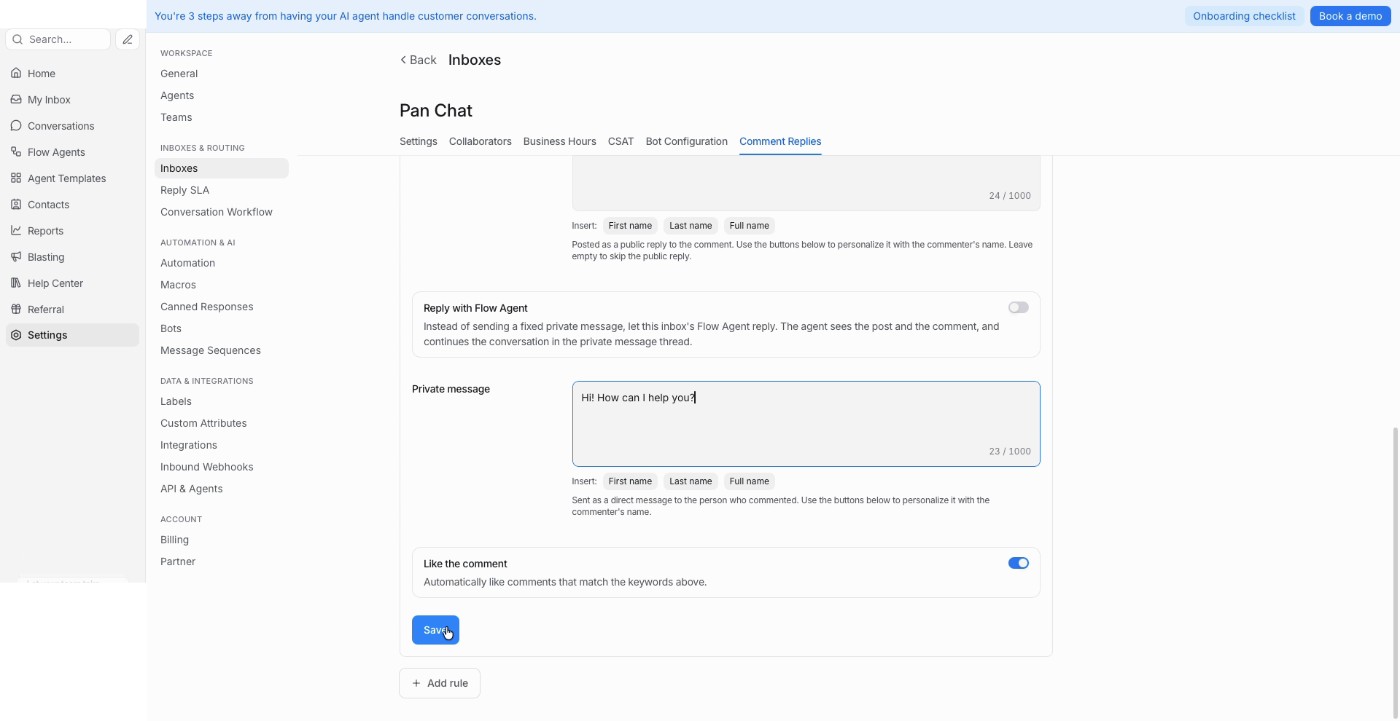
* **Private message** — sent as a direct message to the person who commented. Same name buttons apply.
* **Reply with Flow Agent** — turn this on and your inbox's Flow Agent writes the private message instead of the fixed text above. The agent sees the post and the comment, then keeps the conversation going in the private thread — useful when people ask about different products under the same post. The inbox needs an agent assigned and published first — see [Connecting a Flow Agent to your Facebook inbox](/settings/connecting-a-flow-agent-to-facebook).
* **Like the comment** — give matching comments a like from your Page.
Click **Save** when you are done.
## 4. Check your rules list
Saved rules appear on the **Comment Replies** tab with the keywords that trigger them. Click **Add rule** to create more.
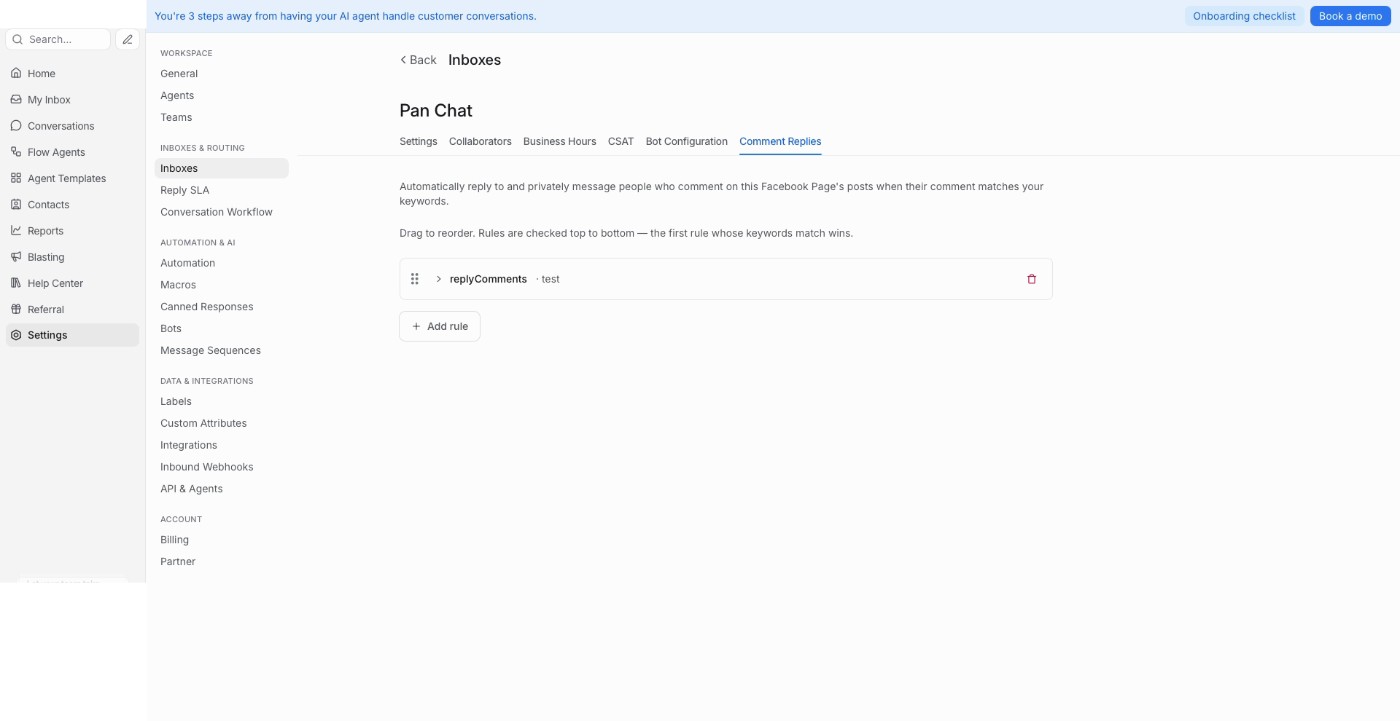
Rules are checked top to bottom and the first match wins — drag them to reorder. Put your most specific rules above the general ones, so a rule using `*` does not answer everything before the others get a turn.
## What happens when someone comments
Your rule is now live. Here is what the customer and your team see when a comment matches it.
**The customer comments on your post.** In this example the rule watches for the word `test`, and the comment contains it.
**Your Page likes the comment** — because **Like the comment** was turned on. The customer gets a notification from your Page.
**The customer receives your private message.** Facebook shows it as a reply to their comment, with a **View comment** link back to the post — so they know what it is about.
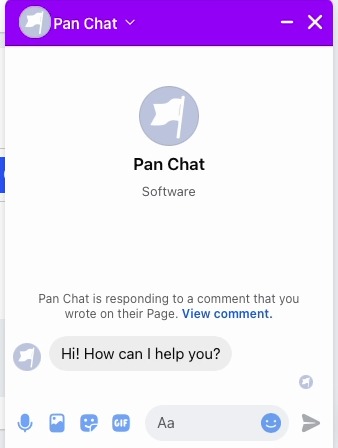
**The conversation lands in your inbox.** Open the Facebook inbox in Mampu AI and the commenter is there as a normal conversation. The post and their comment are quoted at the top, so whoever picks it up has the full context, and your automatic message appears as the first reply.
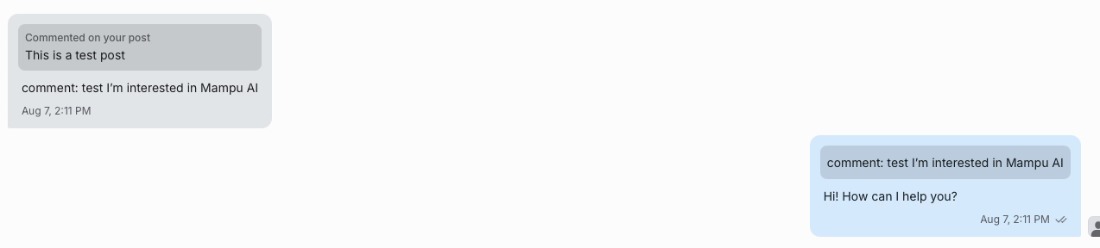
From here your team replies as usual, or your Flow Agent carries on if you turned on **Reply with Flow Agent**.
## A few tips
* Keep public replies short and friendly, and vary the wording between rules — the same reply posted many times looks automated.
* Public replies are visible to everyone. Keep prices, order details and anything personal for the private message.
* Someone must have commented for you to message them privately, so use the public reply to tell them to check their inbox.
* Test a rule on your own post before using it on a live campaign — comment with one of your trigger keywords and watch the conversation arrive.
## Related
* [Connecting a Facebook inbox](/settings/connecting-a-facebook-inbox)
* [Connecting a Flow Agent to your Facebook inbox](/settings/connecting-a-flow-agent-to-facebook)
* [Creating a Flow Agent](/flow-agents/creating-a-flow-agent)
* [Managing conversations](/conversations/managing-conversations)
* [Instagram Comment Replies](/settings/instagram-comment-replies)
* [Comment Moderation](/settings/comment-moderation)
---
## Connecting a Flow Agent to your Facebook inbox
URL: https://help.mampuai.com/settings/connecting-a-flow-agent-to-facebook
---
description: Assign a Flow Agent to your Facebook inbox so it answers Messenger conversations, including the ones that start from a comment.
---
# Connecting a Flow Agent to your Facebook inbox
Once your Facebook Page is connected, a Flow Agent can answer Messenger conversations for you — day and night, in the customer's own language. This guide assigns an agent to the Facebook inbox and publishes it.
## Watch the walkthrough
{% embed url="https://youtu.be/jacQeP2Y2tA" %}
## Before you start
* A connected Facebook inbox — see [Connecting a Facebook inbox](/settings/connecting-a-facebook-inbox).
* A Flow Agent you have already built — see [Creating a Flow Agent](/flow-agents/creating-a-flow-agent).
## 1. Open the agent
Go to **Flow Agents → Agents** and open the agent you want on Facebook. The designer opens with the **Designer**, **Playground** and **History** tabs, and the **Settings**, **Inboxes** and **Publish** buttons in the header.
## 2. Assign the Facebook inbox
Click **Inboxes** in the header. In the **Assign Inboxes** window, tick your Facebook inbox and click **Save**.
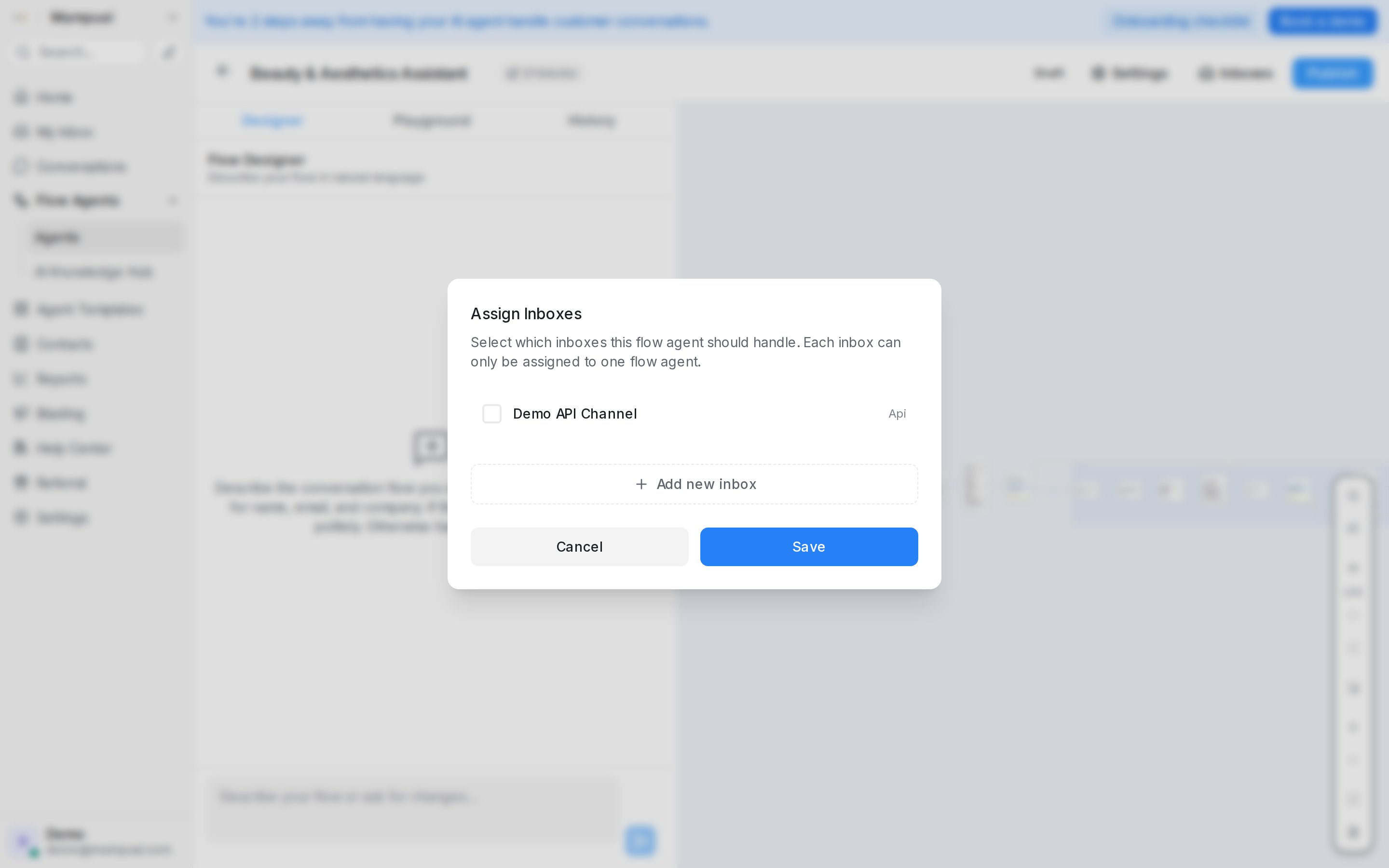
> **Each inbox can only be assigned to one Flow Agent.** If your Facebook inbox is already handled by another agent, untick it there first — otherwise it won't be available here.
## 3. Publish the agent
Assigning the inbox is not enough on its own: the agent only starts replying once it is published. Click **Publish** and choose who it responds to:
* **Public** — everyone messaging the connected inboxes.
* **Testers only** — only your workspace testers (**Settings → Account Settings → Testers**), so you can trial the agent on the live Page before opening it to customers.
{ width="512" }
## 4. Test it
Open your Facebook Page and send it a message as a customer would, or scan the QR code shown when the inbox was created. The agent should reply in Messenger, and the conversation appears in your Facebook inbox in Mampu AI.
While testing, the **Playground** tab lets you chat with the agent without involving Facebook at all — useful for checking the flow itself before you publish.
## How this works with comments
If you use [Facebook Comment Replies](/settings/facebook-comment-replies), the two features fit together:
* A comment matches your rule, and Mampu AI sends the commenter a private message.
* With **Reply with Flow Agent** turned on in the rule, the agent writes that private message instead of a fixed text — it sees the post and the comment, then carries the conversation on in the private thread.
That toggle only works once an agent is assigned to the inbox and published, which is what this guide sets up.
## Fine-tuning how the agent behaves
Per inbox, you can also decide when the agent should stay quiet:
* **Pause when a human replies** — when a teammate answers, the agent steps back instead of talking over them.
* **Don't reply to these labels** — the agent skips conversations or contacts tagged with the labels you pick, so complaints and VIPs stay human-handled.
* **Only reply to chats from ads** — the agent only replies to chats that started from a Meta ad. Pick **From one of these ads** and list the ad IDs, or **From any ad** to cover every ad. Chats opened by a comment reply still get the agent.
**Turn links into buttons** decides how the agent's links look in Messenger. On, each link in a reply also gets a tap button under the message, up to three per reply; off, the links stay as plain text. It is on to start with — see [Links become a button](/flow-agents/building-the-conversation-flow#links-become-a-button).
{ width="468" }
For the agent's own conversation behaviour — how long it pauses after a handoff, whether it keeps answering FAQs after the flow ends, and the reply delay — see [Testing and connecting an agent](/flow-agents/testing-and-connecting-an-agent).
## Related
* [Connecting a Facebook inbox](/settings/connecting-a-facebook-inbox)
* [Facebook Comment Replies](/settings/facebook-comment-replies)
* [Creating a Flow Agent](/flow-agents/creating-a-flow-agent)
* [Testing and connecting an agent](/flow-agents/testing-and-connecting-an-agent)
---
## Help Center (Knowledge Base)
URL: https://help.mampuai.com/help-center/help-center-knowledge-base
---
description: What the Help Center is, how a portal, its categories, locales and articles fit together, and where each part lives in the dashboard.
---
# Help Center (Knowledge Base)
The **Help Center** lets you publish a self-serve knowledge base, a public website of help articles, so customers can find answers on their own. The same articles can be offered inside your website chat widget, inserted into replies by your team, and used by your AI agent.
## Watch the walkthrough
{% embed url="https://youtu.be/9ucW3dycU_I" %}
## How it fits together
* A **portal** is one help site, with its own name, logo, colour, address and languages. You can run several, for example one per brand.
* Each portal has **locales**: the languages it is published in.
* Within a locale, **categories** group related articles, such as *Getting Started* or *Billing*.
* **Articles** are the pages themselves, each **Draft**, **Published** or **Archived**.
## Where to find it
Open **Help Center** in the sidebar. Its menu has **Articles**, **Categories**, **Locales** and **Settings**; the portal name at the top of each page switches between portals.
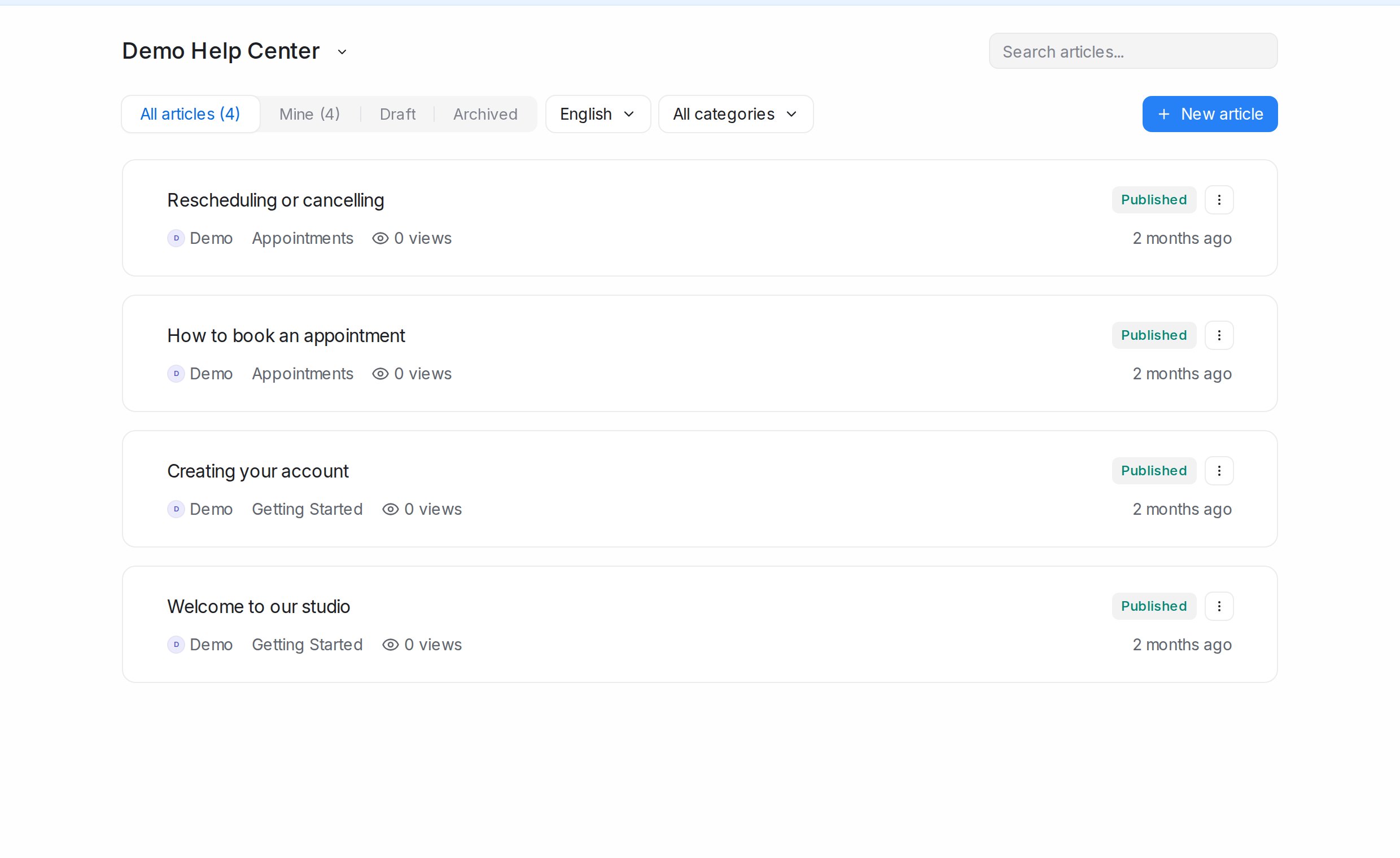
## Your public address
Each portal is published at **chat.sapot.ai/hc/** followed by its slug, for example *chat.sapot.ai/hc/my-business*, and you can move it to your own domain such as *help.yourbusiness.com*. See [Locales and portal settings](/help-center/locales-and-portal-settings).
## Using articles in conversations
* On accounts with article search in replies switched on, the article icon in the reply box opens **Search articles** so you can drop a link to an article into your reply.
* Under the inbox's **Settings** tab, **Help Center** attaches a portal to a website widget so visitors can search articles before they write.
## Related
* [Creating a portal](/help-center/creating-a-portal)
* [Writing and publishing articles](/help-center/writing-and-publishing-articles)
* [Adding categories](/help-center/adding-categories)
* [Locales and portal settings](/help-center/locales-and-portal-settings)
---
## Creating a portal
URL: https://help.mampuai.com/help-center/creating-a-portal
---
description: Create a help centre portal in two fields, then give it a logo, colour, header text, page title, home link and live chat widget.
---
# Creating a portal
A **portal** is one public help site. Most businesses need one; create more when you run separate brands.
## Create the portal
1. Open **Help Center** in the sidebar. If you have no portal yet, click **Create Portal**; otherwise open the portal name at the top of the page and choose **Create new portal**.
2. Enter a **Name**, such as *Acme Help*, and a **Slug**, the short name used in the address, such as *acme*. The portal is then published at *chat.sapot.ai/hc/acme*.
3. Click **Create**.
The portal starts in English with no categories or articles. Add categories next, then write your first article.
## Make it look like your business
Open **Help Center → Settings** for the portal.
* **Logo**: shown in the portal header.
* **Name**: the portal's name inside the dashboard.
* **Header text**: the headline on the portal home page, for example *How can we help?*
* **Page title**: the title shown in the browser tab and in search results.
* **Home page link**: where the portal's logo links back to, usually your website.
* **Slug**: the address of the portal; the full link is shown underneath.
* **Live chat widget**: pick one of your website inboxes to show its chat bubble on every portal page, or **No widget**.
* **Brand color**: the colour of links and buttons.
Click **Save changes**. The rest of the page, custom domain, layout and deleting a portal, is covered in [Locales and portal settings](/help-center/locales-and-portal-settings).
## Related
* [Help Center (Knowledge Base)](/help-center/help-center-knowledge-base)
* [Adding categories](/help-center/adding-categories)
* [Writing and publishing articles](/help-center/writing-and-publishing-articles)
---
## Writing and publishing articles
URL: https://help.mampuai.com/help-center/writing-and-publishing-articles
---
description: Write an article, set its category, author and search details, publish it, change a published article safely, and manage many articles at once.
---
# Writing and publishing articles
Articles are the pages of your help centre. Each one is a **Draft** until you publish it, and stays editable after that.
## Watch the walkthrough
{% embed url="https://youtu.be/9ucW3dycU_I" %}
## The article list
**Help Center → Articles** lists the portal's articles in the language picked at the top (for example **English**), with tabs **All articles**, **Mine**, **Draft** and **Archived**, a **All categories** picker and **Search articles…**. Each card shows the status, author, category, view count and when it was last changed.

## Writing an article
1. Click **New article**.
2. Type the title, then the body. The editor handles headings, bold and italic, lists, links, quotes, code and images (**Upload image**, JPG or PNG).
3. Beside the title, pick the **Author** and **Category**. **More properties** holds **Meta title**, **Meta description** and **Meta tags**, which search engines and link previews use.
4. **Preview** shows the article as customers will see it.
5. Click **Publish**. The article goes live on the portal straight away.
## Changing a published article
Edits to a published article are kept aside until you are ready, so customers never see a half-finished change. The article card and editor show **Unpublished changes** (or **Unpublished edits**); open it to see what changed, then **Apply changes** to publish them or **Discard changes** to drop them.
## Statuses
The **⋯** menu on each article card, and the bulk bar, set the status:
* **Publish**: live on the portal.
* **Draft**: hidden from customers while you work on it.
* **Archive**: taken off the portal but kept, for outdated pages you may need again.
* **Delete**: removed for good, after you confirm.
## Many articles at once
Tick articles in the list to get a bar with **Publish**, **Draft**, **Archive**, **Category** (move them to another category), **Translate** and **Delete**. **Select all** and **Clear selection** are in the same bar. Articles with unpublished changes are skipped by status changes until you apply or discard their changes.
## Translating
**Translate** on one article or on a selection creates a draft copy in another of the portal's languages. Choose the **Target language** and, if you like, a **Target category**, then **Translate**. The translated drafts appear in that language's list once ready; review and publish them like any article. If a translation already exists, you are asked to confirm **Overwrite and translate**.
## AI article drafts from your approved FAQs
On accounts where it is switched on, Mampu AI writes draft articles overnight from the FAQs you approved in AI Knowledge. They arrive as drafts in your portal, and Home shows **Review … AI article drafts** until you publish, edit or delete them. Nothing is published without you.
See [AI article drafts from your approved FAQs](/help-center/ai-article-drafts) for how to review the editor notes and what happens when your FAQs change.
## Related
* [AI article drafts from your approved FAQs](/help-center/ai-article-drafts)
* [Adding categories](/help-center/adding-categories)
* [Locales and portal settings](/help-center/locales-and-portal-settings)
* [Managing AI Knowledge](/flow-agents/managing-ai-knowledge)
* [Your daily summary on Home](/getting-started/your-daily-summary-on-home)
---
## AI article drafts from your approved FAQs
URL: https://help.mampuai.com/help-center/ai-article-drafts
---
description: Mampu AI can turn the FAQs you approved in AI Knowledge into draft help centre articles. Learn where the drafts appear, how to review the editor notes, what happens when FAQs change, and why nothing is published without you.
---
# AI article drafts from your approved FAQs
On accounts where it is switched on, Mampu AI turns your approved FAQs into draft help centre articles, one article per subject. You edit and publish instead of starting from a blank page. **Nothing is ever published without you.**
## How drafts are made
| Topic | How it works |
|---|---|
| **Source** | Only FAQs you approved in AI Knowledge. Pending suggestions and conversations are never used. See [Managing AI Knowledge](/flow-agents/managing-ai-knowledge) |
| **Shape** | Related FAQs become one article with sections, not one thin page per question |
| **Timing** | Written overnight, ready by the morning |
| **Language and category** | The portal's default language, in a matching category when one exists |
| **Links** | May end with a **Related reading** list of your published articles on nearby subjects |
## Find your drafts
* **Home** shows **Review … AI article drafts** while any are waiting; click **Review**. See [Your daily summary on Home](/getting-started/your-daily-summary-on-home).
* **Help Center → Articles → Draft** lists them with your other drafts, each with one of your administrators as author.
## Review and publish
Each draft opens with a block headed **Editor notes (AI draft) — delete this block before publishing**. It says how many FAQs the article came from and lists what needs your eye:
| Note | What to do |
|---|---|
| **Customer questions with no approved answer yet** | Add and approve those FAQs |
| **Sentences removed from the draft** | Removed because no FAQ backed them; add them back only if true |
| **Figures the entries disagree on** | Left out; fix the FAQ, then add the right figure yourself |
| **Facts that will go stale** | Dates, offers and prices to re-check on every review |
1. Check the facts and adjust the wording to your brand.
2. Delete the editor notes block.
3. Click **Publish**.
While the block is there, publishing is blocked with **Editor notes are still in the article. Delete the block at the top before publishing.**
## When your FAQs change
| The draft is… | What happens |
|---|---|
| Untouched | Rewritten in place when new FAQs on the subject are approved |
| Edited, moved to another category, published or archived | Never drafted again; the article is yours to keep current |
| Deleted | The subject is set aside for about a month |
## The waiting-drafts limit
When a set number of AI drafts are waiting in **Draft**, no new ones are written, and administrators get an email (at most once a day) saying how many more subjects are ready. Publishing, archiving or deleting drafts makes room; new ones arrive the next morning.
## Not seeing any drafts?
* The feature is not switched on for every account yet.
* The account needs an active portal and at least one administrator.
* A subject needs at least three related approved FAQs.
## Related
* [Writing and publishing articles](/help-center/writing-and-publishing-articles)
* [Managing AI Knowledge](/flow-agents/managing-ai-knowledge)
* [Adding categories](/help-center/adding-categories)
* [Locales and portal settings](/help-center/locales-and-portal-settings)
* [Your daily summary on Home](/getting-started/your-daily-summary-on-home)
---
## Adding categories
URL: https://help.mampuai.com/help-center/adding-categories
---
description: Create, edit and order categories that group your help articles, per language.
---
# Adding categories
**Categories** group related articles so customers can browse your portal by topic. Each language of the portal has its own categories.
## Create a category
1. Open **Help Center → Categories** and pick the language at the top.
2. Click **New category**.
3. Enter a **Name** (you can add an icon), a **Slug** for its address, and a **Description** shown on the portal.
4. Confirm. The category appears on the portal home page once it has published articles.
## Edit, order and remove
Each category has **Edit category** to change its details and a delete option. Drag categories to change the order they appear on the portal home page. Deleting a category leaves its articles in place without a category.
## Filing articles
Pick an article's category beside its title in the editor, or move many at once with **Category** in the article list's bulk bar. Articles without a category show as **Uncategorised**.
## Related
* [Writing and publishing articles](/help-center/writing-and-publishing-articles)
* [Locales and portal settings](/help-center/locales-and-portal-settings)
* [Help Center (Knowledge Base)](/help-center/help-center-knowledge-base)
---
## Locales and portal settings
URL: https://help.mampuai.com/help-center/locales-and-portal-settings
---
description: Publish your help centre in more languages, choose the default, localise the portal's texts, and set a custom domain, layout and social links.
---
# Locales and portal settings
A portal can be published in several languages, and its settings decide where and how it appears.
## Watch the walkthrough
{% embed url="https://youtu.be/9ucW3dycU_I" %}
## Locales
Open **Help Center → Locales**. Each language card shows how many articles and categories it has, and whether it is the **Default** or still a **Draft**.
* **New locale** adds a language. A new locale starts as a draft, so customers do not see an empty section.
* The card's menu offers **Publish locale** or **Move to draft**, **Make default** (the language visitors land on), **Localize content** (the portal **Name**, **Page title** and **Header text** in this language), **Select recommended content** (the categories and articles featured on that language's home page) and **Delete**.
Articles and categories belong to one language. Write them in each language, or use **Translate** in the article list to draft translations; see [Writing and publishing articles](/help-center/writing-and-publishing-articles).
## Portal settings
Open **Help Center → Settings**. The top of the page holds the portal's name, logo, colours and widget; see [Creating a portal](/help-center/creating-a-portal). Below it:
### Custom domain
Host the portal on your own address, such as *help.yourbusiness.com*. Click **Add custom domain**, enter the domain and **Add domain**. A **DNS configuration** dialog shows the record to add at your domain provider; **Send instructions** emails them to whoever manages your domain. Once the record is in place the portal answers on your address. **Edit** changes it later.
### Appearance
Choose the layout: **Classic**, a welcoming home page with search and featured topics, or **Documentation**, side-by-side navigation that keeps every guide a click away. Under **Social links**, **Add social link** puts your social pages in the portal footer. Click **Save changes**.
### Delete portal
**Delete** followed by the portal's name removes the portal with all its articles and categories, after you confirm.
## Related
* [Creating a portal](/help-center/creating-a-portal)
* [Writing and publishing articles](/help-center/writing-and-publishing-articles)
* [Help Center (Knowledge Base)](/help-center/help-center-knowledge-base)
---
## Account Settings
URL: https://help.mampuai.com/settings/account-settings
# Account Settings
The **Settings** area is where you configure your account and tailor the workspace to your team.
## Watch the walkthrough
{% embed url="https://youtu.be/V6GLXt-xoWQ" %}
Pages are grouped in the navigation column on the left:
* **Workspace** — account details like name, language and support email, plus your agents, teams and security.
* **Inboxes & Routing** — connect channels like website live chat, WhatsApp, Facebook and email, and control how conversations reach your team.
* **Automation & AI** — automation rules, macros, canned responses, agent bots and message sequences.
* **Data & Integrations** — labels, custom attributes and connections to your other tools.
* **Account** — billing and the partner programme.
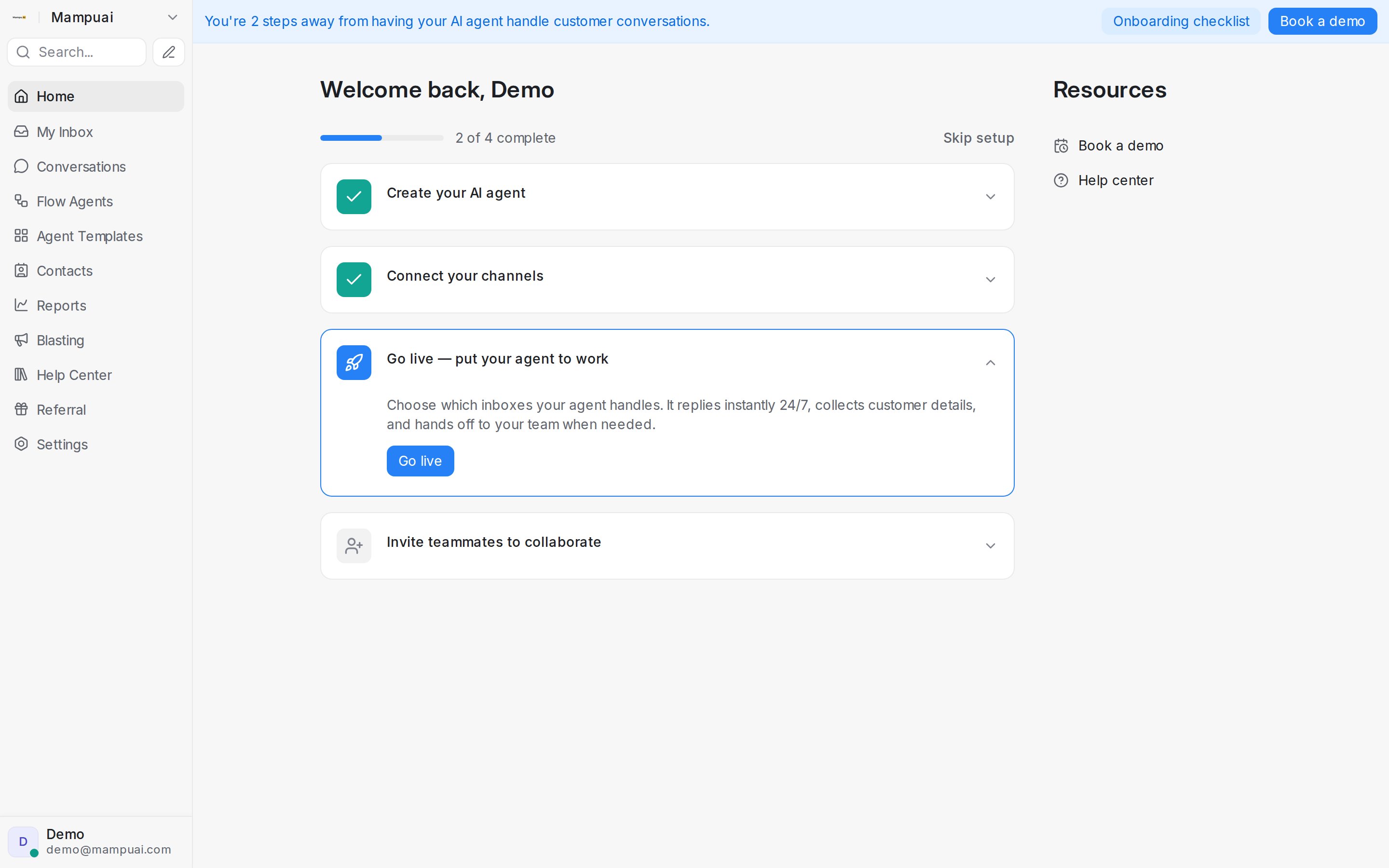
---
## Your profile and notifications
URL: https://help.mampuai.com/settings/profile-and-notifications
---
description: Your own settings as an agent: availability, appearance, font size and language, message signature, send hotkey, password and two-factor authentication, active sessions, audio alerts, email and push notifications, and the keyboard shortcuts.
---
# Your profile and notifications
These settings are yours alone, not the account's. They live in the menu behind your name at the bottom of the sidebar and on the **Profile Settings** page it opens.
## The menu behind your name
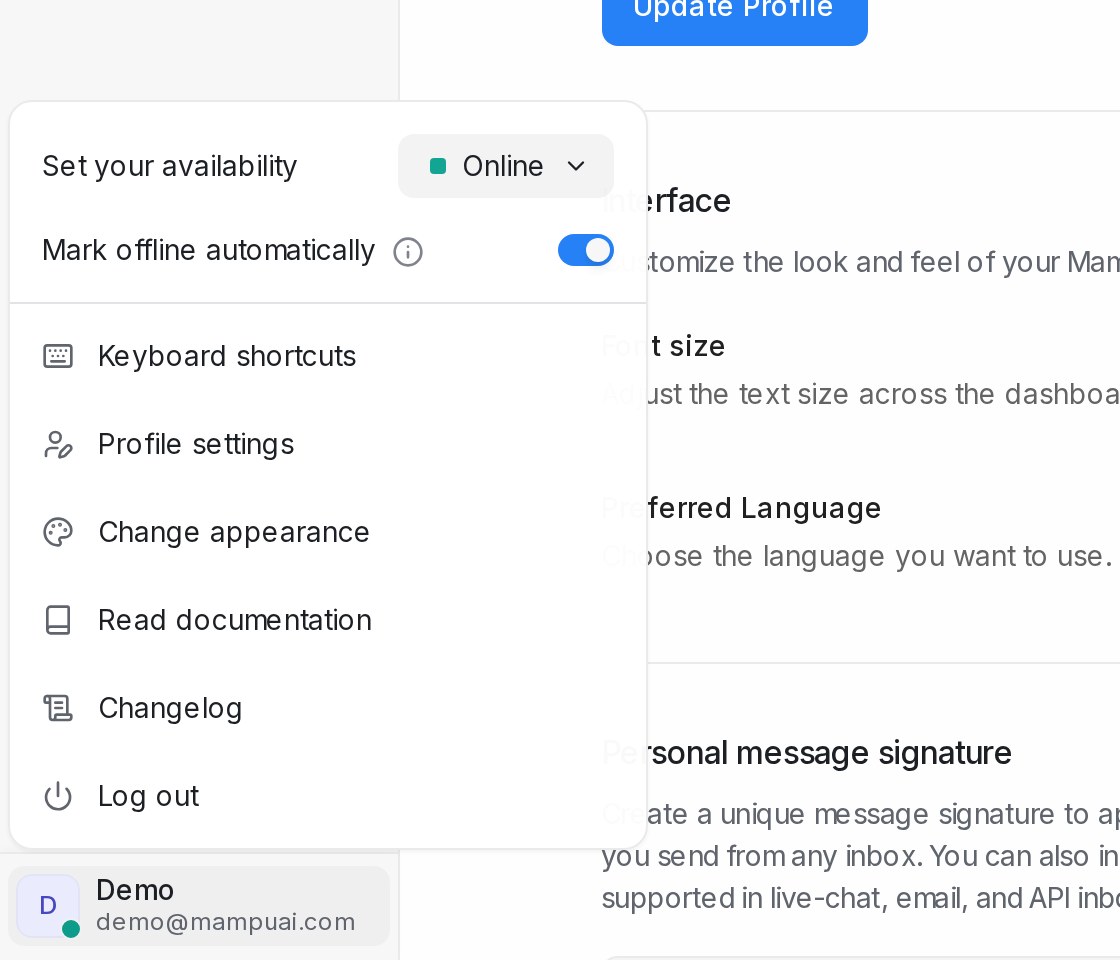{ width="560" }
| Item | What it does |
| --- | --- |
| **Set your availability** | **Online**, **Busy** or **Offline**. Automatic assignment hands new conversations to online agents |
| **Mark offline automatically** | Offline when you stop using the app, online when you return |
| **Keyboard shortcuts** | The full list, also at the end of this page |
| **Profile settings** | Opens the page below |
| **Change appearance** | **Light**, **Dark** or **System** |
| **Read documentation**, **Changelog**, **Log out** | This help centre, recent changes, sign out on this device |
## Profile and interface
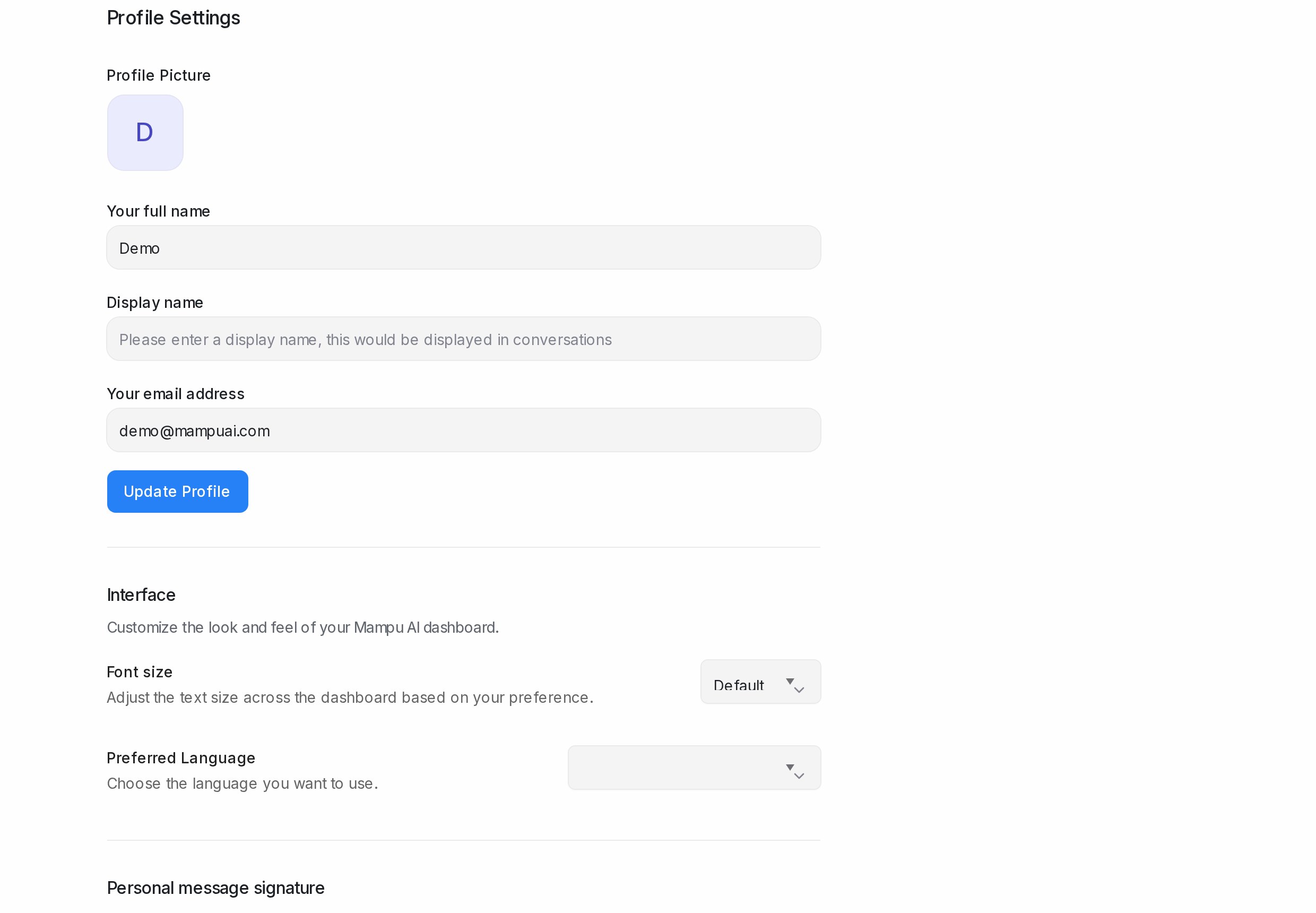
* **Profile Picture**, **Your full name**, **Display name** (what customers and teammates see) and **Your email address** (your login). **Update Profile** saves; after an email change you sign in again.
* **Font size**: **Smaller** to **Extra Large**. **Preferred Language**: your dashboard language, or **Use account default**.
## Signature and send hotkey
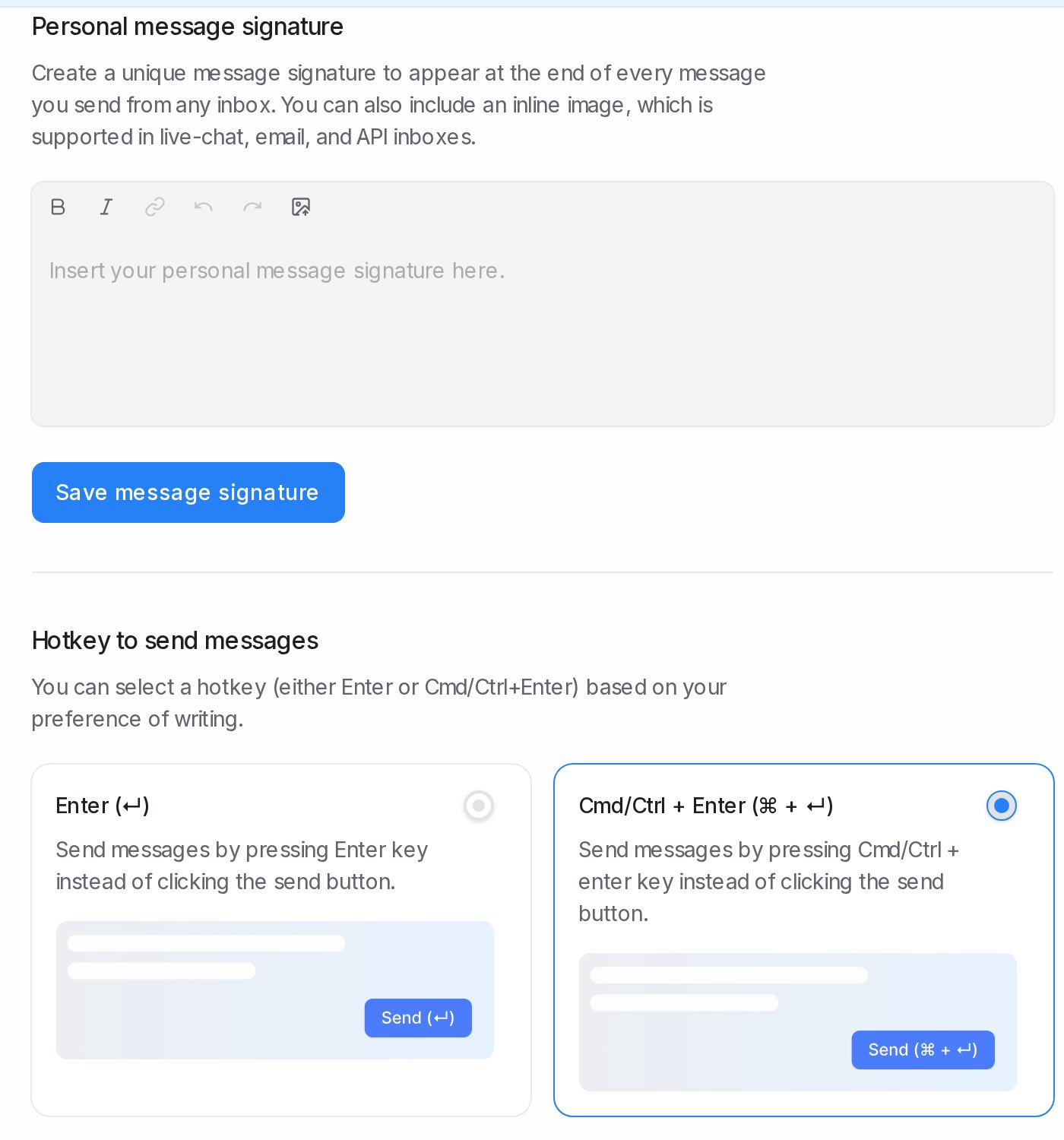
* **Personal message signature** is added to the end of every message you send, from any inbox, and can include an image. **Save message signature**. In the reply box, the signature icon turns it on or off per message.
* **Hotkey to send messages**: **Enter (↵)**, or **Cmd/Ctrl + Enter (⌘ + ↵)** if Enter should start a new line.
## Password
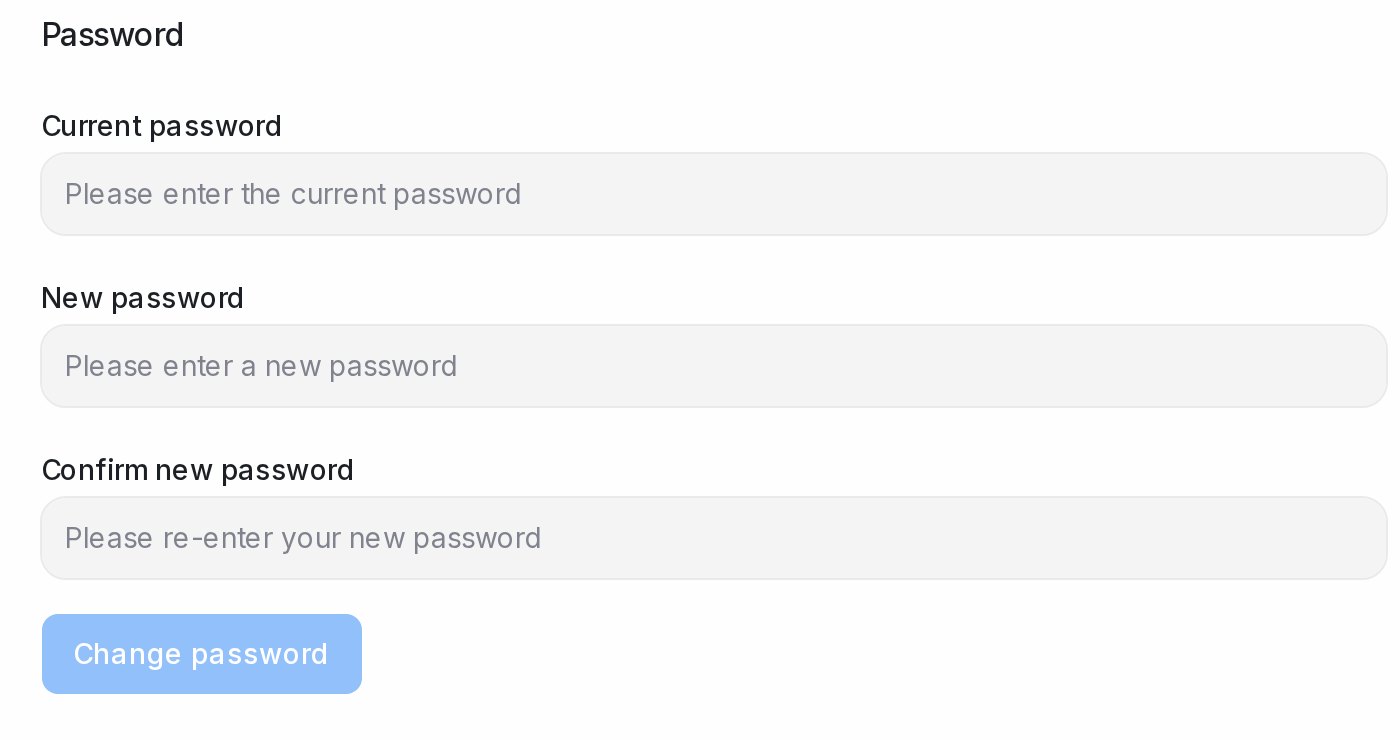
Enter **Current password**, **New password** and **Confirm new password**, then **Change password**. Your other devices are signed out.
## Two-factor authentication
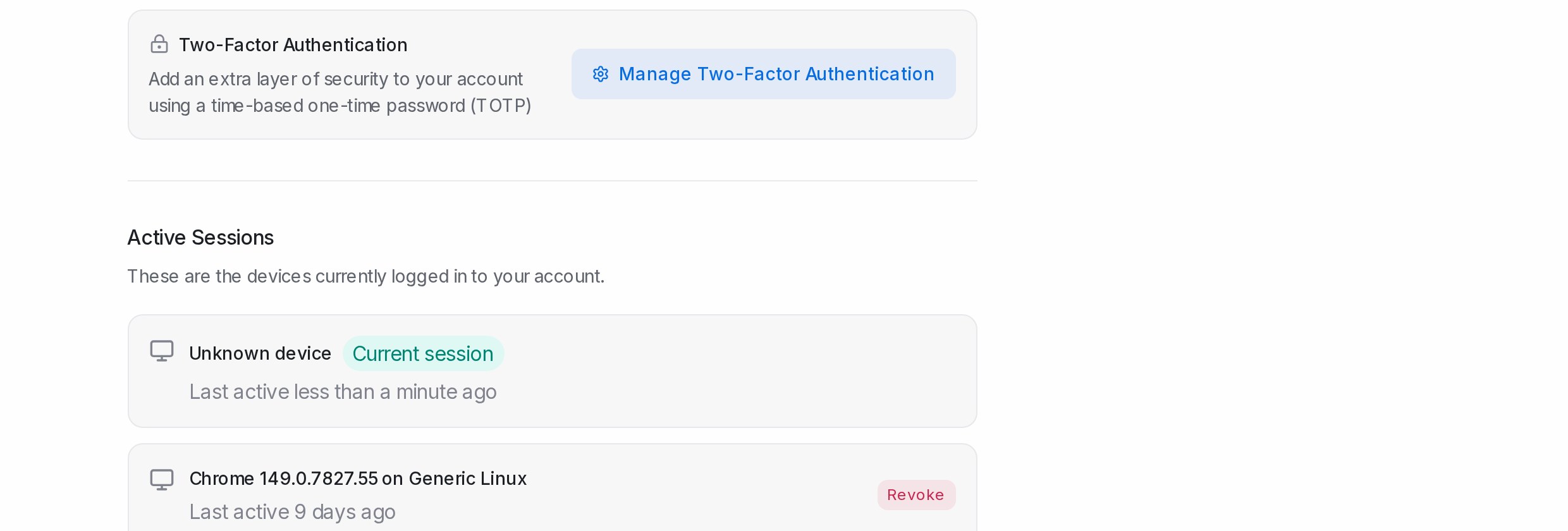
1. Click **Manage Two-Factor Authentication**, then **Enable Two-Factor Authentication**.
2. **Scan QR Code with Your Authenticator App**, or **Can't scan? Enter code manually** with the **Secret Key**.
3. Enter the 6-digit code and click **Verify & Continue**.
4. **Save Your Backup Codes** (**Download** or **Copy All**). Each one signs you in once if you lose your phone.
Later you can **Regenerate Backup Codes** (old ones stop working) or **Disable Two-Factor Authentication**; both ask for your password and a code.
## Active Sessions
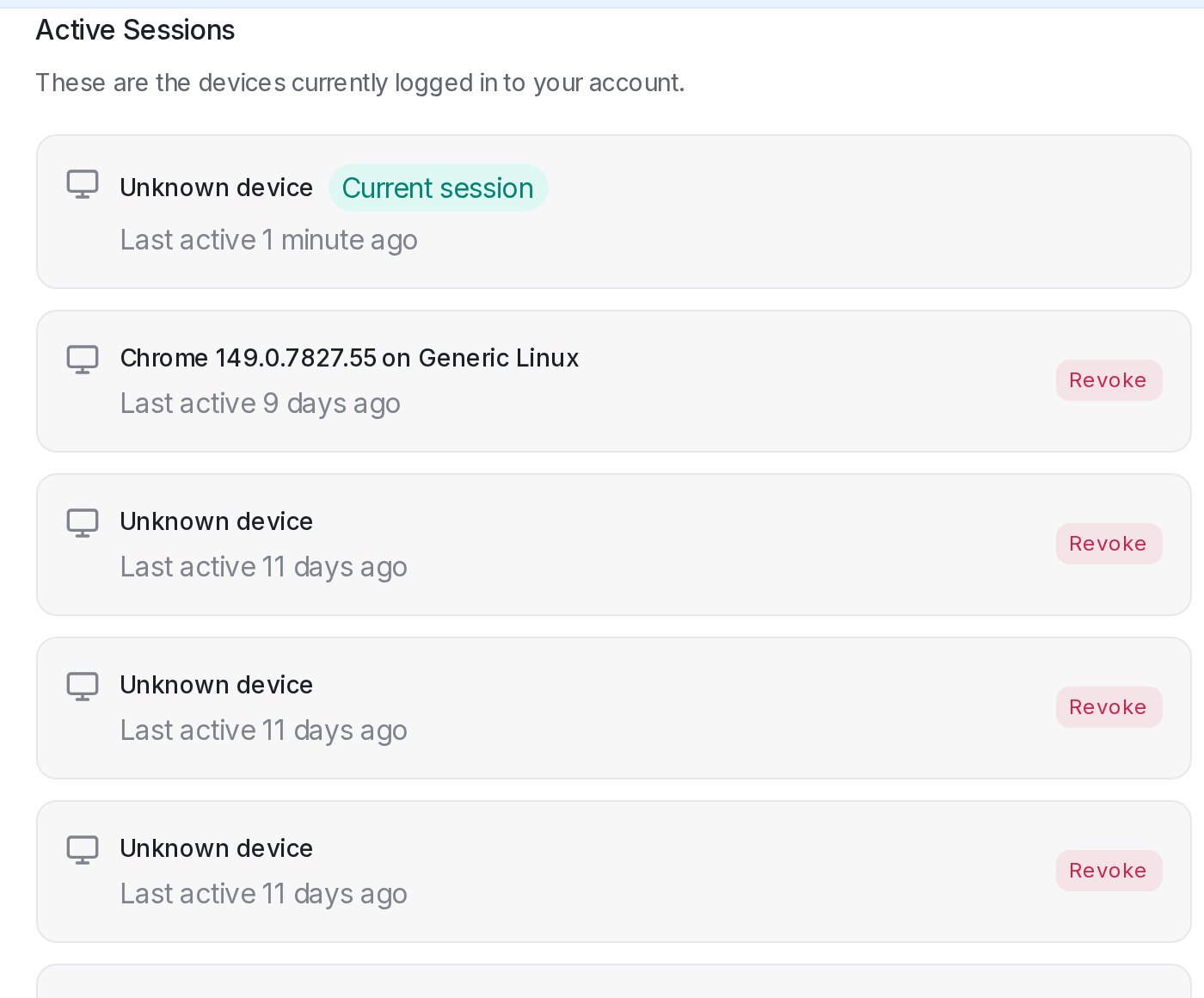
Every device signed in, with its last activity and the **Current session**. **Revoke** signs a device out. If sign-in says **Active session limit reached**, revoke the ones you no longer use.
## Audio Alerts
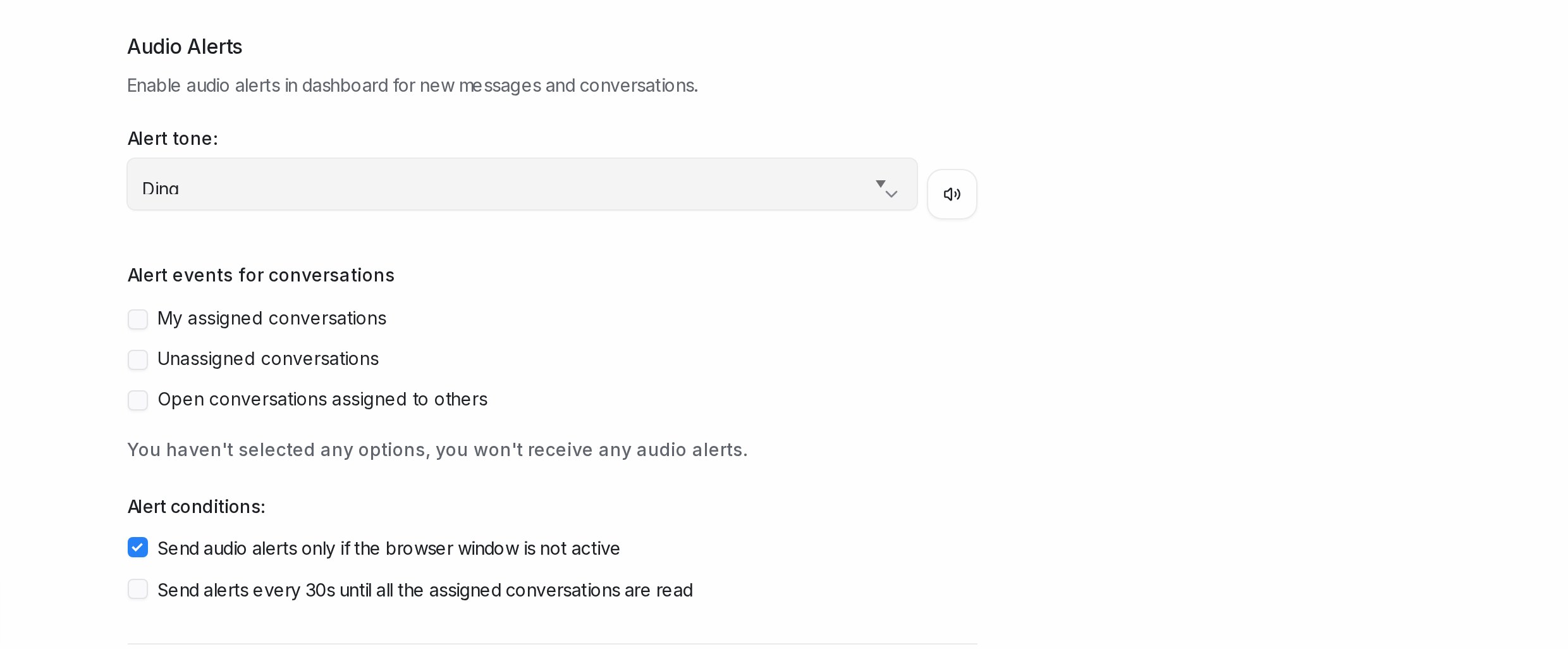
* **Alert events for conversations**: tick **My assigned conversations**, **Unassigned conversations** and **Open conversations assigned to others** in any mix.
* **Alert tone** with **Play sound** to hear it.
* **Alert conditions**: **Send audio alerts only if the browser window is not active**, and **Send alerts every 30s until all the assigned conversations are read**.
## Notification preferences
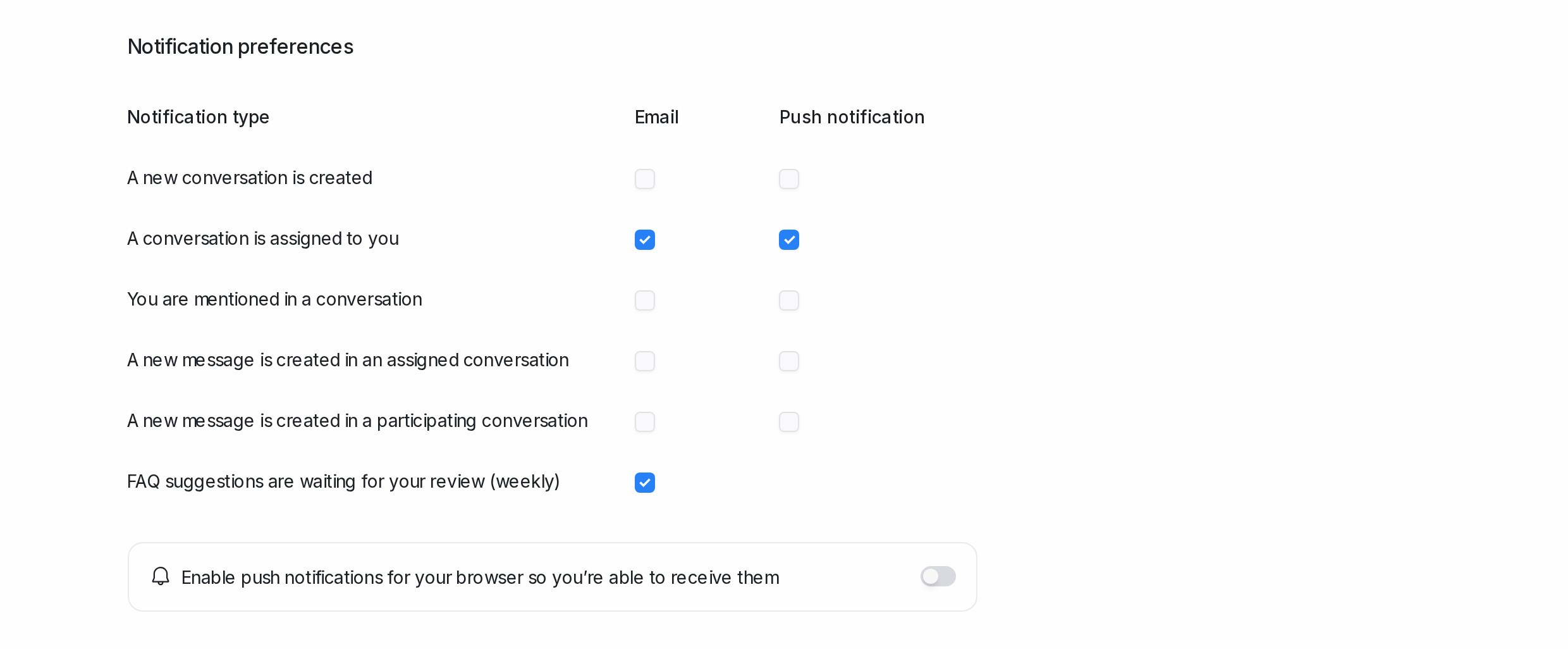
Each event has an **Email** and a **Push notification** box: new conversation, assigned to you, mentioned, new message in an assigned or participating conversation, a missed SLA, and the weekly FAQ suggestions waiting for review. For push, click **Enable push notifications** once and accept the browser prompt. The mobile app gets the same push notifications.
**Access Token** at the bottom is a personal API key (**Copy**, **Reset** twice to confirm; paid plans). For AI coding agents use **Settings → API & Agents** instead; see [Create and manage your agent access keys](/ai-agents/create-and-manage-your-agent-access-keys).
## The Notifications page
The bell at the top of the sidebar lists your notifications by type (**New conversation**, **Conversation Assigned**, **New Message**, **Mention**, **SLA Missed**), with **Mark All Done**. **My Inbox** shows the same notifications beside their conversations; see [My Inbox](/conversations/my-inbox).
## Keyboard shortcuts
| Shortcut | Action |
| --- | --- |
| Alt + J / Alt + K | Open conversation (previous / next) |
| Alt + E | Resolve Conversation |
| Win/⌘ + Alt + E | Resolve and move to next |
| Alt + M | Toggle snooze dropdown |
| Alt + P / Alt + L | Switch to Private Note / Switch to Reply |
| Win/⌘ + Alt + A | Add Attachment |
| Alt + N | Move to next tab in conversation list |
| Esc | Back to conversation list |
| Alt + C / Alt + V / Alt + R / Alt + S | Go to Conversation Dashboard / Contacts Dashboard / Reports / Settings |
| Alt + O | Toggle Sidebar |
| Up / Down | Navigate dropdown items |
| Cmd/Ctrl + K | Open the search and command bar |
On a Mac, Alt is the Option key.
## Related
* [My Inbox](/conversations/my-inbox)
* [Managing agents and teams](/settings/managing-agents-and-teams)
* [Using the mobile app](/getting-started/using-the-mobile-app)
* [Create and manage your agent access keys](/ai-agents/create-and-manage-your-agent-access-keys)
---
## Account (general) settings
URL: https://help.mampuai.com/settings/account-general-settings
---
description: Change your account name, site language, email domain and support email, list your workspace testers, find your Account ID, and delete the account with a 7-day countdown you can cancel.
---
# Account (general) settings
Under **Settings → Account Settings** you manage the basics of your workspace:
* **Account name** and **site language**.
* **Incoming email domain** and **support email**.
* Your **Account ID**, needed for API integrations.
* **Testers** — the people who can try flow agents, message sequences and automation rules before they go live.
## Watch the walkthrough
{% embed url="https://youtu.be/V6GLXt-xoWQ" %}
Click **Update settings** to save your changes.

## Choosing the dashboard language
The dashboard is available in English, Chinese and **Bahasa Melayu (ms)**, among other languages. You can set a language for the whole account, and each team member can pick their own.
**For the whole account**
1. Open **Settings → Account Settings**.
2. Under **Site language**, choose a language — for example **Bahasa Melayu (ms)**.
3. Click **Update settings**.
Team members who haven't picked a personal language follow the account's **Site language**. The customer chat widget and the emails the system sends follow the account's language too.
**Just for you**
1. Open **Profile Settings**.
2. Under **Preferred Language**, choose the language you want. It applies straight away and changes only your own screens.
To follow the account's language again, choose **Use account default** under **Preferred Language**.
## Workspace testers
The **Testers** section on **Settings → Account Settings** holds one list for the whole workspace: the people who can try things before they go live. A flow agent published as **Testers only**, and a message sequence or automation rule switched to **Testers only**, work for these people and nobody else.
1. Under **Testers**, type one entry per line: a phone number, an email address, a WhatsApp username or a WhatsApp LID.
2. Click **Save testers**.
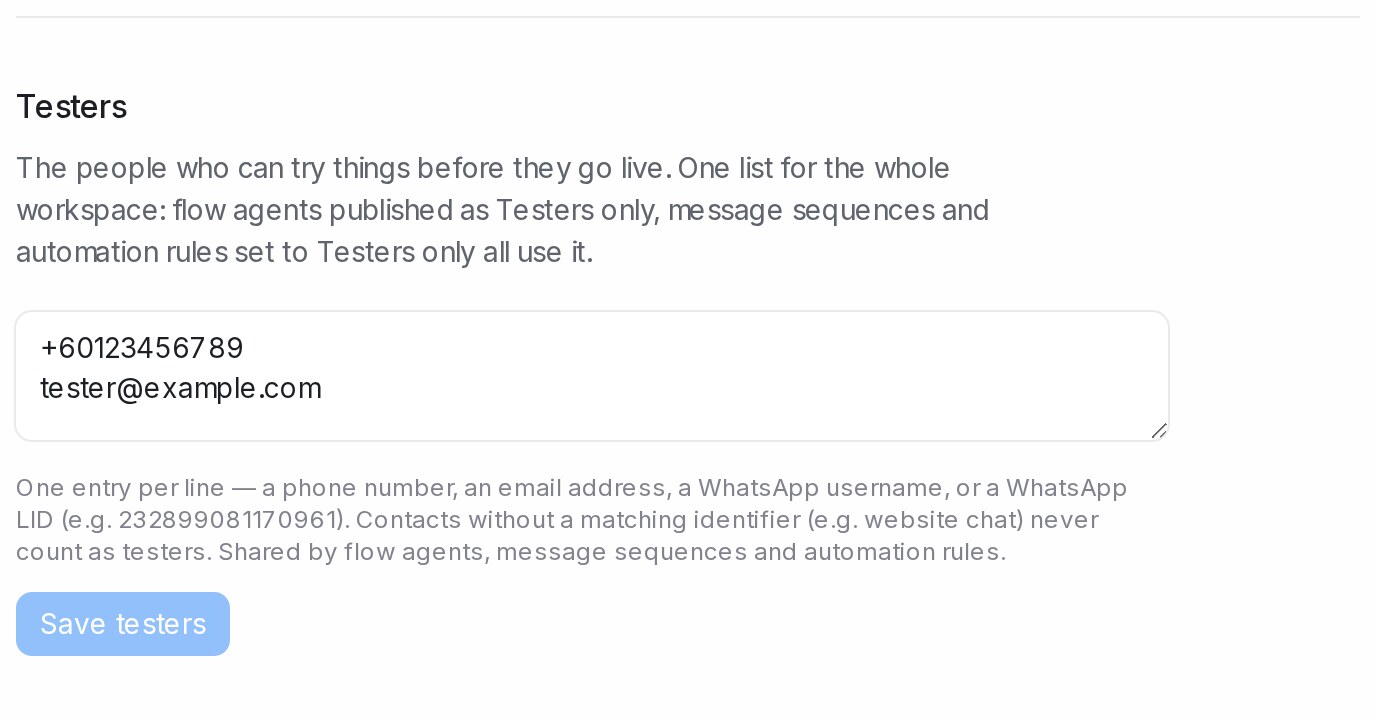{ width="640" }
* A customer counts as a tester when their contact's phone number, email, WhatsApp username or LID matches an entry. Contacts with none of those, such as a website chat visitor, never count.
* The same list opens in the dialog when you switch an agent, a sequence or a rule to **Testers only**, so you can add a tester there too.
* Changing the list changes it for every agent, sequence and rule at once.
Where to use it: [Testing and connecting an agent](/flow-agents/testing-and-connecting-an-agent), [Message Sequences](/campaigns/message-sequences) and [Labels, attributes and automation](/settings/labels-attributes-and-automation).
## Delete your account
An administrator can delete the whole account from **Settings → Account Settings**. Deleting starts a 7-day countdown, so nothing is lost straight away.
1. Scroll to **Delete your Account** at the bottom of the page and click **Delete Your Account**.
2. Type your account name in the box to confirm.
3. Click **Delete**. You see **Account scheduled for deletion in 7 days**.
{ width="700" }
Until the 7 days end, everything keeps working and your subscription stays active. When they end:
* All conversations, contacts and settings are permanently deleted.
* Your subscription is cancelled, with no refund for the rest of the billing period.
* Teammates who are not in another account can no longer sign in.
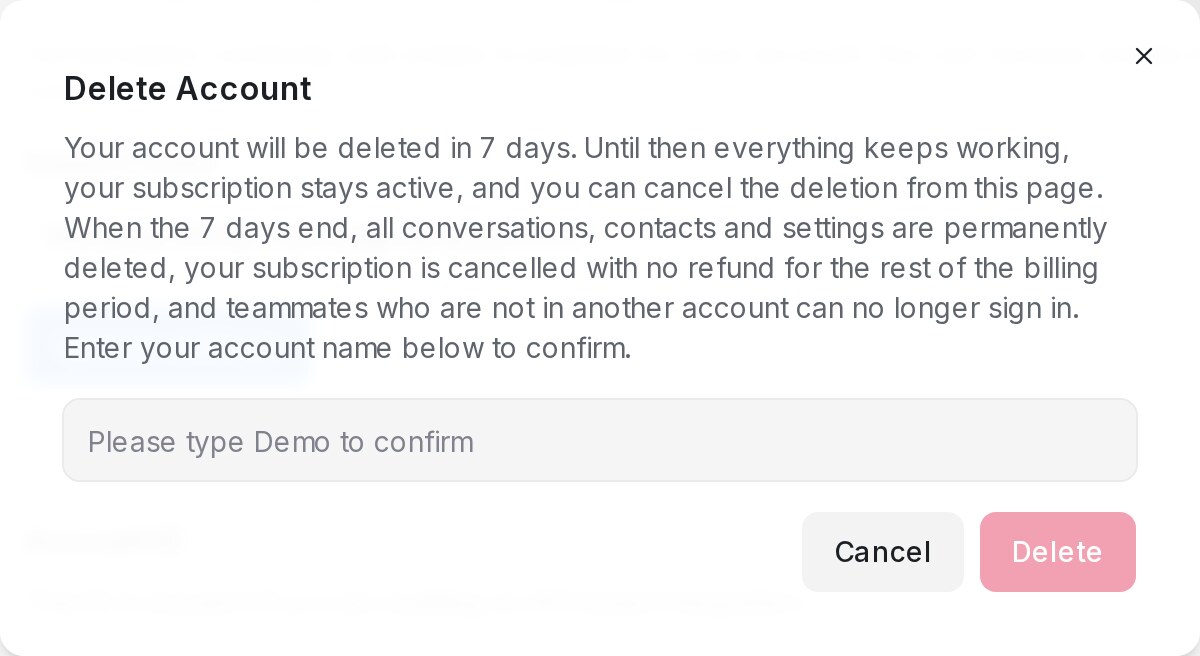{ width="600" }
## Cancel a scheduled deletion
While the countdown runs, a red box at the bottom of **Settings → Account Settings** shows the day the account will be deleted.
To keep the account, click **Cancel Scheduled Deletion** before that day. The account and your subscription carry on as before.
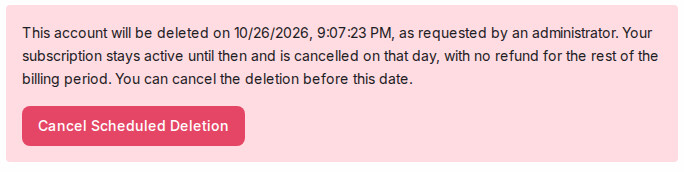{ width="640" }
## Related
* [Billing and plan usage: what each term means](/settings/billing-and-plan-usage)
* [Account Settings](/settings/account-settings)
* [Testing and connecting an agent](/flow-agents/testing-and-connecting-an-agent)
* [Message Sequences](/campaigns/message-sequences)
* [Labels, attributes and automation](/settings/labels-attributes-and-automation)
---
## Billing and plan usage: what each term means
URL: https://help.mampuai.com/settings/billing-and-plan-usage
---
description: What every term on the Billing page means - your plan, renewal date, currency, the billing portal, plan usage, monthly active contacts, free AI reply credits, add-ons and what happens when you reach a limit.
---
# Billing and plan usage: what each term means
Open **Settings → Billing** to see your plan, how much of it you have used, and where to pay or change it. Only administrators see this page.
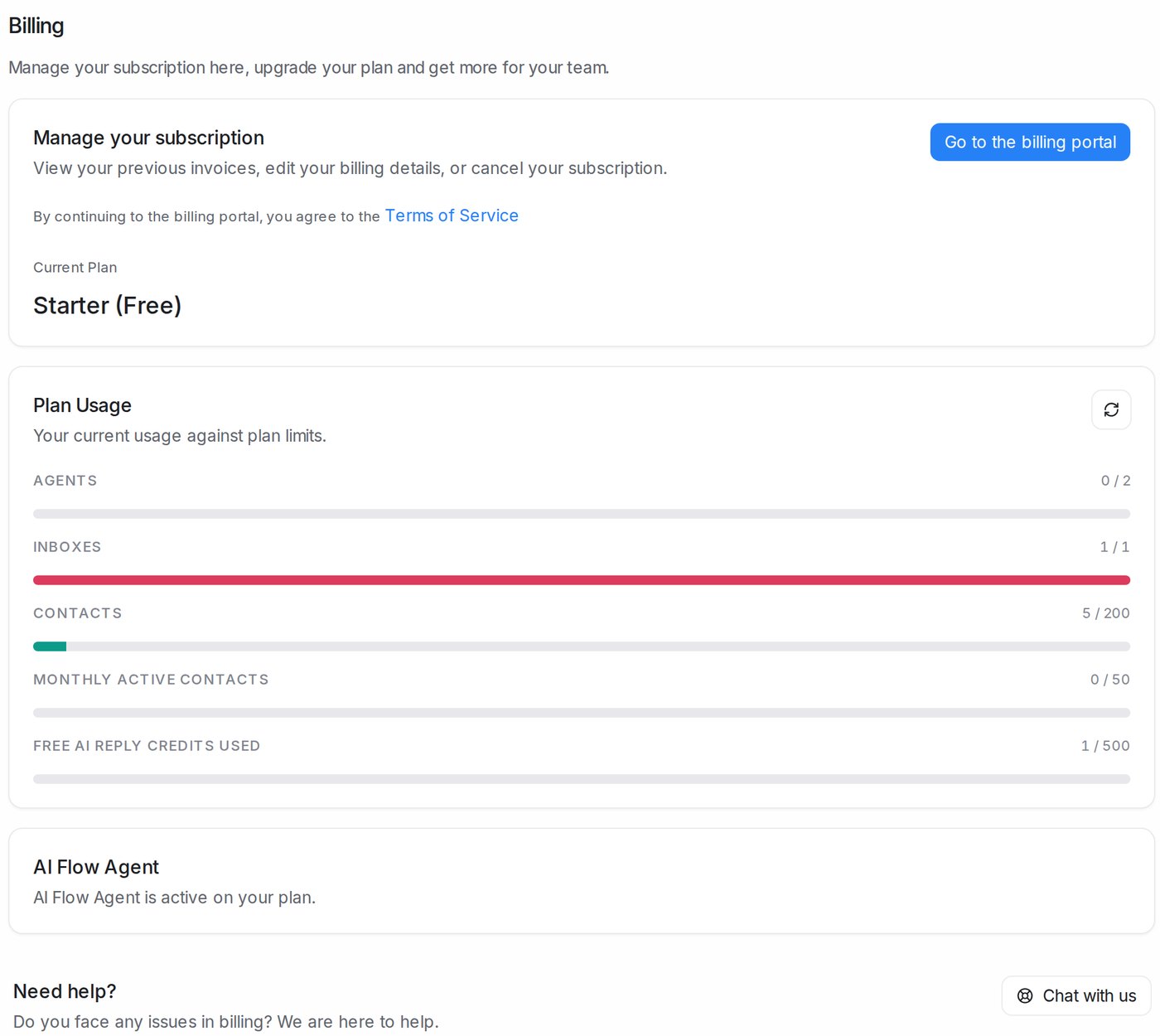{ width="700" }
## Your plan
| Term | What it means |
|---|---|
| **Current Plan** | The plan your workspace is on, for example **Starter (Free)** |
| **Renews on** | The date your next payment is taken and your monthly allowances start again |
| **Plan ends on** | Shown instead of **Renews on** when you have cancelled: the plan stays active until this date, with the days left |
| **Currency** | The currency you are billed in. You choose it when you first subscribe, and it can't be changed afterwards |
| **Go to the billing portal** | Opens the secure billing portal, where you see past invoices, change your card or billing details, and change or cancel your plan. Continuing means you agree to the **Terms of Service** |
| **View Pricing** | Opens the plans and prices so you can compare or upgrade |
| **Your plan is managed by your account team** | Your plan was set up for you by Mampu AI, so changes go through your account team instead of the portal |
| **Need help? → Chat with us** | Talk to our team about any billing question |
If a payment fails, a banner says **Your last payment failed**. Click **Update payment method** to add a working card before the plan lapses.
## Plan usage
**Plan Usage** shows each allowance as used / included. Click the refresh icon to update the numbers.
| Term | What it counts |
|---|---|
| **Agents** | Team members in your workspace, against the seats your plan includes |
| **Inboxes** | Connected channels (a WhatsApp number, a Facebook page, a website chat and so on) |
| **Contacts** | All contacts saved in your workspace |
| **Monthly Active Contacts** | Different customers you talked with this month; see below |
| **Free AI reply credits used** | The starter credits your AI agent has used; see below |
## Monthly active contacts
The number of different customers you talked with in this billing period. A contact counts **once** the first time a real message goes either way, an automation rule runs on their conversation, or AI fills in details for them. A blasting message on its own doesn't count, and deleting contacts doesn't lower the number. The count starts again with each billing month (on the 1st on the free plan). **Contacts → Active** in the sidebar lists who has been counted.
More in [Monthly Active Contacts](/settings/monthly-active-contacts).
## Free AI reply credits
New workspaces get a set of free credits so their AI agent can reply to customers before they connect their own AI provider key. Every live reply uses credits, including reading a photo, a voice note or a PDF the customer sent. Testing in the Playground doesn't use any.
The credits are valid for a limited number of days, counted from your agent's first live reply. A banner at the top of the dashboard shows how many credits and days are left. When they run out or expire, the agent stops replying automatically and administrators get an email. Connect your own key under **Settings → Integrations → AI Providers** to keep it replying without limits; see [Creating a DeepSeek API key](/settings/creating-a-deepseek-api-key).
## AI Flow Agent
This card says whether your plan includes flow agents. If it doesn't, it offers an upgrade.
## Add-ons
On paid plans, **Add-ons** buys **Extra monthly active contacts** or **Extra agent seats** without changing plan. **Confirm and pay** charges your saved card at once for the rest of this billing period (SST shown on its own line), then monthly on your renewal date. The new limit applies straight away. See [Add-ons: extra contacts and agent seats](/settings/add-ons).
## When you reach a limit
| What happens | Effect |
|---|---|
| Over 80% of monthly active contacts | A banner warns you so you can upgrade in time |
| Monthly active contacts used up | Messages to customers are paused until you upgrade, add contacts or the month restarts. Replies you send from your phone or the WhatsApp app don't sync into Mampu AI. Incoming messages still arrive |
| More agents or inboxes than the plan includes | Messages to customers are paused until you upgrade or remove agents or inboxes |
Click **Upgrade plan** on the banner to fix it straight away.
## Related
* [Monthly Active Contacts](/settings/monthly-active-contacts)
* [Add-ons: extra contacts and agent seats](/settings/add-ons)
* [Managing agents and teams](/settings/managing-agents-and-teams)
* [Inboxes and channels](/settings/inboxes-and-channels)
* [Integrations](/settings/integrations)
* [Creating a DeepSeek API key](/settings/creating-a-deepseek-api-key)
---
## Monthly Active Contacts
URL: https://help.mampuai.com/settings/monthly-active-contacts
---
description: What makes a contact count toward your Monthly Active Contacts, what happens when you reach your plan's limit, and where to track your usage.
---
# Monthly Active Contacts
**Monthly Active Contacts** measures how many different contacts your account genuinely engages with during a billing period. Plans with an active-contacts limit use this number, so it only grows when real engagement happens — not when you tidy up your contact list.
## Watch the walkthrough
{% embed url="https://youtu.be/V6GLXt-xoWQ" %}
## What makes a contact count
A contact becomes active for the current billing period the first time any of these happens:
* **A real message is exchanged** — the contact messages you, or your team, a Flow Agent, or a Message Sequence sends them a message.
* **An automation rule runs on their conversation** — for example, a rule that assigns the conversation, adds labels, or sends a reply.
* **AI fills in attributes for them** — when AI-enabled custom attributes are generated from their conversation.
Each contact counts once per billing period, no matter how many messages or conversations follow.
## What doesn't count
* **Blast recipients** — sending a blast doesn't make its recipients active. Only the recipients who reply count.
* **System messages** — automated messages such as CSAT surveys, greetings, and out-of-office replies.
* **Private notes** — internal notes your team leaves inside a conversation.
* **Housekeeping** — editing a contact's details, adding labels or notes to a contact, or changing a conversation's status.
## Where to see your usage
Open **Settings → Billing** to see how many active contacts you've used in the current period, alongside your plan's other limits.
## When you reach your limit
As you approach your plan's limit you'll see a warning banner in the dashboard. At the limit:
{ width="986" }
* **Contacts already counted this billing period** — you can keep replying to them as usual, and replies you send them from your phone or the channel's own app still show up in the conversation.
* **Contacts who become active after the limit is reached** — messages to them are paused, replies you send them from your phone or app don't show up in the conversation, and a note in the conversation tells your team why.
* **Automatic private replies to comments** — paused while you're over the limit.
* **Incoming messages** — still arrive from everyone, so you never miss what customers send you.
If your limit goes up, the paused contacts that now fit inside it can be messaged again straight away. To keep messaging more contacts, upgrade your plan, add a pack of extra monthly active contacts from the **Add-ons** card on the Billing page, or wait for your billing period to reset.
## Related
* [Add-ons: extra contacts and agent seats](/settings/add-ons)
* [Blasting](/campaigns/campaigns)
* [Labels, attributes and automation](/settings/labels-attributes-and-automation)
---
## Add-ons: extra contacts and agent seats
URL: https://help.mampuai.com/settings/add-ons
---
description: Buy extra monthly active contacts or agent seats on top of your plan from the Billing page — charged to your card on file and live straight away.
---
# Add-ons: extra contacts and agent seats
Your plan includes a set number of **Monthly Active Contacts** and **agent seats**. When you need more this month without moving to a bigger plan, buy an add-on from **Settings → Billing**. Add-ons apply immediately and renew with your plan every month until you change them.
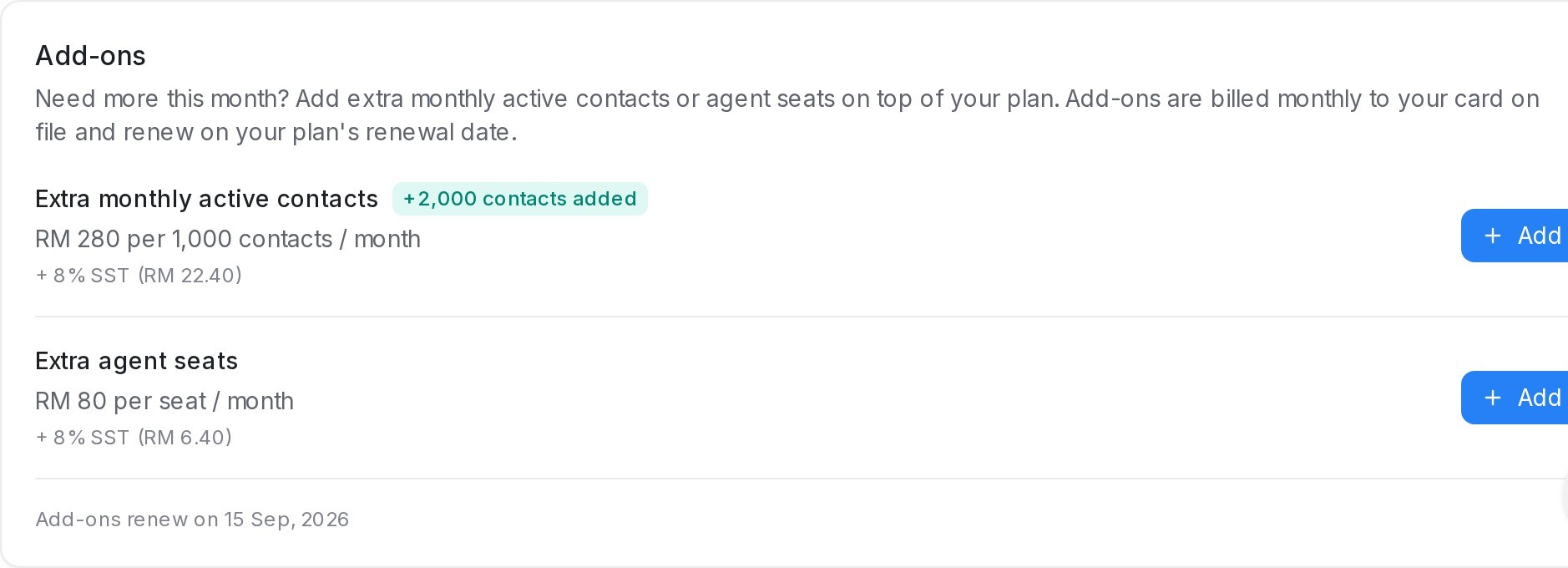
## What you can add
* **Extra monthly active contacts** — in packs of 1,000 contacts per month.
* **Extra agent seats** — one more login for your team per seat.
Each row shows the monthly price before SST, with the SST amount listed underneath. Anything you have already added shows as a badge beside the add-on name, for example **+2,000 contacts added**.
## How to add
1. Open **Settings → Billing** and scroll to the **Add-ons** card.
2. Click **Add** next to the add-on you need.
3. Choose a quantity. The **Monthly total** updates as you change it, with the SST shown separately.
4. Click **Confirm and pay**.
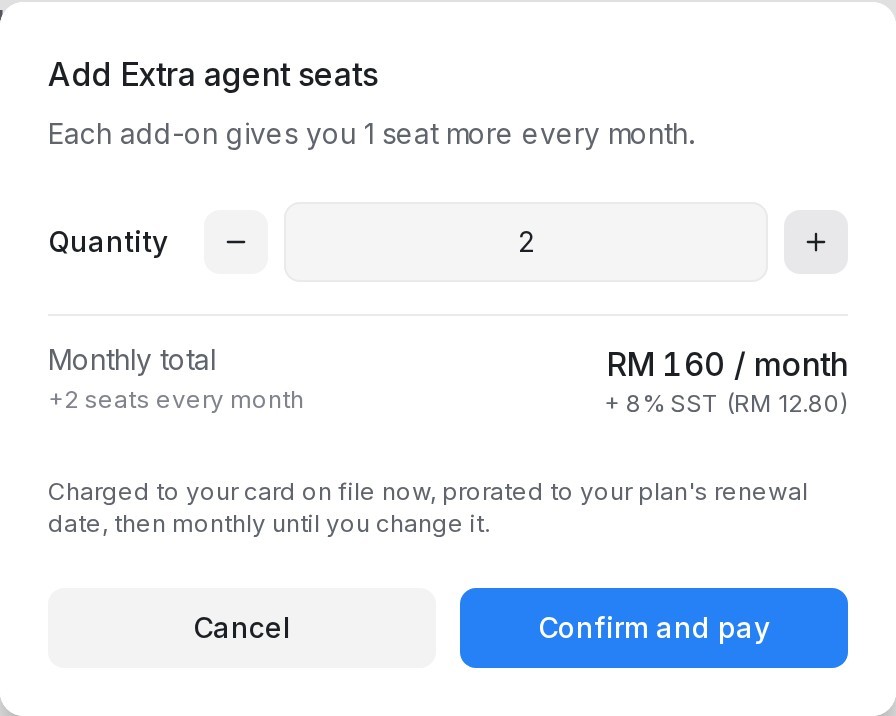
Your card on file is charged straight away for the rest of the current billing month, and your new limit applies immediately. From then on the add-on is billed monthly on your plan's renewal date, whether your plan is monthly or annual.
## Good to know
* Add-ons are available on paid plans. Free-plan accounts upgrade first.
* Extra contacts stack on top of your plan's Monthly Active Contacts limit; extra seats stack on top of your plan's agent limit.
* Add-ons keep renewing until you change them. To reduce or remove an add-on, use **Chat with us** on the Billing page and the team will adjust it for you.
* If your card cannot be charged, nothing changes on your account — update your payment method in the billing portal and try again.
## Related
* [Monthly Active Contacts](/settings/monthly-active-contacts)
* [Managing agents and teams](/settings/managing-agents-and-teams)
* [Account Settings](/settings/account-settings)
---
## Managing agents and teams
URL: https://help.mampuai.com/settings/managing-agents-and-teams
---
description: Invite teammates as agents or administrators, edit their role and availability, reset a password, remove someone, and group people into teams that conversations can be routed to.
---
# Managing agents and teams
**Agents** are the people who answer conversations. **Teams** group them, such as Sales or Support, so a conversation can go to a whole group. Only administrators can change either, under **Settings**.
## Watch the walkthrough
{% embed url="https://youtu.be/kzFeB20dXRo" %}
## Agents
**Settings → Agents** lists everyone with their role and whether they confirmed their invitation.
### Add an agent
Only administrators can add agents.
1. **Open Settings.** Click **Settings** at the bottom of the left menu, below **Referral**. The settings menu opens beside it.
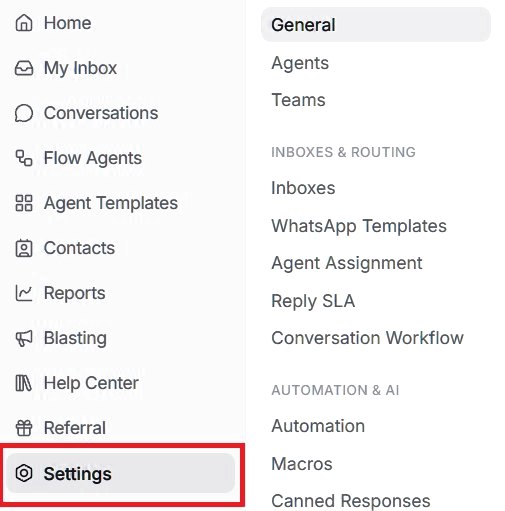{ width="505" }
2. **Go to Agents.** In the settings menu, under **Workspace**, click **Agents**. The page lists everyone who already has access. Click **Add Agent** at the top right.

3. **Enter their name and choose a role.** In the **Add agent to your team** pop-up, type the person's name in **Agent Name**, the way your team should see it. Under **Role**, **Agent** is already selected; the table below shows what each role can do.
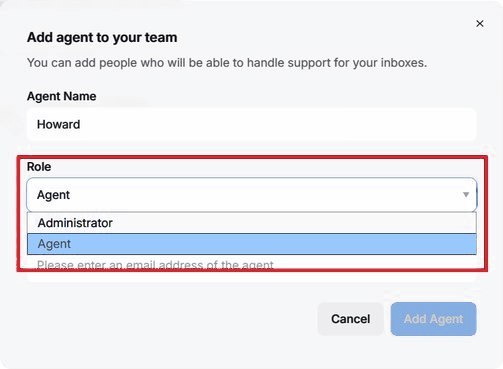{ width="503" }
4. **Enter their email and add them.** Type their email in **Email Address**. Their invitation is sent there, so check it carefully. Then click **Add Agent**, which turns blue once the name and email are filled in. **Cancel** closes the pop-up without adding anyone.
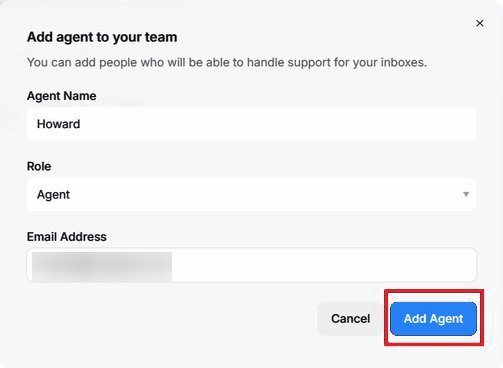{ width="503" }
5. **Check the agents list.** The person now appears in the list with their email and role, and the agent count goes up by one. They get an email with a link to set their password and join. The pencil and bin on their row let you edit or remove them later; see **Edit, reset, remove** below.
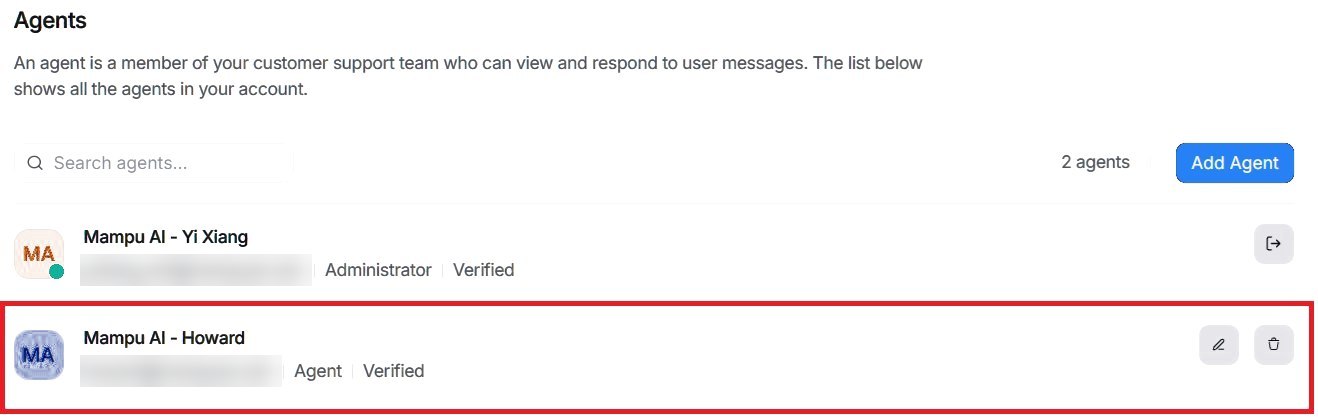{ width="760" }
| Role | What they can do |
|---|---|
| **Agent** | Reply to conversations in their inboxes |
| **Administrator** | Everything an agent can do, plus every setting, report and billing page |
| A custom role you created | Only what that role allows; see [Custom roles: give a supervisor their own inboxes](/settings/custom-roles) |
After you add someone:
* Add them to each inbox they should answer, on its **Collaborators** tab; they only see those inboxes. See [Inbox settings, tab by tab](/settings/inbox-settings-tabs).
* Each person uses one seat on your plan. See [Add-ons: extra contacts and agent seats](/settings/add-ons).
### Edit, reset, remove
To change someone's name, role or availability:
1. **Click the pencil.** In **Settings → Agents**, click the pencil on the right of the person's row.
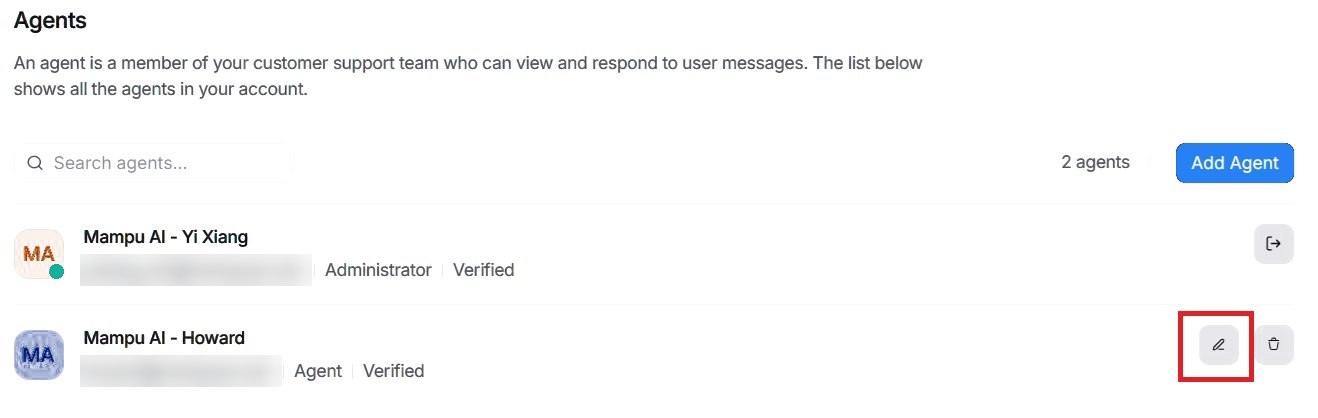{ width="760" }
2. **Make your change and save.** The **Edit agent** pop-up opens with their current details. Change the **Agent Name**, **Role** or **Availability** (**Online**, **Busy** or **Offline**). Then click **Edit Agent** to save, or **Cancel** to close without changes.
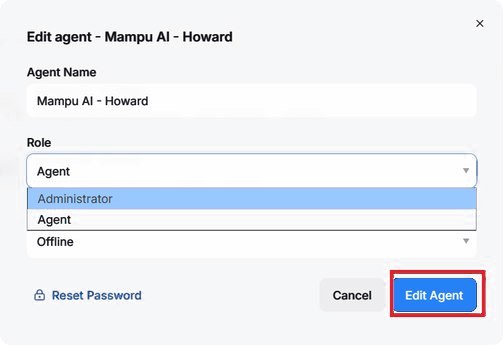{ width="503" }
Two more actions:
| Action | What it does |
|---|---|
| **Reset Password** | In the **Edit agent** pop-up: email them a link to choose a new password |
| **Delete** | The bin on their row: remove them after you confirm. Their past replies stay; all their conversations become unassigned |
## Teams
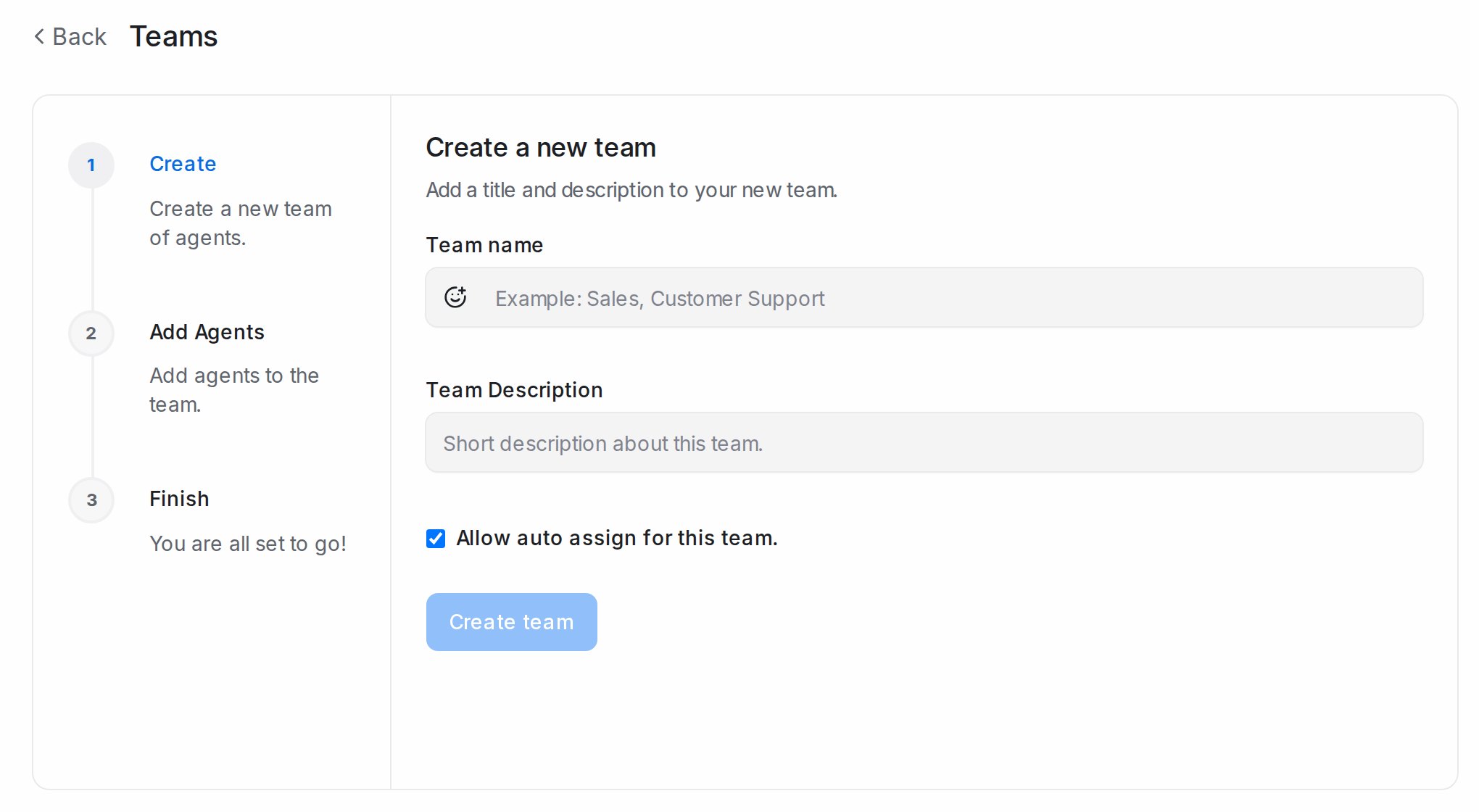
1. Open **Settings → Teams** and click **Create new team**.
2. **Create**: enter the **Team name** and **Team Description**. **Allow auto assign for this team** (on by default) hands team conversations to one of its members automatically. Click **Create team**.
3. **Add Agents**: pick members and click **Add agents**; **select all agents** adds everyone.
4. **Finish**.
The team then appears under **Teams** in the Conversations sidebar and wherever you route a conversation: **Assigned Team** in the details panel, **Assign team** in the right-click menu and bulk bar, automation rules and flow agent handoffs. Members are notified when a conversation is assigned to their team.
**Edit team** changes the details or **Update agents in team**. **Delete** removes a team; its conversations keep their agent and lose only the team.
## Related
* [Custom roles: give a supervisor their own inboxes](/settings/custom-roles)
* [Assigning conversations to agents and teams](/conversations/assigning-conversations)
* [Automatic conversation assignment](/settings/automatic-conversation-assignment)
* [Add-ons: extra contacts and agent seats](/settings/add-ons)
* [Signing in and creating an account](/getting-started/signing-in-and-creating-an-account)
* [Time off: holidays, requests and approvals](/settings/time-off)
---
## Custom roles: give a supervisor their own inboxes
URL: https://help.mampuai.com/settings/custom-roles
---
description: Create a custom role, such as a branch supervisor, that sees every chat, contact and report of the inboxes you give them, and nothing from your other inboxes.
---
# Custom roles: give a supervisor their own inboxes
A **custom role** sits between **Agent** and **Administrator**. You choose what it can open (conversations, contacts, reports, help center), and the person sees it only for the inboxes they are a member of. A branch supervisor gets their branch's chats, customers and numbers, not every branch's. Only administrators create and assign custom roles.
## Create a custom role
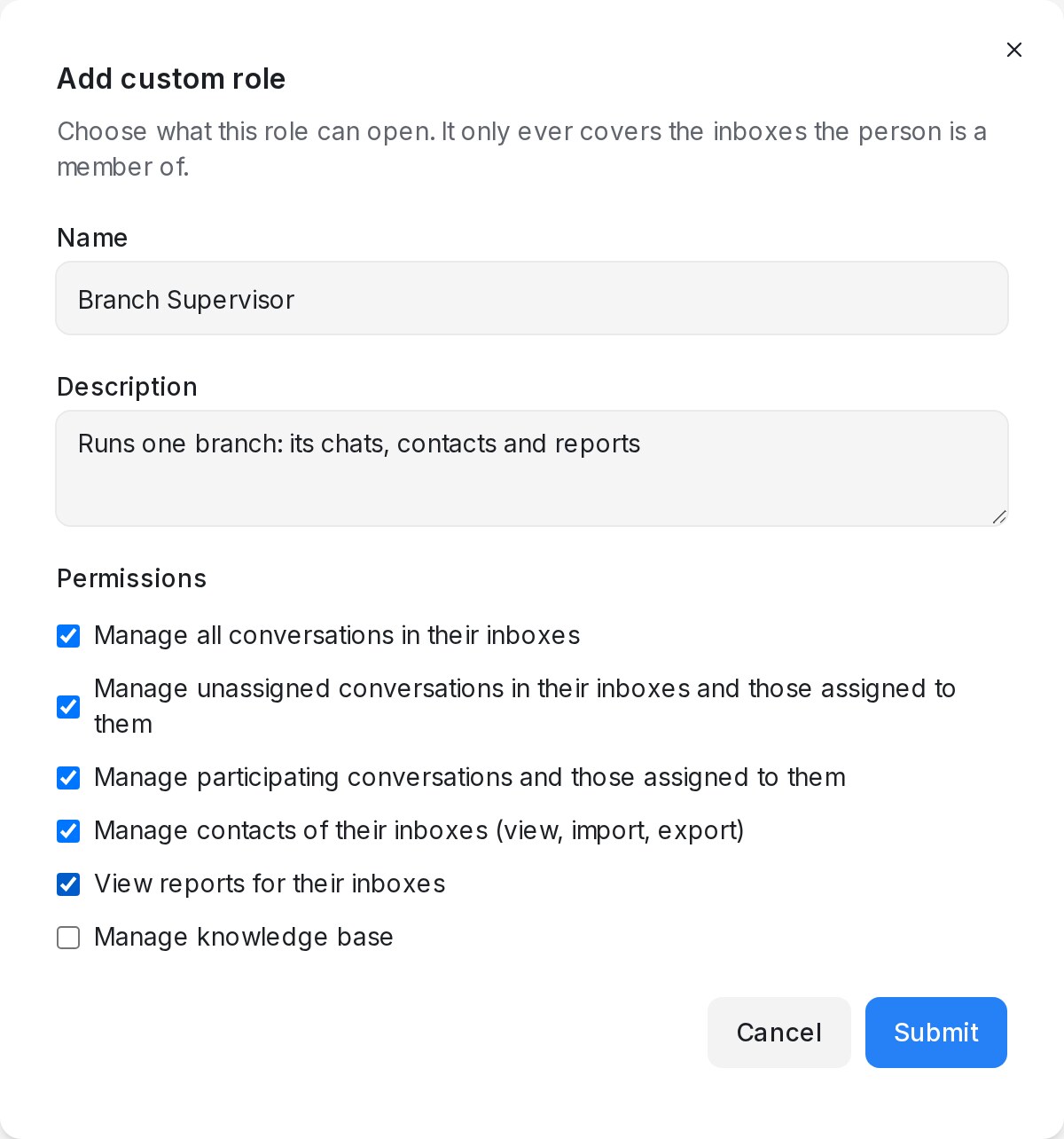{ width="460" }
1. Open **Settings → Custom Roles** and click **Add custom role**.
2. Enter a **Name** (for example "Branch Supervisor") and a **Description**.
3. Tick the **Permissions** the role needs, then click **Submit**.
| Permission | What the person can do, in their own inboxes |
|---|---|
| **Manage all conversations in their inboxes** | Open and reply to every conversation, assigned or not |
| **Manage unassigned conversations in their inboxes and those assigned to them** | Pick up unassigned conversations and work their own |
| **Manage participating conversations and those assigned to them** | Work their own conversations and the ones they were added to |
| **Manage contacts of their inboxes (view, import, export)** | Open **Contacts** for customers who wrote in on those inboxes |
| **View reports for their inboxes** | Open **Reports**, including CSAT and the flow agent report, plus the usage figures on the Flow Agents page and the customer heatmap in the designer |
| **Manage knowledge base** | Manage **Help Center** portals, categories and articles |
| **Build and publish flow agents** | Create, edit, publish, duplicate and delete flow agents in the designer, and bind them to their inboxes |
| **Manage AI Knowledge and tools** | Add and edit the **AI Knowledge Hub** entries and the calendar and API tools |
| **Send blasts and manage WhatsApp templates** | Create and send blasts and manage the WhatsApp template library, for their inboxes only |
When several conversation permissions are ticked, the widest one applies.
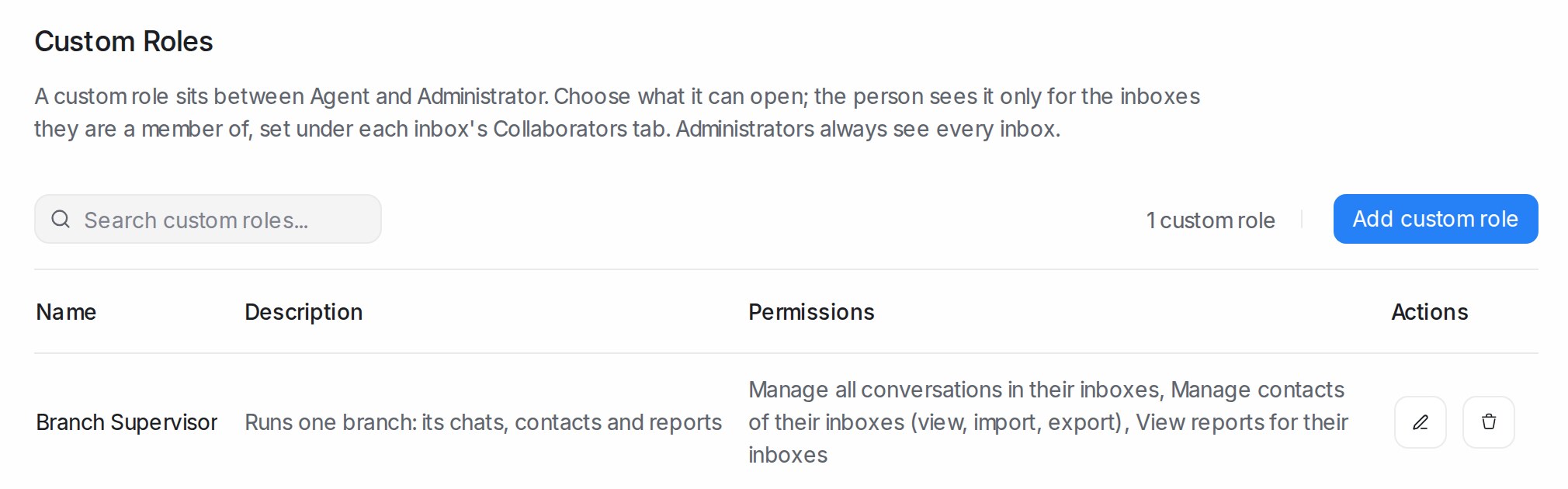{ width="700" }
The list shows each role with its permissions. Edit or delete a role from its row; a change applies to everyone who has the role. Deleting a role turns its members back into plain agents.
## Give the role to someone
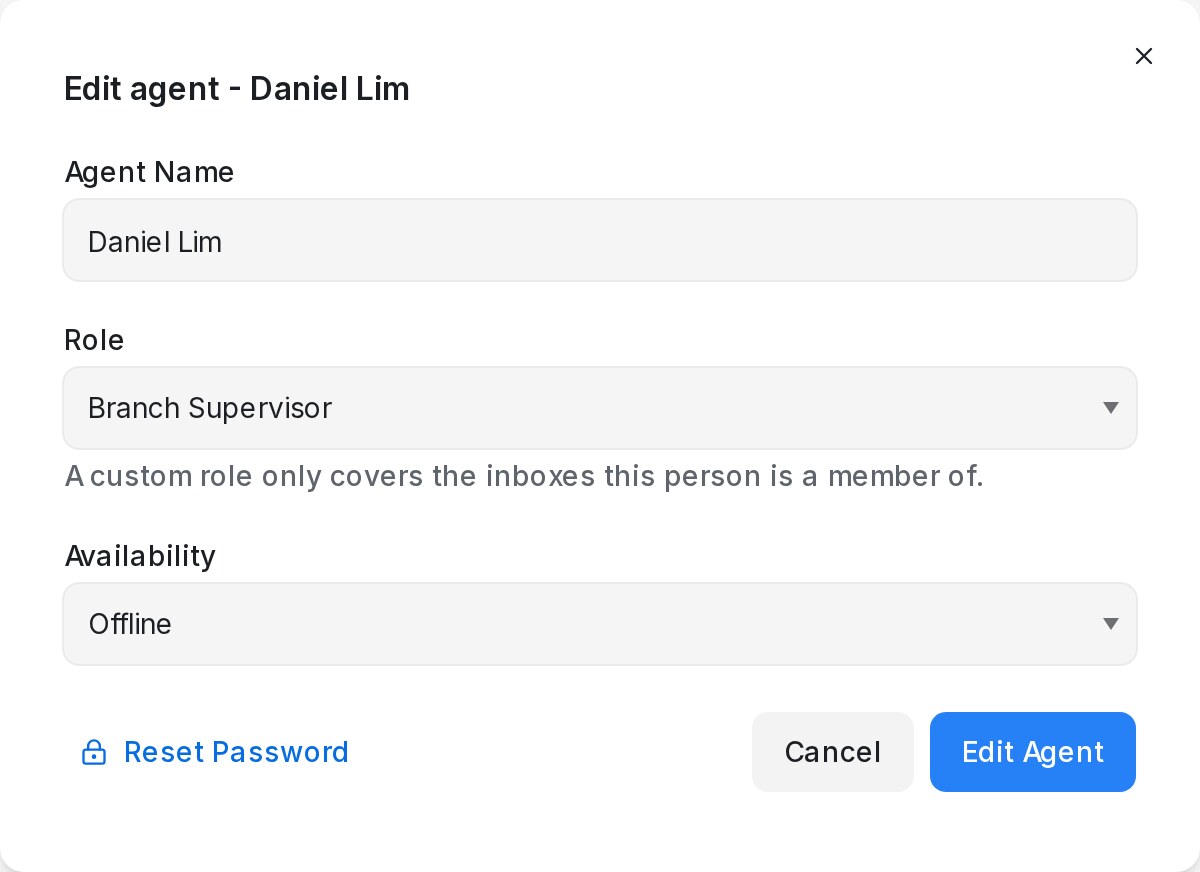{ width="460" }
1. Open **Settings → Agents** and click the pencil on the person's row, or **Add Agent** for someone new.
2. Pick the custom role under **Role** and save.
3. Add them to the inboxes they should cover under each inbox's **Collaborators** tab; see [Inbox settings, tab by tab](/settings/inbox-settings-tabs).
The agents list then shows the role name in place of **Agent**.
## What the person sees
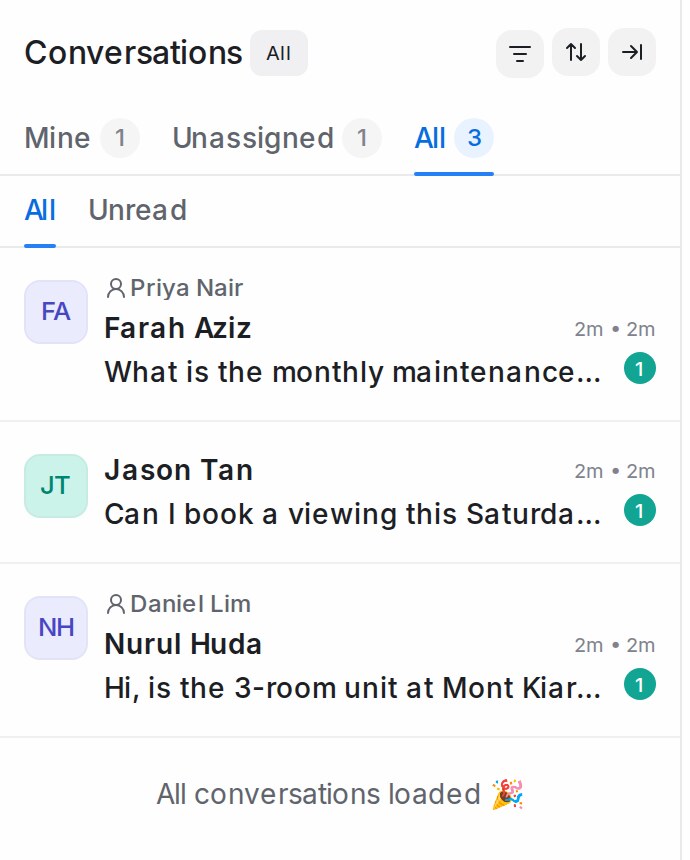{ width="300" }
Everything follows the inboxes they are a member of:
* **Conversations**: **Mine**, **Unassigned** and **All** count only those inboxes, and conversations from other inboxes do not open.
* **Reports**: every report, CSAT, the calls list and the flow agent report count only those inboxes, and other inboxes do not appear in the inbox report.
* **Contacts**: only customers who have written in on one of those inboxes.
* **Flow Agents** and **Companies**: with any conversation permission ticked, both open exactly as they do for an agent. The person can look at the agents and test them in the playground, read the **AI Knowledge Hub**, and work the companies list. The designer opens read-only for them, with a note saying so, and a step opens as a read-only sheet. Building, publishing and editing flow agents needs **Build and publish flow agents**; writing knowledge and tools needs **Manage AI Knowledge and tools**. Either permission also opens the Flow Agents pages on its own.
* **Blasting**: with **Send blasts and manage WhatsApp templates** ticked, the blasting pages and the WhatsApp template library open. The person creates blasts on their own inboxes, sees only those inboxes' blasts and figures, and a blast they create reaches only customers of their inboxes, whatever audience it names.
* Search, AI summaries and reply suggestions, and macros stay inside the same inboxes.
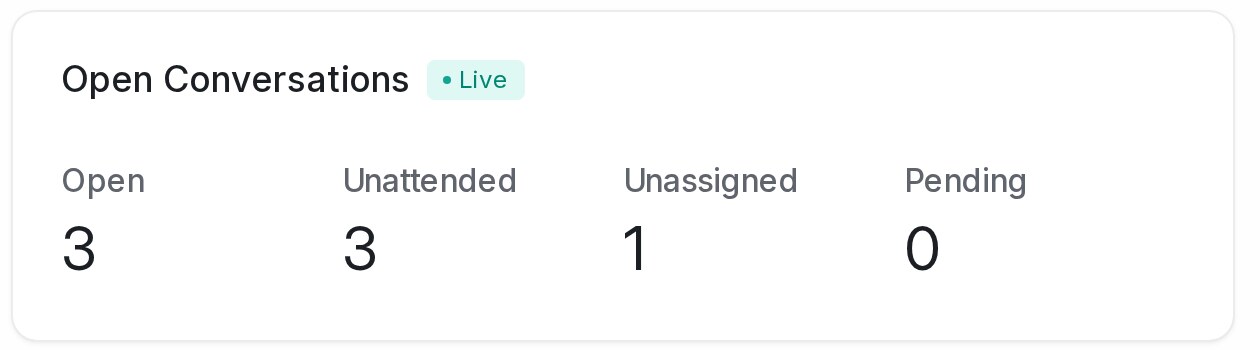{ width="560" }
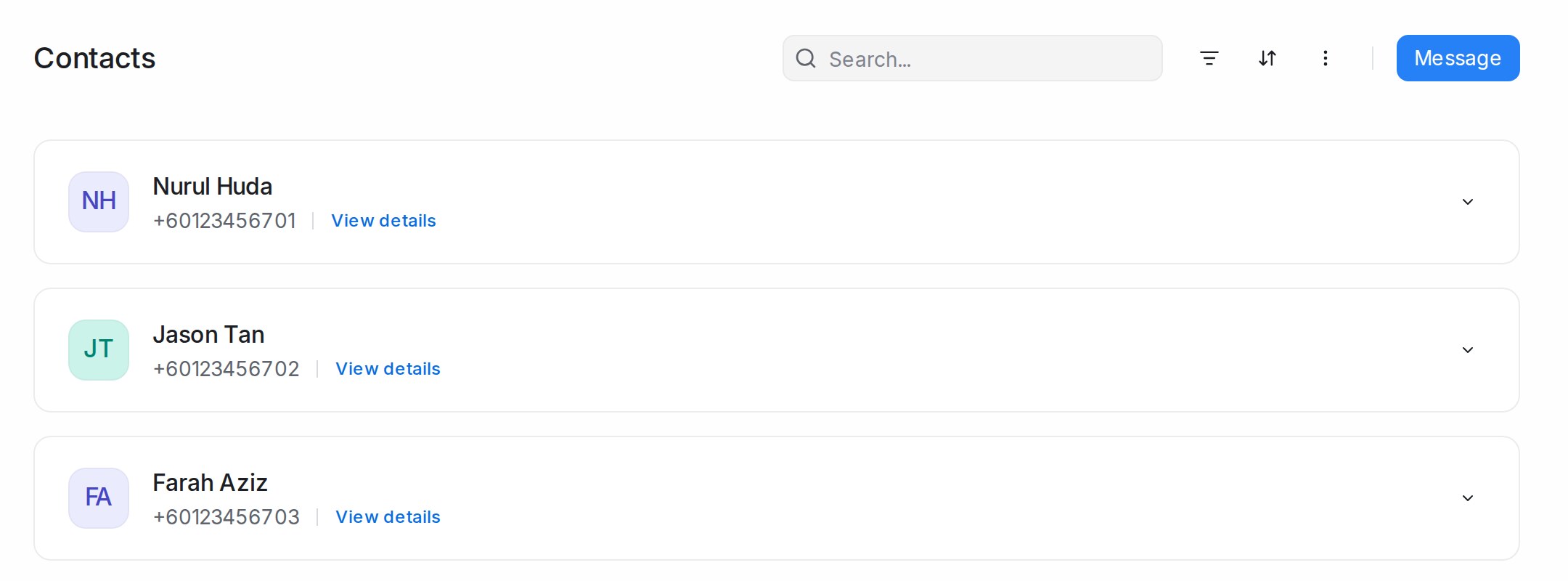{ width="700" }
## Good to know
* Only administrators see every inbox.
* A role never limits an administrator.
* Contacts that have not written in on any inbox (added by hand or imported) are visible to administrators only, until the customer writes in on one of the person's inboxes.
* Account settings, inboxes, billing and other administrator pages stay with administrators.
* A role with only the flow agent, knowledge or blasting permission lands on that page after sign-in.
## Related
* [Managing agents and teams](/settings/managing-agents-and-teams)
* [Inbox settings, tab by tab](/settings/inbox-settings-tabs)
* [Conversation, agent and team reports](/reports/conversation-agent-and-team-reports)
* [Assigning conversations to agents and teams](/conversations/assigning-conversations)
---
## Automatic conversation assignment
URL: https://help.mampuai.com/settings/automatic-conversation-assignment
---
description: >-
New conversations get an owner the moment they arrive. Turn automatic assignment on or off per
inbox, and use assignment and capacity policies to decide who is eligible and how much each agent
takes on.
---
# Automatic conversation assignment
Every new conversation in an inbox that has agents is handed to one of them as soon as it arrives, so nothing sits unowned while your team is away. You manage this in two places: the switch on each inbox's **Collaborators** tab, and **Settings → Agent Assignment**, where policies fine-tune who is eligible and how the work is shared.
## How assignment works out of the box
With no policy in place an inbox follows the default rules, listed on its **Collaborators** tab under **Conversation Assignment**:
* **Earliest created conversations first** — the conversation that has waited longest is handed out first.
* **Round robin distribution** — the agents added to the inbox take turns.
* **Every inbox member, online or offline** — an agent does not need the dashboard open to receive a conversation. If you would rather hand conversations only to agents who are online, use a policy (see below).
Only conversations with activity in the last hour are handed out. A conversation that has been waiting longer stays as it is until the customer writes again, so switching assignment on never floods your team with old chats.
Each assignment is recorded in the conversation as an activity line such as *Assigned to Aisyah by Default Policy*, and the agent is notified as usual.
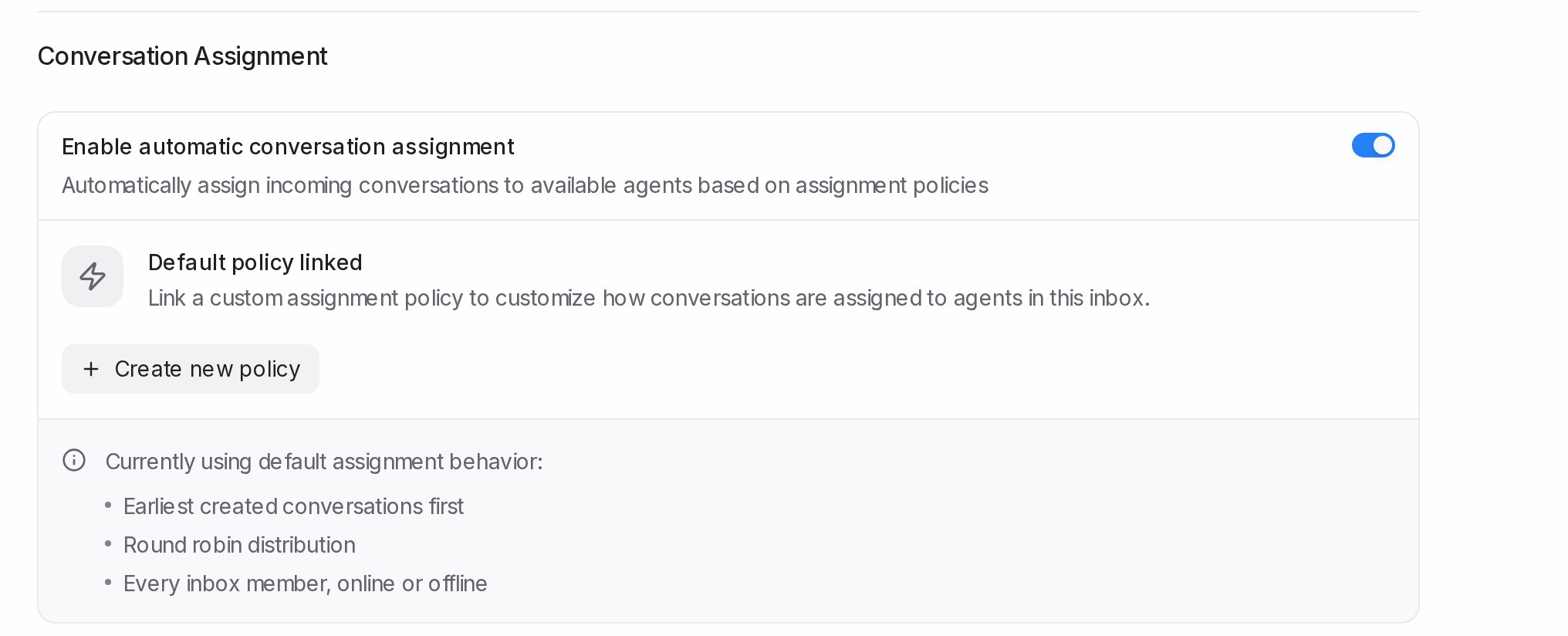
## Turning automatic assignment on or off for an inbox
1. Open **Settings → Inboxes**, choose the inbox and open the **Collaborators** tab.
2. Under **Conversation Assignment**, use the **Enable automatic conversation assignment** switch. It is on for every new inbox.
3. With the switch off, new conversations stay unassigned until someone picks them up, as described in [Assigning conversations to agents and teams](/conversations/assigning-conversations).
Only the agents listed under **Agents** on the same tab, and members of teams the inbox has been shared with, receive conversations.
## Shifts: who takes leads at which hours
A shift narrows the rotation to the people working at that hour, so a lead that arrives at night goes to the night crew rather than to someone who left at six. Shifts live on the inbox: open its **Collaborators** tab and find the **Shifts** card under **Conversation Assignment**. Each row shows the shift's days and hours, who is on it, and a switch to pause it without deleting it. While a shift is active, new conversations go round robin among its people only; when two shifts overlap, everyone on either is in the rotation. Shifts also decide who receives a conversation a Flow Agent hands over. With no shifts, every agent of the inbox takes turns at any hour, as described above.
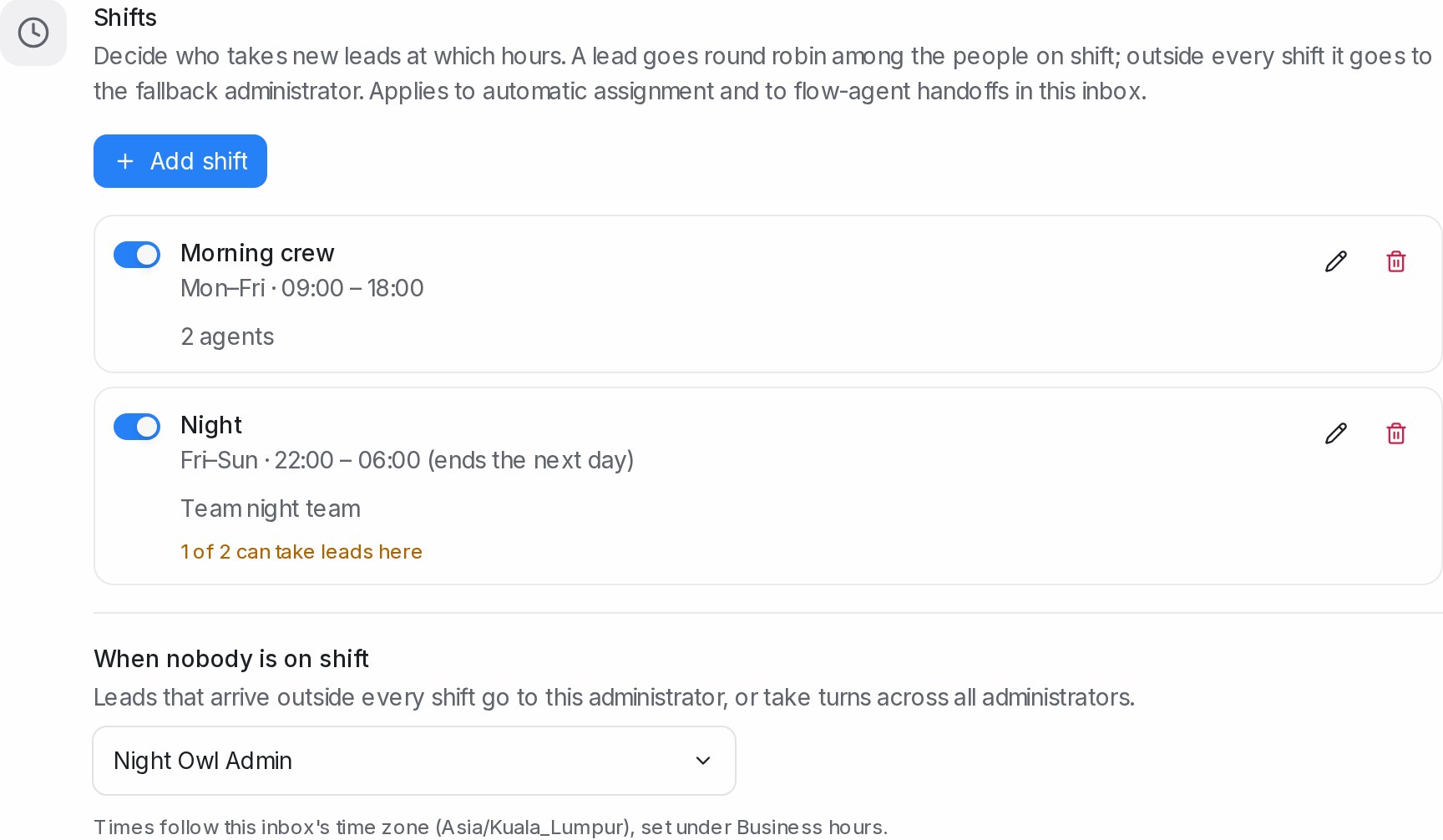{ width="864" }
A row that reads *1 of 2 can take leads here* means someone on the shift is not an agent of this inbox; add them under **Agents** on the same tab.
## Adding a shift
1. Click **Add shift** and give the shift a name.
2. Pick the days the shift **starts** on, then its start and end time. A shift that ends the next day, such as 22:00 to 06:00, is fine; the same start and end means the whole day.
3. Under **Who is on this shift**, choose **Specific agents** and pick agents of this inbox, or **Members of a team**. A team shift follows the team's membership as it changes.
4. Click **Save shift**. Times follow the inbox's time zone, set on its **Business Hours** tab.
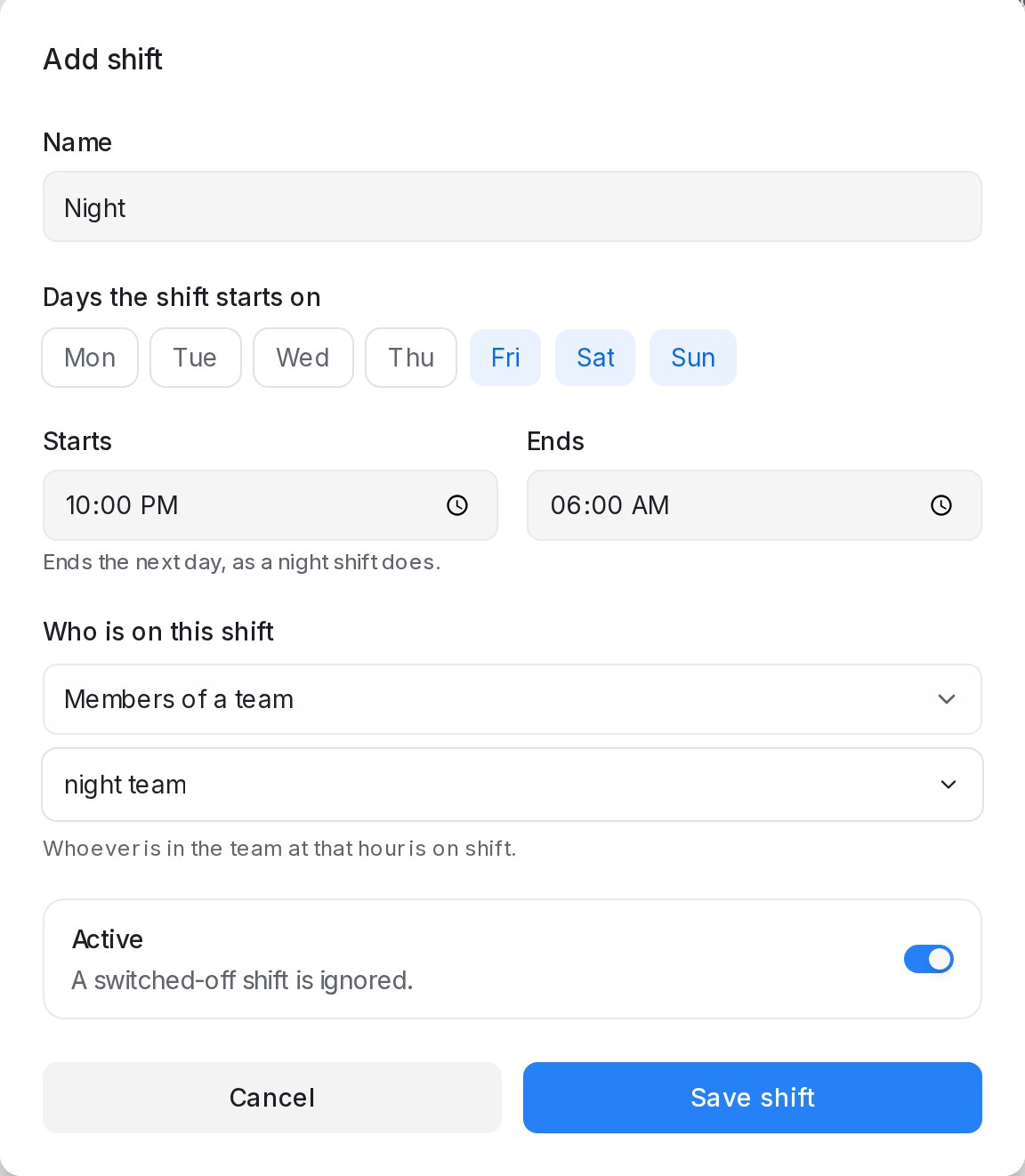{ width="576" }
Once a shift exists, **When nobody is on shift** names the administrator who receives leads that arrive outside every shift. Leave it on **Rotate across all administrators** and the workspace's administrators take turns instead. Either way no lead waits for the next shift.
## People on time off
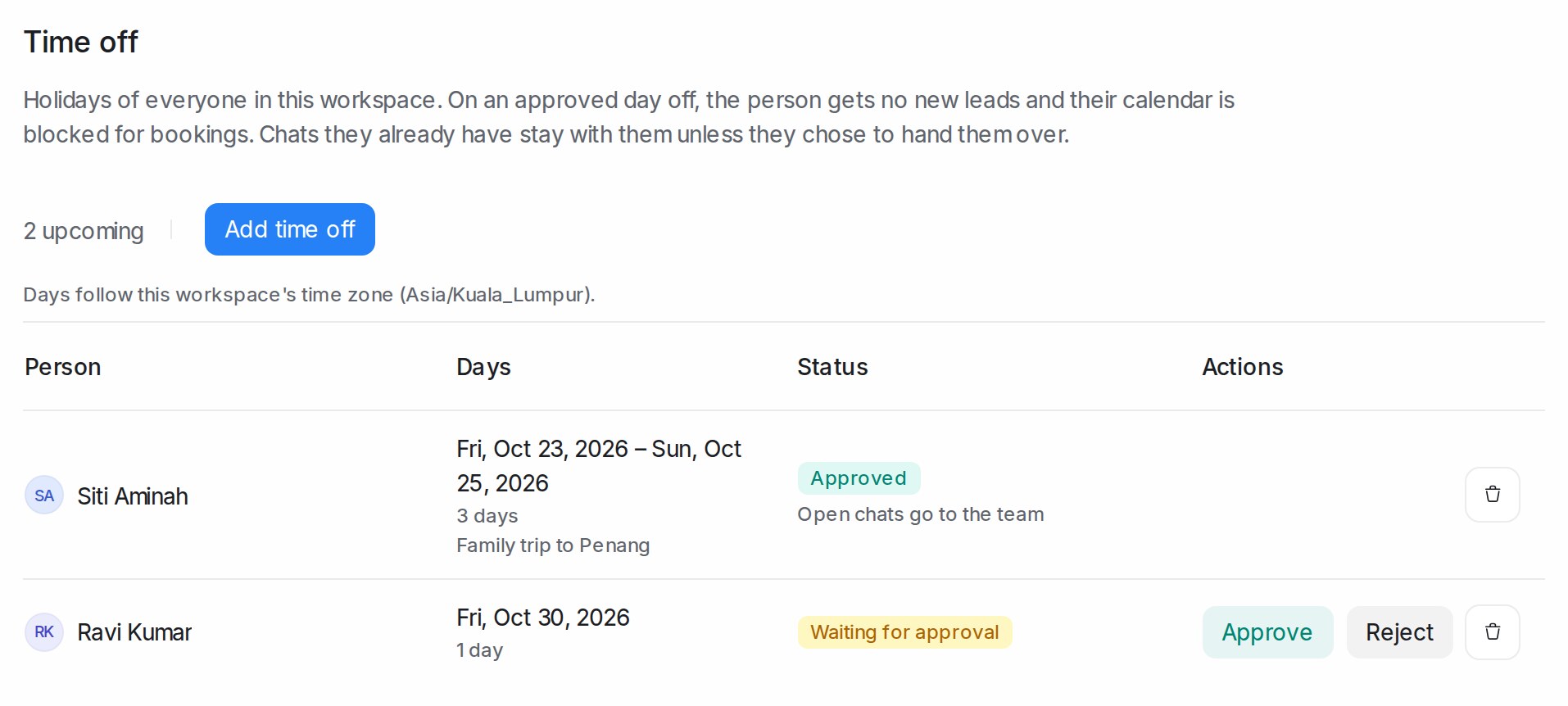{ width="957" }
On the days of an approved holiday under **Settings → Time off**, the person takes no new leads, on every inbox and for Flow Agent handovers too, whatever their shifts say. When everyone who could take a lead is away, it goes to the fallback administrator chosen on the **Shifts** card, or the administrators take turns. The day after, the person is back in the rotation in their usual place, so nobody is owed a pile of leads. See [Time off: holidays, requests and approvals](/settings/time-off).
## Assignment policies
A policy replaces the default rules for the inboxes you link it to. Open **Settings → Agent Assignment**, choose **Assignment policy** and click **New policy**.
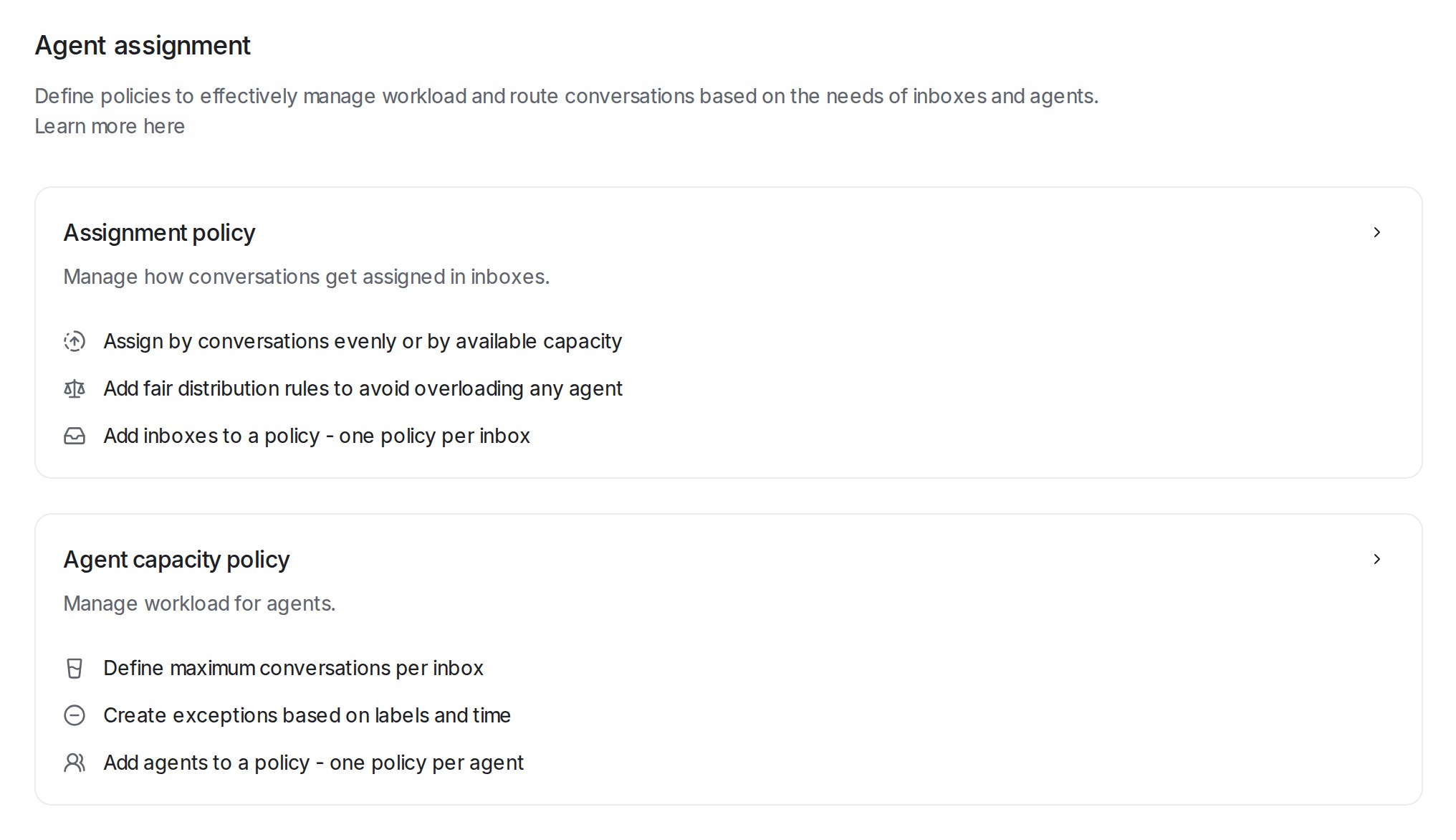
* **Eligible agents** decides who may receive a conversation:
* **Every member** — every agent in the inbox gets a turn, online or offline. A new conversation always gets an owner.
* **Online agents only** — only agents who have the dashboard open right now. Conversations stay unassigned while nobody is online.
* **Online first** — online agents get it first. When nobody is online, every member is eligible.
* **Assignment order** — **Round robin** shares conversations in turn; **Balanced** gives each conversation to the agent with the fewest open conversations in that inbox.
* **Assignment priority** — **Earliest created** or **Longest waiting** decides which waiting conversation is handed out first.
* **Fair distribution policy** — caps how many conversations one agent receives in a time window, for example 100 per hour. Without a policy there is no cap.
* **Skip stale conversations** — conversations with no activity beyond this age are left alone. A new policy starts at 1 hour. Raise it when you want an older backlog handed out; clear it to hand out every unassigned conversation.
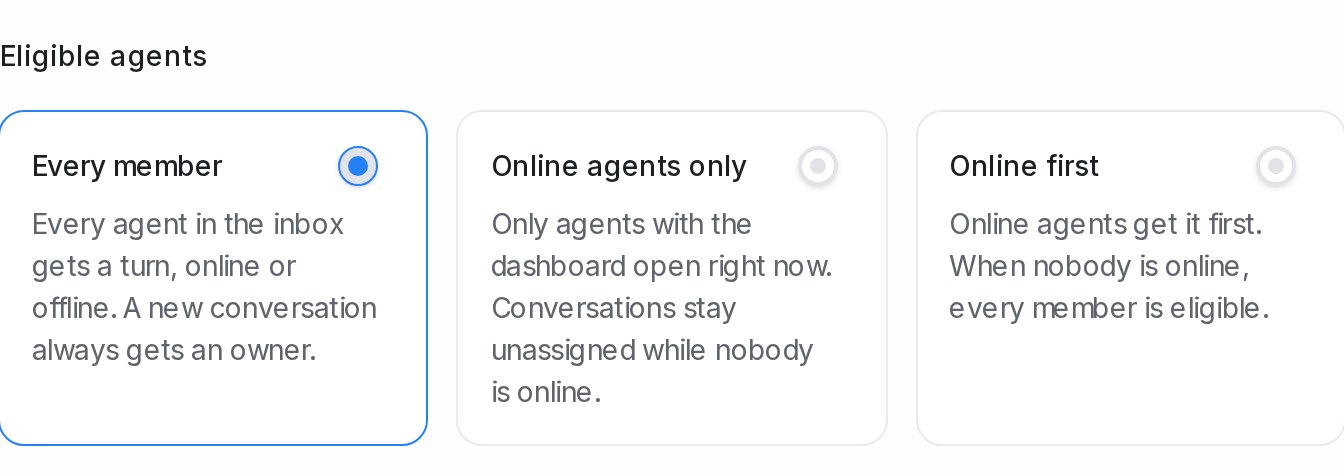
Click **Create policy**, then add inboxes under **Added inboxes** with **Add inbox**. You can also link a policy from an inbox's **Collaborators** tab with **Link existing policy**, and remove it there with the bin icon, after which the inbox returns to the default rules. An inbox carries one policy at a time.
## Agent capacity policies
**Settings → Agent Assignment → Agent capacity policy** limits how many open conversations an agent holds in an inbox at once. Create a policy, add the agents it applies to and set a conversation limit for each inbox. An agent at their limit is skipped until they resolve something, and the conversation waits for the next available agent. Exclusions keep conversations with certain labels, or older than a given age, out of automatic assignment altogether.
## Related
* [Assigning conversations to agents and teams](/conversations/assigning-conversations)
* [Managing agents and teams](/settings/managing-agents-and-teams)
* [Inboxes and channels](/settings/inboxes-and-channels)
* [Time off: holidays, requests and approvals](/settings/time-off)
---
## Time off: holidays, requests and approvals
URL: https://help.mampuai.com/settings/time-off
---
description: >-
Mark holidays for your team. On an approved day off the person gets no new leads and their
calendar is blocked for bookings; agents ask for their own days and an administrator approves.
---
# Time off: holidays, requests and approvals
**Settings → Time off** is the workspace's shared holiday list. Everyone sees who is away and when. An administrator can add a holiday for anyone, and an agent asks for their own days, which an administrator approves.
## What time off does
{ width="957" }
On every day of an **Approved** holiday:
* **No new leads.** New conversations and Flow Agent handovers skip the person. If everyone who could take a lead is away, it goes to an administrator, so nothing waits unassigned.
* **Calendar blocked.** The person's calendar is busy for the whole day, so bookings go to a teammate or another day.
* **Their chats stay theirs**, unless the holiday says to hand them over (see below).
A request **Waiting for approval** changes nothing yet. The day after a holiday, the person is back in the rotation in their usual place. Days follow the workspace time zone shown on the page.
## Requesting time off
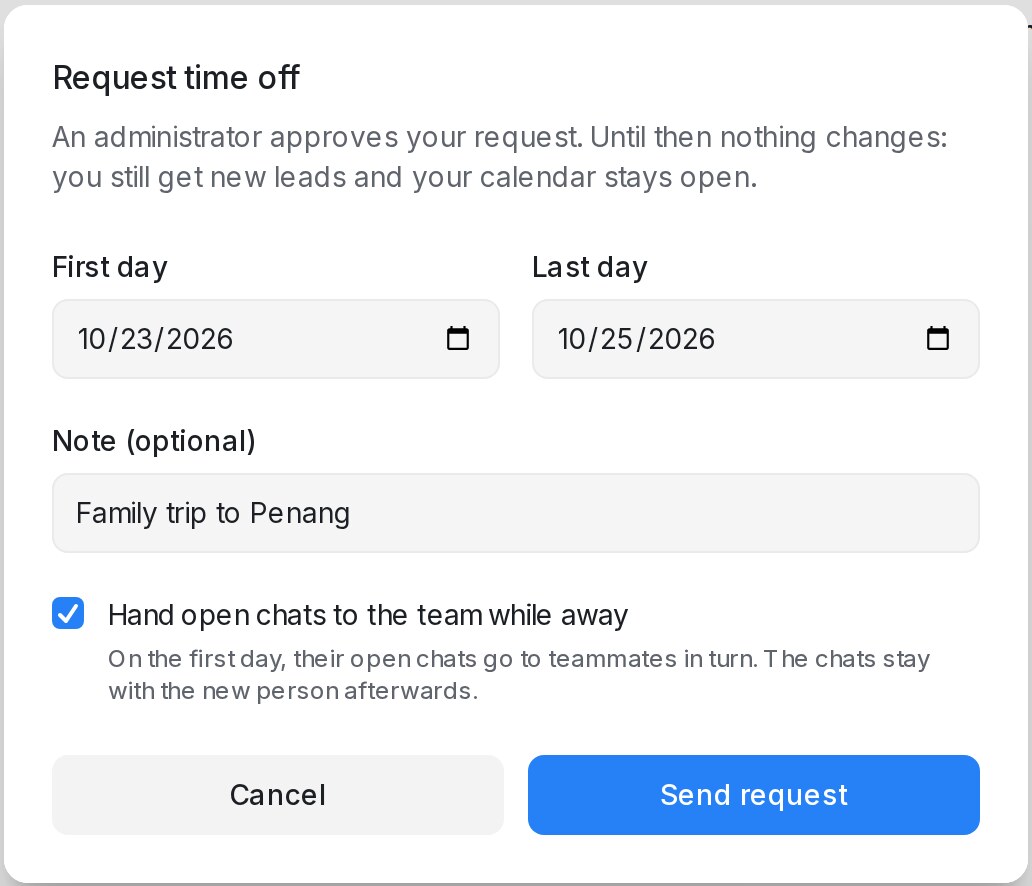{ width="516" }
1. Open **Settings → Time off** (or **Open time off** on your profile page) and click **Request time off**.
2. Pick the **First day** and the **Last day**. Whole days only; a single day is fine.
3. Add a note if you like.
4. Tick **Hand open chats to the team while away** to have your open chats passed to teammates, in turn, on your first day. A chat on a team stays within that team, and the chats do not come back afterwards.
5. Click **Send request**. While it waits you can **Withdraw request**.
An administrator uses **Add time off** instead, picks the **Person**, and the holiday is approved at once.
## Approving or rejecting a request
{ width="339" }
Every administrator gets each request in **My Inbox**, labelled **Time off request**, and by email. Click it to open **Settings → Time off**, then:
* **Approve** to put the holiday in place.
* **Reject** to turn it down, with an optional reason the agent sees.
The agent is told the decision in **My Inbox** and by email. To take back an approved holiday, an administrator clicks the bin icon on its row; the person is told and takes leads again on those days. Only administrators can remove a holiday once it is approved.
## Bookings already on those days
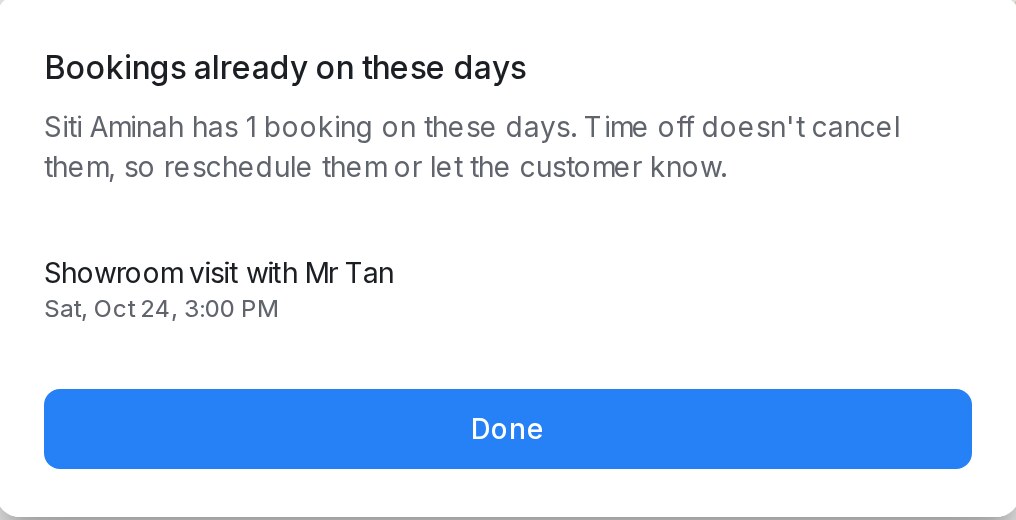{ width="508" }
When you approve or add a holiday, any booking the person already has on those days is listed. Time off never cancels a booking: use **Open chat** or **Reschedule** where the list shows them, or let the customer know.
## Related
* [Automatic conversation assignment](/settings/automatic-conversation-assignment)
* [Managing agents and teams](/settings/managing-agents-and-teams)
* [Your profile and notifications](/settings/profile-and-notifications)
---
## Labels, attributes and automation
URL: https://help.mampuai.com/settings/labels-attributes-and-automation
# Labels, attributes and automation
Tailor how conversations are organised and handled:
* **Labels** — create a shared set of tags for conversations and contacts.
* **Custom Attributes** — define extra fields to capture on conversations or contacts.
* **Automation** — set up rules that run actions automatically (assign, label, reply, and more) when your conditions are met.
## Watch the walkthrough
{% embed url="https://youtu.be/kzFeB20dXRo" %}
## Creating an automation rule
Every rule has three parts: an **Event** that sets it off, **Conditions** that must match, and **Actions** that run.
1. Open **Settings → Automation** and click **Create Automation**.
2. Enter a **Rule Name** and a **Description**.
3. Under **Event**, choose when the rule is checked: **Conversation Created**, **Conversation Updated**, **Conversation Opened**, **Conversation Resolved**, **Message Created** or **Attribute Changed**.
4. Under **Conditions**, add at least one condition — for example **Channel**, **Inbox**, **Labels** or **Message Contains**. Click **Add Condition** to combine several.
5. Under **Actions**, add what should happen — for example **Assign a Team**, **Add a Label**, **Send a Message** or **Apply Message Sequence**. Click **Add Action** to add more.
6. Click **Create**.
To change a rule later, click **Edit** on its row and click **Update** when you're done. The **Active** column shows whether a rule is **Off**, **Testers only** or **Live**; click it to pick another state. A new rule starts **Off**.

Rules that act on a missed reply deadline are set up from the Reply SLA page instead — see [Reply SLA](/settings/reply-sla).
## Try a rule on your testers first
Switch a rule to **Testers only** and it runs only on conversations with your workspace testers, so you can check a new keyword rule, a label chain or a **Send a Message** action on your own team's chats before customers set it off. The dialog shows the **Workspace testers** list; add a tester there if you need to, then click **Switch**. It is the one list under **Settings → Account Settings → Testers**, shared with your flow agents and message sequences — see [Account (general) settings](/settings/account-general-settings).
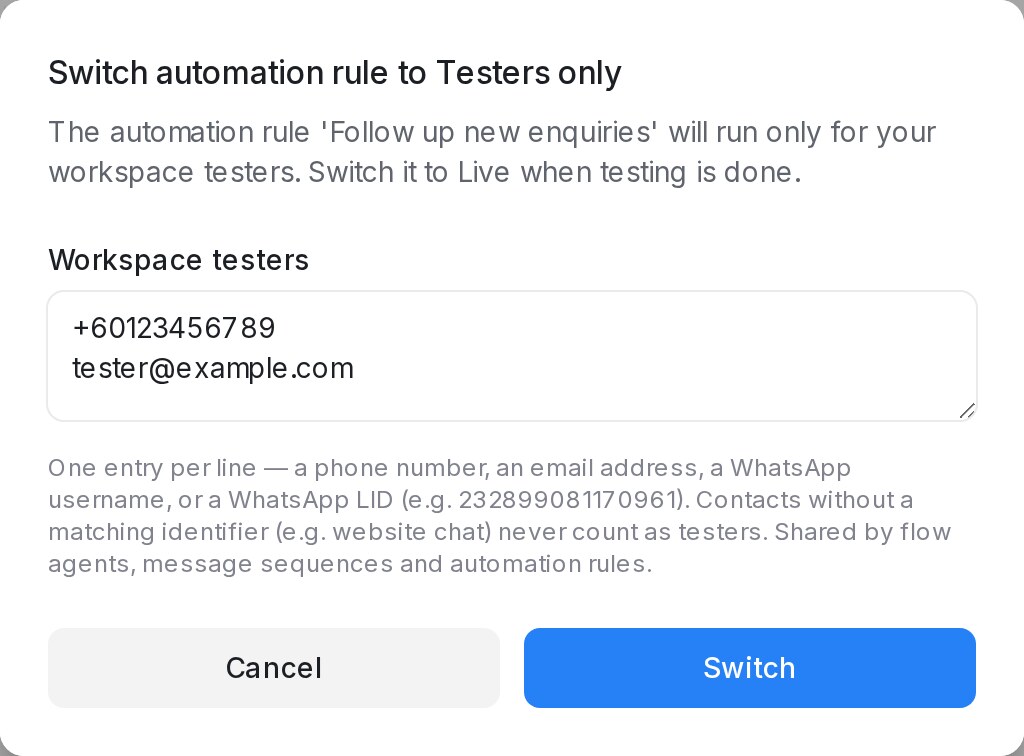{ width="512" }
* A tester is a contact whose phone number, email, WhatsApp username or WhatsApp LID is on the list. On a conversation with anyone else, the rule does nothing.
* You need at least one tester on the list before you can switch.
* A duplicated rule starts **Off** and keeps **Testers only** when the original had it.
* When testing is done, switch the rule to **Live**.
## Matching who sent the message
On the **Message Created** event, the **Message Sender** condition tells your team, your bots and your customers apart, so a keyword rule fires only on the messages you mean. Pick one of:
* **Agent (human)** — a reply written by someone on your team. Replies your team sends from the WhatsApp Business app on their phone count as **Agent (human)** too.
* **Bot** — an outgoing message that no person on your team wrote, such as your AI agent's replies.
* **Contact** — a message from the customer.
Combine it with other conditions such as **Message Contains** or **Inbox**. For example, add a label or send an email to your team whenever one of your agents replies "appointment confirmed", without the rule firing on your AI agent's own messages.
The **Message Sender** condition is only available on the **Message Created** event.
## Matching words in a message
The **Message Contains** condition takes a list of words or phrases. Type one and press **Enter** (or a comma) to add it, and add as many as you need. The rule matches when the message contains **any** of them.
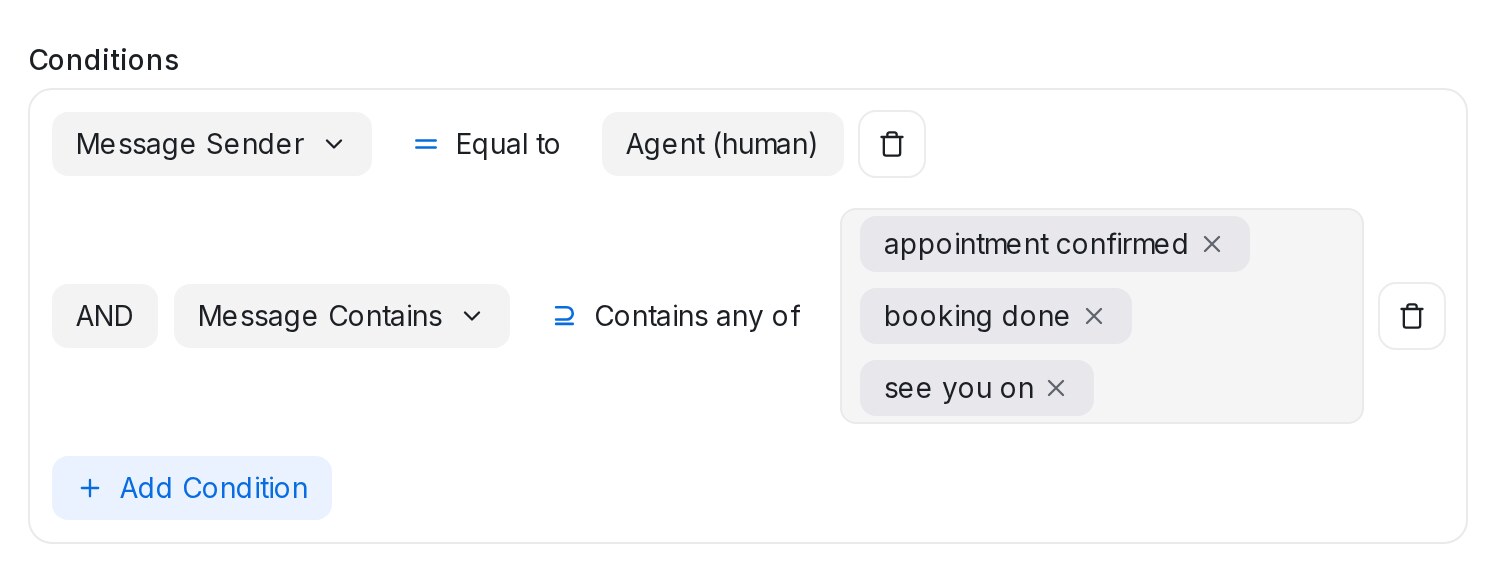{ width="740" }
1. Under **Conditions**, pick **Message Contains**. The operator starts on **Contains any of**.
2. Type a word or phrase and press **Enter**. Repeat for each one; click the **×** on a chip to remove it.
3. Choose another operator when you need it: **Contains none of** matches only when none of the words appears; **Is any of** and **Is none of** compare the whole message with each entry, ignoring letter case.
A message that contains several of the words runs the rule's actions once. Capitalisation never matters, and each word matches inside longer text too — "booking done" also matches "Booking done, see you Tuesday".
## Chaining rules with a label
A label added by one rule can set off another rule. For example, one rule labels conversations that mention a certain product, and a second rule that watches for that label applies a message sequence or assigns a team.
1. Create the first rule with the **Add a Label** action.
2. Create a second rule with the **Event** set to **Attribute Changed**.
3. Under **Conditions**, choose **Labels** → **Label added** and pick the same label.
4. Add the follow-up action, such as **Apply Message Sequence** or **Assign a Team**, and click **Create**.
Good to know:
* Works with both **Label added** and **Label removed**.
* Labels added or removed by hand set these rules off too.
* Labels added by a contact import set these rules off only when **Also add the labels to each contact's latest conversation** is ticked, because rules watch the conversation's labels. See [Creating and importing contacts](/contacts/creating-and-importing-contacts).
* One step per chain: a rule set off by another rule's label does not set off further rules, so two rules can never loop each other.
## Filling AI attributes from another attribute
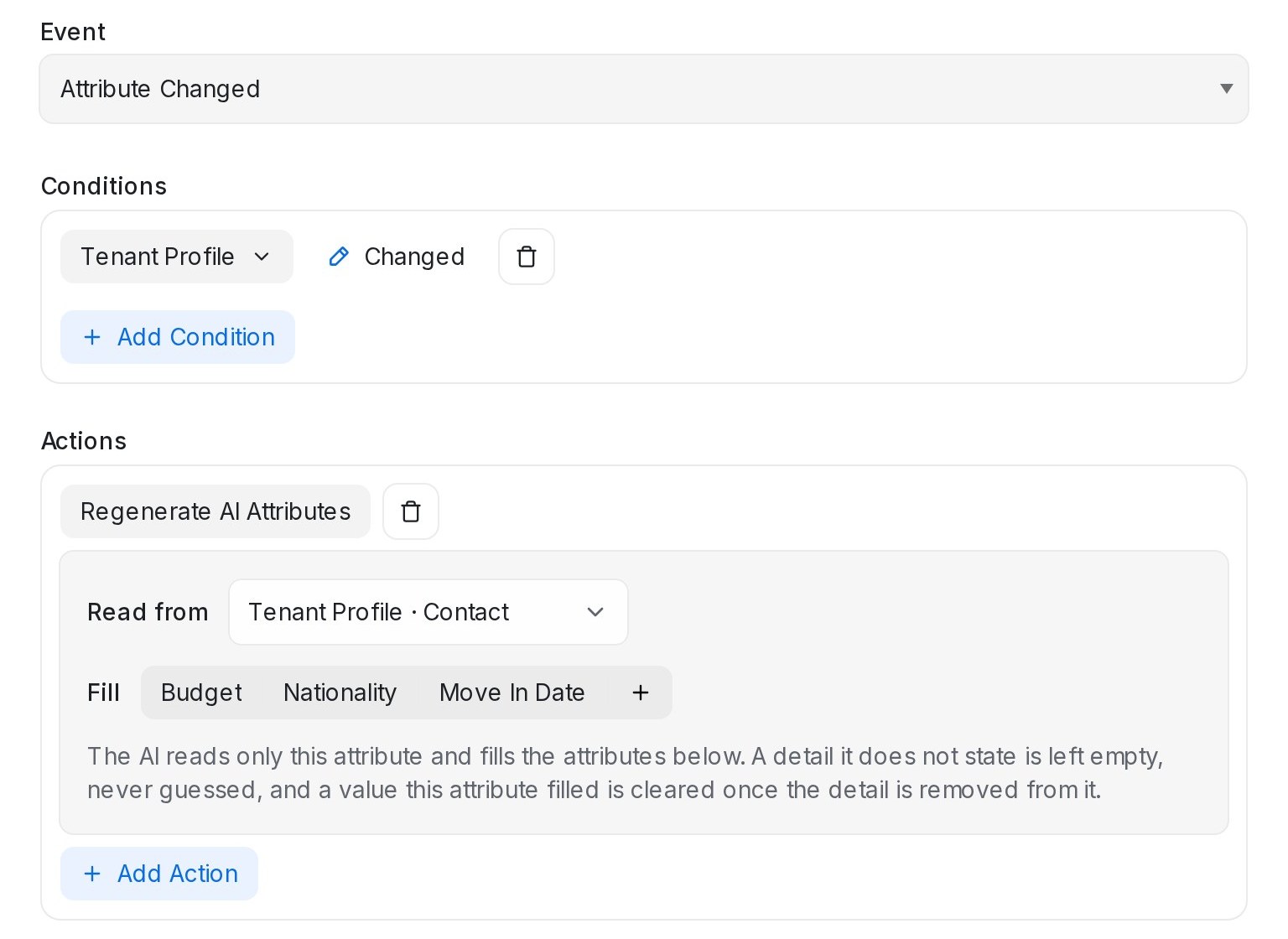{ width="768" }
A rule can fill your AI attributes from a note your team keeps, such as a **Tenant Profile** contact attribute, instead of from the chat.
1. Create a rule with the **Event** set to **Attribute Changed**.
2. Under **Conditions**, pick the attribute your team writes in. The operator starts on **Changed**, which needs no value: the rule runs whenever the attribute is saved with something different.
3. Under **Actions**, pick **Regenerate AI Attributes**.
4. In **Read from**, choose that attribute. Only text attributes are listed.
5. In **Fill**, pick the AI attributes to fill, then click **Create**.
Good to know:
* When the attribute is a contact attribute, the rule runs on the contact's latest conversation. A contact with no conversation is skipped.
* A detail the attribute does not state is left empty, never guessed. When a detail is removed from the attribute, the value it filled is cleared.
* Values your team typed by hand or the chat filled are kept unless the attribute states something newer.
* With nothing picked in **Fill**, every AI attribute is filled. **Read from** starts on **The conversation**, so existing rules keep working as before.
* Values the AI writes do not set off rules again.
## Sending data to your own systems
The **Send Webhook Event** action sends the conversation's details to a URL of your choice — a CRM, an API or an automation tool — with the method and headers that endpoint needs. See [Integrations overview](/settings/integrations) for how to set it up and test it. If the receiving system refuses a request, the account's administrators get an email listing the leads that failed; see **When a request fails** on that page.
## More you can do with rules
Automation rules can also send messages for you — in the same conversation or through another inbox like email or WhatsApp. See [Sending automated messages with Automation](/settings/automation-send-message).
The **Sync lead to Google Sheets** action writes the conversation's lead row to your spreadsheet when the rule runs. See [Connecting Google Sheets](/settings/connecting-google-sheets).
Rules can also keep your calendar in step when an agent reschedules or cancels an appointment in chat. See [Updating a booking when an agent reschedules](/calendar/agent-rescheduled-appointments).
## Letting AI fill a contact's name, email and phone
The **Contact** tab of **Settings → Custom Attributes** starts with three **System** attributes: **Name**, **Email** and **Phone number**. They are the contact's own fields, so they can't be deleted or renamed; only their AI fill can be changed.
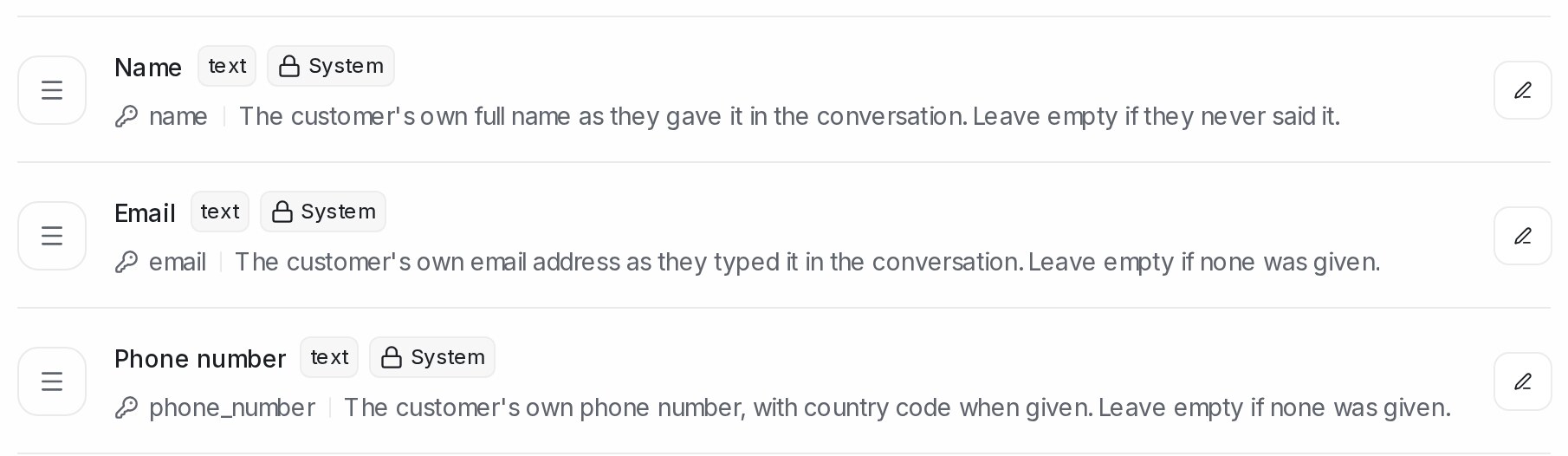{ width="740" }
With AI on, the AI reads the conversations your flow agent handled and fills them in:
* **Name** — filled only when the contact has no name, only a phone number as their name, or the made-up name a website visitor gets before giving theirs. A name already set is never changed.
* **Email** and **Phone number** — never changed directly. A new value waits on the contact for your team to approve or dismiss — see [Custom attributes and notes](/contacts/custom-attributes-and-notes).
* A phone number is never suggested on WhatsApp or SMS inboxes, where the number already identifies the customer.
## Turning on AI for a System attribute
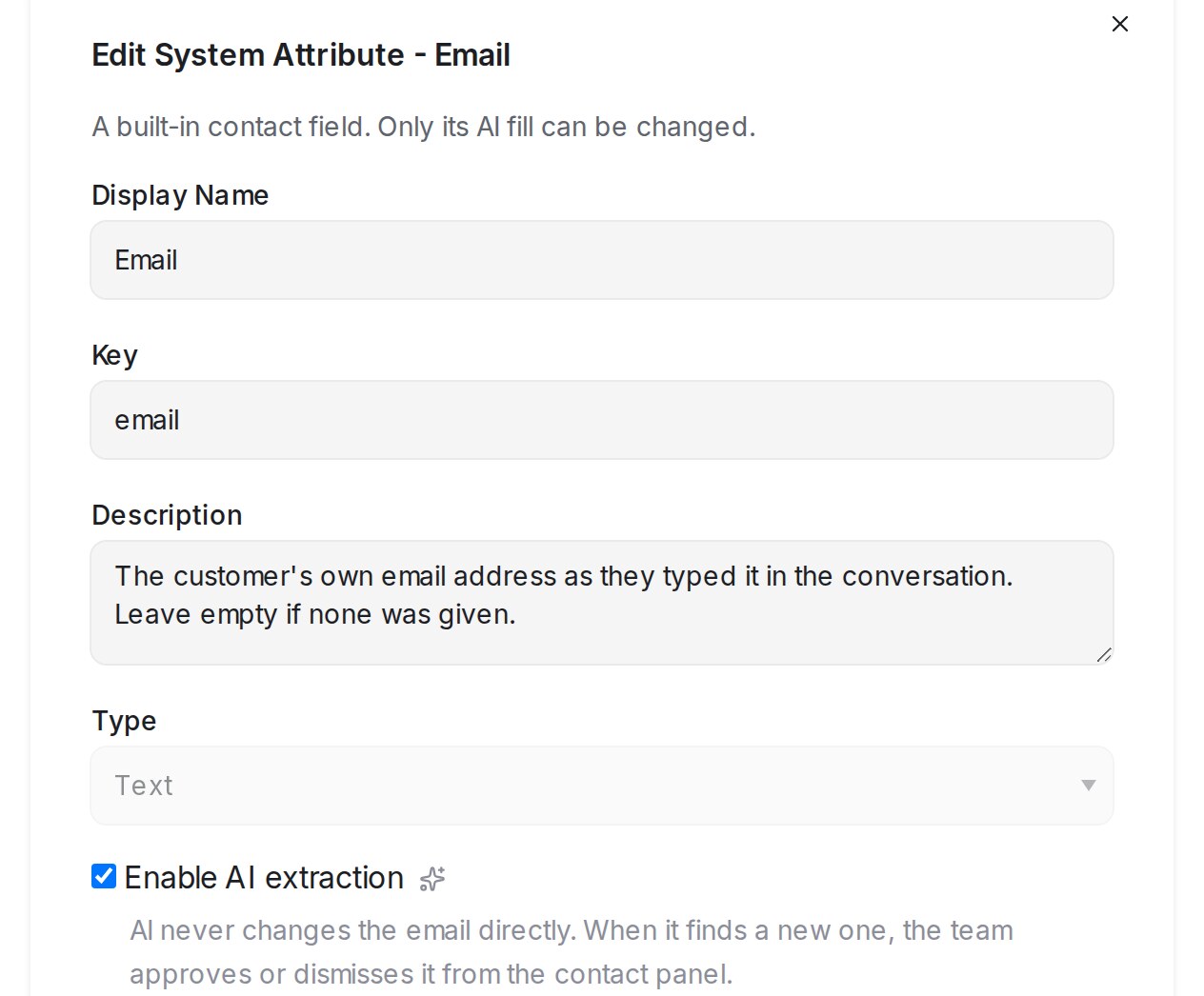{ width="460" }
1. Open **Settings → Custom Attributes** and choose the **Contact** tab.
2. Click the edit button on **Name**, **Email** or **Phone number**.
3. Tick **Enable AI extraction**.
4. Optionally adjust the **Description** — the instructions the AI follows — and **When to run**, the minutes of quiet after the last message before the field is filled.
5. Click **Update**.
AI attributes need an AI provider connected under **Settings → Integrations → AI Providers**.
## Related
* [Sending automated messages with Automation](/settings/automation-send-message)
* [Reply SLA](/settings/reply-sla)
* [Integrations overview](/settings/integrations)
* [Account (general) settings](/settings/account-general-settings) — the workspace tester list
* [Connecting Google Sheets](/settings/connecting-google-sheets)
* [Filter conditions and operators](/settings/filter-conditions-and-operators)
* [Custom attributes and notes](/contacts/custom-attributes-and-notes)
---
## Sending automated messages with Automation
URL: https://help.mampuai.com/settings/automation-send-message
# Sending automated messages with Automation
The **Send a Message** automation action sends a message for you when a rule fires — a thank-you after a conversation resolves, a follow-up when a label is added, or an alert to your own team's WhatsApp.
By default the message is posted in the same conversation that triggered the rule. Pick an inbox on the action instead, and the message goes out on that channel — even when the conversation started somewhere else. Email, WhatsApp (both Normal WhatsApp and WhatsApp API), and SMS inboxes can all be picked.
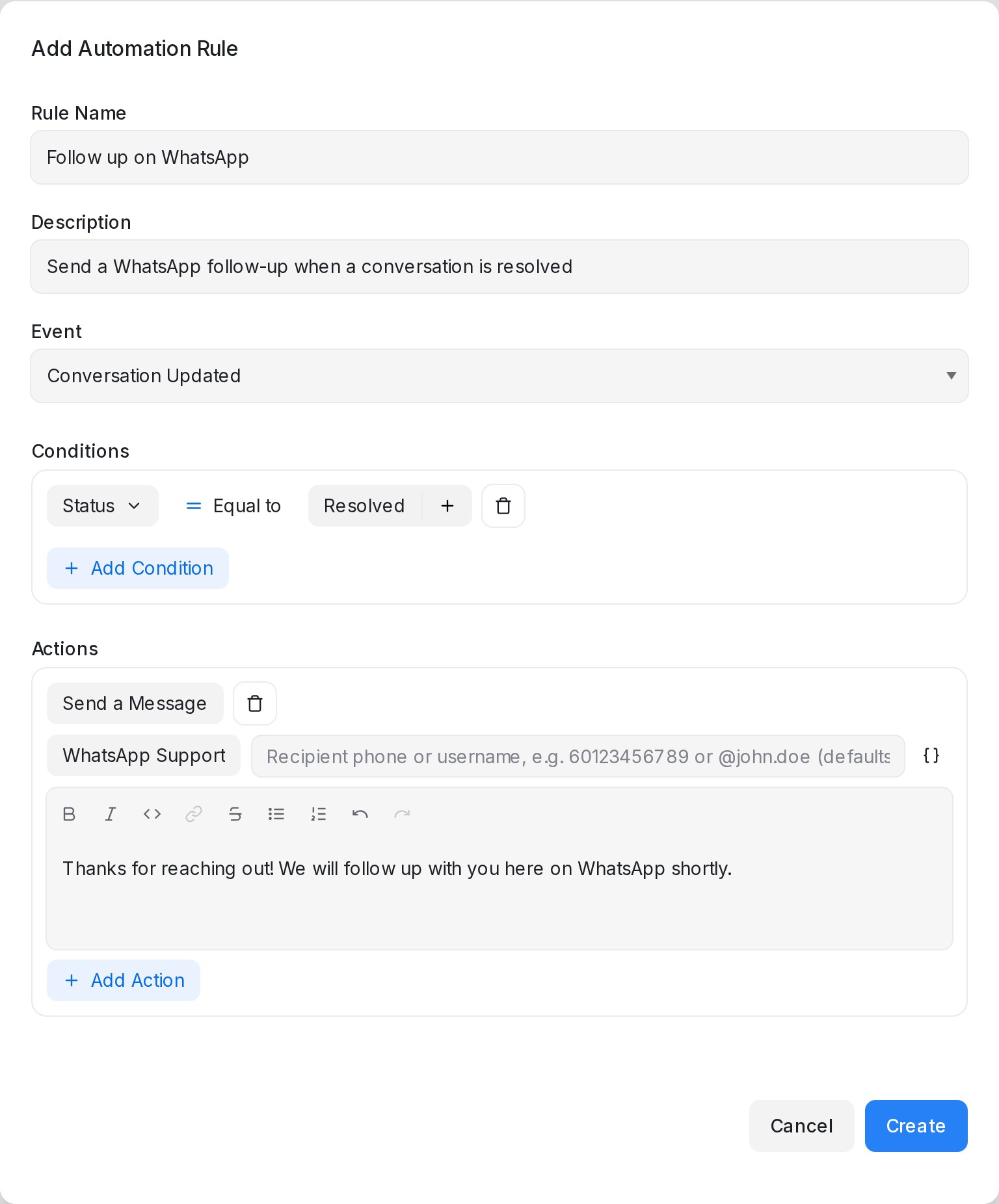
## Setting it up
1. Go to **Settings → Automation** and create or edit a rule.
2. Add the **Send a Message** action.
3. Next to the action, keep **Same conversation** or choose one of your inboxes.
4. Write the message. The editor supports variables, so the message can quote the contact's details or answers your AI agent collected.
## Setting the recipient
When you pick an inbox, a recipient field appears beside it:
* **Leave it blank** to message the contact the rule fired for, using their saved email address or phone number.
* **Type a recipient** to send somewhere specific — handy for notifying a teammate. On a WhatsApp inbox, enter a phone number with the country code (like `60123456789`) or a WhatsApp username (like `@john.doe`). On an email inbox, enter the email address.
* **Insert a variable** with the braces button — for example `{{contact.phone_number}}`, a custom attribute, or an answer your AI agent collected during the chat.
If the recipient can't be worked out — for example the field is blank and the contact has no phone number — the action quietly skips, and the rest of the rule still runs.
## Email subject, Cc and Bcc
When the inbox you picked is an email inbox, three more fields appear under the recipient: **Subject**, **Cc** and **Bcc**.
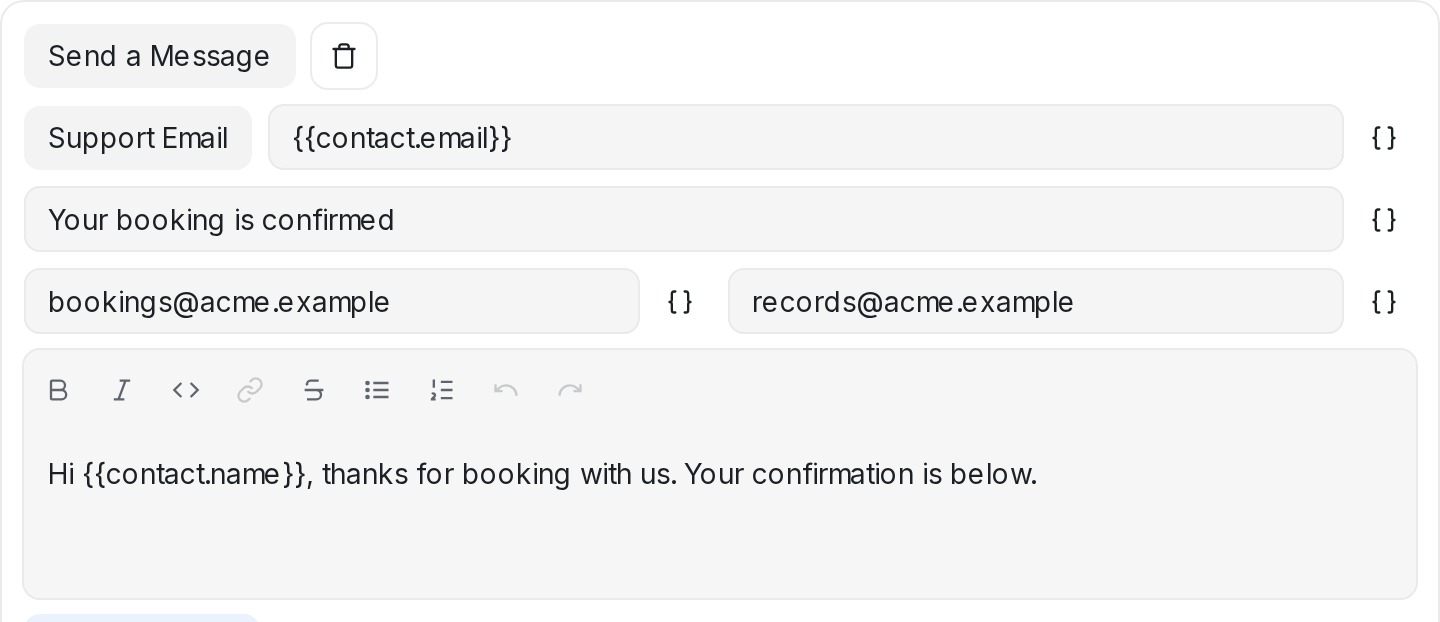
* **Subject** names the email your contact receives. Leave it empty and the email arrives under a general heading about new messages in the conversation.
* **Cc** and **Bcc** copy other people on the send — one address, or several separated by commas. Everyone on the email can see who is in Cc; Bcc stays hidden.
* All three accept variables, so the subject can carry the detail that matters — like `Your booking on {{contact.custom_attribute.booking_date}}` — and a copy can go to an address saved on the contact.
The subject also names the conversation the email starts, so replies your team sends in that thread keep it as `Re: …`, and you can see the subject on the message inside your inbox.
## Attaching a file or image
A **Send a Message** action can carry one file — a brochure, a price list, a photo. Click **Upload Attachment** under the message editor and pick the file; the ✕ beside the file name removes it again.
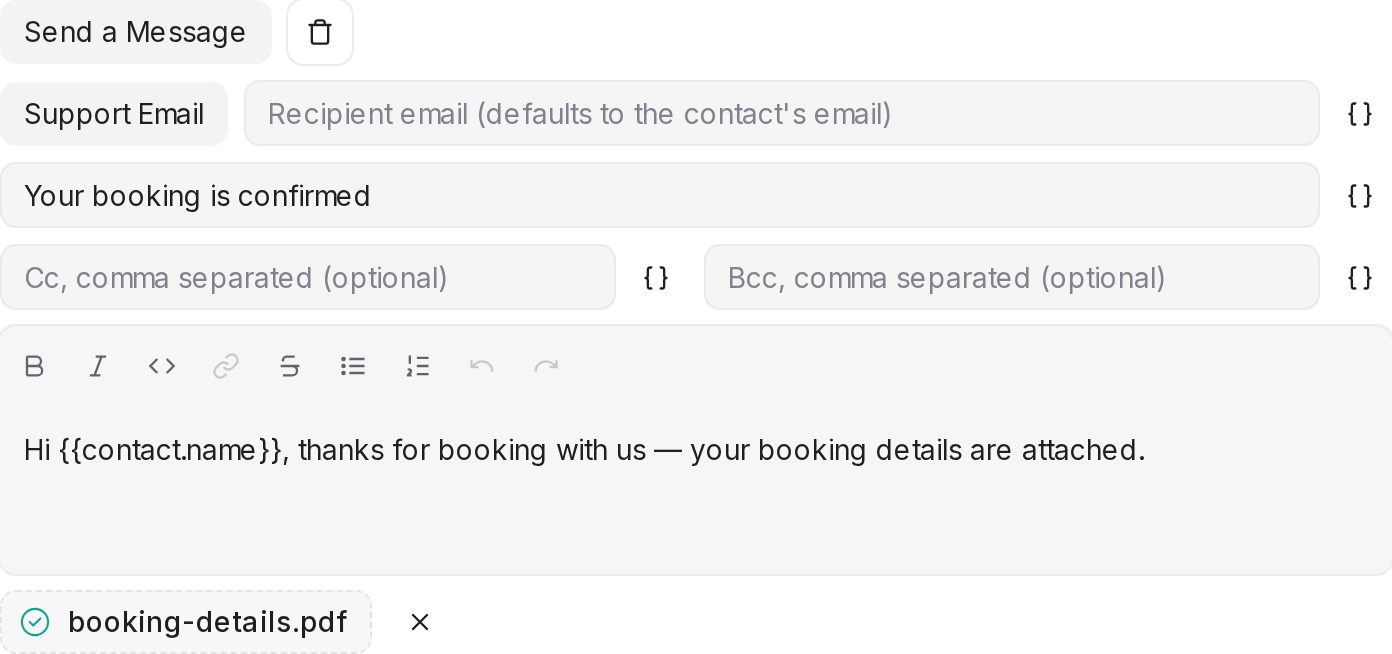
How the file arrives depends on the channel:
* **Email** — the file is attached to the same email as your message, so the contact receives one email with everything in it.
* **WhatsApp and other chat channels** — the file is delivered as media, with your message as the caption.
To send several files, add a **Send a Message** action for each one.
## Good to know
* If the recipient already has a conversation on that inbox, the message is added there; otherwise a new conversation is started.
* On WhatsApp API inboxes, messages sent outside the 24-hour customer service window may not be delivered. Normal WhatsApp inboxes don't have this restriction.
* WhatsApp usernames work for people already in your contacts.
* An address in Cc or Bcc that isn't a valid email address is left out, so a typo or an empty variable never stops the email from going out.
* To try the message on your own team before customers get it, switch the rule to **Testers only** — see [Labels, attributes and automation](/settings/labels-attributes-and-automation).
## Related
* [Labels, attributes and automation](/settings/labels-attributes-and-automation)
* [Connecting a WhatsApp inbox](/settings/connecting-a-whatsapp-inbox)
* [Inbound Webhooks](/settings/inbound-webhooks)
---
## Filter conditions and operators
URL: https://help.mampuai.com/settings/filter-conditions-and-operators
---
description: What every condition operator means, from Equal to and Contains to Has any of and Is x days before, wherever you build a filter, folder, segment, automation rule, blasting audience or sequence condition.
---
# Filter conditions and operators
Every condition is one row: a **field** (what you look at), an **operator** (the test) and a **value**. For example, "Status **Equal to** Open" or "Phone **Starts with** +60".
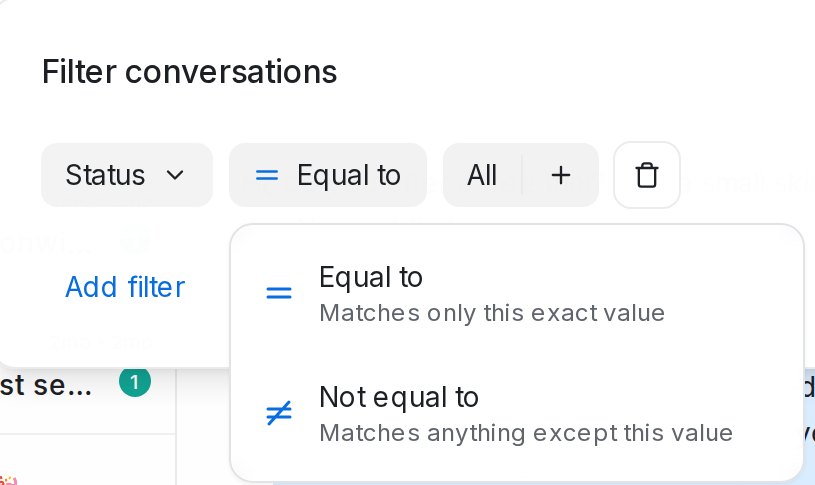{ width="408" }
Each operator shows its meaning under its name while you pick. You build conditions in five places:
| Where | Saved as |
|---|---|
| **Conversations → Filter** | **Folders** |
| **Contacts → Filter** | **Segments** |
| **Settings → Automation**, a rule's conditions | the rule |
| A blasting's **Audience** step, **Filter contacts** | the blasting |
| **Settings → Message Sequences**, a step's conditions | the sequence |
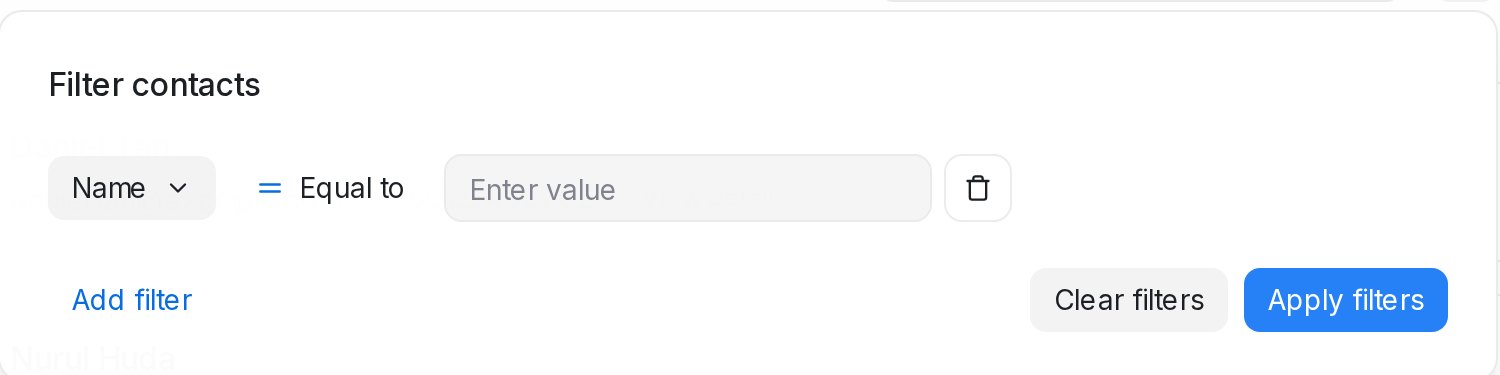
## Text fields
Names, email addresses, phone numbers, message text and text attributes offer these operators.
| Operator | Meaning | Example |
| --- | --- | --- |
| **Equal to** | Matches only this exact value | Email **Equal to** `ali@example.com` |
| **Not equal to** | Matches anything except this value | Name **Not equal to** `Test` |
| **Contains** | Matches if the text appears anywhere in the field | Message **Contains** `invoice` |
| **Does not contain** | Matches if the text appears nowhere in the field | Name **Does not contain** `test` |
| **Starts with** | Matches if the field begins with this text | Phone **Starts with** `+60` |
## Pick-one fields
Status, inbox, assignee, team, priority, country and list attributes have a fixed set of values, so the operators are simpler.
| Operator | Meaning | Example |
| --- | --- | --- |
| **Equal to** | Matches only this exact value | Status **Equal to** Open |
| **Not equal to** | Matches anything except this value | Inbox **Not equal to** Sales |
| **Is present** | Matches when the field has any value | Assignee **Is present** (someone owns the chat) |
| **Is not present** | Matches when the field is empty | Assignee **Is not present** (nobody owns it yet) |
## Channel
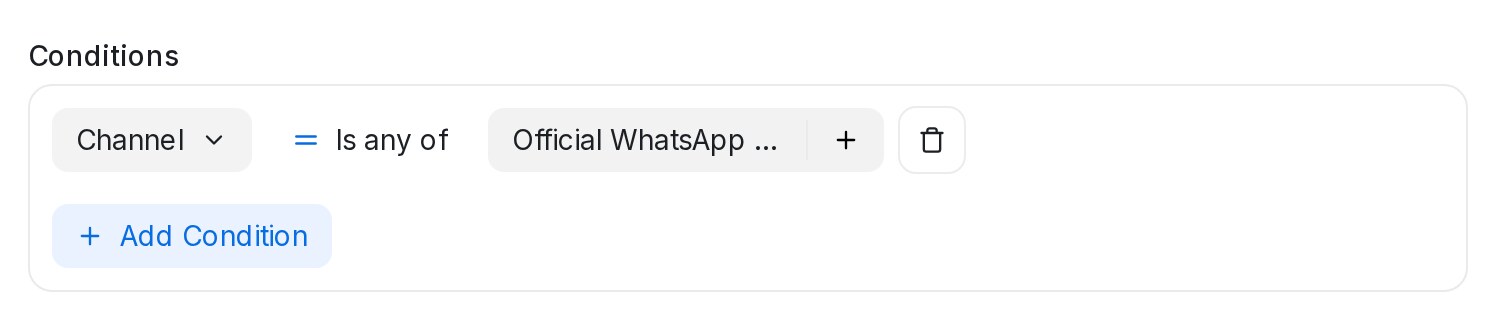{ width="620" }
**Channel** matches every inbox of one kind at once, where **Inbox** names one inbox at a time. A rule or folder set to Channel **Is any of** Official WhatsApp API covers every Official WhatsApp API number in the workspace, including a number you connect later, with no edit to the condition.
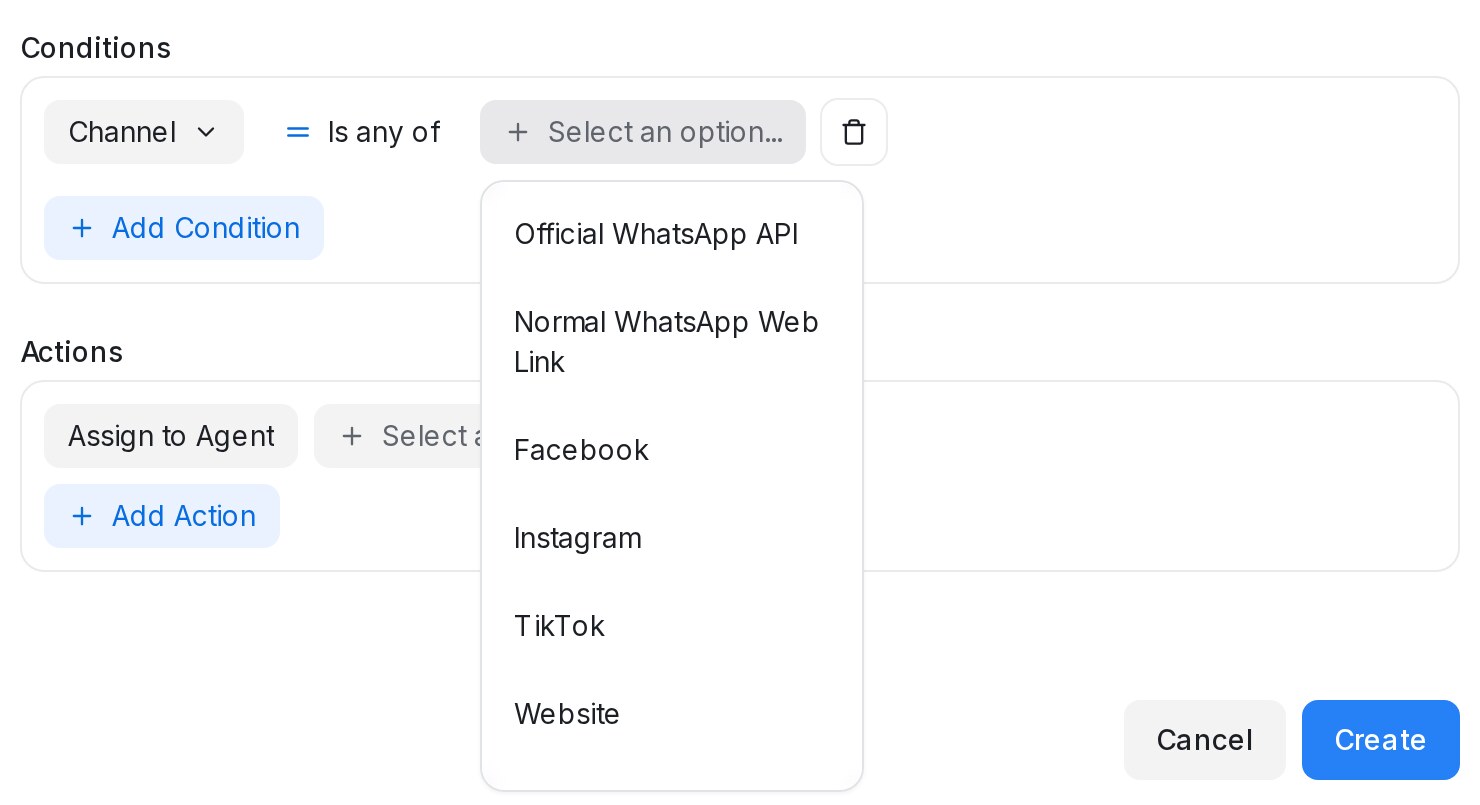{ width="600" }
| Operator | Meaning | Example |
| --- | --- | --- |
| **Is any of** | Matches if the inbox is on one of the selected channels | Channel **Is any of** Official WhatsApp API, Normal WhatsApp Web Link |
| **Is none of** | Matches only if the inbox is on none of the selected channels | Channel **Is none of** Website |
WhatsApp appears twice because the two ways to connect a number are different channels: **Official WhatsApp API** and **Normal WhatsApp Web Link**. Combine **Channel** with **Inbox** to leave one number out: Channel **Is any of** Official WhatsApp API **AND** Inbox **Is none of** Showroom.
## Labels
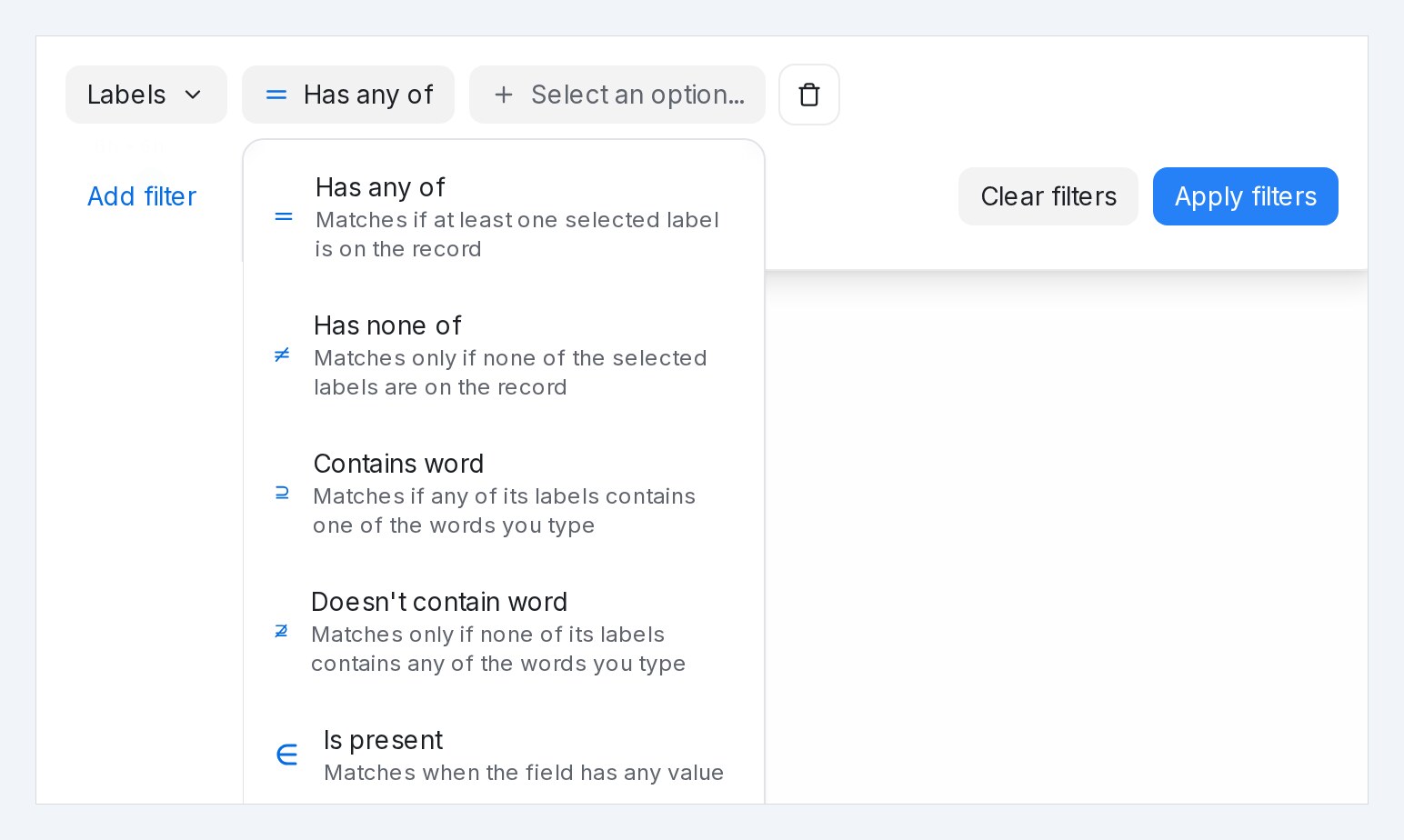
A record can carry several labels, so label conditions test membership. **Contains word** and **Doesn't contain word** take typed words instead of picked labels: type a word and press Enter, and any label whose title contains it counts, in any letter case — so `vip` covers *vip-gold* and *vip-silver* alike.
| Operator | Meaning | Example |
| --- | --- | --- |
| **Has any of** | Matches if at least one selected label is on the record | Labels **Has any of** VIP, Reseller |
| **Has none of** | Matches only if none of the selected labels are on the record | Labels **Has none of** Spam |
| **Contains word** | Matches if any of its labels contains one of the words you type | Labels **Contains word** vip |
| **Doesn't contain word** | Matches only if none of its labels contains any of the words you type | Labels **Doesn't contain word** test |
| **Is present** | Matches when the record has at least one label | — |
| **Is not present** | Matches when the record has no labels at all | — |
## Numbers
Number attributes add two comparisons to the pick-one set.
| Operator | Meaning | Example |
| --- | --- | --- |
| **Is greater than** | Matches numbers above this value | Order total **Is greater than** 500 |
| **Is less than** | Matches numbers below this value | Seats **Is less than** 3 |
## Dates
**Created at**, **Last activity** and date attributes use the same two comparisons, read as time.
| Operator | Meaning | Example |
| --- | --- | --- |
| **Is greater than** | Matches dates after the one you pick | Created at **Is greater than** 1 Sep |
| **Is less than** | Matches dates before the one you pick | Last activity **Is less than** 1 Sep |
| **Is x days before** | Matches dates more than this many days ago | Last activity **Is x days before** 7 (quiet for over a week) |
| **Is present** / **Is not present** | The date is set, or empty | Birthday **Is present** |
Message sequence conditions add a few date operators of their own, because the check happens when a message is due to go out, not when you write the condition:
| Operator | Meaning |
| --- | --- |
| **Is in the future** | Matches dates after today, checked when the message is due |
| **Is in the past** | Matches dates before today, checked when the message is due |
| **Is before** / **Is after** | For the current date: matches when today is before, or after, the date you pick |
## Automation events that watch for a change
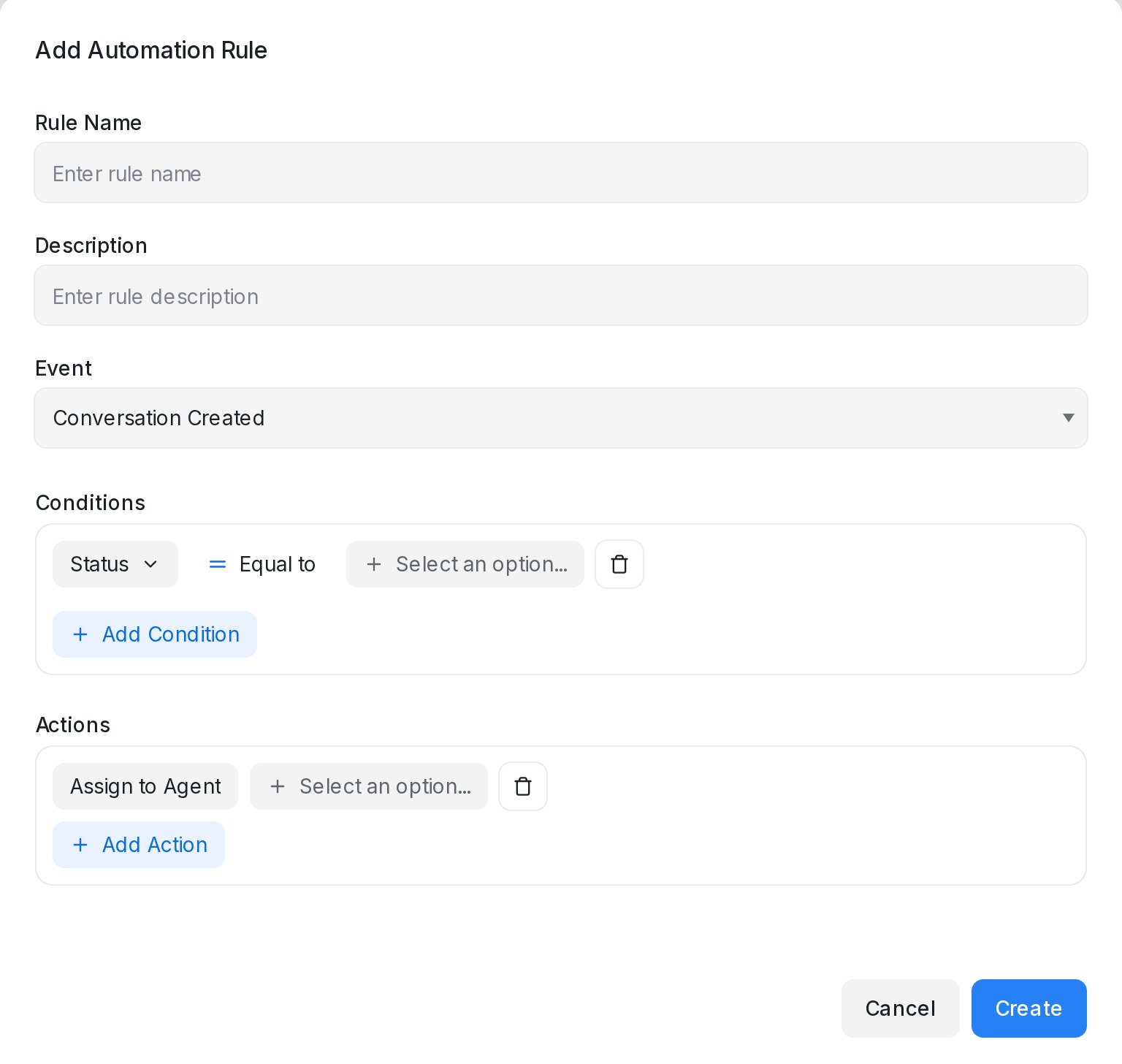{ width="620" }
Rules that run on **Attribute Changed** test the change itself, not a stored value.
| Operator | Meaning |
| --- | --- |
| **Label added** | Fires when this label is added to the conversation |
| **Label removed** | Fires when this label is removed from the conversation |
| **Changed to** | Fires when the field changes to this value |
## Blasting audience
When you choose **Filter contacts** as the audience, you can also filter by what people were already sent.
| Operator | Meaning |
| --- | --- |
| **has received any of** | Contacts who were sent at least one of the selected blastings, WhatsApp templates or message sequences |
| **has not received any of** | Contacts who were sent none of the selected items |
## Combining conditions with AND and OR
Each condition row ends with a connector to the next row.
* **AND** means every condition must match.
* **OR** means any one condition is enough.
"Status **Equal to** Open **AND** Labels **Has any of** VIP" finds open VIP chats. "Labels **Has any of** VIP **OR** Priority **Equal to** Urgent" finds chats that are either VIP or urgent, or both.
## Worked examples
* **Customers who went quiet.** In **Contacts → Filter**: Last activity **Is x days before** 7, **AND** Labels **Has any of** Hot lead. Save it as a segment and use it as a blasting audience.
* **Unowned chats waiting right now.** In **Conversations → Filter**: Status **Equal to** Open, **AND** Assignee **Is not present**. Save it as a folder for the team lead.
* **Route billing questions.** In **Settings → Automation**, on **Message Created**: Message **Contains** `invoice` → assign the Billing team.
## Related
* [Searching, filtering and segments](/contacts/searching-filtering-and-segments)
* [Conversation folders explained](/conversations/conversation-folders-explained)
* [Labels, attributes and automation](/settings/labels-attributes-and-automation)
* [Creating and scheduling a blasting](/campaigns/creating-and-scheduling-a-campaign)
* [Message Sequences](/campaigns/message-sequences)
---
## Canned responses, macros and bots
URL: https://help.mampuai.com/settings/canned-responses-macros-and-bots
---
description: Save reply templates as canned responses and insert them with a slash, bundle several conversation actions into a one-click macro, and connect a webhook bot to an inbox.
---
# Canned responses, macros and bots
* **Canned responses** save text you type again and again.
* **Macros** save actions you take again and again.
* **Bots** hand first replies to your own software.
## Watch the walkthrough
{% embed url="https://youtu.be/kzFeB20dXRo" %}
## Canned responses
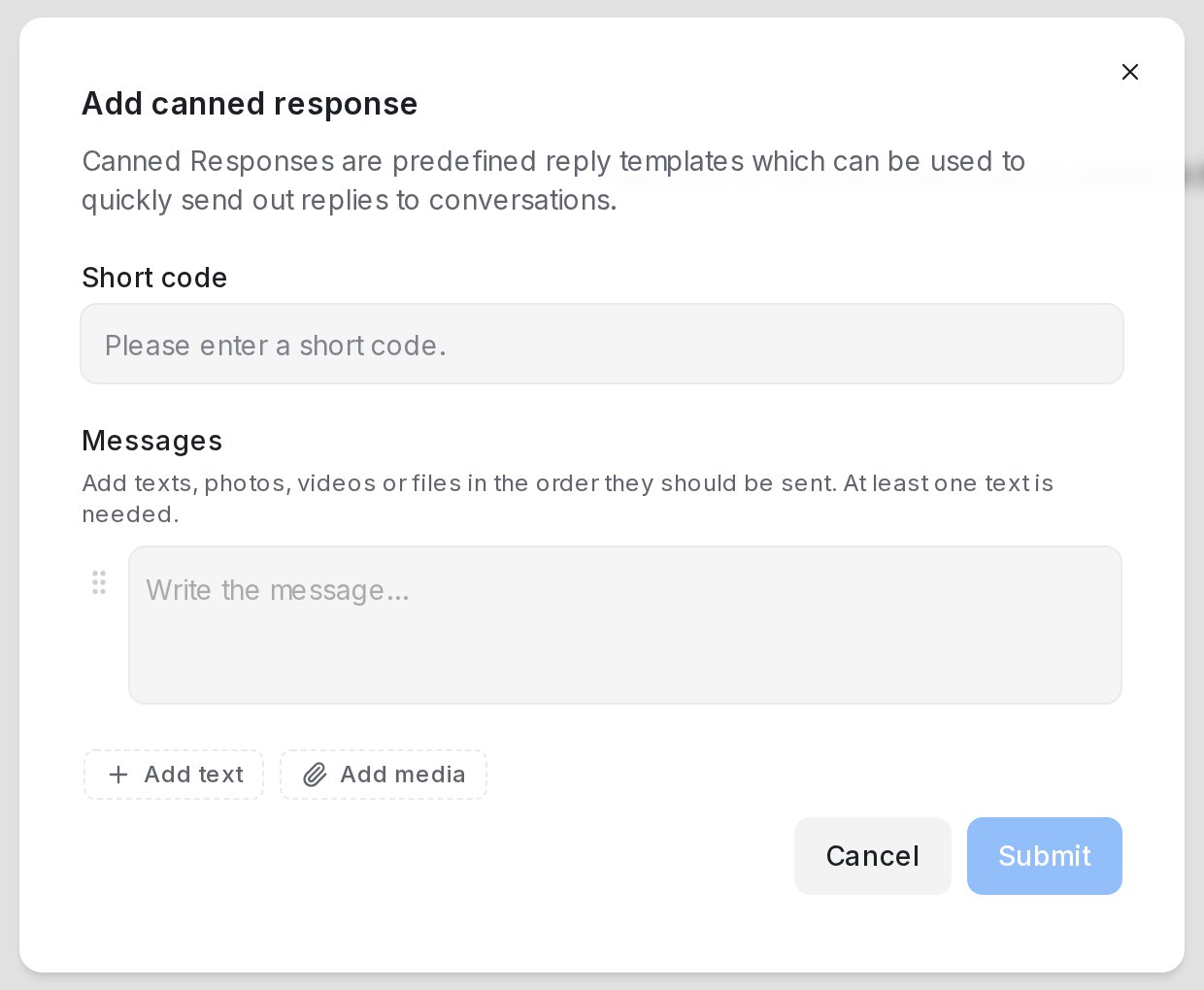{ width="620" }
1. Open **Settings → Canned Responses** and click **Add canned response**.
2. Enter a **Short code**, such as *opening-hours*.
3. Under **Messages**, write the reply. **Add text** adds another message and **Add media** adds a photo, video, audio clip or document. Drag the handle to reorder; **×** removes a row. At least one text is needed.
4. Click **Submit**.
Texts can use variables such as the contact's name, filled in when the reply goes out. Canned responses are shared across the account; each has **Edit** and **Delete**.
### Sending one
Type **/** and the short code in the reply box, then pick the response.
| The response holds | What happens |
|---|---|
| One text | It is pasted into the reply box to edit before sending |
| Several messages or a file | A card above the reply box lists them, e.g. **/brochure · 4 messages**. Click **Send 4 messages** to send them in order; **×** removes the card |
Outside a reply, for example in contact notes, only the texts are pasted. A file over a channel's size limit is refused when you add it. If a file was later removed, the reply is not sent and you are asked to edit the response.
## Macros
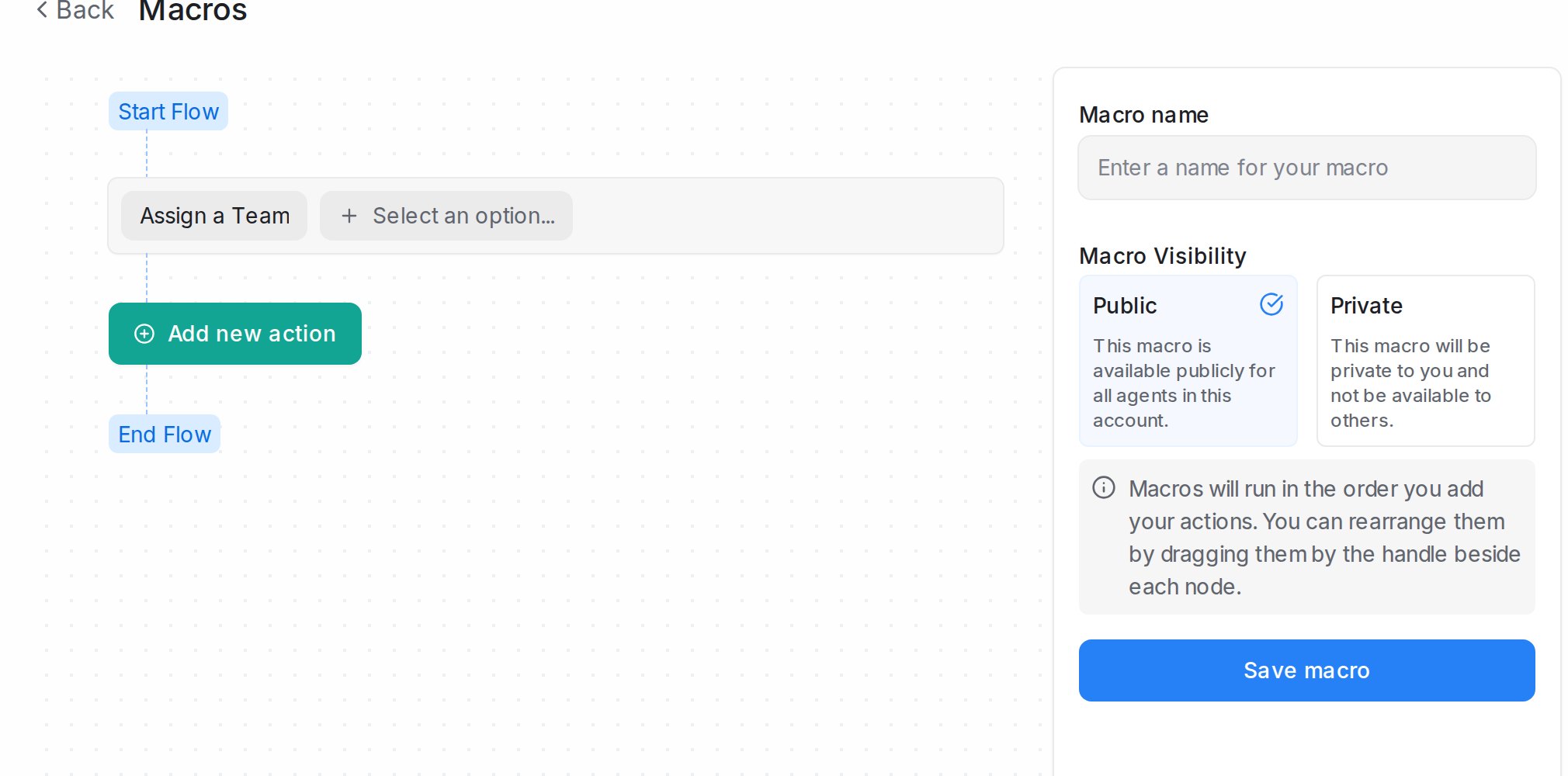
1. Open **Settings → Macros** and click **Add a new macro**.
2. Enter a **Macro name**.
3. Click **Add new action** for each step, in order. Drag steps to reorder; **Delete Action** removes one.
4. Pick **Macro Visibility**: **Public** for all agents (administrators only) or **Private** for you.
5. Click **Save macro**.
Actions: **Assign a Team**, **Assign an Agent**, **Add a Label**, **Remove a Label**, **Remove Assigned Agent**, **Remove Assigned Team**, **Send a Message**, **Add a Private Note**, **Send Attachment**, **Send an Email Transcript**, **Change Priority**, **Snooze Conversation**, **Mute Conversation**, **Resolve Conversation**, **Send Webhook Event**.
To run one, open a conversation, expand **Macros** in the details panel and click **Execute**; **Preview Macro** shows the steps first. For actions that should run on their own, use automation rules; see [Labels, attributes and automation](/settings/labels-attributes-and-automation).
## Bots
{ width="532" }
A webhook bot is software you run yourself: it receives conversation events and replies through the developer API.
1. Open **Settings → Bots** and click **Add Bot**.
2. Enter the **Bot name**, **Description** and **Webhook URL**, and optionally a **Bot avatar**.
3. Click **Create Bot**, then copy the **Webhook Secret** (to verify events) and **Access Token** (to reply). Both stay in the bot's settings.
4. Connect the bot under the inbox's **Bot Configuration** tab; see [Inbox settings, tab by tab](/settings/inbox-settings-tabs).
Developer details are at [developers.sapot.ai](https://developers.sapot.ai). For AI replies without code, use a flow agent; see [Creating a Flow Agent](/flow-agents/creating-a-flow-agent).
## Related
* [Replying and adding private notes](/conversations/replying-and-private-notes)
* [The details panel beside a conversation](/conversations/contact-panel)
* [Labels, attributes and automation](/settings/labels-attributes-and-automation)
* [Creating a Flow Agent](/flow-agents/creating-a-flow-agent)
---
## Reply SLA
URL: https://help.mampuai.com/settings/reply-sla
---
description: Set reply and resolution deadlines for each inbox, pause them outside business hours, and act automatically when a customer waits too long.
---
# Reply SLA
**Reply SLAs** set clear response and resolution expectations for your team. Give each inbox its own SLA — a fast promise for WhatsApp, a relaxed one for email — or one SLA for all inboxes. An SLA is applied to open conversations automatically, and a breach is recorded whenever a customer waits longer than a threshold.
## Watch the walkthrough
{% embed url="https://youtu.be/kzFeB20dXRo" %}
## Creating an SLA
1. Open **Settings → Reply SLA** and click **Add SLA**.
2. Enter an **SLA Name** and, optionally, a **Description**.
3. Choose which inboxes it covers (see *Choosing the inboxes* below).
4. Set the thresholds you want to track:
* **First Response Time** — how quickly the first reply must go out.
* **Next Response Time** — how quickly every later customer message must be answered.
* **Resolution Time** — how quickly the conversation must be resolved.
5. Adjust the optional settings described below, then click **Create**.
To change an SLA later, click **Edit** on its row, make your changes and click **Save**.
## Choosing the inboxes
Every SLA either covers all inboxes or only the inboxes you pick:
* Keep **Apply to all inboxes** on to use the SLA as your default.
* Turn it off and pick the inboxes under **Inboxes** to give those inboxes their own targets.
How your SLAs share the inboxes:
* Add as many SLAs as you need, but each inbox belongs to one SLA at most. Inboxes already covered by another SLA are not listed in the picker.
* Only one SLA can apply to all inboxes. It covers every inbox that no other SLA has claimed.
* Without an all-inboxes SLA, an inbox left out of every SLA is not measured.
* The **Inboxes** column in the list shows which inboxes each SLA covers.
* Changes apply to newly tracked conversations. A conversation an SLA is already tracking keeps that SLA.
## Counting only business hours
Turn on **Only during business hours** and the countdowns pause outside each inbox's working hours, so a message that arrives in the evening doesn't breach overnight.
* First response, next response and resolution countdowns all run only inside the inbox's working hours. A message at 8:30pm on a 2-hour SLA breaches 2 working hours after the next opening.
* With the toggle on, the form lists the business hours of each inbox the SLA covers. Click **Set hours** or **Edit** next to an inbox to set its timezone and weekly schedule right there, then click **Save hours**.
* Hours you set here are saved to the inbox itself, so the inbox's **Business Hours** tab shows the same schedule.
* An inbox without working hours is still measured around the clock.
* An inbox that never picked a timezone follows the account's timezone.
## Excluded keywords
Some customer messages don't need a reply deadline — forwarded system notifications, messages relayed on behalf of your own staff, or anything tagged with an internal reference code. List those words under **Excluded keywords**: type a keyword and press Enter, and repeat for each one.
* A customer message containing any of the keywords never starts the reply countdown. The countdown is measured from the first customer message that doesn't contain one.
* Keywords match anywhere in the message, ignoring upper and lower case.
* A countdown that is already running is not affected by an excluded message.
* Reply-time reports follow the same rule, and a wait made up only of excluded messages is not measured at all.
* Each SLA keeps its own list.
## Ignoring emoji reactions
In busy chats, people often acknowledge a message with a ✅ or 👍 reaction. Under **Reactions**, turn on **Ignore emoji reactions** and reactions no longer count as customer messages for the SLA.
* A reaction never starts the reply countdown, and never starts a new round after a missed deadline.
* Typed messages still count, even when they are a single emoji.
* The setting is off by default, and each SLA has its own.
## Reassigning on a missed deadline
Turn on **Auto-reassign on missed reply deadline** and, when a **Next Response Time** is missed, the conversation is handed to another online agent in the inbox. The countdown then starts again for the new agent. If no other agent is online, the conversation stays with its current agent.
## When a reply deadline is missed
Once a **Next Response Time** is missed, the customer's next message starts a fresh countdown, so a conversation that stays unanswered keeps escalating instead of going quiet. There's nothing to switch on — every Reply SLA works this way.
* The new countdown runs the full **Next Response Time** again from the customer's follow-up message.
* Every missed deadline records its own breach and notifies the assigned agent, the conversation's participants and the account administrators — so if the new round is missed too, they are notified again.
* The SLA's breach automation runs again for each missed round (see below).
* A message containing one of the **Excluded keywords** neither closes a round nor starts a new one.
* The waiting time of a missed round still counts in reply-time reports, against the assigned agent.
## Running an automation on a breach
Each SLA can have one automation rule that acts the moment a customer waits past your deadline — reassign the chat, raise its priority, alert a team, or notify your own systems.
1. Save the SLA first, then open it with **Edit**.
2. Next to **Run automations when this SLA is breached**, click **Create automation**. The rule opens with **Reply SLA Breached** already set as its event. The lightning button on the SLA's row does the same.
3. Add conditions and actions, then click **Create**.
Good to know:
* Actions include **Assign to Agent**, **Assign a Team**, **Change Priority**, **Add a Label**, **Send an Email to Team**, **Send a Message**, **Add a Private Note**, **Send Webhook Event** and **Sync lead to Google Sheets**.
* The rule runs each time a breach is recorded — first response, next response or resolution time — while the conversation is open.
* Each SLA has one breach automation. To change it, click **Edit automation** in the SLA form, or the **Edit breach automation** button on the SLA's row.
* The breach automation belongs to its SLA: its event can't be changed and it can't be cloned. Deleting the SLA also deletes its breach automation.
## Tracking performance
Track how the team performs against your SLAs in **Reports → SLA** — see [CSAT and SLA reports](/reports/csat-and-sla-reports).
## Related
* [Labels, attributes and automation](/settings/labels-attributes-and-automation)
* [Integrations overview](/settings/integrations)
* [CSAT and SLA reports](/reports/csat-and-sla-reports)
---
## Integrations overview
URL: https://help.mampuai.com/settings/integrations
# Integrations overview
**Integrations** connect your account to the other tools you use. Open **Settings → Integrations**, choose a service, and follow the steps to connect it.
## Watch the walkthrough
{% embed url="https://youtu.be/KXNlnAwSEc8" %}
The ones you'll reach for most:
* **AI Providers** — one page for every AI key. Flow agent replies run on **Anthropic (Claude)** or **DeepSeek** (when both are connected, DeepSeek is used). **OpenAI** powers AI Knowledge (FAQ generation and search), voice-note transcription, image understanding, and article translation — these run on OpenAI only. See [How to get your OpenAI API key](/settings/how-to-get-your-openai-api-key), [Creating a Claude API key](/settings/creating-a-claude-api-key-and-checking-usage-limits) and [Creating a DeepSeek API key](/settings/creating-a-deepseek-api-key).
* **Google Sheets** — connect your Google account and the customer details your AI agent collects land in your own spreadsheet, ready for your team. See [Connecting Google Sheets](/settings/connecting-google-sheets).
* **Lark Base** — send the same details into a Lark (Feishu) Base table, one updating row per customer. See [Connecting Lark Base](/settings/connecting-lark-base).
* **Slack** — get conversations in a Slack channel and reply without leaving it.
* **Webhooks** — push conversation events to your own systems in real time.
* **Dashboard apps** — embed your own tools right inside the conversation view.
* **Google Translate** and **Dialogflow** are also available for translation and bot workflows.
Some features, such as AI Knowledge, require the relevant provider key to be connected first.
## Webhooks
A webhook sends events from your account — new conversations, messages, contact changes and more — to a URL of your own, as they happen.
1. Open **Settings → Integrations** and choose **Webhooks**.
2. Click **Add new webhook**.
3. Enter a **Webhook Name** and your **Webhook URL**.
4. Under **Events**, tick the events you want to receive.
5. Click **Create webhook**.
After you create a webhook, its **Secret** is shown so your system can check that deliveries really come from your account. Copy it then — you can also find it later in the webhook's edit form.
### Sending Flow Agent answers
Tick **Flow submission created or updated** to send the answers your Flow Agents collect to a CRM, a spreadsheet or any automation tool that accepts webhooks.
When a delivery is sent:
* When a customer's answer is collected or changed.
* When the flow finishes.
* A turn that collects nothing new sends nothing.
What each delivery contains:
* Every answer collected so far, so your records stay current before the flow ends.
* Whether the submission is finished or still in progress.
* The contact's name, email and phone number, the Flow Agent's name, the conversation number and the inbox name.
## Send Webhook Event action
Automation rules can call a webhook too. The **Send Webhook Event** action sends the conversation's details to your URL whenever the rule runs — including to CRMs and APIs that need a token in a header or a method other than POST.
1. Open **Settings → Automation**, create or edit a rule, and add the **Send Webhook Event** action.
2. Enter the URL and pick the method beside it: POST, GET, PUT, PATCH or DELETE.
3. For POST, PUT and PATCH, you can enter your own JSON under **Custom payload (optional)** and use **Insert variable** to add conversation details. Leave it blank to send the standard details.
4. Under **Custom headers (optional)**, click **Add header** and enter the header name and value — for example `Authorization` and `Bearer your-token`.
5. Click **Test send** to check that the endpoint accepts the request, then save the rule.
Good to know:
* Up to 10 headers per action. Header names can't contain spaces, values must be a single line, and **Host**, **Content-Length**, **Transfer-Encoding** and **Connection** can't be set.
* GET and DELETE requests are sent without a body, so put any parameters in the URL.
* **Test send** uses the same method and headers, filled with data from one of your conversations. You need at least one conversation in your account to test.
* The same options appear on the **Send Webhook Event** action in **Macros** and **Inbound Webhooks**, and on a Reply SLA's breach automation.
## What you can insert into the payload
Click **Insert variable** above the payload box to add a placeholder where the cursor is. The menu is grouped, and you can search it:
* **Contact** — ID, name, first and last name, email, phone, Facebook and Instagram IDs, company name, city, country, and when the contact first chatted with you.
* **Inbox** — ID, name, channel type, and the business phone number the chat came in on (WhatsApp, SMS and Twilio inboxes).
* **Assignment** — the assigned agent's name and email, the team, and the Flow Agent handling the chat.
* **Conversation** — ID, link, status, priority, labels (comma-separated), when it started and when it was last active, and, when the customer came from a Meta Click-to-Message ad or post, the ad they last tapped: its ID, title, URL and content, plus the tap's click ID, the latest tap time and the tap count (`conversation.ad_click_id`, `conversation.ad_clicked_at`, `conversation.ad_click_count`).
* **Chat history** — the conversation's latest messages from the customer, your agents and the bot, plus **Choose role, type and count…** to narrow them. See below.
* **Flow answers** — every answer your Flow Agents collect, one placeholder per answer.
* **Custom attributes** — your contact and conversation attributes.
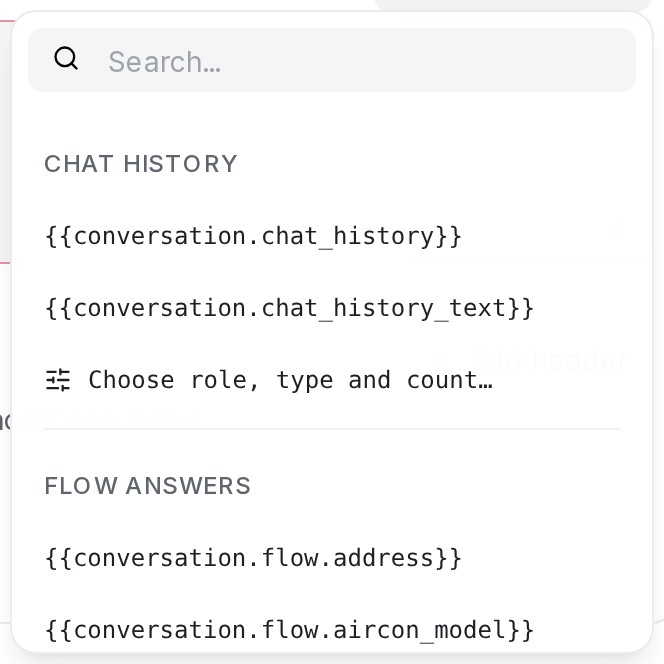{ width="332" }
Times are sent in ISO 8601 format with their timezone offset, for example `2026-09-29T10:02:00+08:00`.
### Sending the chat history
There are two ways to send the chat history. Both run oldest to newest, leave out private notes and activity lines such as assignments, and send the latest 10 messages unless you choose otherwise (see [Choosing which messages to send](#choosing-which-messages-to-send)):
* `{{conversation.chat_history}}` sends the messages as a list. Each message has its `role` (`customer`, `agent` or `bot`), `sender`, `content`, `attachments` and `created_at`. Put it **without** quotes, for example `"history": {{conversation.chat_history}}`.
* `{{conversation.chat_history_text}}` sends the same messages as one block of text, one line per message, such as `[2026-09-29 10:02] Customer (Aisyah): Is the 3-bedroom unit available?`. Put it **inside** quotes. It suits a CRM notes or description field.
If you put `{{conversation.chat_history}}` inside quotes, the editor shows **Chat history is a list: remove its quotes, or use {{conversation.chat_history_text}} for text.** and **Test send** stays off until you fix it.
### Choosing which messages to send
To send only some of the messages, or more than 10, pick **Choose role, type and count…** under **Chat history** in the **Insert variable** menu. A panel opens under the payload box:
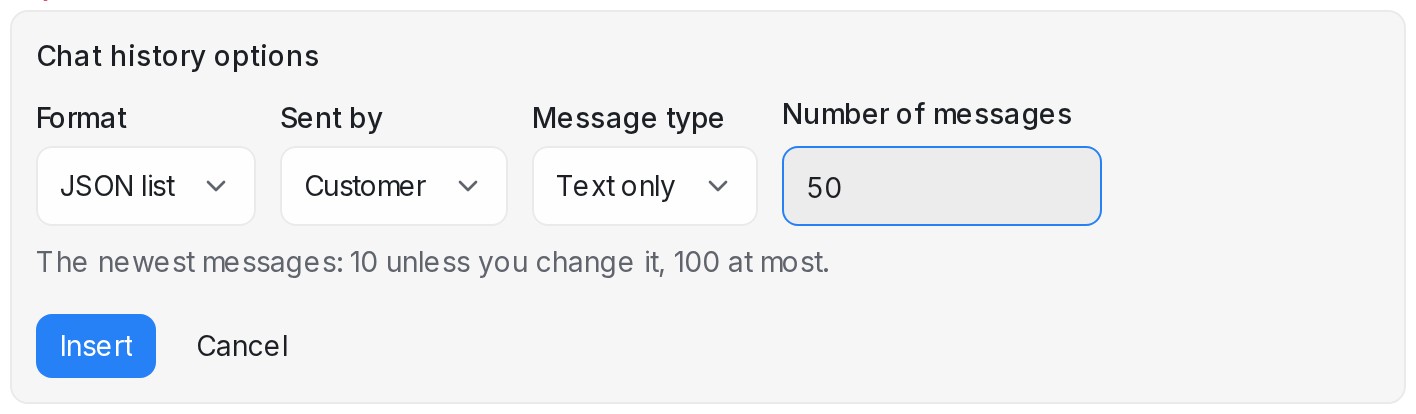{ width="708" }
| Option | What you can pick |
|---|---|
| **Format** | **JSON list** (`{{conversation.chat_history}}`) or **Plain text** (`{{conversation.chat_history_text}}`). |
| **Sent by** | **Everyone**, **Customer**, **Agent** or **Bot**. |
| **Message type** | **All types**, **Text only** (messages without an attachment), **Images**, **Videos**, **Audio**, **Files**, **Locations** or **Contacts**. |
| **Number of messages** | 1 to 100; 10 unless you change it. |
Click **Insert**. The placeholder carries the options you changed, for example `{{conversation.chat_history | role: "customer" | type: "text" | limit: 50}}` sends the customer's latest 50 text messages, oldest first. The count applies after the other choices, so you get 50 customer messages, not 50 messages of which some are the customer's.
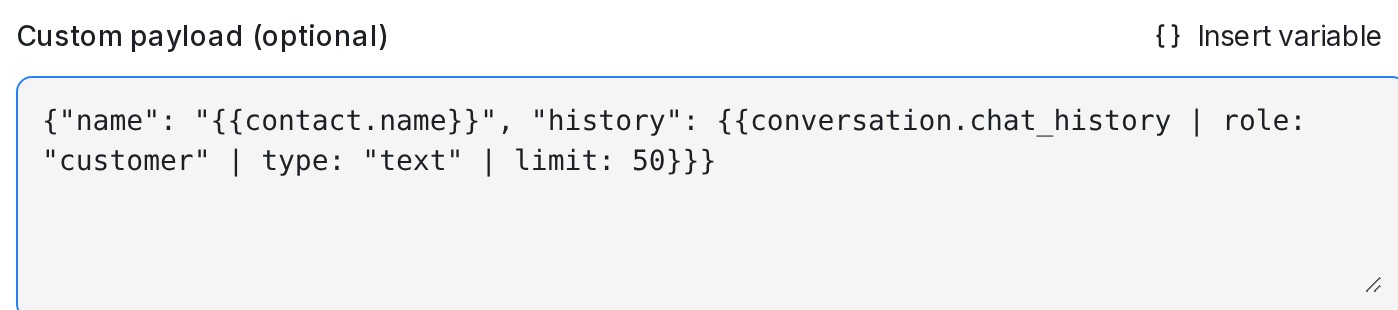{ width="699" }
You can also type or edit the options by hand. If an option is misspelt or has a value the editor doesn't know, **Test send** shows **Check the variable options: …** with the problem and sends nothing. The plain `{{conversation.chat_history}}` and `{{conversation.chat_history_text}}` keep sending the latest 10 messages from everyone.
## When a request fails
If the receiving system doesn't accept a **Send Webhook Event** request from an automation rule, the account's administrators get an email. The first failure starts a 10-minute window, and one email at the end lists every request that failed in it, so an outage of your CRM sends one email, not one per lead.
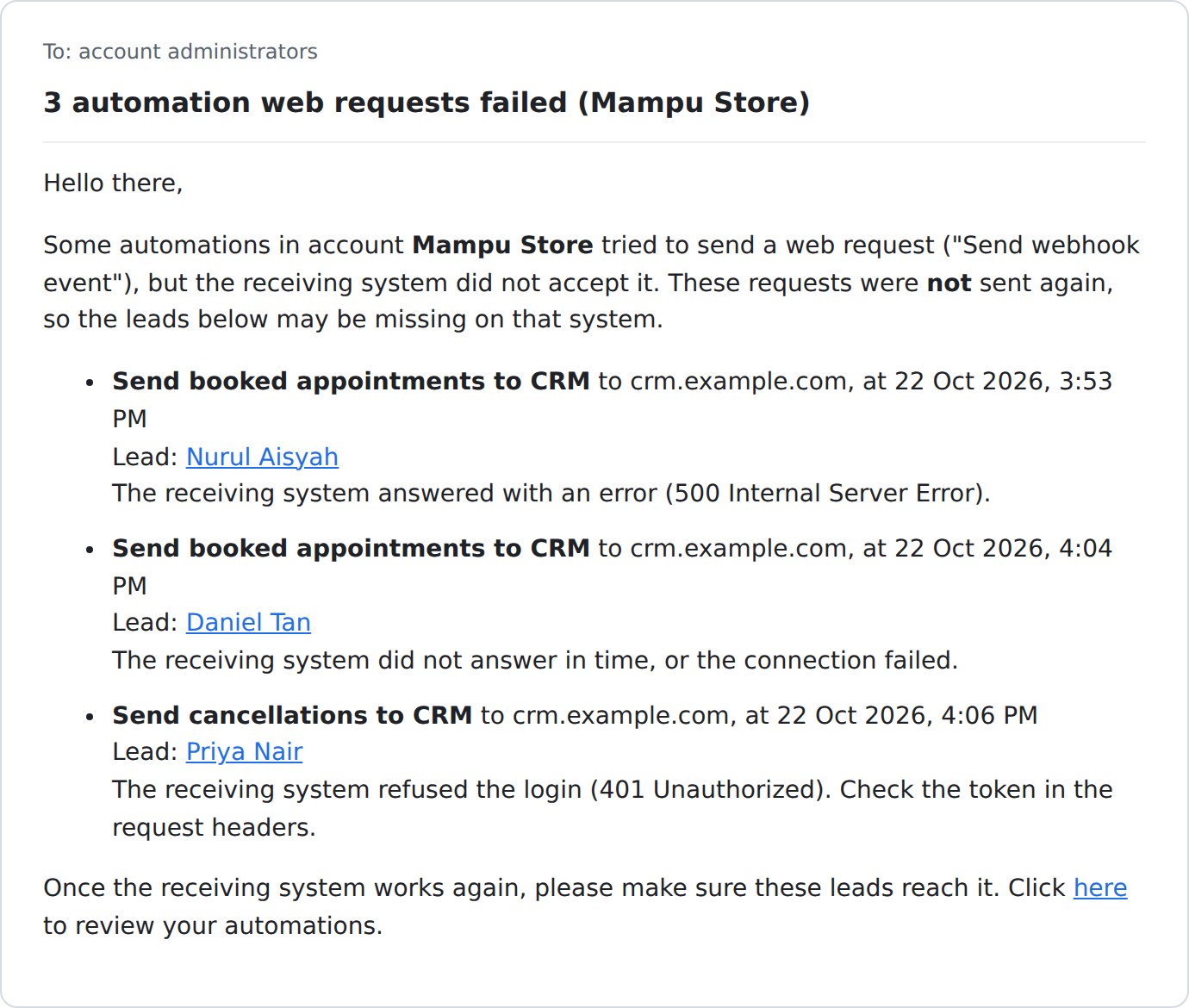{ width="690" }
Each row shows the automation, the site it called, the time, the lead with a link to the chat, and why it failed:
| The email says | What to check |
| --- | --- |
| refused the login | The token or key under **Custom headers (optional)** |
| could not find what was sent | The URL, and whether that record exists on the other system |
| answered with an error | The receiving system itself |
| did not answer in time | Whether the receiving system is up and reachable |
| address is not allowed | The URL |
Failed requests are not sent again, so once the system works, make sure the listed leads reach it. The email lists up to 25 requests and says how many more failed. It covers automation rules, including a Reply SLA's breach automation; **Test send** shows its result on screen instead.
## Related
* [Labels, attributes and automation](/settings/labels-attributes-and-automation)
* [Inbound Webhooks](/settings/inbound-webhooks)
* [Reply SLA](/settings/reply-sla)
* [Connecting Google Sheets](/settings/connecting-google-sheets)
* [Connecting Lark Base](/settings/connecting-lark-base)
---
## Connecting Google Sheets
URL: https://help.mampuai.com/settings/connecting-google-sheets
# Connecting Google Sheets
Send the customer details your AI agent collects — names, phone numbers, requests — straight into a spreadsheet in your own Google Drive.
## Watch the walkthrough
{% embed url="https://youtu.be/lB5iFhQMK3I" %}
## Connect
1. Go to **Settings → Integrations → Google Sheets**.
2. Click **Connect** and sign in with your Google account.
3. A leads spreadsheet is created for you automatically — the page shows **Connected as** your Google email, with an **Open the leads spreadsheet** link.
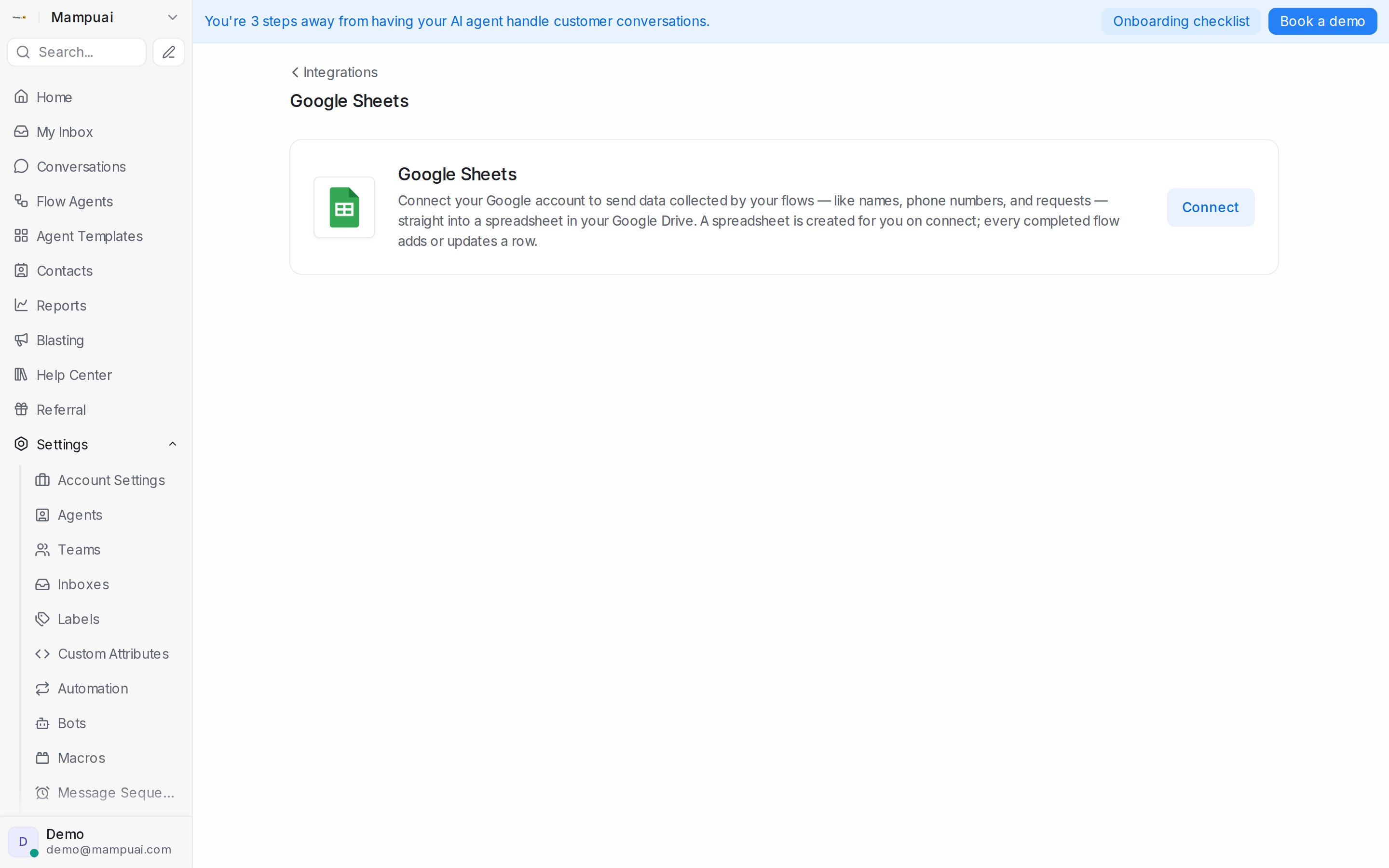
To save leads to a spreadsheet you already have, click **Use an existing spreadsheet** and pick it from your Google Drive.
## How rows land
A customer's row is added as soon as they reach your Flow Agent, and it keeps updating as they answer. If the same customer chats with a flow again later, their row is updated instead of duplicated — so the sheet stays clean enough to work from directly.
The spreadsheet lives in **your** Google Drive: share it with your team, add your own columns, or plug it into any tool that reads Google Sheets.
## Choosing the tab and columns
On the **Google Sheets** integration page you can decide exactly where leads land:
* **Tab** — pick which tab of the spreadsheet new leads are saved to.
* **Column mapping** — choose which sheet column each piece of data lands in (see [What you can send to each column](#what-you-can-send-to-each-column)). Columns are read from your spreadsheet's first row. Click **Add mapping** for each column, then **Save mapping**.
* Without a mapping, the sheet fills automatically: phone, name, status, last update and every collected answer.
* **Match customers by** — pick the sheet column that identifies the customer and the contact detail it holds (phone number or email). Click **Add match condition** to add fallbacks: the first condition that finds a row wins; otherwise a new row is added.
* **Test mapping** — checks your columns against the sheet and writes a test row to your spreadsheet, then removes it again.
## What you can send to each column
Pick any of these as **Data to send** for a column:
* **Contact fields** — Contact name, Contact phone number, Contact email, First chatted at, Contact ID, Company, City and Country.
* **Inbox** — Inbox name, Inbox ID, Channel, and Inbox phone number: the WhatsApp or SMS number the customer messaged. It stays empty for channels without a number, such as Instagram or your website.
* **Assignment** — Assigned agent name, Assigned agent email, Team, and the Flow agent that talked to the customer.
* **Conversation** — Conversation ID, Conversation link (opens the chat in Mampu AI), Status, Priority, Labels, Conversation started at and Last activity at.
* **Contact custom attributes** and **Conversation custom attributes** — every attribute set up under **Settings → Custom Attributes**.
* **Ad source** — Ad / post ID, Ad / post title, Ad / post URL and Ad / post content of the ad the customer last tapped, plus Ad click ID, Latest ad click time and Ad click count. See [Tracking ad clicks](#tracking-ad-clicks).
* **Flow answers** — the answers your Flow Agents collect.
Each customer keeps one row, so the Inbox, Assignment and Conversation columns show their latest conversation.
## Tracking ad clicks
Every tap on a Click-to-Message ad is recorded on the customer's conversation: the tap that opened the chat, a tap on another ad while the chat is still open, and the same ad tapped again later. The **Ad source** columns show the latest tap, and the row updates within about a minute of it.
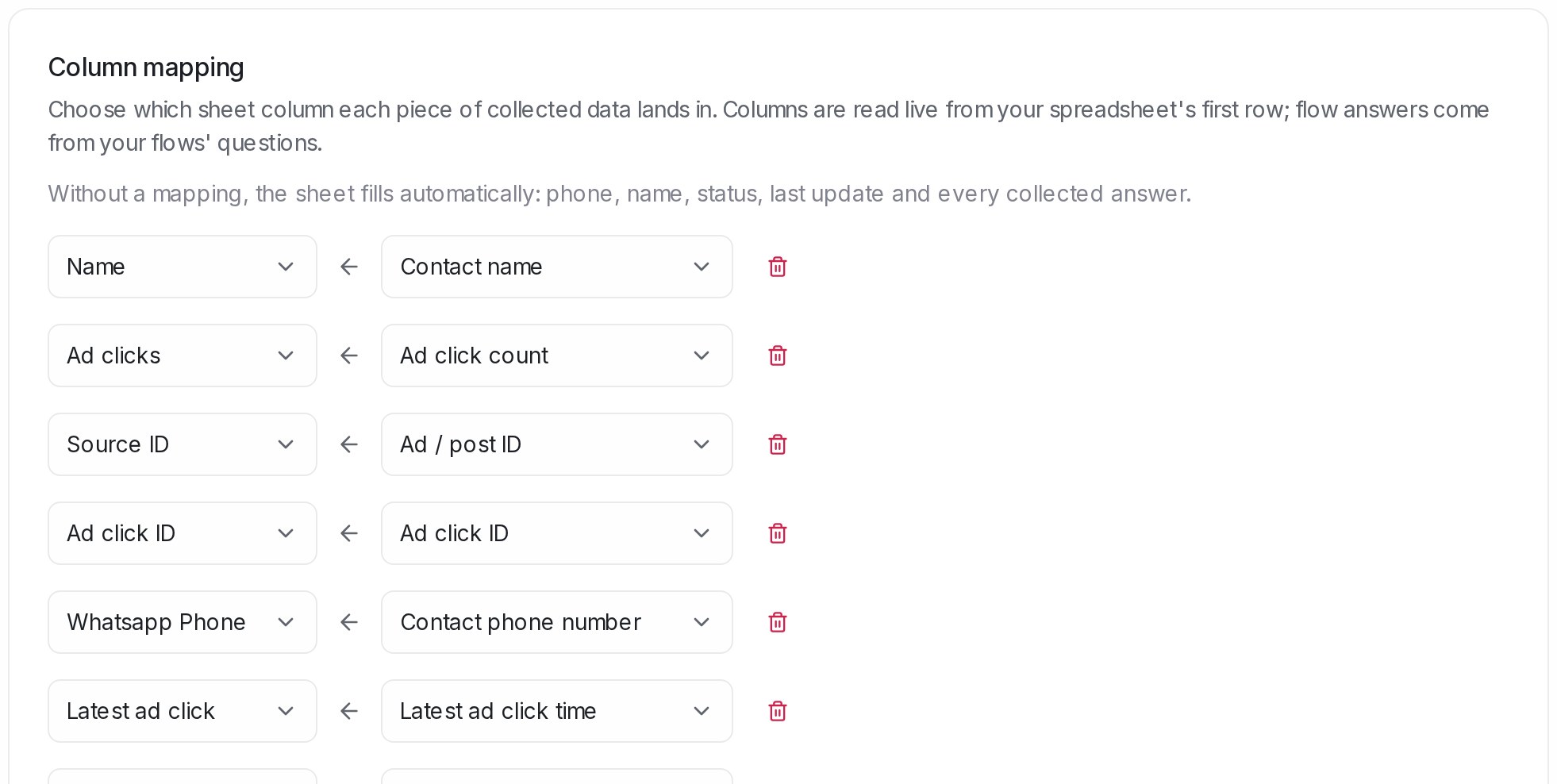{ width="640" }
* **Ad click ID** — the tap's own ID from Meta. Two taps on the same ad have different IDs. Facebook and Instagram ads carry no click ID, so the column stays empty for them.
* **Latest ad click time** — when the latest tap happened, on your company clock.
* **Ad click count** — how many taps the conversation has had.
To count ad leads for a period, map **Latest ad click time** and filter on it: a returning customer who taps again keeps their one row, and the time moves to their latest tap. These three columns change with every tap, so they can't be chosen under **Match customers by**.
## Keeping the agent and team up to date
* When someone assigns the conversation to an agent or a team, or changes either one, the customer's row updates within about a minute. You don't have to wait for the customer's next message.
* When a conversation is unassigned or its team is removed, the columns mapped to **Assigned agent name**, **Assigned agent email** and **Team** are cleared, so the sheet matches what you see in Mampu AI.
* Other empty values never overwrite what's already in your sheet.
* Labels and status refresh whenever the row updates: when the customer answers, when the agent or team changes, or when an automation rule runs **Sync lead to Google Sheets**.
## Per-agent sheets
Under **Per-agent sheets**, give a Flow Agent its own spreadsheet with its own column mapping: choose the **Flow agent**, then **Pick a sheet from Drive** or **Create a new sheet**. Agents without their own sheet keep using the default spreadsheet. Click **Use the default sheet** to switch an agent back — its own sheet stays in your Google Drive.
If you remove the default spreadsheet with **Remove default sheet**, leads only sync where your automation rules or per-agent sheets send them.
## Syncing leads from an automation rule
The **Sync lead to Google Sheets** automation action writes a conversation's lead row at the moment you choose — for example when a conversation is resolved or when a label is added. It's useful for details that arrive after the flow has ended, such as a label your team adds later.
1. Connect Google Sheets as described above.
2. Open **Settings → Automation**, click **Create Automation**, and pick the **Event** and any **Conditions**.
3. Under **Actions**, choose **Sync lead to Google Sheets**.
4. Keep **Integration default sheet**, or switch to **Custom sheet & tab** (see below).
5. Click **Create**.
With **Integration default sheet**, the row goes to the sheet and column mapping set up on the Google Sheets integration page:
* A conversation handled by a Flow Agent updates that customer's existing row, and the agent's own sheet and mapping apply if it has them.
* Conversations your team handled without a Flow Agent sync too: their contact and conversation details go to the default sheet.
## Sending to a custom sheet and tab
Each rule can write to its own spreadsheet, tab and columns, so different rules can feed different sheets you already use.
1. On the **Sync lead to Google Sheets** action, switch to **Custom sheet & tab**.
2. Click **Choose spreadsheet** and pick one from your Google Drive.
3. Select the **Tab**.
4. Map the tab's columns to lead fields. Leave the mapping empty and the standard lead columns are written for you.
5. When you map columns, add a condition under **Match customers by** so each customer's row is found and updated — the rule can't be saved without one.
6. Click **Test mapping** to check it — a test row is written to your spreadsheet and removed again — then save the rule.
## Disconnecting
Click disconnect on the same page to stop new leads from being saved. The spreadsheet itself stays in your Google Drive with everything collected so far.
## Related
* [Labels, attributes and automation](/settings/labels-attributes-and-automation)
* [Integrations overview](/settings/integrations)
* [Connecting Lark Base](/settings/connecting-lark-base)
---
## Connecting Lark Base
URL: https://help.mampuai.com/settings/connecting-lark-base
---
description: Send the answers your Flow Agents collect, plus inbox, agent and conversation details, into your own Lark Base table, with one row per customer that keeps updating.
---
# Connecting Lark Base
Connect a Lark (Feishu) Base table and every customer who reaches your Flow Agent gets a row in it. The row keeps updating as they answer, and you choose which column each detail lands in.
## Connect
1. Go to **Settings → Integrations → Lark Base**.
2. Enter your **Lark App ID** and **Lark App Secret** from your Lark app.
3. Enter the **Base token** and **Table ID**. Both are in your Base's web address: `/base/

.png)