
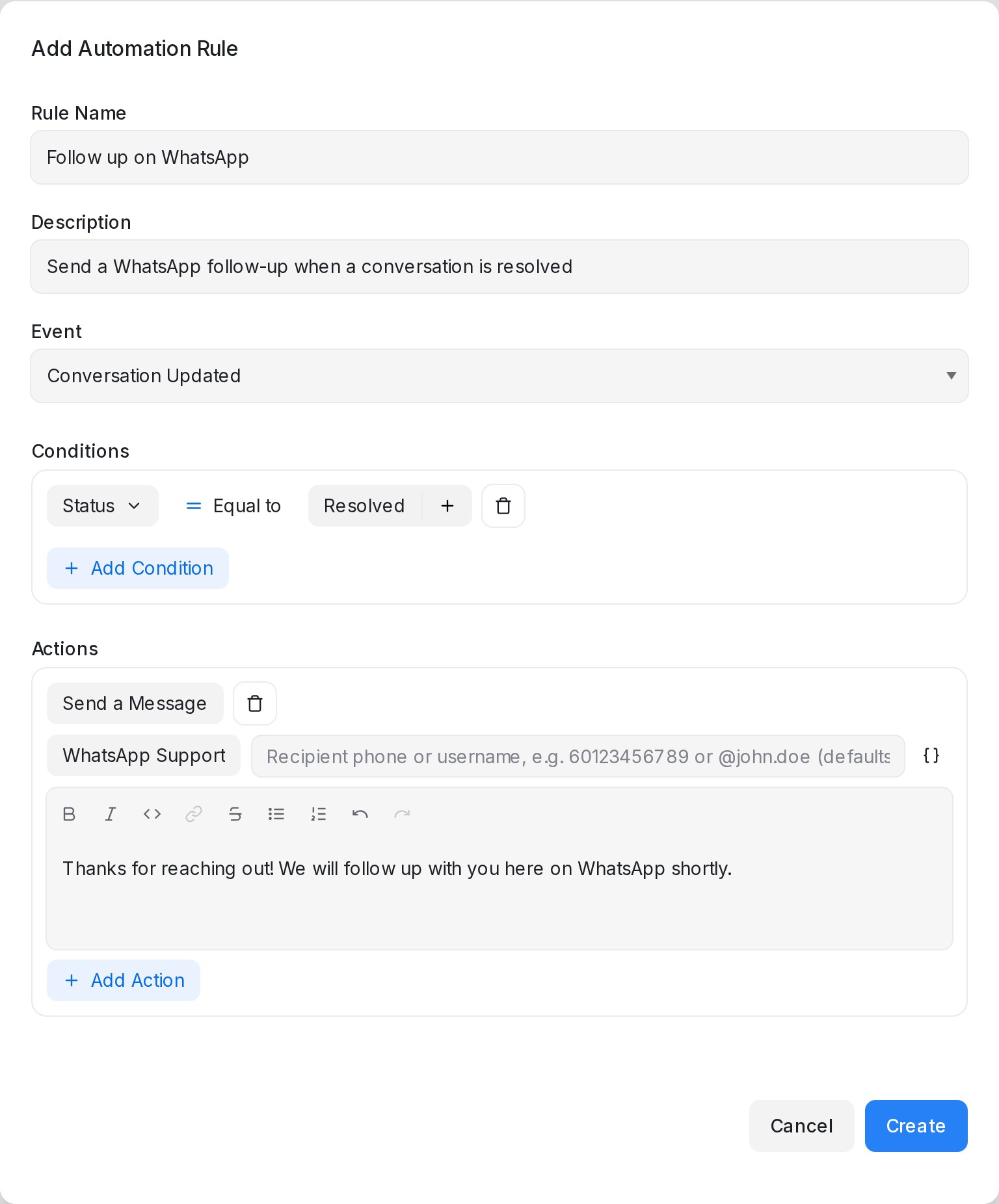
The Send a Message automation action sends a message for you when a rule fires — a thank-you after a conversation resolves, a follow-up when a label is added, or an alert to your own team’s WhatsApp.
By default the message is posted in the same conversation that triggered the rule. Pick an inbox on the action instead, and the message goes out on that channel — even when the conversation started somewhere else. Email, WhatsApp (both Normal WhatsApp and WhatsApp API), and SMS inboxes can all be picked.
Setting it up
- Go to Settings → Automation and create or edit a rule.
- Add the Send a Message action.
- Next to the action, keep Same conversation or choose one of your inboxes.
- Write the message. The editor supports variables, so the message can quote the contact’s details or answers your AI agent collected.
Setting the recipient
When you pick an inbox, a recipient field appears beside it:
- Leave it blank to message the contact the rule fired for, using their saved email address or phone number.
- Type a recipient to send somewhere specific — handy for notifying a teammate. On a WhatsApp inbox, enter a phone number with the country code (like
60123456789) or a WhatsApp username (like@john.doe). On an email inbox, enter the email address. - Insert a variable with the braces button — for example
{{contact.phone_number}}, a custom attribute, or an answer your AI agent collected during the chat.
If the recipient can’t be worked out — for example the field is blank and the contact has no phone number — the action quietly skips, and the rest of the rule still runs.
Email subject, Cc and Bcc
When the inbox you picked is an email inbox, three more fields appear under the recipient: Subject, Cc and Bcc.
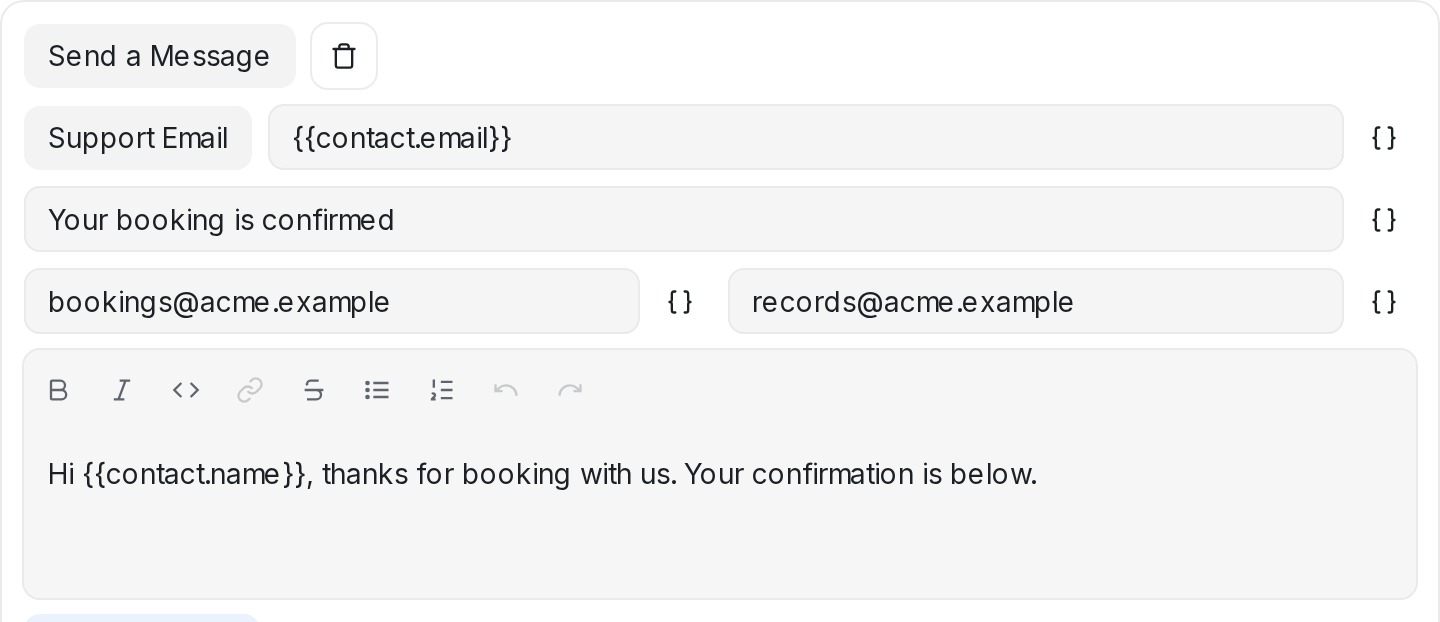
- Subject names the email your contact receives. Leave it empty and the email arrives under a general heading about new messages in the conversation.
- Cc and Bcc copy other people on the send — one address, or several separated by commas. Everyone on the email can see who is in Cc; Bcc stays hidden.
- All three accept variables, so the subject can carry the detail that matters — like
Your booking on {{contact.custom_attribute.booking_date}}— and a copy can go to an address saved on the contact.
The subject also names the conversation the email starts, so replies your team sends in that thread keep it as Re: …, and you can see the subject on the message inside your inbox.
Attaching a file or image
A Send a Message action can carry one file — a brochure, a price list, a photo. Click Upload Attachment under the message editor and pick the file; the ✕ beside the file name removes it again.
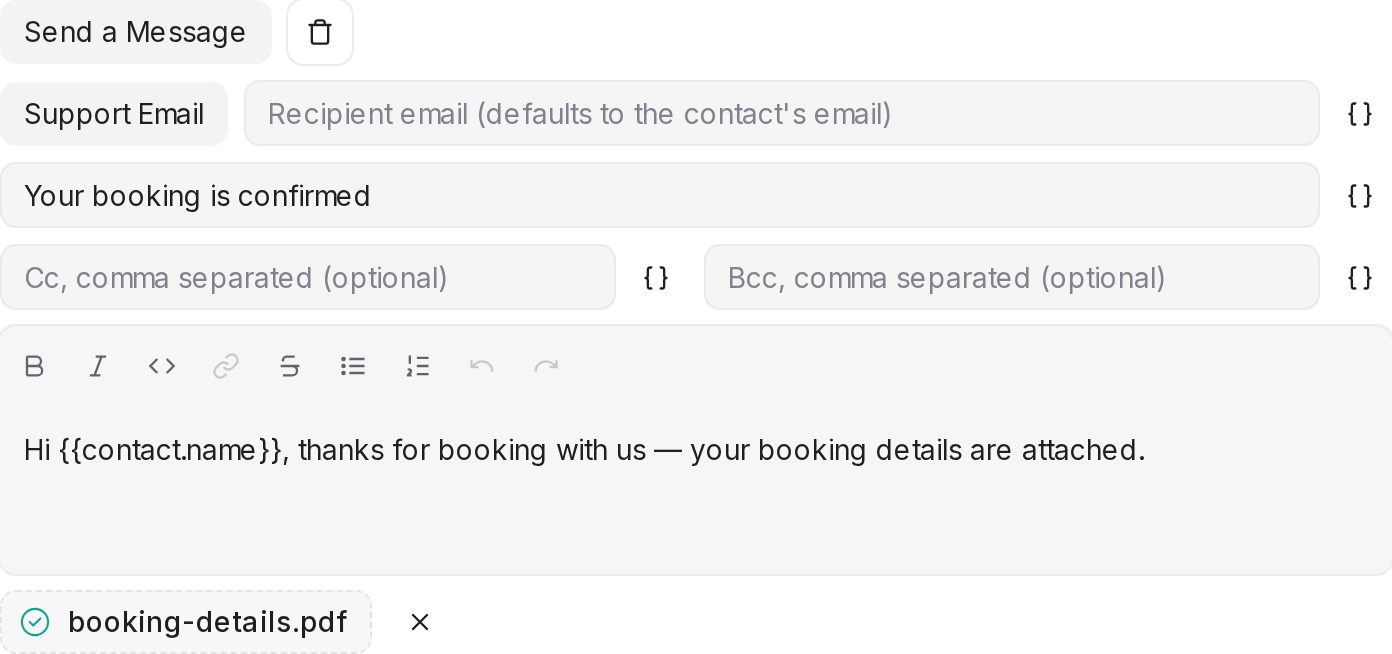
How the file arrives depends on the channel:
- Email — the file is attached to the same email as your message, so the contact receives one email with everything in it.
- WhatsApp and other chat channels — the file is delivered as media, with your message as the caption.
To send several files, add a Send a Message action for each one.
Good to know
- If the recipient already has a conversation on that inbox, the message is added there; otherwise a new conversation is started.
- On WhatsApp API inboxes, messages sent outside the 24-hour customer service window may not be delivered. Normal WhatsApp inboxes don’t have this restriction.
- WhatsApp usernames work for people already in your contacts.
- An address in Cc or Bcc that isn’t a valid email address is left out, so a typo or an empty variable never stops the email from going out.