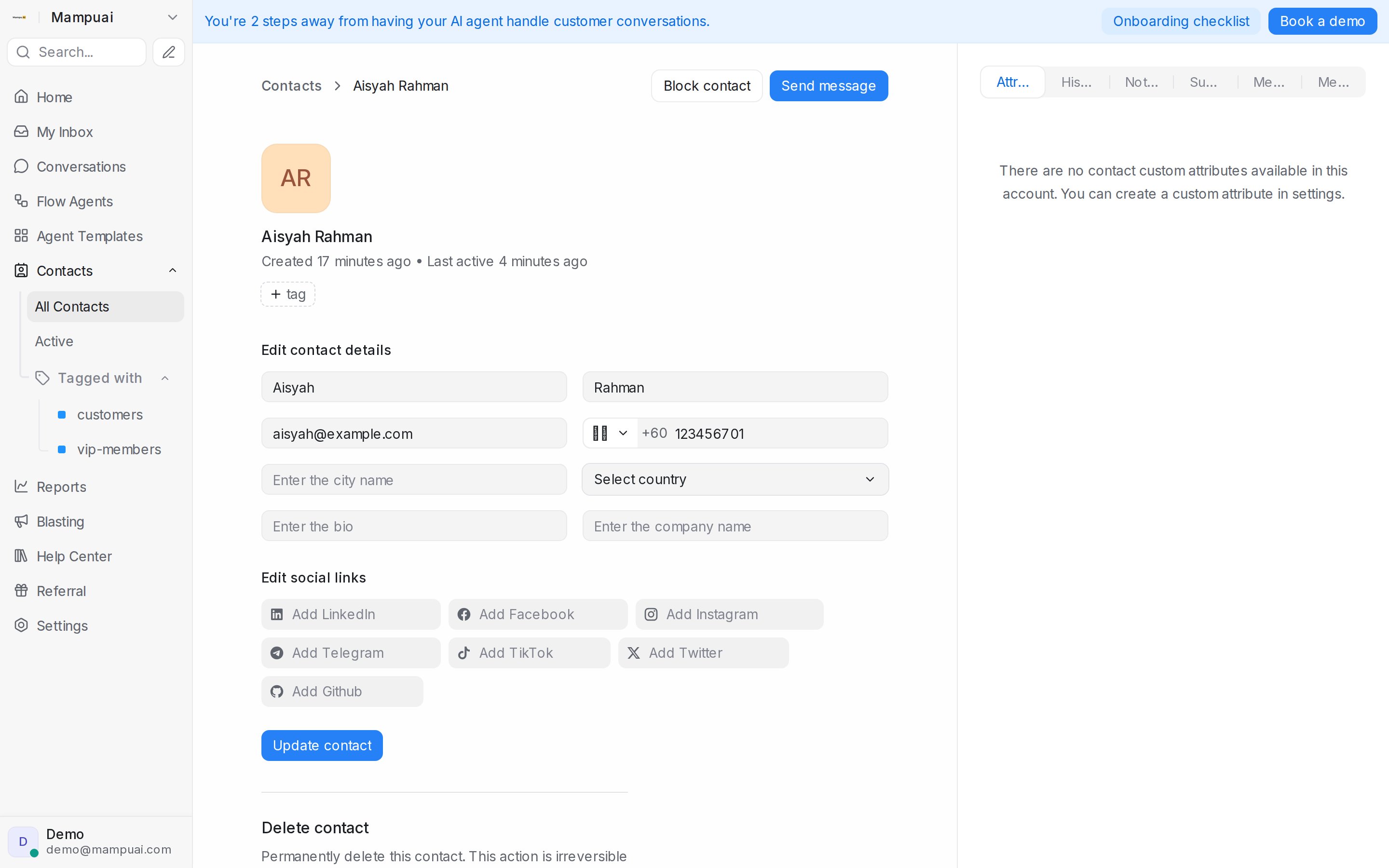
Capture extra context on each contact:
- Custom attributes — store business-specific fields (e.g. plan type, account ID). Define them first under Settings → Custom Attributes.
- Notes — leave internal notes about the contact for your team.
These appear on the contact’s profile and help personalise future conversations.
Showing attributes in their own section
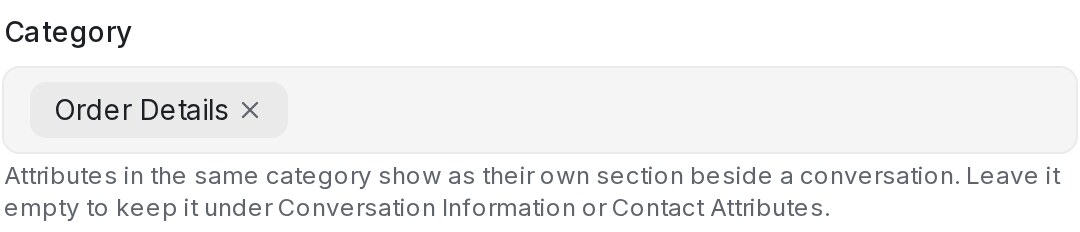
Give attributes a Category in Settings → Custom Attributes and they show as their own section in the panel beside a conversation, such as Order Details. See Grouping attributes into categories.
Approving an email or phone the AI found
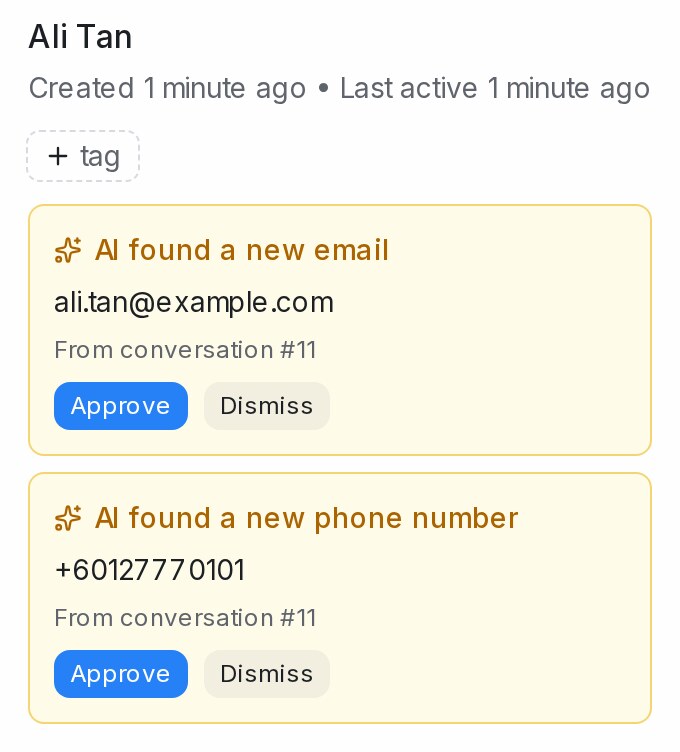
When AI is on for Email or Phone number (see Labels, attributes and automation), a new value the customer gave in the chat waits on the contact panel of the conversation instead of being saved.
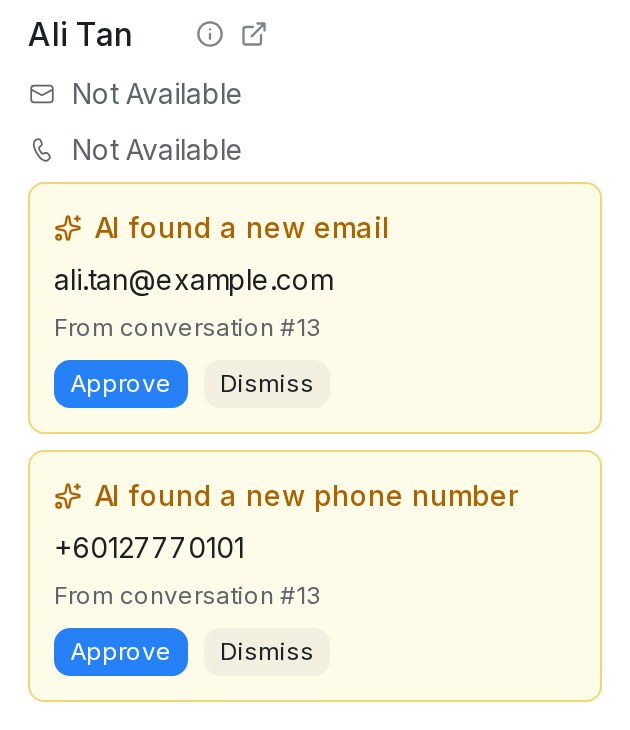
- Approve saves it to the contact.
- Dismiss drops it; the same value is not suggested again.
- Editing the email or phone yourself clears the card.
A private note in the conversation lists what was found and mentions the assigned agent, so they get a notification. When the conversation is assigned later, the new assignee is mentioned once too.
Spotting a waiting suggestion
In the conversation list, a sparkle next to the assignee marks a conversation whose contact has an email or phone waiting, so you can see it without opening the chat.

The same card shows on the contact’s page under Contacts, so you can approve or dismiss it there too.
When another contact already has it
Each email and phone number belongs to one contact. When the value already sits on another contact, the card says Already used by that contact and offers Review merge instead of Approve. It opens the merge screen with that contact already picked as the one to keep (the Primary contact); nothing is merged until you confirm. If that contact is later deleted, merged away or changes its email or phone, the card offers Approve again.
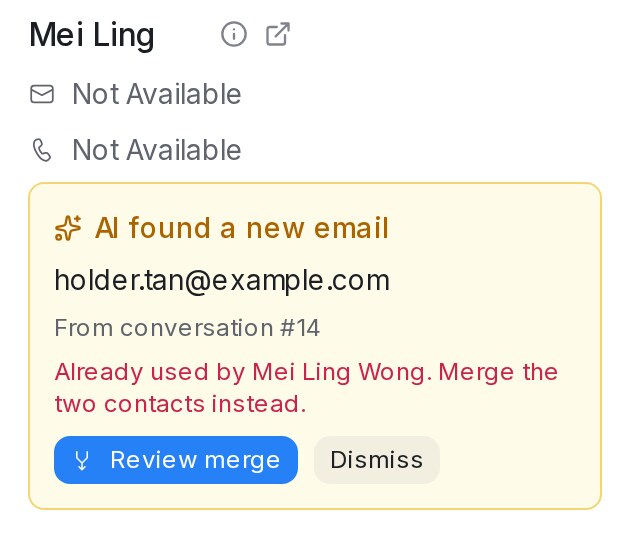
If the other contact is in an inbox you’re not a member of, the card says you can’t open it and asks you to have an administrator merge the two contacts.