
Inbound webhooks let outside tools trigger actions in your account. A webhook receives signed events from an external service (such as a booking tool like Cal.com), matches the payload to a contact, and runs the actions you choose on their conversation — send a message, apply a message sequence, assign it, add labels, and more.
A typical use: a customer books a meeting in your scheduling tool → the webhook fires → the contact instantly gets a confirmation message on WhatsApp and a reminder sequence is scheduled before the meeting.
Watch the walkthrough
Setting one up
- Go to Settings → Inbound Webhooks and click Add inbound webhook.
- Pick the provider (or Generic for any tool that can send JSON) and the Target inbox, then map the incoming data to the contact (see below).
- Choose the actions to run when an event arrives.
- Copy the webhook URL into the external tool, and enable it.
Each webhook can be enabled or disabled at any time, and the list shows the provider and status of each one.
The actions work exactly as they do in Automation — including the inbox picker, the recipient, the email subject, Cc and Bcc fields, and a file attachment on a Send a Message action. A Send a Message action can also quote values from the event, so the message says what the external tool sent (see below).
Mapping the incoming data
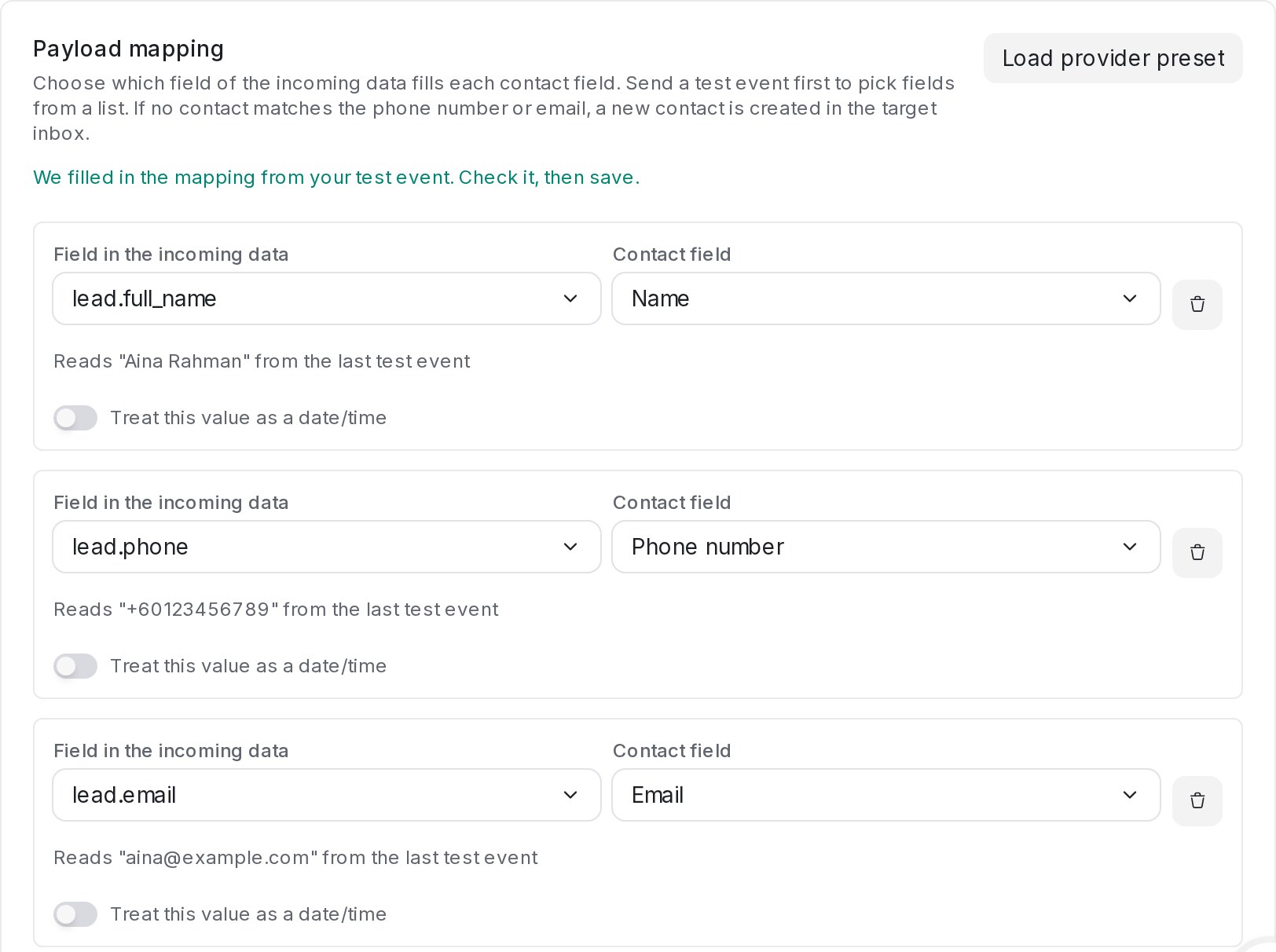
Each row under Payload mapping takes one field of the incoming data and puts it on a contact field: Name, Phone number, Email, Identifier, Contact ID in the target inbox, WhatsApp username or a custom attribute. Which contact an event belongs to is set under Find the contact (see below).
- Save the webhook, click Listen for test event, and send one test from your tool.
- If the mapping is still empty, the editor fills it in for fields named like a name, phone or email. Check it, then save.
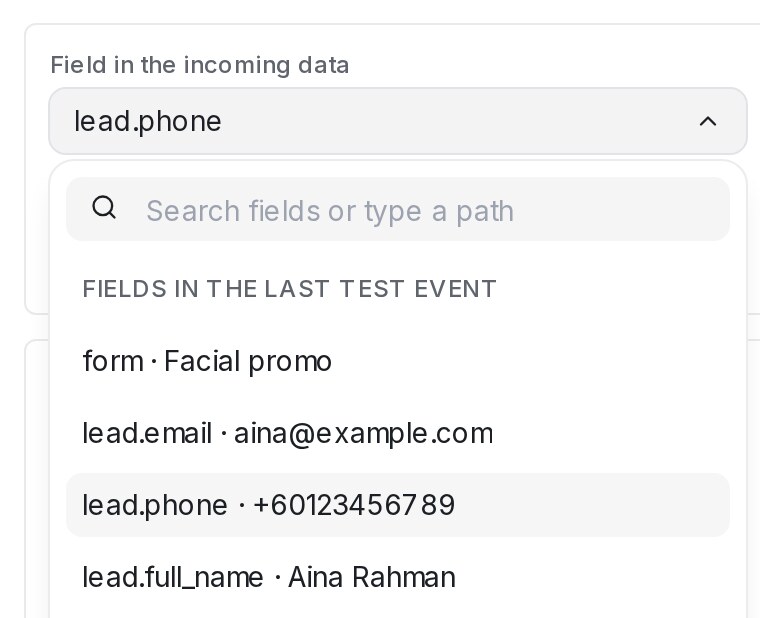
- To pick a field yourself, open Field in the incoming data. It lists every field of the last test event with its value, and you can still type a path such as
customer.phone.
When a mapped field arrives empty (an empty text or null), the custom attribute on that row is cleared, so an old value doesn’t stay on the contact. For example, a delivery tool that sends "tracking_no": "" for a trip with no tracking number yet clears the previous tracking number. If the field is not sent at all, the attribute keeps its value. Name, Phone number and Email are never cleared by an empty value.
Checking each mapping row
Under each row the editor shows what it reads from the last test event, for example Reads “+60123456789” from the last test event.
Nothing found at this path in the last test event means the path is wrong. Fields start at the top of the data, so a tool that sends {"phone": "…"} needs phone, not payload.phone.
A WhatsApp or SMS inbox reaches a contact by phone number, and an email inbox by email. If no row finds one, the editor shows a warning, because those events will be skipped.
Choosing how the contact is found
In Find the contact, above Payload mapping, list the details that match an event to a contact. The first one that finds a contact wins.
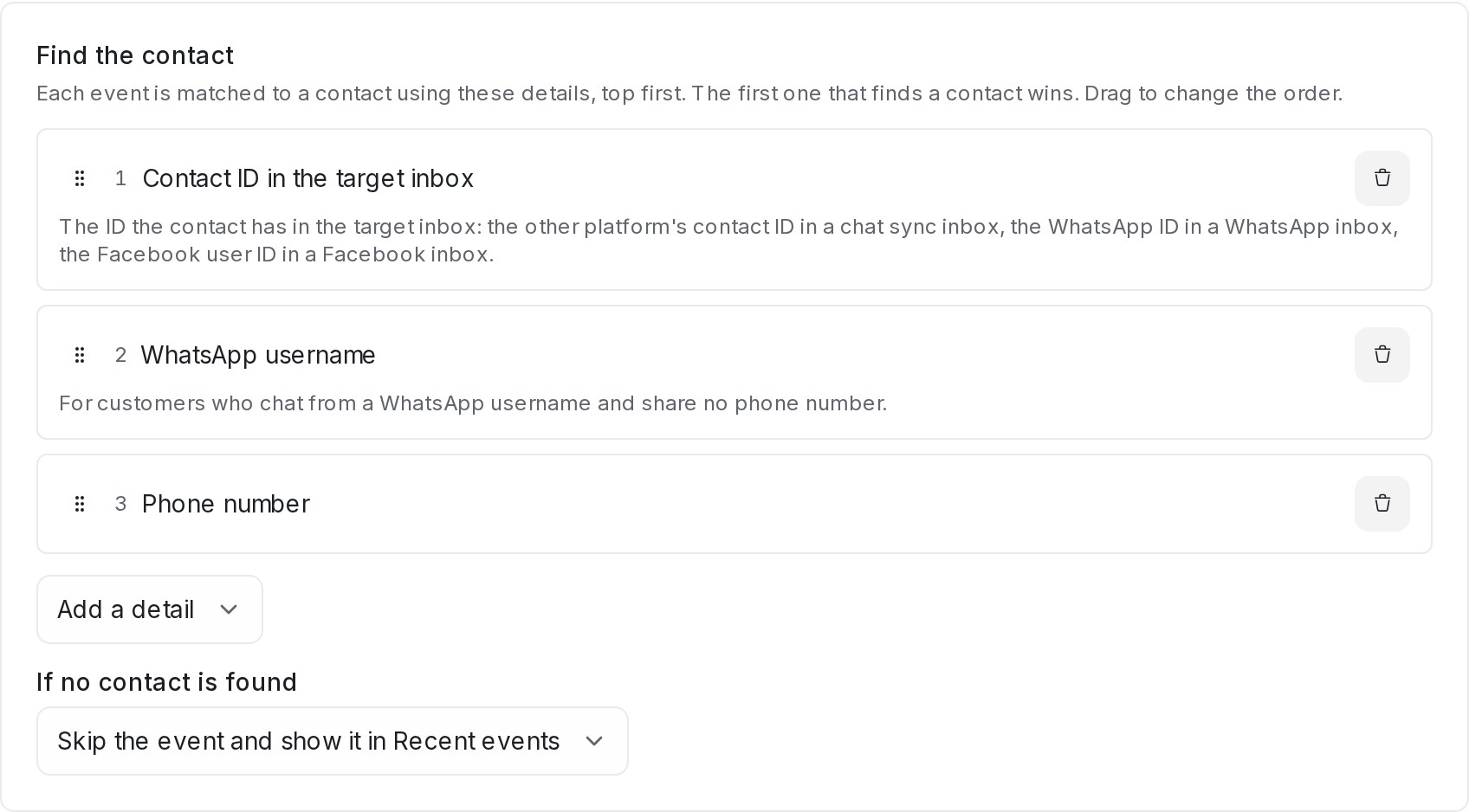
- Add details with Add a detail, remove them with the bin, and drag them into order.
- Map a field to each detail under Payload mapping. An unmapped detail shows a warning.
- Under If no contact is found, choose Create a new contact or Skip the event and show it in Recent events.
| Detail | Finds the contact by |
|---|---|
| Contact ID in the target inbox | Their ID in the Target inbox only, such as a WhatsApp ID or the other platform’s ID in a chat sync inbox |
| WhatsApp username | Their WhatsApp username, for customers with no phone number |
| Phone number, Email, Identifier | The same field on the contact |
A new webhook starts with Identifier, Email and Phone number, and creates a contact when none is found. A contact created with a Contact ID in the target inbox keeps that ID, so later events and chats with it reach the same contact.
On a chat sync inbox, the actions run on the contact’s latest synced chat. A closed chat stays closed and no empty chat is started.
Using values from the event in a message
- Send one test event first (Listen for test event), so there are fields to pick from.
- In a Send a Message action, type
{{in the message box. - The list starts with the fields of the last received event, each with its value, for example From the last received event: Dinding. The usual contact and conversation fields follow.
- Pick a field. It goes into the message in the form that works.
| The field | What goes into the message |
|---|---|
| A plain name | {{payload.Location}} |
| A name with spaces or symbols | {{payload['Filter Q2']}} |
| An item in a list, counting from 0 | {{payload.answers[0].a}} |
On an Official WhatsApp API inbox, add an approved template with Add WhatsApp template for closed window. Its variables can use the same {{payload...}} values. A new lead who has never messaged your number is always outside the 24-hour window, so the template is what they receive.
Note: Event values work only in Send a Message. Private notes, team emails, outgoing webhooks, message sequences and automation rules run without the event. To use a value there, map it to a contact custom attribute and use {{contact.custom_attribute.<key>}}.
Checking what happened to each event
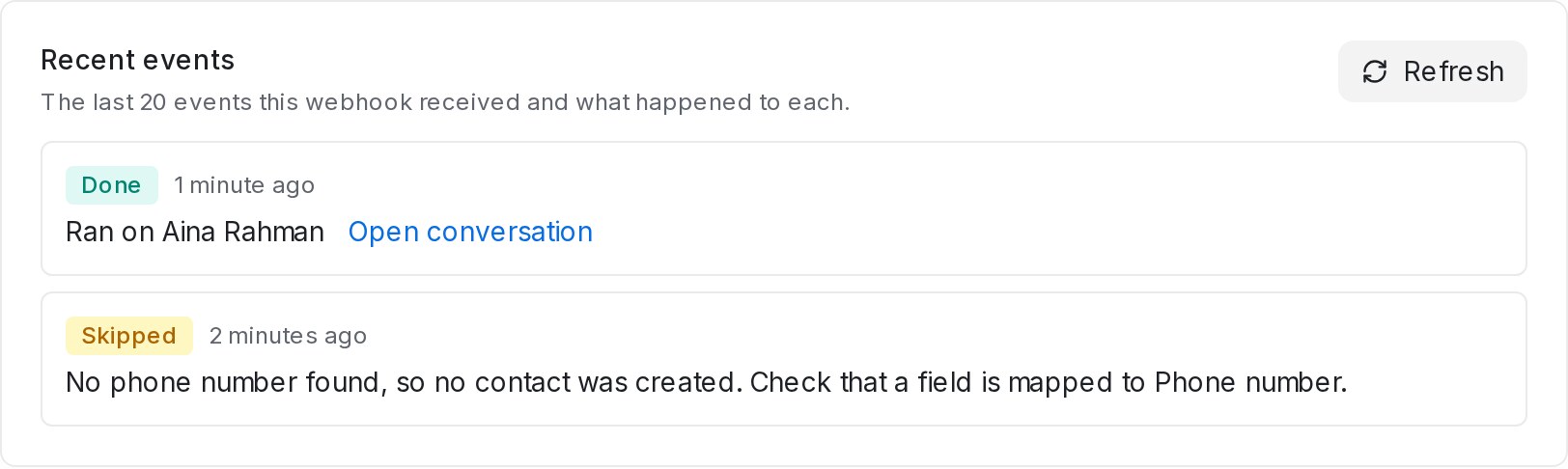
Recent events lists the last 20 events and what happened to each. Click Refresh after sending one.
| Result | What it means |
|---|---|
| Done | The contact was found or created and the actions ran. Open conversation opens the chat. If an action failed, its name is listed under the event. |
| Skipped | Nothing was created. The line says why: no phone number or email found, a phone number that isn’t valid (send it with the country code, such as +60123456789), no target inbox, the webhook was switched off, no contact matched (when the webhook is set to skip), or the event had none of the details used to find the contact. |
| Ignored | The event is a kind this webhook doesn’t use, such as a Cal.com event that is not a booking, reschedule or cancellation. |
| Failed | Something went wrong on our side, and our team is notified. |
Frequently asked questions
Why does the contact still show an old value?
Your tool probably left the field out instead of sending it empty. A field that is not sent leaves the attribute as it is; send it as an empty text to clear it.
Why is a payload value blank in my message sequence or automation rule?
Those run without the event. Map the value to a contact custom attribute, then use {{contact.custom_attribute.<key>}} in the sequence or rule.
Why is the list empty when I type {{?
The list shows the fields of the last received event. Send a test event first, then type {{ again.