
Settings → WhatsApp Templates gathers the message templates of every WhatsApp API number in your account. Templates created on any number appear here with a friendly name for your team; a draft can be applied to any of your numbers, and a template that is already approved on one number can be copied to the others.
Templates apply to Official WhatsApp API numbers only. Writing a template from scratch, categories, variables and approval are covered in Creating WhatsApp message templates.
What you see
One row per template, with its language, category and a chip for each number that carries it: Approved, In review, Rejected, Queued while a change is on its way, or Failed with the reason underneath. Sync from Meta refreshes every number at once.
Friendly names are for your team only. They show on the inbox Templates tab, in the blasting form and in the template picker, in place of the technical name Meta uses.
The template’s picture or file
A template with an image, video or document at the top keeps that file in the library. Whenever someone on your team picks the template, in a conversation reply, a new conversation, a blast or a message-sequence step, the file is already attached, with a small preview, the file name and the note From the template library, so you can see what the customer will receive.
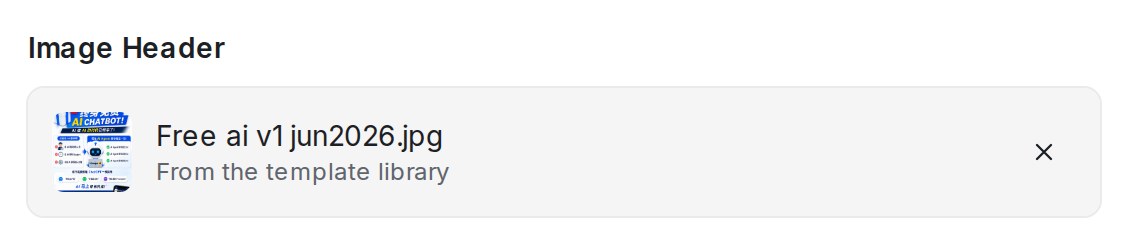
- Want to send a different file this once? Click the × on the file, then upload another or paste a link. The template itself does not change.
- To change the file for every future send, edit the template and upload a new example under Header. WhatsApp reviews the change like any other edit.
- A template that has no file in the library yet picks up the example it was approved with at the next sync.
- A file over WhatsApp’s size limit (5 MB for an image) shows in red with the reason, and the message cannot be sent until you replace it. See Picture and file size limits.
Applying a template to more numbers
Click the send icon on a row and tick the numbers that should have it. A number that already has an approved copy of the same template hands it over so the copy arrives approved at once; otherwise the template is submitted to Meta for review on that number. Each number’s chip shows the outcome.
Editing a template that is already live
Click the pen icon on any row. On a template that is live on a number, the Meta name, language and category are locked — WhatsApp does not allow those to change — while the friendly name and the content stay editable.
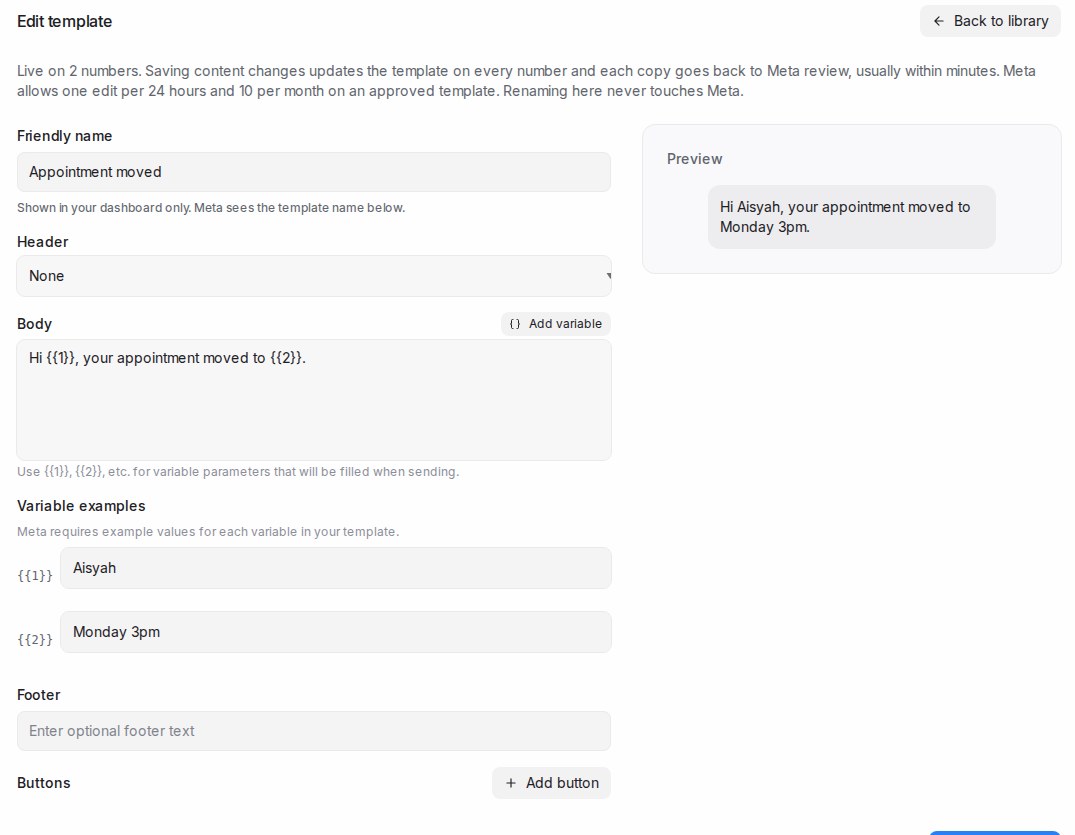
Change the header, body, footer or buttons and click Save changes:
- The new content is sent to every number that carries the template. Each number shows Queued, then In review until WhatsApp approves the edit, usually within minutes.
- Renaming only the friendly name changes nothing on WhatsApp.
WhatsApp’s own rules apply: only approved, rejected or paused templates can be edited, and an approved template at most once every 24 hours and 10 times in 30 days.
When a number refuses the update
If WhatsApp refuses the edit on a number, that number’s chip turns Failed and the reason appears under it.
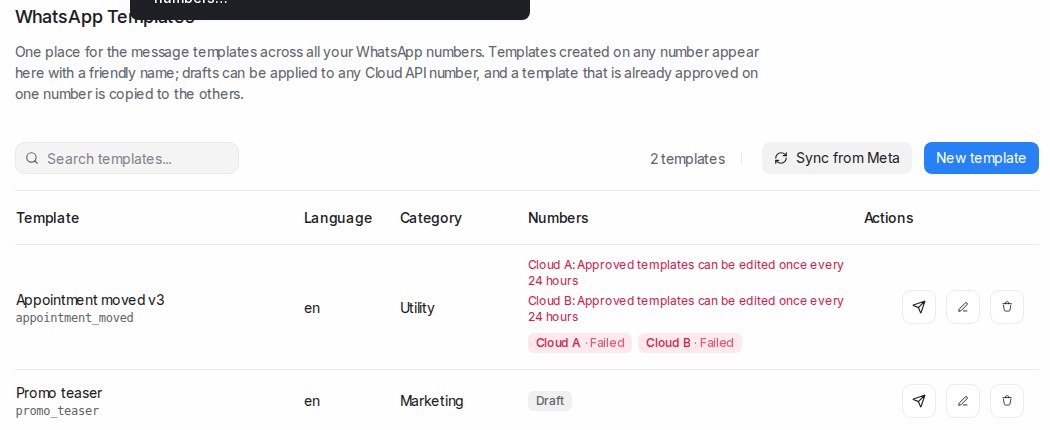
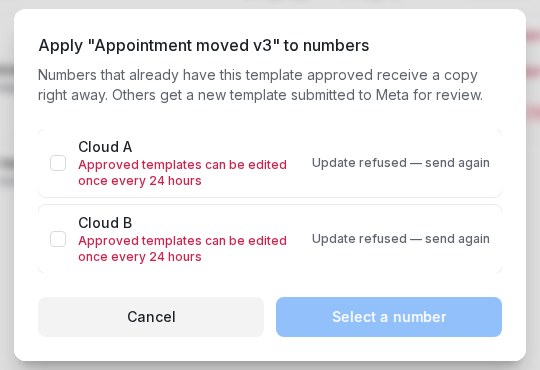
To try again, click the send icon: the refused numbers are listed with Update refused — send again. Tick the ones to resend and confirm.
Replying automatically when a button is pressed
A template’s Quick Reply buttons can answer the customer on their own. Set the reply once in the library, and it goes out the moment a customer presses that button on a message sent with the template — from a blasting or anywhere else.
- Click the pen icon on a template with Quick Reply buttons.
- Under When pressed for each button, choose Do nothing or Reply with a message, and write the reply. Type
{{to insert a contact field, such as the customer’s name. - Click Save changes.
Changing only a button’s reply does not send the template back to WhatsApp for review.
When you create a WhatsApp blasting with the template, its replies appear under Button replies, filled in from the library. Change a reply for this blasting only, or leave it empty to send nothing for that button. A blasting keeps its own copy of the replies, so later edits in the library never change a blasting that is already scheduled or sent.
When a customer presses the button, the reply goes out straight away, and the Flow Agent, agent bots and automation rules stay quiet for that press, so the customer never gets two answers.
If a press can’t be matched to the template message it came from, nothing is sent automatically. Instead, a private note in the conversation tells your team which button was pressed, and administrators get an email — at most one per number per day.
Removing a template from the library
Remove deletes the row from the library only. Copies stay on your WhatsApp numbers and reappear in the library after the next sync.