
Once your Facebook Page is connected, a Flow Agent can answer Messenger conversations for you — day and night, in the customer’s own language. This guide assigns an agent to the Facebook inbox and publishes it.
Watch the walkthrough
Before you start
- A connected Facebook inbox — see Connecting a Facebook inbox.
- A Flow Agent you have already built — see Creating a Flow Agent.
1. Open the agent
Go to Flow Agents → Agents and open the agent you want on Facebook. The designer opens with the Designer, Playground and History tabs, and the Settings, Inboxes and Publish buttons in the header.
2. Assign the Facebook inbox
Click Inboxes in the header. In the Assign Inboxes window, tick your Facebook inbox and click Save.
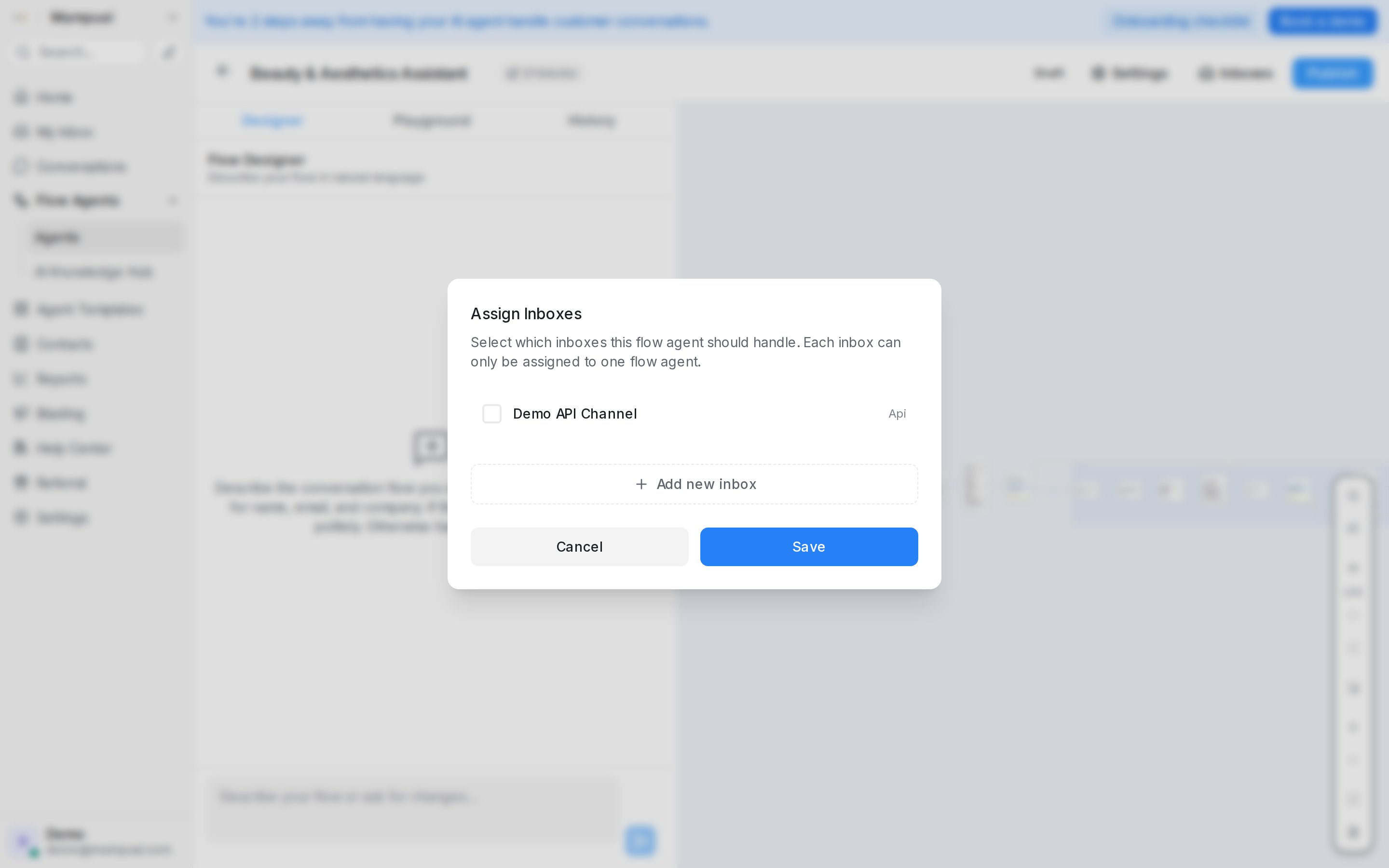
Each inbox can only be assigned to one Flow Agent. If your Facebook inbox is already handled by another agent, untick it there first — otherwise it won’t be available here.
3. Publish the agent
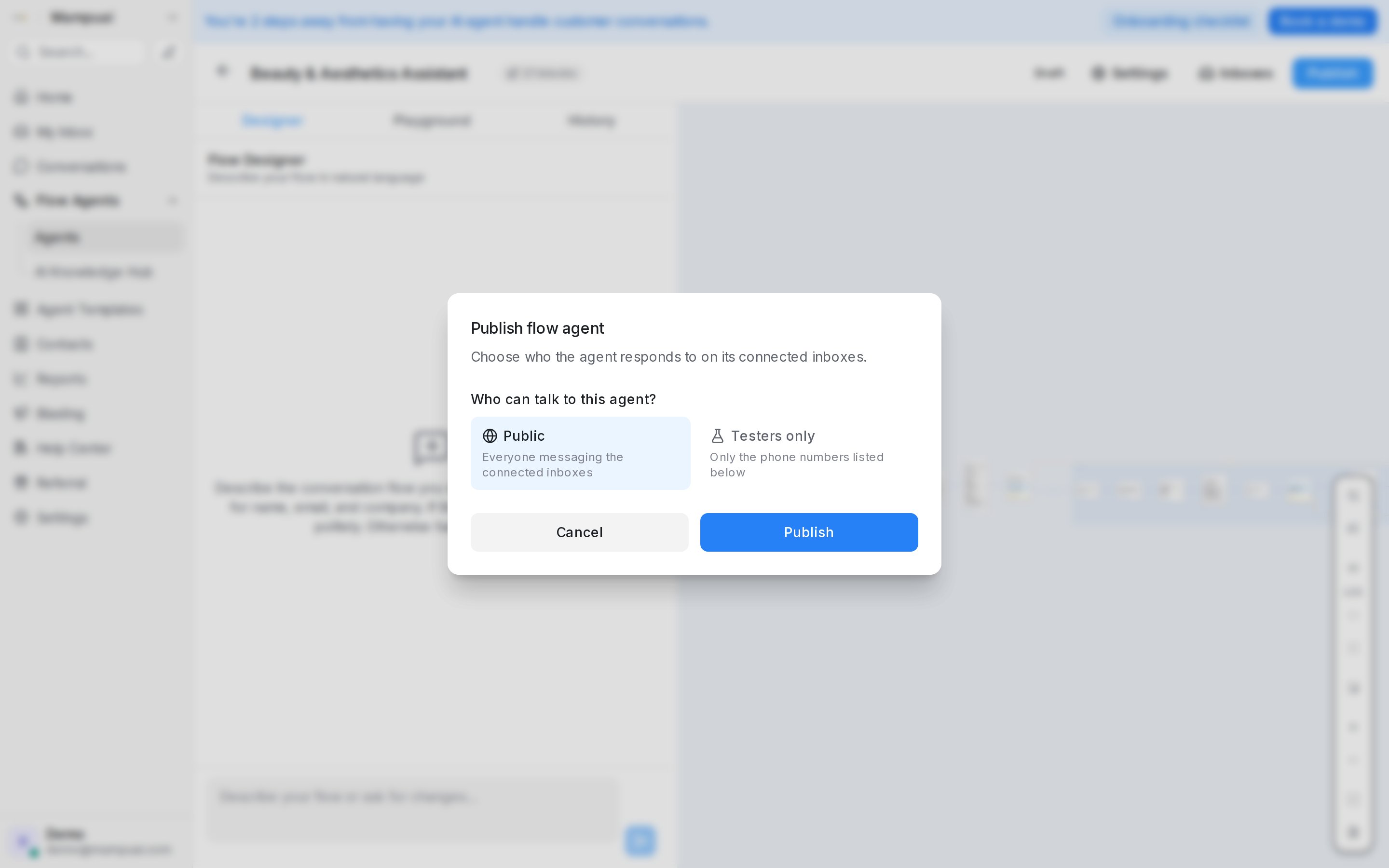
Assigning the inbox is not enough on its own: the agent only starts replying once it is published. Click Publish and choose who it responds to:
- Public — everyone messaging the connected inboxes.
- Testers only — only the phone numbers you list, so you can trial the agent on the live Page before opening it to customers.
4. Test it
Open your Facebook Page and send it a message as a customer would, or scan the QR code shown when the inbox was created. The agent should reply in Messenger, and the conversation appears in your Facebook inbox in Mampu AI.
While testing, the Playground tab lets you chat with the agent without involving Facebook at all — useful for checking the flow itself before you publish.
How this works with comments
If you use Facebook Comment Replies, the two features fit together:
- A comment matches your rule, and Mampu AI sends the commenter a private message.
- With Reply with Flow Agent turned on in the rule, the agent writes that private message instead of a fixed text — it sees the post and the comment, then carries the conversation on in the private thread.
That toggle only works once an agent is assigned to the inbox and published, which is what this guide sets up.
Fine-tuning how the agent behaves
Per inbox, you can also decide when the agent should stay quiet:
- Pause when a human replies — when a teammate answers, the agent steps back instead of talking over them.
- Don’t reply to these labels — the agent skips conversations or contacts tagged with the labels you pick, so complaints and VIPs stay human-handled.
- Only reply to specific ads — limit the agent to chats that started from particular Meta ad IDs.
For the agent’s own conversation behaviour — how long it pauses after a handoff, whether it keeps answering FAQs after the flow ends, and the reply delay — see Testing and connecting an agent.