
Audit Logs keep a record of the changes made in your workspace: who signed in, who changed a setting, an inbox, a team or a flow agent, and who deleted a conversation or exported contacts. Use it when something changed and you need to know who did it and when. Only administrators can open it.
Reading the list
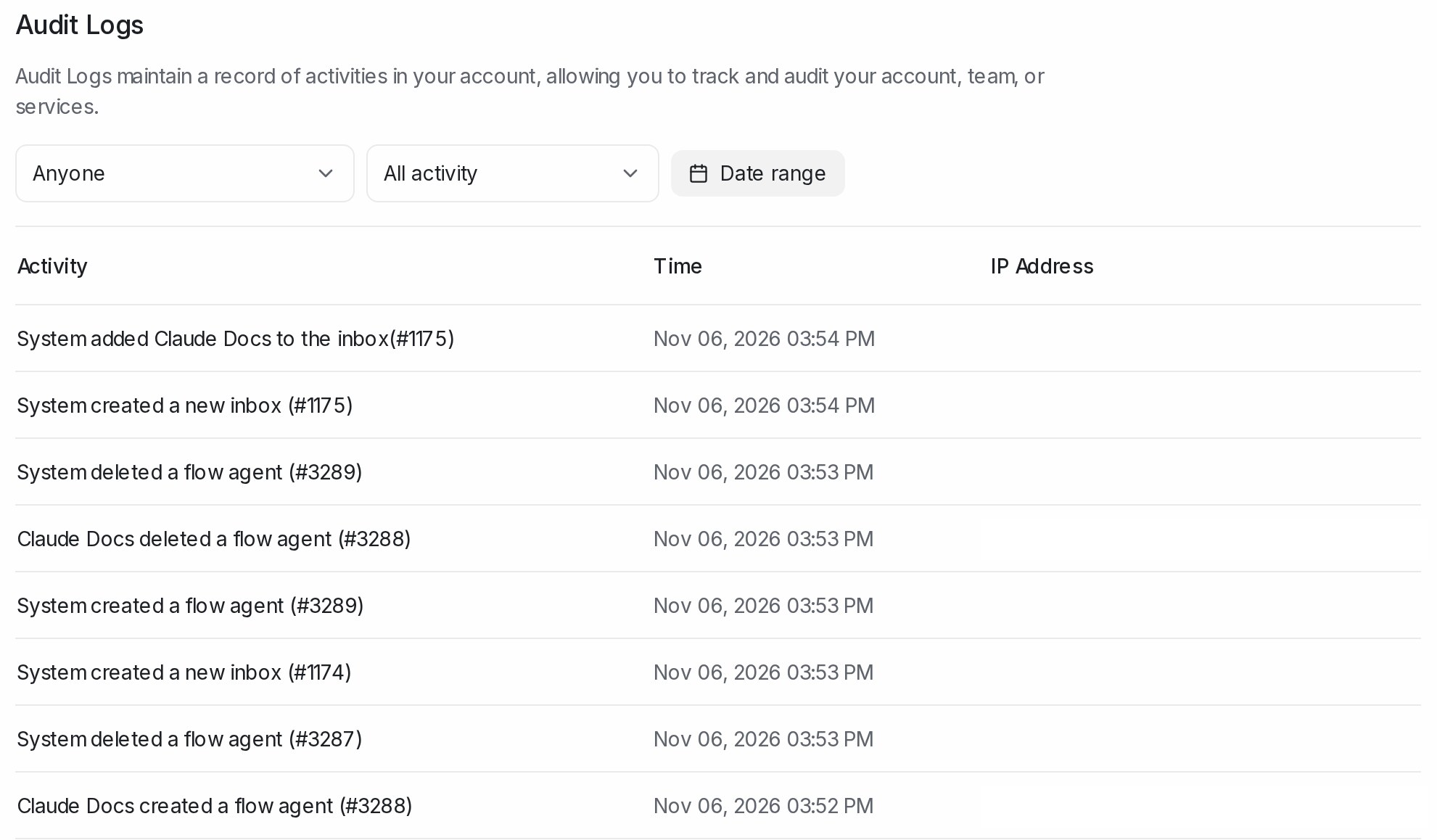
Open Settings → Audit Logs. The newest activity is at the top.
| Column | What it shows |
|---|---|
| Activity | One sentence: who did what, with the record’s number, for example “Sara created a flow agent”, followed by the record’s number. |
| Time | When it happened, on your workspace’s clock. |
| IP Address | The address the person was signed in from. |
System in place of a name means no signed-in teammate made the change, so the row has no IP address. A teammate who has since been removed shows as a number instead of a name.
A contact export row also shows which contacts were exported (all contacts, or the label or filter used) and the columns in the file.
Finding one change
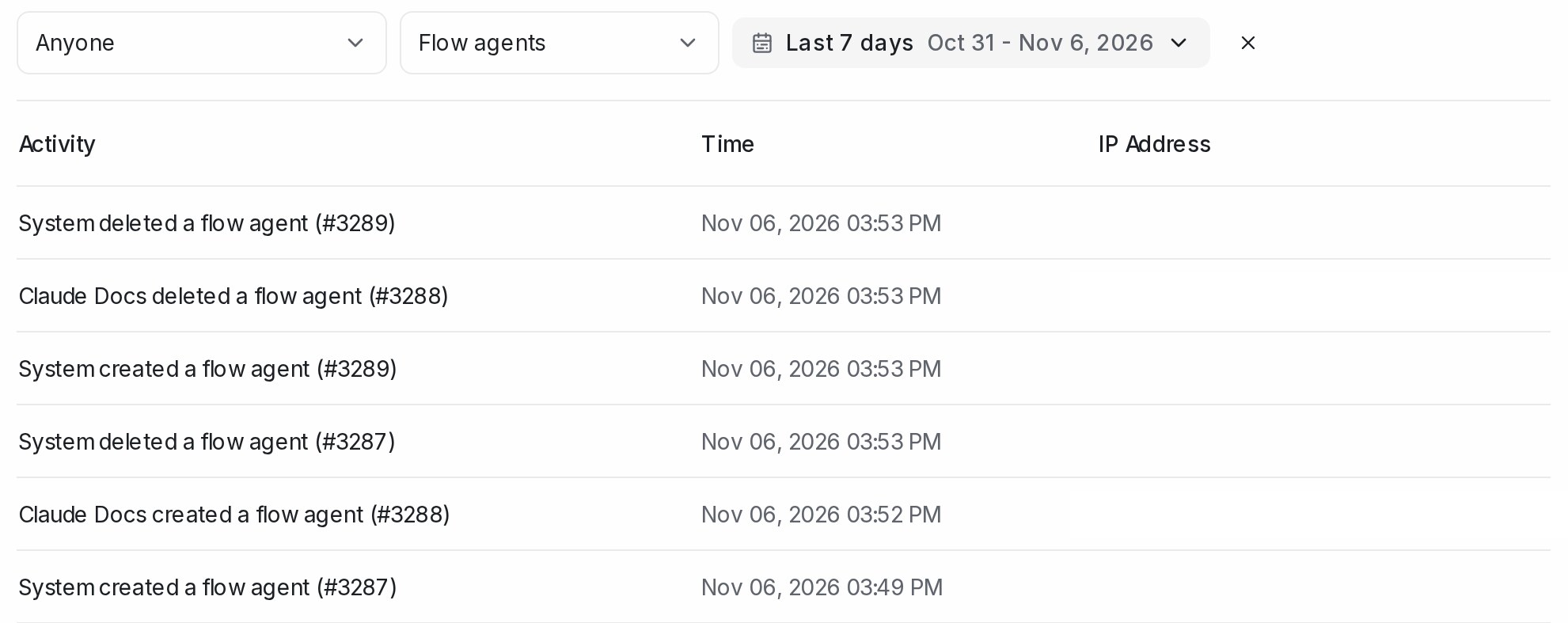
- Pick a teammate in Anyone to see only their activity.
- Pick a type in All activity, for example Flow agents or Deleted conversations.
- Click Date range. It starts at the last 7 days; open it to choose other days. Click × to clear the dates.
The filters work together, and the page arrows at the bottom move through older activity.
The activity types are Sign-ins, Account settings, Agents & roles, Inboxes, Teams, Automations & macros, Webhooks & bots, Deleted conversations, Contact exports, Ad changes, Sales, Dashboards, Flow agents and AI knowledge.
Note: For a flow agent, the list records when it is created, deleted, or its name, status or settings change. Edits to the steps inside the flow are not listed.
Frequently asked questions
Who can see the Audit Logs?
Administrators only. Agents do not see Audit Logs in Settings.
Can I delete or edit a row?
No. The list is a record of what happened, so nobody can change it.
Why do some rows say System?
The change was not made by a teammate signed in to the dashboard, so there is no person or IP address to show.
Which time zone is the Time column in?
Your workspace’s time zone. The Date range filter uses the same clock.