Once your Shopify store is connected, a flow step of type Store orders works with the customer’s own orders. It can look up an order’s status or parcel tracking, list their recent orders, create an order from what the flow collected, or cancel an order the customer names. This page shows how to add the step, what each choice needs, and what your team sees afterwards.
Adding a store step
- In the flow designer, open a message step. A question step can look orders up, but only a message step can create or cancel one.
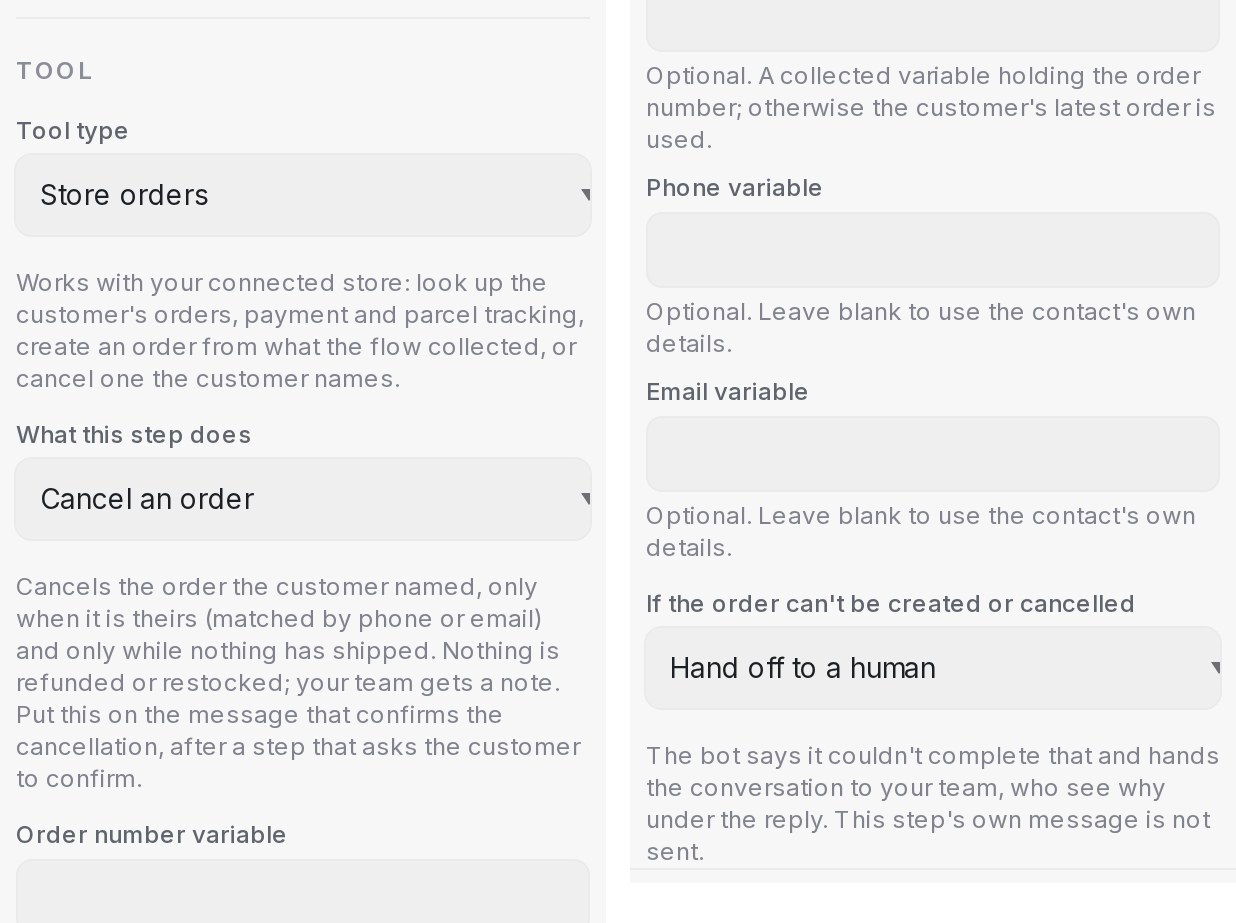
- Under Tool, set Tool type to Store orders. The step binds to your connected store.
- Under What this step does, pick the action, then map the variables the step reads. A blank field falls back to the contact’s own phone number and email.
| Choice | What the step does |
|---|---|
| Look up an order’s status | Payment and fulfilment of the order the customer names, else their latest order |
| Look up parcel tracking | The carrier, tracking number and link of that order |
| Find the customer’s recent orders | Their last five orders |
| Create an order in the store | A pending order from the items the flow collected |
| Cancel an order | Cancels the order the customer names, while nothing has shipped |
A numbered lookup answers only the customer’s own orders: those under the phone number they chat from, or a phone or email the flow collected earlier. Someone else’s order number is answered as not found. On a channel without a phone number, such as web chat, collect the customer’s phone or email before the step.
Looking up an order
- Add a question step that saves the customer’s answer to the variable
order_number, or map Order number variable to the variable you use. Without a number, the step uses the customer’s latest order. - Add a message step with Look up an order’s status or Look up parcel tracking. Write the message the way you want the details presented; the step fills in the real values.
- Later steps can use
{order_number},{order_status},{payment_status},{fulfillment_status},{order_total},{order_items},{tracking_number},{tracking_url},{tracking_company}and{delivery_status}.
{order_status} is one word a condition can branch on: pending, paid, shipped, in_transit, out_for_delivery, delivered or cancelled, and not_found when no order matched.
Creating an order from the chat
- Collect what the customer wants into a variable, one line per product, for example
1x Corn Flour 500g. End a line with@ 12.50to give that line its own price; the other lines keep the store price. - Collect the customer’s phone number, and anything else the order needs: their name, the delivery address and a payment reference. A screenshot the customer sends with the payment reference is attached to the order as the receipt when your store app can write files; its link always goes into the order note.
- Put Create an order in the store on the message that confirms the order, and map Items variable and the other fields.
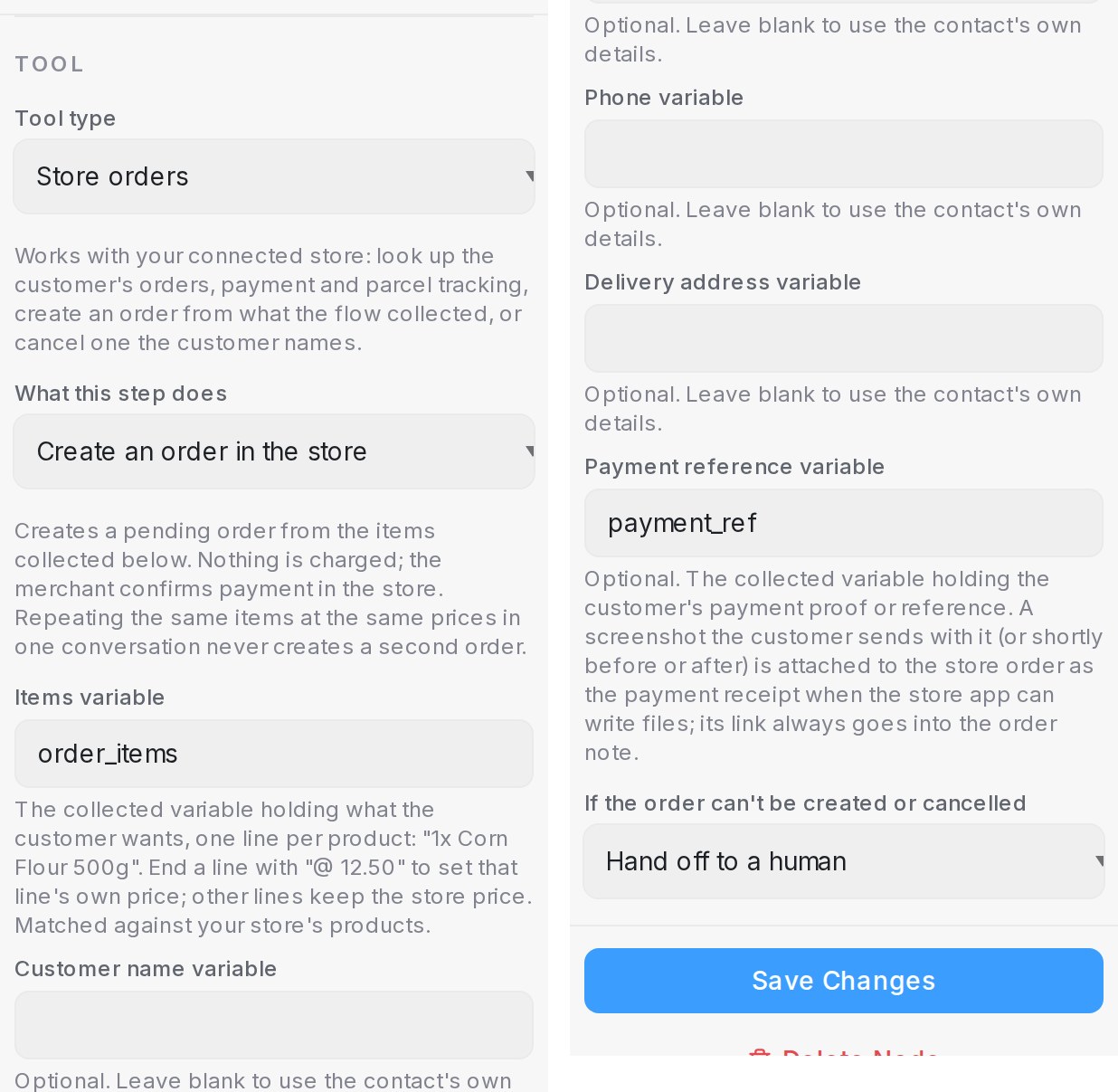
The order is created as pending and nothing is charged: you confirm the payment in the store. Repeating the same items at the same prices in one conversation never creates a second order. An item that does not match a product in your store stops the order, and your team is told which line.
Cancelling an order
Build the cancellation as four steps:
- A question step that saves the order number to
order_number. - A message step with Look up an order’s status, so the customer sees the order they are about to cancel.
- A condition step that asks “Shall I cancel this order?”, with a yes branch and a no branch.
- On the yes branch, a message step with Cancel an order. Its message is what the customer reads once it is done, for example “Done, order {order_number} is cancelled.”
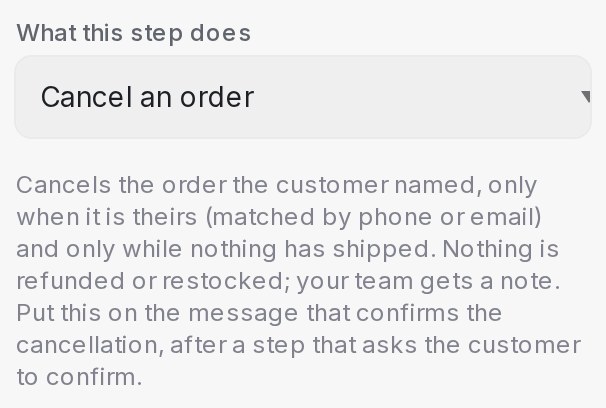
The step cancels the order only when it is the customer’s own, nothing has shipped yet and it is not already cancelled. The cancellation goes to Shopify with no refund, no restocking and no email from Shopify; your team handles money and stock. An order the store had already cancelled is reported as cancelled, without a second cancellation.
If the order can’t be created or cancelled
Every store step that creates or cancels an order has the choice If the order can’t be created or cancelled.
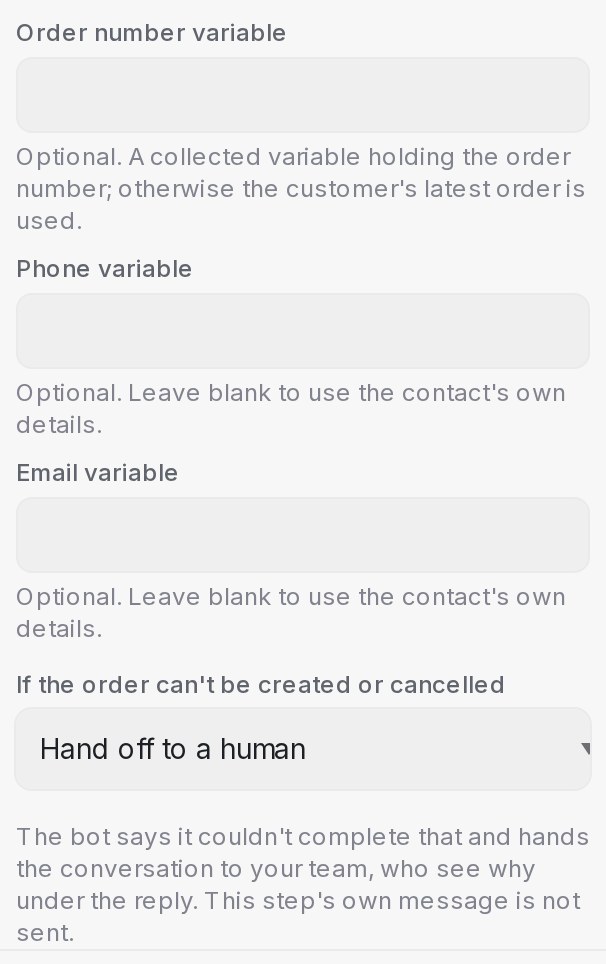
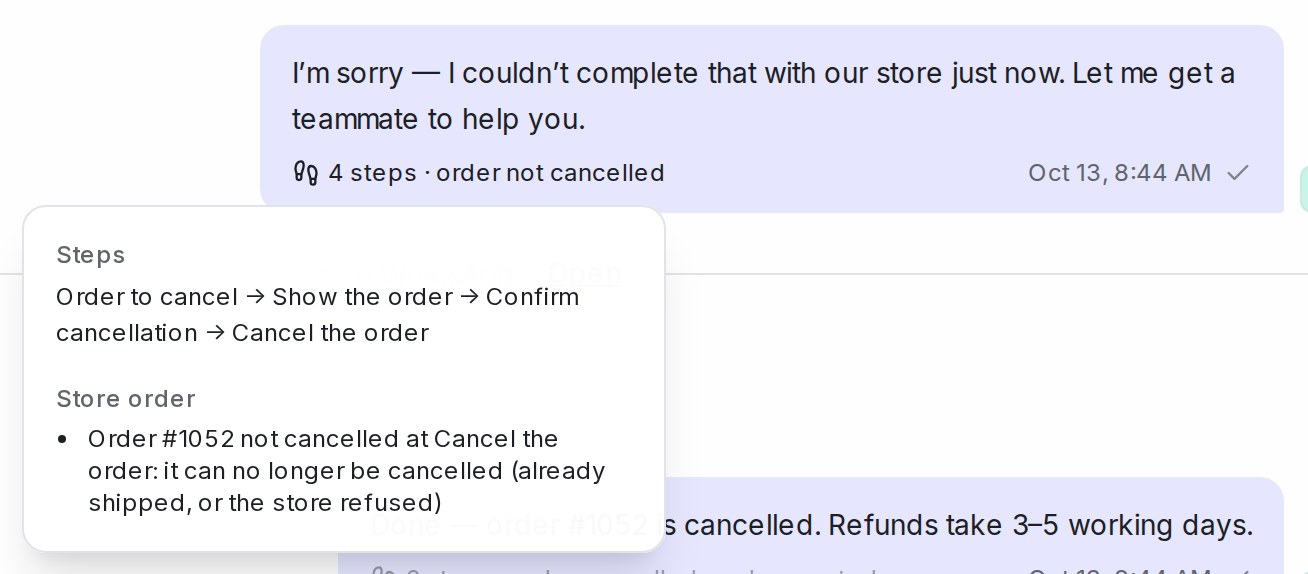
- Hand off to a human, the default: the bot says it couldn’t complete that and hands the conversation to your team, who see why under the reply. The step’s own message is not sent. This covers items that did not match, an order that was not found or belongs to someone else, an order that has already shipped, and a store that refused or could not be reached.
- Reply honestly and continue: the step’s message is sent as written and the flow carries on, so branch on
{order_status}afterwards. After a create it iscreated,exists,unresolved_items,invalid_phoneorerror; after a cancel it iscancelled,not_found,not_cancellableorerror.
One case never hands off: a phone number the store would reject on a create step makes the bot ask the customer for the number again.
What your team sees
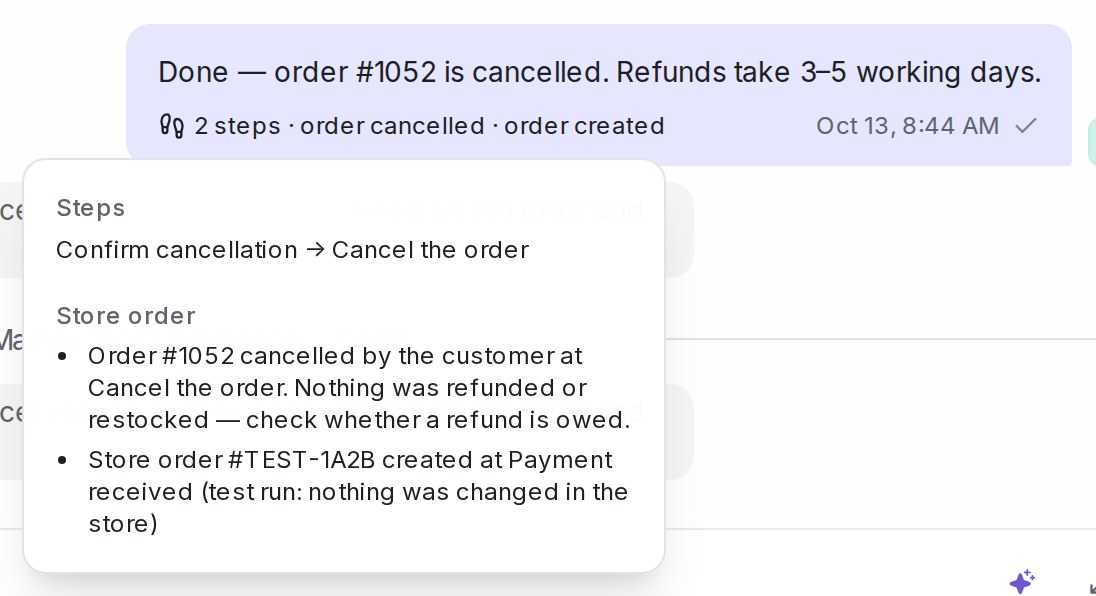
- A private note on the conversation for every order the flow creates or cancels, and for every attempt that failed, with the reason. A cancellation note names the order, its payment status and reminds the team to check whether a refund is owed.
- Under the reply, the footer chip reads order created, order not created, order cancelled or order not cancelled. Open it for the full line.
Testing in the Playground
Test runs in the Playground and scripted tests never create or cancel a real order. The step answers as if it had, with “(test run: nothing was changed in the store)” under the reply, and no note is posted. With no phone or email collected, the Playground treats any order from your store as the tester’s; an order that has already shipped is refused the way the store would, so the hand-off path can be tested too.