
Connecting an SMS inbox
An SMS inbox connects a phone number you rent from Twilio or Bandwidth. Text messages to that number arrive as conversations, and your replies go out as SMS.
Before you start
You need an account with one of the two providers, a phone number bought there, and the credentials from its console: for Twilio the Account SID and Auth Token (or an API key), for Bandwidth the Account ID, API Key, API Secret and Application ID.
1. Add an SMS inbox
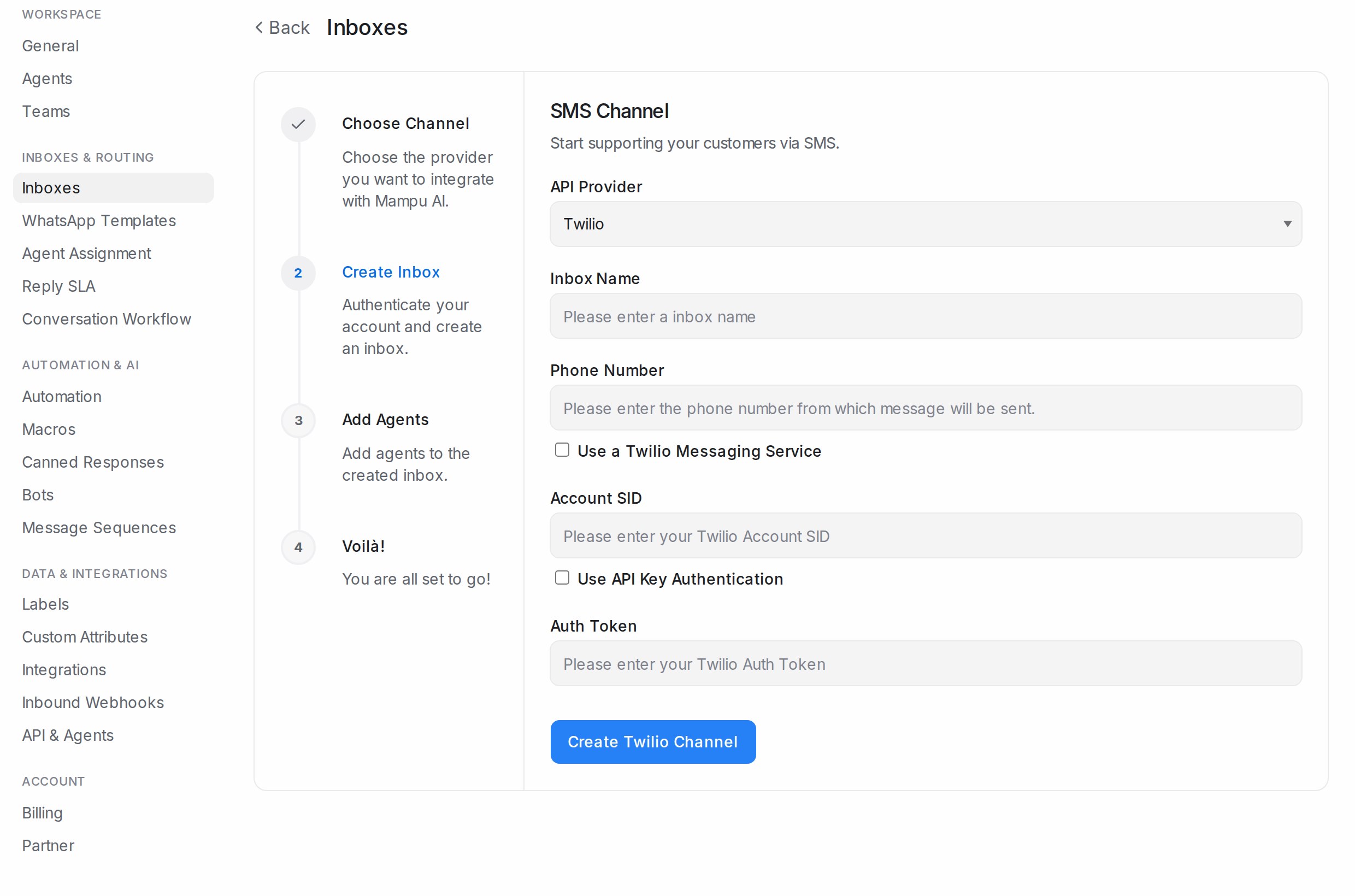
Go to Settings → Inboxes → Add Inbox and choose SMS. Under API Provider, pick Twilio or Bandwidth.
2. Enter the provider details
Twilio
- Inbox Name: how the inbox appears in your sidebar.
- Phone Number: the Twilio number messages are sent from, with the country code. Tick Use a Twilio Messaging Service and enter the Messaging Service SID instead if you send through a messaging service.
- Account SID and Auth Token from your Twilio console. Tick Use API Key Authentication to use an API Key SID and API Key Secret instead of the auth token.
Click Create Twilio Channel.
Bandwidth
- Inbox Name and Phone number.
- Account ID, API Key, API Secret and Application ID from your Bandwidth console.
Click Create Bandwidth Channel.
3. Add agents and paste the callback URL
Pick the agents who will answer and Add agents. The last step shows a Callback URL: copy it into the messaging webhook of your number in the provider’s console, so incoming texts reach the inbox. Until that is done, you can send but nothing arrives.
After the inbox is live
The inbox’s Configuration tab shows the callback URL again if you need it. Everything else, from Collaborators to Business Hours, is explained in Inbox settings, tab by tab. SMS blasting uses this inbox; see SMS and API blasting.