
Some parts of a bot are worth sending on their own: customer stories, a price list, payment details. Mark the step where such a part starts, give it a name, and anyone on your team can send it from a chat by typing /. The bot sends its own current messages, in the customer’s language, so nobody keeps copies in saved replies.
Mark a part in the flow designer
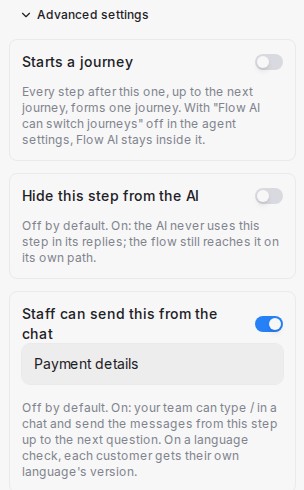
- Click the step where the part starts and expand Advanced settings at the end of the panel.
- Switch on Staff can send this from the chat. The name starts as the step’s own name; change it to what your team will look for, such as Testimonials.
- Press Save Changes, then Publish. The step’s card shows the name as a small
/Namebadge.
The part runs from that step up to the bot’s next question. You can mark a Send Message step, or a check with no question, such as a language check in front of your Mandarin and English versions.
Send it from a chat
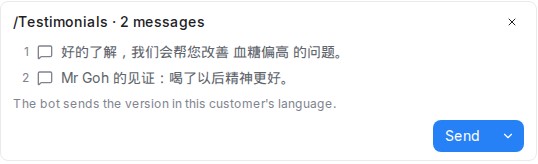
- In the reply box, type
/. The marked parts show after your saved replies, each with From your bot and its number of messages. Keep typing to narrow the list. - Pick one. A card lists the messages in the order they go out. Answers the customer already gave are filled in, and a part that starts at a language check notes that the bot sends the version in this customer’s language.
Parts show only on chats in an inbox served by a published flow agent.
Send, or just send
| Choice | What happens |
|---|---|
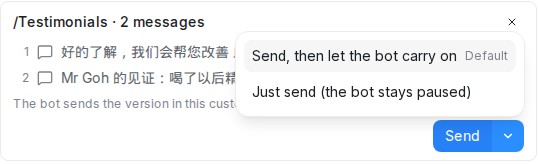
| Send | The bot sends the part, then asks its next question and handles the reply. A paused bot starts replying again. |
| Just send (the bot stays paused) | Only the part’s messages go out. The bot stays paused and keeps its place in the flow, so the customer’s next message is not read as an answer to a question they never saw. |
Open the other choice with the arrow next to Send. A paused chat stays paused; otherwise Just send pauses it for the agent’s Pause duration after handoff. Once the messages are out, a note in the chat says who sent which part.
When an answer is still missing
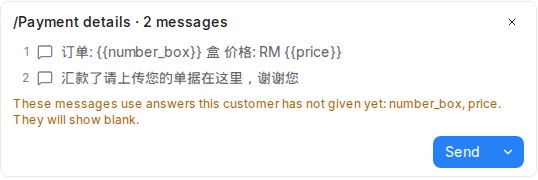
A message can use an answer the customer gives later in the flow, such as the number of boxes in an order summary. When you send that part early, the card warns which answers the customer has not given yet: those places go out blank. Send the part once the customer has answered, or send the earlier part first.
Sending a part from the mobile app or testing it in the Playground is not available yet.