
Connecting a LINE inbox
A LINE inbox brings messages from your LINE Official Account into Mampu AI, so your team and your AI agent answer LINE users from the same screen as every other channel.
Before you start
In the LINE Developers console, create a provider and a Messaging API channel for your Official Account. From that channel you need three values: the Channel ID, the Channel secret, and a Channel access token (issue a long-lived one).
1. Add a LINE inbox
Go to Settings → Inboxes → Add Inbox and choose Line.
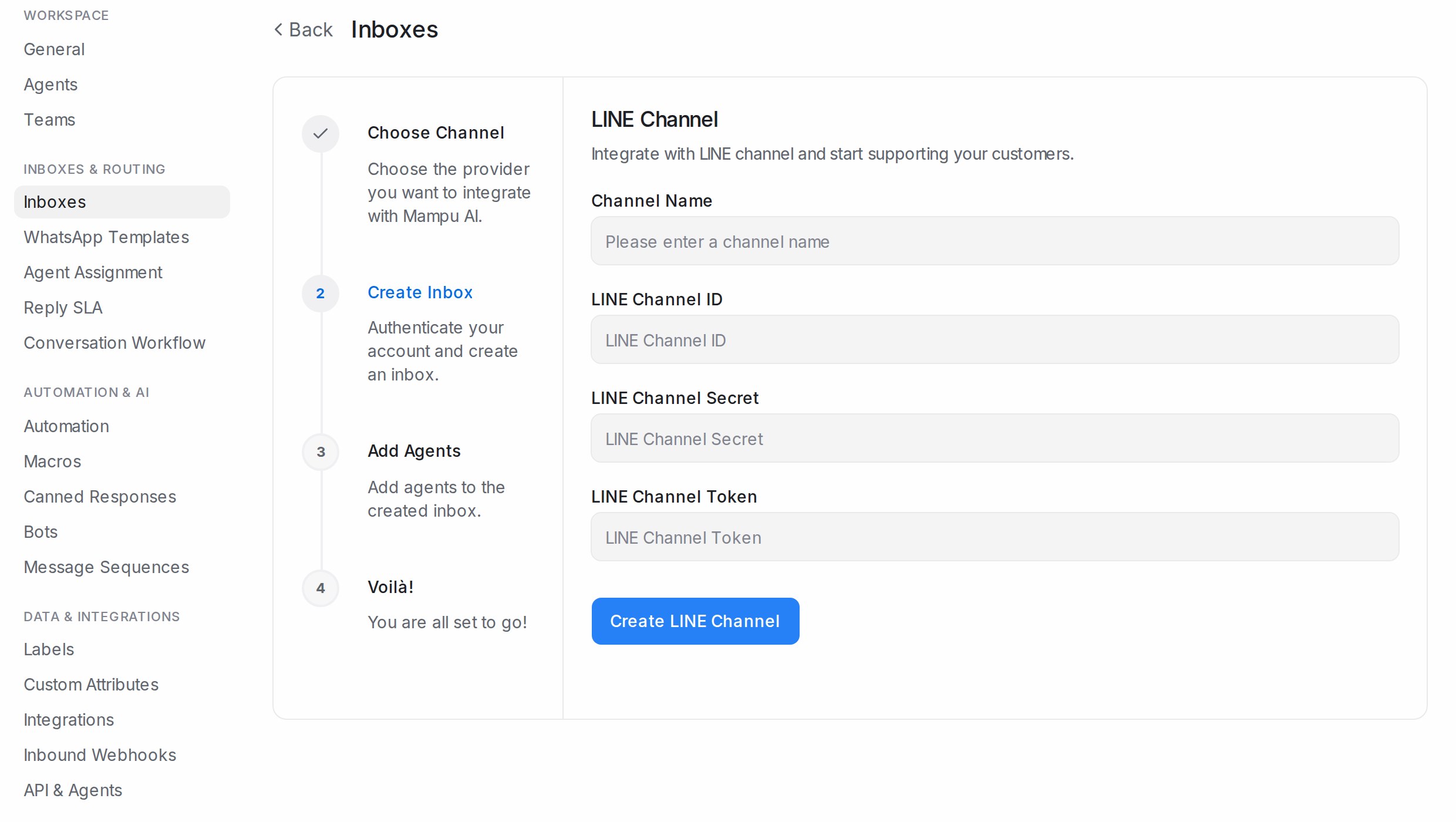
- Channel Name: how the inbox appears in your sidebar.
- LINE Channel ID, LINE Channel Secret, LINE Channel Token: paste the three values from the console.
Click Create LINE Channel, pick the agents who will answer and Add agents.
2. Paste the callback URL into LINE
The last step shows a Callback URL. In the LINE Developers console, open your channel’s Messaging API settings, paste it as the Webhook URL, and turn Use webhook on. In LINE Official Account Manager, switch the account’s response mode so that auto-replies do not answer before your team does.
After the inbox is live
The inbox’s Configuration tab shows the callback URL again if you need it. The other tabs are explained in Inbox settings, tab by tab.