
When a Flow Agent passes a chat to your team, the line in the chat says why. A button on that line opens a card with the reason, the step where it happened and what you can do about it, so nobody has to guess or open the flow to find out.
Read why the bot stopped
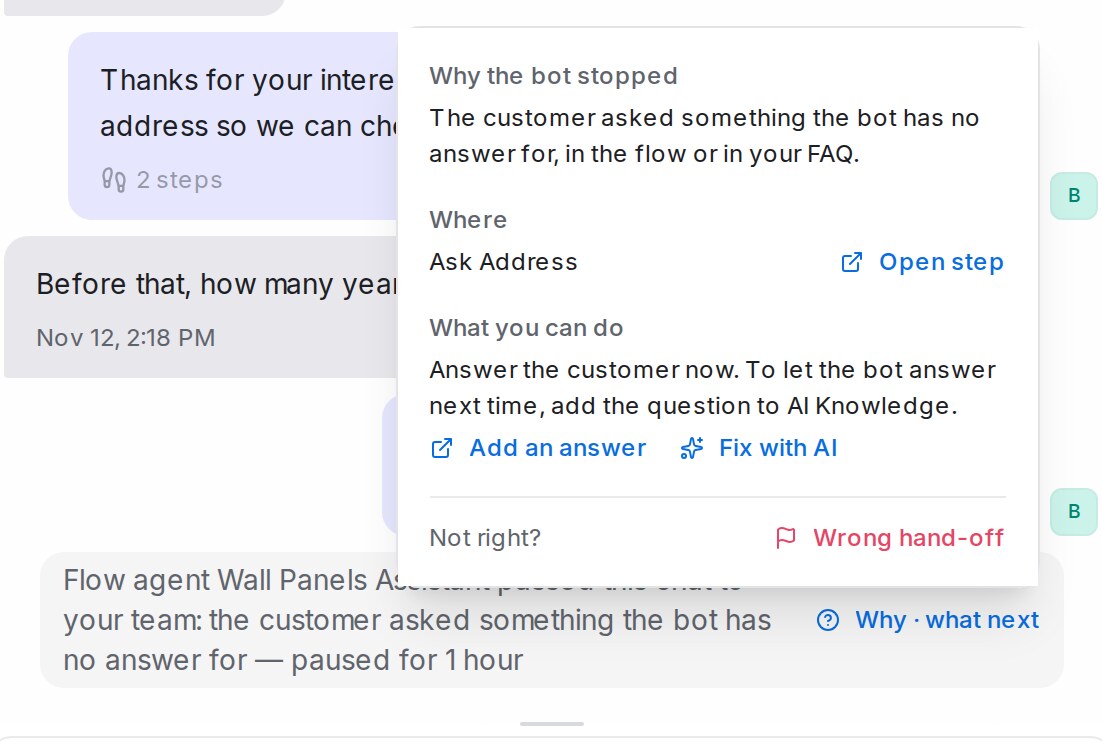
- Open the chat. The hand-off line reads, for example, passed this chat to your team: the customer asked something the bot has no answer for.
- Click Why · what next at the end of the line.
- Read the card: Why the bot stopped, Where (the step in the flow) and What you can do.
The reason is one of a fixed set, in plain words:
| The card says | Typical next step |
|---|---|
| The customer asked something the bot has no answer for | Reply, then add the answer |
| The customer asked to talk to a person, or is unhappy | Reply; nothing to fix |
| The flow reached a hand-off step | Reply; change the step if the bot should carry on |
| A booking, calendar, API tool or store order did not go through | Finish it by hand, then check the tool |
| The flow could not continue | Reply, then check that step |
Administrators also see Open step, which opens the flow designer on that step.
Add the missing answer
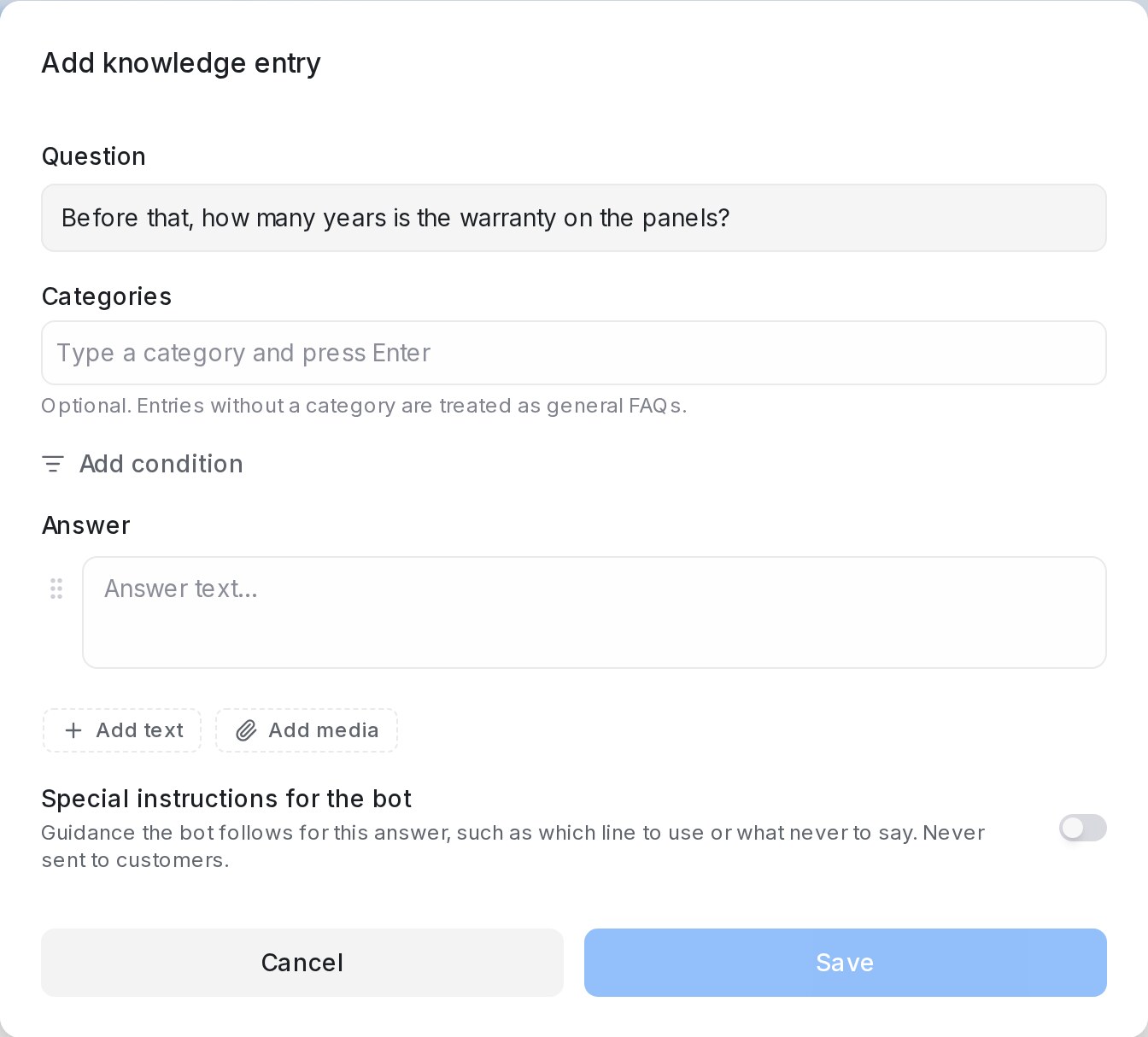
When the bot had no answer for the customer’s question, the card offers Add an answer.
- Click Add an answer. AI Knowledge opens on a new FAQ entry with the customer’s question already in Question.
- Tidy the question if needed, write the Answer and press Save.
The bot can answer that question from then on. Add an answer shows for administrators. See Managing AI Knowledge.
Ask the AI designer to fix the flow
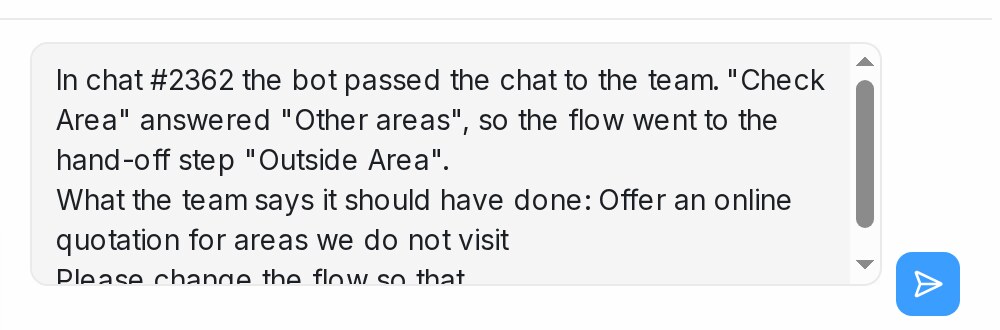
When the cause is in the flow itself, the card offers Fix with AI.
- Click Fix with AI. The flow designer opens on the step where the bot stopped.
- The chat box holds a drafted request: the chat number, what happened, the customer’s question or your team’s note, and Please change the flow so that.
- Finish the sentence with what the bot should do instead, then send it.
Nothing is sent or changed until you send the request and publish. Fix with AI shows for administrators, on hand-offs where there is something in the bot to change.
Mark a wrong hand-off
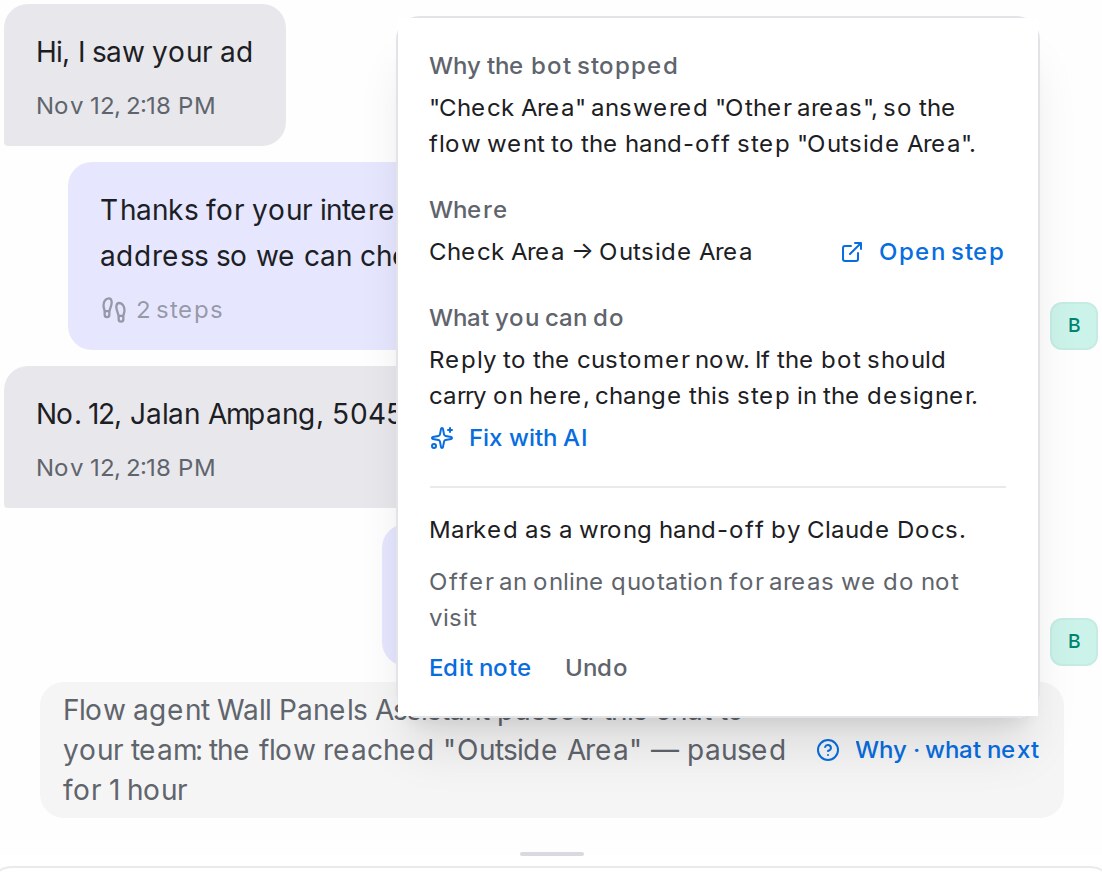
If the bot should not have passed the chat over, anyone on your team can say so.
- Under Not right?, click Wrong hand-off.
- Optionally write what the bot should have done, then press Mark as wrong.
The card then shows who marked it and the note. A teammate can use Edit note or Undo. Marking does not change the bot by itself: it tells your administrators which hand-offs to look at, and the mark and note are shared with the Mampu AI team to help improve hand-offs.
See marked hand-offs in the report
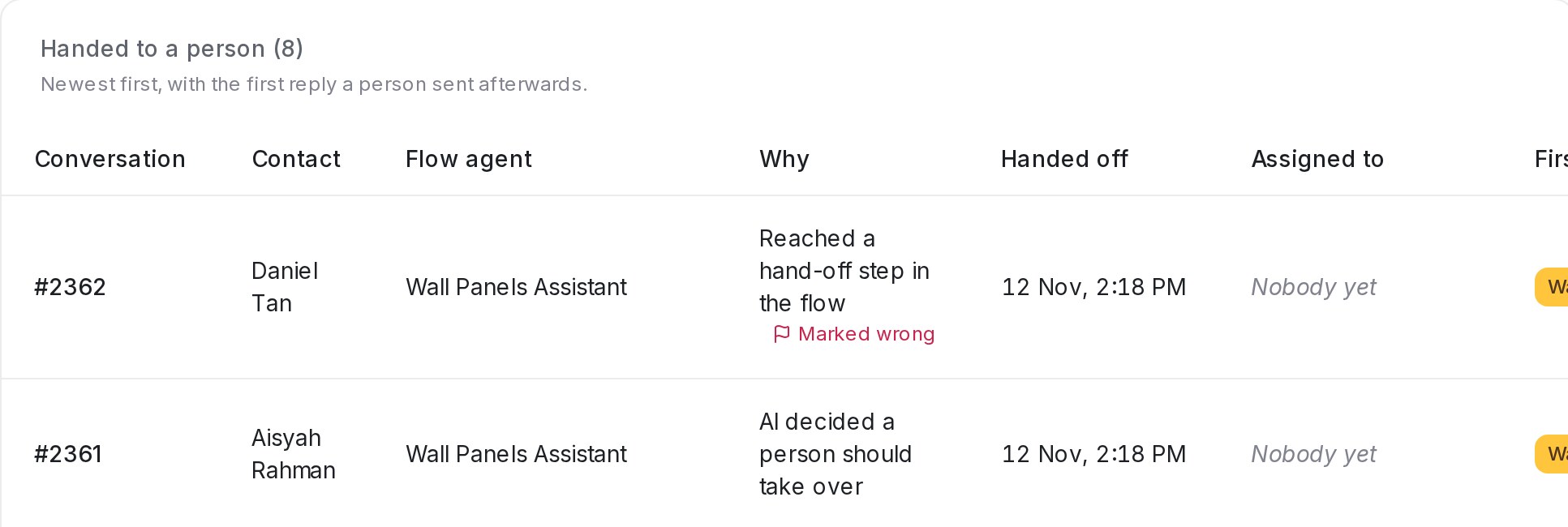
Open Reports, then Flow agents.
- In Handed to a person, a chat whose latest hand-off was marked shows Marked wrong under its reason.
- In Why they were handed off, the Marked wrong column counts the marks for each trigger.
A trigger with many marks is the place to start fixing. See Flow agents report.