
The designer has two ways to build, side by side: describe what you want in plain language on the left — “Ask for name, email, and company. If the email is from gmail, decline politely. Otherwise hand off to sales.” — and AI updates the flow for you; or edit the canvas directly on the right, block by block.
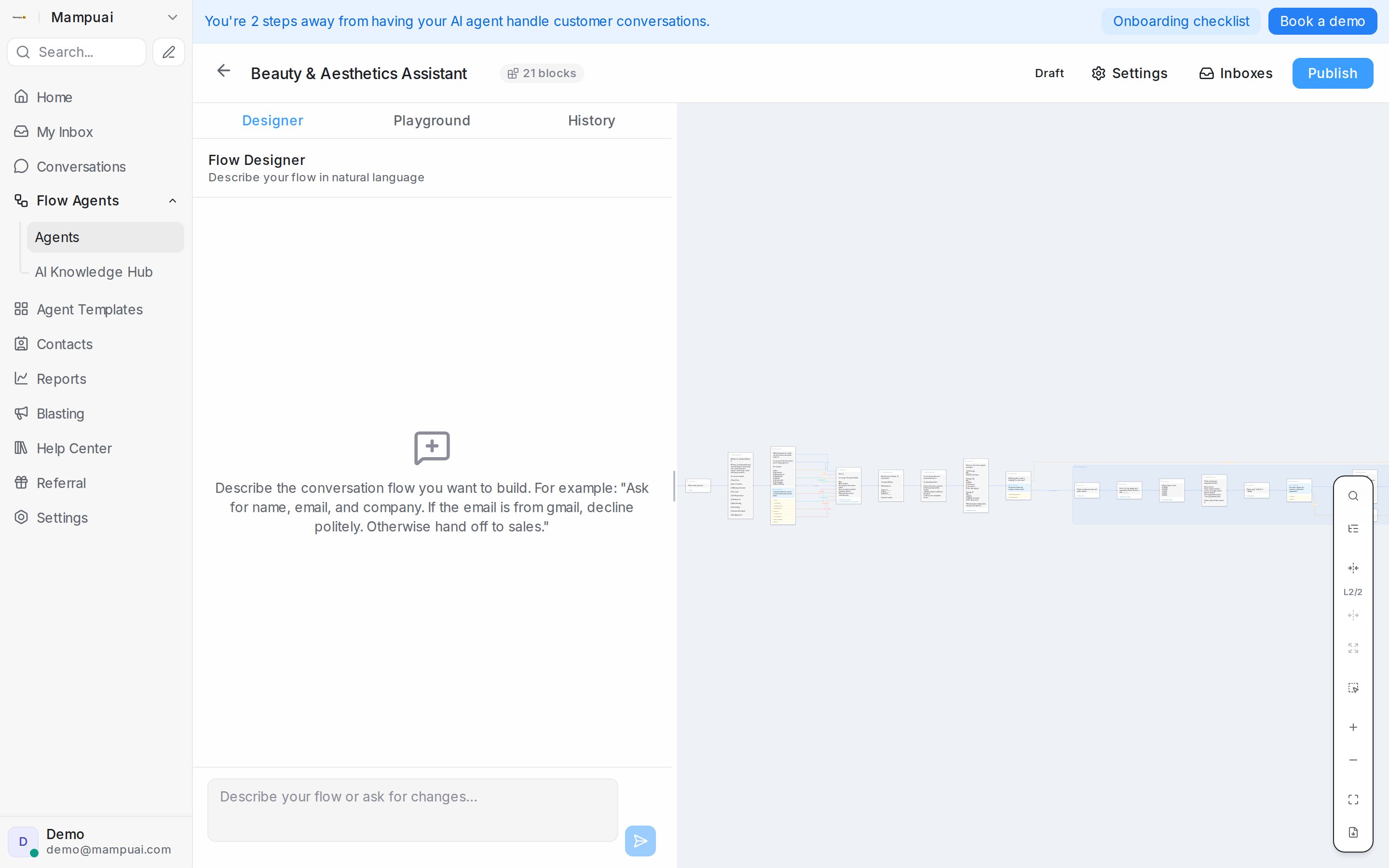
The designer now opens as a chat that asks a few questions and builds the flow for you: see Designing your agent by chatting. The layout above is the classic view; click Switch to classic view in the designer to use it.
Watch the walkthrough
The building blocks
- Send message — say something, with attachments if needed (up to 5 MB for an image; see Picture and file size limits).
- Collect — ask a question and capture the answer (name, email, budget…) for later steps.
- Condition — branch the conversation based on what the customer says.
- Knowledge query — answer from your AI Knowledge.
- Tool steps — use live data: offer real open time slots from a Calendar and book the chosen one, or recommend real products from your catalogue.
- AI task — compute something silently (e.g. an instalment estimate) and save the result for later blocks.
- End — finish the conversation, or hand off to a human agent.
Values collected earlier can be reused anywhere with placeholders like {name} or {email}.
For every button on the canvas and every field in a step’s panel, see the Flow designer reference. On the canvas, press a line to see where it leads: a Go to next step button takes you to the step at its end (see Follow a line to its next step).
Use what you already know about the customer
Your contact records are available to the flow as well. Anywhere you can type a placeholder, {contact.name}, {contact.phone} and {contact.email} fill in the customer’s saved details, and {contact.<field>} works for any custom contact attribute you have defined — {contact.full_address}, for example. A field with no value on the record is left out of the message.
A Condition can check the record too. Describe the check in plain words and name the field: “If {contact.phone} is present, route to has_phone; otherwise route to no_phone.” The agent sees whether that field is filled in and takes the matching branch, so a customer whose number you already have is never asked for it again, while a customer without one still is. Inside a condition an empty field reads as “(not set)”. Conditions that do not mention a contact field behave exactly as before.
To try this in the Playground, set a Scenario with the contact details you want to test — placeholders and conditions then use them just as they would in a live conversation (see Testing and connecting an agent).
Show a route only to the right customers
A condition block can decide who is offered each branch, and who goes straight down it. Click the filter icon on a branch, press Add condition, and pick what should apply:
- Meta ads — the route is only offered to customers who arrived through a Click-to-Message ad. Pick Is one of these ads and list the ad IDs, or Came from any ad to include every ad without typing IDs.
- Inbox — the route is only offered to customers who message one of the inboxes you pick (Is one of these inboxes), or any inbox except them (Is not one of these inboxes). See Send each inbox down its own route.
- Customer labels — the route is only offered when the conversation or the contact carries at least one of the chosen labels. Pick labels, or type a word and press Enter to match every label containing it.
- Message keywords — when the customer’s latest message contains any of the words or phrases you list, the conversation goes straight down this route and the question is skipped. Matching ignores letter case, and the keyword can sit anywhere in the message — “Is the PROMO still on?” matches the keyword promo.
Mix conditions freely. With two or more, the choice between them sets how they combine: AND when every condition must match, OR when one is enough. Keywords send a customer straight down the route: with AND once the other conditions match too, with OR on their own. Under an ads or labels condition, tick Must go here on match to skip the question entirely and send every matching customer straight down the branch. Under an Inbox condition, the same tick makes the route the default for those inboxes instead. Hover the info icon beside each condition for a reminder of how it works.
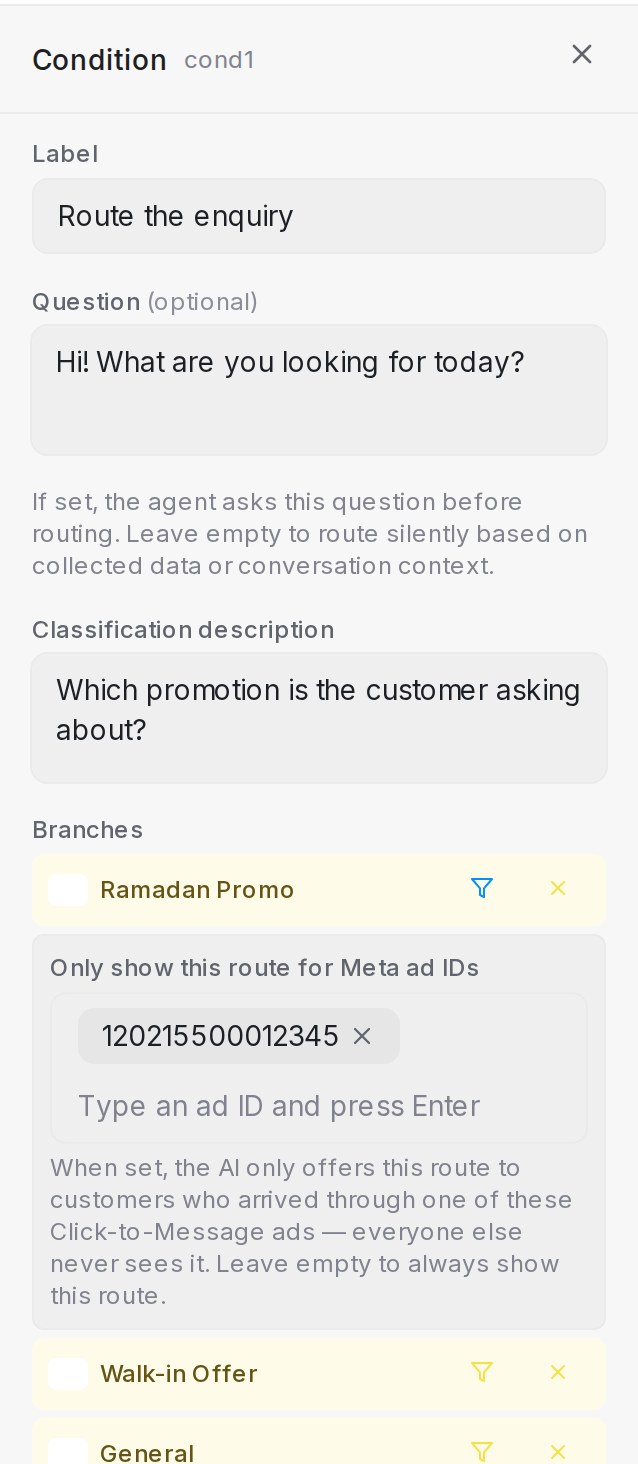
- Branches without conditions stay visible to every customer — keep at least one open branch as the everyday path.
- Branches with a rule show a small badge on the canvas: a filter for gated routes, a fast-forward arrow when matching customers skip the question.
- Customers already inside a route always get to finish it, even if the rule changes mid-conversation.
- Without a Scenario, the Playground plays a customer who came from no ad and has no labels, as an everyday chat would: routes that need an ad or a label stay hidden, and keyword conditions work as usual — type a keyword to see its shortcut fire. To try ad and label conditions as a specific customer, set a Scenario in the Playground — see Testing and connecting an agent.
Send everything else down a default path
A Condition step picks the branch that matches what the customer said. Tick one branch under Branches to make it the default path: the flow takes it whenever the reply fits none of the other branches, so a customer who says something else is not asked the same question again. If that reply was a question, the agent answers it first, then carries on down the default path. The same goes for the customer’s very first message: when it matches none of the branches, the flow takes the default path straight away and the step’s question is never asked.
- Select the Condition step and find Branches in the step panel.
- Tick the branch that should catch everything else, such as Other. The row reads default path, and the step’s card on the canvas shows the same badge.
- Click Save Changes, then try a reply that matches no branch in the Playground.
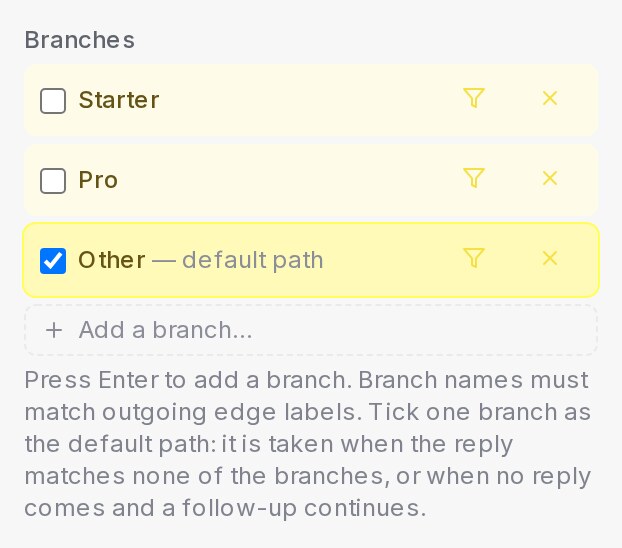
- The default path is also where the flow continues when the customer never replies and a follow-up is set to Continue to the next step — see Follow up when the customer goes quiet.
- The Playground says when it happened, in a line such as “No branch matched at Package choice, so the flow took the default path Other” (or “… before its question was asked, so the flow skipped the question and took the default path Other” on a first message). In the conversation, the reply’s What the agent did in this turn footer keeps the same line under Default path, so anyone reading back later sees why the flow went that way.
- With no branch ticked, the agent asks the question again instead.
- In the designer chat, say “anything else goes to Other” and the default path is set for you.
Follow the ad or post a customer came from
When a customer’s first message comes from a Meta ad or a comment on your Facebook or Instagram post, a Condition step reads that ad or post with the message. If the ad or post features one of the step’s branches, the flow takes that branch without asking the step’s question when the customer:
- opens with a general message, such as “Hi” or “Can I get more info?”
- asks about the advertised service, such as “How much is it?” or “Do you cover Penang?” When Answer FAQs on the first message is on and one of your FAQs answers the question, the agent sends that answer too.
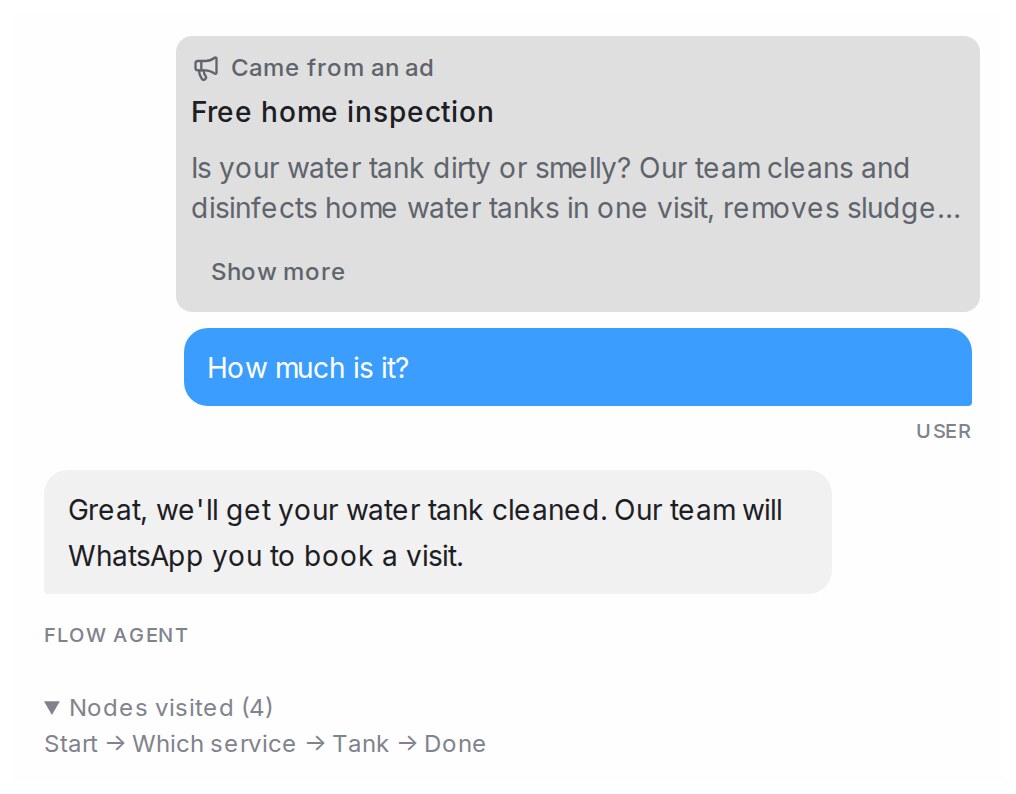
The step still asks its question when the ad or post features several branches, when the customer compares options (“Which is cheaper, roof repair or tank cleaning?”), or when they ask about something the ad does not feature. Facebook and Instagram ads send only their headline, so the step follows those ads only when the headline names the service.
To try it, fill in Ad headline and Ad text under Ad in the Playground’s Scenario — see Testing and connecting an agent.
Send each inbox down its own route
When one agent answers several inboxes, such as a page for each product, an Inbox condition sends each inbox’s customers to its own route.
- Select the Condition step, click the filter icon on the branch, press Add condition and pick Inbox.
- Keep Is one of these inboxes, or pick Is not one of these inboxes, and choose the inboxes from the list.
- Tick Must go here on match and click Save Changes.
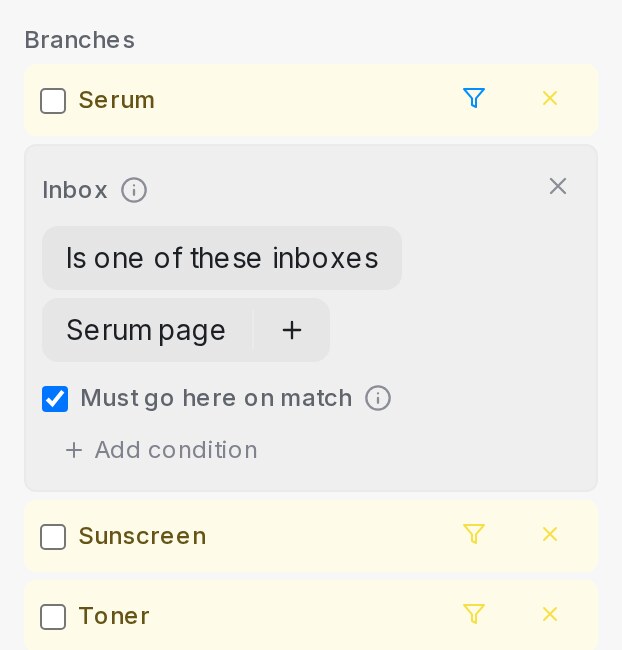
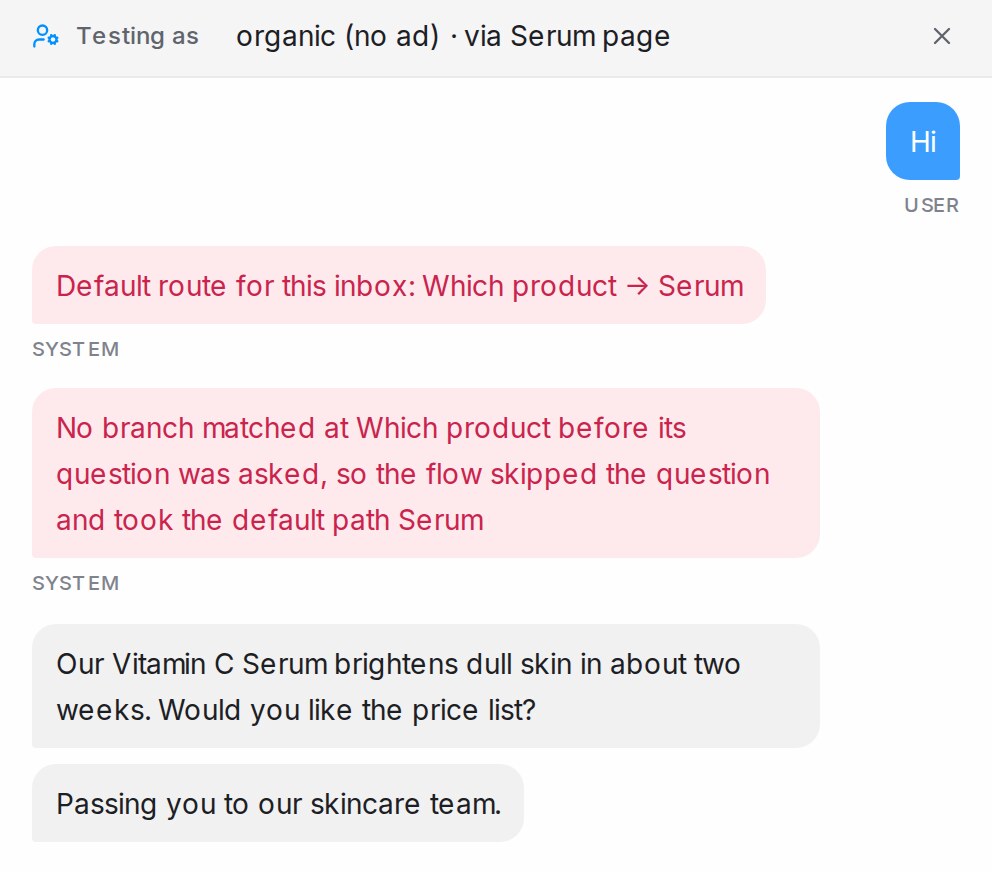
With the tick, the route becomes the step’s default path for customers on those inboxes: a first message like “Hi” skips the question and goes straight there. A customer who asks for another product still gets it, an ad rule that sends its customers elsewhere still wins, and customers on every other inbox can still pick this route. Without the tick, the route is offered only to customers on the chosen inboxes.
To try it, open Scenario in the Playground and pick the Inbox. A line such as “Default route for this inbox: Which product → Serum” names the route it chose.
- Renaming an inbox keeps the rule. An inbox you delete drops out of the rule the next time the step is saved.
- With no inbox set in the Scenario, routes offered only on certain inboxes stay hidden, and the Playground says so.
Say something different outside business hours
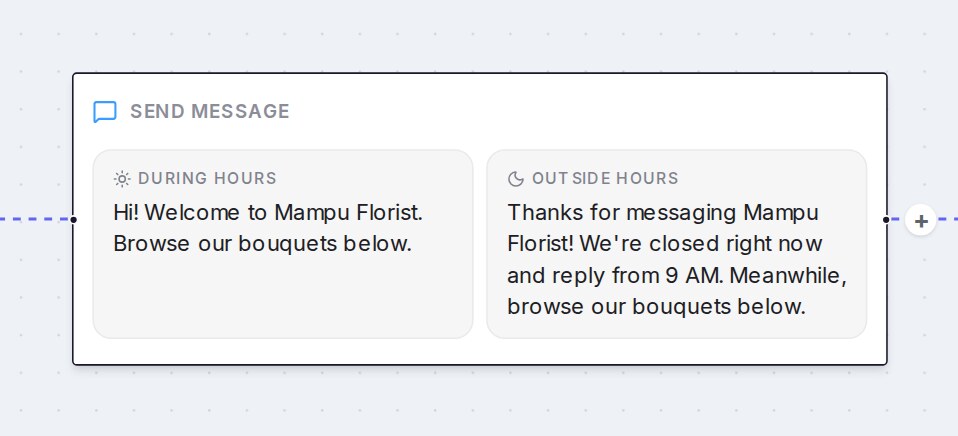
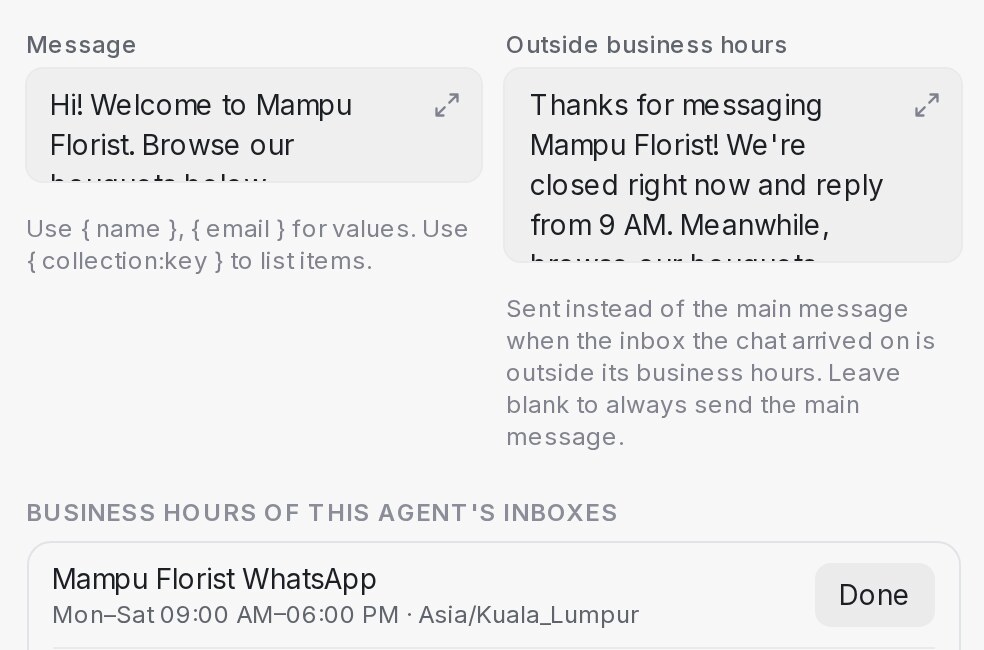
Closed for the night? A Send message step can carry a second text, Outside business hours, beside its Message, the same way an End step does. Put one on your greeting, and a customer who writes after hours hears when your team replies, while the rest of the flow carries on as usual. Leave it blank and the step always sends Message. Photos and cards on the step go out with either text. Steps that book an appointment, or place or cancel an order, keep their own messages and don’t show the box.
The hours are each inbox’s own business hours, listed under Business hours of this agent’s inboxes in the step’s panel. See The handoff message for how to set them, and use Scenario in the Playground to try a pretend time outside them.
Turn down times outside business hours
A customer asks for a Sunday afternoon delivery when you close at two? Open the agent’s Settings, find Business hours and switch on Turn down times outside business hours. It stays off until you turn it on.
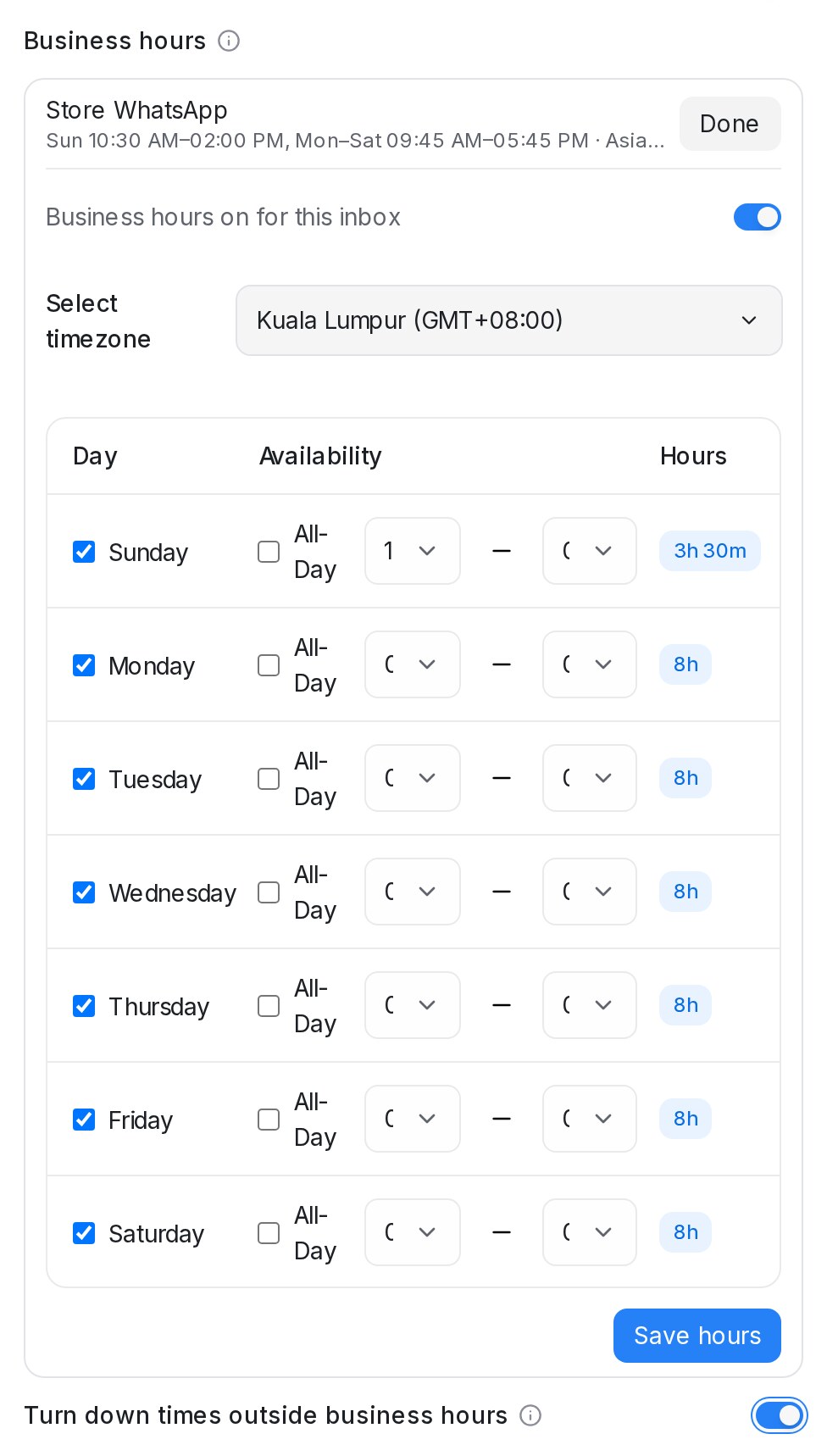
With it on, the agent knows the hours shown there and can say when you are closed. When a customer gives a date or time for an order, delivery or pickup that falls on a closed day or outside that day’s hours, the agent does not keep it: it tells them that day’s hours and asks for a time within them. After a few tries it carries on anyway, so your team still sees what was asked. A date on its own is accepted, and so is any time inside the hours. Booking steps keep their calendar’s own hours, and public holidays are not part of inbox hours. To try it, set a Playground Scenario with the inbox and a time, then type a time outside the hours.
Switch a step off, or run it only for a period
A Send message, Collect, Knowledge query or AI task step with one next step can be switched off without deleting it, or set to run only between two dates. Click the step and look for Run this step at the top of its panel.
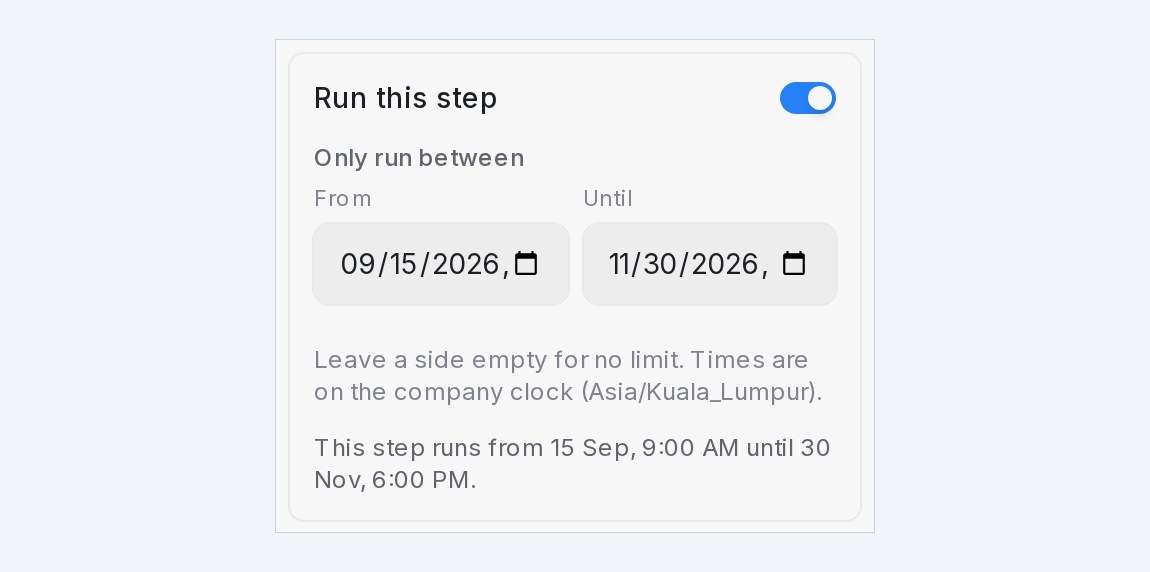
- Run this step off skips the step: a customer goes from the step before straight to the step after, as if it were not there. Everything the step holds stays saved, so you can switch it back on later.
- Only run between takes a From and an Until date and time. Leave a side empty for no limit. Before From or after Until the step is skipped in the same way. Times follow the company clock named under the fields: the inbox’s timezone when its business hours are on, otherwise your account’s.
- Off always wins. With the switch off, a period does not run until you switch the step on. The sentence under the fields says what the step does right now.
- Start, End, conditions, AI conversation steps and repeating-list steps cannot be switched off, because they decide where the flow goes next. Neither can a step that is not connected to exactly one next step. To take a whole branch out for a while, switch off the steps inside it.
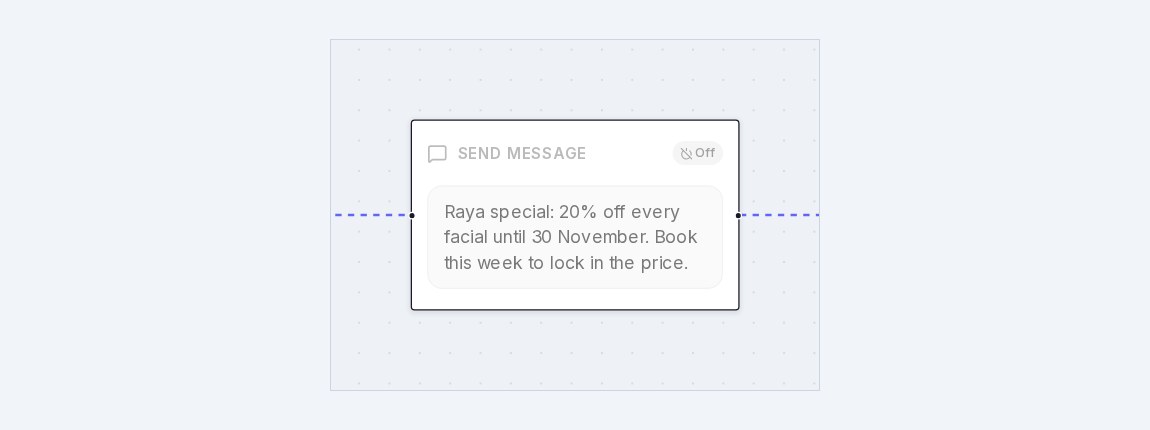
- On the canvas, a step that is not running right now is greyed out with a badge: Off, Starts … or Ended …. A step running inside a period shows Until …, so a promotion with an end date is easy to spot.
- A customer who is already on the step when it goes off finishes that step; nobody new enters it. A skipped step never starts its follow-up reminders.
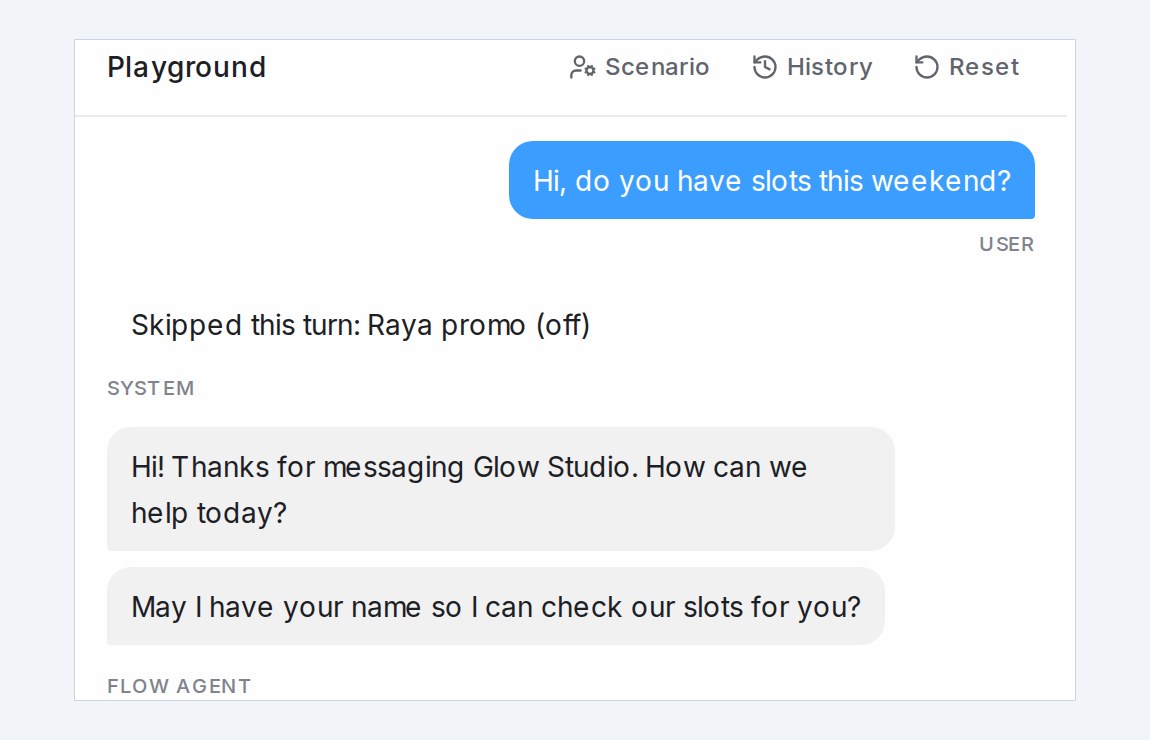
- In the Playground, a system line reads Skipped this turn: … with the step’s name and the reason, so a missing message is never mistaken for a broken flow. To try a period before it starts, set a Scenario with a pretend time (see Testing and connecting an agent).
- The AI designer leaves the switch and the period alone when it edits the flow for you. A full rebuild from a new description starts with every step on.
Let customers tap an answer
When a question has a short list of answers, offer them as buttons so the customer taps instead of typing. Select the Condition or Collect block and, under Answer buttons, add up to 13 answers with a label of up to 20 characters each. On a Condition, each button belongs to one branch and a tap takes the customer straight down it; on a Collect block with a single field, a tap fills that field in.
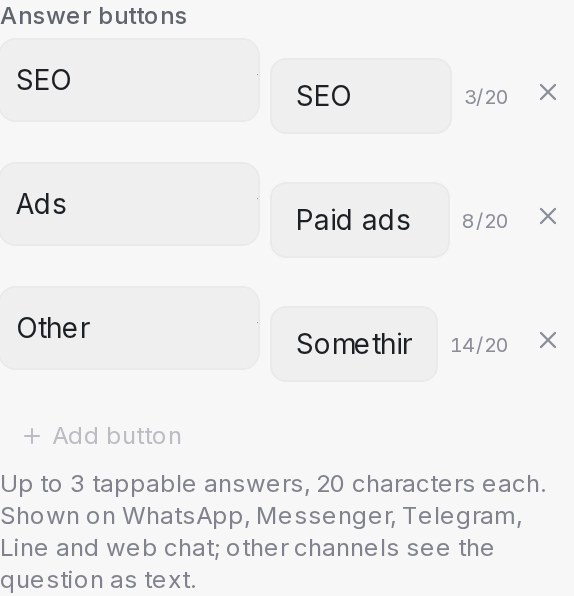
Customers on Messenger, Instagram, Telegram, Line and web chat see every button under the question. WhatsApp can show only three, so once a question has more than three buttons a tick appears beside each one: tick the three WhatsApp should show — the first three are ticked for you — and the line under the list keeps count. WhatsApp customers can still type any of the other answers, so word the question so they know what else they can say. Other channels see the same question with the answers as a numbered list, and typing still works everywhere — a customer who writes their answer instead of tapping is understood as before.
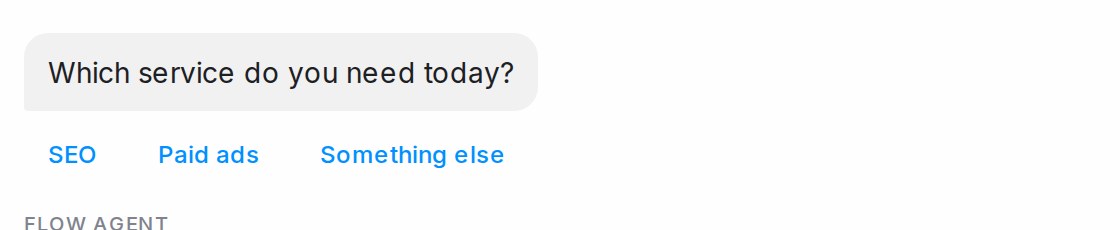
- Test it in the Playground — the buttons are tappable there, so you can follow every route without typing. The Playground shows every button, including the ones WhatsApp would leave out.
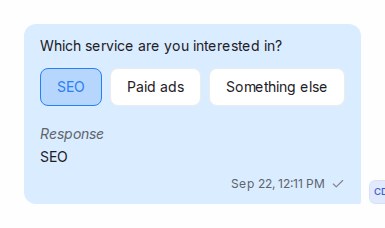
- Agents see the options too. In the conversation, the question shows the answers the customer was offered, and the one they picked is highlighted when the channel records the tap on the question itself; on WhatsApp, Messenger and Telegram the tap arrives as the customer’s reply underneath.
- Keep labels short. Labels are capped at 20 characters, and the block on the canvas shows each button as a small chip so you can see at a glance which questions offer buttons.
Show images as a carousel
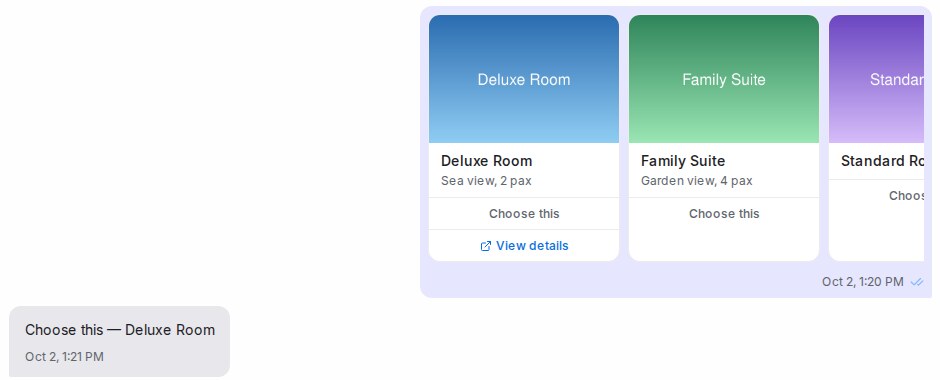
A Send message block with several pictures can show them as a carousel: one message the customer swipes sideways, with a title, a short description and buttons on each card. Add 2 to 10 images under After message, then set Show images to Carousel. Each image becomes a card with a Title (required, up to 80 characters), a Description (optional, up to 80 characters) and up to 3 Buttons.
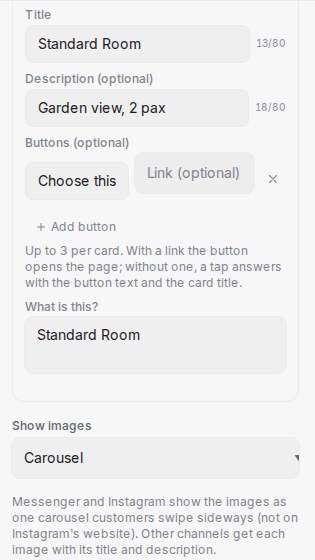
- A button with a link opens that page, for example a product page, and the conversation stays where it is.
- A button without a link is an answer: the tap sends the button text with the card name, such as “Choose this — Deluxe Room”, so the next step knows which card was picked.
- Messenger and Instagram show the real carousel. On Instagram it appears in the app, not on Instagram’s website.
- Other channels (WhatsApp, web chat, Telegram and the rest) get each picture followed by its title and description; links are written out (each card’s first link also becomes a button where the channel shows one), and answer buttons appear under the last card where the channel shows buttons.
- Customers see the card text in their own language, like the rest of the step.
On the canvas the cards sit side by side, and the Playground shows the same row, so you can tap an answer to test the next step.
Links become a button
A reply that carries a link also gets a button under it, so the customer taps instead of copying the address. This happens on its own for any link the agent sends — one you wrote into a Send message block, one filled in from a variable, or one from your FAQs — and the link stays in the text as well.
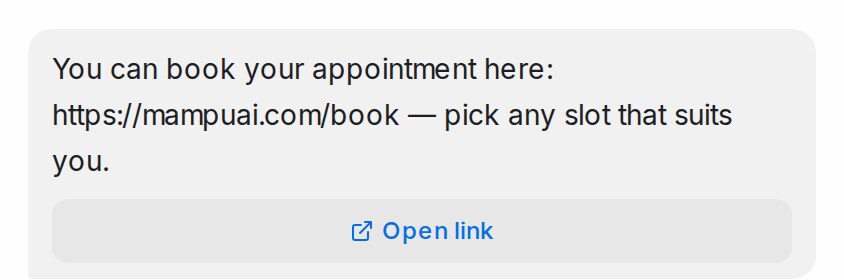
- The label reads Open link in the customer’s language. To name the button yourself, write the link as
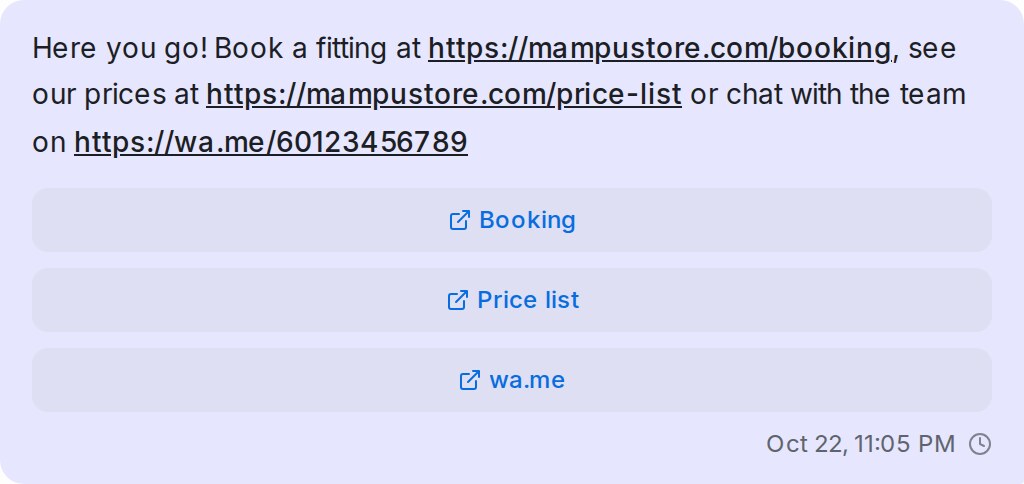
[Book now](https://example.com/book)and it reads Book now (up to 20 characters). - Up to three on Messenger and Instagram. A reply there with several links gets a button for each, up to three, in the order they appear. Each button is named after what tells its link apart: the website when only that link goes there (wa.me), otherwise the part of the address that differs (Booking, Price list). When nothing readable differs, they read Open link 1, Open link 2. Other channels show one button, for the first link.
- Where it shows. Official WhatsApp API, Messenger, Instagram, Telegram, Line and web chat show a real button. A Normal WhatsApp Web Link number, email, SMS and TikTok get the text with the link, as before.
- When it stays text. A question that already offers answer buttons, or a reply too long for the channel to add a button, goes out as text with the link.
- Agents see it too. The conversation shows the same buttons under the reply, and the Playground shows the first one while you test.
- Switch it off per inbox. In the agent’s Inboxes window, turn off Turn links into buttons for an inbox and its replies keep their links as plain text. It is on for every inbox to start with.
Follow up when the customer goes quiet
A customer who stops replying at a question is not lost. Select the Collect block and, under Follow up, click + Add follow-up step. Each step waits for the time you set under Follow up after, then does what you choose under Then: send a reminder and keep waiting, continue to the next step, hand off to a human agent, or continue on the No reply path. Steps fire one after another, so a flow can remind once, remind again, and only then move on.
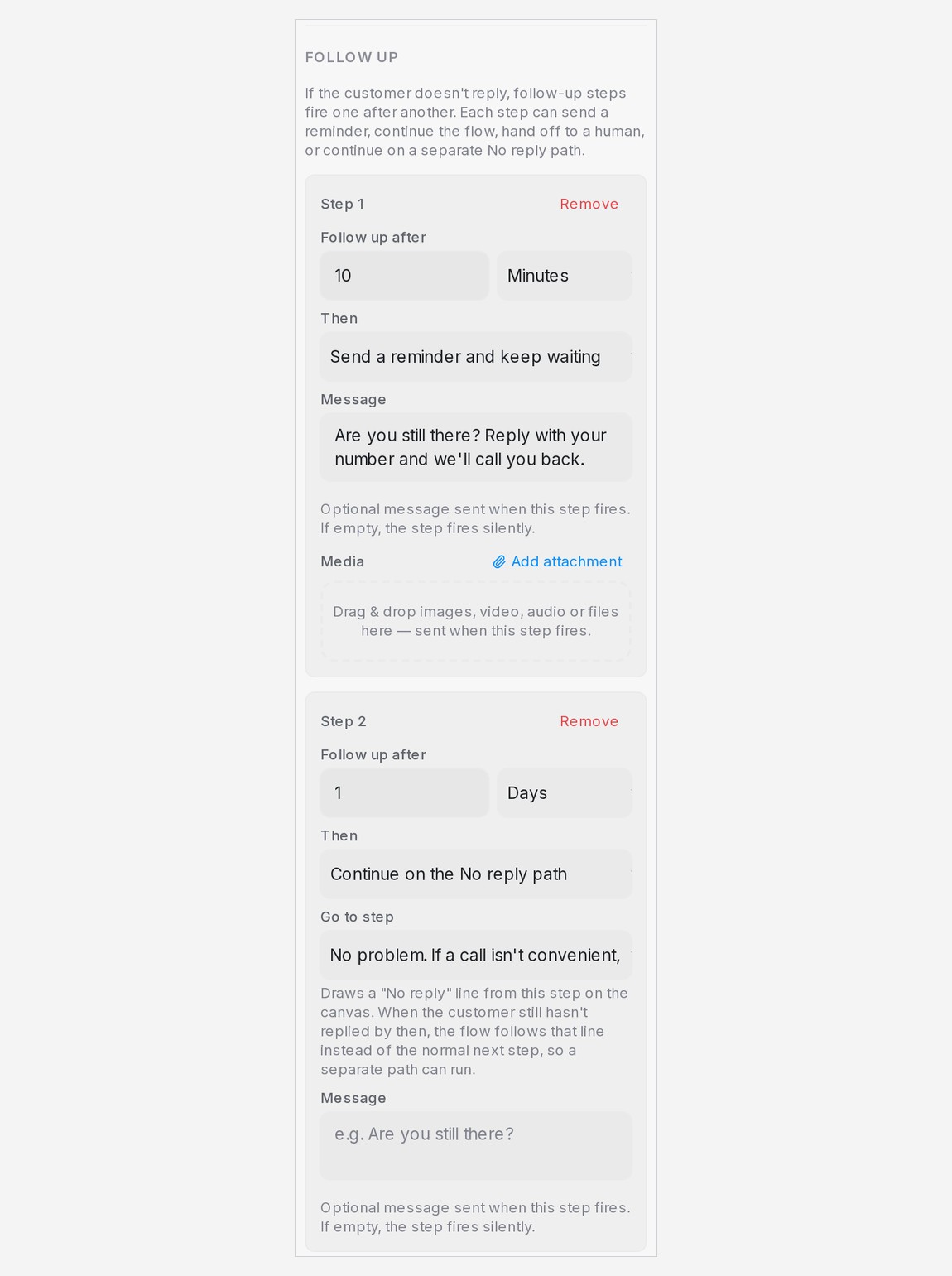
The No reply path is a separate route for the customer who never answered: a different offer, a simpler question or a clean ending, instead of the step everyone else gets. On the last follow-up step choose Continue on the No reply path and pick where it leads under Go to step — an existing step, or + New message step, + New question step or + New end to write a new one on the spot. On the canvas an amber No reply line leaves the bottom of the question block and runs to that step, while the blue line still shows where a customer who answers goes.
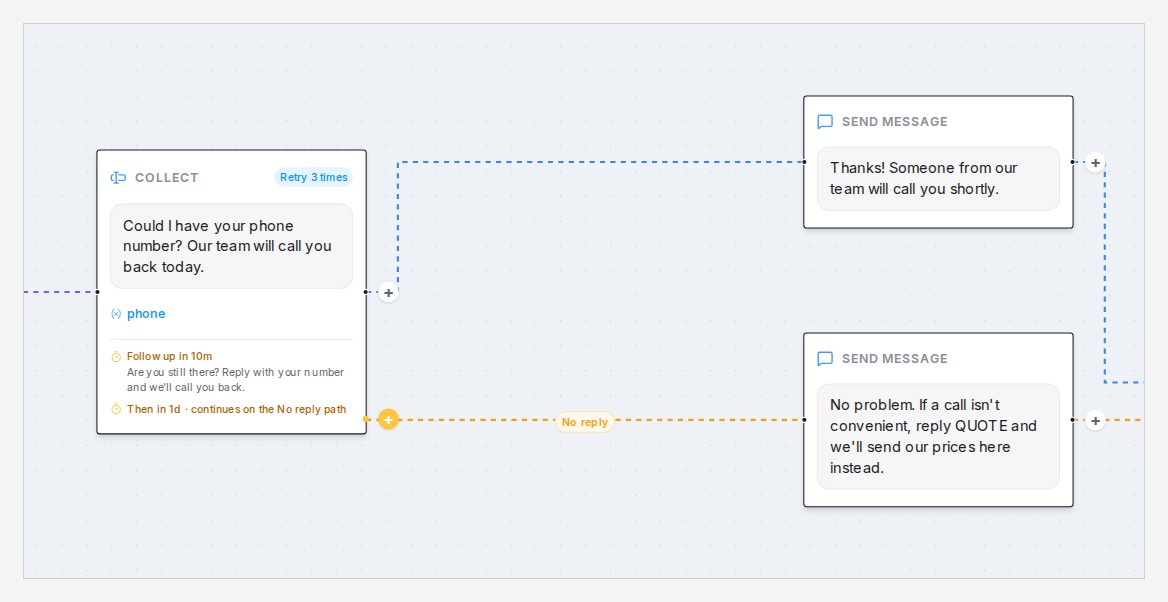
- Build it from the canvas. Every question block and AI conversation block carries an amber + at its lower connector. Click it and choose New message, New question or End to add a step on the No reply path. If the question has no No reply step yet, its last “continue” or “hand off” step becomes one, or a step that fires after 1 hour is added; change the wait in the panel. The grey + at the right-hand connector of a message, question, AI task or knowledge query block adds the next step in the same way.
- Or ask the designer. Type what should happen in the designer chat — “if they don’t reply after a day, offer to send our prices here instead” — and it adds the follow-up steps and the No reply path for you. This works in the chat and in the classic view.
- Only the quiet customer takes the path. A customer who answers, even after a reminder, continues down the normal line, and the remaining follow-up steps are dropped.
- AI conversation steps follow up too. Select the AI conversation block and add follow-up steps under Follow up the same way: a reminder, a hand-off or the No reply path. Continue to the next step is not offered there, because the step has no single next step. The wait counts from the step’s last reply, so each time the customer writes back the follow-ups start over, and the step’s AI does not reply when one fires. A hand-off goes through the step’s Handoff exit when that exit is connected.
- A reminder can carry a message and files. A step that sends a reminder takes an optional message and files dropped onto Media; without a message the step fires silently. The step that moves onto the No reply path can carry a message too, sent as the flow moves on.
- Every step needs a wait time, and the panel will not save one without it. Steps after a “continue”, “hand off” or “No reply path” step never run, and the panel tells you so.
- Follow-ups never go out during Quiet hours for follow-ups in the agent’s Settings.
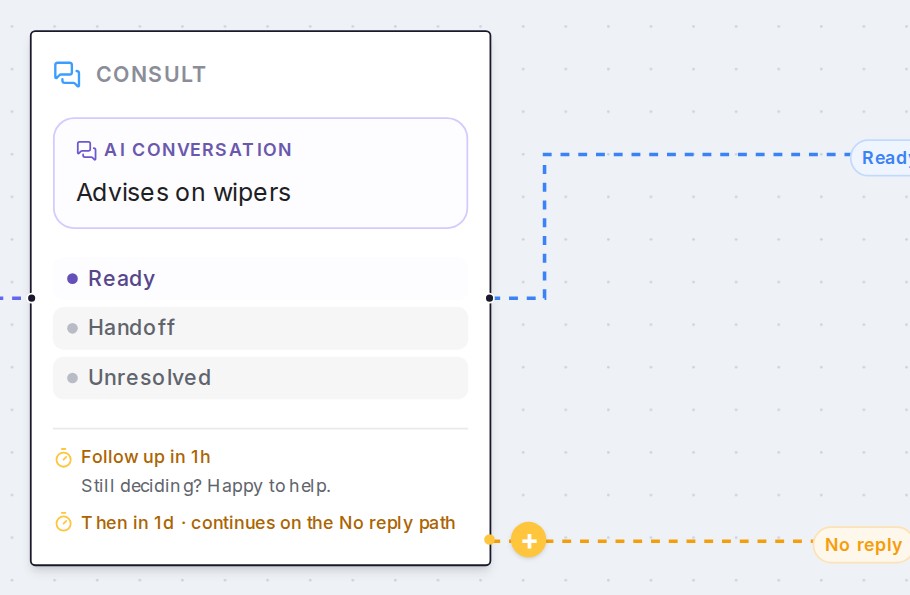
Test it in the Playground with short waits — the follow-ups run there for real, so you can watch the reminder arrive and the flow continue on the path.
Keep a step out of the AI’s answers
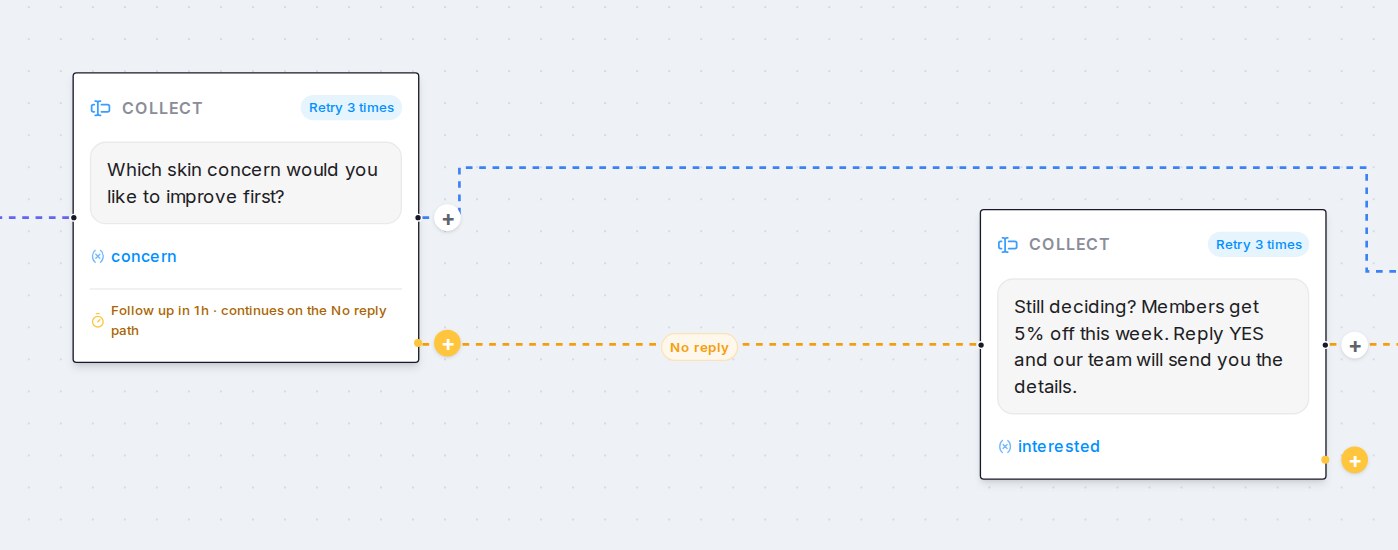
Some steps are meant for one moment only, like a member discount you offer to a customer who went quiet. To stop the AI bringing them up anywhere else:
- Click the step.
- Open Advanced settings at the end of its panel.
- Switch on Hide this step from the AI, then click Save Changes.
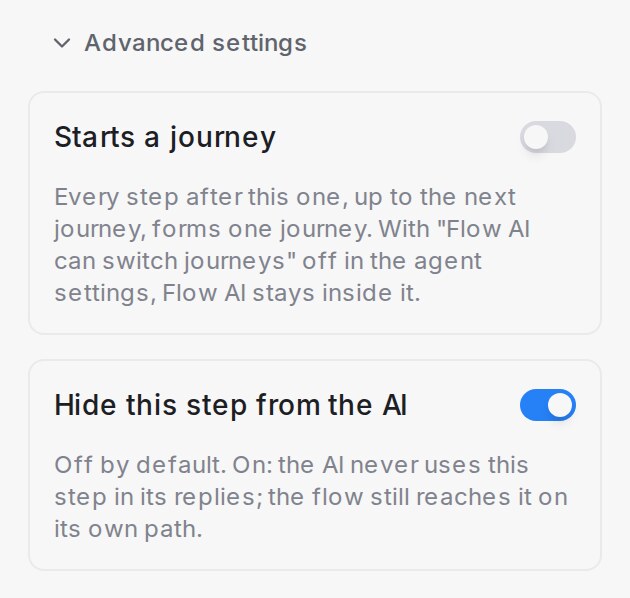
- The AI never uses the step in its replies and never moves a customer to it by itself.
- The flow still reaches the step along its own lines, such as the No reply path, and sends it as written. Once the customer is on the step, it runs as usual.
- A customer who asks about it at another step is treated like any question your flow has no answer for.
- The switch is off for every step until you turn it on. Start and End steps don’t have it.
Focus the agent on the right FAQs
Once your AI Knowledge entries carry categories, any block can narrow what the agent answers from. Open the block’s Actions → FAQ category scope, choose Restrict to selected categories, and pick the categories that belong to this part of the flow — from that step onward the agent only answers questions from those FAQs. Tick Include general FAQs to also allow entries that have no category.
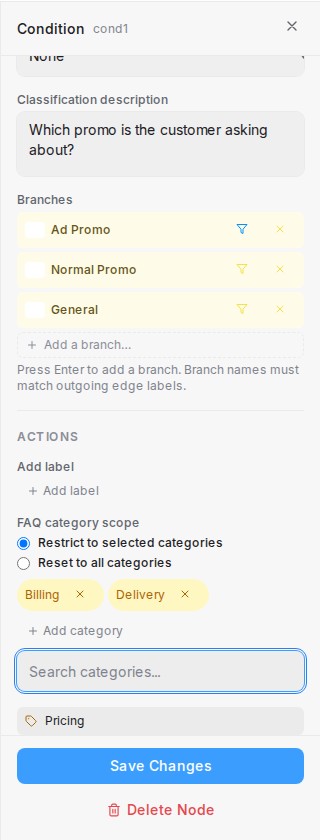
- The scope stays active until another block changes it — add a scope action set to Reset to all categories where the conversation opens back up.
- Scoped blocks show an amber FAQ badge on the canvas, and every scope change appears as a note in the conversation (and in the playground while testing), so your team can always see what the agent is drawing from.
- Categories are picked from the ones already on your entries — if a category is later removed from every entry, the flow asks you to update the scope before it can be saved or published.
The handoff message
Every flow has a default End step that hands the conversation to your team, sending a short handoff message (e.g. “Let me connect you with a team member.”) whenever the agent can’t help further.
Actions on the default End step, such as Add label under Actions, also run whenever the agent hands a conversation to your team without reaching an End step. Add the label your team filters on, such as Handoff, and those conversations get it too. The handoff message still goes out only once, so customers never get the “let me connect you” line twice. Handoff End steps you designed yourself run only their own actions.
Want your team to receive a phone number or an order reference along with the handover? Turn on Try to help before handing off in the agent’s Settings and list the Details to collect before handing off — see Testing and connecting an agent.
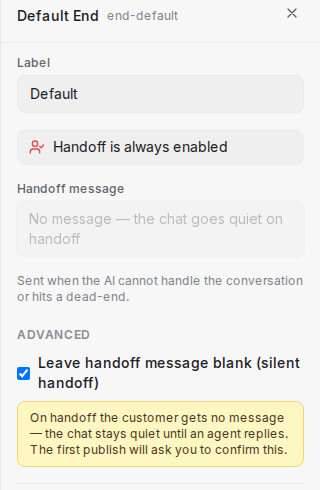
Prefer a quiet handover? Tick Leave handoff message blank (silent handoff) on the default End step — the message field clears, and customers get no automated line when the agent steps back; the next thing they see is your teammate’s reply. Because the chat stays quiet until someone answers, the first time you publish the agent you’re shown exactly what customers will experience and asked to confirm. Your name and the date are recorded on the step, so the team always knows who approved it. Typing a handoff message again switches the agent back to announcing the handover.
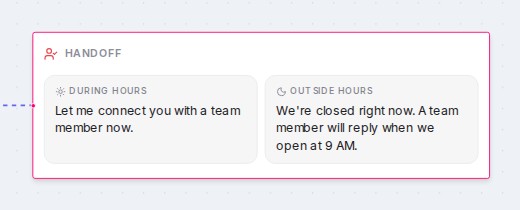
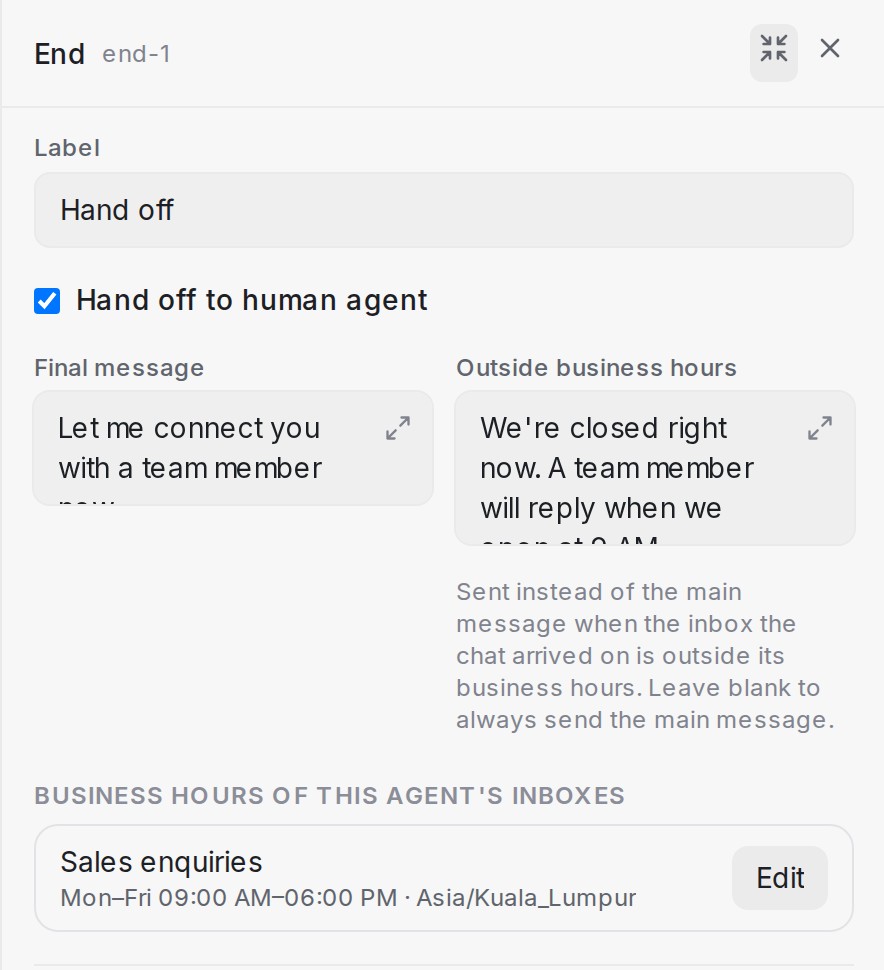
Closed for the night? Any End step can carry a second message, Outside business hours, beside its Final message. When the chat arrived on an inbox that is outside its business hours at that moment, the agent sends this version instead, so an after-hours customer hears when to expect a reply rather than “Let me connect you with a team member”. Leave it blank and the step always sends the main message. On the canvas, an End step with both messages shows them side by side, marked During hours and Outside hours.
The hours are the inbox’s own business hours, and you can set them without leaving the designer. The step’s panel lists every inbox connected to the agent under Business hours of this agent’s inboxes, each with its schedule and timezone: click Set hours or Edit, switch on Business hours on for this inbox, pick the timezone and working days, and press Save hours. The same list sits in the agent’s Settings under Business hours, and because these are the inbox’s real business hours, whatever you change here applies to that inbox everywhere. While a Flow Agent handles an inbox, the inbox’s own unavailable message stays quiet, so customers get the agent’s after-hours message and not two messages at once. To watch the after-hours message play, open the Playground, click Scenario, and choose the inbox and a pretend time outside its hours — see Testing and connecting an agent.
Choose who gets the handoff
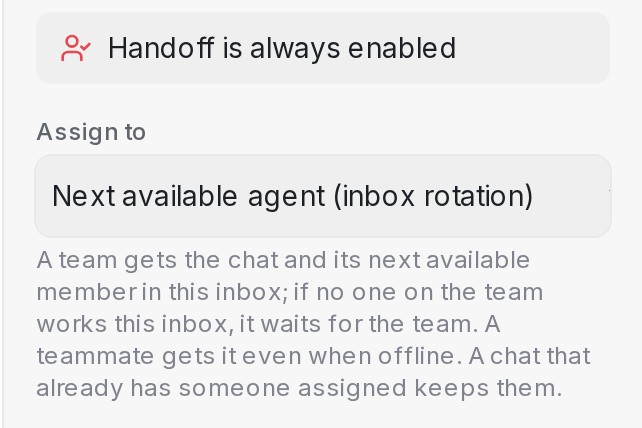
Every End step that hands off, the default one included, has an Assign to field that decides who receives the conversation:
- Next available agent (inbox rotation): the inbox’s usual rotation picks the teammate. This is the default.
- A team, listed under Teams: the conversation goes to that team and to the team’s next available member who works the inbox. If no one on the team works that inbox, the conversation waits on the team, unassigned, until someone on the team picks it up.
- A teammate, listed under Teammates: the conversation goes straight to that person, even when they’re offline. If they no longer work that inbox, the inbox rotation picks instead.
A conversation that already has someone assigned keeps them, and only joins the chosen team when that person is on it. The default End step’s choice also applies whenever the agent hands over without reaching an End step, including when it can’t reply because of a technical problem. When you test with a Scenario inbox in the Playground, the handoff shows who would get the chat, without notifying anyone.
Every designer change creates a snapshot — open the History tab to restore any earlier version. You can also download the canvas as a PDF to share the flow with your team.
Save as you go, and use the playground to try the flow as if you were the customer.
See where customers go
Once the agent is live, the designer can show you what real customers did with the flow. Administrators see a flame button in the toolbar on the right of the canvas — click it to switch on the heatmap. Every step is coloured by the share of customer sessions that reached it in the last 30 days, from green for the quiet corners to red for the busiest path, and the colour spreads across the canvas around each step so the routes customers actually take stand out at a glance.
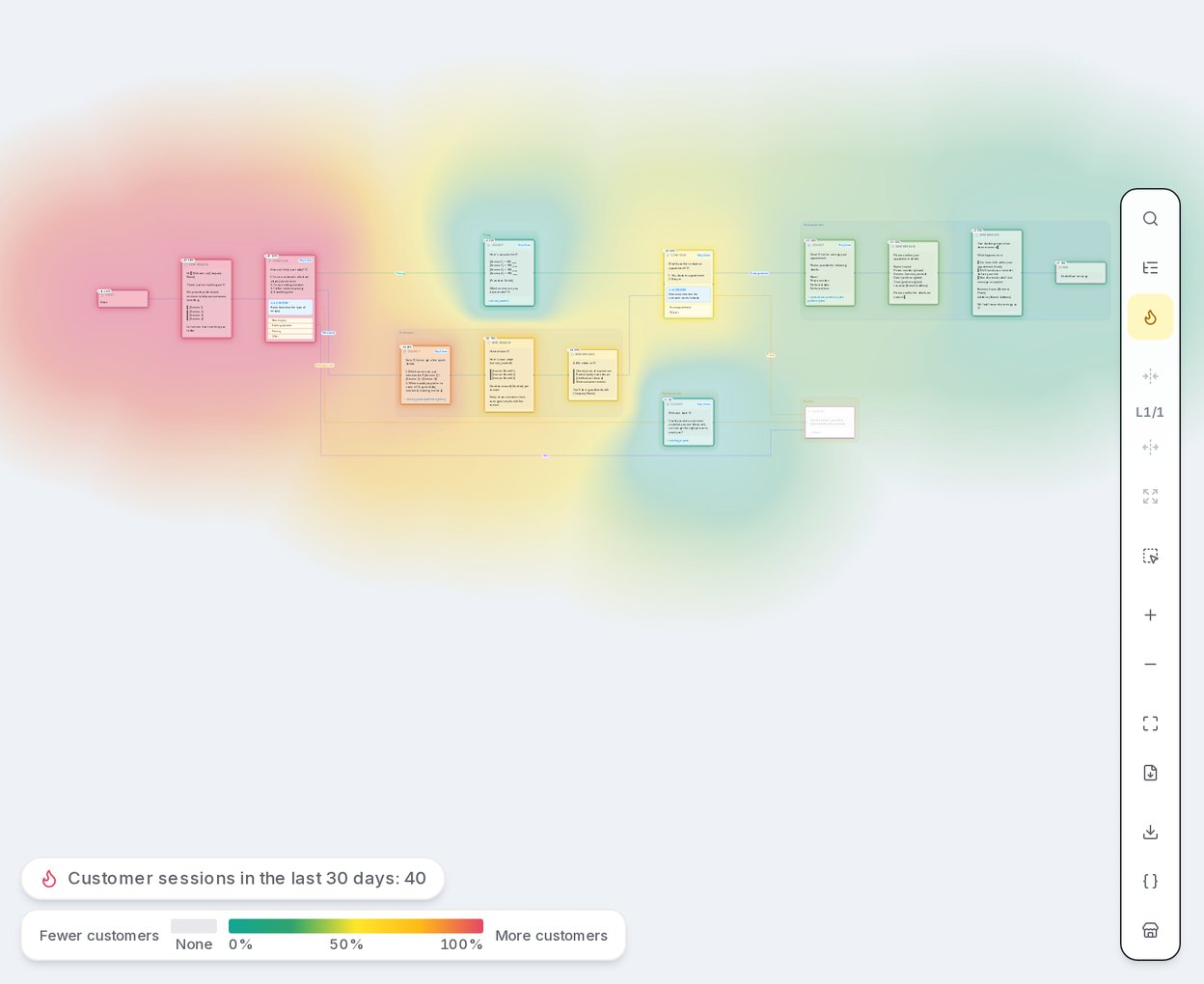
- Each step carries a count and a share —
34 · 85%means 34 sessions reached this step, 85% of everyone who started. Hover the count to read the full figure in plain words. - Steps nobody reached fade back, so unused routes are easy to spot.
- The summary and legend sit at the bottom left — the total number of customer sessions in the last 30 days, and a colour bar from Fewer customers to More customers. Steps with no sessions show the grey None shade.
- Only live conversations count. Playground tests are never included, and a customer who chatted twice counts as two sessions.
Use it to spot where conversations thin out. When far fewer customers reach a step than the one before it, that is the question or menu to reword first. Click the flame again to return to the plain canvas. For the answers customers gave along the way, see Bot reports, flow submissions and exporting.