
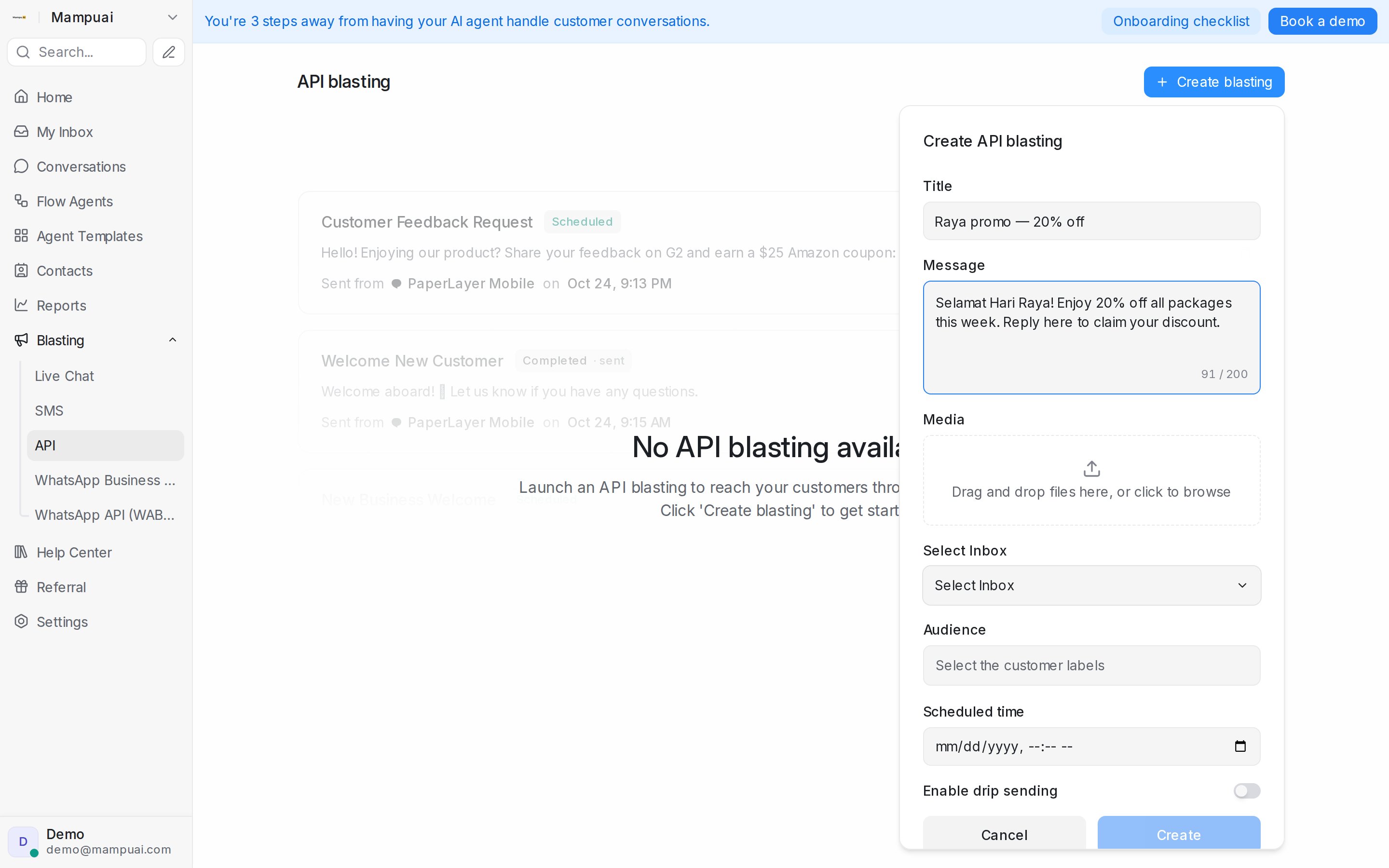
To launch a blasting, open Blasting, click New blast and pick the number or Page that sends it. In the form you’ll typically:
- Name it — the title is for your own reference; customers don’t see it.
- Select the inbox the messages will be sent from.
- Write the message — or, for WhatsApp API (WABA), select an approved WhatsApp Template and its language.
- Attach media (where available) — drag and drop images or files such as product photos, brochures, or price lists. The maximum size per file is 40MB.
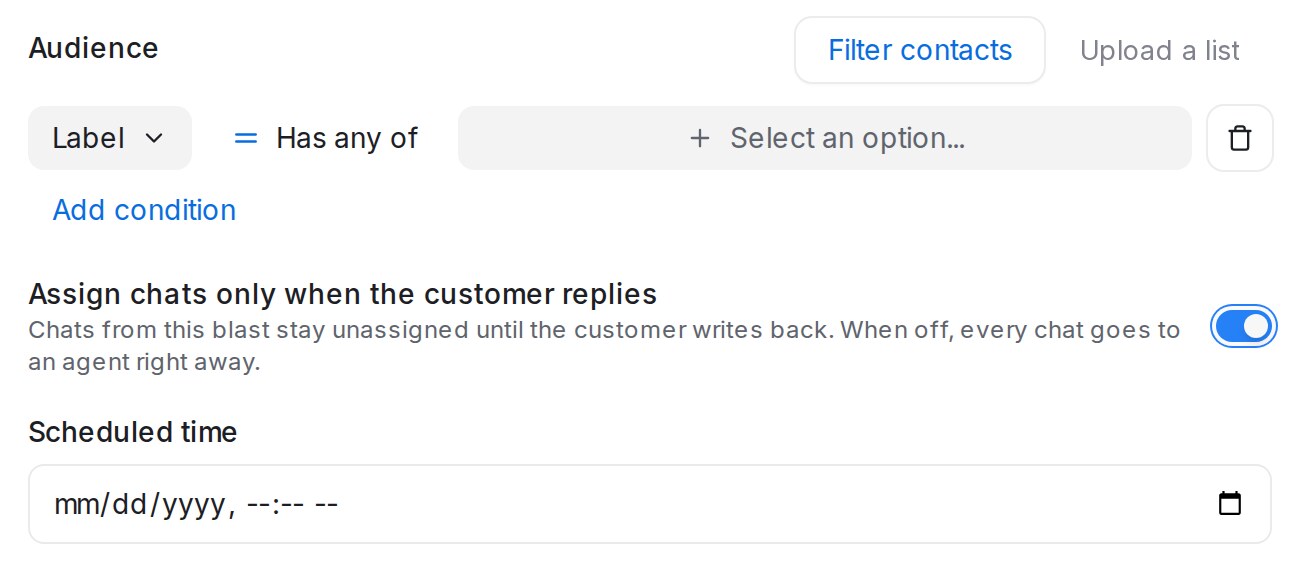
- Select the audience — either Filter contacts (combine conditions such as labels; the form shows a live count of how many contacts will receive the blasting) or Upload a list to blast a spreadsheet of people directly — see below.
- Pick the scheduled time — the blasting goes out at the time you choose, so you can prepare it now and send it later.
- Assign chats only when the customer replies (optional, on the WhatsApp API, WhatsApp Business App, Facebook and API blasting forms) — keep the chats this blasting opens unassigned until the customer writes back. See below.
- Enable drip sending (optional, where available) — deliver the messages gradually instead of all at once.
Watch the walkthrough
Click Create and the blasting is saved and ready to go out at the scheduled time.
Filling template variables
When a WhatsApp or Messenger blasting uses a template with variables, each variable gets its own field under Variables. Instead of typing a field’s code by hand, choose what fills it:
- Click the braces button next to a variable, or type
{{in the field and keep typing to search. - Pick a field from one of the sections:
- Contact — the contact’s name, first name, last name, email or phone.
- Contact attributes — your own contact attributes.
- From your file — the extra columns of your uploaded list, so a “Date” or “Branch” column goes straight into the message. This section appears only on a WhatsApp blasting whose audience is Upload a list.
- Sender and inbox — the sender’s name or email, or the inbox name.
- The field is inserted where your cursor is. You can mix it with your own text — for example, type “Hi ” and then pick the contact’s first name.
Each recipient gets their own values when the blasting goes out. A contact with no value for a chosen field is skipped rather than getting a message with a gap in it.
Blasting an uploaded list
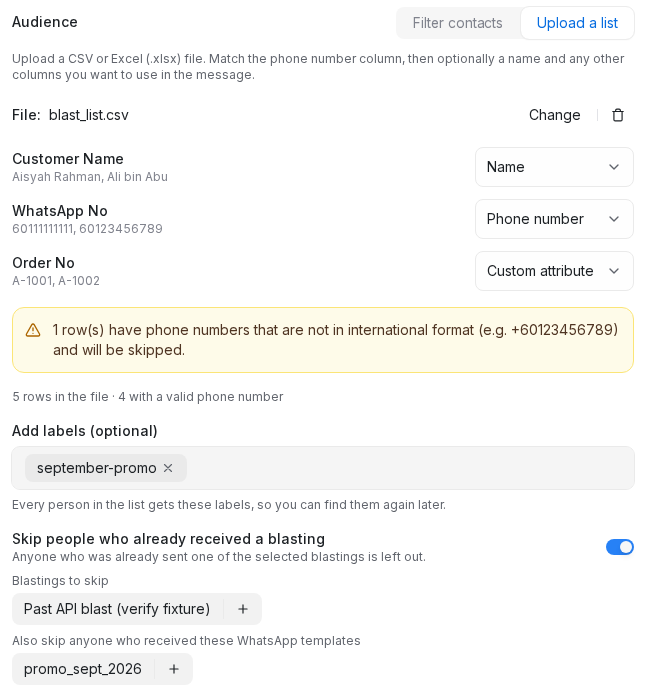
Pick Upload a list in the audience block to send to the people in a CSV or Excel (.xlsx) file without importing it first:
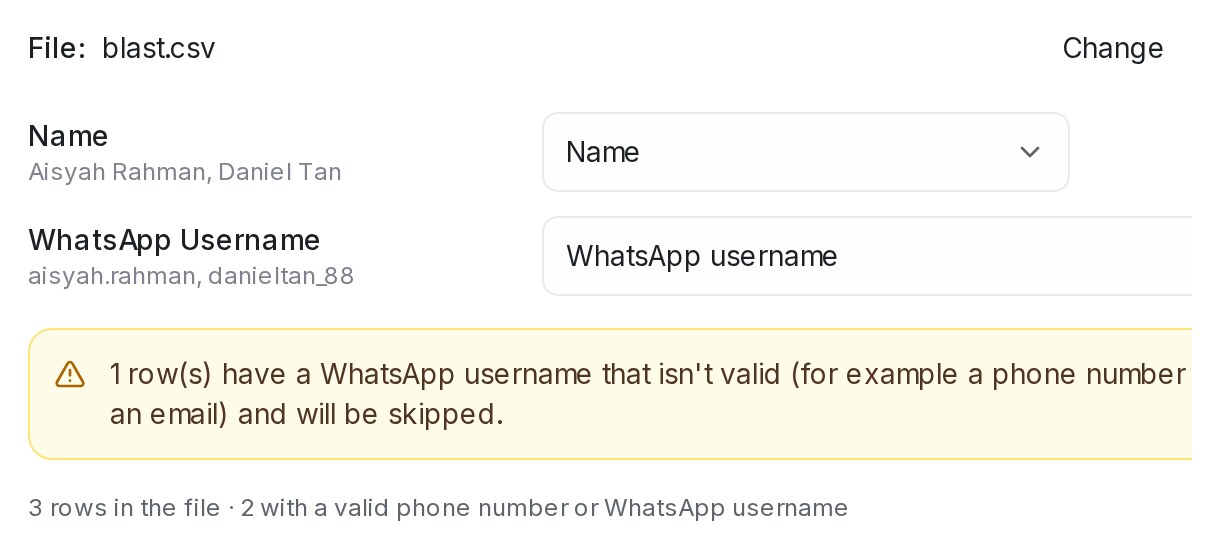
- Choose the file. The form lists its columns with a sample of each — match the phone number column (or a WhatsApp username column), and optionally a name and any other column you want to use in the message (extra columns become custom attributes you can insert as variables).
- Add labels if you like — pick existing ones or type new ones. Everyone in the list gets them, so you can find these people again later.
- Skip people who already received a blasting — switch it on and pick the earlier blastings whose recipients should be left out. On WhatsApp API (WABA) you can also skip anyone who was already sent the template you are sending.
Phone numbers must be in international format (e.g. +60123456789); the form warns you about rows that aren’t, and those rows are skipped. The people in the file are added to Contacts while the blasting is being prepared, so their conversation history stays in one place — someone who is already a contact is updated rather than duplicated.
On a WhatsApp API (WABA) blasting, the list can also carry a WhatsApp Username column for people who chat with you by username. A username row reaches that person only if they have already messaged one of your WhatsApp numbers on the same WhatsApp Business account. Other username rows are skipped as Not reachable yet. A value that can’t be a username, such as a phone number, is skipped too, and the form warns you about it.
The blasting card shows Preparing list… until the file is processed, then how many contacts will receive it and how many rows were skipped, with a Download skipped rows link so you can fix them and try again.
For live chat blasting the flow is slightly different: instead of an audience you set trigger conditions (such as the page URL and time on page), then enable it.
Keeping blast chats unassigned until the customer replies
A blasting to hundreds of people opens a chat for each of them, and an inbox with automatic assignment hands every chat to an agent straight away, even though most people never reply. Switch on Assign chats only when the customer replies to keep these chats out of your team’s lists until the customer answers:
- In the blasting form, switch on Assign chats only when the customer replies, above Scheduled time.
- When the blasting goes out, its chats stay unassigned.
- When a customer replies, that chat is handed to an agent by the inbox’s usual assignment rules. Customers who never reply stay unassigned.
The switch is off by default, so every chat goes to an agent right away, as before. It is on the WhatsApp API, WhatsApp Business App, Facebook and API blasting forms. A customer who already has an open chat in that inbox gets the blasting in that chat, and the chat keeps its current agent.