
On the WhatsApp API, you can only message someone first using a template that WhatsApp has already approved. Templates are also what you pick when you send a blast. You write them, submit them for approval and track their status directly in Mampu AI, on the inbox itself.
Which WhatsApp do you have? Templates apply to WhatsApp API (WhatsApp Cloud) inboxes only. If you connected your number through the WhatsApp Business app instead, you don’t use templates. See Normal WhatsApp vs WhatsApp Cloud if you’re not sure which one you have.
Before you start
- A WhatsApp API (WhatsApp Cloud) inbox. To set one up, see Registering a WhatsApp official (WhatsApp API) number or Migrating an existing WhatsApp number to Mampu AI.
- Administrator access, so you can open the inbox settings.
Where your templates live
Go to Settings → Inboxes, click your WhatsApp inbox, then open the Templates tab.
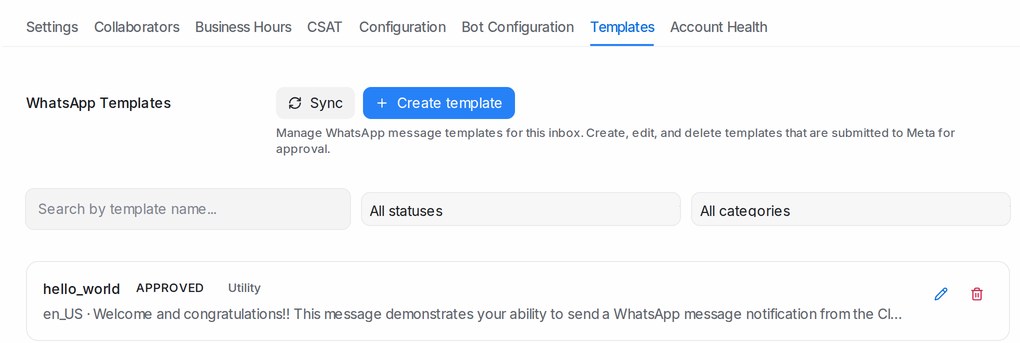
The tab lists every template on the number, with its category, language and status. You can:
- Search by template name to find one quickly.
- Filter by status — All statuses, Approved, Pending or Rejected.
- Filter by category — All categories, Marketing or Utility.
- Click Sync to pull the latest statuses from Meta. Your list also refreshes on its own through the day, so Sync is only for when you want an answer right now.
If nothing appears yet, you’ll see No templates found. Create a new template or sync from Meta.
Have more than one WhatsApp API number? Settings → WhatsApp Templates shows the templates of all your numbers together, lets you copy a template to another number and edit a live template for every number in one save — see The WhatsApp Templates library.
What the statuses mean
| Status | What it means |
|---|---|
| Pending | Submitted and waiting for review. Decisions usually arrive within 24 hours. |
| Approved | Ready to use. Allow a few minutes after approval before your first send. |
| Rejected | Turned down. Edit it and resubmit, or write a new one. |
| Paused | Temporarily blocked because recipients reacted badly to it — too many blocks or reports, or very low read rates. Improve the message before using it again. |
Choose the right category
Pick the category that matches what the message actually does. Getting this right is the single biggest reason a template sails through review.
- Utility — messages about something the customer already did or asked for: order confirmations, delivery updates, appointment reminders, receipts, account notices.
- Marketing — anything promotional or designed to bring people back: offers, launches, newsletters, re-engagement, invitations.
If your content clearly belongs elsewhere, Meta may move it to the correct category, usually to Marketing. Write the content for the category you want, rather than labelling a promotion as Utility.
Authentication templates, used for one-time passcodes, aren’t created here. If your number already has them, they still appear in the list.
1. Create the template
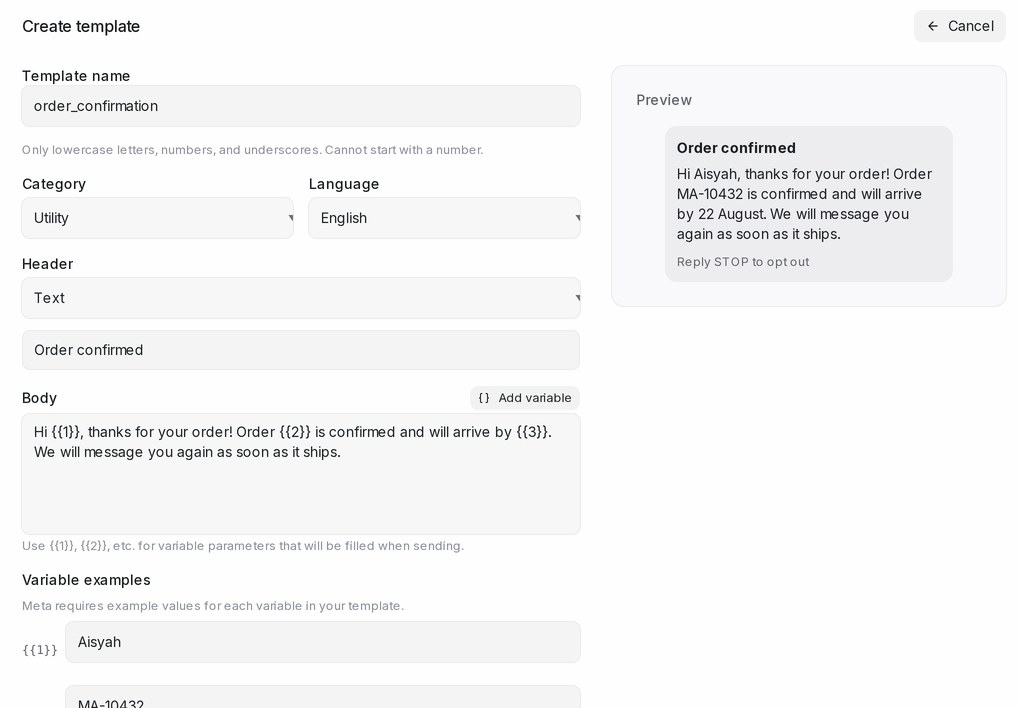
Click Create template and fill in the form. A live Preview on the side shows the message exactly as your customer will see it.
Template name
Use only lowercase letters, numbers and underscores, and don’t start with a number — for example order_confirmation. Spaces turn into underscores as you type, and unsupported characters are dropped.
Choose carefully: the name and language can’t be changed later.
Category and language
Pick Marketing or Utility, then the Language your message is written in. Submit a separate template for each language you plan to send in.
Header
Optional, and limited to one line. Choose None, Text, Image, Video or Document.
For an image, video or document header, click Upload example and attach a sample file — Meta needs an example to review the template. Accepted files are JPG, PNG or WebP images, MP4 or 3GPP video, and PDF documents. This file is also what your customers receive: whenever someone on your team picks the template, it comes attached, and they can swap it for another file for a single send. See The WhatsApp Templates library.
Body
This is your message, and it’s required.
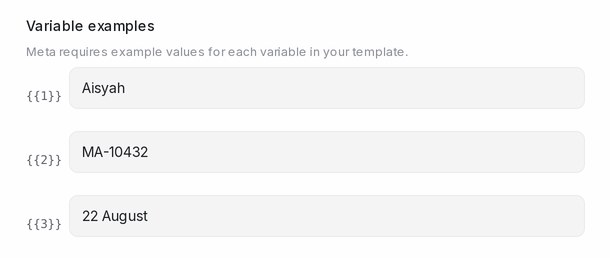
To personalise it, click Add variable to drop {{1}}, {{2}} and so on into the text, then fill in the Variable examples underneath. Meta requires a realistic example for every variable, and Create template stays greyed out until each one is filled.
Write around your variables so the sentence still reads well no matter what fills them.
Footer
Optional single line of small print, such as an opt-out note.
Buttons
Optional, up to three. Choose from:
- Quick Reply — a tappable canned answer.
- URL — opens a link. You can add a variable to the end of the link for things like an order number.
- Phone Number — starts a call.
- Copy Code — copies a code, such as a voucher, to the clipboard.
Check the preview
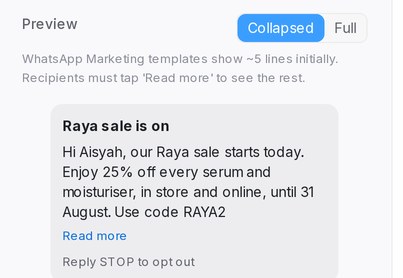
For Marketing templates, switch the preview between Collapsed and Full. WhatsApp shows only about five lines of a marketing message at first, and the recipient has to tap Read more for the rest — so put the offer and the reason to care in the opening lines.
2. Submit for review
Click Create template. You’ll see Template created successfully. It will be reviewed by Meta, and the template appears in the list as Pending.
Meta reviews it with a mix of automated and manual checks, usually within 24 hours. Meta also emails your business admins and posts an alert when the decision is made. Come back to the Templates tab, click Sync, and the status updates to Approved or Rejected.
3. Send it
Once a template is Approved, wait a few minutes, then use it to open a conversation or run a campaign. A template with an image, video or document header arrives with that file already attached when you pick it. See WhatsApp campaigns for sending to a list.
Editing and deleting
To change a template, click it in the list and edit its content or category. The name and language stay locked. Saving your changes sends the template back to Meta for another review, so it returns to Pending for a while.
Deleting a template removes it from your WhatsApp number for good. Anything scheduled to use it will no longer be able to send, so check your campaigns first.
If a template is rejected
Rejections are almost always about the content. The usual causes:
- Wrong category — promotional wording submitted as Utility.
- Duplicate wording — the body and footer match a template you already have. Change the wording or reuse the existing template.
- Asking for sensitive details — never ask for full card numbers, bank account numbers or identity card numbers. Asking for the last few digits is fine.
- Spam or scam-like content — pushy urgency, unrealistic claims, or links that don’t match your business.
- Threatening or aggressive tone, including threats of legal action.
- Placeholder or unclear content — variables with no meaningful example, or text that makes no sense on its own.
Fix the wording and save to resubmit, or create a fresh template with a new name. If you believe the category decision was wrong, you can request a category review from WhatsApp Manager in your Meta Business account.
Tips for faster approval
- Write the full message as a customer would read it, with no shorthand or internal jargon.
- Give every variable a realistic example —
Aisyah,RM120.00,18 August— notxxxortest. - Keep the message specific to one purpose.
- Add an opt-out line in the footer on marketing templates.
- Get one template approved first, then reuse its structure for the rest.