
An agent access key lets an AI coding agent act in your account — but only within the permissions you give it. You can create as many as you like, review how they’re used, and switch any of them off instantly.
Watch the walkthrough
Create a key
- Go to Settings → API & Agents.
- Click Create key.
- Give it a clear name — use one key per agent or per use case (e.g. “Claude Code – support triage”).
- Choose its permissions — turn on only what this agent needs (see What your AI agent can and can’t do).
- Optionally set an expiry date.
- Click create.
Copy it once
The full key is shown only once, right after you create it. Copy it and store it somewhere safe, like a password manager. After that, the list shows only a masked preview (e.g. hE4fLv…QwGJw) — for security, the full value can’t be shown again. Lost it? Just revoke it and create a new one.
Review your keys
The keys list shows, for each key:
- Name and a masked preview of the key
- Permissions it was granted
- Created date and Last used
- Calls — how many successful actions the agent has run with it
Revoke a key
Click the menu on any key and choose Revoke. That instantly cuts off that agent — it can no longer act in your account. Revoking one key never affects your other keys or your own login.
What read-only permissions let your AI see
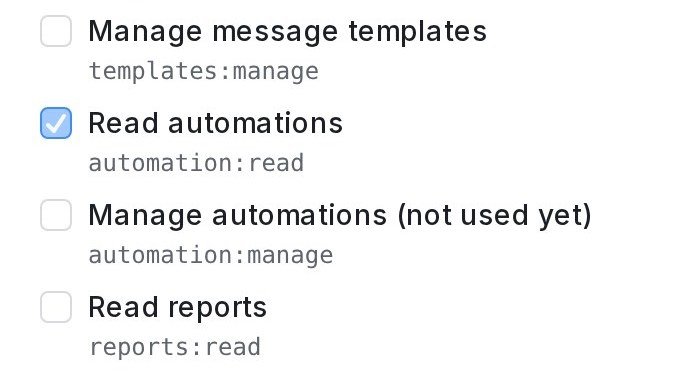
Read permissions let an AI agent look at a part of your workspace without changing anything there. They help when you ask your agent why something happened.
Read automations
Turn this on when you want your agent to find out why an automation rule ran, or why it didn’t.
- Go to Settings → API & Agents and click Create key.
- Tick Read automations.
- Give the new key to your agent.
The agent can then read your automation rules, plus the custom attributes and agents those rules use. It can’t create, edit or delete a rule.
Note: Webhook header values in a rule, such as the password for your CRM, show as [hidden]. The agent still sees the address and the message.
Note: Only keys created by an administrator can read automations.
Note: Existing keys keep the permissions they were created with. To add Read automations, create a new key.
Manage automations lets the agent create a rule and edit it, including switching it on or off. A new rule starts switched off, and deleting a rule stays in the dashboard. Only keys created by an administrator can use it.
Read conversations and Read reports
- A key with Read conversations can also read the Lead Pipeline: the board, Today and its summary. It sees only leads in inboxes the key’s owner has access to.
- A key with Read reports can also read AI Monitoring: its settings, reply scores, safety findings and daily lead reports. This works only when the key’s owner is an administrator.
- Both permissions only read. A Full access key gets both.
Let your AI set up message sequences
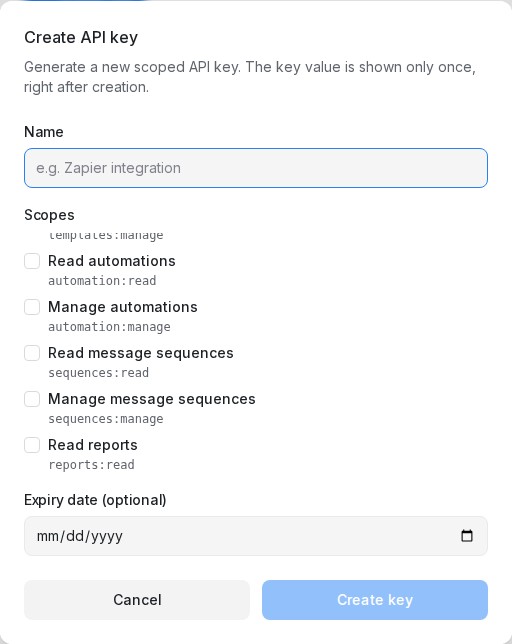
Two permissions open your Message Sequences to an AI agent.
- Read message sequences: the agent can list your sequences and read each one: its name, whether it is Off, Testers only or Live, what starts it (including the automation rules and webhooks under Started by), and every step with its timing, Only send if conditions, WhatsApp template, buttons and language versions.
- Manage message sequences: the agent can also create a sequence, edit one and make a copy.
To give an agent these permissions:
- Go to Settings → API & Agents and click Create key.
- Tick Read message sequences, and Manage message sequences if the agent should set sequences up.
- Give the new key to your agent.
Going Live stays with you. An agent can set a sequence to Off or Testers only, but it can’t switch one to Live, because a Live sequence starts messaging your customers. A sequence the agent creates or copies starts Off. Check it with your testers, then switch it to Live yourself on the Message Sequences page.
Note: The agent can edit a sequence that is already Live, and it stays Live. Its changes reach the next messages the sequence sends.
Note: Deleting a sequence, and adding images or files to a step, are done in the dashboard.
Note: Any team member’s key can use these permissions, the same as on the Message Sequences page.
Note: Existing keys keep the permissions they were created with. To add these, create a new key. If you connected your own Claude or ChatGPT by signing in, Read only includes reading sequences and Make changes includes setting them up.
Let your AI manage canned responses and Reply SLA
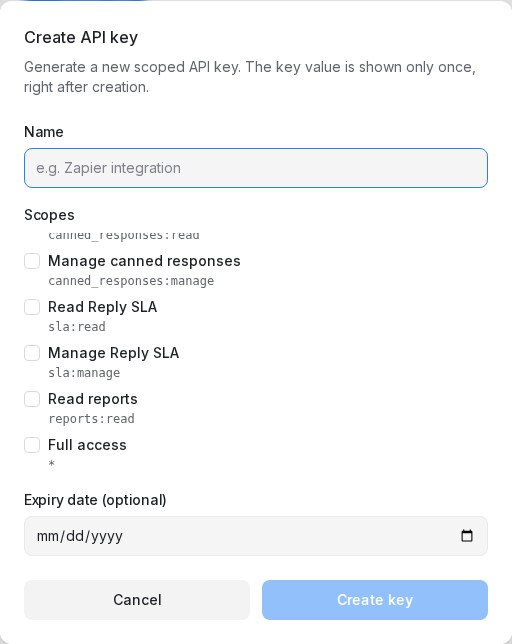
Canned responses
- Read canned responses: the agent can list and search your canned responses and read each one: its Short code, its text with variables such as
{{contact.name}}, and its bubbles in order. - Manage canned responses: the agent can also create a canned response and edit one.
Any team member’s key can use these, the same as on the Canned Responses page.
Note: An agent writes text only. It can keep or remove a picture or file in a canned response, but it can’t add one; add pictures and files in the dashboard. If a canned response has a picture, the agent must change the text inside its bubbles, so the picture is never lost by accident.
Note: Deleting a canned response, and sending one into a chat, are done in the dashboard.
Reply SLA
- Read Reply SLA: the agent can list your Reply SLA policies and read each one: its name, its inboxes (or all inboxes), First Response Time, Next Response Time, Resolution Time, Only during business hours, excluded keywords, the emoji reactions setting, Auto-reassign on missed reply deadline, and which breach automation it is linked to. Any team member’s key can read them.
- Manage Reply SLA: the agent can also create a policy and edit one, Auto-reassign included. Only keys created by an administrator can, the same as on the Reply SLA page.
Note: A new or edited policy applies straight away. Only one policy can apply to all inboxes.
Note: The breach automation is an automation rule. The agent reads or edits it with Read automations or Manage automations.
Note: Deleting a policy is done in the dashboard.
To give an agent these permissions, go to Settings → API & Agents, click Create key, tick the permissions it needs and give the new key to your agent. Existing keys keep the permissions they were created with. If you connected your own Claude or ChatGPT by signing in, Read only includes both read permissions and Make changes includes all four.
Good practice
- Grant the fewest permissions an agent needs.
- Use one key per agent so you can revoke precisely.
- Set an expiry for keys you’ll only need temporarily.
- Revoke keys you no longer use.
Next: Connect Claude Code to your account →