
Meta limits how many customers an Official WhatsApp API number can start a chat with in 24 hours, and rates the quality of what you send. The limit decides how big a blast can be; the rating decides whether the limit grows. Both are set by Meta, not by Mampu AI. This page shows where to see them, what moves them, and what to do when a blast stops partway.
See your limit and quality rating
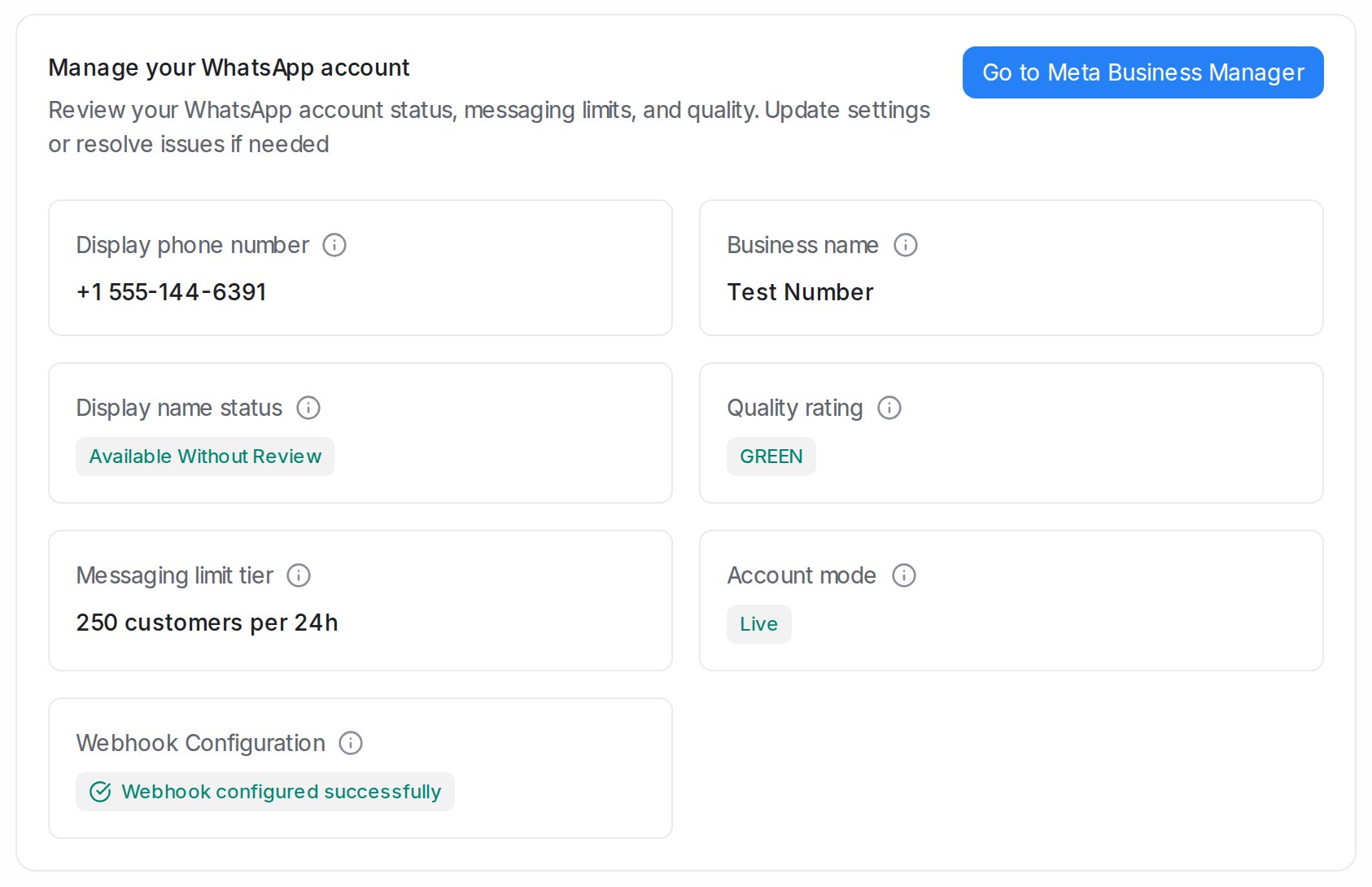
- In Mampu AI, go to Settings → Inboxes and open your WhatsApp inbox.
- Open the Account Health tab. It shows Display name status, Quality rating, Messaging limit tier and Account mode.
- Click Go to Meta Business Manager to open the same account in Meta.
In Meta, the limit is in WhatsApp Manager → Account tools → Messaging limits, and each number’s name and quality rating are in WhatsApp Manager → Account tools → Phone numbers.
Note: If the tab says Health data is not available, the number is not fully connected yet. See Connecting a WhatsApp inbox.
What the messaging limit counts
Only chats you start
The limit counts the customers you message first: templates sent outside a customer’s 24-hour reply window, such as a blast. Replies to customers who wrote to you in the last 24 hours do not count. See The 24-hour reply window.
Unique customers in 24 hours
Each customer counts once in a rolling 24 hours, however many templates you send them.
Shared by every number in your Meta business
The limit belongs to your Meta business portfolio, so all of its WhatsApp numbers share one limit. Adding a number does not add a second limit.
Note: Once you reach the limit, Meta refuses templates to further new customers until the 24 hours roll over. Split a big list across days, or wait for Meta to raise your limit.
How the limit goes up
First raise: verify your business or prove steady sending
Meta raises a new account’s limit once you verify your business, or once you have sent enough good-quality templates to different customers over 30 days. Meta lists the exact numbers on its messaging limits page.
Every raise after that
Meta raises the limit one level at a time, on its own, when all of these hold:
- Your number is connected.
- Its quality rating is medium or high.
- In the last 7 days, you used at least half of your current limit.
The raise usually comes within hours. There is no form to fill in.
What the quality rating means
High, medium and low
The rating shows how customers received your recent messages: green for high, yellow for medium, red for low. It drops when customers block your number or report your messages.
What a low rating does
A lower rating no longer cuts your limit, but it stops the limit from rising, and templates customers react badly to get paused. See Meta: template pausing.
How to raise it
- Send only to customers who agreed to hear from you.
- Make messages personal and useful, not generic promotions.
- Send less often to the same customer.
- Give an easy way to stop, such as an unsubscribe button or a “Reply STOP” line.
Business verification and your display name
Verify your business
Business verification confirms to Meta that your company is real. It unlocks the first limit raise. A business admin starts it from your business settings in Meta Business Suite; Meta asks for your registered business details and a document that shows them. See Meta: business verification.
Display name
Your display name is the business name customers see on your WhatsApp profile. When your number reaches a higher limit, Meta checks the name against its display name guidelines. Display name status on the Account Health tab shows the result. If Meta declines the name, edit it in WhatsApp Manager to follow the guidelines. See Meta: display names.
Frequently asked questions
Do replies to customers count towards my limit?
No. Only customers you message first, outside their 24-hour reply window, count.
Why did my blast stop partway?
You most likely reached your messaging limit for the day. Check Messaging limit tier on the Account Health tab and send the rest after 24 hours.
Will a red quality rating get my account banned?
Not by itself, but the reports behind it can lead Meta to restrict the account for spam. See When your WhatsApp account is restricted.
Can Mampu AI raise my limit?
No. Only Meta sets the limit. Verifying your business and sending messages customers welcome is what raises it.
Related
- Why a WhatsApp message failed
- When your WhatsApp account is restricted
- WhatsApp blasting
- The 24-hour reply window
- Notices from Meta about your inbox
From Meta: