
Every new conversation in an inbox that has agents is handed to one of them as soon as it arrives, so nothing sits unowned while your team is away. You manage this in two places: the switch on each inbox’s Collaborators tab, and Settings → Agent Assignment, where policies fine-tune who is eligible and how the work is shared.
How assignment works out of the box
With no policy in place an inbox follows the default rules, listed on its Collaborators tab under Conversation Assignment:
- Earliest created conversations first — the conversation that has waited longest is handed out first.
- Round robin distribution — the agents added to the inbox take turns.
- Every inbox member, online or offline — an agent does not need the dashboard open to receive a conversation. If you would rather hand conversations only to agents who are online, use a policy (see below).
Only conversations with activity in the last hour are handed out. A conversation that has been waiting longer stays as it is until the customer writes again, so switching assignment on never floods your team with old chats.
Each assignment is recorded in the conversation as an activity line such as Assigned to Aisyah by Default Policy, and the agent is notified as usual.
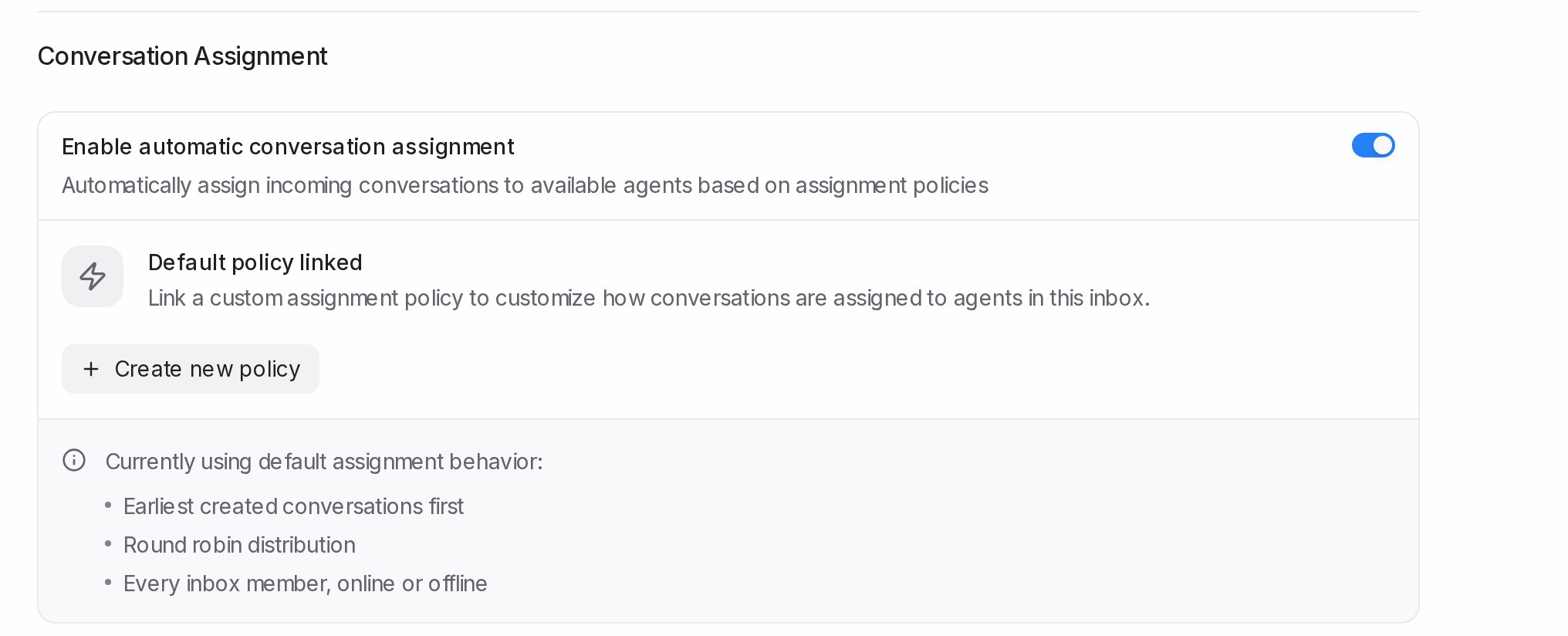
Turning automatic assignment on or off for an inbox
- Open Settings → Inboxes, choose the inbox and open the Collaborators tab.
- Under Conversation Assignment, use the Enable automatic conversation assignment switch. It is on for every new inbox.
- With the switch off, new conversations stay unassigned until someone picks them up, as described in Assigning conversations to agents and teams.
Only the agents listed under Agents on the same tab, and members of teams the inbox has been shared with, receive conversations.
Shifts: who takes leads at which hours
A shift narrows the rotation to the people working at that hour, so a lead that arrives at night goes to the night crew rather than to someone who left at six. Shifts live on the inbox: open its Collaborators tab and find the Shifts card under Conversation Assignment. Each row shows the shift’s days and hours, who is on it, and a switch to pause it without deleting it. While a shift is active, new conversations go round robin among its people only; when two shifts overlap, everyone on either is in the rotation. Shifts also decide who receives a conversation a Flow Agent hands over. With no shifts, every agent of the inbox takes turns at any hour, as described above.
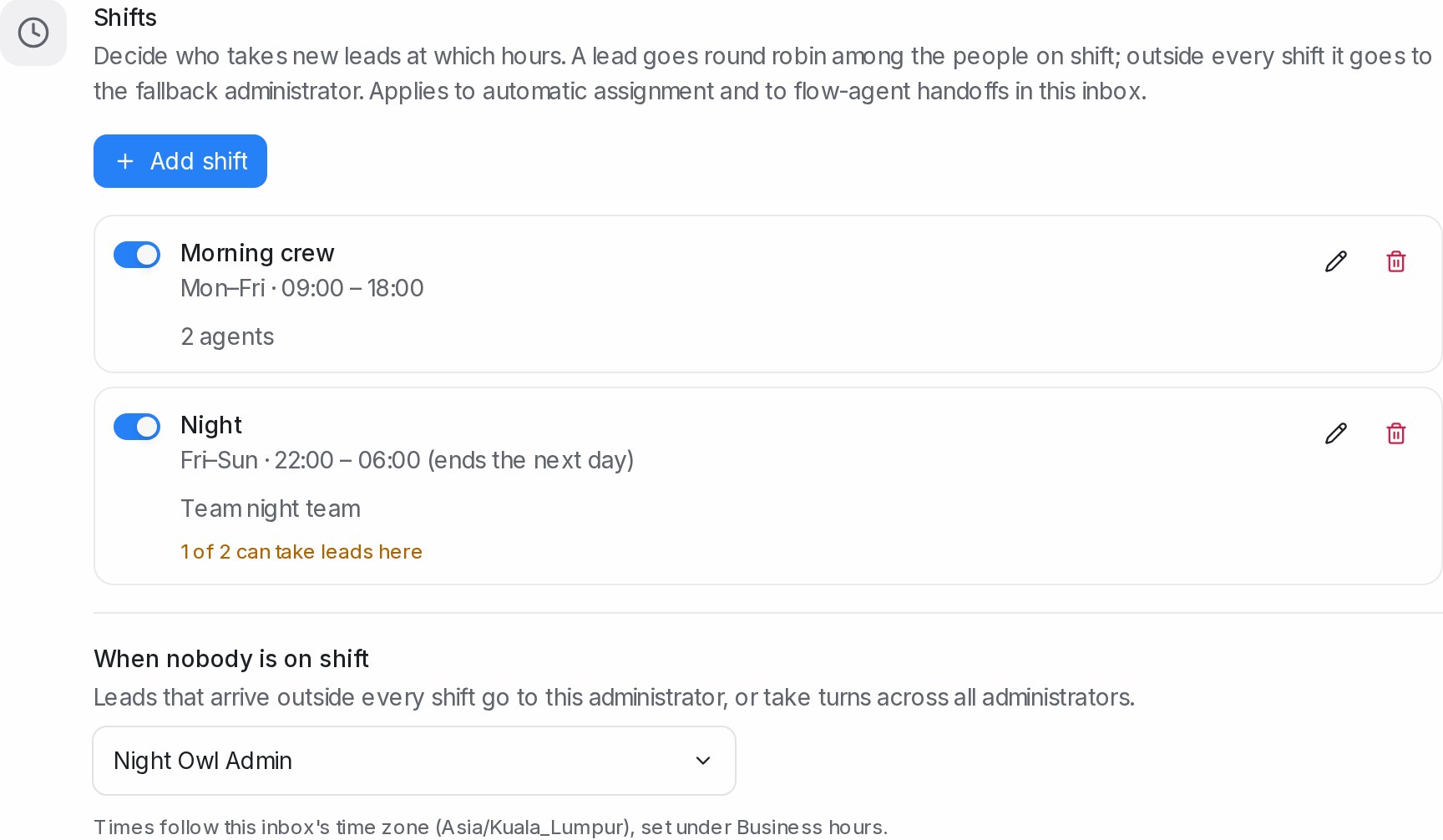
A row that reads 1 of 2 can take leads here means someone on the shift is not an agent of this inbox; add them under Agents on the same tab.
Adding a shift
- Click Add shift and give the shift a name.
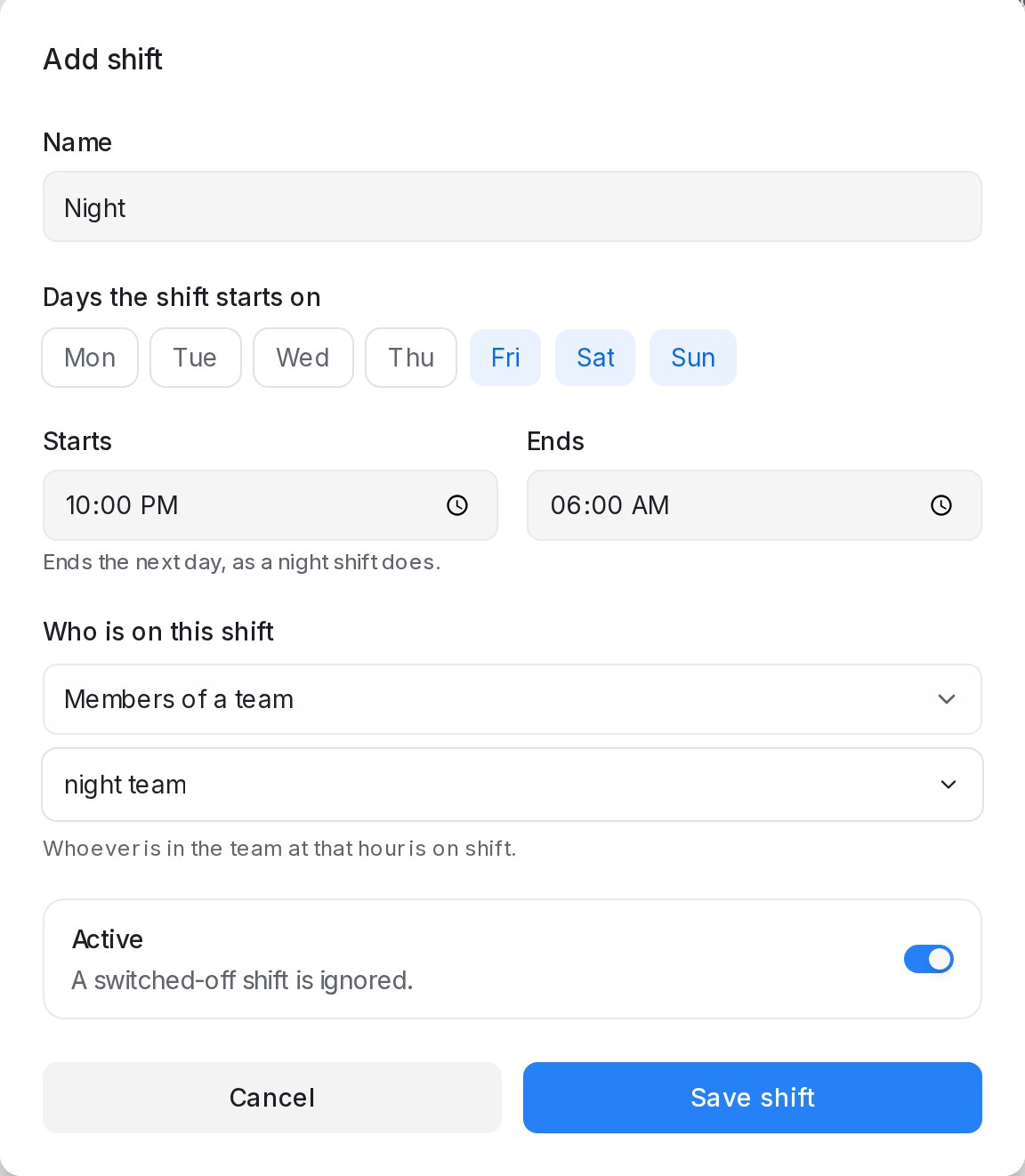
- Pick the days the shift starts on, then its start and end time. A shift that ends the next day, such as 22:00 to 06:00, is fine; the same start and end means the whole day.
- Under Who is on this shift, choose Specific agents and pick agents of this inbox, or Members of a team. A team shift follows the team’s membership as it changes.
- Click Save shift. Times follow the inbox’s time zone, set on its Business Hours tab.
Once a shift exists, When nobody is on shift names the administrator who receives leads that arrive outside every shift. Leave it on Rotate across all administrators and the workspace’s administrators take turns instead. Either way no lead waits for the next shift.
People on time off
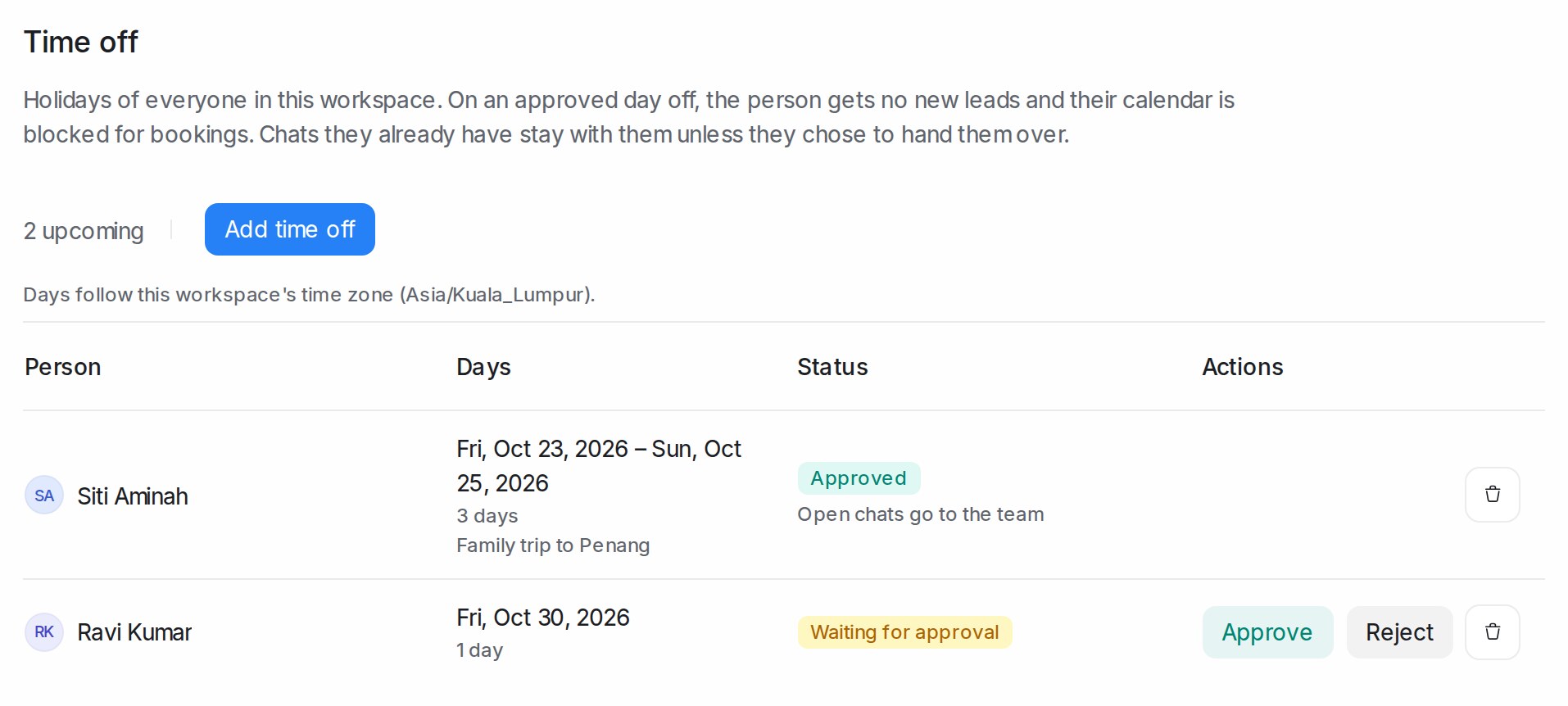
On the days of an approved holiday under Settings → Time off, the person takes no new leads, on every inbox and for Flow Agent handovers too, whatever their shifts say. When everyone who could take a lead is away, it goes to the fallback administrator chosen on the Shifts card, or the administrators take turns. The day after, the person is back in the rotation in their usual place, so nobody is owed a pile of leads. See Time off: holidays, requests and approvals.
Assignment policies
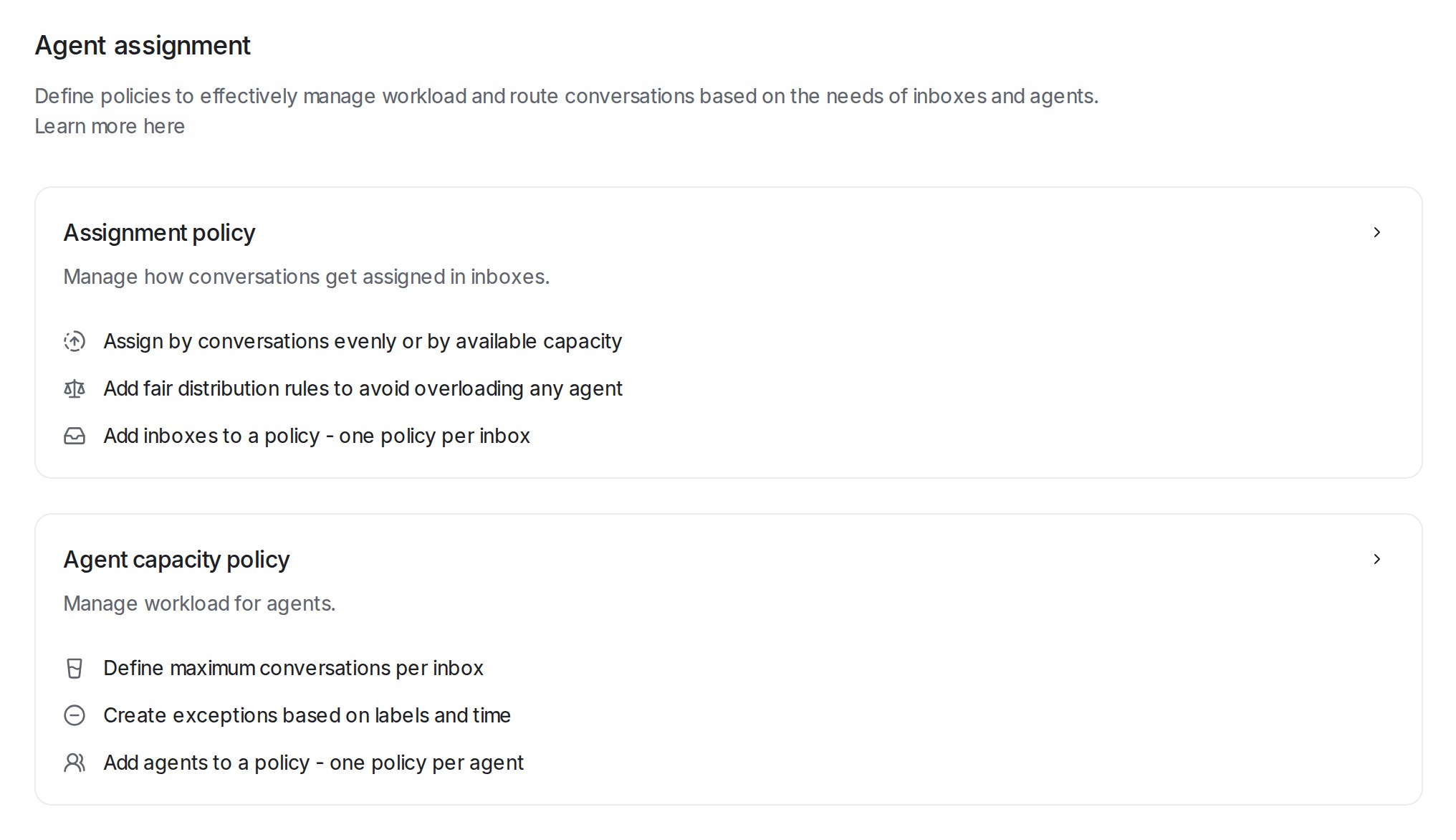
A policy replaces the default rules for the inboxes you link it to. Open Settings → Agent Assignment, choose Assignment policy and click New policy.
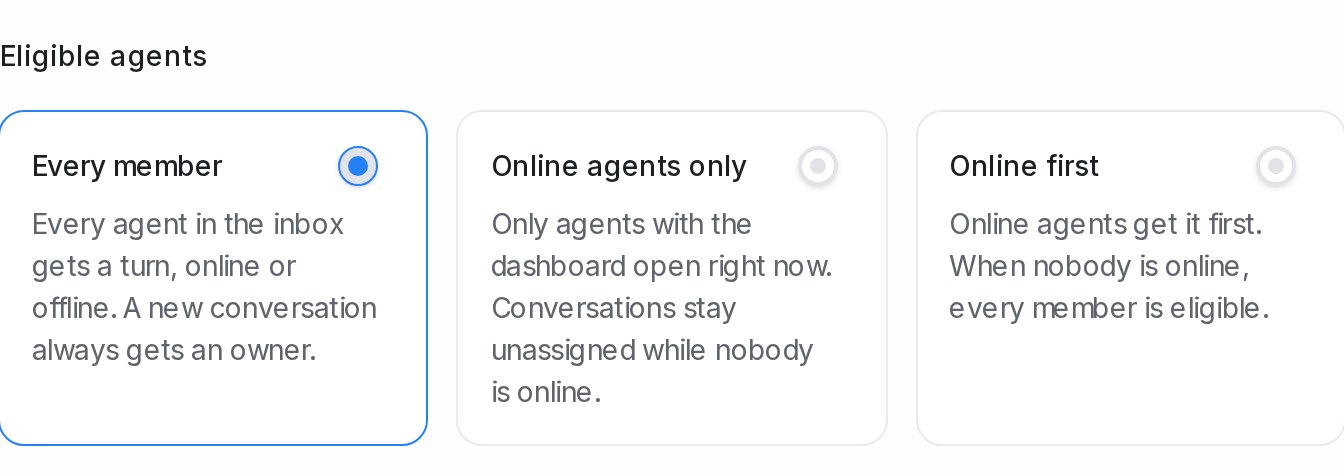
- Eligible agents decides who may receive a conversation:
- Every member — every agent in the inbox gets a turn, online or offline. A new conversation always gets an owner.
- Online agents only — only agents who have the dashboard open right now. Conversations stay unassigned while nobody is online.
- Online first — online agents get it first. When nobody is online, every member is eligible.
- Assignment order — Round robin shares conversations in turn; Balanced gives each conversation to the agent with the fewest open conversations in that inbox.
- Assignment priority — Earliest created or Longest waiting decides which waiting conversation is handed out first.
- Fair distribution policy — caps how many conversations one agent receives in a time window, for example 100 per hour. Without a policy there is no cap.
- Skip stale conversations — conversations with no activity beyond this age are left alone. A new policy starts at 1 hour. Raise it when you want an older backlog handed out; clear it to hand out every unassigned conversation.
Click Create policy, then add inboxes under Added inboxes with Add inbox. You can also link a policy from an inbox’s Collaborators tab with Link existing policy, and remove it there with the bin icon, after which the inbox returns to the default rules. An inbox carries one policy at a time.
Agent capacity policies
Settings → Agent Assignment → Agent capacity policy limits how many open conversations an agent holds in an inbox at once. Create a policy, add the agents it applies to and set a conversation limit for each inbox. An agent at their limit is skipped until they resolve something, and the conversation waits for the next available agent. Exclusions keep conversations with certain labels, or older than a given age, out of automatic assignment altogether.