
Meta charges for the messages it delivers from an Official WhatsApp API number, so you need to add a payment card in Meta before you can send messages. The card goes on your messaging account: the account in Meta that holds your WhatsApp templates and billing. Meta sets this account up for you, so you only need to add the card. Meta charges the card directly, separately from your Mampu AI plan. See Meta: add a credit card to your messaging account.
1. Open your messaging account
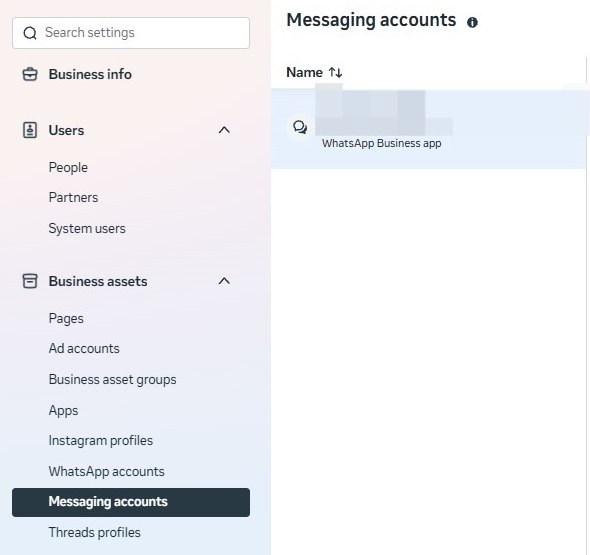
- Log in to Facebook with the account that connected your WhatsApp number.
- Open business.facebook.com/latest/settings/whatsapp_account. This opens Settings in Meta Business Suite.
- In the left menu, under Business assets, click Messaging accounts. Choose Messaging accounts, not WhatsApp accounts: the card belongs to the messaging account. See Meta: account structure.
- Click your account in the list. Its details open on the right.
Note: To add a card, you need permission to manage payment settings for this messaging account. The account’s owner has this permission automatically.
2. Open Payment settings
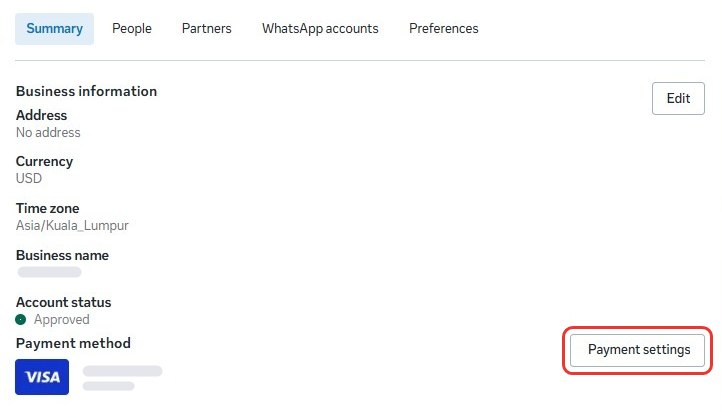
On the Summary tab, Business information lists the account’s details:
- Currency is the currency Meta charges you in.
- Payment method shows the card Meta charges, once you’ve added one.
Click Payment settings on the right.
3. Add your card
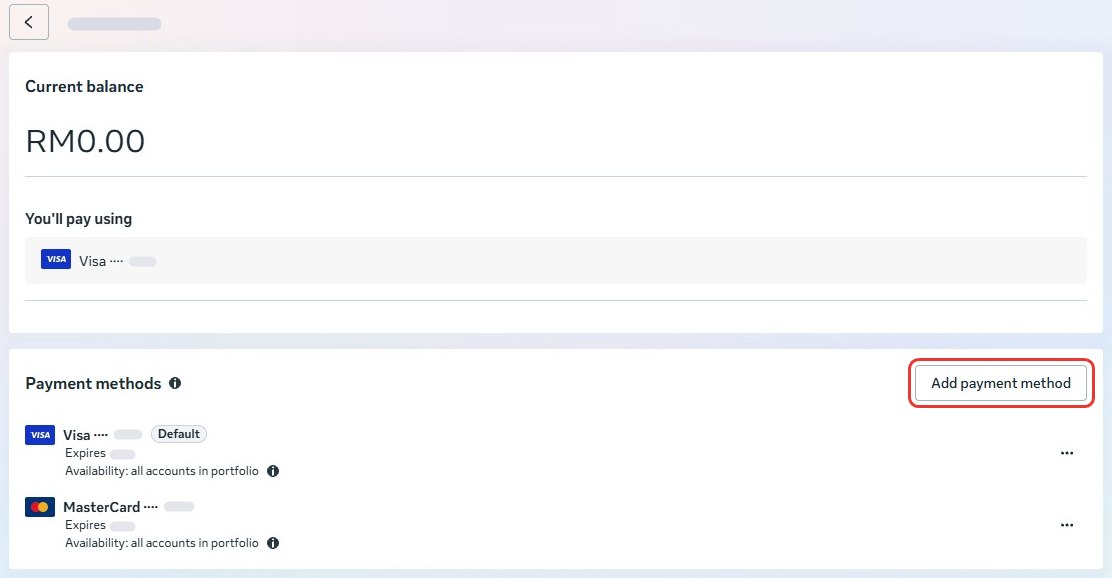
Meta opens Billing & payments for the account.
- Click Add payment method.
- Follow Meta’s steps to add your payment information, then click Next.
- Enter your card details and click Save.
- Add your business information and click Save. Meta can ask for your tax details at this step.
Your card then shows under Payment methods. Meta charges the card marked Default, which also shows under You’ll pay using. On the account’s Summary tab, it shows under Payment method.
You can also add the card from Settings → Billing & payments → Messaging accounts: click Add payment method beside your account. If the account already has a card, you see View details there instead.
If your card payment fails
Some Malaysian banks block overseas card charges, and Meta charges your card from overseas. If this happens, you can:
- Call your bank to allow payments to Meta, or
- Link a different card instead: click Add payment method in Billing & payments.
If you don’t have another card, you can try this:
- Check your phone messages or banking app. Your bank may have sent a request to approve the payment.
- Call your bank and ask them to allow payments to Meta.
Note: To check whether payment is stopping your messages, open the inbox’s Account Health tab in Mampu AI and read Payment method. Manage payment method there opens this number’s billing page in Meta. See Why a WhatsApp message failed.
Frequently asked questions
Do I need a card for Normal WhatsApp Web Link?
No. Normal WhatsApp Web Link carries no Meta charges. Only numbers connected with Official WhatsApp API need a card. See Normal WhatsApp Web Link vs Official WhatsApp API.
Which cards does Meta accept?
Visa and Mastercard. Meta doesn’t accept American Express or digital payments such as PayPal. Paying by card works only in the countries Meta supports.
What happens if I don’t add a card?
Meta can’t charge for your messages, so your template messages, including WhatsApp blasting, fail to send. A failed message shows error 131042: Business eligibility payment issue. See Why a WhatsApp message failed and Meta: error codes.
Is this the same as paying for my Mampu AI plan?
No. Meta charges this card for the WhatsApp messages it delivers. Your Mampu AI plan is billed separately in Mampu AI. See Billing and plan usage: what each term means.
Can I add a second card?
Yes. Click Add payment method again in Billing & payments. Meta charges only the card marked Default.
Related
- Finding the receipt for conversational cost for WhatsApp API
- Why a WhatsApp message failed
- WhatsApp blasting
- Normal WhatsApp Web Link vs Official WhatsApp API
From Meta: