
Settings → Time off is the workspace’s shared holiday list. Everyone sees who is away and when. An administrator can add a holiday for anyone, and an agent asks for their own days, which an administrator approves.
What time off does
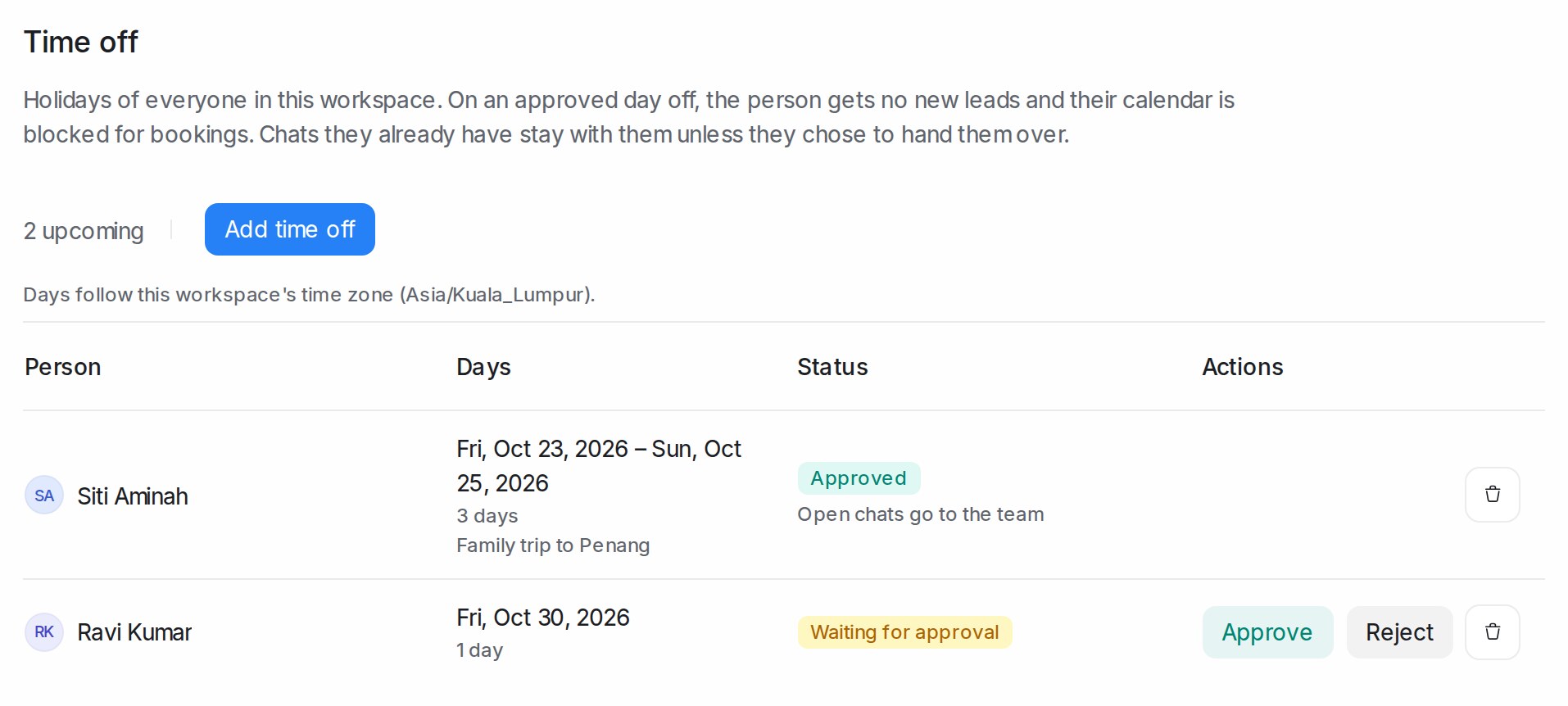
On every day of an Approved holiday:
- No new leads. New conversations and Flow Agent handovers skip the person. If everyone who could take a lead is away, it goes to an administrator, so nothing waits unassigned.
- Calendar blocked. The person’s calendar is busy for the whole day, so bookings go to a teammate or another day.
- Their chats stay theirs, unless the holiday says to hand them over (see below).
A request Waiting for approval changes nothing yet. The day after a holiday, the person is back in the rotation in their usual place. Days follow the workspace time zone shown on the page.
Requesting time off
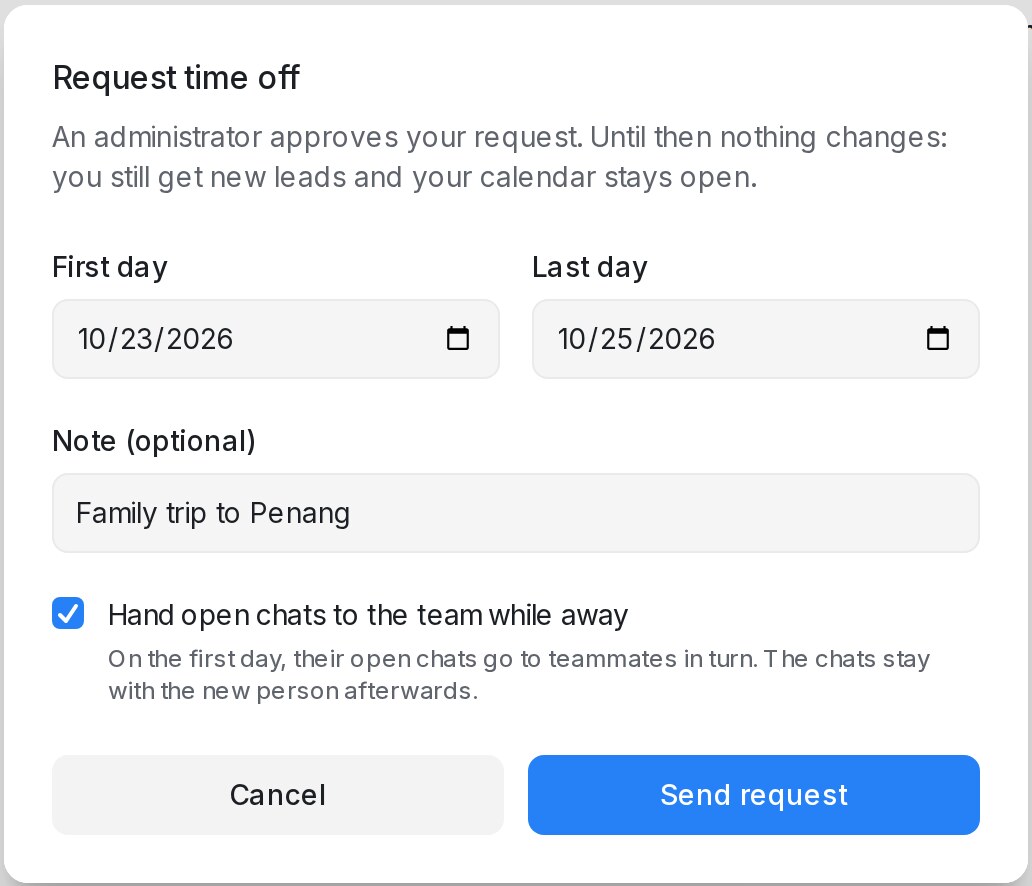
- Open Settings → Time off (or Open time off on your profile page) and click Request time off.
- Pick the First day and the Last day. Whole days only; a single day is fine.
- Add a note if you like.
- Tick Hand open chats to the team while away to have your open chats passed to teammates, in turn, on your first day. A chat on a team stays within that team, and the chats do not come back afterwards.
- Click Send request. While it waits you can Withdraw request.
An administrator uses Add time off instead, picks the Person, and the holiday is approved at once.
Approving or rejecting a request
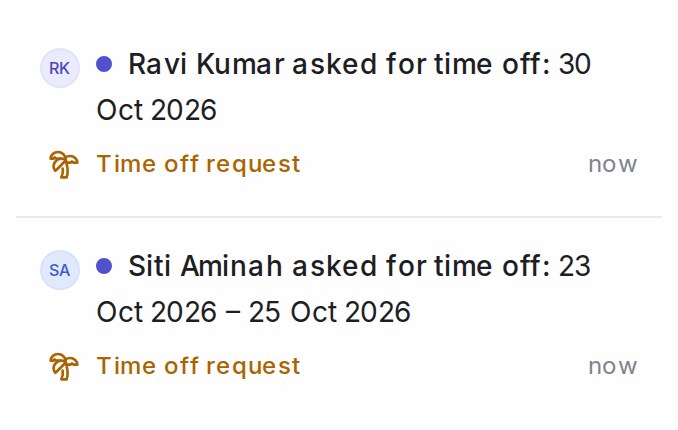
Every administrator gets each request in My Inbox, labelled Time off request, and by email. Click it to open Settings → Time off, then:
- Approve to put the holiday in place.
- Reject to turn it down, with an optional reason the agent sees.
The agent is told the decision in My Inbox and by email. To take back an approved holiday, an administrator clicks the bin icon on its row; the person is told and takes leads again on those days. Only administrators can remove a holiday once it is approved.
Bookings already on those days
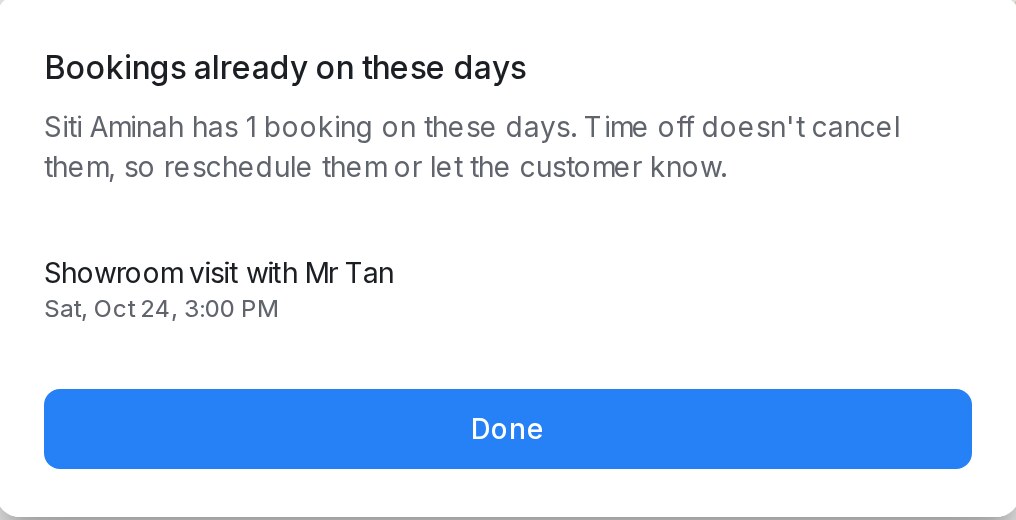
When you approve or add a holiday, any booking the person already has on those days is listed. Time off never cancels a booking: use Open chat or Reschedule where the list shows them, or let the customer know.