
Connecting a website live chat inbox
A Website inbox puts a chat bubble on your site. Visitors write in the widget, their messages arrive as conversations in Mampu AI, and your team or your AI agent replies from there.
1. Add a Website inbox
Go to Settings → Inboxes → Add Inbox and choose Website. The setup runs in four steps: Choose Channel, Create Inbox, Add Agents, Voilà!
2. Fill in the channel
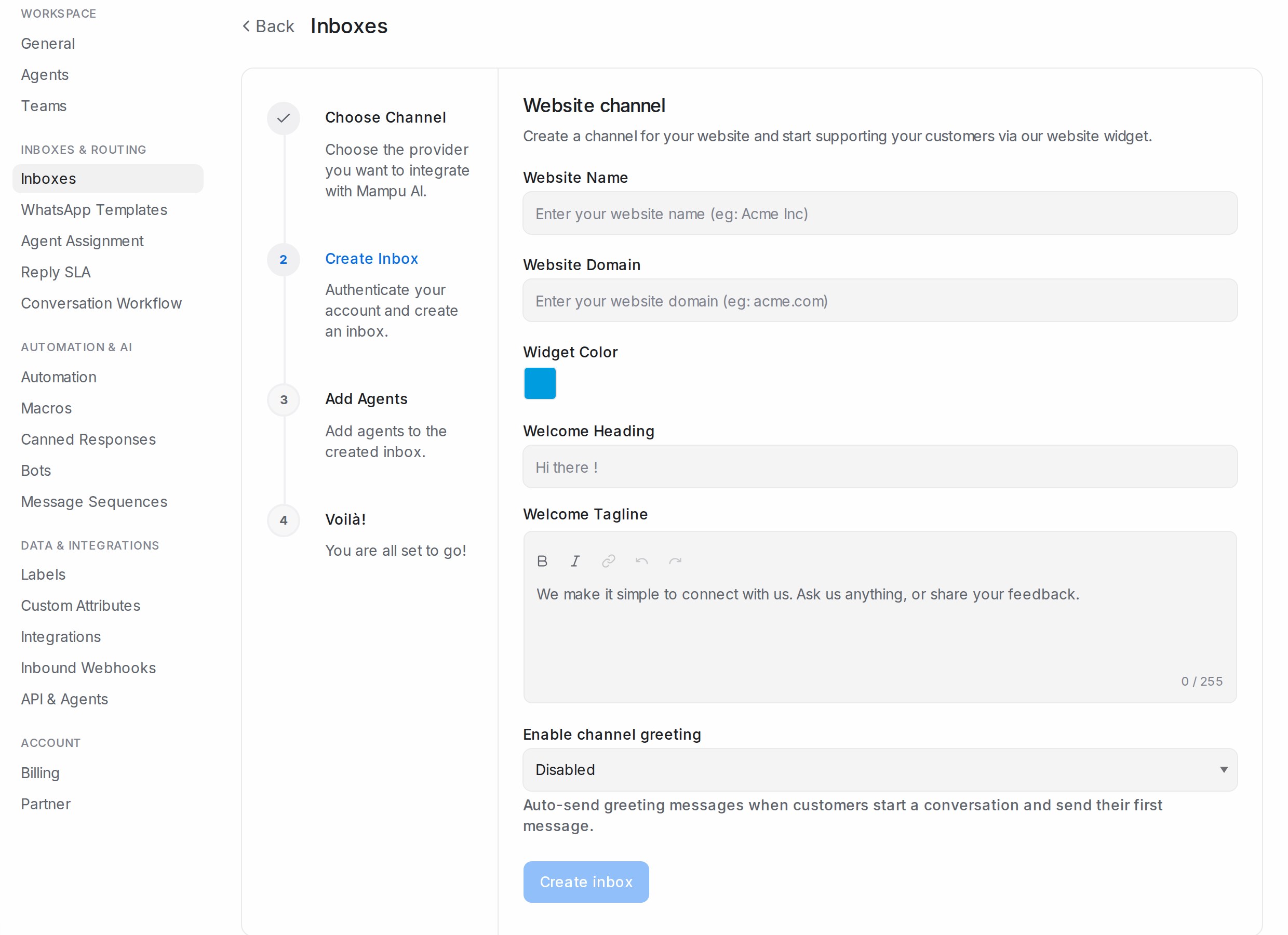
- Website Name: the name shown at the top of the widget.
- Website Domain: the site the widget lives on, for example acme.com.
- Widget Color: the colour of the bubble and header.
- Welcome Heading and Welcome Tagline: the greeting a visitor sees before they type.
- Enable channel greeting: set to Enabled to send a Channel greeting message automatically when a visitor sends their first message.
Click Create inbox.
3. Add agents
Under Pick agents for the inbox, choose the teammates who will answer website chats, then Add agents. You can change this later on the inbox’s Collaborators tab.
4. Install the widget
The Voilà! step shows a short script. Copy it and paste it just before the closing </body> tag on every page where you want the bubble. The bubble appears as soon as the page reloads. Take me there opens the inbox; More settings opens its settings page.
After the inbox is live
Open Settings → Inboxes, click the inbox’s settings icon and use these tabs:
- Settings: Set Reply time (In a few minutes, In a few hours, In a day) shows on the widget; Widget features switch the file picker, emoji picker and the visitor’s end conversation button; Help Center attaches a portal so the widget can offer articles; Enable email collect box and Enable conversation continuity via email keep the thread going by email.
- Pre Chat Form: ask for a name, email or your own fields before the chat starts.
- Business Hours: show your hours on the widget and an Unavailable message for visitors outside them.
- Configuration: Allowed Domains restricts which sites may embed the widget, Enable widget in mobile apps when it runs inside an app, and Identity Validation stops visitors impersonating each other on logged-in sites.
Every switch is explained in Inbox settings, tab by tab.