
AI Monitoring reads the conversations in your inboxes and does three jobs: it flags risky replies from your team, scores each agent reply, and rates your sales leads hot, warm or cold (AI lead scoring). You set up all three on one page.
Open Settings → AI Monitoring, or Flow Agents → AI Monitoring. Only administrators can open this page.
Note: AI Monitoring is included on higher plans.
Choose the inboxes it watches
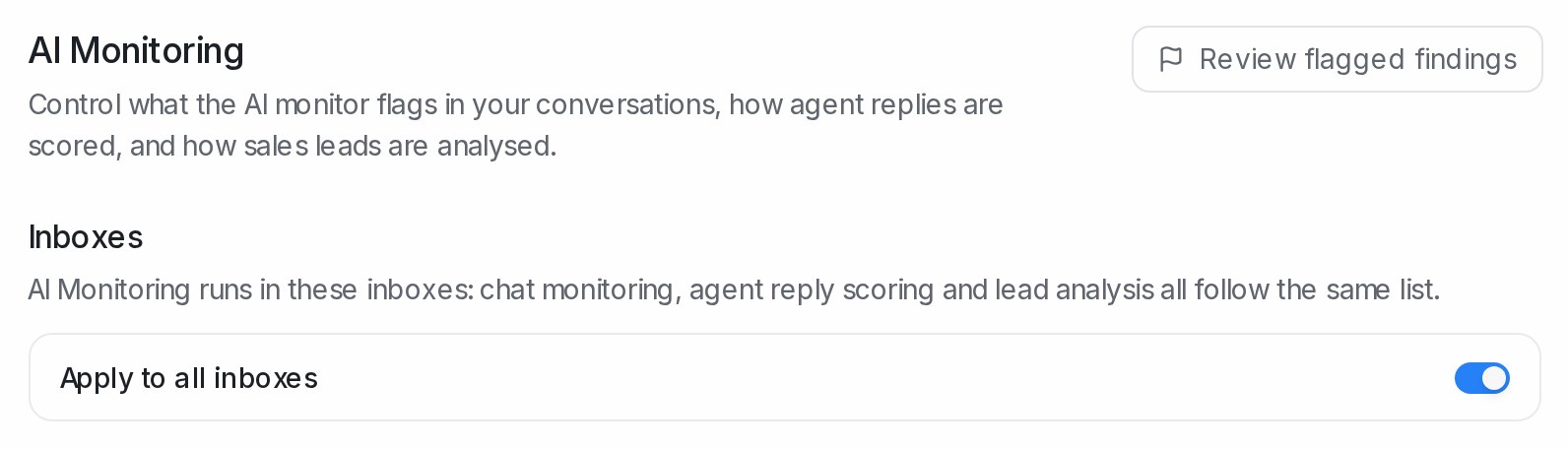
The Inboxes list at the top applies to all three parts: chat monitoring, agent reply scoring and lead analysis follow the same list.
- Leave Apply to all inboxes on to watch every inbox.
- To watch only some, switch it off and pick them under Inboxes.
- Click Save changes at the bottom of the page.
Removing an inbox clears its stored findings, reply scores and lead badges. An inbox you add is picked up again from its next message.
Each part below has its own switch on its title line. Nothing changes until you click Save changes.
Chat monitoring: flag risky replies
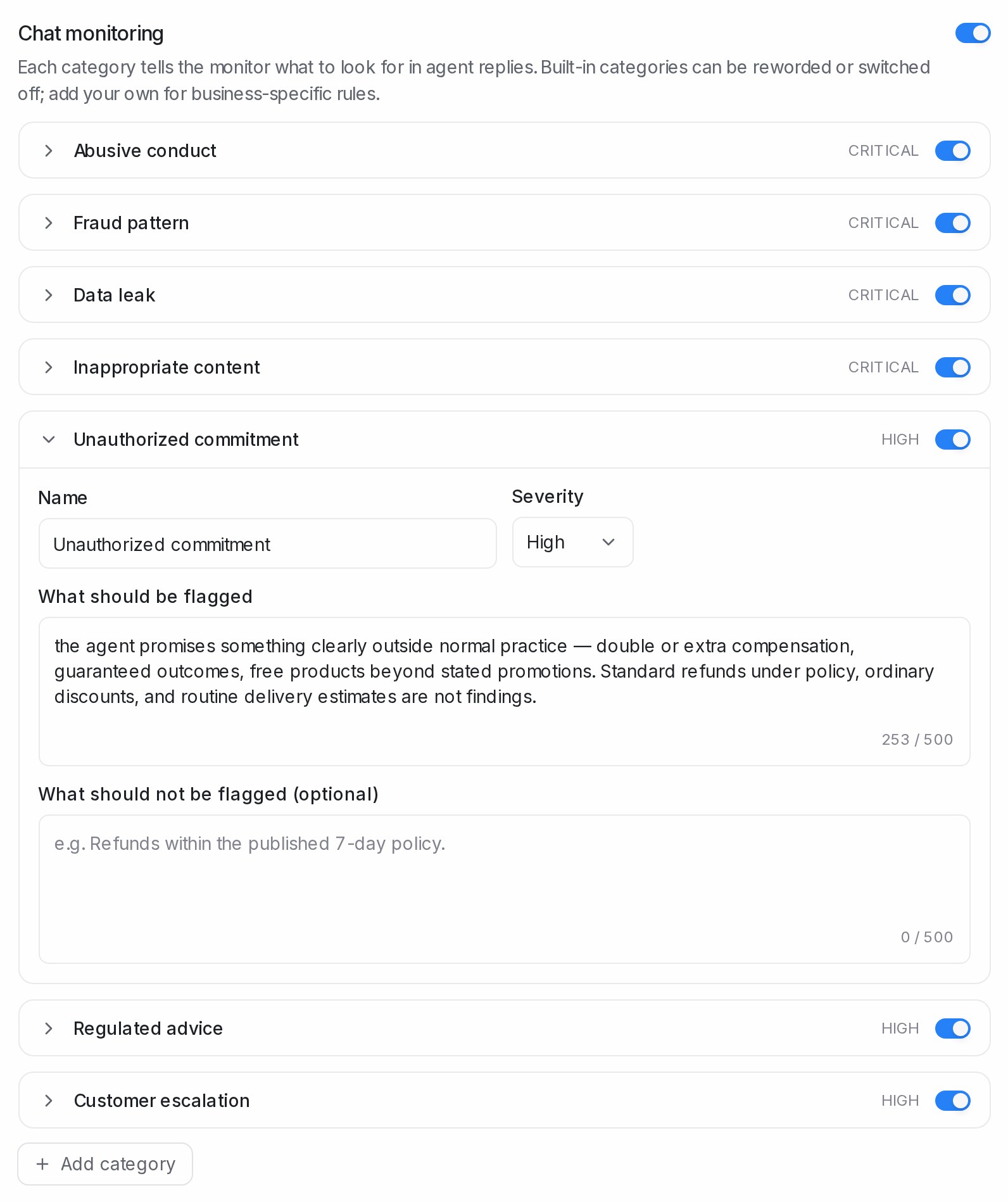
Switch on Monitor chats in this account to have agent replies checked against a list of categories, such as Abusive conduct, Data leak or Unauthorized commitment. Each category shows its severity, Critical or High, and its own switch.
Click a category to open it:
- Name and Severity.
- What should be flagged — what counts as a finding, in one or two sentences.
- What should not be flagged (optional) — cases that look similar but are fine for your business.
Reword or switch off the built-in categories, or click Add category for a rule of your own. A category you added can be deleted; a built-in one can only be switched off.
Review flagged findings
Click Review flagged findings at the top of the page to see everything chat monitoring flagged: the category, the quoted reply, why it was flagged and a link to the conversation.
When a finding is wrong, click Mark as incorrect. The monitor learns to skip replies like it, and the exception is added to that category’s settings for you. Click Chat monitoring settings to go back.
Flags also appear on your daily summary on Home.
Agent reply scoring
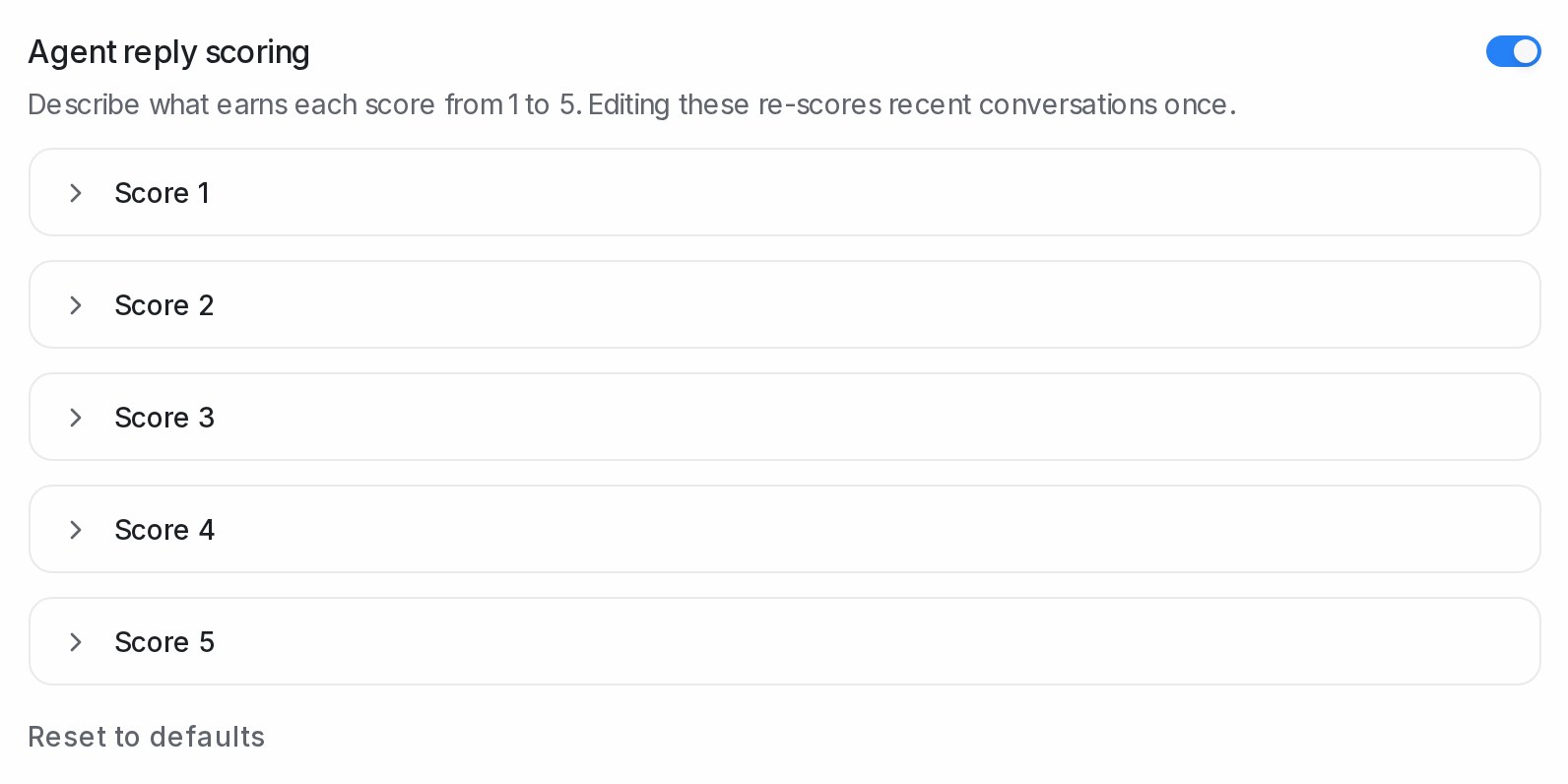
Switch on Score agent replies in this account to give each conversation your team replied to a score from 1 to 5. Open Score 1 to Score 5 to describe, in your own words, what earns each score. Saving new descriptions scores recent conversations again once. Reset to defaults brings back the built-in text.
The scores and flags are read in the Agent Reply Quality report.
Lead analysis
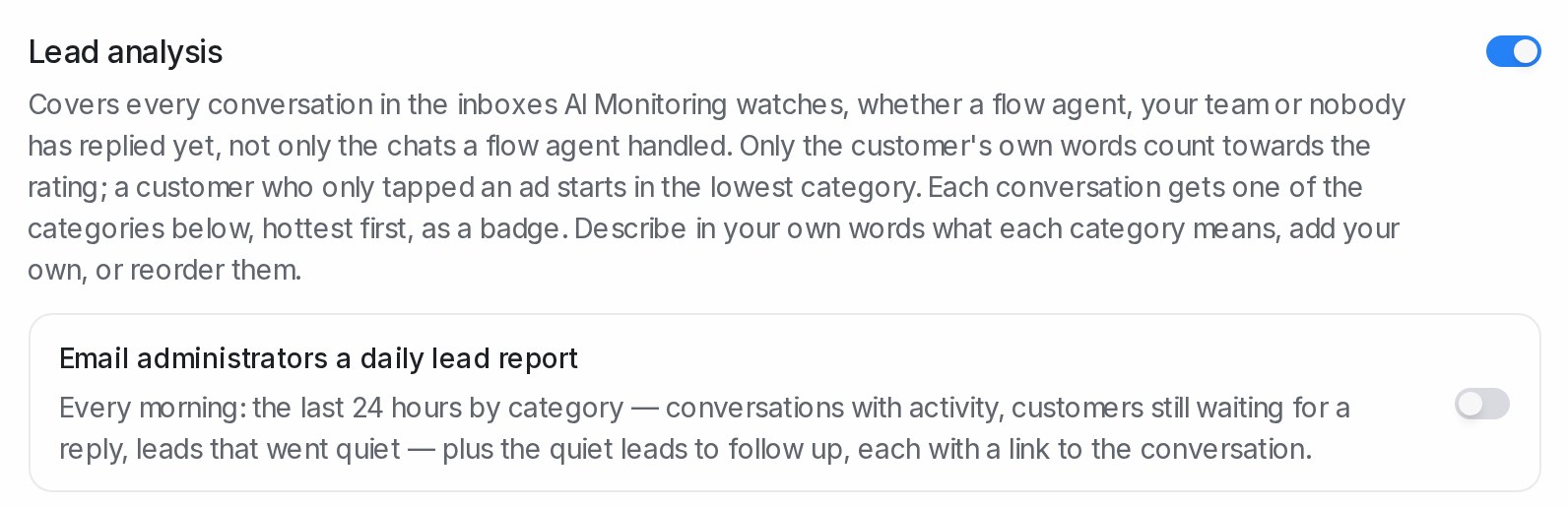
Switch on Rate leads in this account to give every conversation in the watched inboxes a lead badge, such as hot, warm or cold, from what the customer writes. Below the switch you can email administrators a daily lead report, describe what each category means, and list the reasons a lead went cold.
Lead temperature explains every setting in this section.
Frequently asked questions
Does AI Monitoring only look at chats a flow agent answered?
No. It covers every conversation in the inboxes it watches, whether a flow agent, your team or nobody has replied.
Can I use lead analysis without chat monitoring?
Yes. Each part has its own switch, so you can turn on only the ones you need.
What happens to past results when I switch a part off?
New results stop. Past findings stay on the findings page, and the Agent Reply Quality report keeps its history.
Why can’t I see AI Monitoring in my menu?
The page is for administrators, and AI Monitoring is included on higher plans. Ask an administrator, or check your plan under Settings → Billing.