
Customers often ask a human agent to move or cancel an appointment mid-conversation. Two automation actions keep the calendar in step with what your agent agreed, so nobody has to fix the Schedule by hand:
- Reschedule appointment to attribute moves the customer’s current booking to the date and time held in a date-type custom attribute.
- Cancel appointment releases the customer’s current booking.
Both act on the appointment already linked to the contact — the one your AI agent booked in chat or the customer made through your booking page.
Before you start
- A calendar with bookings on it.
- An AI provider connected under Settings → Integrations → AI Providers, so the AI can read the new time out of the conversation.
- The reschedule flow works in conversations your AI agent has handled — that is where the appointment was booked and where the AI reads the confirmation from.
Step 1: Add a date attribute for the new time
The reschedule action reads the new time from a custom attribute, and the AI fills that attribute from the conversation.
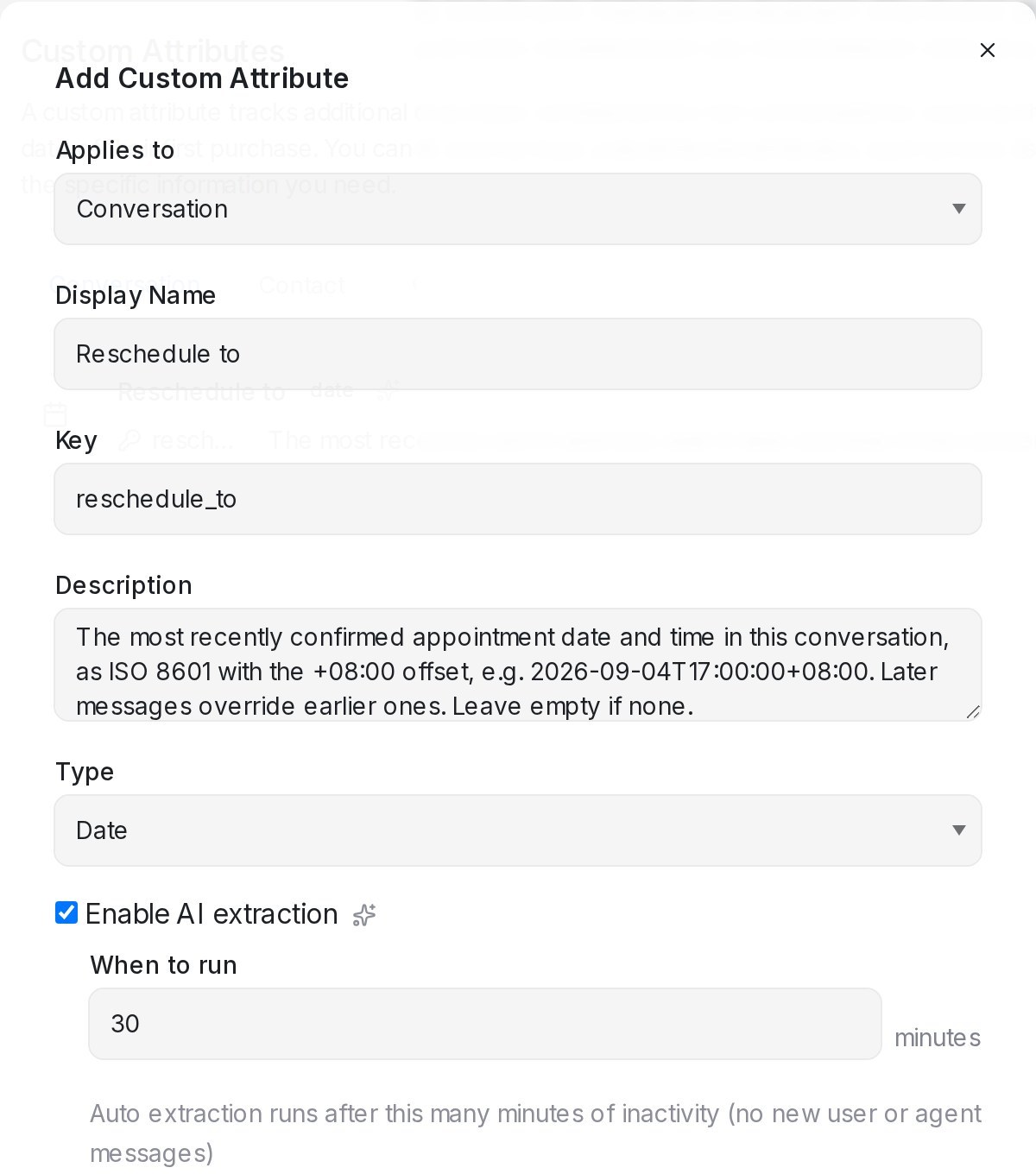
- Go to Settings → Custom Attributes and click Add Custom Attribute.
- Set Applies to to Conversation and Type to Date.
- Give it a Display Name such as Reschedule to.
- In Description, tell the AI what to look for — this is the instruction it follows. For example: The most recently confirmed appointment date and time in this conversation, as a full date and time including the +08:00 time zone offset, e.g. 2026-09-04T17:00:00+08:00. Later messages override earlier ones. Leave empty if none. Use your own time zone offset.
- Tick Enable AI extraction and click Create.
If you have picked specific AI Columns under Configure Columns for the agent, add the new attribute there too so it is refreshed along with the others.
Step 2: Create the automation rule
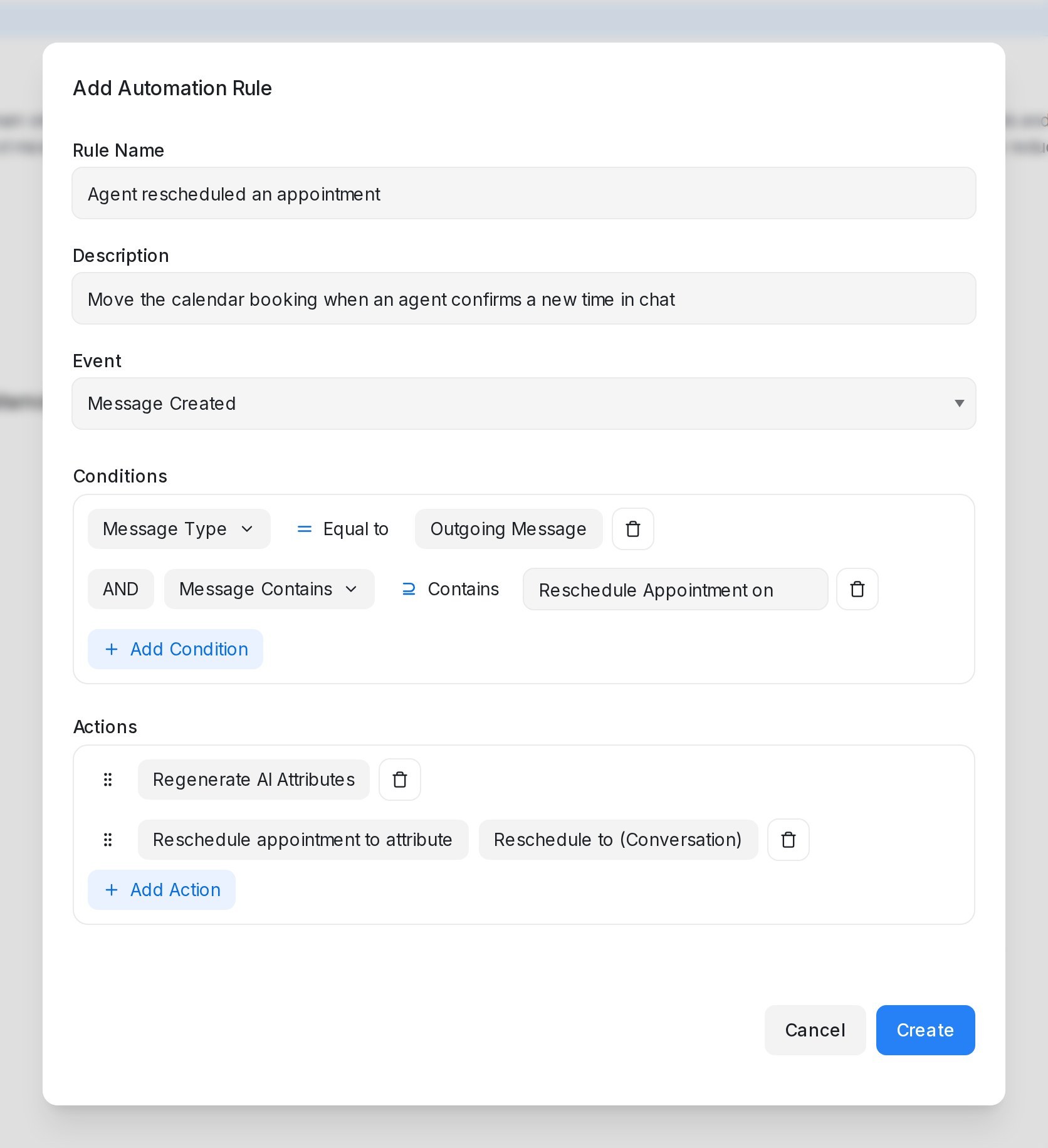
- Go to Settings → Automation and click Create Automation.
- Choose the Message Created event.
- Add conditions that match your agents’ confirmation — for example Message Type equal to Outgoing Message, and Message Contains Reschedule Appointment on. Ask your team to use that phrase whenever they confirm a new time, such as Reschedule Appointment on Friday 4/9, 5pm.
- Set the first action to Regenerate AI Attributes. This reads the new time out of the conversation into your date attribute.
- Click Add Action, choose Reschedule appointment to attribute, and pick your date attribute. Keep it below Regenerate AI Attributes — actions run from top to bottom.
- Click Create.
What happens when the rule runs
- The booking moves to the new time. The old time is freed, appointment reminders from your message sequences follow the new time, and the customer’s manage link keeps working.
- The change is recorded against the agent who last replied in the conversation, so the Schedule shows who moved it.
- The conversation gets an activity line, such as Appointment moved to Friday, 4 September 2026, 5:00 PM (was Thursday, 3 September 2026, 3:00 PM) by Rebecca. Activity lines are for your team only — the customer never receives them.
When the booking stays put
The rule never double-books or guesses. In each of these cases the current booking stays where it is, and the activity line tells your team why:
- The new time is already taken or falls outside the calendar’s business hours.
- The attribute is empty, or the AI could not make out a date and time from the conversation.
- The new time is in the past.
- The contact has no active appointment — nothing was booked, or it was already cancelled.
If the new time is the same as the current booking, nothing changes and no line is added.
Cancelling an appointment
Add Cancel appointment to a rule in the same way — for example on Message Created when an outgoing message contains Cancel Appointment confirmed. It releases the customer’s current booking, frees the time, and records who cancelled it: Appointment on Thursday, 3 September 2026, 3:00 PM cancelled by Rebecca.