
Connect your WhatsApp Business number to Mampu AI using Official WhatsApp API and Meta’s embedded signup. Once connected, incoming WhatsApp messages arrive in your inbox and your AI agent can reply. You can also bring in up to about 6 months of past chats and your phone’s contact names by scanning a QR code — no separate WhatsApp API keys required.
Not what you’re looking for? To register a brand-new number as a WhatsApp official (WhatsApp API) account, see Registering a WhatsApp official number. To move a number that’s already on the WhatsApp API with another provider, see Migrating an existing WhatsApp number to Mampu AI.
Two ways to connect
When you pick WhatsApp as the channel, the provider screen offers:
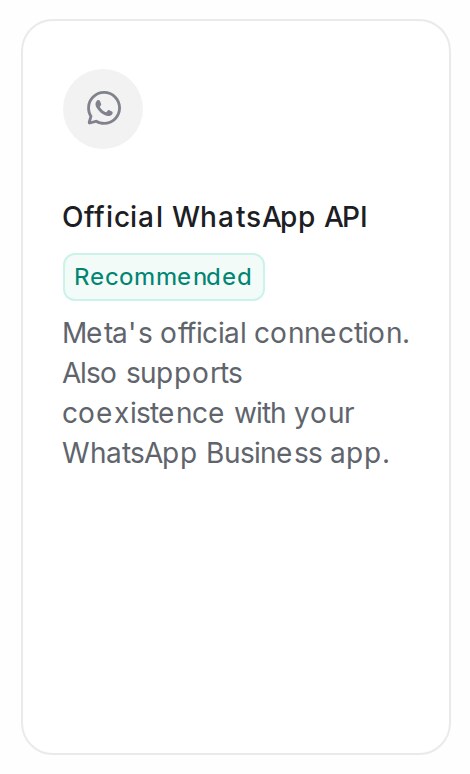
- Official WhatsApp API — the official route through Meta, marked Recommended and documented step by step below. Best for WhatsApp API features such as approved templates and template blasting, and the option to pick for coexistence: the number keeps working in your WhatsApp Business app alongside Mampu AI.
- Normal WhatsApp Web Link — link a regular WhatsApp number by scanning a QR code with your phone, like WhatsApp Web, no Meta setup required. Enter the inbox name and phone number, then scan the code shown — messages start arriving in your inbox right away. The card says the connection can be less stable, and the note under it points you to Official WhatsApp API when coexistence is what you need.
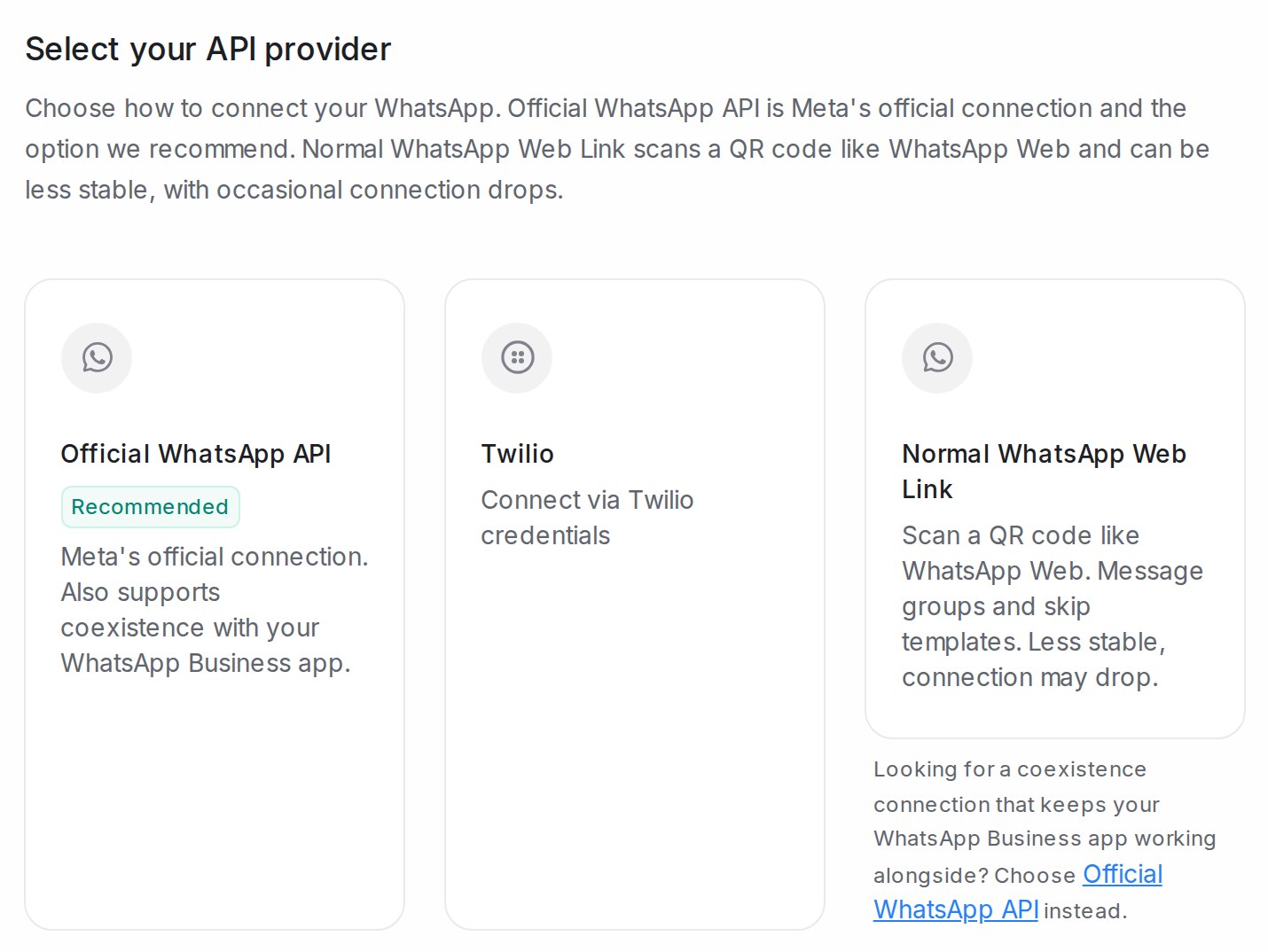
The rest of this guide walks through the Official WhatsApp API route.
Before you start
- The WhatsApp Business app installed on your phone, with the number you want to connect.
- A Meta Business account (business portfolio) you can log in to.
- Be aware: connecting shares your WhatsApp Business account information — phone number, contacts, chats and chat history — with Mampu AI.
1. Open Settings → Inboxes
Log in to Mampu AI and click Settings at the bottom of the left menu, below Referral. The settings menu opens beside it. Under Inboxes & Routing, click Inboxes.
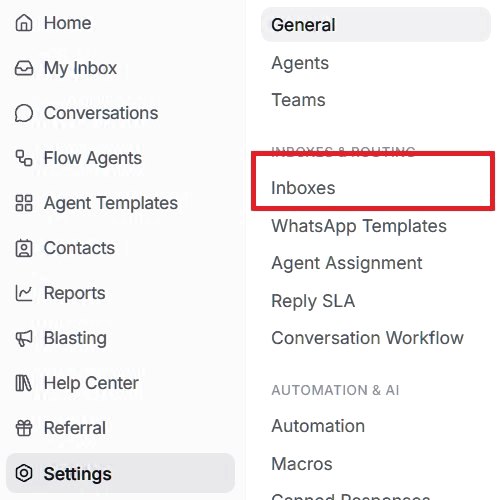
2. Add a new inbox
The Inboxes page lists every channel you have connected. If this is your first one, the list is empty. Click Add Inbox at the top right.
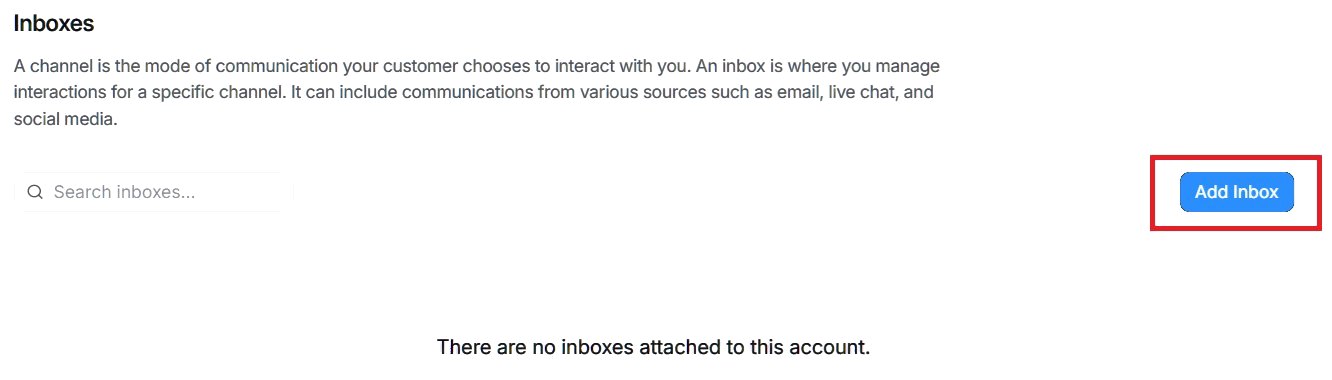
3. Choose WhatsApp
A four-step setup opens: Choose Channel, Create Inbox, Add Agents and Voilà! You start at Choose Channel, which shows every channel you can connect. Click the WhatsApp card.
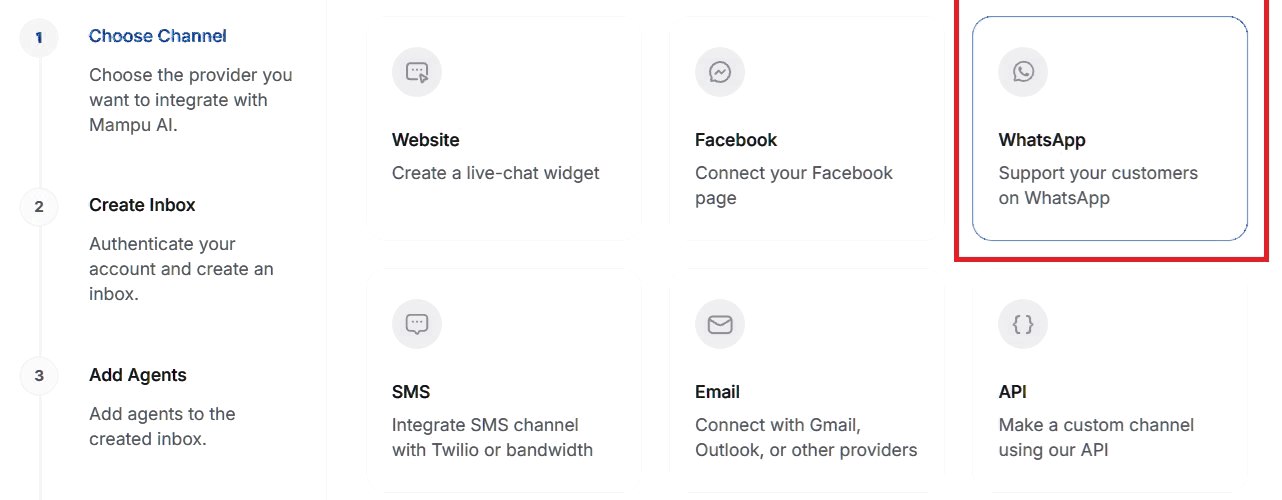
4. Select Official WhatsApp API
Under Select your API provider, click Official WhatsApp API, marked Recommended. This is Meta’s official connection and the one we recommend.
5. Connect with Official WhatsApp API
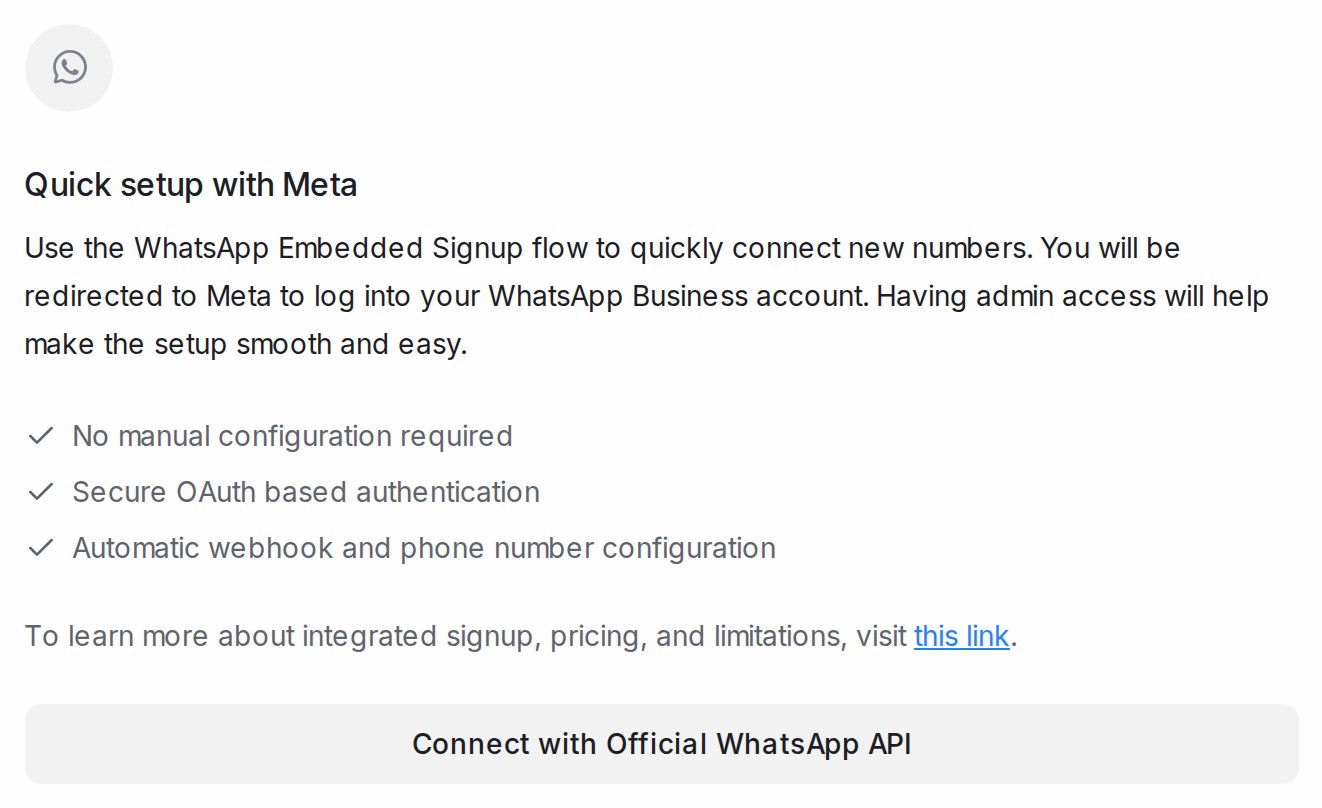
The Quick setup with Meta page explains that Meta does the setup for you, with no manual configuration. Click Connect with Official WhatsApp API. A Meta window opens and asks you to log in with the Facebook account that manages your WhatsApp Business account. Having admin access to that account makes the setup smoother.
If your number is already on the WhatsApp API with another provider, don’t use this button; see Migrating an existing WhatsApp number to Mampu AI.
6. Continue in the Meta window
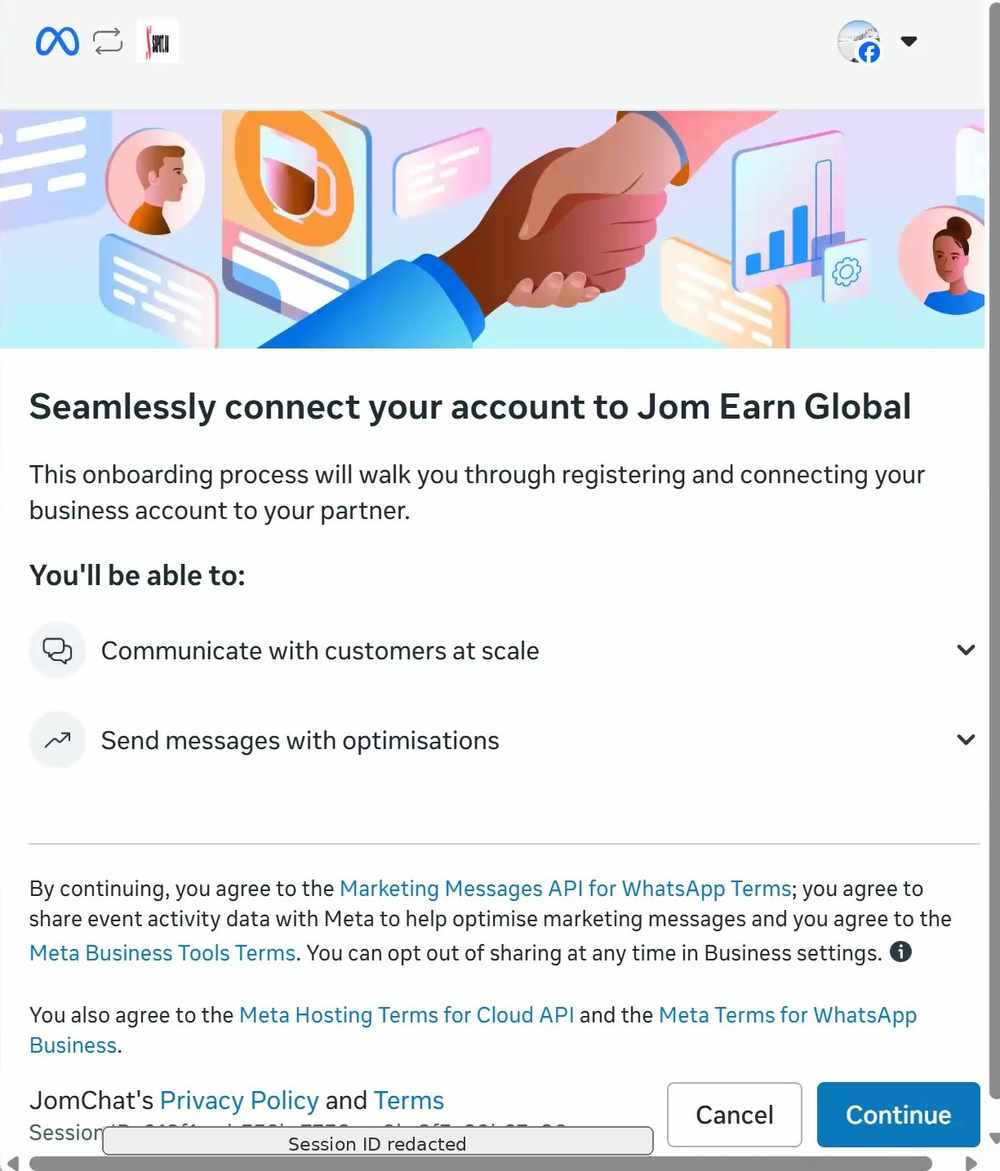
The Meta window shows the partner you are connecting to and what you will be able to do. Click Continue to start.
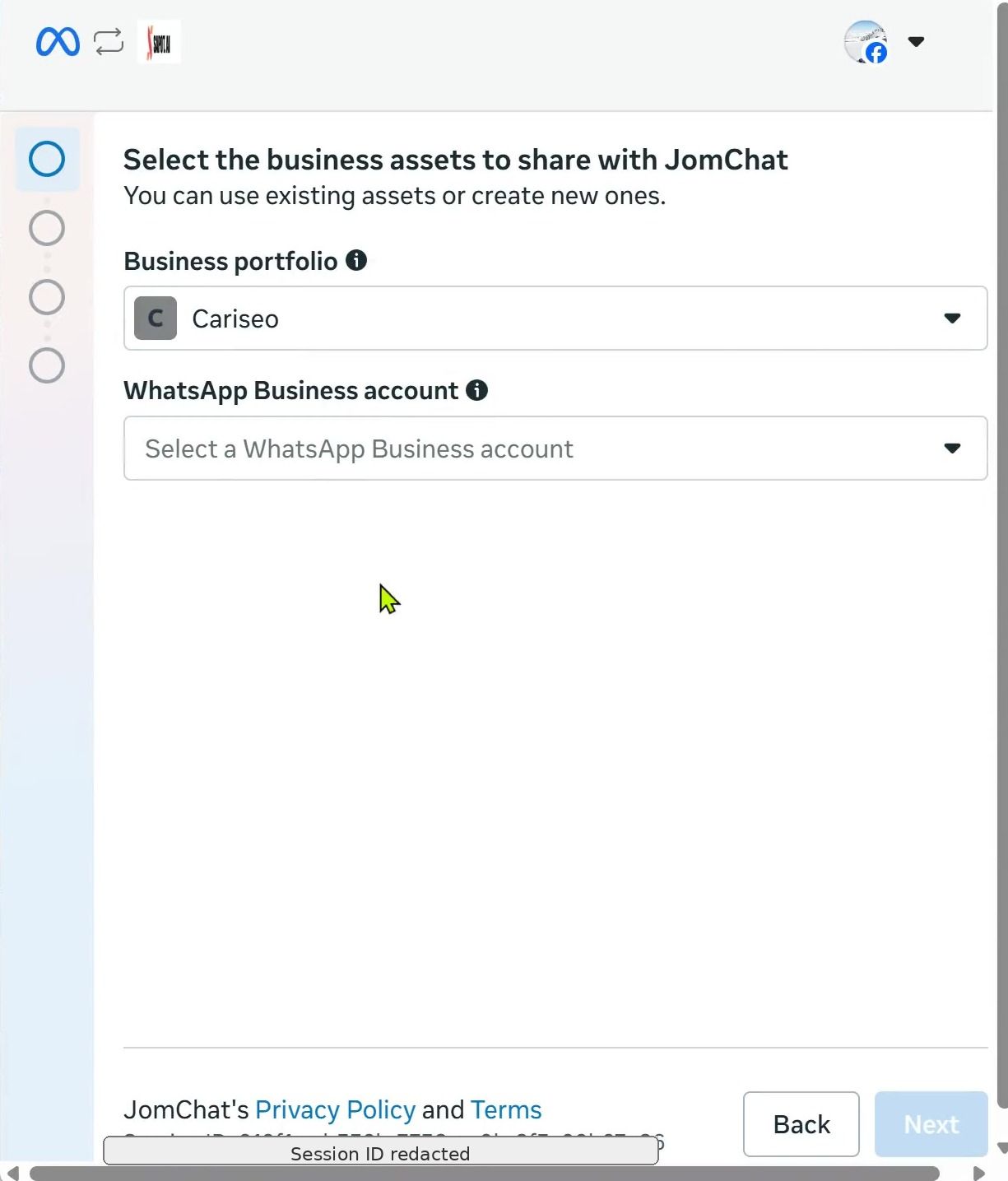
If Meta asks which business portfolio to use and how to connect the number, pick your business, choose Connect a WhatsApp Business app, the option for a number you already use in the WhatsApp Business app, and click Next.
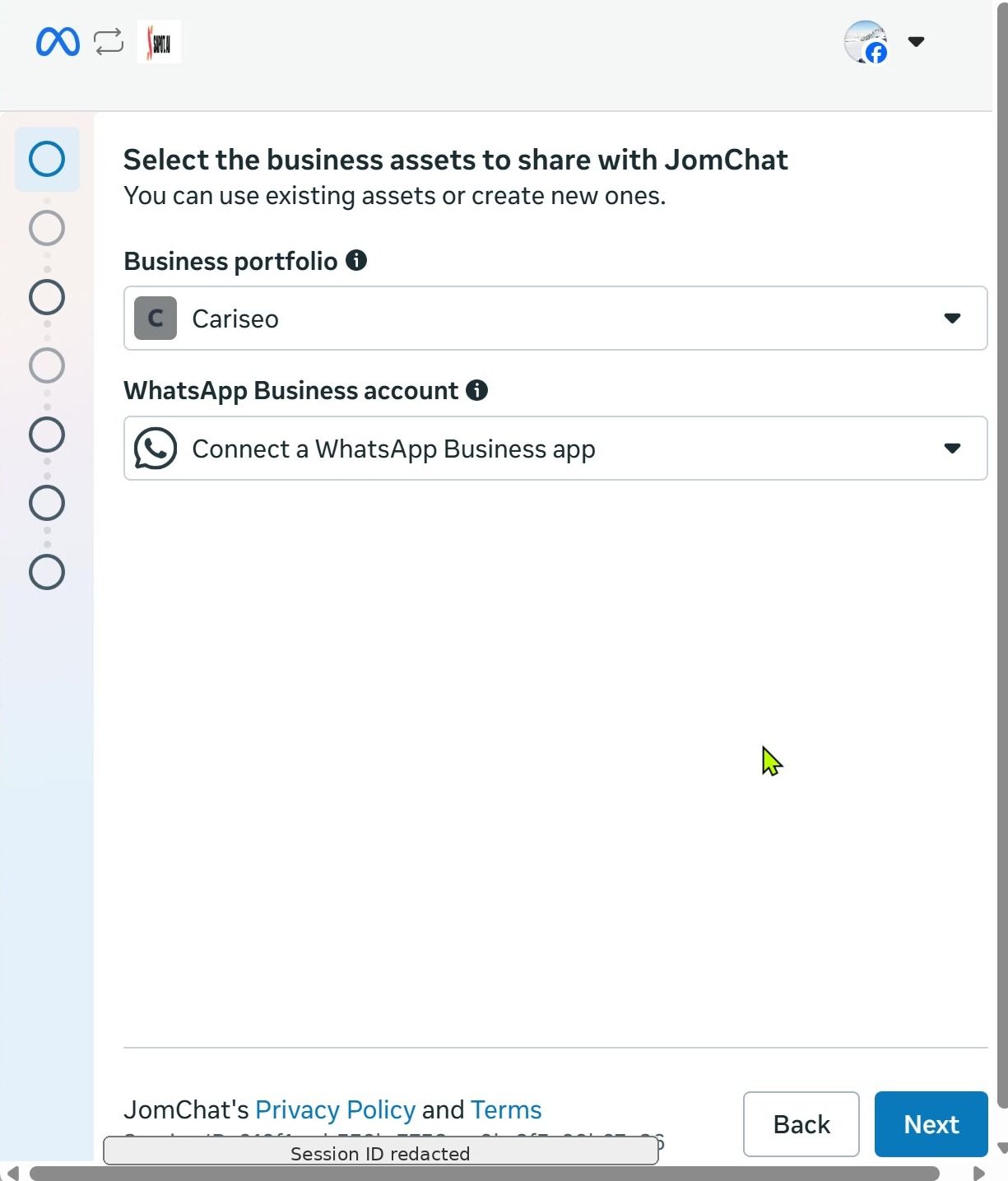
7. Enter your WhatsApp Business phone number
Select the correct country code, type your phone number, and wait until it is validated. Then click Next.
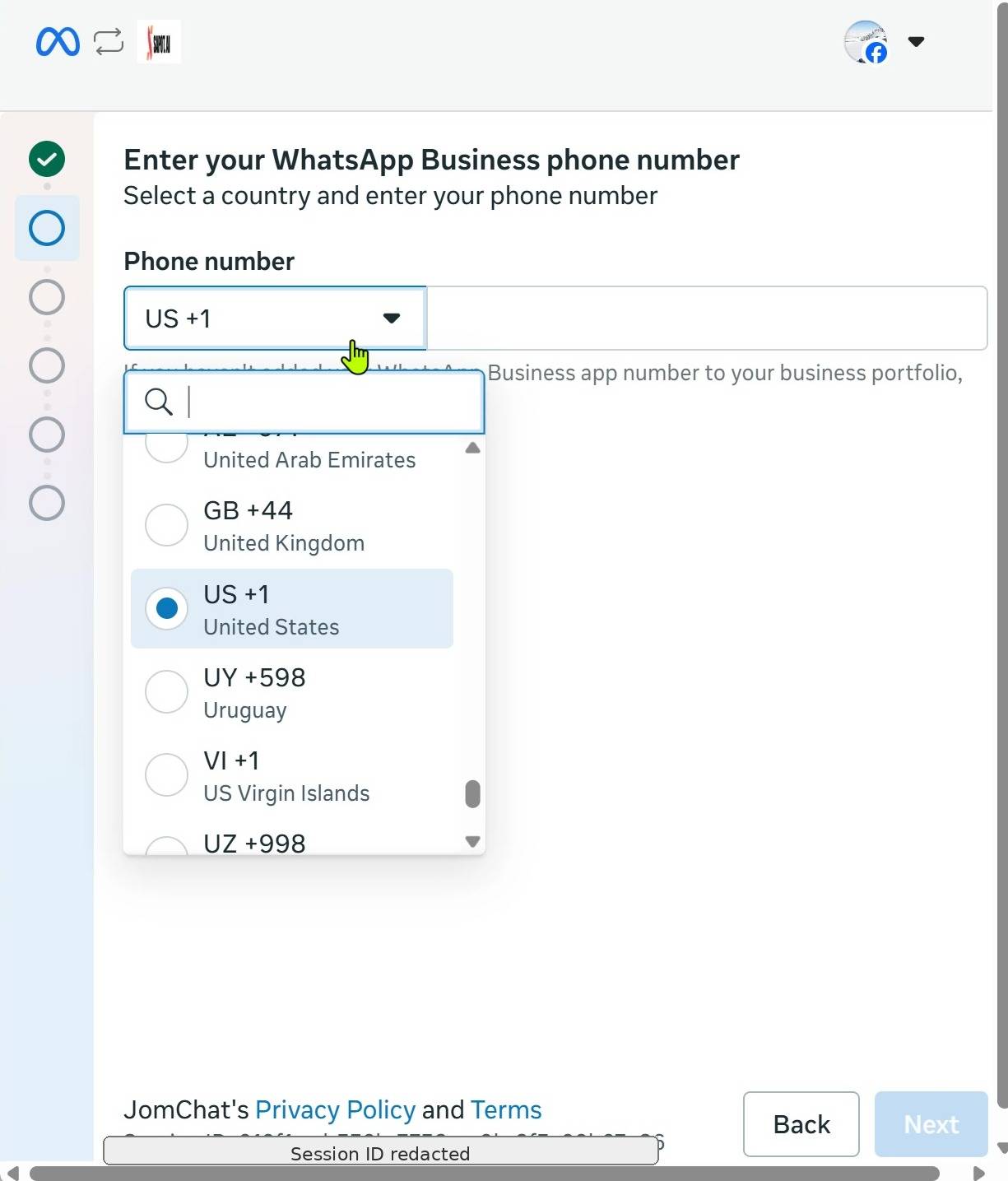
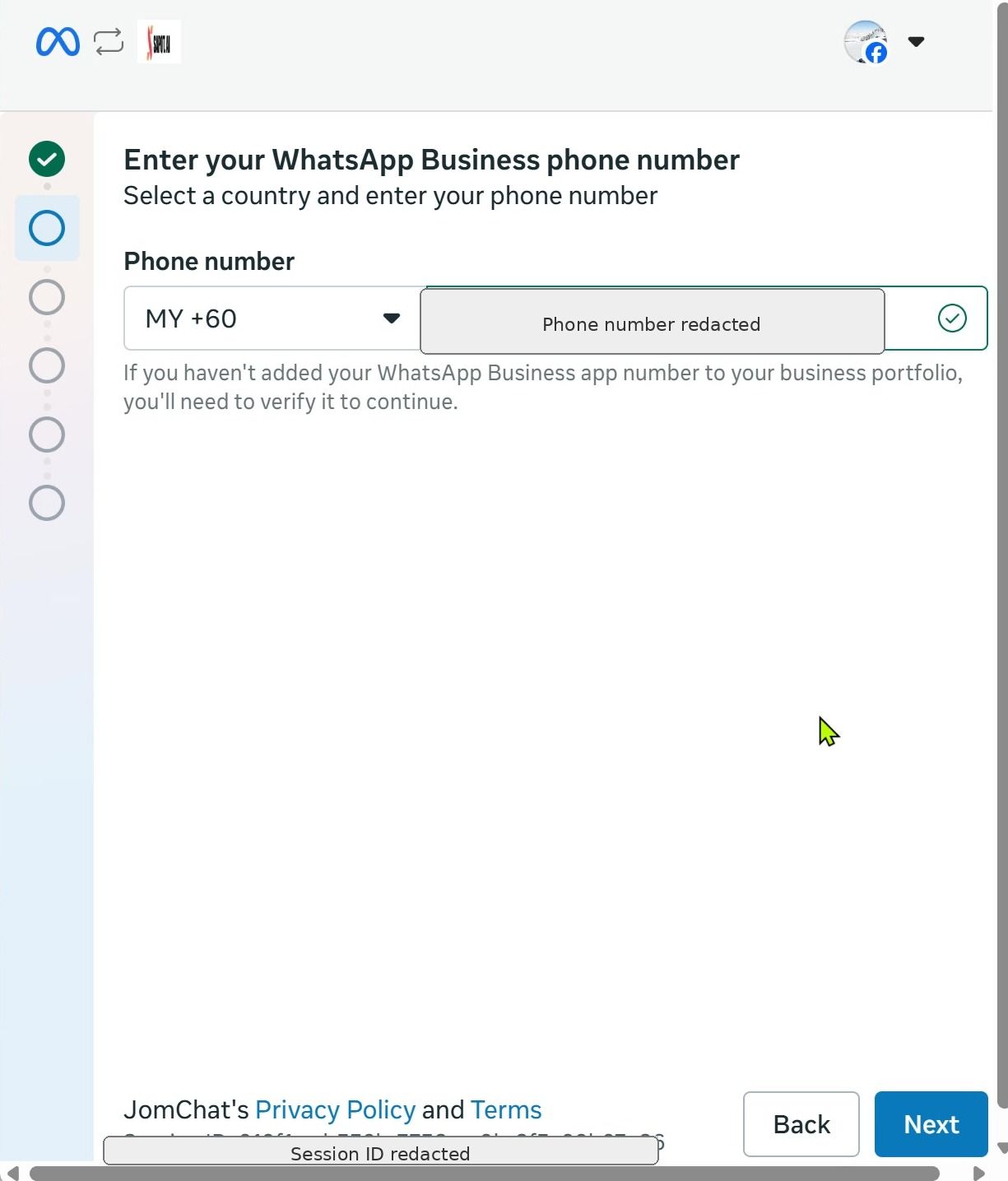
8. Review the access-sharing notice
Meta explains that your WhatsApp Business account — including phone number, contacts, chats and chat history — will be shared with the partner. Click Next to continue.
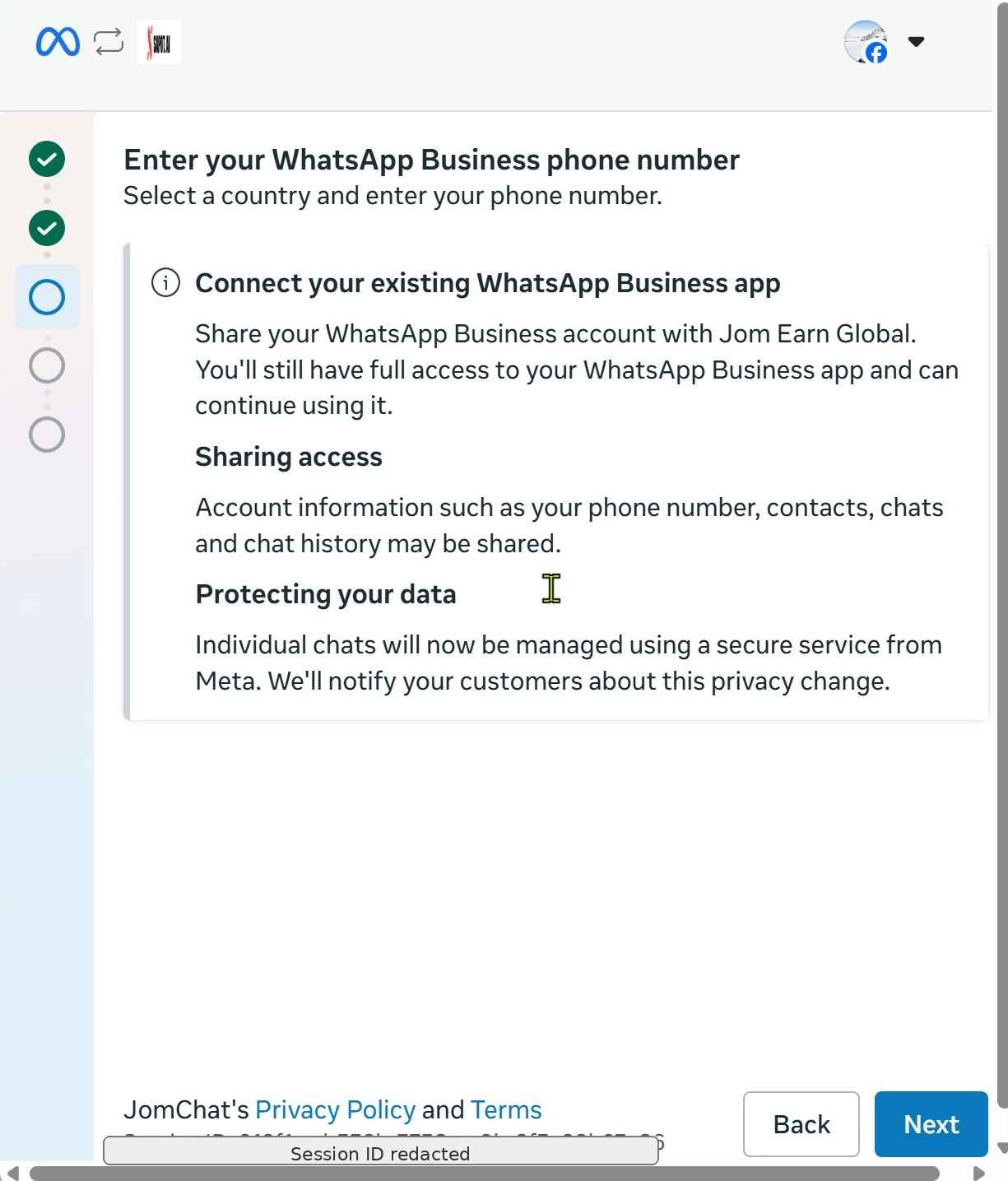
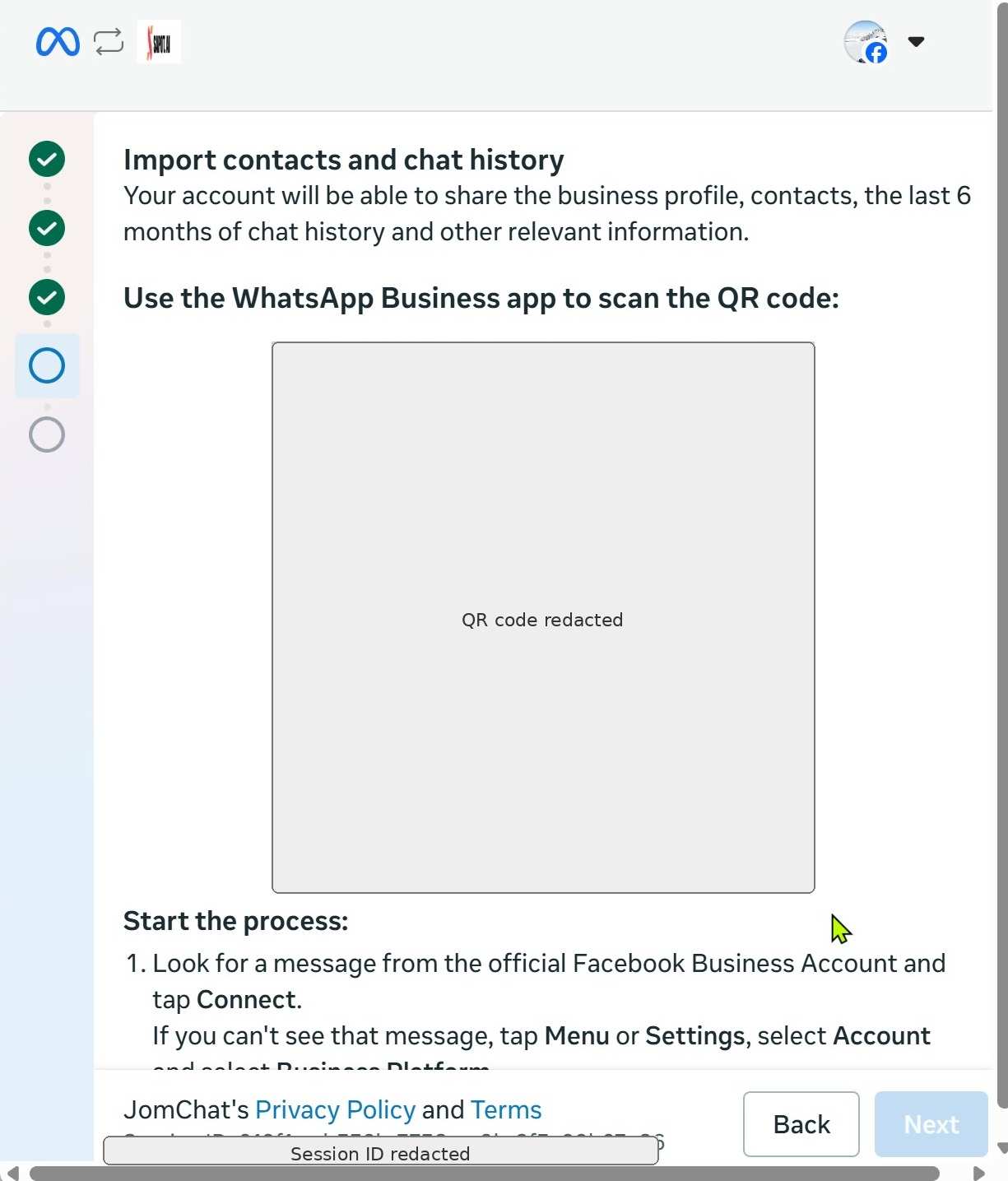
9. Import contacts and chat history
Open the WhatsApp Business app on your phone and scan the QR code shown by Meta. Follow the on-screen instructions to finish connecting the app.
Meta shares up to about 6 months of past chats, and Mampu AI brings them in; they can keep arriving for a few days. Your phone’s contact names are added to customers who have chatted with this number. Phone contacts who never chatted with it are not added.
You’re done
Once the scan completes, your WhatsApp inbox is connected. Incoming WhatsApp messages now appear in Mampu AI, and your AI agent can start replying. You can fine-tune the inbox anytime under Settings → Inboxes.
What Mampu AI learns from your chat history
When you share your chat history in step 9, your past WhatsApp chats arrive in the inbox as earlier conversations, with their original dates. About an hour after the last chats arrive, Mampu AI reads your most recent chats (up to 500) once and prepares two things for you, on every plan:
- FAQ suggestions — questions your team has already answered become drafts under Flow Agents → AI Knowledge Hub → FAQ → Pending. Each draft shows the customer message and the reply it came from, and nothing is used until you approve it. See Reviewing pending drafts.
- A draft flow agent — a new agent under Flow Agents, named after your inbox and built from how your team usually handles these chats. It is only a draft: it does not reply to anyone until you review it, connect it to an inbox and publish it.
Your account’s administrators get one email when it is ready, with links to the draft agent and the FAQ suggestions. If your chats don’t give enough to build an agent, the email points to the FAQ suggestions only — you can build one later from newer chats with Analyse chats on the Flow Agents page.
This happens once per number: reconnecting the same number does not run it again.
Connection status of a WhatsApp Business number
A number connected with the Normal WhatsApp Web Link option by QR code shows a small dot on its inbox’s channel icon — in the Channels list of the left sidebar and on each inbox in Settings → Inboxes. The dot is green while the number is connected and red when it is not. Hover over it to read Connected or Disconnected. Only inboxes connected by QR code show the dot.
While a number is disconnected, new messages aren’t delivered until you reconnect the inbox, and its conversations show a WhatsApp is disconnected banner.
Reconnecting
- Open the inbox’s settings from Settings → Inboxes.
- Go to the Connection Status tab.
- Click Reconnect.
- Scan the new QR code with WhatsApp on your phone.
You can also click Reconnect WhatsApp on the banner in a conversation.
Notices from Meta about the number
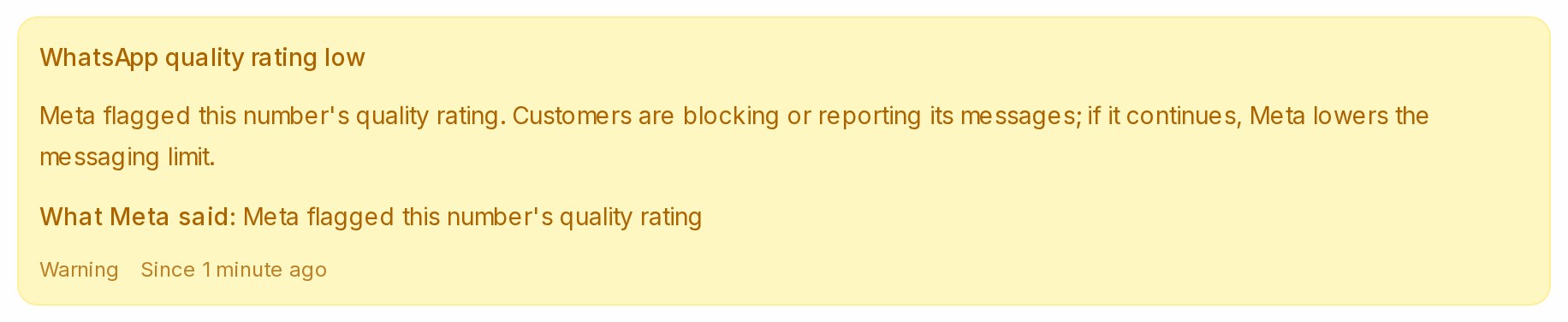
When Meta restricts the account, lowers the messaging limit, flags the number’s quality or rejects a template, a red or yellow banner appears on the inbox’s Settings tab and the administrators are emailed; the Notices from Meta list at the bottom keeps the history. See Notices from Meta about your inbox.
Related
- WhatsApp group chats — how group messages, reactions and leaving a group work on a QR-connected number.
- Notices from Meta about your inbox