
A custom role sits between Agent and Administrator. You choose what it can open (conversations, contacts, reports, help center), and the person sees it only for the inboxes they are a member of. A branch supervisor gets their branch’s chats, customers and numbers, not every branch’s. Only administrators create and assign custom roles.
Create a custom role
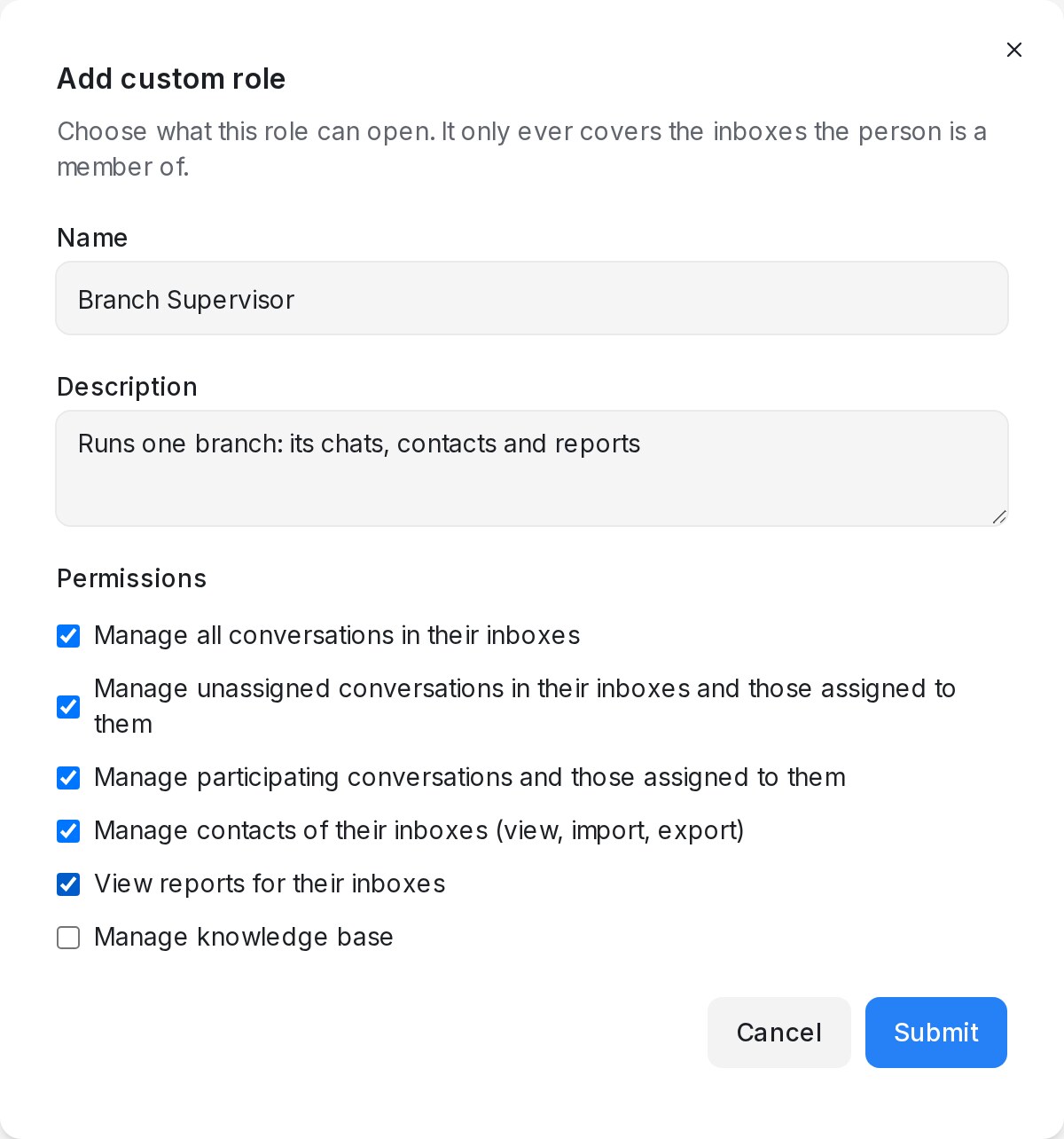
- Open Settings → Custom Roles and click Add custom role.
- Enter a Name (for example “Branch Supervisor”) and a Description.
- Tick the Permissions the role needs, then click Submit.
| Permission | What the person can do, in their own inboxes |
|---|---|
| Manage all conversations in their inboxes | Open and reply to every conversation, assigned or not |
| Manage unassigned conversations in their inboxes and those assigned to them | Pick up unassigned conversations and work their own |
| Manage participating conversations and those assigned to them | Work their own conversations and the ones they were added to |
| Manage contacts of their inboxes (view, import, export) | Open Contacts for customers who wrote in on those inboxes |
| View reports for their inboxes | Open Reports, including CSAT |
| Manage knowledge base | Manage Help Center portals, categories and articles |
When several conversation permissions are ticked, the widest one applies.
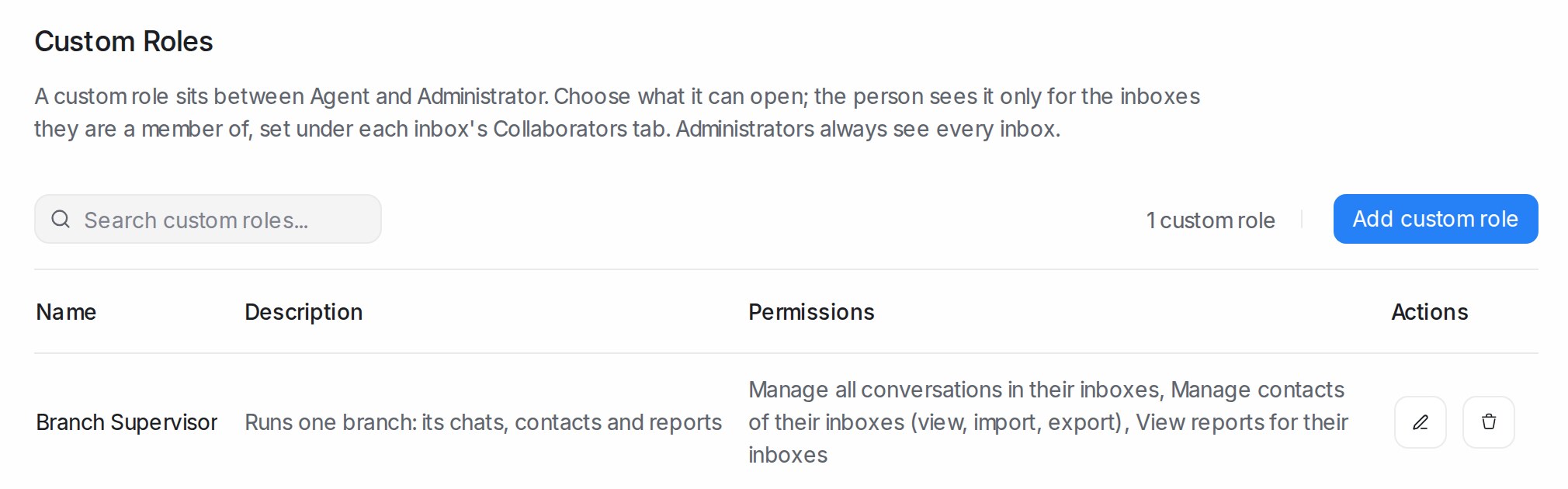
The list shows each role with its permissions. Edit or delete a role from its row; a change applies to everyone who has the role. Deleting a role turns its members back into plain agents.
Give the role to someone
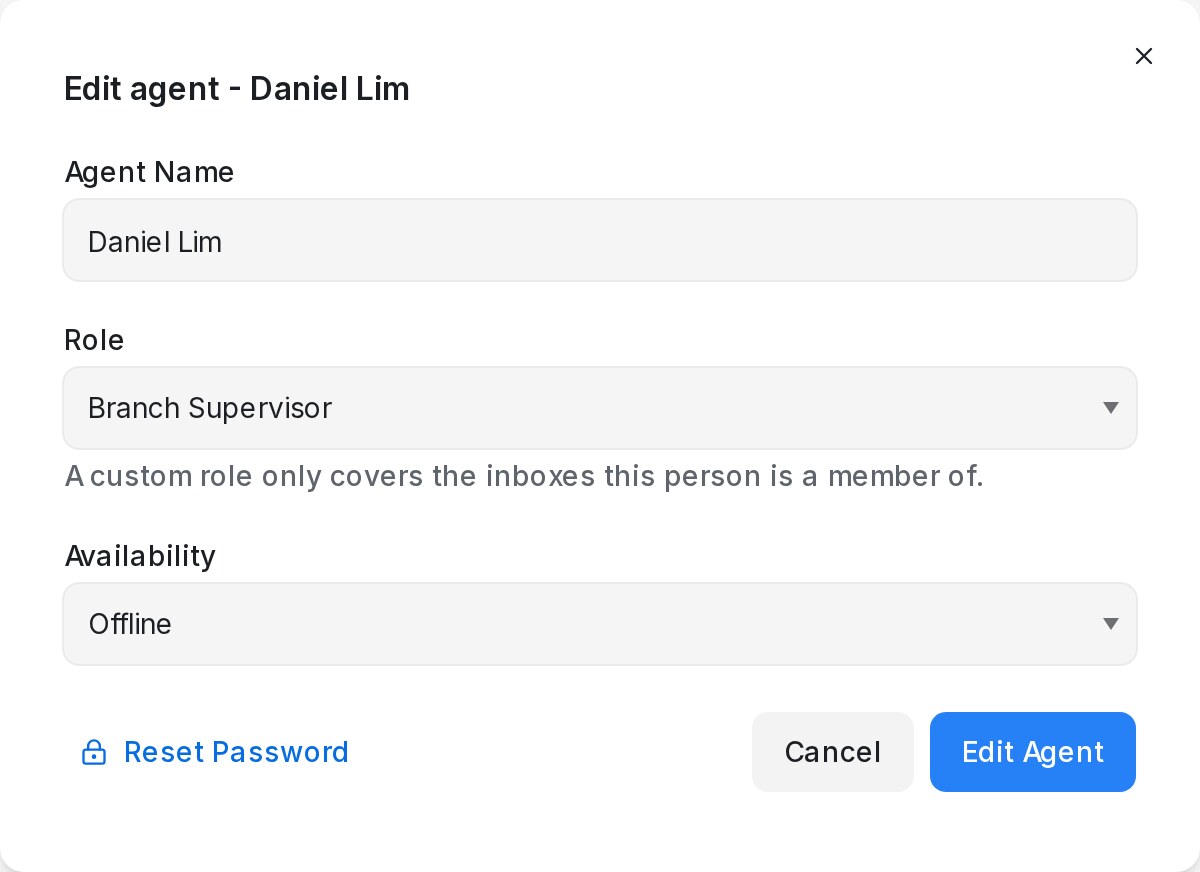
- Open Settings → Agents and click the pencil on the person’s row, or Add Agent for someone new.
- Pick the custom role under Role and save.
- Add them to the inboxes they should cover under each inbox’s Collaborators tab; see Inbox settings, tab by tab.
The agents list then shows the role name in place of Agent.
What the person sees
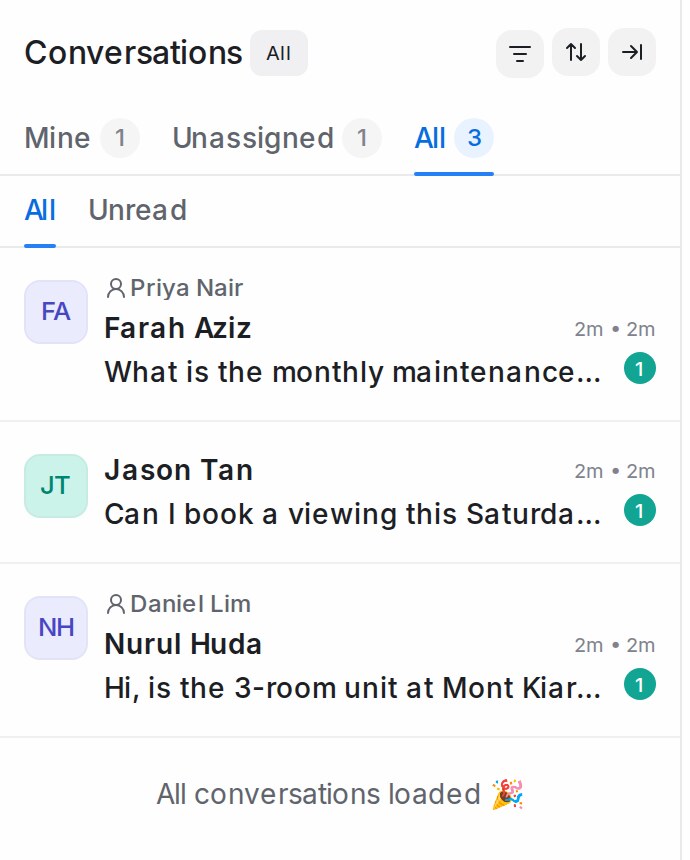
Everything follows the inboxes they are a member of:
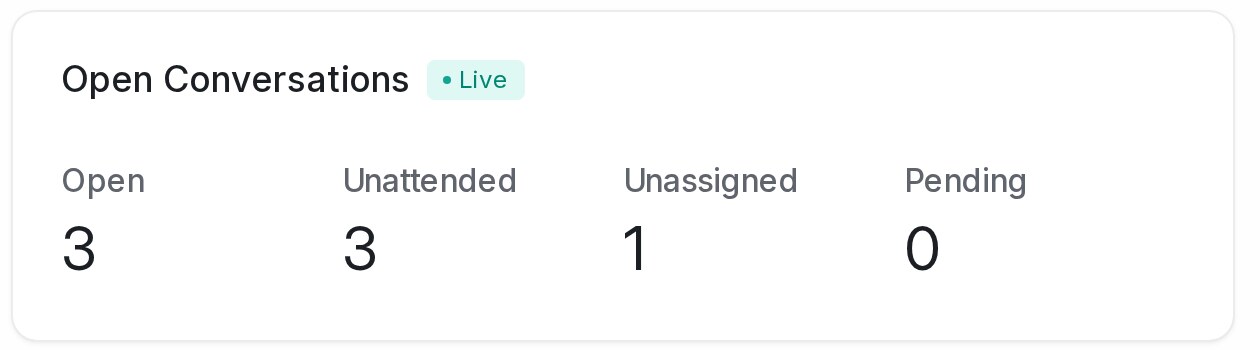
- Conversations: Mine, Unassigned and All count only those inboxes, and conversations from other inboxes do not open.
- Reports: every report, CSAT and the calls list count only those inboxes, and other inboxes do not appear in the inbox report.
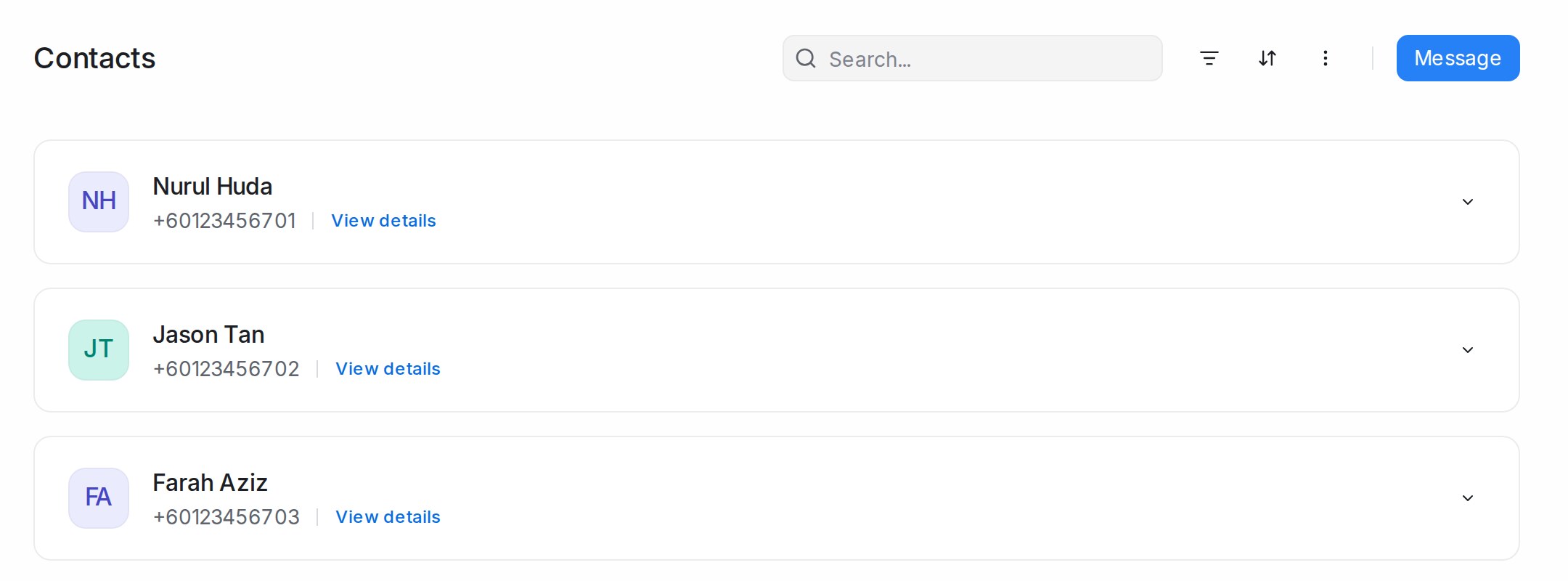
- Contacts: only customers who have written in on one of those inboxes.
- Search, AI summaries and reply suggestions, and macros stay inside the same inboxes.
Good to know
- Only administrators see every inbox.
- A role never limits an administrator.
- Contacts that have not written in on any inbox (added by hand or imported) are visible to administrators only, until the customer writes in on one of the person’s inboxes.
- Account settings, inboxes, billing and other administrator pages stay with administrators.