
On a plan that includes AI credits, your AI agent and the AI tools in your workspace run on a prepaid balance of credits. You don’t connect an AI provider key of your own. Everything is on Settings → Billing, which only administrators see.
See your balance and what used it
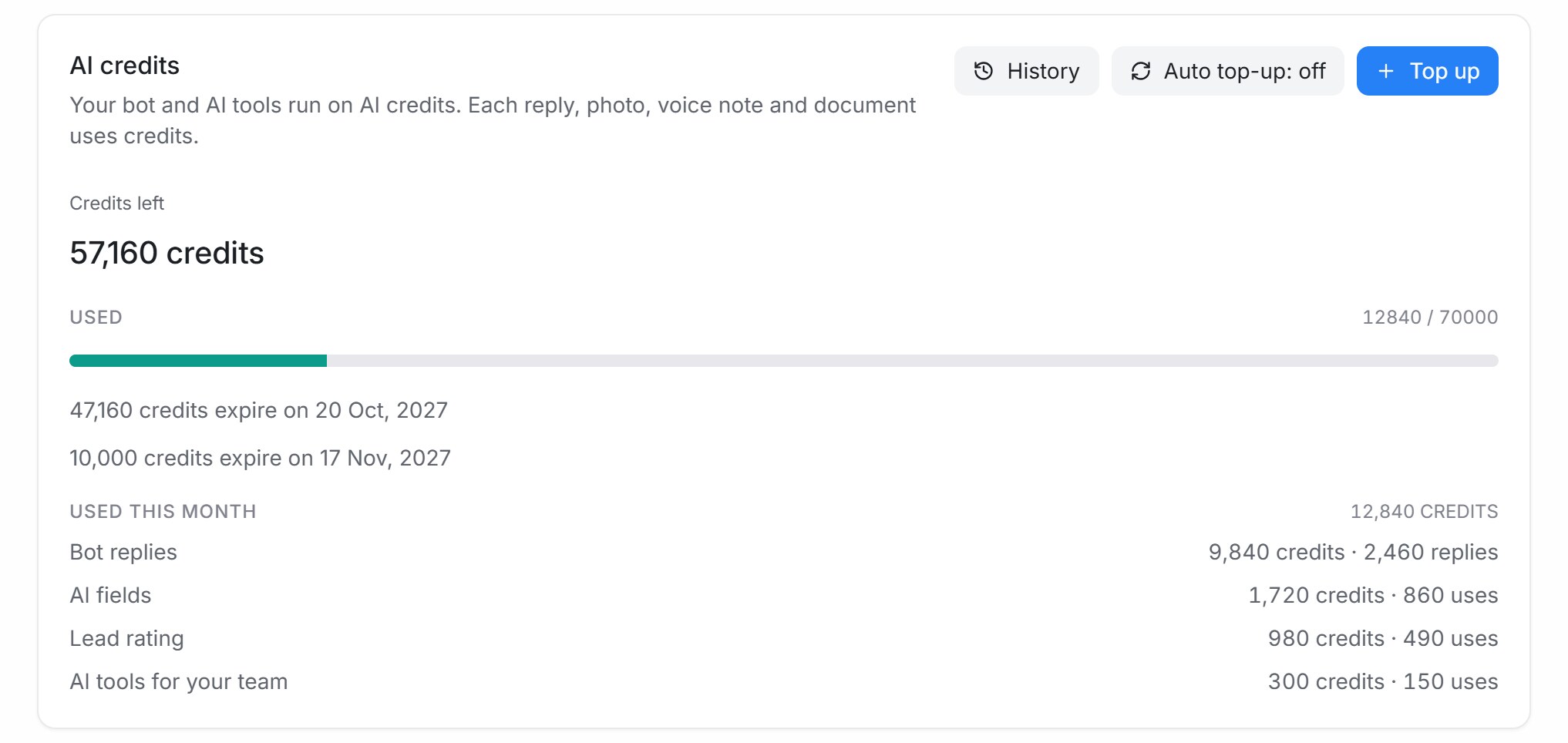
| Term | What it means |
|---|---|
| Credits left | Your balance now |
| Used | How much of your active credits is used |
| credits expire on | Each batch of credits has its own expiry date. The credits that expire soonest are used first |
| Used this month | This month’s credits, split by what used them: Bot replies, AI fields, Lead rating, AI tools for your team, FAQ writing and translation and Team AI chat |
Every live reply uses credits, including reading a photo, a voice note or a document the customer sent. A longer reply uses more. Testing in the Playground doesn’t use any.
Top up
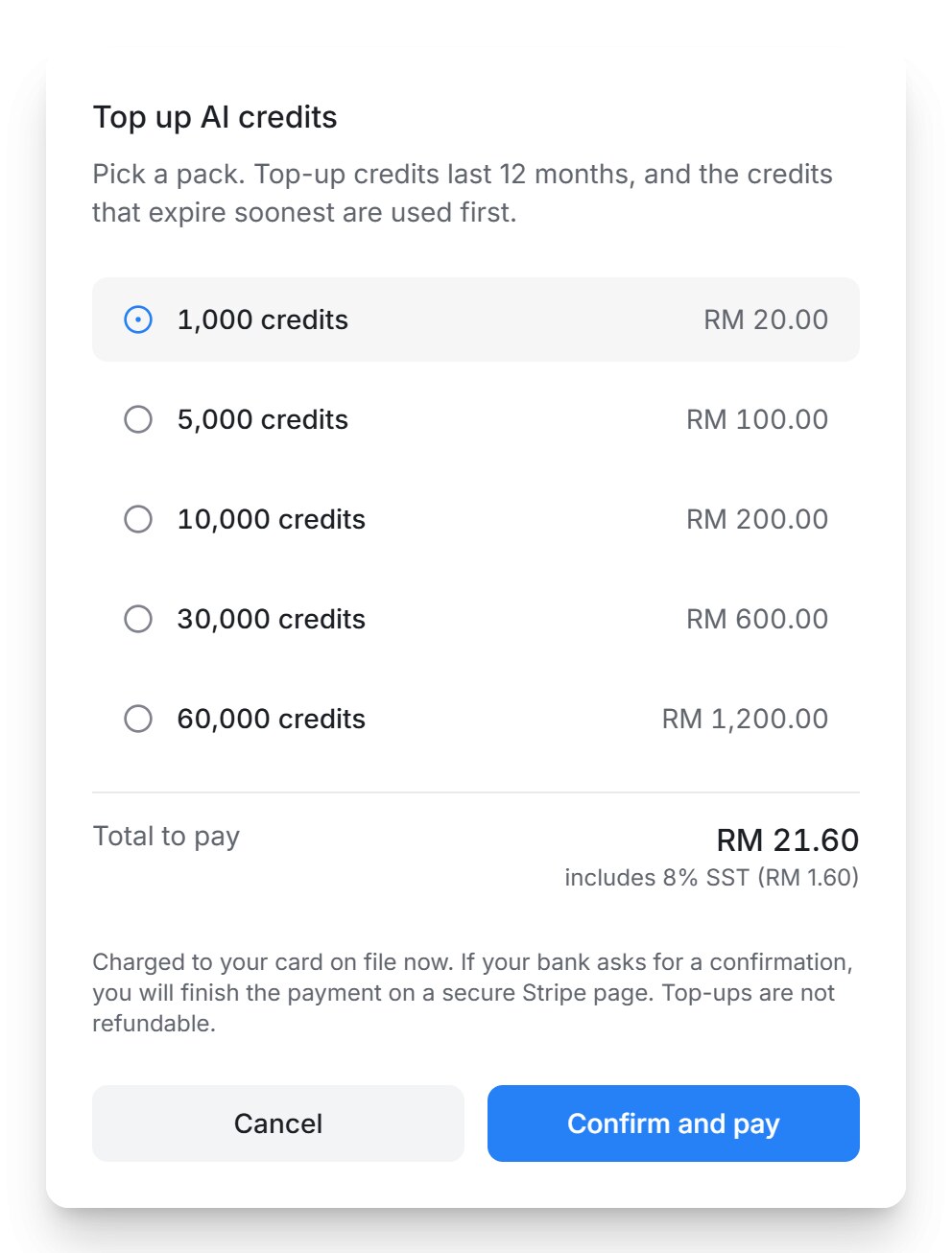
- Click Top up on the AI credits card.
- Pick a pack. Total to pay shows the price with SST.
- Click Confirm and pay. Your card on file is charged and the credits are added at once.
If your bank asks for a confirmation, click Complete payment and finish on the secure payment page. The credits are added as soon as the payment goes through.
Note: Top-ups are not refundable.
Top up automatically
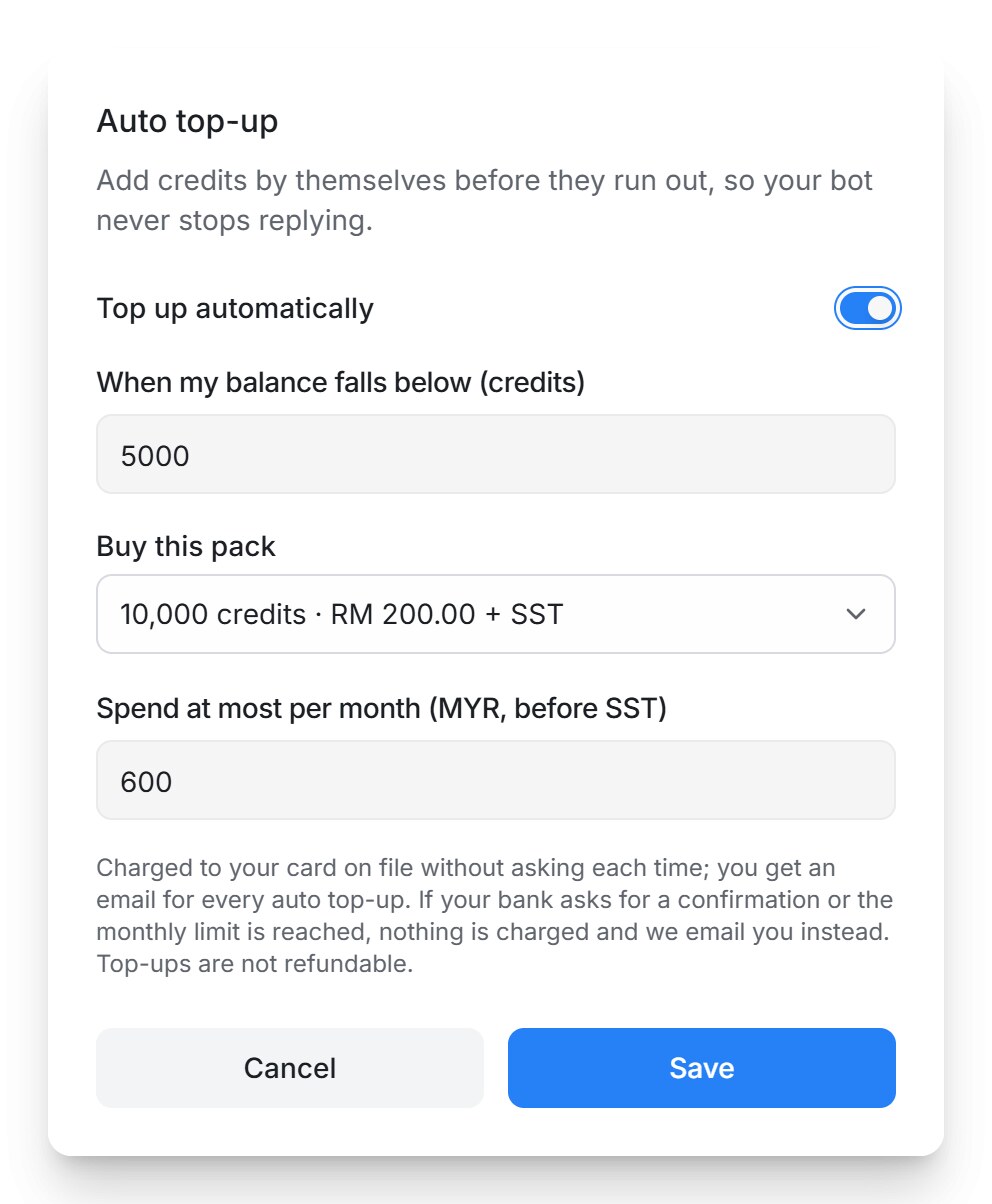
- Click Auto top-up: off on the AI credits card.
- Switch on Top up automatically.
- Set When my balance falls below (credits) and choose the pack under Buy this pack.
- Set Spend at most per month, then click Save.
Your card on file is then charged without asking each time, and you get an email for every auto top-up. If your bank asks for a confirmation, or the monthly limit is reached, nothing is charged and we email you instead.
Read the history
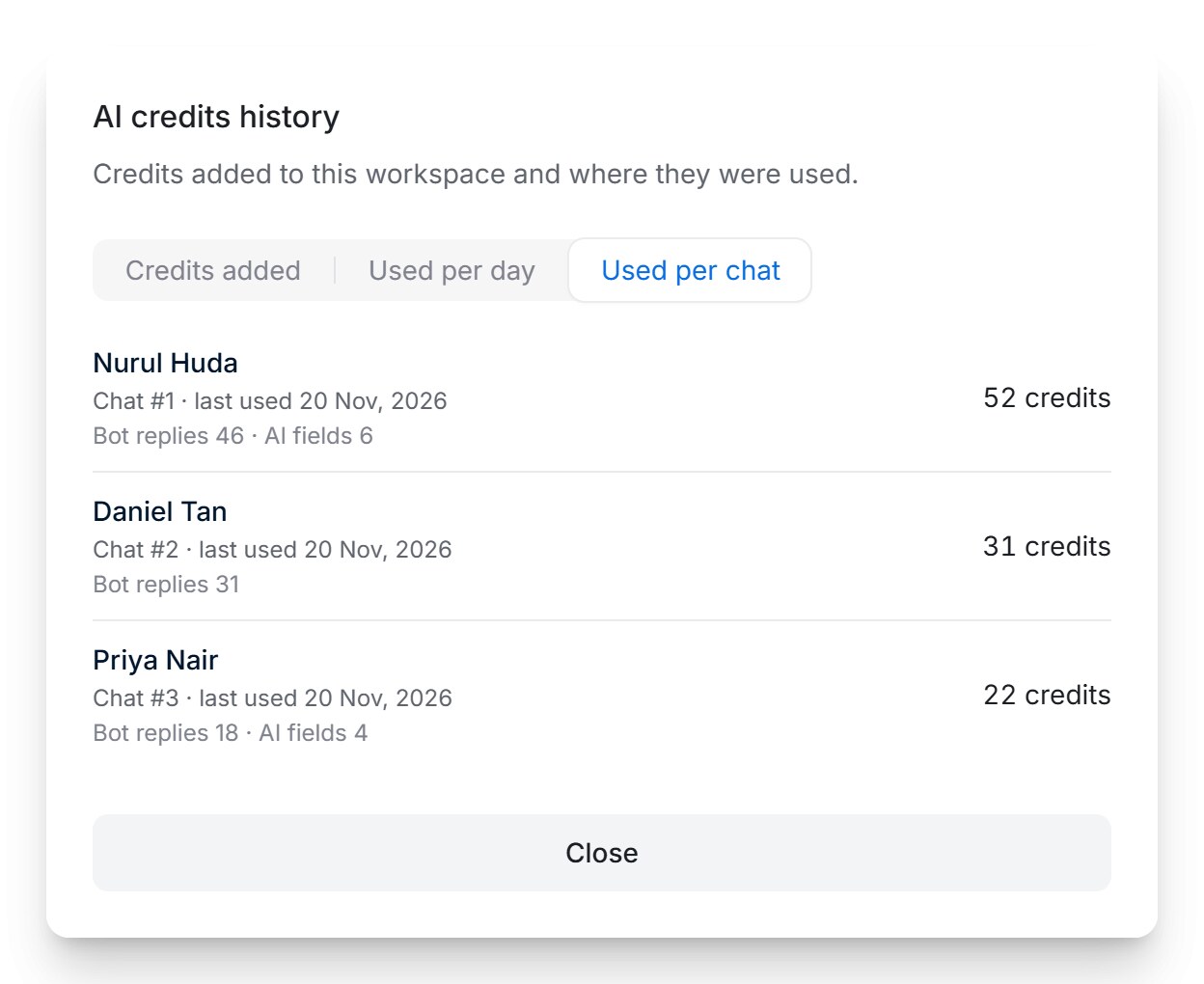
Click History on the AI credits card.
| Tab | What it shows |
|---|---|
| Credits added | Every batch of credits: where it came from (Plan offer, Top-up, Auto top-up or Added by support), how much is left and when it expires |
| Used per day | Recent days, by day and by what used the credits |
| Used per chat | The latest chats that used credits, with the credits each one used |
When credits run low or run out

| What happens | Effect |
|---|---|
| Credits are running low | A banner appears with a Top up button, and administrators get an email |
| Credits are used up | Your AI agent hands chats to your team, and the AI tools pause. Administrators get an email. Everything resumes as soon as credits are added |
| Credits are about to expire | Administrators get an email ahead of time, with the first expiry date |
Note: Credits that are not used by their expiry date are lost.
Frequently asked questions
Do I need my own AI provider key?
No. On a plan with AI credits the AI runs on your credits, so there is no key to connect or top up elsewhere.
What happens to my credits if I change plan?
They are kept until their expiry date but can’t be used on a plan without AI credits. If you return to a plan with AI credits before they expire, you can use them again.
Will my AI agent stop in the middle of a chat when credits run out?
It hands the chat to your team with a note saying the credits are used up. After you top up, it answers the customer’s next message.
Can I get a refund for credits I didn’t use?
No. Top-ups are not refundable, so pick a pack close to what you use.