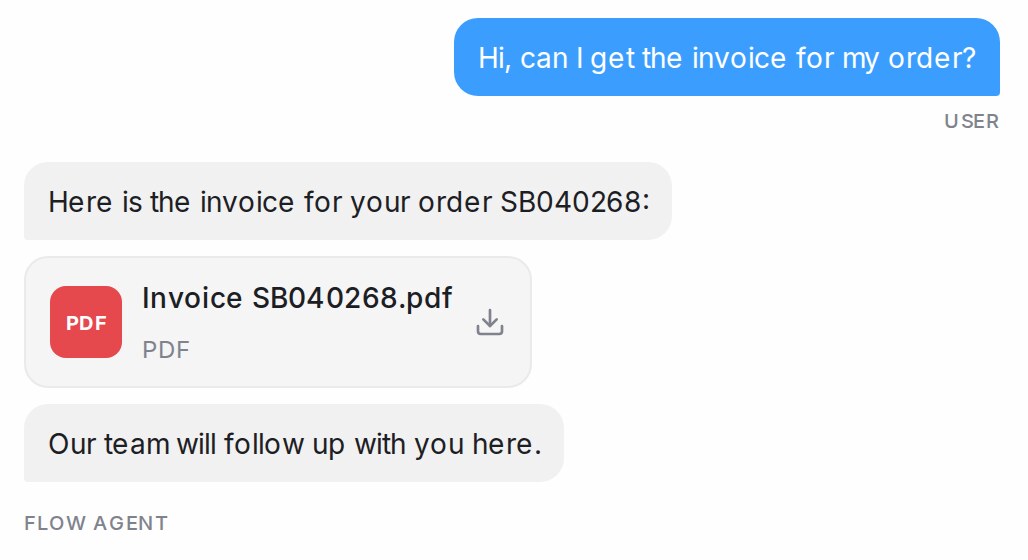
An API tool lets a flow step ask your own system for something (stock, a price, an order, an invoice) and answer the customer with the real value. You add the tool once, then use it on any message, question or condition step. This page shows how to add a tool, use it on a step, and send a document it returns as a file.
Adding an API tool
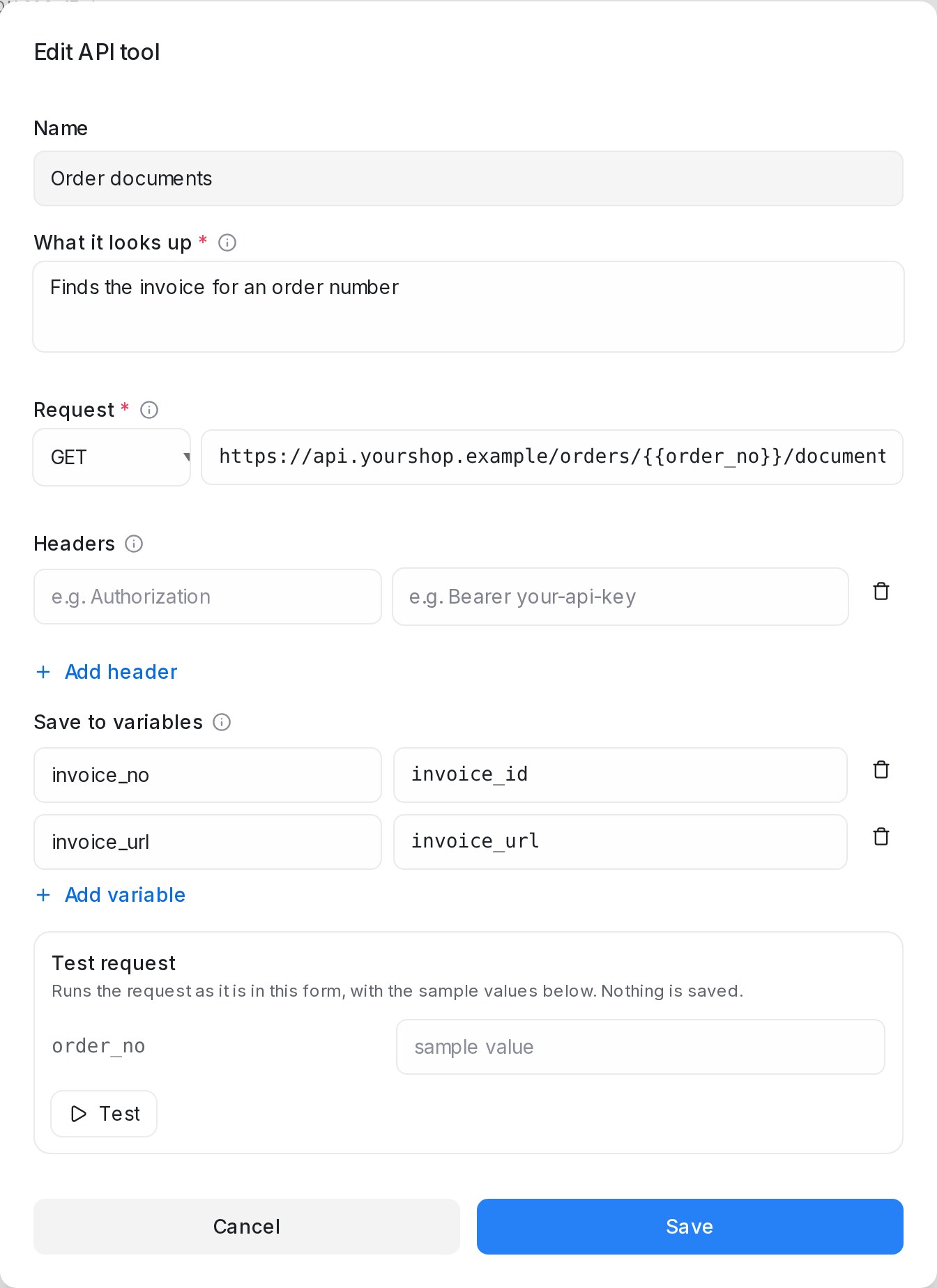
- Open AI Knowledge Hub, then the API tools tile, and choose Add API tool.
- Give it a Name and say in What it looks up what it answers.
- Under Request, enter the https address. Put
{{order_no}}-style variables in the path or query to fill them from what the flow collected. - Add any Headers your system needs, such as an API key. Their values are stored encrypted.
- Under Save to variables, pick the values later steps need, for example
invoice_no←invoice_id. - Run Test request with a sample value, then Save.
Using the tool on a step
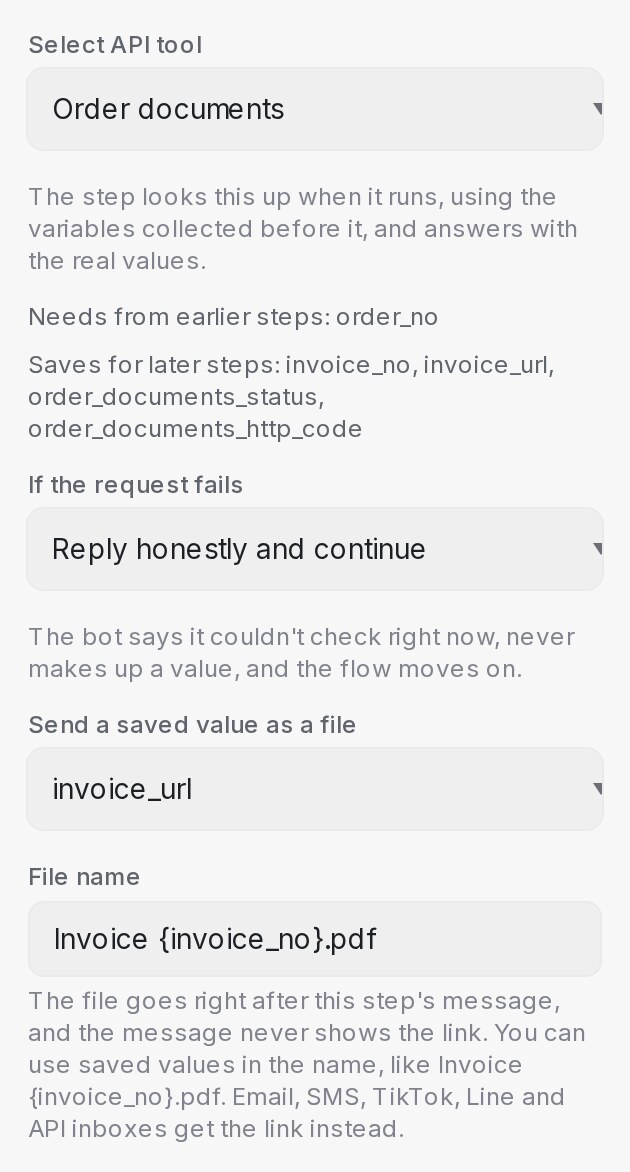
- In the flow designer, open the step. Under Tool, set Tool type to API tool and pick it in Select API tool.
- The panel lists what it Needs from earlier steps and what it Saves for later steps. Collect the needed variables before this step.
- Write the step’s message the way you want the answer to read; the step fills in the real values.
Every tool also saves <tool>_status (ok, error or missing_input) and <tool>_http_code, so a later condition can branch on them.
| If the request fails | What the customer sees |
|---|---|
| Reply honestly and continue | The bot says it couldn’t check right now, never makes up a value, and the flow moves on |
| Hand off to a human | The bot says it couldn’t check right now and hands the conversation to your team |
Sending a document as a file
When the tool returns a link to a document, such as an invoice or a receipt, a Send message step can send the document itself instead of the link.
- Under the API tool, set Send a saved value as a file to the saved link, for example
invoice_url. - Type a File name. You can use saved values, like
Invoice {invoice_no}.pdf. A blank name sends Document.pdf; a name with no extension gets .pdf.
The customer gets the step’s message, then the file. The message never shows the link. If the tool returns no link, no file goes out and the bot says the document isn’t ready yet. We keep a copy (up to 10 MB), so your team can still open it after the link from your system expires.
WhatsApp, Messenger, Instagram, Telegram and web chat receive the file. Email, SMS, TikTok, Line and API inboxes get the link instead.