
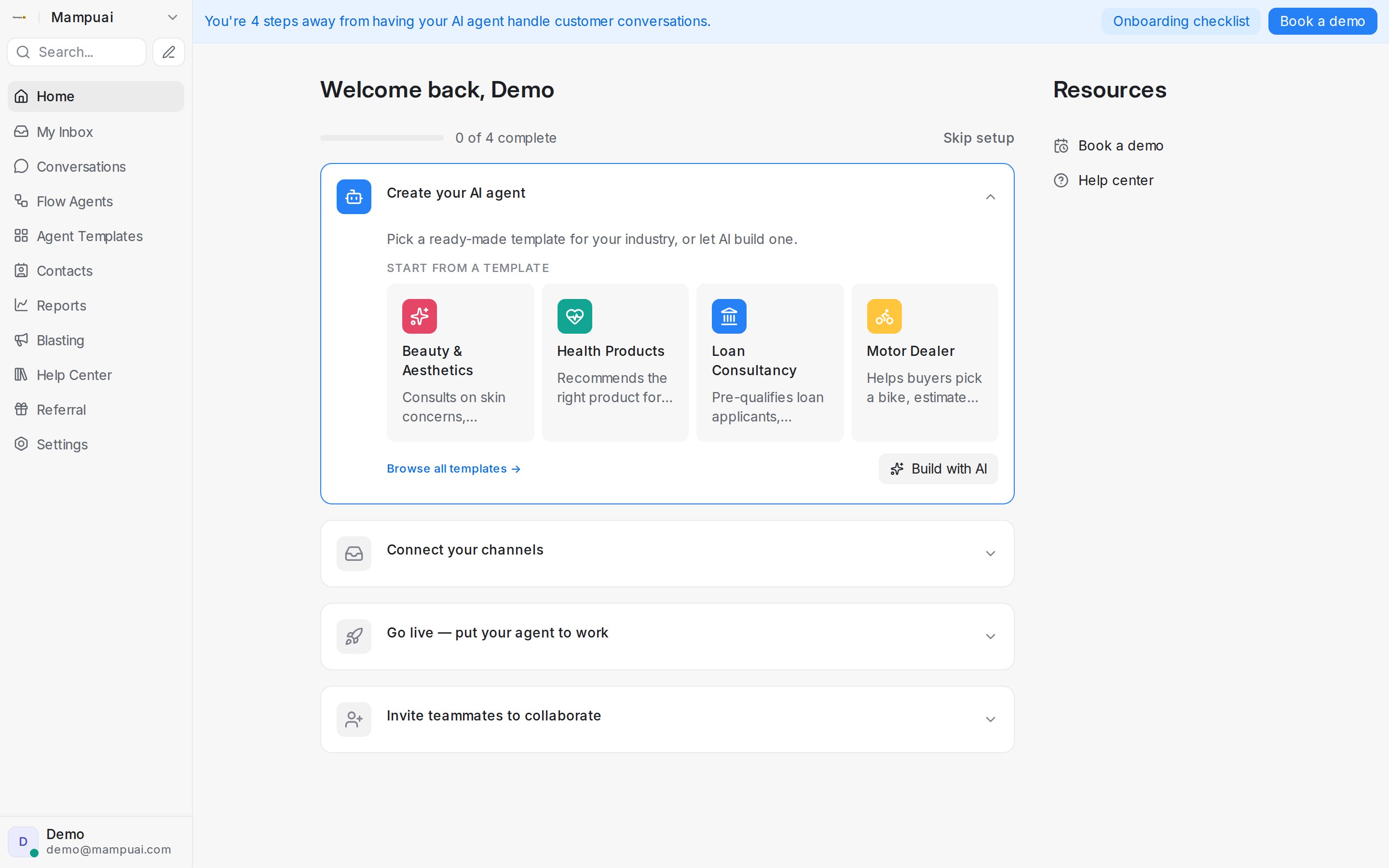
The left sidebar is your main navigation — each item opens a core area of the product:
- Home — setup checklist and quick actions
- Conversations — all customer messages
- Flow Agents — your AI agents, with the AI Knowledge Hub alongside (knowledge, FAQs, and the Calendar for appointments)
- Agent Templates — ready-made agents you can start from
- Contacts, Reports, Blasting
- Help Center — shown only when it is switched on for your workspace
- Referral — share your link and earn rewards
- Settings — account configuration
Two more controls sit at the edges of the menu. The bell beside your workspace name opens My Inbox, your own alerts, with the number you have not read. The What’s new row at the bottom shows how many product updates you have not seen; click it to read them.
Watch the walkthrough
Reports and Settings open with a navigation column of their own inside the page, grouping related pages under category headers like Performance or Workspace so you can find the right section at a glance.
Away from your desk? The mobile app puts your conversations in your pocket.
Searching
Click Search… at the top of the sidebar to find conversations, contacts and messages. Type at least 3 characters.
Search also looks through the Mampu AI help guides, so you can type what you’re trying to do — such as “connect WhatsApp” or “create a blast” — and open the matching guide:
- All results shows the top five guides under Guides, with View more for the rest.
- The Guides tab lists up to 15 guides.
- Each guide shows its title, its help-centre section and a short matching snippet.
- Guides open in a new browser tab, so you keep your place in the dashboard.