
When a message you send from an Official WhatsApp API inbox does not reach the customer, the reason shows in red under the message. Most failures come from WhatsApp’s own rules, not from Mampu AI: the customer’s number, their privacy choices, Meta’s limits on marketing messages, or the state of your WhatsApp account. This page shows you where to read the error, what each common error means, how to check your number in Meta’s tools, and what to send us if you are still stuck.
Read the error on the message
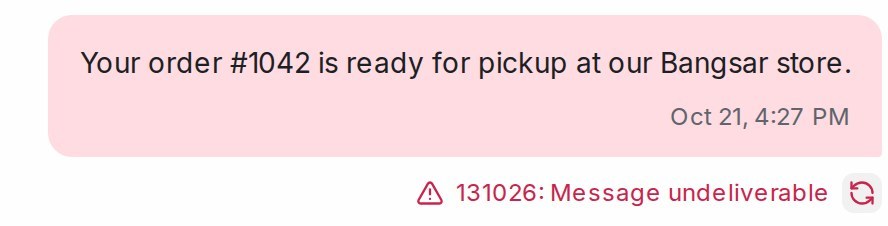
- Open the conversation and find the message with the red warning icon under it.
- Read the text beside the icon. It starts with Meta’s error code, for example 131026: Message undeliverable. Hover over it, or tap it on a phone, to see the whole text.
- Find the code in the sections below.
- To send the same message again, click the round arrow beside the error. It shows for one day after the message was sent.
Note: For a blast, click Failed or not sent on the blast card to see these reasons grouped for every customer. See WhatsApp blasting.
Note: A message that stays on a single grey tick has not failed: WhatsApp accepted it, but the customer’s phone has not received it yet, usually because it is off or offline. Meta does not say why a phone is not receiving.
Errors about the customer
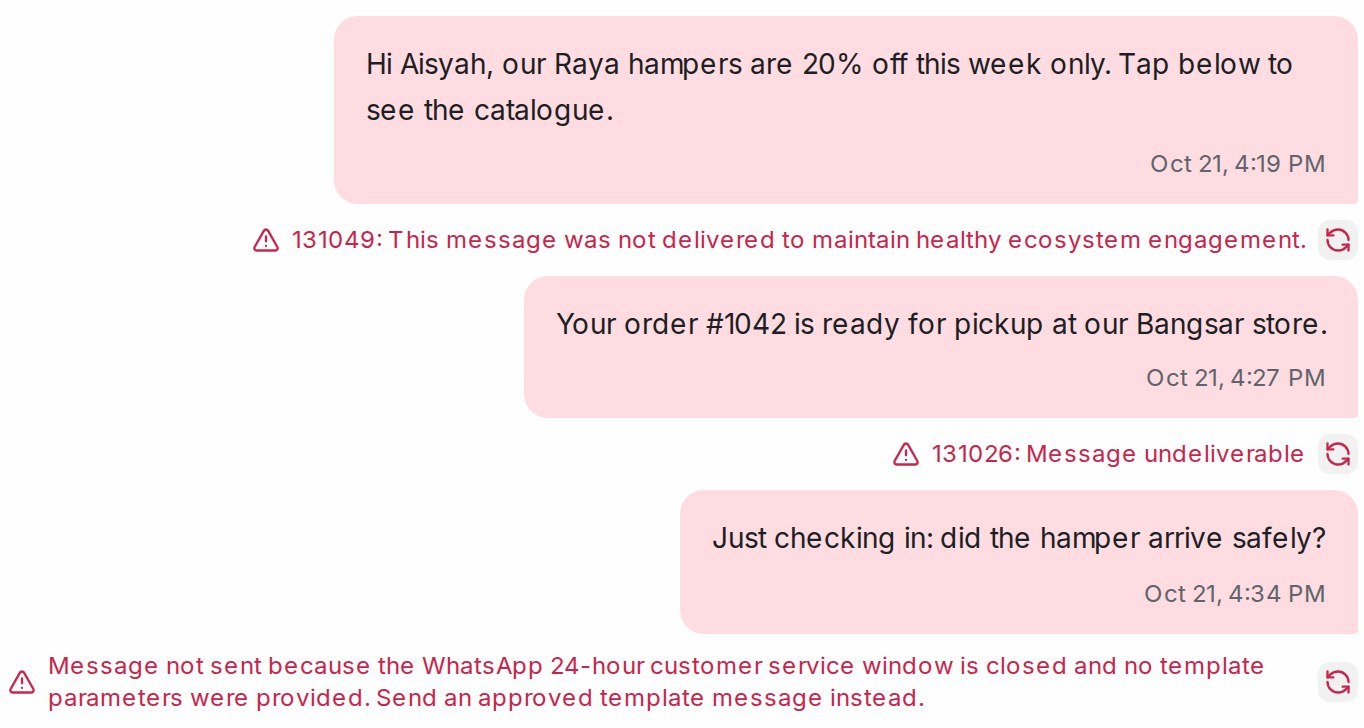
131026: Message undeliverable
What it means: The number is not on WhatsApp, the customer blocked you, or their WhatsApp app is too old.
How to fix: Check the number has the right country code. Ask the customer through another channel to update WhatsApp or unblock you.
131050: User has stopped receipt of marketing messages
What it means: The customer turned off marketing messages from your business.
How to fix: Do not resend; it will not be delivered. Wait for the customer to message you.
130472: User’s number is part of an experiment
What it means: Meta is running a test on this customer and does not show them marketing templates.
How to fix: Ask the customer to message you first, then reply within 24 hours.
Errors about the 24-hour window and Meta’s limits
24-hour customer service window is closed
What it means: The customer last wrote to you more than 24 hours ago, so WhatsApp only accepts an approved template.
How to fix: Send an approved template. When the customer replies, you can chat freely again. See The 24-hour reply window.
131047: Re-engagement message
What it means: Meta’s code for the same closed 24-hour window.
How to fix: Send an approved template.
131049: This message was not delivered to maintain healthy ecosystem engagement
What it means: Meta held back a marketing message so the customer does not receive too many. It says nothing bad about your account.
How to fix: Do not resend right away; Meta advises waiting at least 24 hours (Meta: per-user marketing limits). Or reach the customer when they next write in, or with a utility template (an order or appointment update).
131048: Spam rate limit hit
What it means: Too many of your messages were blocked or reported, so Meta limited how many you can send.
How to fix: Slow down, send only to customers who agreed to hear from you, and check your quality rating below.
131056: (Business Account, Consumer Account) pair rate limit hit
What it means: You sent too many messages to the same customer in a short time.
How to fix: Wait a few minutes before sending to that customer again.
Errors about templates and files
132001: Template does not exist
What it means: The template is not approved in that language, or it was deleted.
How to fix: Check its status on the inbox’s Templates tab (Settings → Inboxes, then the inbox).
132015: Template is Paused
What it means: Customers reacted badly to the template, so Meta paused it for a few hours.
How to fix: Wait for Meta to unpause it on its own, or edit the wording and submit it again. See Meta: template pausing.
132016: Template is Disabled
What it means: Meta paused the template too many times and has now disabled it for good.
How to fix: Create a new template with different wording.
131053: Media upload error
What it means: WhatsApp could not accept the picture, video or file.
How to fix: Check the file type and size, then send it again. See Picture and file size limits.
Errors about your WhatsApp account
131031: Account has been locked
What it means: Meta restricted or disabled your WhatsApp account for a policy issue.
How to fix: Check your account status (see below) and follow Meta’s steps to request a review. See Meta: policy and spam enforcement.
131042: Business eligibility payment issue
What it means: Meta could not charge the payment method on your WhatsApp account.
How to fix: Fix the payment method in WhatsApp Manager (see below).
133010: Phone number Not Registered
What it means: The number is no longer registered with WhatsApp’s official connection.
How to fix: Reconnect the number. See Connecting a WhatsApp inbox.
Check your number in WhatsApp Manager
- Go to business.facebook.com and sign in with the Facebook account that connected the number.
- Open WhatsApp Manager, then Account tools → Phone numbers.
- Find your number and read its status, quality rating and messaging limit.
Status should read Connected. Flagged means your quality dropped; raise it before Meta lowers your limit. Restricted means you reached your limit; you can still reply to customers who write in. Offline means you need to reconnect the number.
Quality rating turns yellow or red when customers block or report your messages. Send only to customers who agreed to hear from you, make messages personal, send less often, and give an easy way to opt out.
Messaging limit is how many customers you can start chats with in a day. If your sends stop partway through a blast, check it under Account tools → Messaging limits. It rises on its own when you send good-quality messages. See Meta: messaging limits.
Note: You need access to this WhatsApp account in your Meta business to open WhatsApp Manager.
Check your account status and payment
- Open business.facebook.com/business-support-home.
- Find your WhatsApp Business Account. If its status shows an issue, click it to see what Meta found and to request a review.
- For payment errors, open WhatsApp Manager, go to your WhatsApp Business Account’s payment settings, and add or fix the payment method.
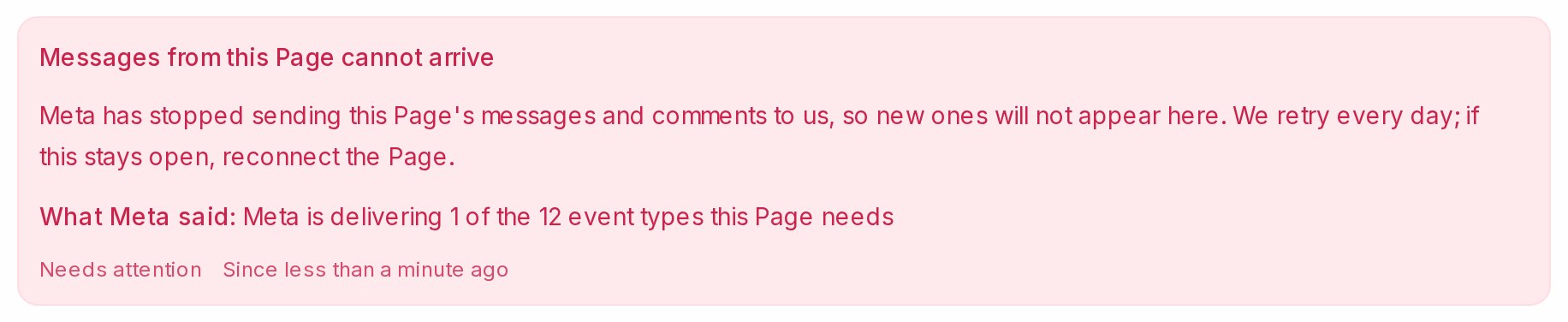
Note: Mampu AI also turns Meta’s account warnings into a notice on the inbox, so you often see the problem in Settings → Inboxes first. See Notices from Meta about your inbox.
What to send support
If you cannot tell what went wrong, send our support team:
- A screenshot of the failed message with the red error under it.
- The customer’s phone number and the time you sent the message.
- A screenshot of your number’s row in WhatsApp Manager → Account tools → Phone numbers.
With those three, we can tell you whether the fix is on your side, the customer’s, or Meta’s.
Frequently asked questions
Am I charged for a message that failed?
No. Meta charges only for messages it delivers. See Meta: pricing.
Can Mampu AI see more than the error under the message?
No. The code and text under the message are everything Meta tells us. Meta does not list single failed messages in WhatsApp Manager either, so the screenshot from your inbox is the best record.
When does sending again help?
Only when the cause was temporary, such as 131056 or a file that failed to upload. For 131050, 131026 or a closed 24-hour window, sending the same message again fails the same way.
Can I reach a customer again after 131050?
Yes, once they message you, or after they turn marketing messages from your business back on.
Why is my WhatsApp quality rating yellow or red?
Customers blocked or reported your messages in the last few days. Send only to customers who agreed to hear from you, send less often, and give an easy way to opt out.
Related
- Notices from Meta about your inbox
- WhatsApp blasting
- The 24-hour reply window
- Creating WhatsApp message templates
- Connecting a WhatsApp inbox
From Meta: