
Mampu AI runs in your browser at chat.sapot.ai. This page covers the doors in and out: creating an account, signing in, a forgotten password, the two-factor step, and the message you see when too many devices are signed in at once.
Creating an account
Open chat.sapot.ai/app/auth/signup or click create a new account on the sign-in page.
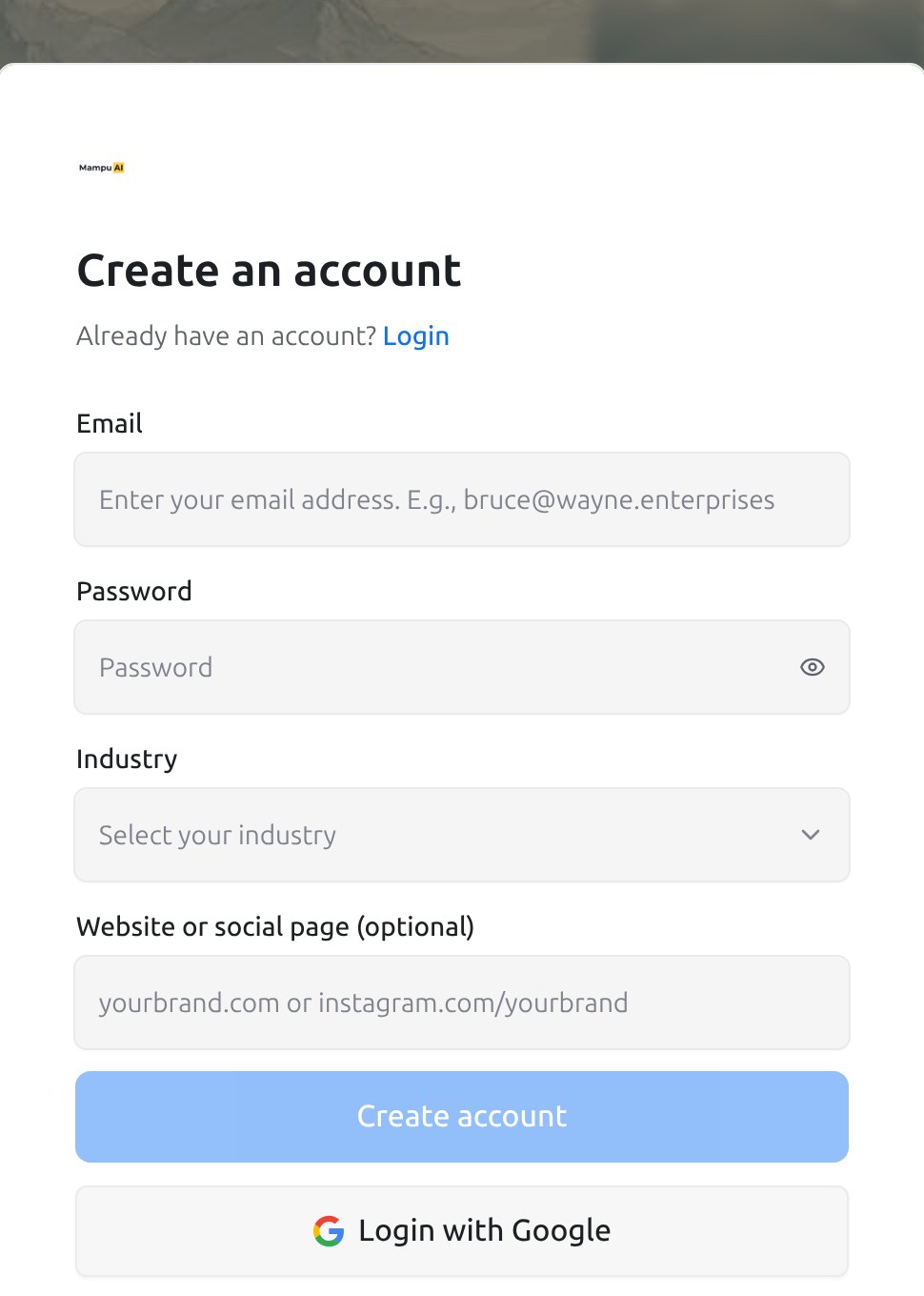
- Enter your Email and a Password. The password needs at least 6 characters with an uppercase letter, a lowercase letter, a number and a special character; the list under the field ticks off each rule as you type.
- Pick your Industry and, if you like, your Website or social page (optional). Mampu AI uses them to prepare a first AI agent for you.
- Click Create account, or Login with Google to create the account with your Google login instead.
- Check your inbox: we send a verification link to the address you gave. Click it to open your new workspace. Use Resend verification email if it has not arrived after a few minutes; check the spam folder too.
Your name is taken from your email address to start with; change it any time under your profile settings. The first screens after sign-up walk you through a short demo and the setup checklist; see Completing the setup checklist.
Teammates do not sign up on their own. An administrator adds them under Settings → Agents, and they receive an invitation email with a link to set their password. See Managing agents and teams.
Signing in
Open chat.sapot.ai/app/login.
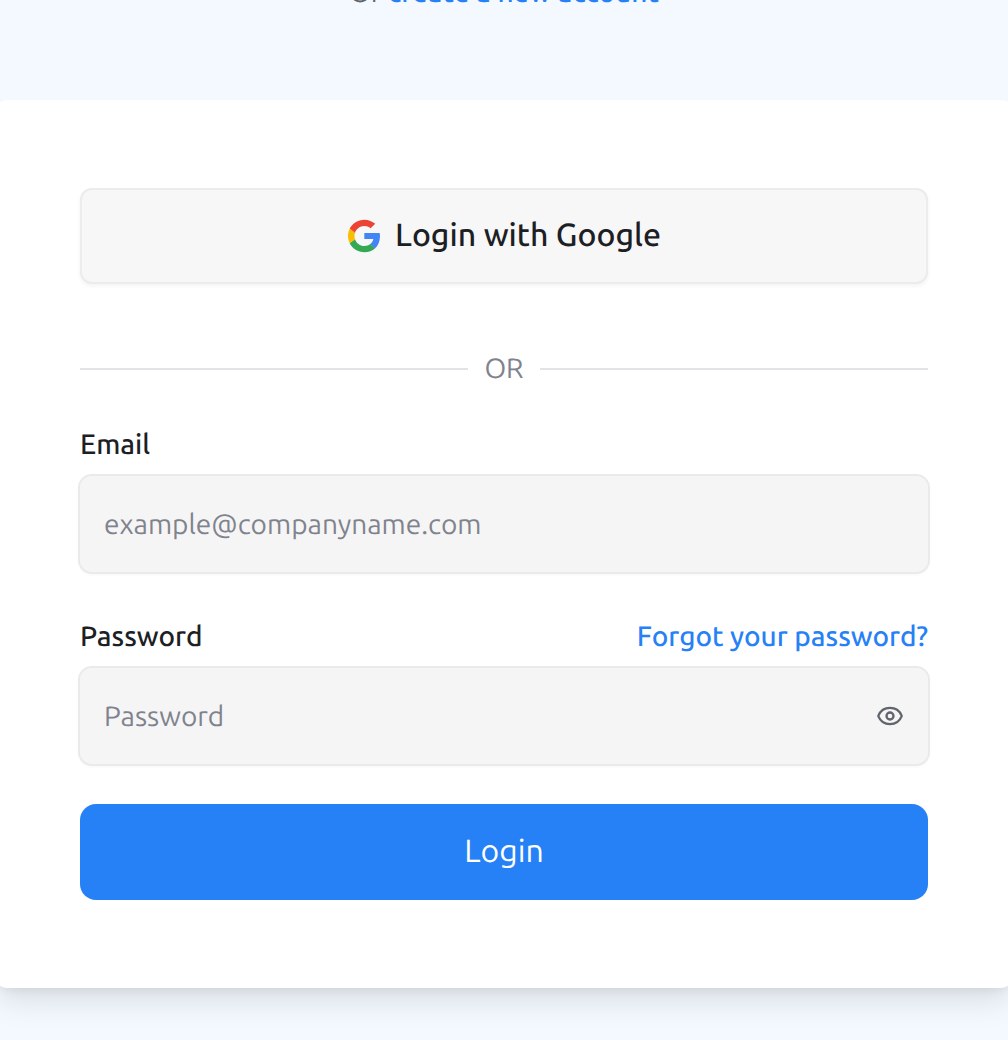
- Enter your Email and Password and click Login, or click Login with Google if your account uses a Google login.
- If you belong to more than one workspace, you land in the last one you used; switch with the account switcher at the top of the sidebar.
- Your session stays signed in on that browser until you choose Log out from the menu behind your name, change your password, or revoke the session from another device.
Forgot your password
- On the sign-in page click Forgot your password?
- Enter your Email and click Submit. If the address has an account, a reset link arrives by email.
- Open the link, enter a Password and Confirm password under Set new password, and click Submit. You are signed in straight away, and other devices are signed out.
Changing a password from inside the dashboard works the same way under your profile settings; see Your profile and notifications.
The two-factor step
If you switched on two-factor authentication, the sign-in page asks for a second check after your password: Two-Factor Authentication, Enter your verification code to continue.
- Authenticator App: type the 6-digit code shown in your authenticator app and click Verify.
- Backup Code: click Try another verification method and enter one of the backup codes you saved when you set it up. Each backup code works once.
- Cancel and return to login goes back without signing in. Learn more about 2FA opens a short help panel.
If you have lost both the authenticator app and the backup codes, ask an administrator of your workspace to contact support; nobody can read or reset your codes for you from inside the dashboard.
Active session limit reached
Each login has a limit on how many devices can be signed in at the same time. When you hit it, the sign-in page shows Active session limit reached with the list of signed-in devices and when each one Started. Click End on the ones you no longer use, or End all sessions, then Log in. You can also tidy sessions at any time under Active Sessions in your profile settings.
Signing in on your phone
The mobile app uses the same email and password. See Using the mobile app.