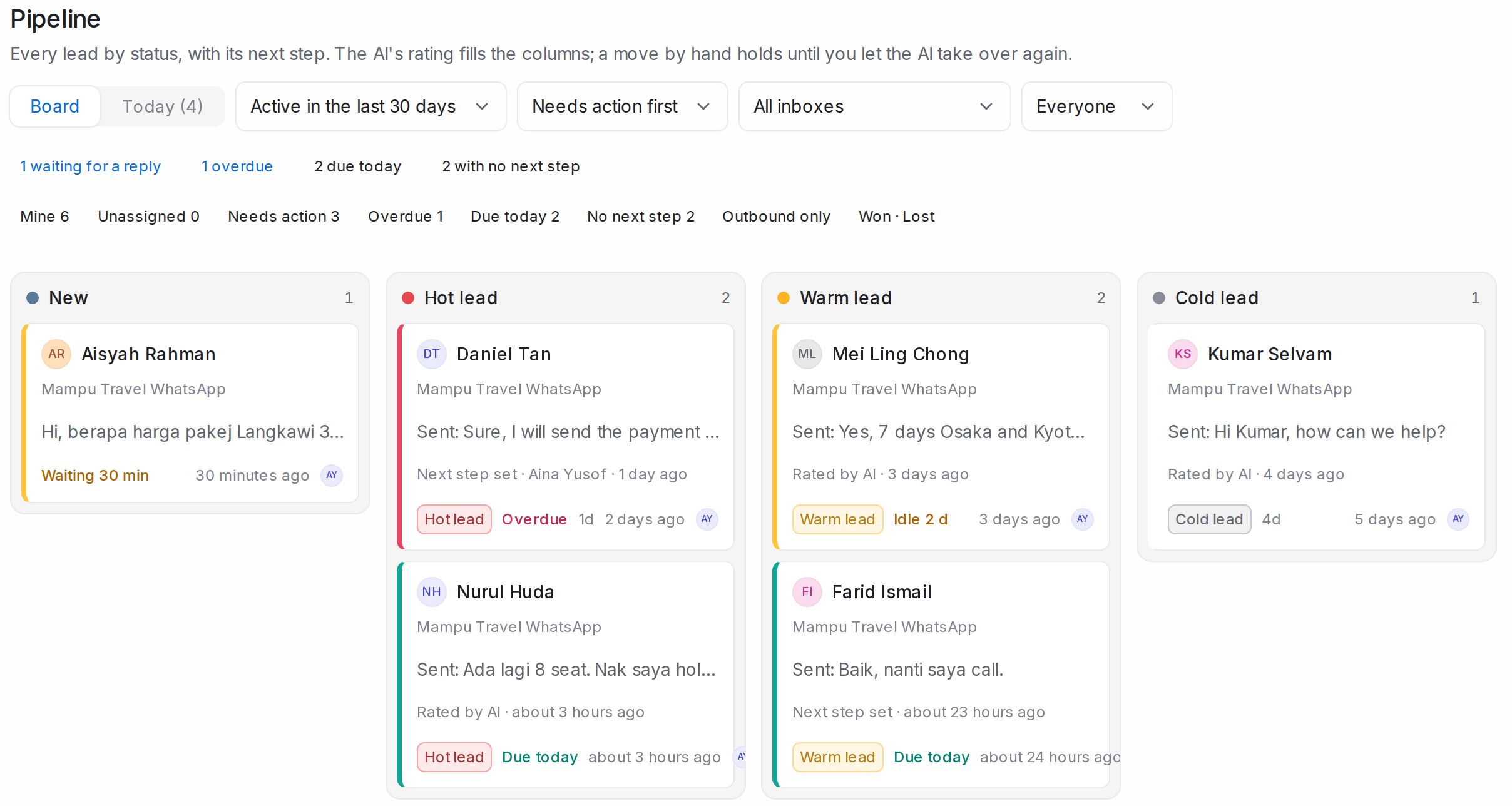
The Pipeline shows every lead as a card, grouped by status, with its next step and when that step is due. Open it from Pipeline in the sidebar. The number beside the menu item counts your own leads that are overdue, due today or waiting for a reply.
If you have lead temperature switched on, the AI’s rating places each lead in its column. A status you set by hand stays until you choose to follow the AI again.
Reading the board
- New holds chats where the customer wrote and nobody has rated the lead yet.
- Next come your lead categories, hottest first.
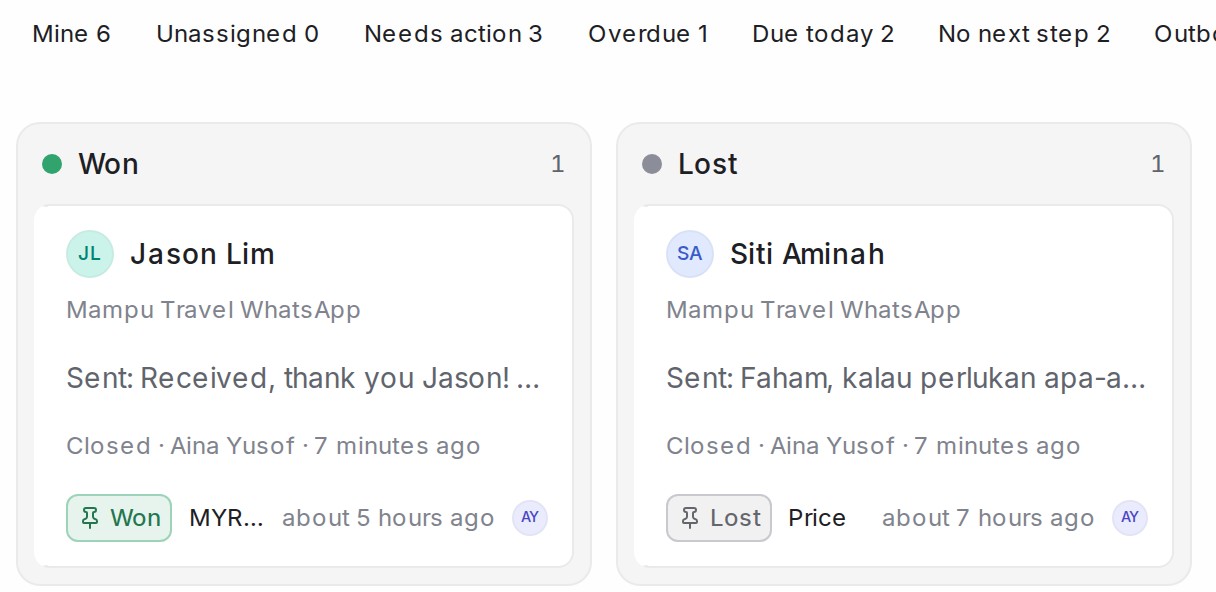
- Won and Lost show when you click the Won · Lost chip.
The line above the chips counts what needs you now. The chips narrow every column, for example to Mine, Overdue or No next step. Use the drop-downs to pick a time range, an inbox, a teammate and the sort order. Agents see the leads in their own inboxes, and administrators see every inbox.
Each card shows the customer, the last message and what needs doing:
| Tag | Meaning |
|---|---|
| Waiting | The customer wrote last and nobody has replied yet. |
| Overdue | The next step’s date has passed. |
| Due today | The next step is due before the end of today. |
| Idle | You replied, no next step is set, and the lead has sat in its stage longer than the stage allows. |
Drag a card to another column to change its status. While you drag, Won and Lost drop areas appear. Drop the card there to close the lead, and the Pipeline asks for the amount or the reason.
Finding the leads you need

The drop-downs above the board narrow it down:
- Time window: leads active in the last 7, 30 or 90 days, or all time.
- Order: Needs action first, or the latest activity first.
- Inbox: All inboxes, or one inbox.
- Person: Everyone, or one teammate’s leads.
Below them, click a quick filter to show only those leads. It turns blue; click it again to clear it.
| Quick filter | Shows |
|---|---|
| Mine | Your own leads. |
| Unassigned | Leads nobody owns yet. |
| Needs action | Leads that are overdue, where the customer is waiting for your reply, or that have sat in their stage too long with no next step. |
| Overdue | Follow-ups that are late. |
| Due today | Follow-ups due before the end of today. |
| No next step | Leads with no follow-up date. |
| Outbound only | Chats where the customer has never written, such as people you sent a blast to. They are left off the board otherwise. |
| Won · Lost | Closed leads. |
The Today tab
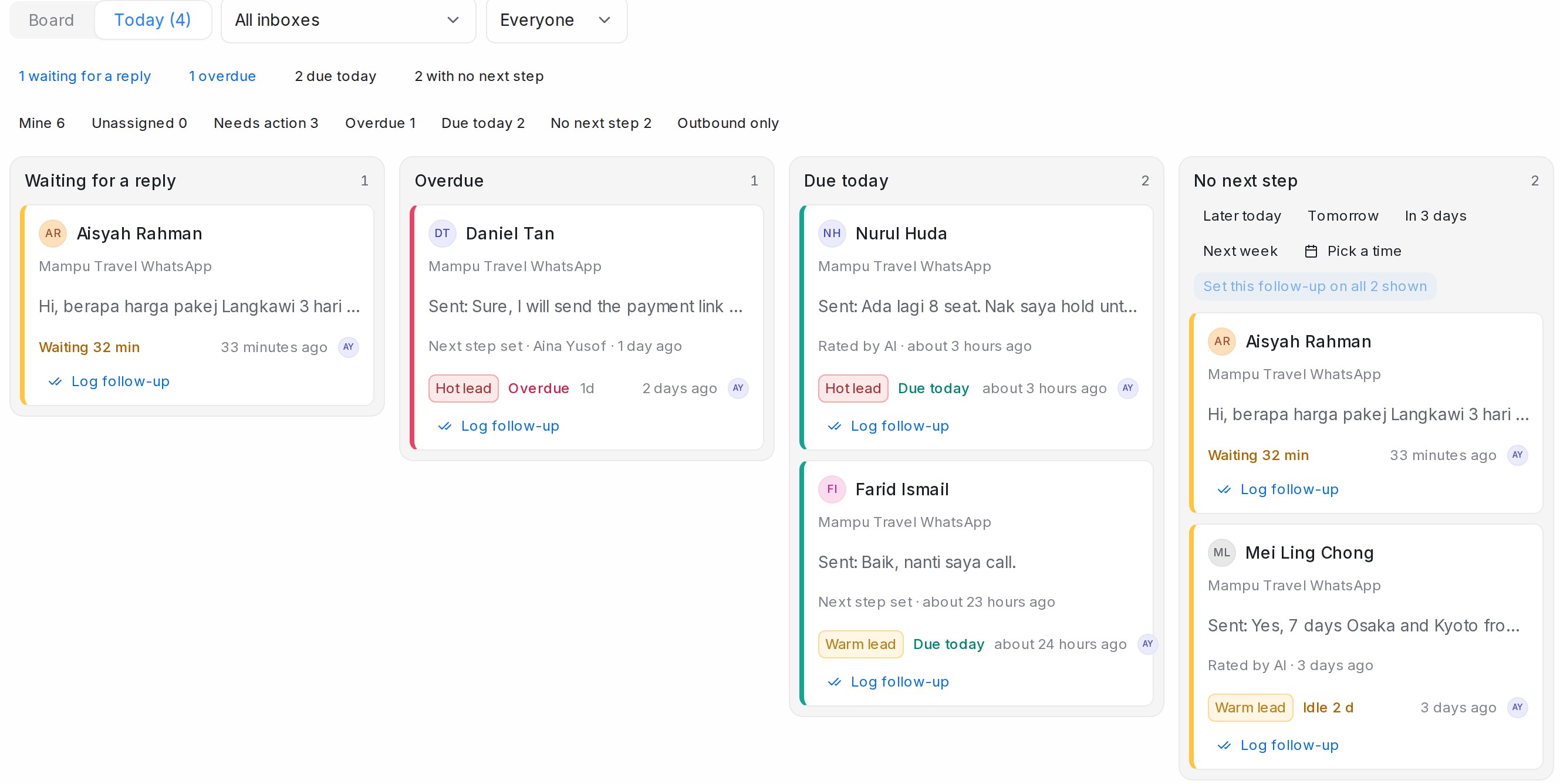
Today turns the board into a work list: Waiting for a reply, Overdue, Due today and No next step. Administrators also see Unowned, the leads nobody is assigned to.
Under No next step, pick Later today, Tomorrow, In 3 days, Next week or Pick a time, then click Set this follow-up on all … shown to plan them all at once. Log follow-up on any card records a call or message you made and sets the next date.
A five-minute daily routine
Start each morning with the Today tab and work from left to right:
- Open Pipeline and click Today.
- Reply to everyone under Waiting for a reply.
- Clear Overdue and Due today: follow up, then click Log follow-up.
- Give every lead under No next step a follow-up date. Set this follow-up on all … shown does them all at once.
- Administrators: assign everything under Unowned.
The Lead card in a conversation
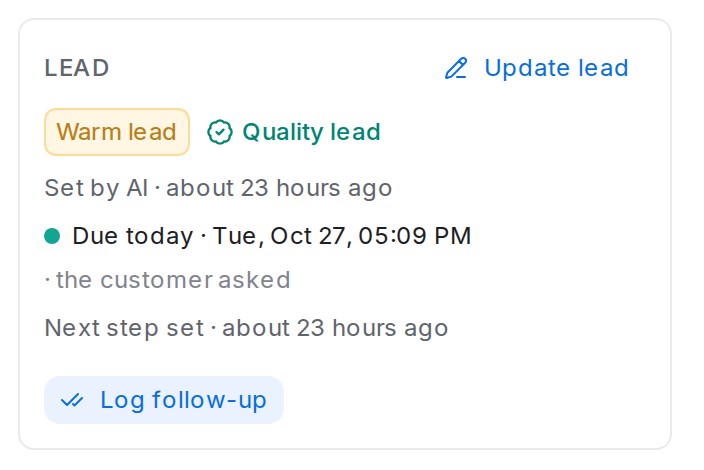
In an open conversation, the Lead card in the right-hand panel shows the lead’s status and who set it. It also shows the next step and when it is due, and the last thing anyone did, such as Next step set or Followed up. Quality lead marks a lead that reached a stage that counts for the Ads report.
- Update lead changes the status, sets the next follow-up or adds a remark.
- Log follow-up records a follow-up you made, as Followed up or No answer, with the next date.
- When you set the status by hand, the card also shows the AI’s view, for example AI suggests Hot lead. Click Follow AI to hand the status back to the AI.
Updating a lead
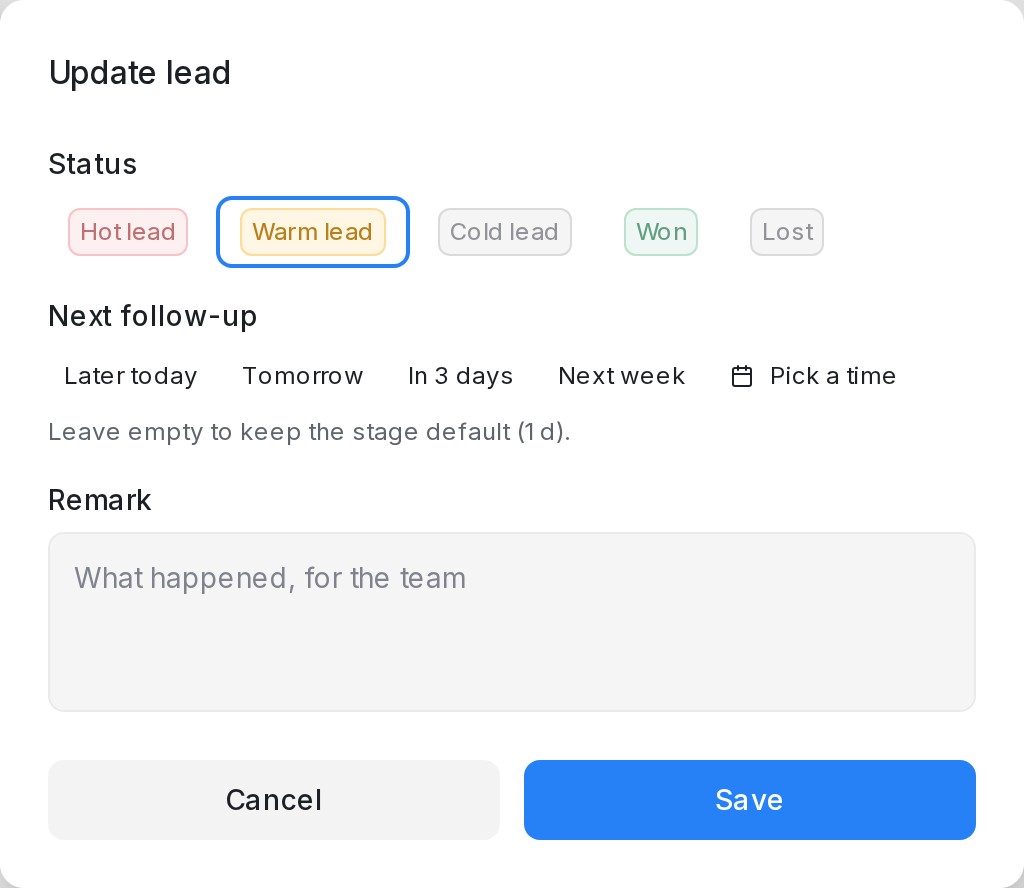
- Click Update lead on the Lead card.
- Under Status, pick a category, Won or Lost.
- Under Next follow-up, pick a time, or leave it empty to keep the stage’s default.
- Add a Remark if the team should know what happened. It is saved as a private note in the chat.
- Click Save.
Won asks for the amount the customer paid, or tick No amount for this sale. The amount feeds the contact’s total sales and the Ads report. Lost asks Why it was lost: pick a reason or write your own. If the customer writes again after a lead is won or lost, the lead starts again as New.
When the customer names a follow-up time
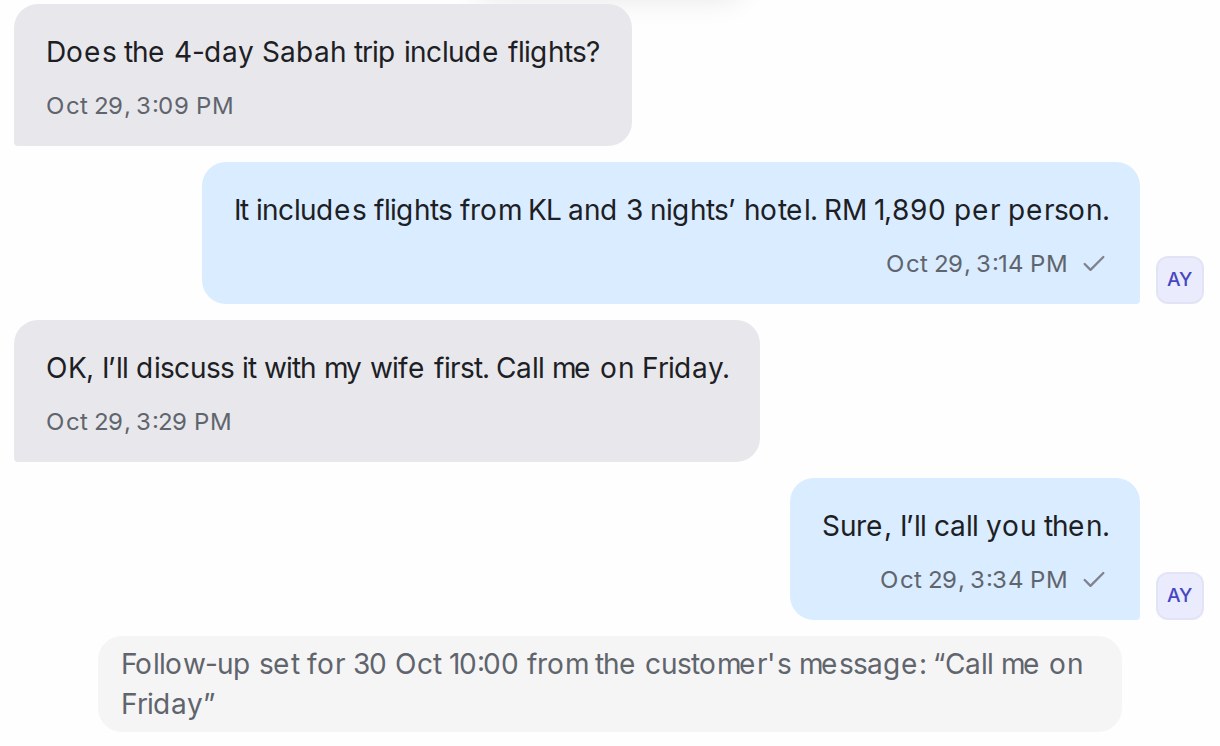
Customers often say when to continue: “call me Friday”, “Esok pagi I text u”, “Nanti petang pkol 6 saya get back”. When lead temperature rates the chat, it reads that time and makes it the lead’s next step. You don’t have to set anything.
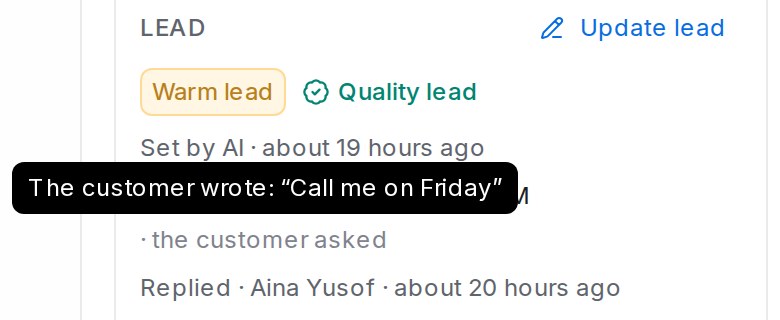
- The Lead card shows the date with · the customer asked. Hover it to read the customer’s own words.
- The chat gets a line such as Follow-up set for 30 Oct 10:00 from the customer’s message: “Call me on Friday”.
- On the Pipeline the card turns Due today, then Overdue once the time passes.
- When the time comes, the lead’s owner gets a notification titled Time to follow up with the customer’s words. This happens even when chasing is off. A lead nobody owns alerts the administrators.
How the customer’s time is read
The time is read on the inbox’s clock. “Morning” means 10 AM, “afternoon” 2 PM and “evening” 8 PM. A day with no time means the inbox’s opening time, and “next week” means Monday.
Only a time the customer gives for the conversation to continue counts. A time they are free for an appointment (“I can do Thursday”) sets nothing, and neither does a vague “nanti saya update”. A date you set yourself after the customer’s message stays. Marking the lead Won or Lost clears the date.
Chasing leads automatically
Open Settings → Lead statuses to have every lead chased, not only the ones with a date.
- Switch on Chase every lead with a next step. A lead entering a stage now gets a due date from the hours under Follow up within.
- Switch on Count hours inside the inbox’s working hours only if nights and weekends should not count.
- Set Hours before the administrators hear. The owner is told once when the date passes. If no new next step is set, the administrators hear after these hours.
- Under A lead nobody owns at its due time, choose Tell the administrators or Hand it to an online agent (round robin).
- Click Save.
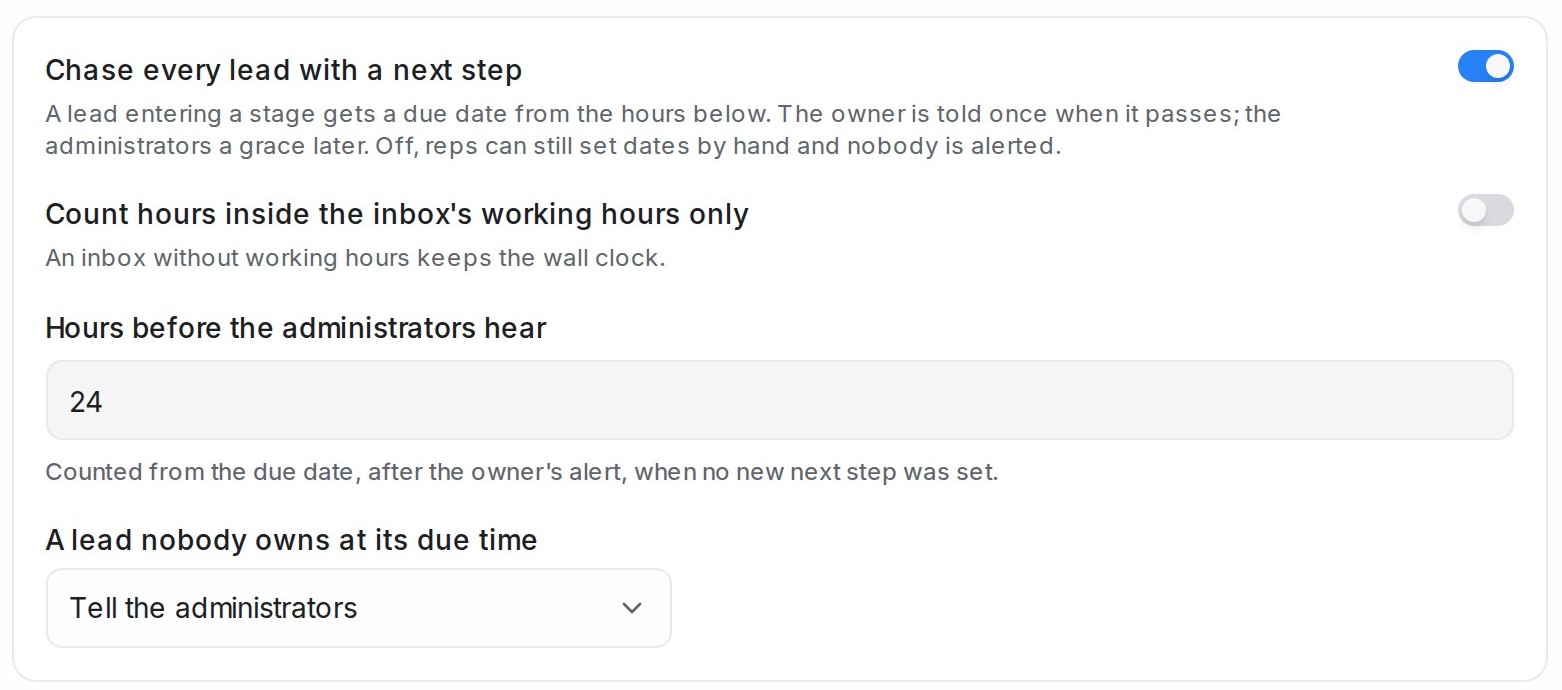
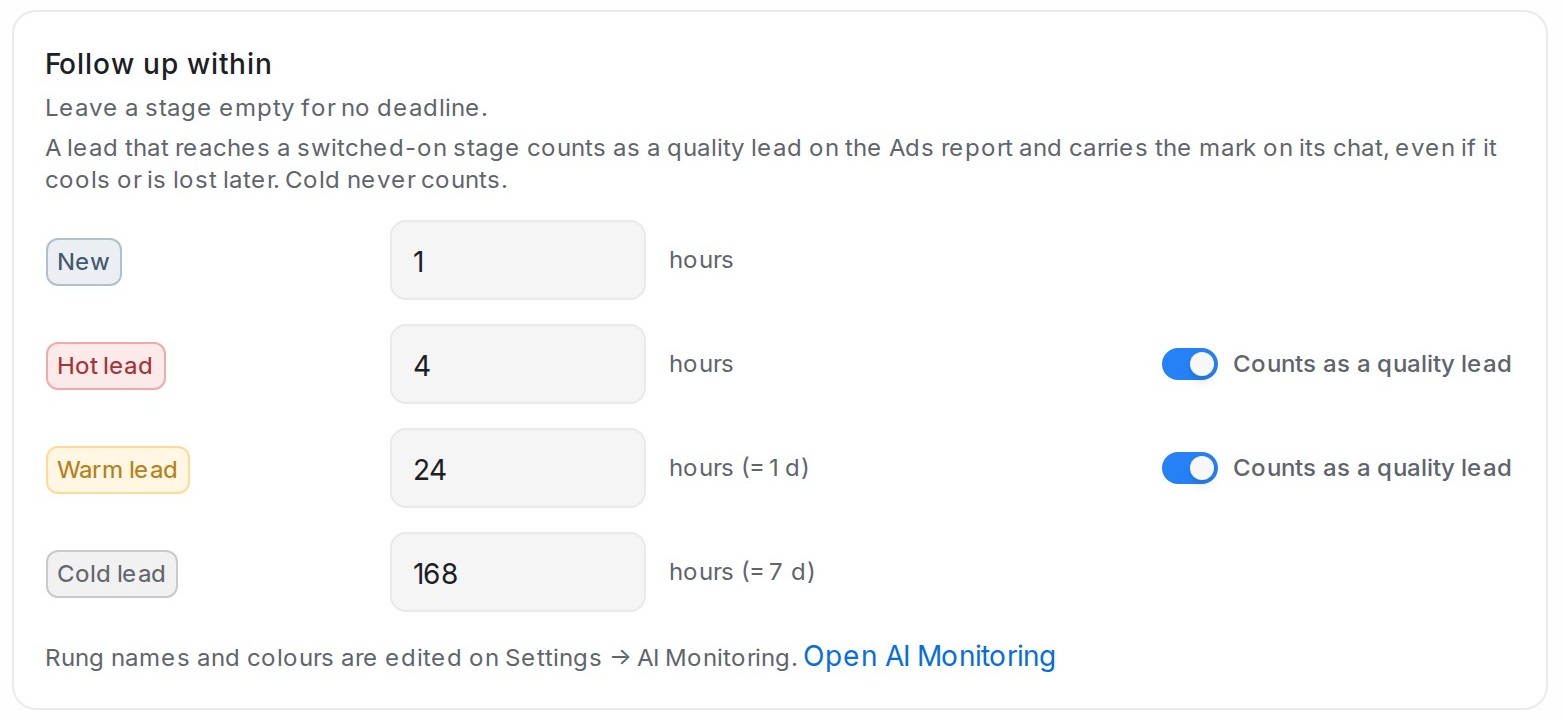
Under Follow up within, set the hours for each stage. By default these are 1 hour for New, 4 for hot, 24 for warm and 168 for cold. Leave a stage empty for no deadline. Counts as a quality lead decides which stages count as quality leads on the Ads report. Cold never counts.
With chasing off, you can still set dates by hand and nobody is alerted, except when a customer named the time themselves.