
Most settings in Mampu AI belong to the account and affect everyone. The ones on this page are yours alone: how you appear to teammates and customers, how the dashboard looks to you, and how you are alerted. They live in two places: the menu behind your name at the bottom of the sidebar, and the Profile Settings page it opens.
The menu behind your name
Click your name at the bottom of the sidebar.
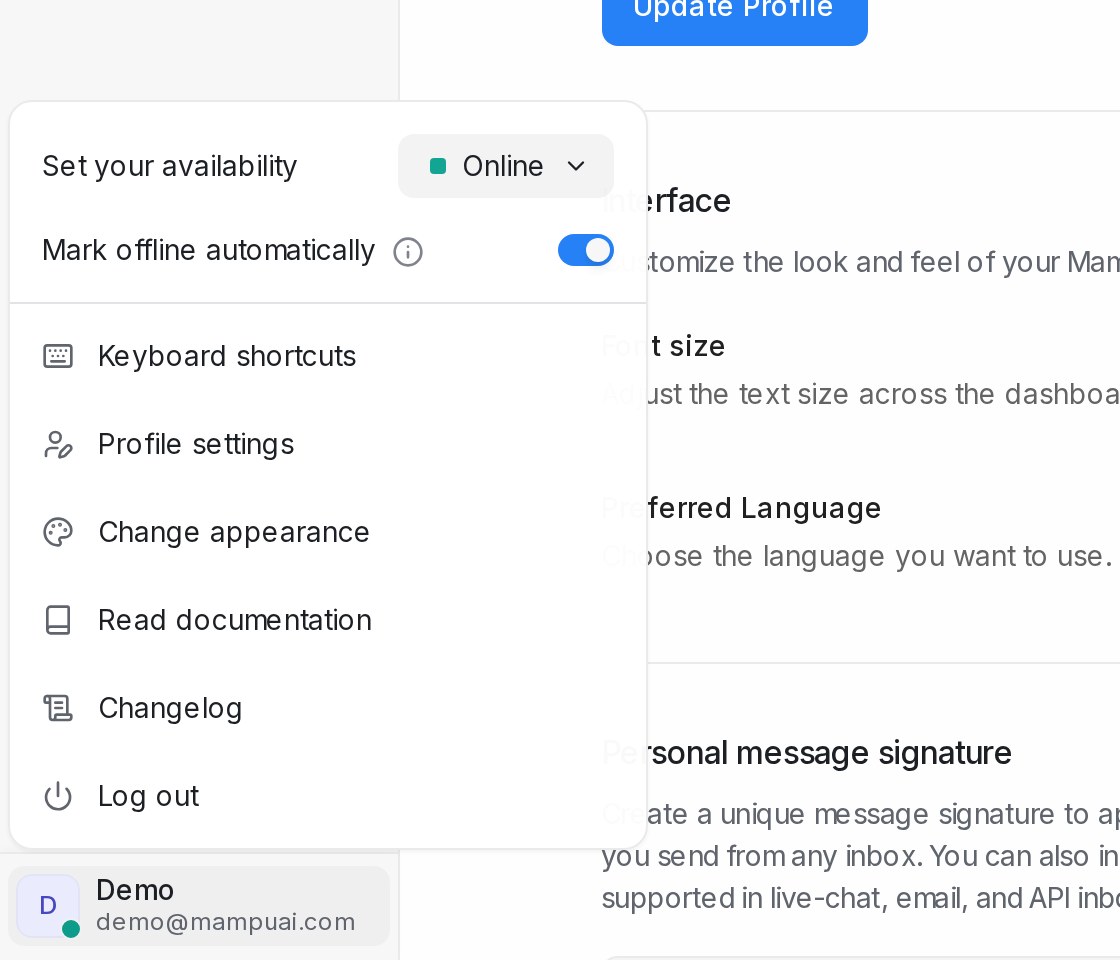
- Set your availability: Online, Busy or Offline. Automatic assignment hands new conversations to online agents, so set Busy or Offline when you step away.
- Mark offline automatically: when on, you are marked offline when you stop using the app or the dashboard, and back online when you return.
- Keyboard shortcuts: the full list of shortcuts, also below.
- Profile settings: opens the page described next.
- Change appearance: Light, Dark or System, which follows your device.
- Read documentation opens this help centre, Changelog opens the list of recent changes, and Log out signs you out on this device.
Profile Settings
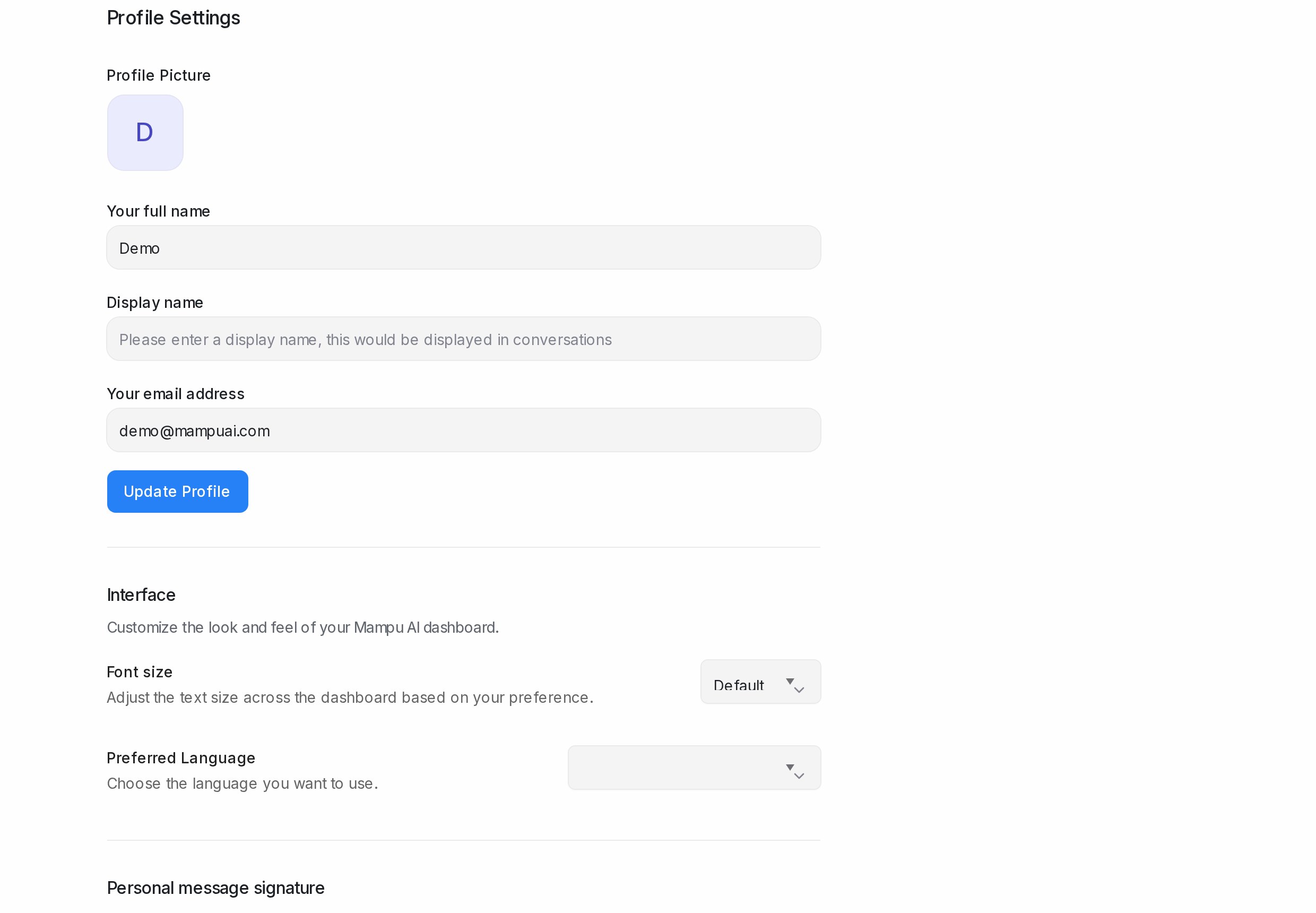
Profile
Your Profile Picture, Your full name, the Display name customers and teammates see in conversations, and Your email address, which is also your login. Click Update Profile to save; after changing your email you sign in again.
Interface
Font size scales the whole dashboard from Smaller to Extra Large. Preferred Language sets the language of your dashboard, or Use account default to follow the account.
Personal message signature
Write a signature that is added at the end of every message you send, from any inbox. You can include an image with the upload button. Click Save message signature. In the reply box, the signature icon switches it on or off per message.
Hotkey to send messages
Choose Enter (↵) to send a message with the Enter key, or Cmd/Ctrl + Enter (⌘ + ↵) if you prefer Enter to start a new line.
Password
Enter your Current password, a New password and Confirm new password, then Change password. Changing it signs you out on your other devices.
Security: two-factor authentication
Click Manage Two-Factor Authentication, then Enable Two-Factor Authentication:
- Scan QR Code with Your Authenticator App (Google Authenticator, Authy or any similar app), or use Can’t scan? Enter code manually with the Secret Key.
- Enter the 6-digit code from the app and click Verify & Continue.
- Save Your Backup Codes: Download or Copy All, tick the confirmation and finish. Each backup code signs you in once if you lose your phone.
From then on, signing in asks for a code after your password. On this page you can later Regenerate Backup Codes (the old ones stop working) or Disable Two-Factor Authentication, both of which ask for your password and a verification code or a backup code.
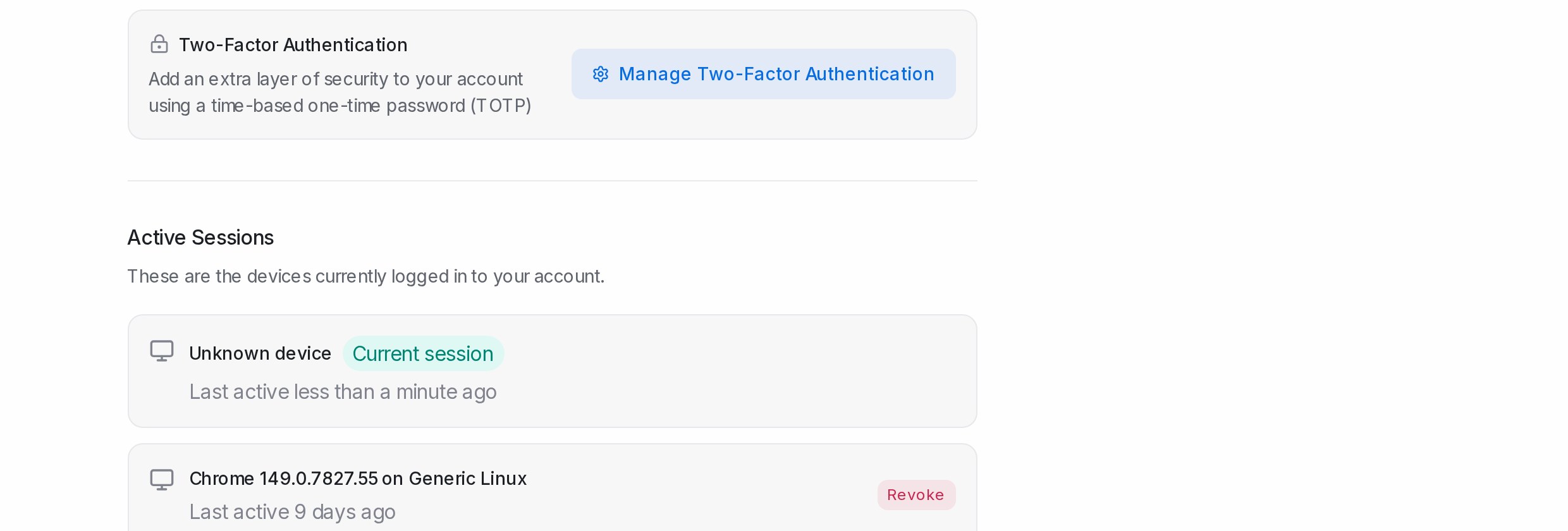
Active Sessions
Every device signed in to your account, with Last active and the one marked Current session. Click Revoke to sign a device out. If you ever see Active session limit reached when signing in, revoke the sessions you no longer use.
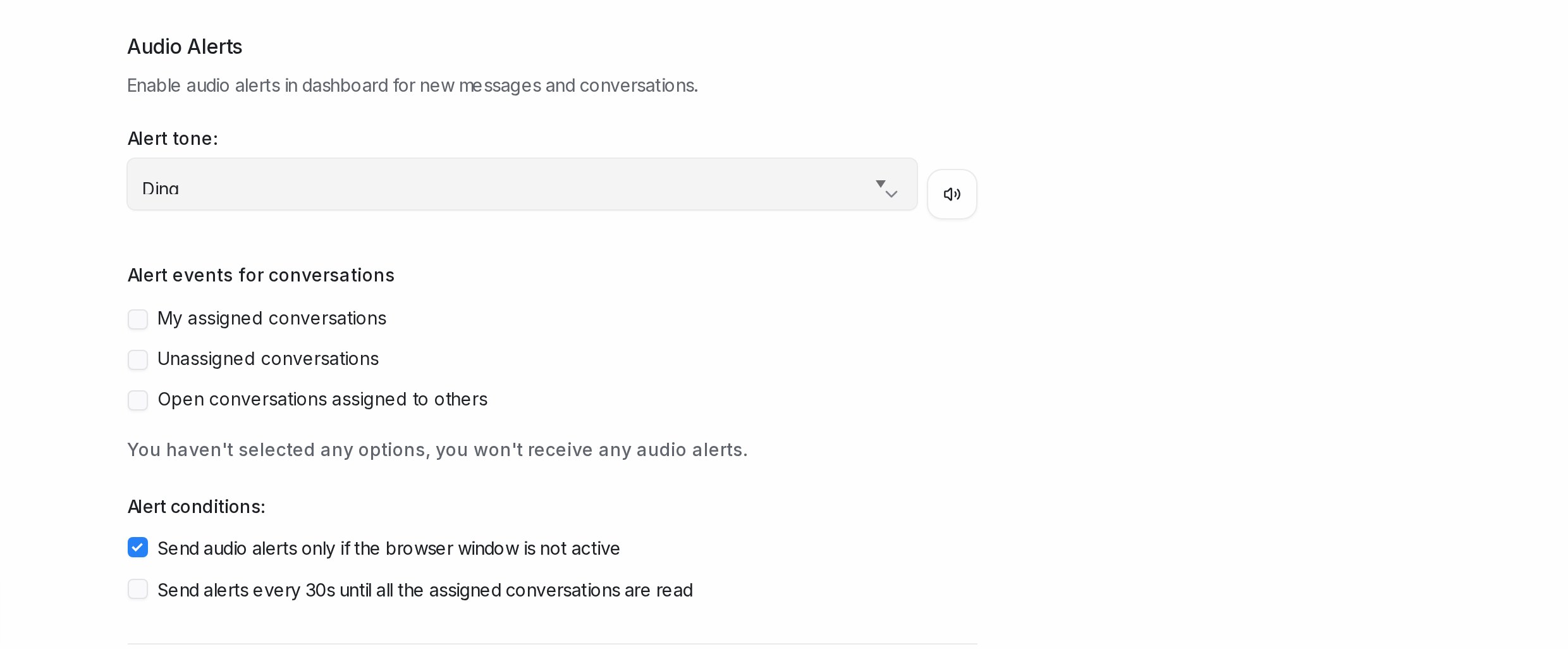
Audio Alerts
A sound in the dashboard for new messages and conversations. Under Alert events for conversations, tick My assigned conversations, Unassigned conversations and Open conversations assigned to others in any combination; the line beneath tells you what the combination means. Pick an Alert tone and click Play sound to hear it. Under Alert conditions, choose Send audio alerts only if the browser window is not active and Send alerts every 30s until all the assigned conversations are read.
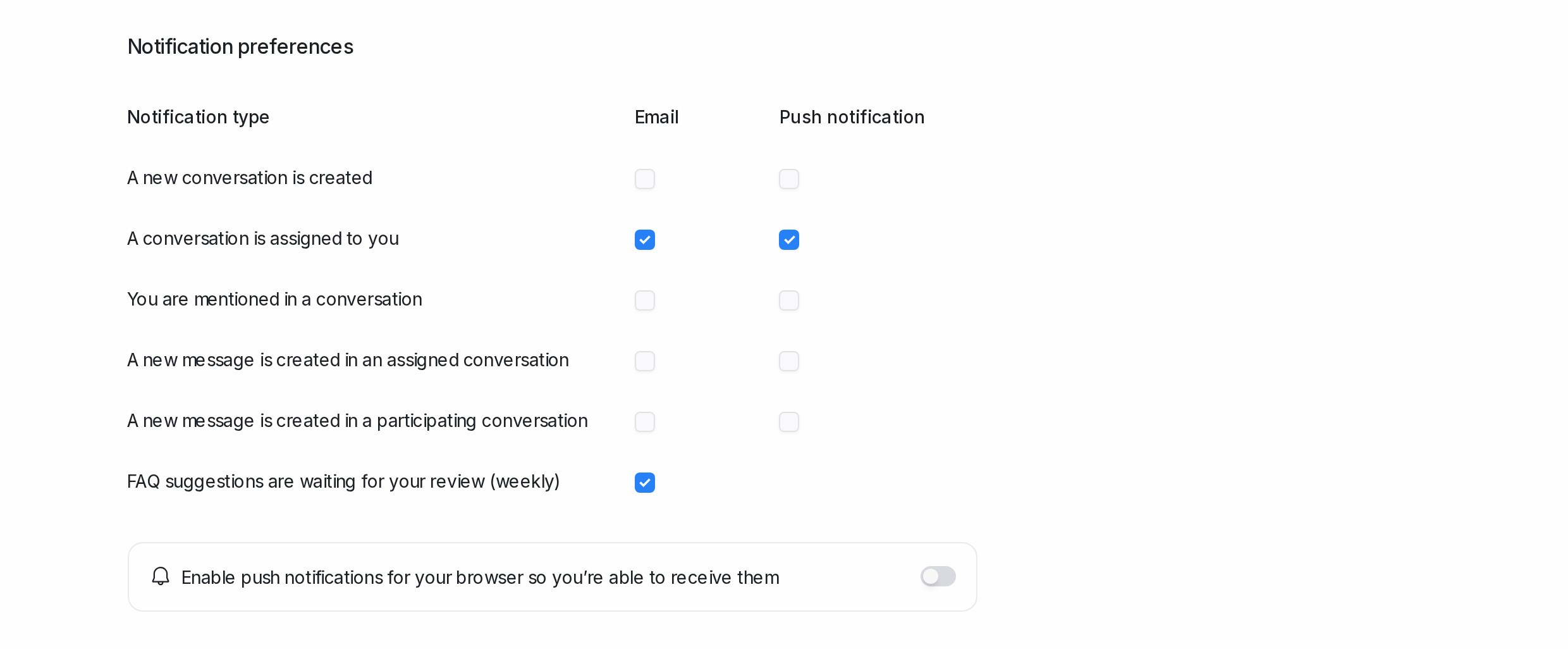
Notification preferences
A grid of events with an Email and a Push notification box for each:
- A new conversation is created
- A conversation is assigned to you
- You are mentioned in a conversation
- A new message is created in an assigned conversation
- A new message is created in a participating conversation
- A conversation misses first response, next response or resolution SLA
- FAQ suggestions are waiting for your review (weekly)
Push notifications need your browser’s permission once: click Enable push notifications and accept the prompt. The mobile app delivers the same push notifications on your phone.
Access Token
A personal key for API integrations, with Copy and Reset (click Reset twice to confirm). Available on paid plans. For AI coding agents, use the agent keys under Settings → API & Agents instead; see Create and manage your agent access keys.
The Notifications page
My Inbox in the sidebar shows your notifications beside the conversation they belong to. The plain list of the same notifications, grouped by type (New conversation, Conversation Assigned, New Message, Mention, SLA Missed), is one click away from the bell at the top of the sidebar, with Mark All Done to clear them. See My Inbox.
Keyboard shortcuts
| Shortcut | Action |
|---|---|
| Alt + J / Alt + K | Open conversation (previous / next) |
| Alt + E | Resolve Conversation |
| Win/⌘ + Alt + E | Resolve and move to next |
| Alt + M | Toggle snooze dropdown |
| Alt + P / Alt + L | Switch to Private Note / Switch to Reply |
| Win/⌘ + Alt + A | Add Attachment |
| Alt + N | Move to next tab in conversation list |
| Esc | Back to conversation list |
| Alt + C / Alt + V / Alt + R / Alt + S | Go to Conversation Dashboard / Contacts Dashboard / Reports / Settings |
| Alt + O | Toggle Sidebar |
| Up / Down | Navigate dropdown items |
| Cmd/Ctrl + K | Open the search and command bar |
On a Mac, Alt is the Option key.