
You can connect the AI app you already use — Claude, ChatGPT or Claude Code — to one Mampu AI workspace with your own login. No key to copy: the app sends you to a Mampu AI sign-in page, you pick the workspace and whether the app may make changes, and from then on you can ask it about your chats, contacts, reports, flows and knowledge in plain language.
Where to find it
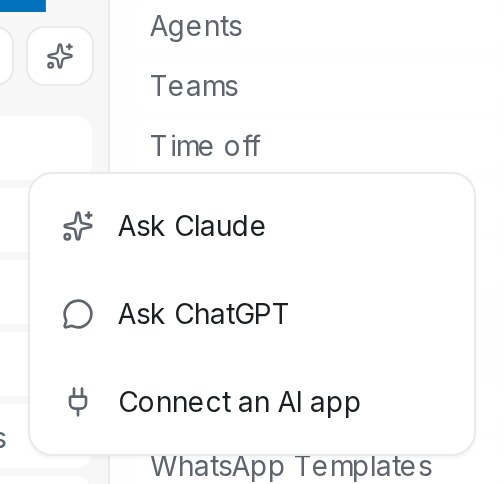
Open Settings → Use with AI. The same page opens from the Ask AI button beside the search box: it also offers Ask Claude and Ask ChatGPT, which open those apps, and Connect an AI app, which brings you here.
Connect Claude, ChatGPT or Claude Code
The page shows the Address to paste into the app with a Copy button, and one card per app with its steps. Any other app that supports MCP sign-in works with the same address.
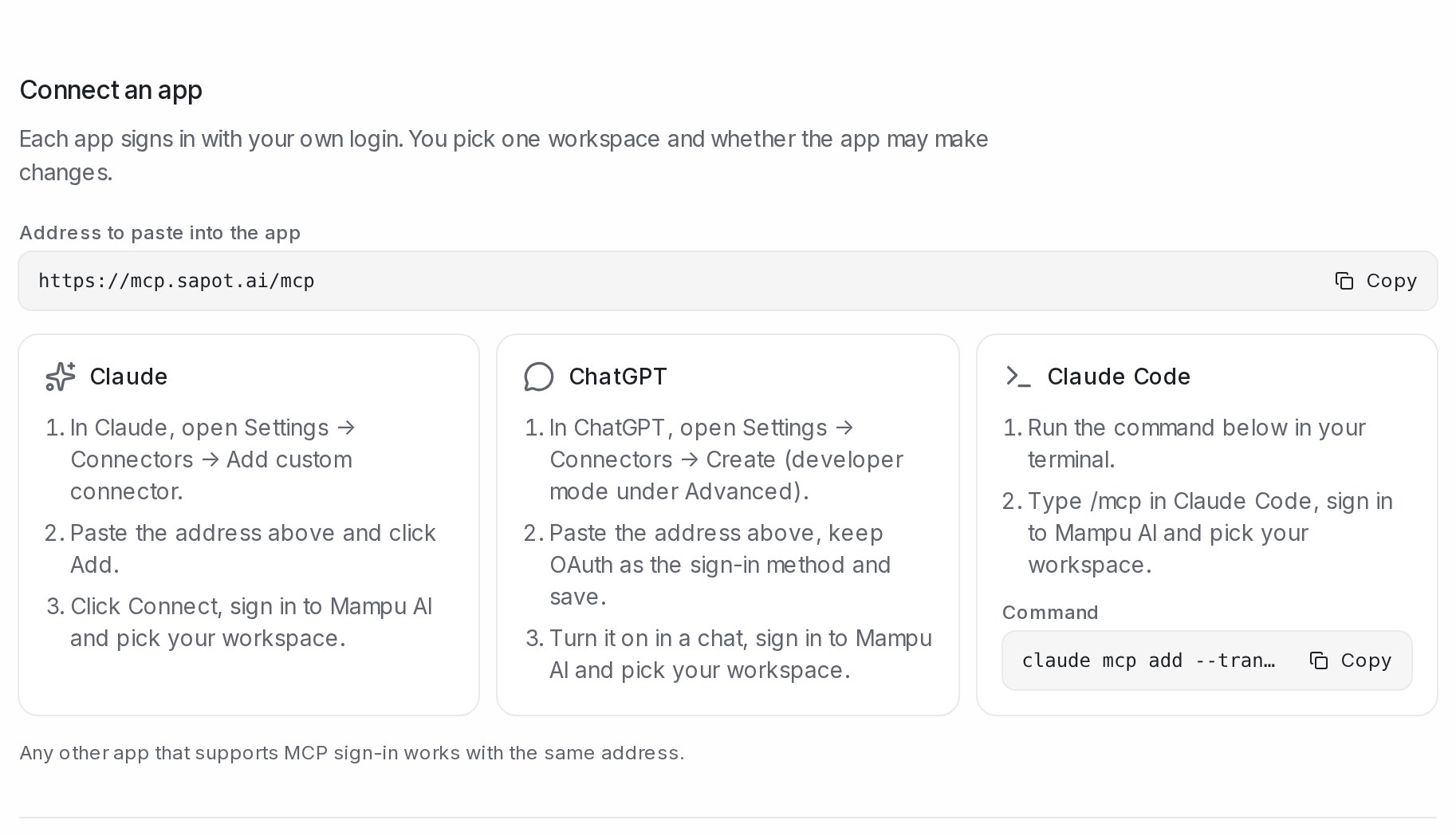
Claude
- In Claude, open Settings → Connectors → Add custom connector.
- Paste the address and click Add. Keep the sign-in choices Claude detects.
- Click Connect, sign in to Mampu AI and pick your workspace.
ChatGPT
- In ChatGPT, open Settings → Connectors → Create (developer mode, under Advanced).
- Paste the address, keep OAuth as the sign-in method and save.
- Turn it on in a chat, sign in to Mampu AI and pick your workspace.
Claude Code
- Copy the Command shown on the card and run it in your terminal.
- Type
/mcpin Claude Code, sign in to Mampu AI and pick your workspace.
Approve the connection
When the app sends you to Mampu AI, the approval page names the app and asks two things.
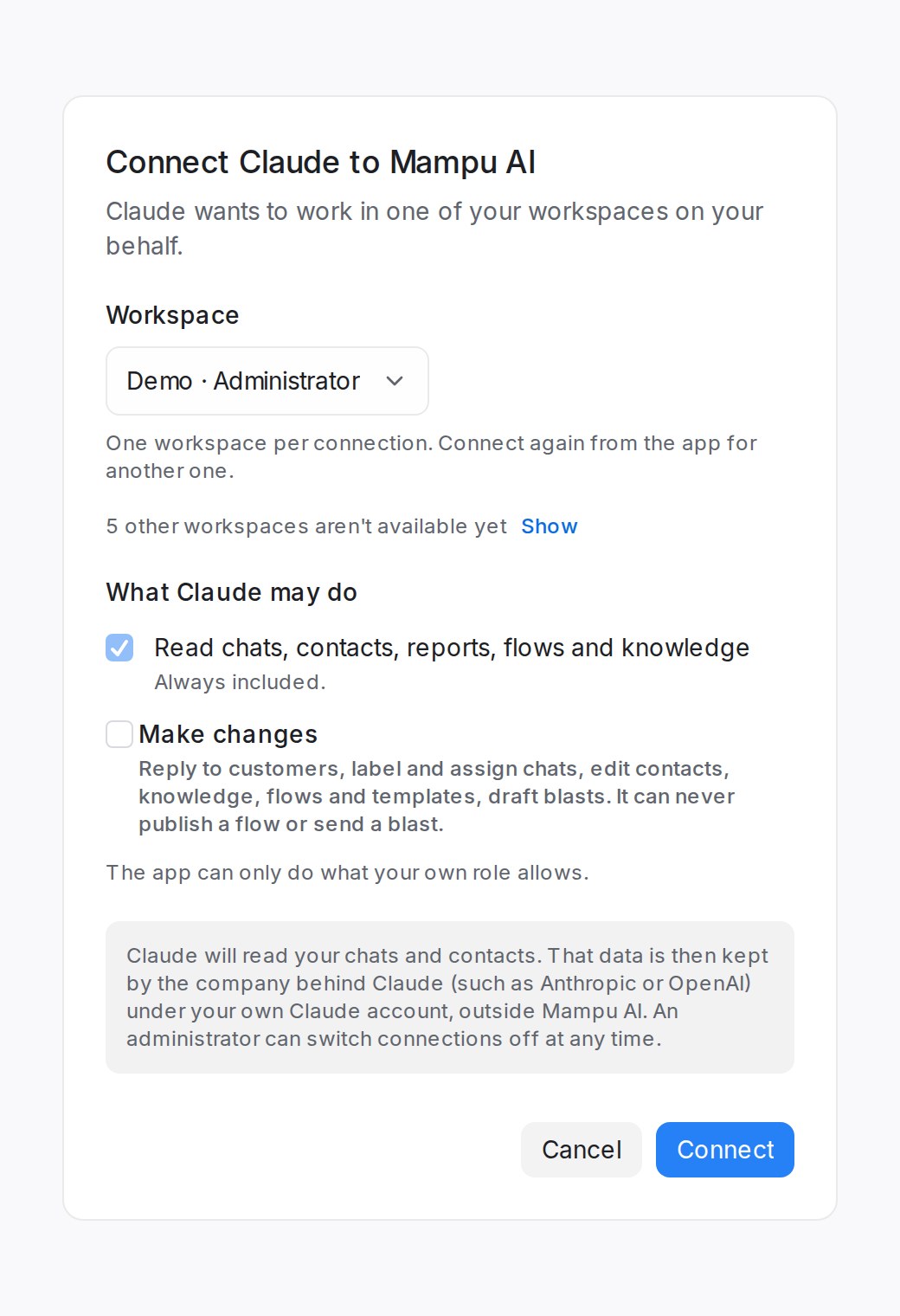
- Workspace — one workspace per connection. To use the app with another workspace, connect again from the app. A workspace listed as not available on this workspace yet or switched off by an administrator cannot be picked.
- What the app may do — Read chats, contacts, reports, flows and knowledge is always included. Tick Make changes to let it reply to customers, label and assign chats, and edit contacts, knowledge, flows and templates, and draft blasts. It can never publish a flow or send a blast, and it can only do what your own role allows.
Click Connect. The app is now connected to that workspace under your name.
Ask it what it can do
Ask the connected app “What can you do here?”. It answers for your workspace and your role: what it can do right now, what Make changes would unlock, and example questions in English, Malay and Chinese. The What your AI can do here list on the page shows the same areas with a question to try in each.
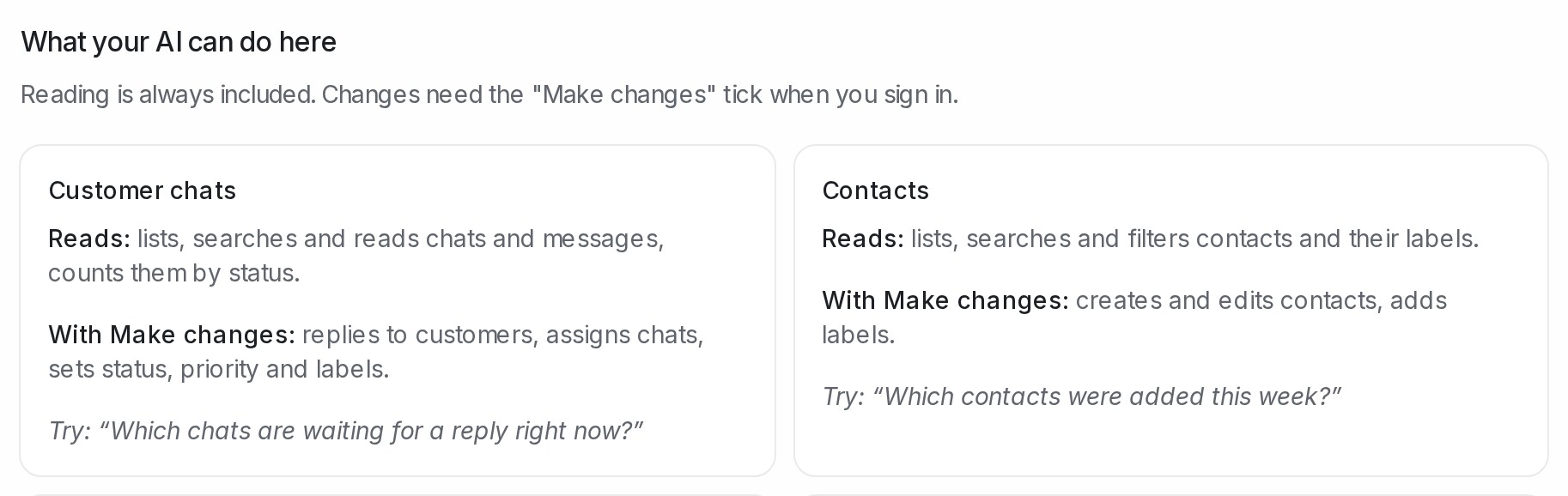
Good first questions:
“Which chats are waiting for a reply right now?”
“Which contacts were added this week?”
“How many chats did we handle last week, by agent?”
Your connections
Your connections lists each app you connected, its Access (Read only or Can make changes), when it connected and when it was last used. Click Revoke to cut the app off; it loses access within a minute. Sign in again from the app to reconnect.
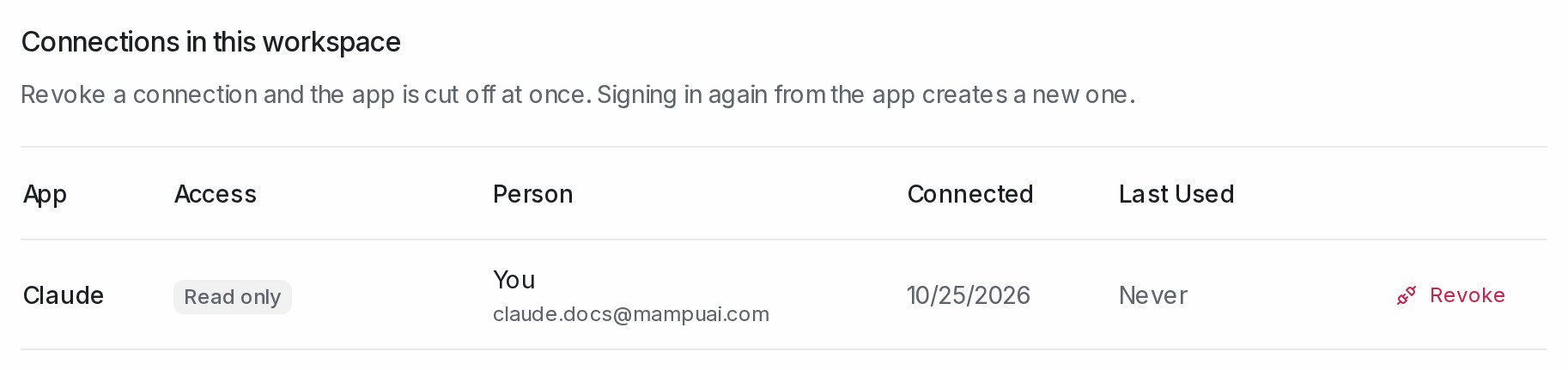
Administrators see Connections in this workspace instead — every person’s connections — and can revoke any of them.
For administrators: allow or stop AI apps
The Allow team members to connect AI apps switch controls the whole workspace. Each person connects with their own login and gets only what their role allows. Switch it off and every connected app loses access within a minute; switch it on again to let people reconnect.

Note: a connected app reads chats and contacts, and that data is then kept by the company behind the app under the person’s own account there, outside Mampu AI.
Frequently asked questions
Can the app send a blast or publish a flow?
No. Even with Make changes ticked, it can draft a blast and edit a flow, but sending and publishing stay with you in the dashboard. It also cannot change settings, billing or the team.
Can one connection reach more than one workspace?
No. Each connection is for one workspace. Connect again from the app and pick the other workspace.
Does the app get more than my role allows?
No. The app can only do what your own role allows. Reports, blasts and WhatsApp templates are for administrators.
What is the difference from an access key?
An access key is for automations that run without a person, created in Settings → API & Agents. Signing in from your own app is quicker, needs no key, and the connection is listed under your name so you can revoke it.
Related
- Connect Claude Code to your account — the access-key way, for automations
- First tasks to try with your AI agent
- What your AI agent can and can’t do
- Create and manage your agent access keys