
Connect your Facebook Page to Mampu AI and Messenger conversations arrive in one inbox, where you or your AI agent can reply. Once connected, comments on your Page’s posts can also trigger automatic replies — see Facebook Comment Replies.
Watch the walkthrough
Before you start
- You must be an admin of the Facebook Page you want to connect.
- Be signed in to Facebook in your browser with the account that manages the Page.
1. Add a Facebook inbox
In Mampu AI, go to Settings → Inboxes → Add Inbox and choose Facebook.
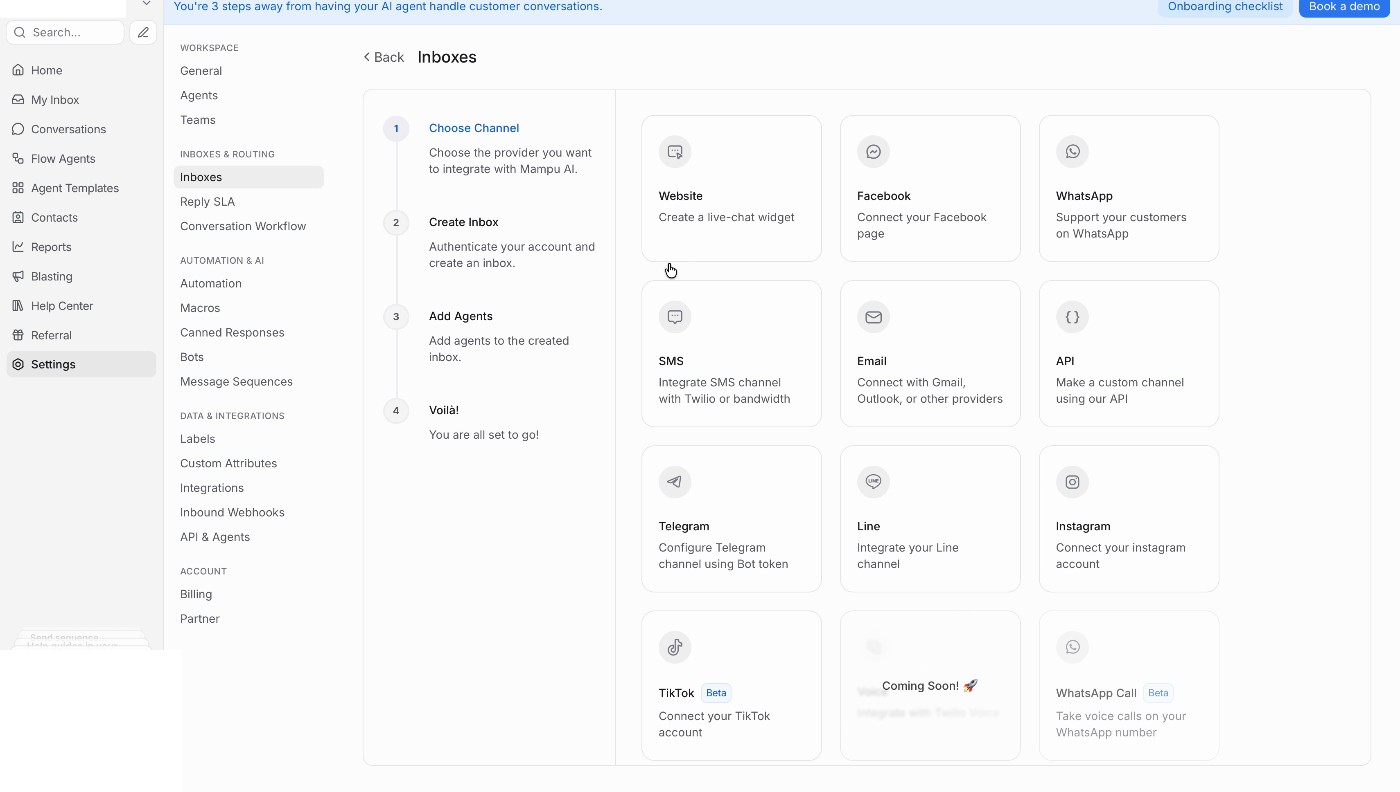
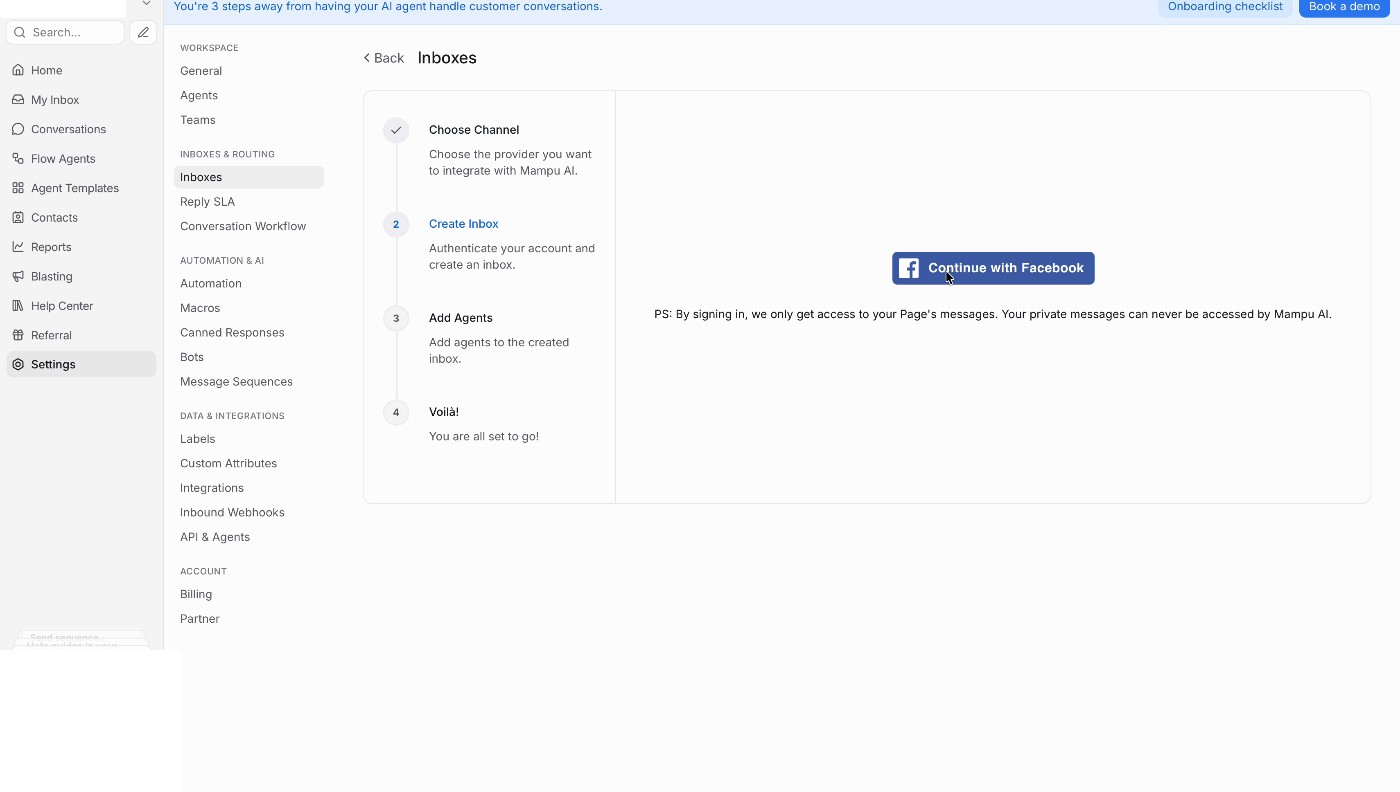
2. Continue with Facebook
Click Continue with Facebook and sign in with the Facebook account that manages your Page. Signing in only gives Mampu AI access to your Page’s messages — your personal messages can never be accessed.
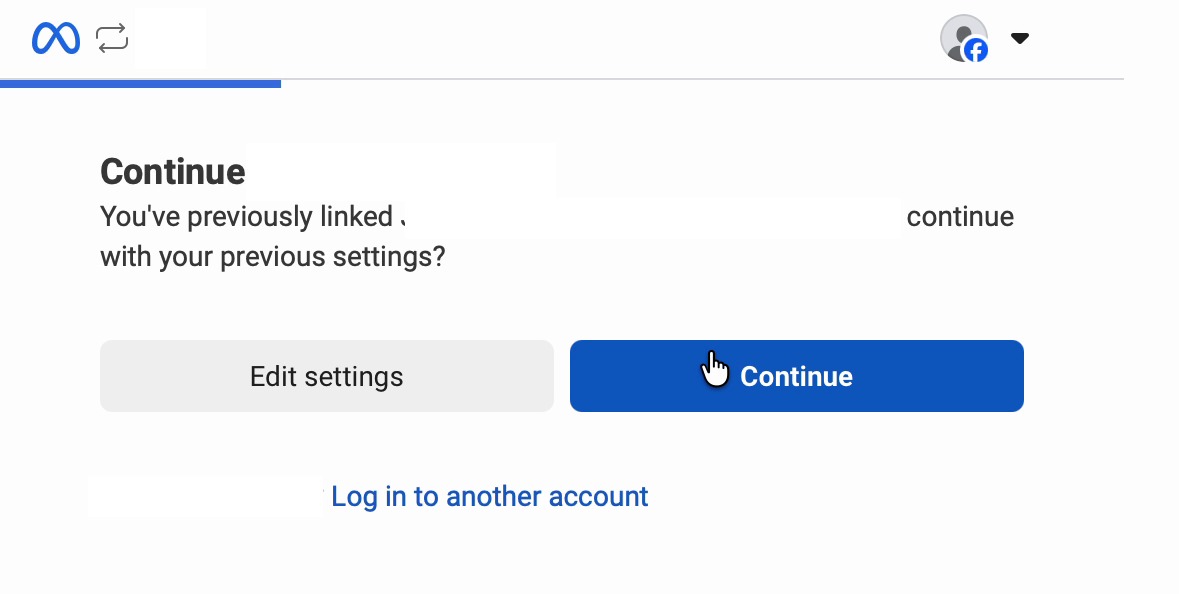
If you’ve connected before, Facebook may ask you to continue as your account — click Continue.
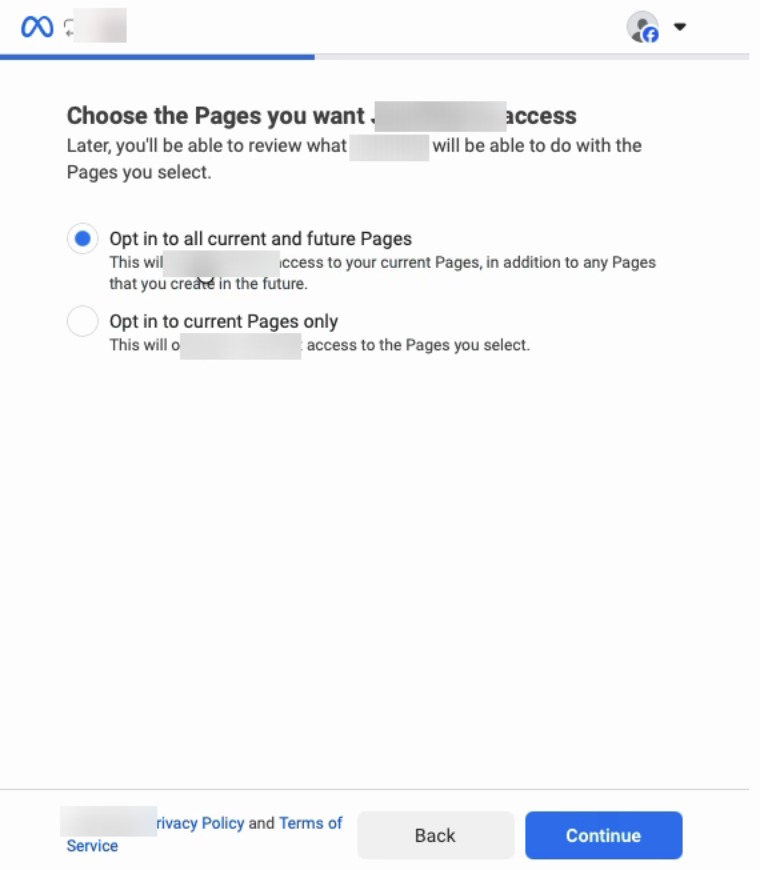
3. Choose which Pages to share
Facebook asks which Pages to give access to. Pick Opt in to all current and future Pages, or choose Opt in to current Pages only and select the Page yourself. Click Continue.
4. Review and approve access
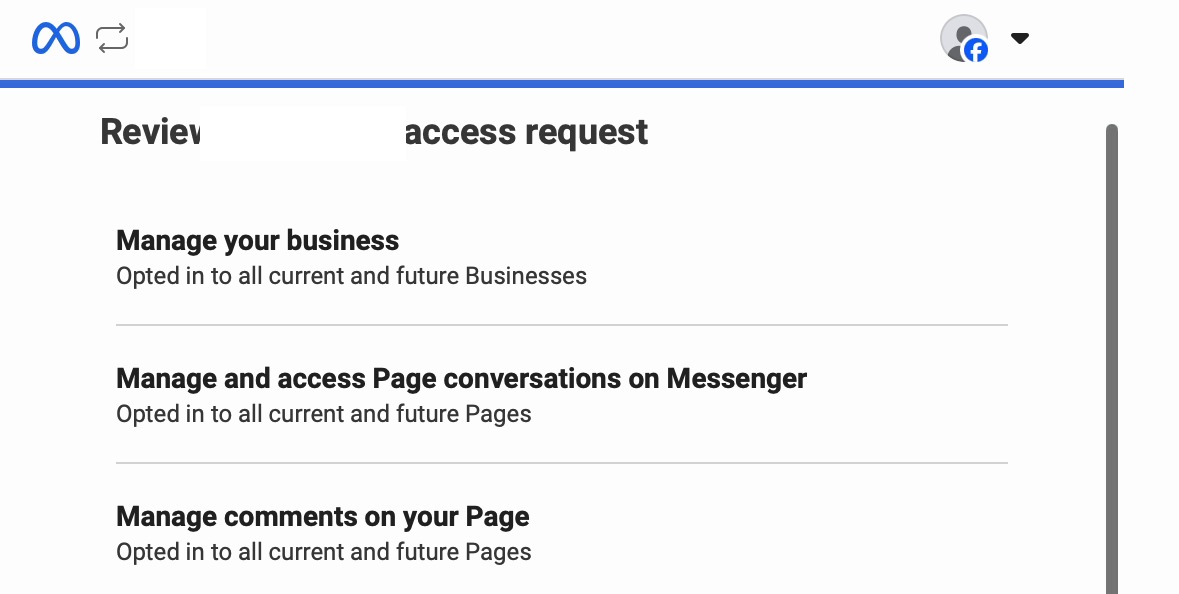
Facebook shows the list of permissions being requested, including managing your Page’s Messenger conversations and comments. Review the list, then click Save.
5. Choose the Page to connect
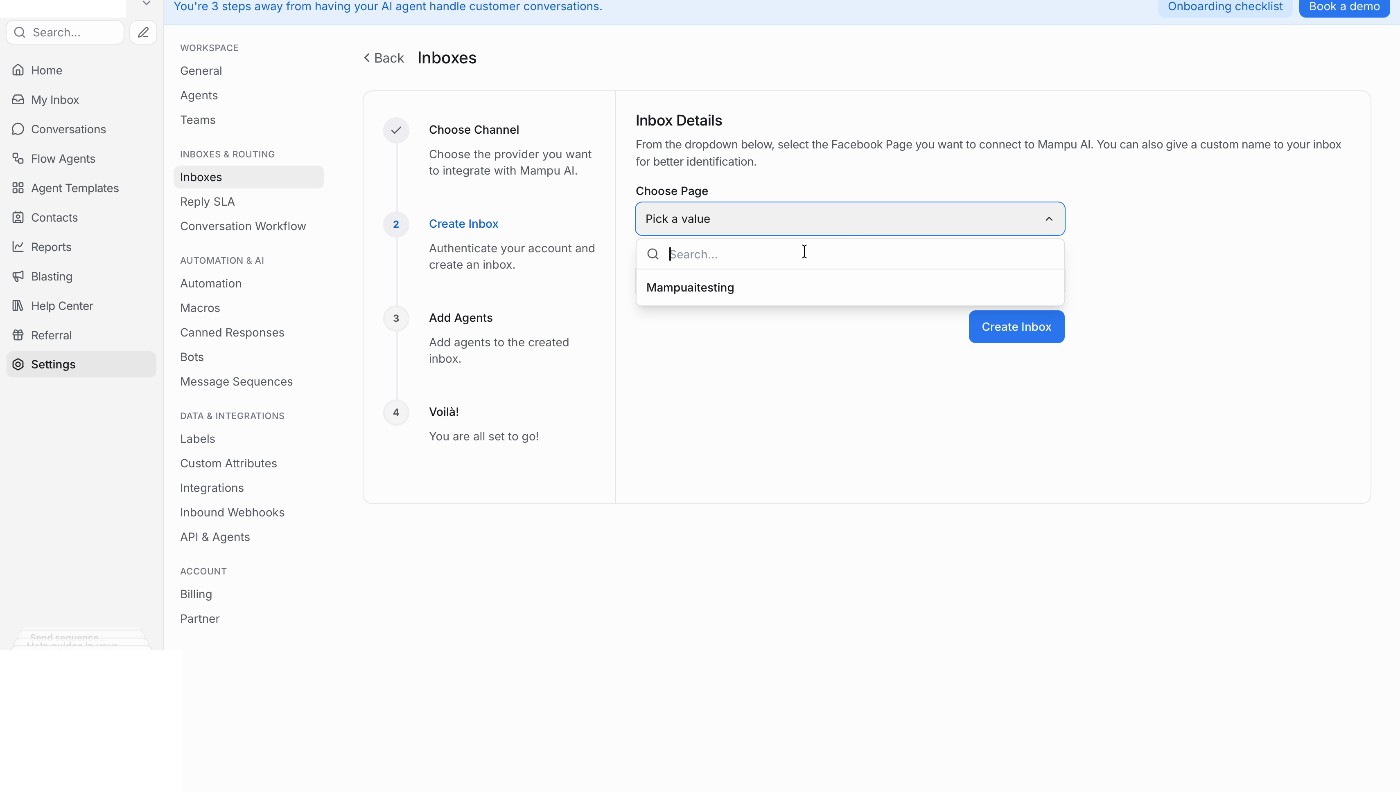
Back in Mampu AI, pick the Facebook Page you want to connect from the Choose Page dropdown. You can also give the inbox a custom name. Click Create Inbox.
6. Add agents
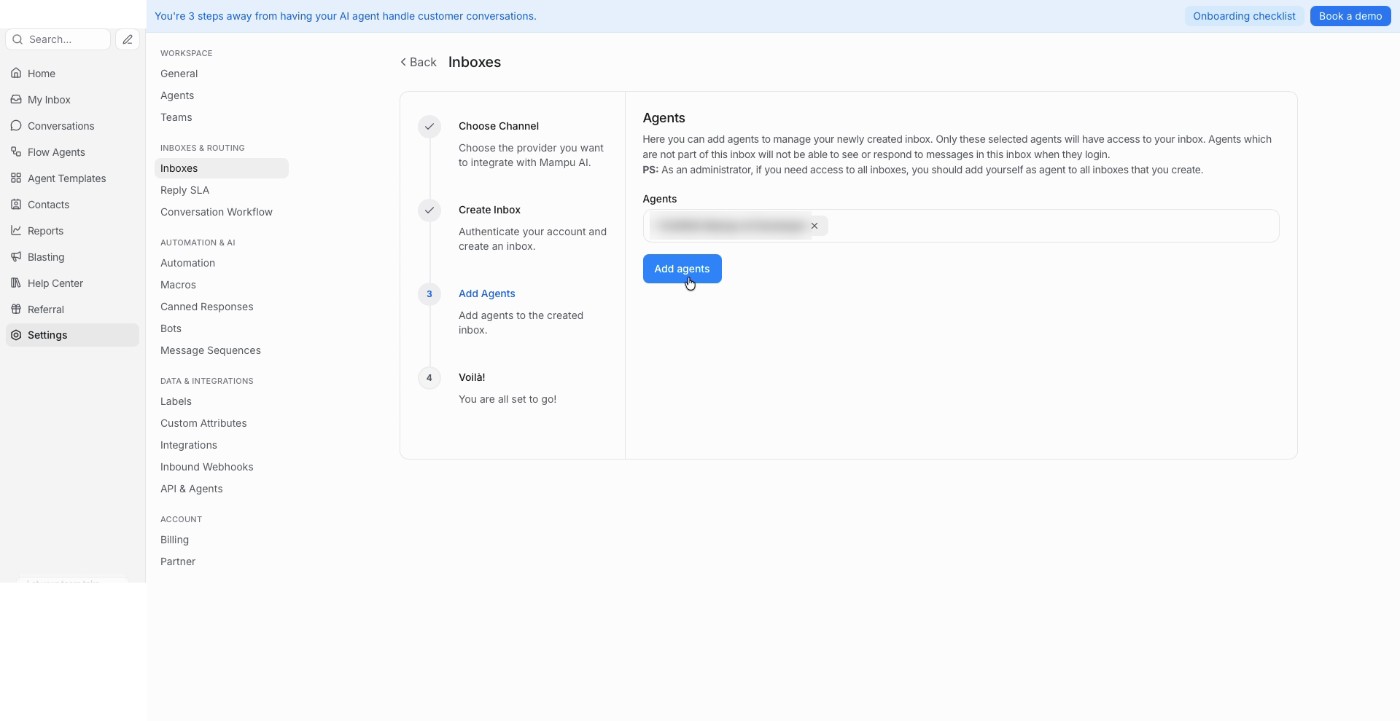
Pick the team members who should handle this inbox, then click Add agents. Only the agents you add here can see and reply to its conversations — as an administrator, add yourself too if you want access.
You’re done
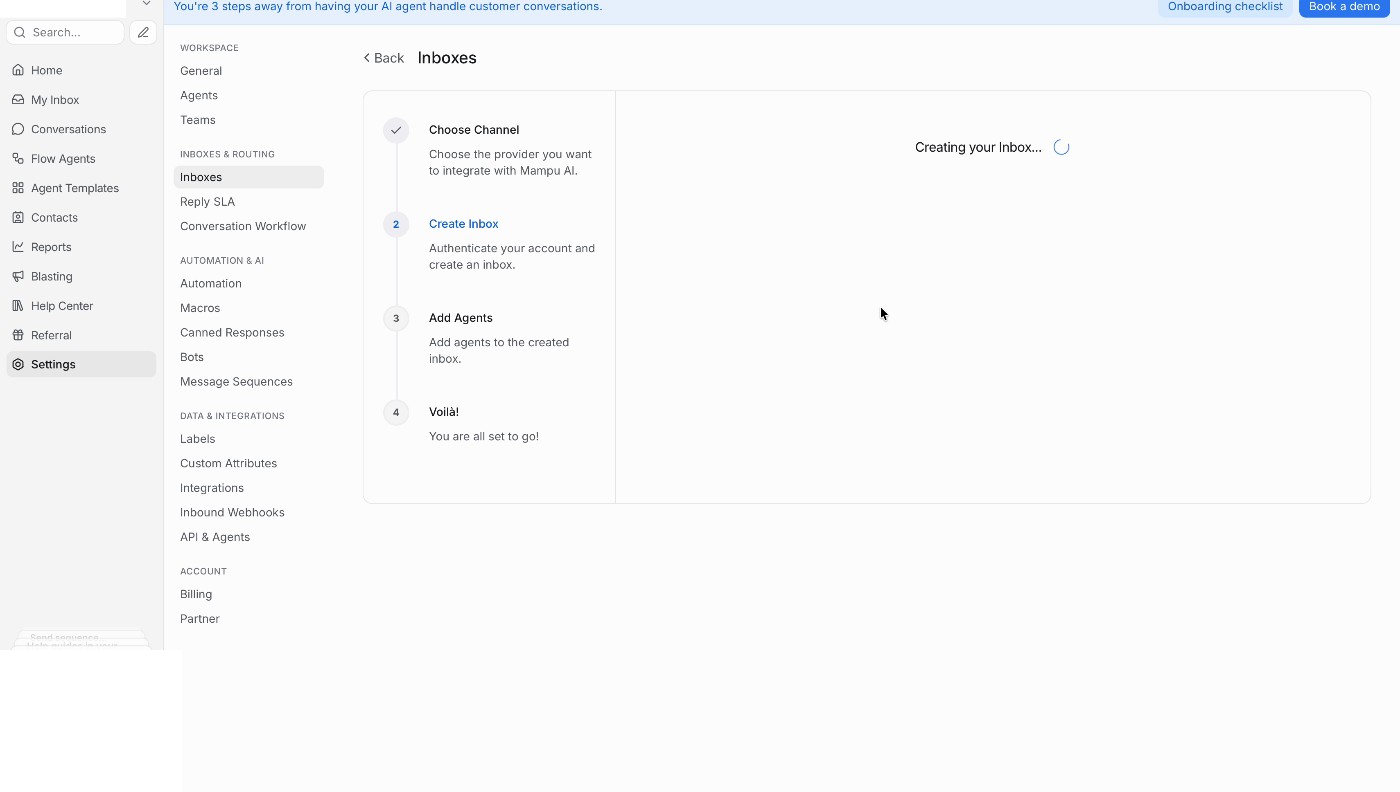
Your Facebook inbox is ready — scan the QR code shown to quickly test your Messenger inbox from your phone, or click Take me there to go straight to the inbox. Messenger conversations now arrive in Mampu AI, and your AI agent can reply.
Next steps
- Set up Facebook Comment Replies so comments on your posts get answered automatically.
- Connect a Flow Agent to this inbox so it replies for you.