
Connecting an Instagram inbox
An Instagram inbox brings the direct messages sent to your Instagram account into Mampu AI, where your team or your AI agent replies.
Before you start
Your Instagram account must be a professional account (Business or Creator). You can switch in the Instagram app under Settings → Account type and tools. Have the login for that account ready; you will sign in to Instagram during the setup.
1. Add an Instagram inbox
Go to Settings → Inboxes → Add Inbox and choose Instagram.
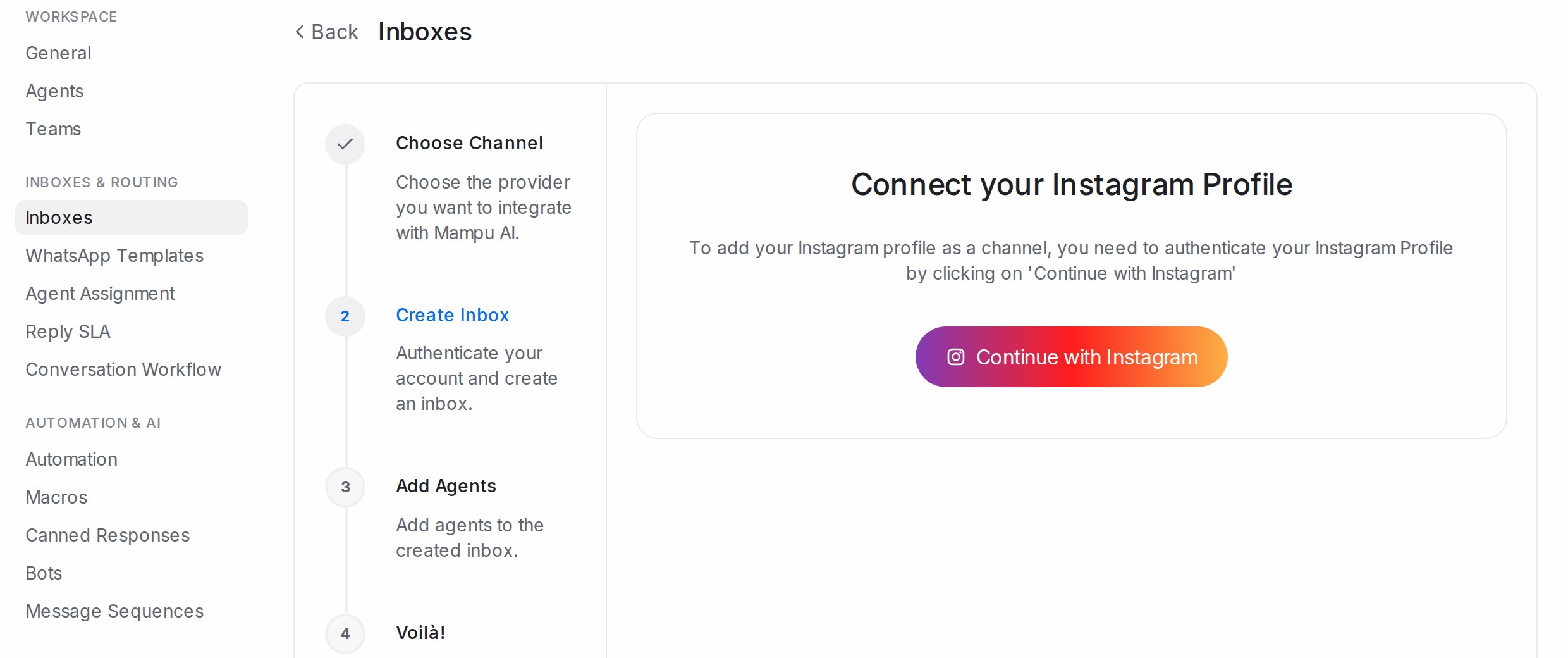
2. Continue with Instagram
Click Continue with Instagram, sign in with the Instagram account, and allow all the requested permissions. They let direct messages reach your inbox and let your replies go back out. When Instagram sends you back, the inbox is created.
3. Add agents
Pick the agents who will answer Instagram messages and Add agents. Take me there opens the inbox.
If you connected Instagram through Facebook before
An Instagram account that was linked the older way, through a Facebook page, shows a banner saying the account was migrated to the new Instagram inbox. Messages now arrive in the inbox created with Continue with Instagram; the old one no longer sends or receives.
After the inbox is live
The inbox gets the usual Settings, Collaborators, Business Hours and CSAT tabs, explained in Inbox settings, tab by tab. If the connection expires, a Reconnect banner appears at the top of the inbox’s settings; click it and sign in again. On accounts with comment replies for Instagram, a Comment Replies tab holds the rules for answering comments on your posts.