
Every inbox has its own settings page. Open Settings → Inboxes, find the inbox and click its settings icon. The page opens on the Settings tab with more tabs beside it; which tabs you see depends on the channel. This page walks through all of them.
| Tab | Shown for |
|---|---|
| Settings, Collaborators, Business Hours, CSAT | Every inbox |
| Pre Chat Form | Website live chat |
| Configuration | Website, Email, API, SMS, LINE and WhatsApp API inboxes |
| Bot Configuration | Every inbox, when agent bots are enabled on the account |
| Templates, Account Health | WhatsApp API (official number) |
| Connection Status | WhatsApp Business app connected by QR code |
| Comment Replies | Facebook, TikTok and Instagram pages |
| Utility Templates | Facebook Messenger, on accounts with Messenger blasting |
| Calls, Voice | WhatsApp API numbers with calling, and voice inboxes |
If a channel loses its connection, a banner at the top of the page says so, with a Reconnect button for the channel. Fix that first; the tabs below work once the inbox is connected again.
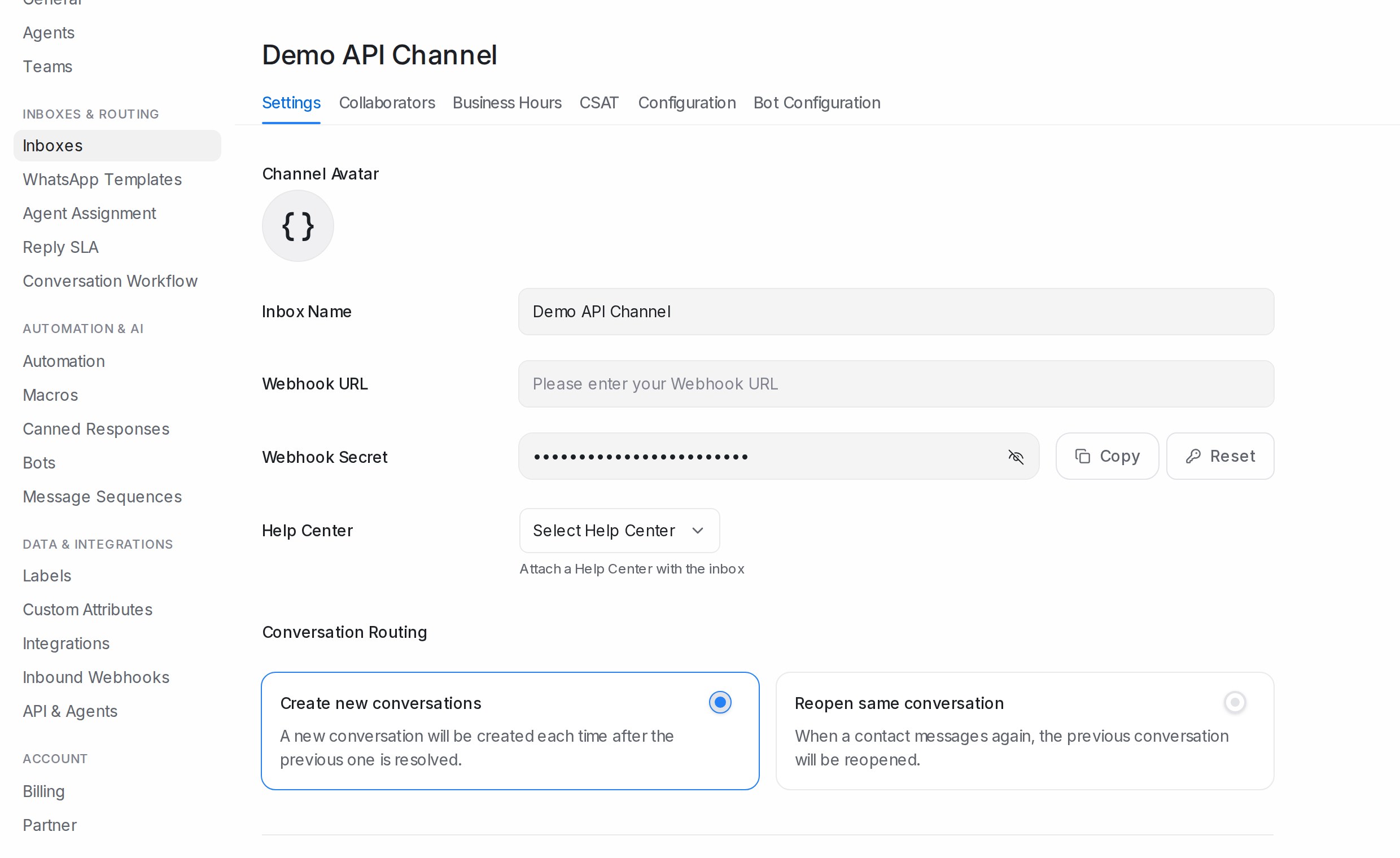
Settings
The basics of the inbox, grouped by what the channel supports.
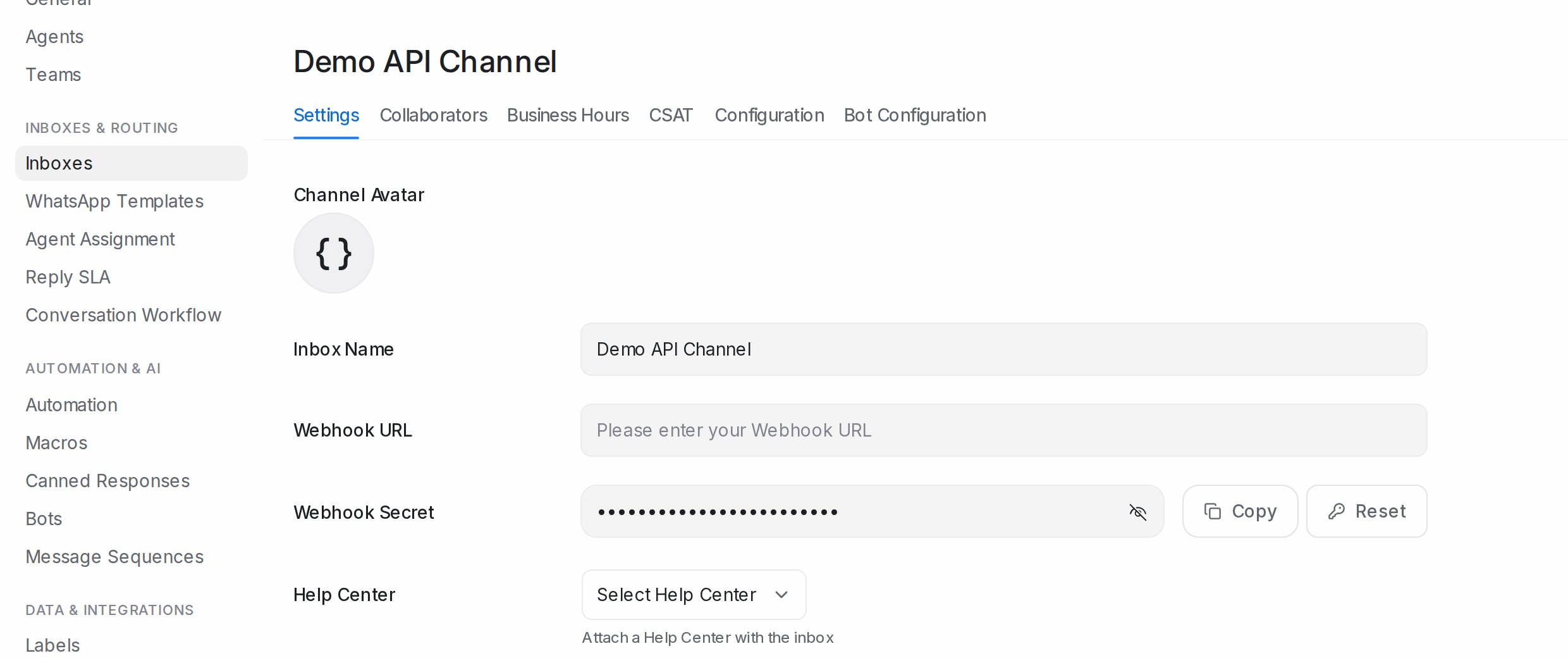
- Inbox Name and Channel Avatar: how the inbox appears in your sidebar and, for channels that show it, to customers.
- Webhook URL and Webhook Secret (API inboxes): where your own system receives this inbox’s events, with Copy and Reset for the secret.
- Enable channel greeting and Channel greeting message: send a greeting automatically when a customer starts a conversation and sends their first message.
- Website Domain, Widget Color and Set Reply time (In a few minutes, In a few hours, In a day): live chat only. The reply time shows on the widget.
- Help Center: attach one of your help centre portals so the widget can offer its articles. Remove Help Center detaches it.
- Conversation Routing: what happens when a contact who already has a resolved conversation writes again. Reopen same conversation continues the previous thread; Create new conversations starts a fresh one each time.
- Sender name (website and email): Friendly puts the replying agent’s name in front of your business name; Professional uses the business name alone. Configure your business name sets that name.
- Enable email collect box (website): ask visitors for their email when a new conversation starts.
- Enable conversation continuity via email (website): keep the conversation going by email when the visitor leaves the site, if their email is known. Available on paid plans.
- Allow messages after conversation resolved: let customers keep writing into a resolved conversation instead of being blocked.
- Hide from All Conversations: keep this inbox out of the All Conversations, team, label and folder views and out of search. Open it from the sidebar’s Channels group instead.
- Outbound only: use the inbox only to send; incoming customer messages are discarded before they reach anyone. See Send-only inboxes.
- Share history across inboxes: whether conversations in this inbox show the customer’s messages from your other inboxes. See Seeing a customer’s history across channels.
- Widget features (website): Display file picker on the widget, Display emoji picker on the widget, Allow users to end conversation from the widget, Use inbox name and avatar for the bot.
Click Update to save. At the bottom, administrators can Delete the inbox; you type its name to confirm, and its conversations go with it.
Collaborators
Who works in this inbox and how new conversations get handed out.
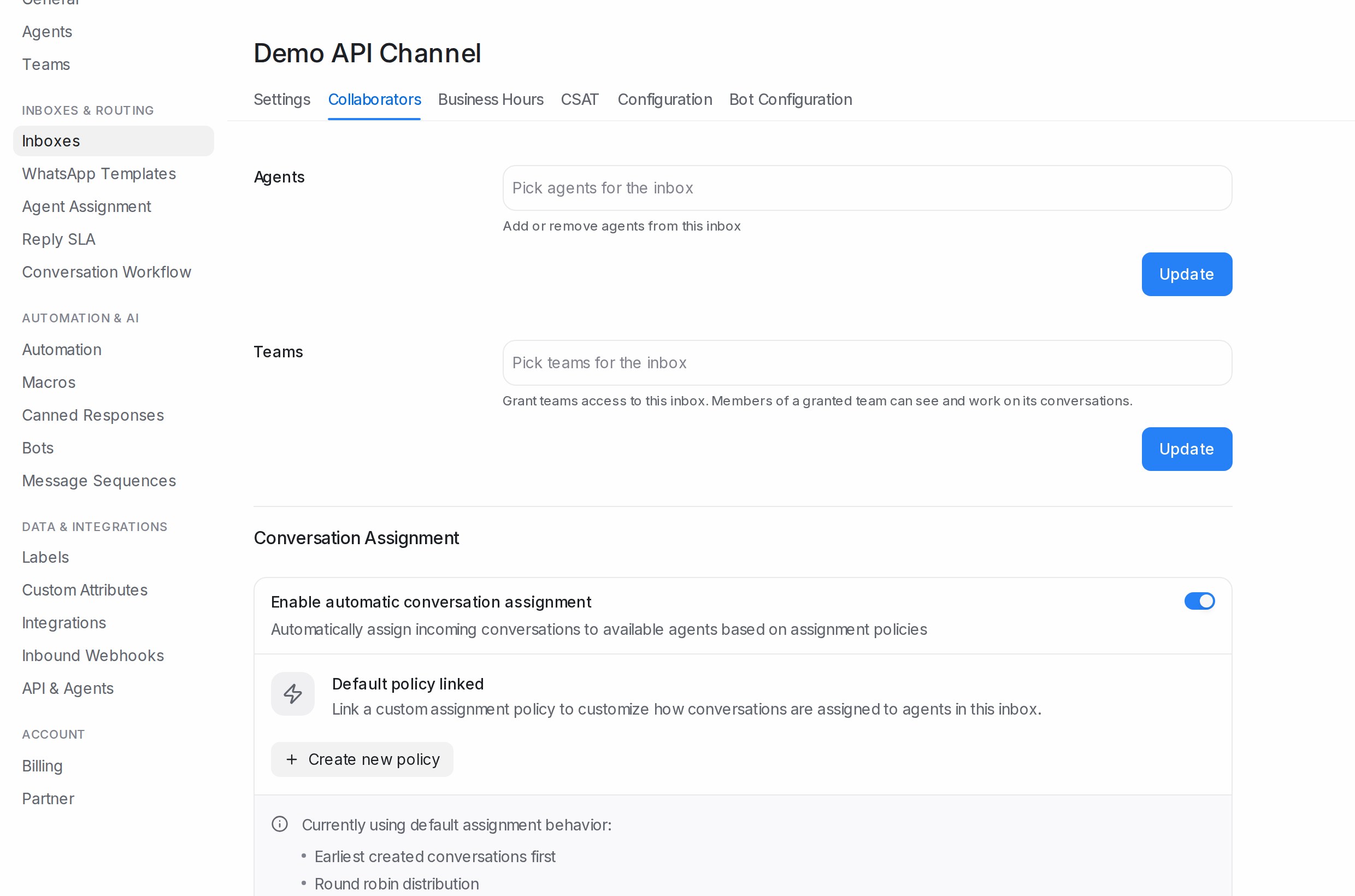
- Agents: add or remove the teammates who can see and reply in this inbox.
- Teams: grant whole teams access; members of a granted team can see and work on its conversations.
- Conversation Assignment: Enable automatic conversation assignment hands each new conversation to an agent of the inbox. The default rules are Earliest created conversations first and Round robin distribution; Auto assignment limit caps how many conversations from this inbox one agent can hold at a time. Customize with assignment policy, Link existing policy, Create new policy and View all policies switch the inbox to a policy with its own Assignment Order (Earliest created or Longest waiting) and Assignment Method (Round robin or Balanced assignment). Policies are available on the Business plan.
See Automatic conversation assignment.
Business Hours
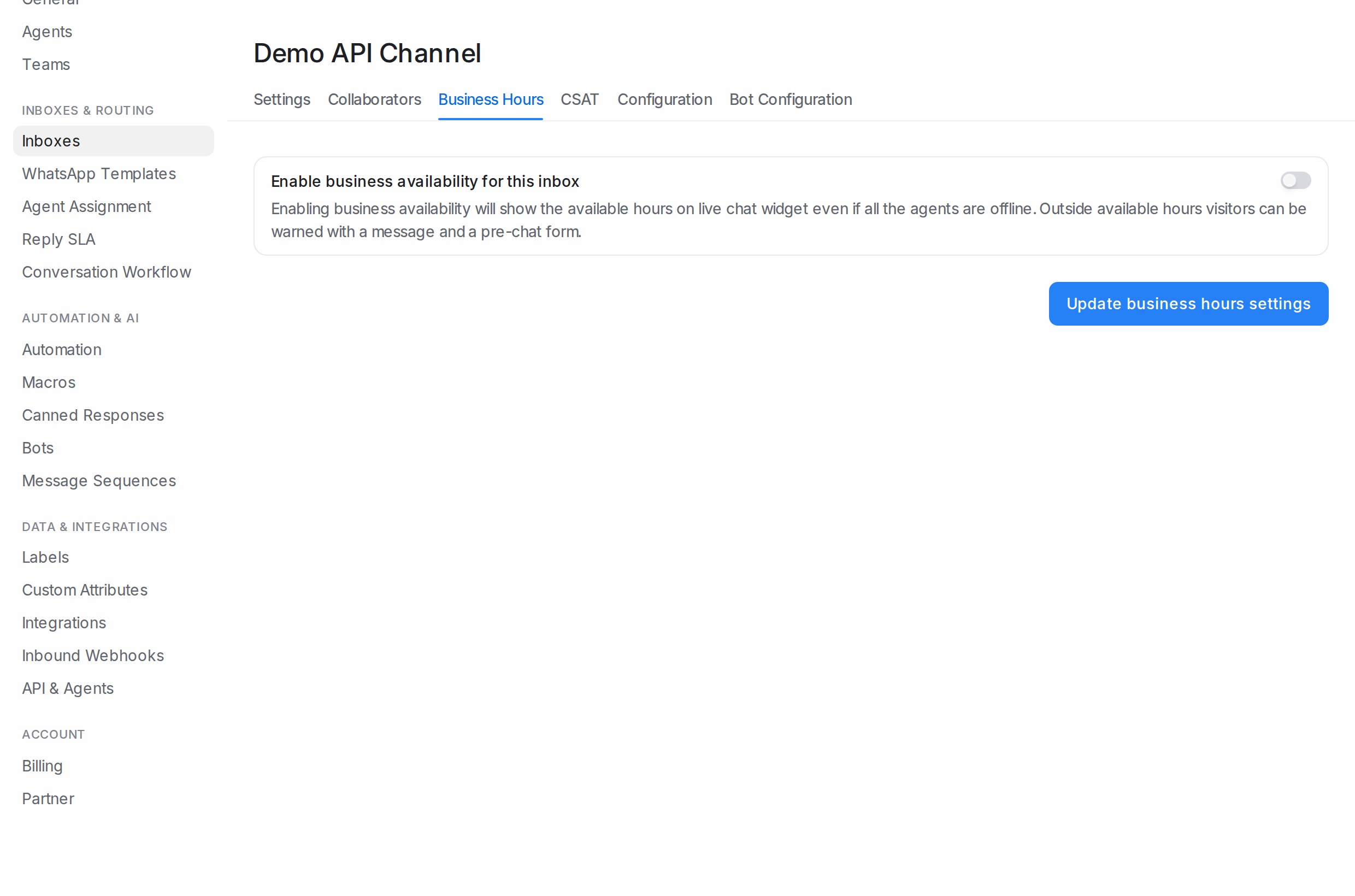
Enable business availability for this inbox, pick your Select timezone, then set the week: tick Enable availability for this day per day and choose All-Day or the hours. Outside those hours the live chat widget shows your Unavailable message for visitors and can still collect a pre-chat form. Click Update business hours settings to save. Other features that work “during business hours”, such as a live chat blasting with Trigger only during business hours, read these hours.
CSAT
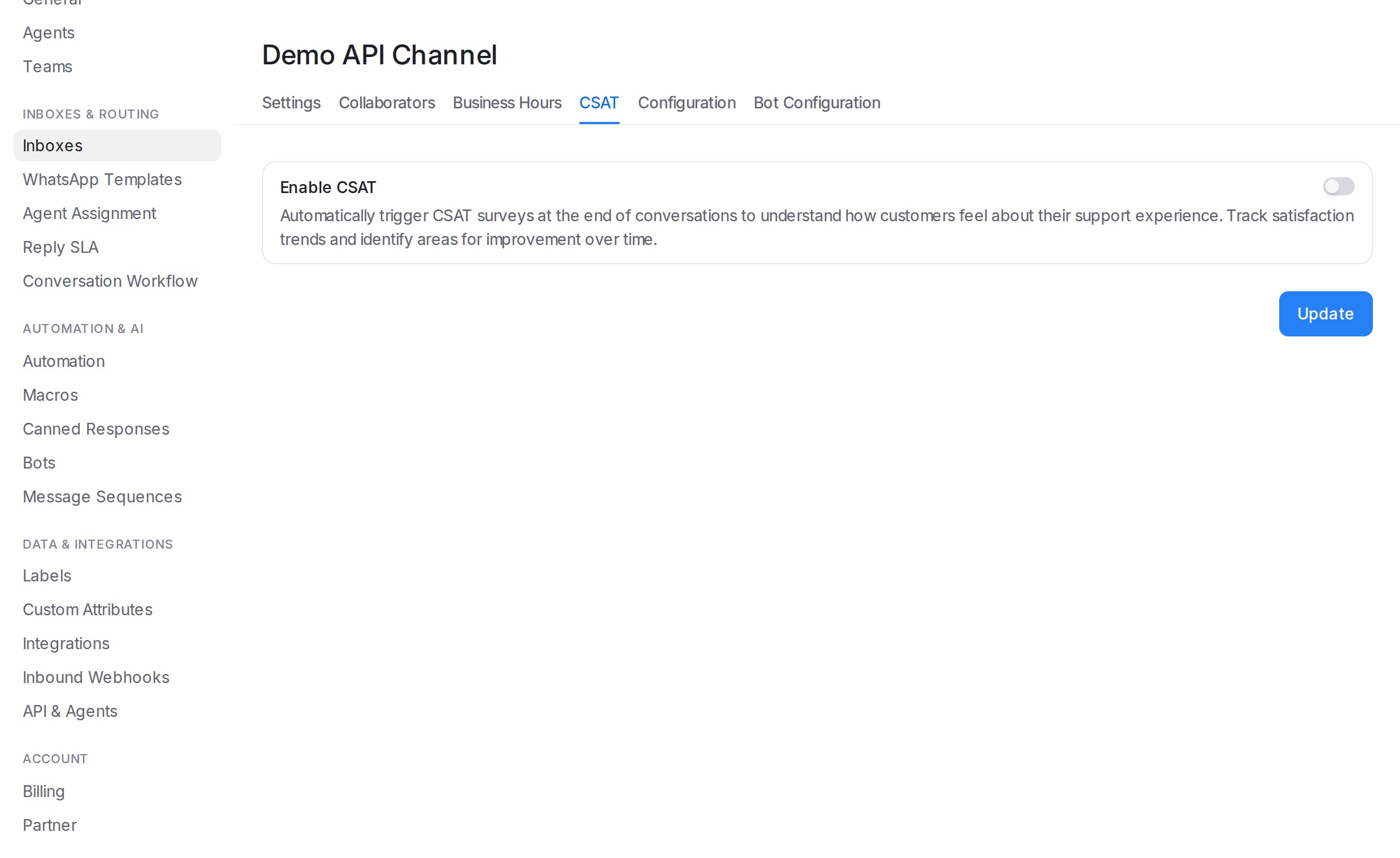
Switch on Enable CSAT to send a satisfaction survey when a conversation is resolved. Set the Display type, Message, Button text and Language, and check the Message preview. Under Survey rule, choose to send the survey only if the conversation contains or does not contain any of the labels you pick. A survey is sent once per conversation.
On a WhatsApp API inbox the survey goes out as a template, so it needs Meta’s approval: the tab shows Needs WhatsApp approval, Pending WhatsApp approval, Approved by WhatsApp or Meta rejected the template. Before you submit, click Check utility fit to see whether Meta is likely to class the message as Likely Utility or Likely Marketing, and use Use this rewrite to take the suggested wording. Changing the survey text later creates a new template that goes through approval again. Results appear under Reports → CSAT; see CSAT and SLA reports.
Pre Chat Form
Live chat only. Enable pre chat form asks visitors for details before the chat starts. Write the Pre chat message, tick Visitors should provide their name and email address before starting the chat if you want that, and shape the form in the fields table: each row has a Label, Placeholder, Key, Type and a Required switch, and you can add your contact attributes as fields. Click Update Pre Chat Form Settings to save.
Configuration
What this tab holds depends on the channel.
- Website: the Messenger Script to paste into your site, Allowed Domains (only the sites you list may embed the widget; Enable widget in mobile apps when the widget runs inside an iOS or Android app), and Identity Validation with its Secret Key and Require identity validation for all conversations. Developer details are on the developer site, linked from View documentation.
- API: the Inbox Identifier, the Inbound Webhook URL your systems post messages to, the Payload Format, and Enforce User Identity Validation. The developer site has the request format.
- Email: the Forward to Email address to forward your mailbox to, then IMAP (Enable IMAP configuration for this inbox, Address, Port, Login, Password, Enable SSL, Authentication) and SMTP (Enable SMTP configuration for this inbox, Address, Port, Login, Password, Domain, Encryption as SSL/TLS or STARTTLS, Authentication). SMTP needs IMAP set up first.
- SMS and LINE: the callback URL to paste into your provider’s console.
- WhatsApp API: the inbox’s API Key with Update API Key, WhatsApp Embedded Signup with Reconfigure for a number connected through Meta’s sign-up flow, Switch to Manual Setup (Phone Number ID, Business Account ID, API Key) to run the number on your own Meta app, the Webhook Verification Token, and Sync Templates to pull the latest approved templates from Meta. See Connecting a WhatsApp inbox and Migrating an existing WhatsApp number to Mampu AI.
Bot Configuration
Select an agent bot to hand first replies in this inbox to a bot built with the developer API, then Update; Disconnect bot removes it. Flow Agents are connected the other way round, from the agent’s own inbox list; see Testing and connecting an agent.
Templates
WhatsApp API only. The message templates of this number with their category and status (Approved, Pending, Rejected, with Meta’s reason when rejected). Create template opens the editor, each row has Edit template and Delete template, Sync refreshes the list from Meta, and Manage in library opens the account-wide library. See Creating WhatsApp message templates and The WhatsApp Templates library.
Account Health
WhatsApp API only. Manage your WhatsApp account shows what Meta reports for the number: Display phone number, Business name, Display name status (Approved, Pending Review, Available Without Review, Rejected, Declined), Quality rating, Messaging limit tier (from 250 customers per 24h up to Unlimited customers per 24h) and Account mode (Sandbox or Live). Webhook Configuration warns with Webhook not configured or Webhook URL mismatch when messages cannot reach the inbox, and Register Webhook fixes it. Go to Meta Business Manager opens Meta’s own settings. See Normal WhatsApp vs WhatsApp Cloud for what the tiers and quality rating mean.
Connection Status
WhatsApp Business app connected by QR code only. WhatsApp Connection Status shows Connected or Disconnected, the Phone Number, Connected Since and the last status update, with Refresh to check again. When the phone has dropped the link, Reconnect generates a new QR code to scan. Re-link WhatsApp signs the number out on purpose and generates a QR code, for example to move the inbox to a different phone; you confirm with Sign out and generate QR. See Connecting a WhatsApp inbox.
Comment Replies and Utility Templates
Comment Replies holds the rules that answer comments on your Facebook, TikTok or Instagram posts; see Facebook Comment Replies and TikTok Comment Replies. Utility Templates is where a Facebook page’s approved Messenger templates for blasting live, on accounts with Messenger blasting switched on.
Calls and Voice
- Calls (WhatsApp API numbers enrolled for calling): Enable WhatsApp Calling lets agents place and receive WhatsApp calls on the Business phone number straight from the browser; Allow incoming calls decides whether customers can ring you, and the Call permission request message is what a contact sees before they agree to be called.
- Voice (voice inboxes): Enable Voice Calling with the provider credentials, and Allow incoming calls; when it is off, incoming calls are declined and no conversation is created, while agents can still call out.