
When someone comments on one of your Facebook Page’s posts, Mampu AI can reply to the comment publicly, send that person a private message, and like the comment — all automatically, based on the words they used.
This is how a comment on a promo post becomes a real conversation: your public reply keeps the post lively, and the private message moves the customer into your inbox where your team or your Flow Agent can take over.
Watch the walkthrough
Before you start
- Connect your Facebook Page in Settings → Inboxes → Add Inbox → Facebook and approve all the requested permissions — see Connecting a Facebook inbox.
1. Open Comment Replies
Go to Settings → Inboxes, open your Facebook inbox, and pick the Comment Replies tab. If you have not set anything up yet, the page says there are no rules. Click Add rule.
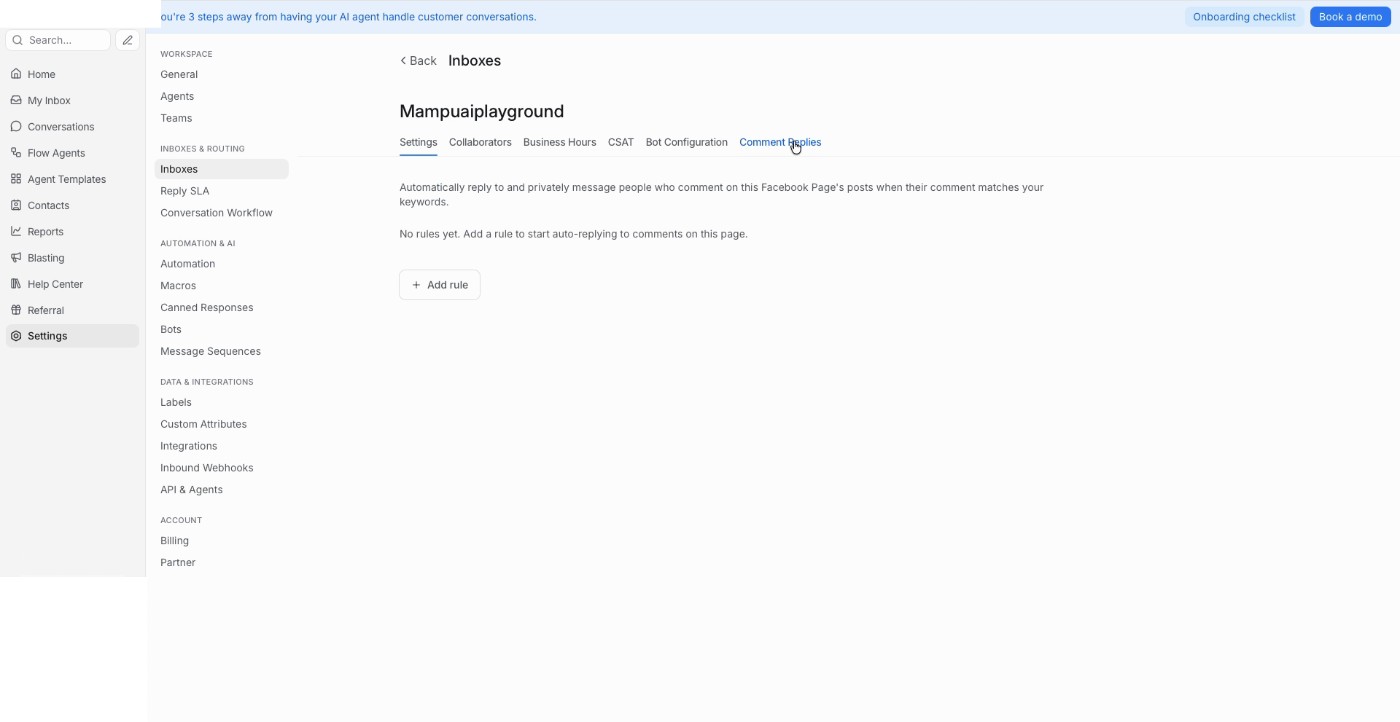
2. Name the rule and choose which comments it answers
A rule decides which comments to answer and what to send. Fill in the fields from top to bottom.
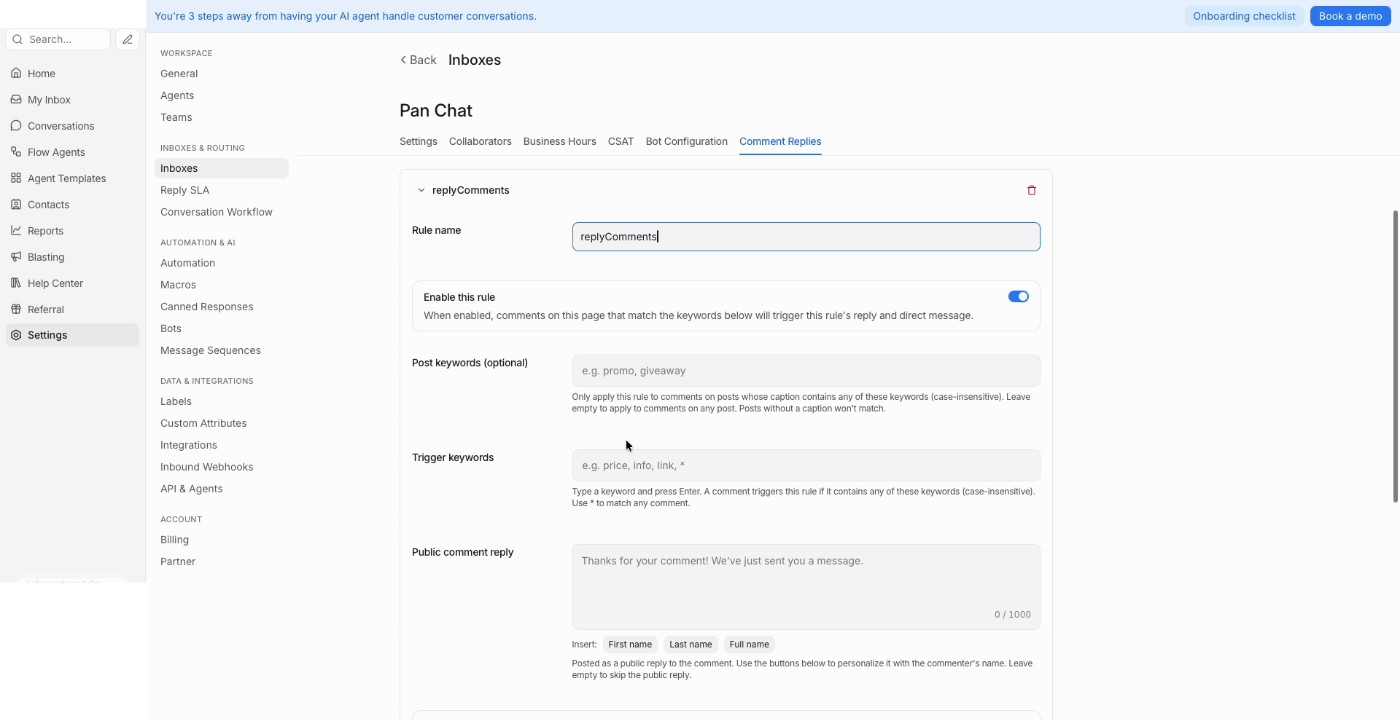
- Rule name — a name for your own reference, such as
Pricing enquiries. - Enable this rule — leave it on for the rule to run. Turn it off to pause the rule without deleting it.
- Post keywords (optional) — only answer comments on posts whose caption contains one of these words, for example only your promo posts. Leave it empty to answer comments on any post. Posts without a caption never match.
- Trigger keywords — type a word and press Enter. A comment triggers the rule when it contains any of these words. Use
*to match every comment. - Public comment reply — what you post publicly under the comment. Use the First name, Last name and Full name buttons to greet the commenter by name. Leave it empty to skip the public reply and only send a private message.
3. Choose what the customer receives privately
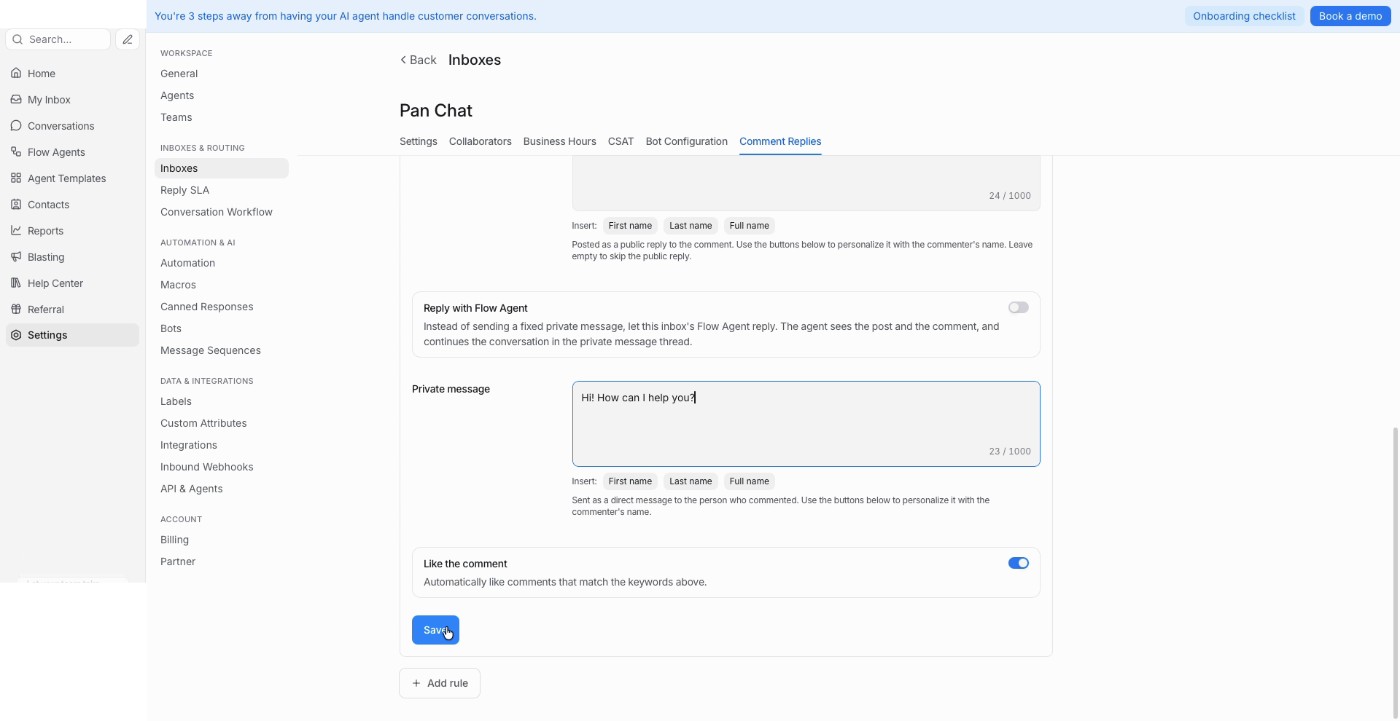
- Private message — sent as a direct message to the person who commented. Same name buttons apply.
- Reply with Flow Agent — turn this on and your inbox’s Flow Agent writes the private message instead of the fixed text above. The agent sees the post and the comment, then keeps the conversation going in the private thread — useful when people ask about different products under the same post. The inbox needs an agent assigned and published first — see Connecting a Flow Agent to your Facebook inbox.
- Like the comment — give matching comments a like from your Page.
Click Save when you are done.
4. Check your rules list
Saved rules appear on the Comment Replies tab with the keywords that trigger them. Click Add rule to create more.
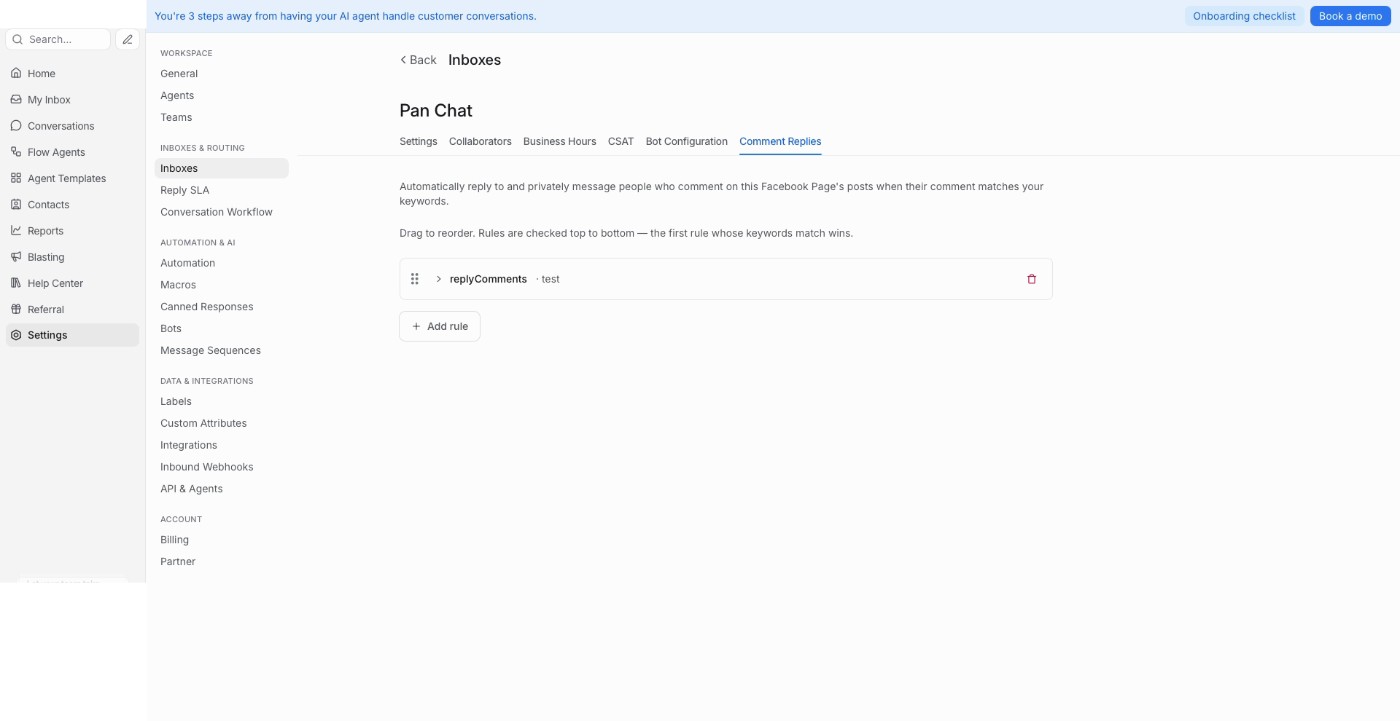
Rules are checked top to bottom and the first match wins — drag them to reorder. Put your most specific rules above the general ones, so a rule using * does not answer everything before the others get a turn.
What happens when someone comments
Your rule is now live. Here is what the customer and your team see when a comment matches it.
The customer comments on your post. In this example the rule watches for the word test, and the comment contains it.
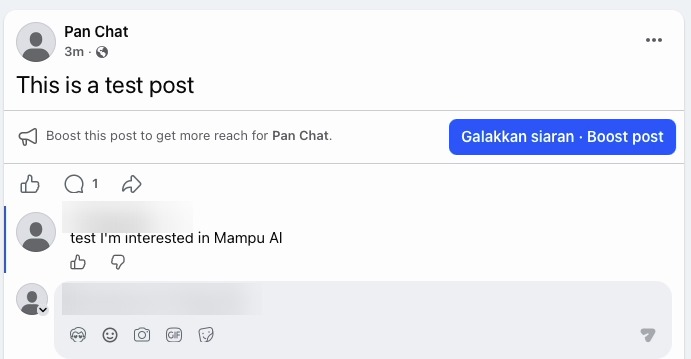
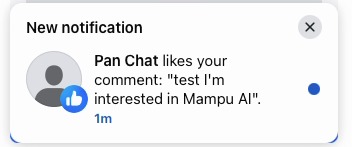
Your Page likes the comment — because Like the comment was turned on. The customer gets a notification from your Page.
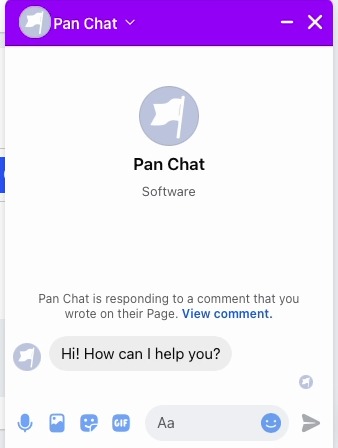
The customer receives your private message. Facebook shows it as a reply to their comment, with a View comment link back to the post — so they know what it is about.
The conversation lands in your inbox. Open the Facebook inbox in Mampu AI and the commenter is there as a normal conversation. The post and their comment are quoted at the top, so whoever picks it up has the full context, and your automatic message appears as the first reply.
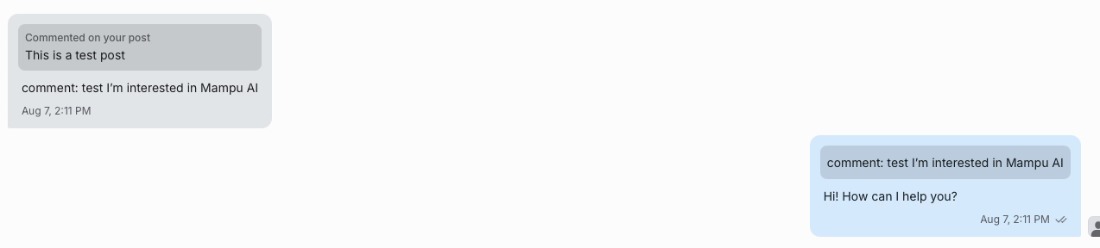
From here your team replies as usual, or your Flow Agent carries on if you turned on Reply with Flow Agent.
A few tips
- Keep public replies short and friendly, and vary the wording between rules — the same reply posted many times looks automated.
- Public replies are visible to everyone. Keep prices, order details and anything personal for the private message.
- Someone must have commented for you to message them privately, so use the public reply to tell them to check their inbox.
- Test a rule on your own post before using it on a live campaign — comment with one of your trigger keywords and watch the conversation arrive.