
Dashboards are your own pages of figures. Each block on a dashboard counts leads, contacts, chats or sales in the chosen dates, grouped and measured the way you set it up. Open Reports → Dashboards under Marketing & Sales.
Start a dashboard

- Click New dashboard to start from an empty page, or pick a ready-made one: Start from Sales team, Start from Marketing or Start from Support.
- A ready-made dashboard opens with its blocks already in place. Change any of them, or keep it as it is.
Only administrators make and change dashboards. Everyone else on the team can open them: an administrator sees figures from every inbox, and other members see figures from the inboxes they are in. When there are no dashboards yet, members see No dashboards yet. An administrator can make one.
Read a dashboard
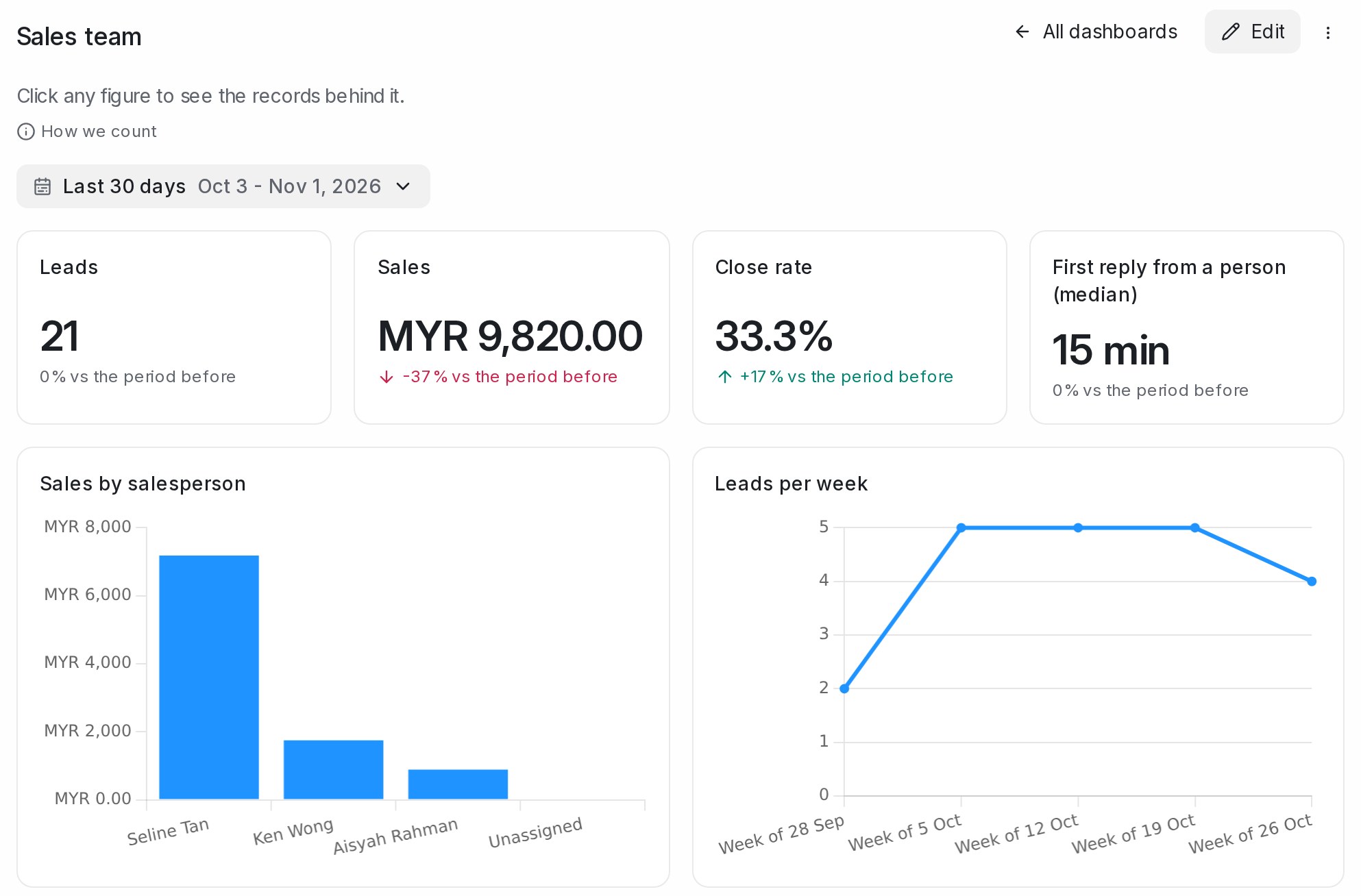
- Pick the dates at the top. Every block on the page follows them.
- A number block shows how the figure moved against the same number of days just before, for example +17% vs the period before. Green means it moved the good way, red the bad way.
- How we count explains what a lead is and whose replies count: a lead is a chat the customer wrote in, and a person’s reply is one sent from here or from their phone. Bot replies and reminders do not count.
- All dashboards takes you back to the list.
See the records behind a figure
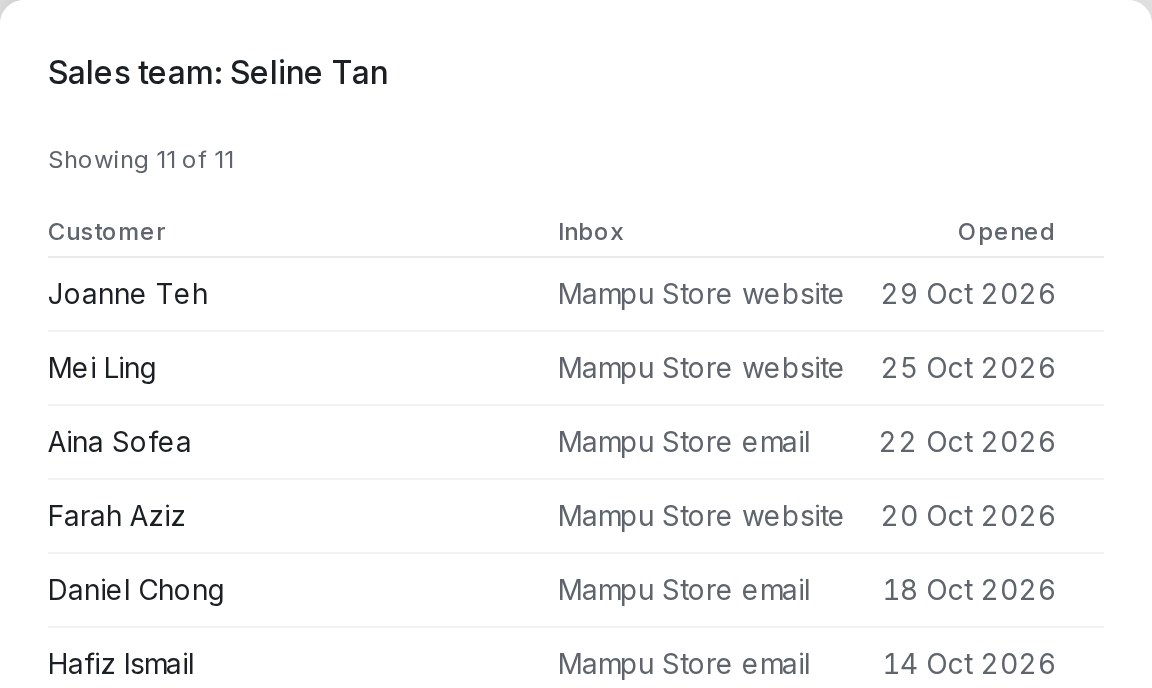
Click any figure, bar, slice or table row to see the records it counts. The list shows up to 100 of them, newest first, with Showing 11 of 11 at the top. Click a row to open that chat or contact.
Change a dashboard
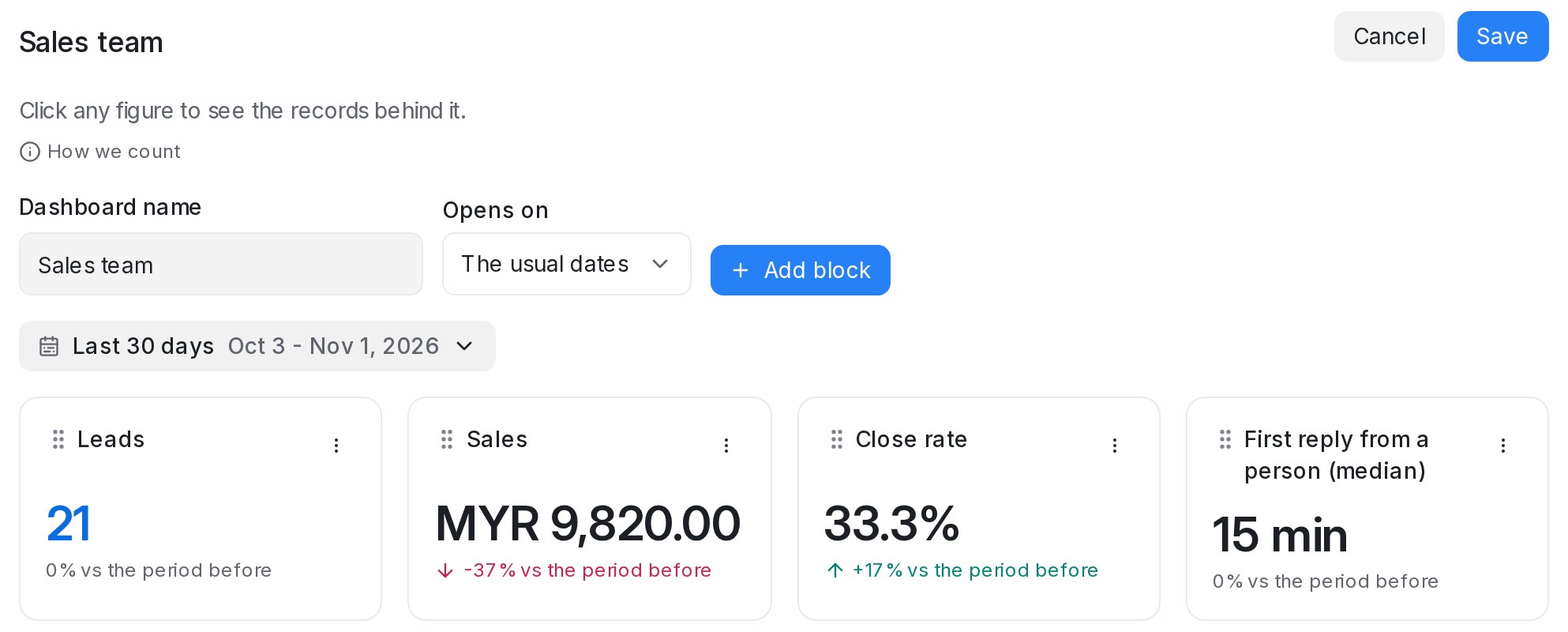
- Click Edit on the dashboard.
- Rename it under Dashboard name.
- Under Opens on, choose the dates the dashboard opens with: The usual dates, Last 7 days, Last 30 days, This month or Last 3 months.
- Click Add block to add a block, or use a block’s ⋮ menu to change it.
- Click Save. Cancel leaves the dashboard as it was.
If you leave the page with changes that are not saved, you are asked Discard your changes? first.
Add a block
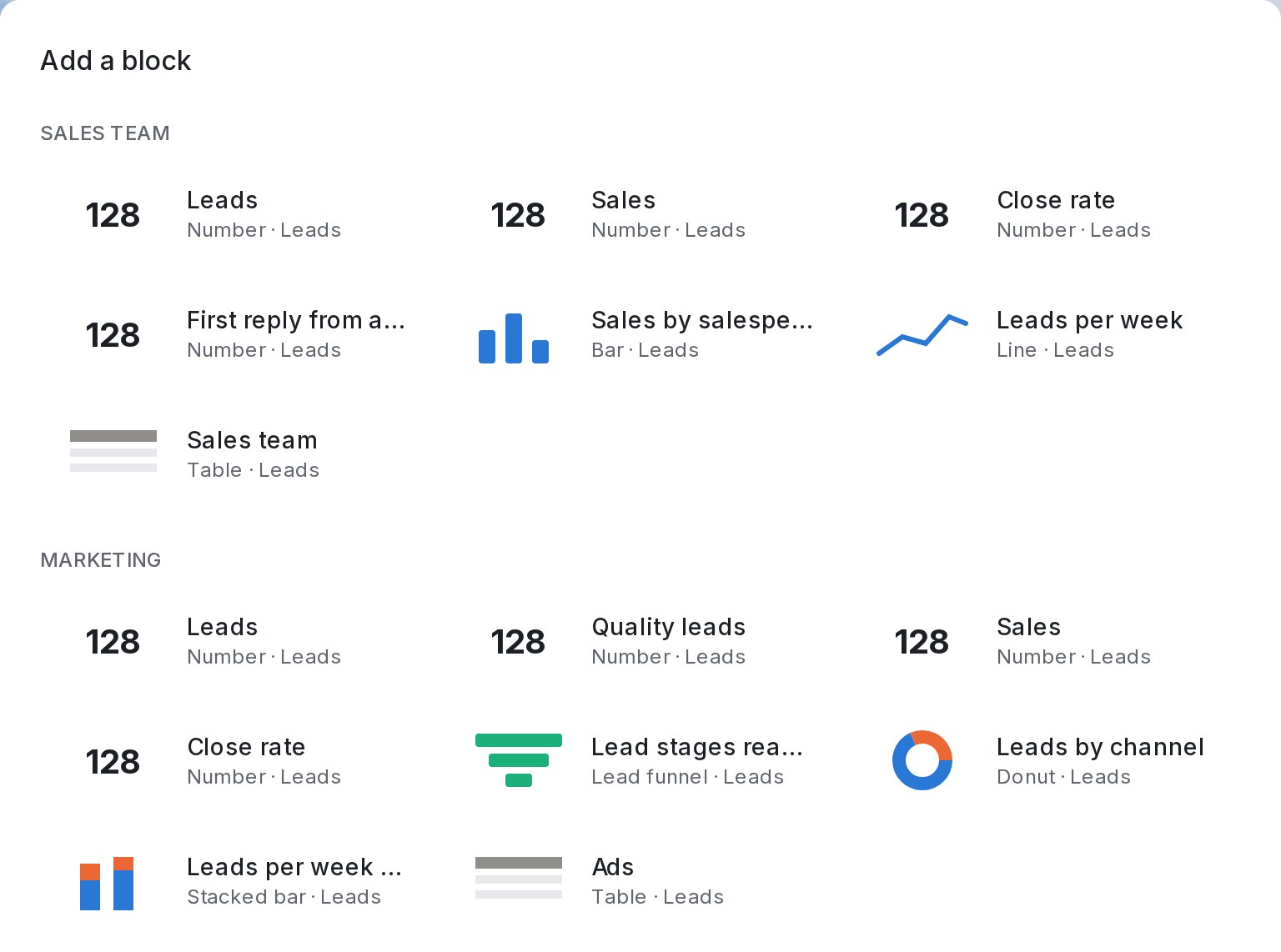
Add block opens a gallery. The ready blocks are grouped the same way as the ready-made dashboards: Sales team, Marketing and Support. Each card names its chart and what it counts, for example Donut · Leads.
To start from scratch instead, scroll to Build your own and pick a chart. The block lands on the page with its settings open.
Set up a block
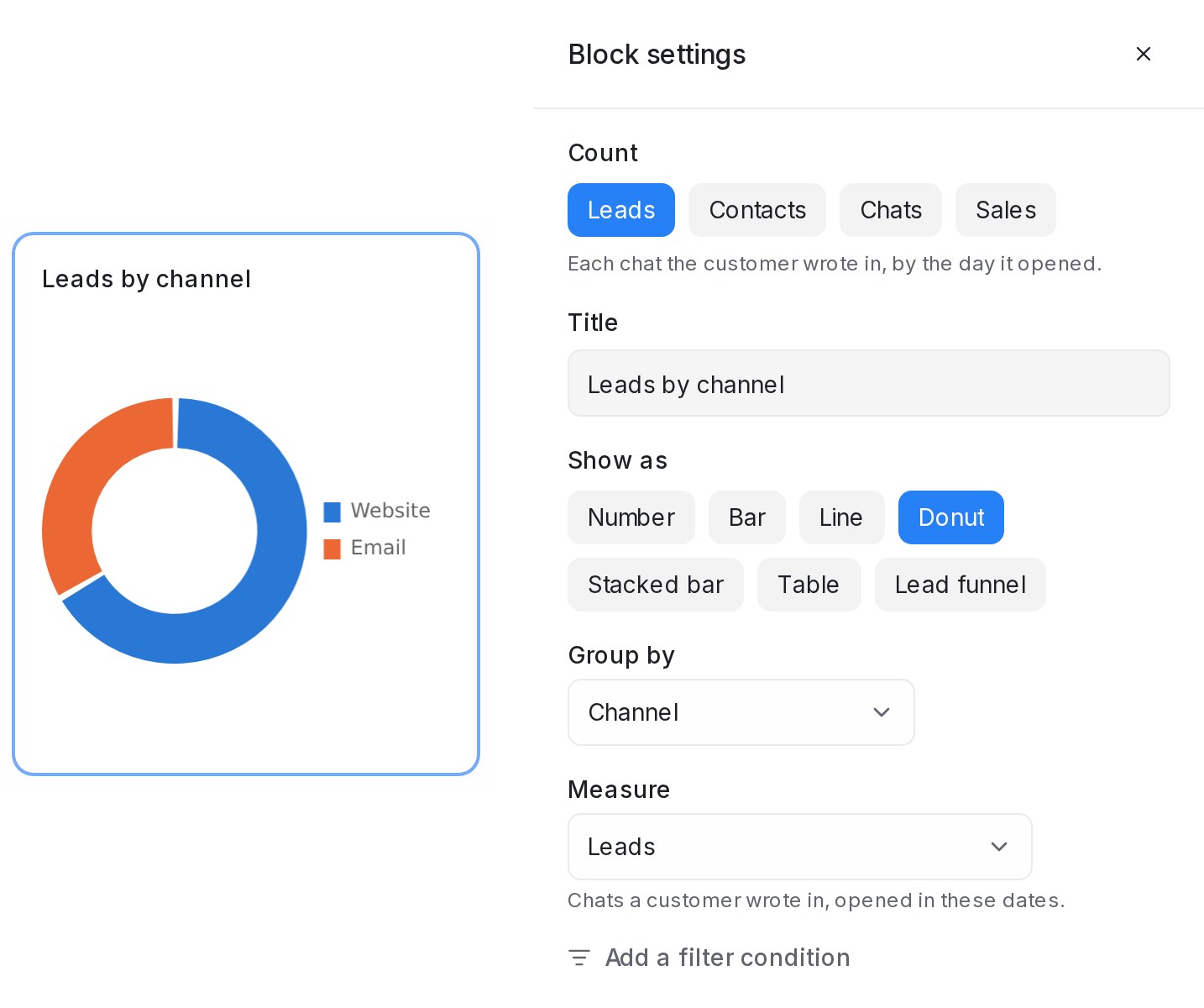
The block on the page changes as you change Block settings, so you see the result before you click Done. Cancel puts the block back as it was.
| Setting | What it does |
|---|---|
| Count | Leads, Contacts, Chats or Sales. The hint under it says what one row is. |
| Show as | Number, Bar, Line, Donut, Stacked bar, Table or Lead funnel (leads only). |
| Group by / Then by | What each bar, slice or row stands for, such as Channel, Person in charge or Week the chat opened. |
| Measure | The figure to show. A table takes Measures (up to 8). The info icon beside each one says how it is counted. |
| Only when | Keeps only the records that match, with the same conditions as the Chats or Contacts filter. Click Add a filter condition. |
| Groups shown | Top 5, 10, 20 or 50, the rest in Other. |
Move and size blocks
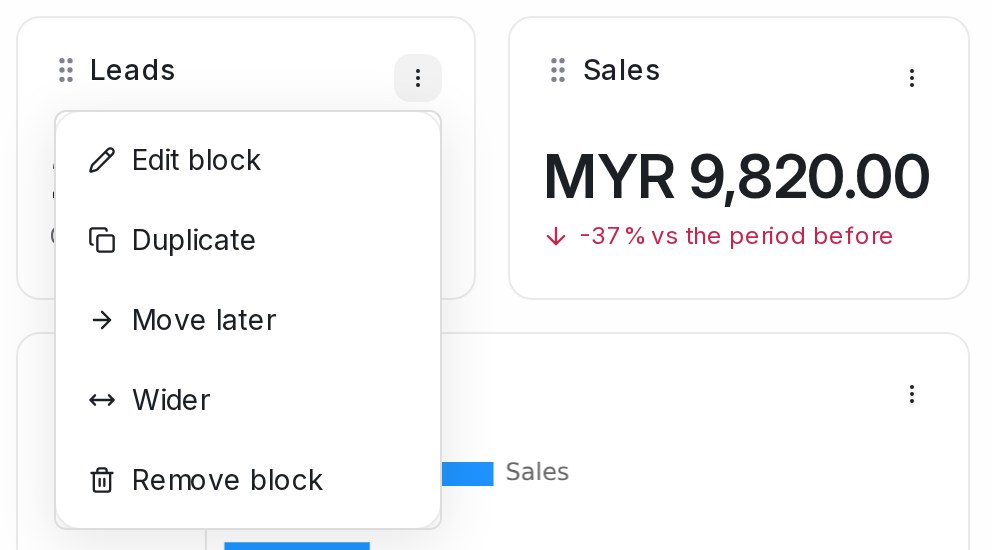
In edit mode:
- Drag a block by the dots before its title to move it.
- Drag a block’s right edge to make it wider or narrower.
The block’s ⋮ menu does the same from a list: Edit block, Duplicate, Move earlier, Move later, Wider, Narrower and Remove block. Click Save to keep the new layout.
To delete a whole dashboard, use the ⋮ menu beside Edit and choose Delete dashboard. The figures behind it stay.