
Languages: write each step in your customers’ languages
A flow agent already answers customers in their own language: AI translates your steps from the main language as it sends them. When you want your own wording instead, such as a greeting your team wrote in Malay or a price line in Chinese, write that language’s version of a step yourself. Customers who speak that language get your text; anything you leave blank is still translated by AI, live and in the Playground.
Add a language

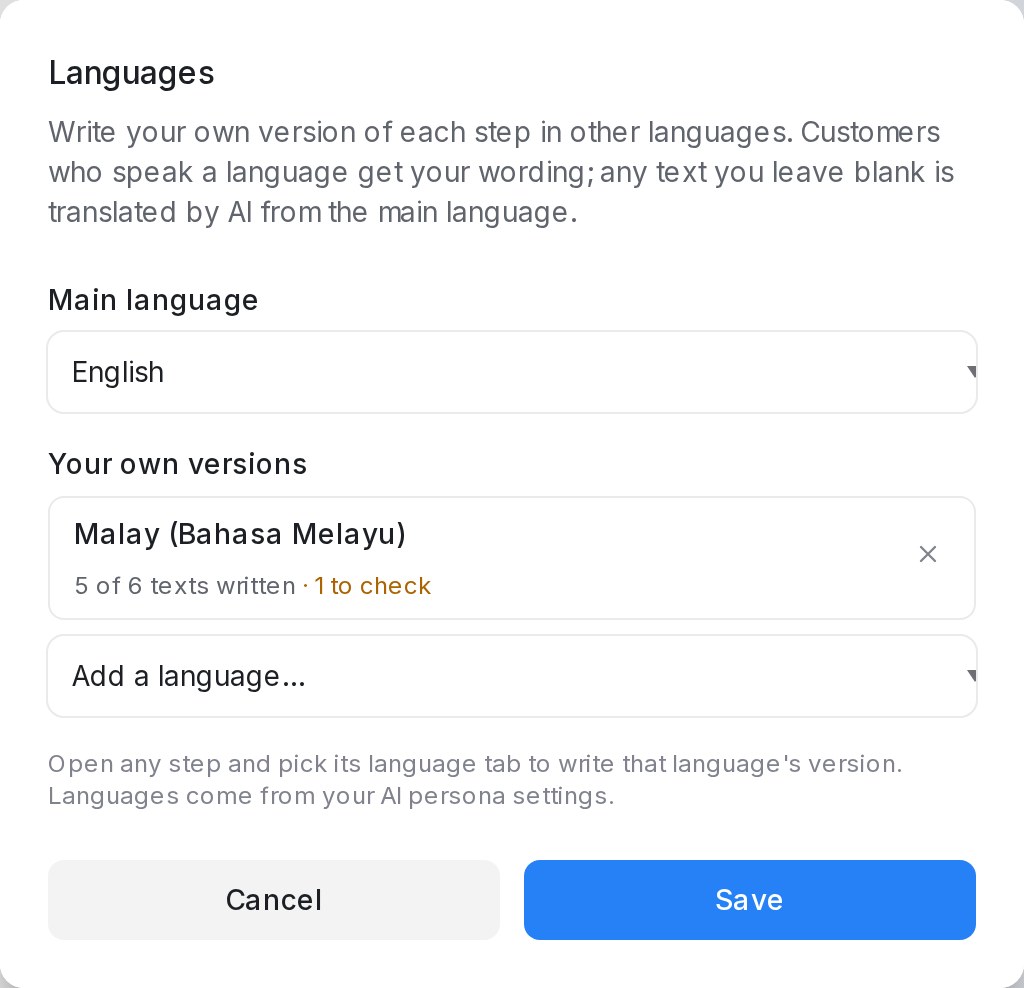
- Open the flow agent in the designer and click Languages in the header. The badge shows how many extra languages the flow has.
- Under Main language, pick the language your steps are written in.
- Under Your own versions, choose a language from Add a language… and press Save.
Good to know:
- The languages on offer come from your AI persona. If one is missing, add it under AI Knowledge Hub → Tone & persona first.
- Each language shows how many texts are written, for example 5 of 6 texts written, and how many need a check.
- Remove a language with the × on its row. Saving deletes the versions written for it.
Write a step in another language
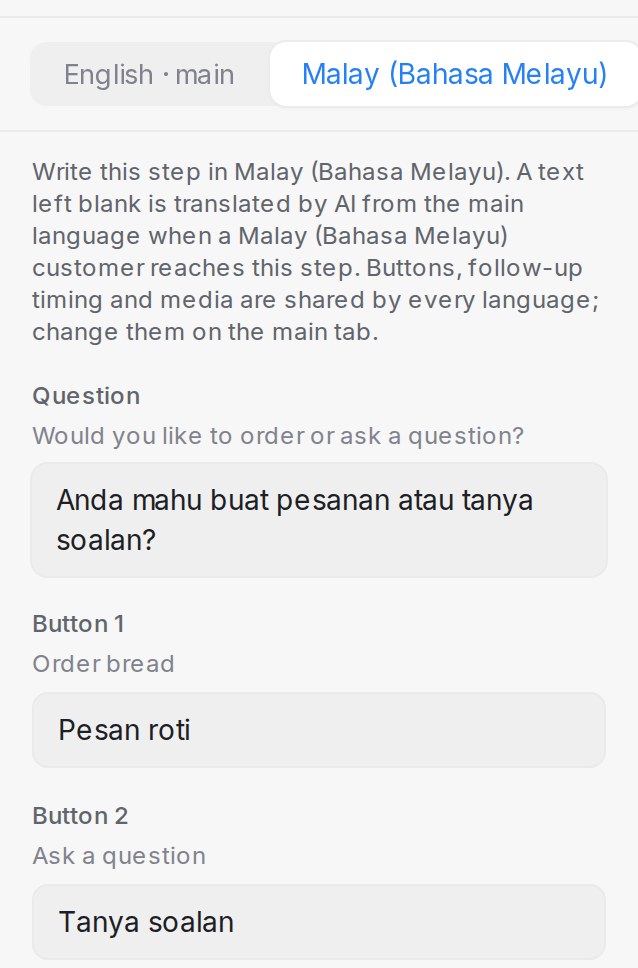
- Click a step on the canvas. Its panel now opens with a tab per language: the main one, marked main, and one for each extra language.
- Pick the language’s tab. Every text the customer sees is listed with the main text in grey above its box.
- Write your version in the box and press Save Changes.
Good to know:
- You can write the message, the question, the answer buttons, the ask-again lines, follow-up messages, the final and outside-business-hours messages, the booking messages and product card texts.
- A text you leave blank is translated by AI from the main text when a customer who speaks that language reaches the step. A button you leave blank keeps its main-language label.
- Which buttons exist, where they lead, follow-up timing and attachments are shared by every language. Change them on the main tab.
- With Let AI rewrite messages on, your version is reworded in your tone, just like the main text.
- To test, open the Playground and chat in that language.
When the main text changes
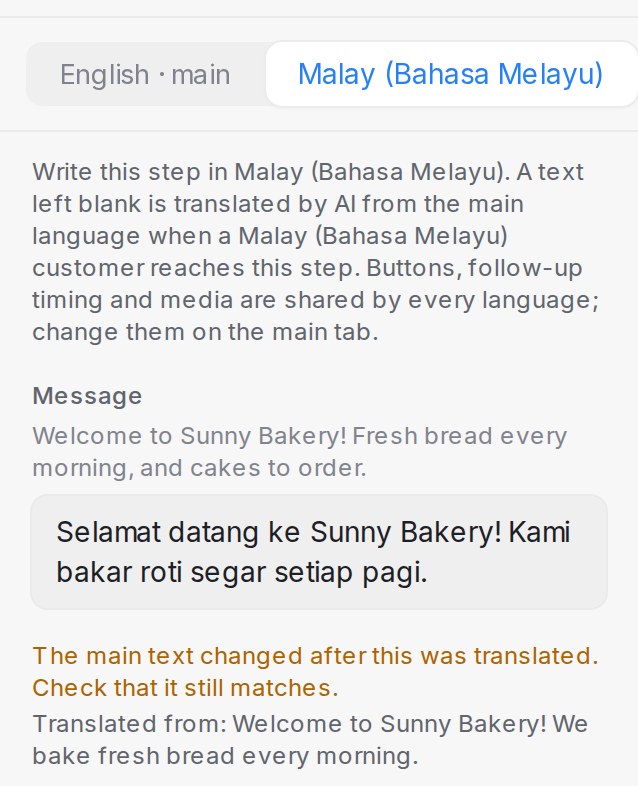
When someone changes a step’s main text after its version in another language was written, that version is kept and still sent, but the step’s language tab shows The main text changed after this was translated. Check that it still matches. Below it, Translated from: shows the main text the version was written from, so you can see what changed.
The flag appears whoever made the change: you, a teammate, or the designer chat. In the Languages dialog, the language’s row counts the texts to check.
To clear it, open the step’s language tab, edit your version to match the new main text and press Save Changes. A version saved without any edit stays flagged.