
When someone on your team is not sure how to answer a customer, they can ask the internal AI chat instead of waiting for the owner. It answers only from your AI Knowledge Hub, reads entries marked Team only before the rest, and shows which entries it used. Customers never see this chat, and your bots never use team-only entries.
The internal AI chat is switched on per workspace. Ask our support team to turn it on for yours.
Keep an answer for your team only
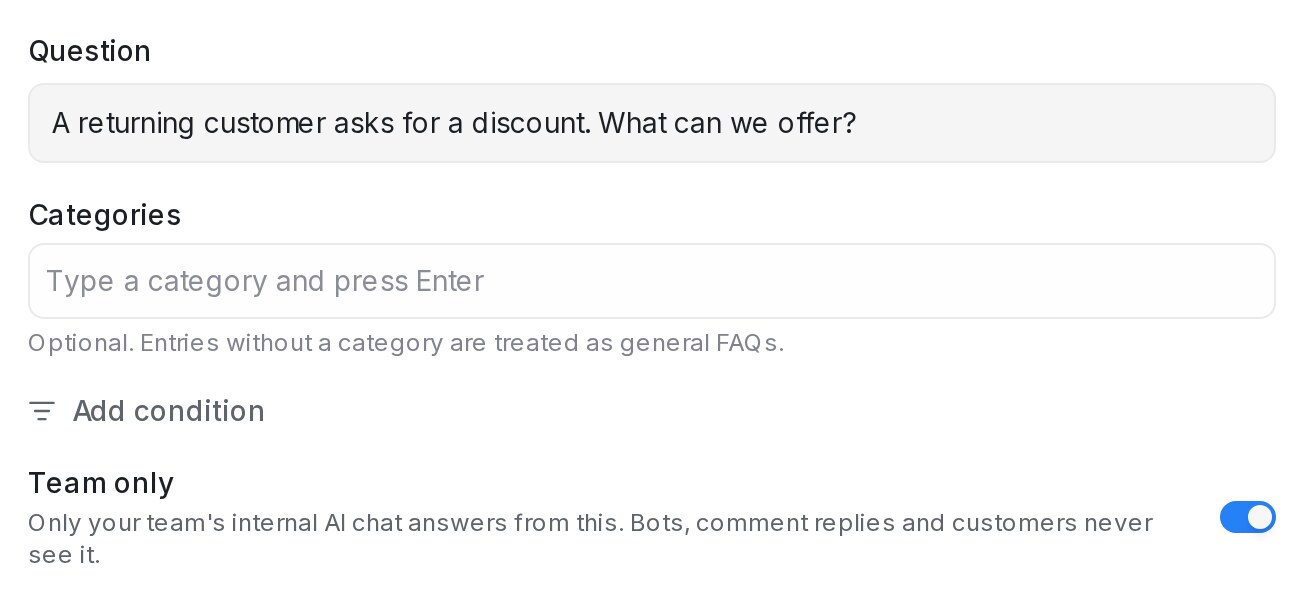
- Open AI Knowledge Hub, pick FAQ, and click the pencil on an entry, or Add entry for a new one.
- Switch on Team only.
- Press Save.
A team-only entry is read only by the internal AI chat. Flow agents, comment replies, Suggest a reply, help-centre articles drafted from your FAQs and AI apps connected to your workspace never use it. The switch is on FAQ, promotion and product entries alike, and only administrators and roles that can manage knowledge can change it.
Find your team-only entries
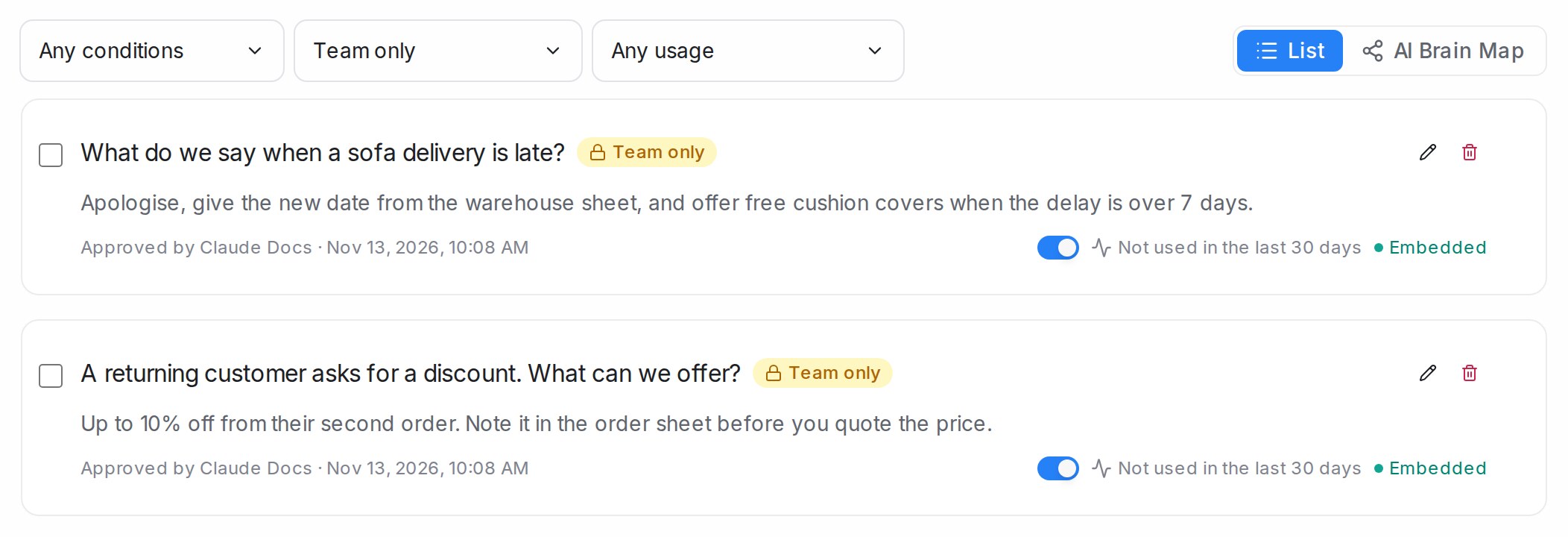
Each team-only entry carries a Team only badge on its card. The menu next to Any conditions narrows the list to Team and customers, Team only or Shown to customers.
Ask the internal AI chat
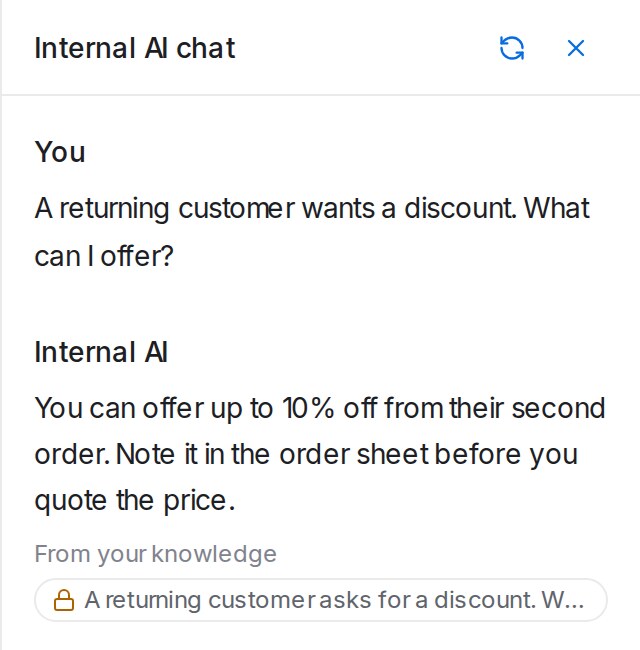
- On any page outside a conversation, click the round button at the bottom right. The panel opens as Internal AI chat.
- Type your question and press Enter.
- Read the answer. Under From your knowledge, each entry it used is a link, and a lock marks a team-only entry. Click one to open it in the Knowledge Hub.
The chat reads all your knowledge: team-only entries first, then the FAQs, products and promotions your customers see. A follow-up question in the same chat is read with the earlier ones. Each team member sees only their own chats.
When it cannot find the answer
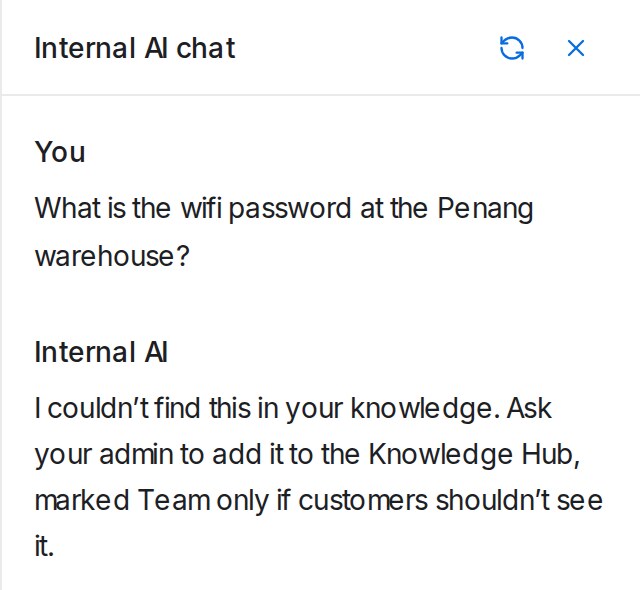
The chat does not guess. When no entry answers the question, it says so, so you know to add the answer to the Knowledge Hub, marked Team only if customers should not see it.
The chat runs on your workspace’s own AI key, the same one your flow agents use, or on your free AI credit while it lasts. When neither is available, it asks you to connect a key under Settings > Integrations > AI Providers.