
Team chat is a place for your staff to talk to each other: a cashier asking a picker to check an order, or an outlet asking another for stock. Messages here are never sent to customers, the AI never reads them, and they are not counted in reports. Team chat is switched on per workspace; ask the Mampu AI team to switch it on for yours. In the mobile app it is the Team tab, where a tapped alert opens its room.
Open Team chat
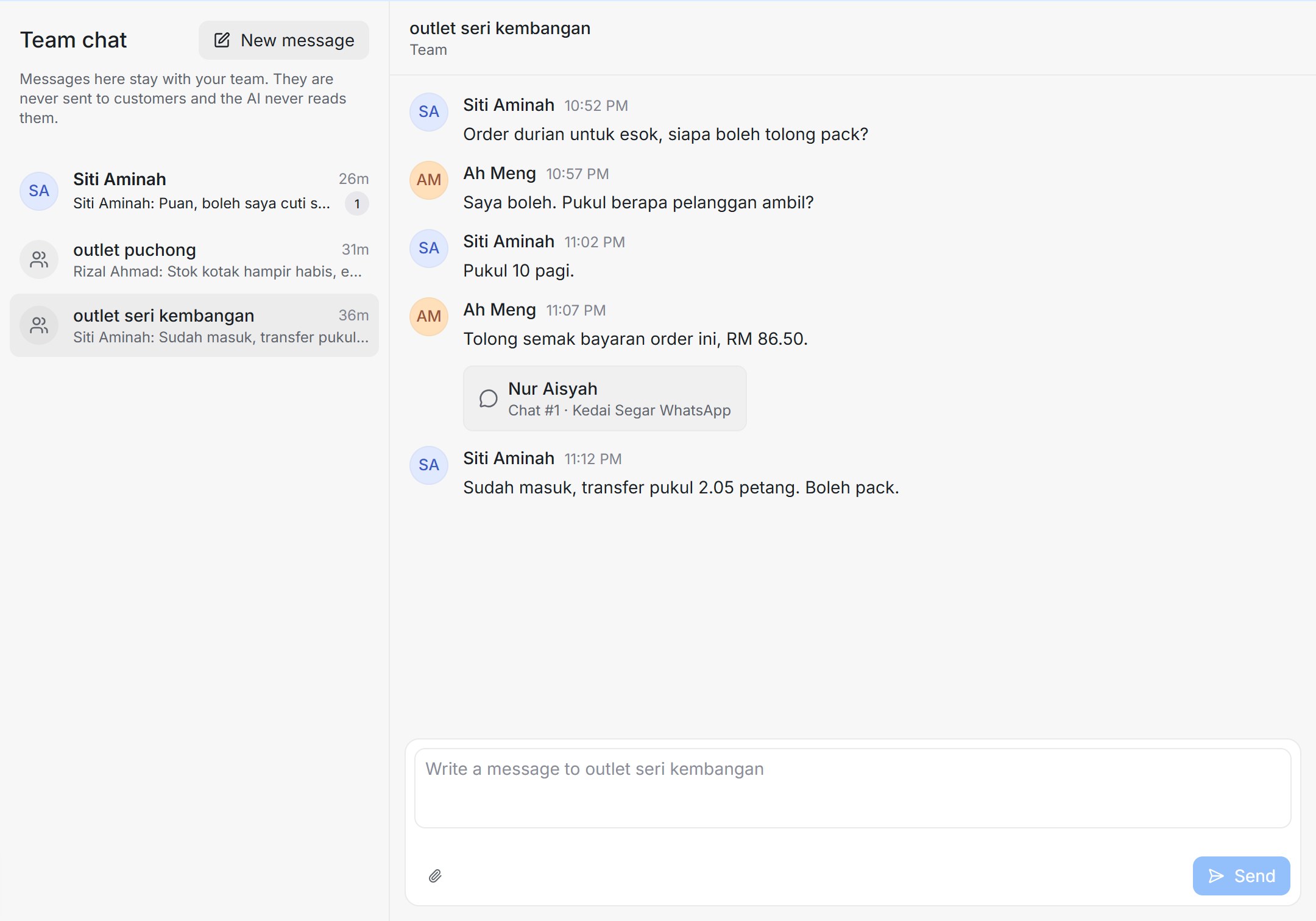
- Click Team chat in the left menu. The number beside it counts messages you have not read.
- Pick a room. Each team has its own room, shared by the team’s members and the workspace administrators; create teams under Settings → Teams.
- Write in the box and click Send. The paperclip adds photos or files, up to 10 in one message.
To delete your own message, hover over it and click the bin; everyone in the room then sees Message deleted instead.
Message one teammate
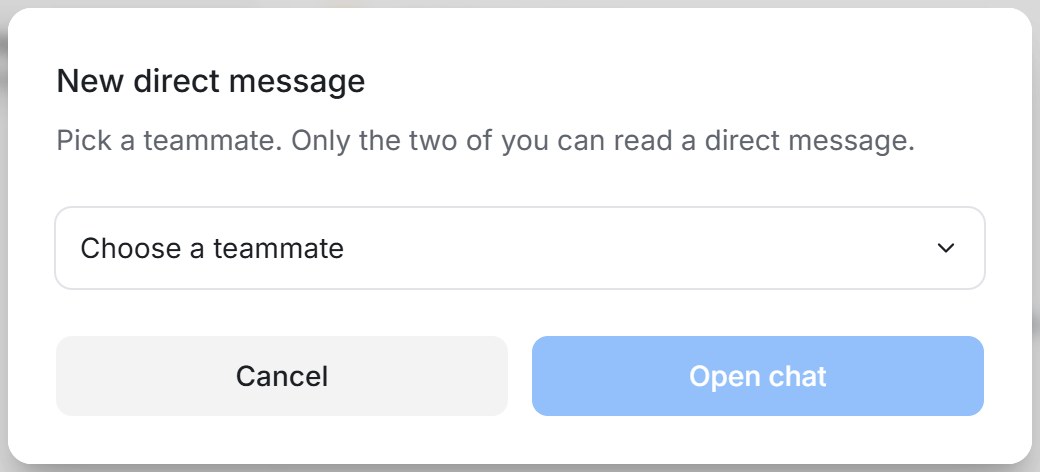
- Click New message.
- Choose a teammate and click Open chat.
Only the two of you can read a direct message. Administrators cannot open other people’s direct messages.
Share a customer chat
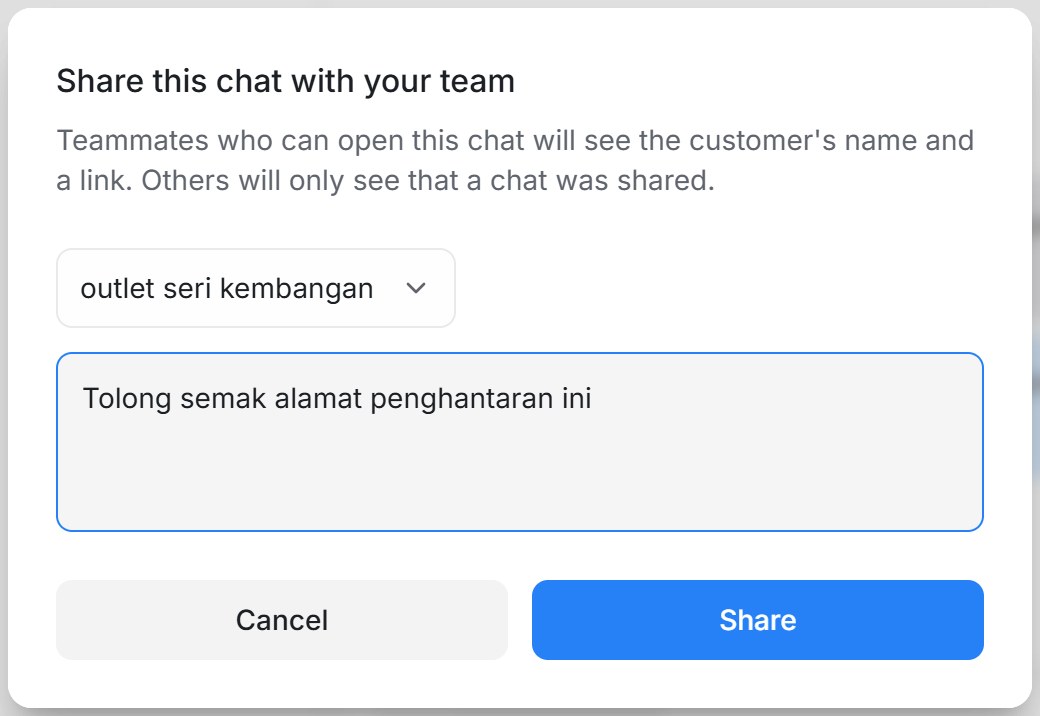
- Open the customer’s chat and click the ⋮ menu at the top right.
- Click Share to team chat.
- Choose a room, add a note such as “Please check this order”, and click Share.
The room shows a card with the customer’s name and the chat number; clicking it opens the chat. Teammates who cannot open that chat see A conversation you don’t have access to instead.
Alerts for new messages
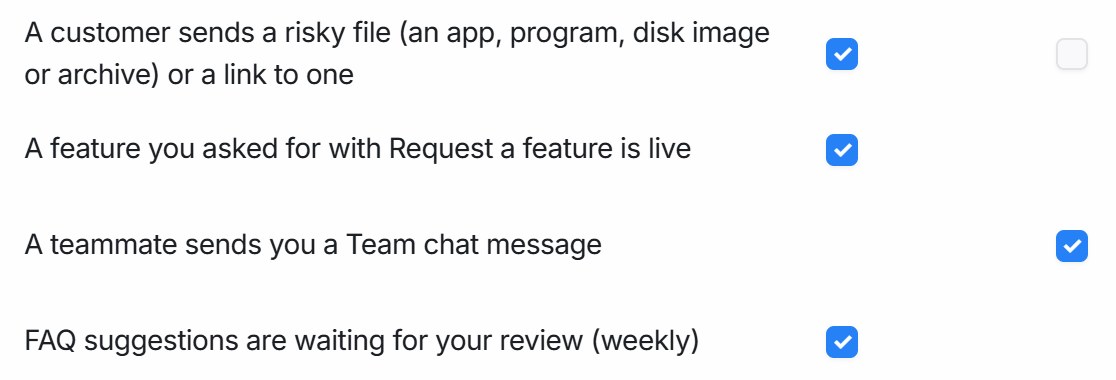
Everyone in a room except the sender gets a browser and phone alert for each new message, with the sender, the room and the text. When a room is busy, the first message alerts at once and the rest within the next minute arrive as one alert such as “3 new messages”. Team chat never sends emails and adds nothing to My Inbox.
To turn the alerts off, open Profile Settings → Notification preferences and untick A teammate sends you a Team chat message. Browser alerts also need Enable push notifications turned on once.